Found yourself in a bind after accidentally deleting the wrong files? Or maybe you were formatting a drive, and only realized you formatted the wrong one after it was too late. Either way, you may already know that there is software out there that can recover the data. But are any of them free? And more importantly, do the free ones work?
Our team of 7 Data Recovery Experts set out to answer these questions by finding, testing, and ranking the best free data recovery software currently on the web.
Feel free to explore our hands-on breakdown of each tool, or jump straight to the comparison table if you prefer a quick side-by-side view.
Each tool’s rating is based on data collected from real-world testing, performed by experts. See how we test if you’re curious about our methodology.
Is There Really Free Data Recovery Software?
Free data recovery software absolutely exists. In your search, however, you’ll also come across freemium tools. Not sure how free and freemium compare? Well:
- Free refers to unlimited recovery at no cost. Simple as that, and most of the time, this is what people want.
- Freemium, on the other hand, usually means free recovery with certain limitations. For example, you may only be able to recover a certain number of files before needing a paid license.
Now, we’ve included both free and freemium solutions in this list for one reason in particular: free recovery tools often come with trade-offs. This isn’t to say free software is bad; in fact, some genuinely outperform their paid counterparts in certain areas. But free tools are often lacking in some regard, like a missing scan mode or shallow file recovery.
6 Best Free Data Recovery Software
Every data loss case is unique. Even so, you want a recovery tool that delivers well-rounded results across a multitude of scenarios. Keep in mind that there are limits to recovery software, and no tool can recover data that has been overwritten or securely erased. But all of the tools on this list of the best free data recovery software for Windows have been ranked according to their overall potential for data recovery.
1. Disk Drill
Best for: Highly effective freemium recovery across a wide range of scenarios.
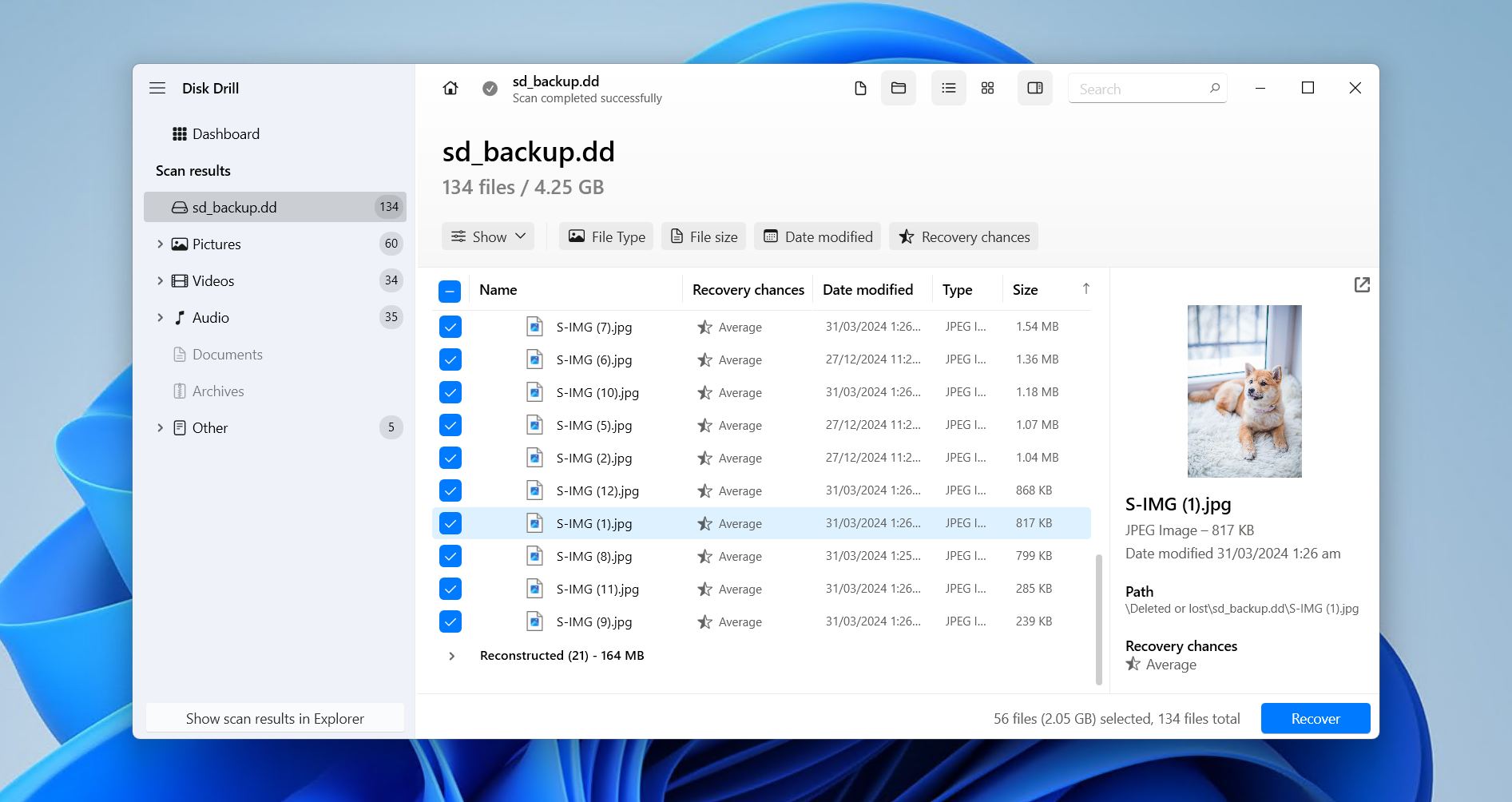
Disk Drill tops our list of the best free data recovery software for PC thanks to its superior ability to locate and recover data from virtually any data loss scenario where DIY recovery is feasible. As a freemium tool with up to 100 MB of free recovery, it far exceeds the performance of any free tool, enabling recovery from HDDs, SSDs, USB drives, SD cards, NAS devices, and RAID arrays (0, 1, 5, 6, 10, 1E, JBOD) with FAT, NTFS, ReFS, HFS, APFS, ext4/3/2, BTRFS, and RAW file systems. Best of all, it’s super intuitive and usable by anyone.
Beyond recovery, it includes additional tools for data protection and disk monitoring – all of which are free and discussed in our Disk Drill review. It also has a dedicated Advanced Camera Recovery module for recovering fragmented videos, which pairs well with its file-by-file preview feature for quickly identifying recoverable data. If you need a recovery tool that delivers quality results, Disk Drill outclasses any free solution at a reasonable price point.
Pros
- Excellent recovery performance in a multitude of data loss scenarios.
- The Advanced Camera Recovery module for reconstructing fragmented videos shot by cameras and drones.
- Intuitive, beginner-friendly user interface.
- Additional features for data protection and loss prevention.
- Automatically assembles software RAID arrays.
- Free recovery is capped at 100 MB.
- Cannot create bootable recovery drives.
User reviews:
“I have tried all the main file recovery software options, free and paid, and can report that Disk Drill is BY FAR the best program in its category.” – Geoff, Trustpilot user.
“It’s pretty awesome. I really appreciate the value for the money and will continue using the free version as long as possible.” – Dan, Capterra user.
“So glad I found Disk Drill. Works amazing. I lost 36 audio file recordings when I mistakenly formatted the my memory card. Sure enough Disk Drill recovered all 36 files in less than an hour.” – Jonathan, G2 user.
Software rating:
| Platform | Rating | Number of reviews |
| Trustpilot | 4.5/5 | 421 |
| Capterra | 3.7/5 | 11 |
| G2 | 4/5 | 62 |
| Final rating: | 4.4/5 | |
2. PhotoRec
Best for: Unlimited free recovery from formatted, corrupted, or RAW drives.
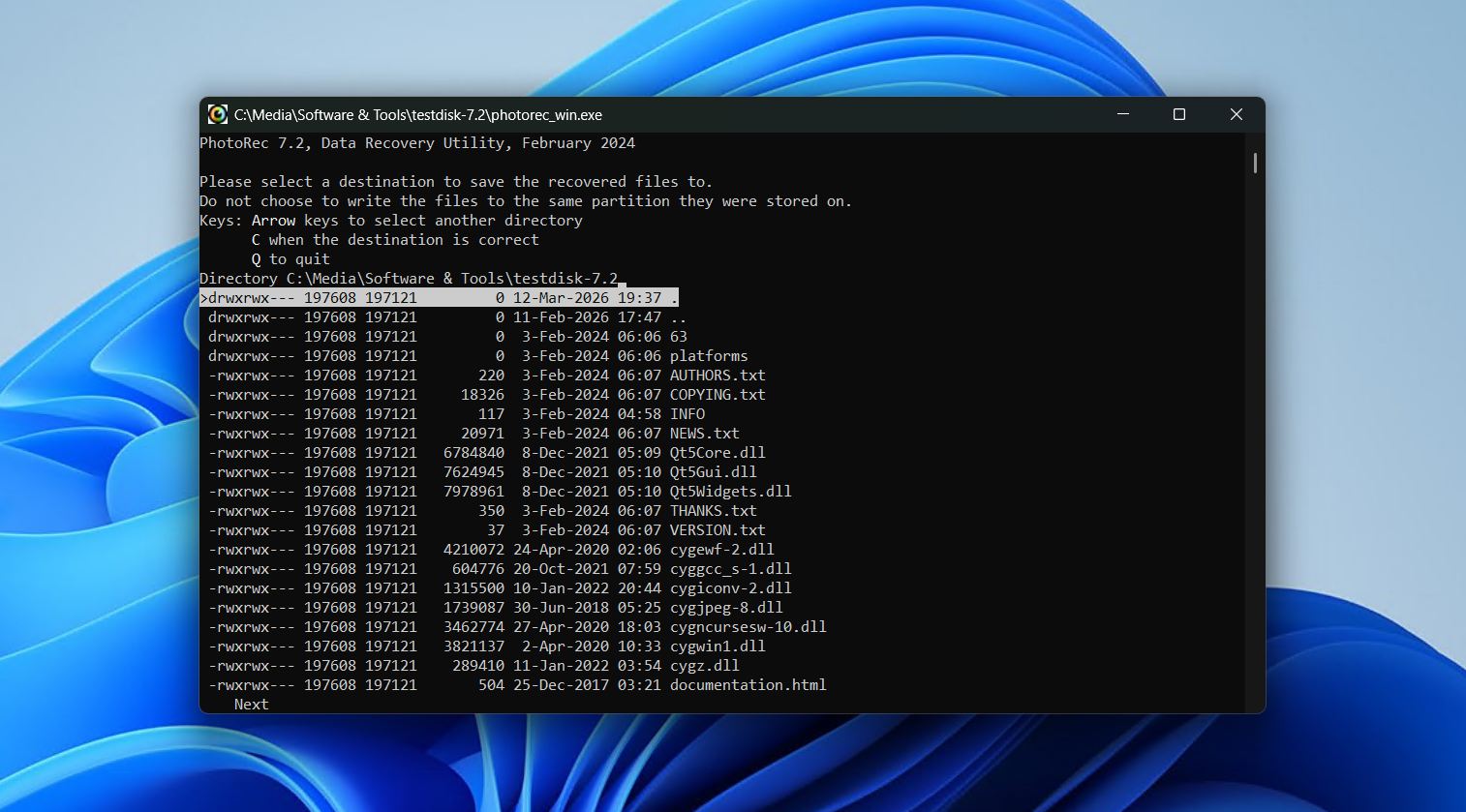
Next up is PhotoRec, a completely free, open-source recovery tool with a particular knack for recovering data by file signature, thanks to its database of over 480 file types. Since it pretty much ignores the file system, it’s commonly recommended for recovering data from formatted, corrupted, or RAW drives where file system metadata has been overwritten or severely damaged to the point where it cannot be used.
The catch with PhotoRec is that it’s far from intuitive. As we mentioned in our PhotoRec review, the text-based interface means no mouse support, no real-time preview, and no way to folder or sort results during recovery. And, because it doesn’t utilize the file system, the original file names and folder structure of your data are always lost. Even so, it’s a very reliable option when file carving is the optimal route for recovery and you need to recover unlimited data without paying anything.
Pros
- Completely free and open-source.
- Fully portable, so no installation is required.
- Exceptionally fast scan speeds compared to many paid alternatives in testing.
- Effective raw recovery from formatted, corrupted, or RAW drives.
- Safe, read-only scanning poses no risk to your data.
- Doesn’t recover original file names or folder structure.
- The original text-based interface is unintuitive, and the GUI wrapper adds little value.
- Only focuses on recovery - no preview, session saving, scan pause/resume, or post-scan filtering.
User reviews:
“Thanks to this web I could download PhotoRec and recover my pics from an SD storage that broke after unplugging it without expulsing it first.” – Jose, Trustpilot user.
“I used it once back when I didn’t know better, and it works. It’s just that it’s a pretty limited tool, it’s only useful when there’s no filesystem metadata and the files are not fragmented, which I can imagine is really rare, and even then there are better free or almost-free alternatives.” – Sopel97, Reddit user.
Software rating:
| Platform | Rating | Number of reviews |
| Trustpilot | 4.0/5 | 3 |
| G2 | 4.3/5 | 12 |
| Final rating: | 4.2/5 | |
3. Recuva
Best for: Unlimited free recovery of recently deleted files on Windows.
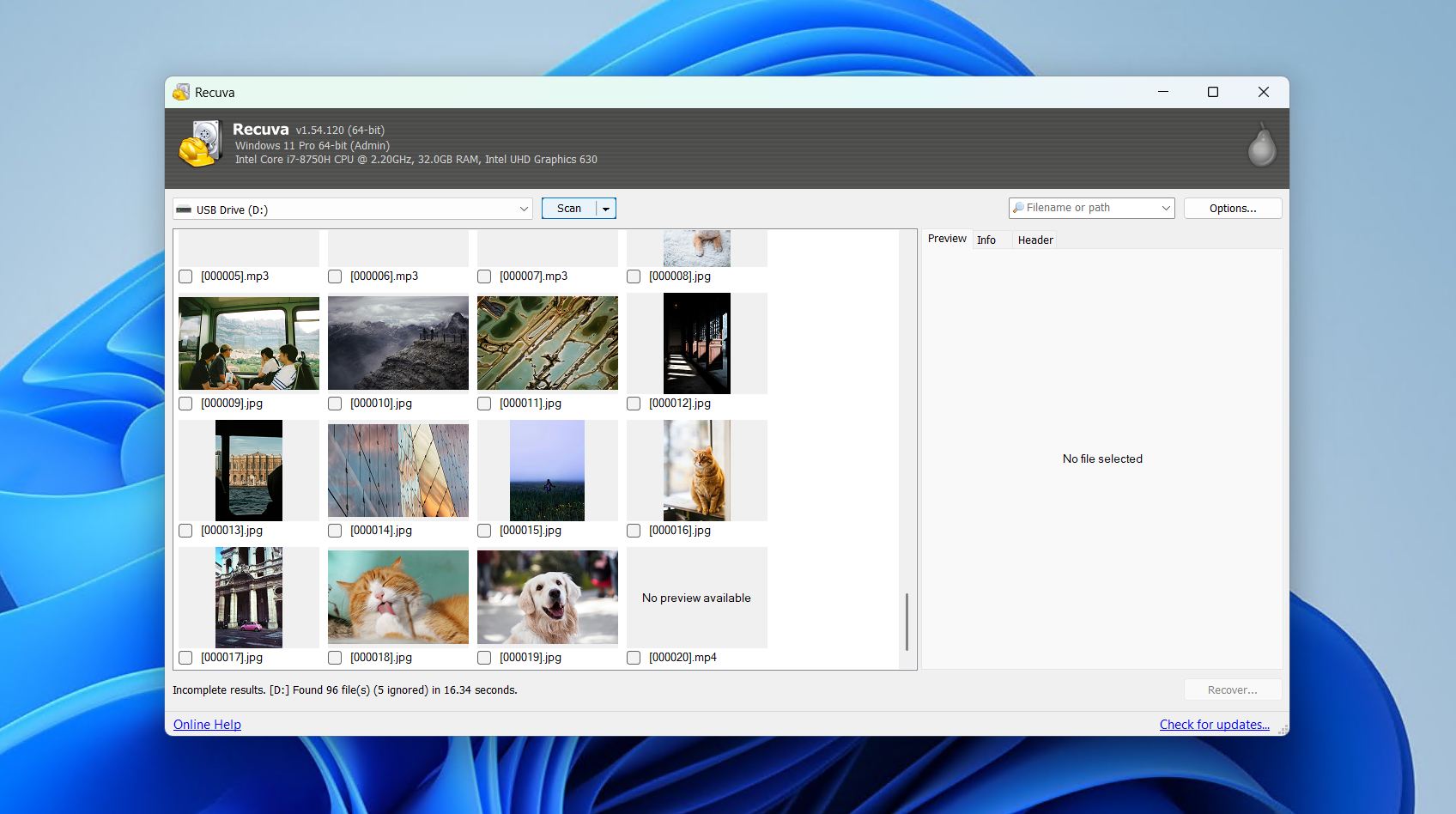
If you want simple, simple, simple, then Recuva is an option. It’s a liquid recovery tool that supports recovery from HDDs, USB drives, SD cards, and other storage devices on Windows. Starting from installation, it guides you through the entire recovery process using a wizard interface, making it one of the more approachable tools that is completely free. Its user interface is dated, but the workflow is clear from the get-go.
Recuva is a very good option in a very specific scenario; specifically, the recovery of recently deleted files from a healthy drive. In testing for our Recuva review, it recovered 85% of the data deleted from our healthy HDD, handling common documents and images well. Once it steps outside that comfort zone, however, performance drops sharply. For instance, it only recovered 63% of data from our quick-formatted USB, and couldn’t scan our corrupted RAW SD card at all. Even so, it serves its niche well, and you get access to its full recovery abilities straight out of the gate – upgrading to the paid version is completely optional and doesn’t impact recovery performance.
Pros
- Fully unlimited recovery with no data cap.
- Wizard-guided workflow intended for beginners.
- Decently fast scan speeds.
- Includes a secure file deletion tool with multiple overwrite passes.
- Upgrading is completely optional, and upgrade prompts are unobtrusive.
- Cannot scan drives without a visible partition or drive letter, ruling out our RAW or corrupted disks entirely.
- Struggles significantly with large or fragmented files.
- The recovery quality indicator is largely unreliable.
User reviews:
“I used their Recuva and it is legit! It didn’t get me any virus, it brought up my videos back again!” – Arturo, Trustpilot user.
“Recuva is one of the best recovery tools I’ve used, and the free version does everything I need. It’s simple, clean interface, nothing ambiguous and using it doesn’t require any special skills.” – Andrew, Trustpilot user.
Software rating:
| Platform | Rating | Number of reviews |
| Trustpilot | 3.9/5 | 27,436 |
| G2 | 4.5/5 | 626 |
| Final rating: | 3.9/5 (limited data) | |
4. Windows File Recovery
Best for: Completely free, terminal-based recovery using a first-party tool.
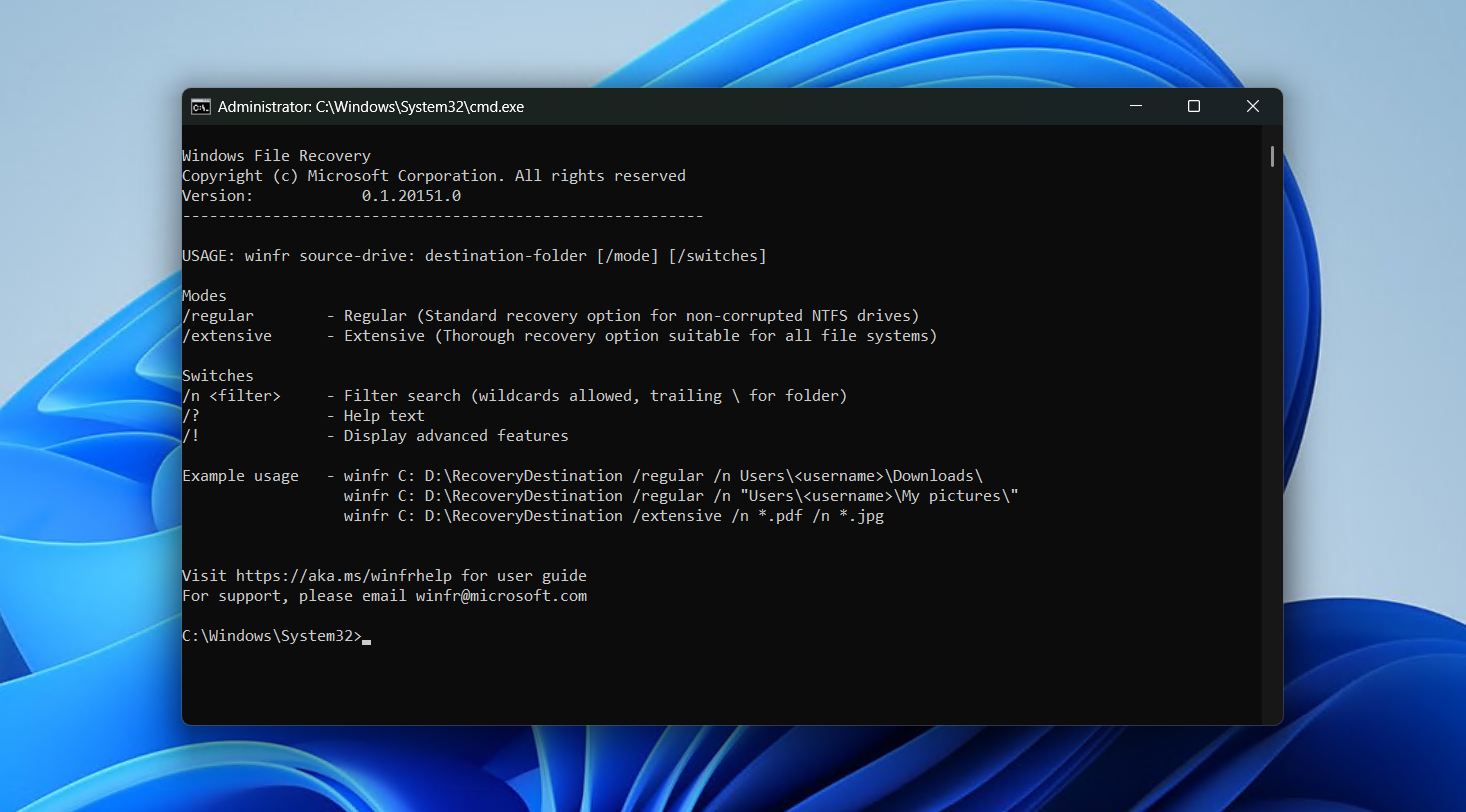
Windows File Recovery is Microsoft’s official recovery solution that was released in 2020. Another text-based tool, everything is done through CMD. It has two scan types: regular, which is for non-corrupted NTFS drives, and extensive, which is more thorough and supports all file systems. It’s available for free from the Microsoft Store, and the inherent trust afforded by being an official Microsoft product makes it an easy choice for many.
The most glaring downside is the fact that everything’s done using commands, making it arguably one of the more difficult tools on this list. Of course, this could be a bonus for those comfortable inside a terminal, but that’s not the case for the majority of users. Likewise, we found that it only produced significant results in basic NTFS undelete scenarios, which obviously won’t be what everyone needs it for. Even so, the ability to control how the scan runs is nice to have, and it has enough documentation that anyone can pick it up with enough time, but it’s not enough to easily consider it the best free file recovery software on Windows.
Pros
- An official Microsoft product.
- Completely free with no recovery limit.
- Explore found data as recovery is happening.
- Works with unlocked BitLocker-encrypted drives.
- Pure command-line interface with no official GUI.
- Quick scan is only supported by healthy NTFS partitions.
- Doesn’t have a very large database of file signatures.
User reviews:
“It looks fairly basic and easy (but maybe not simple) to use. It has the usual caveats about overwritten sectors and TRIM on SSD. The few things I’ve read on it seem like it is command line only (good, because you can boot to a RO live media). It’s worthy for what you pay for it: free.” – HRH, Quora user.
“It’s great to finally have a product that does this instead of relying on third party software but I really wish it was a standalone command line app and not dependant on the latest build of Windows and the Windows Store.” – 32178932123, Reddit user.
Software rating:
There is currently not enough data to provide a community rating for Windows File Recovery.
5. DiskDigger
Best for: Free recovery of photos and videos with Android support.
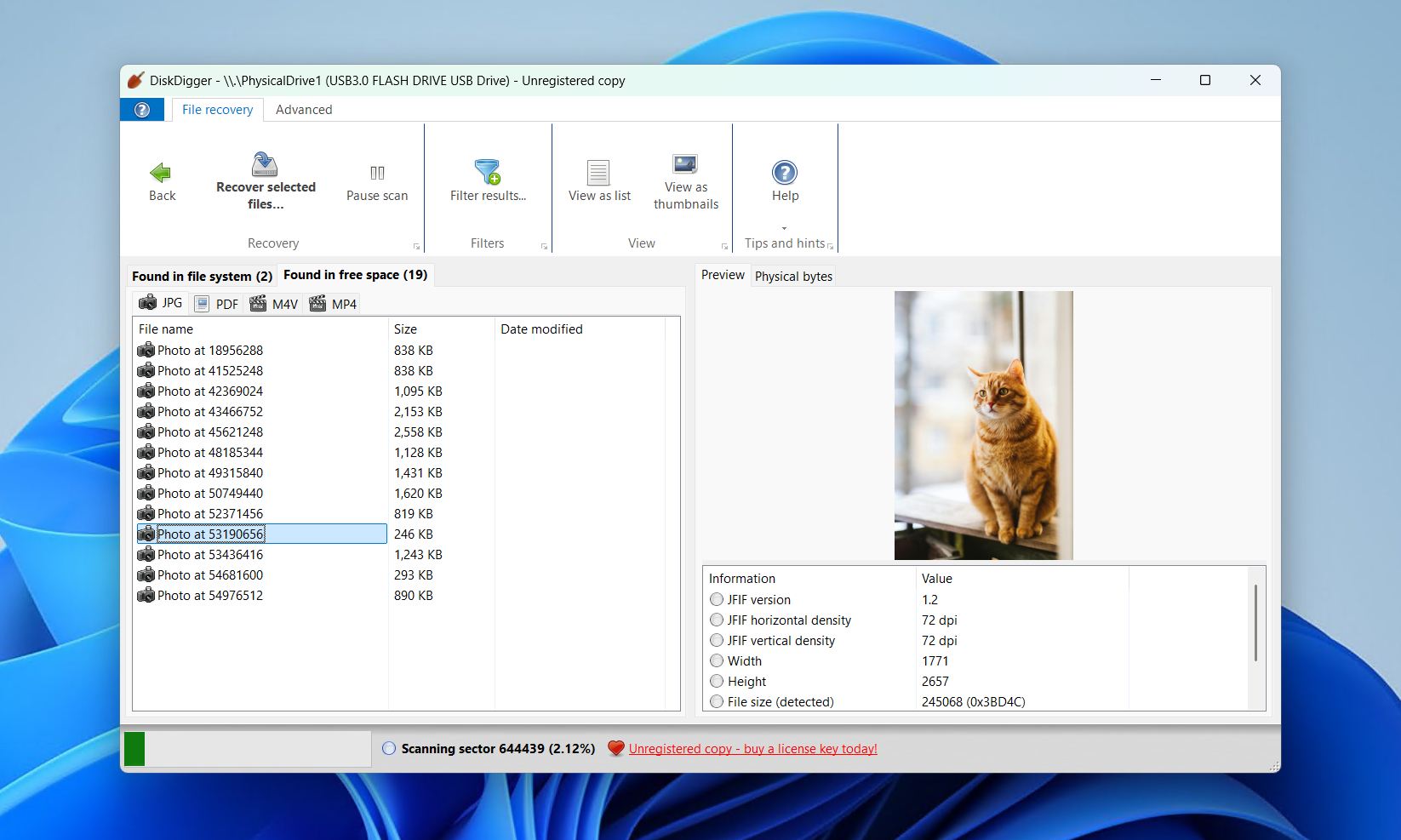
Looking for a lightweight, portable recovery tool and want to support a solo developer? DiskDigger is a recovery option available on Windows, macOS, Linux, and even Android. In addition to supporting file systems from all major OS (such as FAT32, exFAT, NTFS, ReFS, ext4/3/2, and HFS+), it’s also supported by a large database of file signatures when recovery with file system metadata isn’t viable.
When we were gathering data for our DiskDigger review, we found that the program was best at working with common formats like JPG and Office files (such as DOC, DOCX, XLS, and PPTX). Although DiskDigger for Windows only lets you preview files for free, the Android version lets you recover certain files for free. However, it was nearly ineffective for recovering data from corrupted RAW drives, and scan times were fairly poor, with our scan of a 16 GB USB drive taking over 20 minutes. Still, it’s a very usable application built using Avalonia UI, so you get the same experience across all OS.
Pros
- Very affordable lifetime licenses.
- Completely portable with cross-platform functionality.
- Can scan virtual disk images.
- Offers excellent support for RAW photo formats.
- Free recovery only on the Android version.
- Slow scan times compared to competing tools.
- Poor results when scanning formatted, corrupted, or RAW drives.
User reviews:
“I had given up hope of finding the photos of our son’s wedding that somehow disappeared from my Gallery. They weren’t in my Google Cloud storage or Amazon Photos where I thought they might have been automatically backed up. DiskDigger found ALL of the photos and I was able to back them up to Cloud storage.” – Jerry, Google Play user.
“ I did that once, used DiskDigger Pro to recover almost all the pictures, though some were fragmented so they are like half grey and stuff like that.” – FearIsHere, Reddit user.
Software rating:
| Platform | Rating | Number of reviews |
| Trustpilot | 3.8/5 | 2 |
| Google Play Store | 3.8/5 | 504,000 |
| Final rating: | 3.8/5 (limited data) | |
6. R-Photo
Best for: Free photo and video recovery powered by a professional-grade engine.
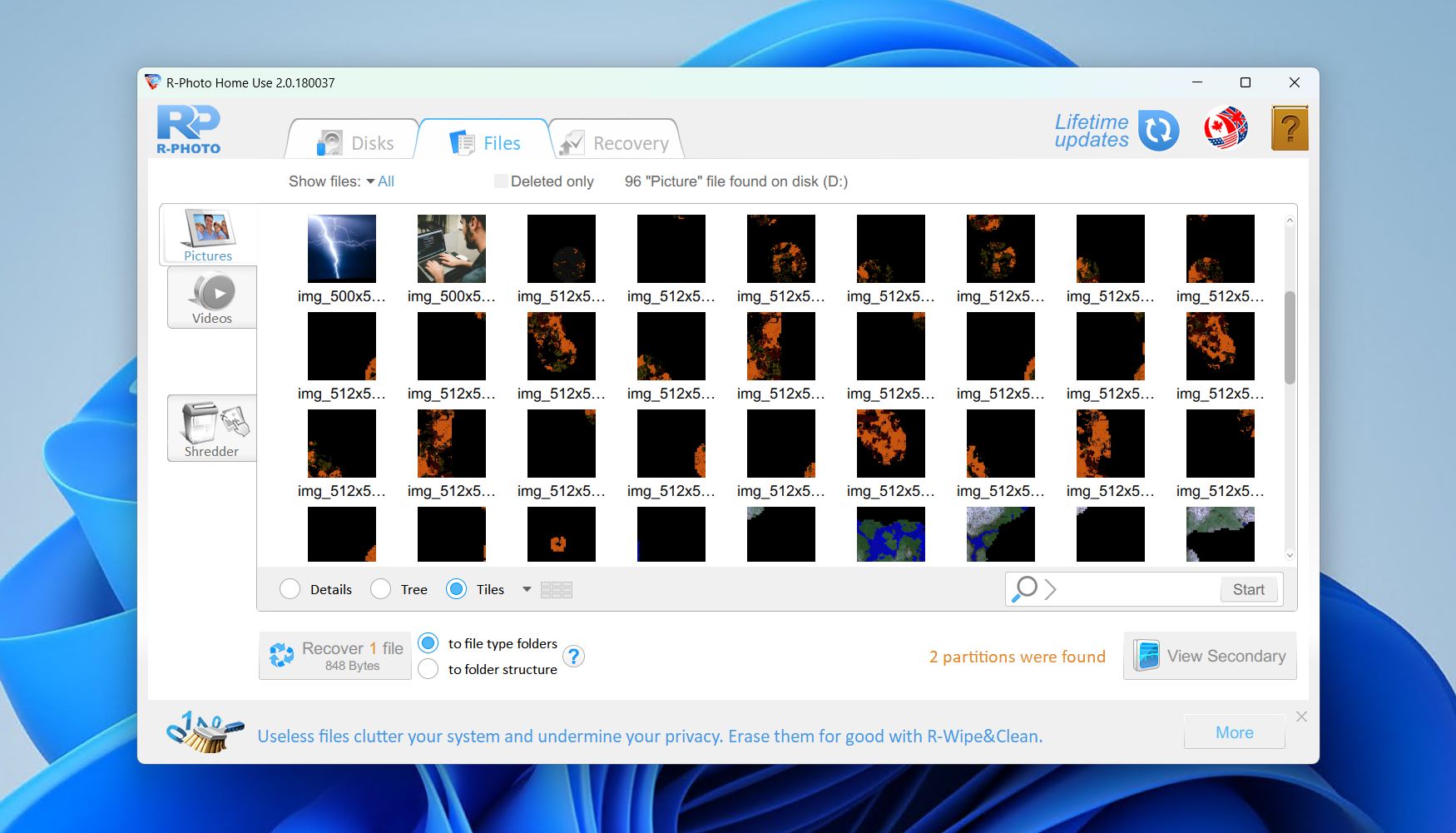
Finishing off our list is R-Photo, a free non-commercial photo and video recovery tool from the same crowd that brought us the professional-grade tool R-Studio. Exclusively for Windows, it works with internal and external HDDS, SSDs, USB drives, SD cards, and undamaged RAID arrays running FAT, exFAT, NTFS, and ReFS file systems. Its biggest flex is that it uses the same underlying recovery engine as R-Studio, equipping it with recovery capabilities that punch well above what similar tools can offer.
The user interface is pretty dated, but not unusable. A more important quality is that it only focuses on photo and video recovery, making it a specialist tool rather than a catch-all solution. Therefore, you’re out of luck if you need to recover any other file types. But otherwise, if you’re a photographer or videographer who needs to recover a shoot on a budget, R-Photo stands as a reliable yet powerful option.
Pros
- Shares the same engine as R-Studio.
- Completely free for personal use with no registration.
- Support a large range of RAW formats.
- Can image failing or unstable disks.
- Only recovers photos and videos.
- No support for non-Windows file systems.
- Free for non-commercial use only.
User reviews:
“It did the job! When I looked up data recovery software, there is so much garbage out there. This actually worked and I was able to recover really important video files within 5 minutes of downloading the software.” – Verified G2 user.
“It’s extremely user friendly to use to recover deleted/lost files once you learn how to use it.” – Verified G2 user.
Software rating:
| Platform | Rating | Number of reviews |
| Trustpilot | 3.5/5 | 4 |
| G2 | 4.2/5 | 15 |
| Final rating: | 3.9/5 (limited data) | |
Comparison Table of Free Data Recovery Tools
Need to compare everything at a glance? That’s understandable. Remembering what each tool on this list can do is a challenge. Refer to the table below for a quick overview of the differences between each solution.
| Disk Drill | PhotoRec | Recuva | Windows File Recovery | DiskDigger | R-Photo | |
| License type | Freemium | Free | Free | Free | Freemium | Free (non-commercial) |
| Recovery limit | 100 MB | None | None | None | Preview only | None |
| File system support | FAT16/FAT32/exFAT, NTFS, NTFS5, ReFS, HFS, HFS+, APFS, Ext2/3/4, Btrfs | None | NTFS, FAT16, FAT32, exFAT | NTFS | FAT32, exFAT, NTFS, ReFS, ext4/3/2, HFS+ | FAT, exFAT, NTFS, ReFS |
| Ease of use | ⭐⭐⭐⭐⭐ | ⭐⭐ | ⭐⭐⭐⭐ | ⭐ | ⭐⭐⭐ | ⭐⭐ |
| File previews | ✅ | ❌ | ✅ | ❌ | ✅ | ✅ |
| Additional features | Data protection, Advanced Camera Recovery, scan session management, S.M.A.R.T. monitoring, storage clean-up, hex view, network recovery, bootable recovery | None | Secure erase, virtual hard disk creation and scanning | None | Virtual hard disk scanning, | Disk imaging |
| Software rating | 4.4/5 | 4.2/5 | 3.9/5 | No data | 3.8/5 | 3.9/5 |
Summary
Every tool on this list has its place, but three stand out as contenders for the best free file recovery software. Disk Drill is at the forefront for its robust recovery performance, simplicity, and broad feature set. Users comfortable with a command-line interface may prefer PhotoRec for its unlimited recovery and strong signature recovery capabilities. Photographers and videographers on a budget may prefer R-Photo, since it’s also free and shares the same strong engine used by R-Studio.
No matter what software you go with, remember that data recovery is never guaranteed. Likewise, freemium or paid tools often outperform free solutions, which is critical if recovery quality is a priority. If you do manage to get your files back, be sure to back them up as soon as possible, and consider implementing a reliable backup strategy to avoid landing in this spot again.