
In today’s article, our team got our hands on CardRecovery – a lightweight recovery tool built specifically for memory cards. It promises to restore deleted or lost photos and videos from SD, CF, and other camera media. We wanted to see how well it handles real-world data loss, how it compares to modern alternatives, and if it’s still worth the license. Our CardRecovery review lays out what it does, how well it works, and who it actually makes sense for.
Quick Verdict
🏆 Best for: Simple photo recoveries from standard memory cards on Windows – for anyone who doesn’t mind an outdated interface and is okay with paying $39.95.
CardRecovery still works for basic photo recovery from SD cards, but it’s stuck in the past. The interface hasn’t changed in over a decade, and it lacks features that are standard in modern tools. It’s simple to use and might work for straightforward recovery jobs, but we can’t recommend it for anything beyond that. There are more powerful, easier-to-use, and better-supported alternatives on the market right now.
Pros
- Step-by-step recovery wizard
- Works decently with standard photo formats
- Low learning curve
- No recovery customization options
- Modest recovery performance overall
- Outdated user interface
- No real-time file previews
- Limited file system support
Overview
Let’s start with where CardRecovery actually comes from. It was developed by WinRecovery Software, a company that’s been building recovery tools since 1998. They’re best known for a small lineup of utilities: WinUndelete for recovering deleted files from hard drives, ZipRecover for repairing damaged ZIP archives, and CardRecovery, as the name suggests, for rescuing lost photos and videos from memory cards.
Supported Platforms
CardRecovery is a Windows-only app. It runs on pretty much every version you’re likely to come across – from Windows XP all the way up to Windows 11. Doesn’t matter if it’s 32-bit or 64-bit.
But if you’re on macOS, you’re out of luck with this version.
The developer does offer a separate product called CardRescue for Mac users, but it’s sold and maintained as its own thing. So for this review, we’re focusing entirely on the Windows version of CardRecovery.
Supported Devices
CardRecovery is built specifically for memory cards, and the list of supported devices shows it. Here’s what the developer officially lists:
- Secure Digital cards – SD, SDHC, SDXC, miniSD, microSD (TransFlash)
- CompactFlash cards – Type I, Type II, MicroDrive
- Memory Stick formats – Memory Stick Pro, Duo, Pro-HG, XC, Micro (M2)
- Other camera storage – MultiMedia Card (MMC), xD Picture Card, SmartMedia
- High-end formats – XQD cards, including Sony XQD
- Phone storage – microSD or microSDHC cards used in Android smartphones
- USB drives – thumb drives and flash storage that were used to store photos or videos
If your media came from a digital camera, a drone, or an older phone that saved to removable storage, chances are CardRecovery should recognize it.
File System & File Type Support
CardRecovery is laser-focused on recovering photos and videos from removable media, and that’s reflected in the file systems it supports. It handles the usual suspects you’d find on camera cards – FAT, FAT32, and exFAT.
These are the formats used by most digital cameras, action cams, drones, and even smartphones that save to microSD. It doesn’t support NTFS, APFS, HFS+, or any other file system.
As for file types, it sticks with image, video, and audio formats:
- That includes standard photo formats like JPG and TIFF.
- Along with a broad range of RAW formats used by major camera brands: CR2, CR3, NEF, ARW, PEF, ORF, and others.
- On the video side, it looks for MP4, MOV, AVI, MPEG, and 3GP, plus MTS if you’re dealing with AVCHD footage. For audio, it handles MP3, WAV, and AMR.
Extra Features & User Interface
There’s not much to talk about in terms of extra features. You won’t find disk imaging or session-saving tools like you might in more full-featured recovery suites. It’s not trying to be a toolbox. It does one thing and skips everything else.
As for the UI, it’s functional, sure, but on Windows 11, it looks like a blast from the past. The layout is clear enough: a four-step process with sidebar navigation and checkbox options for what type of media you want to recover. But the design feels stuck in an earlier era.
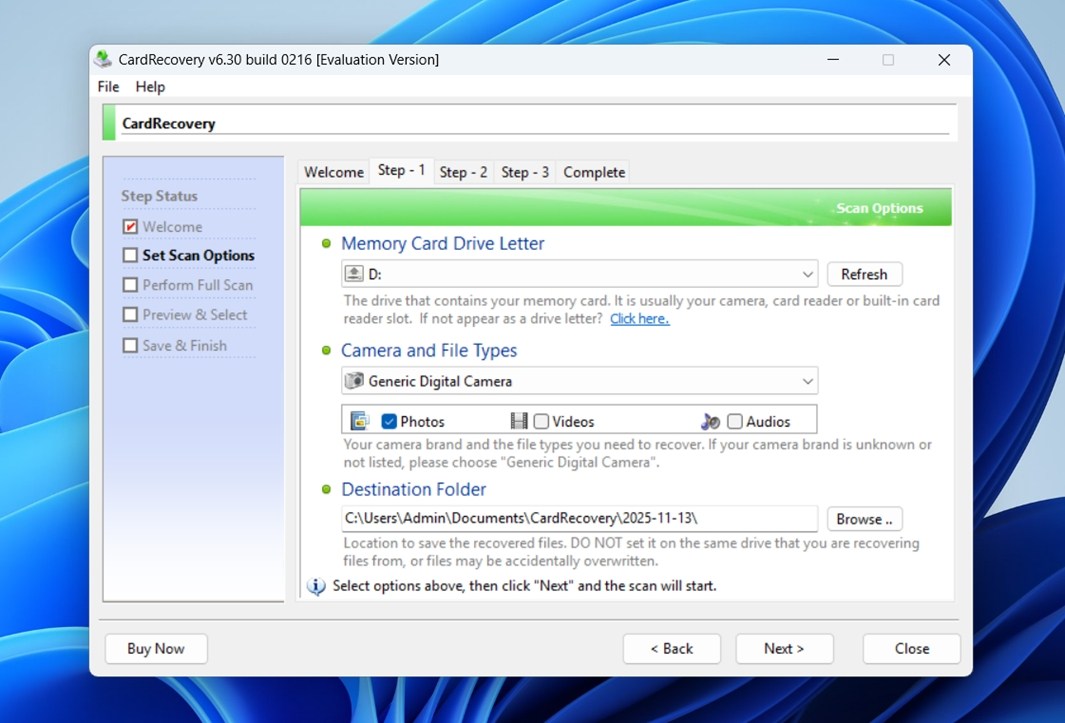
Fonts are compressed, buttons look lifted from XP, and the color gradients give away its age. You don’t need any technical skill to use it, and that’s a plus, but if design and user experience matter to you, this UI will probably feel dated the moment it opens. Just take a look at the screenshot and you’ll see what we mean.
The official CardRecovery site actually has a collection of simple tutorials. They walk you through each step of the process. The guides are pretty straightforward and include screenshots. It’s not a huge library, but enough to get you through the basics without guessing.
How We Tested CardRecovery
Since CardRecovery is a much simpler tool than many of the heavy-duty recovery apps we’ve tested over the years, we kept our testing focused and realistic. We didn’t throw huge drives or complex partition problems at it (that’s not what this software is for).
Instead, we designed two everyday scenarios that reflect how most people would actually end up using CardRecovery: accidental deletion and formatting of a memory card.
We used the same testing environment as in our previous reviews to keep things consistent. The setup included:
- A 16 GB Samsung EVO Plus microSD card, FAT32 formatted, filled with around 1500 mixed photo and video files. These included JPEGs, CR2/CR3 RAW files from Canon, NEFs from Nikon, plus some MP4s and MOVs.
- A 32 GB SanDisk Extreme SD card, also FAT32, loaded with the same media set and then quick-formatted using Windows Disk Management.
We skipped office documents, ZIP files, and the like this time. The test was strictly about media – photos and videos you’d typically find on a camera or drone card.
Our main goal was to see how much CardRecovery could recover in these two situations:
- Recently deleted files, without any additional use of the card afterward.
- A freshly quick-formatted card with no new data written to it.
Also, as with all the other tools we’ve tested, we didn’t stop at whether files came back or not. We checked whether previews actually worked, how clean the recovered files were, and whether the overall experience would make sense for someone trying to recover photos in a real-world situation. Even for a basic tool like this, those details still make or break the recovery process.
Here’s what we evaluated during testing:
| Metric | What We Measured |
| Recovery success rate | % of media files recovered and whether they opened/viewed correctly |
| Scan speed | Time taken to scan each card in full |
| Ease of use | How smooth the workflow felt, how clear the options were |
| Value for money | What you actually get for the license price compared to free/paid alternatives |
Workflow and Test Results
Now let’s get to how the workflow actually feels. The installer is less than 1 MB and downloads in seconds. There are no installation quirks – everything about it feels like the standard, no-fuss setup you’d expect from older desktop software.
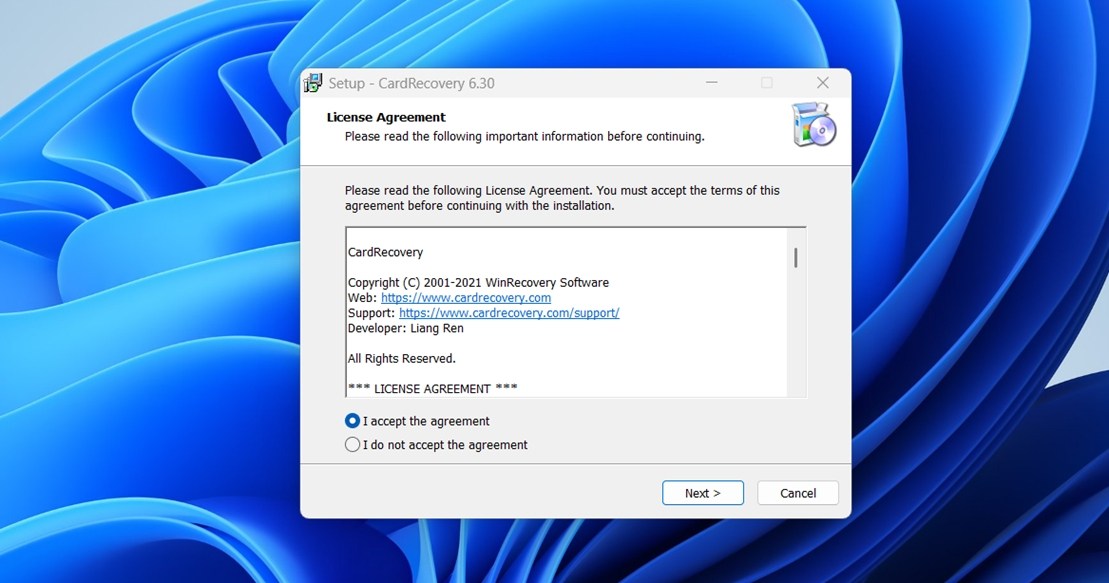
We also looked into the privacy policy while we were there, since it’s always worth checking. The policy hasn’t been updated since 2018, but it’s clear enough. They collect minimal data when you visit the site, things like your IP address, browser type, and pages visited. Nothing that personally identifies you unless you submit a contact form or make a purchase. For orders, payment is handled entirely through third-party providers like MyCommerce and PayPal, and no credit card info is stored on their servers.
We didn’t spot anything in the privacy terms that raised red flags, but as always, if you’re privacy-conscious, it’s worth reading the full policy yourself.
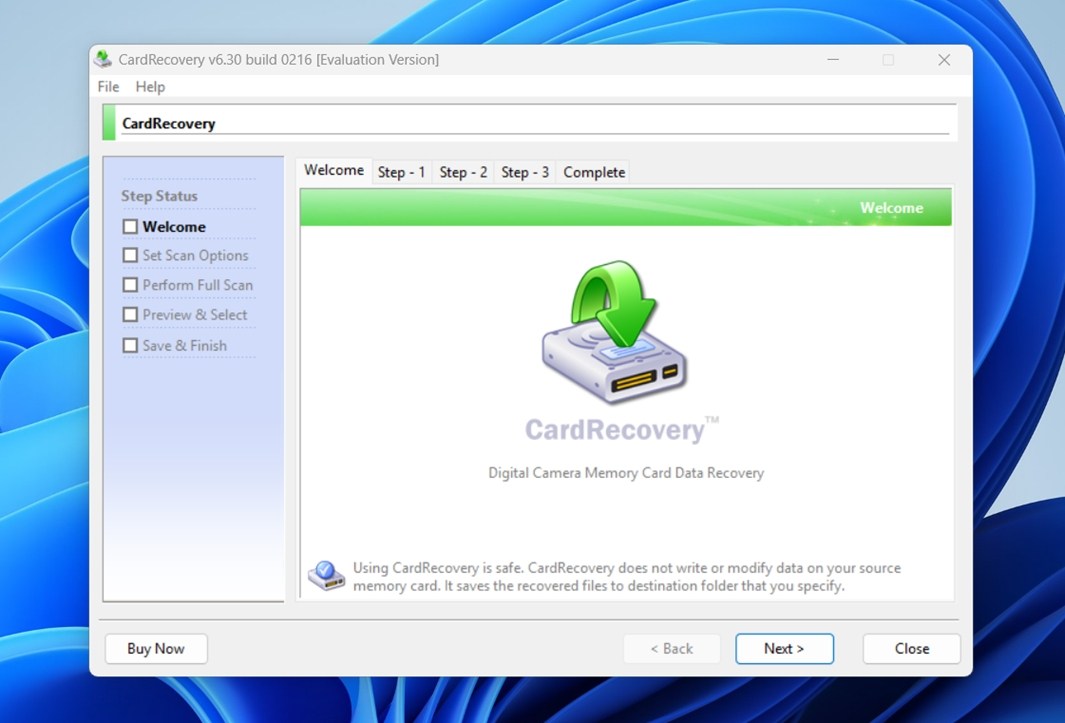
After we installed and launched the app, we landed on a clean but unmistakably dated welcome screen. The layout is organized around five steps shown in a sidebar: Welcome, Set Scan Options, Perform Full Scan, Preview & Select, and Save & Finish. Each step is locked until you complete the previous one.
At Step 1, you need to select the memory card you want to scan. CardRecovery lists available drive letters in a dropdown menu. If your card is inserted properly and the system recognizes it, you’ll see it listed here. If not, there’s a helpful “Refresh” button and even a link with troubleshooting tips in case the card isn’t showing up.
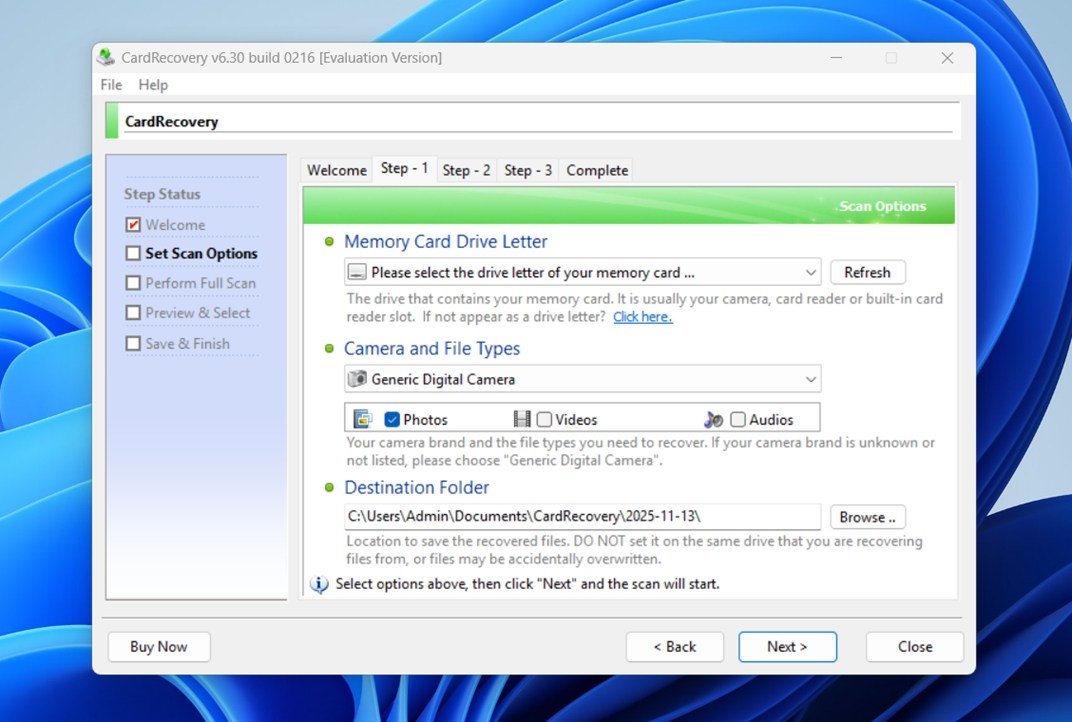
Next, you choose your camera and file types. For most people, the default “Generic Digital Camera” setting works fine. You can tell the software to look for photos, videos, or audio files, or any combination of the three. In our case, we selected everything.
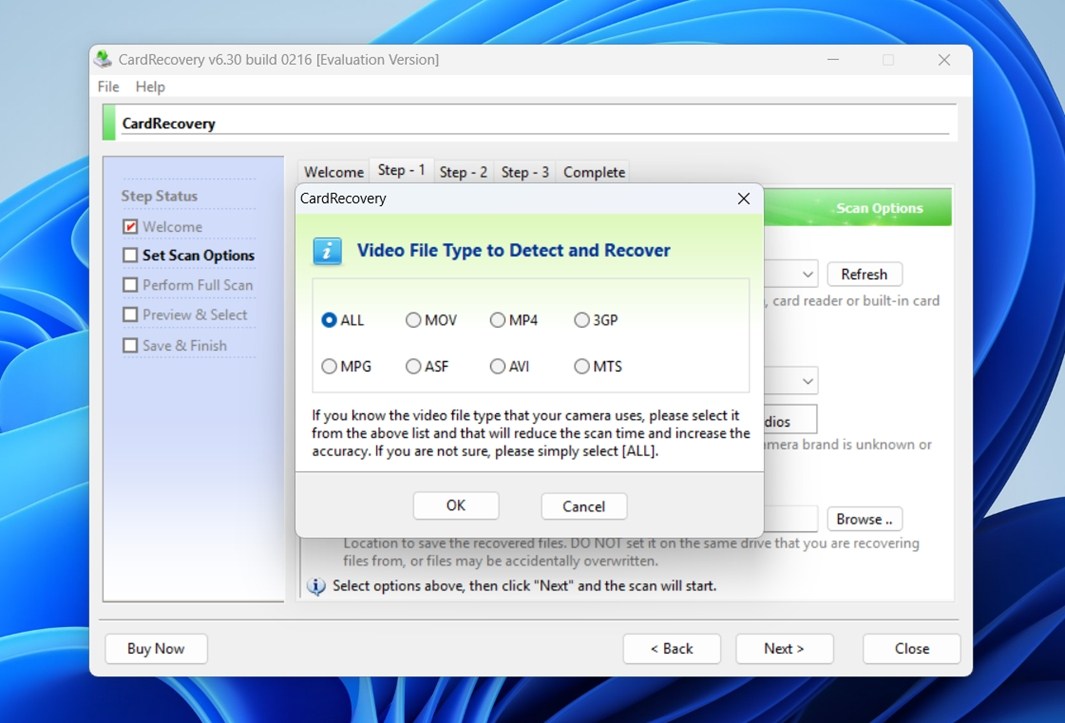
Then you set a destination folder where the recovered files will be saved. One important note: CardRecovery clearly warns you not to save the files back onto the same card you’re scanning. That’s a standard practice – it prevents you from accidentally overwriting data you’re trying to recover. Once everything is selected, you click Next, and CardRecovery moves into Step 2.
This is where the software starts going through your memory card sector by sector. You’ll see a live readout of the scan progress across the top: drive letter, selected file types (JPG, TIF, MP4, etc.), total card size, and the number of sectors scanned so far.
There’s also an estimated time remaining, which is quite accurate. In our test, the scan finished in just under 10 minutes on a 16 GB SD card, which matched what the app predicted right at the beginning. That’s a plus. Not all recovery tools get this right.
As the scan runs, a list of found files starts showing up in real time. You’ll see basic info like file name, size, and a “Property” column that displays metadata: shooting time, camera model, and more, if that data survived deletion or was there in the first place.
At any point, you can pause or stop the scan.
At Step 3, you finally see previews for the files the app found.
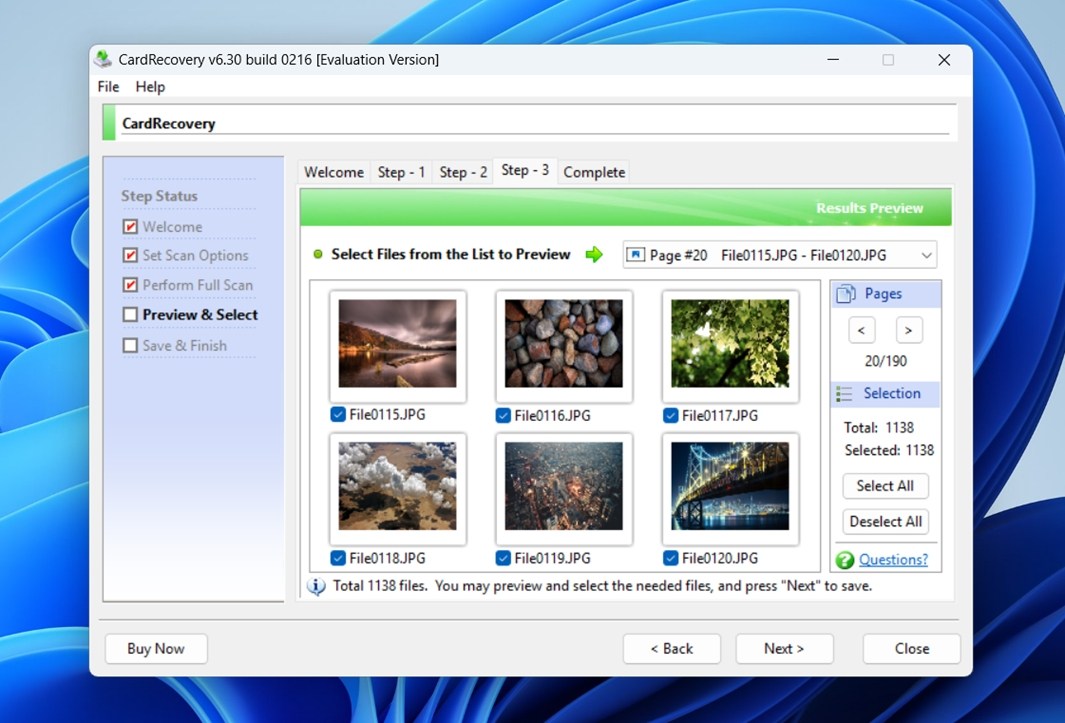
This is where things get a lot more visual and much easier to work through. You’ll see thumbnails for images, playable previews for some video files. You only get access to these previews after the scan finishes, which is a bit of a letdown compared to modern tools that allow live previewing during the scan. Still, being able to visually confirm a file before recovering it is a huge plus.
Once you’ve spotted the files you want, just select them from the list and click Next. CardRecovery will then save them to the destination folder you chose earlier in the setup.
Test Results
CardRecovery performed noticeably better in our first test scenario (recovering recently deleted files). Out of 1,500 media files we had originally loaded onto the 16 GB SD card, the app was able to recover 1,412 files. Most of the JPEGs came back intact, and most of the RAW files were usable too. That’s a strong result for a simple tool like this.
In the second scenario, where we quick-formatted the card and then scanned it, the numbers dipped. CardRecovery found 1,138 files, which initially looked solid, but some of them were clearly corrupted. A few RAW files wouldn’t open at all, and several videos either had broken headers or refused to play. So the real recovery count in that case was lower than the number suggests.
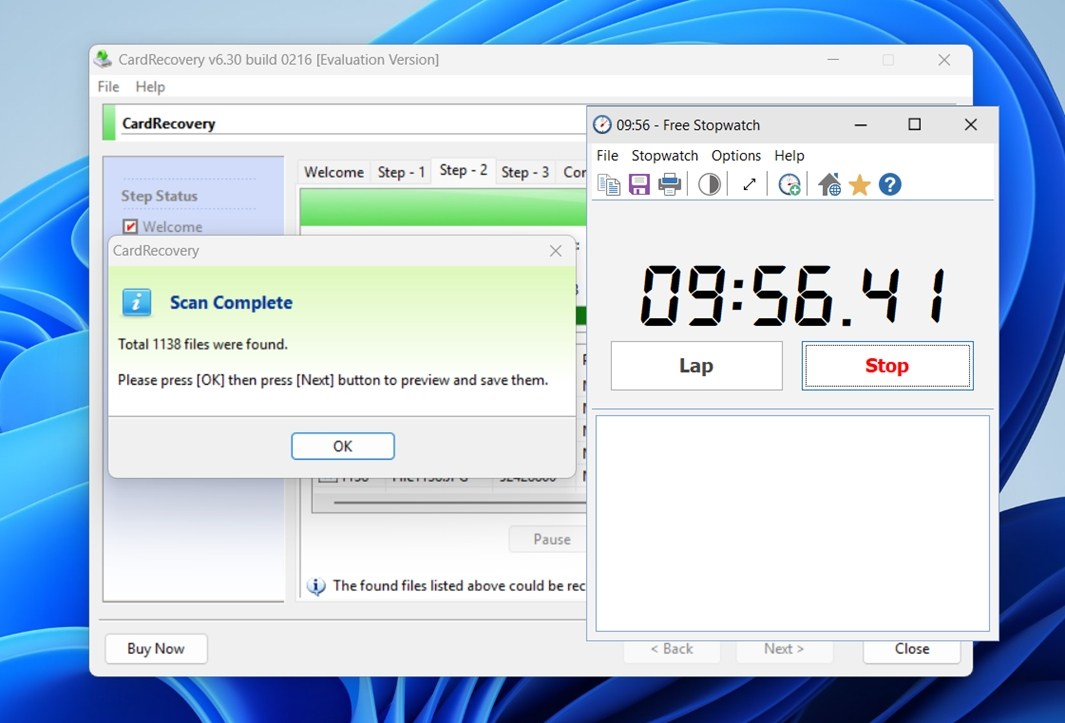
The upside – it’s quick. As we mentioned earlier, scanning the full 16 GB card took under 10 minutes, which puts it ahead of quite a few more feature-heavy tools that can drag scans out well past that. For most SD or microSD cards, that speed will definitely save time when you’re in a pinch.
In terms of file types, simple JPEGs were by far the most resilient. They almost always came back clean and viewable. But we ran into more issues with heavier RAW formats, especially from Canon (.CR2, .CR3) and Nikon (.NEF). Some weren’t recovered at all, others showed up in the list but wouldn’t open, or threw errors in editing apps. That’s not unusual for deep sector scans after a format, but it’s something to keep in mind if your entire shoot was done in RAW.
So overall: solid performance with deleted files, weaker but still usable results on formatted cards, and fast scans across the board. Not perfect, but for straightforward photo recovery, it puts in real work.
Pricing & Comparison with Competitors
As to whether this performance justifies the price, let’s break it down.
The full version of CardRecovery costs $39.95 (USD) for a single‑user, perpetual license. Without the license, the app only allows you to scan and preview files. The final save step is behind a paywall. That’s a downside – many rivals offer a free tier that lets you actually recover a small amount of data before paying. On the plus side, CardRecovery is a one‑time payment, not a subscription.
To put things in perspective, let’s directly compare CardRecovery to some other popular tools that can be helpful in the same case, recovering media from memory cards. We’ll look at two well‑known Windows options: Recuva and Disk Drill.
| Feature | CardRecovery | Recuva | Disk Drill |
| Price / License Model | ~$39.95 one‑time for full version | Free version available / Pro upgrade $24.95 annually | Free tier with limited recovery + Pro $89 one‑time |
| Free Tier Recovery | Scan & preview only (no actual recovery) | Allows full recovery in free tier for simple cases | Free tier allows preview + limited recovery (up to 100 MB on Windows) |
| Platforms / OS Support | Windows only | Windows only (32/64 bit) | Windows and macOS versions available |
| Target Media & File Types | Memory cards (SD/CF/etc.), photos & videos only | Broad: drives, USB, memory cards; supports many file types but less specialized for media cards | Very broad: drives, cards, mobile devices; supports ~400 file types |
| File Preview & UI | Outdated wizard–style UI; previews available after full scan | Preview support available; UI simple but somewhat outdated | Strong UI, integrated preview, modern layout, advanced filters |
| Extra Features | No extra features | Secure file deletion | Many advanced extras: disk health monitoring, Recovery Vault, imaging, backup tools, Advanced Camera Recovery module |
Once you lay out the side-by-side differences, CardRecovery starts to lose its appeal.
In terms of recovery results and UI, CardRecovery sits in the same ballpark as Recuva. But the key difference? Recuva offers unlimited file recovery for free. Yes, the UI’s outdated, and it lacks some polish, but at least you’re not locked out of the most important feature (restoring your files). CardRecovery, on the other hand, makes you pay $39.95 just to save anything.
Now, stack that against something like Disk Drill and it’s not even close. Disk Drill offers a full-featured free tier that includes disk imaging, real-time file previews, health monitoring, and even a dedicated “Advanced Camera Recovery” module built specifically for media devices like GoPro, Canon, Nikon, and others. It handled heavy RAW formats better in our tests and came with a much more modern UI. Yes, the full license is more expensive, but you’re getting way more in return, even if you don’t upgrade.
For anyone serious about recovering photos or videos from memory cards, there are simply better options that offer more value.
Customer Reviews
Now let’s move on to user feedback. Our CardRecovery software review wouldn’t be complete if we didn’t include what actual users are saying.
CardRecovery isn’t the most talked-about recovery tool out there, and it’s clear from how few reviews exist across major platforms. At the time of writing, it has just two reviews on Trustpilot, averaging 3.8 stars, and 22 user reviews on CNET – also averaging 3.8. That’s not a terrible score, but it doesn’t exactly scream trust either. And while the official website features glowing testimonials, we don’t really factor those in, they’re usually cherry-picked by developers and don’t represent the full picture.
The few independent user reviews that do exist paint a mixed story:
- One happy customer wrote:
“I was able to recover 1100 photos from my brother’s Disney trip. Worth the $40. Just wish I didn’t have to pay until I knew it recovered the files.” - Another, not so thrilled, said:
“It shows that I can recover 721 files, so I bought the registration, but none of the files it recovered work!”
Most complaints revolve around two things: previews and the fact that you can’t actually recover anything until you pay. Users see hundreds of “recoverable” files in the scan, but once they buy the license, the results don’t always match the preview. Some images come back corrupted, some won’t open at all.
A lot of users say the same thing: they’d like to actually test the app before purchasing. And that’s the sticking point. In a market where other Windows tools offer some form of free trial with real recovery, this paywall feels outdated and creates distrust when the final results don’t live up to expectations.
Final Verdict
After we spent some time with this app, we think we’ve got enough to properly evaluate and score it. Here’s how things look from our point of view:
| Metric | Score | Notes |
| Recovery success rate | 6.5 / 10 | Decent for common photo formats like JPG. Struggles with RAW files (e.g., CR2, NEF) and video formats. |
| Scan speed | 7 / 10 | Fairly fast. On a 16 GB SD card, the scan took under 10 minutes. |
| Ease of use | 5 / 10 | Straightforward UI, but hopelessly dated. |
| Value for money | 5.5 / 10 | $39.95 flat fee with lifetime license. But no free recovery, limited format support, and mixed results reduce the overall value. |
🌟 Overall Score: 6 / 10
CardRecovery isn’t a terrible tool and it does work for many cases, but it’s desperately outdated. It does a fair job recovering standard photos from SD cards, and its wizard-type UI makes it approachable. But it hasn’t evolved much in the last decade, and it lacks many features users now expect – like real‑time file previews, smooth navigation, multiple scan options, or broader compatibility.
📌 CardRecovery makes sense if:
- You only need to recover JPGs or basic media files from memory cards.
- You’re okay with paying upfront without seeing recoverable files.
- You’re using an older Windows machine and want a lightweight tool.
For anyone serious about photo or video recovery, especially if RAW or high-resolution video is involved, there are simply better tools out there.
If CardRecovery ever gets a modern refresh with better format support, previews, and a more flexible pricing model, it could claw its way back into relevance. But right now, it’s not something we can universally recommend. That said, we wouldn’t actively dissuade anyone from trying it either.