 Today at 7 Data Recovery Experts, we’re sharing our verdict on Prosoft Data Rescue 6 – a pretty popular name in the world of data recovery software. Our team put it under the microscope to see how it actually performs in 2026 – features, recovery power, pricing, the whole deal. If you’re wondering whether it’s worth using, here’s what we found.
Quick Verdict
Best for: Users who need reliable document recovery on both Windows and Mac, and don’t mind paying a premium for a simple (or even dated) interface.
Prosoft Data Rescue 6 is a decent app. It can recover deleted files reliably, offers disk cloning, and supports custom file signatures via FileIQ. But overall, it feels like a tool that hasn’t evolved much in recent years. The UI is dated, the feature set is limited by today’s standards, and the pricing structure leans more toward professionals than everyday users.
Pros
- Reliable file recovery for deleted documents
- Cross-platform license
- Disk cloning tool
- Custom file signature support via FileIQ
- Bootable recovery drive creation (Mac version)
- Dated interface with limited visual feedback
- No recovery from encrypted APFS or HFS+ drives
- No lifetime license option
- No advanced features like partition repair, SMART diagnostics, or file repair
Product Overview
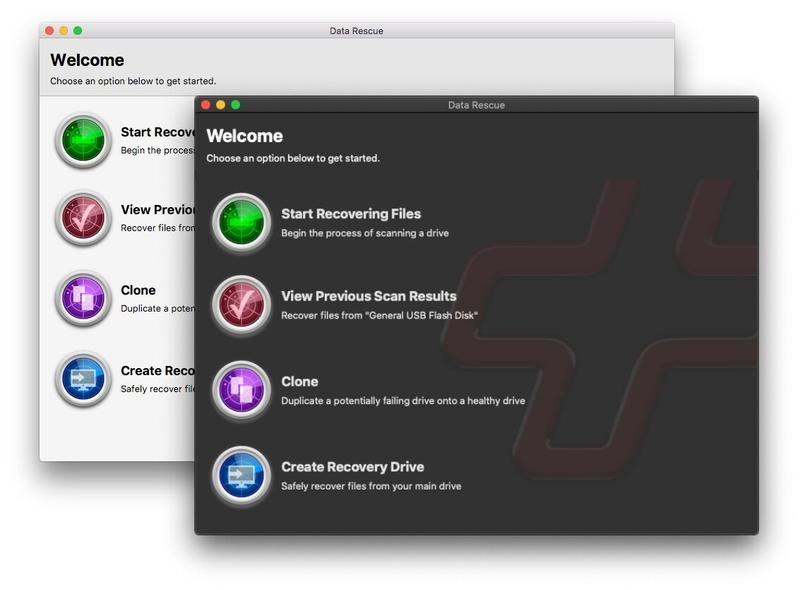
Prosoft Data Rescue has been around for a while. It’s developed by Prosoft Engineering, a California-based company that’s been making Mac-focused utility tools since the early 2000s. Data Rescue 6 (the latest version) is available for both Windows and macOS.
A single Data Rescue 6 license covers both macOS and Windows, which you don’t see all that often with data recovery software. Most tools lock you into one platform. Here, you can scan a Mac today and a Windows PC tomorrow without buying anything extra. If you move between systems, that flexibility actually matters more than it sounds.
The interface looks and feels the same whether you’re on Windows or macOS, so you won’t need to relearn anything if you switch between them.
In this Prosoft Data Rescue review, we’re focusing mainly on the Windows version, but we also tested the Mac build to check for any major differences – there weren’t many.
File System and File Type Support
Prosoft Data Rescue 6 recognizes over 100 common file types: photos, documents, videos, audio, archives. The basics are covered.
If you’re curious, you can check out the full supported file type list here on the official page.
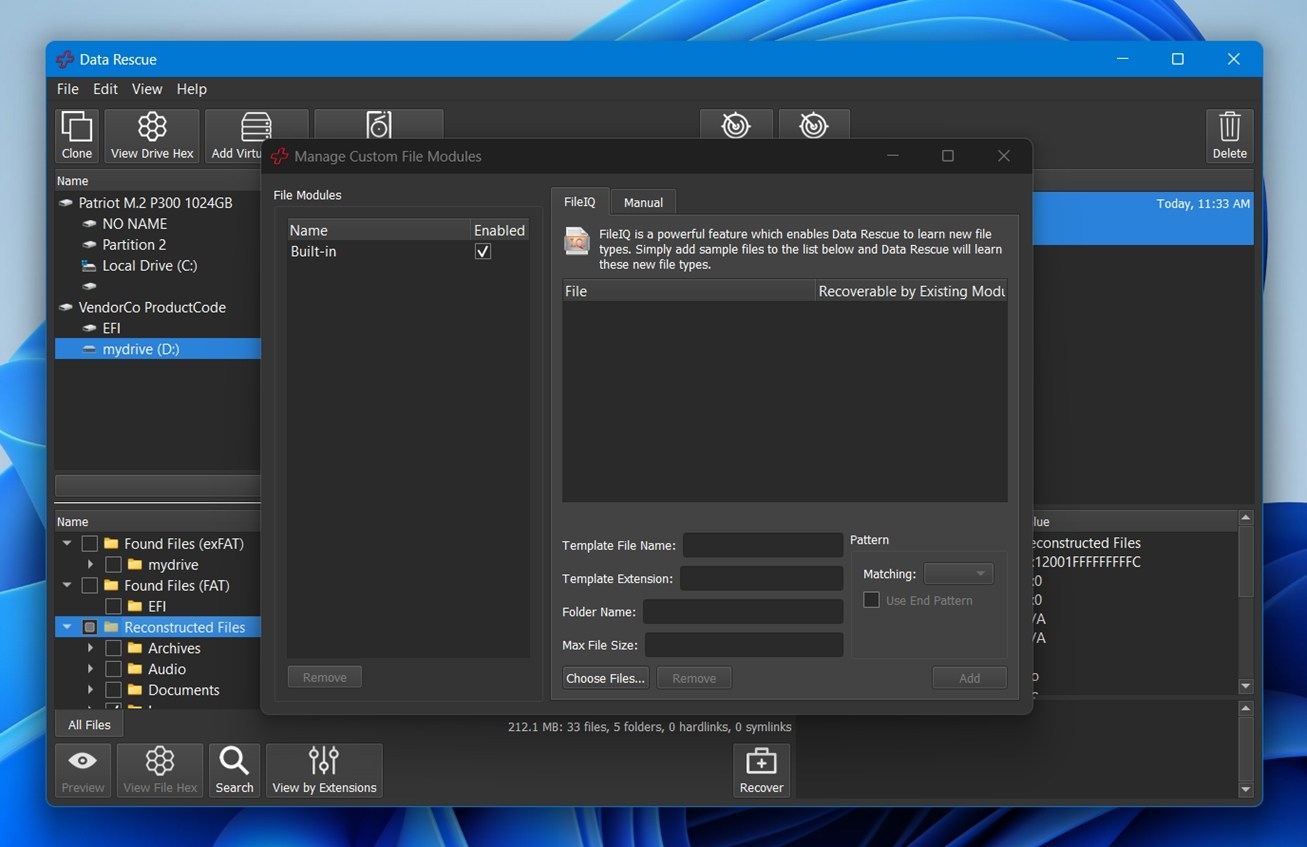
But what sets it apart a bit is a feature called FileIQ. If the software doesn’t recognize a specific file type, you can drag in a sample, and it’ll learn what to look for during recovery. This gives it an edge in niche workflows, not something all recovery tools offer.
On the file system side, coverage is solid, though not bulletproof:
- Windows version handles NTFS, FAT16/32, and exFAT. You can also mount HFS+, APFS, and ext2/3 as read-only.
- macOS version fully supports HFS+, APFS, FAT32, and exFAT. NTFS and ext2/3 are also readable, but not fully scannable.
- There is no native Linux version of Data Rescue 6, and Linux-specific file systems such as ext4, Btrfs, ReFS, or ZFS are not supported for recovery.
⚠️ Note for Mac users: Data Rescue 6 can’t recover data from encrypted APFS or HFS+ volumes. The software will scan but return zero results.
Features & Extra Tools
Prosoft Data Rescue 6 doesn’t come loaded with features, but it does offer a few practical tools that help during the recovery process.
- The standout is FileIQ, which we already touched on. It lets the software learn new file types based on user-provided samples.
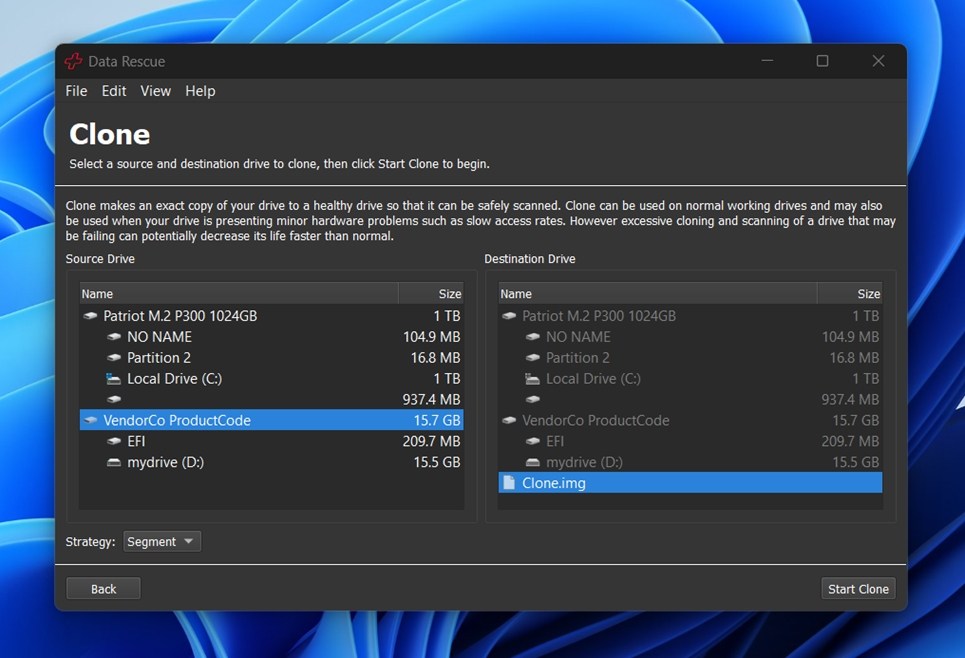
- Another solid inclusion is the Clone feature. You can create a disk image of a failing drive and scan that instead of putting stress on the original. This is a must-have when dealing with drives showing signs of hardware failure.
- There’s also a built-in RAID reconstructor, though it’s basic. It supports RAID 0 + JBOD (virtual) setups but doesn’t get into complex RAID levels or manual parameter tuning like R-Studio or UFS Explorer do.
- You also get hex preview for individual files, which might matter to advanced users verifying file integrity or checking headers manually.
There’s no file repair, no partition manager, and no disk health diagnostics, so if you’re looking for an all-in-one toolkit, this isn’t it. But what it does offer is stable and cleanly implemented.
While both versions of Prosoft Data Rescue 6 share the same interface and recovery engine, there’s one big functional difference. The Mac build includes the option to create a bootable recovery drive, which can be a big help if your system won’t boot. The Windows version skips this feature entirely.
User Interface
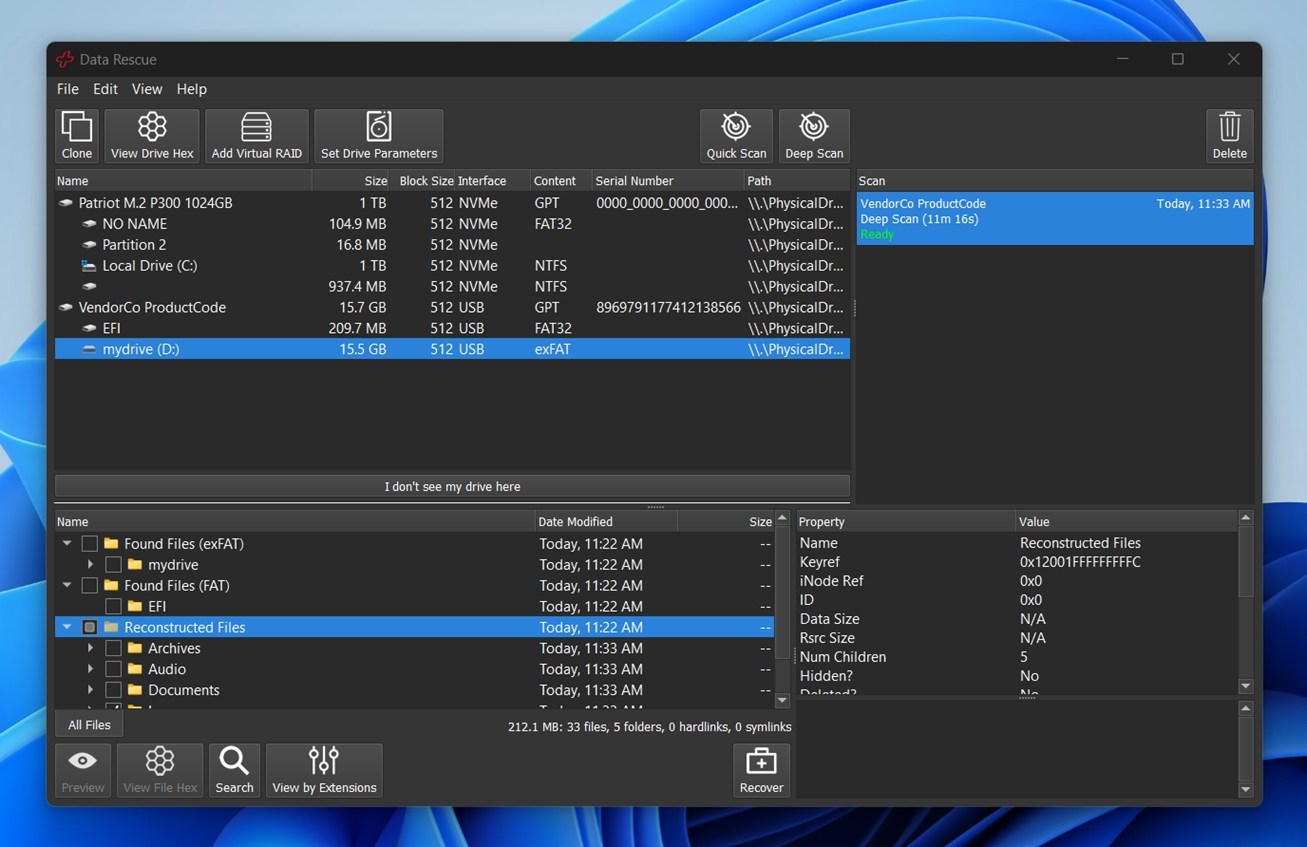
UI is sadly not its strongest point. Prosoft Data Rescue 6 looks more like a utility from years ago than something designed with modern UX in mind. You won’t find tooltips or visual cues to guide you through the process like you would in something like Disk Drill or EaseUS.
There are two modes to choose from: Standard and Advanced.
- Standard Mode keeps things straightforward: scan a drive, preview files, recover. It’s what most people will use.
- Advanced Mode gives you access to cloning tools, RAID recovery options, and manual scan configuration. The switch is easy to find in the interface, and you can toggle between modes at any time.
Our Test Setup and Evaluation Methodology
Now let’s talk a bit about our methodology. For this Prosoft Data Rescue review, we used a similar setup and test scenarios we’ve relied on in previous evaluations to keep things fair.
We ran the software through three common data loss situations:
- Case 1 (Deleted files on an HDD). We used a 1 TB Seagate Barracuda drive filled with a realistic folder structure. Then we deleted everything and emptied the Recycle Bin on a Windows machine to simulate a typical permanent deletion case.
- Case 2 (RAW SD card). We took a 64 GB SanDisk Ultra SD card and manually damaged the partition table using disk tools. Windows no longer recognized the file system and prompted us to reformat. We ignored the prompt and proceeded to scan.
- Case 3 (Quick-formatted USB drive). We quick-formatted a 32 GB Kingston USB 3.0 flash drive to exFAT, wiping all file allocation data. This kind of format is common, especially when reusing drives between macOS and Windows.
To keep things fair, we used the same data set across all devices – roughly 750 MB of mixed file types arranged in a nested folder structure that mimics everyday use. Here’s what we included:
- Photos: JPG, PNG
- Camera RAW: CR2, NEF, ORF, ARW
- Videos: MP4, MOV, GoPro
- Documents: DOCX, PDF, TXT
- Audio: MP3, FLAC
- Other: ZIP files, EXE installers
Recovery success rate will be used as one of the main performance indicators we’ll rely on when scoring Prosoft Data Rescue 6 at the end of this review. It’s not the only factor, but it carries weight.
We’ll also look at a few other key metrics:
| Metric | What We Looked At |
| Recovery success | How many files came back intact and usable |
| Scan speed | Time to complete scans and general responsiveness during use |
| Ease of use | How smooth and intuitive the workflow felt |
| Value for money | What the free version offers vs what you actually get |
Data Rescue Workflow
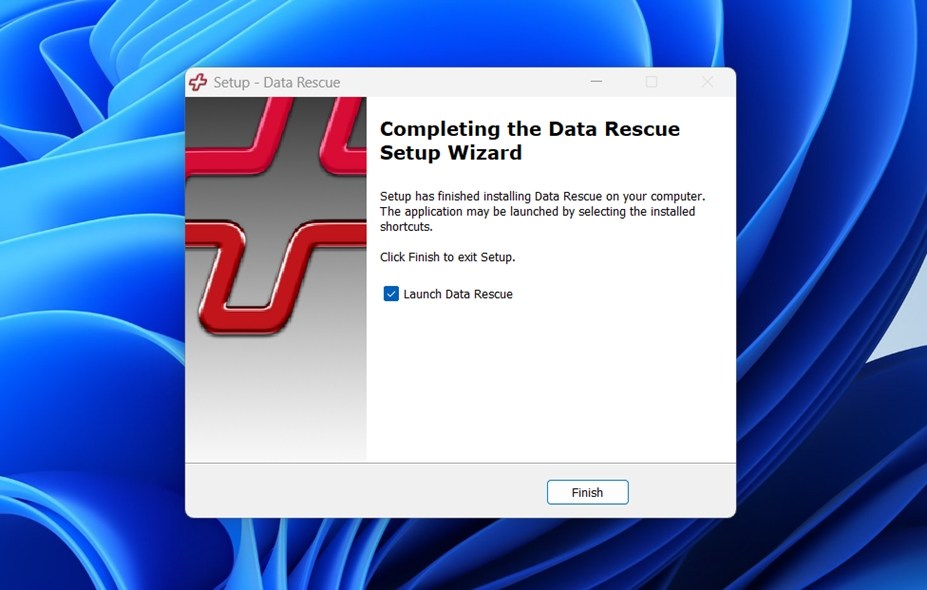
All you need to do to get started with Data Rescue 6 on Windows is download the official installer from Prosoft’s website and run it. The installation is fast, with no bundled software.
Once it launches, you’re dropped straight into the main interface – this is Standard Mode, which opens by default. Everything is kept simple: you can start a new scan, load past results, or clone a drive right from the welcome screen.
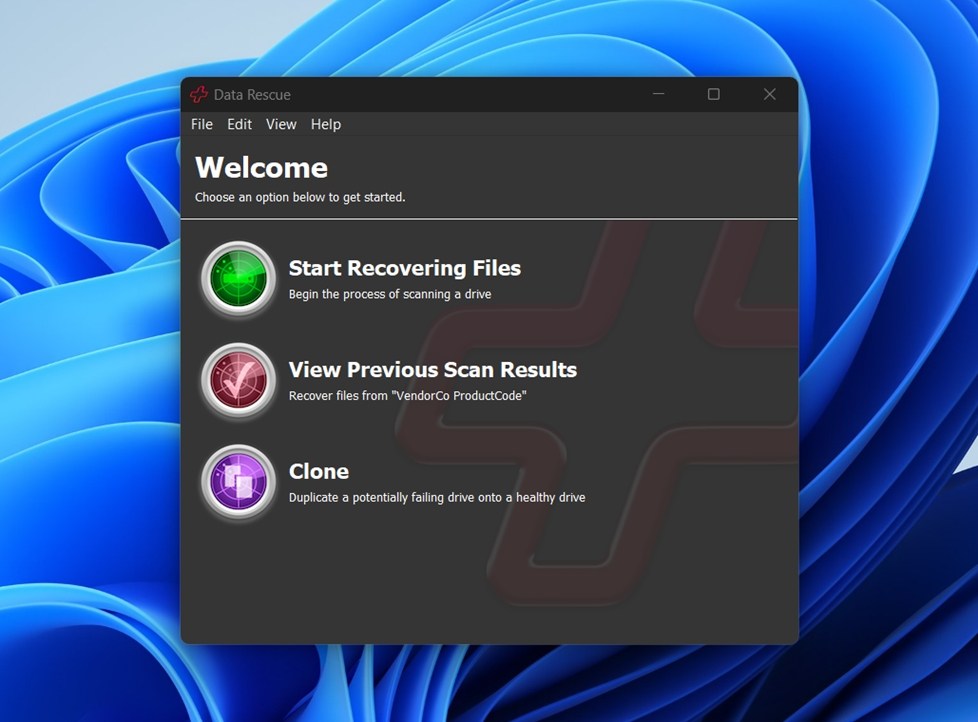
If you want more advanced options like RAID recovery or custom scan settings, you can toggle Advanced Mode from the View dropdown menu. But for the purpose of these tests, Standard Mode was more than enough.
To kick things off, we clicked Start Recovering Files. From there, the app takes you to the drive selection screen. This part’s nicely done: it shows everything the software can detect, from internal SSDs to external HDDs, flash drives, and even individual partitions. In our case, Data Rescue 6 picked up test device without issue.
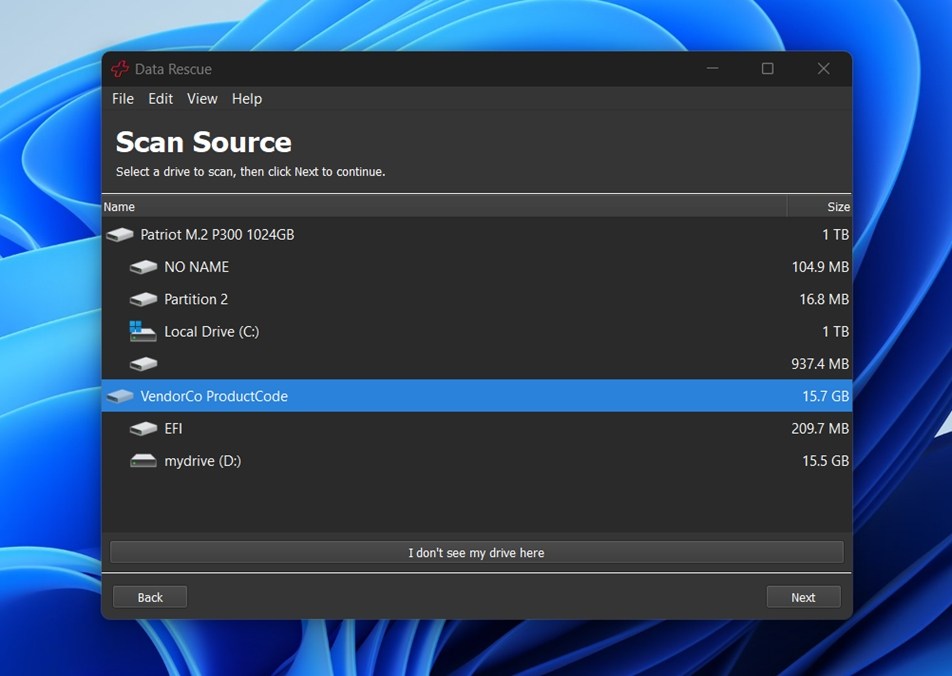
Once you select a drive, the next step is choosing your scan type: Quick or Deep.
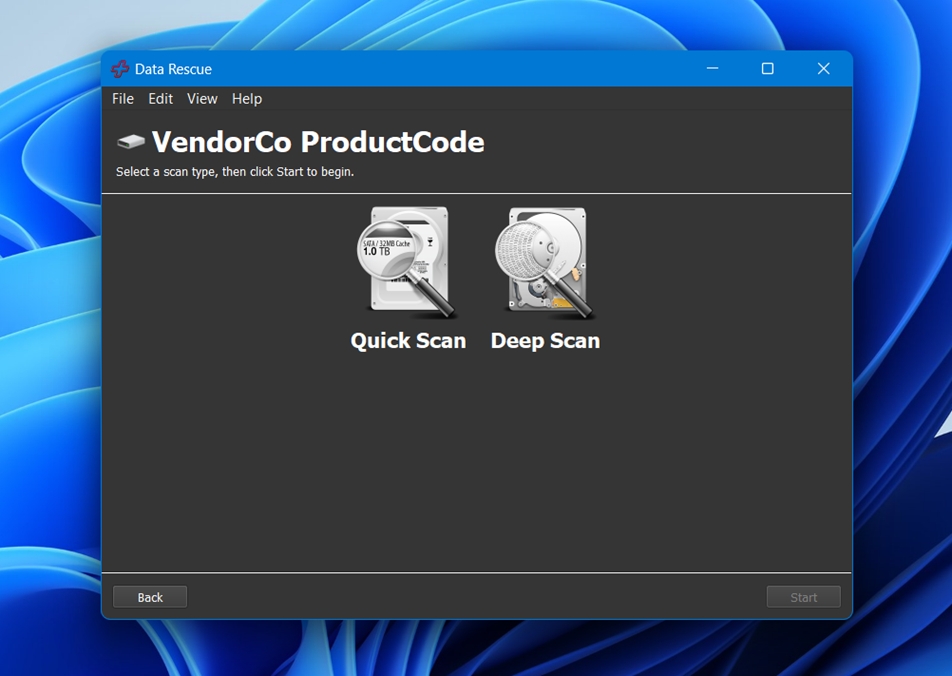
Quick Scan is the faster option – good for recently deleted files when the file system is still intact. Deep Scan digs through the entire drive structure sector by sector. It takes much longer, but it’s the way to go if you’re dealing with formatted, corrupted, or RAW drives. We used both during testing depending on the case, but for the simplest scenarios, Quick is a decent starting point.
When the scan wraps up, you get a plain file tree with everything the tool managed to recover.
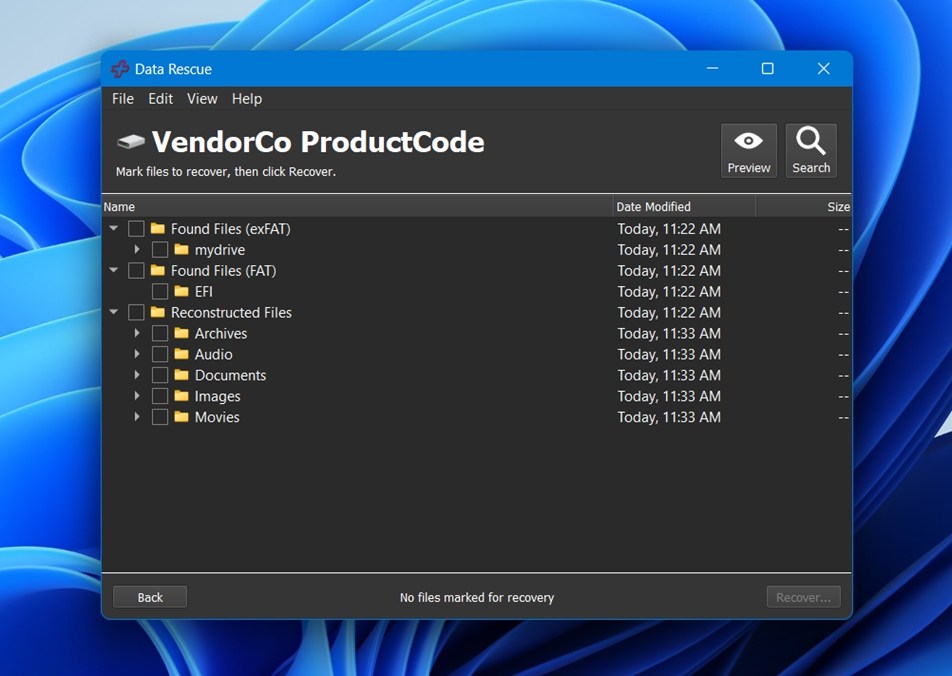
And we do mean plain. No thumbnails. No estimated file health. No sorting by “most likely to be recoverable.” It’s all listed out, folder by folder.
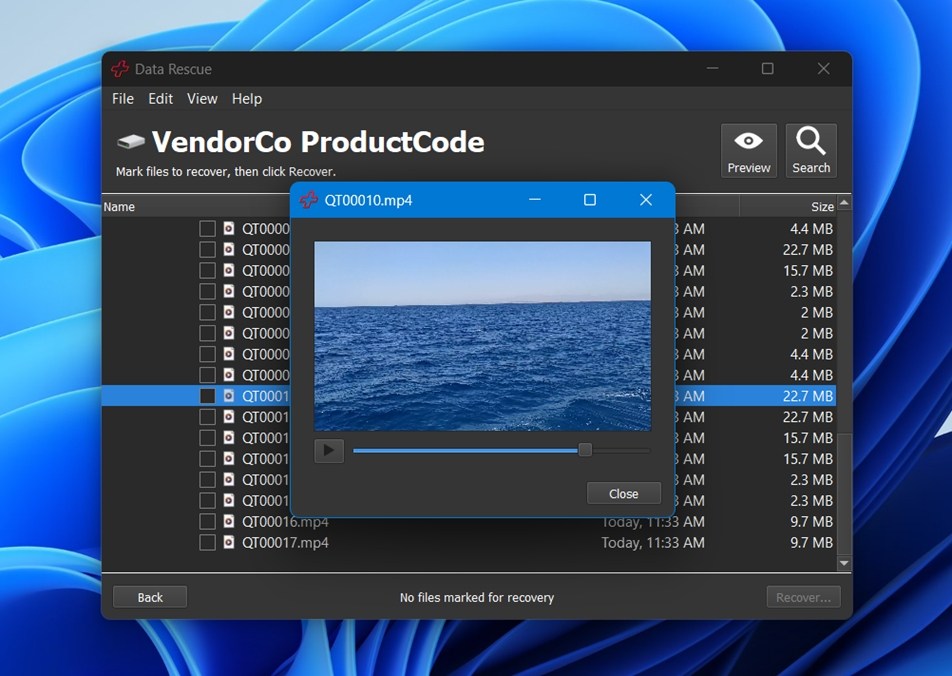
If you want to preview something, you’ll need to click the file and then hit the Preview button manually.
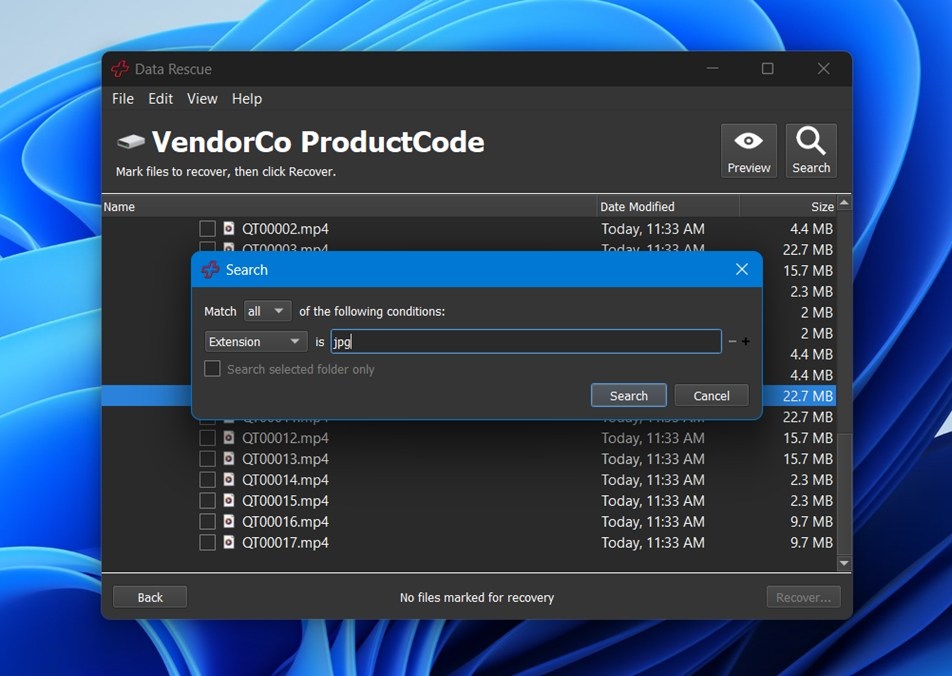
There’s also a Search tool that lets you filter by file name, extension, size, or modified date. It works fine if you know what you’re looking for, but it won’t group media files or highlight images like other tools do.
When you’re ready to recover, just check the files or folders you want and hit Recover.
As you can see, it’s quite barebones, and it does feel like it’s trying to cater more to utility-minded users than everyday folks who expect visual cues or recovery tips along the way.
Testing Results
Now let’s see what we were able to recover using Prosoft Data Rescue 6.
| Scenario | Recovery Success Rate* | Scan Time (mins) | Notes |
| Case 1: 1 TB HDD (Deleted Files) | ~93% (DOCX, PDF, JPG, Excel files opened fine) | ~110 | Folder structure preserved. Excellent with documents. |
| Case 2: 64 GB SD card (RAW) | ~70% (JPG/ORF solid, RAW + MOV hit-or-miss) | ~45 | Some video files recovered but unplayable. RAW images like ARW/CR2 failed. |
| Case 3: 16 GB USB (Quick Format) | ~65% (Good on MP3, TXT, basic images) | ~10 | Files recovered but filenames were generic. JPG preview failed on some. |
*Recovery success means files fully opened and worked after recovery.
The recovery results from Prosoft Data Rescue 6 aren’t bad at all. In terms of both recovery rate and scan speed, it holds its own and leans closer to the high performers in this category. However, it’s not without its weak spots.
File type recovery is where differences start to show. Document recovery was particularly strong. Formats like DOCX, PDF, XLS/XLSX, TXT came back almost fully intact, even when tested on formatted and RAW drives. So if you’re trying to recover school papers, work files, or PDFs, you’re in solid hands here.
Video file support was also decent. It handled MP4, MOV, and AVI with few issues. Some MOV files failed to open after recovery, but honestly, it wasn’t the worst we’ve seen.
The biggest letdown came with RAW image formats. While JPG and PNG recovered cleanly, more advanced formats like ARW, CR2, and CRW either didn’t open or were partially corrupted after recovery. So if you’re a photographer working primarily in RAW, this might not be the most reliable option for your workflow.
Value for Money
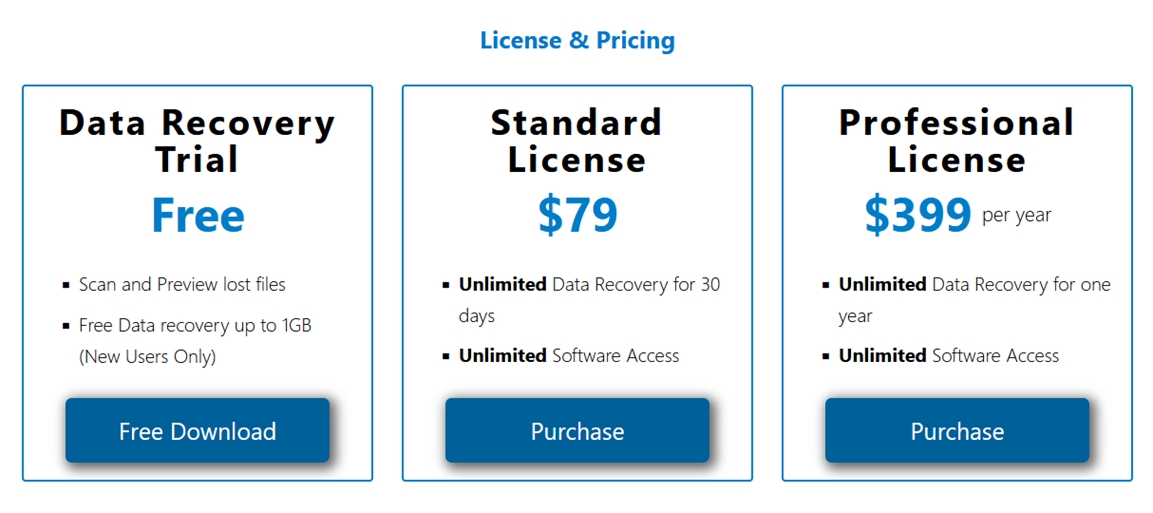
Prosoft Data Rescue 6 offers three pricing tiers: a free trial, a $79 Standard License, and a $399/year Professional License. All tiers include unlimited software access, but the scope of recovery depends entirely on which license you pick.
- The free trial lets new users recover up to 1 GB of data – enough to grab a few important documents or maybe a batch of photos, but not much more.
- The Standard License unlocks unlimited recovery for 30 days.
- The Professional License is a yearly subscription for $399, aimed more at technicians, IT departments, or businesses that do regular recovery work.
In our opinion, $79 for a single recovery month feels steep, especially from a home user perspective when you consider tools that offer lifetime licenses at similar or lower prices. And while $399/year might make sense for professionals who do frequent recoveries or run a support business, most personal users won’t get anywhere near that value.
But let’s hold off on nailing down a verdict until we put Data Rescue 6 side by side with some popular competitors.
Comparison With Competitors
Here’s a quick comparison table:
| Tool | OS support | File systems (high level) | Free version limit | Typical price | Previews | Disk imaging / cloning | SMART monitoring | Scan speed (real-world feel) | Ease of use |
| Prosoft Data Rescue 6 | Windows + macOS (one license) | FAT/FAT32, exFAT, NTFS + HFS+/APFS/ext2/3 support | Up to 1 GB (new users) | $79 (30 days) / $399 (year) | Yes | Yes (Clone) | Not a core feature | Average | OK, but dated |
| Disk Drill | Windows + macOS (one license) | FAT/exFAT/NTFS/ReFS + HFS+/APFS + EXT2/3/4 + BTRFS/RAW | 100 MB free on Windows | $89 lifetime (Pro) | Yes | Yes (byte-to-byte backups) | Yes | Fast | Easy |
| EaseUS Data Recovery Wizard | Windows + macOS | FAT/exFAT/NTFS/ReFS + EXT2/3/4 + HFS+ | Up to 2 GB free | $69.95 (1 mo) / $99.95 (1 yr) / $149.95 (lifetime upgrades) | Yes | Yes (disk image feature in app) | No | Average | Easy |
| DiskGenius | Windows only | NTFS, FAT16/32, exFAT, EXT2/3/4 | Free edition recovery is limited to files <64 KB | Pro: $69.90 (1 mo) / $99.90 (1 yr) / $129.90 (lifetime) | Yes | Yes (clone + image files) | Yes | Average to fast | More technical |
If you look at the pricing and feature set across these tools, Data Rescue 6 clearly falls behind on value, especially for home or one-time users. That $79 for just 30 days might seem manageable, but when you compare it to tools like Disk Drill or EaseUS, it’s harder to justify.
The gap becomes even more obvious when you bring lifetime licenses into the picture. Disk Drill gives you a forever license for $89, only slightly more than Data Rescue’s one-month access, and throws in extras like SMART disk monitoring, cleanup tools, and a much smoother user experience. Meanwhile, tools like DiskGenius offer deeper features for tech-savvy users (at a lower price point).
So while Prosoft Data Rescue still holds up in terms of recovery reliability, it’s not the best deal out there.
User Reviews & Reputation
Online feedback for Prosoft Data Rescue 6 is a bit uneven, mostly because the big rating platforms don’t have much volume for this product.
On Trustpilot, the score you’ll find is for Prosoft Engineering as a company, not specifically the Data Rescue app. The current profile sits at 2.6/5 from 4 reviews, and many of them are 1★ complaints that focus on billing/renewal friction and licensing/activation headaches rather than recovery performance.
On G2, Data Rescue 6 shows 4.5/5, but it’s based on a single review, and it was marked as incentivized (so treat it as one data point, not a trend). The reviewer liked the preview + free allowance, and disliked slow deep scans on failing media.
Reddit is where the “real-world footprint” shows up more often. You’ll find several threads where users recommend Prosoft Data Rescue as a decent option:
“Try Prosoft’s Data Rescue… it is one of the better Mac ones. (free to try)”
But there are plenty of opposite opinions too. So in terms of user reviews, the online feedback is not glowing. It’s mixed at best.
Final Verdict
Here’s our final take in this Prosoft Data Rescue 6 review.
| Metric | Score | Notes |
| Recovery success rate | 7 / 10 | Strong on straight deletion (our HDD case landed around ~91%). Results dropped on messier media (~68% RAW SD, ~63% quick-format USB). |
| Scan speed | 7 / 10 | Deep scans were not quick. The deleted HDD case took ~110 minutes in our run, while the SD RAW case was ~45 minutes. USB quick format was faster at ~10 minutes. |
| Ease of use | 5 / 10 | The workflow is simple, but the UI feels dated and barebones. |
| Value for money | 5 / 10 | Pricing is the weak spot. Competitors offer lifetime licenses near that one-month price. |
Final Score: 6.5 / 10
Prosoft Data Rescue 6 isn’t a bad tool by any means. It’s stable, handled deleted-file recovery well in our tests, and did a solid job with common document formats.
But for most people, it probably wouldn’t be the first choice. The interface is dated, the scan speeds aren’t exactly snappy, and the pricing model feels out of step with the competition. There are plenty of other tools that offer similar or better performance with more features, modern UI, and more generous licensing terms. Unless you need one of Data Rescue’s few standout features (like the Mac boot drive), you might find better value elsewhere.