Are you struggling to pick the best partition recovery software for Windows? We’ve tested most hard drive partition recovery tools available today — both free and paid — and narrowed them down to the very best. All you need to do is pick the one that best fits your preferences and budget.
Our editorial team independently assesses each data recovery solution to produce accurate, high-quality content. Discover more about our testing process.
1. Disk Drill Partition Recovery
Pros:
- Easy to use
- Powerful data recovery algorithms
- Supports a great number of file systems and file formats
- Extra disk tools
- Free 100 MB file recovery
- RAW partition recovery capabilities
Cons:
- Phone customer support isn’t available
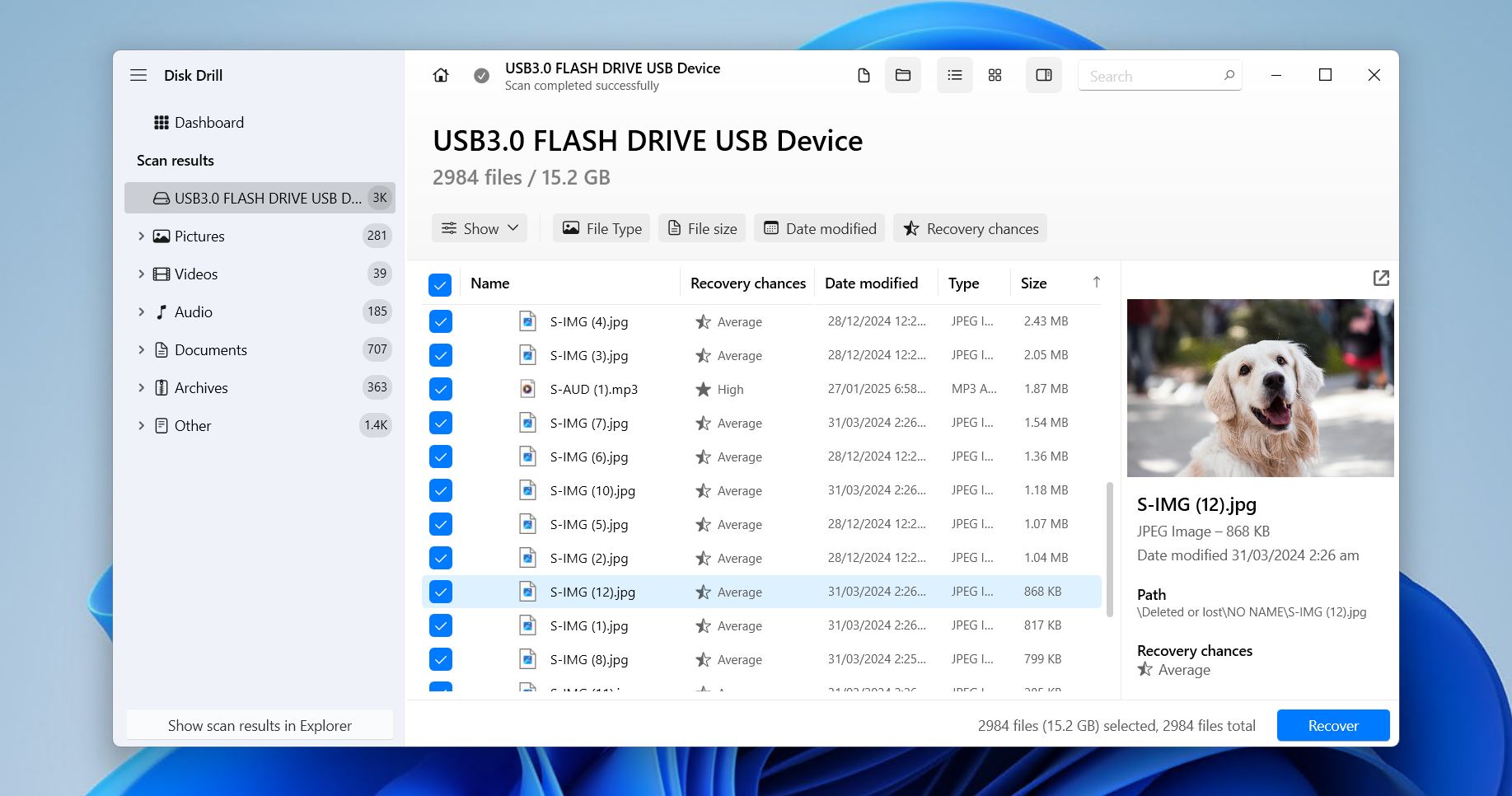
Disk Drill stands out as the best recovery partition software for a multitude of reasons. To start with, the tool combines powerful data recovery algorithms with a sleek user interface, putting professional data recovery capabilities in the hands of regular Windows users.
All commonly used file systems are supported, including NTFS/NTFS5, APFS, HFS/HFS+/HFSX, FAT/FAT32/exFAT, ext2/3/4, and others. Disk Drill can also recover files (over 390+ different file formats, in fact) from RAW or unallocated partitions that don’t have any file system at all. More on that in our Disk Drill review.
The free version of Disk Drill for Windows can recover up to 100 MB of data, which is enough to recover critical files and test what the software is capable of. You also get full access to its data protection and backup features without paying a cent.
But what makes Disk Drill really #1 for us is that it’s beginner-friendly while being capable of handling complex data loss scenarios. It can still restore files from damaged partitions, even if the partition has been experiencing various errors.
Supported file systems: FAT12/16/32, NTFS, NTFS5, exFAT, ReFS, HFS, HFS+, APFS, ext2/3/4, BTRFS RAW.
Fix partition table: No.
Price:
| Disk Drill Basic | Free |
| Disk Drill PRO | $89.00 |
| Disk Drill Enterprise | $499.00 |
| Competitive Upgrade | 50% OFF |
Limitations on the free/trial version: The free version can recover only 100 MB of data.
Supported operating systems: Windows 11/10/8.1/8/7.
What users say: “Disk Drill PRO is a great product and has rescued me on more than one occasion when files have been lost. I paid extra for the lifetime upgrades and – v.6 has just been released. The upgrade from my v.5 was easy. Response from customer service is very quick. Highly recommended.” – Nigel, G2 user.
2. TestDisk
Pros:
- Can make non-booting disks bootable again
- Completely free and open-source
- Runs on Windows 11/10/8.1/8/7/Vista/XP
- Powerful partition recovery capabilities
Cons:
- Command-line user interface
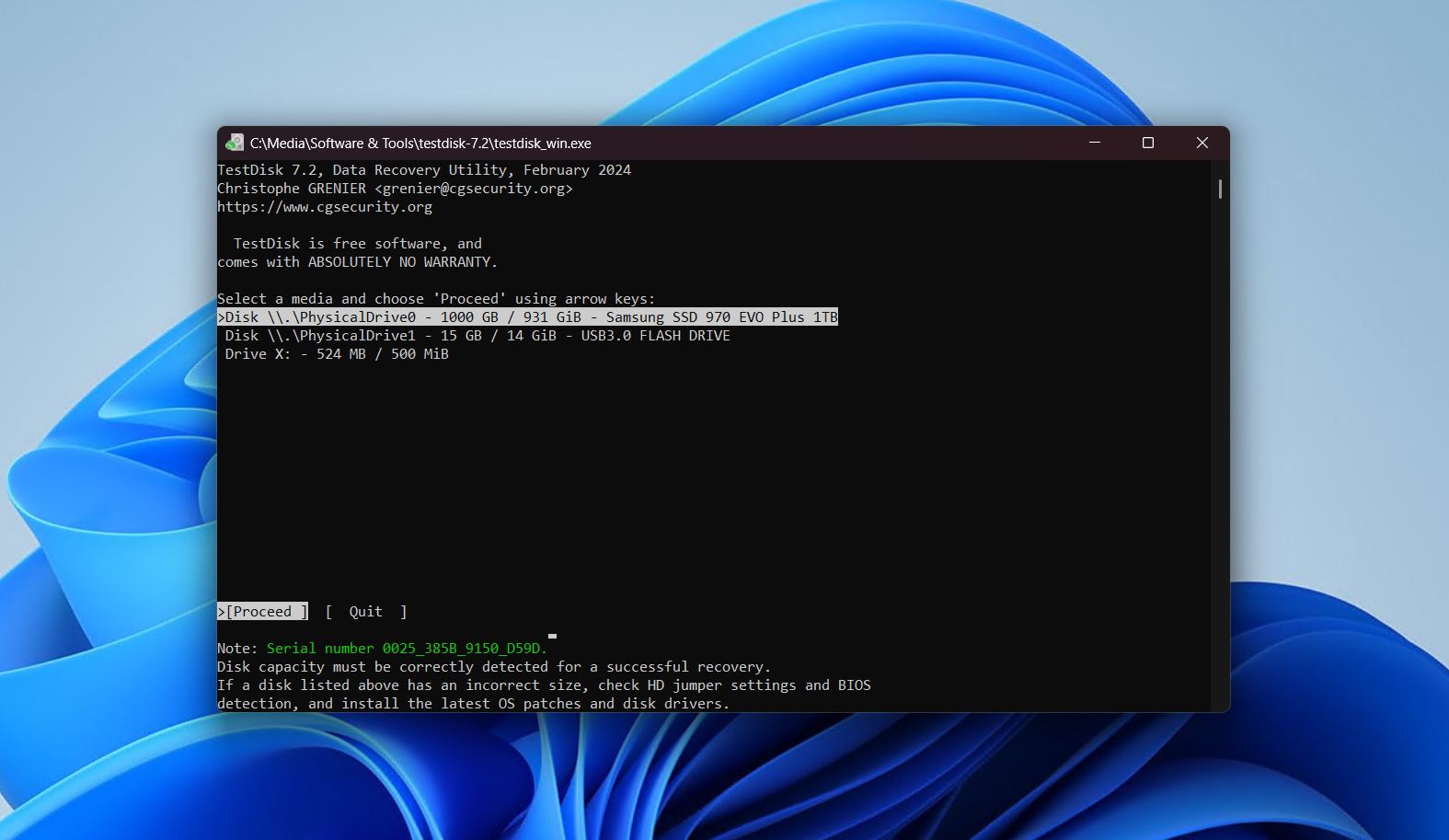
TestDisk is an open-source and completely free partition recovery tool developed by CGSecurity. While its lack of a modern GUI gives it a not-so-great first impression, it’s easy to use with enough patience and it’s even more capable than many paid partition repair tools.
TestDisk uses a meticulous algorithm to scan for partition signatures and check the disk’s file system metadata to locate lost partitions. If any lost partition data is found, TestDisk lets you easily write it back to the partition table (with the correct parameters) — which should restore access to your files.
Our tests have shown excellent results with this app despite its rough exterior and lack of a full development team. It can even repair boot sectors under certain conditions, which is enough to make it the best free partition recovery software for some. We’ve covered the app extensively in our TestDisk review. TestDisk also comes packaged with PhotoRec, which focuses on individual file recovery rather than partitions (we discuss this in our review of PhotoRec), so you don’t always have to resort to restoring the entire partition every time.
Overall, TestDisk is a very capable partition recovery tool as long as you’re willing to endure a small learning curve — if you’re budget-constrained, it’s a no-brainer.
Supported file systems: BeFS, CramFS, FAT12/16/32, FATX, exFAT, HFS, HFS+ and HFSX, JFS, BtrFS, ext2/3/4, GFS2, NSS, NTFS, ReiserFS 3.5, 3.6 and 4, UFS, UFS2, XFS, SGI’s Journaled File System, Wii WBFS, Sun ZFS.
Fix partition table: Yes.
Price: Partition recovery free software.
Limitations on the free/trial version: None.
Supported operating systems: Windows 11/10/8.1/8/7/Vista/XP.
What users say: “I recently encountered the nightmare of a bad partition and was on the brink of losing crucial files. Enter TestDisk, an open-source data recovery app that became my knight in shining armor! User-friendly and highly efficient, TestDisk made the recovery process a breeze, navigating through the corrupted pathways and restoring my lost files.” – Alex, Trustpilot user.
3. DiskInternals Partition Recovery
Pros:
- Can open unreadable partition in File Explorer
- Step-by-step recovery wizard
- Support for many file systems
- Option to recover from disk image
Cons:
- Slow scan speed
- Limited trial
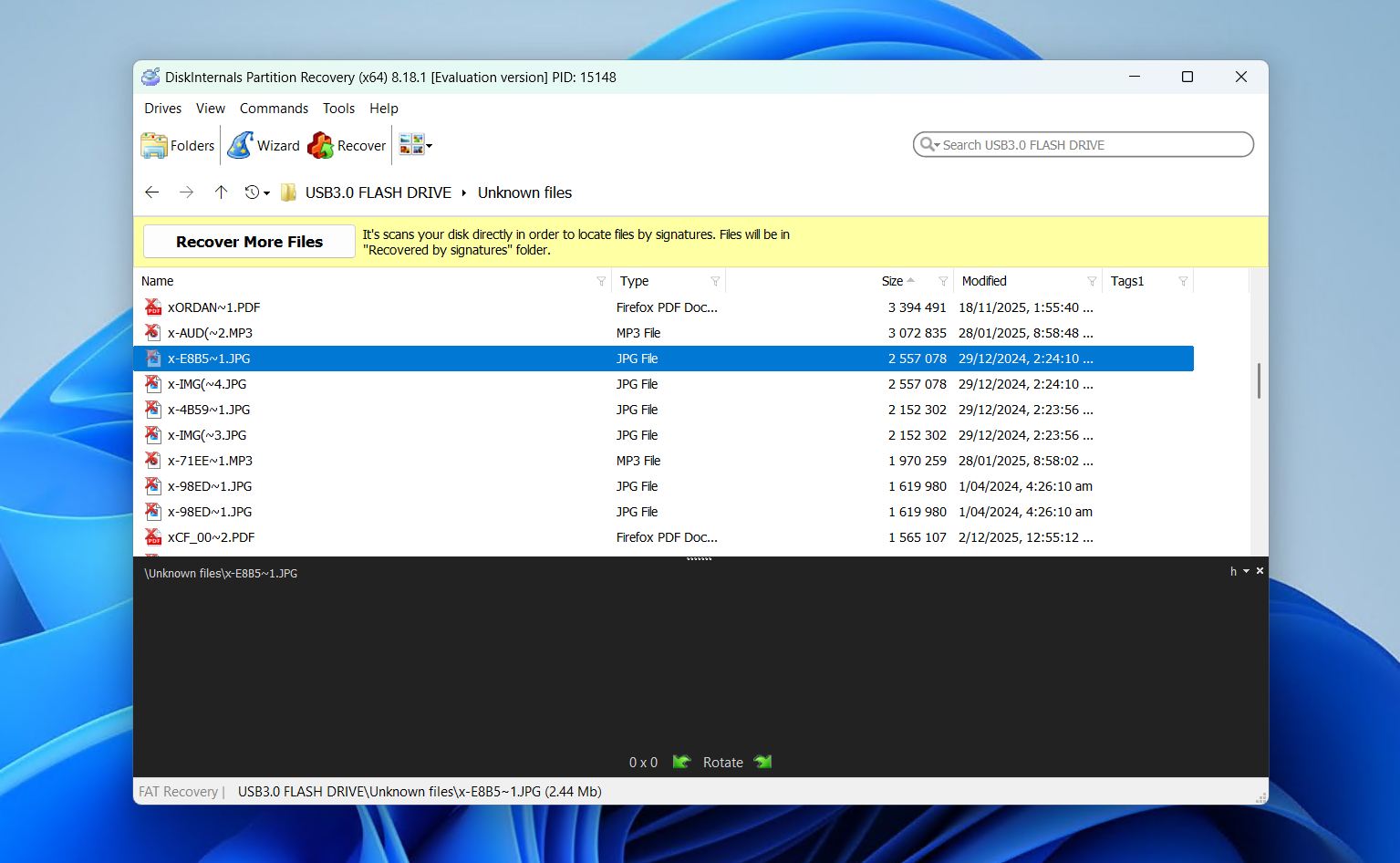
DiskInternals Partition Recovery is a beginner-friendly but somewhat expensive partition recovery tool. What makes it stand out is its graphical features and a linear-style recovery process that makes it very easy to use.
A helpful wizard appears as soon as you open the app (that looks like a Windows installer), simplifying the recovery process even further. The app lets you choose one of three scan types: (1) Fast recovery for surface-level file data scanning, (2) Full recovery, which utilizes more complex algorithms and looks deeper for the missing partition data, and (3) Reader mode, which simply lets you open unreadable disks.
Overall, DiskInternals Partition Recovery is competent and easy to use. However, it lacks the additional recovery features and polish of its bigger competitors. Its file browser looks clunky and outdated (especially for paid software), its recovery features are limited, and we noticed that the app struggled with severely damaged storage devices. Read our DiskInternals Partition Recovery review to see how it fared in our tests.
Supported file systems: FAT, ReFS, UFS, HFS, NTFS, ReiserFS, APFS(reader mode), RomFS(reader mode), Reiser4, XFS, ext2/3/4.
Fix partition table: No.
Price:
| Trial version | Only preview |
| Personal | $139.95 |
| Business | $219.95 |
Limitations on the free/trial version: The free trial version can only preview recoverable files.
Supported operating systems: Windows 11/10/8.1/8/7/Vista/XP/2000.
What users say: “Thanks to my friend who recommended this DiskInternals Partition recovery software for me after saving her also. I’m blown away with the fact that it’s so easy to use and there are guides to the procedures for recovering the lost files.” – Serg, Trustpilot user.
4. MiniTool Power Data Recovery
Pros:
- Comprehensive partition recovery capabilities
- Intuitive user interface
- Can recover files from CDs and DVDs
Cons:
- Unable to mount recovery results
- Expensive subscriptions
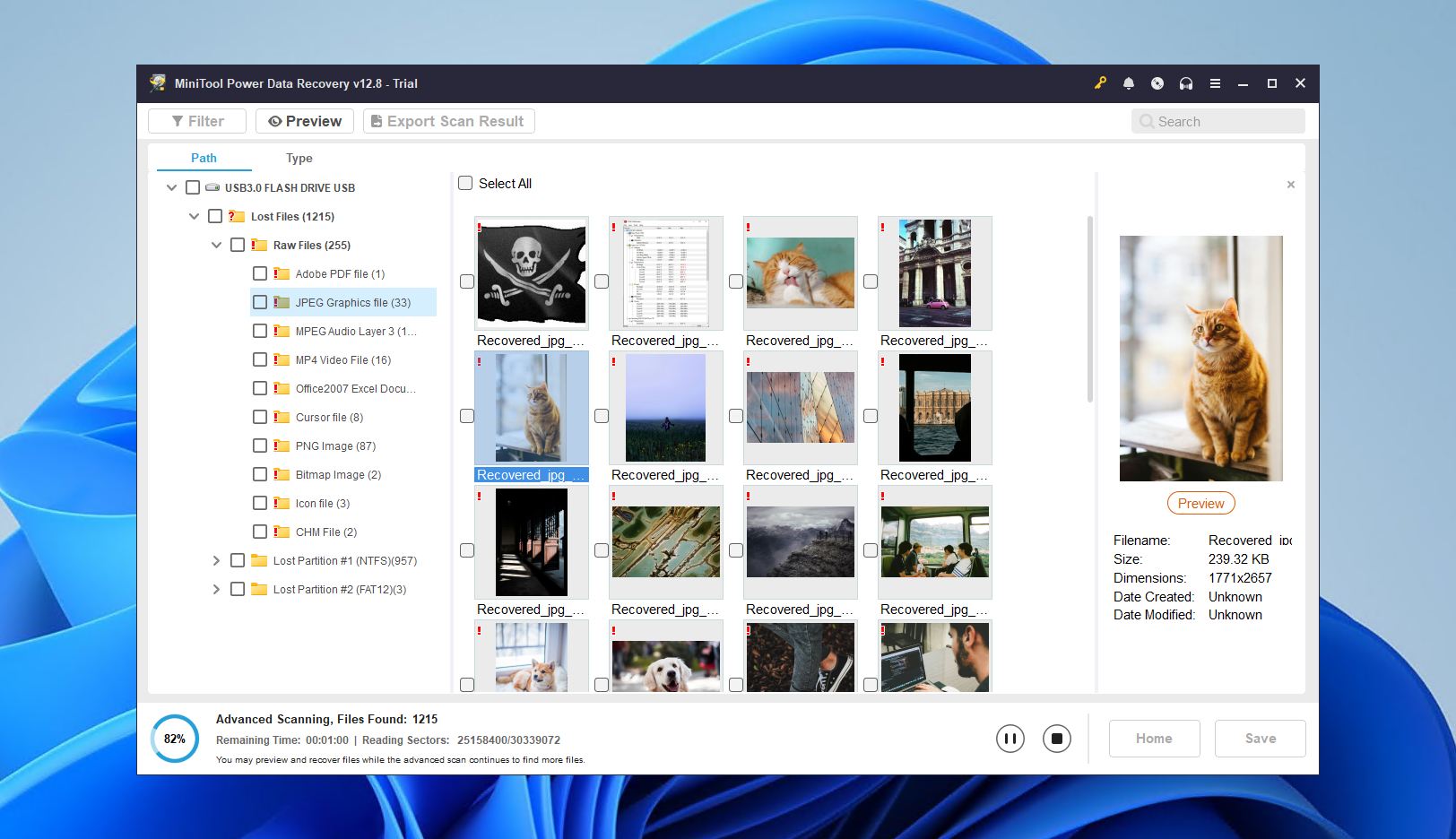
MiniTool Power Data Recovery is a capable lost partition recovery software tool with a beginner-friendly interface and a generous free trial that can restore up to 1 GB of data.
It ticks all the boxes of a modern premium recovery app — multi-algorithm scanning, bootable disk version, and the ability to scan RAW and non-mounting drives and damaged partitions. In terms of recovery performance, we found it reliable for restoring standard photos and documents (and surprisingly some proprietary signatures from like KDC and NRW).
However, the app has fallen behind its slightly more expensive competitors in terms of features and performance. Our MiniTool Data Recovery review touches on this more. Its preview tool is severely limited, it has no reliable session management, and it doesn’t have the ability to scan disk images.
Overall, MiniTool Power Data Recovery is a very good choice for a specific set of users, but there are better options for partition recovery in general.
Supported file systems: FAT12/16/32, exFAT, NTFS, NTFS5, ext2/3/4, HFS+, ISO9660, Joliet, UDF.
Fix partition table: No.
Price:
For Personal Users:
| Trial version | Recover up to 1 GB data |
| Personal Monthly Subscription | $69.00 |
| Personal Annual Subscription | $89.00 |
| Personal Ultimate | $129.00 |
For Business Users:
| Business Standard | $119.00 |
| Business Deluxe | $199.00 |
| Business Enterprise | $399.00 |
| Business Technician | $499.00 |
Limitations on the free/trial version: The free version can recover only 1 GB of data.
Supported operating systems: Windows 11/10/8.1/8/7.
What users say: “MiniTool Power Data Recovery is the best solution for recovering the data lost, corrupted, deleted data, numerous locations, including damaged drives, digital media, CD, DVD, corrupted or lost partition. Its very powerful full lightweight application runs over the Windows and helps to recover or get back any kind of a file format file.Trial version limits data recovery capacity for recovering, then you have to purchase the license.” – Dexter, G2 user.
5. Hetman Recovery
Pros:
- Portable version available
- Preview files before recovery
- Runs on Windows 11/10/8.1/8/7/Vista/XP
Cons:
- Confusing interface that mimics the Windows Explorer
- No added features for data protection
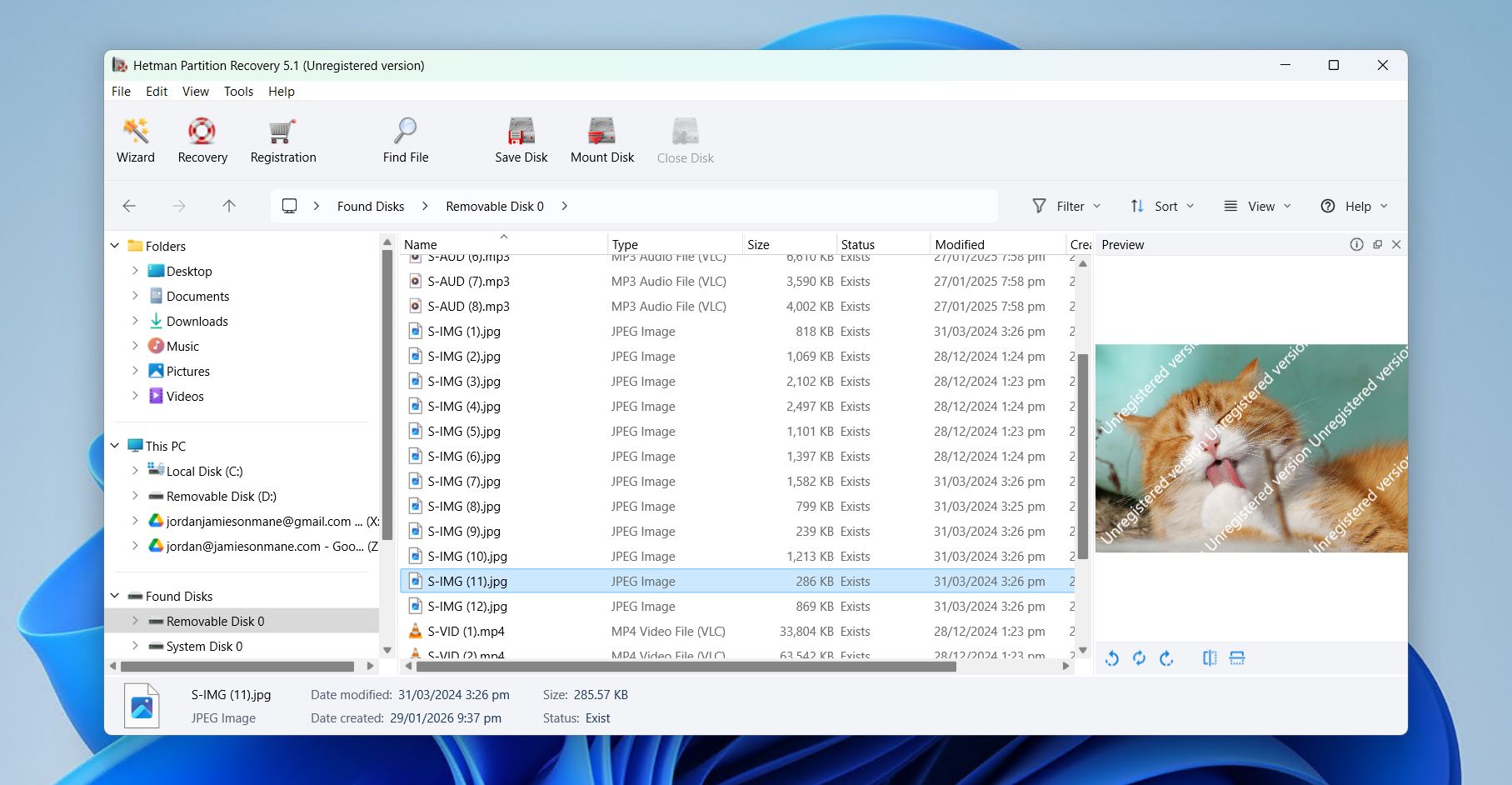
Hetman Partition Recovery is a low-price and decent deleted partition recovery software tool. It does a good job of supporting the majority of standard file systems across different platforms, it’s capable of recovering data from formatted and corrupted partitions, and its recovery wizard slightly alleviates the cluttered UX.
As you launch the app, you immediately start the process with dialogue windows that walk you step-by-step through the recovery process. The whole interface looks like Windows Explorer so it’s easy to navigate but it lacks a lot of polish that we expect from paid apps. Regardless, it did a good job of restoring standard image, document, and audio files that were deleted or formatted.
We also liked Hetman Partition Recovery’s uniquely capable preview tool, which not only displayed the files but also their hex code, which can be very useful in the right hands. Overall, Hetman Partition Recovery on its own has a good price if its limited abilities happen to address your needs specifically. There are just better options overall.
Supported file systems: FAT, FAT32, exFAT, NTFS, HFS+, ext4/3/2/ReiserFS, XFS/UFS.
Fix partition table: No.
Price:
| Trial version | Only preview |
| Home version | $77.95 |
| Office version | $197.95 |
| Business version | $317.95 |
Limitations on the free/trial version: You can only search for recoverable files, not recover them.
Supported operating systems: Windows 11/10/8.1/8/7/Vista/XP.
What users say: “Incredibly useful program! Hetman Partition Recovery helped me recover files from a formatted disk in just a few steps. I recommend it!” – Robert, Trustpilot user.
6. EaseUS Data Recovery Wizard
Pros:
- Modern user interface
- Can export/import recovery sessions
- Three-step recovery process
Cons:
- Expensive
- Lists irrecoverable files as recoverable
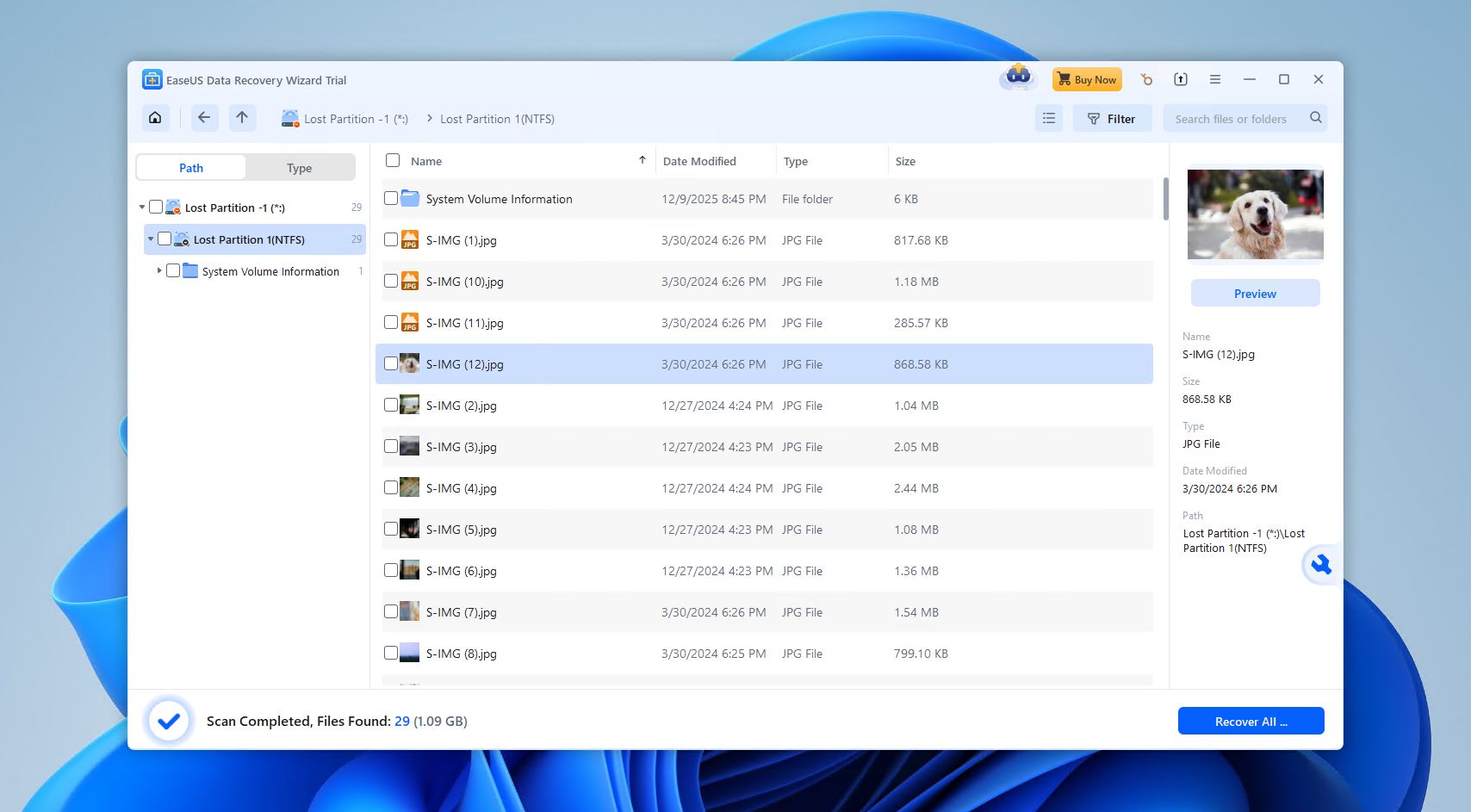
EaseUS Data Recovery Wizard is a popular recovery app marketed heavily towards beginners with its modern and sleek interface. It also has very generous free data recovery offers, especially if you’re willing to post about the app on social media.
On the surface, EaseUS Data Recovery Wizard has the hallmarks of a good premium recovery tool. It has a good interface, multi-scan algorithms, the ability to scan from formatted and logically damaged partitions, and a decent probability to also restore original file names and folder structures. It also performs above average when tested with restoring RAW photos and documents — especially standard formats.
However, we feel that this app falls short of its rather expensive price. Performance is not super reliable and the preview tool is severely limited (we found in our EaseUS Data Recovery Wizard review that it’s restricted to certain file types and under 100 MB only) — unlike other apps, it’s not reliable for predicting recoverability. It also can’t help with repairing incomplete or damaged partitions. It also has poor session management, despite the nice design.
Overall, EaseUS Data Recovery Wizard is actually pretty decent if we’re going by its free trial and if you don’t need to preview files over 100 MB. We simply expected more for its price and market maturity.
Supported file systems: FAT12/16/32, exFAT, NTFS, NTFS5, ext2/3/4, HFS+, ReFS.
Fix partition table: No.
Price:
| Free trial | Can recover up to 2GB of data |
| Monthly subscription | $69.95 |
| Annual subscription | $99.95 |
| Lifetime Upgrades | $149.95 |
Limitations on the free/trial version: The free version can recover 2 GB of data.
Supported operating systems: Windows 11/10/8.1/8/7/Vista/XP.
What users say: “ Quick and easy. Being my first time with such a tool (fortunately), it has definitely met my expectations. Though it organizes recovered files in folders, it sometimes loses the paths, so there is still some work to do to restore the original tree.” – Angel, Capterra user.
7. Active@ Partition Recovery
Pros:
- Simple interface
- Ability to repair partition tables
- Supports many different file systems
Cons:
- Limited use with the free version
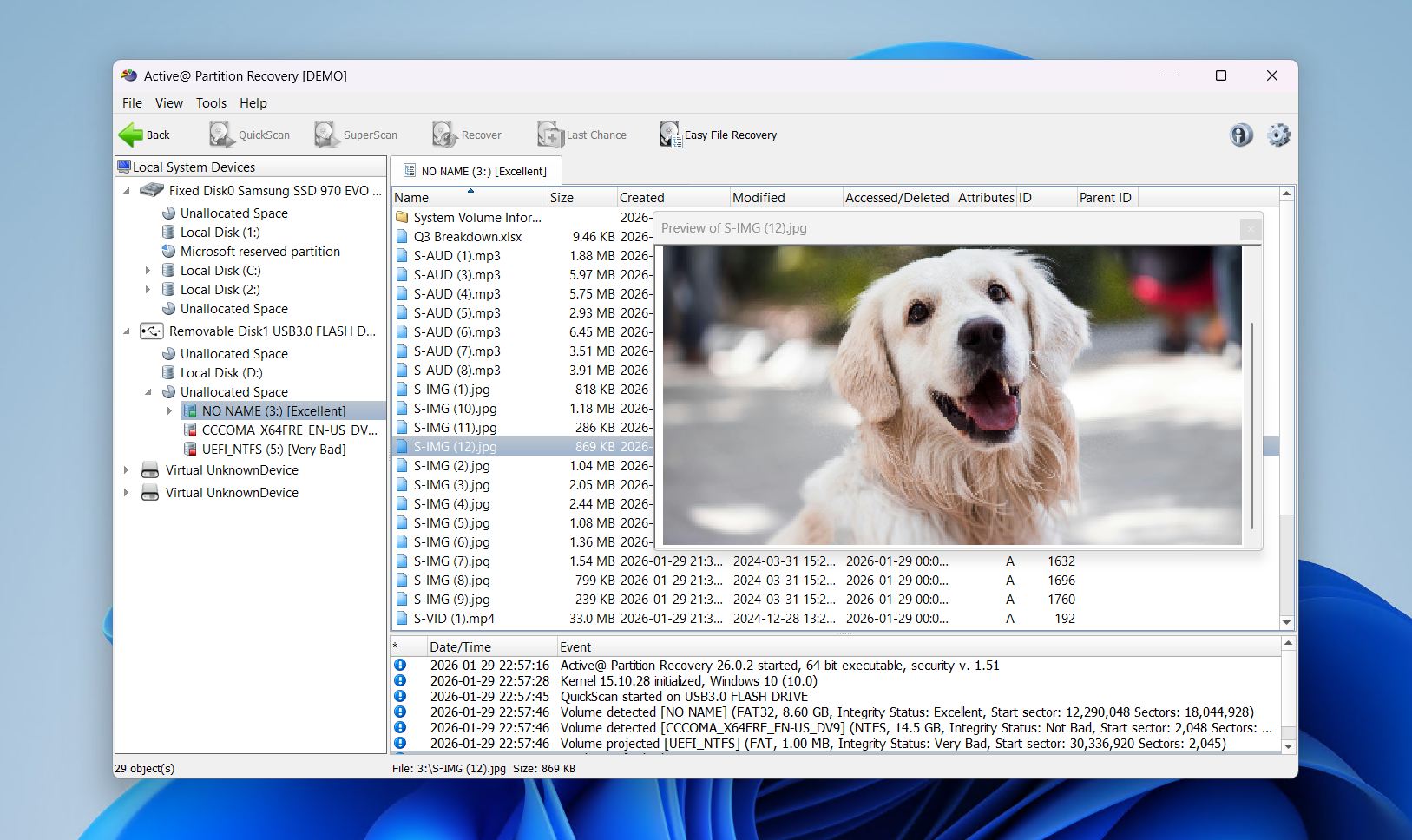
Active@ Partition Recovery is not a super well-known name in the modern recovery space, but it’s a relatively affordable recovery app with a decent recovery tool kit that might be worth checking out.
First, we need to talk about the interface. It’s awful compared to other modern options, and the clutter will likely cause most beginner users to pause in order to process all the information. The recovery process is also much less streamlined — there’s no wizard and it isn’t immediately obvious what to do next if you haven’t spent some time with data recovery content in general.
But if you’re willing to brave the learning curve, Active@’s kit is pretty impressive. Aside from the standard scanning algorithms, its SuperScan (which takes forever) has beaten out a lot of its competitors in terms of detecting reformatted and damaged partitions. It can also roll back partitioning changes, repair damaged partitions, and it even supports standard RAID partitions.
Overall, Active@ Partition Recovery is actually a strong competitor despite not being as well known as the other apps on this list. Its developers have been showing it some love by keeping it updated in recent years, but it still falls behind many alternatives, especially considering that its free trial is limited to files under 64 KB.
Supported file systems: FAT, FAT32, exFAT, NTFS, HFS+, UFS, Ext4/3/2, BtrFS.
Fix partition table: Yes.
Price:
| Free version | Only preview for lost or formatted partitions |
| Standard license | $39.95 |
| Professional license | $49.99 |
| Ultimate license | $89.99 |
Limitations on the free/trial version: The free version only allows you to search for lost or formatted partitions. Recovery is included only with a paid subscription.
Supported operating systems: Windows 11/10/8.1/8/7/Vista/XP.
What users say: “ We currently use Active@ File Recovery and Active@ Partition Recovery which has worked well for me in the past, but now I’m starting to doubt its abilities.” – cle2n, Reddit user.
8. UFS Explorer Professional Recovery
Pros:
- Wide file system support
- Advanced disk imaging
- Works with encrypted and virtual storage
Cons:
- Steep learning curve for beginners
- Expensive compared to consumer tools
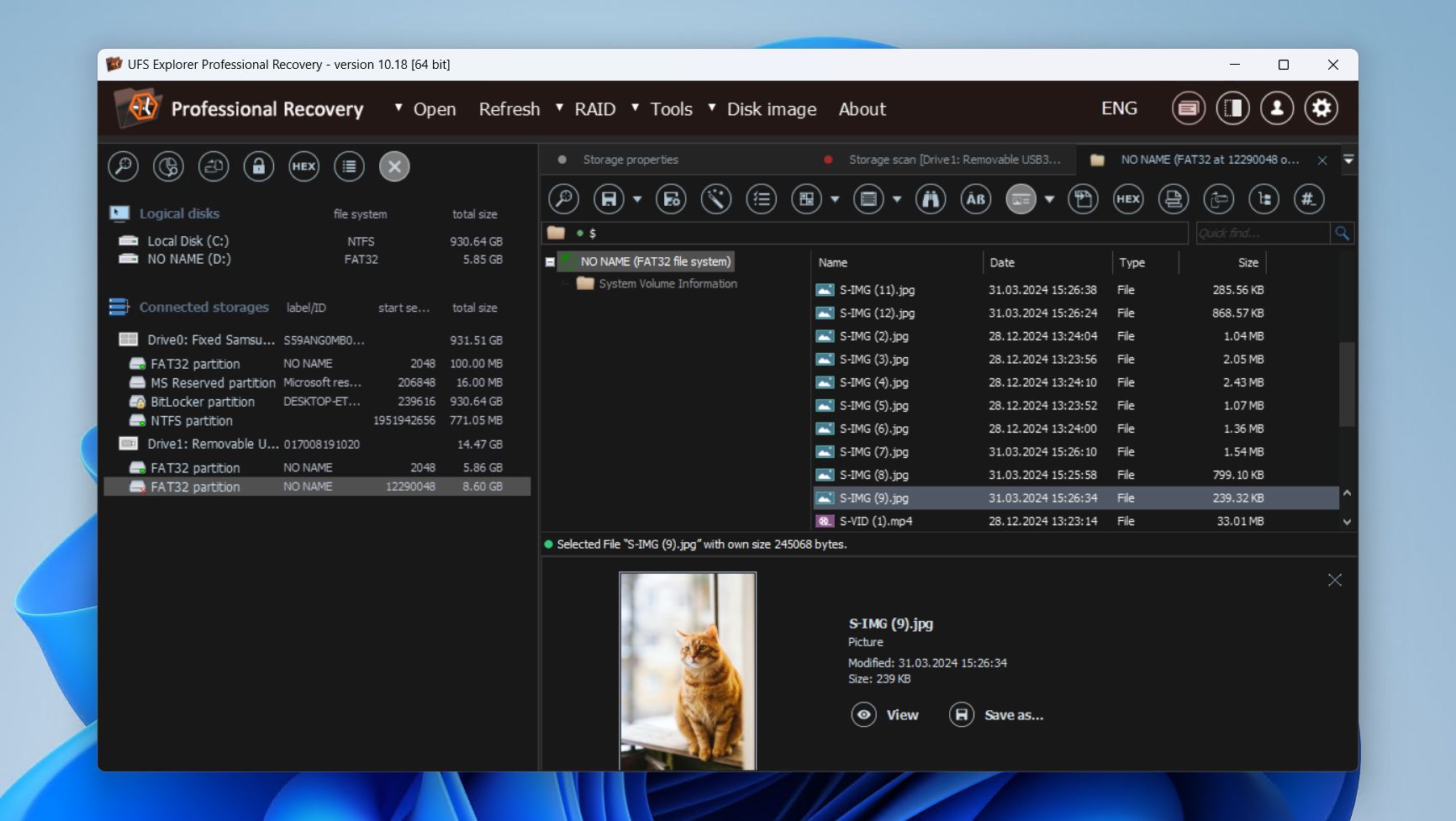
UFS Explorer Professional Recovery is a specialist-grade partition recovery tool designed for technicians and advanced users who regularly deal with damaged, complex, or enterprise storage systems. One of its strengths is its ability to recover data from drives with broken partition structures.
Unlike consumer-focused recovery apps, UFS Explorer treats partition recovery as a forensic workflow. It can automatically detect lost partitions, and if that doesn’t work, you can manually define partition structures. For multi-disk setups like RAID and Storage Spaces, it can reconstruct the volumes and mount them as virtual disks inside the operating system for immediate access to their contents.
We found its imaging engine impressive in our UFS Explorer review, as it’s designed to work with failing hardware. The program supports multi-pass disk imaging, configurable read timeouts, and skipping of defective sectors to aid in the creation of bad-sector maps. All of this is an essential part of working with unstable media and allows for safer analysis without the risk of further data loss.
The tradeoff for this level of control is complexity. While UFS Explorer does give its users access to advanced imaging, RAID recovery, and partition controls, all of this can quickly overwhelm casual users. Therefore, it’s more recommended in professional recovery environments rather than as a one-click partition recovery solution.
Supported file systems: FAT, FAT32, exFAT, NTFS, APFS, HFS+, Ext4, ReFS, XFS, Btrfs, ZFS, F2FS, UFS, ReiserFS, VMFS, VMFS6, NWFS, NSS, NSS64, HFS, HPFS, WAFL (v2–v4), JFS1, JFS2, VxFS4, VxFS6, VxFS7.
Fix partition table: No.
Price:
| Free version | Recover files smaller than 256 KB. |
| Personal license | $64.95 |
| Commercial license | $134.95 |
| Corporate license | $199.95 |
Limitations on the free/trial version: Recover files smaller than 256 KB.
Supported operating systems: Windows 11/10/8.1/8/7.
What users say: “Complex knowledge for all FS and fast working interface. Interface has own logic , but when you used to work with it is OK” – Dimitar, G2 user.
9. iBoysoft Data Recovery
Pros:
- Simple, straightforward user interface
- Excels at recovering common formats
- Save and return to scan sessions
Cons:
- No lifetime license options
- Slower scan speeds
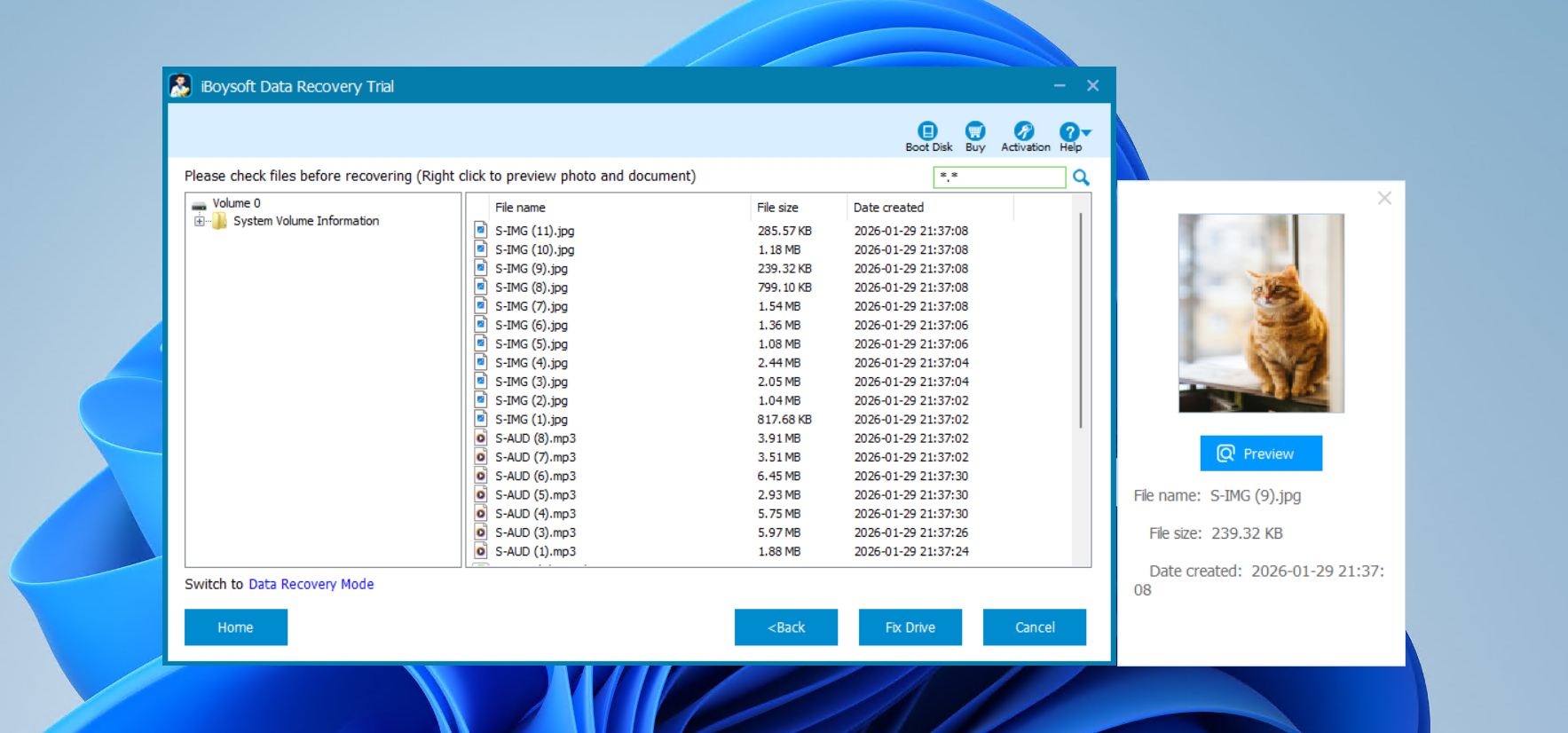
iBoysoft Data Recovery for Windows is a tool designed for the everyday user who needs a straightforward solution to recover files from deleted or inaccessible partitions, and doubles as partition repair software. The user interface is simple and intuitive, with clearly labeled options and an easy workflow that lets users scan, preview, and recover files without friction. It also allows you to save scan sessions and return to them later, avoiding the need to keep rescanning your drive.
One notable feature is the ability to fix RAW drives and restore them to a readable NTFS, FAT32, or exFAT file system without data loss when possible. While it doesn’t reconstruct partition tables directly, this functionality is useful for drives that have become unreadable due to logical corruption. Our iBoysoft Data Recovery review reveals that it actually does a really good job of recovering common formats like DOCX, JPG, MP4, and PDF files from external drives, with marginally varying success when it comes to flash drives and memory cards.
Unfortunately, one of the biggest downsides is the lack of lifetime license options. With the cheapest license being $69.95 a year, the cost can quickly add up (especially since it doesn’t come with many other features). We also observed slower scan times compared to others on the list. Despite these limitations, iBoysoft Data Recovery remains a safe and reliable choice for basic Windows data recovery scenarios.
Supported file systems: NTFS, FAT32, exFAT
Fix partition table: No.
Price:
| Free version | Scan and preview files. |
| Basic edition | $69.95/year |
| Professional edition | $199.00/year |
Limitations on the free/trial version: Scan and preview recoverable files.
Supported operating systems: Windows 11/10/8.1/8/7/Vista/XP.
What users say: “ The software has proved to be highly useful and easy to learn, which actually makes it more convenient, considering that it’s not frequently used” – Edgar, Capterra user.
10. Klennet Recovery
Pros:
- Extensive file system support
- RAID analyzer for RAID0 and RAID5, including disk order and block size detection
- Built-in file validation and preview
Cons:
- Requires relatively high system resources (8 GB RAM minimum, 16 GB for ZFS)
- An internet connection is required for operation
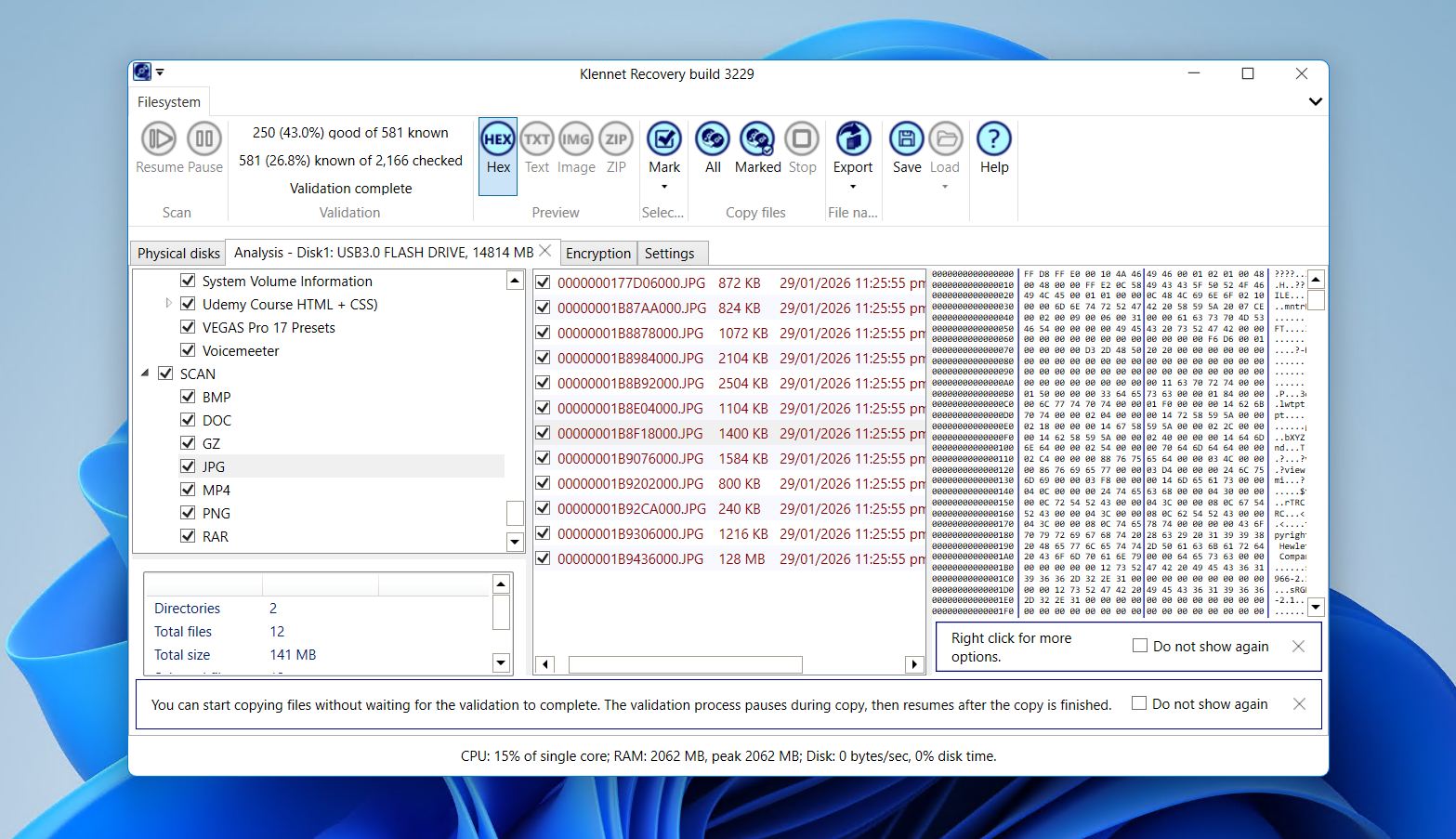
Klennet Recovery is a versatile DIY recovery partition tool for Windows, aimed at both casual users and more advanced scenarios, including NAS, RAID, and ZFS recovery in addition to the recovery of data from partitions. It prioritizes ease of use with a simple workflow: select a disk or partition, scan, preview, and copy.
The software excels in file system support (at least with the Full license and above), covering common Windows, macOS, and Linux file systems, in addition to ZFS with automatic pool layout detection, compression, and encryption support. It can also rebuild directories and filenames when possible, and includes RAID metadata support for multiple controllers and software RAID types. Disk imaging is also available for recovering failing or slow devices safely.
One minor but frustrating quality is that Klennet Recovery requires a consistent internet connection to operate. This is undoubtedly done for license validation, and creates a problem for those who’d prefer to use the software on an air-gapped PC. It also demands higher system resources, making it inadequate for older operating systems.
Supported file systems: FAT16, FAT32, exFAT, NTFS, HFS+, APFS, BTRFS, Ext4/3/2, F2FS, XFS, ZFS
Fix partition table: No.
Price:
| Free version | Scan and preview only. |
| Lite license | $79.00 (Windows file systems only) |
| Full license | $299.00 |
| Commercial license | $699.00 |
Limitations on the free/trial version: Cannot copy recovered files, otherwise full functionality.
Supported operating systems: Windows 11/10.
What users say: “Simple easy UI to use and very efficient. You have to get basic understanding before using it how it works not a self learning application little bit of expertise needed” – Devesh, G2 user.
How We Selected Top Partition Recovery Software
When we tested these tools, we measured them against criteria that we think would directly benefit those who will use it:
- ⚙️ Performance – Not all recovery tools can recover all types of files. And, not all can recover files from external storage. Because of this, we look for tools that are able to recover a wide range of files from different types of storage media.
- 🤗 User-Friendliness – A good recovery solution can be used by both newcomers and enthusiasts alike. This is why we’ve picked tools that are either easy to use right off the bat, or have some easy-to-learn basics that can get you started.
- 💲 Price – Of course, price is always a factor when it comes to anything. We’ve handpicked tools that we think are competitive in terms of pricing so you don’t have to break the bank to recover your data.
- 🔩 Compatibility – Not everyone uses the same operating system, file system, storage media, or device, so we tried to pick tools that can be used in any type of configuration.
Quick Comparison of the Best Partition Recovery Tools
Of course, remembering every detail about each software tool can be difficult. We’ve taken all of the key points from the tools we included in this list and put them into an easy-to-scan table below.
| Software Name | Price | Supported File Systems | Free Version Limitations | Extra Features |
| Disk Drill Partition Recovery | $89 lifetime license (Windows + macOS) | FAT/FAT32/exFAT, NTFS, HFS & HFS+, APFS, EXT3/EXT4 and any RAW disk | Recover up to 100 MB of data | Data protection, disk imaging, Advanced Camera Recovery, scan session management, storage clean-up, hex view |
| TestDisk | Free | BeFS, CramFS, FAT12/16/32, FATX, exFAT, HFS, HFS+ and HFSX, JFS, BtrFS, ext2/3/4, GFS2, NSS, NTFS, ReiserFS 3.5, 3.6 and 4, UFS, UFS2, XFS, SGI’s Journaled File System, Wii WBFS, Sun ZFS. | None | Repair boot sectors, restore lost partitions in place |
| DiskInternals | Starts at $139.95 | FAT, ReFS, UFS, HFS, NTFS, ReiserFS, APFS(reader mode), RomFS(reader mode), Reiser4, XFS, ext2/3/4 | Can only preview recoverable files | Disk imaging |
| MiniTool | Starts at $69.00 for monthly subscription | FAT12/16/32, exFAT, NTFS, NTFS5, ext2/3/4, HFS+, ISO9660, Joliet, UDF | Recover up to 1 GB of data | Bootable disk creation |
| Hetman | Starts at $77.95 | FAT, FAT32, exFAT, NTFS, HFS+, Ext4/3/2/ReiserFS, XFS/UFS | Can only scan for files | Hex view, basic scan session management |
| EaseUS | Starts at $69.95 for monthly subscription | FAT12/16/32, exFAT, NTFS, NTFS5, Ext4/3/2, HFS+, ReFS | Recover up to 2 GB of data | Basic scan session management, file repair, bootable drive creation |
| Active@ | Starts at $39.95 | FAT, FAT32, exFAT, NTFS, HFS+, UFS, Ext4/3/2 | Can only scan for files | None |
| UFS Explorer Professional Recovery | Starts at $64.95 | FAT, FAT32, exFAT, NTFS, APFS, HFS+, Ext4, ReFS, XFS, Btrfs, ZFS, F2FS, UFS, ReiserFS, VMFS, VMFS6, NWFS, NSS, NSS64, HFS, HPFS, WAFL (v2–v4), JFS1, JFS2, VxFS4, VxFS6, VxFS7. | Recover files smaller than 256 KB | Advanced disk imaging, supports encrypted/virtual storage |
| iBoysoft Data Recovery | Starts at $69.95 for yearly subscription | NTFS, FAT32, exFAT | Can only scan and preview recoverable files | Save and return to scan sessions, RAW drive repair to NTFS/FAT32/exFAT |
| Klennet Recovery | Starts at $79 (Lite) | FAT16, FAT32, exFAT, NTFS, HFS+, APFS, BTRFS, Ext2/3/4, F2FS, XFS, ZFS | Cannot copy recovered files | Disk imaging, built-in file validation and preview |
Partition Recovery Tips
- 💽 Backup data before editing partition structure. While making a backup is important when performing any action with your data, it’s especially important if you’re making adjustments to your partition structure. If something goes wrong during the process, you could end up losing an entire partition’s worth of data. Keeping a backup allows for easy recovery if needed.
- ⌛ Act quickly after data loss. Once your data is deleted, there is a window of opportunity for recovery. If you’re actively writing new data to your disk, your recoverable data will eventually be overwritten. If you want to recover your lost or deleted files, refrain from using the disk until you’re ready to attempt recovery.
- 🛠️ Use all scanning methods in data recovery software Data recovery software often features multiple scanning methods. Each method is designed using a different algorithm that determines how it works and what it scans for. To give yourself the best chance at discovering and recovering your files, use all scanning methods available.
Conclusion
For reliable partition recovery, Disk Drill is our top pick. It combines high-performance recovery algorithms with broad file system support while remaining surprisingly easy to use for beginners. Its free version allows recovery up to 100 MB, letting you test its capabilities risk-free, and extra tools like disk imaging and data protection make it a complex solution for both simple and complex tasks.
Two strong alternatives also stand out: TestDisk, a command-line partition recovery tool that’s free and suitable for repairing partition tables or restoring lost partitions, and DiskInternals Partition Recovery, which offers a guided, wizard-based recovery experience and the ability to preview files prior to recovery. Together, these tools cover virtually every need for partition recovery software, whether free or paid, making lost or deleted partitions recoverable with confidence.
FAQ
- Open the Command Prompt as administrator.
- Type diskpart and hit Enter.
- Type list disk to see available storage devices.
- Type select disk # (replace # with the number assigned to your storage device).
- Type list volume to see available volumes.
- Type select volume # (replace # with the number assigned to the partition you’re trying to recover).
- Type assign letter=X (replace X with an available drive letter, such as the letter g).
- Disk Drill - Restores files from RAW or unformatted partitions across multiple file systems.
- TestDisk - An advanced partition recovery software that’s free and can rebuild partition tables, restoring RAW partitions.
- iBoysoft Data Recovery - Converts RAW drives back to readable NTFS, FAT32, or exFAT while recovering files.
- UFS Explorer Professional Recovery - For advanced or complex RAW drives, including virtual and RAID setups.