DiskGenius is one of those tools you’ve probably seen mentioned in tech forums when someone’s trying to fix a busted drive or dig up deleted files. It’s packed with features, claims to recover data from tricky situations, and even doubles as a partition manager. Sounds promising. But how well does it actually work when your files are on the line? That’s what our team set out to test in this DiskGenius review. If you’re wondering how effective, safe, and capable it really is – keep reading.
Quick Verdict
Best for: Tech-savvy Windows users who need a combined tool for data recovery and partition management.
Here’s our DiskGenius review in a nutshell: If you’re looking for a capable Windows tool that does more than just undelete files, DiskGenius might surprise you. It combines solid data recovery with advanced partition management tools and more.
It’s not the prettiest app out there, and the free version is very limited (64 KB recovery cap), but when it works, it works well.
Pros
- Fast scan speeds
- Good performance with documents
- Advanced partition management tools (resize, format, convert, clone)
- Good value for the feature set (Pro edition)
- Outdated, cluttered UI
- Free version recovery data cap (64 KB file recovery limit)
- File previews often HEX view only
- Recovery of complex formats is hit-or-miss
- No forensic features
Overview
DiskGenius is developed by a company called Eassos, which has been building disk and data recovery tools since 2010. They originally released this software under the name DiskMan, then later rebranded it as DiskGenius as it evolved into something way more capable.
Today, it’s a full suite for disk management, backups, and file recovery. Over the years, the company’s built a loyal user base, especially among folks who deal with disk-level problems on the regular.
It’s worth noting that while the company is based in China, the software itself has been around long enough, and tested widely enough, to earn a spot on trusted download sites and software rankings.
Supported Operating Systems
DiskGenius is a Windows-only app. It runs on pretty much every version of Windows you’d expect: Windows 11, 10, 8.1, 8, and even 7. It also supports Windows Server builds, so if you’re working in a business or IT environment, it’s covered there too. Both 32-bit and 64-bit systems are supported, though most users today will be on 64-bit.
If you’re on a Mac or Linux machine, there’s no native way to run DiskGenius. You can’t install it directly, and there’s no .dmg or Linux package. But you can use it to work with drives that were used on other operating systems (as long as the file system is something it recognizes).
Supported File Systems
DiskGenius supports a solid range of file systems, mostly Windows and Linux setups.
- It works fully with NTFS, FAT32, and exFAT, which cover almost everything you’ll find on a typical Windows PC or external drive.
- If you’re working with Linux drives, you’re covered there too – EXT2, EXT3, and EXT4 are supported not just for recovery, but also for tasks like partition resizing or browsing files directly from the interface.
- In recent updates, they also added better support for Microsoft’s ReFS (Resilient File System). It’s still not super common outside of Windows Server environments, but it’s good to see that kind of support baked in.
- Now, when it comes to Mac file systems – DiskGenius does not support APFS or HFS+ in any way.
DiskGenius also handles RAID recovery. It supports RAID 0, RAID 1, RAID 10, RAID 4, RAID 5, RAID 6, and even JBOD setups.
Main Features
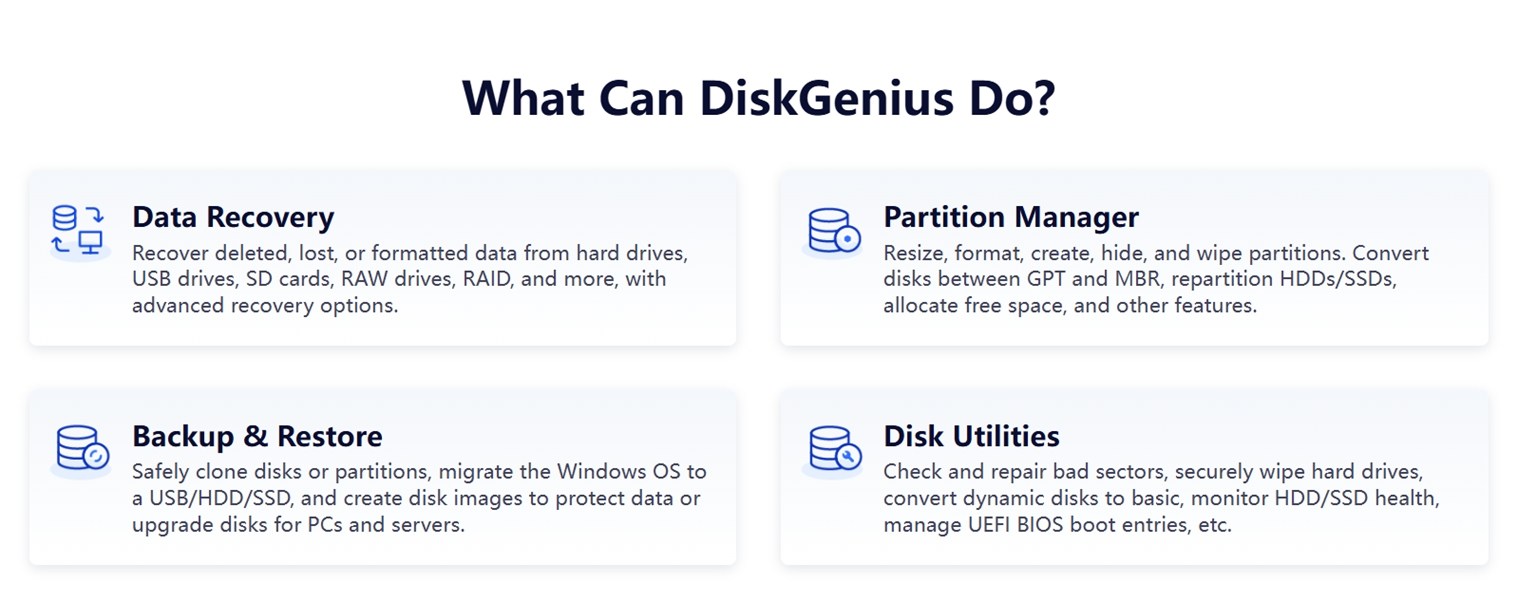
On its official page, DiskGenius lays out a simple breakdown of what the software can do – it covers more ground than your typical recovery app.
- There’s the obvious data recovery side: undeleting files, pulling data off formatted drives, scanning USB sticks, SD cards, RAW partitions, RAID volumes.
- It also works as a partition manager – you can resize, create, delete, hide partitions, convert between GPT and MBR disk styles (useful when setting up bootable drives or prepping new disks). If you’ve ever needed to reallocate space across drives without losing data, that’s where these tools come in.
- Then there’s the backup and restore set. You can clone your system or individual partitions to another drive, or create full disk images.
- And finally, the disk utilities. This is where you get access to low-level tools like scanning for bad sectors, securely wiping drives, converting dynamic disks to basic, monitoring S.M.A.R.T. drive health.
DiskGenius also provides its own WinPE edition, which allows you to run the software from a bootable USB or recovery environment.
So as you can see, DiskGenius calling itself an “all-in-one solution” is a pretty fair description.
Design and Interface
DiskGenius has a lot going for it, but design isn’t one of its strong points.
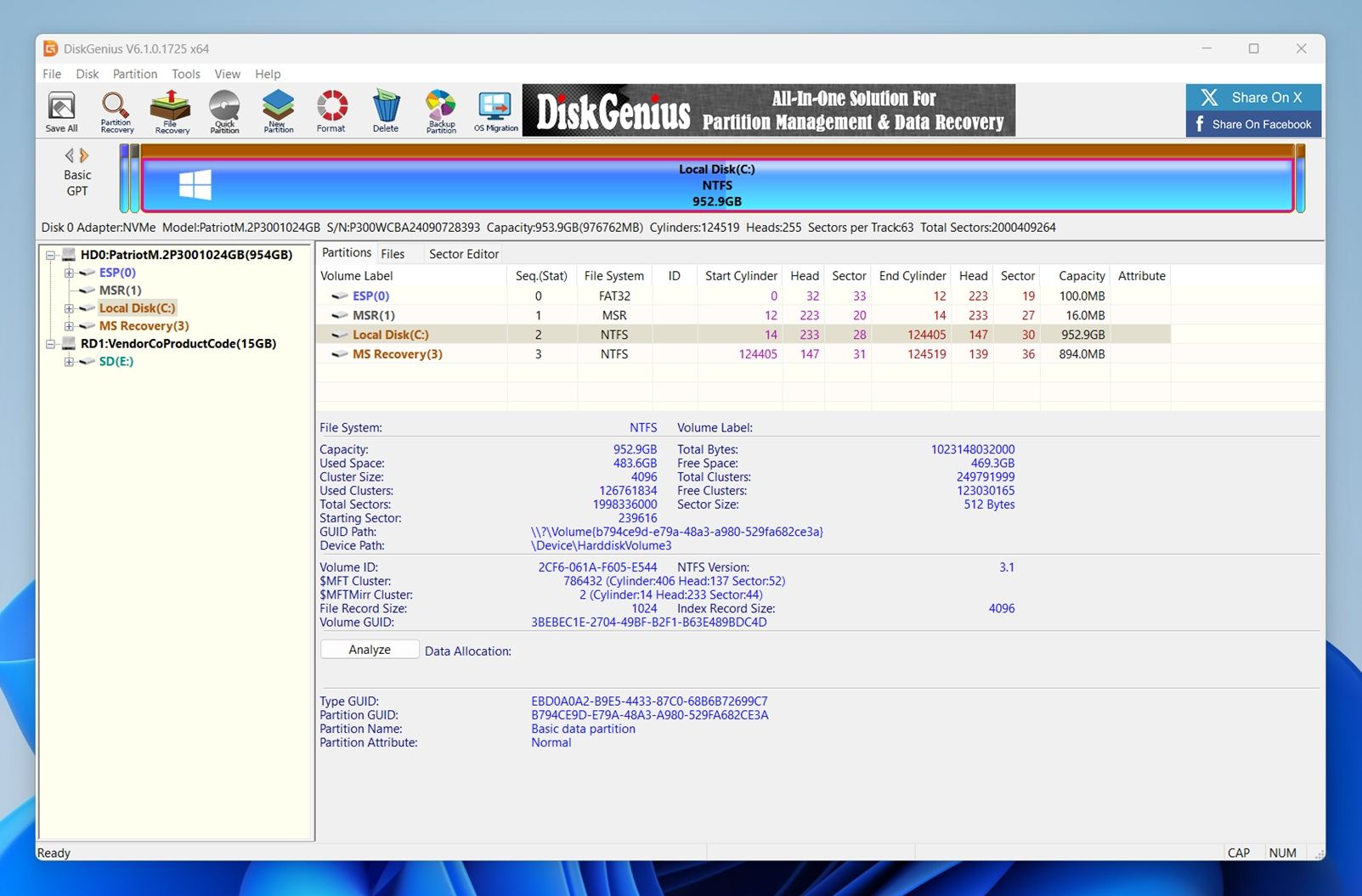
The UI hasn’t changed much. It’s functional, sure, but feels dense and old-school. Buttons are small, icons are packed together, and the color palette leans heavy on gray with bits of bright blue and yellow. There’s a lot of information on the screen at once (especially in the disk and partition views), so if you’re not used to looking at sector ranges and volume GUIDs, it can be overwhelming.
Take a look at the screenshot. The drive map at the top uses color-coded bars, which technically helps – but visually, it’s cluttered. The left panel lists every connected disk and volume, while the center view fills up fast with partition details.
Below that, you get raw file system metadata, which is helpful for technical users but probably overkill for most.
Menus are deep and packed with advanced functions. And if you’re not careful, it’s easy to click into something like “Hex Editor” or “Rebuild Partition Table” without really knowing what it does.
To be clear: it works. Nothing’s broken. But the UI assumes you already know what you’re doing. If you’re looking for a beginner-friendly experience, this is not that.
Thankfully, the official DiskGenius website includes a solid collection of step-by-step user guides. They walk you through everything – from file recovery to partition repair.
How We Tested DiskGenius
We used the same test setup here as we did in our previous data recovery reviews – same types of drives, same mixed file set, and the same real-world scenarios. The goal was to simulate what actual users go through when things go sideways: deleted files, accidental formats, and corrupted storage.
To properly evaluate DiskGenius, we ran it through three test cases:
- 1 TB Seagate Barracuda HDD – filled with around 1,500 files across multiple folders. After confirming the files were fine, we deleted everything and emptied the Recycle Bin.
- 16 GB SanDisk Ultra USB 3.0 flash drive – intentionally corrupted using a partition editor so it showed up as RAW (unreadable) in Windows.
- 64 GB Samsung EVO Plus microSD card – quick-formatted to ExFat to simulate a common “accidental format” scenario.
We loaded all three drives with the same 60 GB dataset beforehand: a mix of documents, media, and archives. Then we either deleted, formatted, or corrupted them depending on the test.
File types in the test set included:
- Photos: JPG, PNG, Canon CR2/CR3, Nikon NEF
- Videos: MP4 (H.264/H.265), MOV, AVI
- Documents: DOC/DOCX, PDF, XLSX, TXT
- Audio: MP3, WAV, FLAC
Miscellaneous: ZIP, RAR, and a few EXE installers
But we didn’t stop at whether files came back or not. We also looked at how usable the tool felt and whether it offered real value for what it costs.
Here’s what we evaluated during testing:
| Metric | What We Measured |
| Recovery success rate | Percentage of files recovered, and whether they opened correctly after recovery |
| Scan speed | How long it took to complete scans across different drives |
| Ease of use | Workflow clarity, UI responsiveness, and how easy it was to get from scan to save |
| Value for money | Free vs. paid limits and how much you get for the license price |
We’ll go over the results of each test case in the next sections.
Is DiskGenius Safe?
Before we go into recovery results, we want to address the question some people ask first: is DiskGenius actually safe to install and run on a Windows machine?
We downloaded the installer directly from the official DiskGenius website and ran it through VirusTotal. Out of 70 antivirus engines, 69 reported it as clean. One engine (Sophos) flagged it as “DiskGenius (PUA)” – a potentially unwanted application tag rather than a straight malware alert.
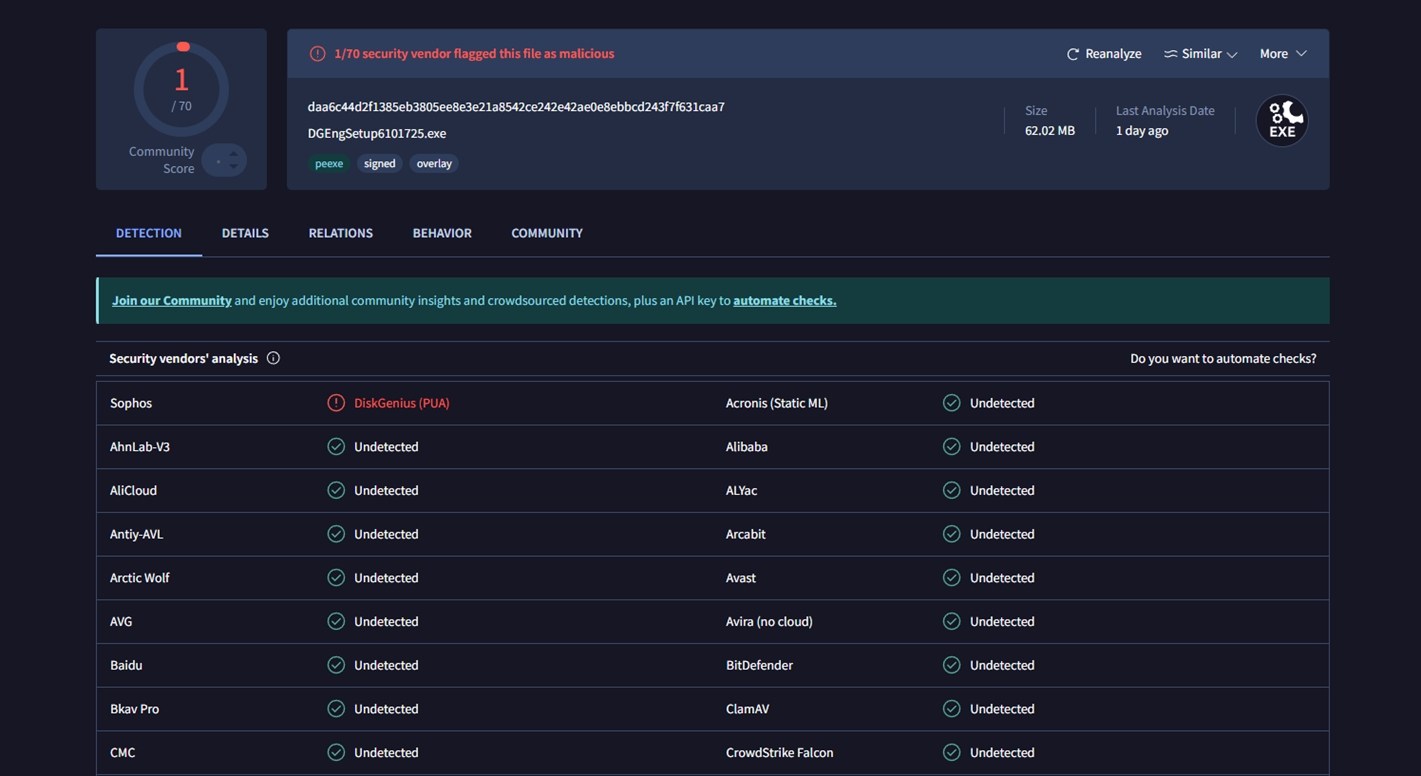
A PUA label usually means the engine doesn’t like what the software can do (low-level partition access, boot records, secure wiping, and similar tools) or how it’s packaged, not that it behaves like a trojan or ransomware.
Disk utilities often trip this kind of heuristic because they touch parts of the disk that normal apps never touch.
To double-check, we installed DiskGenius on our Windows 11 test system and ran Avast after installation and again after completing all of our scans and recovery tests. Avast did not report any threats, and we didn’t notice suspicious background processes, browser extensions, or surprise software. Everything stayed inside the DiskGenius folder where it belonged.
So, from a malware perspective, DiskGenius looked clean in our environment.
However, the usual common-sense rules still apply:
- Download it from the official site, not from third-party mirrors or bundles.
- Pay attention during installation so you don’t agree to anything extra you don’t want.
Privacy Policy and User Agreement
Unlike many modern apps, DiskGenius does not provide a standalone, detailed privacy policy on its official website. There’s no dedicated link at the bottom of the homepage, no page outlining what kind of data the app collects, how it’s stored, or whether anything gets sent to the cloud. What you will find is a page explaining their refund policy.
Inside the app itself, we also didn’t find any user-facing controls related to privacy or telemetry. Other disk utilities sometimes include a toggle to opt out of usage tracking or error reporting – DiskGenius has no such settings.
That said, the EULA (End User License Agreement) does briefly mention data handling:
“The software developer does not track or monitor your computer, nor collects or reveals personal information… The Software does not contain any malicious code to destroy or collect your privacy information or monitor computer.”
This is somewhat reassuring, but it’s buried deep in legal language and lacks the transparency or clarity we’d expect from modern software. There’s also a clause that says:
“The Software may collect information about your use of the software and feedback from time to time in order to improve functionality and service quality.”
So, there is some form of anonymous usage tracking mentioned, with no way to disable it manually. It’s not a dealbreaker, especially since they claim it doesn’t include personal details, and we didn’t observe any sketchy behavior during our tests, but other tools in this category often do a better job here.
Recovery Workflow
Let’s get back to the app itself. As we said earlier, DiskGenius isn’t exactly beginner-friendly. The UI is old-school. But once you’ve done it once, it’s really not that complicated. Here’s how a typical file recovery process unfolds:
Step 1: Download the App
To get started, go to the official DiskGenius page. You’ll find two options available:
- Free Download (Installer) (a regular .exe file you install like any standard Windows app).
- Google Drive Link.
When we tested the Google Drive link, it returned a 404 error (“that’s an error” message from Google). So at the time of this writing, only the main installer works.
Important: Always download DiskGenius to a separate drive – not the one you’re trying to recover data from (it can permanently overwrite lost data).
After downloading, launch the executable directly. From there, you’re ready to start the recovery process.
Step 2: Launch the App and Select the Drive
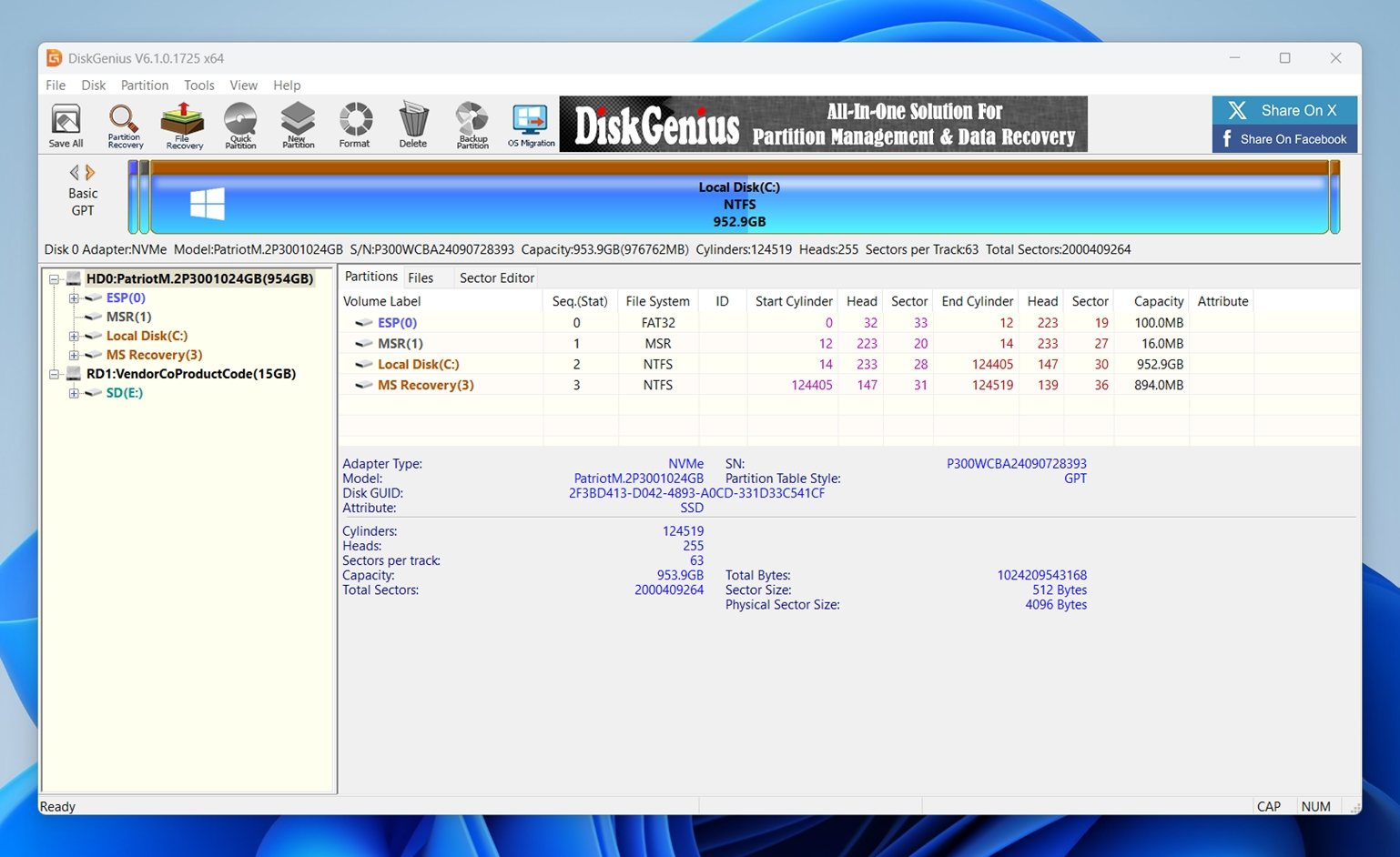
Open DiskGenius. You’ll immediately see a list of all detected disks and partitions on the left-hand side. Find the one where your files went missing.
Right-click the target partition or disk and choose “Recover Lost Files” from the menu (or hit the U key as a shortcut).
Step 3: Choose Recovery Settings
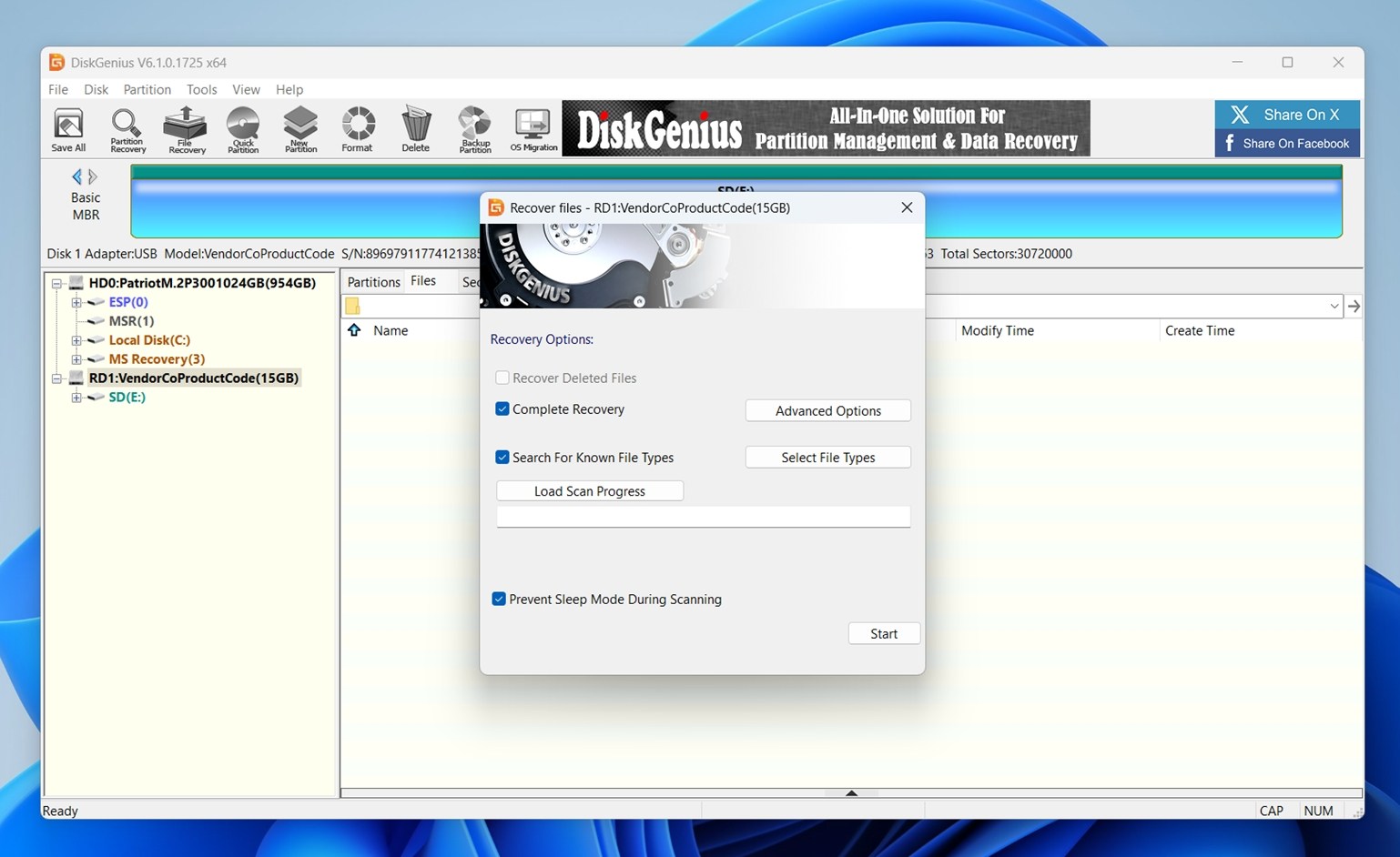
Here’s what each option means:
- Recover Deleted Files – A quick scan for files recently deleted but not yet overwritten.
- Complete Recovery – A deep, sector-by-sector scan that works even on formatted or corrupted drives. This is usually the safest pick if you’re unsure what happened.
- Search for Known File Types – Uses file signatures (like JPG, DOCX, MP4, etc.) to rebuild files when metadata is gone. You can refine this using the Select File Types button.
- Prevent Sleep Mode During Scanning – Keeps your system awake so long scans don’t get interrupted.
You can also hit Advanced Options to tweak scanning depth, file system handling, or skip bad sectors – though most users can leave these alone.
When everything’s set, click Start. You’ll be shown a live progress window. Depending on the size and condition of the drive, this part can take a while.
Step 4: Browse and Preview Recovered Files

Once DiskGenius finishes scanning (or even while the scan is in progress), you’ll be taken to the file results view.
Here’s what you’ll see:
- The left sidebar shows a folder tree based on how files were recovered: structured directories (if intact), file types (Photo Files, Video Files, Document Files), and orphaned clusters.
- The main pane lists individual files with name, size, type, and timestamps.
- At the bottom, there’s a preview window and HEX viewer. You’ll see image thumbnails or raw file structure, depending on what’s selected.
Click on any file to check its contents. If it’s a supported format, you’ll get a small preview. For images, it’s usually enough to confirm whether the file is intact.
A larger preview window if you press P (though it’s clunky).
Keep in mind:
- Some files open in HEX view by default. Not very useful unless you know what you’re looking at.
- You can filter results by name, extension, file status (Deleted, Normal, Duplicate), or use wildcards (like *.jpg) in the search box above.
You’ll likely spend the most time in this step.
Step 5: Recover and Save Your Files

Once you’ve selected the files you want, it’s time to save them. Select the files or folders from the recovery list in the main panel. You can Ctrl+click to grab multiple, or use Shift for a range.
Right-click and choose one of the copy options:
- Copy to Desktop
- Copy to My Documents
- Copy To… (this opens a custom location selector)
📌 Always save recovered files to a different drive – never the same one you’re recovering from. Writing data to the same disk could overwrite more lost files and reduce your chances of full recovery.
After selecting your target destination, DiskGenius will copy over the files. You’ll get a small confirmation window with the progress bar and final size of recovered data.
Does DiskGenius Work?
Now that we’ve walked through the full recovery process, it’s time to talk results.
| Scenario | Recovery success rate* | Scan time | Notes |
| 1 TB Seagate Barracuda HDD (deleted files, NTFS) | ~92% of files recovered and opened | ~70 minutes | Most common formats (DOC/DOCX, XLS/XLSX, PDF, JPG, PNG) came back clean with original filenames and mostly intact folder structure. |
| 64 GB Samsung EVO Plus microSD (quick format) | ~70% usable files | ~25 minutes | Because of the format, DiskGenius leaned heavily on signature scanning. Many RAW photos from Nikon and GoPro (NEF, NRW, GPR) were recovered and viewable, but CR2/CR3 was inconsistent. Folder structure was basically gone and filenames were mostly generic. A handful of MOV clips (H.264/HEVC) were playable, but MP4 and INSV video recovery was poor. |
| 16 GB SanDisk Ultra USB (forced RAW, no file system) | ~60% usable files | ~10 minutes | DiskGenius did manage to detect a “Recognized Partition” and carve out a decent number of JPGs and documents, but this was the roughest case. Most videos were broken or incomplete, and many recovered items had generic names and lived in “Recovered Types” folders. Good enough for salvaging some photos and docs, not great for media-heavy drives. |
Not bad at all. Like most data recovery tools, DiskGenius delivered its best results in the most straightforward scenario- recently deleted files on a healthy drive. That’s where it really delivered: we saw excellent recovery rates, good retention of file names, and folder structure. This isn’t unique to DiskGenius, but it’s a strong showing that puts it solidly in the same tier as more polished (and often more expensive) competitors.
Where it surprised us a bit was scan speed. While testing the 16 GB SanDisk USB in RAW format mode, the complete scan took just under 10 minutes. We’ve used tools that take twice as long to crawl through the same drive, especially when running deep or signature-based scans. That kind of performance makes DiskGenius a solid pick if you’re looking for speed and control.
If we look at file type recovery across all three test scenarios, DiskGenius was by far the most consistent with documents. Word files, PDFs, spreadsheets – formats like DOC, DOCX, XLS, XLSX, PDF – were recovered almost flawlessly, and we were able to open nearly every document without issue. If your priority is recovering work files or academic documents, DiskGenius absolutely delivers.
Pricing & Value
DiskGenius offers two main license tiers, and honestly, the pricing is pretty fair. Here’s how it breaks down:
| Edition | Price | Key Features |
| Standard | $69.90 (1 PC) | Core recovery features, partition management, and backup tools. Ideal for everyday users who don’t need BitLocker or RAID support. |
| Professional | $99.90 (1 PC), more for 5 or 20 PCs | Adds advanced features like Ext4/3/2 support, BitLocker access, RAID recovery, and deeper partition analysis. A better fit for IT pros, data recovery techs, or power users. |
While you can download DiskGenius for free, the Free Edition is extremely limited. It lets you scan drives, preview files, and even test out the recovery process, but when it comes to actually saving your data, there’s a big catch: you can only recover files smaller than 64 KB.
Let’s be honest, that’s basically the same as having no real recovery option at all. A 64 KB cap barely covers a text note or a tiny image thumbnail. Anything meaningful – photos, videos, or documents – will exceed that limit instantly. So while the free version is great for getting a feel for the interface and testing compatibility with your drives, you’ll need a paid license to do any practical recovery.
Is it worth it? If you only need to recover a few lost files and don’t care about advanced disk management, the Standard edition might feel a little steep. But for those dealing with more serious disk issues, or who want to combine recovery with cloning, partition repair, and system backups, it’s a solid package. The Professional version, in particular, offers good value for the range of tools it unlocks.
DiskGenius Against Top Rivals
When it comes to data recovery tools in the ~$70-$100 range, DiskGenius, Disk Drill, and R-Studio are often in the same conversation. They each target a slightly different kind of user, but all offer advanced recovery capabilities, deep scan modes, and extra tools.
Here’s a side-by-side comparison to help you see where DiskGenius holds its ground:
| Feature / Tool | DiskGenius | Disk Drill | R-Studio |
| Platform Support | Windows only | Windows & macOS (1 license covers both) | Windows, macOS, Linux (sold separately) |
| Scan Speed | Fast | Very fast | Slower |
| Preview Functionality | Mixed | Excellent (clean and visual) | Mixed |
| Free Recovery Limit | 64 KB per file (basically unusable) | 100 MB (Windows); free preview (Mac) | Files smaller than 256 KB |
| File System Support | NTFS, exFAT, FAT32, ext2/3/4 | NTFS, FAT32, exFAT, ReFS, EXT2/3/4, HFS+/APFS | NTFS, FAT12/16/32, exFAT, ReFS, HFS+, APFS, Ext2/3/4, UFS1/2, XFS |
| UI / Ease of Use | Outdated and dense | Clean, beginner-friendly | Technical and detailed/dense |
| Price (Lifetime) | $69.90 Standard / $99.90 Pro | $89 for Pro (one-time) | $79.99+ per platform (separate licenses) |
In our opinion, DiskGenius makes the most sense if you need both data recovery and partition management on Windows. That’s where the Professional version really shines. For the price, you get a full toolkit – file recovery, tools to rebuild partitions, clone drives, check for bad sectors, and more. If you’re a tech-savvy Windows user or doing regular maintenance on internal/external drives, it’s a good investment.
But if you’re more focused on convenience and recovery performance, we’d lean toward Disk Drill Pro. It costs about the same, but feels way more modern. The UI is easier to navigate, file previews are smoother, and in our tests, recovery results were often better, especially with photos/videos. It also includes handy extras like S.M.A.R.T. monitoring for drive health, disk imaging for safer recovery, and basic data protection features that can help prevent loss in the first place. Plus, one license covers both Windows and macOS, which is a huge bonus if you use both platforms.
R-Studio is in a similar price range and has a similarly dense, technical interface like DiskGenius, but it’s more geared toward professional environments, with advanced forensic features. Unless you’re recovering from a failed server or know exactly what you’re doing, it might be overkill for most people.
Customer Reviews
As always, we also took into account what actual users are saying about their experience with DiskGenius, and the feedback is a bit of a mixed bag depending on where you look.
- On Trustpilot, DiskGenius holds a 3.8 out of 5 rating, based on 36 reviews. It’s not bad, but it does reflect a range of experiences. Some users praise the tool for reliable recovery, solid customer support, and value for the price.
- Over on G2, the review score is much higher, 4.9 out of 5, but the sample size is tiny (just 4 reviews). That said, the tone here is clearly more positive.
And if you’re still wondering, is DiskGenius legit? Based on broader feedback on other platforms like Reddit (and our own testing), the answer is clearly yes. Opinions range from glowing to critical, but when you zoom in on feedback from tech-savvy users and IT enthusiasts, the consensus leans toward a clear “yay.”
That said, not all feedback is glowing. There were also a handful of complaints – mostly around recovery failures, lack of timely customer support, or frustrations with unclear refund policy limitations. Several users noted that the 30-day money-back guarantee comes with a lot of conditions, which makes it hard to actually claim a refund if the tool didn’t work as expected.
But let’s be real, no data recovery software is immune to this kind of feedback. Every tool has edge cases it can’t handle, and recovery success depends heavily on the condition of the drive and how the data was lost.
Final Verdict
After all our tests, here’s how it scored in our hands-on evaluation:
| Metric | Score | Notes |
| Recovery success rate | 7.5 / 10 | Strong with documents and standard photo formats. Mixed results for videos and advanced RAW formats. |
| Scan speed | 8 / 10 | Fast, especially on smaller drives. Scanned a 16 GB USB in just under 10 minutes – faster than many similarly priced tools. |
| Ease of use | 5.5 / 10 | Functional but dated UI. Steeper learning curve than tools like Disk Drill. Best suited for experienced users. |
| Value for money | 8 / 10 | The Pro edition includes solid disk management and backup features. Good deal for Windows users needing both recovery and partition tools. Free version is too limited to be useful. |
Overall Score: 7.25 / 10
DiskGenius isn’t the flashiest or easiest tool to use – but it’s reliable, fast, and surprisingly capable once you get past the interface. If you’re a Windows user who wants a mix of partition repair, cloning, and solid recovery tools, the Professional license is worth the price. It’s especially strong with documents.
That said, it’s not the best option for beginners. If you want something more modern and user-friendly, there are offers with better usability, smoother previews, and stronger recovery for tricky formats.
DiskGenius makes the most sense if:
- You’re a Windows user comfortable with technical tools
- You want both data recovery and partition/disk management in one app
- You’re looking for solid document recovery and don’t mind a slightly outdated interface
It might not win any design awards, but for its price, DiskGenius still punches above its weight in the right hands.