 Today our team is going to take a close look at EaseUS Data Recovery Wizard – what it is, what it can actually pull off, and where it still stumbles. We’ve used this tool across different recovery cases over the years, so this isn’t a first impression. It’s a hands-on EaseUS Data Recovery Wizard Pro review, backed by real tests. If you’re wondering whether it’s worth the Pro upgrade or if it’s safe to run on your system, we’ve got answers.
Quick Verdict
Best for: casual home users who want some hand-holding and don’t need to recover anything complex.
EaseUS Data Recovery Wizard delivers decent recovery results for common data loss situations. The free version lets you restore up to 2 GB, which is helpful for testing, but the steep pricing tiers kick in quickly after that. It includes basic file repair features but lacks advanced recovery options like disk imaging or deep customization. It’s a solid pick for simple jobs, but power users will find better value and capability elsewhere.
Pros
- Clean interface that’s easy to follow
- Decent scan performance on healthy drives
- Built-in file repair for photos and videos
- Recovery filter helps narrow down results by file type or location
- Customer support includes live chat and email assistance
- Pricing feels steep
- Free version is limited
- No disk imaging capability, which is important for failing drives
- Lacks advanced tools
- Raid/NAS support is basic and not suitable for complex arrays
- File preview is lacking
- Some uncommon formats aren’t recovered reliably
- Scan times are decent but not class‑leading
What Is EaseUS Data Recovery Wizard?
EaseUS is one of the most well-known players in the data recovery space. It’s been around since 2004 and has built a reputation for offering easy-to-use recovery tools for Windows and Mac users. Today, we will take a closer look at EaseUS Data Recovery Wizard Pro – its flagship product for bringing back lost files from hard drives, USB sticks, memory cards, and more.
It runs on Windows 7 through 11, plus all major Windows Server versions from 2003 to 2022.
There’s a macOS version too, but our tests focused on Windows.
Device and File System Support
EaseUS works with a wide mix of file systems.
- On Windows, you get support for NTFS, FAT12/16/32, exFAT, ReFS, and even Linux formats like ext2, ext3, and ext4.
- If you’re working with a Mac-formatted HFS+ drive on Windows, it’ll still try to scan it, but results can be hit or miss.
On the hardware side, it handles the basics well. Internal HDDs and SSDs, external drives, USB sticks, SD and other memory cards. You can also scan unbootable or crashed drives as long as you connect them to a working system.
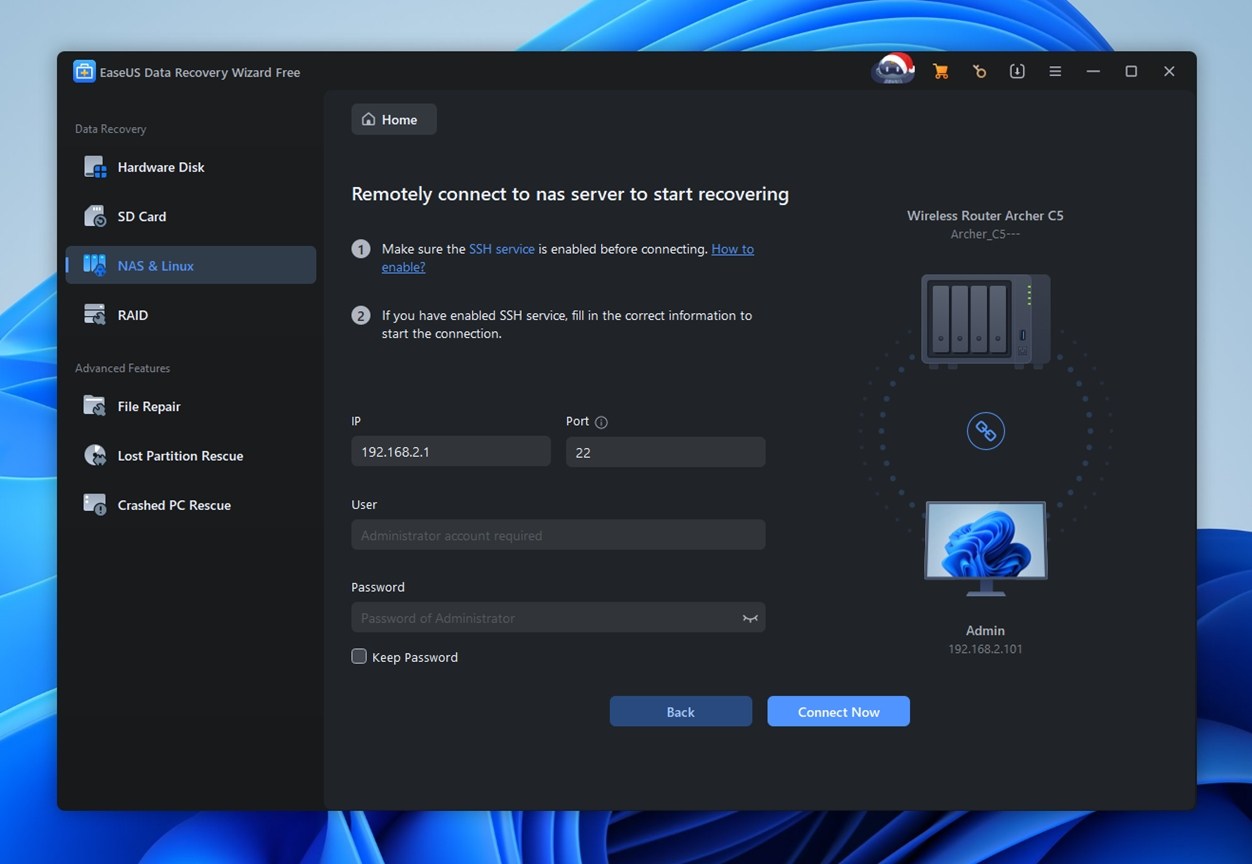
NAS devices and RAID setups get a mention on the official site, but don’t expect full-blown enterprise-level support. It can work with basic NAS systems or mirrored/striped arrays (RAID 0 and 1), but anything beyond that (RAID 5, 6, or JBOD with missing disks) is beyond its reach. There’s no RAID rebuild module, either.
Scan Modes and Extra Features
Like most similar tools, EaseUS offers both Quick Scan and Deep Scan (Advanced Scanning). You don’t have to choose – both modes run automatically in sequence when you scan a drive. Quick Scan kicks off first and usually pulls up files that were recently deleted, while Deep Scan goes layer by layer to recover data from formatted, corrupted, or RAW volumes.
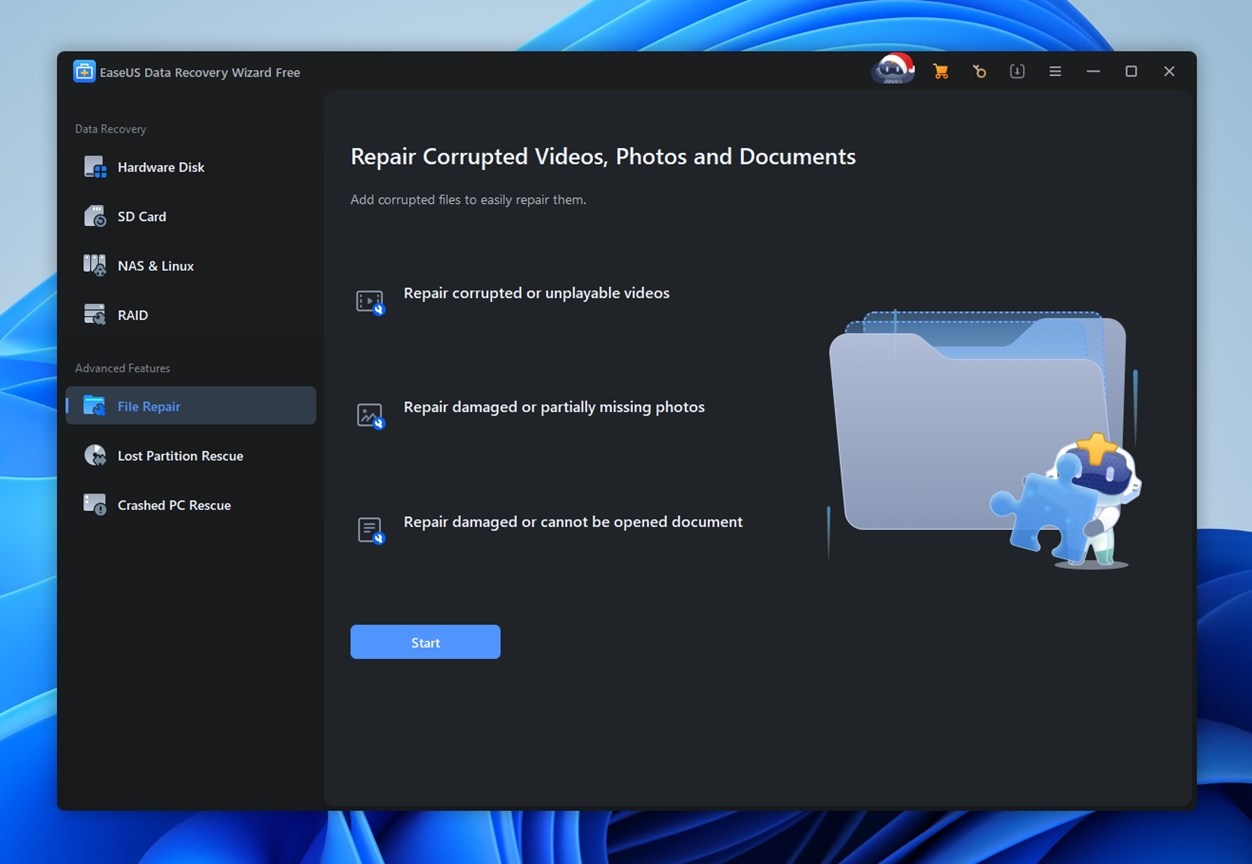
Aside from the core recovery tools, EaseUS includes a basic file repair module. It can attempt to fix corrupted or unplayable videos, damaged photos, and broken documents. We tried it on a few damaged JPEGs and a broken MP4. Mixed results. Some files opened again, others didn’t. Useful as a last step, not something to rely on.
What’s missing stands out more. There’s no option to create disk images or scan an image file later. For unstable drives, that’s a real limitation. We’d honestly like to see that added.
User Interface and Usability
EaseUS Data Recovery Wizard offers a user interface that’s clean and clearly designed with non-technical users in mind. It opens with large icons, clear path listings, and visible scan progress at the bottom. The folder tree view mimics Windows Explorer, which helps most people feel at home right away.
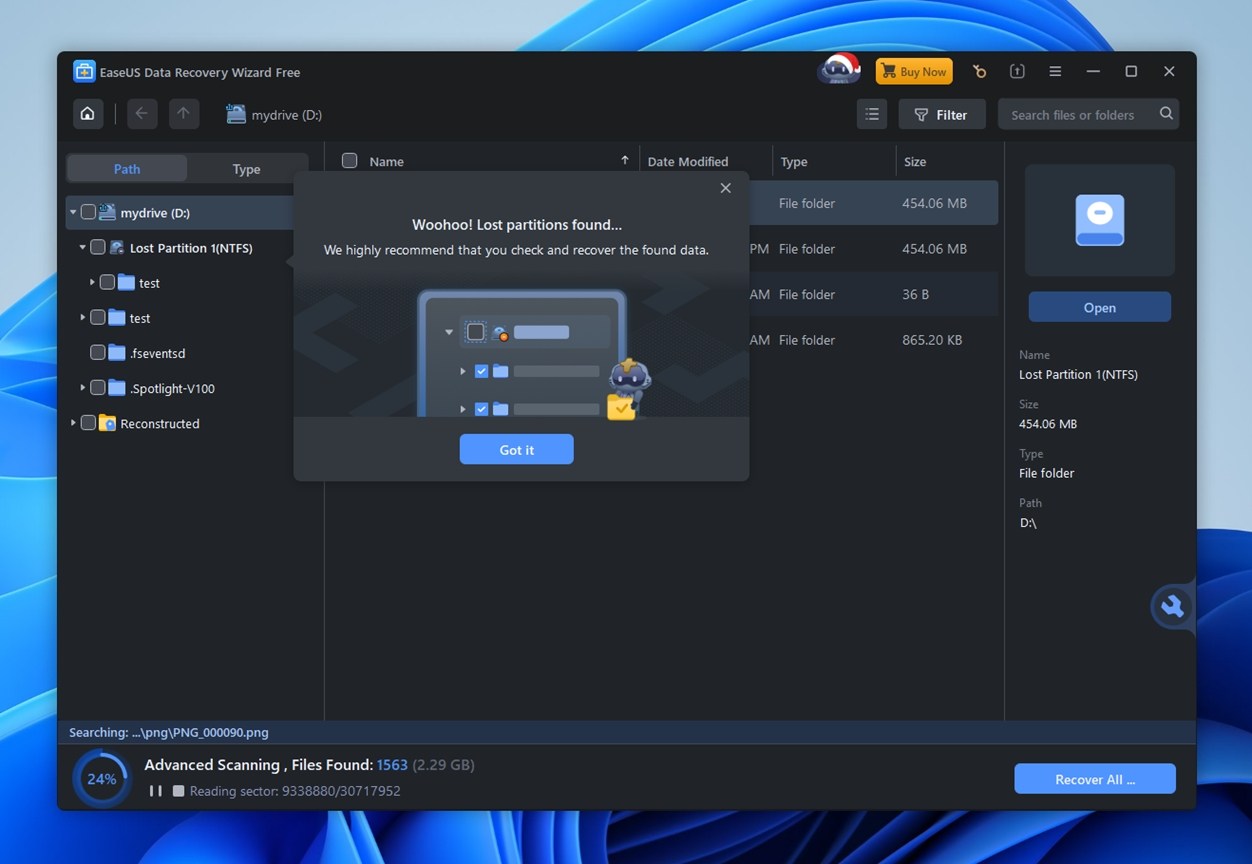
As shown in the screenshot, the app often displays pop-ups and tips like “Woohoo! Lost partitions found”, along with cartoon mascots and friendly instructions. While some advanced users might find this a little overdone, it’s helpful for less experienced users navigating data recovery for the first time.
The layout is intuitive. Devices and partitions show up on the left, recovered files populate the center, and metadata appears on the right. Search and filtering tools are also built-in.
All in all, EaseUS keeps things simple without looking dated or overly basic.
EaseUS also gives you the option to switch between light and dark themes, which we always appreciate. Not everyone likes to stare at a bright white interface during recovery sessions, especially at night. Nice touch.
How We Test
To keep things fair across the board, we used the same setup we’ve relied on for all recent recovery software tests – identical drives, consistent file sets, and real-world scenarios. This approach lets us evaluate EaseUS Data Recovery Wizard against other tools under equal conditions.
We ran it through three key recovery cases:
- Case 1. A 1 TB Seagate Barracuda filled with around 1,500 files across nested folders. Everything was deleted and removed from the Recycle Bin.
- Case 2. A 64 GB Samsung EVO Plus microSD card made unreadable (RAW).
- Case 3. A 16 GB SanDisk Ultra USB 3.0 flash drive quick-formatted to NTFS (simulating accidental format).
The file mix was deliberately broad. We tested photos (JPG, PNG), RAW formats (CR2, NEF), videos (MP4, MOV, GoPro), documents (DOCX, PDF), audio (MP3, FLAC), even ZIPs and EXEs. We wanted to see not just what EaseUS could find, but whether the files came back functional.
Of course, recovery results are the heart of any data recovery tool – and we gave that the weight it deserves. But we don’t stop there when calculating the final score.
We scored the tool across four key metrics:
| Metric | What We Measured |
| Recovery success rate | How many files came back intact and usable |
| Scan speed | Total scan time and general responsiveness |
| Ease of use | How intuitive the process felt, plus UI stability |
| Value for money | What you get for free vs. paid (and whether the pricing feels justified) |
Those numbers, plus our hands-on experience, shaped the final score you’ll see at the end of the review.
Is EaseUS Data Recovery Wizard Safe?
As with most software, people often wonder: is it safe? Absolutely fair concern – and one that comes up constantly on Reddit and forums. You should be cautious about what you install, especially tools that need deep system access like data recovery apps.
So, is EaseUS safe? Yes, it is.
Just like every other tool we evaluate, EaseUS went through our standard security checks. We started with VirusTotal, which runs it through dozens of antivirus engines.
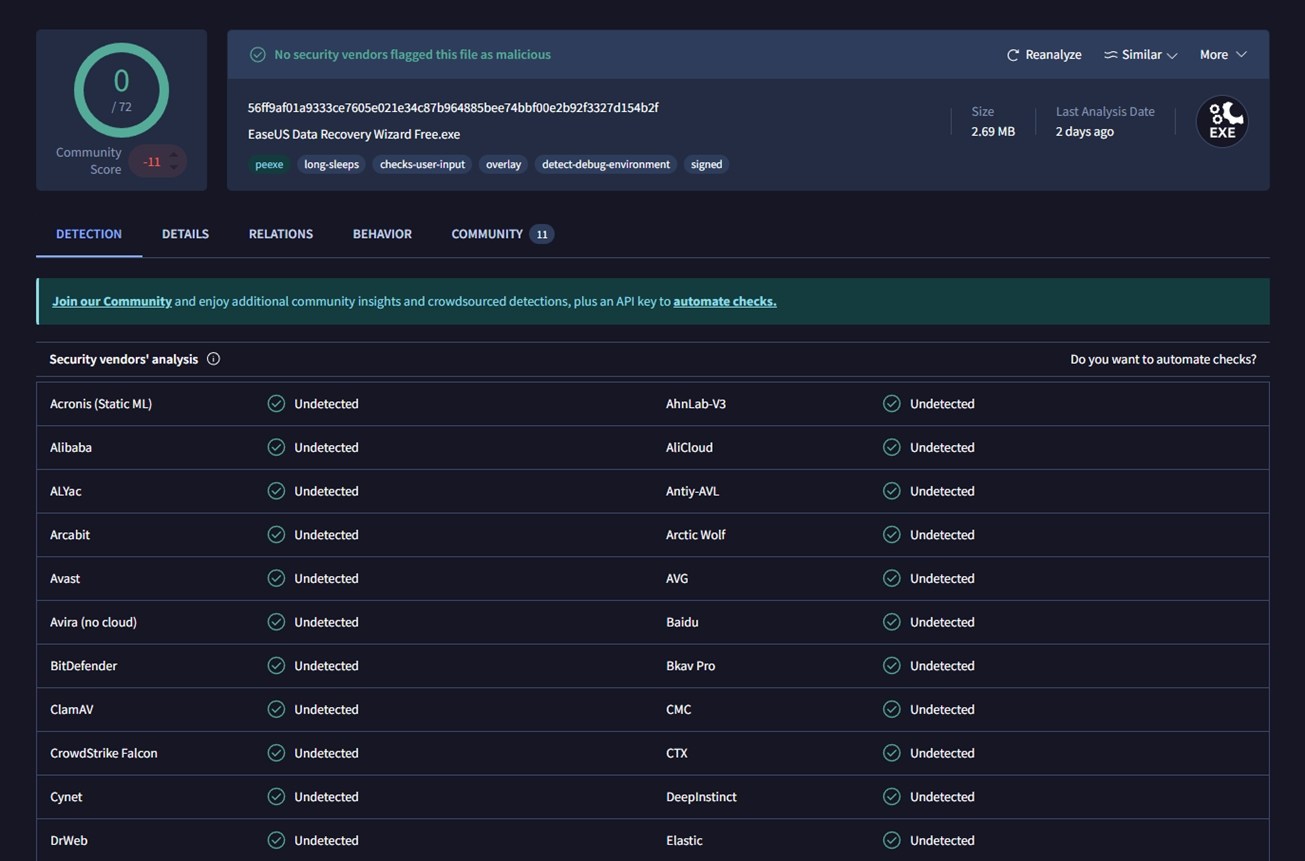
Not a single one flagged it. That’s 0/72 detections, as you can see in the screenshot above. No shady behavior here.
Also, just to cover all bases, we scanned the test system with Avast after all tests were done – everything came back clean. So if malware is your concern, you’re in the clear.
EaseUS Data Recovery Workflow
Before we jump into the test results, let’s quickly walk through how EaseUS works. It’s a straightforward process, so we won’t dwell on it too long, but it’s worth covering to set the scene.
As soon as you launch the app, you’re greeted with a list of connected storage devices. External drives show up at the top, followed by internal disks.
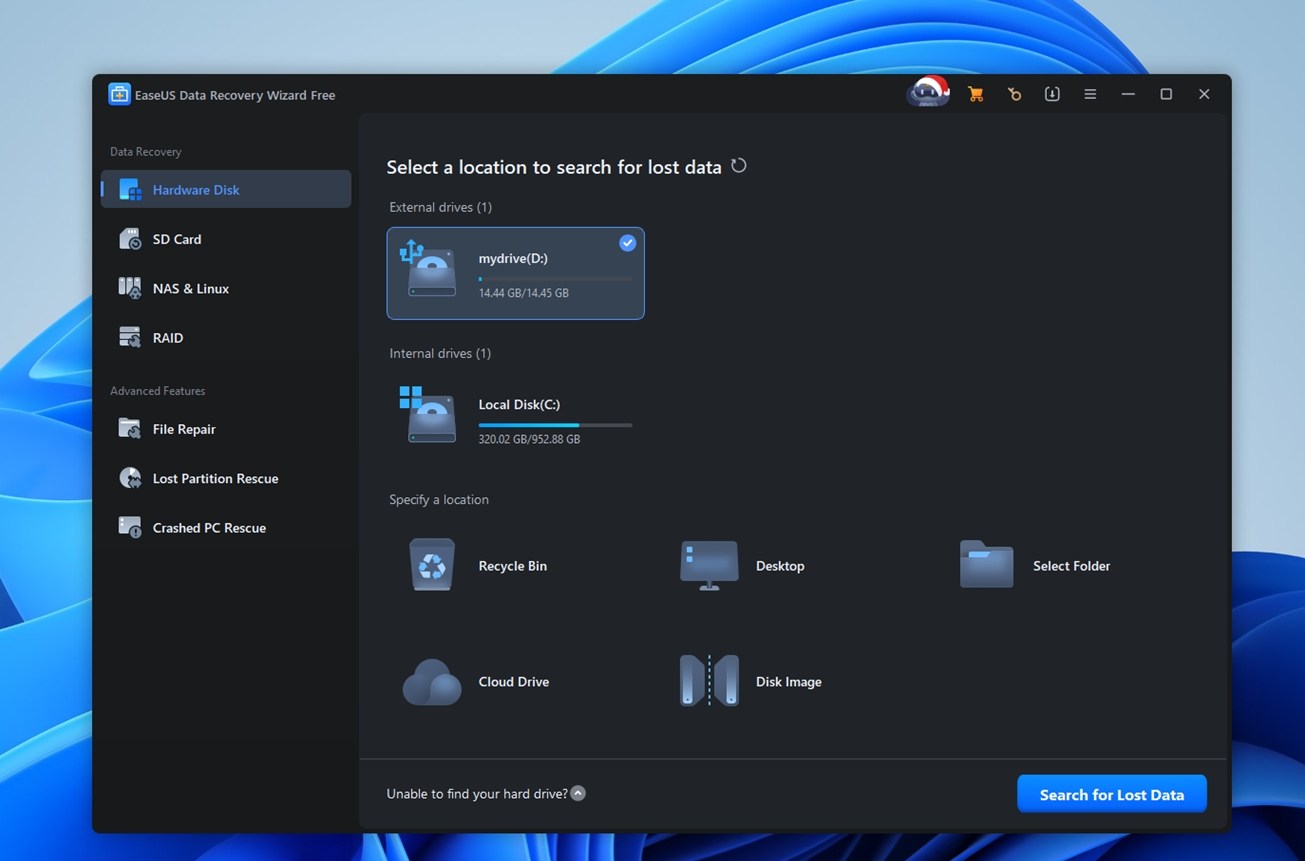
Once you click Search for Lost Data, the scan begins immediately.
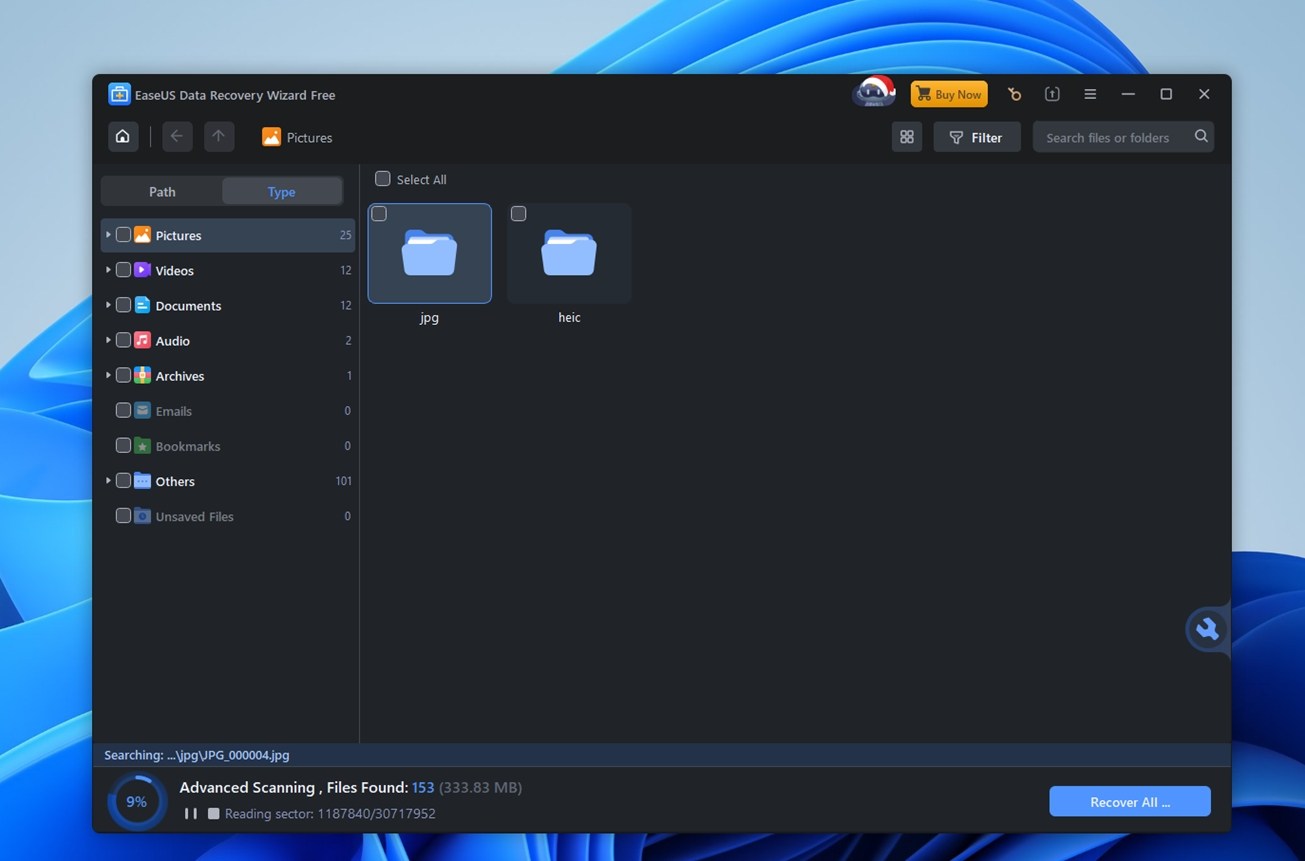
First-time users get a short intro with tooltips pointing out key UI elements. Stuff like “click here to scan” or “this icon shows file types.” It’s helpful if you’re new.
As the scan runs, results start appearing in real time. You’ll see a live file count and percentage tracker along the bottom of the window, which keeps you in the loop. You don’t have to wait for the scan to finish; you can start browsing results right away.
Navigation is pretty intuitive. Files are grouped by type or original folder structure, and you can drill down by category, like JPG, PNG, BMP, or GIF, or use the search bar to pinpoint something specific.
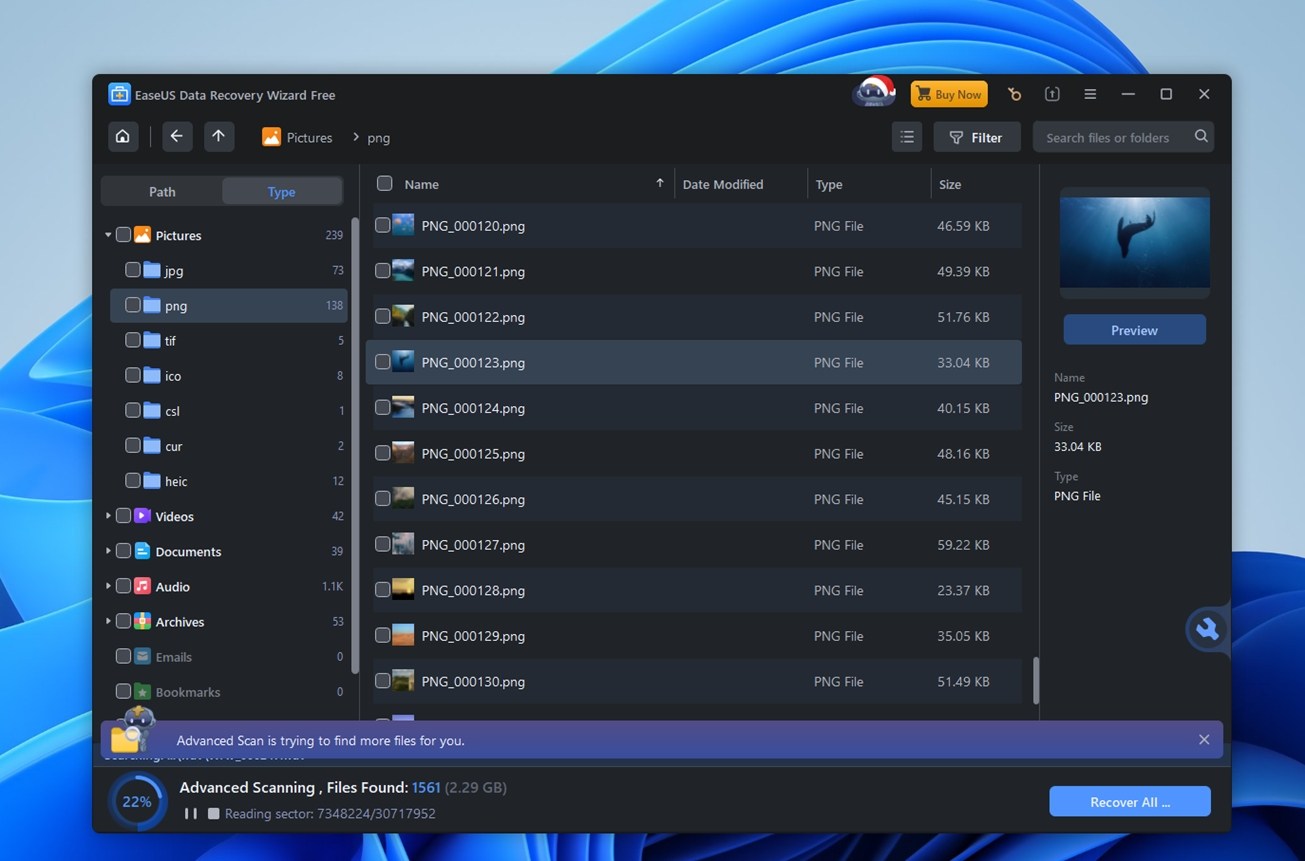
That said, the preview feature is a weak point. It only supports a limited range of file types, and performance is spotty. We ran into several “Loading, please wait” messages, even on small files. On top of that, the preview size cap is 100MB, so if you’re trying to peek at large videos or RAW photos, forget it. Compared to tools like Disk Drill or Recoverit, this part lags behind.
Once you’ve marked the files you want, click Recover. Choose your destination (remember: don’t save to the same drive you’re recovering from!), and you’re done. Simple.
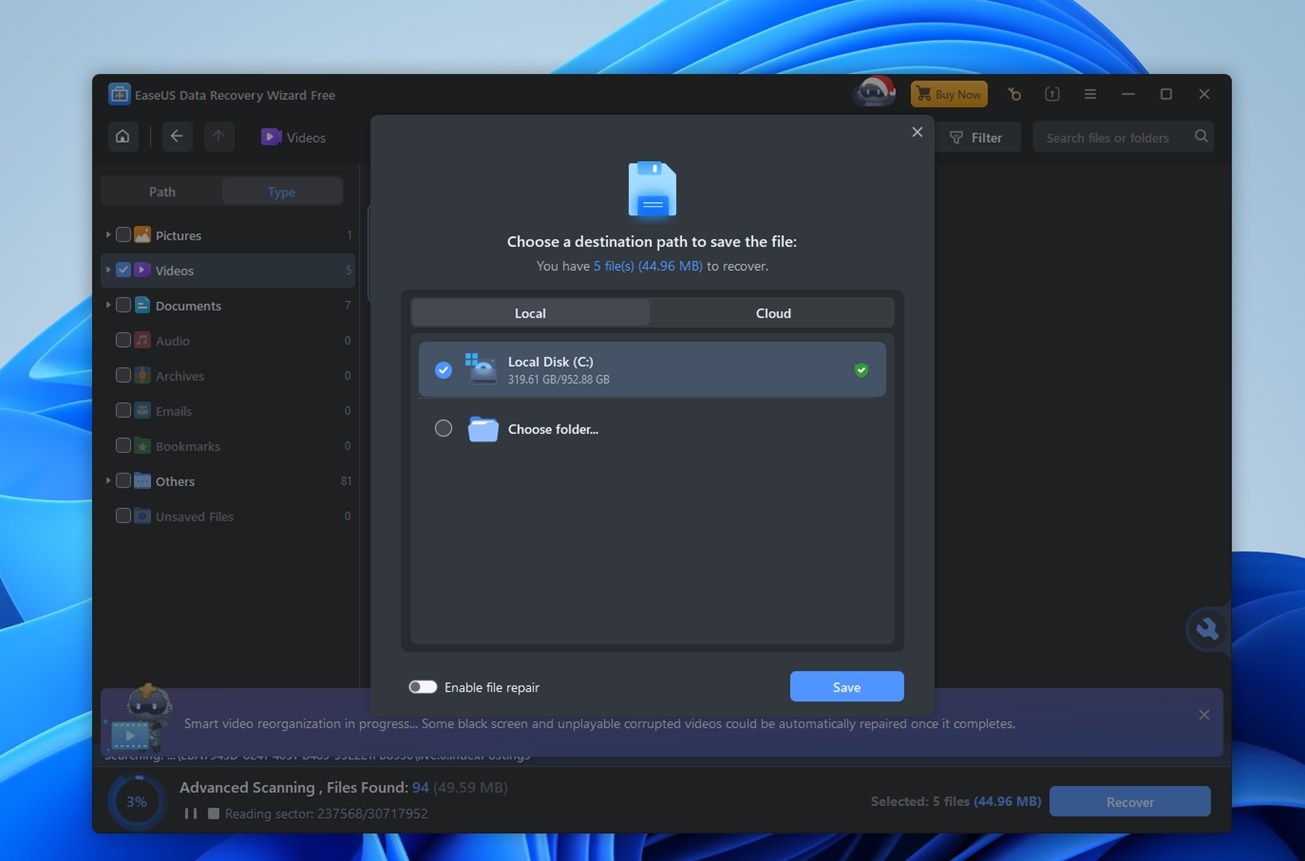
As you can see, there’s absolutely nothing complex about it. This isn’t R-Studio, UFS Explorer, or PhotoRec. You don’t need to know anything about file signatures or partition structures. If you’re comfortable navigating folders in a file manager, you’ll feel right at home here.
Recovery Performance
Now let’s get to the most important part of our EaseUS Data Recovery Wizard review – how well did it actually perform?
Here’s how EaseUS stacked up (based on the recovery rates we measured):
| Scenario | Recovery Success Rate* | Scan Time | Notes |
| Case 1: 1 TB Seagate Barracuda HDD (NTFS) deleted files (Recycle Bin emptied) | ~90% usable recovery (best on documents) | ~82 | Strongest case overall. Most common docs came back and opened fine. Folder structure held up. |
| Case 2: 64 GB Samsung EVO Plus microSD (RAW, unreadable) | ~62–77% usable recovery (RAW photos higher, video lower) | ~40 | Mixed bag. RAW photos recovered better than typical video files. Expect generic filenames and more manual sorting. |
| Case 3: 16 GB SanDisk Ultra USB 3.0 quick-formatted | ~60 lower than other cases (varies by file type; video weaker) | ~10 | Recovery worked, but you can end up with a big mixed pile of files. It also may skip directories packed with tons of tiny files (not a huge deal for most people, but worth knowing). |
We didn’t include the file repair time in our Scan Time measurements – just the scan itself. After scanning, the app attempted to fix damaged video files separately, which added extra time and didn’t always succeed. So keep that in mind.
Deleted files (Case 1). On the 1TB Seagate drive, EaseUS behaved like you’d expect from a mature consumer tool. It found a big chunk of the deleted dataset, and the stuff people care about most (documents and common photos) came back in good shape. Our usable recovery rate landed around 90%, and the scan took about 82 minutes. Folder structure held up better here than in the other cases, although it still wasn’t perfect. We also noticed it sometimes skipped directories that had tons of tiny files.
The RAW microSD card (Case 2) was more mixed. EaseUS could still pull data even when Windows saw the card as unreadable, which is the whole point of testing this scenario. Scan time was around 40 minutes. Recovery quality depended heavily on file type. RAW photos generally did better than video, and overall usable recovery hovered in the ~62–77% range depending on what you count. Names and folder structure didn’t survive in a clean way, so it turned into a “sort it out later” situation.
Quick-format (Case 3) landed in the middle, with extra cleanup. The 16GB USB that we quick-formatted to exFAT scanned in about 10 minutes. EaseUS recovered a decent amount of common file types, but the big annoyance here was organization. A lot of files showed up without original paths, so you end up leaning on filters, search, and previews. And previews… still hit-or-miss, especially if you’re trying to validate larger media.
Not bad at all. Solid overall performance across our three test cases.
Pricing Breakdown
Now let’s take a look at the price tag. As of the time of this article, EaseUS lists the following options for the Windows version.

It clearly isn’t the cheapest option out there, and honestly, the monthly plan feels pretty steep at $69.95. That’s more than many tools charge for an entire year. The yearly license at $99.95 makes more sense, and includes free upgrades and support for 12 months, so it’s a better value if you plan to use the tool a few times across the year.
The lifetime license is $149.95, which isn’t out of line compared to other premium recovery tools. Considering the lifetime updates and remote support, it’s probably the smartest choice long-term if you recover data often or work in IT.
That said, we’d love to see a more affordable short-term tier or at least a more generous free version. The free version is limited to 2 GB of recovery, which barely scratches the surface for real-world use.
EaseUS vs Competitors
So, price isn’t cheap, but let’s put that tag into perspective by comparing EaseUS with a few well‑known recovery tools.
| Tool | Typical Price | Free Tier | Key Extras | Notes |
| EaseUS Data Recovery Wizard | $69.95/mo;
$99.95/yr; $149.95 lifetime |
2 GB free data cap | Basic file repair | Good UI, solid NTFS recovery, no disk imaging |
| Disk Drill Pro | $89 lifetime (Win + Mac) | 100 MB free recovery on Windows | Disk imaging, S.M.A.R.T., Recovery Vault, Advanced Camera Recovery | Stronger value overall, extra safety tools |
| Stellar Data Recovery | $59.99/month – $199 lifetime | Up to 1 GB | Video repair, bootable media | Similar price tier, better video repair |
| Recuva Professional | $24.95 annual | Unlimited | Secure delete | Cheap but limited power and fewer modern FS |
| R‑Studio | ~$79.99 per OS | Demo only (recover files smaller than 256 KB) | Hex editor, RAID rebuild | More technical, pro‑oriented interface |
If you put EaseUS side-by-side with its main competitors, the pricing picture doesn’t really work in its favor. At $69.95 for a single month or $99.95 per year, it’s priced like a premium tool, but in practice, others offer more utility for less.
- Take Disk Drill, for example. For $89 you get lifetime access (not just one year), full-featured recovery on both Mac and Windows, and extras like disk imaging, S.M.A.R.T. health monitoring, and Advanced Camera Recovery. The value-per-dollar is simply stronger.
- R-Studio is another one where you get a far more advanced recovery engine, a toolkit for complex RAID and network setups, and better overall performance. While it’s not as beginner-friendly, it’s priced fairly (~$79 per platform) and often becomes a go-to for professionals.
- The closest match is Stellar Data Recovery. It’s in the same price tier and offers similar recovery capabilities, with a few differences in features. If you’re choosing purely based on pricing + core functionality, Stellar and EaseUS feel more aligned.
- And finally, there’s always Recuva. It’s not flashy or powerful, but it is free, with unlimited recovery – good for basic jobs.
So, EaseUS isn’t necessarily a bad product. It does what it promises. But when you weigh the options, it just doesn’t stand out as the most optimal choice for the price.
What Real Users Are Saying
No review would be complete without looking at what actual users are saying.
We examined feedback from multiple platforms to gauge EaseUS Data Recovery Wizard’s real-world reputation.
| Platform | Rating | Key Feedback Highlights |
| Trustpilot | 4.4 / 5 (≈458 reviews) | 91% 5-star ratings; praised for ease of use and successful recoveries; 1-star reviews often from failed attempts on tough cases. Users mention helpful support.
Some compare it unfavorably to tools like R-Studio or DMDE for complex jobs. |
| Capterra | 4.6 / 5 (≈380 reviews) | Positive feedback on speed, usability, and effectiveness for USBs, drives. One user recovered a corrupted 32GB USB with full file quality. |
| G2 | ~4.5 / 5 (product); 4.8 / 5 (company) | Highly rated for reliability and recovery success. Support scores a high 9.3/10. Users value its ability to recover “lost files” quickly. |
| TrustRadius | ~8 / 10 (limited sample) | Users recovered files from reformatted drives. Support receives strong praise, consistent with other EaseUS tools. |
| Mixed | Some see it as effective for logical damage and SD card recovery. Others call it a “scam” due to freemium model.
Pro communities recommend R-Studio or PhotoRec for advanced needs. |
As you can see, most ratings range from good to great, so we can safely say user feedback for EaseUS Data Recovery Wizard is generally favorable. Across the board, people praise it for being easy to use, effective in common recovery scenarios, and backed by decent customer support.
That said, you’ll always find a few frustrated voices. In most cases, complaints pop up when the tool fails to recover highly specific files or when users don’t realize that the free version only previews recoverable data – something that’s pretty standard across the industry
Our Verdict
Here’s our final verdict on EaseUS Data Recovery Wizard:
| Metric | Score | Notes |
| Recovery success rate | 7/10 | Recovered most deleted files in our tests. Solid with documents and photos. Had trouble with some fragmented video files and RAW photo formats in deeper scans. |
| Scan speed | 7/10 | Not great, not terrible. |
| Ease of use | 8/10 | Clear UI, okay file previews, and easy to follow. Ideal for beginners. |
| Value for money | 6/10 | Gets expensive fast. Competing tools offer more features for either less money or a one-time fee. |
Final Score: 7 / 10
As you can see, a final score of 7 out of 10 is fairly strong. The biggest impact on this rating came from recovery success rate and ease of use. In our tests, EaseUS handled many common data loss scenarios reliably, and the interface is simple enough for most users. Because of that, we can recommend it as a solid option if you want to attempt file recovery and you’re comfortable with the price.
However, when we step back and look at the broader picture, especially based on our experience testing multiple data recovery tools, a few things feel surprising for such a well-known product. First, the preview limitations. Preview is often the deciding factor when choosing whether to upgrade to the Pro version. If you cannot properly verify recoverability before paying, that creates uncertainty. Second, there is no built-in disk imaging feature. Creating a disk image is often the first step when working with corrupted storage devices, especially SD cards. Skipping that step increases risk during recovery attempts.
If these points raise doubts for you, it makes sense to consider alternatives — particularly Disk Drill. The pricing is in a similar range, but Disk Drill does not impose restrictive preview limits, includes a dedicated disk imaging module, and offers a broader set of additional features. We have a separate detailed review if you’d like to look deeper into how it compares.