 Our team at 7 Data Recovery Experts decided to take Hetman Partition Recovery for a spin – see how it handles deleted files and lost partitions. We’ve seen the name pop up in forums and comparison charts, but it was time for a deeper look. This is a hands-on Hetman Partition Recovery review based on real cases; you’ll find straight answers here.
Quick Verdict
Best for: Experienced users who need support for a wide range of file systems, and don’t mind navigating an old-school interface.
Hetman Partition Recovery is a capable tool for recovering lost data, especially from HDDs and standard file types like DOCX, JPG, and PDF. It supports an impressive range of file systems and includes a recovery wizard that makes the process relatively straightforward.
But the interface feels dated, deep scans are not too fast, and some key features are locked behind expensive license tiers.
Pros
- Supports a wide range of file systems (NTFS, exFAT, APFS, Ext4, ZFS, ReFS, and more)
- Handles deleted file recovery well
- Recovers standard file types reliably
- Built-in recovery wizard
- Can work with virtual disks (VHD, VMDK) in higher-tier licenses
- Offers portable version (Windows)
- One-time license
- Outdated UI
- Pricing feels steep
- Mid performance in tougher recovery cases
- Trial version only allows preview
- No real-time access to scan results
Hetman Partition Recovery Overview
Before we jump into how Hetman Partition Recovery performs, it helps to know a bit about where it comes from. This tool is made by Hetman Software, a company that’s been building data recovery tools for years. Hetman’s site says its software successfully recovers lost files in about 99% of cases, that’s clearly a marketing stat, so we won’t spend time unpacking it.
What’s more relevant here is the OS support. The app is available for download on Windows, macOS, and Linux, which not many data recovery tools can say. But this Hetman Partition Recovery review focuses entirely on the Windows version, since that’s where the tool is most commonly used. So keep that in mind as we go through the tests.
File System and Device Support
Hetman Partition Recovery handles a wide range of file systems and storage devices, which gives it an edge in mixed-environment setups or recovery cases involving multiple OS formats.
On the Windows side, Hetman Partition Recovery supports NTFS, ReFS, FAT12/16/32, and exFAT, so it’ll work with pretty much anything from an old USB stick to a modern SSD. It also recognizes APFS and HFS+ from macOS, and Ext2/3/4, ReiserFS, XFS, and UFS from Linux systems.
Beyond that, it also supports more specialized or less common formats like ZFS, Btrfs, and even HikvisionFS, which is often used in surveillance systems.
As for devices, it can scan and recover from just about any local or removable drive. That includes internal HDDs, SSDs, USB flash drives, external hard drives, SD, and microSD cards. It also works with virtual disk formats, which comes in handy for people working with VMware or Hyper‑V.
User Interface and Features
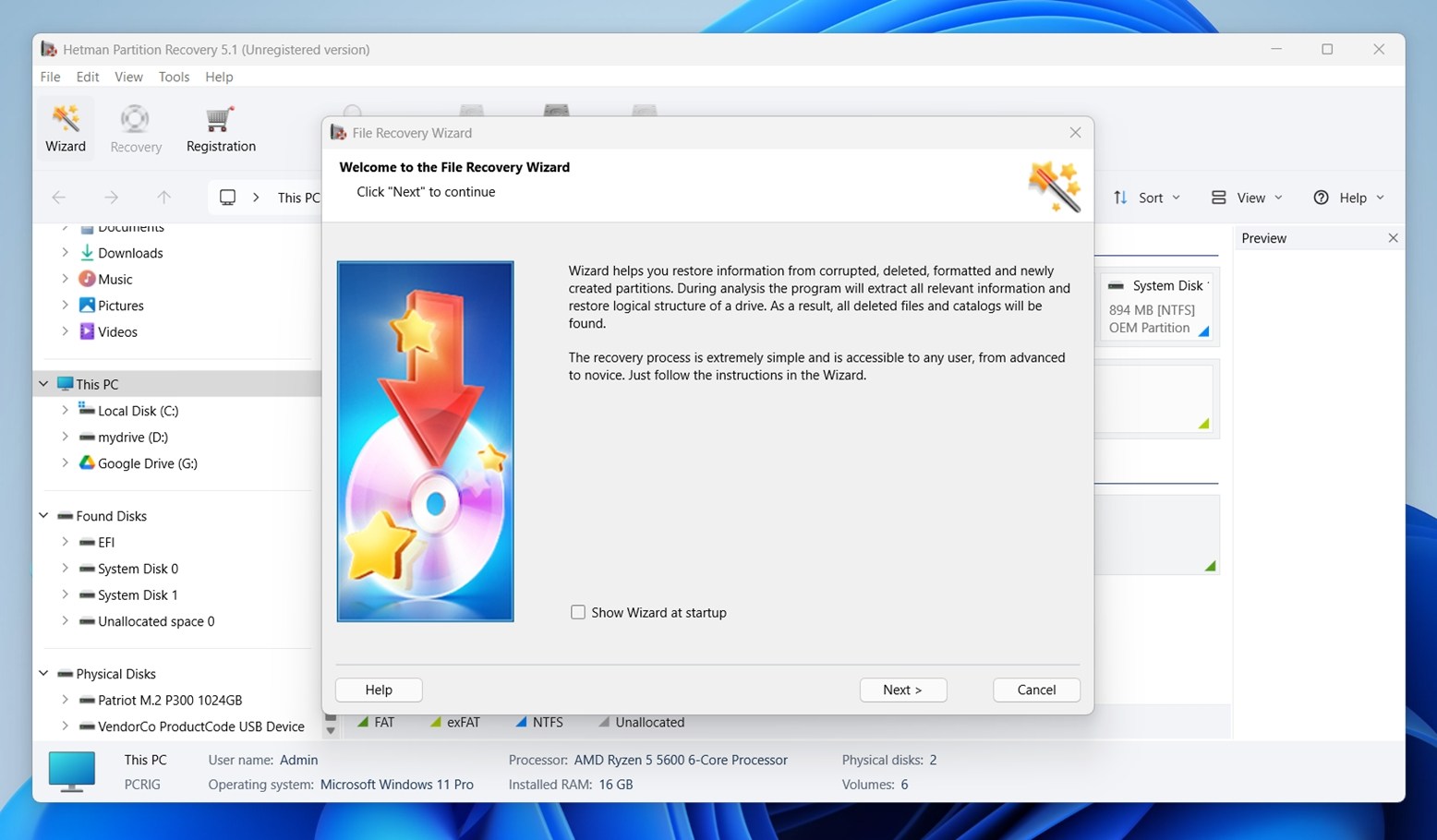
Hetman Partition Recovery sticks with a classic Windows Explorer-style interface, and that’s either a plus or a minus depending on your expectations. If you’ve used any Windows utility before 2015, the layout will feel familiar: disk list on the left, file view on the right, toolbar up top. No modern minimalism or animations here, but everything is where you’d expect it to be. You won’t find a dark mode or adaptive layout.
The core recovery process runs through a step-by-step wizard. After launching the app, you select a drive, choose your scan type (Fast or Full), wait for results, then preview and recover the files you want. You can also use the built-in preview window to inspect documents, images, and even videos before restoring them, which helps avoid saving junk. For more advanced users, there’s a HEX viewer baked in, useful for checking raw data blocks.
Extra Tools
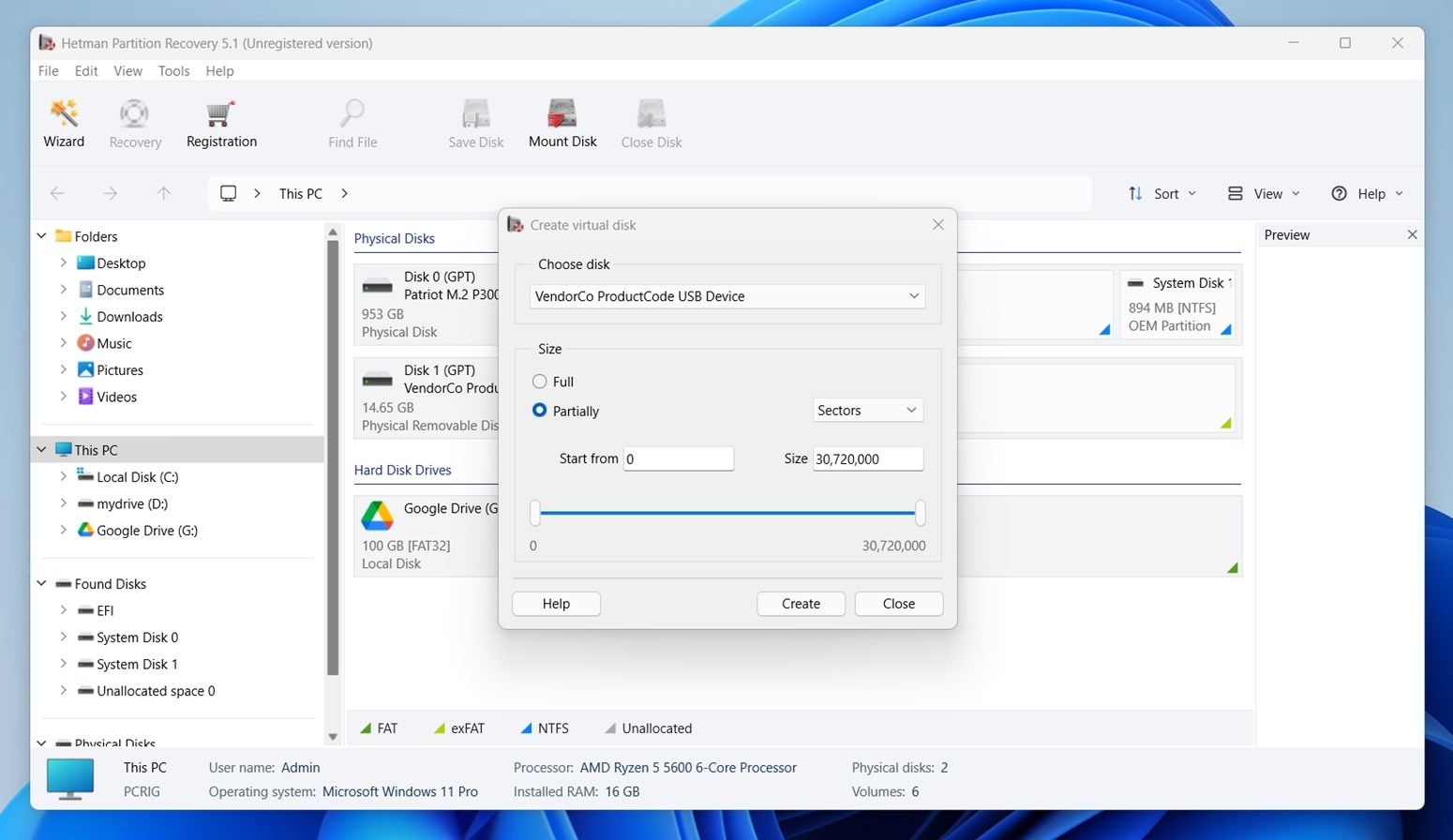
Beyond the basics, Hetman includes a few extra tools under the hood. You can mount virtual disk files (like VHD, VMDK, or VDI), create disk images for safe recovery, and export found files directly to FTP or ISO images. These features aren’t front and center (they’re tucked into submenus) but they’re there. Some are locked behind the pricier editions, though (like virtual machine disk support), so not everything’s available out of the box.
Is Hetman Partition Recovery Safe?
Like with every tool we review, we ran Hetman Partition Recovery through a few basic checks before installing it on any system. One of the key steps is verifying that the installer is clean and not flagged by any antivirus engines.
We uploaded the official hetman_partition_recovery.exe installer to VirusTotal, a platform that scans files using over 70 different security engines.
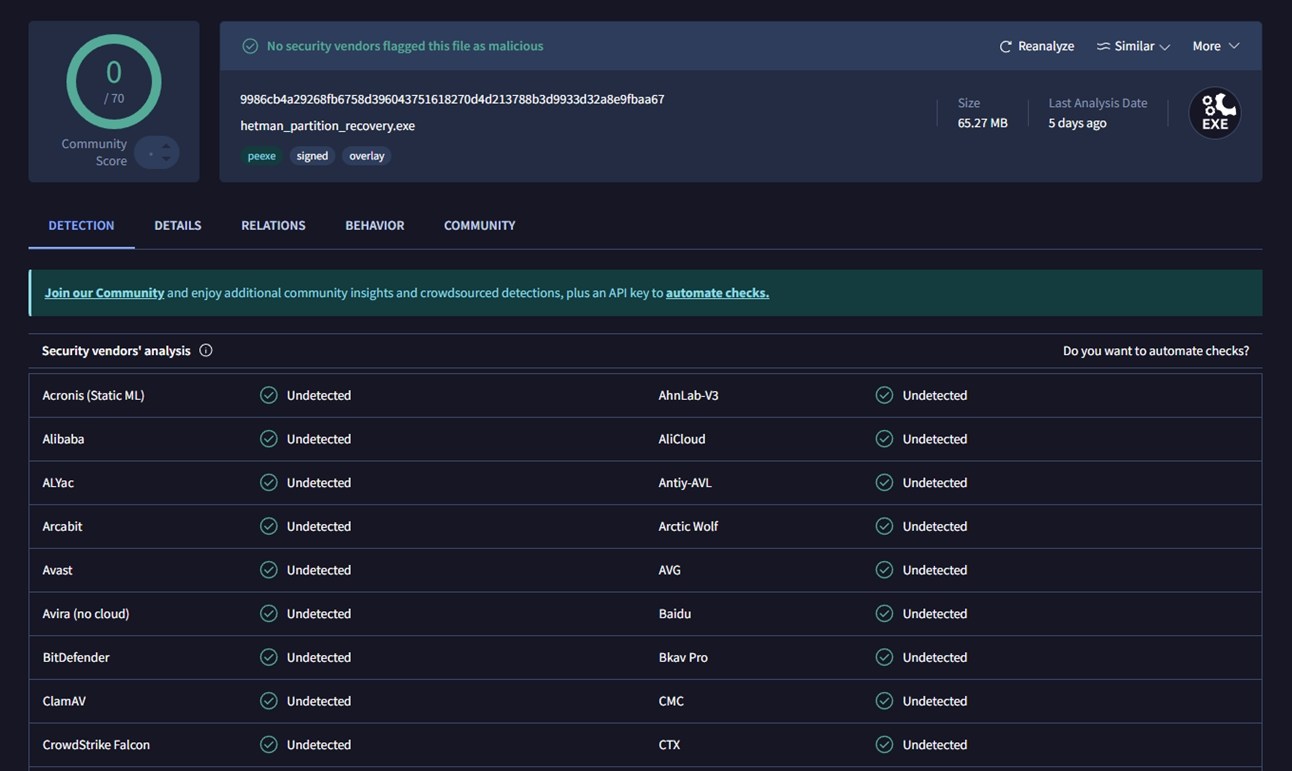
The result: 0 out of 70 vendors flagged the file as malicious. That includes major names like BitDefender, Avast, Kaspersky, CrowdStrike, and Microsoft Defender, all marked it as clean.
There’s also a portable version of Hetman Partition Recovery available on the developer’s website for Windows. We tested that build too – it’s clean. As part of our routine, we also scanned our entire test environment after all recovery sessions were completed. Nothing suspicious was detected.
Our Testing Setup and Scenarios
For testing purposes, we orchestrated three of the most common data loss scenarios we typically write about:
- Case 1: Deleted Files. We used a 1 TB Seagate Barracuda filled with around 100 files spread across nested folders. All files were deleted and permanently removed from the Recycle Bin.
- Case 2: RAW SD Card. A 64 GB Samsung EVO Plus microSD card was made unreadable in a way that left the file system unrecognized (RAW).
- Case 3: Quick-Formatted USB. A 16 GB SanDisk Ultra USB 3.0 flash drive was quick-formatted to exFAT to simulate accidental formatting of an external storage device.
In all test scenarios, the total amount of data used was approximately 650 MB. This space includes a variety of file types organized into folders.
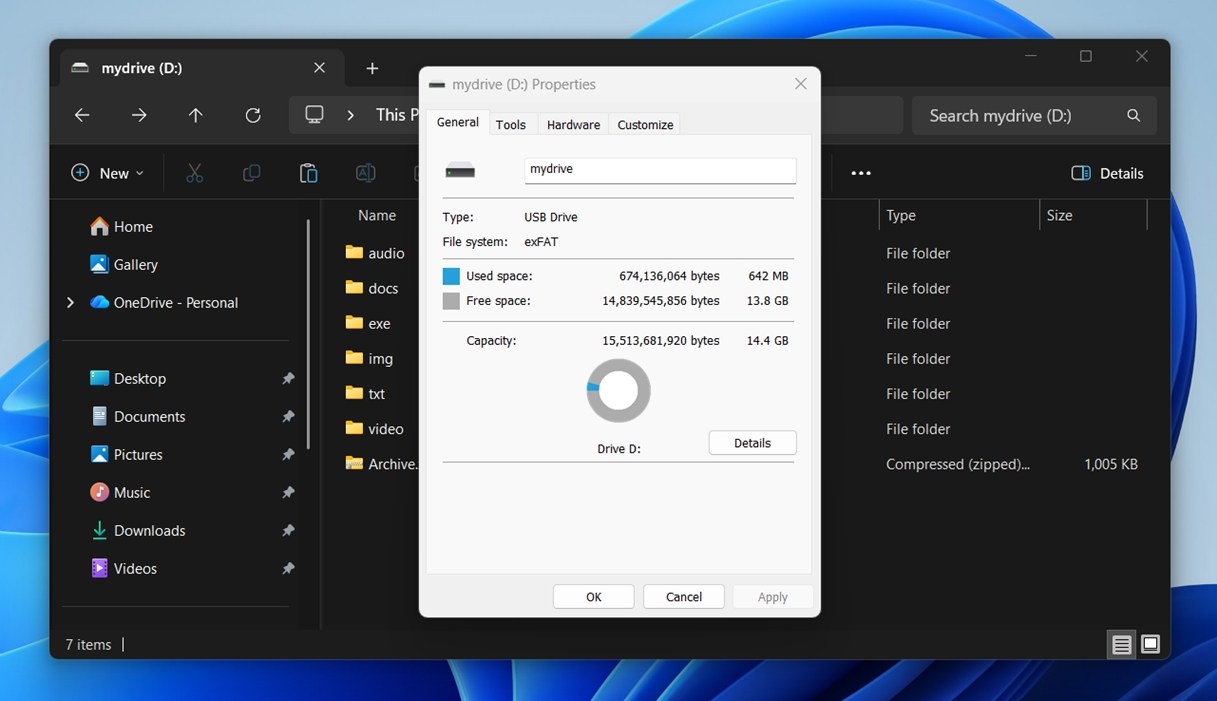
Our test files included a diverse mix:
- Photos (JPG, PNG)
- Camera RAW (CR2, NEF)
- Videos (MP4, MOV, GoPro)
- Documents (DOCX, PDF, TXT)
- Audio (MP3, FLAC)
- Other (ZIP archives, EXE installers)
By the way, while recovery performance is the number one metric for any data recovery tool, it’s not the only one we take into account. A tool might recover a lot of data but still fall short if it’s slow, confusing to use, or overpriced for what it offers. That’s why we also look at these:
| Metric | What We Measured |
| Recovery success | How many files came back intact and usable |
| Scan speed | Total scan time and general responsiveness |
| Ease of use | How intuitive the workflow felt, and whether it ran smoothly |
| Value for money | What the free version offers vs. what you get when you pay |
These scores shape the final verdict you’ll see at the end of the review.
Hetman Partition Recovery Workflow
Before we talk about scan times and recovery rates, let’s first take a look at how the recovery process actually works inside Hetman Partition Recovery. If you’re not familiar with data recovery tools, this will give you a clear picture of what using the app looks like.
- The easiest way to start is by opening the File Recovery Wizard. You can trigger it manually from the toolbar.
- Once it opens, you’ll see a list of connected drives – everything from your system SSD to external USB sticks, SD cards, and any unallocated space. Each drive is shown with its label, size, file system, and status.
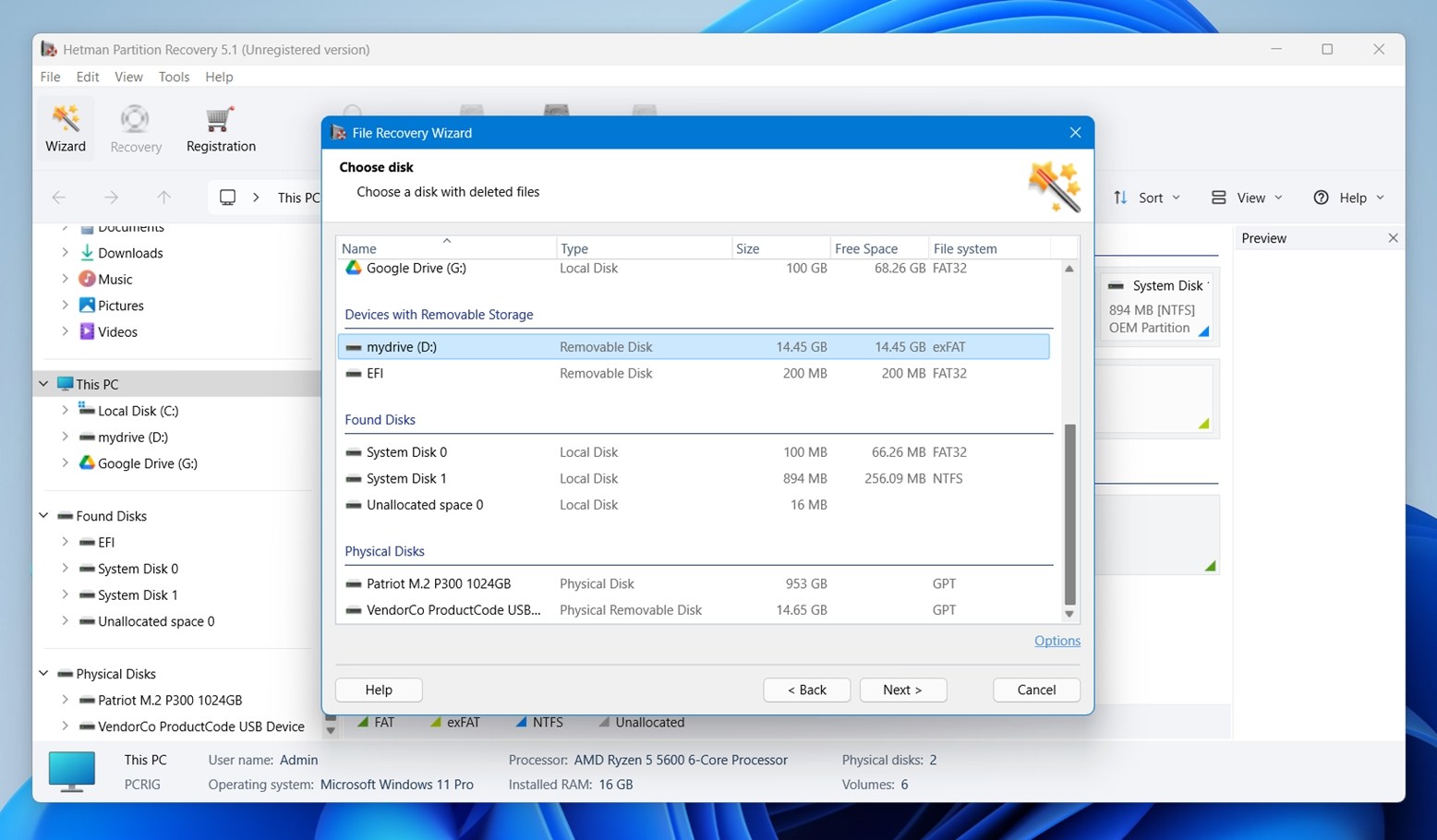
- Once you pick the drive, you hit Next, and Hetman asks what kind of analysis you want to run: Fast Scan (for recently deleted files) or Full Analysis (better for formatted or damaged drives). Under Full Analysis, you can manually select which file systems the software should search for.
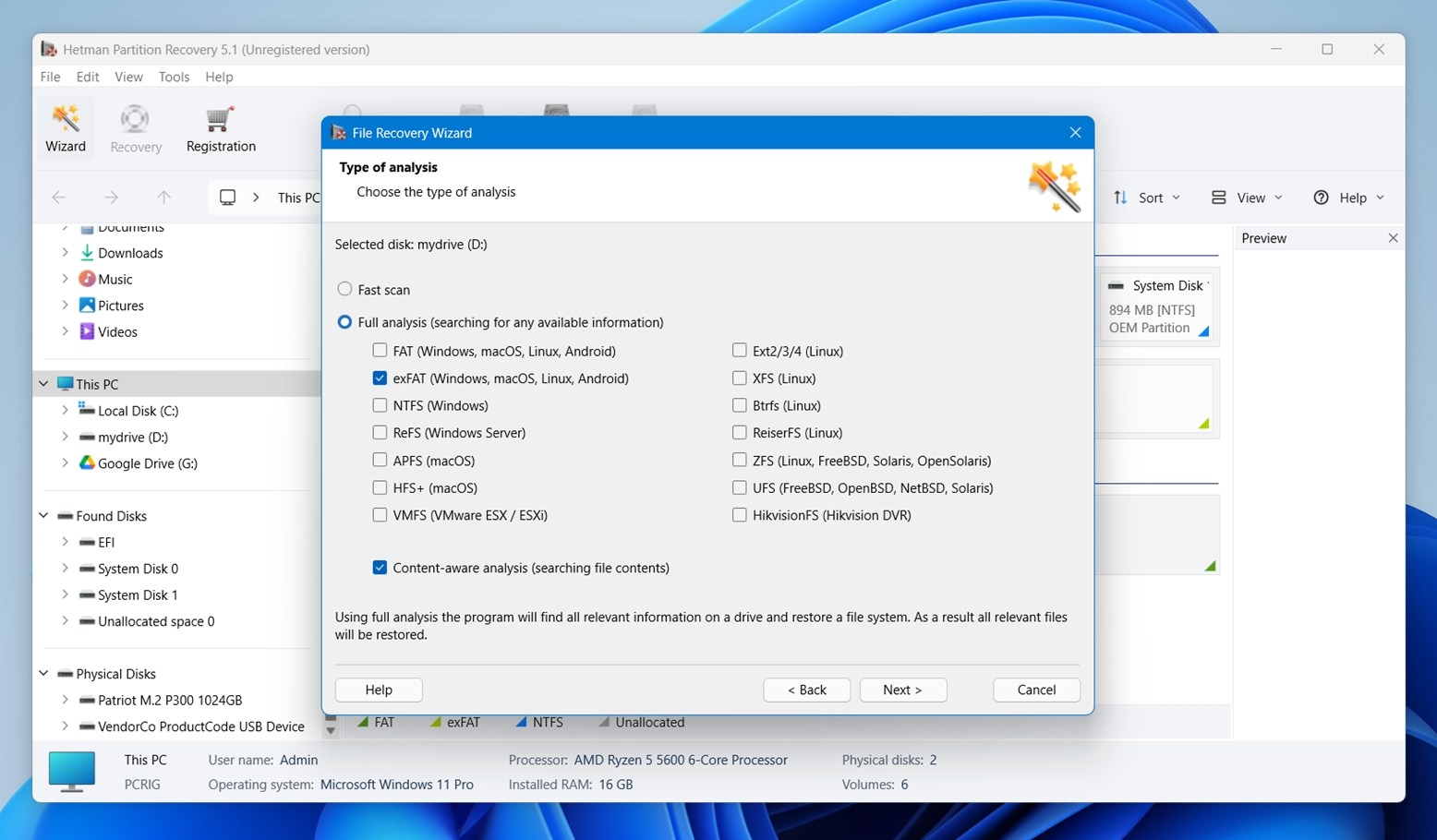 There’s also an option to enable Content-aware analysis, which tells the app to scan disk space for known file signatures, which we did.
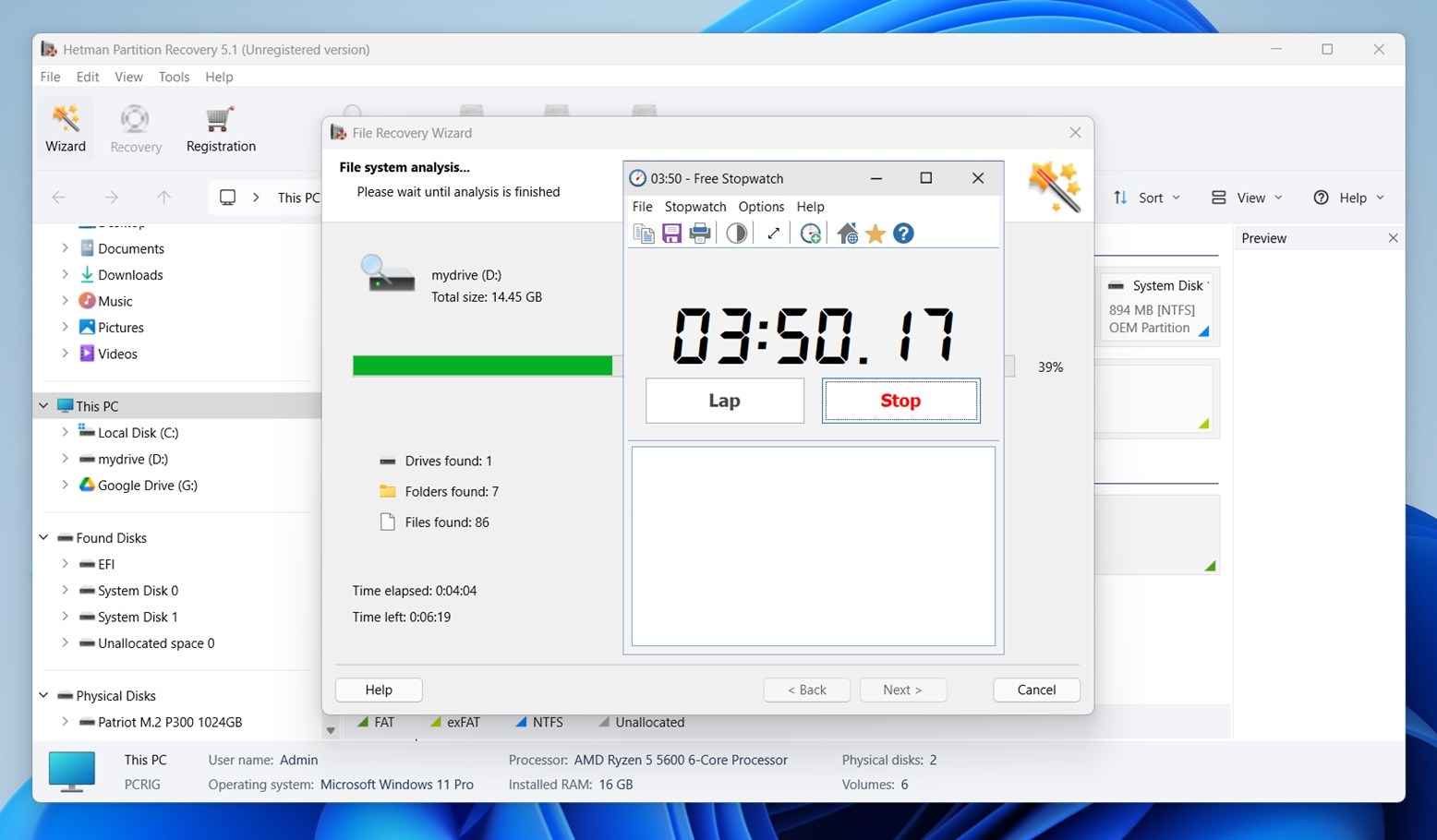
 - After that, the scan starts. You’ll see a live count of how many drives, folders, and files it has found so far, along with an estimate of how much time remains. But unlike some tools that let you start browsing results mid-scan, Hetman makes you wait until the scan completes.
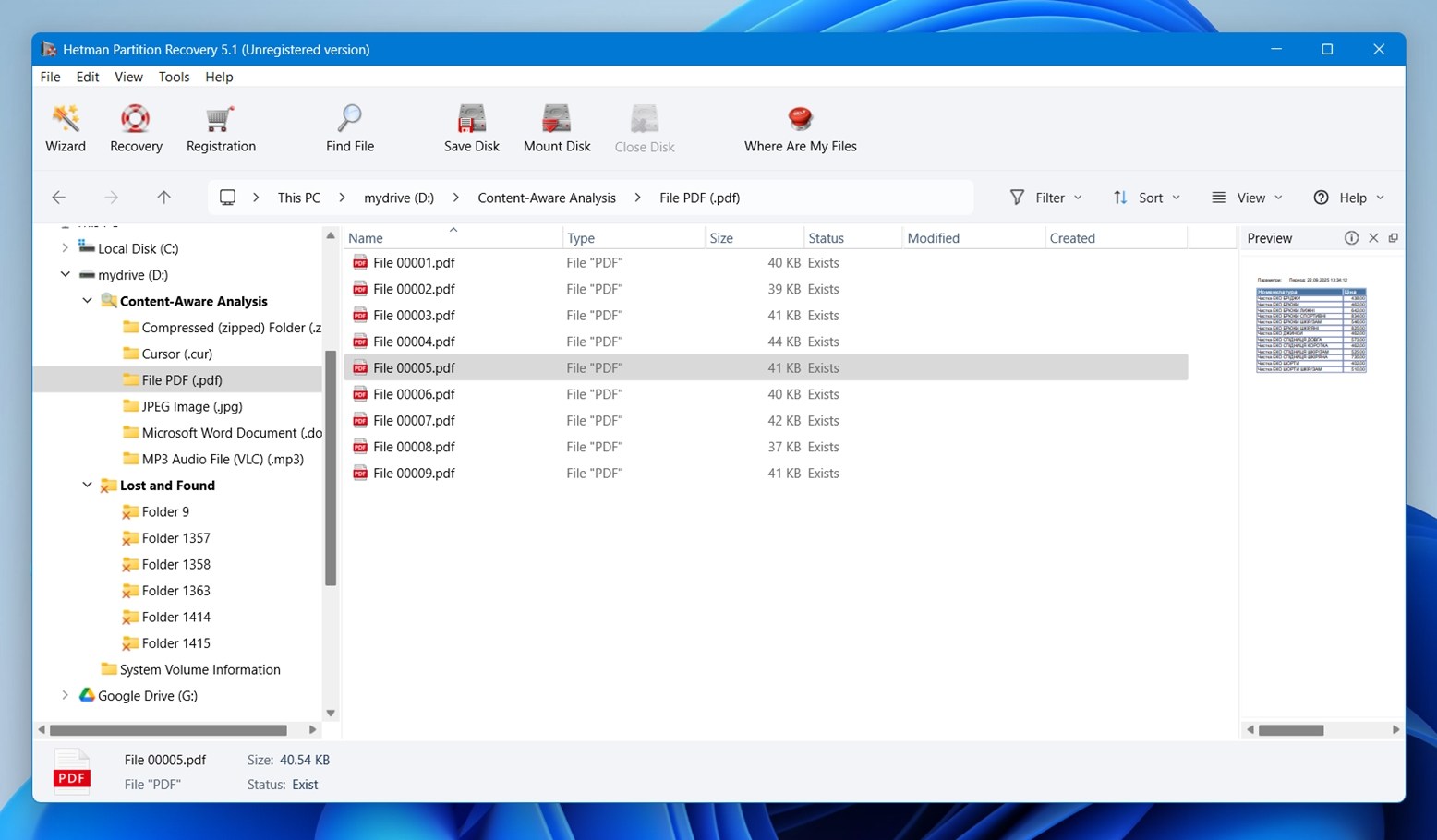
- After the scan, Hetman loads the results into its main window. On the left, you get a folder tree that mirrors what you’d expect in Windows Explorer. It’s broken down into categories like Content-Aware Analysis (based on file signatures) and Lost and Found, where folder structure couldn’t be fully reconstructed.
- Clicking on any folder immediately lists the files inside, grouped by type. If the app recognizes the format, you’ll also get a file preview on the right, which is especially useful for images and docs. For example, in our test run, Hetman showed live previews of simple PDFs.
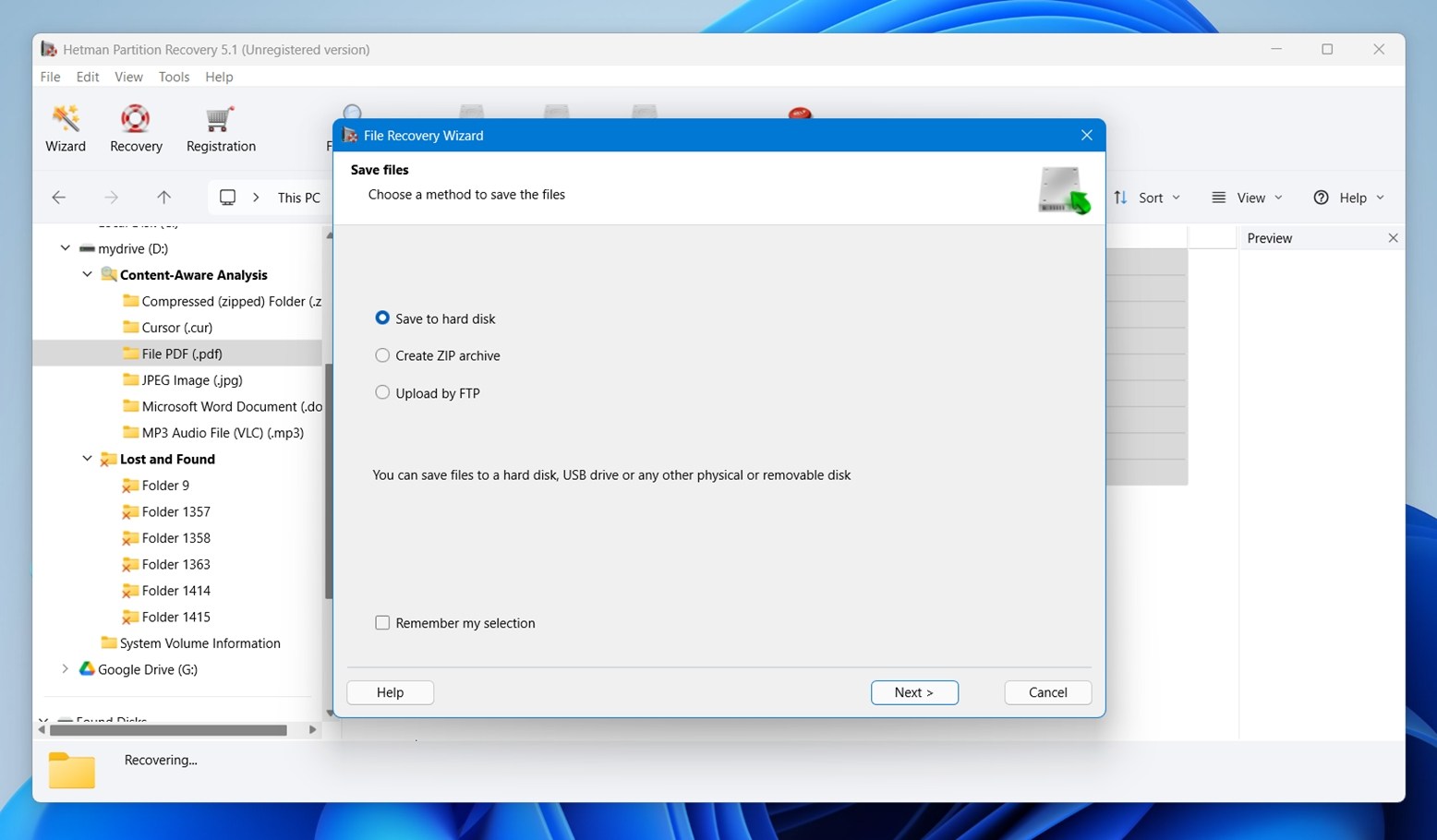
- Then finally, once you’ve picked what you want to bring back, Hetman gives you a few options for saving the recovered files. You can save them to any local or external drive, package them into a ZIP archive, or even upload via FTP.
Overall, the file recovery process in Hetman Partition Recovery is pretty straightforward. It’s not as streamlined as what you’d get in tools like Disk Drill or EaseUS, both of those have cleaner workflows, but it’s also not too confusing. If anything, it feels a bit closer to Recuva in how it walks you through things step by step, with less visual flair.
That said, some of the more advanced tools Hetman offers, like virtual disk mounting, aren’t front and center. You’ll need to dig into dropdown menus or subpanels to access them. It’s functional, but user interface design isn’t Hetman’s strongest suit.
Recovery Performance
Now, let’s talk results. Here’s a condensed summary of what we saw:
| Scenario | Recovery Success Rate* | Scan Time (mins) | Notes |
| Case 1: 1 TB Seagate HDD. Deleted Files | ~91% (strongest on DOCX, PDF, JPG) | ~100 | Most files opened without issues. Folder structure and filenames mostly preserved. Cleanest case overall. |
| Case 2: 64 GB SD card (RAW, unmountable) | ~65% (best results on JPG/NEF, weaker on MOV/MP4) | ~43 | RAW photos came back in usable shape. GoPro clips recovered but several were corrupted/incomplete. Filenames often generic. |
| Case 3: 16 GB USB drive (Quick Format) | ~60% (good on TXT, mixed for ZIP/EXE) | ~11 | Basic files came back, but a lot of duplicates and no folder structure. Some smaller files (under 10 KB) got skipped entirely. |
Success rate here means percentage of files we could fully open and use after recovery (not just files that “appear” recovered in the list.)
As expected, deleted file recovery on a spinning HDD had the best outcome. Once formatting or RAW corruption enters the picture, results start to vary by file type. Large video files, in particular, were hit or miss. Lightweight document formats and photos, especially JPG, tended to come back cleaner across all tests.
In both Case 2 and Case 3, filenames often showed up as generic entries, things like File 00001.pdf, File 00012.jpg, and so on. That’s expected. Everything recovered under the Content-Aware Analysis section lacked original filenames or folder paths. This happens because the tool found those files by scanning for known file signatures, not by reading intact file system metadata.
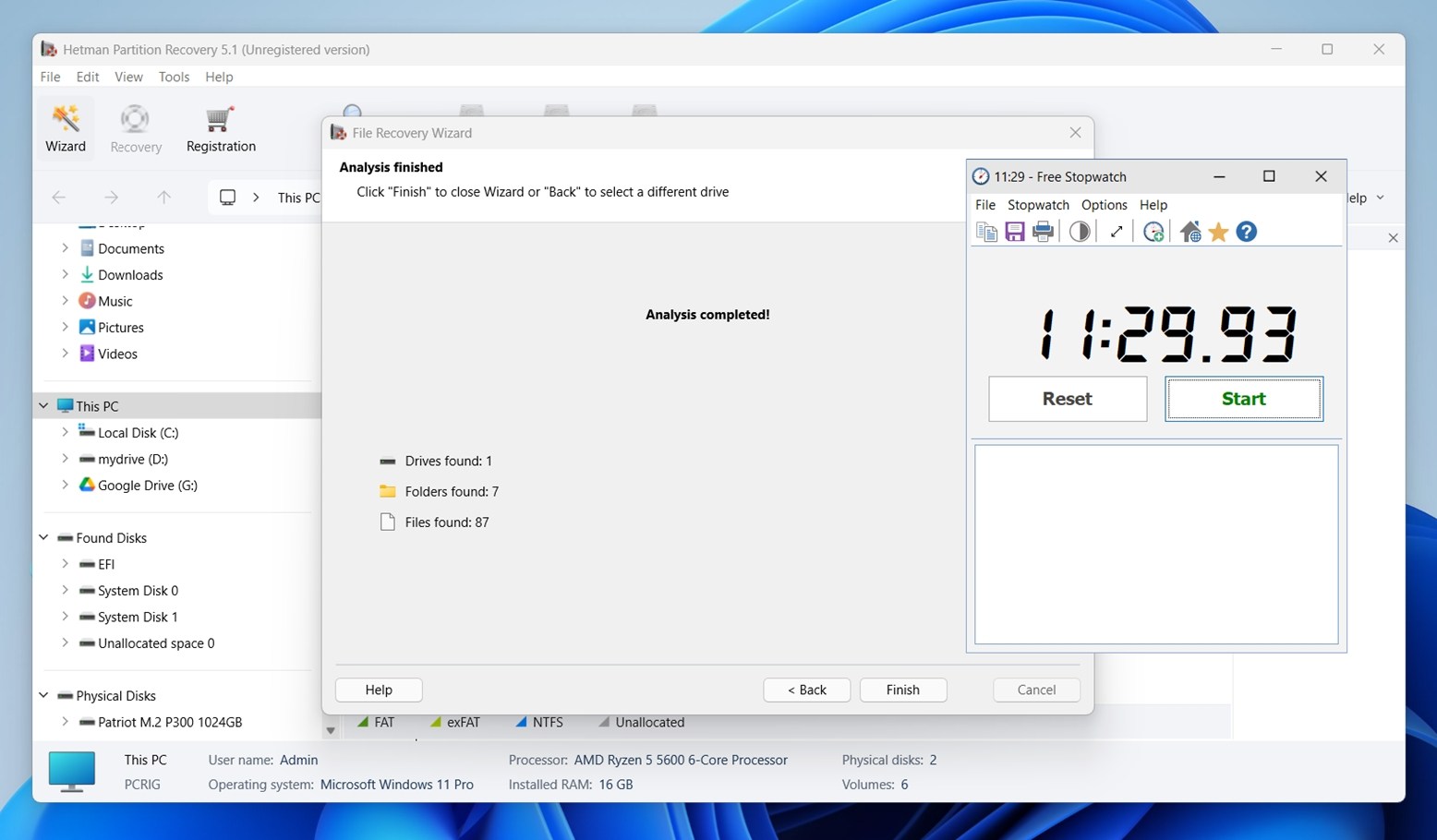
As for scan speed, Hetman performed decently across the board. In Case 3, the 16 GB USB drive took a bit over 11 minutes to complete a full analysis. That’s about what we’d expect.
The 1 TB HDD in Case 1 took longer, closer to 100 minutes from start to finish. That’s a reasonable runtime. It’s not the fastest tool we’ve tested, but definitely within the normal range for its class.
Hetman Partition Recovery Price Breakdown
Hetman Partition Recovery comes in three paid editions: Home, Office, and Business, each tied to a single PC. At the time of writing this article, all tiers are offered at a discount.
If you’re wondering is Hetman Partition Recovery free – technically, no. The software offers a trial version, but it only lets you scan and preview files. To actually recover anything, you’ll need a paid license.
Here’s a breakdown of the current pricing and what each license tier includes:
| Edition | Current Price (USD) | Original Price | Includes | For |
| Home | $97.95 | $122 | All recovery features except virtual machine disks | Personal use only |
| Office | $237.95 | $297 | Adds support for virtual machine disks (VHD, VMDK) | In-house corporate IT |
| Business | $397.95 | $497 | All features + commercial use rights | Techs and recovery labs |
🔎 Virtual disk recovery (for VHD, VMDK, etc.) is only included in the Office and Business editions. All licenses are for a single PC.
Not the most affordable tool we’ve seen, but at first glance, pricing puts Hetman in the same ballpark as several big-name competitors. That said, pricing alone doesn’t tell the full story.
Hetman Partition Recovery vs Competitors
Let’s stack it against a few of the tools we’ve tested, with a side-by-side table showing how it compares on a few key points:
| Feature | Hetman Partition Recovery | Disk Drill PRO | R‑Studio | DiskGenius |
| Price (1 PC license) | $97.95 (Home) | $89.00 | $79.99-$899 | $69.90–$129.90 |
| Free version? | Preview only (no recovery) | Recovers up to 100 MB (Win) | Demo edition (recover files smaller than 256 KB) | Free edition with limited recovery (files smaller than 64 KB) |
| File System Support | FAT/exFAT, NTFS/ReFS, APFS/HFS+, Ext4/3/2/ReiserFS, ZFS, Btrfs, HikvisionFS, XFS/UFS | FAT32, exFAT, NTFS, APFS/HFS+, ReFS and EXT4 | FAT32, exFAT, NTFS, APFS/HFS+, ReFS and EXT4 | NTFS, FAT32, EXT2/3/4, and exFAT |
| Partition Recovery | Yes | Yes | Yes | Yes |
| Disk Imaging | Yes (available, buried in UI) | Yes (byte‑to‑byte backup) | Yes (advanced imaging) | Yes (image backup & restore) |
| Virtual Disk Support | Office/Business tiers only | Yes | Yes | Yes |
| UI Design | Classic Windows‑style | Modern & user‑friendly | Technical, dense | Functional but utilitarian |
| Scan Speed (in tests) | Mid‑range | One of the faster scans | Mid‑range | Moderate |
When you stack Hetman Partition Recovery side-by-side with top competitors, its value proposition starts to fall apart.
All three competitors offer tiers in the same price range (~$90–$100), yet often deliver more functionality, stronger performance or better usability.
Take Disk Drill, its Pro version is cheaper than Hetman Home and gives you better recovery performance, faster scans, built-in disk imaging, S.M.A.R.T. monitoring, recovery session saving, and Advanced Camera Recovery mode. Same goes for DiskGenius and R-Studio. Both bring more flexibility and utility at the same price point (or lower), and neither limits features like virtual disk recovery to the top-tier license the way Hetman does.
Once you break it down, Hetman starts to feel overpriced.
User Feedback and Reputation
No review is complete without checking general user feedback.
Real-world user ratings are generally positive:
| Platform | Rating | # of Reviews |
| Trustpilot | ★★★★☆ (4.3/5) | 80 |
| G2 | ★★★★☆ (4.7/5) | 13 |
| Capterra | ★★★★★ (5/5) | 5 |
According to Trustpilot data, about 79% of reviewers left 5-star ratings, while ~19% gave 1-star reviews. That puts Hetman in a generally favorable position, though not without criticism.
Many users highlight the tool’s reliability and support. One Trustpilot reviewer wrote:
“Excellent, effective, fast customer service! I’ve use their software to recover data from my NAS drives easily and when I’ve had to migrate machines, they were able to help me activate my license on my new machine in less than 24 hours.”
“Hetman is easy to install and use. It has very important aspects such as a simplistic interface and very simple options to understand. Another positive feature is that this software allows you to create virtual partitions, to be able to move operating systems from one disk to another.”
Still, some reviews flag important drawbacks. A few users reported issues like incomplete or corrupted file recovery. One person claimed:
“All files supposedly recovered were Corrupt, but Disk Drill WORKED so don’t use Hetman Software it sucks!.”
There’s no such thing as a data recovery tool with zero complaints, that’s expected in this kind of software. Results can vary depending on the health of the drive or whether it’s already been overwritten. But what stands out here is the ratio. The overwhelming majority of reviews for Hetman Partition Recovery are positive.
Our Verdict
Here’s our final verdict on Hetman Partition Recovery, based on everything we covered:
| Metric | Score | Notes |
| Recovery success rate | 7 / 10 | Solid with deleted files on HDDs. JPGs, PDFs, and docs came back clean. Recovery from formatted or RAW drives was mixed, especially with video files. |
| Scan speed | 7 / 10 | Decent. USB scan was fine (~11 min for 16 GB), but a 1 TB HDD took 1.5 hours. |
| Ease of use | 6 / 10 | Familiar interface, but outdated. Advanced features are hard to find. No real-time file preview during scan. |
| Value for money | 6 / 10 | Home edition lacks features that competitors offer for less. Trial version can’t recover anything. |
Final Score: 6.5 / 10
Hetman Partition Recovery does the basics well. It handled deleted files and standard formats like JPG, DOCX, and PDF without trouble. It supports a wide range of file systems, and the Full Analysis mode goes deep enough to recover data even from damaged or formatted drives, if you’re patient.
But it’s held back by a dated UI, limited trial functionality, and a pricing model that feels steep for casual users. Once you compare it to alternatives, its value drops off fast.
If you’re a tech-savvy user who prefers a traditional Windows-style interface, doesn’t mind digging through menus, and has some money to spare, Hetman Partition Recovery might be right up your alley.