iBoysoft promotes itself as a “Safe and Free Data Recovery Software for Mac”, built to restore lost files from internal drives, external disks, SD cards, and more. But marketing promises often tell only half the story. In this iBoysoft data recovery review, our testing team takes a closer look at how the program performs in real-world recovery cases on Mac. We’ll check its safety, recovery power, pricing, and usability to see if iBoysoft truly earns its place among the best recovery tools.
Quick Verdict
If you just want the bottom line, here’s where we landed: iBoysoft Data Recovery is fine for casual users, but it’s not the strongest player in its price range.
Best for: Mac users who want a no-fuss way to recover deleted files from external drives, and don’t need advanced features or speed.
The app nails simplicity. Setup takes a minute, the workflow’s clean, and previews are good. For basic deleted file recovery, especially from USB sticks or SD cards, it holds up well. We had solid success recovering photos, docs, and even some videos.
But if you’re trying to deal with corrupted drives or recover from a non-booting Mac, you’ll hit walls fast. The lack of a lifetime license hurts its long-term value, and the scan speed is slow. Many competitors offer way more flexibility, deeper recovery, and stronger extras for nearly the same price (or less over time).
Overview

iBoysoft Data Recovery is developed by Chengdu Aibo Tech, a company that’s been building disk tools since 2017. They focus on practical software for users who need to recover files, access BitLocker drives, or work with Apple file systems like APFS and HFS+. It’s a cross-platform tool available for both Windows and macOS, with dedicated builds for each.
In terms of where it fits, iBoysoft isn’t targeting enterprise-level labs or digital forensics. This is software for regular home users, IT staff, or creatives who’ve lost photos, videos, or documents after accidental deletes, formats, or file system errors. It promises support for all major file systems, along with preview features and deep scan modes.
OS Support
iBoysoft Data Recovery is available for both Windows and macOS, but since we tested the Mac build, that’s the version this review is based on.
The macOS edition supports everything from macOS 10.11 (El Capitan) up to the latest releases, including macOS 26.x Tahoe. It runs natively on both Intel and the newest Apple chips (T2 chip & Apple silicon), which is good news if you’re on an M1-M4 Mac.
File System & File Type Support
File system support on Mac includes APFS (which all modern Macs use by default), HFS+, FAT32, and exFAT. That covers nearly every drive you’re likely to plug into a Mac today, whether it’s an internal SSD, a USB stick, or an SD card from a camera.
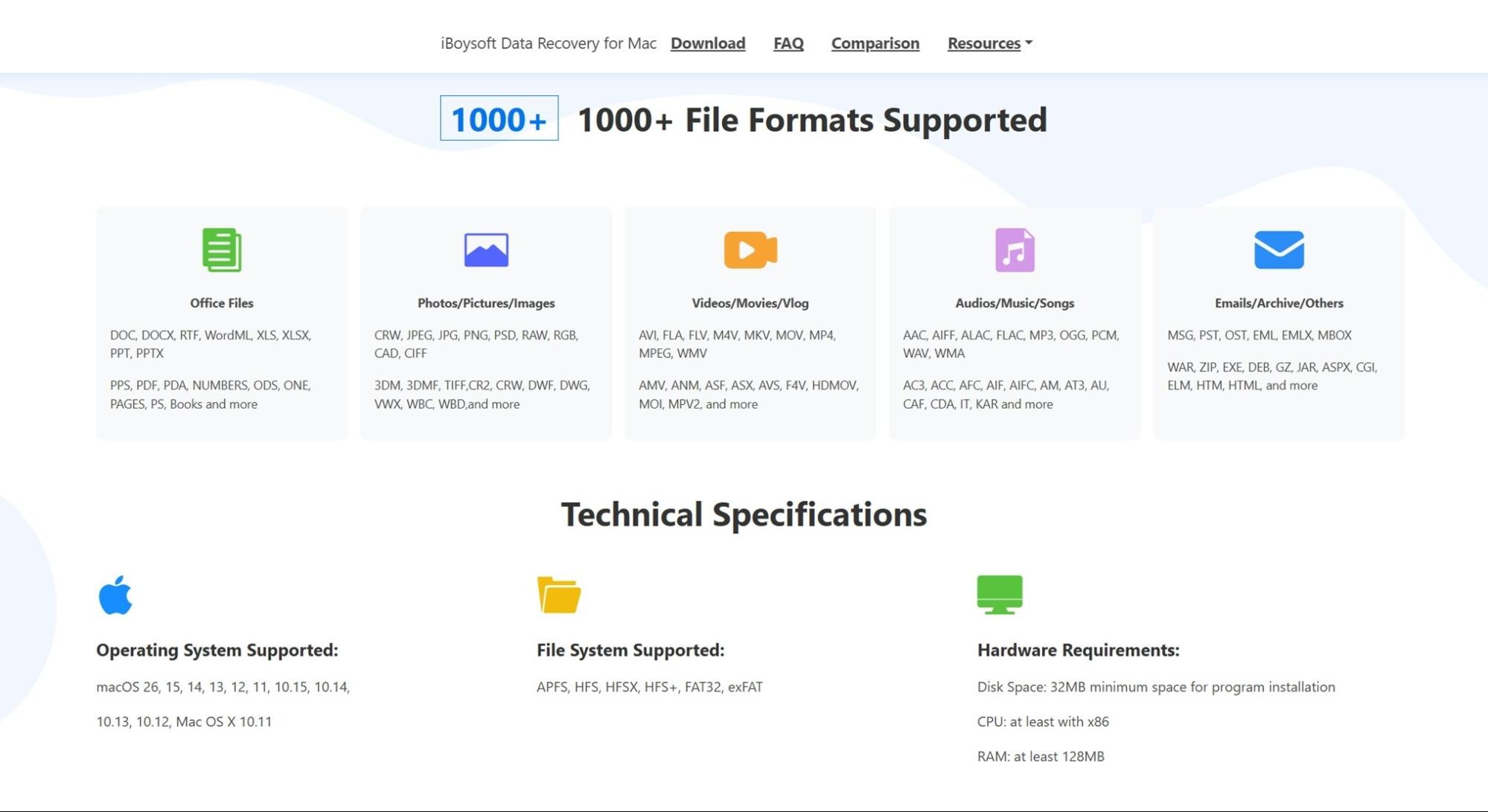
As to file types, according to the official site, iBoysoft supports “1000+ file formats.” That’s a line we’ve seen from many recovery tools out there. It sounds impressive, but it’s mostly marketing.
- For documents, it lists full support for Microsoft Office formats like DOC, DOCX, XLS, XLSX, PPT, and PDF, along with Apple’s Pages, Numbers, and even OneNote files. On the photo side, it handles JPEGs and PNGs, but also RAW image formats from Canon (CR2, CRW), Nikon (NEF), and others.
- Video support includes common formats like MP4, MOV, AVI, and MKV. There’s also coverage for FLV, WMV, and a few less typical ones like M4V or MOI.
- For audio, it supports MP3, WAV, FLAC, AAC, and even more obscure formats like CAF and AIFC.
- On top of that, it claims to recover emails (like PST, OST, MBOX), compressed archives (ZIP, RAR, GZ), and executable files like EXE and JAR. Pretty much everything you’d expect from a recovery app in this category.
Of course, we’ll see how this all holds up in real tests. It’s one thing to list file extensions on a landing page – it’s another to actually recover usable, non-corrupted files. We’ll get into the real-world results in the testing section, and that’s where the real value shows up.
Extra Features
If you care about extra features, don’t expect a long list here. iBoysoft keeps things pretty lean: no built-in disk cloning, no S.M.A.R.T. monitoring, no cloud integrations. It’s focused almost entirely on getting your lost files back.
Here’s what you do get:
- You can pause a scan and save its progress to resume later. This saves you from starting over if you need to shut down or switch tasks.
- After scanning, you can preview photos, videos, and documents directly in the app. This helps you avoid recovering junk files or things you don’t need.
- Once the scan finishes, results can be filtered by file type or searched by filename.
- If a drive shows up as RAW (unreadable or unformatted), iBoysoft has a mode that can pull files directly from it.
- BitLocker Support (Windows only). Not relevant to the Mac build we tested, but if you’re using iBoysoft on Windows, it has a dedicated module for scanning BitLocker-encrypted drives (as long as you have the recovery key or password).
As you can see, it’s more of a list of expected features in any modern recovery tool than true extras. Session saving, previewing files, filtering by type – these aren’t bonuses anymore. They’re baseline. Every halfway decent data recovery app offers some version of this.
That’s not a knock on iBoysoft. These features make the recovery process easier. But if you’re coming in expecting standout utilities, like built-in disk imaging, corrupted video repair, or advanced scan tuning, you won’t find them here.
User Interface
The user interface in iBoysoft Data Recovery is pretty basic. Not outdated in a frustrating way (definitely not on the level of old-school tools like R-Studio or Disk Rescue), but it’s clearly built with function first. Everything’s simple and to the point: you launch the app, pick a drive, run a scan, preview the files (previews only load after the scan’s done, not in real time), and hit recover. That’s the whole flow.
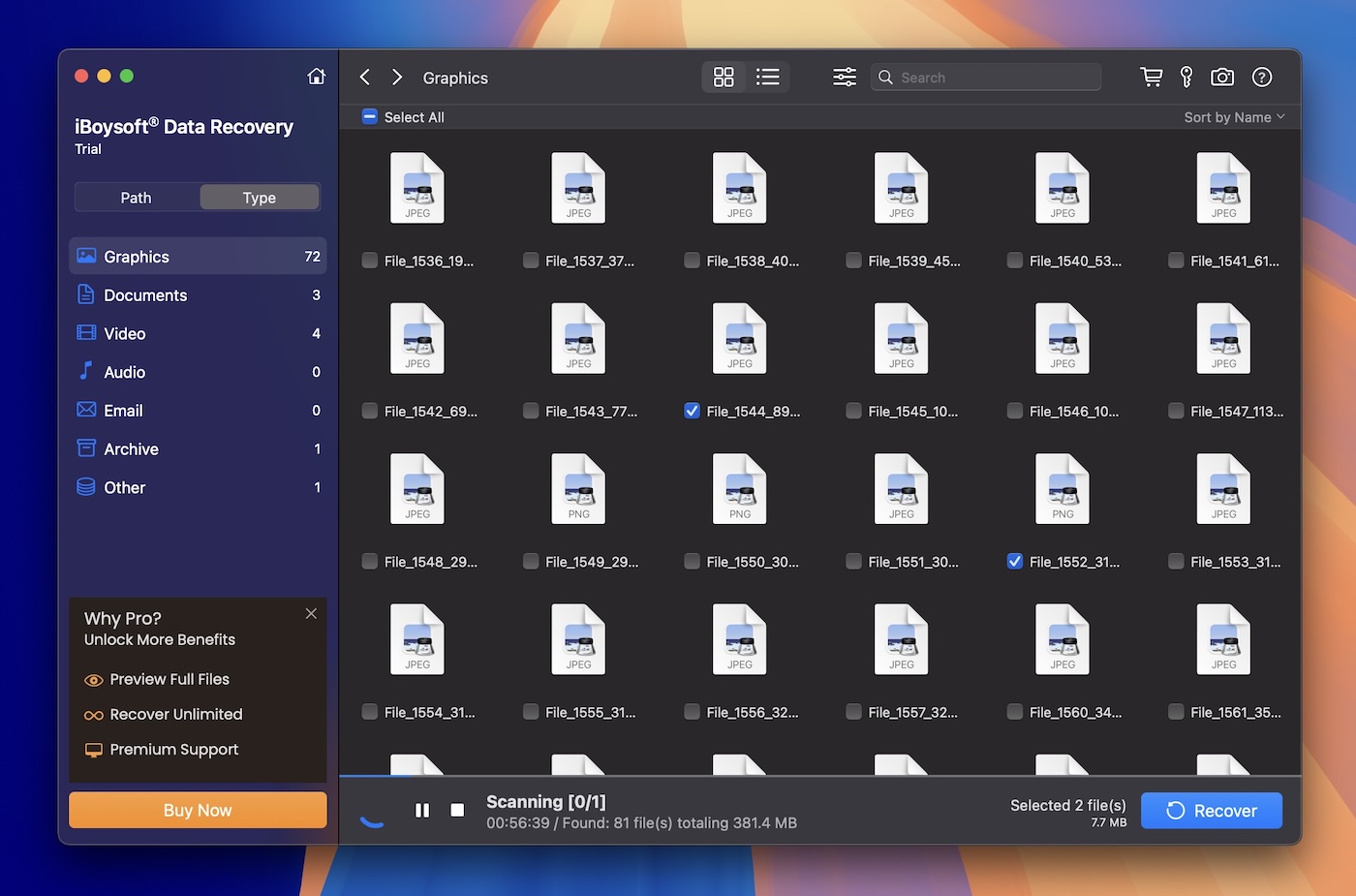
That kind of simplicity can be a good thing, especially if you don’t want to mess with settings. But on modern versions of macOS like Sequoia or Tahoe, the design doesn’t feel fully native. It works fine, but it’s a bit dated (think macOS Catalina-era UI).
Text and icons are clear, and the recovery process is easy to follow even if you’ve never used a tool like this before. You won’t get lost. But if you’re used to sleek, polished interfaces like Disk Drill or even EaseUS, this one might feel a step behind.
How We Tested iBoysoft Data Recovery
To keep things consistent with our previous reviews, we tested iBoysoft Data Recovery on the same hardware and using the same recovery scenarios we usually rely on. The idea is simple: simulate real-world data loss cases – nothing overly engineered. Just the kind of stuff regular users deal with all the time.
All recovery tests for this iBoysoft data recovery review were performed on a MacBook Air (M1, 2020) running macOS Sequoia. This reflects how the app behaves on current Apple Silicon systems with the latest updates.
We used three different storage devices to cover a mix of problems:
- A 1 TB Seagate Barracuda HDD, filled with roughly 1,500 mixed files. We deleted everything, then emptied the Trash to simulate accidental permanent deletion.
- A 16 GB SanDisk Ultra USB 3.0 flash drive, which we manually corrupted using a partition editor. This made the drive show up as RAW in macOS Disk Utility (unmountable).
- A 64 GB Samsung EVO Plus microSD card, which we quick-formatted to ExFAT to mimic the usual formatted the wrong card mistake.
All three devices were pre-loaded with the same 50 GB test dataset before we wiped them. That dataset includes common file types across multiple categories:
- Photos (JPG, PNG, CR2, NEF),
- Videos (MP4, MOV, AVI),
- Documents (DOCX, PDF, XLSX, TXT),
- Audio (MP3, WAV, FLAC),
- Archives (ZIP, RAR),
- Plus a few installer files like EXE and PKG.
These three recovery tests gave us a clear view of how iBoysoft performs under increasing levels of difficulty – from clean deletes to full file system damage.
But recovery rates weren’t the only thing we tracked. We also paid close attention to scan speed, how intuitive the workflow felt, and how smoothly the app ran on macOS.
Those scores (recovery success, performance, usability, and overall value) are what we’ll break down in the later sections. That’s where you’ll really see what iBoysoft can (and can’t) do.
How to Use iBoysoft Data Recovery (Workflow)
Before we talk about performance, let’s go through how iBoysoft actually works in practice. There are no surprises here – everything’s stripped down and straightforward, which is great if you’re not a tech person. After downloading the installer from the official website, all you have to do is run it and drag the iBoysoft app into your Applications folder.
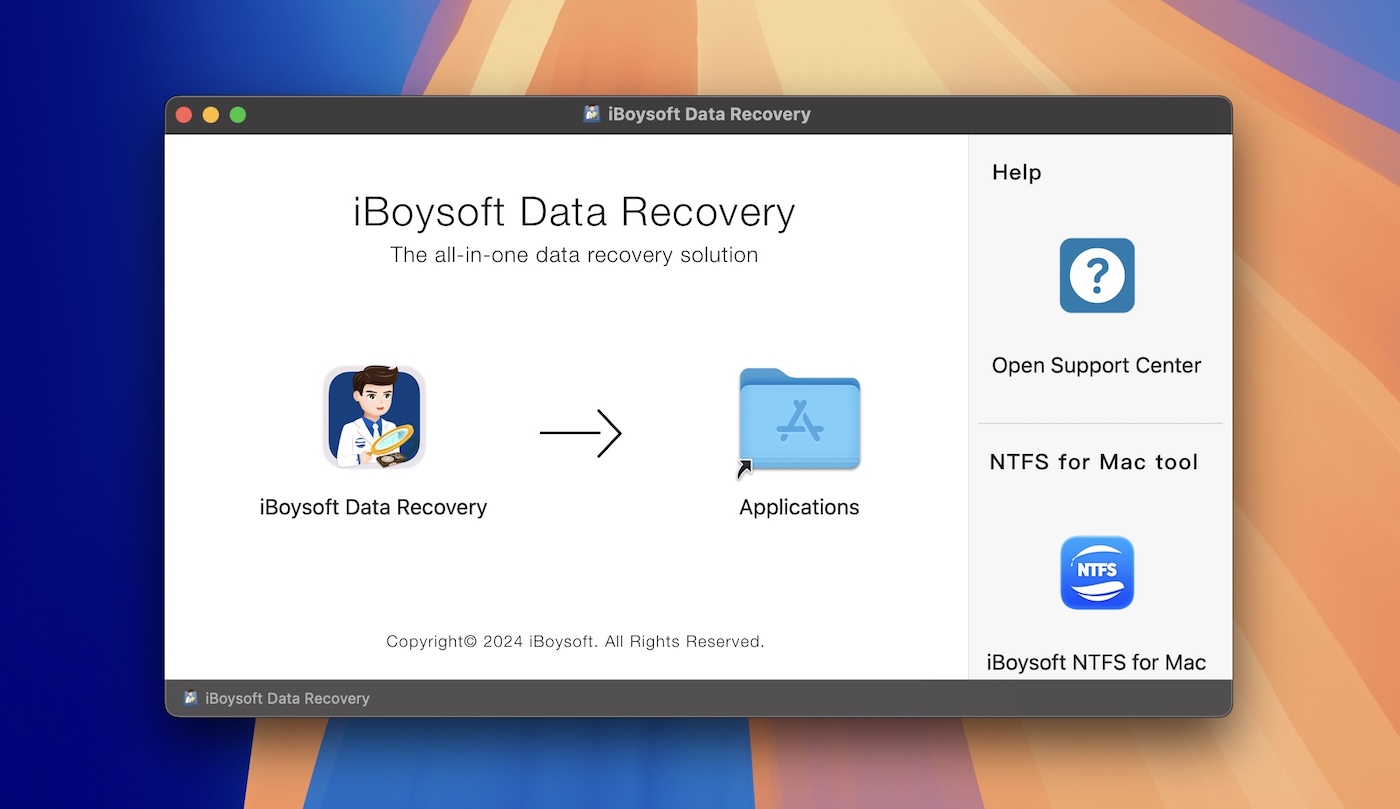
It’s the standard macOS install process. The first time you launch it, you might get a prompt asking for your admin password or disk access permissions. That’s normal – macOS asks this for any app that needs to scan your drives at a deep level. Just approve it and you’re in.
Once it opens, the interface gives you one main window, a few clearly labeled options on the left, and a big blue button that says Search for Lost Data. You can’t miss it.
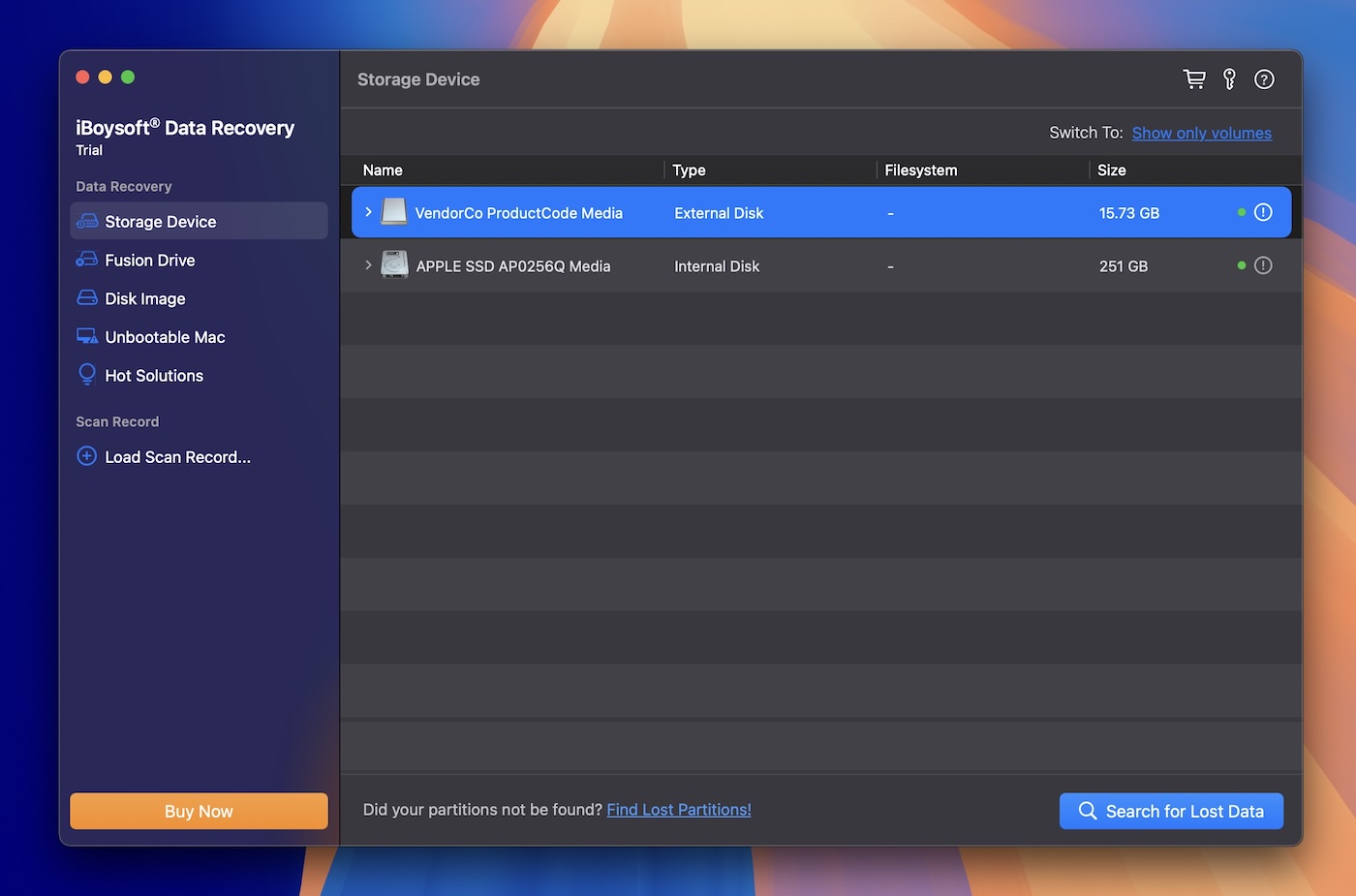
From there, you’ll see a device list. Each drive shows its name, type, file system, and capacity. If you’re trying to recover data from an external disk, that’s where you’ll click first. You can switch between showing full disks or individual volumes using the toggle at the top.
Once you’ve picked your drive, hit Search for Lost Data at the bottom right. The scan begins immediately (no pop‑ups here). You’ll see a live counter of how many files have been found and how long the scan’s been running. During testing, we left a stopwatch running to track total scan time.

When the scan finishes, the results appear neatly organized by file type: Graphics, Documents, Video, Audio, Email, Archive, and Other. You can click any category to expand it and preview what’s recoverable. Previews open on the right side, showing thumbnails for photos or file details like size and creation date.
From here, you select the files you want, choose a destination folder, and click Recover.
That’s the entire workflow – 2 minutes to understand, a few clicks to execute. Nothing advanced or confusing. The app walks you through it without trying to do too much, and that’s clearly intentional. It’s aimed at home users who don’t want to spend time figuring out advanced recovery modes or poking around in settings.
Everything’s built to stay out of your way: open the app, select the drive, scan, preview, recover. That’s it.
Recovery Results
Now let’s talk about what actually matters: how well iBoysoft handled real-world recovery.
We ran it through three different scenarios using a consistent dataset (~50 GB of mixed file types). These tests included deleted files, a formatted card, and a corrupted USB drive, classic situations people run into every day. Here’s how it performed:
| Scenario | Recovery Success Rate | Scan Time | Notes |
| 1 TB Seagate HDD (deleted files) | ~95% | ~120 min | Almost all files recovered with names intact. Folder structure was preserved. DOCX, JPG, MP4, CR2, and PDF files opened fine. |
| 64 GB Samsung SD card (quick format) | ~80% | ~75 min | File names missing, folders gone. Most JPGs and MP4s opened. A few large video files were corrupted/incomplete. |
| 16 GB USB (RAW volume) | ~65% | ~50 min | Partial recovery. Files had generic names. CR2 images were sometimes corrupted. No folder structure. Videos were hit-or-miss. |
Let’s start with speed.
iBoysoft is definitely not the fastest recovery tool we’ve tested. The scan of our 16 GB USB stick (corrupted) took nearly 50 minutes, which is long for a device that size. On the 1 TB HDD, the scan ran for almost two full hours. By comparison, some competitors like Disk Drill and EaseUS wrapped up similar scans in nearly half the time.
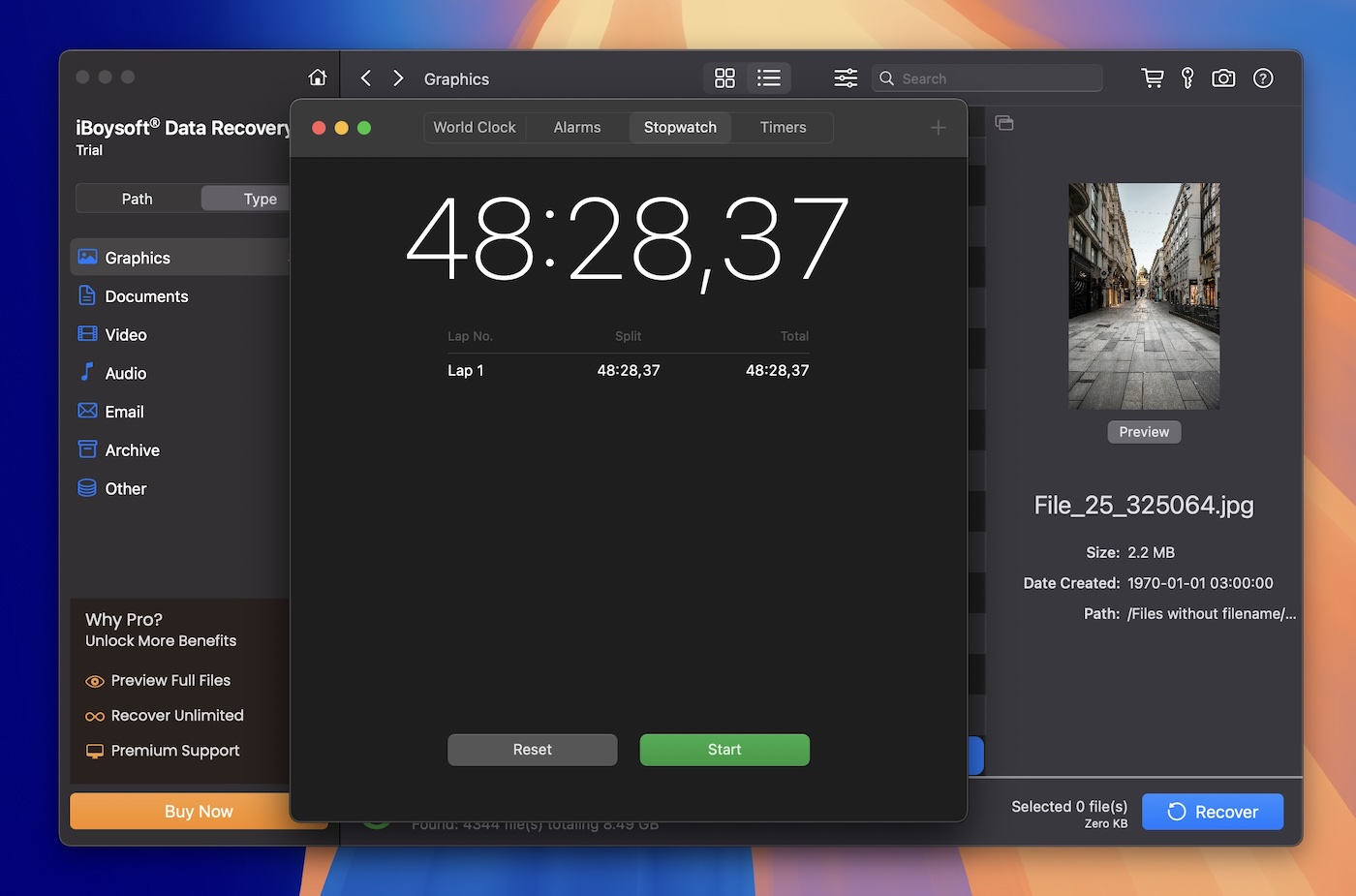
To be clear, the scan didn’t freeze or crash – it moved steadily and found a lot – but the pace was slow, especially during deep scans. It’s something you’ll want to plan around if you’re working with larger drives.
In our deleted-files test on the 1 TB drive, iBoysoft performed really well. It brought back the majority of the dataset, including high-res photos, documents, and videos. Files retained their original names and were usable. No weird file corruption or missing extensions.
On the formatted SD card, it held up nicely. While it couldn’t preserve folders or names, the tool still recovered a large portion of the raw data. Photos opened. Short videos played. A couple of ZIP archives didn’t extract properly, and a few larger MOV files were incomplete, but that can be expected for post-format recovery.
The RAW USB scenario was the toughest, and iBoysoft struggled more there. It still found files, especially images and documents, but most filenames were gone, and previews showed some photos partially corrupted. A handful of videos recovered, but others couldn’t be opened at all. As expected, there was no folder structure left.
As for file previews – they were actually quite good. We were able to open image thumbnails, scroll through PDFs, and even spot-check video frames without any crashes or long delays.
So while the scan speed was slower than ideal, the recovery workflow overall was solid.
Cost-Benefit Analysis
iBoysoft Data Recovery offers three pricing tiers, all laid out clearly on their website.

- Free Edition. Officially, this tier claims to let you recover up to 1GB of data, which sounds great. But when we tried the Mac version ourselves, we couldn’t actually recover anything, not even a few megabytes. So either there’s a limitation in the current build, or the website hasn’t been updated to reflect recent changes. Whatever the case, it’s misleading. On top of that, the free version doesn’t support encrypted APFS drives or unbootable Mac recovery, so even if the 1GB limit worked, its use would still be limited.
- 1-Month License – $89.95 (excl. VAT). Unlocks all features: unlimited recovery, full file system support (APFS, encrypted APFS, HFS+, FAT32, exFAT), and macOS Recovery Mode for unbootable systems.
- 1-Year License – $99.95 (excl. VAT). Same features as the 1-month plan but obviously the better deal if you plan to use it more than once.
Both paid options unlock unlimited data recovery, plus support for encrypted APFS, HFS+, FAT32, exFAT, and unbootable Mac recovery. Honestly, the price gap between the 1-month and 1-year plan is so small that the yearly plan makes more sense unless you’re 100% sure you’ll only use the app once.
One major drawback with iBoysoft is the lack of a lifetime license. For a tool in this price range, that’s a letdown. Several competitors offer one-time payment options, which feel like a better investment over time, especially if you work with data recovery often. Having to renew annually or monthly cuts into long-term value.
As for return on investment, it’s decent but not exceptional. In our run, the $89.95 monthly license recovered about 50 GB of data, which works out to roughly $1.80 per GB. Look at it by volume and it’s similar: around 3,000 files comes to about $0.03 per file. And since $89.95 is a one-month license, that math only holds if you finish everything within that month; otherwise, the effective cost goes up fast.
Comparison with Competitors
Our iBoysoft Data Recovery for Mac review wouldn’t be complete without seeing how it stacks up against other well-known tools in the same category. So we lined it up next to two of the most popular alternatives (Disk Drill and EaseUS Data Recovery) to get a better sense of what you’re actually getting for the price, performance, and features.
| Feature / Tool | iBoysoft Data Recovery | Disk Drill | EaseUS Data Recovery |
| Platform Support | Windows, macOS | Windows, macOS | Windows, macOS |
| Scan Speed | Slow–moderate (deep scans took ~50 min on 16 GB USB) | Fast | Moderate-fast |
| Preview Functionality | Clear and stable previews after scan; works well | Great real-time previews while scanning | Decent previews |
| File Repair | ❌ Not available | ❌ Not available | ❌ Not in base plan (available in higher tiers/add-ons) |
| Free Recovery Limit | Mac build in our test = scan/preview only | Windows: 100 MB; Mac: preview-only | Windows: up to 2 GB; Mac: scan/preview only |
| File System Support | Mac: APFS (incl. encrypted), HFS+, FAT32, exFAT • Win: NTFS, FAT32, exFAT | NTFS, FAT32, exFAT; also EXT2/3/4 (Linux), HFS+/APFS (Mac). Broadest support. | NTFS, FAT16, FAT32, exFAT. No HFS+/APFS or ext. |
| UI / Ease of Use | Simple and clear, a bit dated on newer macOS | Clean, modern, polished | Beginner-friendly, guided |
| Price (Lifetime) | No lifetime (Mac) • $89.95 month, $99.95 year | One-time license available (PRO ~$89) | Lifetime available on some plans (~$149); also monthly/annual |
| Best Use Case | Mac users who need APFS recovery and a straightforward workflow | General all-purpose recovery with a nicer UX and extras | Windows users who want a guided experience and a larger free quota |
As you can see, the lack of a one-time lifetime license really holds iBoysoft back, especially when compared to tools like Disk Drill. Take a closer look: for almost the exact same price as iBoysoft’s 1-month plan, Disk Drill offers a lifetime license that unlocks everything permanently. That’s a major difference in long-term value.
And it’s not just about the price. Disk Drill includes several pro-level features that iBoysoft doesn’t offer at all, like byte-to-byte backups, S.M.A.R.T. disk monitoring, Advanced Camera Recovery, built-in cleanup tools, and even data protection options that help prevent file loss in the first place. In comparison, iBoysoft is narrowly focused on recovery alone. It works, but it doesn’t stretch beyond that.
EaseUS sits in a similar spot. While its lifetime license is more expensive, it at least gives users that option. And like Disk Drill, it also comes with more flexible recovery modules, extra utility features, and broader platform integrations.
Overall, the comparison feels one-sided. iBoysoft holds up in terms of recovery accuracy for basic scenarios, but once you look at pricing structure, feature set, and long-term usability, it’s clear that it falls short next to the more complete recovery suites.
Customer Feedback
And the final piece of the puzzle? Real-world user sentiment. We dug through reviews on major platforms like Trustpilot, G2, and Capterra to see how iBoysoft stacks up in the eyes of everyday users.
- Trustpilot shows an average score of 3.5/5 based on 132 reviews. A mixed bag overall. Some praise the interface and basic recovery ability, but complaints often mention billing confusion and limited customer support.
- G2 has limited data (only 3 reviews), but the average score is a solid 4.3/5. Users here mention it’s easy to use and delivers results, though the sample size is super small.
- Capterra is slightly more detailed with 18 reviews and a 4.4/5 average rating. Most users highlight the software’s ease of use, while a few express disappointment with the lack of advanced recovery features.
As with any data recovery tool, feedback tends to split into two camps – those who successfully got their data back and those who didn’t. That’s just the nature of recovery: success heavily depends on timing, file system state, and what’s been overwritten.
But when it comes to non-technical complaints, a pattern starts to emerge (around licensing and support). Several users on Trustpilot voiced confusion over renewal terms, with some stating they were charged unexpectedly for what they thought was a one-time payment. Here’s one example that sums up this:
“Hello, the software was good,I have used it one year ago,with payment,but now You have announced me for a new payment- as per new year renewal. My purchase was as one usage ,not as yearly renewal,as nothing clearly specified in this when paying.Please answer how I can manage the situation- no NEED for this software ,this YEAR. Thanks You!”
That type of review pops up more than once. Users seem generally okay with the app when it works for their use case, but lack of transparency in billing and limited post-sale support hurt the overall experience.
Beyond review sites, forums and Reddit threads offer a more unfiltered take, and iBoysoft Data Recovery gets mixed reactions there too. Questions like “Is iBoysoft Data Recovery legit or a scam?”pop up regularly, not just for iBoysoft but for recovery tools in general. That said, in these community spaces, users tend to be a bit harsher.
Many of the skeptical posts focus on capability gaps, like lack of advanced scanning options, inconsistent recovery for RAW drives, and so on.
Is iBoysoft Data Recovery Safe?
Still, let’s clear the air: iBoysoft is safe to use. Despite the occasional forum comment throwing around “scam” claims, we ran the installer through VirusTotal – no threats found.
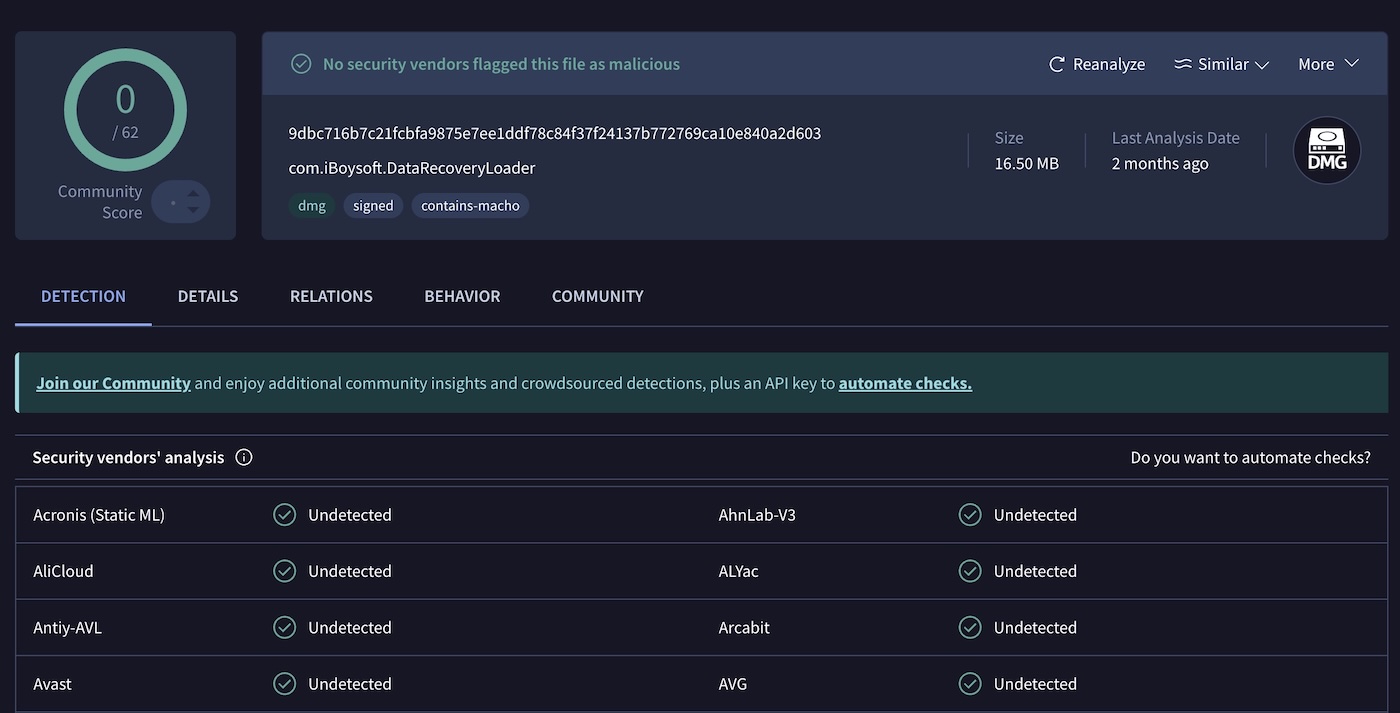
It’s clean software, digitally signed, and installs without doing anything shady in the background.
While it may not be the most powerful option on the market, it’s legitimate software. Just make sure to understand what you’re getting (especially with regard to licensing).
Final Verdict
Now that we’ve looked at every angle – features, pricing, performance, usability, and real user feedback – we feel ready to give our final verdict on iBoysoft Data Recovery.
Here’s how it scores based on the metrics we decided to use throughout this review:
| Category | Score (out of 5) | Notes |
| Features | 3.0 | Covers the basics well, but lacks pro-level extras like byte-to-byte backup. |
| Recovery Performance | 3.5 | Good at common formats and recent deletions; struggles with corrupted storage or niche formats. |
| Ease of Use | 4.0 | Clean UI and very beginner-friendly, though not the fastest workflow. |
| Value for Money | 2.5 | One-month license only, no lifetime option; pricing feels steep for what you get. |
| User Feedback | 3.5 | Mixed. Many success stories, but complaints about licensing and customer support are common. |
⭐ Overall Score: 3.3 out of 5
iBoysoft Data Recovery is a decent app, just not one that stands out in today’s crowded field.
It gets the job done in many common scenarios, especially for recovering recently deleted files from external storage. The lack of a lifetime license really drags down the value, when other tools offer more features and a one-time purchase for about the same price as iBoysoft’s monthly plan. Also, slower scan times can be a dealbreaker for power users or professionals.
That said, for casual users who just want something simple and safe to try, iBoysoft still makes the list. Just not the top of it.