In today’s MiniTool Power Data Recovery review, we look into whether this software actually delivers when it comes to real-world file loss. Our team at 7 Data Recovery Experts wanted to find out how it actually performs when you throw real problems at it. We’ll go beyond the marketing claims and see whether it’s safe, useful, and worth your time.
Quick Verdict
🏆 Best for: Windows users with basic recovery needs who want something straightforward.
MiniTool Power Data Recovery is a simple, dependable tool that works well for recovering deleted files, formatted USB drives, and everyday data loss scenarios on Windows. It’s easy to use, beginner-friendly, and does a decent job with common formats like documents, photos, and videos.
That said, it’s not the fastest, nor the most feature-rich option. The free version gives you 1 GB of recovery, which is enough to test it, but you’ll hit a wall fast if you’re dealing with more serious cases.
Pros
- Straightforward and easy to use
- Handles a wide range of common file types
- No bundled bloatware or tricky add‑ons
- Offers a free version (up to 1 GB recovery) – enough to test functionality
- Bbootable recovery media option (paid tiers)
- Scan speed is slow compared with many competitors
- The file‑preview feature is inconsistent
- Recovery results are uneven when dealing with RAW partitions, or non‑NTFS file systems
- Limited file system support
- The interface feels a bit dated
Overview
MiniTool Power Data Recovery was developed by MiniTool Software Ltd., a company that’s been around since 2009. They’ve built a name for themselves with disk utilities, backup tools, and partition managers (mainly for Windows users).
MiniTool Power Data Recovery is the one in their lineup that claims to bring lost files back. The software promises to recover data from deleted files, formatted drives, lost partitions, corrupted drives, from USB sticks, SD cards, SSDs – pretty much any storage media you might have laying around.
OS and File System Support
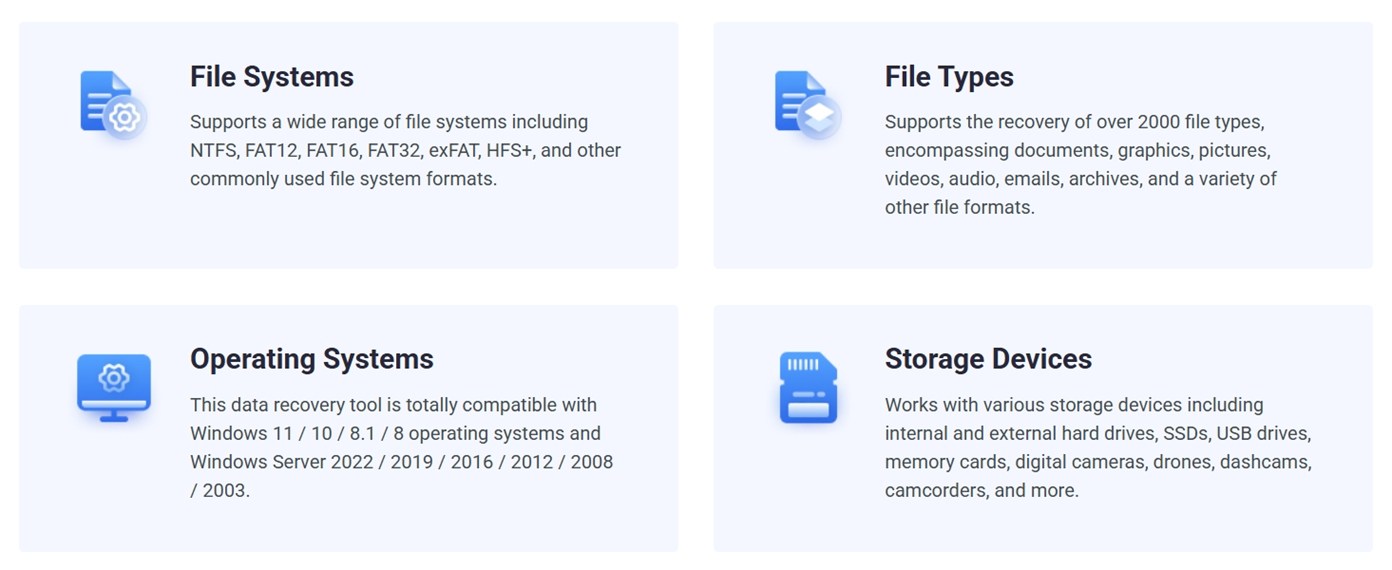
MiniTool Power Data Recovery is made for Windows. It runs on versions from Windows 7 to Windows 11. If you’re on Windows Server (anything from 2003 to 2022), you’re also covered.
Mac users, though, are out of luck. There used to be a Mac version, but it’s no longer available. If you try to download it today, you’ll get redirected to a different brand altogether.
Same goes for their old Android recovery tool – it hasn’t seen updates in years.
On the file system side, MiniTool handles NTFS, FAT12/16/32, exFAT, and HFS+ (which is used on older Macs). You might recover something from an old Mac drive using HFS+, but there’s no support for APFS, and recovery is limited when it comes to non-Windows formats.
In short, this is a Windows-only tool.
Scan Modes and File Type Support
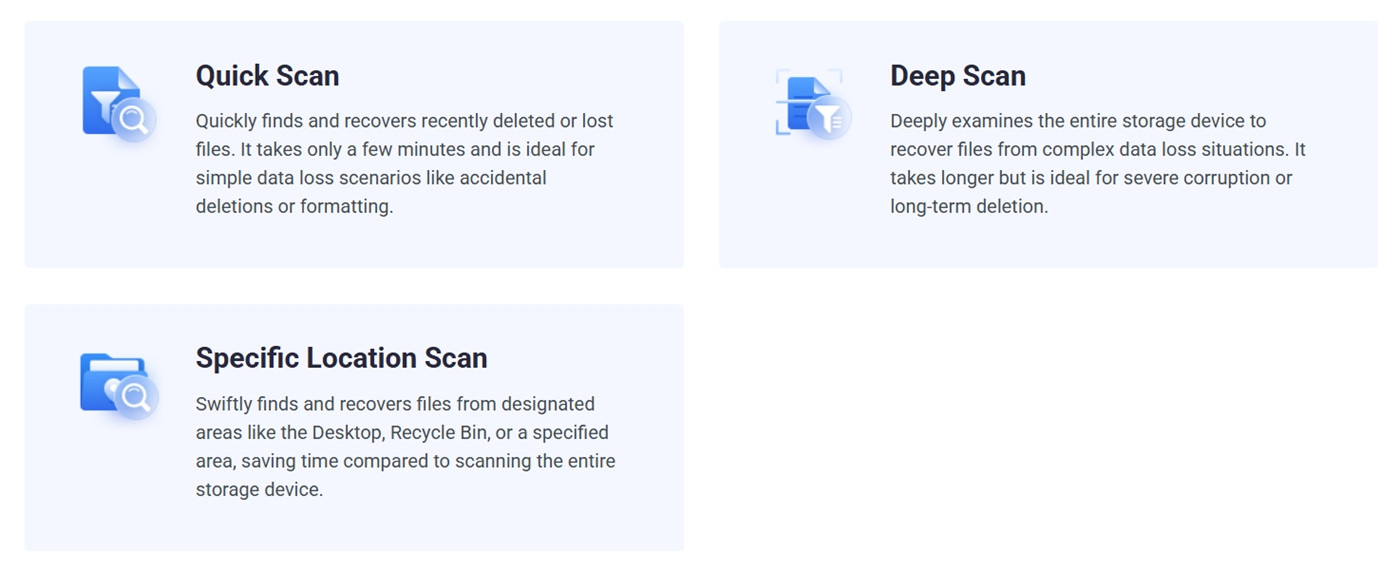
MiniTool has two main types of scans in its recovery tool: Quick Scan and Deep Scan. You don’t need to pick one – when you start a recovery, the tool runs both automatically. Quick Scan kicks off first, looking for recently deleted files that are still marked in the file system. It’s fast and works well for simple cases like accidental deletion. If that doesn’t turn up much, Deep Scan immediately follows.
There’s also a Specific Location Scan, which is handy if you know the file was on your Desktop or maybe got deleted from the Recycle Bin.
As for file types, MiniTool claims it supports over 2000 formats. That includes documents, pictures, videos, audio files, emails, archives – you name it. But that “2000+” number feels like classic marketing fluff. Many of those file types are slight variations or obscure formats you’ll probably never need to recover. (We’ll talk more about what it actually found in our hands-on testing.)
User Interface and Extra Features
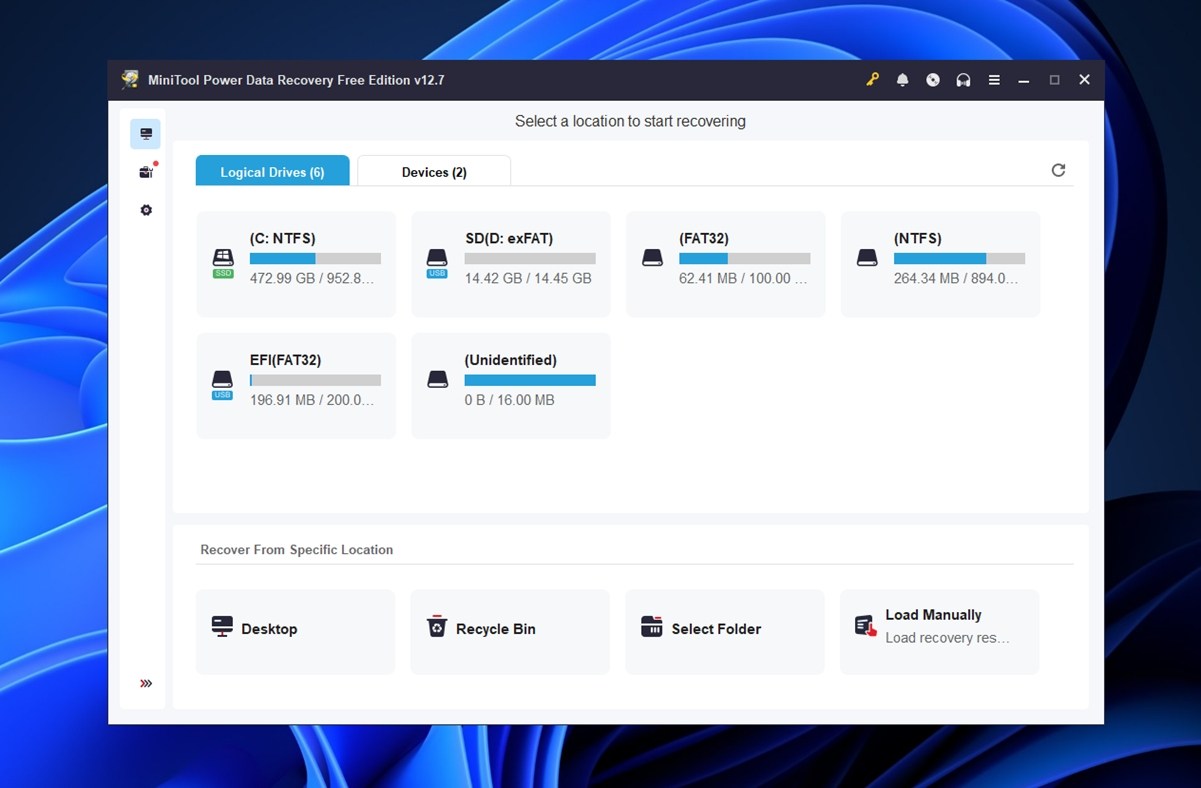
MiniTool Power Data Recovery keeps things simple. When you launch the app, it immediately shows all your drives. There’s no tech jargon. You click on the drive, hit Scan, and the tool does its thing. It’s about as plug-and-play as recovery software gets.
Once the scan finishes, results appear in two views: by folder path, and by file type. Both are easy to browse, and the search bar helps if you remember part of a filename. You can preview certain files before recovery, but in our experience, it’s hit-or-miss. Some images and documents load fine, others don’t respond at all (even if the file ends up recovering successfully later).
Filters work okay, but don’t expect advanced tools like file health ratings or AI sorting.
The overall design is functional but dated. It gets the job done without slowing you down, but it doesn’t feel modern. If you’re used to sleek tools like Disk Drill or EaseUS, this UI might feel like a throwback.
As for extras, MiniTool doesn’t throw in much beyond the basics. There is one useful bonus: a WinPE bootable media builder. With it, you can create a recovery USB stick and boot into a MiniTool environment to rescue files from a non-working Windows system. But that feature is locked behind the paid version. If you’re on the free plan, you won’t get access to it.
How We Evaluate
For this MiniTool Data Recovery review, we followed the same “standardized” setup we’ve used across all our recent tests. Identical drives, identical file sets, and repeatable real-world recovery scenarios. This helps us fairly compare MiniTool’s performance against other recovery tools we’ve reviewed. Without any unfair advantages or disadvantages.
We ran MiniTool through three test cases:
- A 1 TB Seagate Barracuda HDD (NTFS) loaded with around 1,500 files across multiple folders. We deleted everything and emptied the Recycle Bin.
- A 64 GB Samsung EVO Plus microSD card corrupted using disk management tools until it appeared as RAW in Windows.
- A 16 GB SanDisk Ultra USB 3.0 flash drive that we quick-formatted to exFAT – basically simulating a very common scenario where someone accidentally formats the wrong drive and realizes it too late.
We tried to cover a broad range of file types: everything from everyday stuff like PDFs and JPGs to RAW camera formats. Here’s what we included:
- Pictures: JPG, PNG
- RAW images: CR2, CR3 (Canon), NEF (Nikon)
- Video files: MP4 (H.264 and H.265), MOV, AVI, GoPro/action cam footage
- Documents: DOC, DOCX, XLSX, PDF, TXT
- Audio files: MP3, WAV, FLAC
- Archives and installers: ZIP, RAR, EXE
But like with every recovery tool we test, the raw results alone don’t determine the final score. It’s one thing to bring files back – it’s another to do it quickly, clearly, and without wasting the user’s time. That’s why we score each tool across multiple categories, not just recovery rate.
At the end of this MiniTool Power Data Recovery review, we’ll calculate a final score based on the following metrics (each rated on a scale of 1 to 10).
| Metric | What We Measured |
| Recovery success rate | % of files recovered and whether they opened correctly post-recovery |
| Scan speed | Total time to complete a scan (in minutes) and general responsiveness |
| Ease of use | How clear the steps were, how stable the UI felt, and how easy it was to recover |
| Value for money | What the free vs. paid versions actually deliver (and whether the license feels fair) |
Is MiniTool Power Data Recovery Safe?
Before we walk you through how the software works, we want to take a moment to address a question we get all the time: is this software safe to install? If you’ve spent any time reading forums or browsing MiniTool Power Data Recovery reviews, you’ve probably seen people asking this exact thing.
That’s why we run every installer through a full malware scan before testing it. In this case, the installer for MiniTool triggered 2 out of 72 antivirus engines on VirusTotal. Specifically, Bkav flagged it as “W32.AIDetectMalware”, and VirIT flagged it as “Deceptor.MnTlPwrDtRc.ESX”.
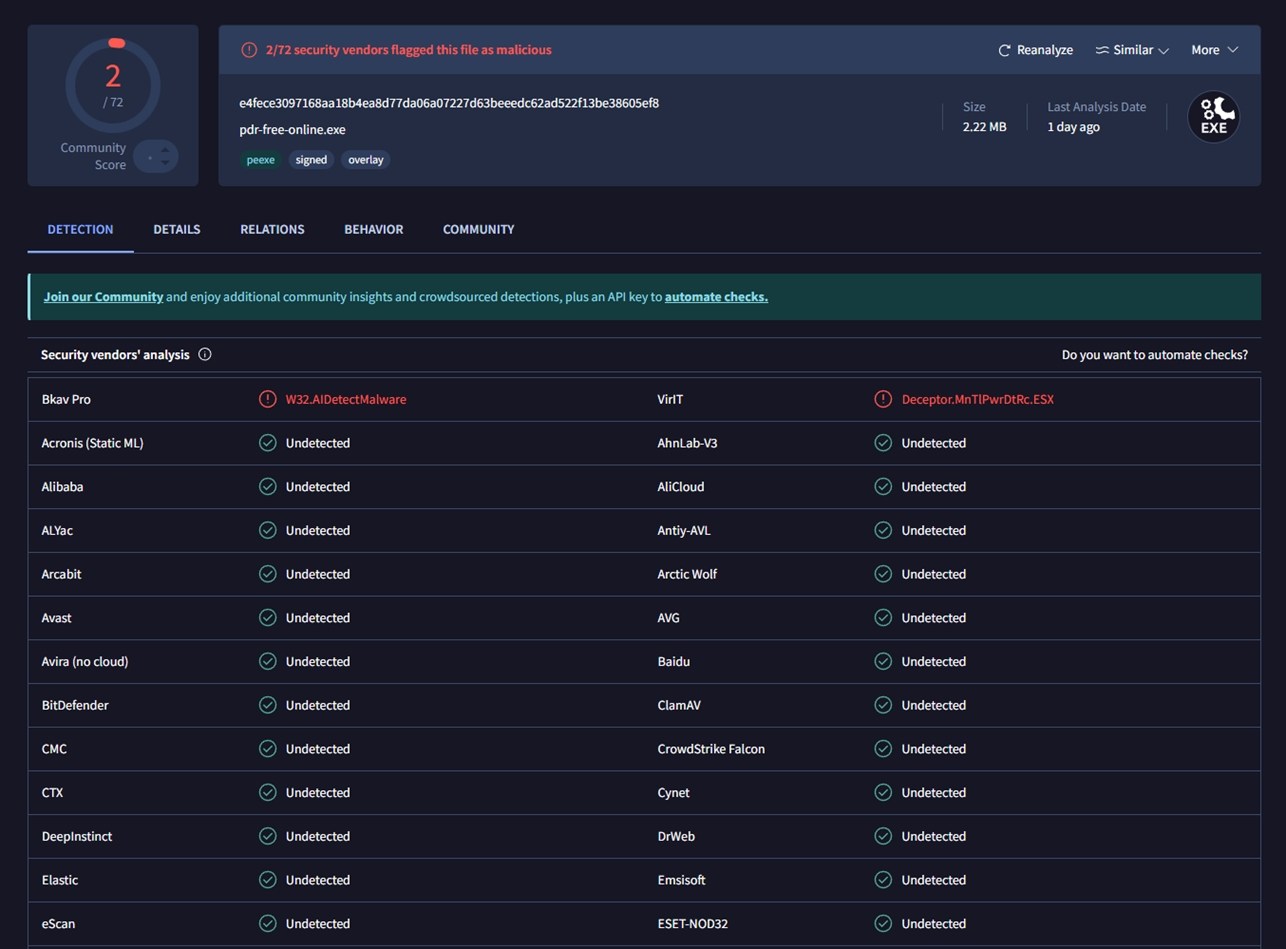
Now, should that worry you? No. These two hits look more like false positives than actual threats. The remaining 70 vendors, including big names like Bitdefender, Kaspersky, Avast, and Microsoft Defender, all marked it as safe. Plus, the app didn’t try to install any add-ons, toolbars, or bundled software. It behaved normally on our test machines, and we saw no suspicious activity in Task Manager or during network monitoring.
So while it’s good to stay cautious, there’s nothing here that raised serious red flags in our hands-on experience.
And it goes without saying, but always download MiniTool Power Data Recovery from the official website. Stick to the source, and you’ll avoid 99% of those problems.
MiniTool Data Recovery Workflow
As to workflow, like we mentioned earlier, everything here is super simple. Even if you’ve never touched data recovery software in your life, you won’t feel lost for a second.
When you launch the app, all you need to do is look at the main screen. It shows your connected drives right away – any plugged-in USB sticks, memory cards, and so on.
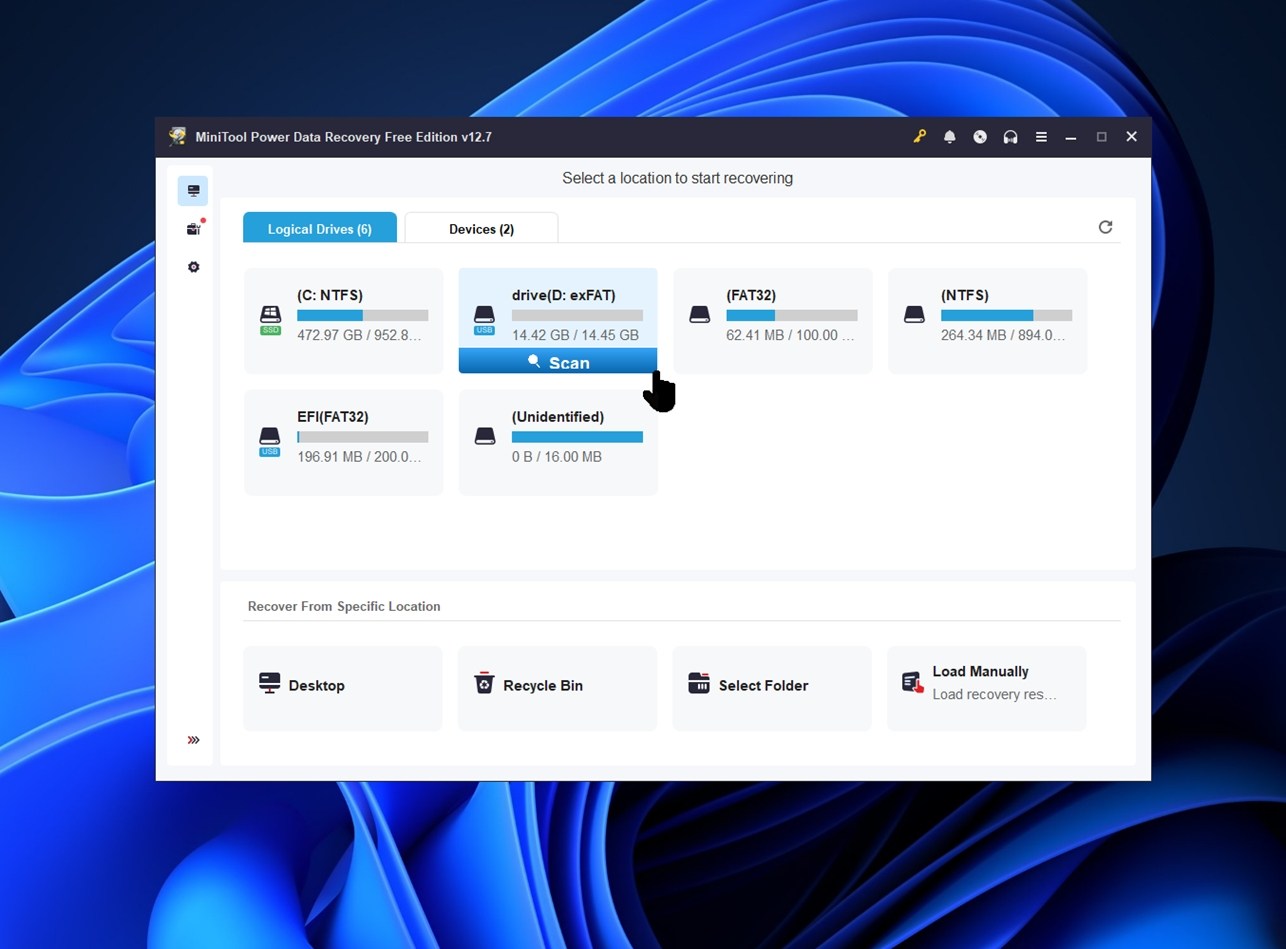
You can choose to scan an individual partition (like D: or E:) or scan the entire physical device if you’re not sure where the file was.
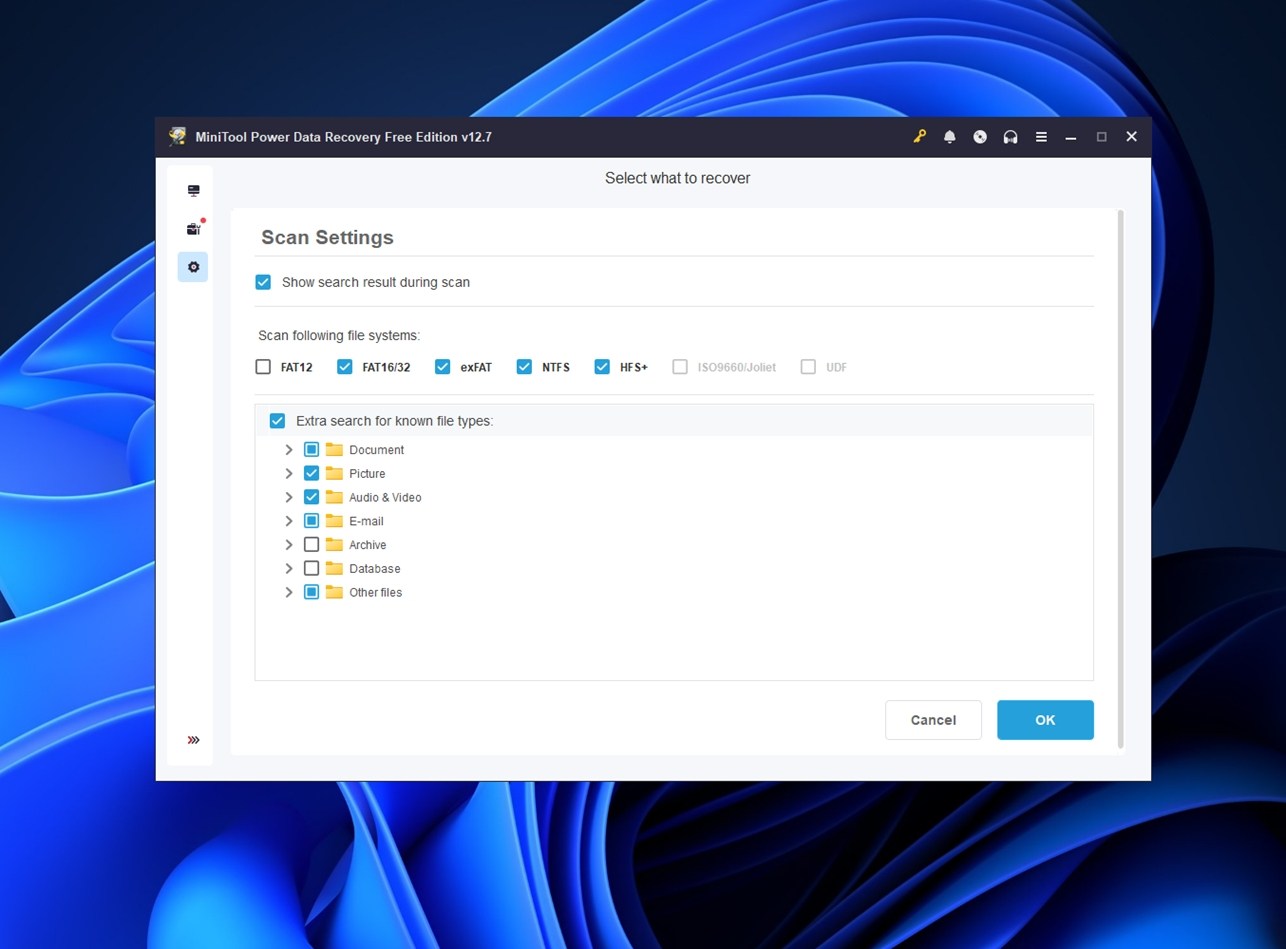
Once you click on a drive, MiniTool starts scanning automatically. No need to choose between Quick or Deep Scan (it handles that for you in the background). You can also click the little gear icon before scanning to filter by file type (like documents, photos, or videos), which saves a bit of time.
After the scan wraps up, you’ll see results grouped in two tabs: one organizes everything by folder structure (Path), and the other sorts files by format (Type). Both are easy to scroll through, and you can use the search bar if you remember part of a filename.
There’s also a preview feature, but as we mentioned earlier, it’s inconsistent. It works for some files, especially smaller ones like JPGs or TXT, but can lag or fail entirely for others.
In some cases, the app asks you to install a separate viewer module – PDF preview is a good example. Once installed, it does work, but it’s not the most elegant solution.

Still, better than nothing.
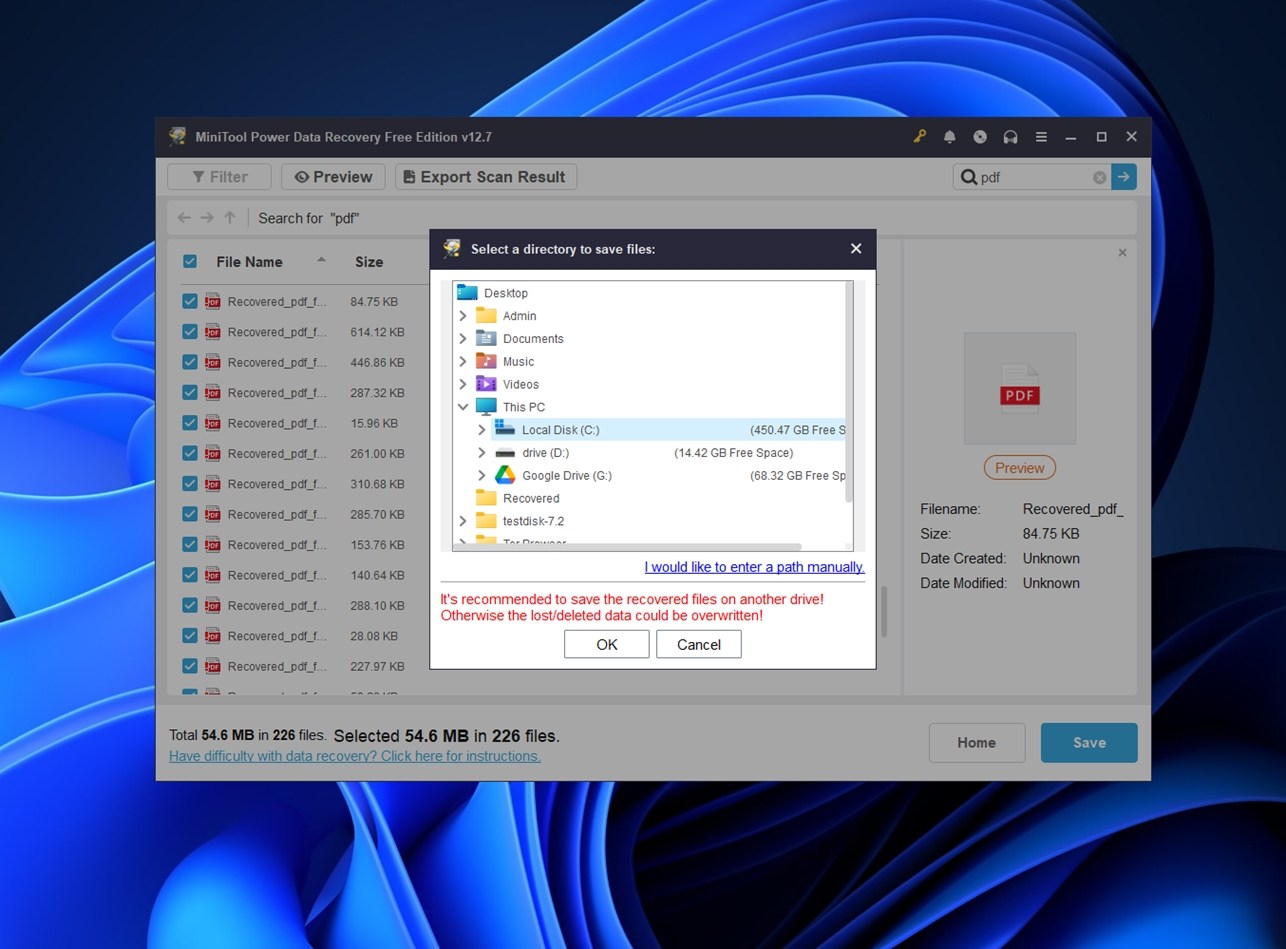
For the final step, all you need to do is checkmark the files you want to bring back and click the “Save” button.
MiniTool will then ask you to choose a recovery location – just make sure to pick a different drive than the one you’re recovering from.
Another thing to keep in mind: scan sessions aren’t reusable in the free version. Even though MiniTool saves your progress in the background, reopening a saved session is only possible if you’ve paid. So if you close the app or your system restarts, you’ll need to scan the drive all over again.
Overall, the workflow is solid for beginners. No weird terminology, no multi-step setup. It’s point, scan, recover.
Recovery Performance
Now for the part that actually matters. How did MiniTool Power Data Recovery perform in real tests?
Here’s how MiniTool stacked up:
| Scenario | Recovery Success Rate* | Scan Time | Notes |
| 1 TB NTFS HDD (deleted files) | ~90% of files recovered and opened | ~82 minutes | Most documents, JPGs, and standard video files came back fully intact, with original names and folder structure. RAW photo recovery was mixed: CR2 and NEF files were mostly usable, but some newer formats didn’t open cleanly. |
| 16 GB USB (quick-formatted to exFAT) | ~68–74% usable files | ~20 minutes | Common image formats (JPG, PNG) recovered well, but RAW files were hit-or-miss. Folder structure was gone. Signature-based recovery handled DOCX and PDF better than expected, but larger media files (video) had much lower success. |
| 64 GB microSD (RAW state, no visible file system) | ~55–60% usable files | ~40 minutes | MiniTool found multiple file types, but results were scattered. MP4 and MOV clips were often corrupted or unplayable. Most recovered files had generic names and no original folder structure. |
So what does this tell us?
MiniTool holds up well in standard deleted file scenarios on NTFS drives. It was able to recover files with metadata, original names, and even some folder structure intact. That’s where it feels the most dependable.
But as the scenarios got tougher, like many other tools, it leans on file signature carving when the file system is gone or wiped. And that’s where it gets less consistent. Some RAW image types recovered okay, but others wouldn’t open. Same story with video: MP4 and AVI were mostly fine, but anything outside the mainstream (action cam formats, high-bitrate MOVs) struggled or came back incomplete.
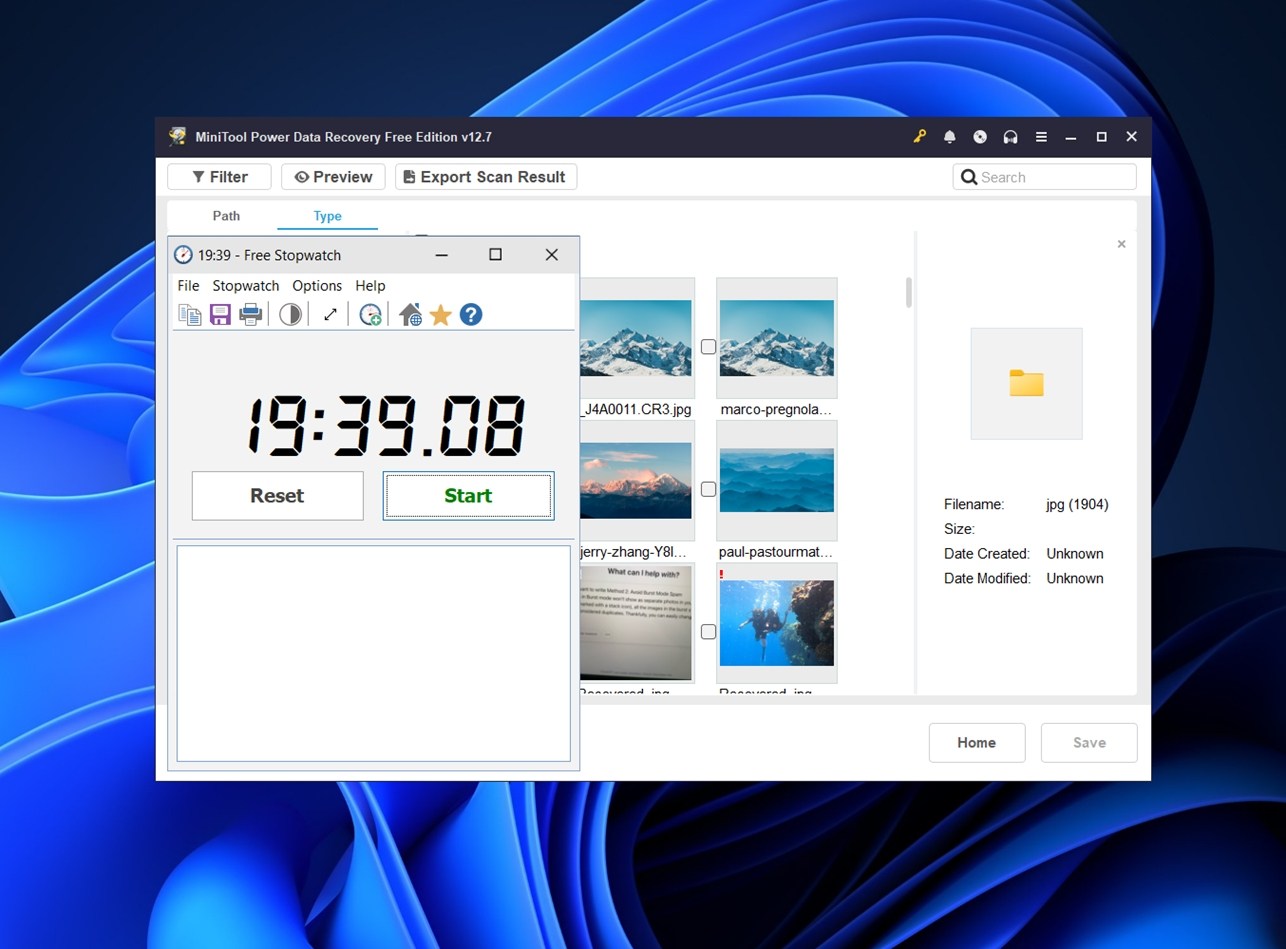
As for scan speed, MiniTool Power Data Recovery was noticeably slower than we expected. A full deep scan of the 16 GB USB flash drive took 19 minutes and 39 seconds, which, for context, is almost twice the time it takes most similar tools we’ve tested in that same scenario. We typically see around the 10-minute mark for that drive size.
The 64 GB SD card scan took nearly double that, which puts MiniTool on the slower side of the pack. It’s not painfully slow, but if you’re recovering from a large drive, you’ll definitely feel it.
Overall, its best-case scenario is a recently deleted file on a Windows machine. That’s where it shines. When things get more complex (like with corrupted media or formatted non-NTFS drives), it can still help, but the results vary.
Pricing Tiers and Value for Money
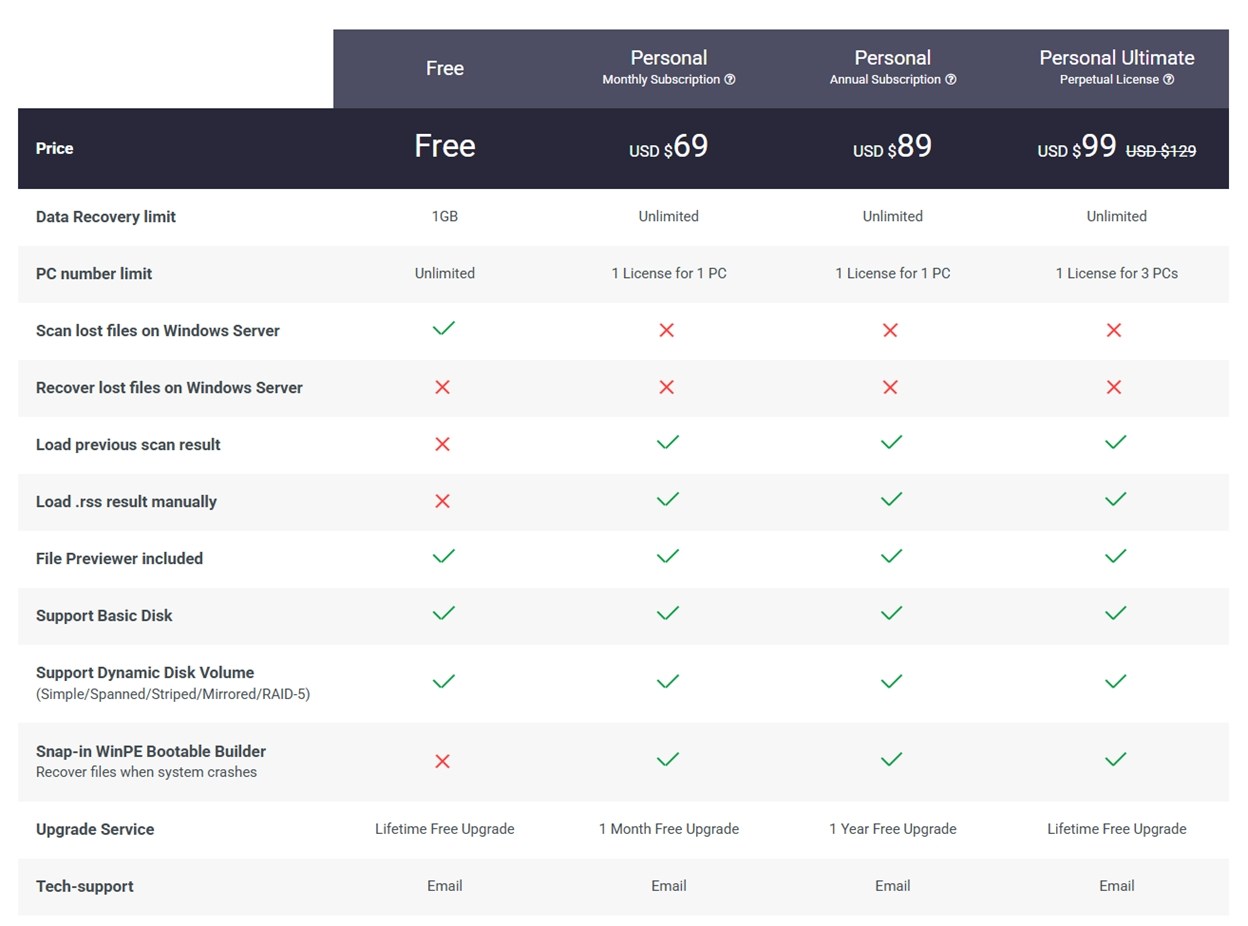
MiniTool Power Data Recovery comes in four pricing tiers:
- Free
- Personal Monthly ($69)
- Personal Annual ($89)
- and Personal Ultimate ($99)
One common question is: is MiniTool Power Data Recovery free? Yes – there is a free edition, and it lets you recover up to 1 GB of data at no cost. That’s enough to get a sense of how it works, and in some cases, enough to fully recover a handful of documents or photos.
The $69/month and $89/year plans give you unlimited recovery but are tied to a single PC license, and some features (like loading scan results and using the WinPE bootable recovery drive) only unlock after you pay. If you only need the tool once, the monthly plan is an option, but for that price, you don’t get much flexibility.
The Personal Ultimate license is where it gets more reasonable: $99 one-time (often discounted from $129) and covers up to three PCs, with lifetime upgrades and full access to all features. If you see yourself needing recovery more than once (or want peace of mind), it’s the tier we’d actually recommend.
That said, there are still limitations. MiniTool doesn’t support APFS or EXT4, and even in the full version, advanced video/photo repair tools aren’t included. Support is limited to email only, and you’re not getting RAID tools or pro-level options you’d see in something like R-Studio.
In our opinion:
- The Free plan is good for testing only.
- The subscription plans are expensive for what they offer unless you’re in a pinch.
- The $99 Ultimate license is the best value and makes the most sense long-term, especially if you want full access and aren’t locked to a single machine.
Comparison with Competitors
To get a better sense of how MiniTool Power Data Recovery stacks up, let’s also compare it against two other well‑known recovery tools: Disk Drill and Recuva. That way you’ll get a clearer picture of where MiniTool stands.
| Tool | Free Version | Price (paid) | File‑System & OS Support | UI / Design | Typical Scan Speed | Features / Strengths |
| MiniTool Power Data Recovery | Yes (up to 1 GB free recovery) | ~$99 (one‑time, 3‑PC license) / subscription plans | Windows only; supports NTFS, FAT12/16/32, exFAT, HFS+ (partial) | Functional, straightforward, slightly dated | Moderate | Broad file‑type support, bootable recovery media, friendly for beginners |
| Disk Drill | Yes (up to 100 MB free recovery on Windows) | ~$89 (PRO, lifetime) | Windows & macOS; wide filesystem coverage (NTFS, FAT, exFAT, EXT, HFS+, APFS, and more) | Clean, modern, user‑friendly | Fast; early recovery even during scan | Strong recovery engine (good for corrupted/ formatted drives), preview before recovery, extra tools (like Recovery Vault, disk‑image backup, cross-platform license) |
| Recuva | Yes (unlimited free recovery – no paid limit) | Paid version: $24.95/yr | Windows only; supports NTFS, FAT, exFAT | Simple, minimal, beginner‑friendly but dated UI | Generally faster on simple scans | Good for basic deleted‑file recovery; lightweight and completely free |
If you stack it like this, MiniTool Power Data Recovery starts to look less attractive. Once you factor in price and long-term usability.
Let’s look at it plainly: for the cost of MiniTool’s annual subscription ($89), you can get Disk Drill’s PRO license for a one-time payment of $89. And that license covers both Windows and macOS, for life.
Functionally, MiniTool can’t keep up with Disk Drill. Disk Drill has a noticeably stronger recovery engine, especially on complex cases like RAW drives, partially overwritten files, or fragmented media. It also supports a wider range of file systems, including APFS and EXT4, which MiniTool simply doesn’t touch.
On top of that, Disk Drill offers features MiniTool doesn’t have at all:
- Built-in disk imaging (so you can scan clones, not the failing drive directly)
- A Recovery Vault that helps proactively protect data before it’s deleted
- Cross-platform support with a consistent UI
- Better preview handling and more responsive filtering
- Many more extra tools
And if you line up Recuva next to MiniTool, you’ll notice a lot of similarities. Both are Windows-only, both have a simple, no-frills UI that feels a bit dated, and both handle basic deleted file recovery with about the same level of success. They also share some of the same weaknesses (limited preview options, no support for newer file systems like APFS or EXT4, and few advanced recovery tools.)
But (and this is a big one) Recuva’s free version is completely unlimited.
There’s no 1 GB data cap like there is with MiniTool’s free edition. You can recover as many files as you want without being forced into a paywall. So while MiniTool feels a little smoother in some places, functionally, they’re not that different. And if you’re only dealing with a simple accidental deletion, Recuva does the same job for free. That makes it a better option for light recovery tasks.
Customer Feedback
And finally, like with every recovery tool we review, we took a look at what real users are saying. The feedback lines up pretty closely with our own experience: MiniTool Power Data Recovery is generally liked for its simplicity and ease of use, but some limitations do pop up in reviews.
If you look across the major review platforms, here’s what the average user ratings look like:
- G2 – ★4.4 out of 5 (based on 31 reviews)
- Trustpilot – ★4.7 out of 5 (3,346 reviews)
- Capterra – ★4.5 out of 5 (60 reviews)
So overall, pretty strong scores. Users consistently mention that MiniTool is straightforward and reliable for basic recovery. It’s often praised by non-technical users who had success recovering deleted files from USB drives or memory cards.
That said, some common complaints do repeat. People mention slow scanning, disappointment with the free limit, and preview issues. There are also a few complaints about licensing, such as not being able to transfer the license to a new PC.
We’d say the public consensus is pretty much in line with what we saw in our own hands-on tests. It’s not the most powerful recovery software out there, but it works well in its lane (and most users seem to agree).
Our Verdict
Okay, let’s wrap it up. We think we have all we need for the final score.
Based on everything we tested, from real-world recovery performance to usability and price, MiniTool Power Data Recovery earns a final score of:
| Metric | Score | Notes |
| Recovery success rate | 7.5 / 10 | Strong with common file types (DOCX, JPG, MP4) on NTFS drives. Less consistent with RAW files and large videos. Struggled with exFAT and RAW partitions in deeper cases. |
| Scan speed | 5.5 / 10 | Slower than average. A 16 GB USB scan took nearly 20 minutes; 64 GB card took twice that. |
| Ease of use | 8 / 10 | Very beginner-friendly. The layout is clear, setup is fast, and recovery steps are easy to follow. |
| Value for money | 6.5 / 10 | Free version gives you 1 GB recovery – fine for light use. But once you pay, competitors often offer stronger engines, more features, and lifetime value at a better price. |
🌟 Final Score: 6.9 / 10
MiniTool Power Data Recovery is something we can easily recommend to anyone who just needs a straightforward recovery tool for common problems. It performs well when you’re dealing with recently deleted files or light data loss scenarios. The UI is clean and easy to use, and the app walks you through the recovery process without any steep learning curve.
Where it starts to fall behind is speed and advanced capability. It’s noticeably slower than similar tools, and its recovery engine doesn’t hold up as well in more complex cases – with formatted or damaged drives, RAW partitions, or niche file formats.
But at the same time, there’s nothing especially bad about it either. It doesn’t overpromise, it doesn’t sneak in bloatware, and it doesn’t feel risky to use. MiniTool is a safe and capable choice.
MiniTool Power Data Recovery is best if:
- You’re a Windows user dealing with basic file loss (deleted docs, photos, USB mishaps)
- You want something quick to install and easy to operate
- You’re okay with limited features and slower scans in exchange for simplicity