 Once you start handling files (be it family photos or company documents), you quickly realize how important backups are. They’re the safety net that lets you get your data back when something goes wrong. Still, people forget things, and scheduling a backup often ends up on that long list of “I’ll do it later.” When that happens, data recovery software (or professional services that use such tools) becomes the last resort for bringing deleted files back.
Based on this reality and the sheer variety of recovery options available today, our 7 Data Recovery Experts team decided to test the most talked-about tools on the market. And today, we’re presenting our R-Studio Review. Why this one? Because on almost every tech forum and data recovery community, R-Studio is often described as an “advanced data recovery program.” We wanted to find out whether this label means it’s a solution only for IT professionals and system administrators, or if R-Studio can also help everyday users who simply deleted a few photos by mistake.
Quick Overview of R-Studio
R-Studio stands out as one of the most reliable data recovery programs on the market. It can recover files lost in a wide range of situations — from accidental deletion without a Recycle Bin entry to partitions that were completely reformatted. Whether your data disappeared due to a power failure, a virus attack, or a file system change, R-Studio usually finds a way to recover it.
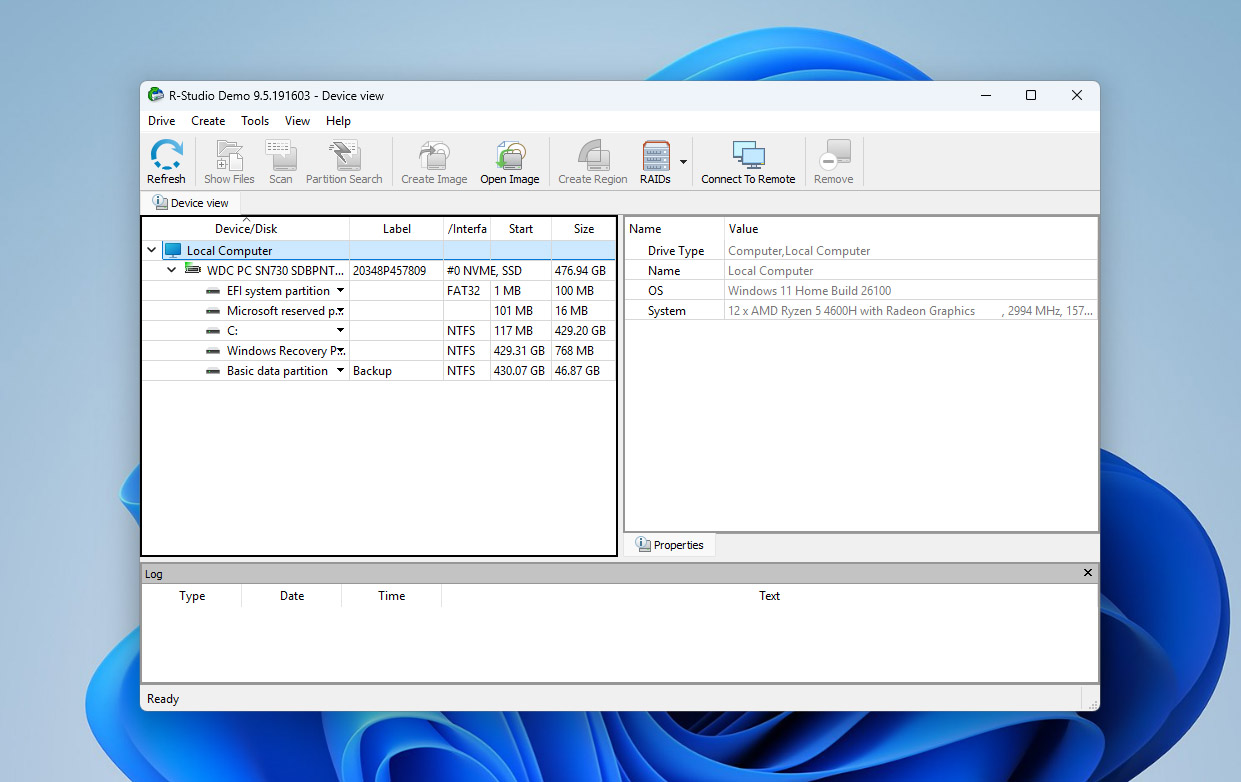
What makes this tool more professional than most competitors is the set of advanced modules included right out of the box. In addition to the standard recovery engine, it offers:
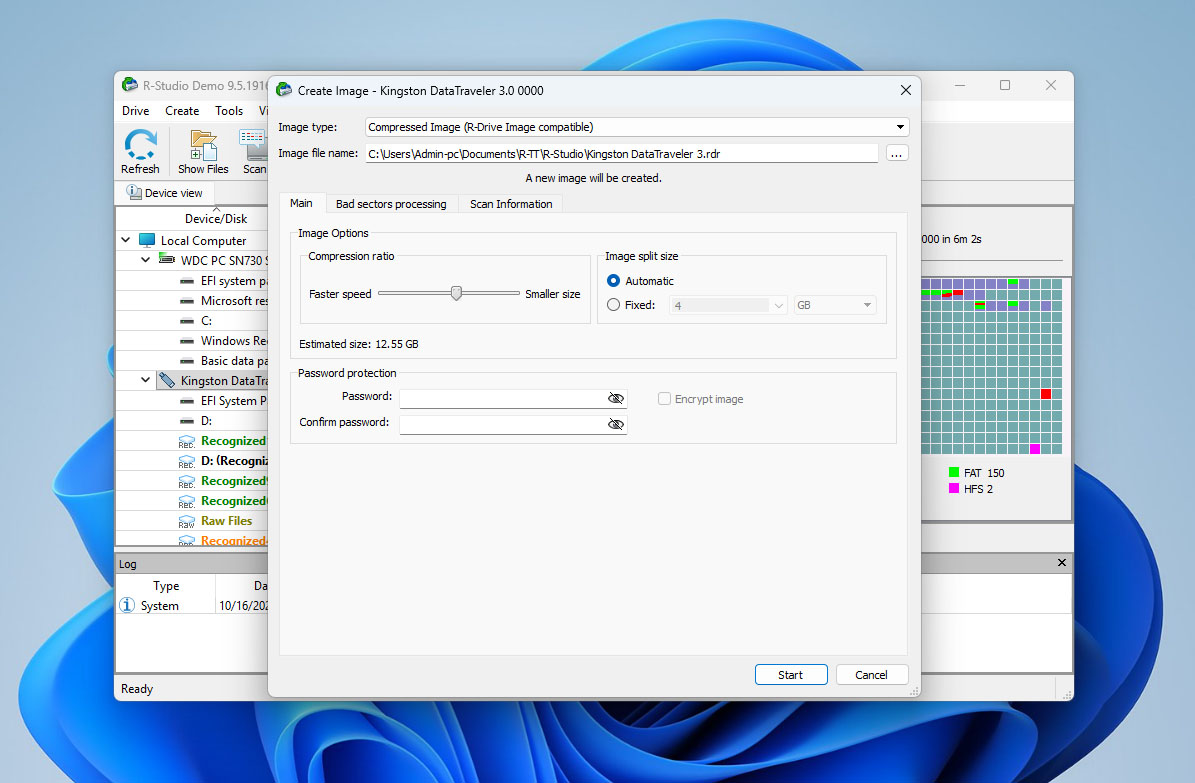
- Disk Image Creation lets you clone or image a drive and scan that image instead of the original. This method is safer and strongly recommended in any recovery scenario.
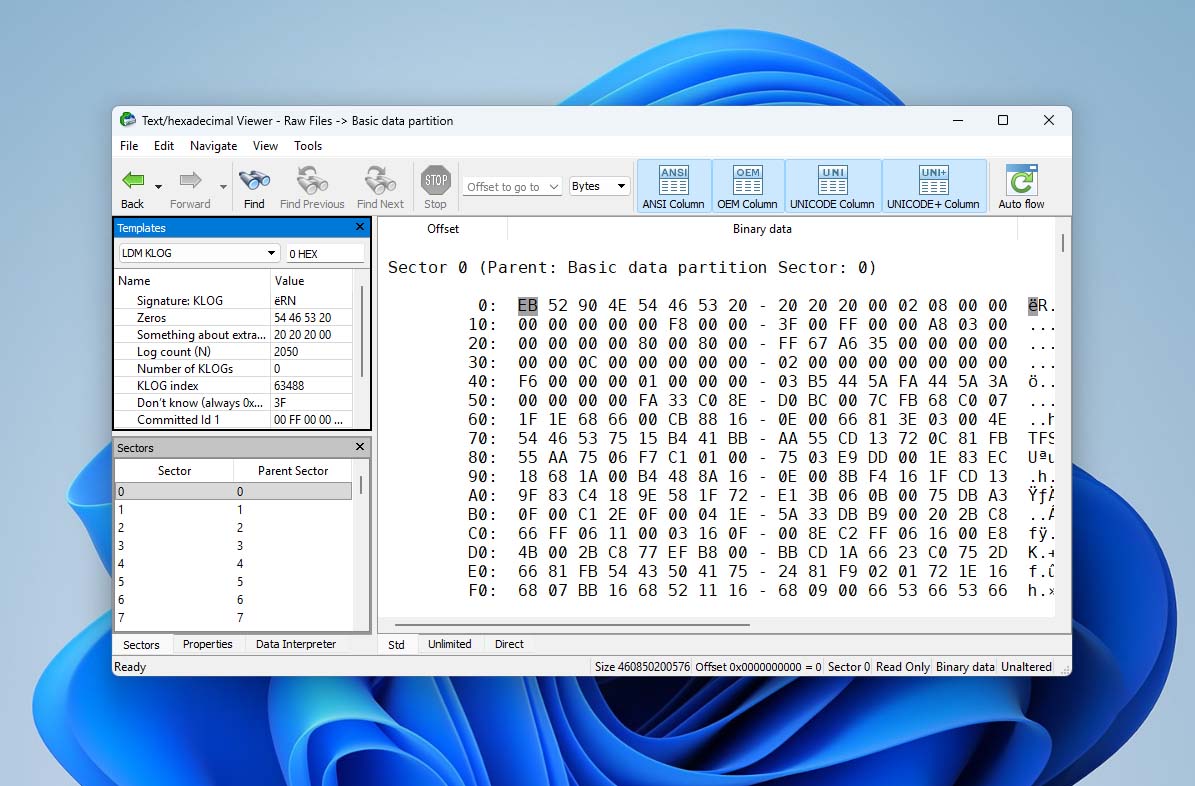
- The Hex Viewer works like a small built-in lab. It lets you open any file or sector and look at the raw code underneath. With it, advanced users can verify whether a file is still intact or even tweak bits of metadata by hand.
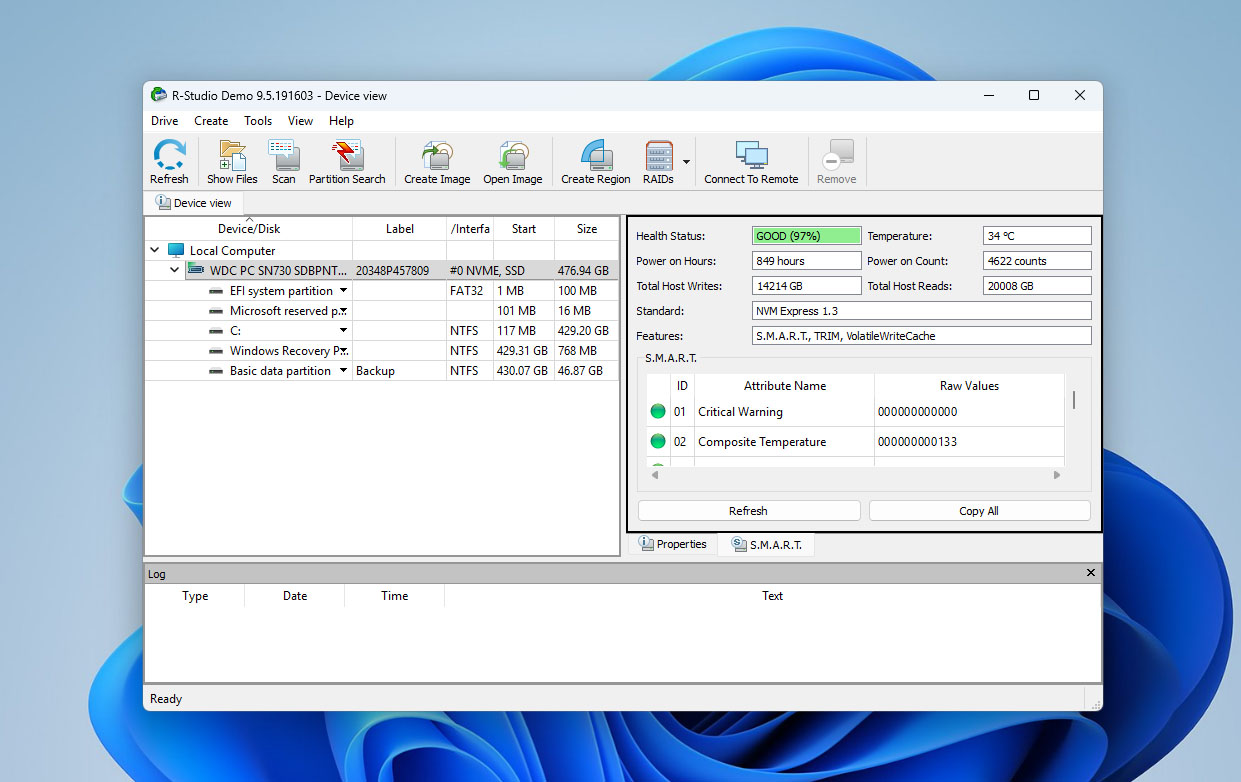
- SMART Monitoring keeps an eye on your drive’s health in real time — things like temperature, read errors, or bad sectors. It’s handy for spotting early signs that the disk might be on its way out.
- The RAID reconstruction tools deserve a separate mention. They can rebuild setups like RAID 0, 1, 4, or 5, which makes R-Studio especially valuable in professional or multi-drive environments.
We consider this a major plus since many other recovery apps either skip these features entirely or sell them as separate products. Not everything comes with the basic license. Some tools, such as recovery over the Internet, the portable build, and the full Hex editor, are available only in the more expensive editions. Those versions are mostly meant for businesses or people doing forensic-level recovery work.
Pros
- Reliable performance
- Solid set of extra features
- Supports multiple file systems and RAID configurations
- Outdated and less intuitive interface compared to competitors
- The free version is nearly useless (recovers files smaller than 256 KB only)
Many people online call R-Studio an expensive program, but we honestly don’t get where that comes from. The license costs $79.99, and that’s the version we used for this review. Considering it’s a lifetime license, that price feels more than fair (of course, the Technical and Corporate editions cost more, but those are aimed at labs and businesses). The license terms, however, do raise a few questions — they’re often discussed on forums, and we’ll touch on that later. As for the interface, it really does look outdated. Competing tools like Disk Drill offer a far more polished experience. Still, R-Studio has a solid knowledge base with step-by-step guides, so anyone willing to spend a bit of time can figure it out. Overall, it’s not a bad option at all.
Technical Details About R-Studio
To start our R-Studio data recovery software review, we’d like to share a bit about the developers and the background of the program itself, because this context helps explain some of R-Studio’s design choices.
R-Studio was developed by R-Tools Technology Inc., a Canadian company founded in 2000. From the beginning, the software was built for professionals — and the developers are very open about that. According to the official website, “R-Studio Data Recovery Software was originally developed for data recovery experts, system administrators, IT professionals, and advanced computer users. Some R-Studio features were even designed exclusively for computer experts, and most users don’t need every function the software provides.”
Later, the same team released a separate tool called R-Undelete, which comes with a simplified interface and even a free version for drives using the FAT file system. It’s aimed at home users who just need basic recovery without diving into advanced tools.
But today, our focus is on R-Studio. Below, we’ve summarized the core technical information provided by the developers to give you a clearer picture of what the software can handle.
Platform, File System, and File Type Support
When it comes to compatibility, R-Studio feels like a tool built for people who move between different systems. It works on Windows, macOS, and Linux, and you can transfer recovery projects between platforms without starting from scratch — a real convenience for IT pros or anyone using multiple machines. Still, the license isn’t tied to you as a user but to a single computer. So if you use both a Windows desktop and a MacBook, you’ll need two separate licenses to activate the program on each.
As for file systems, R-Studio covers nearly everything that’s in active use today:
- Windows: FAT12/16/32, exFAT, NTFS, NTFS5, and ReFS/ReFS2+ (Resilient File System), including ReFS support for Windows Server 2019 with deduplication.
- macOS: HFS, HFS+, HFSX, APFS, FAT, and exFAT.
- Linux and UNIX: Ext2/3/4FS and XFS (created by Linux or other OS), plus UFS1, UFS2, and UFS BigEndian — the formats used by FreeBSD, OpenBSD, and NetBSD.
R-Studio doesn’t really care what kind of files you’ve lost — it can deal with almost anything. In our testing, it brought back photos, videos, documents, archives, and even raw camera shots without breaking a sweat. The program’s built-in database knows hundreds of file types, from everyday ones like DOCX and XLSX to more niche formats such as PSD, MKV, and CR2. For professionals, there’s even an option to add custom file types by defining unique byte patterns.
It’s also nice to know that R-Studio understands BitLocker Drive Encryption. For anyone using Windows with BitLocker enabled, that’s a real advantage. If an encrypted drive suddenly stops opening because of a crash or a format mistake, R-Studio can still find it and pull the data back — as long as you have the right decryption key.
Supported Devices and Recovery Capabilities
R-Studio covers almost every device an average user or IT professional might deal with. The program recognizes both internal and external drives right away and lets you choose exactly what to scan (full disk or single partition).
- HDDs and SSDs (both old-school spinning hard drives and newer solid-state ones, including NVMe models).
- USB flash drives (any brand, any size, from small thumb drives to high-capacity sticks).
- Memory cards (SD, microSD, CompactFlash, and most other flash formats you’d find in cameras or drones).
- External enclosures and portable drives (connects smoothly over USB, SATA, or Thunderbolt, no special setup needed).
- RAID devices (complex RAID layouts like 0, 1, 4, 5, 6, 10, 1E, 5E, 5EE, 6EE, 50, 60, 50E, and more).
However, there are limits. Unlike tools such as Disk Drill, R-Studio doesn’t support direct recovery from mobile devices (neither Android nor iOS).
As for recovery scenarios, R-Studio handles a range:
- Restores data removed from the Recycle Bin or via Shift+Delete.
- Recovers data even after a full reformat or file system conversion.
- Rebuilds damaged partition tables and directory structures.
- Scans drives that appear as “unformatted” in File Explorer or Finder.
- Can still work with disks recognized at the hardware level in Disk Management.
- Performs recovery from drives that are still detectable but return read errors (recommended to image first).
All in all, R-Studio stands out as one of those rare recovery tools that work just as well for everyday mishaps as they do for serious, enterprise-level problems.
Key Features of R-Studio
Continuing our R-Studio data recovery review, it’s time to take a closer look at what the program can actually do. After all, features are what separate a basic recovery tool from a professional one.
At its core, R-Studio is made to bring back lost or deleted data. It works with just about every file system and storage device you can plug into a computer. Documents, photos, archives, and even complex folder structures can usually be restored after deletion or quick formatting. Still, there’s one catch that often shows up in real use: video recovery from SD cards isn’t always perfect. Because of how SD cards store and fragment data, video files often get split into small pieces across the drive. When that happens, the recovered videos may look fine on the surface, but won’t actually play or will be missing parts. It’s a common issue with flash media, so anyone recovering footage from a camera or drone should keep that in mind.
One of R-Studio’s strongest tools is its disk imaging feature. You can create an exact byte-to-byte copy of a failing or unstable drive and then scan that image instead of the original. This method is essential for safe recovery because it prevents further wear on a drive that’s already having read errors. The image can later be mounted, analyzed, or even cloned again if needed.
The built-in Hex viewer allows you to open any sector of the drive and see its raw binary structure. It’s a feature aimed at advanced users who want to verify file headers, inspect partition tables, or manually repair broken data.
The S.M.A.R.T. (Self-Monitoring, Analysis and Reporting Technology) tool tracks the internal health of your drives. It reports statistics such as temperature, power-on hours, and error rates — the kind of information that helps predict drive failure before it happens. This is particularly useful if you manage multiple disks and want to catch a dying one before it takes your data with it. But this feature is not fully compatible with many modern NVMe disks, which limits its ability to monitor their health.
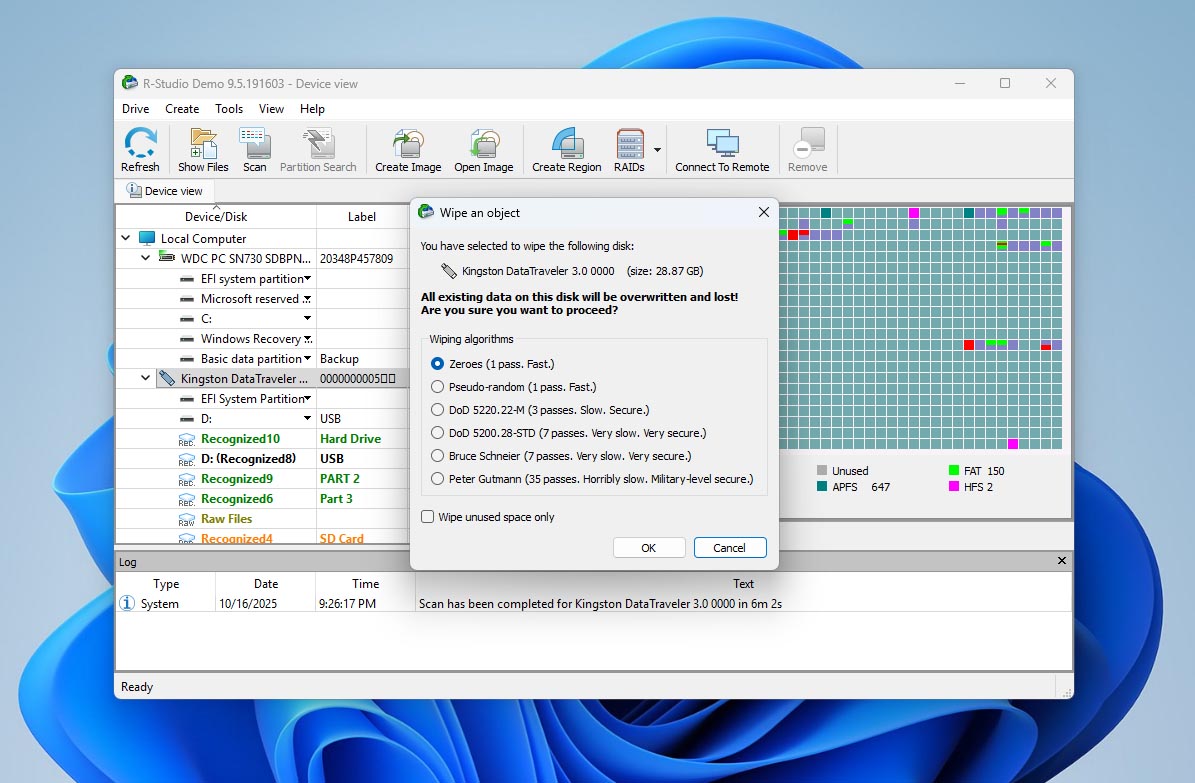
After recovery, R-Studio can also securely erase data. The erasure module overwrites selected drives or partitions with random patterns, ensuring that no deleted files can be retrieved later. It’s a small but important addition for anyone who plans to repurpose or sell an old disk.
Some of the most powerful modules, such as recovery over network, recovery over Internet, and the enhanced Hex editor, are only available in the Technical and Commercial editions. These versions target forensic labs and corporate data centers rather than individual users, so they weren’t part of our main testing.
User Interface
Oh, the R-Studio interface that’s our pain point. We tried to get comfortable with it during testing, but it just never clicked. It’s not bad, exactly, just not intuitive. The layout feels like a mix between File Explorer and an old system control panel. Everything’s there, but it doesn’t exactly make you want to jump in and start recovering files right away.
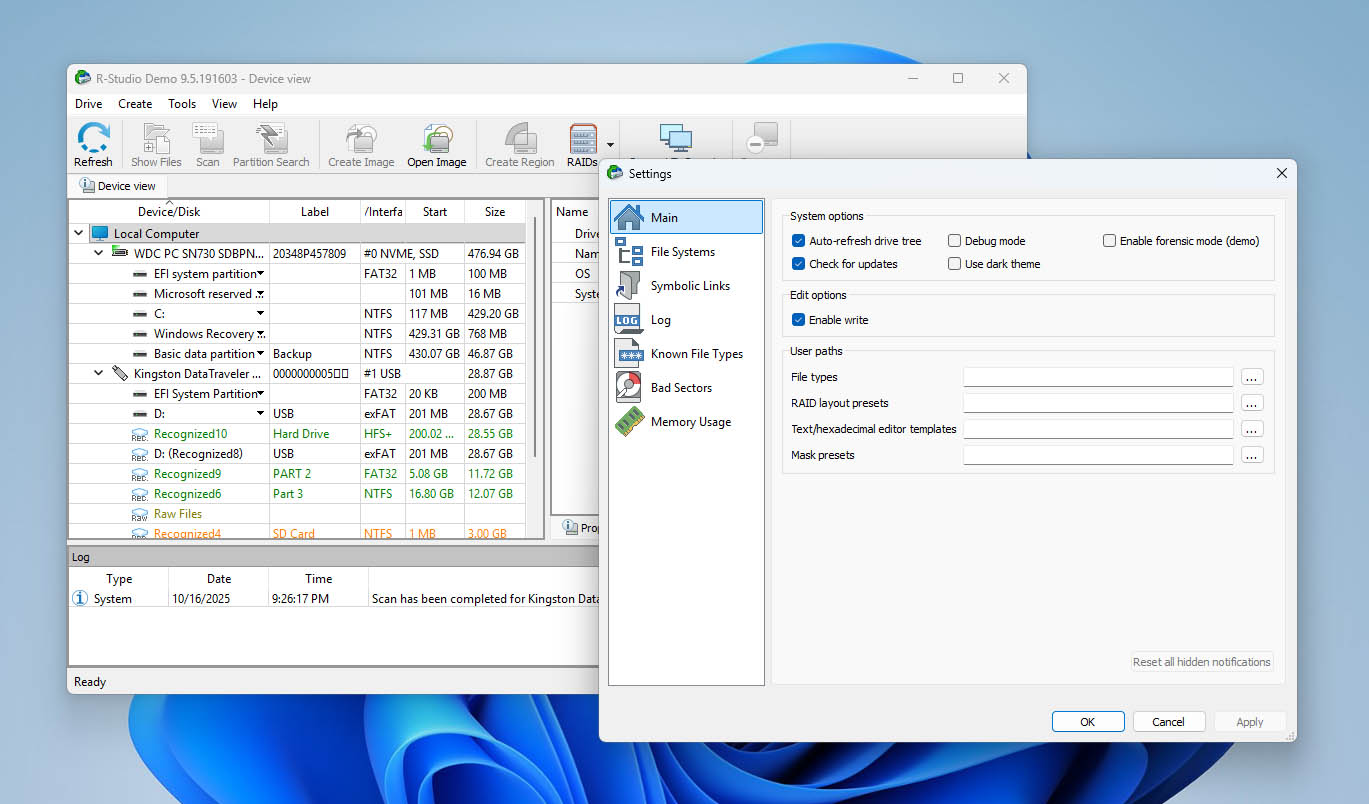
Many users online call it overloaded or too technical, but we wouldn’t go that far. It’s more that something about it just feels off. When you compare it with tools like Disk Drill or Stellar Data Recovery, R-Studio instantly looks dated, almost like software stuck a decade behind in terms of design.
To be fair, if you truly need to recover data, you’ll manage. Once you figure out how things are organized, most of the labels do make sense, and nothing important is buried too deep in the menus. Still, the layout could really use a refresh. With a bit of redesign, it could feel friendlier and easier to move around. Ideally, people shouldn’t have to stop and wonder, “wait, what happens if I click this?” — it should just be obvious.
Pricing and Editions
You can download R-Studio for free to get a feel for its interface and see how the main tools work. The free build is useless, as it lets you scan drives and preview recoverable files, but when it comes to actually restoring them, the limit is harsh (only 256 KB per file). That’s barely enough for a small text document or a heavily compressed photo. For anything larger, you’ll quickly need to look at the paid licenses and compare the R-Studio data recovery price options.
The program comes in several editions aimed at different types of users. Here’s a quick breakdown of what’s included and how they differ:
| Edition | What’s Included | Users / Activations | Price for License |
| R-Studio Demo (Free) | Full scan + preview; recovery limited to files ≤256 KB | 1 PC | Free |
| R-Studio FAT | Recovery from FAT12/16/32, exFAT | 1 PC (non-transferable) | $49.99 |
| R-Studio NTFS | Recovery from NTFS, ReFS | 1 PC (non-transferable) | $59.99 |
| R-Studio (Standard) | All supported file systems, disk imaging, RAID, etc. | 1 PC (non-transferable) | $79.99 |
| R-Studio T80+ | Time-limited, fully-featured Technician-grade build; includes R-Studio Agent / Agent Emergency; requires active internet | Per user, one computer at a time | $80.00 (starts at 80 days ≈ $1/day) |
| R-Studio Corporate | Business use; adds network/remote recovery options | Per machine (multi-activation options vary) | $179.99 |
| R-Studio Technician | Full feature set for commercial/forensic work | Per user, multiple PCs (one at a time) | $899.00 |
Note that:
- Standard/FAT/NTFS licenses tie to one computer (not one user). If you use both a Windows PC and a MacBook, you need two licenses.
- T80+ targets short projects: you get Technician power for a limited period at a low entry price.
Each edition is a lifetime license, which means you pay once and keep it forever, though major version upgrades may require a paid update later on. Considering the feature set, the $79.99 Standard license is the sweet spot for most people. It provides full functionality at a reasonable price and doesn’t force you into expensive commercial tiers unless you’re running a recovery business.
Customer Support
From what we can see on the official website, R-Studio’s developers offer a surprisingly robust support system. There’s a dedicated Technical Support section where users can ask about specific recovery scenarios, for example, what to do after accidental formatting or how to handle a failing SSD. Then there’s a separate Customer Support department that deals with licensing, payments, and account-related issues. Each department even has a phone number you can call during business hours if you’d rather not wait for an email response. That’s something most data recovery companies don’t offer anymore, and it adds a professional touch.
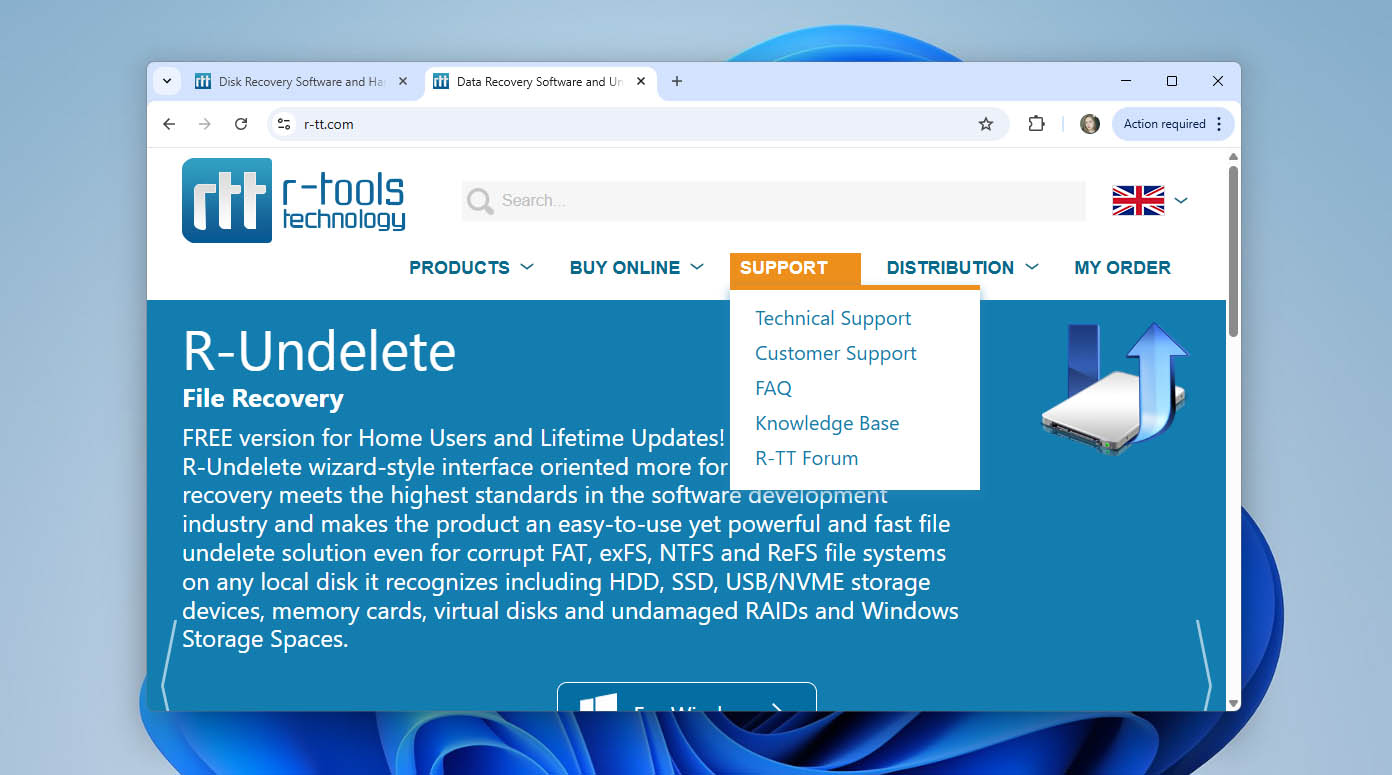
However, while testing the program, we also looked into user feedback online, and that’s where the picture gets more complicated. On Reddit, for instance, there are quite a few discussions mentioning that support sometimes ignores messages — especially when it comes to questions about licensing rules. One of the most common complaints is that if your computer dies, you can’t transfer your existing license to a new one without buying another key.
From one perspective, the frustration is understandable. Nobody likes to feel ignored after spending money on a tool. On the other hand, those licensing terms are clearly explained on the website (often repeated in several sections) so it’s hard to blame support for not prioritizing the same questions over and over again. In the end, we’d call it a mixed experience. The company offers all the right support channels and documentation, but user experiences vary depending on what kind of help you need. For that reason, our verdict here is somewhere around 50/50 — solid infrastructure, but inconsistent follow-through
How We Measure R-Studio Recovery in Our Tests
Since R-Studio isn’t the first program we’ve reviewed, our team already has a well-defined testing setup and methodology for evaluating data recovery tools. We rely on the same controlled environment for each review to keep the results objective and comparable.
All tests were performed on a Windows PC using two different environments:
- A USB flash drive with a deliberately corrupted file system, and
- An image of an SD card from a DJI drone, where all files were completely deleted before scanning.
This combination allowed us to check R-Studio’s behavior in both corruption and deletion scenarios. For the flash drive, we attempted to recover photos, videos, audio tracks, and documents. For the drone SD image, we focused mainly on photo and video recovery, since these formats are the most common for memory cards used in cameras and drones.
To guarantee transparency and consistency, we evaluate every program according to a set of measurable criteria:
| Metric | Purpose |
| Recovery Success Rate (%) | Measures how effectively the software restores lost data. |
| Scan Speed (MB/s and total time) | Evaluates how quickly the program completes a full scan on media. |
| Ease of Use | Reflects how intuitive the interface and workflow are for both new and experienced users. |
| Value for Money | Assesses whether the results justify the program’s price point and license terms. |
| Support Responsiveness | Tests how quickly and accurately the support team reacts to user inquiries. |
This approach lets us directly compare R-Studio with other tools like Disk Drill or Stellar, ensuring every program faces the same testing conditions.
Data Recovery Process Using R-Studio
So, having gone through all the core information about R-Studio and having outlined our testing setup and evaluation metrics, we can finally move on to the practical part. This is where theory meets reality, and the software’s true performance becomes clear. The goal was to see how R-Studio behaves in real data loss scenarios.
In this section, we’ll also walk you through the main steps of using R-Studio, so this part of the review can double as a short guide for those who haven’t tried the program before and have only seen its interface in the screenshots we included earlier in the article.
1. Installation
To start any data recovery process, the first thing you need to do is download R-Studio. Make sure to do this only from the official R-Tools website. Neither we nor the developers take responsibility for any download links shared on third-party pages (they often contain outdated or even modified installers that can compromise your system).
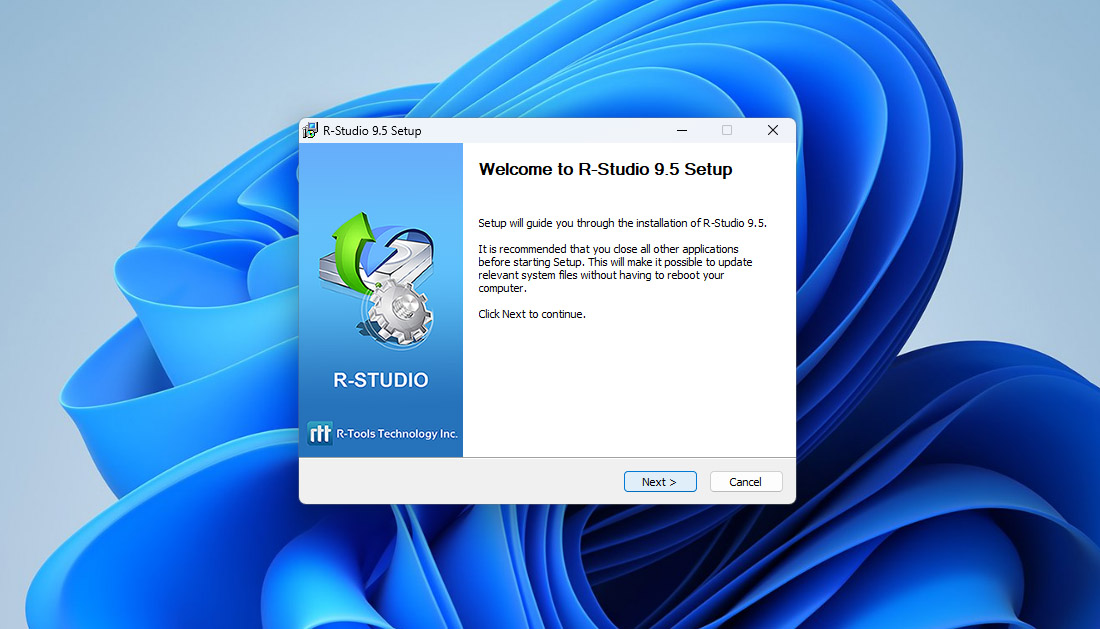
There’s another important rule to remember: never install R-Studio on the same drive where you lost your data. Doing so might overwrite the very files you’re trying to recover, making them permanently unrecoverable. In our case, we tested the program using external storage devices, so the installation was safely done on the system drive. The setup process itself is quick and simple — a standard Windows installer with no surprises, additional software, or unnecessary prompts.
2. Disk Selection
When you open R-Studio, the first thing you’ll see is a list of all available storage devices, both internal and external. Every connected disk, USB drive, or memory card appears here, ready for scanning. At this stage, it’s important to be careful with your selection. The list looks compact, and the drives are placed close together, so it’s easy to misclick and pick the wrong one. Take a moment to double-check before you start the scan.
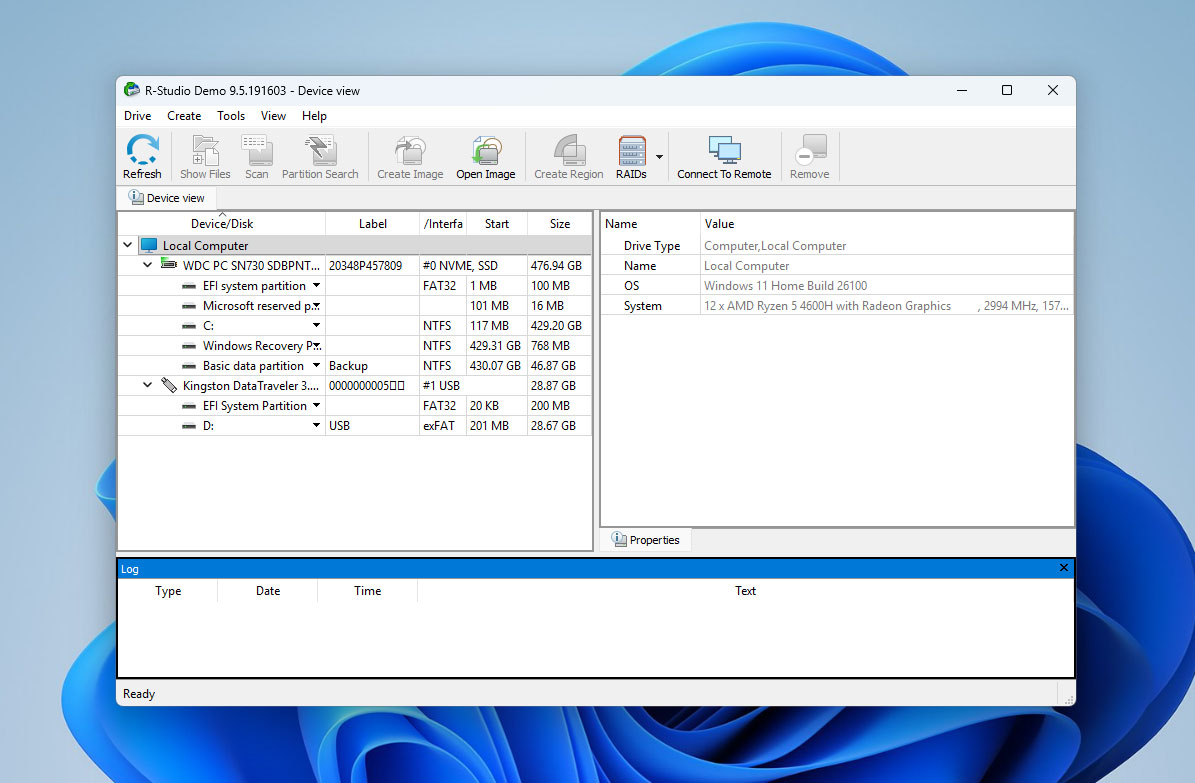
Once you highlight the correct disk, R-Studio immediately displays detailed information about it on the right side of the window. You’ll see the device type, model name, size, file system, and several technical parameters that can help you assess its condition before recovery. For experienced users, these extra details are useful; for beginners, they’re simply a reassurance that you’ve chosen the right target.

3. Scanning and Viewing Results
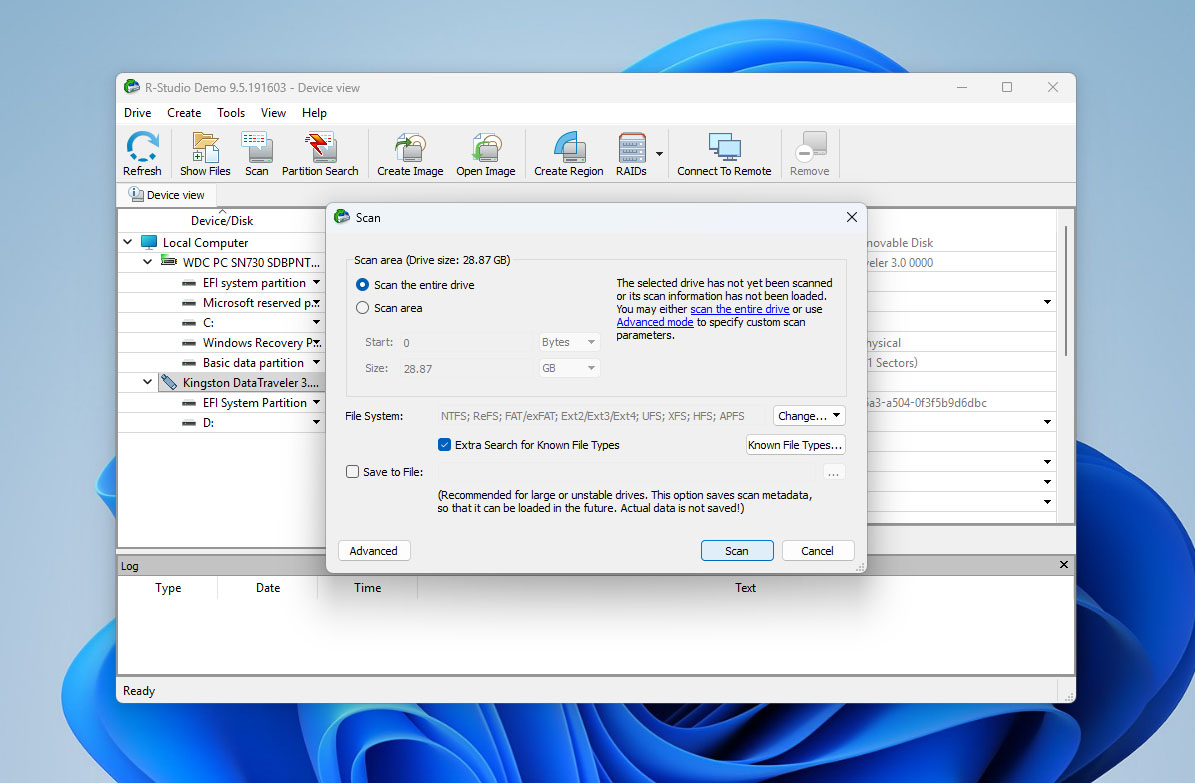
After selecting the device, click “Scan” to start searching for lost data. A small window will appear, offering several scan modes and advanced settings (for most users, the default configuration works perfectly fine, just hit Scan and let the program do the rest).
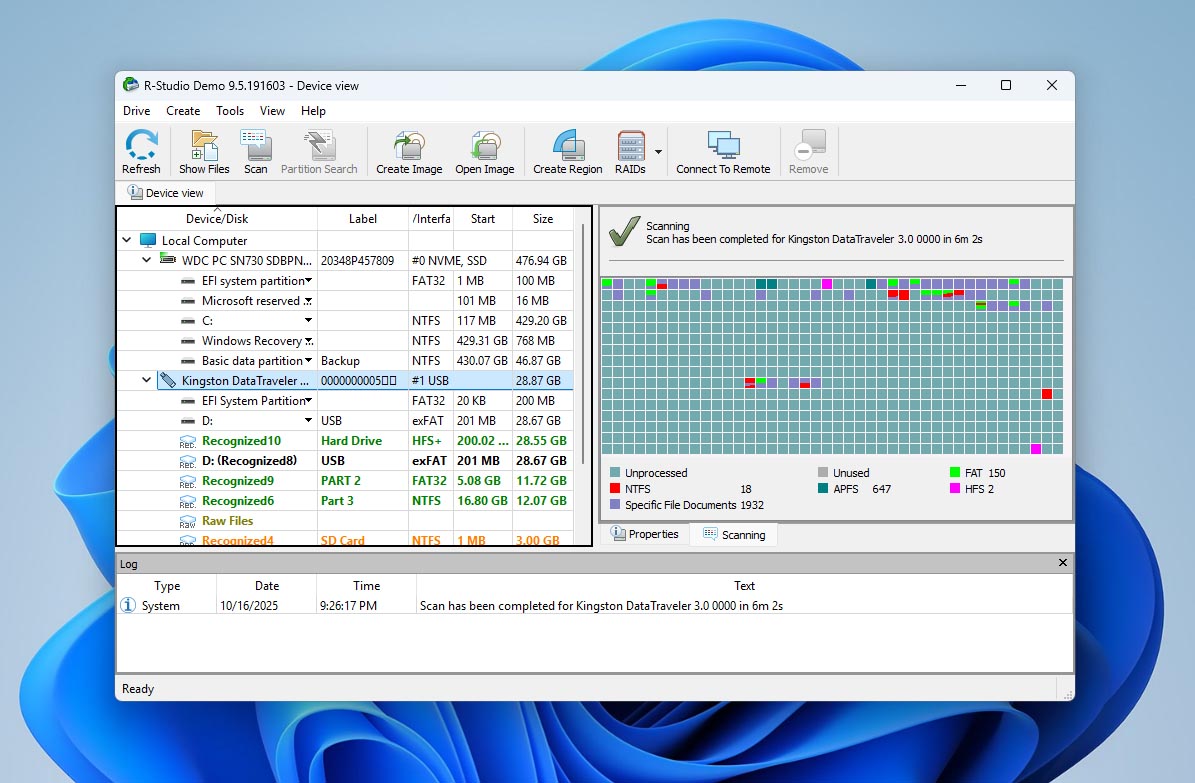
During the process, you’ll see a progress bar and a sector map that updates in real time. The colors on the grid show which parts of the drive have been processed, which remain untouched, and where potential data has been detected.

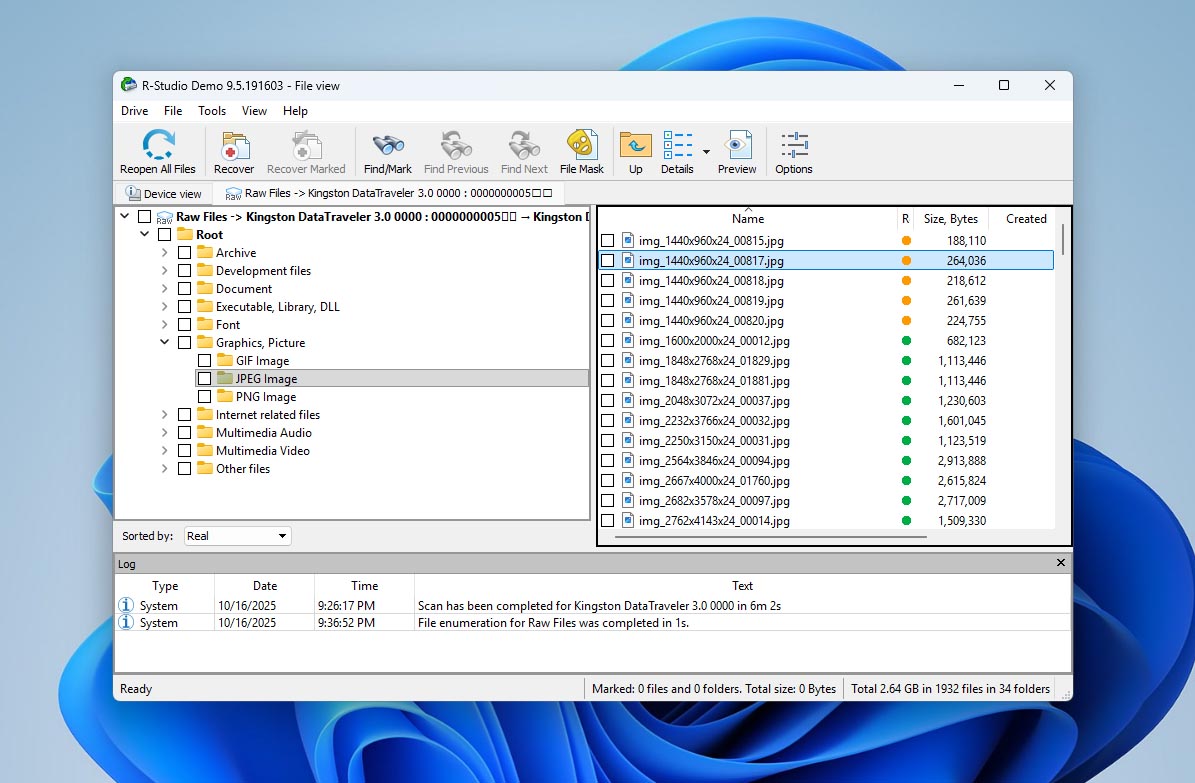
When the scan completes, R-Studio lists all found partitions and recoverable files. The interface might look a bit dense, but useful hints help guide you — each file has a recovery probability indicator (marked as Good, Average, etc.), and there’s a preview option that lets you open files before restoring them.
4. Data Recovery
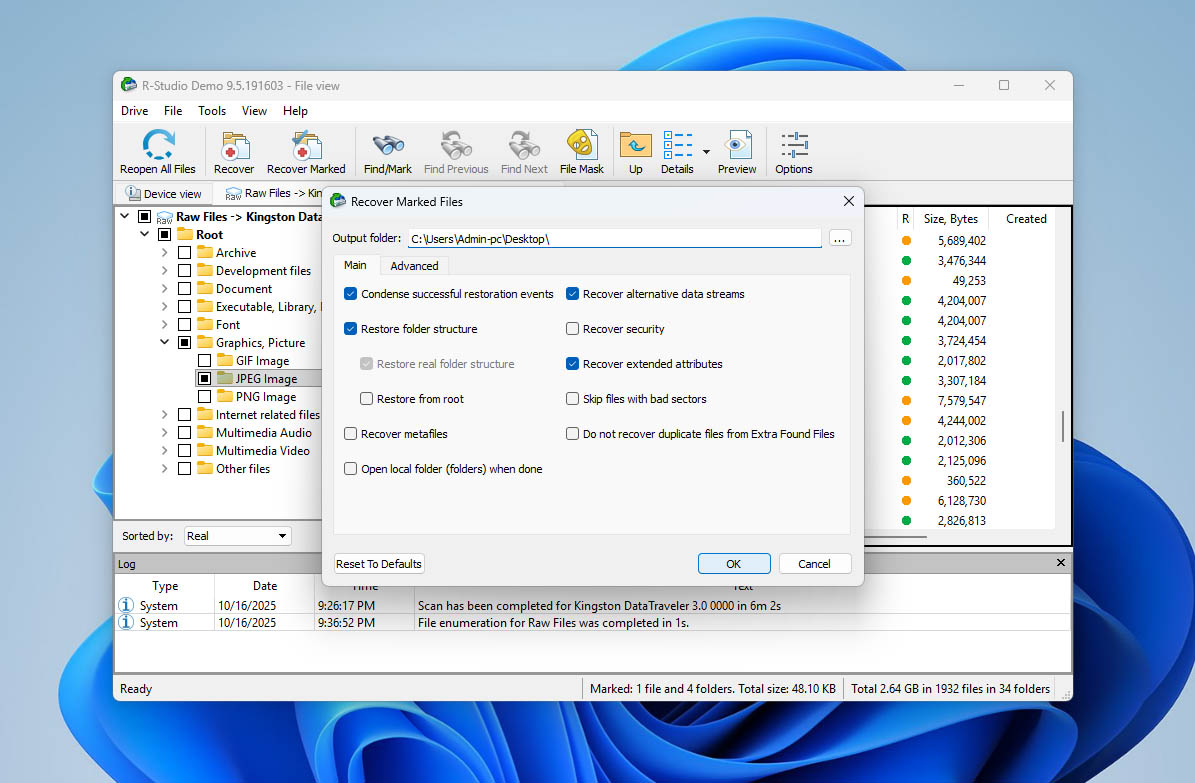
Once you’ve found the files you want to restore, don’t rush to hit the “Recover” button right away. By default, it will attempt to recover everything found during the scan, and that can mean thousands of files you don’t actually need. If you only want to bring back specific items, simply tick the boxes next to them and choose “Recover Marked.”
A dialog window will appear asking where to save the restored files. Make sure to select a different drive or partition from the one you’re recovering data from; otherwise, you risk overwriting what’s left of your lost files, making them impossible to retrieve later.
And that’s it — the recovery process itself is fairly straightforward. Still, when you compare R-Studio to other popular recovery programs, you’ll quickly notice that some competitors manage to make the same steps feel much more streamlined and visually clear. With that said, let’s move on to the results of our recovery tests to see how R-Studio performed in practice.
5. Evaluation of Results
The results of our R-Studio testing turned out to be somewhat mixed. On the corrupted USB, the program did an impressive job — it successfully restored about 95% of the files, and most of them opened and worked as expected. However, when we moved to the SD card image, the outcome wasn’t as strong. R-Studio managed to locate and recover nearly all the deleted media, but the MOV video files wouldn’t play after restoration. Some of them even caused the video player to crash, indicating that the recovered data was partially damaged. Still, all the photos from that same card came back intact and without visible issues.
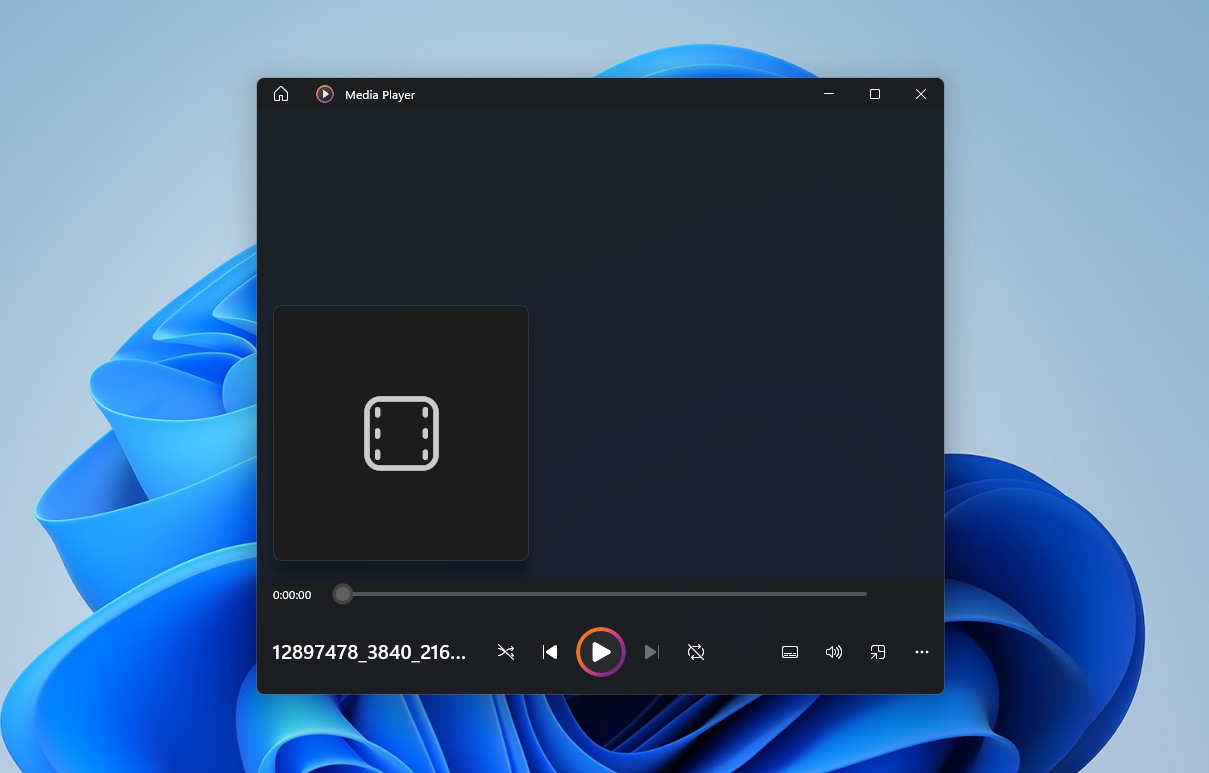
These results show that R-Studio performs reliably in classic scenarios such as recovering photos, documents, or archives, but it struggles when dealing with fragmented video files. This weakness isn’t unique to R-Studio; fragmentation is one of the most challenging issues for any recovery software.
It’s worth noting that our tests were performed on the Standard edition of the program. How R-Studio Technician or Corporate versions would behave under the same conditions remains unknown. The official documentation doesn’t mention any special algorithms for fragmented video recovery, so we can’t make assumptions.
Finally, no two data loss cases are identical. While our testing environment is controlled and repeatable, your real-world results might differ. Factors like drive health, file size, fragmentation, or the extent of overwriting can dramatically change the outcome. So while R-Studio performed very well overall, we can’t promise that your experience will be 100% identical.
Value per Dollar
The big question after testing any recovery program is always the same — does the price match the results? In the case of R-Studio, the answer depends heavily on what kind of recovery work you plan to do.
The free version allows you to scan drives and preview recoverable files, but actual restoration is limited to 256 KB per file. That’s barely enough for a single text document, so it’s more of a demo than a working edition. To recover full files, you’ll need one of the paid licenses. At $79.99 for the Standard license (lifetime), R-Studio sits right in the middle of the market — more expensive than entry-level tools like Recuva, but cheaper than some yearly-subscription products.
To visualize the return on investment, we estimated an approximate effective cost per MB of usable data. On a 4 GB test card, R-Studio successfully restored about 3.6 GB of usable content. With a one-time cost of $79.99, that’s roughly $0.02 per MB — a solid figure for the kind of reliability it offers with photos and documents.
| Edition | Price | Recovery Limit | Key Features | Effective ROI (our test) |
| Free (Demo) | $0 | 256 KB per file | Scan and preview only | Only for interface testing |
| Standard | $79.99 (lifetime) | Unlimited | Full recovery, disk imaging, RAID support | ~ $0.02 / MB (≈ 3.9 GB recovered) |
| Technician | $899 | Unlimited | Commercial use, remote recovery, full toolkit | ROI depends on workload; aimed at labs |
Overall, R-Studio’s value per dollar is strong (if you ignore the failure to recover videos from the SD card). It’s not the easiest program to use, but it delivers professional-grade recovery at a fair lifetime cost. For photographers, IT techs, and experienced users, the investment makes sense. For beginners who find R-Studio’s interface confusing, or for videographers who deal mostly with camera footage, a simpler and more visual tool like Disk Drill might feel like a better choice. It’s also one of the very few programs that can actually restore fragmented video files in playable condition, something R-Studio still struggles with.
R-Studio Users’ Feedback
We know that no matter how thoroughly our 7 Data Recovery Experts team tests R-Studio, real users bring different perspectives, like issues we may not encounter. To help you see a broader picture, here are actual ratings and quotes drawn from review sites, forums, and tech publications.
| Source | Rating | Number of Reviews |
| Trustpilot | 3.8 out of 5 stars | ~3 reviews |
| Capterra | 4.6 out of 5 stars | ~83 reviews |
Now, you might notice that the total number of reviews isn’t huge, and we’d agree with you. We suspect that’s partly because the developers behind R-Studio don’t run an aggressive marketing campaign. When users see the phrase “advanced data recovery software”, many assume it’s meant only for IT professionals and skip over it.
Another curious discovery came up while researching reviews: many users confuse R-Studio Data Recovery with RStudio, the programming environment for data analysis and statistics. Because of this, several reviews on sites like Capterra actually discuss the wrong product, which raises the question, do people even read what they’re reviewing?
Still, among the genuine reviews and Reddit discussions, a clear picture emerges. On Reddit, R-Studio is often described as a powerful and reliable recovery tool. One user wrote, “Not a big surprise R-Studio is probably the best software to recover files.” Another added, “I bought it over 10 years ago. One of the best investments helped my family and friends recover stuff many times.”
On Capterra, users praise the program’s technical capabilities: “The ability to image seemingly dead hard drives and restore data is powerful. Also, the option to connect to remote systems is another great feature.”
However, the same platforms also host strong criticism of R-Studio’s licensing policy. One of the most repeated complaints on Reddit is “Do NOT buy R-Studio. If you activate the license and your computer dies, you’re done. They won’t let you activate it again. Run from this company!” And that’s not an isolated case — similar messages appear in dozens of threads.
To sum it up, most users describe R-Studio as a technically excellent recovery program that works best for those who know what they’re doing. Its power and precision are appreciated, but the interface, license model, and communication style leave room for improvement. Some users prefer free or simpler R-Studio data recovery alternatives, and that’s fair — but among professionals, R-Studio keeps its reputation as one of the most capable data recovery tools available.
Competitors vs R-Studio
To make this R-Studio Data Recovery review as useful as possible, our team decided to include a comparison with several other well-known recovery tools. We also looked at software often mentioned in user discussions about R-Studio (the programs people themselves recommend as alternatives). This allows you to see not only how R-Studio performs in isolation but also how it stacks up against real competitors that users frequently mention: Disk Drill, GetDataBack Pro, Stellar Data Recovery, and Recuva.
| Feature / Tool | R-Studio | Disk Drill | GetDataBack Pro | Stellar Data Recovery | Recuva (Pro) |
| Ease of Use | Technical, multi-window layout; steep learning curve | Very intuitive, clean UI, ideal for beginners | Old-school interface; aimed at tech users | Simple wizard-style layout | Extremely simple, one-click interface |
| Supported OS | Windows / macOS / Linux | Windows / macOS | Windows only | Windows / macOS | Windows only |
| File Systems | NTFS, FAT/exFAT, ReFS, HFS+, APFS, Ext2/3/4, UFS, XFS | NTFS, FAT/exFAT, HFS+, Ext | NTFS, FAT, exFAT, Ext, HFS+, APFS | NTFS, FAT, exFAT, HFS+, APFS, Ext | NTFS, FAT/exFAT |
| Signature Types / Deep Scan | Large built-in DB + custom signatures | Extensive deep-scan engine | Yes, but basic | Yes, photo/video/document types | Basic pattern search |
| Preview Before Recovery | Yes | Yes | Limited/basic | Yes | Limited |
| Scan Speed | Solid; steady, even on damaged media | Fast and optimized | Very fast on NTFS volumes | Average; slows on deep scans | Fast on small drives |
| Fragmented Video Recovery | Weak; unplayable in many cases | One of the few tools that recovers playable video | No | No | No |
| RAID / NAS Support | Full (0/1/4/5/6/10 etc.) | Basic, not full rebuild | Limited | In higher editions | No |
| Extra Utilities | Imaging, Hex viewer, SMART monitoring, network recovery | Backup Vault, data protection, cloning | Minimal extras | Photo & video repair, disk clone | Secure delete tool |
| Free Edition / Limitations | 256 KB per file limit | Up to 100 MB | Preview only (no recovery) | 1 GB free recovery | Fully functional Free version |
| Price (Pro / Standard license) | $79.99 (lifetime) | $89 (one-time) | $79 (lifetime) | $99 / yr Pro, $149–199 (lifetime) | $24.95 (one-time) |
| Value for Money | Excellent for advanced users needing RAID & precision | Great balance of usability and features | Good for pure recovery on Windows | Fair – feature-rich but costly yearly model | High for light tasks; limited depth |
Overall, R-Studio proves to be a strong and well-balanced tool. We can confidently recommend it both for home users who need to handle basic data recovery tasks and for advanced users working with RAID arrays or multiple storage systems. It offers a professional-grade toolkit without the inflated price tag often associated with “expert” software. The only areas where users may want to explore alternatives are the user interface, which still feels dated compared to modern tools, and video recovery from SD cards, where programs like Disk Drill perform better.
And as you can see from the comparison table, the myth of R-Studio being overpriced doesn’t hold up. Its cost is on par with most competitors, and in some cases even lower, especially considering it’s a lifetime license. (We’re not counting Recuva here, as its low price matches its limited set of features.)
Our Verdict
After extensive testing and discussion, our 7 Data Recovery Experts team agrees that R-Studio is a genuinely strong and capable data recovery program. It’s not just for IT specialists or power users, basic data loss scenarios are well within its range too. So, the common belief that R-Studio is a complex tool meant only for advanced recovery cases doesn’t hold up. The real answer depends on what you’re comparing it to: next to Recuva, yes, R-Studio looks advanced — its feature set is much broader. But compared with other commercial products, its most distinctive edge lies in RAID recovery. Other functions, like file scanning or partition reconstruction, are now standard across many competitors.
As for possible drawbacks, there are a few. The free version’s recovery limit is very small, but it exists for a reason. R-Studio doesn’t restrict your ability to test the software — you can scan any drive, preview recoverable files, and then decide whether it’s worth paying $79 for the full license. In fairness, if every commercial recovery program allowed several gigabytes of free recovery, none of them would survive long. The single-PC license policy is another factor that might discourage some buyers. Most user complaints online revolve around this issue — if your computer dies, you can’t simply transfer the license to a new one. However, the developers do state this clearly before purchase, so it’s ultimately a matter of choice and agreement.
All things considered, if what you’ve read here sounds acceptable to you, you can safely choose R-Studio as your recovery tool. If the interface feels too technical, alternatives like Disk Drill or Stellar Data Recovery might be a better fit — though to be clear, R-Studio’s UI isn’t so bad that you’ll want to quit right after opening it. It just takes a few minutes to get used to.
The only case where we don’t recommend R-Studio is for video recovery from SD cards. The software can’t handle fragmented video files, which means recovered clips often remain unplayable. If that’s your goal, we’d suggest looking into Disk Drill with its new Advanced Camera Recovery module designed specifically for fragmented media files.
After completing all our tests and discussions, our team gives R-Studio a final rating of 8.2 / 10 (★★★★☆).