With so many SD card recovery apps on the market, differentiating between each program can feel nearly impossible for the average user. And even if many of them look and sound the same, each application has major strengths and weaknesses that can directly affect your success rate and user experience.
Fortunately, we already did the legwork. Our team has reviewed dozens of recovery apps on this site, allowing us to compile a comprehensive and data-driven list of the best SD card recovery apps in 2026. Below is everything you need to know–including pricing information, pros, cons, real user feedback, and much more.
Want to know how we test apps for reviews? See our comprehensive testing process and parameters in the How We Test page.
We’ll be jumping straight into our top 8 list of the best SD card recovery software. If you’d rather skip the info dump, you can jump straight to our recommendations in the Conclusion section. Alternatively, you can check out the Software Comparison section to see each application laid out in a table with its most important information.
1. Disk Drill
Developer: Cleverfiles
System requirements: macOS 10.15 and later; Disk Drill v4 can still be used with macOS 10.11.6 to macOS 12
Best for: Recovering deleted or corrupted videos, RAW photos, and other file types
Brief Overview
Pros
- Modern and beginner-friendly interface
- Advanced Camera Recovery can help with fragmented and unplayable videos, which standard scanners can’t always handle properly
- Best preview feature on the market, especially for RAW photos (the preview feature on most apps struggles with common file types)
- One price to use the app on Mac and Windows computers
- Automatically reconstructs RAID arrays, which makes recovery a lot easier for the average user
- No free data recovery for Mac computers (but you can scan your drives and preview your data
- Bootable recovery only works if you have an internet connection (to download Disk Drill via Terminal in Recovery Mode)
- Limited hardware RAID support
File system support:
- FAT16 / FAT32 / exFAT
- NTFS / NFS5, ReFS
- HFS / HFS+ / APFS
- ext2 / ext3 / ext4
- BTRFS
- RAW
Pricing information:
- Free drive scanning and file preview, and unlimited use of backup and protection tools
- $89 per year
- $149 for a lifetime license (includes lifetime updates)
- 1 purchase of a Disk Drill subscription or lifetime license can be used for both macOS and Windows devices (up to 3 device activations)
Comprehensive Overview
Based on the extensive research we’ve done on the 8 incredible apps on this list, Disk Drill is our #1 pick for the best data recovery software for Mac. It nails the perfect balance of accessibility, power, and features, and its toolkit allows the app to be useful in many data loss situations.
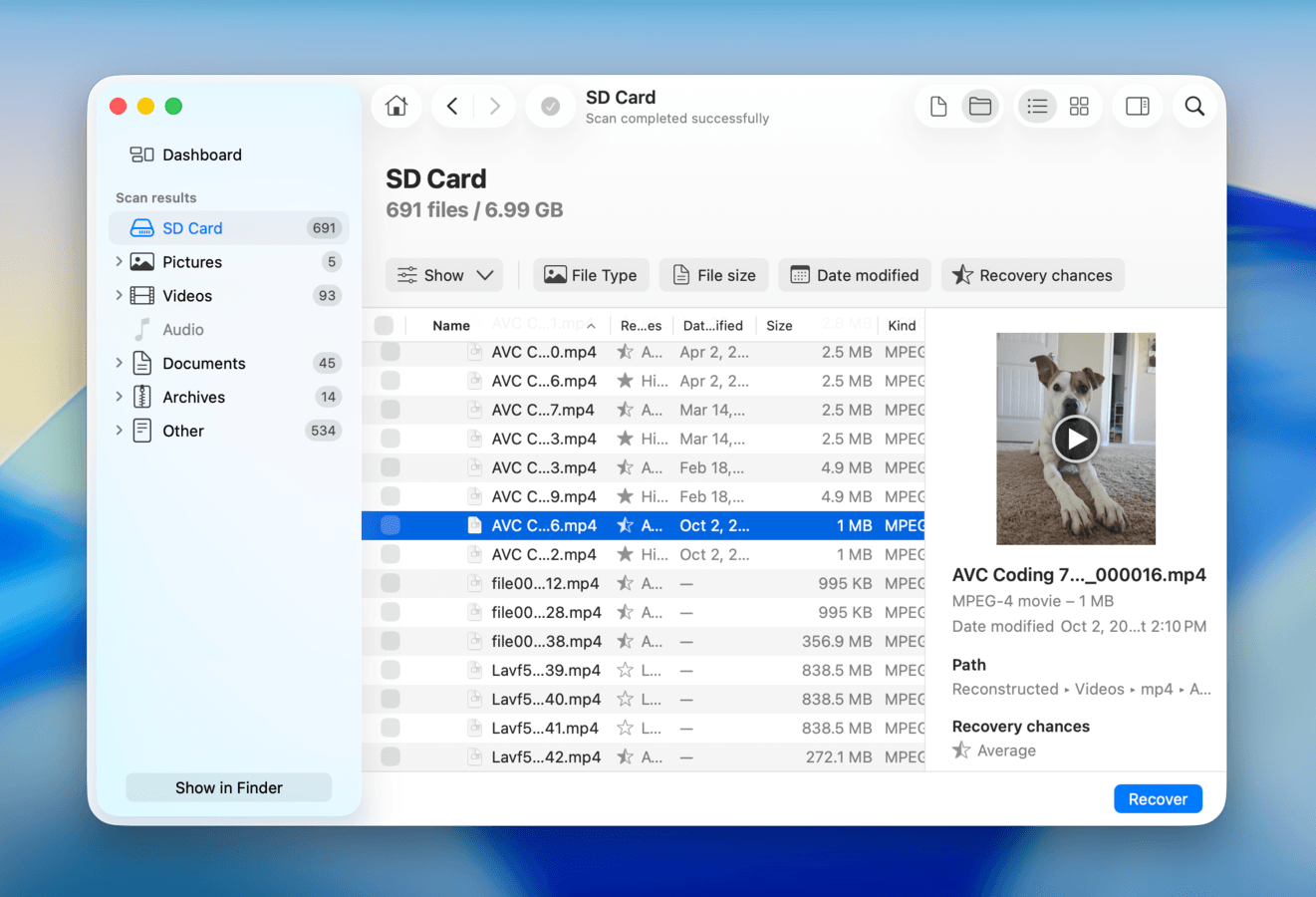
The feature that immediately stood out to us was the Advanced Camera Recovery scan type, which can reconstruct fragmented drone footage, dashcam clips, high-definition videos, etc. to ensure they’re playable. Disk Drill also has a (free to use) full image backup tool, which can create backup files that you can scan using the data recovery feature—which is a great way to safely restore files from corrupted drives.
Aside from unique features, Disk Drill is just well-developed all around. It has the best preview tool among any app on this list (it even works with full videos and RAW photos), it’s compatible with most modern file systems, identifies around 400 file types, and performed consistently well during our file recovery test—which you can read about in detail in our Disk Drill review.
Overall, Disk Drill is the best all-around data recovery tool, whether you need to restore recently deleted data from a formatted USB drive or recover critical files from a corrupted HDD.
What Users Say
Disk Drill users primarily cite its reliability and recovery performance, praising the app’s scanning speed and amount of data recovered. It has also gotten attention specifically for the Advanced Camera Recovery feature, which can repair corrupted SD card videos.
“My camera was saving videos in a fragmented way. And the thing is, only a handful of recovery tools on the market can properly deal with fragmented video files and even fewer do it well. In my case Disk Drill was the only one that actually handled it on a usable level. Before I tried Disk Drill the videos I managed to recover with other tools were basically useless. Some of them froze right at the start, others stopped after a few seconds, and some didn’t open at all, just a black screen in the video player.” – Reddit user’s deep dive
| Platform | Rating |
| Trustpilot | 4.5/5 |
| G2 | 4.0/5 |
| Capterra | 3.5/5 |
Verdict
Disk Drill is a powerful yet beginner-friendly data recovery application suitable for a wide range of data loss scenarios – including accidental deletion, formatting, and SD card corruption. It’s especially powerful for video recovery, as its Advanced Camera Recovery feature can reconstruct fragmented videos during the recovery process.
2. Data Rescue 6
Developer: Prosoft Engineering
System requirements: macOS 10.12 and newer
Best for: Restoring documents and unknown file types
Brief Overview
Pros
- One license for both Windows and macOS platforms
- Recover unknown files using custom file signatures with FileIQ
- Standard Mode and Advanced Mode make it more approachable for beginners without completely gutting the interface
- Bootable recovery
- Excels at restoring document file types (e.g., DOCX, PDF, TXT, etc.)
- One of the most expensive options on this list (Disk Drill’s annual license costs the same as Data Rescue’s monthly license)
- Outdated GUI (graphical user interface)
- Unable to restore data from HFS+ and APFS drives
- Struggles with less common file formats (e.g., RAW images)
File system support:
- FAT32, exFAT, NTFS
- HFS+, APFS
- ext2/3
Pricing information:
- Free 1 GB data recovery
- $79 per month
Comprehensive Overview
Data Rescue 6 is a household name for data recovery. It’s a mature app with great compatibility and well-developed features that make it reliable for restoring common files that were accidentally deleted.
It fully supports common file system formats, like HFS+, APFS, FAT32, and ExFAT (while NTFS and ext/3 drives are readable but not fully scannable). Our tests also found it excels specifically at deleting documents (e.g., DOCX, PDF, TXT, etc.), as well as some common image and video file types (e.g., JPG, MP4, AVI, etc.). However, it struggled to restore RAW images and would sometimes result in unplayable videos.
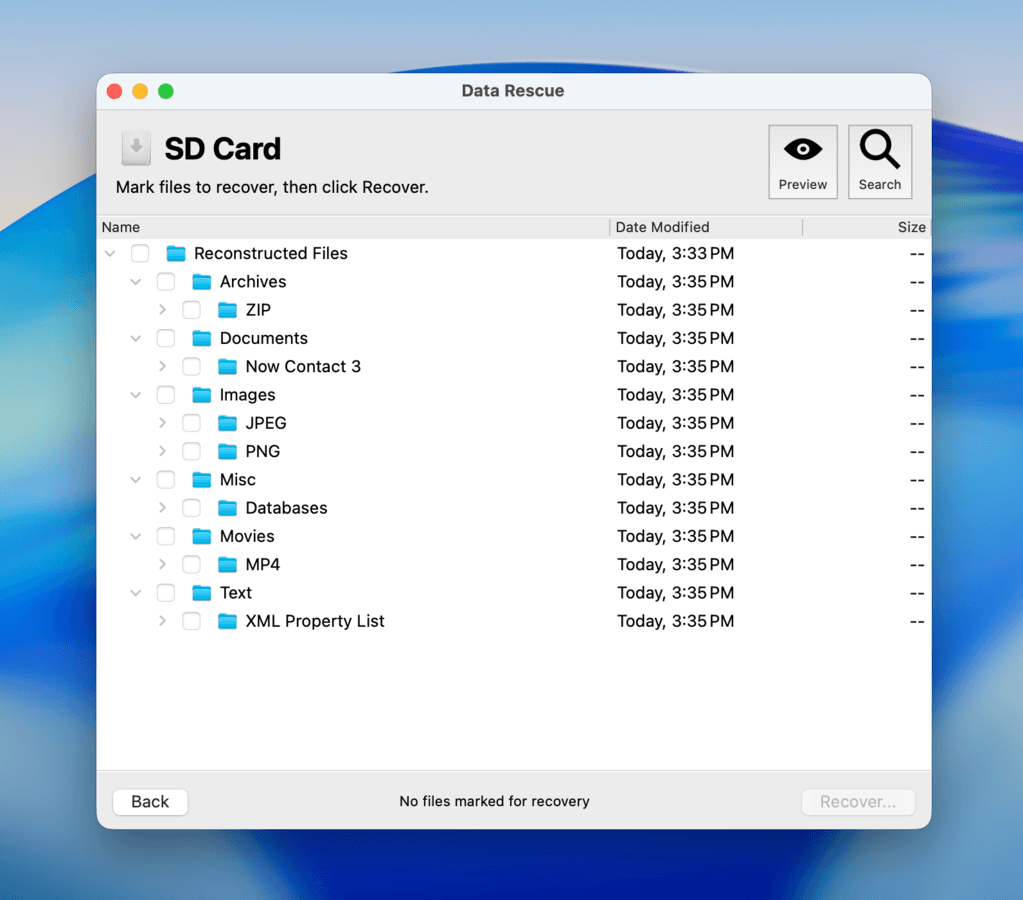
That said, the FileIQ feature allows you to “teach” the app new file signatures, which opens up a lot of use cases for lesser-known file types. The problem with Data Rescue is that it looks very dated compared to other apps. It also lacks several quality-of-life features, such as thumbnails, filters, and auto-generated categories.
You can read more about our experience using this app, as well as view screenshots of its UI, in our Data Rescue 6 review.
It also can’t recover data from encrypted volumes at all (even though it will keep trying), while other apps at least give you an option to decrypt your disk. All in all, these complaints make Data Rescue’s price tag a harder sell. However, it remains a stable option for streamlining the recovery of common files.
What Users Say
Data Rescue’s user feedback is a mixed bag. It has a few reviews on platforms like Trustpilot and G2, which mostly consist of complaints towards billing and licensing issues. The sentiment on Data Rescue on forums like Reddit is similarly lukewarm, but it’s still considered better than many other options out there.
“You can run the tool for a free preview of what it is able to recover, and the first 1GB of recovered data is free of charge. It can take a long time to do deep scans, especially if the storage mechanism is failing. But it can recover files from a corrupted or dying hard drive, saving time and money over sending the drive out to a professional data recovery service.” – G2 user
| Platform | Rating |
| Trustpilot | 3.6/5 |
| G2 | 4.5/5 |
Verdict
Data Rescue 6 is very good at restoring deleted documents from storage devices with either Windows-based or Mac-based file system formats (except for NTFS). The FileIQ feature also makes Data Rescue suitable for restoring unknown or obscure file types, as long as you have a working sample.
3. iBoysoft Data Recovery for Mac
Developer: Chengdu Aibo Tech
System requirements: macOS 10.11 or newer
Best for: Simple recovery tasks
Brief Overview
Pros
- Streamlined interface
- Decent preview feature
- Cross-platform recovery support
- Performs well when recovering deleted or formatted files from a functioning storage device
- Struggles with recovering data from corrupted and non-booting drives
- Slow scan times, even for smaller storage device sizes
- Expensive subscription options
File system support:
- FAT32, exFAT, NTFS
- HFS+, APFS
- UFS, BeFS
Pricing information:
- Free drive scanning and file preview
- $89.95 per month
- $99.95 per year
- $169.95 one-time payment
Comprehensive Overview
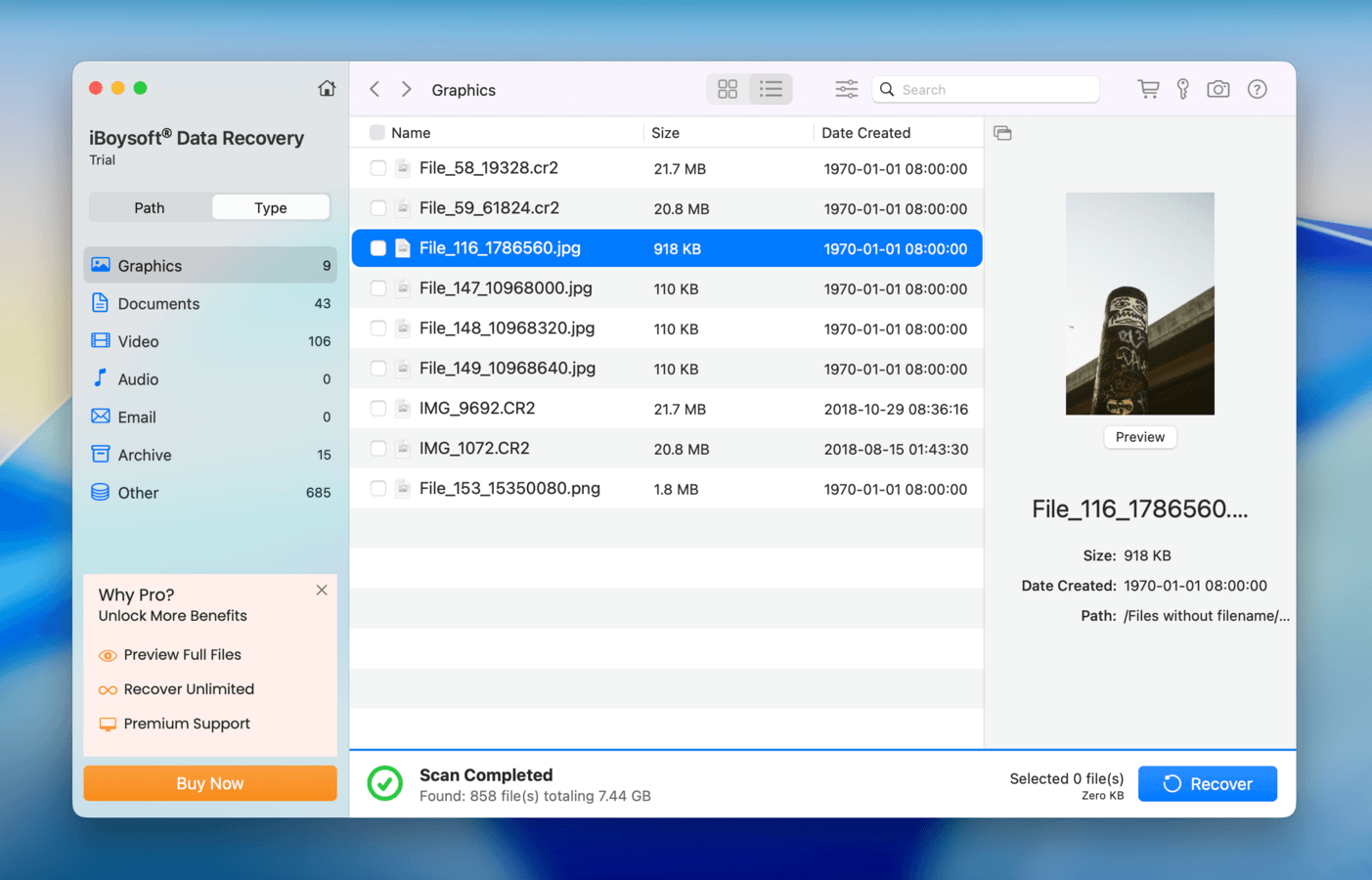
iBoysoft Data Recovery is a reliable, cross-platform, and beginner-friendly recovery tool developed by Chinese software company, Chengdu Aibo Tech. It’s not the most powerful app on this list, but iBoysoft provides a streamlined experience and a decent performance when used for simple tasks.
This app’s biggest strength lies in its polish; new users can easily get started with recovering storage devices without a fuss. Its scan speeds are definitely one of the slowest we’ve seen, but once completed, we had a good experience with the file browser. It was easy to sort and filter different file types, and the preview feature proved more reliable than other apps on this list.
However, we found that the app struggled to restore almost any files from a RAW USB drive (many of them ended up corrupted). You can read more about our full recovery results in our in-depth review of iBoysoft Data Recovery. Overall, we found iBoysoft Data Recovery a strong contender for simple recovery tasks, especially for beginners who want a streamlined experience.
What Users Say
Overall user feedback for iBoysoft Data Recovery leans positive for user experience and recovery performance for deleted files. For other users, the product simply didn’t work. These comments were often followed by complaints about difficulty with their customer service.
“I took a bunch of photos on my recent vacation and was excited to look at them, but when I went to upload them from my SD card they were inexplicably deleted. I tested out a bunch of software to try and restore the photos, but none worked. I finally tried iBoysoft. Immediately I noticed that the interface was way more user-friendly than the other applications. After scanning for 20 minutes, it found my photos (and photos that had been deleted from when my dad used the SD card years ago). I wish I had tried iBoysoft first instead of going through the headache of downloading a bunch of other apps that didn’t work.” – Trustpilot user
| Platform | Rating |
| Trustpilot | 3.5/5 |
| G2 | 4.3/5 |
| Capterra | 4.4/5 |
Verdict
iBoysoft Data Recovery is a beginner-friendly recovery tool that works best for users who need to restore deleted files from external storage devices, like USB drives or SD cards. It has a great interface and good file browsing features, making the recovery process far less intimidating.
4. TestDisk & PhotoRec
Developer: CGSecurity
System requirements: macOS 10.6 and newer
Best for: Restoring data from corrupted drives and recently deleted data
Brief Overview
Pros
- Completely free and open source
- Portable and doesn’t require installation
- TestDisk is capable of multiple repair vectors (restoring deleted or missing partitions, fixing the boot sector, etc.) that can restore access to data
- PhotoRec recognizes most common file signatures (including proprietary)
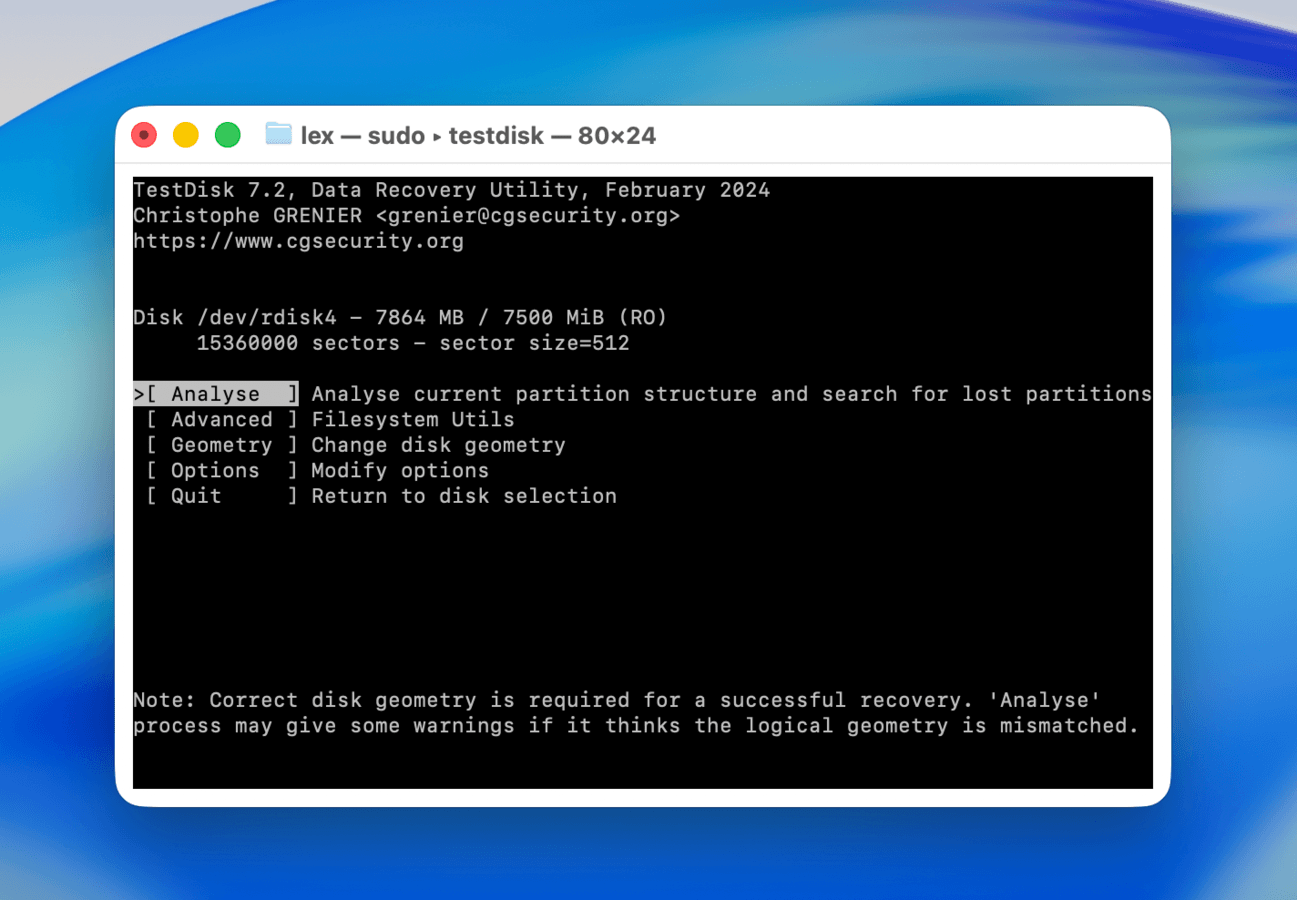
- No graphical user interface (so no previews)
- No sorting, filtering, or other file browsing features
- PhotoRec only relies on signature scanning for data recovery
- Limited technical support
- Has no advanced tools that are typically found in recovery apps, like disk cloning and S.M.A.R.T.
File system support:
- FAT12/16/32, exFAT, NTFS
- ext2/3/4, btrfs, XFS, JFS, ReiserFS
- HFS, HFS+, APFS
- UFS, BeFS, NSS, CramFS
- LVM, LVM2, Linux RAID, Linux Swap
Pricing information: Free
Comprehensive Overview
TestDisk and PhotoRec are a pair of open-source utilities developed by CGSecurity, which you can download completely for free. Together, they provide a combination of disk repair and data recovery features that can help undelete files or restore access to a corrupted drive.
TestDisk is primarily a disk repair tool, which can restore missing partitions, fix corrupted partition tables, fix boot sectors, and generally repair any integrity issues that are preventing you from accessing your data. For example, you can use TestDisk if your drive isn’t being properly read by your Mac. PhotoRec, on the other hand, is a data recovery tool that can scan your drive for missing files. It only has a signature scanner, but it supports a lot of known file types.
Both applications are natively compatible with a wide variety of file system formats and storage devices. The only problem is that neither tool has a GUI—you’ll be operating from an interface that looks like the Terminal app, using only your keyboard to navigate.
You can read more about our user experience with both apps in our TestDisk review and PhotoRec review.
What Users Say
TestDisk and PhotoRec are extremely popular on online communities, especially as open-source applications. According to customer research, TestDisk has a reputation for resolving cases that commercial applications can’t. PhotoRec has also seen praise on the user forum Reddit, but its limitations are widely known.
“The basic scan found half the photos from the second half of the shoot, and then the deep scan found the rest from the first half. It also found photos dating as far back as 2020. So. THANK YOU SO MUCH. The relief is beyond incredible.” – Reddit user
| Platform | Rating |
| Trustpilot | 4.0/5 |
| G2 | 4.3/5 |
Verdict
TestDisk & PhotoRec provide a powerful combination of disk repair and data recovery features—for free. However, the state of their interface design makes both tools difficult to approach for new users, especially with the lack of official technical support.
5. R-Studio
Developer: R-Tools Technology Inc. (R-TT)
System requirements: macOS 10.14 and newer
Best for: Data forensics, advanced recovery tasks
Brief Overview
Pros
- Provides multiple advanced tools you won’t find in other recovery apps (e.g, forensic mode, hex editor, etc.)
- Affordable price for its features and performance
- Reliable performance on all known and commonly used file system formats
- Very good at restoring documents, photos, and some RAW images
- Powerful RAID tools
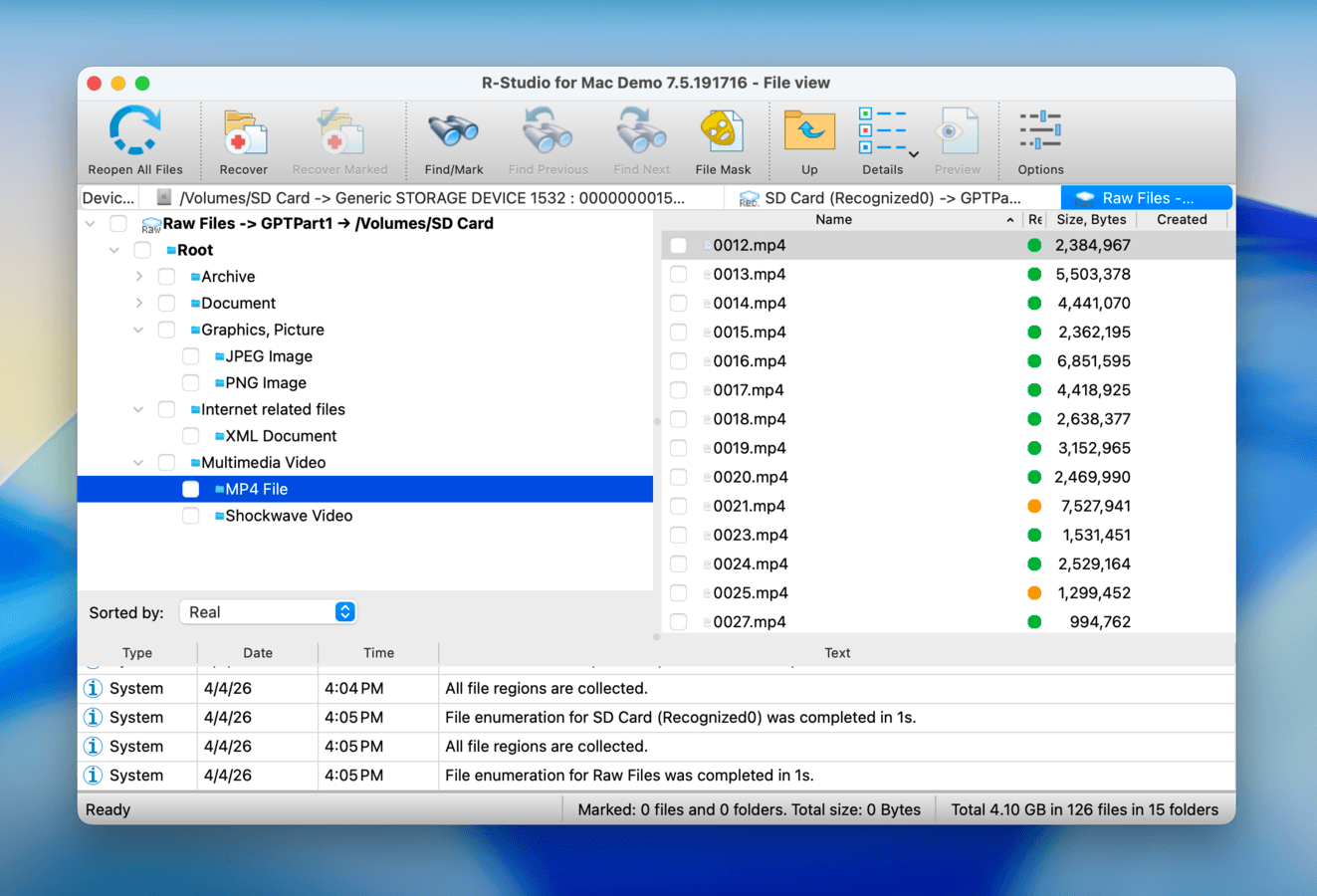
- Cluttered UI can be confusing for beginners
- Data recovery is not streamlined by design (giving power users more control)
- Preview feature isn’t as powerful as the rest of the app (preview features from other apps are more reliable)
File system support:
- FAT12/16/32, exFAT, NTFS, ReFS
- HFS, HFS+, APFS
- ext2/3/4, XFS
- UFS1, UFS2, UFS BigEndian
Pricing information:
- Free unlimited recovery for files 1024 KB and smaller
- $79.99 one-time payment
Comprehensive Overview
R-Studio is a powerful data recovery software that has firmly been a community favorite for many years. It’s an intimidating application for beginners, but worth learning for users who can maximize its features. During our tests, R-Studio stood out to us in several ways. First, we were very impressed with the sheer variety and depth of features. Tools like the RAID reconstructor, image backup feature, bootable recovery, and forensic mode made the app more situationally capable than any of its competitors.
Second, R-Studio performed more consistently than most entries on this list. It excelled at restoring documents, photos, and videos from storage devices with various states of logical damage—you can read about the app’s exact recovery test results in our R-Studio review.
Finally, all of these features come with a very reasonable price tag, especially compared to its competitors (and what they offer in return). The app’s only weakness is its dated and cluttered interface, which assumes a semi-experienced user behind the screen.
What Users Say
R-Studio is a very popular app. It commonly shows up in user forums like Reddit, and the app is commonly praised as one of the most reliable recommendations—especially when it comes to malfunctioning drives. However, there are concerns about the transferability of licenses between machines, so you might want to get in touch with customer service if you want to learn more.
“I have been able to restore data for users who have no backup and have thousands of pictures and vital data. The ability to image seemingly dead hard-drives and restore data is powerful. Also the ability to connect to remote systems is another great feature.” – Capterra user
| Platform | Rating |
| Trustpilot | 3.5/5 |
| Capterra | 4.6/5 |
| G2 | 4.2/5 |
Verdict
R-Studio is a powerhouse data recovery app in the hands of the right user. Advanced tools and reliable performance are to be found underneath a clunky and slightly intimidating interface. It’s also very affordable, despite its depth.
6. Wondershare Recoverit
Developer: Wondershare Technology
System requirements: macOS 10.3 and newer
Best for: Video recovery and repair
Brief Overview
Pros
- Specialized video recovery and repair tool
- Beginner-friendly and streamlined interface
- Bootable disk creation
- Fast scanning speeds
- Weak preview tool
- Can only scan volumes, not entire disks
- Inconsistent recovery results
- Unreliable for recovery from malfunctioning disks
File system support:
- FAT32, exFAT, NTFS
- HFS+, APFS
- ext4
Pricing information:
- Free 100 MB data recovery
- $54.99 per month (for 2 Macs)
- $64.99 pear year (for 2 Macs)
- $94.99 one-time payment
Comprehensive Overview
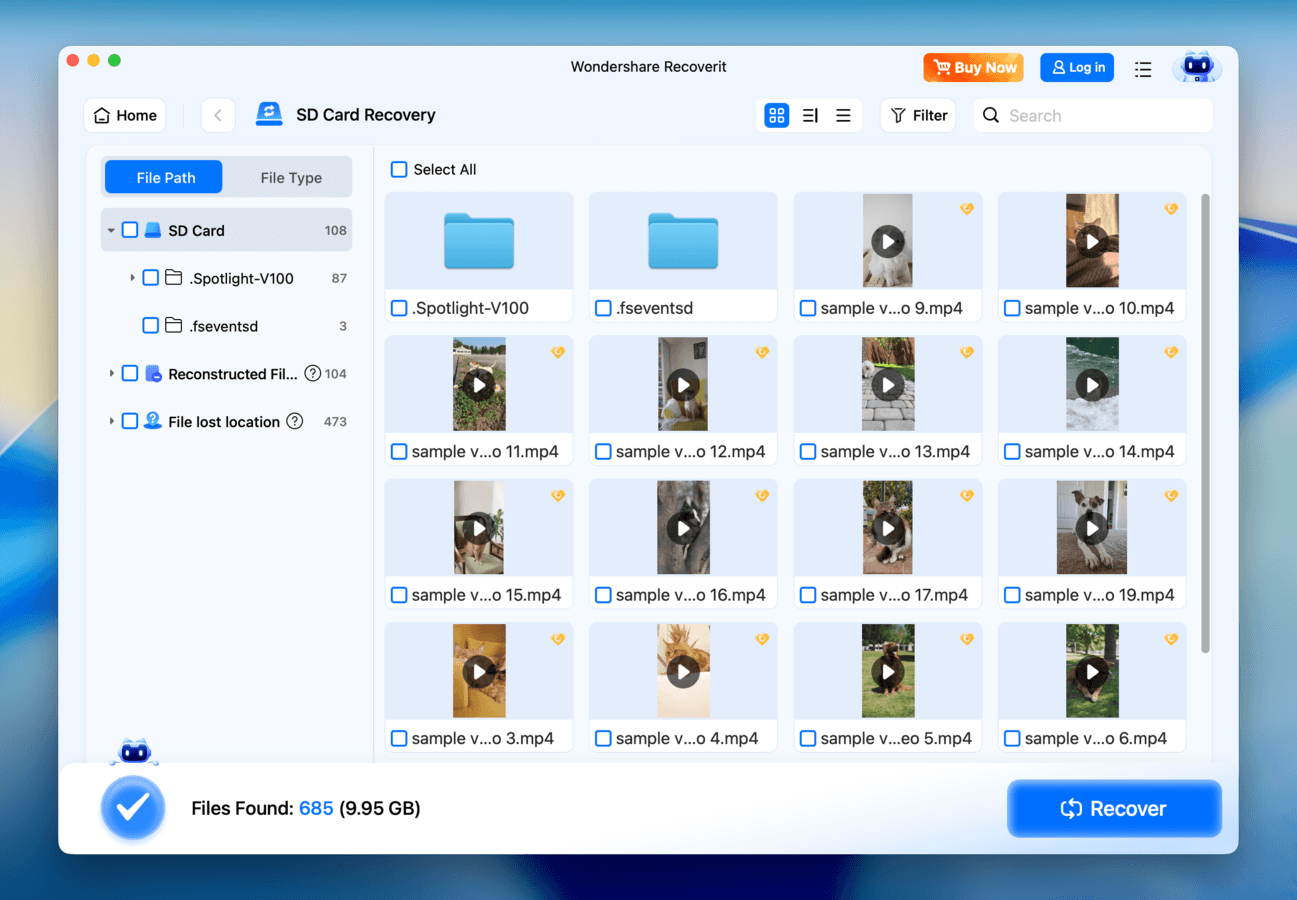
Wondershare Recoverit is another popular data recovery app that provides a decent user experience and moderate performance, as well as unique features that allow it to stand out. The app’s biggest strength is the video recovery and repair module, which helps users restore deleted videos and fix them if they end up unplayable. We also commend Recoverit’s streamlined interface, which makes it far more approachable than apps like TestDisk and even R-Studio.
However, its strong aesthetics lack the same functionality as its competitors. We were especially disappointed with the preview app, which performed inconsistently even with common file types—which negates the advantage of being able to preview and verify files for free before committing to a license. Overall, we’d recommend Wondershare Recoverit for beginners who primarily need to recover videos and can maximize the annual or lifetime subscriptions (downgrading to the monthly subscription just isn’t worth the savings).
What Users Say
Wondershare Recoverit is extremely popular, with thousands of reviews on Trustpilot and G2—it likely gets a lot of downstream coverage thanks to Wondershare’s other apps, like Filmora and Dr.Fone. However, it gets a fair share of complaints on user forums, and it’s not as commonly recommended as other apps on this list.
“I was able to recover an entire SD card full of photos We are talking just over 2000 high res raw files. It appears that the recovery program was able to recover literally all of the images. Such a massive relief for me. It was fast and easy to use which I appreciated during a very stressful time.” – Trustpilot user
| Platform | Rating |
| Trustpilot | 4.6/5 |
| G2 | 4.3/5 |
Verdict
Wondershare Recoverit is a beginner-friendly data recovery app with unique features that can help you restore and repair lost videos with greater success. This app best serves users who can maximize those specific tools (e.g., videographers or editors).
7. AnyRecover for Mac
Developer: iMyFone Technology Co., Ltd.
System requirements: macOS 10.10 and newer
Best for: Recovering data from RAW disks
Brief Overview
Pros
- Beginner-friendly interface
- Ability to create bootable disks
- Works well on corrupted drives
- Good scan session management
- Lacks advanced features like image backup (which aid in recovering data from corrupted drives)
- We consider the app expensive for what it offers
- Weak preview tool
- Recovered videos are often unplayable
File system support:
- FAT16/32, exFAT, NTFS
- HFS+, APFS
Pricing information:
- Free drive scanning and file preview
- $59.99 per month
- $79.99 per year
- $99.99 one-time payment
Comprehensive Overview
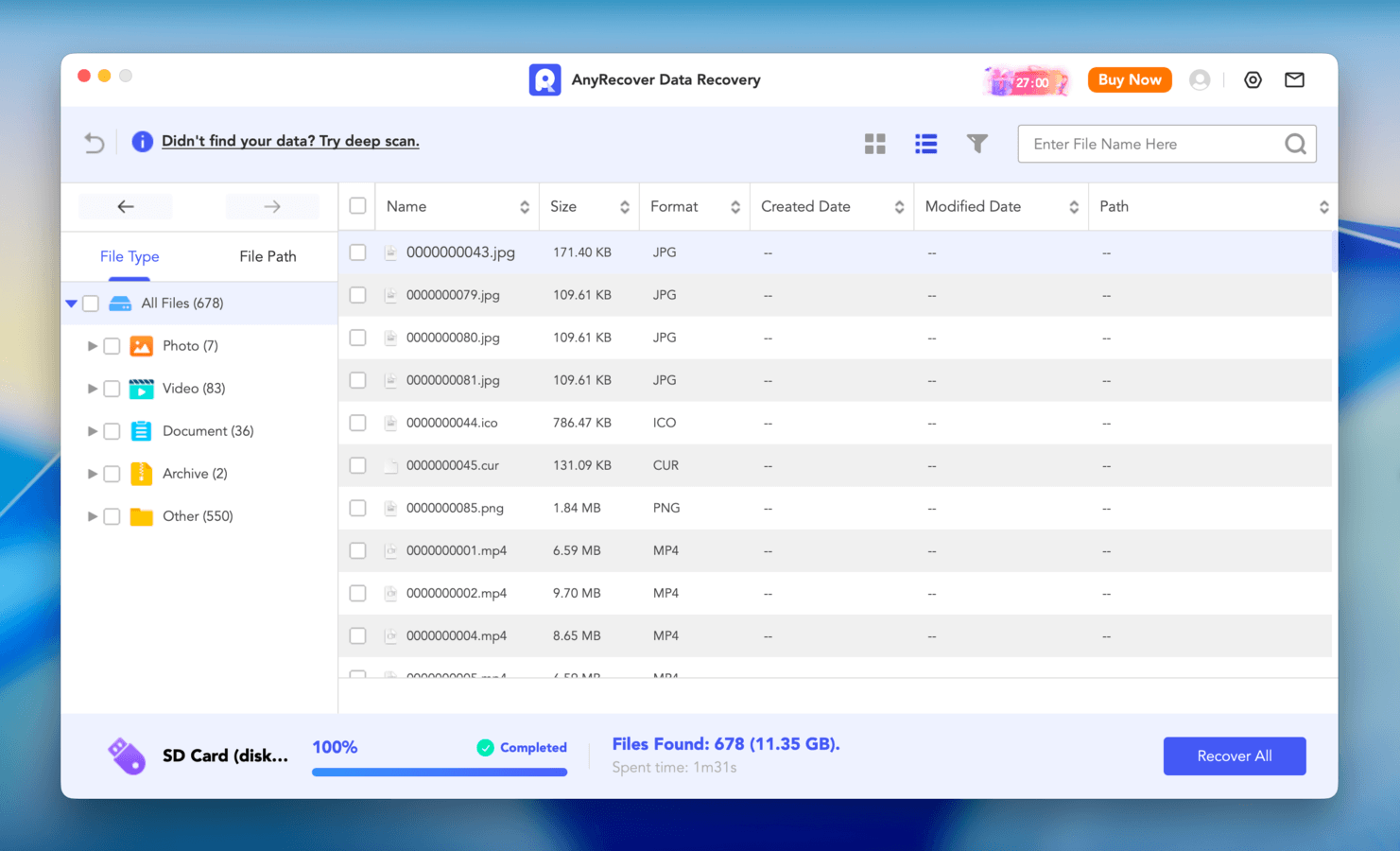
AnyRecover is a beginner-friendly data recovery tool for Mac that works unusually well for corrupted drives, but lags behind other apps in the rest of its engineering.
First, the good: by far, AnyRecover felt the most stable and reliable when operating with RAW and even non-mounting disks, which are often candidates for data loss. It also proved consistent when we tested it with common document, photo, and video file extensions across FAT, NTFS, HFS+, and APFS file system formats.
But outside of these use cases, AnyRecover becomes harder to sell. It doesn’t have advanced features commonly found in recovery apps, like an image backup tool, and it struggled to preview certain files (even if they used known formats). That said, AnyRecover is worth a try if you have the budget to invest in a tool primarily for recovering common file types from corrupted drives.
What Users Say
It’s a bit difficult to get a pulse on users’ sentiment on AnyRecover for Mac. On one hand, it has nearly 400 reviews on Trustpilot, with many users praising customer service. It only has 1 review on the G2 platform, which gave it a 2.0 rating. Reddit feedback was a lot more critical, highlighting poor user experience and general unreliability.
“I’ve had a great experience with customer support at anyRecover. Ray has been very kind and responsive and I am looking forward to seeing a real solution for the problem that I reported in repairing my audio files. I’m confident that they will come through for me!” – Trustpilot user
| Platform | Rating |
| Trustpilot | 4.7/5 |
| G2 | 2.0/5 |
Verdict
AnyRecover is a reliable solution for RAW and non-mounting disks, especially if you primarily need to restore common file types. It’s also compatible with older versions of macOS compared to other entries on this list.
8. Tenorshare 4DDiG
Developer: Tenorshare
System requirements: macOS 10.12 and newer
Best for: Photo and video repair and basic recovery
Brief Overview
Pros
- Beginner-friendly user interface
- Has photo and video repair tools
- Ability to create bootable disks
- Decent scan session management
- Good at recovering deleted files with common file formats
- Doesn’t handle corrupted drives well
- Weak preview feature that doesn’t work often
- Weak at restoring folder structure
- Unreliable signature scanner
- Expensive for its features and abilities
File system support:
- FAT32, exFAT
- HFS+, APFS
Pricing information:
- Free drive scanning and file preview
- $55.95 per month
- $69.95 per year
- $119.95 one-time payment
Comprehensive Overview
Tenorshare 4DDiG has been around for a long time and is a solid final entry to this list. It doesn’t do anything particularly better than other recovery apps, but it provides a decent user experience and good features.
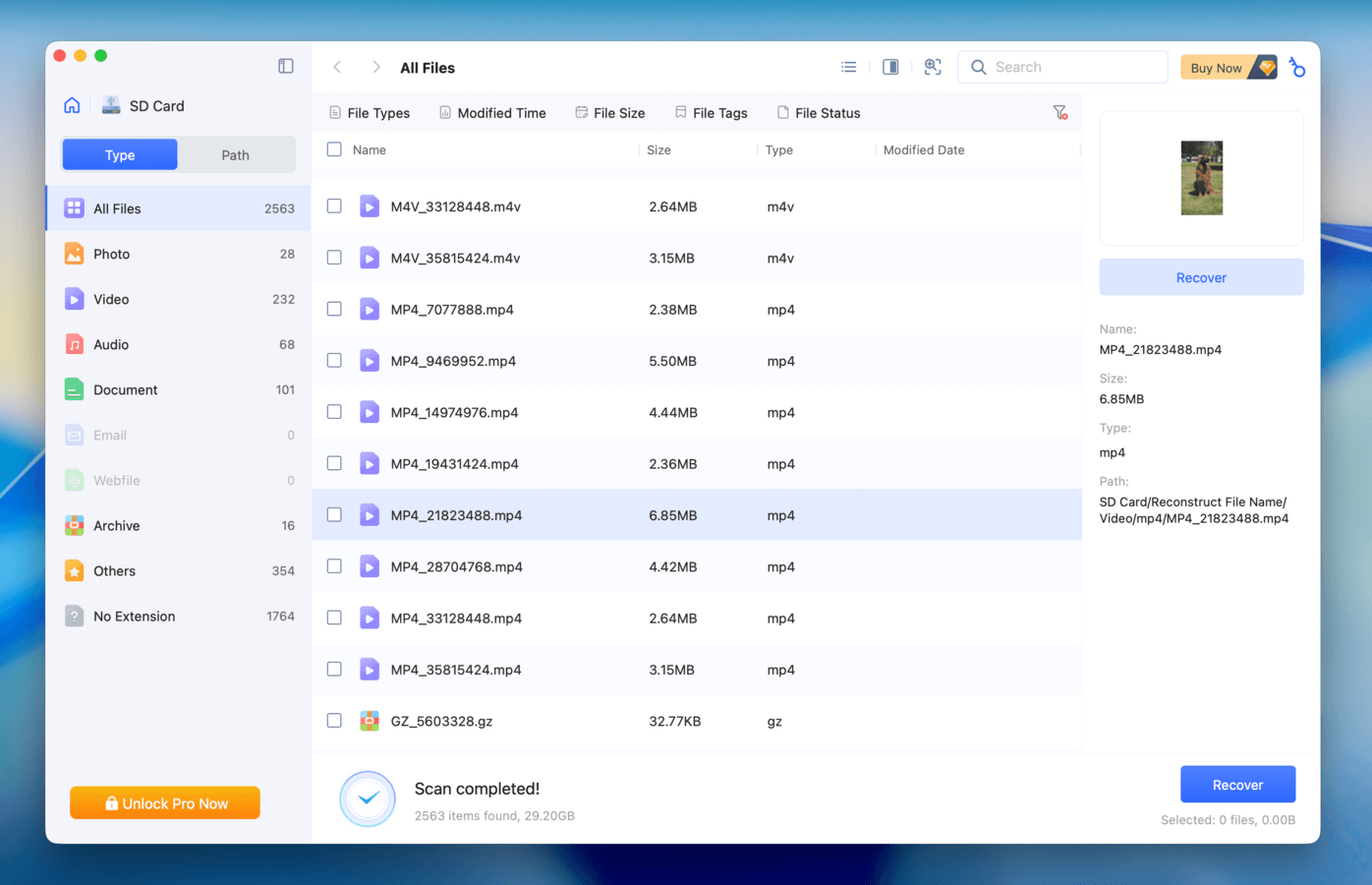
This app has one of the cleaner GUIs among its competitors, which was a bit spoiled by fake “recovery locations” (e.g., Recycle Bin, specific folders). We also found its repair utilities to work really well—we were able to fix several JPEGs during our tests for our 4DDiG review.
In terms of recovery performance, it holds up for recovering common file types that were deleted, but it struggles with corrupted drives, RAW images, and most video formats. We recommend Tenorshare 4DDiG for users who need repair features alongside a recovery tool. For other cases, the other entries on this list are much stronger options.
What Users Say
As a long-time competitor in the data recovery space, 4DiG has a decent level of notoriety. It collectively has 400+ reviews across Trustpilot, G2, and Capterra, mostly leaning positive. However, other users had such a poor experience that they resorted to calling the app a scam. Based on our overall research, users who used 4DDiG for simple recovery tasks had a higher success rate and made up most of the positive feedback.
“The software is well organized and easy to use, even for users without technical experience. The scan can take some time, but it is fairly thorough and allows you to preview recoverable files, which is helpful before deciding how to proceed. In my tests, it was able to detect several deleted or inaccessible files. It doesn’t solve every recovery scenario, but it works reliably for common data recovery situations.” – Trustpilot user
| Platform | Rating |
| Trustpilot | 3.5/5 |
| G2 | 4.8/5 |
| Capterra | 4.8/5 |
Verdict
Tenorshare 4DDiG is a user-friendly app with average recovery performance, but it makes up for it with video and photo repair tools that actually work. We situationally recommend it if you need a long-term solution for recovery and repair in one tool.
Top SD Card Recovery Software Mac Tools Compared
Learning about data recovery and the programs used for it feels like an iceberg–there’s so much information under the surface. To help you avoid getting overwhelmed, here’s a cheat sheet of all the recovery apps we discussed in this article, along with their most important information.
The Average User Rating column below combines ratings from platforms like Trustpilot, G2, and Capterra. However, we strongly encourage you to read more about any software you plan to use on forums like Reddit to get a clearer picture from real users’ experiences.
| Lowest Price | Lifetime license | Trial features | MVP features | Avg. User Rating | |
| Disk Drill | $89 per year | Yes | Free drive scanning and file preview | Advanced Camera Recovery, Byte-to-byte backup | 4.0/5 |
| Data Rescue 6 | $79 per month | No | Free 1 GB data recovery | FileIQ custom signatures | 3.9/5 |
| iBoysoft Data Recovery | $89.95 per month | Yes | Free drive scanning and file preview | File browsing interface | 4.0/5 |
| TestDisk & PhotoRec | Free | Free | Unlimited free usage | Partition recovery (TestDisk), signature scanner (PhotoRec) | 4.1/5 |
| R-Studio | $79.99 one-time payment | Yes | Free unlimited recovery for files 1024 KB and smaller | RAID reconstructor, image backup, forensic mode | 4.0/5 |
| Wondershare Recoverit | $54.99 per month | Yes | Free 100 MB data recovery | Video repair module | 4.4/5 |
| AnyRecover for Mac | $59.99 per month | Yes | Free drive scanning and file preview | RAW disk support | 3.3/5 |
| Tenorshare 4DDiG | $55.95 per month | Yes | Free drive scanning and file preview | Video and photo repair tools | 4.3/5 |
What SD Recovery Software for Mac Can and Can’t Do
In this section, our goal is to set realistic expectations on which situations data recovery software will actually work. The reality is that there are many scenarios where recovery is completely impossible—even if other sources try to convince you otherwise.
At the same time, there are many cases where the recovery success rate is really high, even if you deleted a lot of files or your drive initially appears unreadable.
To help you diagnose your own situation, here’s a brief summary of the most common cases of data loss, categorized according to their success rate:
High success rate:
- Accidental deletion: Accidentally deleted files aren’t immediately erased from your drive. Its data fragments remain, which can be restored by data recovery software as a working file.
- Quick format: Similar to deleting files, performing a quick format on your drive doesn’t erase your data immediately. You can still restore your files, as long as you don’t save new data to the drive (which overwrites your file data).
- Minor file system corruption: If your drive appears RAW, has damaged directories, or corrupted partitions, your data usually just becomes inaccessible—but not deleted. Repairing your drive or using data recovery software can restore your files.
Medium to low success rate:
- New saved files: While your file data isn’t immediately wiped upon deletion, it can get overwritten by new files saved to the drive. You can’t precisely tell which files get overwritten first, though.
- Repeated formatting: Whenever you format a drive, new data still gets written to its sectors. That data is small, but repeated formatting can eventually overwrite the remaining file data you need for recovery. It can also cause fragmentation of the old file system data, which makes it harder for recovery tools to work.
- Fragmented large video files: Large video files are harder to restore with standard recovery tools, because its fragments are often scattered all over the volume. You need recovery software with specialized scan modules for camera media.
There are several entries in our top 8 list that have specialized video recovery features, but we recommend trying Disk Drill’s Advanced Camera Recovery scan first—it has the best and most reliable preview tool by far (especially for videos) and verify that your video works (for free) before committing to recovery.
Impossible with DIY recovery:
- Full or secure format: These formatting processes completely overwrite the data blocks on your drive with zeroes—which makes any form of recovery impossible. Only backups will work.
- SD-ERASE commands: SD-ERASE physically discharges the electrical state of your drive’s memory cells, which completely wipes its data.
- Severe physical damage: Data is physically stored on your drive, and it’s directly affected by any damage to the drive’s internal components. Depending on the nature of the damage, it’s possible that your data is physically destroyed.
- NAND degradation or scanning errors: NAND naturally degrades over time, which makes it harder for your computer to even read your drive (physically), and it often results in scanning errors.
In the case of physical damage and NAND degradation, recovery is still (situationally) possible if you’re willing to invest in professional data recovery services. These are companies with the advanced technology and expertise to even attempt recovery safely. You can call them and ask for a quote after explaining your situation.
Conclusion
Based on our team’s rigorous analysis of the apps on this list (along with all the others that didn’t make it), we recommend Disk Drill as the best SD card recovery software of 2026. Advanced Camera Recovery and Byte-to-byte backup, combined with its reliable preview tool, make Disk Drill very powerful for recovering videos and RAW photos from memory cards. It also performed consistently with other file types, like documents and spreadsheets.
However, depending on your specific needs, it’s definitely worth considering other tools on this list. For example, TestDisk is better at restoring missing partitions (and it’s free). R-Studio is the only app with an official Forensic Mode, which you can use for court evidence. In summary, while we consider Disk Drill as the best overall choice, successful recovery always comes down to individual use cases–so choose carefully!
FAQ
- Disk Utility (First Aid): Repairs minor drive corruption, which potentially restores access to previously blocked or inaccessible data.
- Time Machine: Creates incremental backups of your (chosen) files and folders to an external storage device, while also saving temporary backups locally.
- Trash folder: Stores deleted files and folders until you restore them or delete them permanently
- iCloud Data Recovery: Saves deleted iCloud files for 30 days.
- How much data you’re recovering and how fragmented it is
- The overall performance of the data recovery app you used, as well as its scan depth
- What kind of storage device you’re using and its total storage capacity
- Your drive’s health and read stability