You deleted a file from your NTFS drive, and it’s not in the Recycle Bin. Maybe the partition went RAW after a power failure, or a quick format wiped everything. Fortunately, when a file is deleted from an NTFS volume, the actual data usually stays on the hard drive until something else overwrites it, and you can get it back with the right NTFS undelete software. We tested over a dozen NTFS undelete tools across real-world scenarios (accidental deletion, formatted drives, corrupted MFT records) and narrowed it down to the 8 best ones to help you recover your data without any trial and error.
Jump ahead to our side-by-side comparison table, or head to the conclusion for our overall recommendation.
Our editorial team tests and evaluates each data recovery tool independently to bring you reliable, accurate recommendations. Learn more about how we test.
8 Best NTFS Undelete Software
1. Disk Drill (Windows & macOS)
- 🏢 Developer: CleverFiles
- ⚙️ OS: Windows, macOS
- 👛 Free version: Up to 100 MB recovery on Windows; unlimited preview on both platforms
- 💰 Price: $89 (PRO), $499 (Enterprise)
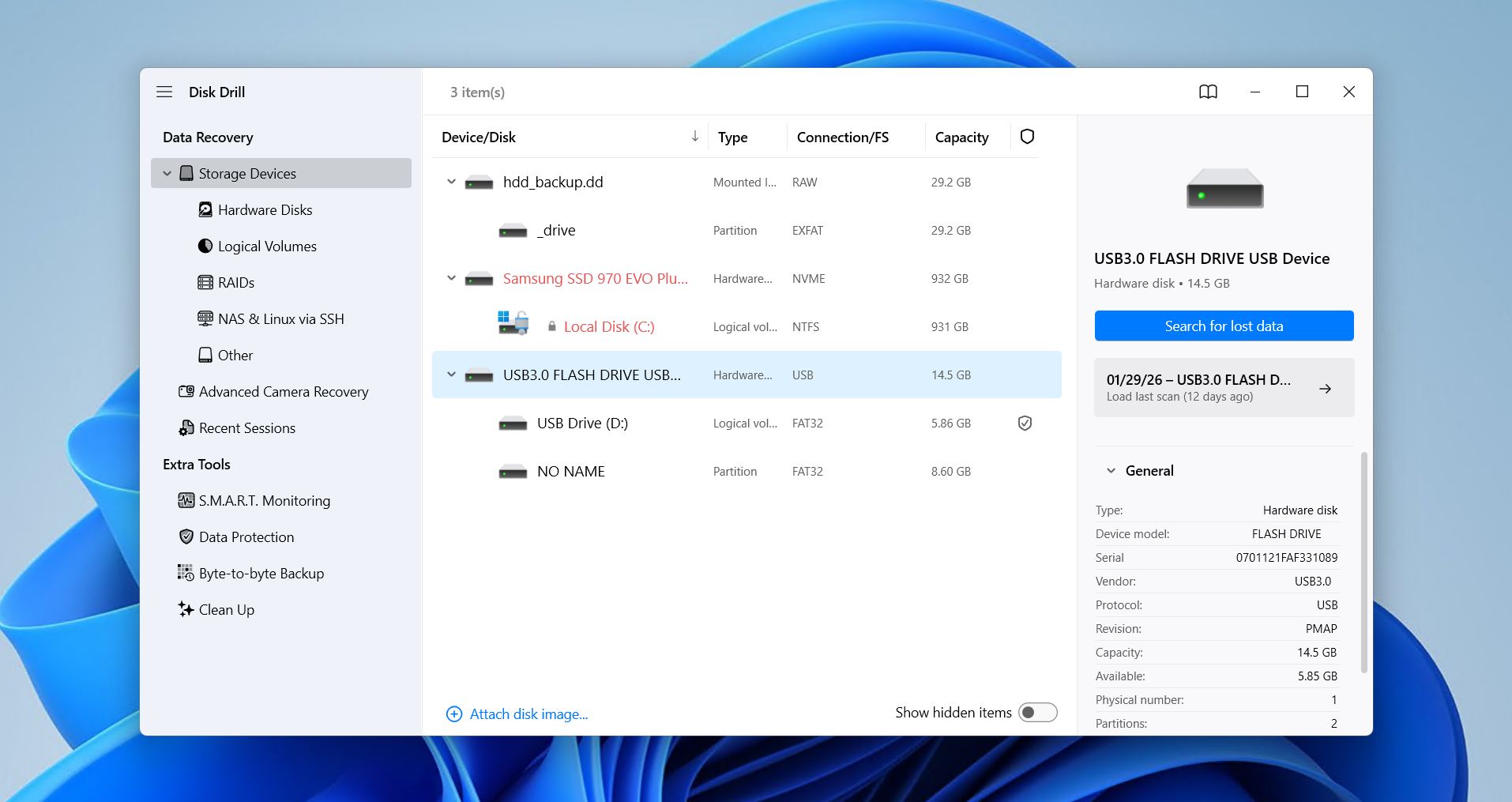
Disk Drill is a full-featured data recovery software that handles pretty much any NTFS data loss scenario you may encounter, including deleted files, quick-formatted volumes, RAW partitions, and corrupted MFT. It’s also one of a handful of consumer tools that can scan NTFS drives natively on macOS, which is a big deal if you’re working cross-platform.
Beyond just scanning, Disk Drill bundles a byte-to-byte disk imaging tool, S.M.A.R.T. monitoring, a duplicate finder, and Recovery Vault (a kind of extended Recycle Bin that tracks what happens when a file is deleted by storing its metadata). The free Windows version lets you recover up to 100 MB, and you can preview every recoverable file before paying for anything.
For a deeper look at scan results, speed benchmarks, and edge-case performance, check out our full Disk Drill review.
Key Features:
- Excellent NTFS scan results
- Byte-to-byte disk imaging for failing drives
- S.M.A.R.T. disk health monitoring
- Recovery Vault for proactive deletion tracking
- Works on Windows and macOS
- Supports around 400+ file signatures
What Real Users Say: “This software literally saved me a few thousand dollars and kept me from having to schedule a re-shoot with a high-profile client organization. It was intuitive and easy to use.” – GetApp verified review.
Pros
- Clean, beginner-friendly interface
- Free 100 MB recovery on Windows lets you test real results
- Excellent NTFS support across Windows and macOS
- Built-in disk tools add a lot of value
- macOS free version is limited to Recovery Vault restores
- No Linux support
2. DiskInternals Partition Recovery (Windows)
- 🏢 Developer: DiskInternals, Ltd.
- ⚙️ OS: Windows
- 👛 Free version: Full scan and preview; saving files requires a license
- 💰 Price: From $139.95 (Personal)
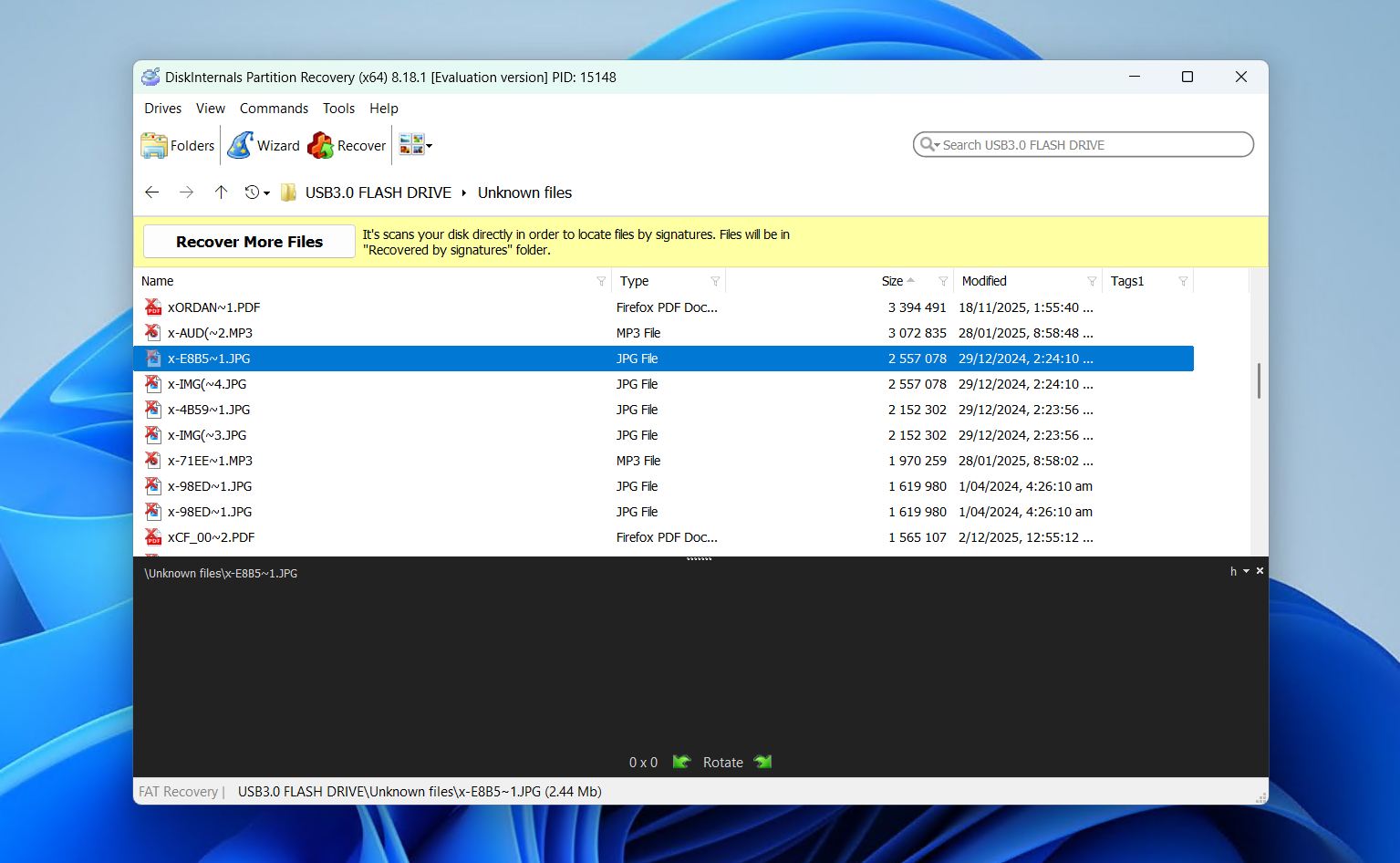
DiskInternals Partition Recovery is a Windows-only NTFS recovery software built with a strong focus on lost partition recovery. It offers three scanning modes: a fast Uneraser for recently deleted files, a thorough Full Recovery mode that rebuilds file system structures sector by sector, and a Reader mode that lets you open unreadable disks in File Explorer. That last one is surprisingly useful when you just need to pull a few files off a drive your OS refuses to mount.
For NTFS specifically, DiskInternals does a great job recovering data from formatted partitions and volumes that show up as RAW. It supports NTFS, NTFS4, NTFS5, FAT, and several Linux file systems too. The free trial lets you run a complete scan and preview every recoverable file, which is fair, but you’ll need to buy a license to actually save anything.
We cover scan performance and limitations in detail in our DiskInternals Partition Recovery review.
Key Features:
- Three scanning modes (Uneraser, Full Recovery, Reader)
- Rebuilds damaged NTFS file system structures during full scan
- Full file preview before purchase
- Supports NTFS, FAT, Ext2/3/4, ReiserFS, HFS, XFS, and more
- Can save recovered files to network drives
What Real Users Say: “I bought the software some years ago, and had a problem with lost photos. The staff at Disk Internals went all out to sort my problem. Thank you very much.” – Trustpilot user review.
Pros
- Very strong partition-level recovery
- Wide file system support beyond just NTFS
- Free preview of all recoverable files
- Windows only (no macOS or Linux version)
- Interface looks somewhat dated
- Higher price point than several competitors
- No disk imaging or S.M.A.R.T. tools included
3. Recuva (Windows)
- 🏢 Developer: Piriform (Gen Digital)
- ⚙️ OS: Windows
- 👛 Free version: Unlimited recovery (personal use)
- 💰 Price: Free; $19.95 (Professional)
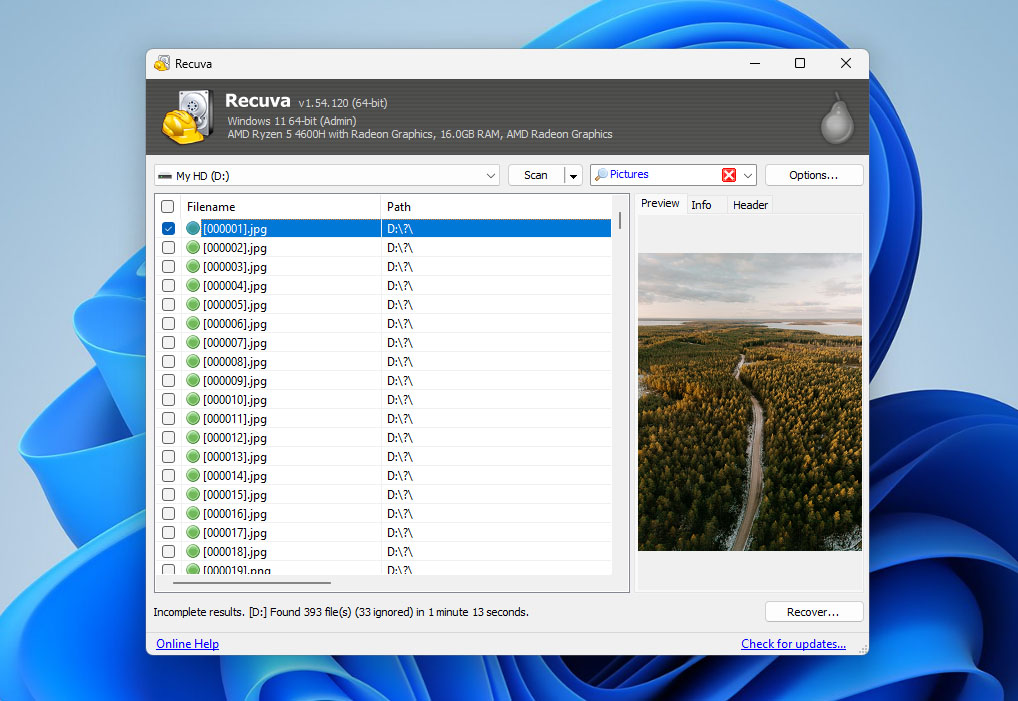
Recuva has been a go-to free NTFS undelete tool for years, and for good reason. The free version offers unlimited data recovery for personal use with no file-size caps, and the results are decent for basic NTFS undelete jobs (accidentally deleted documents, emptied Recycle Bin, files lost after a quick format). The tool starts with a quick scan, and if that doesn’t find what you need, you can switch to a deeper scan that reads the drive sector by sector.
The $19.95 Professional version adds automatic updates, priority support, and virtual hard drive recovery. Recuva can also create a disk image of a failing drive, but there are tools like Disk Drill that do it for free.
One major issue is that Recuva hasn’t received a meaningful update in several years. It still works fine on Windows 10 and 11, but you won’t see new file signatures, modern UI improvements, or active bug fixes. For straightforward NTFS recovery on a budget, it still gets the job done. Just don’t expect it to handle complex partition damage or RAW drives as well as actively maintained alternatives.
Our Recuva review breaks down how it handles NTFS scan results, including where it falls short with RAW partitions and heavily damaged volumes.
Key Features:
- Unlimited free recovery for personal use
- Quick scan + deep scan modes
- File condition indicator (rates recovery chances)
- Can create disk images of failing drives
- Portable version available (no install needed)
What Real Users Say: “Recuva works and is quick. Try this before you search, download, and install tons of software that won’t do it.” – Snapfiles user review.
Pros
- Free version with no recovery limits (personal use)
- Very low price for the Professional tier
- Lightweight and fast for simple undelete jobs
- Portable version available
- No longer actively developed
- Windows only
- Can't work with severely damaged or RAW NTFS partitions
- Interface hasn't been updated in years
4. Wondershare Recoverit (Windows & macOS)
- 🏢 Developer: Wondershare
- ⚙️ OS: Windows, macOS
- 👛 Free version: Up to 100 MB recovery
- 💰 Price: From $69.99/year (Essential); perpetual plans available
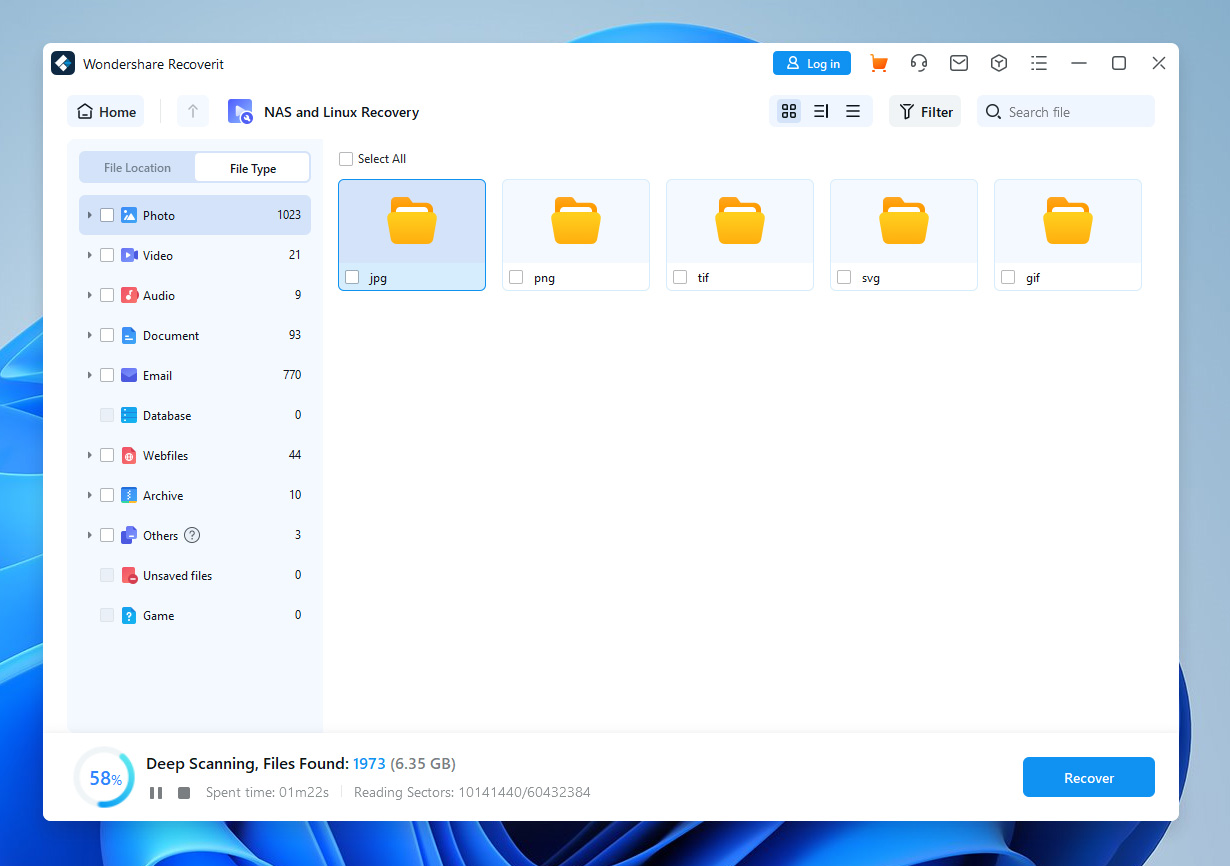
Wondershare Recoverit is a well-known NTFS drive recovery software that’s been around since 2003. It supports over 1,000 file formats and works with NTFS, FAT, HFS+, APFS, and Ext file systems. For NTFS recovery specifically, it handles deleted files, formatted drives, and partition loss reliably. The scan speed is decent, though not the fastest in this list.
The one feature worth mentioning here is its video repair capability in the higher-tier plans. If you’re recovering corrupted MP4 or MOV files from an NTFS drive, the Premium plan can attempt to piece them back together. The free version lets you recover up to 100 MB, which is enough to verify that your files are actually recoverable before spending money.
Wondershare uses a subscription model for most plans. A perpetual license exists, but it only covers minor updates within the version you bought. Major version upgrades cost extra.
Key Features:
- Supports 1,000+ file formats across NTFS, FAT, HFS+, APFS, Ext
- Quick and Deep scan modes
- Built-in video repair (Premium plan)
- Bootable recovery media for crashed systems
- Cross-platform (Windows and macOS)
What Real Users Say: “Easily recovered lost pictures on corrupted SD card, even after I had rashly quick formatted the card. There was a free scan to demonstrate the files that could be recovered, before a requirement to pay to actually recover them.” – Trustpilot user review.
Pros
- Huge file format support
- Video repair is really useful for corrupted footage
- Clean, modern interface
- Works on both Windows and macOS
- Subscription pricing adds up over time
- Scan speed is slower than some competitors
- Premium features are locked behind higher-tier plans
- Perpetual license doesn't include major version upgrades
5. Hetman Partition Recovery (Windows)
- 🏢 Developer: Hetman Software
- ⚙️ OS: Windows
- 👛 Free version: Full scan and preview; saving requires a license
- 💰 Price: $37.95 (Home, discounted); $97.95 (Office, discounted)
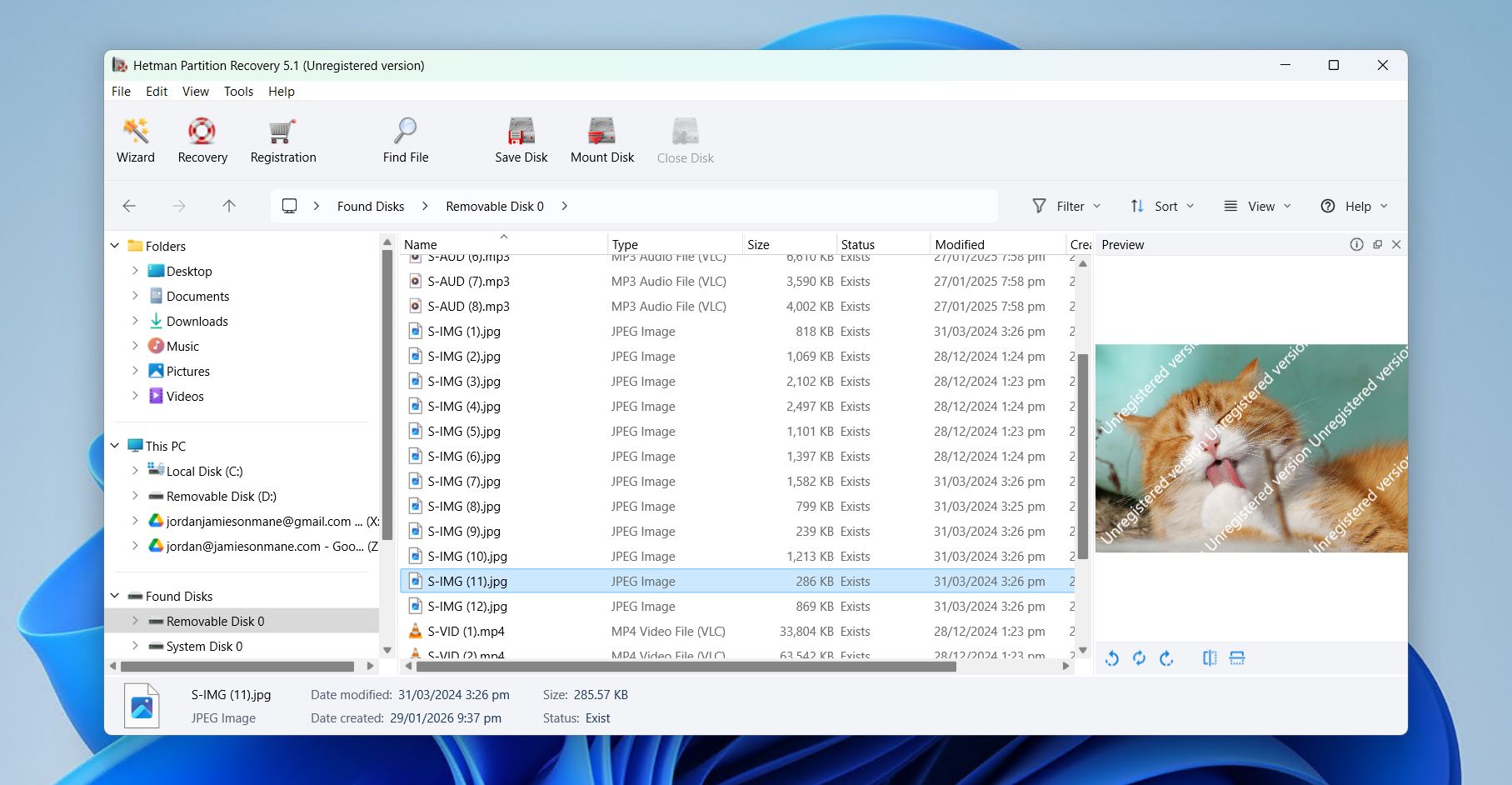
Hetman Partition Recovery is a Windows-based NTFS disk recovery tool that handles the usual suspects well, such as deleted files, formatted volumes, corrupted partitions, and drives showing as RAW. It supports NTFS, FAT, exFAT, ReFS, APFS, HFS+, and several Linux file systems, which makes it useful if you’re dealing with mixed-format drives.
The tool runs two scan types. One is a fast scan for recently deleted files, and the other one is a full analysis that rebuilds file system structures from scratch. The full analysis is where Hetman shows its strength for damaged NTFS volumes. It can also create disk images for backup purposes and recover data from virtual machine disks (Office and Business editions only).
The trial version lets you scan and preview everything. You just can’t save files until you buy a license. Pricing is reasonable for the Home edition, though the Office and Business tiers climb quickly.
We break down its scan results and NTFS-specific performance in our Hetman Partition Recovery review.
Key Features:
- Fast scan + full analysis with file system reconstruction
- Supports NTFS, FAT, ReFS, APFS, HFS+, Ext2/3/4, XFS, and more
- Disk imaging for damaged drives
- Step-by-step recovery wizard
- Virtual machine disk recovery (Office/Business editions)
What Real Users Say: “I used Hetman Partition Recovery to recover data from a virtual machine with a split-disk hard drive (multiple .vmdk files). It worked well.” – Trustpilot user review.
Pros
- Affordable Home edition
- Wide file system support
- Full preview in the free trial
- Recovery wizard is genuinely helpful for beginners
- Windows only
- Virtual disk recovery is locked to pricier editions
- Customer support can be slow
- Interface is functional but not particularly modern
6. Undelete 360 (Windows)
- 🏢 Developer: File Recovery Ltd.
- ⚙️ OS: Windows
- 👛 Free version: Fully free
- 💰 Price: Free
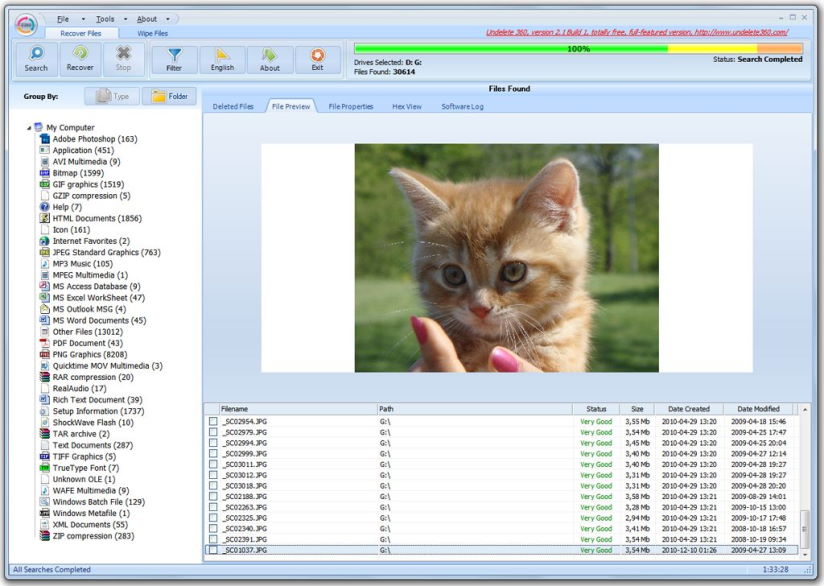
Undelete 360 is a completely free NTFS undelete tool that weighs in at under 2 MB. It hasn’t been updated in years (the developer lists compatibility up to Windows 10), and the UI looks like it came straight out of the Windows 7 era. But if you need a quick, no-frills file recovery for simple NTFS deletions, it still works.
The tool scans your NTFS (or FAT) drive, and lists deleted files with a condition rating so you can gauge recovery chances before committing. It supports external hard drives, USB flash drives, and memory cards. The filter feature helps narrow results when you’re looking for specific file types.
It’s not going to help with formatted partitions, RAW volumes, or complex NTFS corruption. Think of it as a lightweight emergency tool for “I just deleted something 5 minutes ago” situations. For anything more serious, you’ll need one of the more capable tools on this list.
Key Features:
- Completely free with no recovery limits
- Tiny footprint (under 2 MB)
- File condition indicator for recovery prediction
- Supports internal drives, USB drives, and memory cards
What Real Users Say: “This program saved a lot of recreating my work!” – Snapfiles user review.
Pros
- 100% free, no catches
- Extremely lightweight
- Quick and simple for basic file recovery
- Not actively developed
- Can't recover from formatted or RAW partitions
- Outdated interface
- No deep scan capability
7. TestDisk (Windows, macOS, Linux)
- 🏢 Developer: Christophe Grenier (CGSecurity)
- ⚙️ OS: Windows, macOS, Linux, FreeBSD, and more
- 👛 Free version: Fully free and open source
- 💰 Price: Free
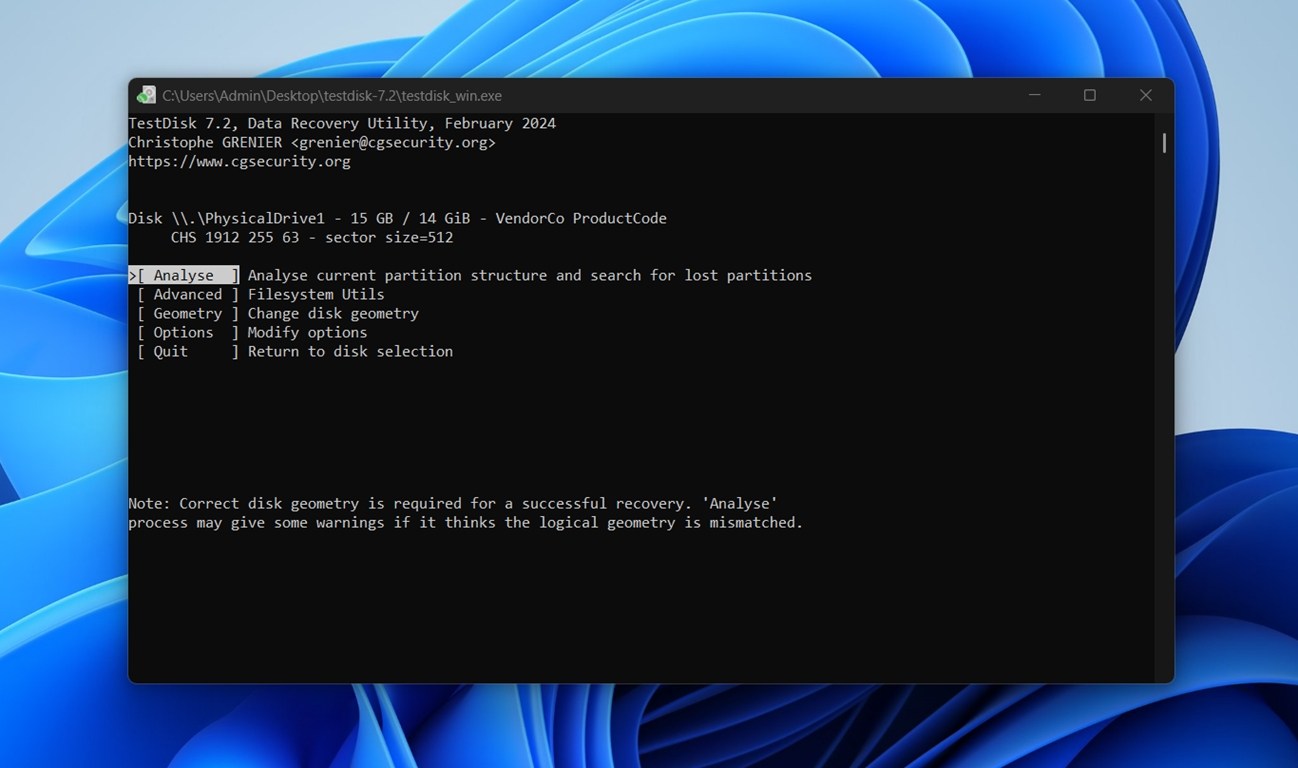
TestDisk is a free, open-source NTFS disk recovery freeware focused on partition-level recovery. If your NTFS partition disappeared, won’t boot, or shows as unallocated after a crash, TestDisk is built exactly for that scenario. It can rebuild partition tables, recover deleted partitions, and fix boot sectors – tasks that most consumer recovery tools either skip or handle poorly.
The trade-off is that TestDisk runs entirely in a command-line interface. There’s no graphical UI, no drag-and-drop, no preview pane. If you’re comfortable in a terminal, it’s incredibly powerful. If the command line makes you nervous, you’ll want to pair it with a detailed tutorial or pick a GUI-based tool instead.
TestDisk can undelete individual files from NTFS, FAT, and exFAT volumes, but this capability is limited to recently deleted files where the file system metadata is still intact. For anything beyond that, its companion tool PhotoRec handles file-level recovery. Think of TestDisk as the tool you reach for when the partition itself is the problem, not a specific file.
We go deeper on its capabilities and walk through usage in our TestDisk review.
Key Features:
- Recovers deleted and lost NTFS, FAT, Ext, and other partitions
- Rebuilds NTFS and FAT boot sectors from backup
- Fixes partition tables on MBR and GPT disks
- Runs on practically every operating system
- Completely free and open source
What Real Users Say: “The best one out there. It can edit/restore partitions, list and copy files and folders and it’s very fast.” – AlternativeTo user review.
Pros
- Free and open source with no restrictions
- Best-in-class partition table and boot sector repair
- Cross-platform (runs on almost anything)
- Lightweight, portable, no installation needed
- Command-line only
- Limited individual file recovery (use PhotoRec for deeper recovery)
- No file preview
- No graphical interface at all
8. PhotoRec (Windows, macOS, Linux)
- 🏢 Developer: Christophe Grenier (CGSecurity)
- ⚙️ OS: Windows, macOS, Linux, FreeBSD, and more
- 👛 Free version: Fully free and open source
- 💰 Price: Free
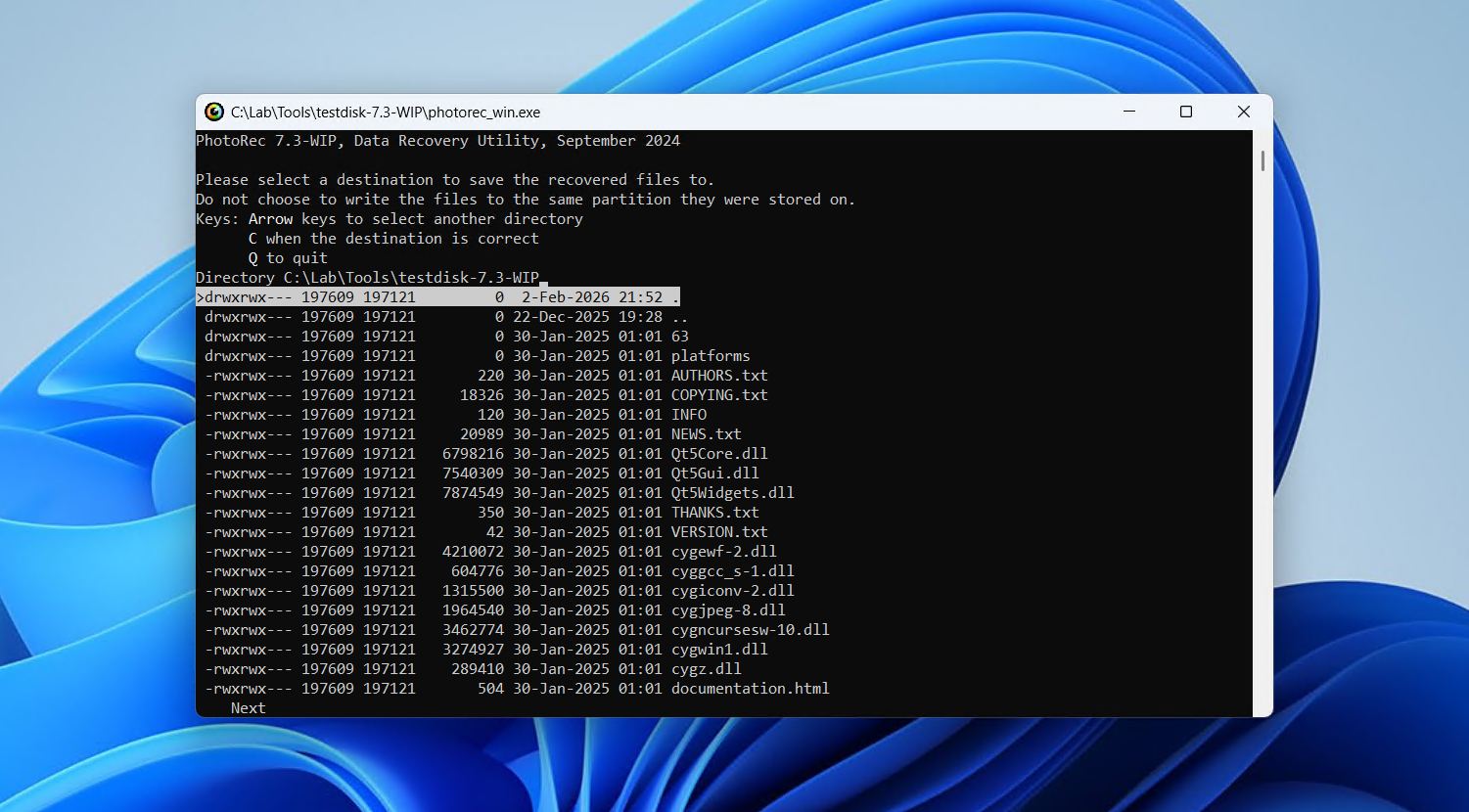
PhotoRec is TestDisk’s companion tool, and despite the name, it recovers far more than just photos. It uses file carving (scanning raw disk data for known file signatures) to pull back deleted files regardless of the file system. The distinction here is that PhotoRec doesn’t care whether the NTFS file system is intact, damaged, or completely gone. It reads the disk at the block level and reconstructs files based on their internal structure.
This makes PhotoRec especially useful when an NTFS partition is so corrupted that traditional recovery tools can’t parse the MFT at all. It supports over 480 file signatures, covering documents, photos, videos, archives, and more. Like TestDisk, it’s free, open-source, and runs on practically every OS.
The biggest downsides are that it’s command-line based (though a basic GUI called QPhotoRec exists), it doesn’t preserve original file names or folder structure, and there’s no preview. You get the raw recovered files dropped into a folder.
For a full walkthrough and performance breakdown, see our PhotoRec review.
Key Features:
- File carving: recovers files even when the file system is missing or destroyed
- 480+ recognized file signatures
- Works on NTFS, FAT, HFS+, Ext, and unformatted/RAW disks
- Cross-platform and fully open source
- QPhotoRec offers a basic graphical interface
What Real Users Say: “I used it once back when I didn’t know better, and it works. It’s just that it’s a pretty limited tool, it’s only useful when there’s no filesystem metadata and the files are not fragmented, which I can imagine is really rare.” – Reddit r/datarecovery.
Pros
- Completely free with no limits
- Recovers files from damaged, RAW, or missing file systems
- Massive file signature database
- Runs on every major OS
- Doesn't preserve original file names or folder structure
- Command-line based (QPhotoRec adds basic GUI)
- No file preview before recovery
- Can produce large amounts of false-positive results
- Struggles with fragmented disks
Best NTFS Recovery Software Compared
| Feature | Disk Drill | DiskInternals | Recuva | Recoverit | Hetman | Undelete 360 | TestDisk | PhotoRec |
| OS Support | Win, Mac | Win | Win | Win, Mac | Win | Win | All | All |
| NTFS Recovery | Yes | Yes | Yes | Yes | Yes | Yes | Partition only | File carving |
| Free Version | 100 MB | Preview only | Unlimited | 100 MB | Preview only | Fully free | Fully free | Fully free |
| Paid Price | $89 | $139.95 | $19.95 | From $69.99/yr | From $37.95 | Free | Free | Free |
| Scan Speed | Fast | Moderate | Fast | Moderate | Moderate | Fast | Fast | Moderate |
| File Preview | Yes | Yes | Yes | Yes | Yes | Limited | No | No |
| Disk Imaging | Yes | No | Yes | No | Yes | No | No | No |
| S.M.A.R.T. | Yes | No | No | No | No | No | No | No |
| RAW/Damaged NTFS | Yes | Yes | Limited | Yes | Yes | No | Yes | Yes |
| Ease of Use | Beginner | Intermediate | Beginner | Beginner | Beginner | Beginner | Advanced | Advanced |
| Actively Updated | Yes | Yes | No | Yes | Yes | No | Yes | Yes |
Conclusion
Looking at the comparison table, it’s clear that Disk Drill is the only tool here that combines strong NTFS recovery, disk imaging, S.M.A.R.T. monitoring, cross-platform support, and a genuinely approachable interface. The free 100 MB recovery on Windows gives you enough to verify results before spending anything, and the $89 price is competitive for what you’re getting. In our testing, it consistently produced the best overall results across different NTFS data loss scenarios, from simple deletions to formatted and RAW partitions.
That said, other tools fit specific situations better. If you need to recover a lost or deleted NTFS partition itself (not just files), TestDisk is an easy and free choice. DiskInternals is worth considering if your focus is entirely on partition recovery in Windows and you want a more guided experience than TestDisk’s command line. And if budget is the only factor, Recuva still delivers solid results for basic NTFS undelete tasks while being completely free.
For users dealing with severely damaged file systems where nothing else works, PhotoRec’s file carving approach can recover data even when the NTFS structures are completely gone. It won’t give you file names or folder structure, but it’ll get your actual data back.
Why the NTFS File System Fails
NTFS is the default file system on Windows and has been since Windows NT launched in 1993. It’s reliable, but it’s not invincible. Most “NTFS failures” people run into are caused by events happening around the storage (not NTFS bugs). Here are the most common real-world triggers:
| Reason | Description |
| Unexpected shutdowns and power loss | If power cuts out during a write operation, especially during a Windows update, large file transfer, or defrag, the MFT (Master File Table) or journal can end up in an inconsistent state. The drive might show as RAW, refuse to mount, or display corrupted file entries. |
| Hardware degradation | Failing hard drives develop bad sectors over time, and when those bad sectors land on critical NTFS structures (the MFT, boot sector, or bitmap), the whole partition can become inaccessible. SSDs can experience similar issues when their controllers or NAND chips start failing. |
| Unsafe USB disconnects | Pulling a USB flash drive or external hard drive without using Safely Remove Hardware while Windows is still writing cached data is a fast way to corrupt an NTFS volume. Windows delays writes for performance, so the drive may look idle when it’s not. |
| Flaky USB enclosures and controllers | Cheap USB-to-SATA bridges and faulty SSD controller firmware can silently corrupt data during transfers. Some USB enclosures drop connections intermittently, causing partial writes that damage the file system. Outdated storage controller drivers on the host system can produce similar results. |
| Malware and ransomware | While less common than hardware issues, ransomware encrypts files and sometimes damages the NTFS structures themselves in the process. The encryption is the primary problem (and not recoverable through data recovery alone), but the collateral file system corruption is what NTFS recovery software can sometimes help with. |
| Software that writes disk structures incorrectly | Partition managers, third-party formatters, and dual-boot installers occasionally partition a hard drive incorrectly or overwrite boot records. A botched resize or merge operation can leave an NTFS volume unbootable or inaccessible. |