We tested DiskDigger Pro for Windows – a lightweight photo and video recovery tool that claims to bring back deleted files from hard drives, SD cards, and USBs. It’s especially popular with folks looking for a simple, budget-friendly option. So we wanted to know: how does DiskDigger hold up in real data loss situations? In this DiskDigger review, we’ll break down what it offers, how well it performs, and who it actually makes sense for.
Quick Verdict
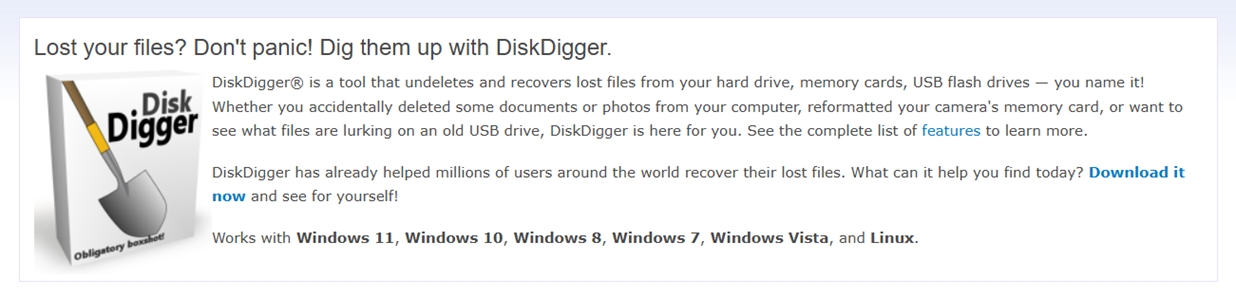
🏆 Best for: everyday users who need a fast, free/cheap way to undelete photos, videos, or docs from USB sticks and memory cards. It works well on simple recovery tasks and is quite affordable.
If you want our final verdict in a few words, it’s this:
DiskDigger Pro is a low-cost data recovery tool that does a decent job with photos and documents, but struggles with complex cases like formatted drives, RAW partitions, or video formats. It’s best suited for users who just need to get back a few lost files from USB drives or memory cards – nothing more, nothing less.
Pros
- Lightweight, no installation required
- Inexpensive lifetime license
- Works on Windows and Linux; macOS in beta
- Can scan and preview many file types, including virtual disk images
- Solid support for standard images and documents
- Slower than most modern tools
- Weak results on formatted/corrupted storage
- Dated UI with basic controls
- Free version doesn't let you save even one file
Overview
DiskDigger Pro has been around for well over a decade. It was created by Defiant Technologies, a small U.S.-based company run by Dmitry Brant, a software engineer with a background in data recovery and digital forensics. The app has built up a reputation for being fast, portable, and lightweight.
Most people know DiskDigger as a recovery app for Android, and to be fair, that’s where it gained the most traction. But it does have a dedicated Windows version too – which we’ll dissect today.
OS and File System Support
DiskDigger Pro is built for Windows. It works on everything from Windows Vista up through Windows 11 (both 32-bit and 64-bit systems). There’s also a Linux version available.
Although support for macOS is still considered experimental, DiskDigger does offer a beta version for Mac. It’s built using Avalonia UI, a cross-platform toolkit that allows the same core functionality to run across Windows, Linux, and macOS. In theory, the Mac version should offer the same recovery capabilities (but keep in mind that it’s still in beta and not officially promoted as stable).
In terms of file system compatibility, DiskDigger covers a decent range: you can undelete files from FAT12, FAT16, FAT32, NTFS, exFAT, and ReFS. It also recognizes Linux’s ext2 and older HFS+ partitions, though support is hit or miss.
Features & UI
DiskDigger Pro keeps things simple. Once the scan starts, you can browse found files in a standard list or switch to thumbnail mode. Thumbnails pop up for most image types, MP3/WMA files, executable icons, and other visuals. Clicking on any file gives you a preview panel.
- For images, you can zoom in and pan around.
- For documents, you’ll see a stripped-down text version.
- MP3s – you can hit play (it will also show artist and album info via ID3 tags)
- ZIP archives – you’ll see what’s inside before you extract anything.
- JPEGs and TIFFs show EXIF data like camera model and shutter speed.
There’s also support for scanning virtual disk images. If you’re working with forensic formats or VMs, it can handle E01, VMDK, VHD/VHDX, VDI, QCOW2, and raw binary disk images made with tools like dd.
That’s a nice touch for advanced users, even though DiskDigger mostly targets everyday recovery needs. And its UI reflects that – simple, uncluttered. From the moment you launch it, you’re dropped into a clean drive selection screen with big icons and a “Next” button that walks you through the recovery process step by step.
It’s clearly outdated, with a look straight out of the Windows 7 era. The fonts, buttons, and layout feel utilitarian, no dark mode, no drag-and-drop. But to its credit, everything works.
File Type Support
DiskDigger’s format support, as listed on its official page, is decent for a lightweight tool. It covers well over a hundred file types across all the usual categories: photos, documents, videos, audio, compressed archives, and even some lesser-known data formats.
- On the photo side, it handles the usual JPG, PNG, GIF, BMP, TIFF, ICO, PSD, WEBP, HEIC/HEIF, plus a long list of RAW formats: CR3/CR2 (Canon), ARW/SR2 (Sony), NEF (Nikon), DCR (Kodak), PEF (Pentax), RAF (Fujifilm), RW2 (Panasonic/Lumix), LFP (Lytro), DNG, and even special cases like MPO from 3D cameras. That makes it a reasonable option if this Diskdigger photo recovery review interests you mainly because of camera cards.
- Documents are covered too: DOC/DOCX, XLS/XLSX, PPT/PPTX, PDF, Visio files, HTML, XML, RTF, OpenDocument formats (ODT/ODS/ODP/ODG), plus older or niche stuff like WPD, WPS, PUB, XPS, and various Serif formats. For media, DiskDigger recognizes MP3, WMA, WAV, MID, FLV, WMV, MOV, M4A, M4V/MP4, 3GP, MKV, MPEG, WEBM, MTS/M2TS, and more, along with several lossless audio formats like APE and OptimFROG.
- It also scans common archiveand “other” formats: ZIP, RAR, 7Z, GZ, SIT, ACE, CAB, ISO, EXE/DLL, Outlook PST/DBX, CAD files (DWG/DXF), CHM help files, fonts (TTF/TTC), Java CLASS files, KMZ, FIT, and even Bitcoin wallet files.
In practice, if a file lives on a typical Windows system or camera card, DiskDigger either knows its signature already or treats it as raw binary that you can still try to pull out.
How We Tested DiskDigger Pro
To evaluate DiskDigger properly, we ran it through the similar test setup we’ve used in our previous data recovery reviews. That means the same hardware, the same mix of files, and the same realistic scenarios that reflect what most people run into: accidental deletions, quick formats, and corrupted drives.
We used three separate test cases:
- 1 TB Seagate Barracuda HDD (NTFS) loaded with around 1,500 mixed files spread across folders. After verifying everything was readable, we deleted them all and emptied the Recycle Bin.
- 64 GB Samsung EVO Plus microSD card quick-formatted to exFAT to simulate what happens when someone accidentally reformats a camera card or phone storage.
- 16 GB SanDisk USB 3.0 flash drive corrupted using a partition manager so that it appeared as RAW (unreadable) in Windows.
All three drives were preloaded with about 60 GB of data, made up of files you’d find in real-life use:
- JPG, PNG, CR2/CR3, NEF
- MP4 (H.264/H.265), MOV, AVI
- DOC, DOCX, PDF, XLSX, TXT
- MP3, WAV, FLV, MTS, MXF
- ZIP, RAR, EXE installers
But just like with other recovery tools we test, we didn’t stop at whether files came back or not. We also paid close attention to how usable DiskDigger felt – how clear the process was, how the interface handled, and whether the overall experience matched up to its price tag. At the end of this DiskDigger review, we’ll assign a final score based on these criteria:
| Metric | What We Measured |
| Recovery success | Percentage of files restored (and whether they opened properly after recovery) |
| Scan speed | How long it took to complete a full scan on each drive |
| Ease of use | How straightforward the UI and workflow felt from start to finish |
| Value for money | What the free version offers vs. what the paid license unlocks |
Is DiskDigger Safe?
We always check how safe recovery software is before recommending it, no matter how useful it might be in other areas. If there are red flags, we think it’s our responsibility to call them out. So yes, we ran a full security check on DiskDigger Pro, and we also reviewed the privacy policy on the official site.
We uploaded the DiskDigger executable (DiskDigger.exe) to VirusTotal to see what 70+ antivirus engines had to say about it. Result: zero detections.
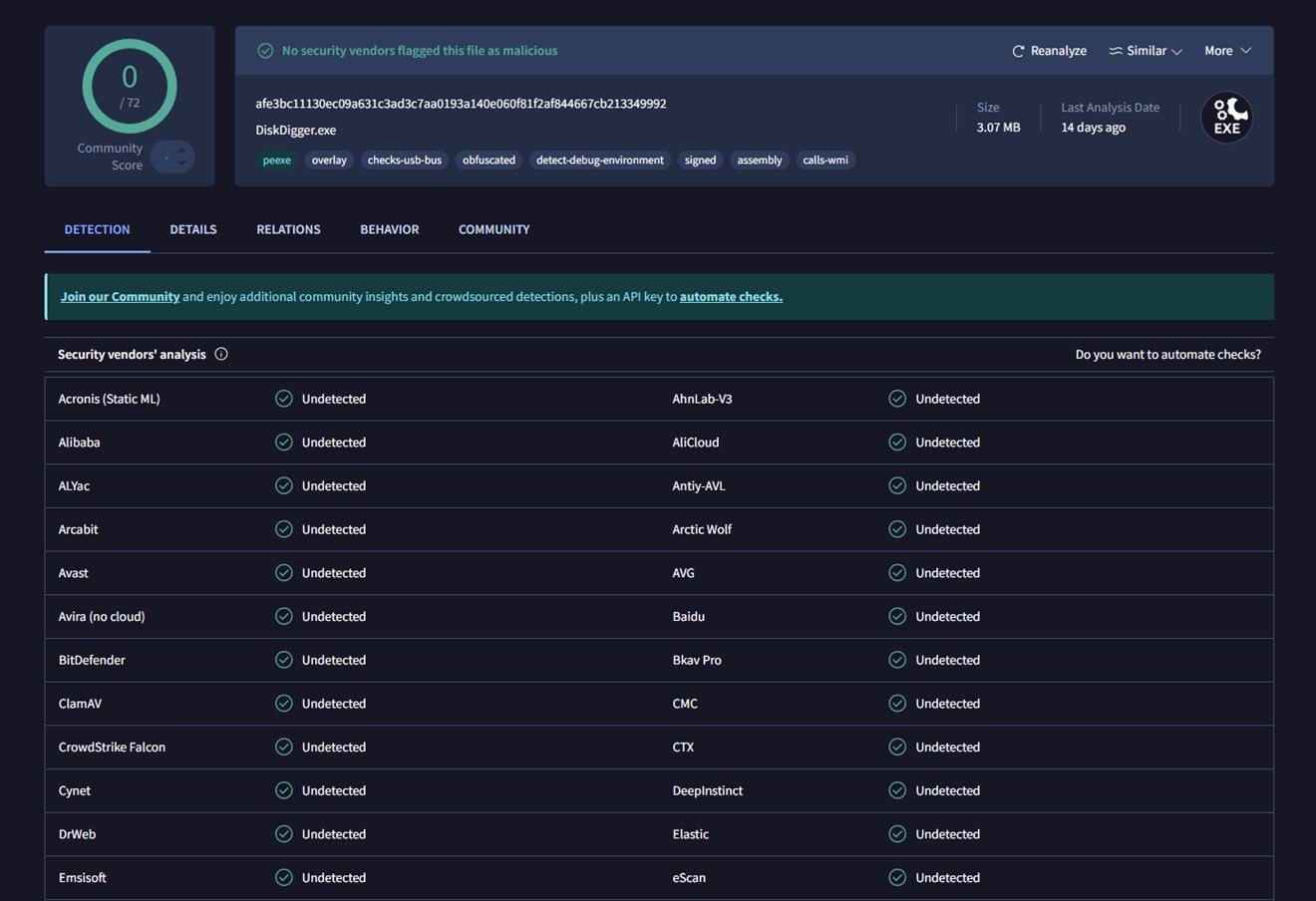
Every engine we checked, including Bitdefender, Avast, Kaspersky, CrowdStrike, and Microsoft Defender, returned a clean status. The file is digitally signed and showed no indicators of malicious behavior. That’s a good sign for anyone worried about downloading or running the app on their system.
We also ran a full antivirus scan on our test machine after completing all recovery tests. No threats or suspicious activity were found. DiskDigger left no processes running in the background, didn’t auto-start with Windows, and didn’t trigger any alerts during or after use.
Privacy Policy Breakdown
We also reviewed the developer’s privacy policy. It covers the DiskDigger.org website and the Android app, but there’s no separate section specifically for the Windows version. That said, everything looked pretty standard – they don’t collect personal data unless it’s necessary for delivering services (like when you contact them or make a purchase). They do log standard web info (IP addresses, browser type, timestamps) for abuse prevention and analytics, which is pretty normal.
A few more points:
- No user data is sold or shared without consent.
- Payments are processed through Paddle, a third-party vendor that handles customer service and returns.
- They don’t run mailing lists without opt-in.
- There’s no mention of tracking or background data collection in the Windows app itself.
- They explicitly state they’ve never been approached by the NSA for user data.
One thing worth noting: while they mention taking precautions with stored data (e.g., hashing passwords), they also admit there’s no absolute guarantee of privacy. That’s a fair disclaimer and consistent with what most small developers post.
How to Use DiskDigger
Before we reveal how DiskDigger performed in our tests, let’s quickly walk through the recovery workflow. We won’t stay here long- there’s simply not much to cover. This is a pretty basic tool, and the workflow is about as straightforward as it gets.
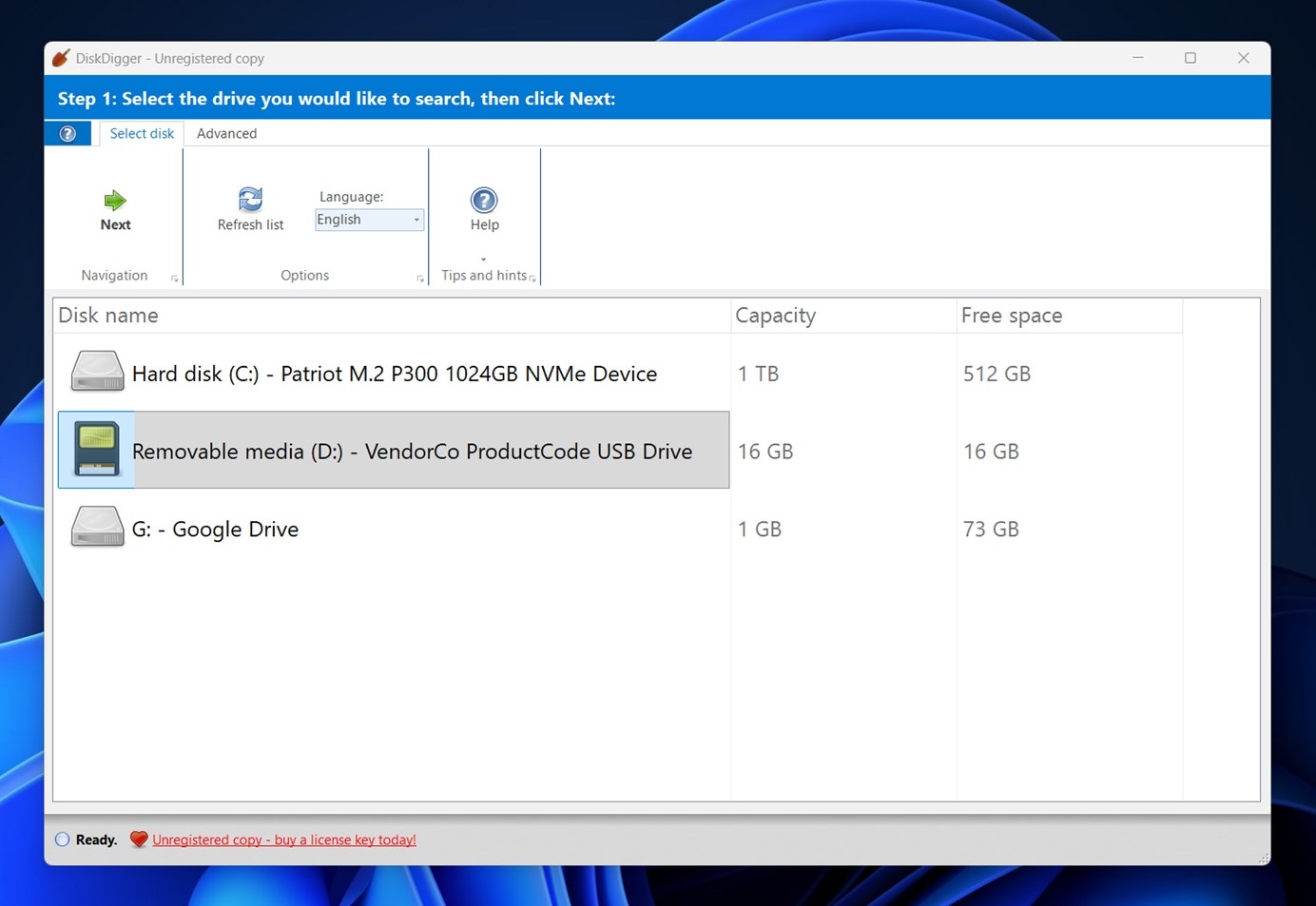
You launch the EXE (no install needed, what you download is what you run), pick the drive you want to scan, and go from there. In our case, as shown in the screenshot above, DiskDigger detected a 1 TB internal system NVMe SSD, a 16 GB USB drive, and even a mounted Google Drive volume.
Once you select the storage device and click Next, DiskDigger asks what type of files you’re trying to recover.
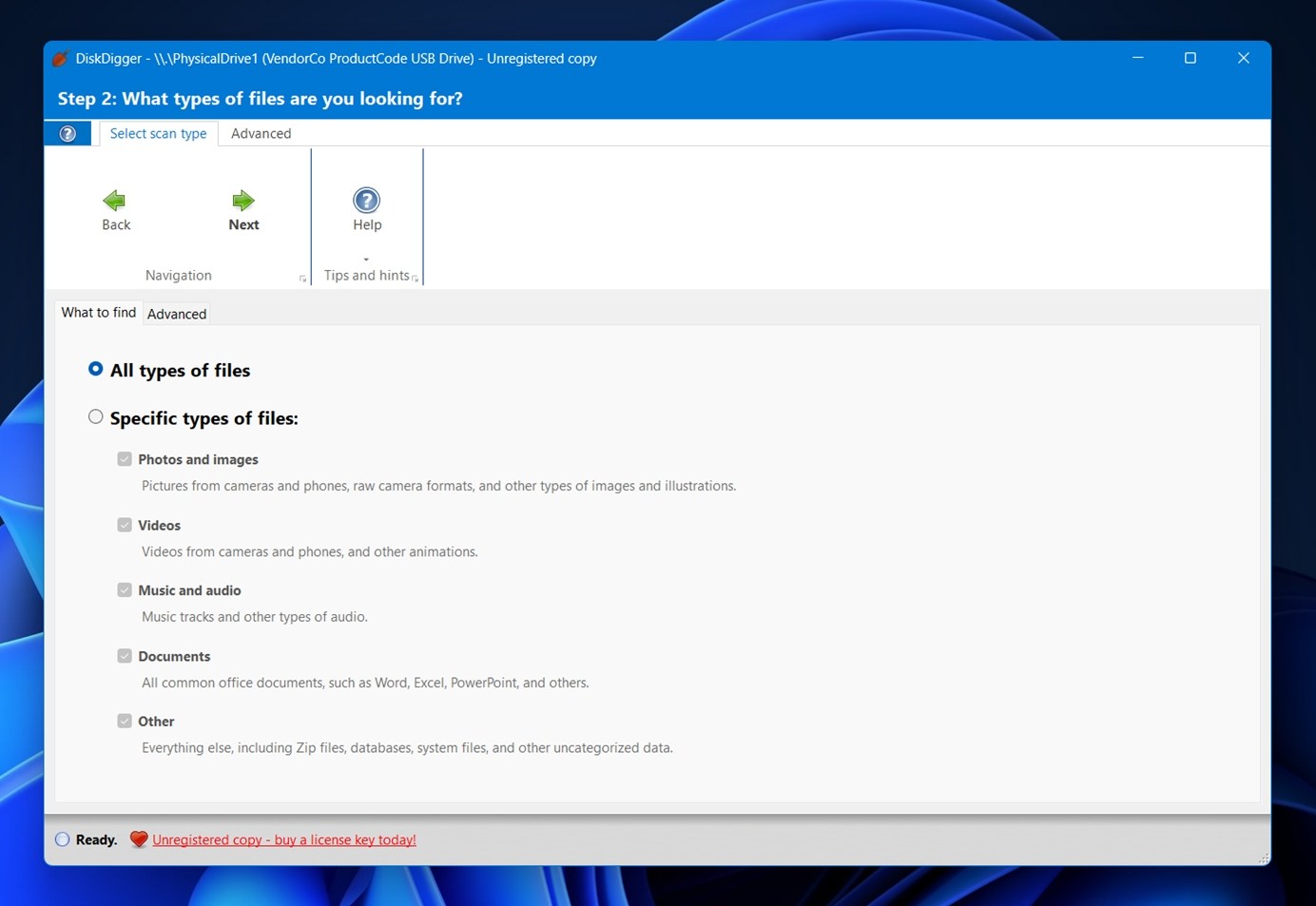
You can either scan for all types of files, or limit the search to categories like photos and images, videos, audio, documents, or “other” (which includes ZIP archives, databases, and uncategorized formats).
This step doesn’t change the actual scan method – it just filters what shows up in the results. So if you’re only after photos, you can avoid wading through hundreds of system files or installer leftovers.
Once you click Next one more time, DiskDigger immediately begins scanning the selected drive.
Files start appearing in real time as they’re found – grouped by format tabs at the top (JPG, PNG, MP4, ZIP, etc.). The left pane lists file names and sizes, and the right preview panel shows a visual or metadata preview depending on the file type. For images, you’ll see the photo itself along with details like resolution, file size, and EXIF info.
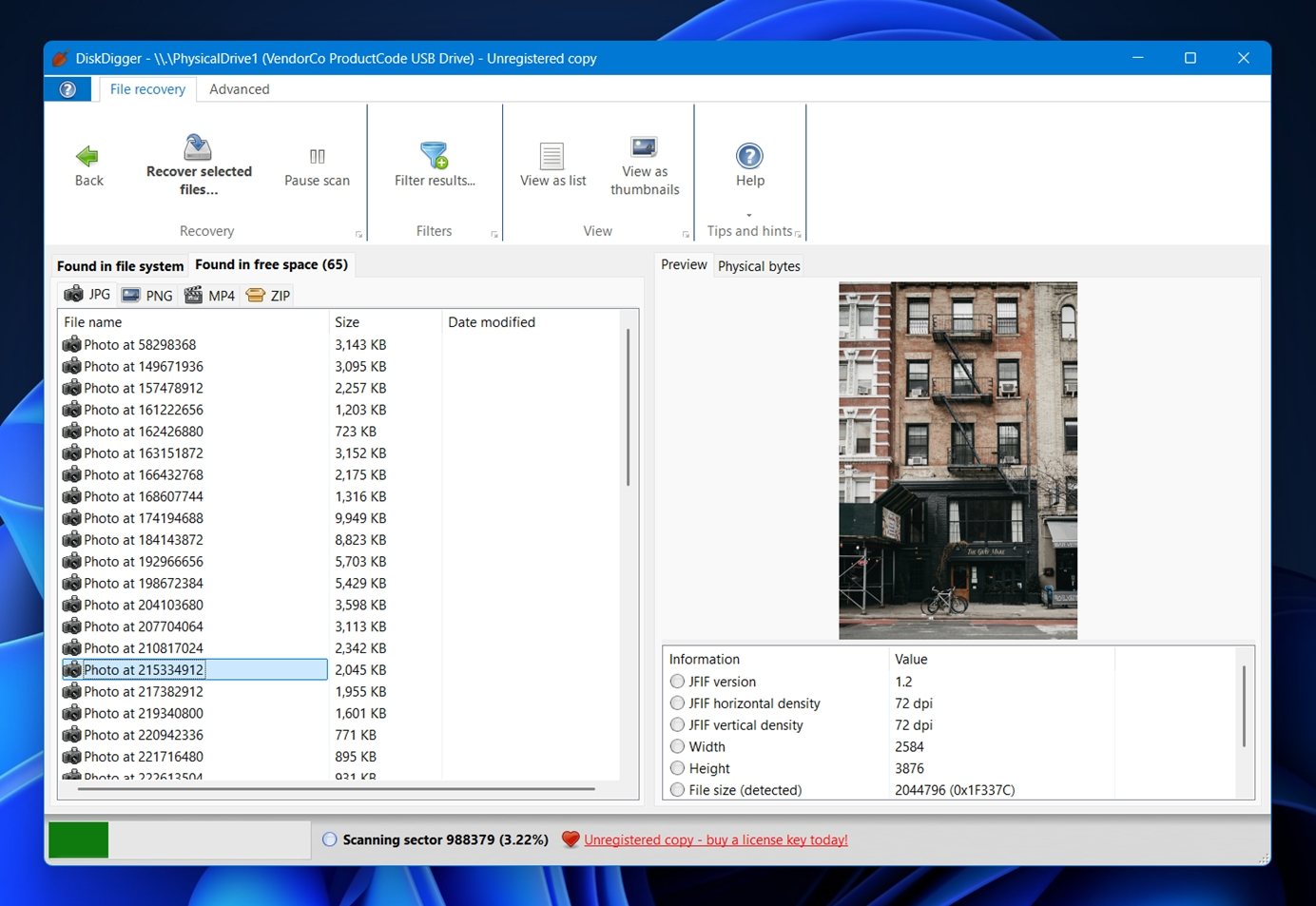
You can view the results as a list or thumbnails, and use the Filter results button to narrow things down by file size or type. Once you’ve selected what you want to recover, hit Recover selected files…, choose a different folder (never the same drive you’re scanning), and you’re done.
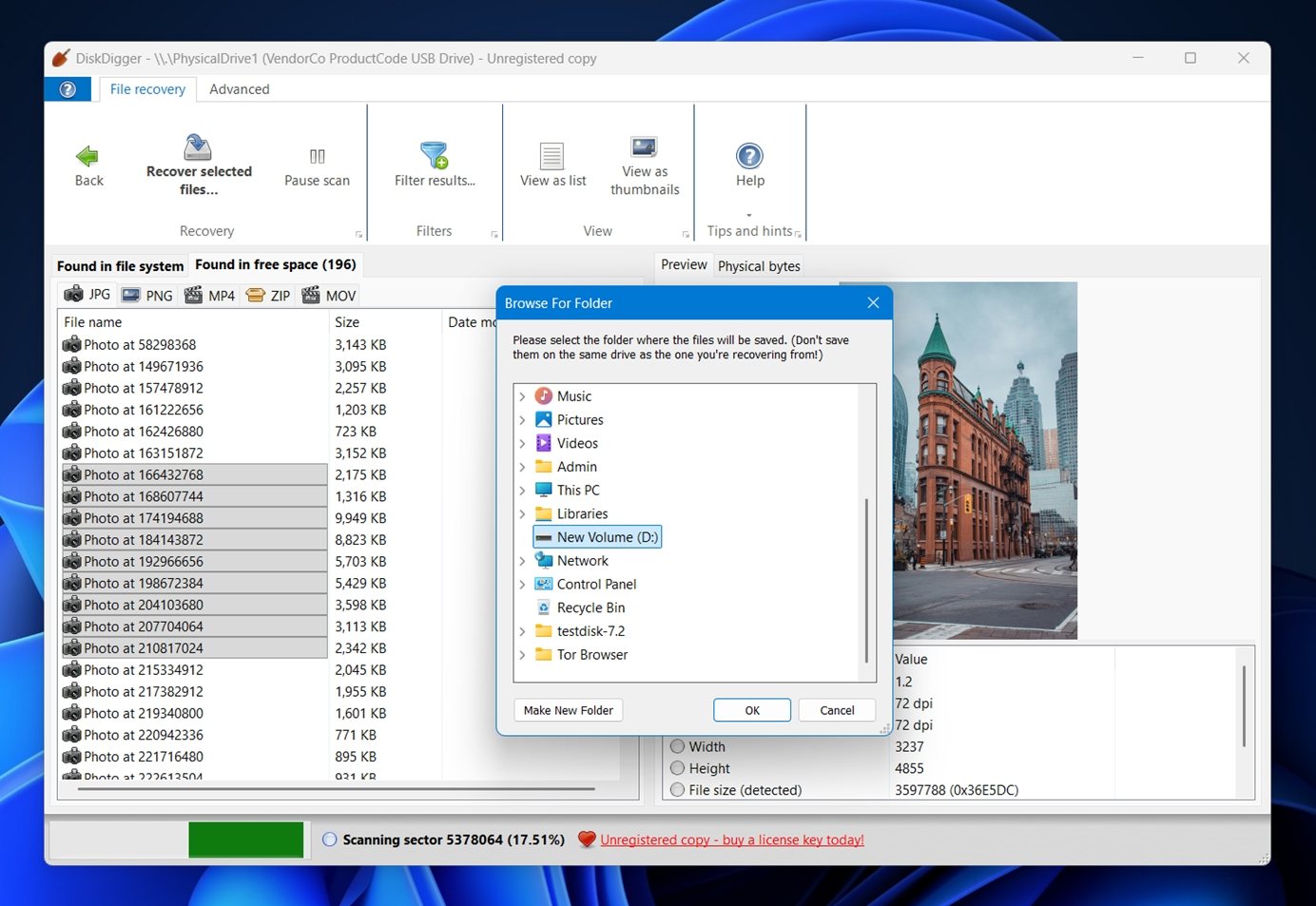
One small usability quirk: DiskDigger doesn’t use checkboxes for selecting files. If you want to select everything, you’ll need to right-click and use the “Select All” option from the context menu. For partial selections, you can hold Shift or Ctrl on your keyboard while clicking files, just like in Windows Explorer.
Does DiskDigger Work?
Now that we’ve gone through the workflow, let’s talk about how DiskDigger actually performed in our hands-on tests (spoiler: the results were mixed).
We tested recovery on three drives with different damage scenarios: a deleted NTFS partition, a quick-formatted exFAT card, and a corrupted storage.
- First, we tested it on a 1 TB Seagate Barracuda HDD (NTFS). DiskDigger managed to bring back just over half of the deleted files. That might sound okay on paper, but it missed a huge chunk – 36% of the data was never recovered. The folder structure was also lost, so we were left sorting through a mess of filenames, which made recovery far more tedious than it should be.
- Then came the quick-formatted 64 GB Samsung EVO Plus microSD card (exFAT). This test was meant to simulate someone accidentally formatting a camera card. DiskDigger struggled here even more. It recovered only a handful of files (most of the media was missing), with a recovery gap of 65%. That’s a lot of lost vacation photos if this were a real case.
- Our third test was on a 16 GB SanDisk USB 3.0 flash drive that we intentionally corrupted using a partition tool. Windows saw it as RAW and completely unreadable. DiskDigger could see the device but couldn’t reconstruct the original data. The results were close to a total failure, with 82% of the files unrecovered.
What about scan speed? This was one of the more unpleasant surprises in our testing. DiskDigger isn’t the fastest tool out there, and that’s putting it mildly. For example, scanning our 16 GB USB flash drive took over 20 minutes. That’s a long wait for a relatively small amount of data. To put it in context: many modern recovery tools we’ve tested finished the same scan scenario in roughly 10 minutes or less.
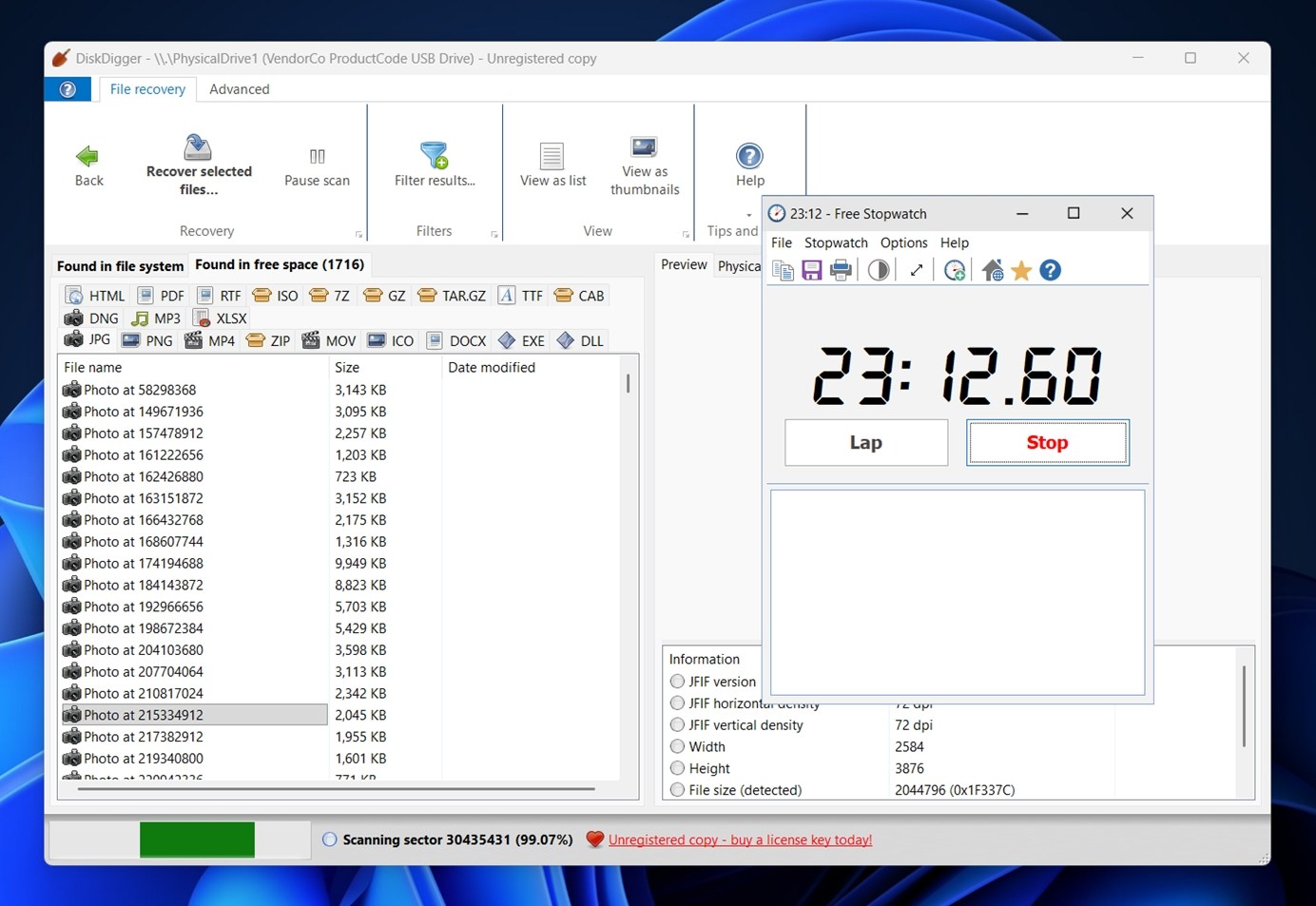
Now, to be fair, DiskDigger did show some strengths when scanning by file signature. It handled CR2, JPG, and SRF image formats pretty well and recovered most of our DOC, DOCX, XLS, and PPTX documents without issue. But when it came to more niche or newer formats (especially video), its limitations became obvious. It couldn’t bring back all MP4 files, and newer or pro-level formats like MXF weren’t supported at all.
So, does it work? Yes, just not reliably across the board. It’s decent for older, common file types and FAT-based systems, but if you’re dealing with modern media formats or serious data loss, you’ll probably want to look elsewhere.
Pricing & Value
As far as pricing goes, let’s see if DiskDigger Pro is actually worth it.
At the time of writing, the personal license is listed at $14.99 (discounted from $19.99), based on the official purchase page.

The free version of DiskDigger lets you scan and preview recoverable files, but it locks the final recovery step behind a paywall. To actually save any files, you’ll need to upgrade to the paid license.
For that price, you get a lifetime license for one user, with a 30-day money-back guarantee. That’s not bad at all compared to some competitors that charge subscriptions or much higher one-time fees. Speaking of competitors, let’s put it against some other popular options to get a clearer picture.
Here’s a rough side-by-side to put DiskDigger in context with a few familiar names. This isn’t a lab benchmark, but it lines up with what we saw in our own testing plus past experience with these tools.
| Tool | UI & ease of use | Scan speed (our experience) | OS support (desktop) | File system support (short version) | Photo / video recovery | Extra features | Free tier / limits | Typical price (Windows, paid tier) |
| DiskDigger Pro | Very basic, old-school Windows UI. Simple flow, no wizards beyond “Next”. | Noticeably slow. 16 GB USB scan took 20+ minutes in our test. | Windows, Linux, experimental macOS beta | FAT12/16/32, exFAT, NTFS, ReFS, ext2, HFS+ (no APFS, no ext4, no BitLocker) | Decent for JPG/RAW photos, weaker for MP4 and pro video formats | Can scan virtual disk images | Free version scans and previews but blocks saving files (upgrade required). | $14.99 one-time personal license |
| Disk Drill | Modern, polished UI with clear wizards and great previews. | Generally fast; handled similar 16 GB test media in about half the time of DiskDigger. | Windows, macOS | Wide: FAT/exFAT, NTFS, HFS+, APFS, ext family, others | Strong photo/video recovery; includes a dedicated “Advanced Camera Recovery” module that delivers excellent results with GoPros and digital cameras | Byte-to-byte backup, S.M.A.R.T. monitoring, Recovery Vault, lost-partition scan, RAID support | Free tier on Windows recovers up to 100 MB; all extra features are available for free. | $89 one-time (Pro, 1 user) |
| Recuva | Simple, wizard-driven interface; feels old but friendly. | Usually faster than DiskDigger on small drives; OK on HDDs. | Windows only | FAT, exFAT, NTFS | Fine for basic JPG/MP4 undelete; not ideal for heavy camera work | Secure delete | Fully free version with unlimited recovery. | $24.95/year (Recuva Pro) |
| Stellar Data Recovery | More “business-style” interface, but straightforward. | Mid-pack: faster than DiskDigger, slower than top tools in some cases. | Windows, macOS | FAT/exFAT, NTFS, HFS+, APFS and more | Solid all-round media recovery; better than DiskDigger on formatted/RAW media; Includes a media‑repair functionality in the higher‑tier version | Bootable media, disk imaging, lost partition recovery, some RAID support (higher tiers) | Free edition recovers up to 1 GB on Windows. | Starts at $89.99/year, up to $399/lifetime for Technician edition |
If you zoom out, DiskDigger clearly wins on price. It’s hard to beat a lifetime license for under $15. But it falls behind in too many other areas – scan speed, file system support, deep media recovery, polish, and flexibility. Even its strongest feature (signature-based recovery) only goes so far when so many formats are hit-or-miss.
So in the bigger picture of this DiskDigger review, it feels less like a serious competitor to top-tier tools and more like a budget option for quick, simple jobs. It’s fine for recovering a few lost JPEGs from a USB stick, but if your files are more complex or your drive is in bad shape, you’ll want something more capable.
For example, if you’re trying to recover footage from a digital device like a GoPro, DJI drone, or any kind of camera, it makes more sense to spend a bit more on a lifetime license for Disk Drill, or a subscription to Stellar Data Recovery. Both of those tools are far more capable. Disk Drill in particular includes powerful features like byte-to-byte disk imaging, a dedicated Advanced Camera Recovery mode, and support for more modern file systems and video formats. It’s also a lot faster, and its UI actually feels like it belongs on a current OS.
Ultimately, it’s your call. But in our opinion, DiskDigger works as a last-resort tool for basic jobs – and in that tier, Recuva offers unlimited recovery for free. If your recovery case is even slightly more advanced, you’re better off investing in a tool built for that level of work.
User Feedback (What People Are Saying About DiskDigger)
There isn’t a massive pool of user reviews specifically for DiskDigger’s Windows version. In fact, as of writing, there’s just one review on Trustpilot and around ten on CNET, with an average score of 3.8 out of 5. Most of the buzz online centers around its Android app, which has found more popularity thanks to its ease of use and low price point for mobile recovery.
That said, here’s what people have to say when it does come up:
- “I had a corrupt 1GB SD with 400+ images I needed to recover. I used a trial version of a more popular program but it wanted $100 to recover. I then downloaded DiskDigger and for $15 it was able to recover all the files.”
- “Doesn’t have the ability to sort its scan by filename. Doesn’t have the ability to actually restore the data it dug up [in free mode]. User interface is a little archaic / mechanical.”
There are simply too few reviews of the Windows version of DiskDigger Pro to draw strong conclusions here. What is clear: many users find the price compelling for basic recovery tasks, while some note that the interface and free‑mode functionality feel dated.
Overall, the feedback leans toward “it works” rather than “it’s a go‑to tool for everything”.
Final Verdict
It’s time for the final score. Here’s how we rate DiskDigger Pro for Windows based on our testing:After all our tests, here’s how DiskDigger Pro scored in our hands-on evaluation:
| Metric | Score | Notes |
| Recovery success rate | 6 / 10 | Recovered basic formats like JPG and DOCX well, but struggled with video formats and failed to restore significant portions of data from formatted or corrupted drives. |
| Scan speed | 5 / 10 | Scans took longer than expected—16 GB USB drive took over 20 minutes. Slower than most tools we tested. |
| Ease of use | 6 / 10 | UI is clean but outdated. Workflow is simple, but lacks helpful features like sorting, filtering, and checkboxes for selections. |
| Value for money | 7 / 10 | At $14.99, it’s affordable. But given its limitations, it may not be the best value unless your recovery needs are very basic. |
🌟 Overall Score: 6 / 10
DiskDigger Pro is fine for what it is: a budget data recovery tool aimed at basic needs. It’ll work if you’re recovering a couple of JPEGs or Word docs from a flash drive. But for anything more advanced (formatted drives, complex video formats, corrupted file systems), it’s simply not built to keep up.
To be fair, DiskDigger is developed by a solo developer, so it’s not really in the same league as tools backed by large engineering teams. That perspective matters. For quick, simple recoveries, it’s absolutely serviceable. Just don’t expect it to punch above its weight.