


Files lost from a SanDisk SD card, memory card, or USB drive can often be recovered with data recovery software, whether they disappeared after accidental deletion, quick formatting, or file system corruption. We tested popular recovery tools to see how well they handle SanDisk storage and how practical they are to use.
Our top picks are:
- Disk Drill – Best overall SanDisk data recovery software
- PhotoRec – Best completely free option
- R-Studio – Best for advanced users
- Stellar Data Recovery – Best for guided SanDisk recovery
- Recuva – Best free option for Windows
- AnyRecover – Best for multi-device recovery
- RescuePRO – Best if you already have a bundled SanDisk activation code
Check our comparison table for a side-by-side look at each tool’s recovery results, supported operating systems, free recovery limits, and pricing.
How We Tested SanDisk Data Recovery Software
We tested each program under the same conditions and followed our standard testing guidelines, with default scan settings wherever possible.
We used a SanDisk SD card formatted as FAT32 with a dataset of 52 files, including photos, videos, audio, documents, and archives. We recreated two data loss scenarios for each program: accidental file deletion and partition deletion. For both tests, we attempted to recover the full dataset and recorded the number of usable files recovered. We also compared average scan time, preservation of original filenames and folder structure, and file preview support. A file counted as successfully recovered only if it opened correctly and its contents were intact.
What Else We Considered
Recovery results had the biggest impact on our ranking, but we also considered ease of use, supported file systems and formats, pricing and free recovery limits, preview and filtering options, and extra features such as disk imaging.
Together, these factors helped us judge not only how well each program recovered files but also how practical it was for everyday SanDisk data recovery.
1. Disk Drill – Best SanDisk Recovery Tool
- Best for: Overall SanDisk data recovery, especially photos and videos from SD cards and USB drives.
- Supported SanDisk devices: SD/SDHC/SDXC cards, microSD cards, USB flash drives, external SSDs, external HDDs, and other SanDisk storage recognized by the operating system.
- Key recovery scenarios: Accidental deletion, quick formatting, RAW file systems, corrupted memory cards, lost partitions, and inaccessible storage devices.
- Supported OS: Windows and macOS.
- Price: Disk Drill Basic is free to download and can scan and preview recoverable files. On Windows, it also includes up to 100 MB of free recovery. Disk Drill PRO costs $89/year, while the Lifetime License costs $149. One PRO license covers Windows and macOS and allows up to three activations.
Disk Drill is a data recovery application developed by CleverFiles for Windows and macOS. It supports FAT32, exFAT, NTFS, APFS, HFS+, EXT2/3/4, and several other file systems, which covers the file systems commonly found on SanDisk storage devices.
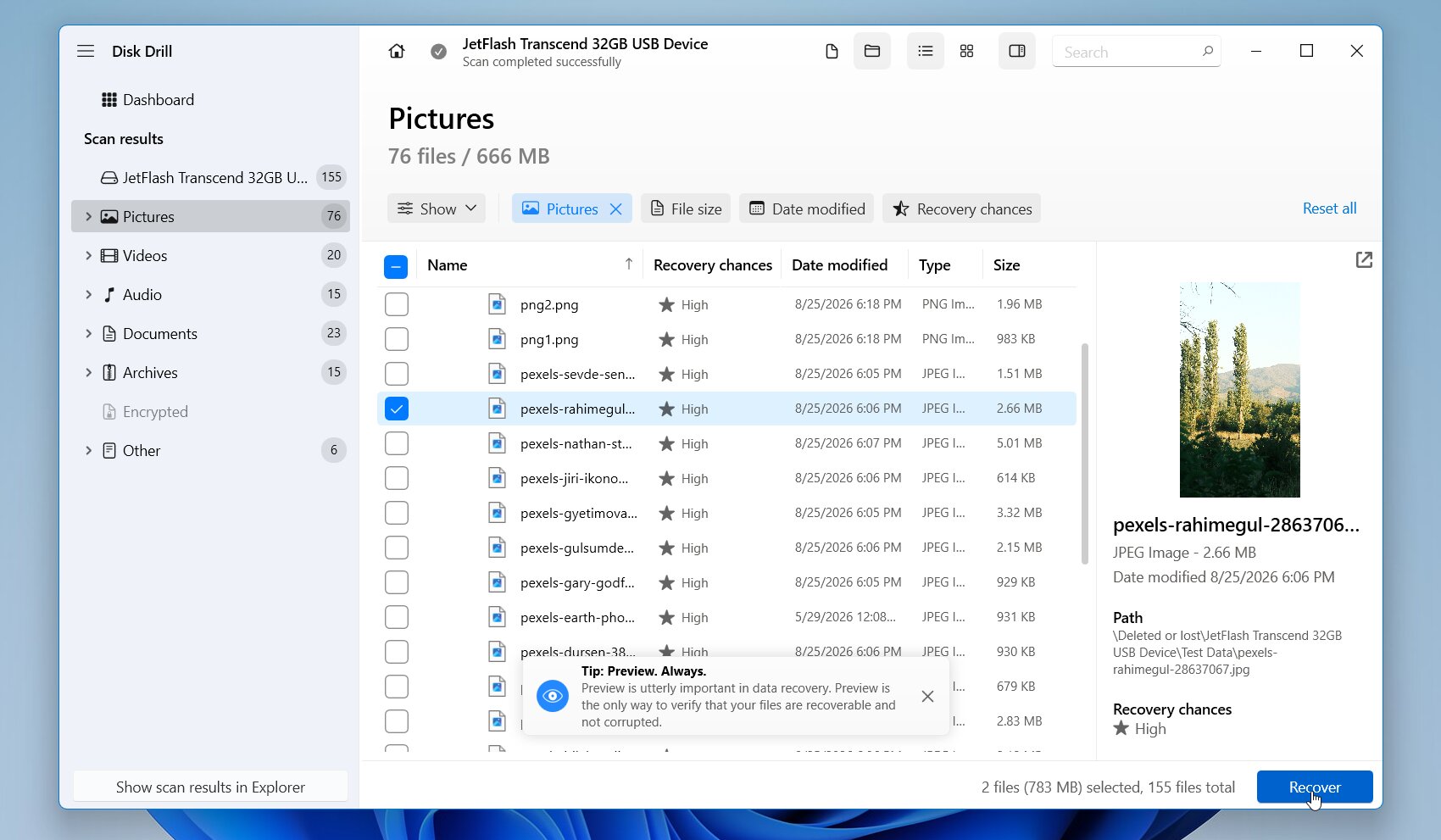
Its interface keeps the recovery process simple: select the SanDisk device, start a scan, review the results, preview the files you need, and recover them to another drive. Disk Drill also combines file-system-based scanning with signature-based recovery for hundreds of file formats. For unstable media, you can check the drive’s health or create a disk image and scan the copy instead of repeatedly working with the original device.
Pros
- Strong recovery results across common data loss scenarios
- Supports SanDisk SD cards, microSD cards, USB drives, SSDs, and HDDs
- Easy-to-use interface with file previews and recovery chances
- Supports FAT32, exFAT, NTFS, APFS, HFS+, EXT, and RAW storage
- Disk imaging
- Advanced recovery options for camera photos and videos
- Available for both Windows and macOS
- Free recovery is limited to 100 MB on Windows, while the Mac version only offers free scanning and previews
Our Test Results
Disk Drill recovered 52 out of 52 files in both tests, including ordinary file deletion and deleted partition recovery. It was the only program to achieve a perfect recovery rate in both scenarios, with an average scan time of 5 minutes and 6 seconds. It also preserved the original filenames and folder structure, and its preview feature worked reliably with all tested file types, including RAW photos and videos. This made it easy to check file integrity before recovery.
What Users Say
The interface, recovery features, previews, and customer service of Disk Drill are generally well-received by users. G2 reviewers frequently mention successful recovery, speed, and ease of use, although some users criticize the price or report cases where particular files could not be recovered.
In Reddit threads, Disk Drill is often praised for its recovery results and ease of use. In one detailed review, a user recovered photos from an inaccessible SD card when other recovery tools failed. They also recovered fragmented camera videos that other tools returned frozen or unplayable, and found the previews and recovery-chance estimates useful for checking files before recovery.
| Platform | Rating | Reviews |
|---|---|---|
| Trustpilot (CleverFiles) | 4.4/5 | 493 |
| G2 | 4.0/5 | 64 |
| Capterra | 3.8/5 | 12 |
Our Verdict
Disk Drill is our best overall SanDisk recovery tool. It combines strong recovery capabilities with an interface that works well even if you have little experience with data recovery software. Broad file system and device support makes it suitable for everything from SanDisk SD cards to external drives, while reliable previews, disk imaging, and advanced camera recovery add real value. The main drawback is the 100 MB free recovery limit on Windows, but overall, it offers one of the best combinations of recovery features and usability.
2. PhotoRec – Best Free SanDisk Data Recovery Software
- Best for: Free recovery from formatted, corrupted, or RAW SanDisk storage devices.
- Supported SanDisk devices: SD/SDHC/SDXC cards, microSD cards, USB flash drives, external SSDs, external HDDs, and other SanDisk storage recognized by the operating system. PhotoRec officially supports SD cards, USB memory drives, hard disks, and disk images.
- Key recovery scenarios: Accidental deletion, quick formatting, damaged or RAW file systems, and cases where file-system metadata is no longer usable. Because PhotoRec relies on file signatures, it can recover files even from severely damaged file systems.
- Supported OS: Windows, macOS, Linux, and several other Unix-like platforms.
- Price: Completely free and open-source, with no limits on how much data you can recover.
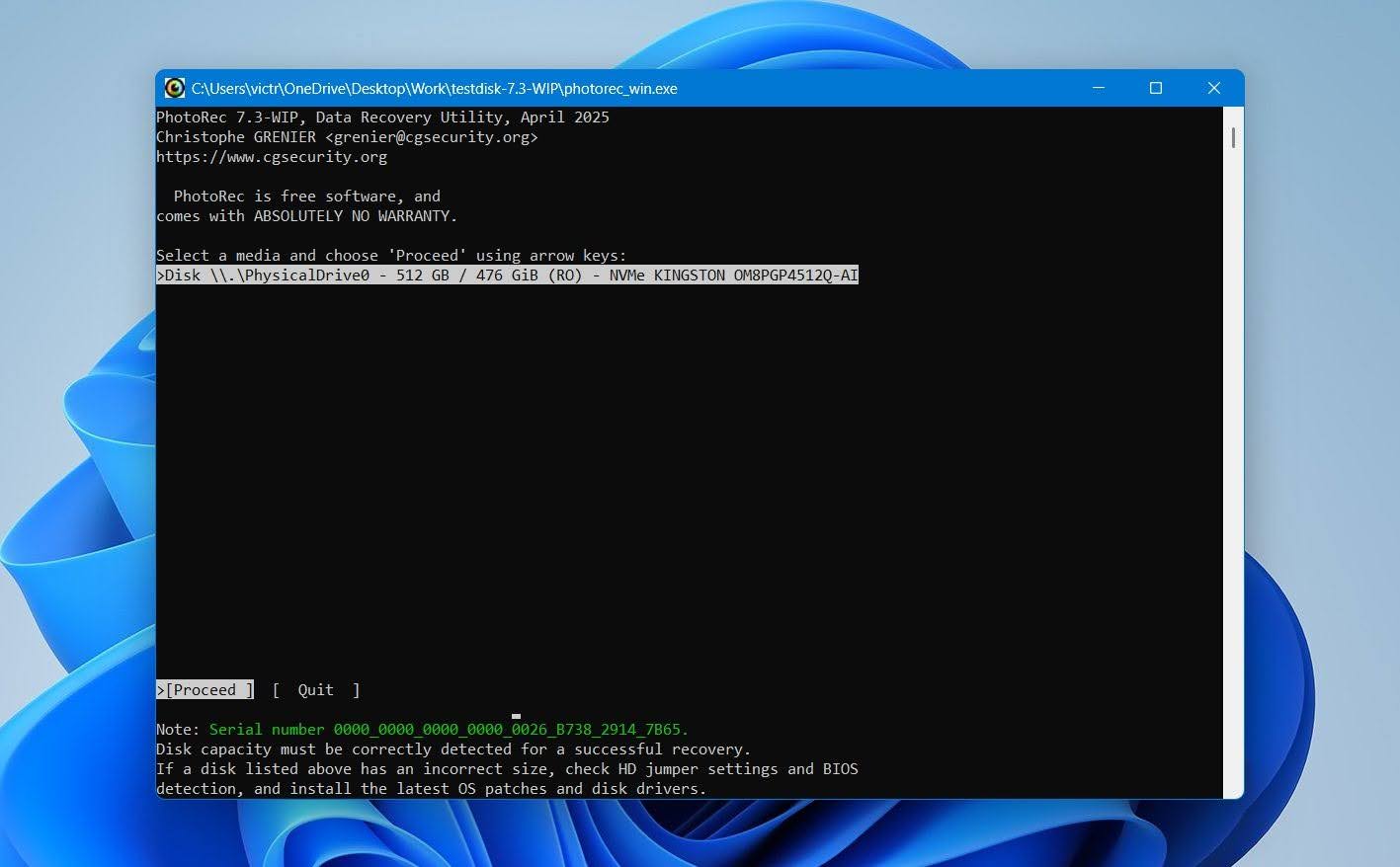
PhotoRec is an open-source data recovery tool developed by CGSecurity and distributed alongside TestDisk. Unlike recovery software that primarily relies on file-system records, PhotoRec searches storage sector by sector and identifies files by their signatures. The downside is that signature-based recovery generally cannot reconstruct the original file-system metadata. Recovered files may therefore have generic filenames and no original folder structure, which can leave you with a lot of files to sort manually.
Pros
- Completely free and open-source
- No limits on the amount of data you can recover
- Strong signature-based recovery
- Works with formatted and RAW storage
- Supports a large number of file formats
- Available for Windows, macOS, and Linux
- Can scan disk images as well as physical storage devices
- Dated interface compared with commercial recovery tools
- Original filenames and folder structure are generally not preserved
- Limited preview capabilities
- Large recoveries can produce thousands of poorly organized files
- No option to select individual files for recovery, PhotoRec recovers all files it finds
- Less beginner-friendly than tools such as Disk Drill
Our Test Results
PhotoRec recovered 49 out of 52 files in the both tests, with an average scan time of 6 minutes and 24 seconds. These were good results for a completely free tool, but none of the recovered files retained their original filenames or folder structure, and PhotoRec offers no file previews before recovery. We recommend that you select only the file types you need before you start the scan. A scan for every supported file type can take much longer and produce a large number of unnecessary results. The interface also feels outdated compared with the commercial tools we tested.
What Users Say
PhotoRec has a strong reputation among users who want completely free recovery, particularly from SD cards and other removable media. In one Reddit discussion, photographers shared several successful experiences with the tool. One user said PhotoRec and TestDisk had helped them out of several difficult recovery situations, while another reported that the two programs had recovered many gigabytes of data.
Feedback from more technical users also makes PhotoRec’s limitations clear. In another Reddit discussion, one user described it as a good file carver for SD card photo recovery, as long as you don’t need the original filenames and folder structure.
| Platform | Rating | Reviews |
|---|---|---|
| Trustpilot (CGSecurity) | 4.0/5 | 3 |
| G2 (TestDisk/PhotoRec) | 4.3/5 | 12 |
| Capterra | N/A | N/A |
Our Verdict
PhotoRec earns its place on our list mainly because it delivers genuinely useful recovery for free, with no paid tier or recovery cap. Its recovery results were respectable, but the experience around them was much weaker: no filenames or folder structure, no previews, and plenty of manual sorting afterward. For us, that keeps PhotoRec behind more polished paid tools, but if free recovery is your priority, it’s the strongest option on our list.
3. R-Studio – Best for Advanced SanDisk Data Recovery
- Best for: Advanced users who need detailed control over SanDisk data recovery.
- Supported SanDisk devices: SD/SDHC/SDXC cards, microSD cards, USB flash drives, external SSDs, external HDDs, and other SanDisk storage recognized by the operating system.
- Key recovery scenarios: Accidental deletion, quick formatting, RAW or damaged file systems, lost partitions, partition damage, and recovery from disk images.
- Supported OS: Windows, macOS, and Linux.
- Price: R-Studio starts at $79.99 for a single-user license. A free Demo version lets you scan drives, preview recoverable files, and recover files up to 1024 KB each.
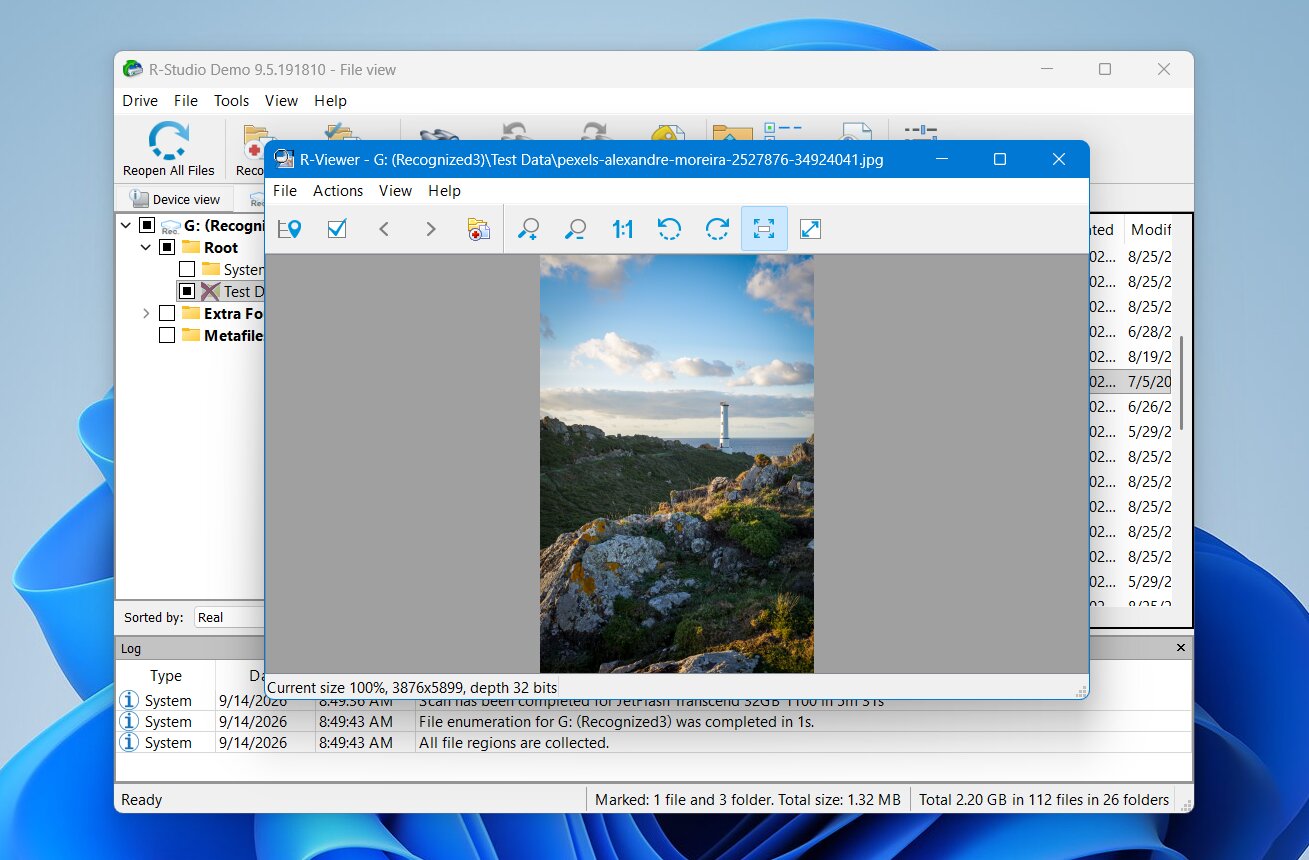
R-Studio is a professional data recovery application from R-Tools Technology. It gives you a lot more control than most consumer recovery programs. You can define scan regions, select file systems, search for known file types, work with lost partitions, create disk images, and inspect drives at the low level. The flexibility makes it especially handy for complex SanDisk recovery cases. The tradeoff is usability. Its interface shows plenty of technical information at once, it may take some time for non-expert users to understand the options available.
Pros
- Strong recovery performance
- Extensive file-system support
- Available for Windows, macOS, and Linux
- Advanced scanning configuration
- Creates and works with disk images
- Strong lost-partition recovery capabilities
- Built-in hexadecimal editor
- Good choice for technical users
- Steeper learning curve than consumer recovery tools
- Technical and somewhat dated interface
- Free recovery limited to files of 1024 KB or smaller
- Advanced options can be overwhelming for beginners
- Preview support can be inconsistent for some RAW photo formats
Our Test Results
R-Studio recovered 52 out of 52 files in the deletion test and 51 out of 52 in the deleted partition test, with an average scan time of 5 minutes and 45 seconds. It also preserved the original filenames and folder structure. Most file previews worked well, although we encountered problems with some RAW photo previews. Overall, recovery performance was excellent, but R-Studio’s technical interface made it more difficult to find and review the results, especially since recovered files were spread across separate partitions and RAW file categories.
What Users Say
R-Studio has a strong reputation among experienced users and data recovery communities, where it is often recommended for more complicated logical recovery cases. Users particularly value its detailed scan controls, broad file-system support, imaging capabilities, and ability to work with damaged partitions.
Reddit feedback supports this reputation. One experienced commenter described R-Studio as one of the most widely used tools for logical recovery in professional data recovery labs, while another called it competent software and recommended scanning a clone rather than a failing drive directly. However, several users criticize its restrictive licensing policy, particularly when they need to move the license to a replacement computer.
| Platform | Rating | Reviews |
|---|---|---|
| Trustpilot (R-Tools Technology) | 2.9/5 | 5 |
| G2 | N/A | N/A |
| Capterra | 4.5/5 | 84 |
Our Verdict
R-Studio is one of the strongest performers on our list, but we’d recommend it mainly to advanced users. Its detailed scan controls, disk imaging, partition recovery, and other technical tools give you much more control over difficult cases, and the $79.99 lifetime license offers good value for that feature set. However, the dated interface and learning curve make it harder to justify for a simple SD card or USB recovery. It’s also not our first choice for camera video recovery, where fragmented files can be a problem.
4. RescuePRO – Best SanDisk-Specific Recovery Software
- Best for: SanDisk memory card owners, especially photographers and camera users.
- Supported SanDisk devices: SD/SDHC/SDXC cards, microSD cards, CompactFlash cards, USB flash drives, and other removable flash media.
- Key recovery scenarios: Accidental deletion, quick formatting, corrupted memory cards, and inaccessible files on removable media.
- Supported OS: Windows and macOS.
- Price: RescuePRO Standard costs $39.99, RescuePRO Deluxe costs $59.99, and RescuePRO Deluxe Commercial costs $249.99. All purchased licenses are valid for one year. Free trials are available for both Standard and Deluxe.
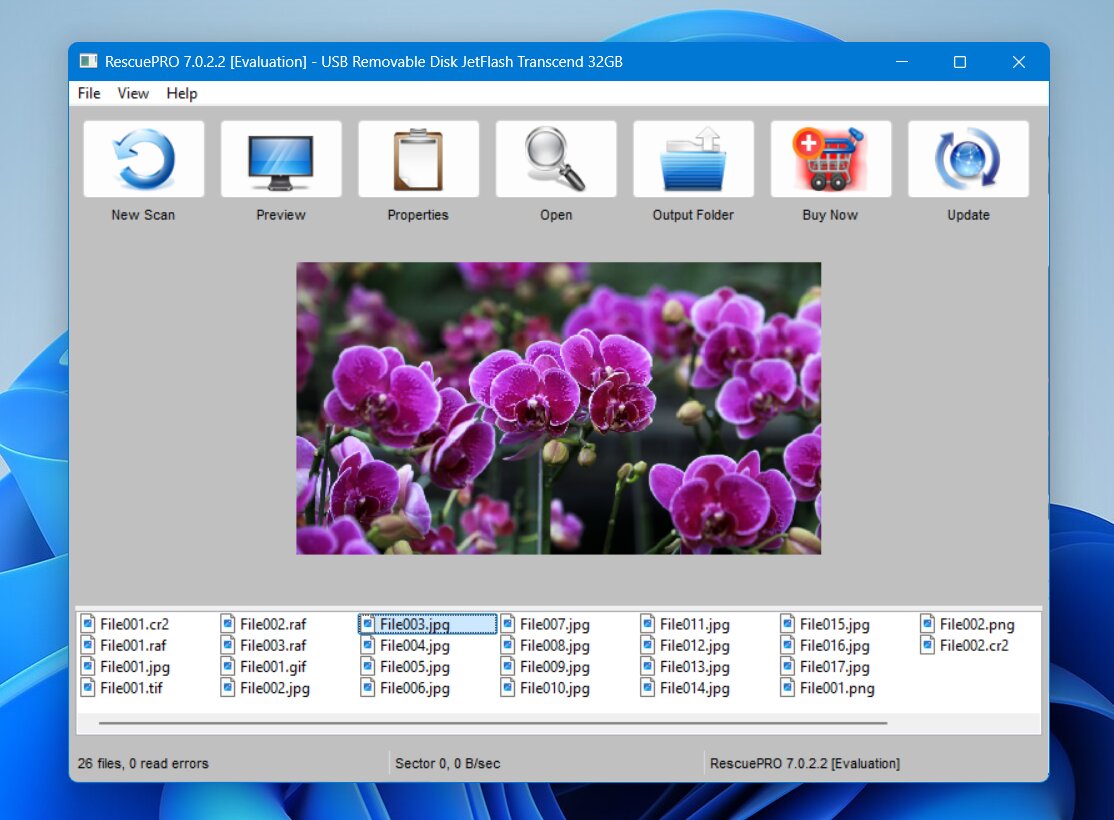
RescuePRO is a data recovery software developed by LC Technology and closely related to SanDisk memory products. SanDisk has bundled RescuePRO offers with certain memory cards, so some users may already have access to the software through a code bundled with their card. The program is mainly intended for recovery of removable media and multimedia. It can scan memory cards and other flash storage for deleted or lost photos, videos, audio, documents and other supported file types.
However, RescuePRO lacks some of the advanced features available in broader recovery suites, such as extensive partition recovery controls and more advanced disk management tools.
Pros
- Closely associated with SanDisk memory products
- RescuePRO offers included with some SanDisk cards
- Designed specifically for removable flash media
- Good focus on photo and video recovery
- Supports Windows and macOS
- Relatively simple recovery workflow
- More limited feature set than full data recovery suites
- Focused primarily on removable media
- No Linux version
- Different RescuePRO editions can make choosing a license confusing
- Bundled SanDisk offers apply only to eligible products and have activation restrictions
Our Test Results
RescuePRO recovered 49 out of 52 files in the deletion test and 40 out of 52 in the deleted partition test. However, the scans were extremely slow, and we had to stop them at the 30-minute mark because they showed little sign of completion. The estimated time remaining also fluctuated wildly, sometimes exceeding 2,000 minutes. RescuePRO did not preserve the original filenames or folder structure, so the recovered files required additional sorting afterward. We recommend that you select only the file types you want to recover, as an all-files scan can take considerably longer. The interface works, but it looks noticeably outdated compared with most of the other programs we tested.
What Users Say
RescuePRO is commonly used by photographers and SanDisk memory card owners, particularly because activation offers have been bundled with selected SanDisk products. Users often appreciate having a recovery option specifically designed for memory cards and media files.
Reddit feedback is mixed. One Canon EOS R5 user said RescuePRO found deleted videos, but the recovered files froze after a few seconds. Other users describe it as better suited to basic deletion and corruption cases than more difficult recovery scenarios.
Note: We couldn’t find enough independent user reviews of RescuePRO on major review platforms such as Trustpilot, G2, and Capterra.
Our Verdict
RescuePRO makes the most sense if you already received a license with an eligible SanDisk card. In that case, it’s worth trying before you pay for another recovery tool, especially for deleted photos and videos from removable media. Its recovery performance and file organization were weaker than our top choices, though, and the one-year license is harder to justify if you have to buy it separately. For most users without a bundled activation, we’d choose one of the higher-ranked tools instead.
5. Stellar Data Recovery – Best for Guided SanDisk Recovery
- Best for: Users who want a simple, guided recovery process for SanDisk storage.
- Supported SanDisk devices: SD/SDHC/SDXC cards, microSD cards, USB flash drives, external SSDs, external HDDs, and other SanDisk storage recognized by the operating system.
- Key recovery scenarios: Accidental deletion, quick formatting, RAW or corrupted file systems, lost partitions, and inaccessible SanDisk storage.
- Supported OS: Windows and macOS.
- Price: Stellar offers a free edition with up to 1 GB of recovery, subject to its per-file recovery limit. Paid Windows editions start with Standard at $59.99/year, with Professional and Premium editions adding more advanced features.
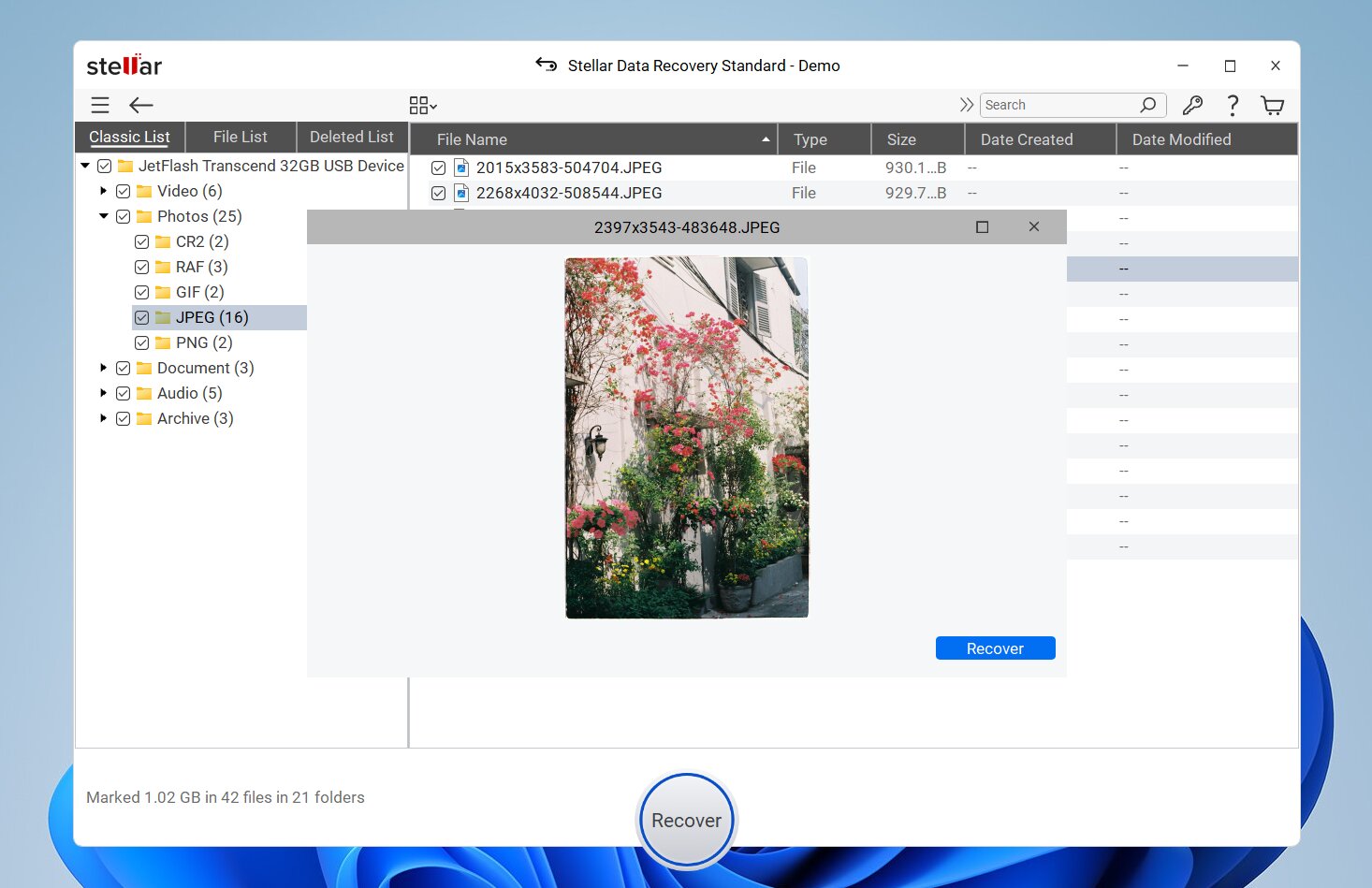
Stellar Data Recovery is a commercial recovery application from Stellar Information Technology. It provides a guided interface designed around selecting the type of data you want to recover, choosing a drive, and scanning it for recoverable files. It supports common SanDisk file systems such as FAT32, exFAT, and NTFS, along with APFS, HFS+, and other file systems depending on the operating system.
Stellar also breaks features into different editions. Higher tiers add tools like disk imaging, recovery from unbootable systems, and corrupted photo and video repair. This provides users with more flexibility in different data loss scenarios, though it does make the pricing structure more complex than some alternatives.
Pros
- Covers a broad range of data loss scenarios
- Simple, guided recovery process
- Supports Windows and macOS
- File previews before recovery
- Lost-partition scanning
- Disk imaging available in higher editions
- Higher editions include photo and video repair tools
- Multiple editions make pricing confusing
- Advanced features require more expensive licenses
- Scan speeds can be slower than some alternatives
- Recovery results can become less consistent with less common file formats
- Preview support is not reliable for every recoverable file
Our Test Results
Stellar recovered 51 out of 52 files in the deletion test and 42 out of 52 in the deleted partition test, with an average scan time of 6 minutes and 34 seconds. It preserved the original filenames and folder structure in the first test, but failed to retain them in the deleted partition test. We also encountered limitations with file previews, as the free version only allowed us to preview files under 10 MB. As a result, we couldn’t preview our RAW photos or larger videos before recovery.
What Users Say
Feedback on Stellar Data Recovery varies quite a bit. Trustpilot users frequently praise its customer support, with several recent reviews describing the team as responsive and helpful. However, positive support experiences don’t always translate into successful recovery. One user said Stellar found their missing videos but recovered every file in an unplayable state, while another recovery program restored the same videos correctly.
Reddit feedback is noticeably more negative, with complaints about activation problems, subscription and refund policies, slow performance, and unsuccessful recovery attempts.
| Platform | Rating | Reviews |
|---|---|---|
| Trustpilot | 4.8/5 | 5,536 |
| G2 | 4.3/5 | 8 |
| Capterra | 2.8/5 | 13 |
Our Verdict
Stellar looks like a good all-purpose recovery package, but we found it harder to recommend over the higher-ranked tools. It handles ordinary recovery well and has an approachable interface, but performance becomes less convincing in more difficult cases, particularly corrupted storage and fragmented camera videos. The multiple paid tiers also hurt its value, since some useful features require more expensive editions. We’d consider Stellar mainly for standard photo, document, and external-drive recovery, rather than demanding SanDisk recovery cases.
6. Recuva – Best Free SanDisk Recovery Software for Windows
- Best for: Free recovery of recently deleted files from SanDisk devices on Windows.
- Supported SanDisk devices: SD/SDHC/SDXC cards, microSD cards, USB flash drives, external SSDs, external HDDs, and other SanDisk storage recognized by Windows.
- Key recovery scenarios: Accidental deletion, emptied Recycle Bin, and basic recovery from formatted storage.
- Supported OS: Windows 11, 10, 8.1, 7, Vista, and XP.
- Price: Recuva Free provides unlimited file recovery. Recuva Professional costs $24.95 and adds automatic updates, virtual hard drive support, and premium support.
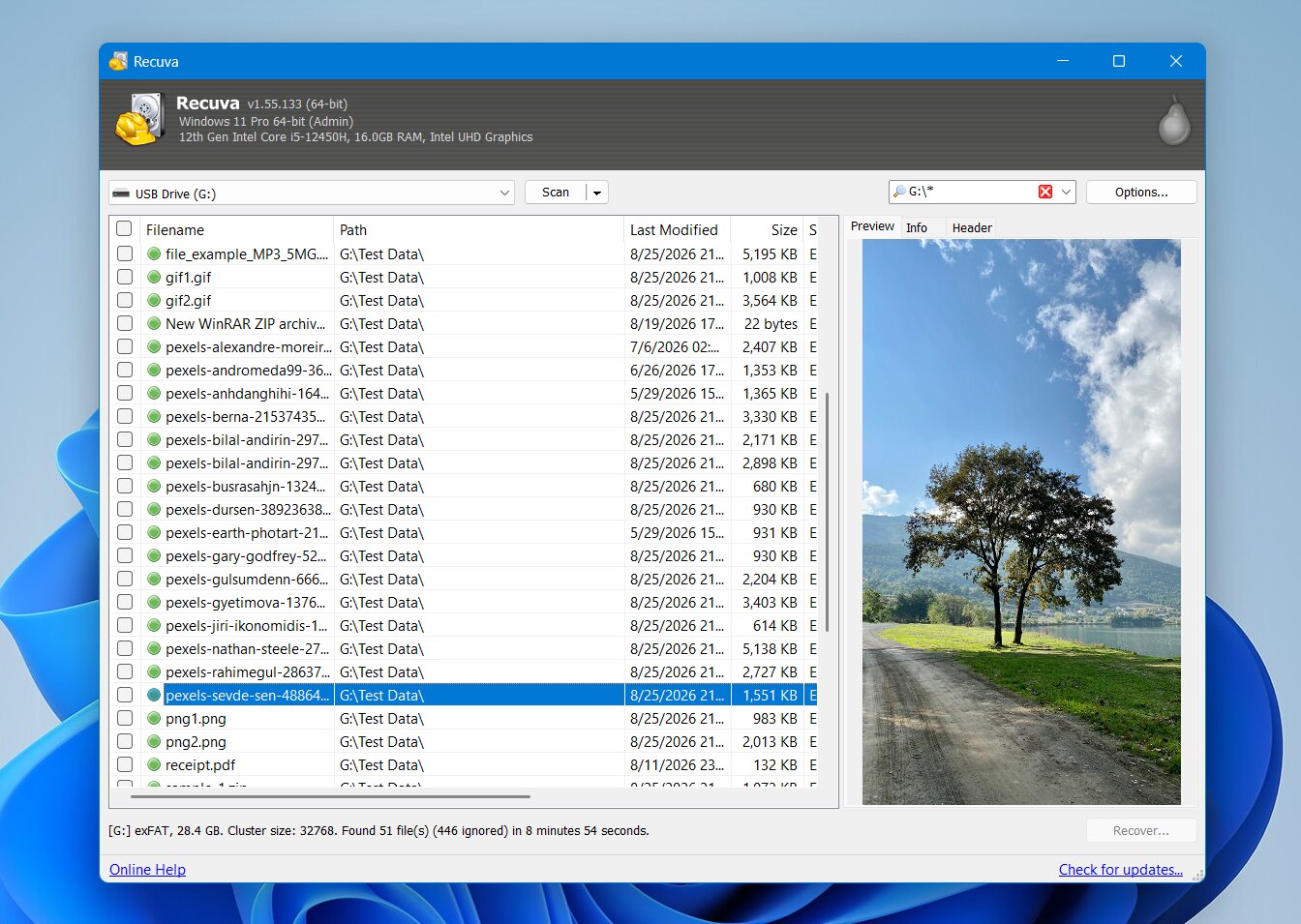
Recuva is a Windows data recovery program from Piriform, the developer behind CCleaner. Its main advantage is simplicity: select the type of file you want to recover, choose the SanDisk drive, and let the recovery wizard search for deleted data.
Recuva works best when files were recently deleted from a healthy FAT32, exFAT, or NTFS device. It also includes a Deep Scan mode that searches for files by their signatures when ordinary recovery does not find enough data. However, our tests have shown that its performance becomes less consistent with formatted storage and less common photo and video formats.
Pros
- Free version has no recovery-size limit
- Simple recovery wizard
- Fast scans for recently deleted files
- Deep Scan for more difficult cases
- File previews and recovery condition estimates
- Portable version available
- Windows only
- Weaker results after formatting
- Inconsistent support for RAW and proprietary media formats
- No byte-to-byte disk imaging
- Limited tools for damaged or lost partitions
- Interface feels dated
Our Test Results
Recuva recovered 50 out of 52 files in the deletion test, but it failed to scan the deleted partition in our second test. This is because Recuva primarily works with existing, recognizable volumes and does not offer the same support for lost partition detection as more advanced recovery tools. As a result, all our findings apply only to the ordinary deletion test. Recuva’s Deep Scan took 10 minutes and 32 seconds, which was noticeably slower than most other tools we tested. It preserved the original filenames and folder paths when the necessary file-system metadata remained available. However, preview support was inconsistent: JPG and PNG files generally previewed correctly, while videos and RAW photos usually did not.
What Users Say
Reddit feedback does a pretty good job of capturing Recuva’s strengths and weaknesses. A lot of users consider it to be a simple tool for simple recovery jobs, especially when files were accidentally deleted from a healthy drive. One user said they used Recuva successfully more than ten times. However, more experienced users are much more careful about using it on formatted or damaged drives, damaged file systems and other complex cases. Recuva also cannot work directly with disk images, which limits its usefulness for safer recovery workflows.
Note: We only found a dedicated Recuva profile on Trustpilot, where it has a 3.0/5 rating based on 5 reviews. We couldn’t find Recuva listings on G2 or Capterra.
Our Verdict
Recuva still deserves a place on our list because its free version has no recovery-size limit, which is rare among data recovery tools. For recently deleted files on a healthy SanDisk drive, it’s a great first option, especially for Windows users who don’t want to pay. However, its value drops quickly with formatted, RAW, or damaged storage, and we wouldn’t pay for Recuva Professional since it doesn’t improve the recovery engine.
7. AnyRecover – Best for Multi-Device Recovery
- Best for: Users who need recovery options across multiple types of devices.
- Supported SanDisk devices: SD/SDHC/SDXC cards, microSD cards, USB flash drives, external SSDs, external HDDs, and other SanDisk storage detected by the computer.
- Key recovery scenarios: Accidental deletion, formatting, RAW drives, corrupted file systems, lost partitions, and inaccessible external storage.
- Supported OS: Windows and macOS for desktop data recovery, with separate recovery products and features available for iOS and Android.
- Price: AnyRecover costs $79.99/month, $99.99/year, or $159.99 for a lifetime license at regular prices. Promotional discounts may reduce these prices; at the time of writing, the plans were available for $59.99/month, $79.99/year, and $99.99 lifetime. The monthly and yearly plans auto-renew, while the lifetime license is a one-time purchase.
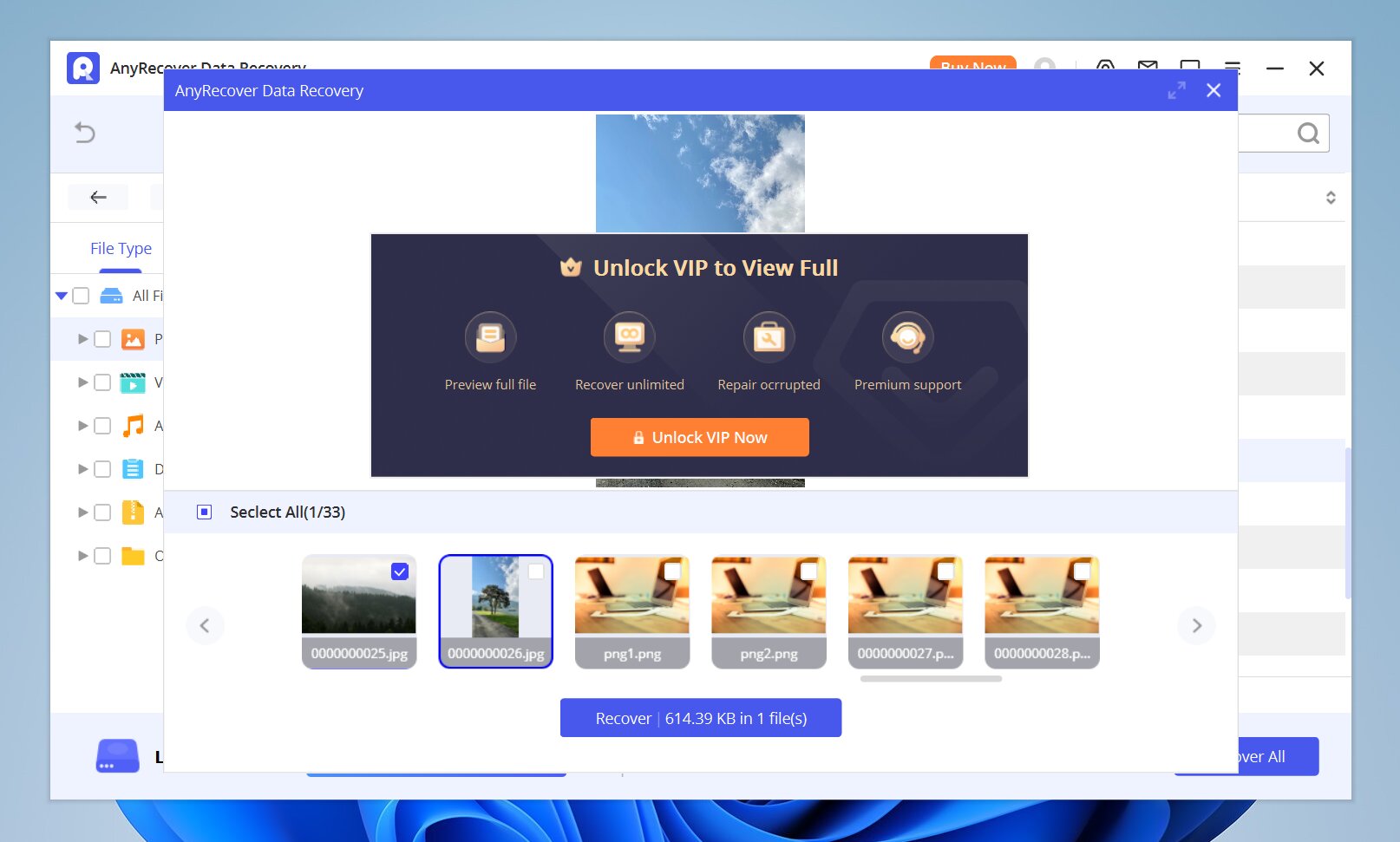
AnyRecover is a recovery suite that covers more than conventional desktop storage. Its desktop data recovery software can scan SanDisk memory cards, USB drives, external HDDs, and SSDs, while the wider product lineup provides options for smartphones and other devices. For SanDisk recovery, the software provides a graphical scan-and-preview workflow. You select the affected device, run a scan, filter or search the results, preview recoverable files, and save the files you need to another storage device.
Its broad device coverage is the main reason it earns a place in our ranking. However, users who only need to recover files from a single SanDisk SD card or USB drive may find its subscription-based pricing less attractive than simpler alternatives.
Pros
- Supports a wide range of storage devices
- Windows and macOS versions available
- Covers deleted, formatted, RAW, and lost-partition scenarios
- File previews before recovery
- Simple graphical interface
- Wider product lineup covers iOS and Android recovery
- Free recovery is restricted
- Subscription pricing can be expensive for one-time recovery
- Some device types require separate products or recovery modes
- Large number of products and plans can make pricing confusing
Our Test Results
AnyRecover recovered 51 out of 52 files in the deletion test and 50 out of 52 in the deleted partition test, with an average scan time of 5 minutes and 28 seconds. These were strong recovery results, but the software failed to preserve the original filenames or folder structure in either test, which made the recovered files much harder to sort. Preview functionality was also limited in the free version, so we couldn’t verify every detected file before recovery.
What Users Say
User feedback for AnyRecover often highlights its simple interface and the variety of recovery situations and devices it supports. This broad coverage can be useful for users who need more than SD card or USB recovery.
Reddit feedback on AnyRecover is mostly negative, although there are some successful recovery reports. One user said the one-month version worked well for their recovery case and considered the software trustworthy. However, several others reported poor recovery results, corrupted or unusable recovered files, slow scans, and problems with customer support or refunds.
| Platform | Rating | Reviews |
|---|---|---|
| Trustpilot | 4.6/5 | 401 |
| G2 | 2.0/5 | 1 |
| Capterra | N/A | N/A |
Our Verdict
AnyRecover is worth considering if device coverage is your main priority, particularly if you may need recovery software for computers, removable storage, and mobile devices. However, we found the overall package difficult to recommend over the higher-ranked options. The free version doesn’t actually let you recover files, some advertised features require separate products, and its pricing is relatively high for the recovery performance it delivers. For a one-time SanDisk SD card or USB recovery, we think there are better-value choices.
SanDisk Data Recovery Software Comparison
Here is a side-by-side comparison of the seven SanDisk data recovery tools we tested, including their recovery results, file organization, preview support, operating systems, free recovery limits, pricing, and best use cases.
| Software | Test 1 (Deletion) | Test 2 (Deleted Partition) | Scan Time (average) | Names & Folders | Preview | OS | Free Recovery | Starting Price |
|---|---|---|---|---|---|---|---|---|
| Disk Drill | 52/52 | 52/52 | 05 min 06 sec | Yes | Excellent, incl. RAW/video | Windows, macOS | 100 MB on Windows | $89/year |
| PhotoRec | 49/52 | 49/52 | 06 min 24 sec* | No | No | Windows, macOS, Linux | Unlimited | Free |
| R-Studio | 52/52 | 51/52 | 05 min 45 sec | Yes | Good; some RAW issues | Windows, macOS, Linux | Small files only | $79.99 |
| RescuePRO | 49/52 | 40/52 | over 30 min | No | Limited | Windows, macOS | Trial only | $39.99/year |
| Stellar Data Recovery | 51/52 | 42/52 | 06 min 34 sec | Yes (test 1), No (test 2) | Limited for large files | Windows, macOS | Up to 1 GB | $59.99/year |
| Recuva | 50/52 | Failed to scan | 10 min 32 sec** | Usually | Limited for RAW/video | Windows | Unlimited | Free / $24.95 Pro |
| AnyRecover | 51/52 | 50/52 | 05 min 28 sec | No | Limited in trial | Windows, macOS | Scan/preview only | $79.99/month |
* Scan + Recovery for Photorec
** Result from Test 1 for Recuva
Final Thoughts
All seven tools in our ranking can recover data from SanDisk storage, but they differ considerably in recovery performance, usability, and price. Based on our tests, Disk Drill remains our top choice because it delivered the best overall combination of recovery results, reliable previews, file organization, and ease of use.
If you want completely free recovery, PhotoRec is a good alternative, while more technical users may prefer software with greater control over the recovery process. And if your SanDisk card came with a RescuePRO activation code, it makes sense to try it before paying for another tool.
Whatever software you choose, stop using the affected device until you recover your files. New data can overwrite what you’re trying to recover.
Frequently Asked Questions
- Accidental deletion: Files can be deleted by mistake from a computer, camera, phone, or another device.
- Formatting: A quick format removes the file system references to stored files, which makes them inaccessible even though their data may remain on the device.
- File system corruption: Improper ejection, power loss, software errors, or other problems can damage the file system and prevent access to files.
- RAW file system: Severe file system damage can cause Windows to identify the device as RAW and stop displaying its files normally.
- Interrupted file transfers: Disconnecting the device or losing power during a transfer can leave files incomplete or corrupted.