
Lost some files from your SSD? Maybe you emptied the Recycle Bin by mistake, or your drive is corrupted, and all the data is inaccessible. These things happen. Thankfully, a lot of the time, there’s a good chance of getting that data back. Our 7 Data Recovery Experts team sought out, tested, and reviewed the best SSD recovery software currently available on the market to help you get your files back.
We’re gonna jump straight into the list. See our side-by-side comparison chart if you want to quickly compare all tools at once, or jump ahead to the conclusion to see our final opinion.
1. Disk Drill
Developer: CleverFiles
Available on: Windows, Mac
Free version: Recover up to 100 MB of data on Windows
Price: $89.00 to $499.00
Pros
- Very user-friendly
- Extensive file system support
- Create and scan byte-to-byte backups
- Assembles RAID disks into a software array
- Cannot create bootable recovery drives
- Free version limited to 100 MB of recovery on Windows (macOS preview only)
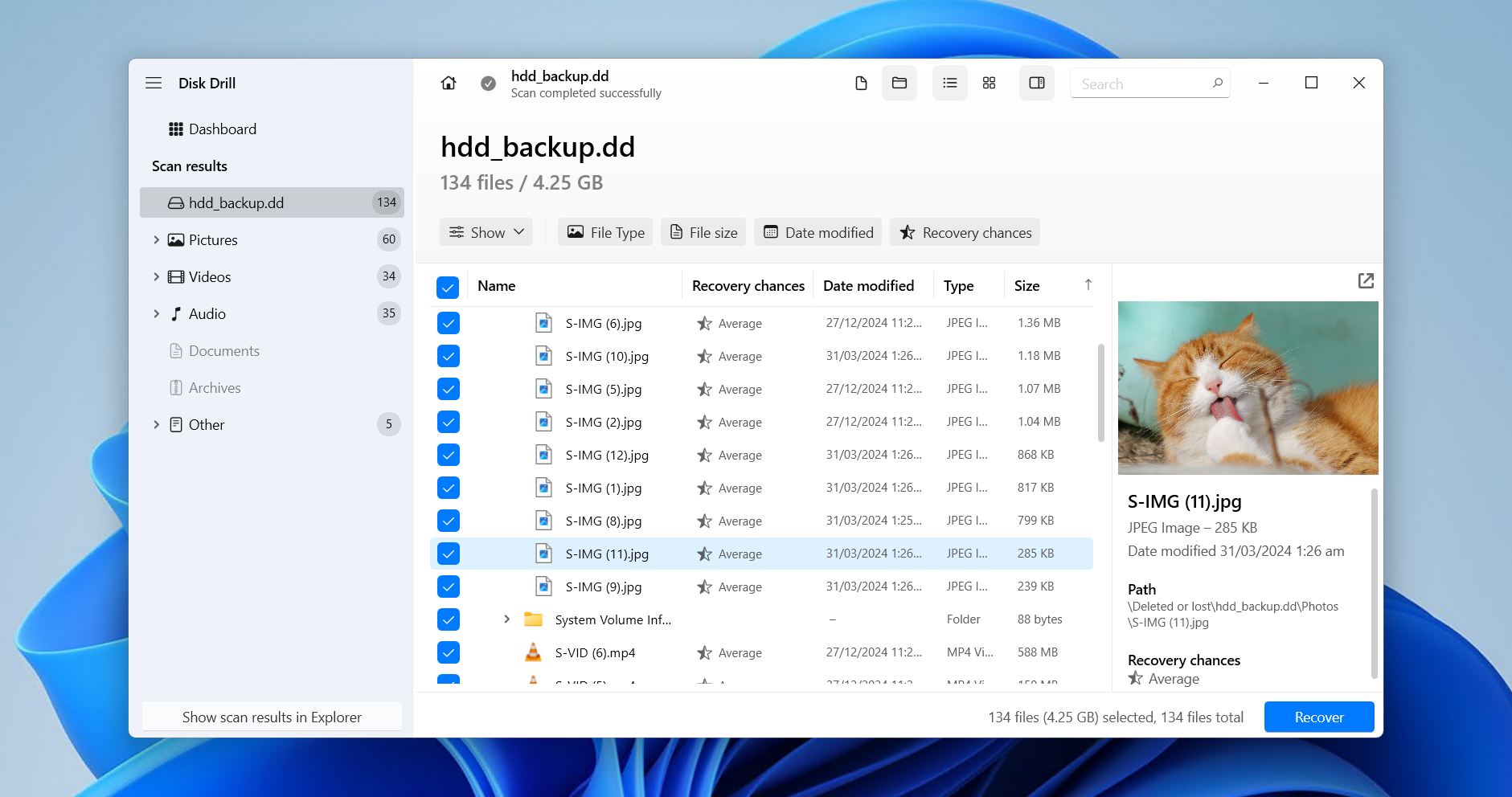
Disk Drill tops our list of the best SSD data recovery software for its ability to deliver excellent results while remaining completely usable by the everyday user. It supports all major file systems, including FAT16/32, exFAT, NTFS/NTFS5, ReFS, HFS/HFS+, APFS, EXT2/3/4, and BTRFS. It can also scan RAW drives without a file system, as we found in our Disk Drill review.
Under the hood, it uses a mix of file system metadata and file carving techniques to find data on the SSD, with the latter supported by a database of 390+ unique file signatures. This allows it to recover data from basic scenarios like simple file deletion, as well as worse cases like when the SSD is formatted or reading as unallocated space. Previous scan sessions are saved so you can return to them at a later time, and the software works equally well on both Windows and macOS.
It’s also packed with extra features, all of which are free. S.M.A.R.T. monitoring for checking drive vitals, Recovery Vault to protect select data, and byte-to-byte imaging for backing up unstable or TRIM-enabled drives. The unique Advanced Camera Recovery module is great for recovering deleted videos that were fragmented. Overall, we found Disk Drill an extremely capable solution, not only for SSDs, but also for HDDs, USB flash drives, memory cards, and other storage devices.
What real users say:
Disk Drill users regularly praise its easy-to-use interface and ability to recover files in dire situations, sometimes where other tools have been unsuccessful. There’s also common praise for its support team’s quick and thoughtful responses. Across 494 reviews on Trustpilot, Capterra, and G2, it scored a rating of 4.4 out of 5.
“I had a really stressful experience when my SSD suddenly failed and I thought I had lost all my files. Disk Drill was honestly the only reason I was able to recover most of my data, which still feels almost unbelievable.” – Jong, Trustpilot user.
Our verdict:
Disk Drill’s a strong all-around tool best suited for everyday users who want easy, reliable SSD recovery with broad file-system support and extra protection features for peace of mind.
2. R-Studio
Developer: R-Tools Technology Inc.
Available on: Windows, Mac, Linux
Free version: Recover files 1024 KB and smaller
Price: $49.99 to $899.00
Pros
- Cross-platform between Windows, macOS, and Linux
- Data recovery over LAN or the internet
- High-level recovery capabilities
- Great support for RAID setups
- Very technical interface
- Free version limited to files 1024 KB or smaller
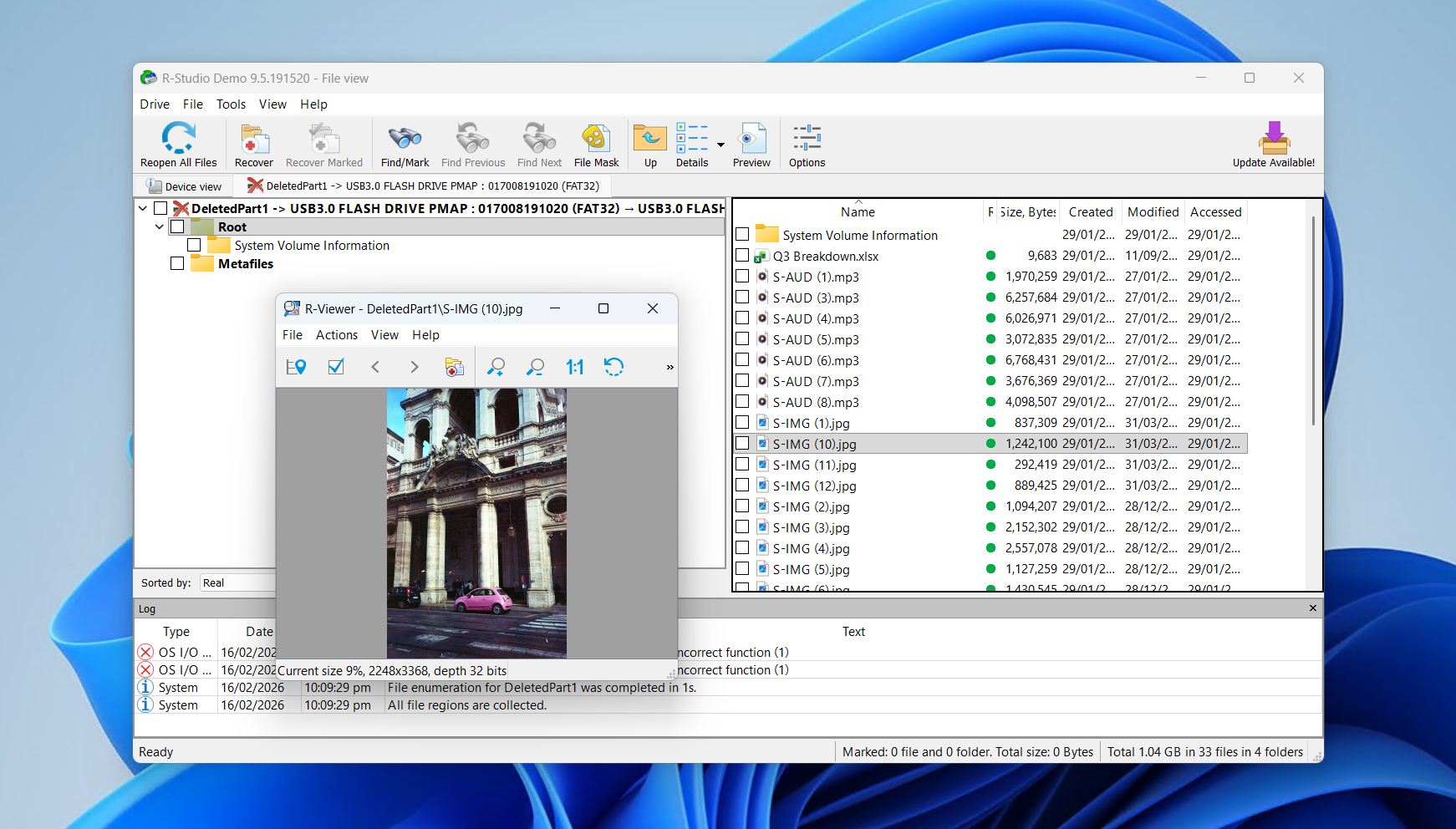
R-Studio is definitely up there with the more advanced SSD data recovery software you’ll come across. That’s because it’s an industry-grade tool built for experts and professionals. When it comes to SSD recovery, R-Studio has just about everything you need and works on Windows, Mac, and Linux with support for a range of file systems.
Testing performed for the R-Studio review showed that it could recover data to a high degree in basically any instance where recovery via software was possible. It makes use of file system metadata to restore original filenames, and when it can’t, it relies on a signature scanner to continue its search. You can also add custom signatures to help it recover files not already in its database.
The user experience is where some friction is introduced. While the visually stripped, data-driven approach might appeal to those who understand what they’re looking at, the everyday user just trying to recover some files will have a tough time navigating the interface. If you can get past that, R-Studio is a valuable part of any toolkit that’s often recommended on tech forums and Reddit.
What real users say:
Many data recovery professionals share success stories of R-Studio successfully recovering their clients’ data with ease. There is some dissatisfaction around its hardware-tied licenses, with users unhappy that they’ve lost access to the software after their system dies or receives a hardware upgrade. Across 102 Trustpilot, Capterra, and G2 reviews, R-Studio is rated 4.5 out of 5.
“I have been able to restore data for users who have no backup and have thousands of pictures and vital data.” – Doug, Capterra user.
Our verdict:
R-Studio is ideal for experienced users or recovery professionals who need deep, technical SSD recovery, strong RAID and network recovery capabilities, and cross-platform flexibility.
3. Recuva
Developer: Piriform
Available on: Windows
Free version: No recovery limit
Price: Free to $24.95
Pros
- Free unlimited recovery
- Beginner-friendly user interface
- Secure file delete feature
- Good at recovering recently deleted files
- Can’t recover data from RAW or unallocated drives
- Often fails to recover large or fragmented files
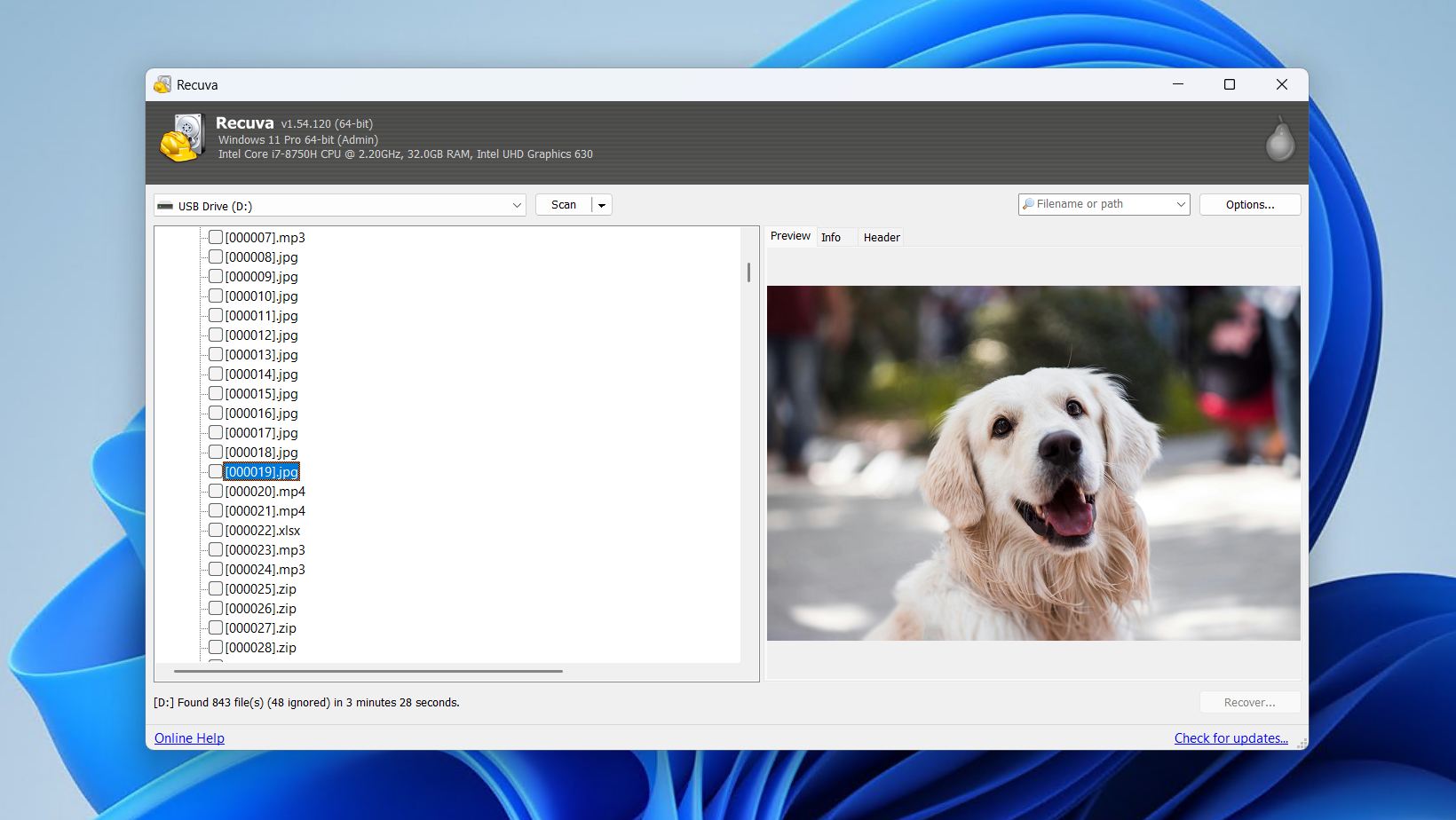
Recuva is SSD recovery software that lets you recover as much data as you want without paying a thing. Available on Windows only, it acts as a simple-to-use option with a beginner-friendly workflow that just about anyone can use.
It specializes in the recovery of recently deleted data where the file system is intact. Because Recuva only uses file system metadata to find data, a working file system is essential to recover anything. Of course, this makes it unsuitable for more complex scenarios. For example, it has a good chance of recovering deleted folders if it wasn’t long ago, but it won’t work if the drive is showing up as RAW or unallocated.
Even though it has a paid version, it’s largely unnecessary and doesn’t add anything more to your recovery chances. Unfortunately, as evidenced in our Recuva review, the inability to recover data from RAW or unallocated hard drives makes it unsuitable for a range of recovery tasks. Still, it’s useful to keep on hand as a quick go-to if you emptied the Recycle Bin by mistake.
What real users say:
Recuva does not have a presence on Trustpilot, Capterra, or G2 to get an average user rating. General sentiment across Reddit user-submitted Reddit posts is mixed, with Recuva working as intended in certain cases, while failing in others.
“It hits a sweet spot for many users trying to recover basic stuff that they accidentally deleted, that doesn’t requiring them knowing how to boot into a rescue environment or using more complex tools.” – gonenutsbrb, Reddit user.
Our verdict:
Recuva is a beginner-oritented tool that’s best for those who need free, straightforward recovery of recently deleted files rather than something that can tackle more complex SSD data loss.
4. TestDisk & PhotoRec
Developer: CGSecurity
Available on: Windows, Mac, Linux
Free version: Fully free, open-source
Price: Free
Pros
- Completely free and open-source
- Partition repair and powerful file carving
- Strong results from logically damaged disks
- Portable
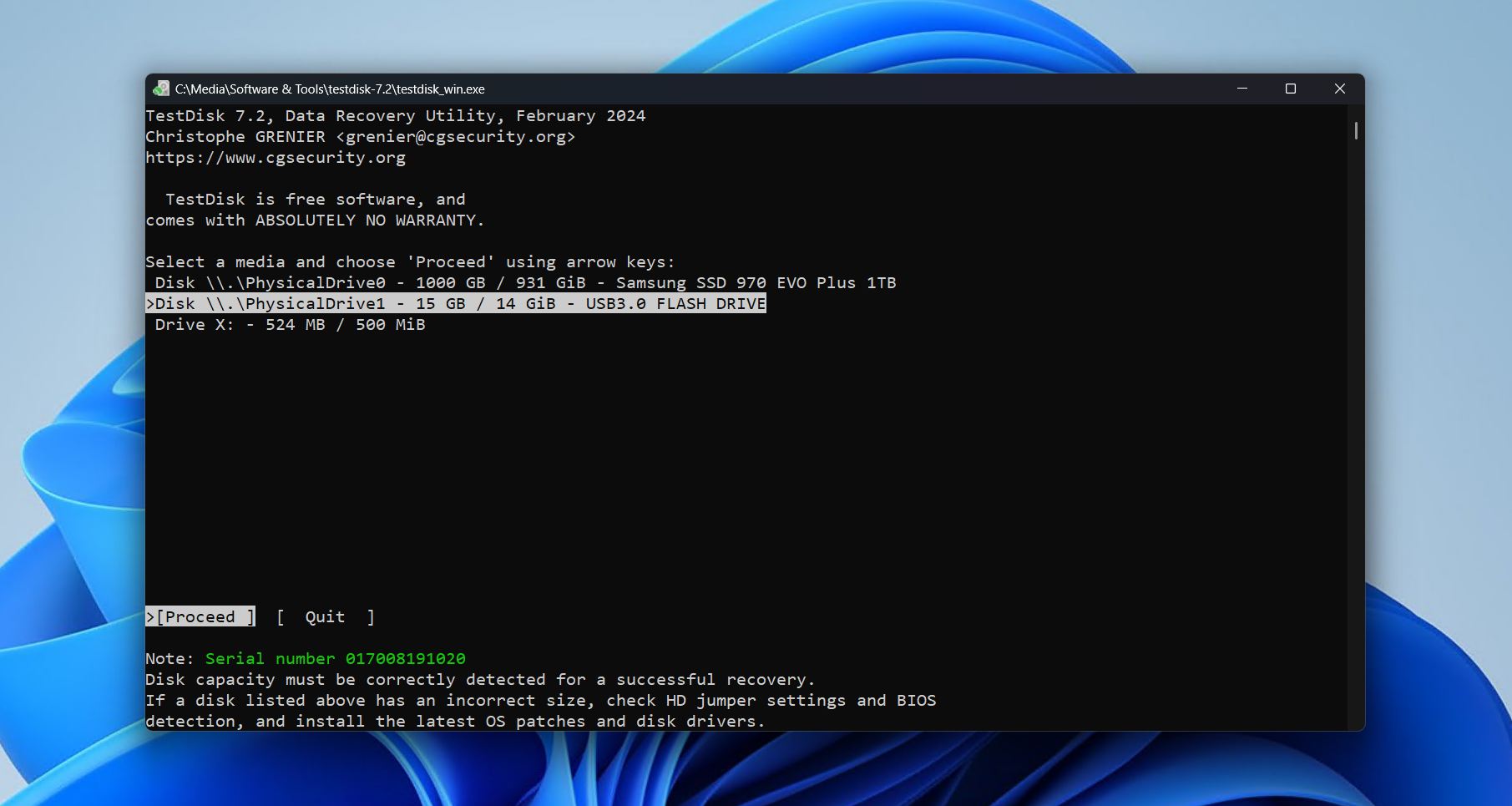
- Command-line interface can be intimidating for novice users
- PhotoRec loses filenames and folder structure
- The recovery workflow can be slow
TestDisk and PhotoRec are best understood as complementary rather than competing free SSD data recovery software, since they’re packaged together. TestDisk focuses on structural disk repair, repairing damaged or lost partitions (and the data in them) by correcting issues. PhotoRec specializes in signature-based file recovery, much closer to what a traditional recovery app would. Together, they cover many advanced recovery scenarios that typical free tools struggle with.
In testing, TestDisk proved extremely effective for fixing unallocated hard drives, often restoring volumes intact once structural issues were fixed (see the full results in our TestDisk review). PhotoRec, meanwhile, handled deleted, formatted, and RAW media well by scanning disk sectors directly. Though, as we covered in our PhotoRec review, recovered files lose their original names and folder structure as a result of the signature-only recovery method it uses.
This bundle is one of the most capable, completely free recovery solutions available, particularly for technically confident users. However, the lack of graphical polish and metadata preservation means casual users may prefer commercial recovery software.
What real users say:
TestDisk and PhotoRec have a very minor presence on user review platforms, with an average rating of 4.2 across 15 reviews from Trustpilot and G2. It’s recommended across Reddit for very specific use-cases.
“For restoring lost data, TestDisk is an excellent tool. It is portable, effective, cost-free, and simple to use. that everyone has access to it, and everyone can look at the source code.” – Himanshu, G2 user.
Our verdict:
TestDisk and PhotoRec are great for technically confident users who don’t mind navigating a command-line workflow and need a free recovery ption for damaged partitions, RAW drives, and formatted SSDs.
5. UFS Explorer Professional Recovery
Developer: SysDev Laboratories
Available on: Windows, Mac, Linux
Free version: Recover files 768 KB and smaller
Price: $679.95 to $4529.95
Pros
- Advanced RAID reconstruction tools
- Disk imaging and forensic utilities
- Cross-platform with consistent feature set
- Extensive file system support
- Steep learning curve for beginners
- Free recovery limited to 768 KB
- Costly compared to consumer tools
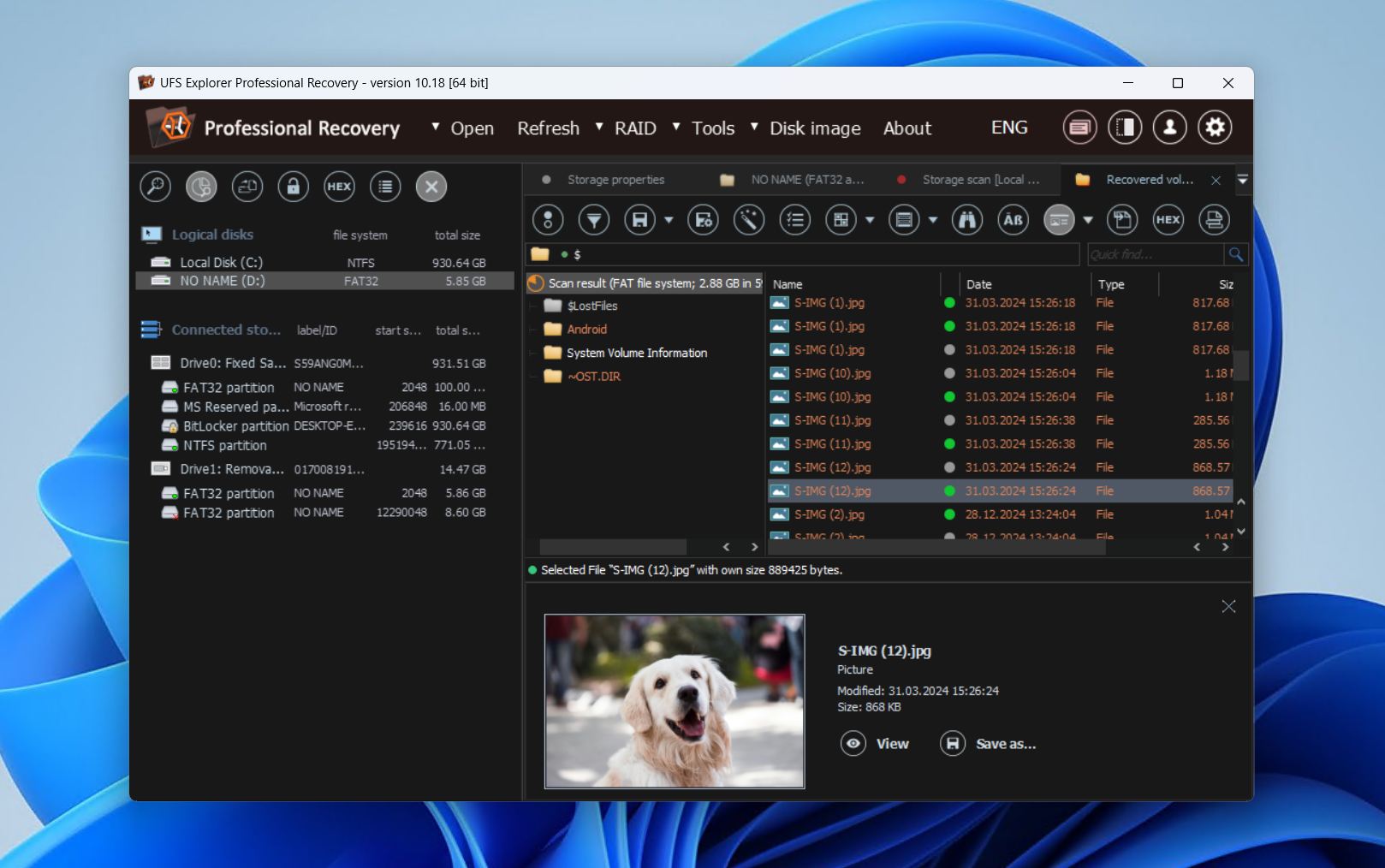
UFS Explorer Professional Recovery is forensic-level data recovery software for SSD drives built for advanced users and professionals who need deep control over complex recovery scenarios. With support for NTFS, APFS, Ext4, ReFS, ZFS, and many niche or legacy formats, it’s useful in mixed OS environments, RAID setups, and Linux-based storage systems.
As you’d expect, it has a power scanning algorithm, utilizing file system metadata analysis and file carving to pull data. It does allow custom file signatures to be added for extra reach and the recovery of proprietary or uncommon file types. RAID recovery is one of its major strengths, with support for multiple RAID levels, automatic NAS reconstruction, and manual configuration tools for complex arrays.
Some of its additional features include multi-pass disk imaging, S.M.A.R.T. monitoring, and parity calculating. Performance in testing for our UFS Explorer review was generally strong across deleted, formatted, and RAW scenarios, bar a few unplayable video files. Of course, as is the case for industry standard tooling, it’s not very usable by the layperson given its technical interface, and we implore you to try the demo version first.
What real users say:
UFS Explorer has only one review across Trustpilot, Capterra, and G2, and therefore is not suitable to receive an average rating. Despite that, it is mentioned in a positive light across many data recovery communities on Reddit.
“It’s super simple to use and works very well. I’ve used R-Studio and other products in the past, but UFS Explorer is hands down the easiest product I’ve ever used. I highly recommend it and would use it again for data recovery.” – fudge-u, Reddit user.
Our verdict:
UFS Explorer Professional Recovery is a standard go-to for experts who perform forensic-level work requiring deep RAID reconstruction and complex SSD recovery, usually in a professional capacity.
6. MiniTool Power Data Recovery
Developer: MiniTool Software Ltd.
Available on: Windows
Free version: Recover up to 1 GB of data
Price: $69/month to $99/lifetime
Pros
- Free version allows meaningful testing (1 GB recovery)
- Handles many common file types and recovery cases
- Paid version can create recovery media
- All paid licenses come with free upgrades
- Slow scan speeds compared to competitors
- Interface is usable but dated
- Less effective with RAW partitions or complex scenarios
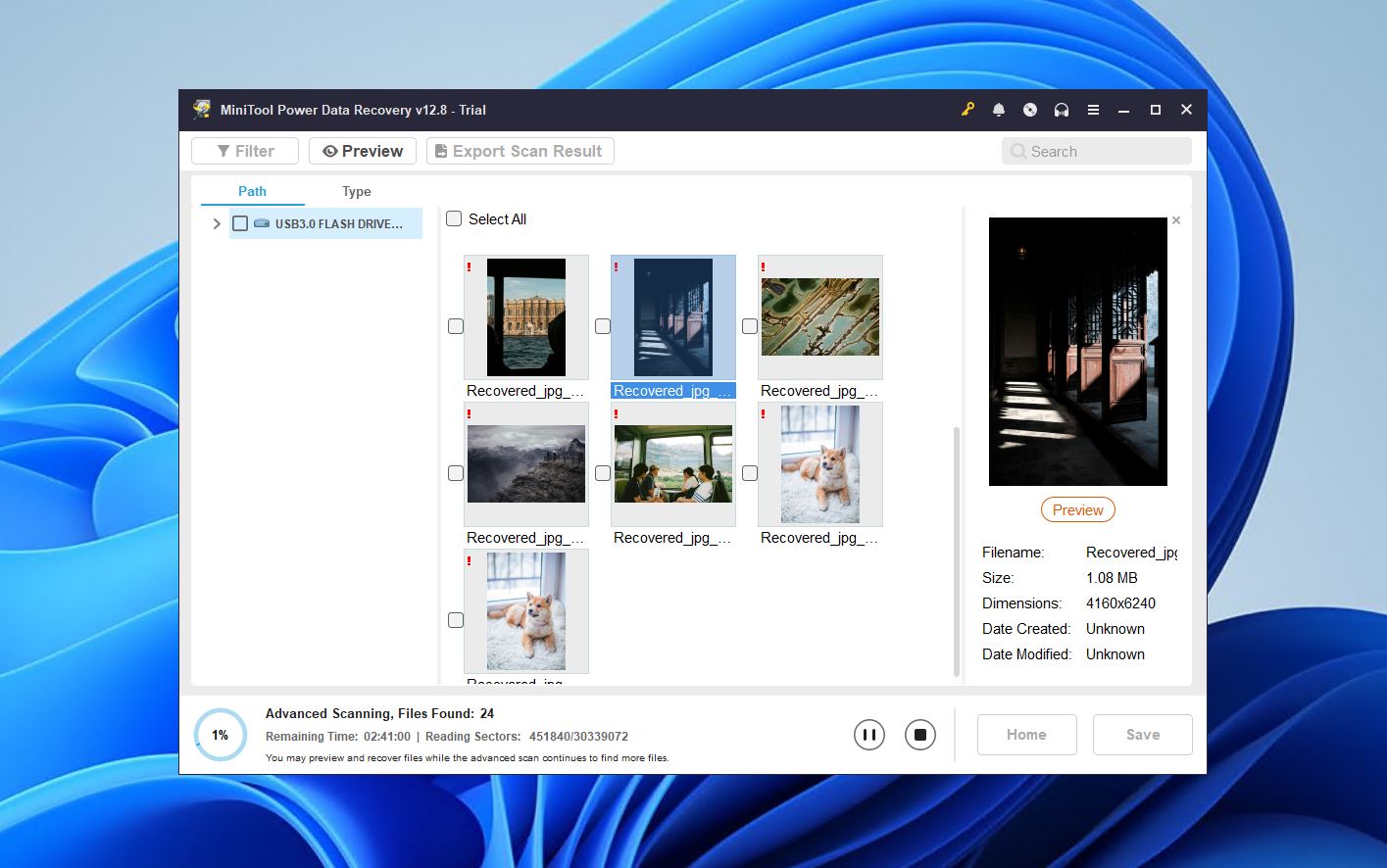
MiniTool Power Data Recovery is a straightforward SSD recovery tool focused on everyday data loss scenarios like accidental deletion and corrupted media. It clearly aims for approachability. Despite its somewhat outdated interface, it does have considerate elements for beginners, like combining quick and deep scanning into one to eliminate some of that technical friction.
Testing for our MiniTool Power Data Recovery review shows that its performance is strongest on Windows NTFS drives where recently deleted files can often be restored with original names and folder structure intact. Consistency wanes when dealing with RAW partitions, formatted storage, or non-Windows file systems, and scan speeds are noticeably slower than many competing tools. Even so, we wouldn’t consider it bad, just better suited for certain cases over others.
Overall, it’s a solid choice. Casual Windows users will find it dependable for basic recovery with minimal learning curve. However, its limited platform support, modest feature set, and weaker performance in complex scenarios mean more advanced users may prefer a more power alternative.
What real users say:
General user sentiment is mostly good, and MiniTool Power Data Recovery received an average score of 4.6 from 3,487 reviews across Trustpilot, Capterra, and G2. There are some complaints about the price of the software in comparison to its quality, but it’s otherwise considered easy to use.
“The software is easy to manage and control. I like that you have the option to restore files for external drives and damaged disks. The download is quick and installation is very easy. In addition, the configuration wizard puts at hand all the tools to carry out the restoration of files.” – Jose, G2 user.
Our verdict:
You’ll find MiniTool Power Data Recovery is ideal for casual Windows users who need easy and reliable recovery of recently deleted files or corrupted media, but nothing beyond that in terms of complexity.
7. Hetman Partition Recovery
Developer: Hetman Software
Available on: Windows, macOS, Linux
Free version: Scan and preview only
Price: $122.00 to $497.00
Pros
- Great file system support
- Reliable deleted-file recovery for common formats
- Simple, wizard-style recovery
- Portable Windows version available
- Explorer style interface is dated
- No recovery with the free version
- Not suited for tougher recovery cases
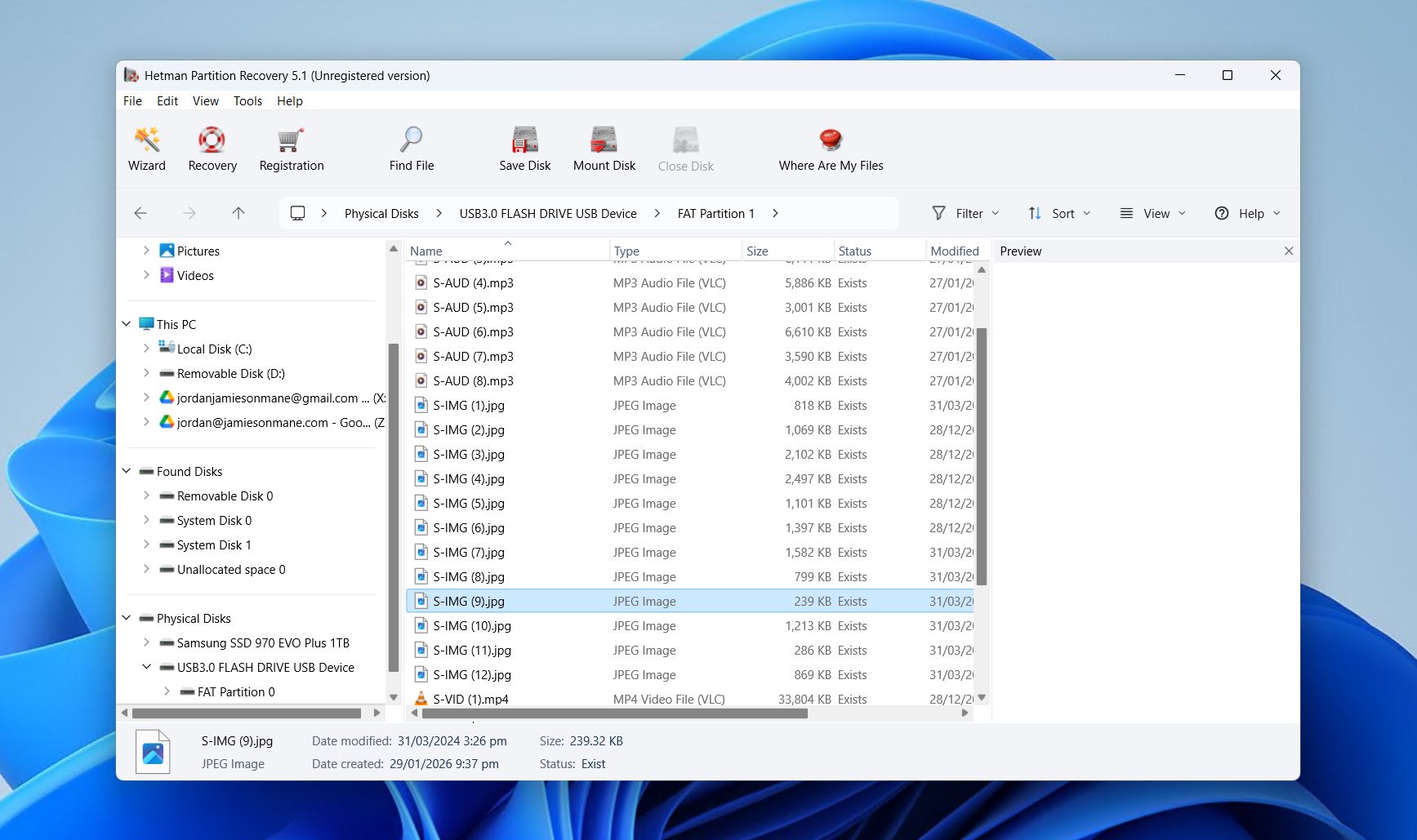
Hetman Partition Recovery is cross-platform SSD drive recovery software with broad file system support to match. It makes our list because of how well it handles standard deleted-file cases across several operating systems for those who regularly switch between several.
Results of our Hetman Partition Recovery review testing proved it to be excellent at restoring deleted partitions – important given accidental deletion is a very common user case. We also used it to try to recover data from RAW or formatted drives, but the results were less consistent, especially when it came to large video files.
Even though it is somewhat easy to use and great for very specific situations, its interface isn’t very intuitive to use outside of the guided wizard, and the price tag is on the higher end for what you get. Still, if you value wide compatibility, Hetman Partition Recovery is a reliable pick.
What real users say:
Many Hetman Partition Recovery users are satisfied with the software’s ability to restore data. However, many are disappointed that there is no free recovery quota to try the software. The application has a rating of 4.4 from 92 reviews across Trustpilot and G2.
“Use Hetman Partition Recovery because it is effortless to operate the software. Also,I could recover my complete lost data which was very essential for me. I would recommend it to all to give this software a chance to save your life.” – Anjali, G2 user.
Our verdict:
Hetman Partition Recovery is for anyone who needs access to reliable, cross-platform recovery of commonly deleted files and partitions, but are not concerned about its handling of RAW or complex SSD data loss.
SSD Data Recovery Software Comparison Table
Remembering every quality of each tool on this list is challenging in its own right, so we’ve created a table for the SSD drive recovery tools that you can quickly scan to compare.
| Feature | Disk Drill | R-Studio | Recuva | TestDisk/PhotoRec | UFS Explorer Professional | MiniTool Power Data Recovery | Hetman Partition Recovery |
| Supported OS | Windows, macOS | Windows, macOS, Linux | Windows | Windows, macOS, Linux | Windows, macOS, Linux | Windows | Windows, macOS, Linux |
| Free version limits | 100 MB | Files <1024 KB | None | None | Files <768 KB | 1 GB | Scan and preview |
| Ease of use | Beginner | Advanced | Beginner | Intermediate | Advanced | Beginner | Intermediate |
| Scan speed | Fast | Fast | Fast | Slow | Fast | Average | Fast |
| File previews | Yes | Yes | Yes | No | Yes | Yes | Yes |
| Disk imaging | Yes | Yes | Yes | No | Yes | Yes | Yes |
| S.M.A.R.T. monitor | Yes | Yes | No | No | Yes | No | No |
| Price | $89.00 | $49.99 | Free | Free | $679.95 | $69.00 | $122.00 |
When Free SSD Data Recovery Software Is Enough
Your immediate thought might be to go for free tools, given they’re, well, free. However, like anything, free things have their trade-off. With tools like Recuva and TestDisk/PhotoRec, this comes in the form of usability, features, or recovery scope. Most modern SSD recovery apps opt for a freemium model instead, where scanning is free but actual recovery is limited by paywalls, file size caps, or restricted functionality.
It’s generally better to opt for professional tools when:
- The data loss situation is complex (RAW drive, unallocated space, broken RAID, etc.)
- You need a fully fleshed-out recovery solution with several features
- You want reliable file previews and metadata restoration
- Scan speed and quality are a priority for fast and effective recovery
- You need ongoing support, updates, or commercial-use rights
These limitations are generally intended for testing recovery potential rather than ongoing everyday use. Still, in straightforward cases like accidental deletion or quick formatting, free recovery tools can be perfectly suitable without needing a paid upgrade.
Why SSD Data Recovery Is Often Difficult
There are more factors to consider when recovering data from SSDs compared to other storage media. In addition to data overwriting, you also have to be aware of a process called TRIM, which actively clears blocks of data that the OS marks as deleted. This helps maintain SSD performance and maximize its lifespan, but also reduces the chances of recovering deleted files intact.
Now, it’s not guaranteed that your SSD uses TRIM. In fact, it’s mostly limited to internal SSDs. And even if your drive does use TRIM, it’s still absolutely worthwhile to scan the SSD anyway. For instance, one of our forum users experienced data loss from their SSD and was still able to recover their data. But it is important to keep in mind that SSD data recovery is not possible once TRIM is run.
To maximize your chances of recovery, disconnect your SSD once data loss is identified, as this will stop TRIM from running. Alternatively, you can try creating a byte-to-byte image of the drive to preserve its state before TRIM is run.
Conclusion
Our comparison table highlights how recovery tools differ in features, usability, and platform support. Based on our hands-on testing and years of experience evaluating SSD recovery software, Disk Drill consistently delivered reliable results across a wide range of scenarios, both simple and complex. It emerges as the best all-around recovery solution for a few reasons, including:
- Availability on Windows and macOS with cross-platform scanning
- Fast scan speeds and reliable file-by-file previews
- Disk imaging and active S.M.A.R.T. monitoring
- Beginner-friendly interface with an approachable price point
Other tools we’ve mentioned are also useful for narrower use cases. TestDisk/PhotoRec is a good open-source solution for technically confident users, while Hetman Partition Recovery works well for standard deleted-file recovery across multiple platforms.