 Are you noticing skipped frames, and playback errors on a video? It’s likely the video is corrupt. The good news is that you can easily fix corrupt MP4, MKV, AVI, and other video files because there are multiple user-friendly video repair tools available, with many being free to use. Don’t wish to download third-party repair tools? You can always use online video repair tools. I tested several such video repair programs and websites. The ones below are free to use, and got the job done for me.
What Made Me Choose These Video Repair Tools?
A simple Google Search for best video repair software will overwhelm you because there are hundreds of such tools. But most of them are paid, or come with free trials that limit their functionality. As soon as I looked for free video repair tools, the list narrowed down considerably. Surprisingly, some tools not primarily designed for video repair were still effective. I’ve highlighted the best ones in the next section. In addition to being free to use, here’s the mix of factors I took into consideration when choosing the best free video repair software:
- Functionality: Naturally, the foremost criterion, besides being free to use, is that the tool should work—it should repair corrupt videos as best as possible. All the tools listed here did repair the corrupt MOV and MP4 videos I used to test them.
- Supported Video Formats: The more video formats a tool can repair, the better.
- Speed: While processing speed isn’t a dealbreaker, a faster video repair tool is much more convenient, especially if you’re dealing with several large videos.
- Ease Of Use: A corrupt video, especially if it has sentimental value, can be incredibly stressful to deal with. You don’t want a complicated tool to add to the stress. I’ve prioritized user-friendly tools as far as possible.
The Best Free Video Repair Tools for Windows
The tools listed below are a mix of third-party downloadable software, and video repair websites. Here are the programs and websites that stood out:
1. Clever Online Video Repair
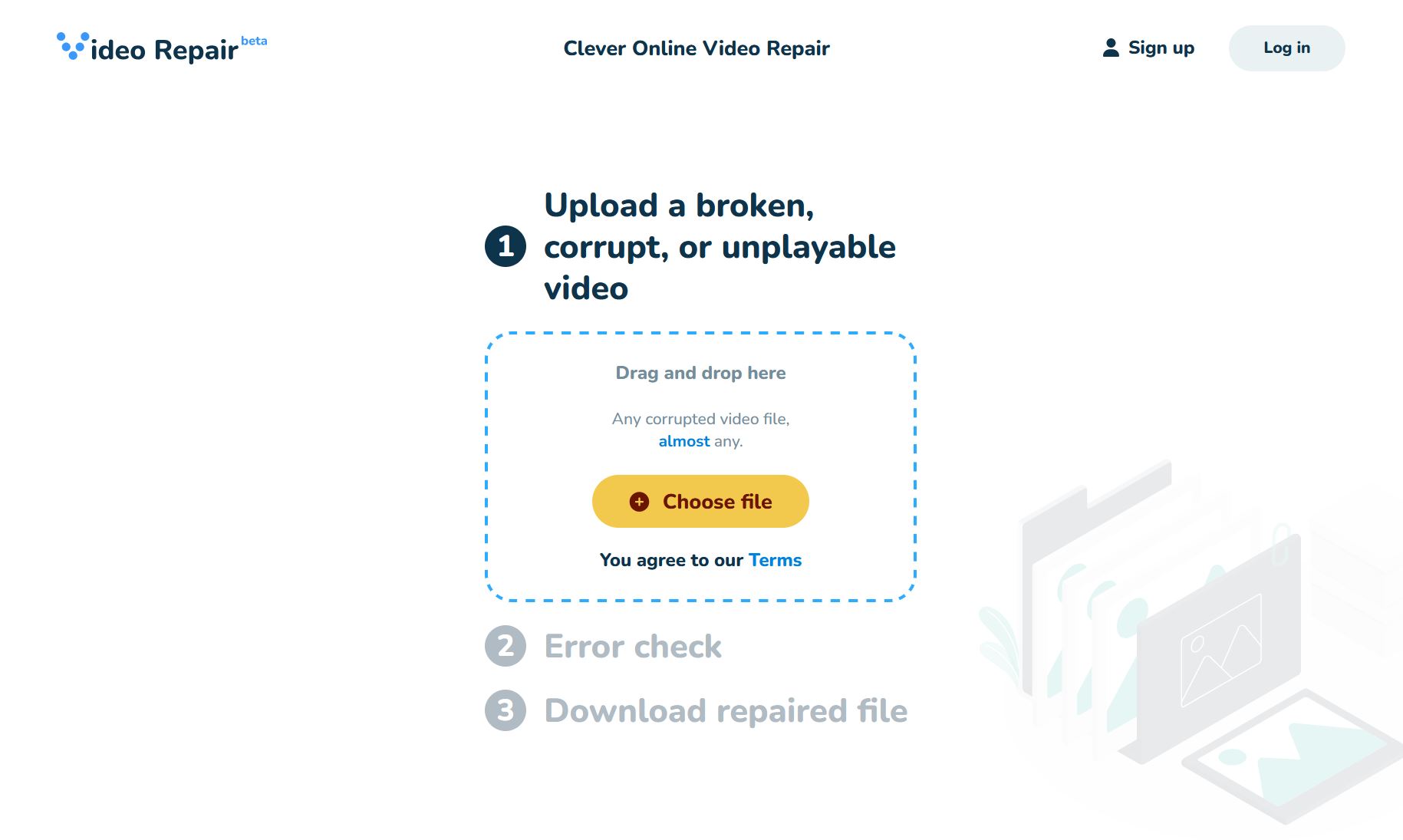 Online tool: Yes By far the easiest tool to use in this list, the Clever Online Video Repair Tool is completely web-based and takes less than a minute to repair corrupt videos. It requires two things to work—an active internet connection, and the corrupt video file. Sometimes, it may require a healthy reference video file if the error-detection fails. Once it repairs your video, the tool lets you see a short video preview of it, as well as snapshots from various parts of the video. Since it repairs the file container and video stream separately, Clever Online Video Repair makes video repair faster and more targeted, while minimizing the risk of quality loss. The online tool specializes in repairing videos from digital cameras, drones, and smartphones, where the recording was interrupted. Clever Online Video Repair supports 400+ file formats (including MP4, MOV, DAT, 3GP, 3G2, M4V, M4A, M4R, M4B, F4V, F4A, F4B, GIFV, and QT), and 550+ codecs. However, the file size limit is capped at 5 GB. Here’s how you use the tool:
- Open your web browser and go to www.repair.cleverfiles.com.
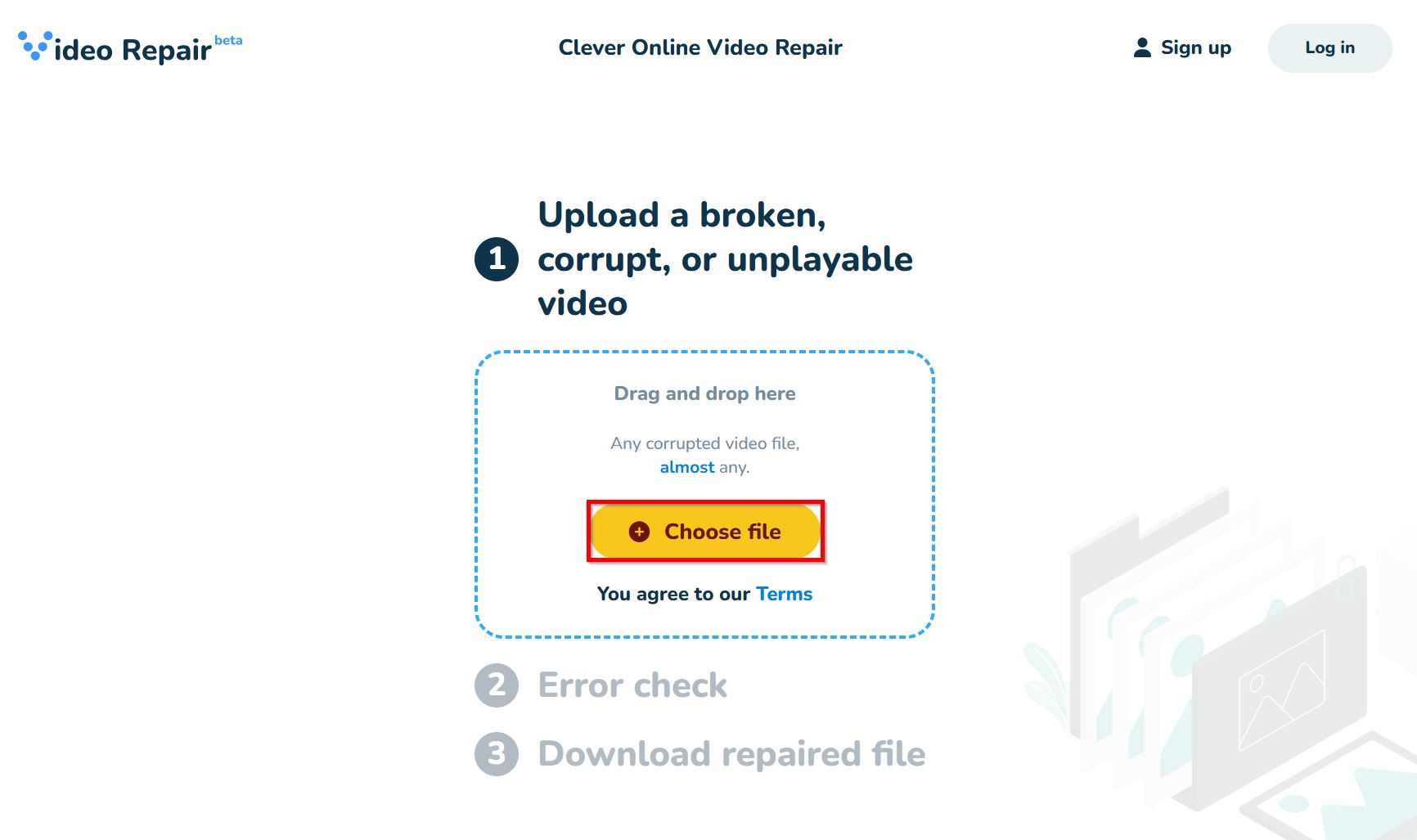
- Click on Choose file, look for the corrupt video, and click Open.
- Clever Online Video Repair will automatically repair the video.
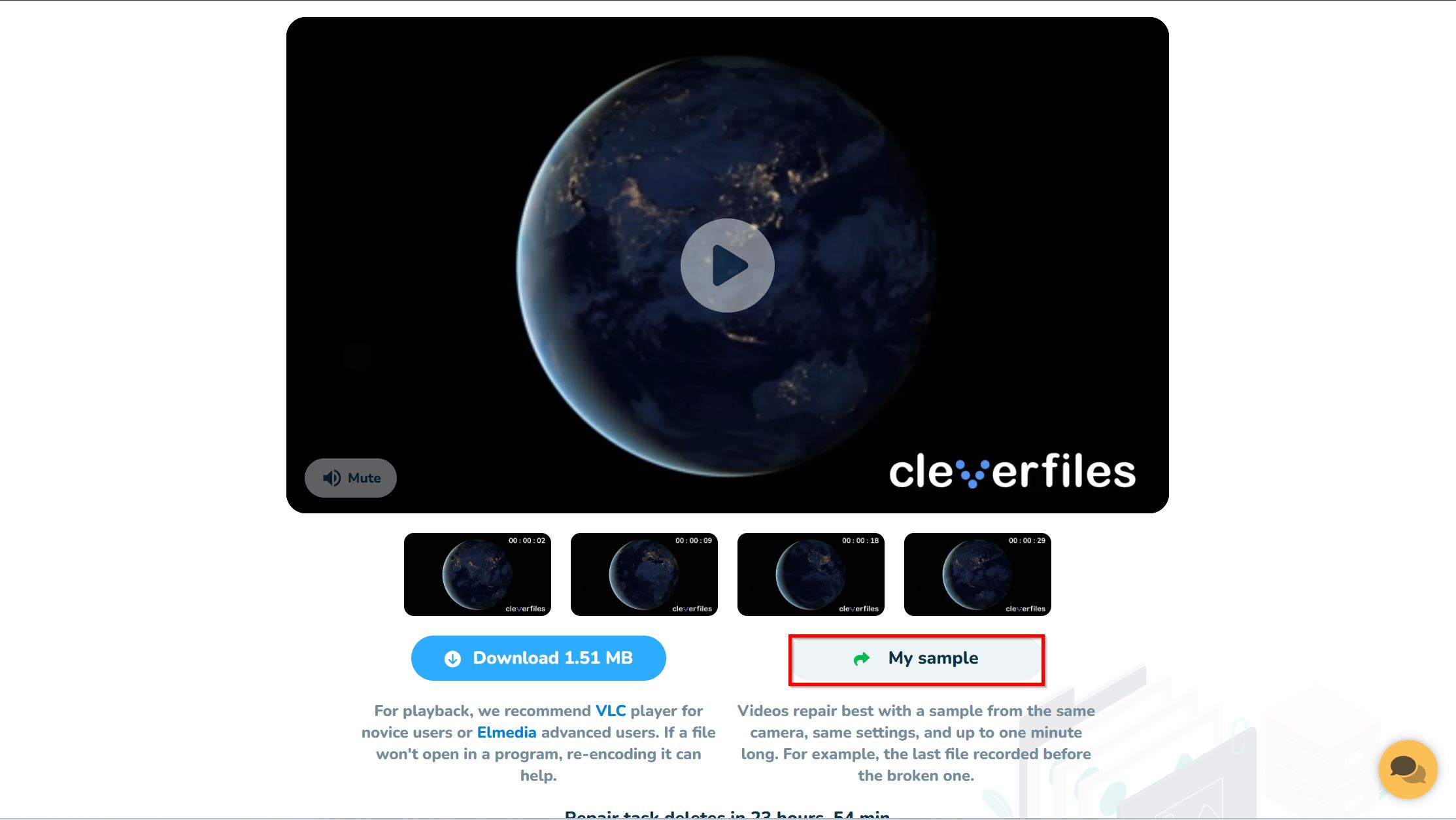
- (OPTIONAL) If the tool fails to automatically detect the error and fix it, you’ll need to upload a sample video recorded on the same device as the corrupt one. Click My sample, browse for the reference video, and click Open.
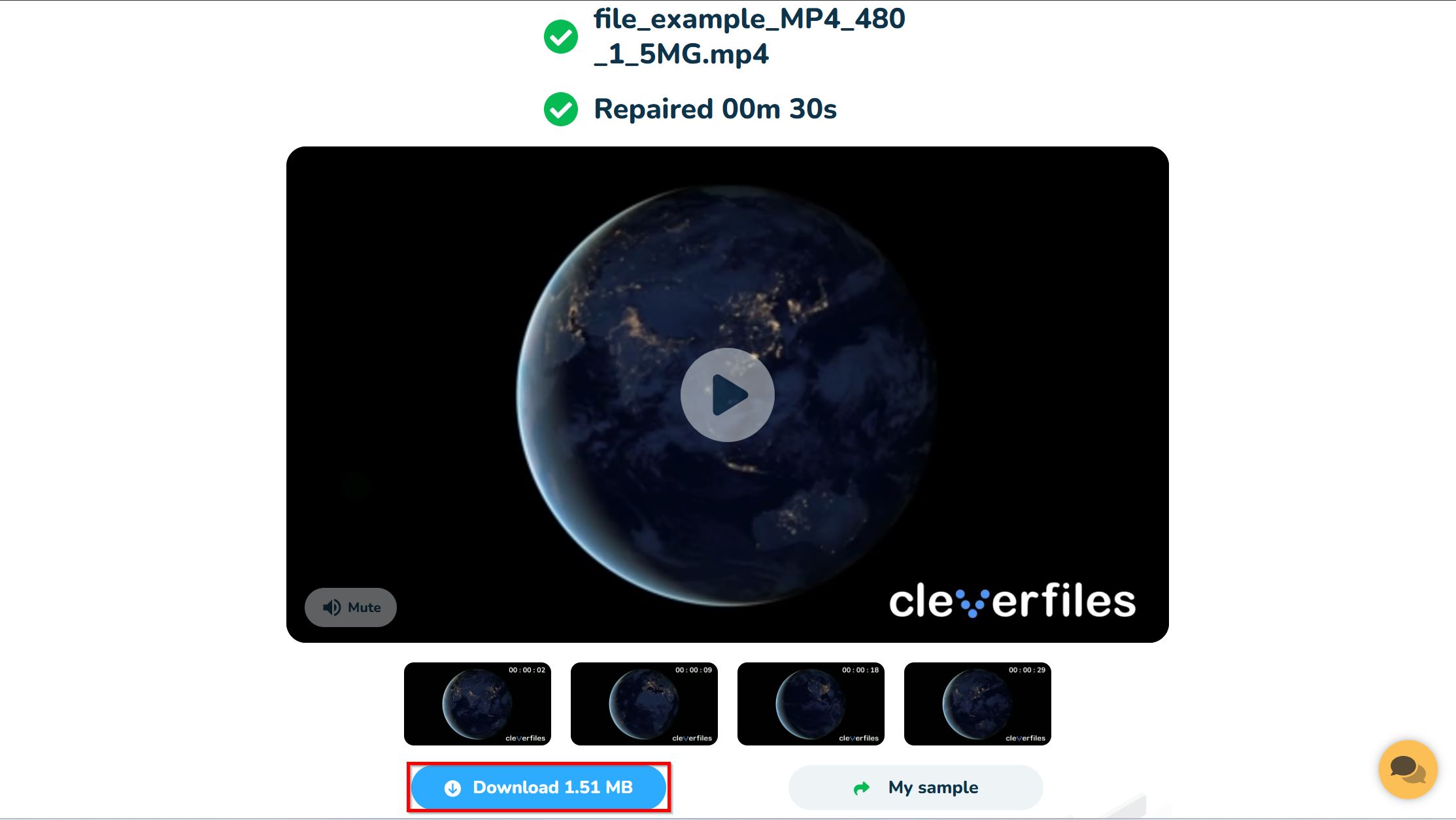
- Preview the repaired video by playing a snippet, or going through the snapshots. Once you’re satisfied, click Download. You do need to register/log in to download the file.
Pros
- Completely free to use.
- Faster than its competitors.
- User-friendly.
- Preserves original video quality as far as possible.
- Wide compatibility.
- Can’t repair videos locally, which may be an issue if you have slow internet.
- Lacks batch processing.
Best for: Repairing all types of corrupt video files, especially when a sample reference file isn’t available.
2. Untrunc GUI
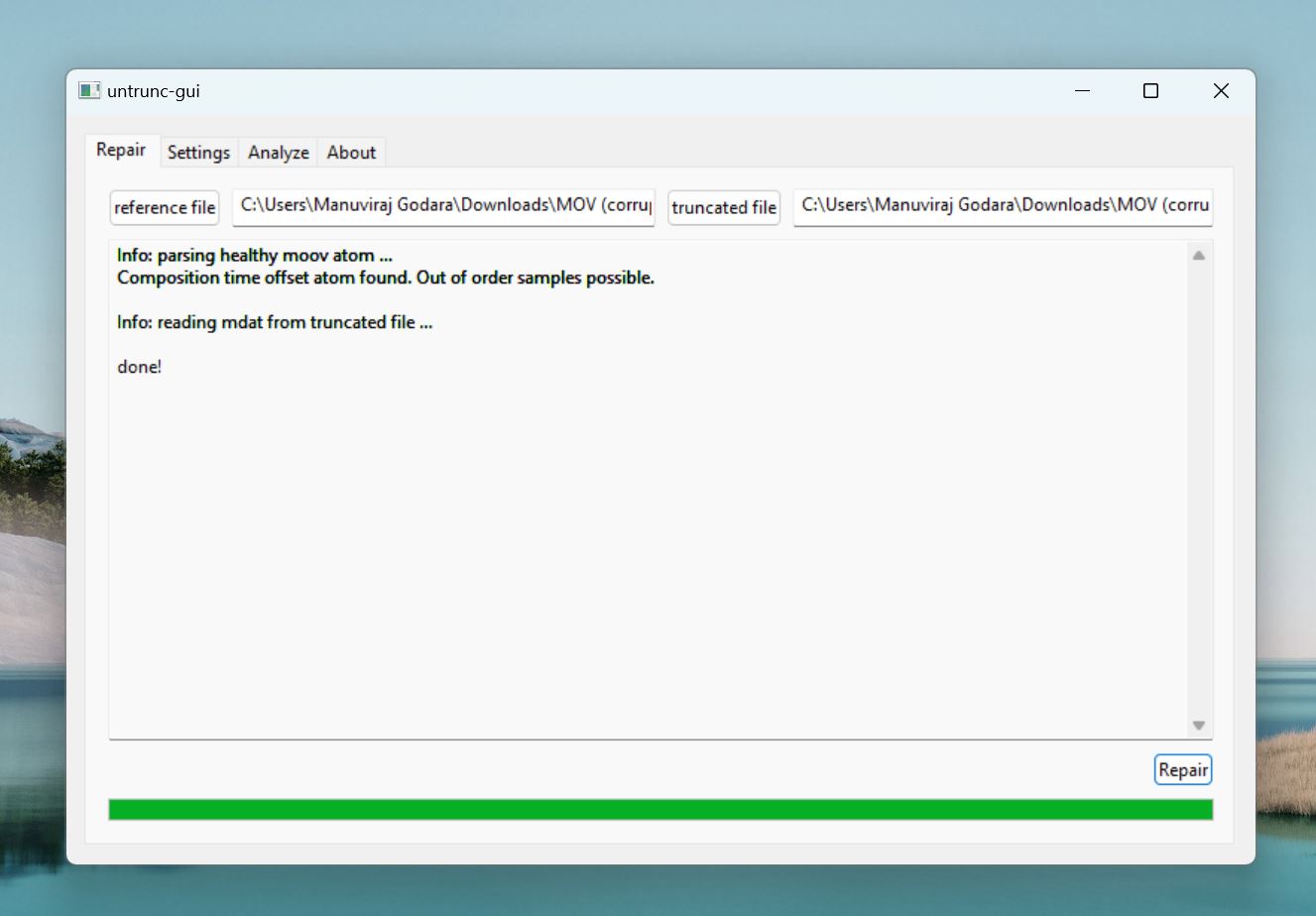
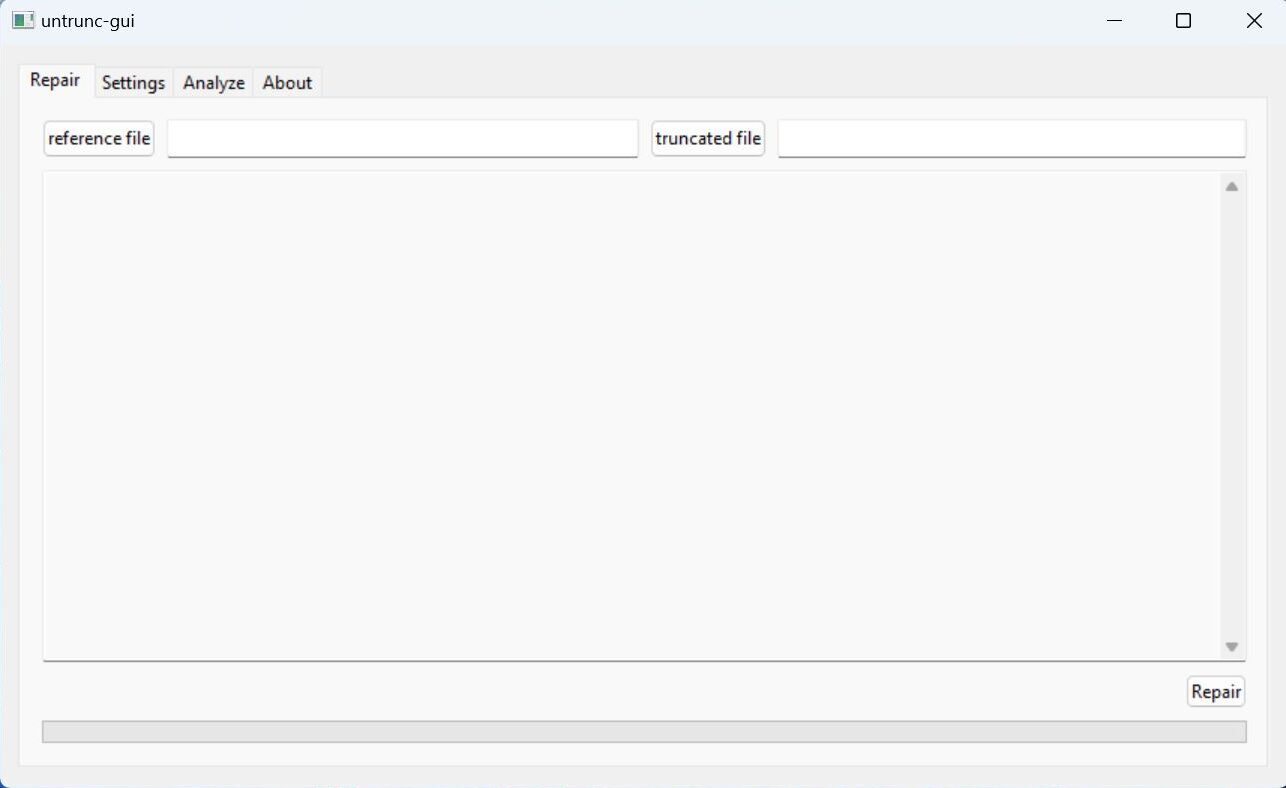 Online tool: No Supported OS: Windows Untrunc GUI is a more user-friendly version of Untrunc—a command-line-based, free video repair tool. It’s not as polished as other programs on this list, but its high success rate and solid reputation more than make up for it. Untrunc GUI, too, requires a healthy reference file to fix corrupt videos. The program fixes truncated MP4, M4V, MOV, and 3GP video files. Video format support is somewhat limited—if you’re looking to repair other popular formats like AVI, or FLV, you’ll need to pick an alternative tool. Here’s how you fix a corrupt video file using Untrunc GUI on Windows:
- Open your browser, and visit Untrunc’s GitHub page. Click on the untrunc_x64.zip file to download it. Once downloaded, extract its contents to a folder of your choice.
- Open the extracted Untrunc GUI folder, and double-click the untrunc-gui.exe file.
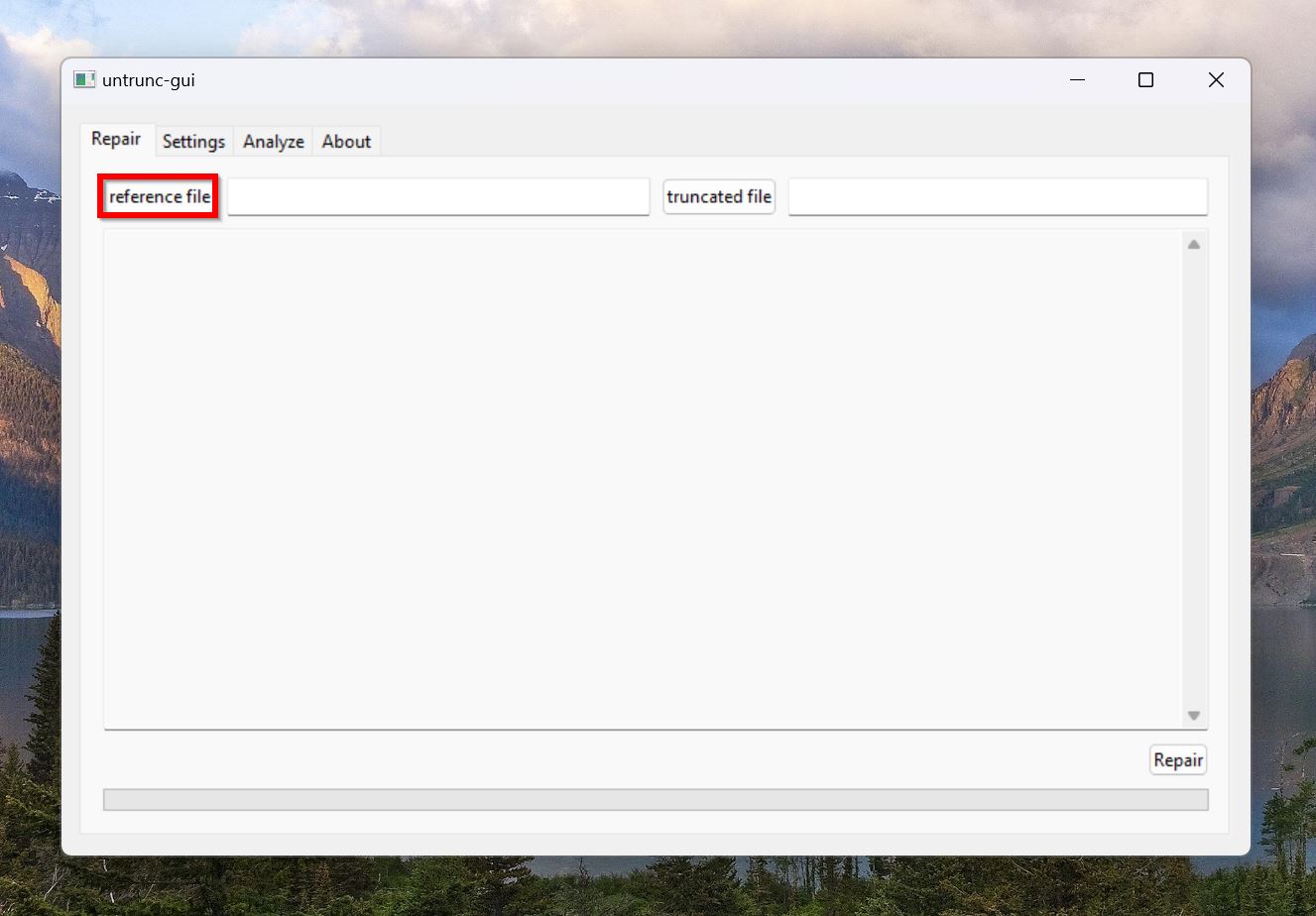
- Click the reference file button, browse for a healthy sample video, and click Open.
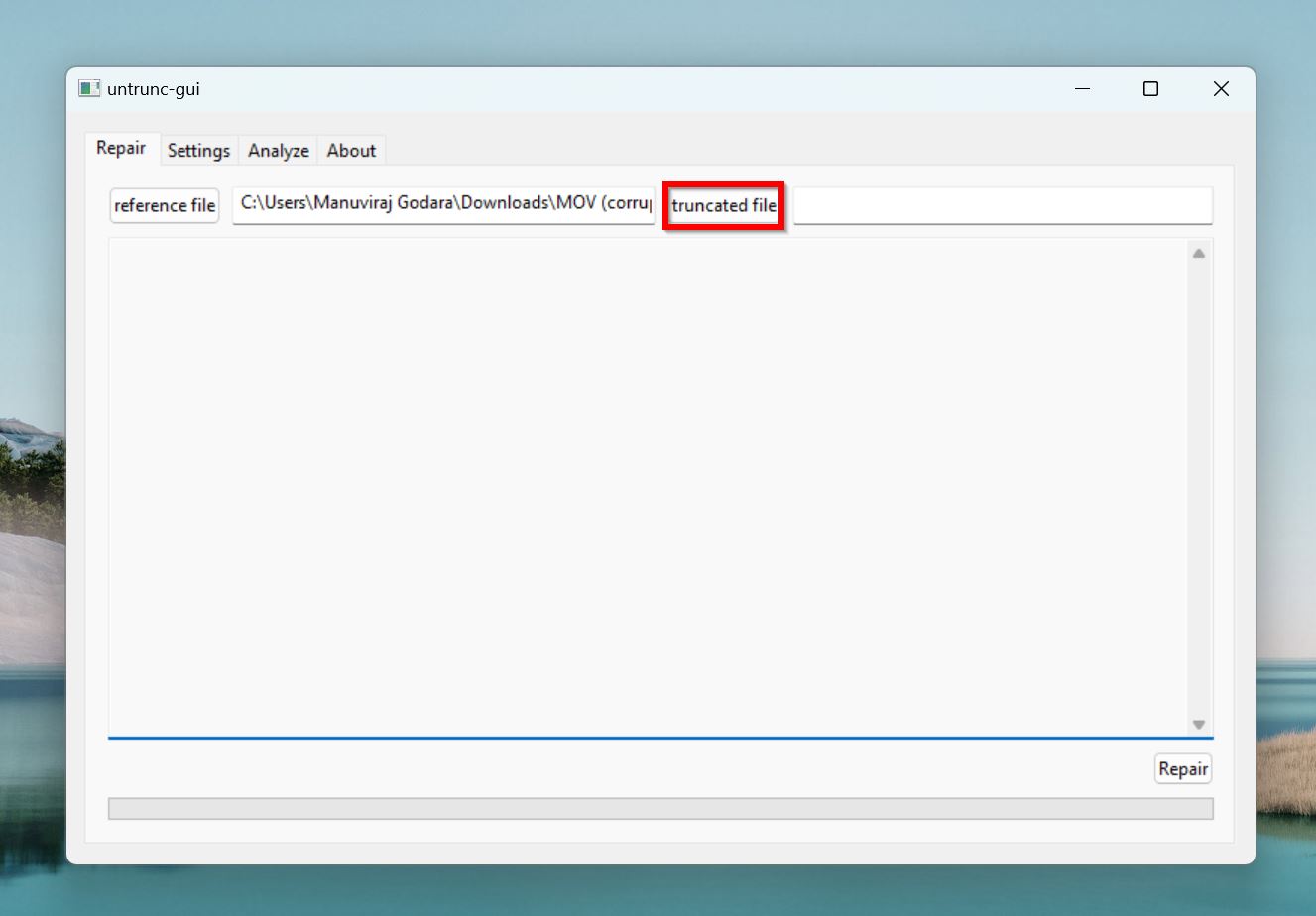
- Now, click the truncated file button, look for the corrupt video file, and click Open.
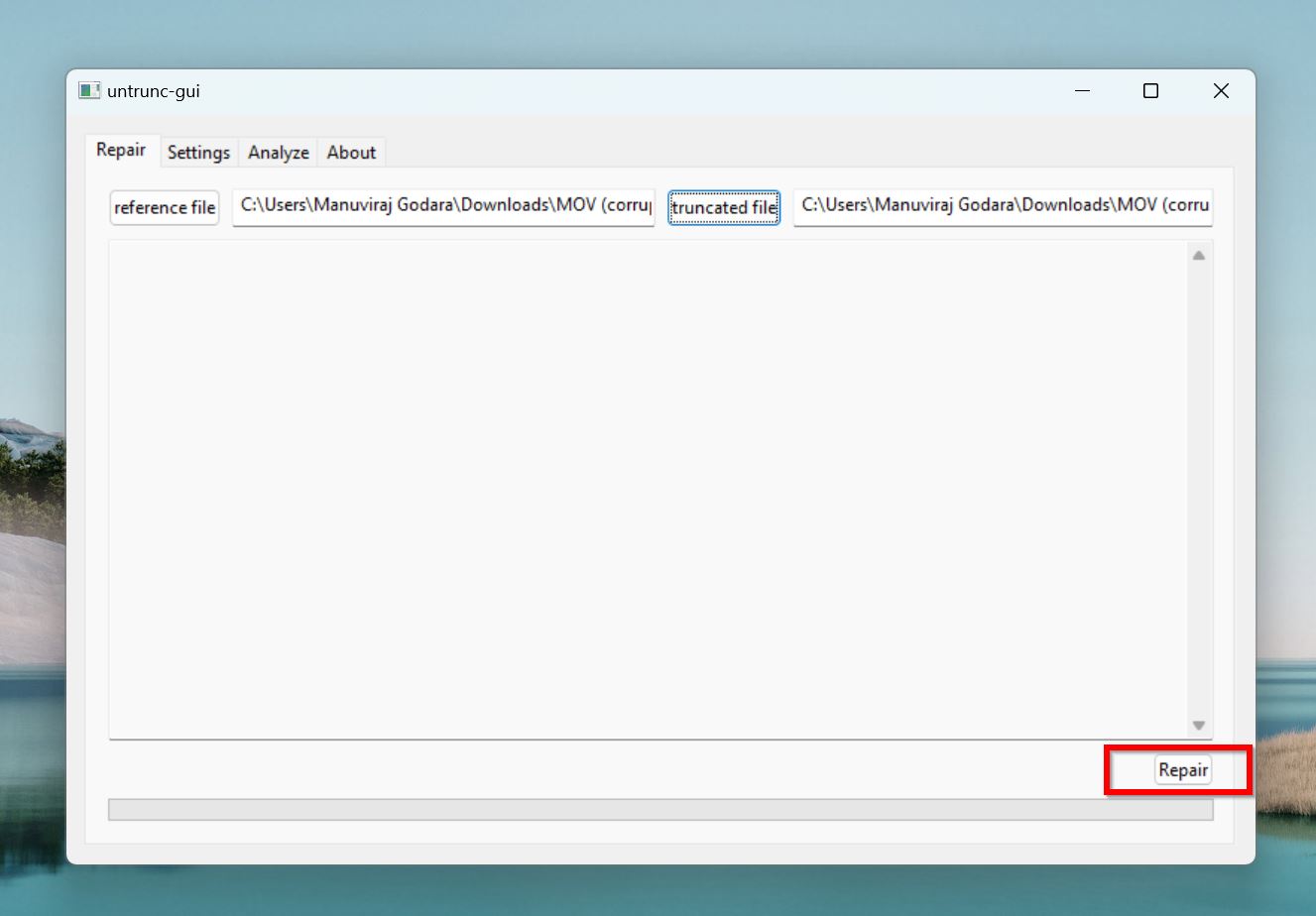
- Click on Repair.
- Untrunc GUI will repair the corrupt video, and save a copy.
Pros
- Open-source.
- High success rate.
- Portable, and lightweight.
- Simple UI.
- Lacks support for popular formats like AVI and FLV.
- The repair process takes much longer compared to online video repair tools.
Best for: Corrupt MP4 or MOV videos that are confidential, or too large to be uploaded to the web.
3. Handbrake
Online tool: No Supported OS: Windows 10, and 11. macOS 10.13, and later. Linux. 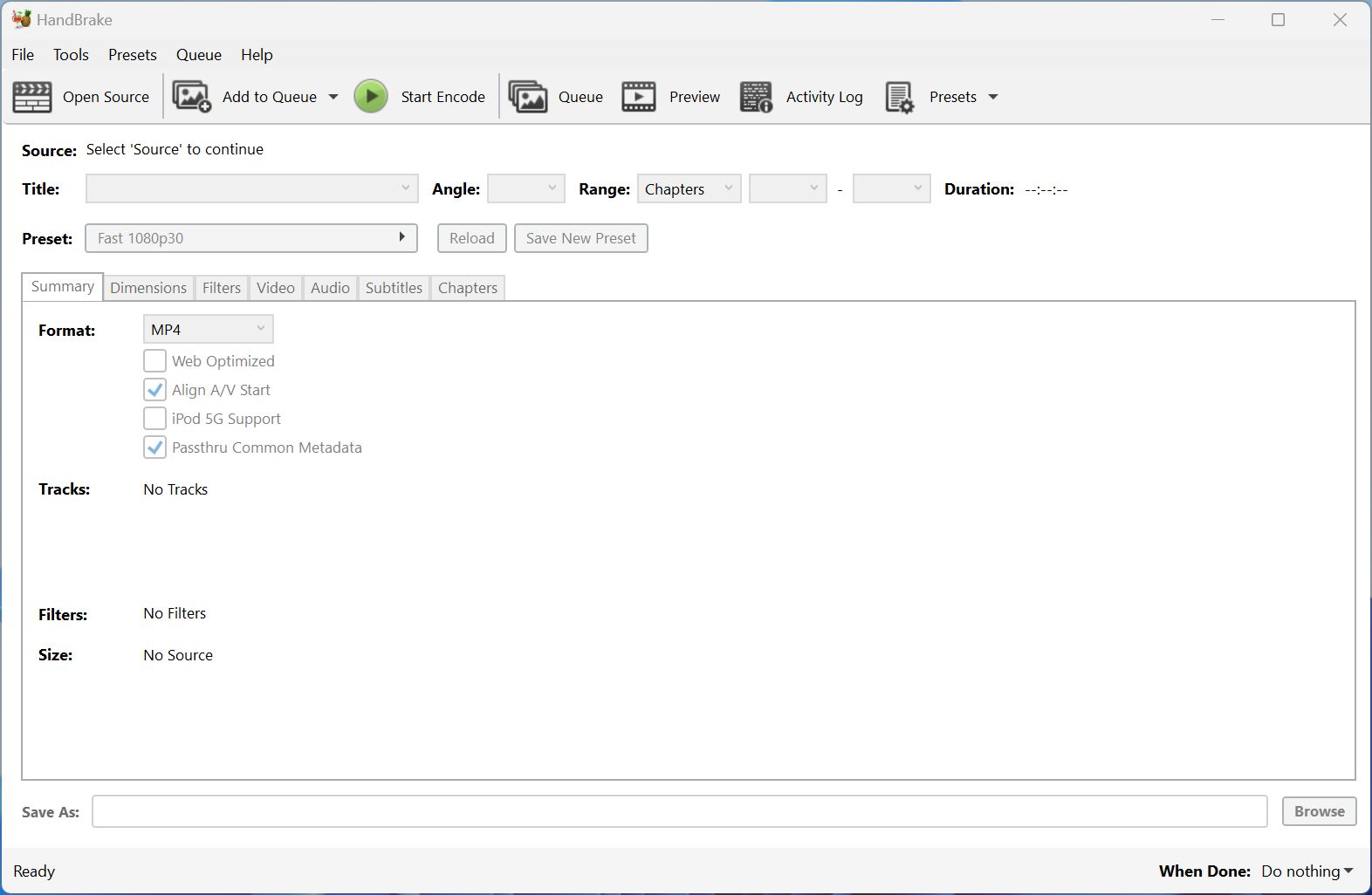 Handbrake is a video transcoder that’s surprisingly adept at repairing corrupt videos, despite lacking a dedicated repair algorithm. By re-encoding a corrupt video using Handbrake, you can often fix any corruption in it. That’s what I did, and it worked. The best part? Handbrake is free and open-source. You can re-encode the corrupt video to a format of your choice. I suggest using a popular format like MP4 so that any potential compatibility issues are resolved as well. Video format compatibility is not a problem, because Handbrake supports a wide range of video formats. The only drawback is that re-encoding a video using Handbrake only fixes minor cases of video corruption. It isn’t as versatile as other dedicated video repair tools in this list. Here’s how to fix a corrupt video using Handbrake:
- Download Handbrake and install it.
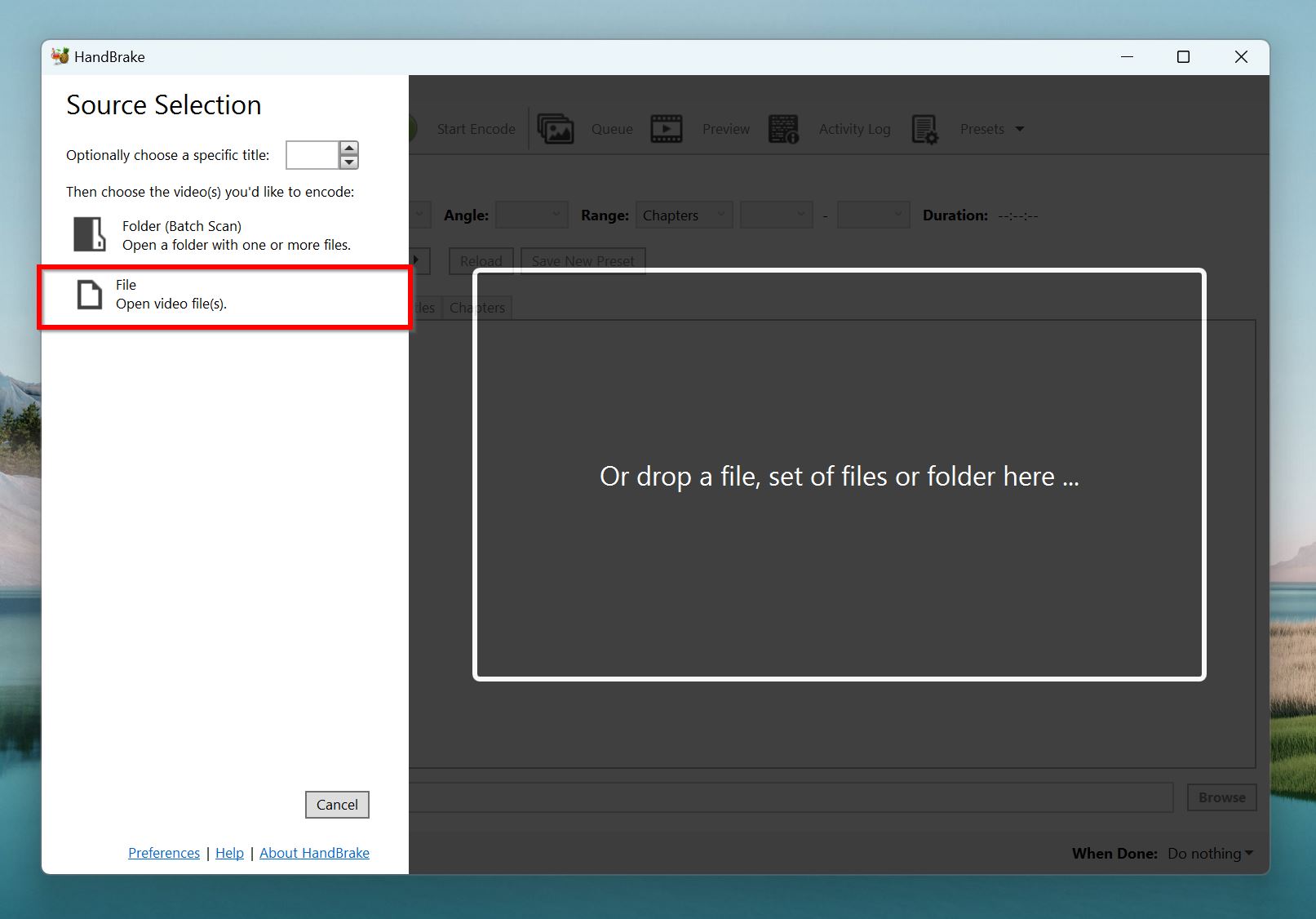
- Click on File in the Source Selection column on the left.
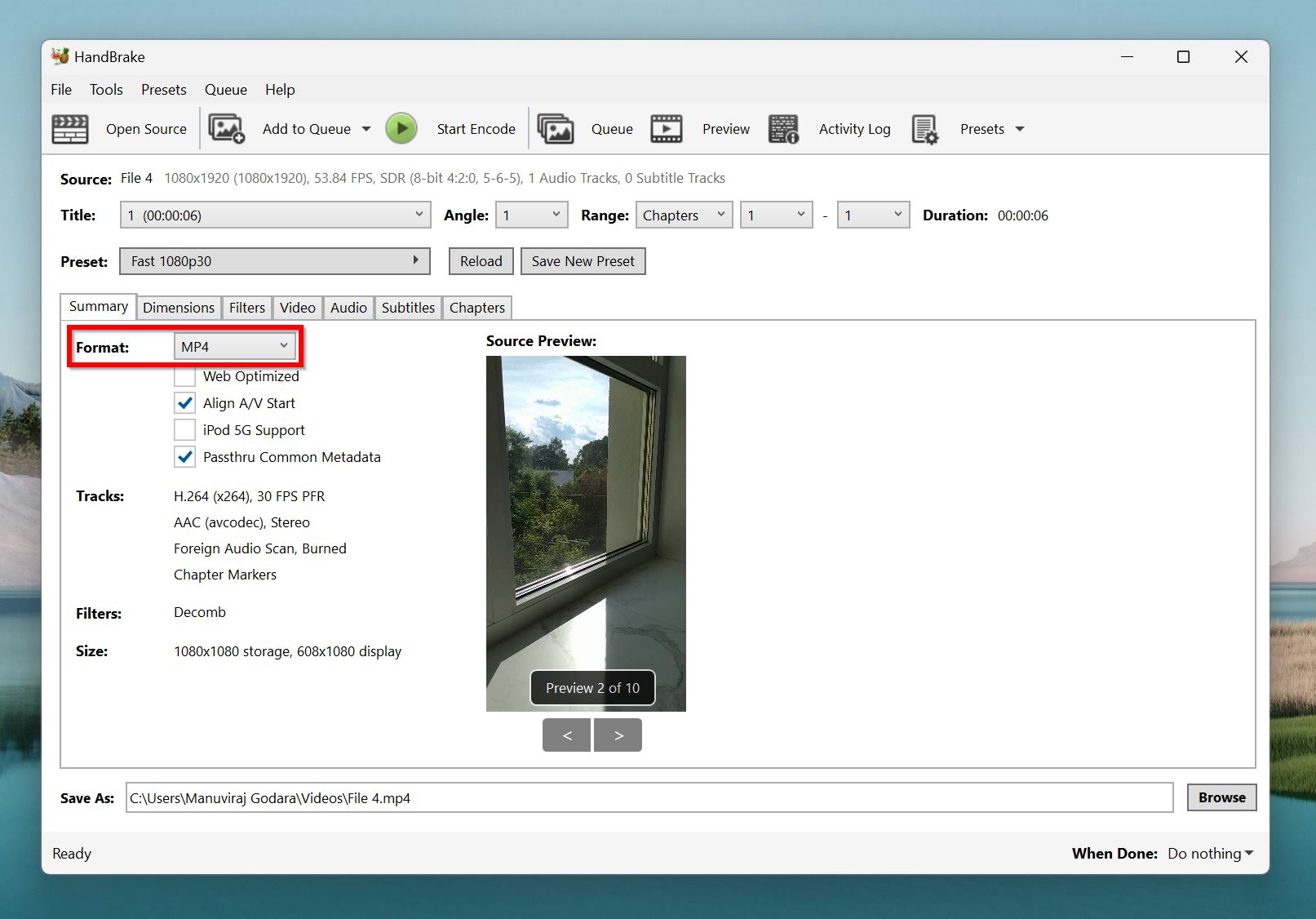
- Choose a video format from the Format drop-down menu in the Summary tab. You can further modify the encoding settings using the other tabs, but it isn’t required.
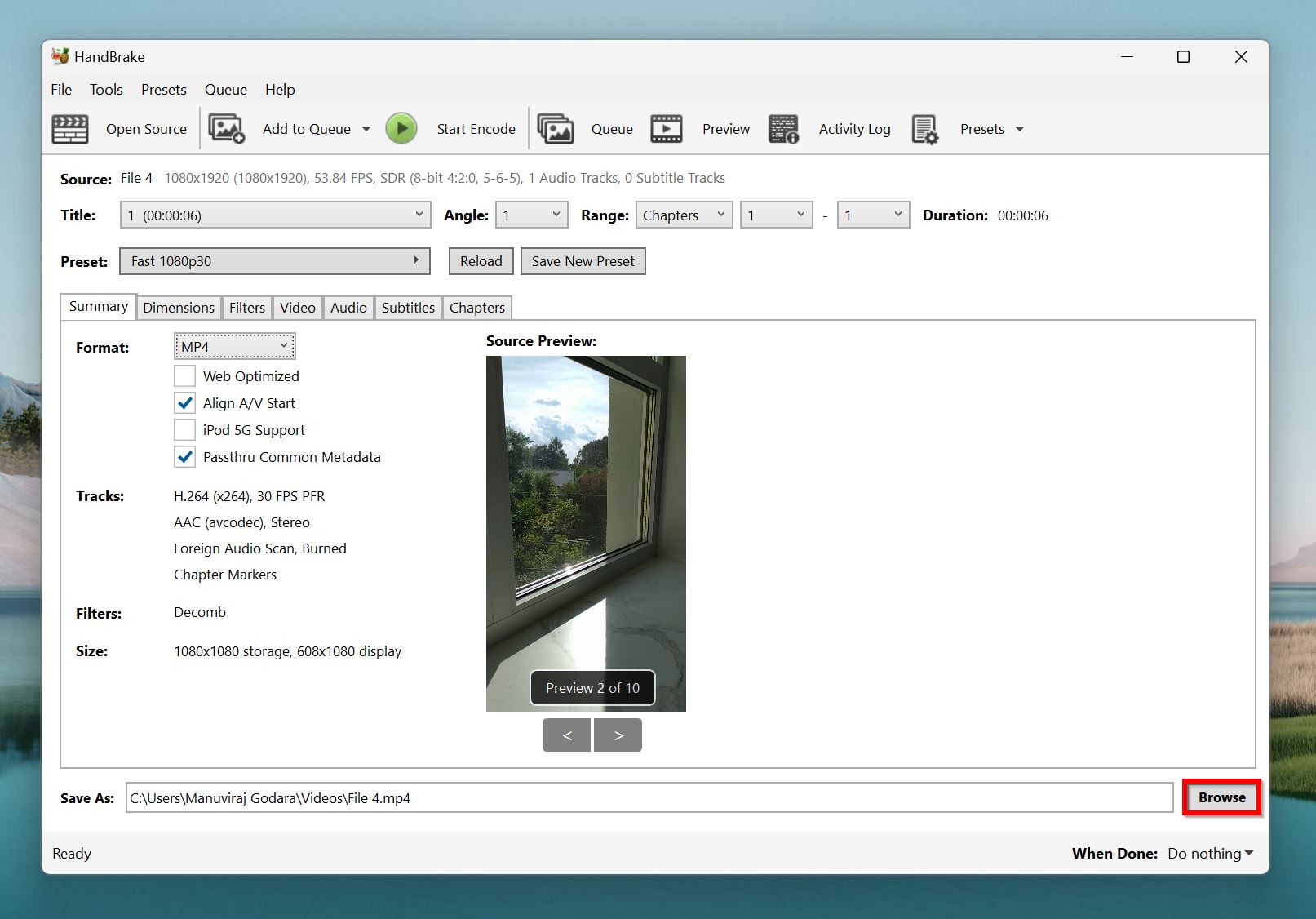
- Click Browse to select where you want to save the re-encoded video.
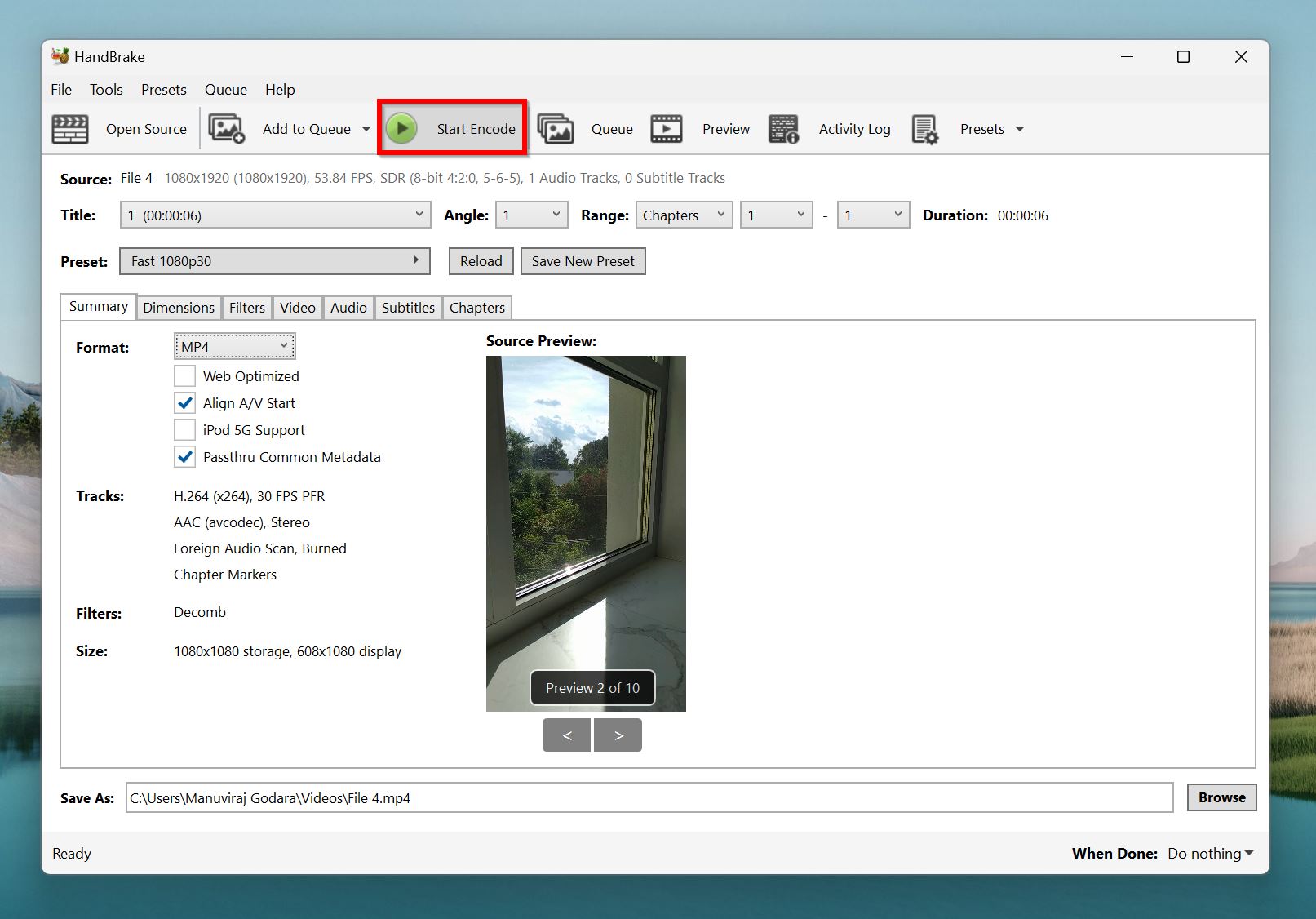
- Click Start Encode to begin encoding the video.
Pros
- Repairs videos without a reference video file.
- Open source.
- Supports batch processing of videos.
- Intuitive UI.
- Limited repair capabilities–-only works for minor corruption.
- Repaired videos may be of lower quality.
Best for: Repairing videos with corrupted metadata, or a damaged container.
4. VLC Media Player
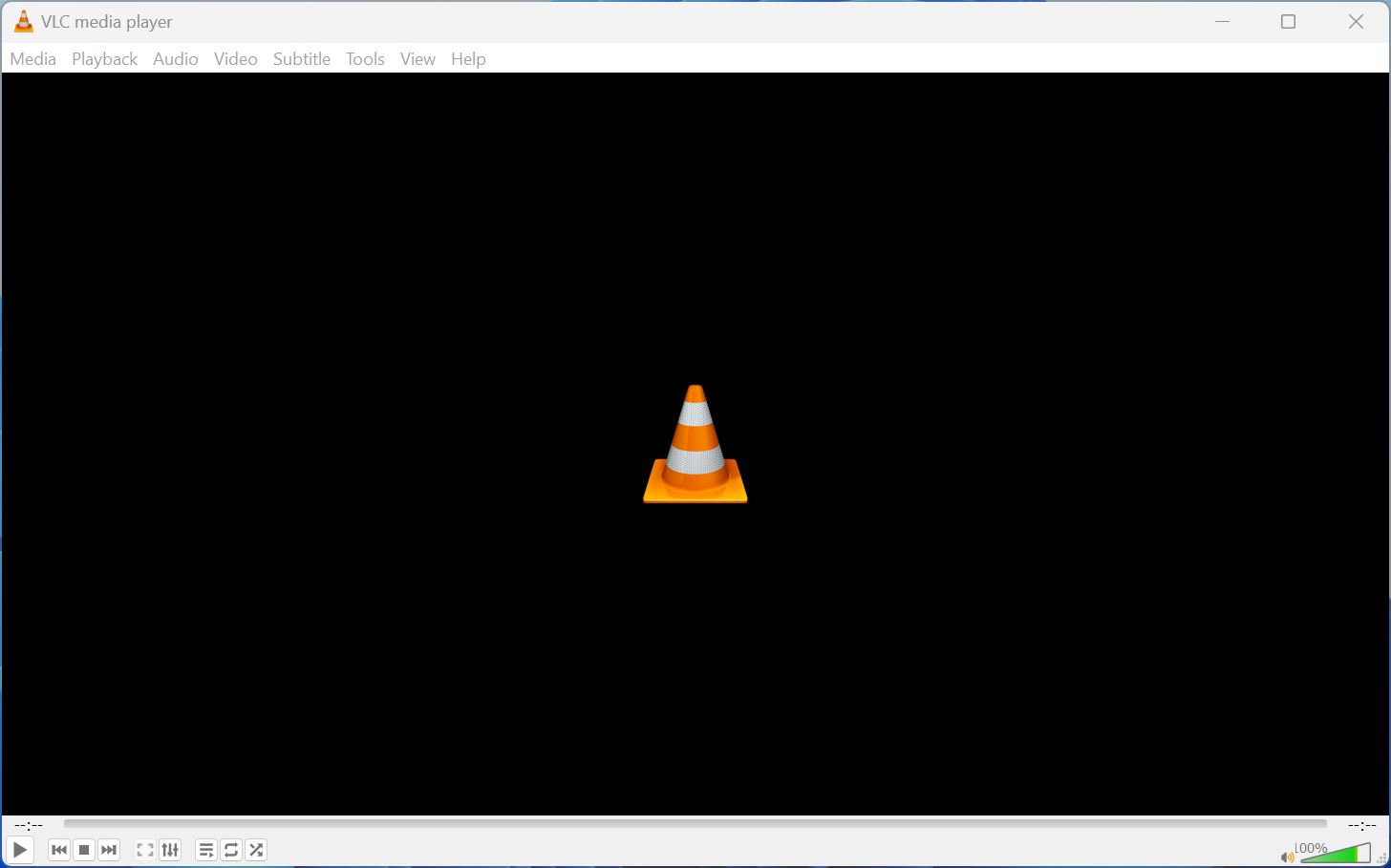 Online tool: No Supported OS: Windows, macOS, and Linux. Surprised to see VLC Media Player here? Well, not only is it an excellent media player, it can repair corrupt videos as well. VLC Media Player is free to use, and open-source, including the video repair feature. The only catch is that the dedicated video repair feature only works with AVI files. To fix other video formats, you can re-encode the corrupt video to another format using VLC, and it will repair minor corruption along the way. However, re-encoding a video in VLC isn’t as reliable as using the dedicated AVI video repair algorithm, so it’s best to have low expectations when dealing with MP4, MOV, FLV, and MKV videos. Follow these steps to repair corrupt AVI videos using VLC Media Player:
- Download and install VLC Media Player.
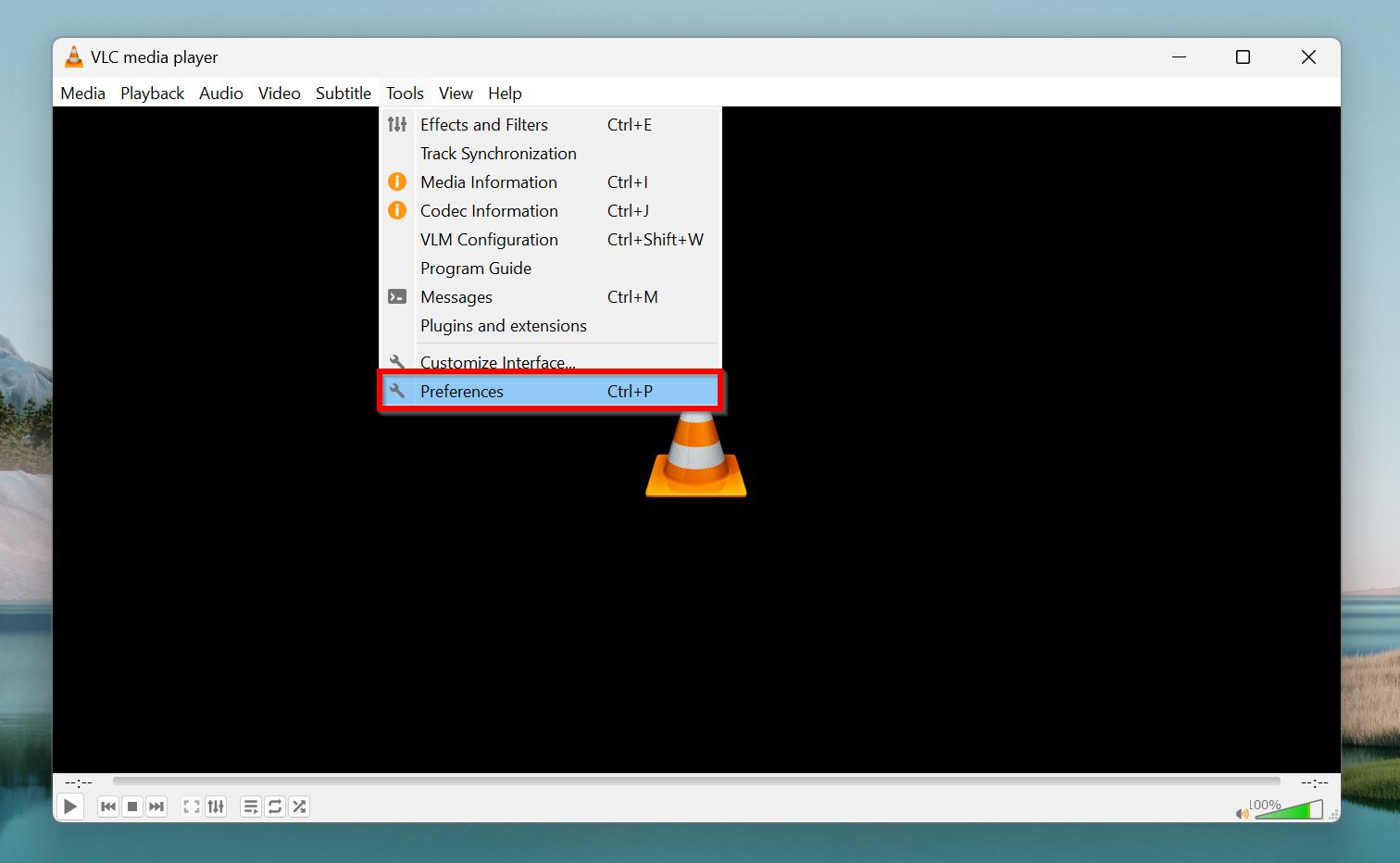
- Open VLC Media Player, and go to Tools > Preferences.
- Click on the Input/Codecs tab.
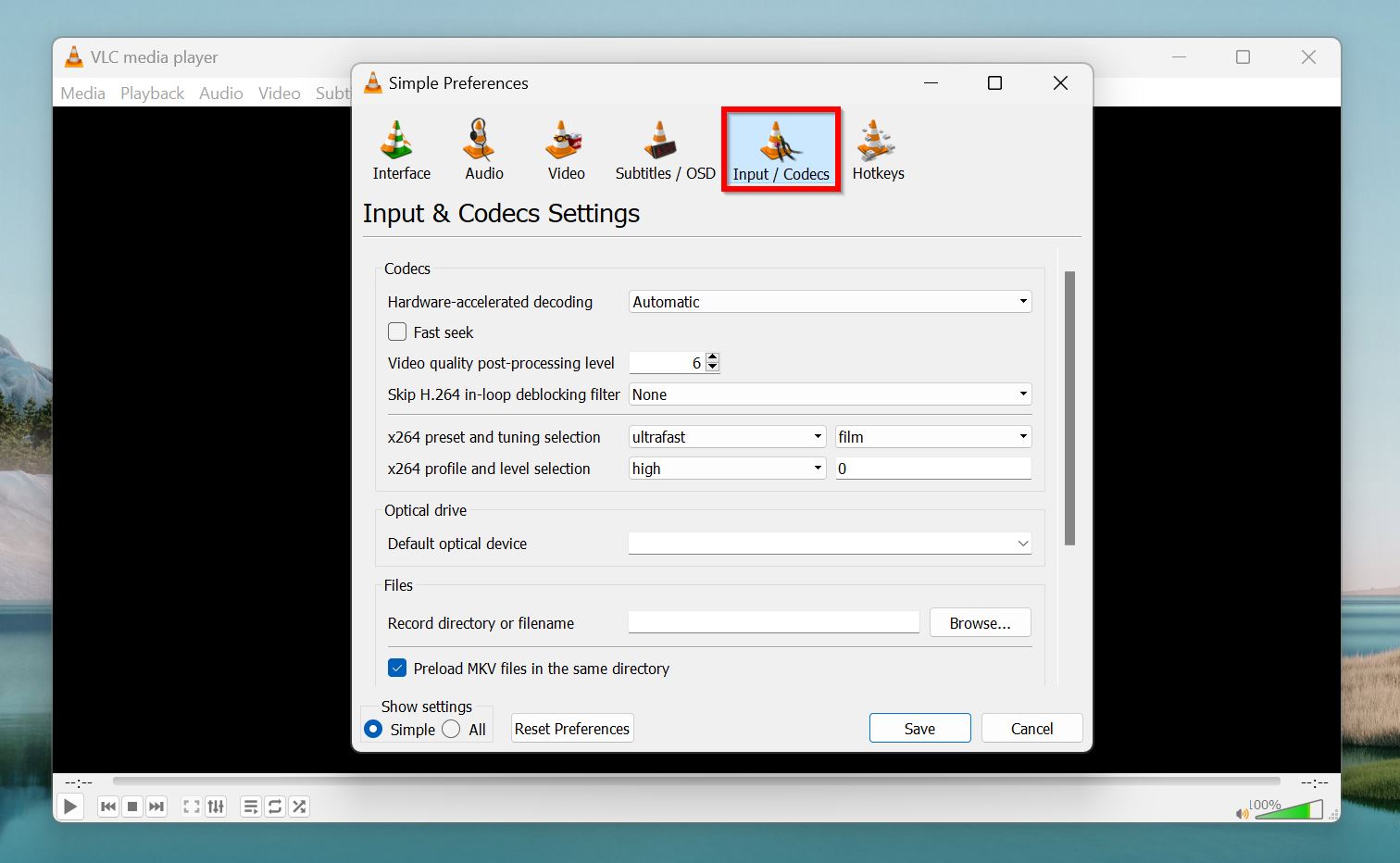
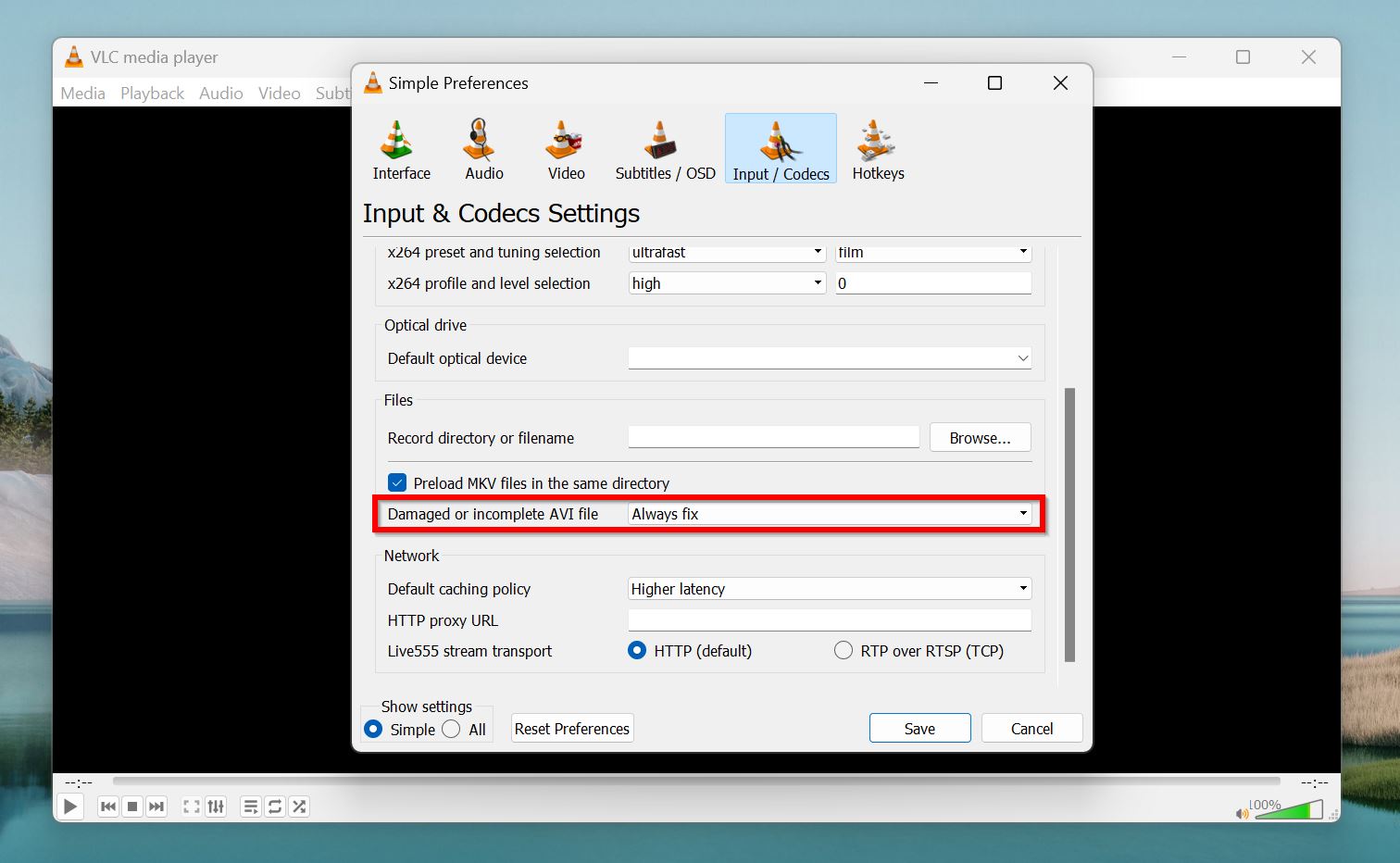
- Choose Always fix in the Damaged or incomplete AVI file drop-down menu.
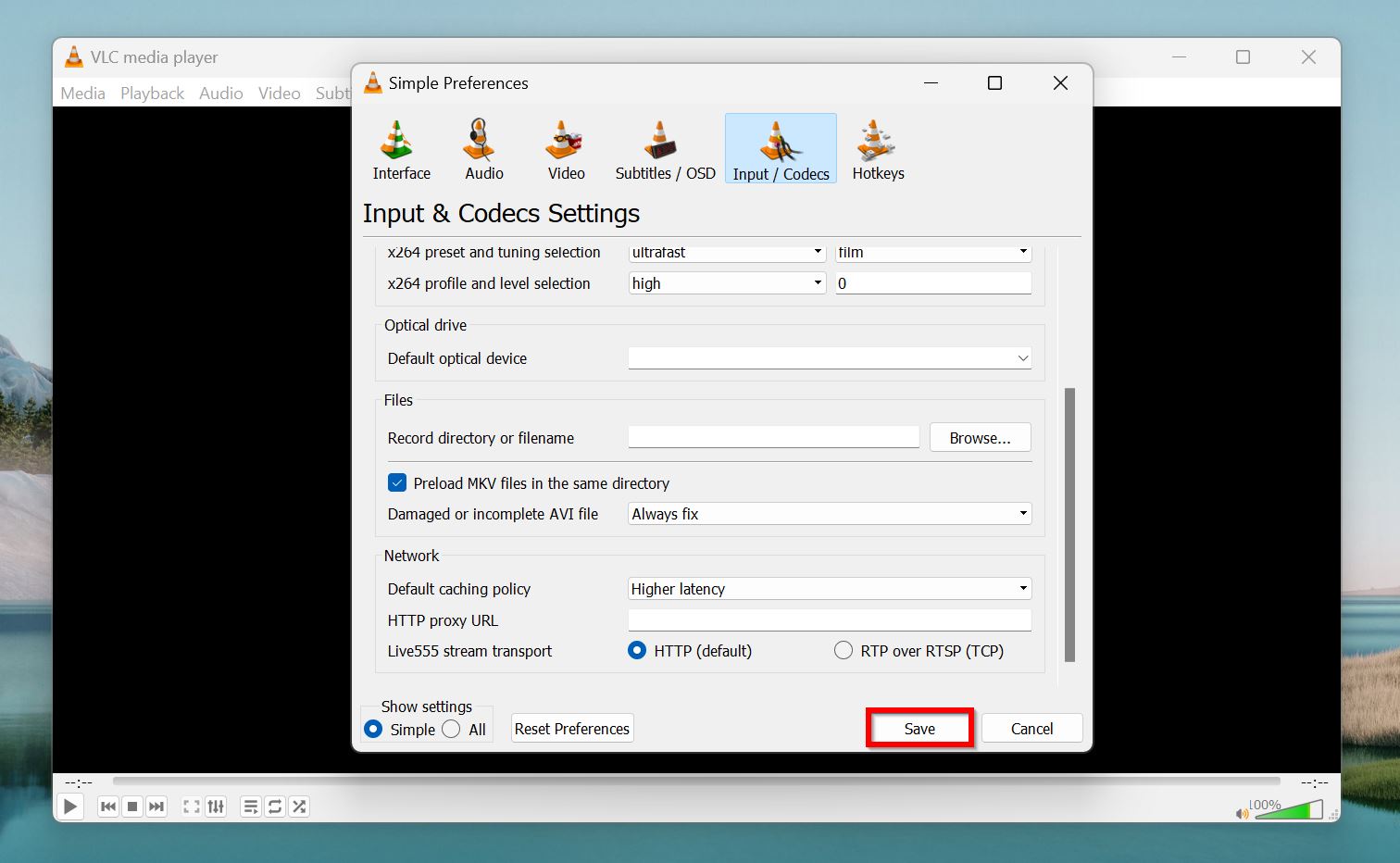
- Click on Save.
- Open the corrupt AVI video using VLC Media Player, and it should fix any corruption.
Alternatively, you can re-encode the corrupt video file to potentially fix it:
- Open VLC Media Player.
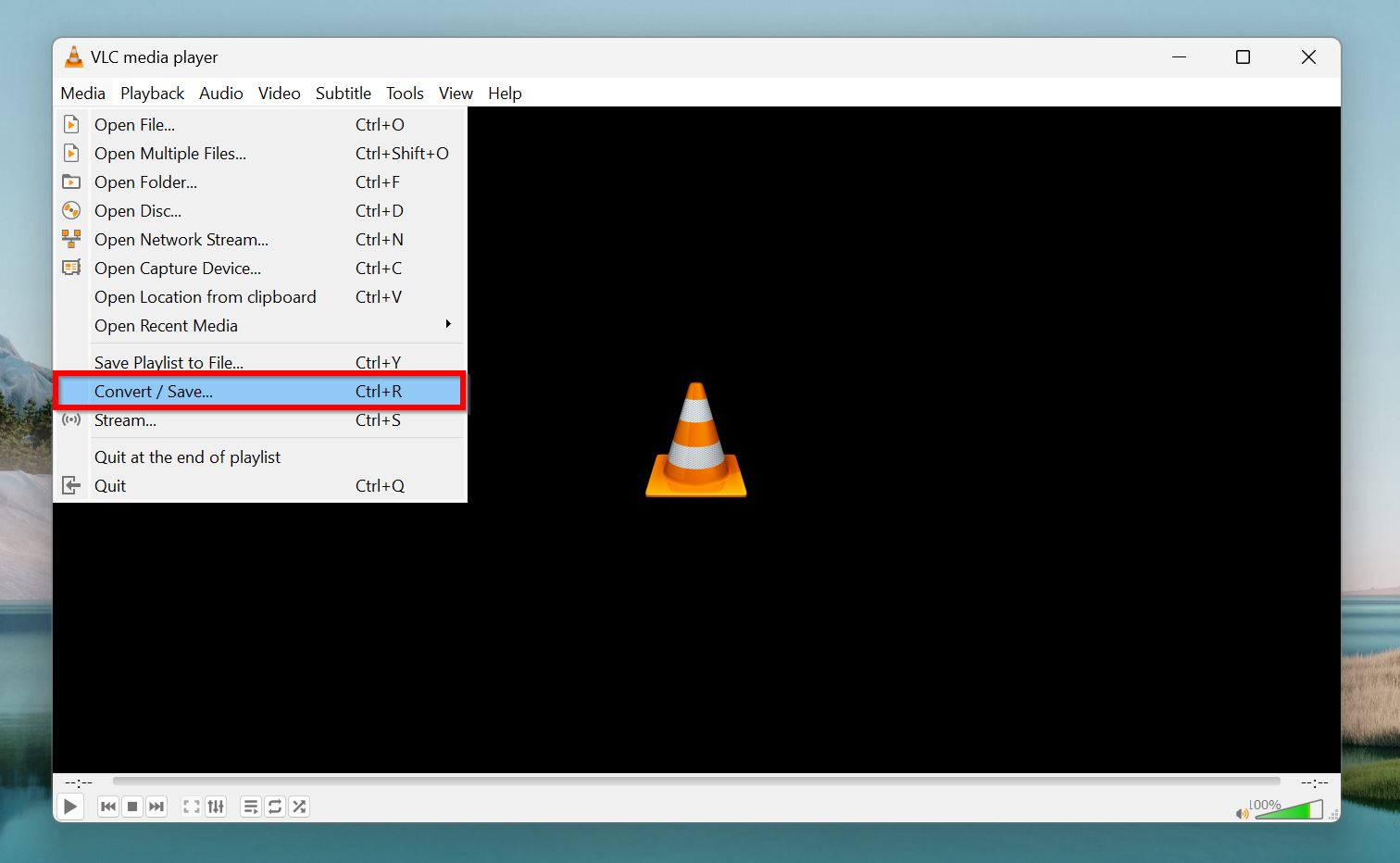
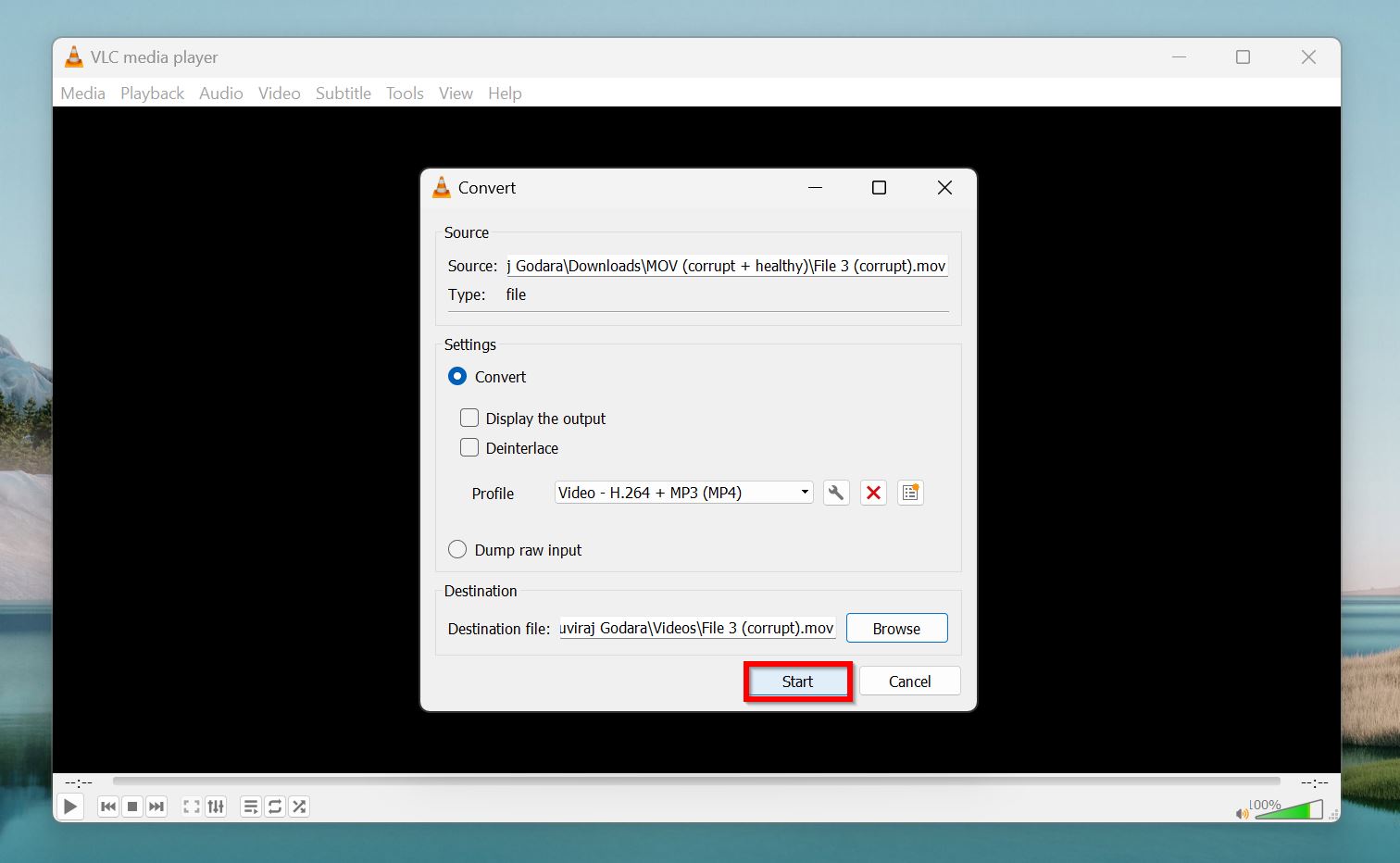
- Click on Media > Convert / Save.
- Click on Add, browse for the corrupt video file, and double-click it.
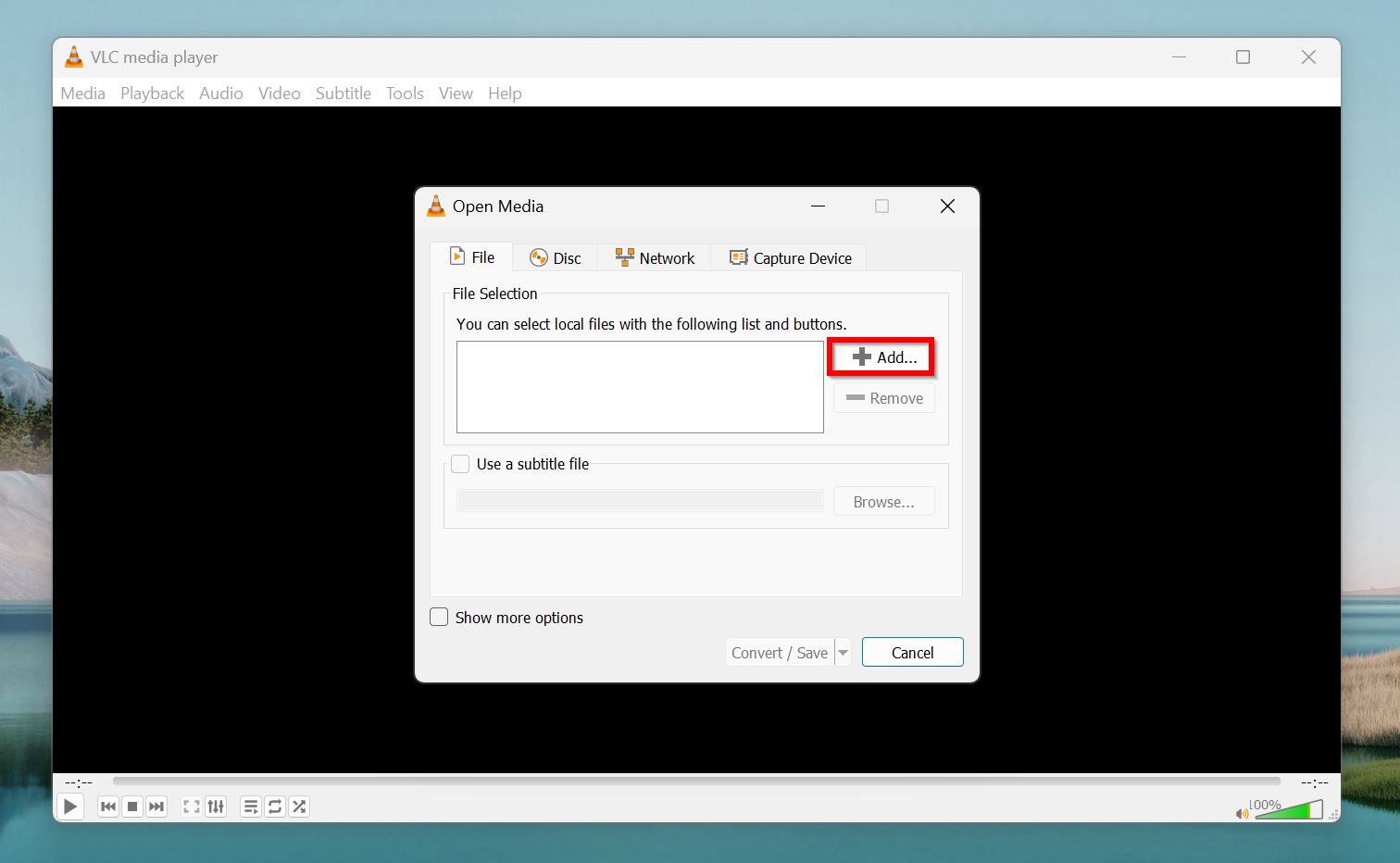
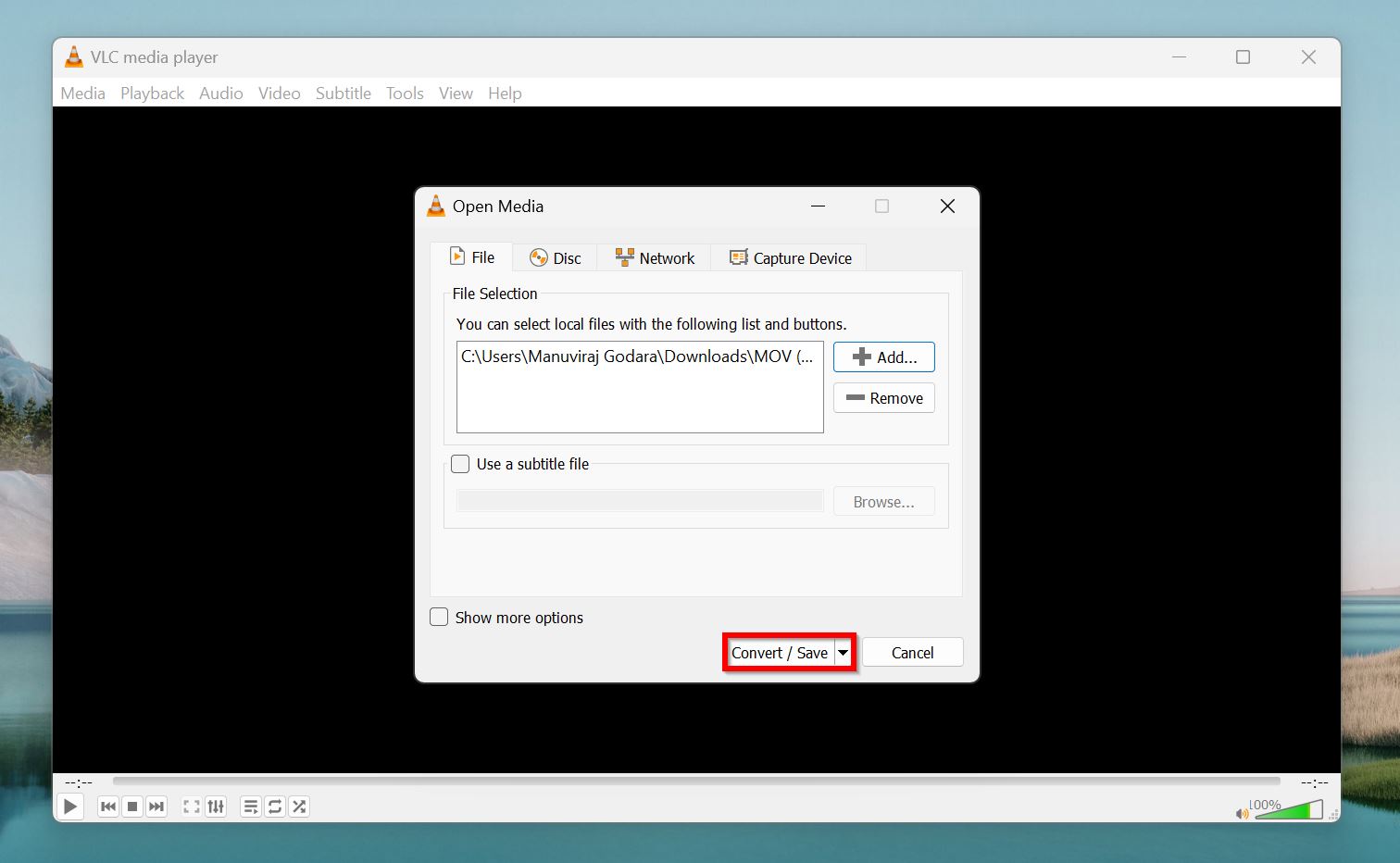
- Click on the Convert/Save button.
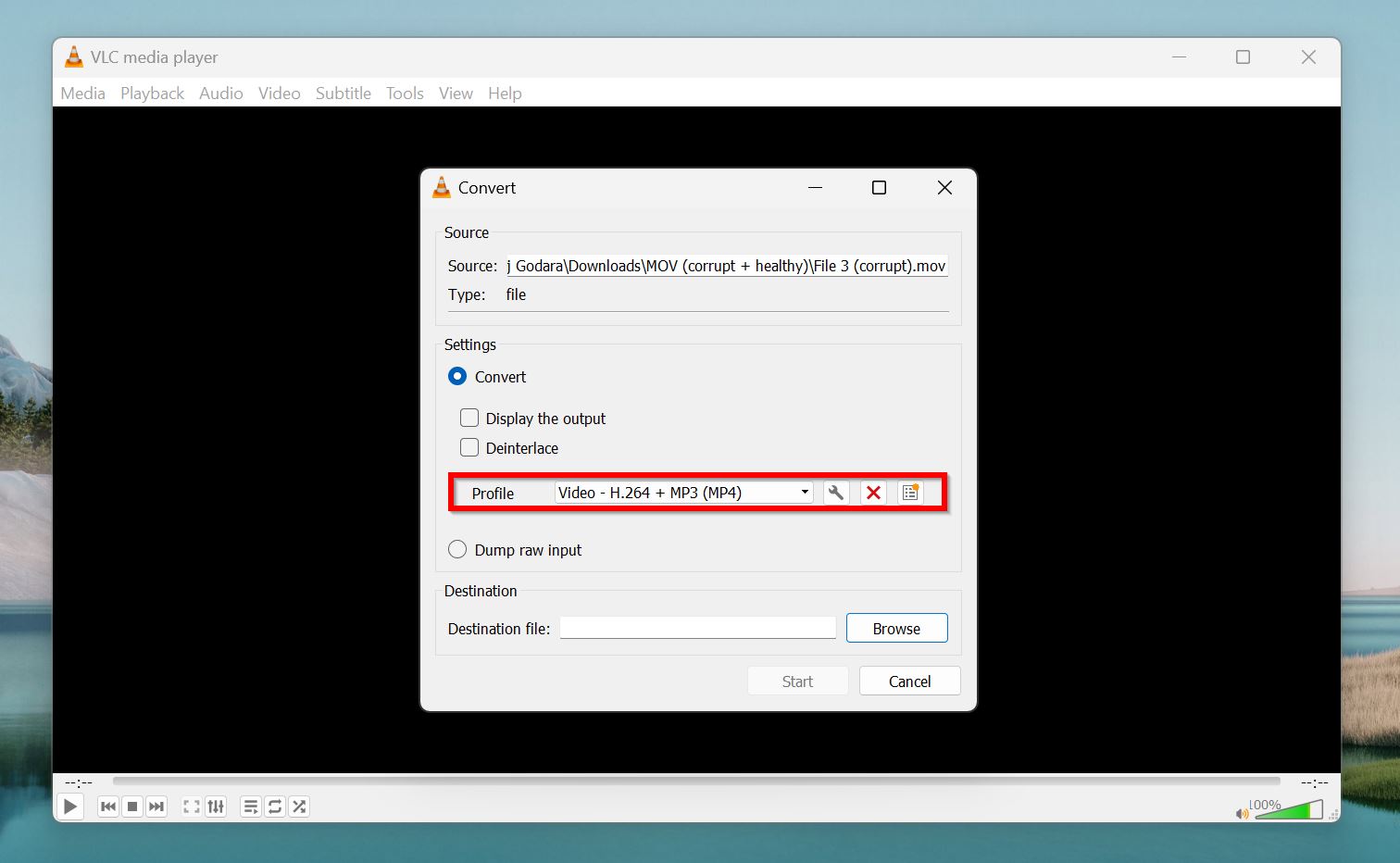
- Select a video format and codec using the Profile drop-down menu.
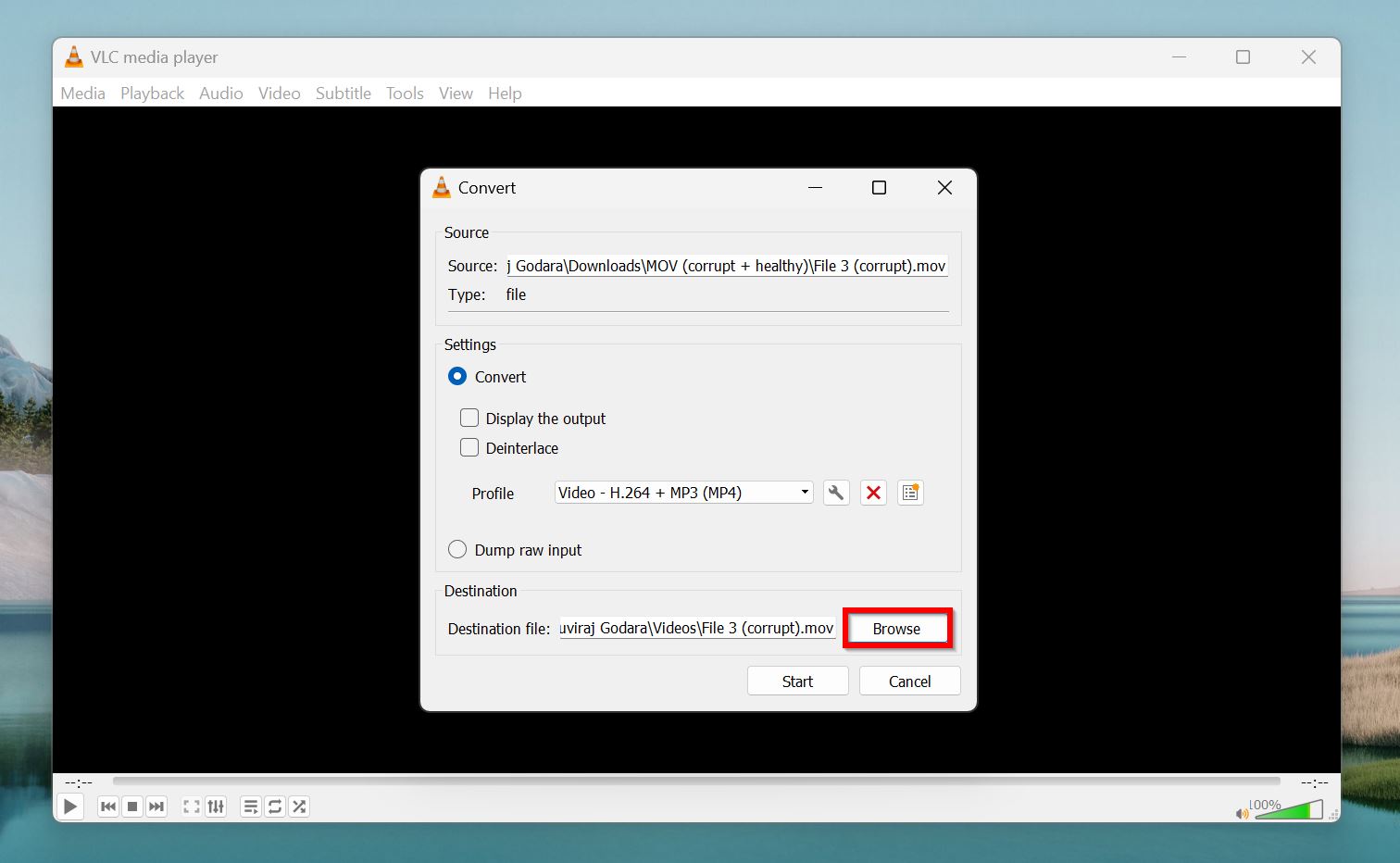
- Click Browse under Destination to pick where you’d like to save the video.
- Click Start.
Pros
- Excellent at repairing AVI files.
- Open-source tool that also doubles-up as a media player.
- Multiple repair methods—automatic fixing, re-encoding, and codec reconfiguration.
- Plays partially corrupt videos allowing you to assess the extent of corruption.
- Primary repair feature is limited to AVI files.
- May cause video quality loss when re-encoding.
- Lacks a sophisticated video repair algorithm unlike tools that focus only on video repair.
- Inconsistent success rate.
Best for: Repairing AVI videos with container issues, or a corrupt index.
5. FFMPEG
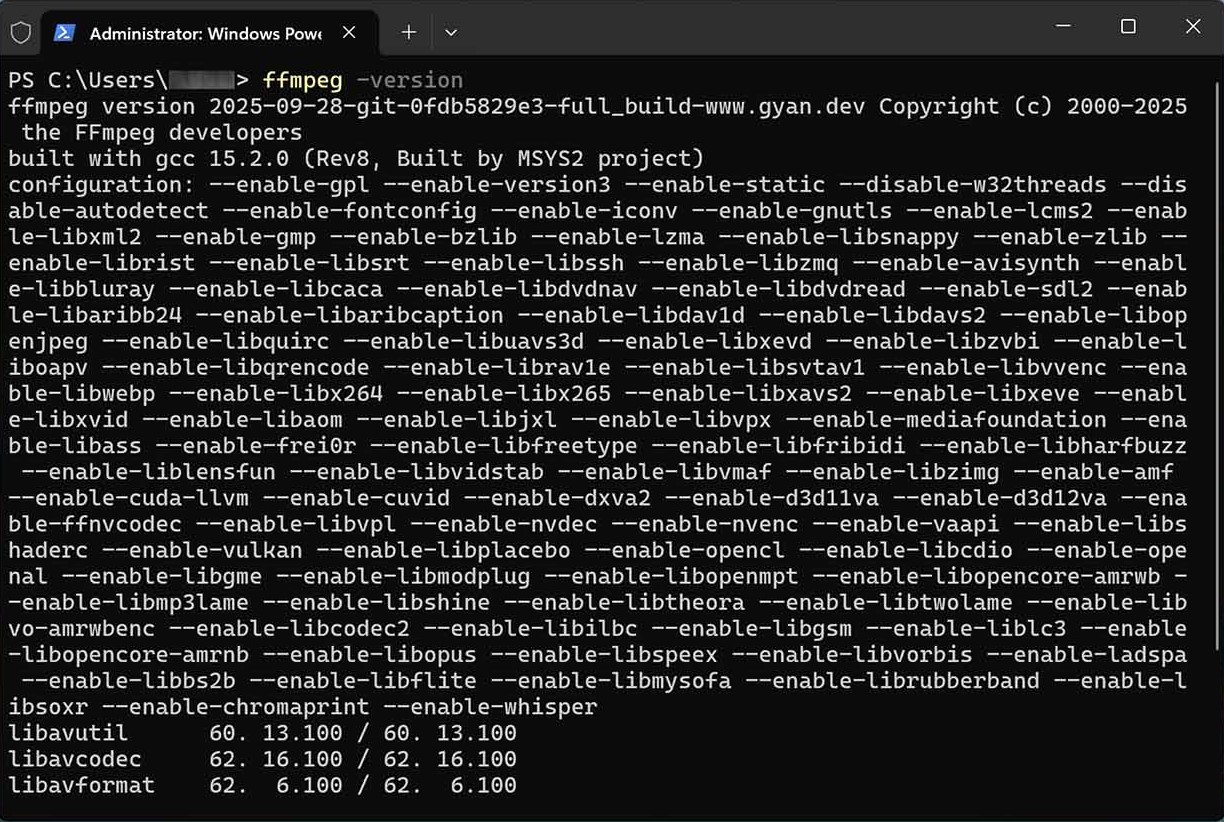 Online tool: No Supported OS: Windows, macOS, and Linux If you’re comfortable using the command line to repair a corrupt video, few tools are better than FFmpeg—an open-source free video repair software. Technically a video and audio processing tool, FFmpeg also excels at digital video repair. It’s compatible with almost any video format under the sun, and leaves the original file untouched, allowing you to attempt multiple repair methods. You can fix corrupted videos using FFmpeg by re-multiplexing them (for minor corruption) or re-encoding them (for more severe corruption). The only drawback is that FFmpeg can be a pain to install and use. There’s no GUI, and you need to use the tool within Command Prompt.
Installation Note: Installing FFMPEG can be a bit tedious for new users, and the tutorial below only covers Windows users. If you’re on a Mac, or Linux PC, use this guide.
Here’s how to install and use FFmpeg to repair corrupt videos:
- Type “cmd” in Windows Search (Windows Key + S), and right-click on Command Prompt > Run as administrator from the search results.
- Type
winget install ffmpegand press Enter. Type Y and press Enter when prompted again.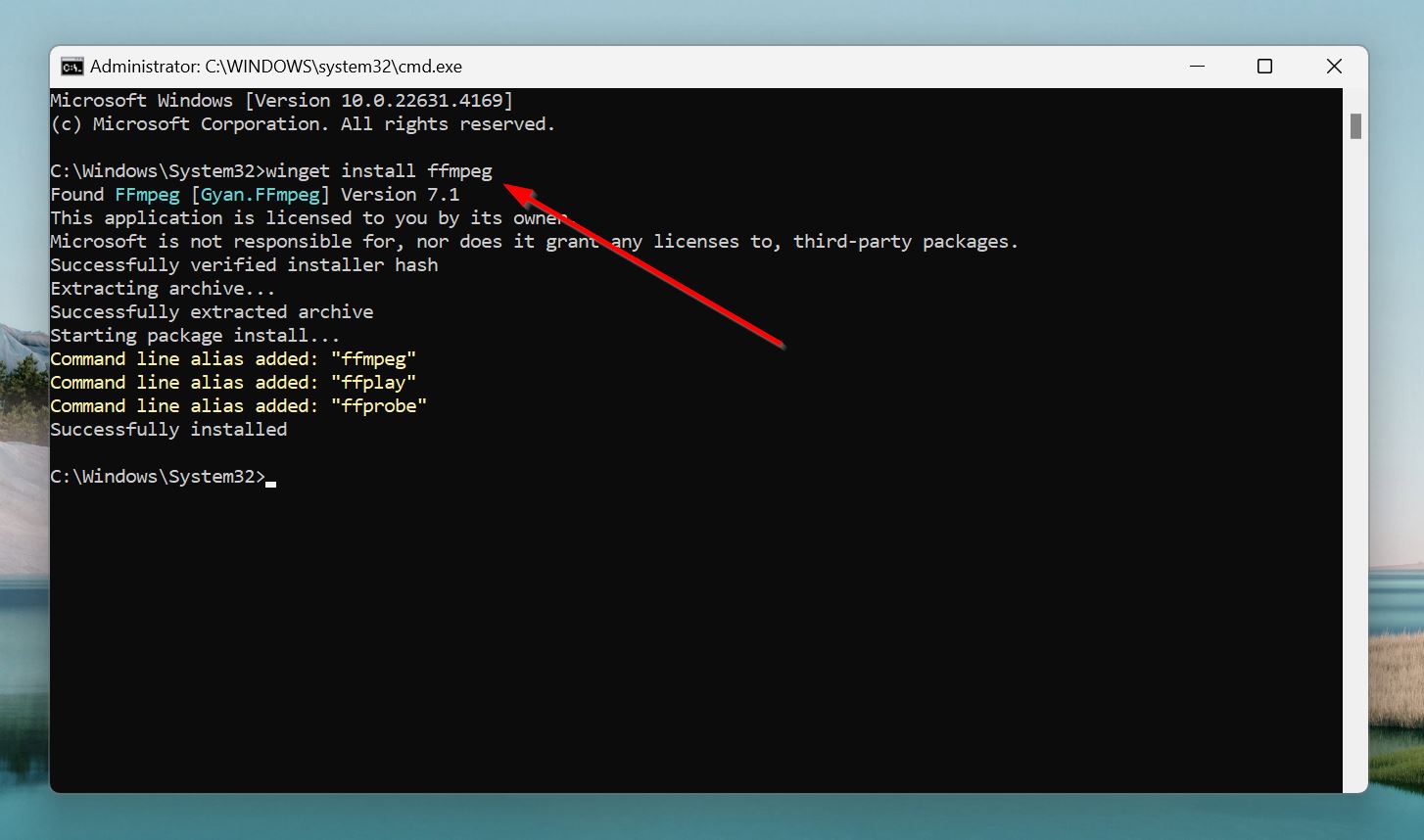
- Windows will automatically download and install FFmpeg.
- Close Command Prompt and re-open it as an administrator (Step 1).
- Type
ffmpeg -i X:PathToCorrupt Video File -c copy -map 0 X:PathToCorrupt Video File (Repaired). To find the file path of your video, open Windows Explorer (Windows Key + E), navigate to the folder containing the corrupt video, right-click the video, and choose Copy as path. Paste the path when executing the command.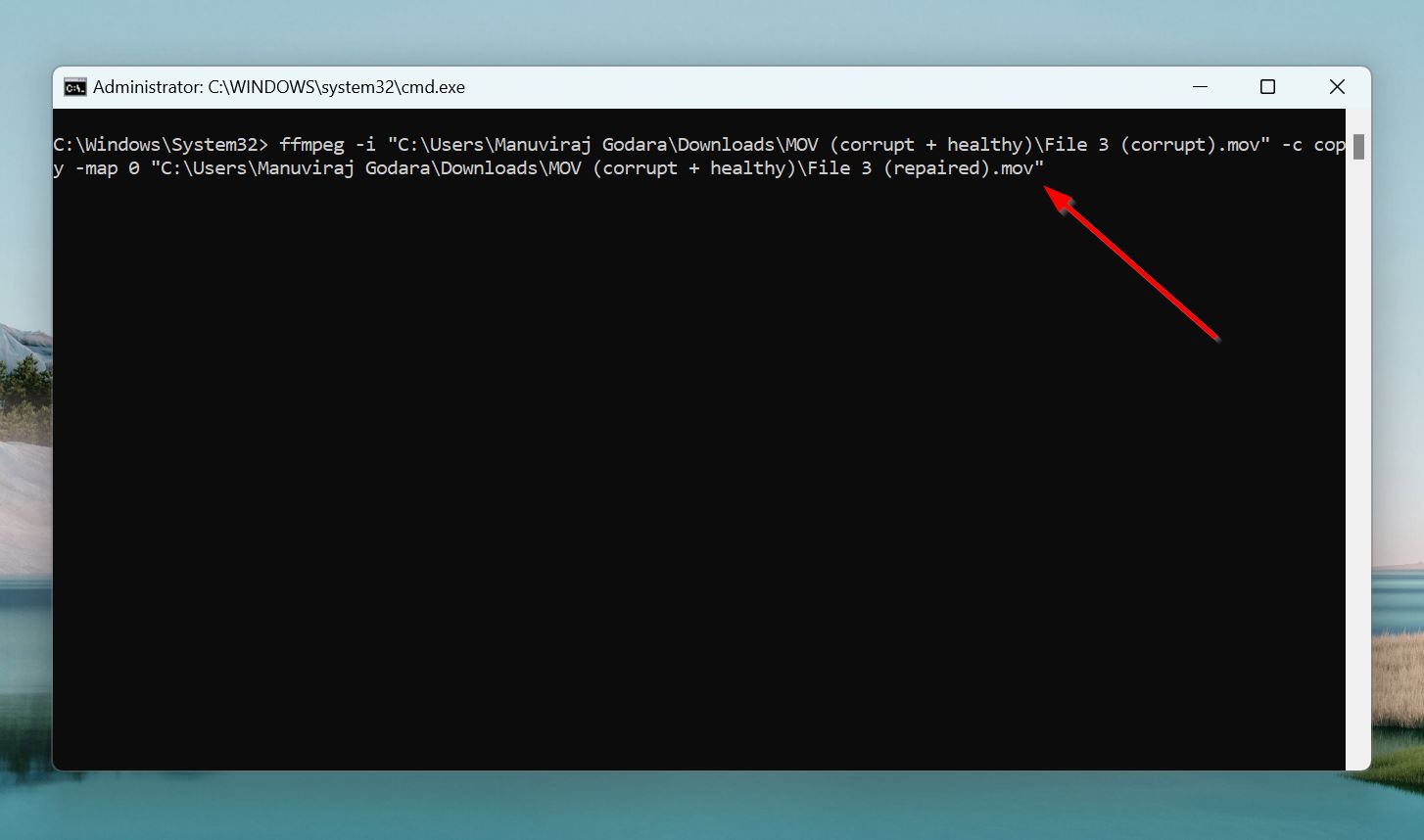
- Try playing the repaired copy of your video. If you’re still facing issues, execute the following command to re-encode the video,
ffmpeg -i X:PathToCorrupt Video File -vf yadif -c:v libx264 -c:a aac -strict experimental X:PathToCorrupt Video File (Repaired).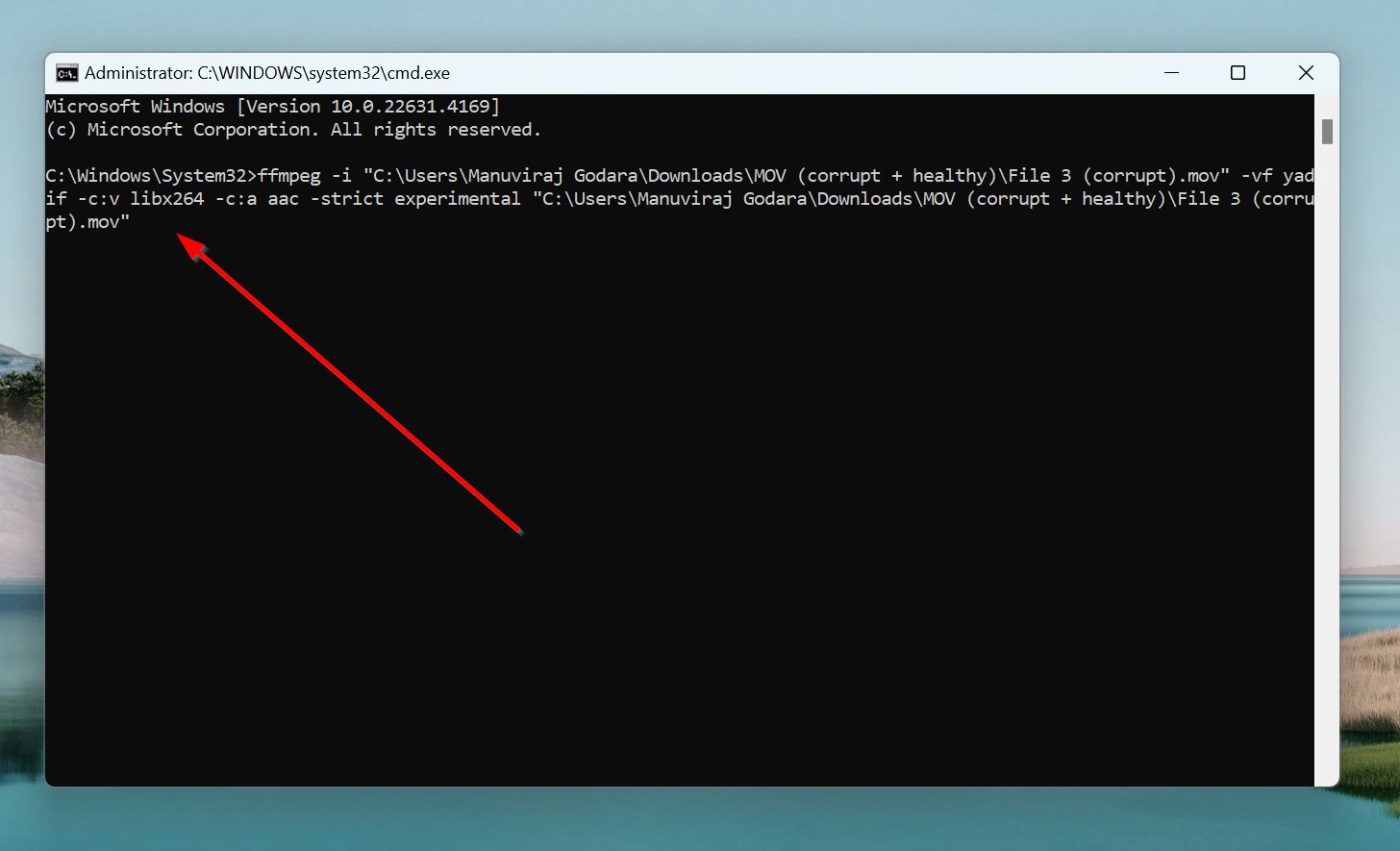
- Play the repaired video.
Pros
- Works with virtually every video format.
- Open-source with an active userbase.
- Ample documentation available to help new users.
- Fixes multiple types of video corruption.
- Steep learning curve.
- No GUI.
- Resource intensive.
Best for: Severely corrupt video files that require granular control of the repair process.
6. DivFix++
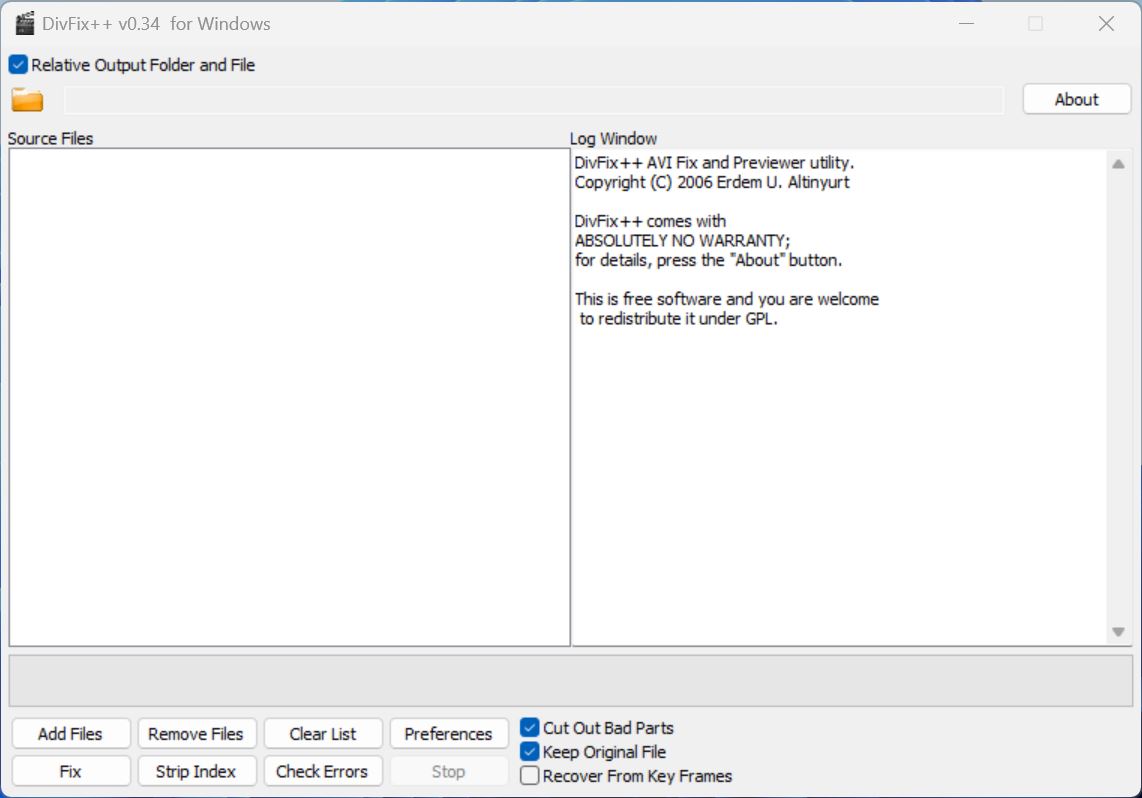 Online tool: No Supported OS: Windows, macOS, and Linux. DivFix++ is a video repair software that excels at repairing AVI files with header corruption, or a missing index. The developer states that it’s designed for incomplete AVI downloads from P2P networks, and interrupted file transfers. It appeals to new and seasoned users alike—thanks to its drag and drop GUI alongside support for command-line based repair. A major qualm I have with DivFix++ is that most features can only be accessed using the command-line version of the tool. This includes the preview feature that is quite useful, allowing you to preview files before completely repairing them. You don’t need a sample, healthy AVI file to fix corrupt ones using DivFix++
Note: Create a copy of the corrupt AVI video because DivFix++ overwrites the original file.
Here’s how to use DivFix++ to repair a corrupt video:
- Download DivFix++ and extract the downloaded archive.
- Run DivFix++.exe.
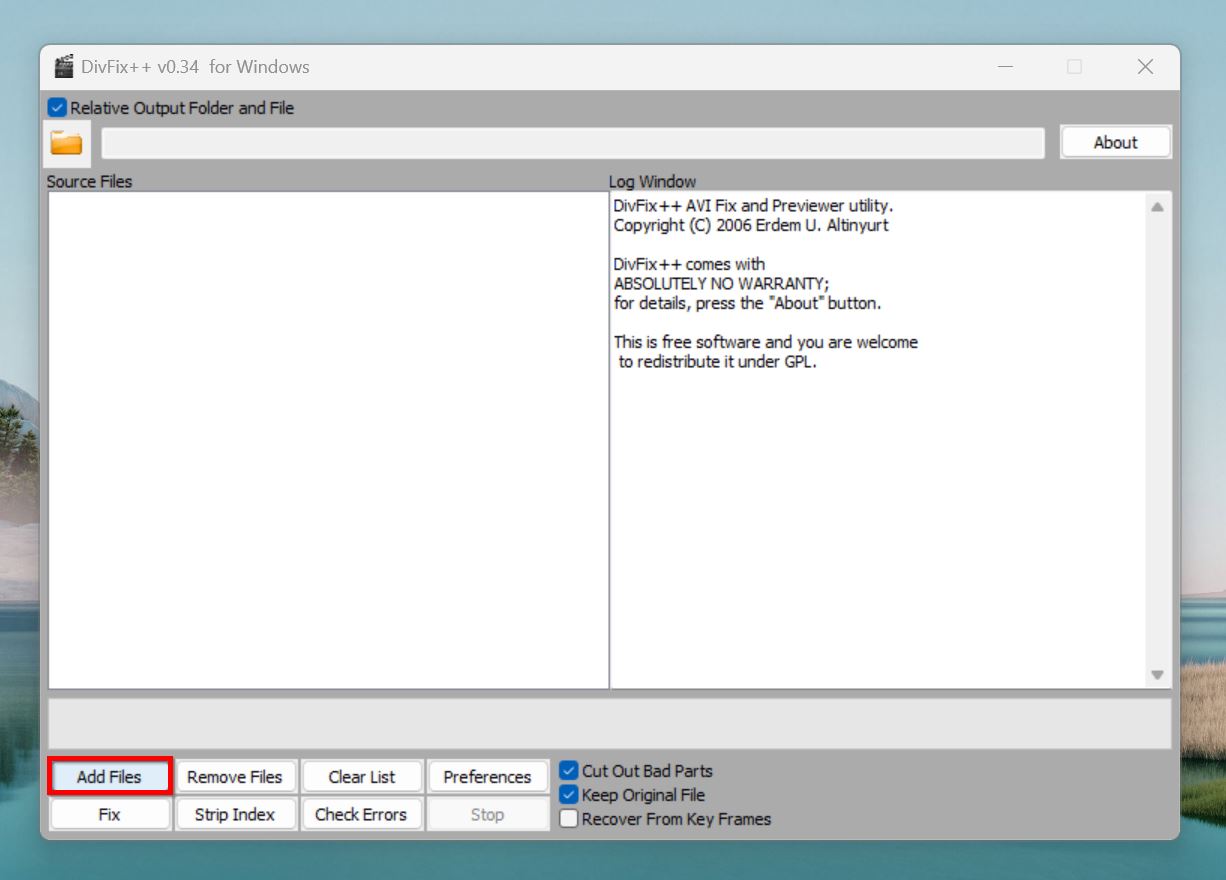
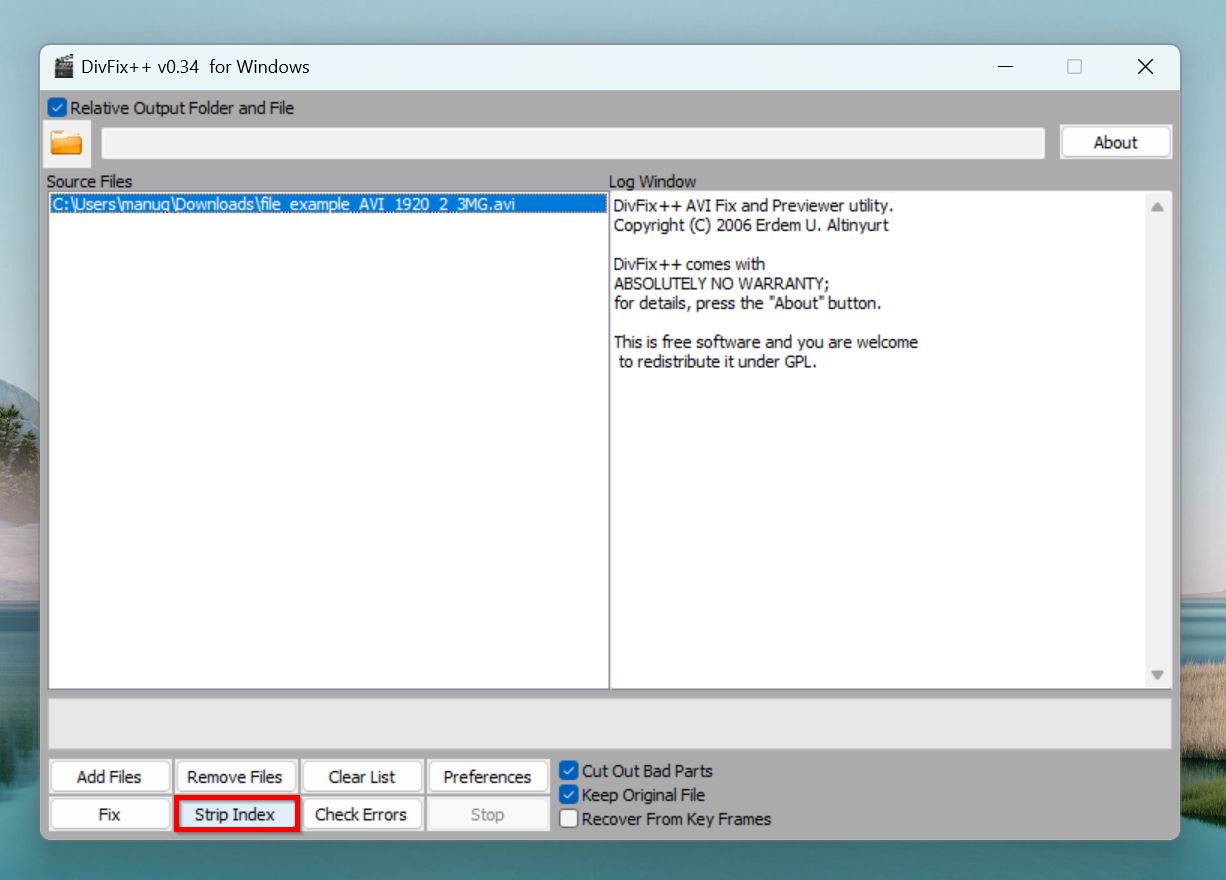
- Click the Add Files button, browse for your corrupt AVI video, and click Open. You can add multiple corrupt files.
- Take note of the 3 check boxes in the bottom-right corner of the UI. Uncheck the Keep Original File, and Cut Out Bad Part options.
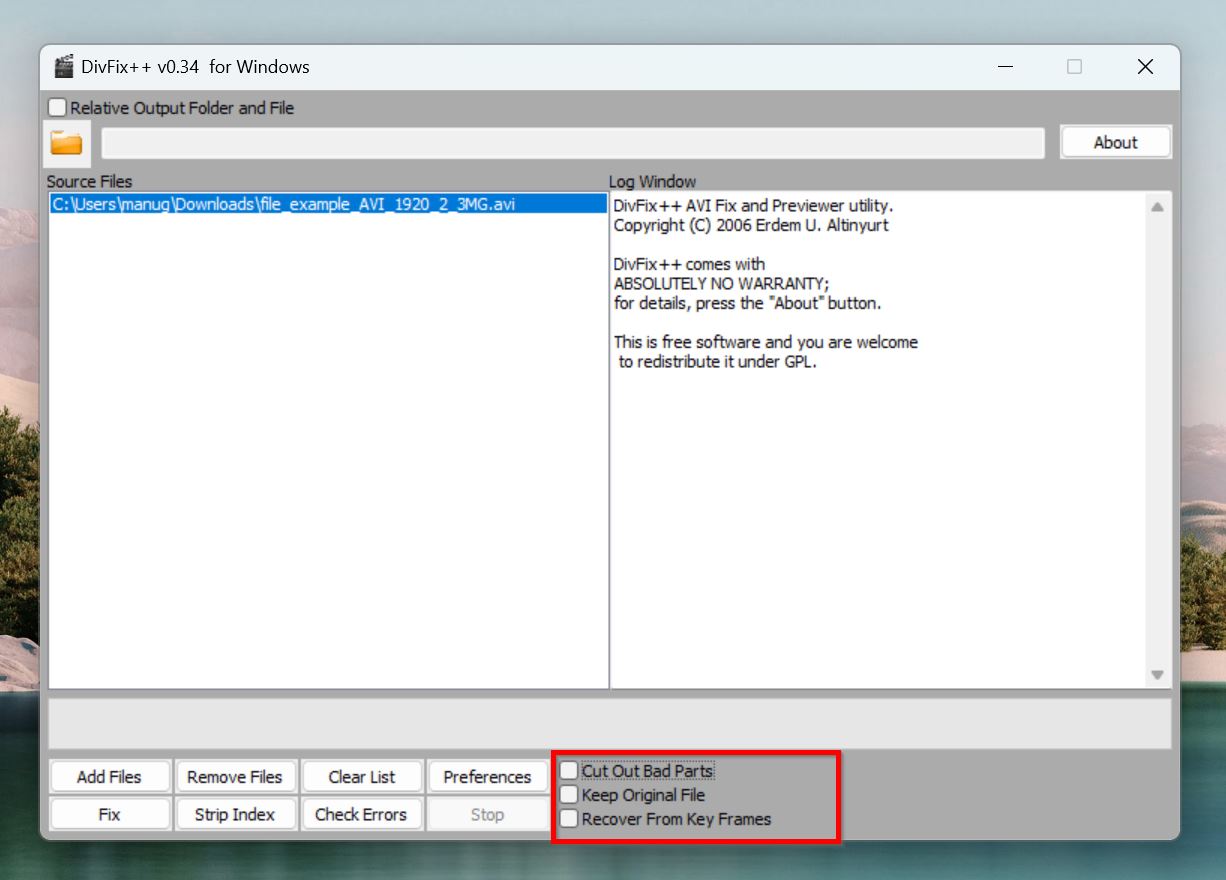
- Click on Strip Index.
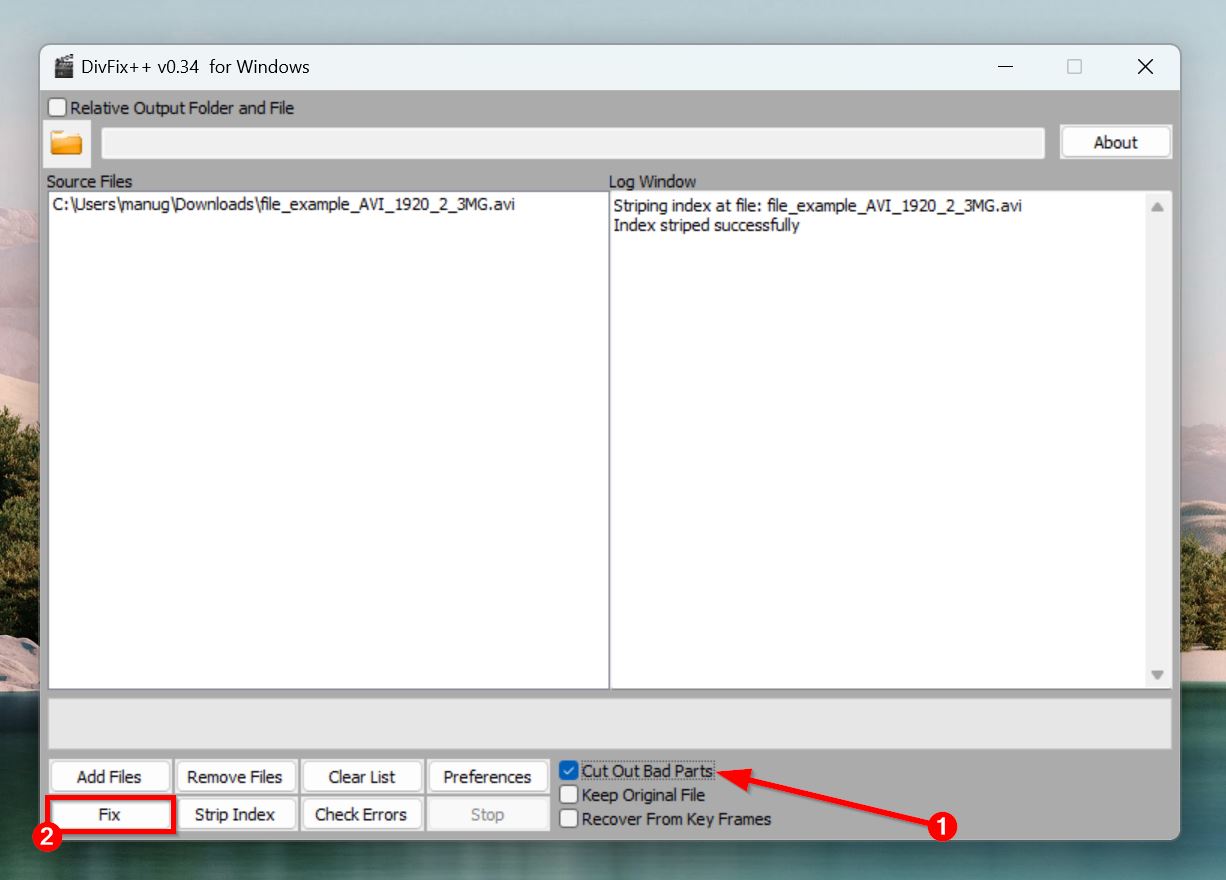
- Once the process completes, enable the Cut Out Bad Part option, and click on Fix.
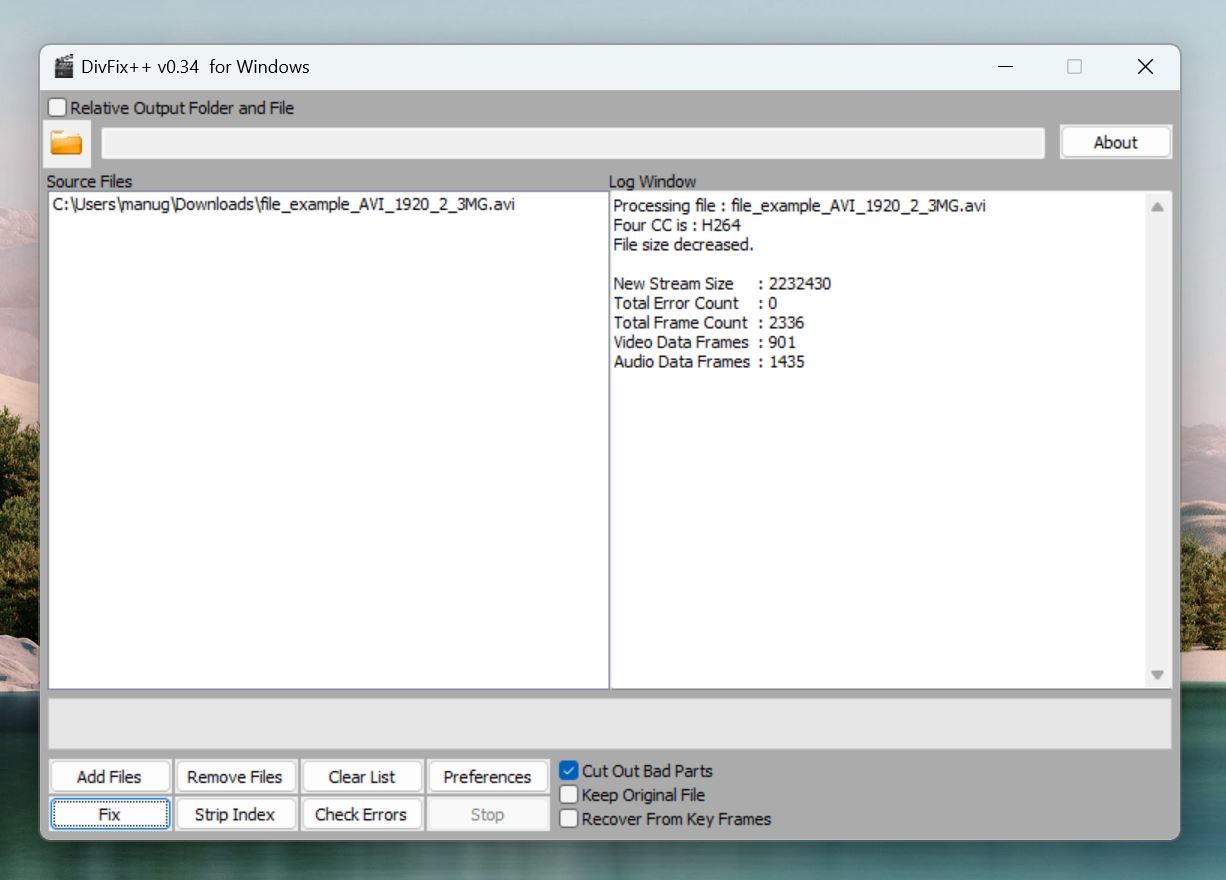
- DivFix++ will repair the corrupt AVI video.
Pros
- Supports batch processing of videos.
- Easy to use GUI.
- Offers a command-line option with many additional features.
- Lightweight.
- Only works with AVI files.
- Important features can only be accessed using the command-line, making them practically useless to novice users.
- Hasn’t been updated in years.
- Doesn’t handle modern H.264 encoded AVI files that well.
Best for: Fixing AVI files that were corrupted due to an interrupted P2P download, or during file transfer.
7. Fix.Video
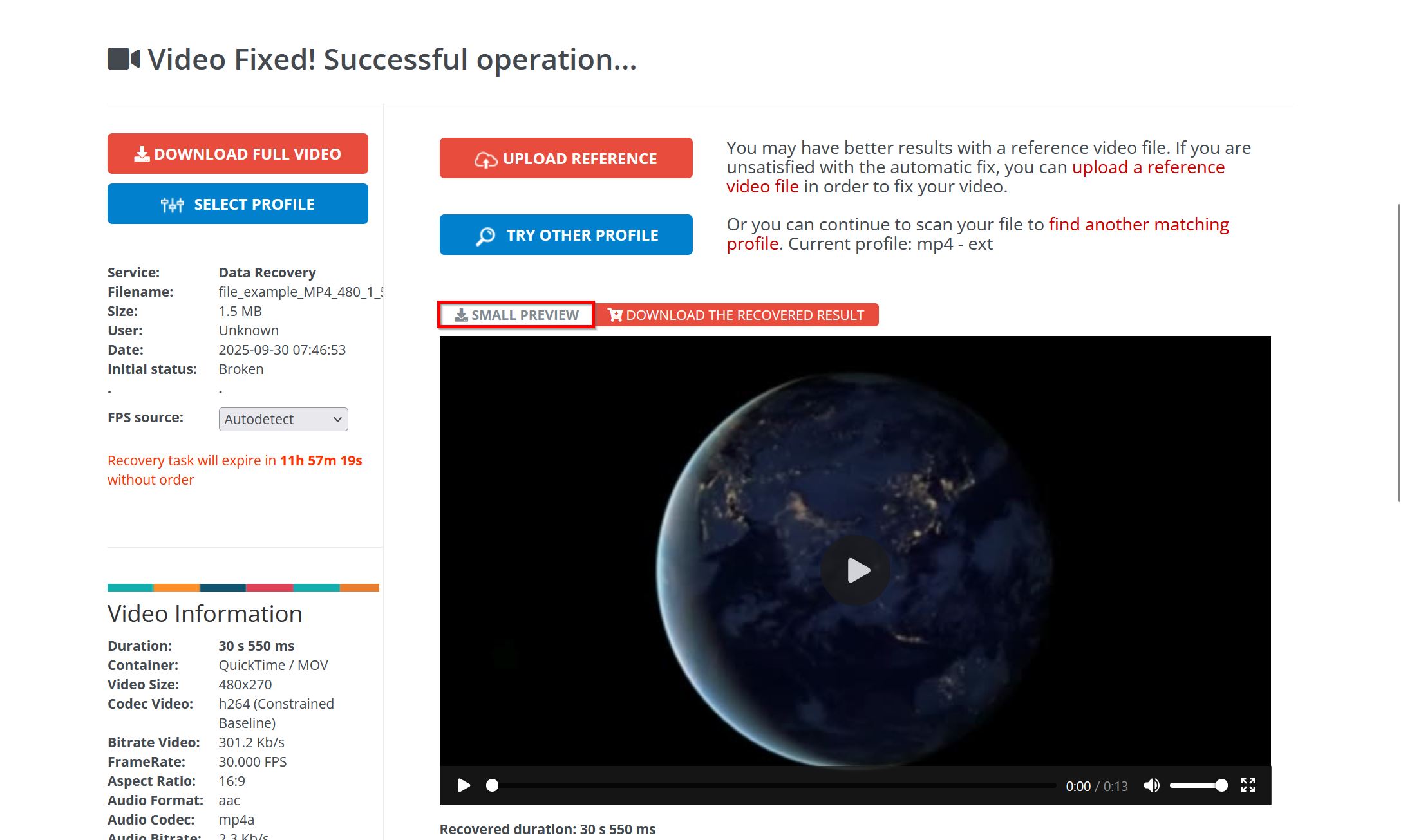
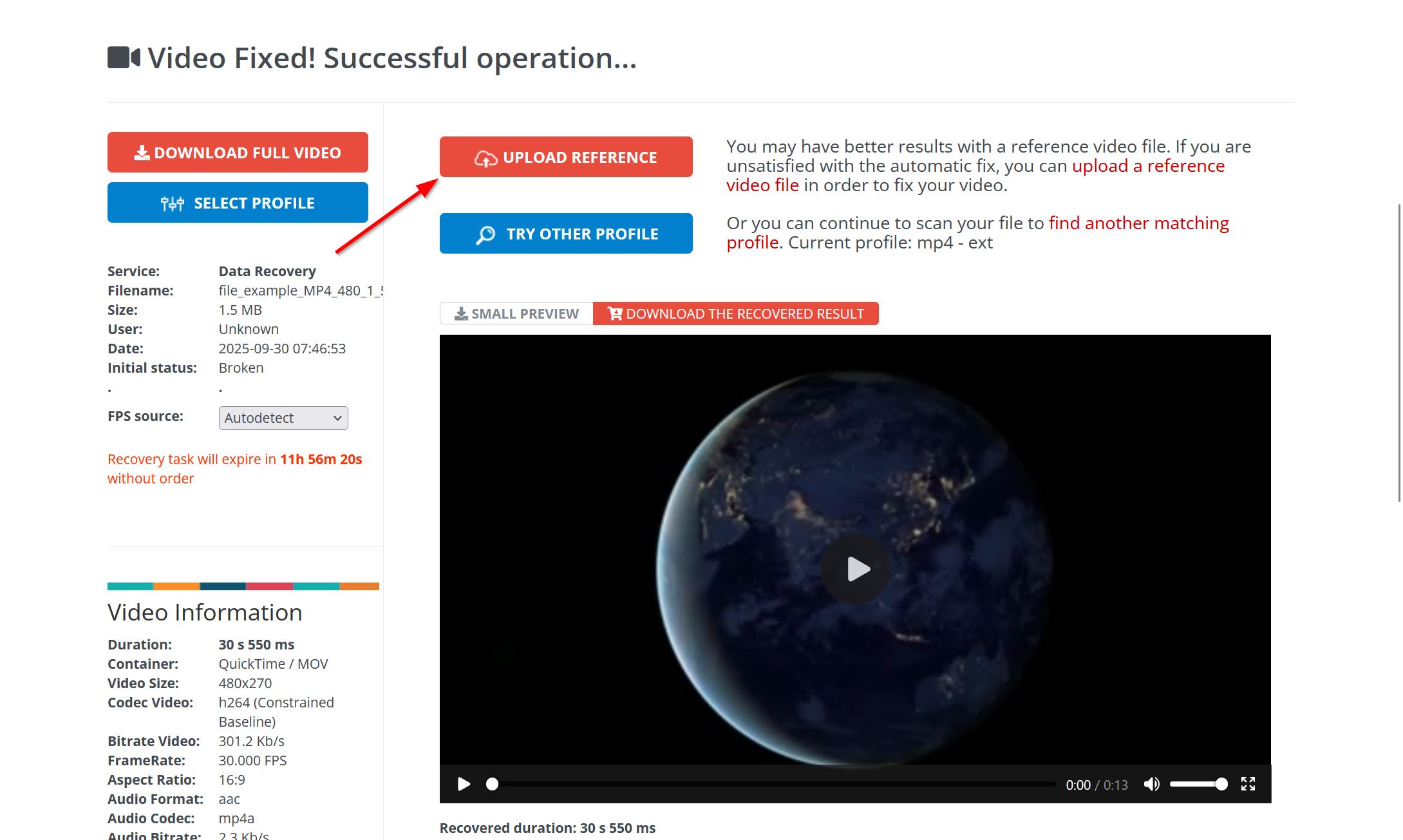
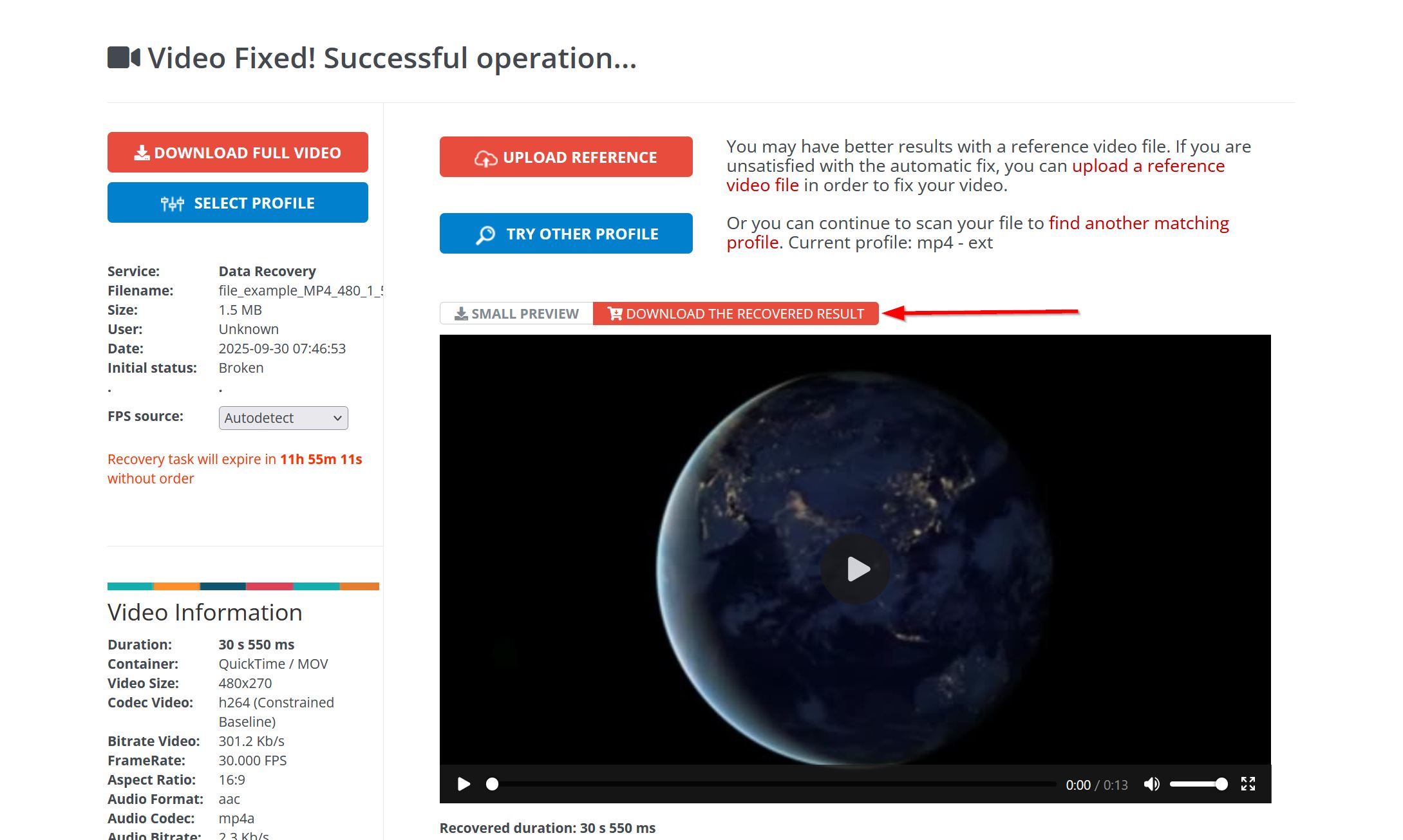
Online tool: Yes Fix.video is a web-based video repair tool that uses proprietary algorithms to detect and fix corrupt videos. Thanks to its large database of video profiles, you likely won’t require a healthy reference file to fix the corrupt one. The service can fix container issues, repair corrupt metadata, rebuild a damaged index, and realign the video/audio streams. While it supports MP4, MOV, M4V, 3GP, 3G2, and more, support for AVI files is lacking. It also supports a wide range of professional camera and drone formats. In case Fix.video’s automatic repair doesn’t fix your corrupt video, you can opt for a manual review by a Fix.video technician. This can be helpful when the video is important and no other tool succeeds at repairing it. What I didn’t like is that Fix.video only lets you download a small preview of the repaired video for free. Want the full file? You have to pay up. Here’s how to use Fix.video to repair a corrupt video:
- Visit Fix.video on your web browser.
- Click on the + icon, find the corrupt video, and click Open.
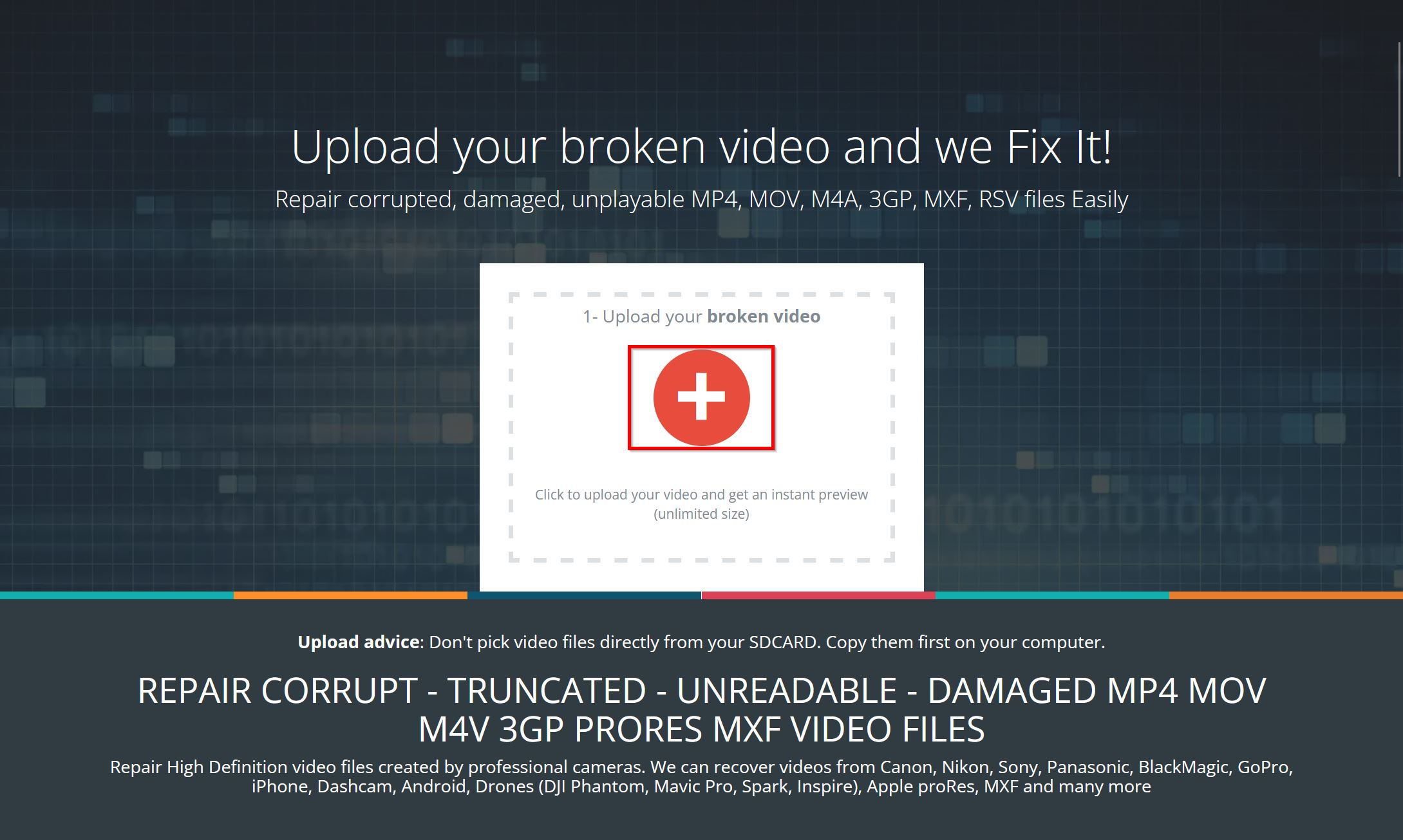
- Fix.video will begin the repair process right after the upload completes.
- Once it’s done, you can click Download Small Preview to check the quality.
- (OPTIONAL) In case you’re unsatisfied with the repair, click Upload Reference, browse for a healthy video recorded on the same device as the corrupt one, and click Open. This usually yields better results.
- Click Download the Recovered Result button, pay the amount, and the repaired video will begin downloading.
Pros
- Handles large files with ease. No cap on file size.
- Supports most modern camera and drone formats.
- Usually doesn’t require a reference file.
- Allows users to opt for a manual review in case they’re unsatisfied with the repair.
- Only a small preview can be downloaded for free.
- Pricing is only revealed after uploading and repairing.
- No batch processing.
- Limited video format support when compared to other tools.
Best for: Repairing corrupt videos recorded on professional cameras and drones.
Conclusion
The websites and tools outlined above should be enough to repair most types of video repair. If you’re inclined towards online tools, you can do no better than Clever Online Video Repair—thanks to its amazing functionality and quick processing speeds. When it comes to video repair software, Untrunc GUI is an excellent option that’s specifically designed for video repair.
| Tool | Supported File Types | Supported OS |
| Clever Online Video Repair | 400+ file formats, and 550+ codecs including MP4, MOV, DAT, 3GP, 3G2, M4V, M4A, M4R, M4B, F4V, F4A, F4B, GIFV, QT (ISOBMFF/QTFF containers; H.264/H.265 codecs) | Any (web browser) |
| Untrunc GUI | MP4, M4V, MOV, 3GP | Windows (GUI) |
| HandBrake | Any input; outputs MP4, MKV, WebM (supports most common codecs) | Windows, macOS, Linux |
| VLC Media Player | Dedicated repair for AVI; re-encode MP4, MOV, FLV, MKV, etc. | Windows, macOS, Linux, mobile |
| FFmpeg | Virtually all formats (MP4, MOV, AVI, MKV, MXF, etc.) | Windows, macOS, Linux, BSD, Android, iOS |
| DivFix++ | AVI | Windows, macOS, Linux |
| Fix.video | MP4, MOV, M4V, 3GP, 3G2, ProRes, MXF, XAVC, AVCHD, HEVC (H.265) | Any (web browser) |