 If you’ve had trouble with your WD hard drive, you’ve come to the right page. Our team gathered the best Western Digital recovery software available right now for home users. We’ll cover the pros, cons, and the practical details you’ll want before picking a tool.
📝 Want the easiest way to pick the right tool? Check out our side-by-side comparison table.
Best Western Digital Data Recovery Tools
Whether your Western Digital has suffered from data loss due to a malware attack, corruption, or accidental deletion, Western Digital recovery software is able to scan your drive for data and retrieve it for you. Take a look at some of the best Western Digital hard drive recovery tools on the market.
1. Disk Drill (Windows, Mac)
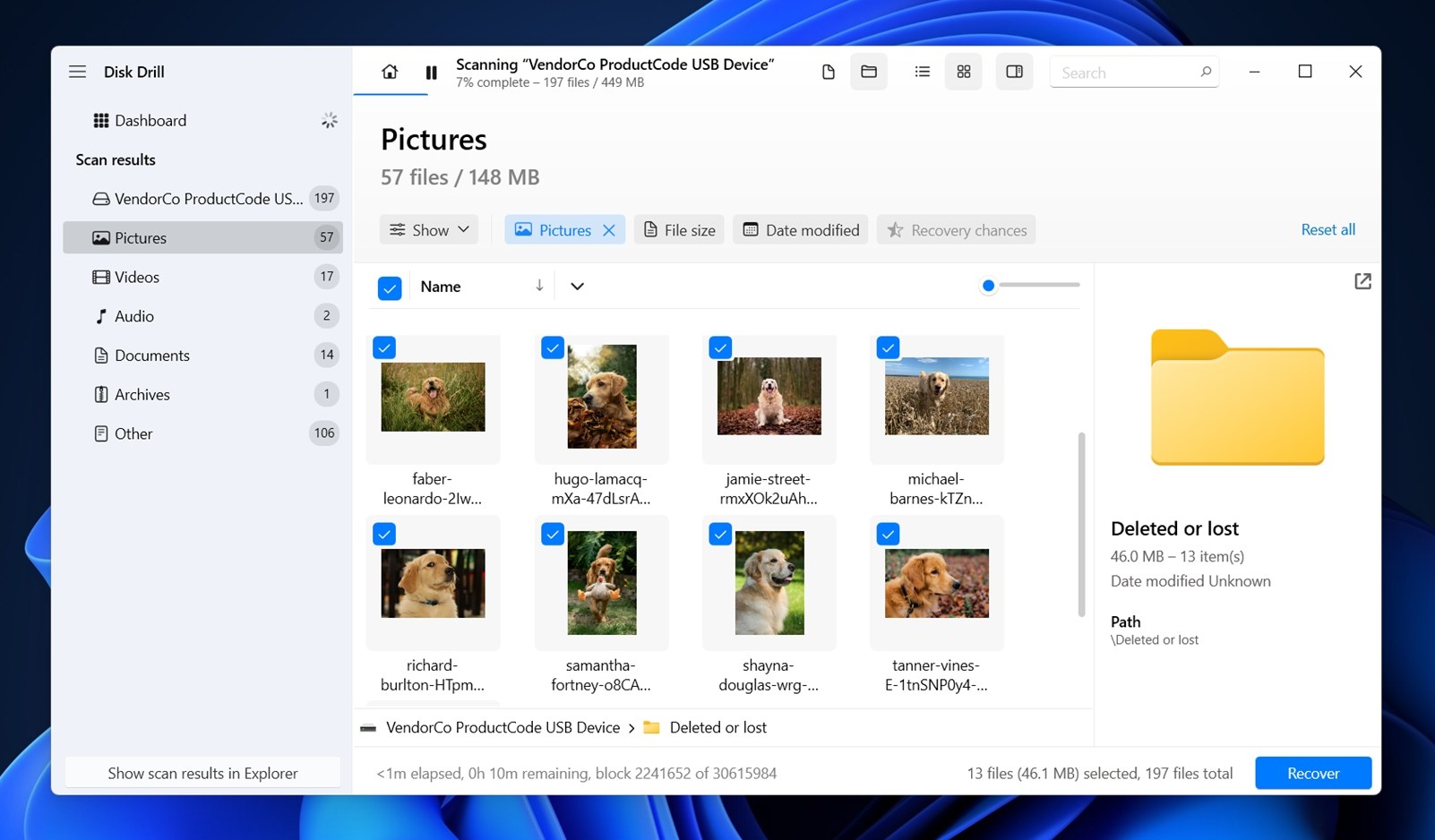 We recommend Disk Drill as the best Western Digital recovery tool in terms of price, efficiency, and usability. Its streamlined user interface allows you to select your drive, scan it, then recover your data in just a few clicks. It allows you to preview the files before recovery and indicates what files have the best chance of recovery.
In our testing, it performs equally well in different scenarios. If you only need to recover a single deleted folder from a WD drive, it handles that without issues. If the drive is severely corrupted and calls for a careful approach, Disk Drill’s disk imaging and other advanced tools give you safer options to work with.
You can read more details in our full Disk Drill review.
What real users say: “Disk Drill PRO is a great product and has rescued me on more than one occasion when files were lost. I paid extra for the lifetime upgrades, and version 6 was released recently. The upgrade from version 5 was smooth, and customer support responded quickly when I needed help. Highly recommended.” (Nigel D.)
Price:
- There’s a free version (on Windows, you can recover up to 100 MB for free; on Mac, the free version lets you scan and preview files).
- The Pro license costs $89, and the Enterprise license comes in at $499.
Pros
- Strong recovery results across both simple and complex WD drive scenarios.
- Supports a wide range of file systems commonly used on Western Digital drives.
- Clear recovery chance indicators.
- Built-in data protection tools.
- Active S.M.A.R.T. monitoring.
- Includes disk imaging tools.
- Modern and intuitive interface.
- No phone support.
- No photo/video repair.
2. R-Studio (Windows, Mac, Linux)
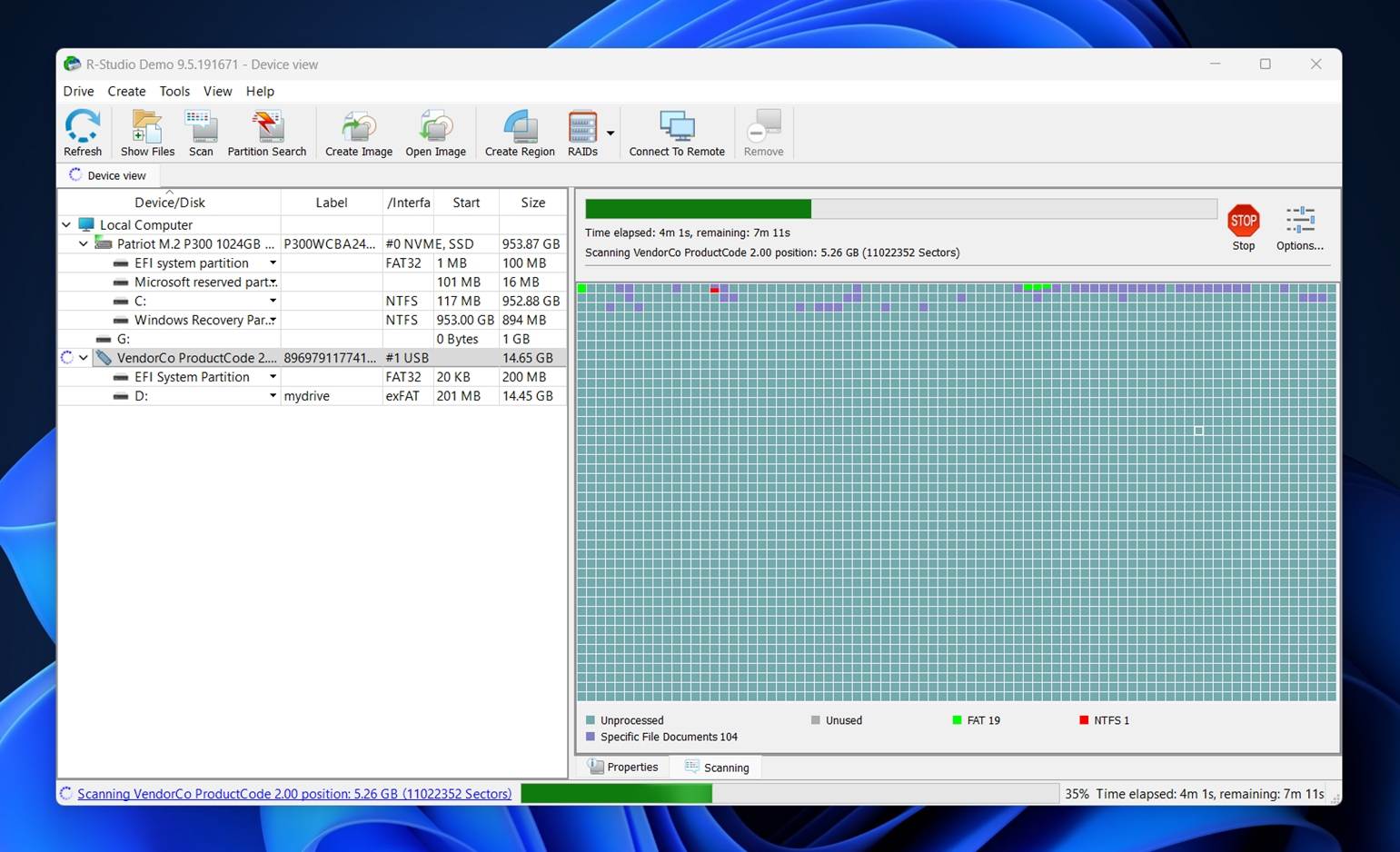
R-Studio is a Western Digital data recovery software packed with advanced features (you can look into the full details in our in-depth review). Beyond standard file recovery, it supports disk imaging, S.M.A.R.T. monitoring, RAID reconstruction, and a hex view for low-level work.
That depth comes at a cost, though. The interface feels technical and can be hard to navigate if you don’t already know your way around recovery tools. Menus are dense, options are everywhere, and there’s little hand-holding. This makes R-Studio far more suitable for data recovery professionals than for the average home user who just wants their files back.
What real users say: “We have used this for several years to recover lost files and lost file systems for our customers.” (William F.)
Price:
- Offers a limited free demo that can recover files up to 256 KB each.
- The Standard license costs $79.99 as a one-time purchase.
- The Technician license jumps to $899 (commercial use rights and advanced deployment options).
Pros
- Supports a wide range of file systems.
- Good option for IT technicians.
- Damaged RAID recovery.
- Very technical user interface.
- Files larger than 256KB cannot be recovered in the demo mode.
- Navigation and recovery of discovered files is difficult.
3. TestDisk & PhotoRec
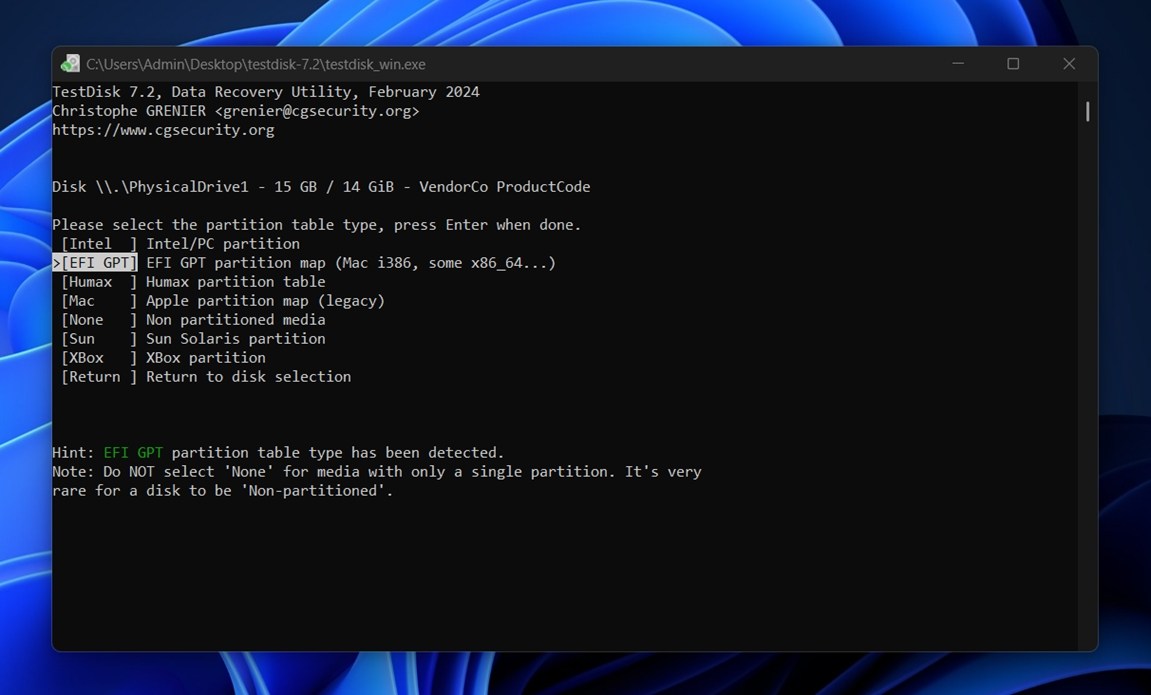
This bundle of WD repair software is completely free and open source, and it can be surprisingly useful with Western Digital drives if you’re comfortable getting your hands a bit dirty.
TestDisk focuses on fixing partition issues, such as lost partitions, broken partition tables, or WD drives that suddenly show up as RAW.
PhotoRec handles file recovery itself and works at a deeper level; it pulls files based on signatures rather than file system structure.
The tradeoff here is usability. There’s no modern interface, no previews, and no safety nets. You’re staring at text menus and making manual choices. For users who don’t mind that, it’s a powerful zero-cost option. For everyone else, it can feel unforgiving. If you need guidance, our team has prepared separate, step-by-step reviews for both TestDisk and PhotoRec that walk through the process.
What real users say: “For restoring lost data, TestDisk is an excellent tool. It is portable, effective, cost-free, and simple to use. that everyone has access to it, and everyone can look at the source code.” (Himanshu P.)
Price: TestDisk & PhotoRec are free and open source. There are no paid tiers to unlock extra features.
Pros
- Completely free.
- Works on Windows, Mac, and Linux.
- Good for fixing partitions (TestDisk) and recovering files (PhotoRec).
- Doesn’t require a powerful machine; runs on low resources.
- Open-source community support.
- No graphical interface in most cases (the Windows bundle does include a basic GUI for PhotoRec)
- No file preview before recovery, so you can’t see what you’ll get back ahead of time.
- Requires patience and basic tech comfort.
- Not ideal for casual users who want an easy click-through experience.
4. DMDE (Windows, Mac, Linux)
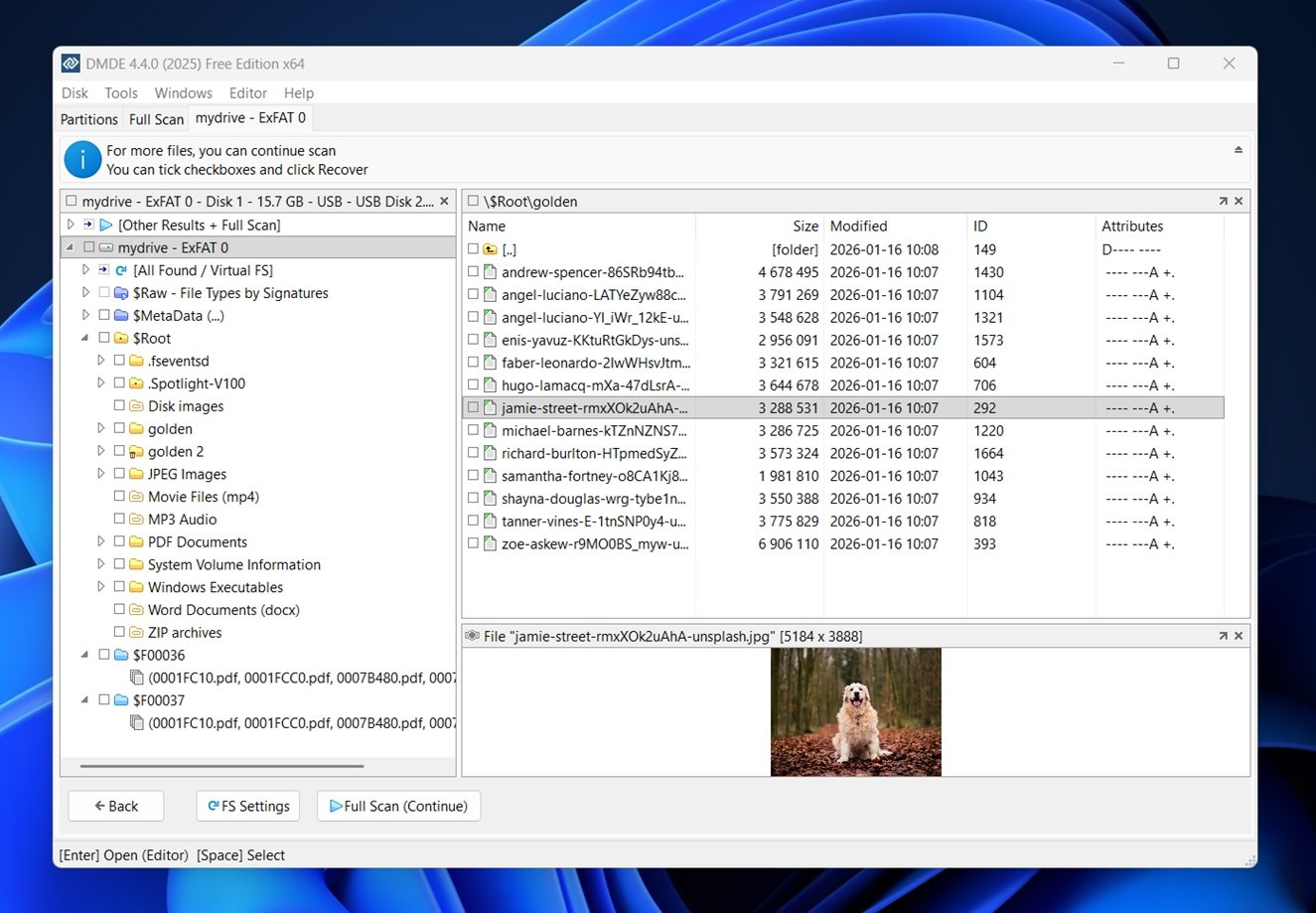
Despite its intimidating interface, DMDE is a data recovery tool that’s packed with lots of useful features that complement recovery. Additional features include the ability to create disk images, a RAID constructor, and a partition manager to undelete partitions. In use, it gives you a lot of information about your drive and provides a generous amount of options to tailor your scan. It’s affordable and worth a try if you’re prepared to invest time.
If you want a clearer picture before jumping in, we recommend checking our full DMDE review, where we break down its real-world recovery behavior.
What real users say: “The software seems complex, but is easy to adapt to and learn, the help files provide a cornucopia of information. If the files name has been lost, you can search by size (if known) of files, filter and narrow down search results and recover those, then examine the file, either by opening it or comparing hashes.” (David Brown DJ Helios)
Pros
- Express – $9.95 per month or $20 per year.
- Standard – $48 one-time license with free updates.
- Professional – $95 (single OS) or $133 (multi-OS), aimed at commercial recovery with advanced features like RAID tools and scripting.
- Portable.
- Support for RAID 0/1/4/5/6 configurations.
- Supports disk imaging, partition recovery.
- Very technical user interface that’s difficult to navigate.
- Limited guidance and hand-holding during recovery.
5. EaseUS Data Recovery Wizard (Windows, Mac)
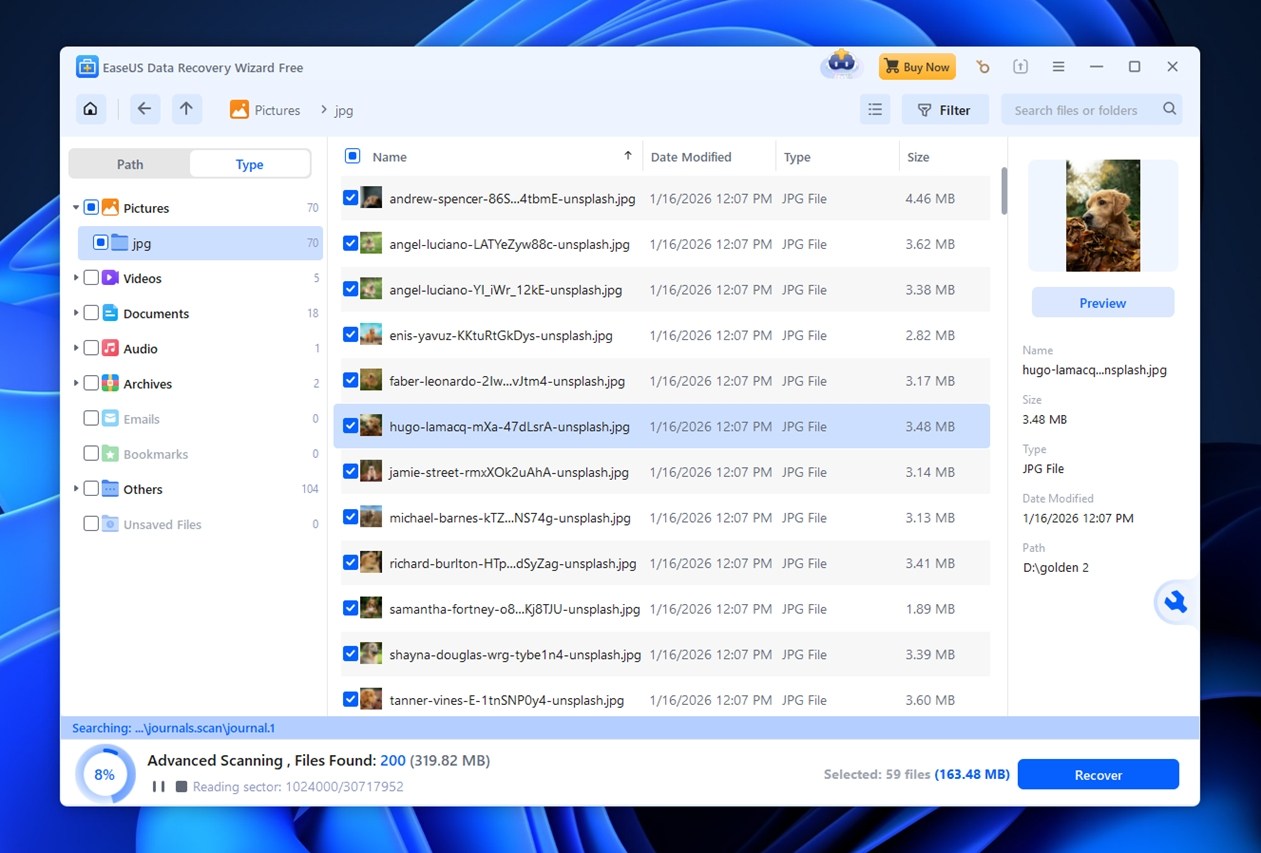
EaseUS is another recovery tool that’s among the best Western Digital tools for Windows and Mac. It works well in common WD recovery scenarios, like deleted files on a healthy drive or data loss after a quick format. Scan times are reasonable, results start showing up early, and recoverability is solid for everyday file types such as documents, photos, and standard videos.
The interface is clearly built for non-technical users, with large icons and step-by-step guidance that keeps things moving.
That simplicity also defines its limits. It often struggles with some less common file types (RAW camera formats or proprietary extensions). Also, the scan result estimates aren’t always accurate. We go more into it in our dedicated EaseUS review here.
What real users say: “I have had a few different experiences where my clients have over written their hard drives by reformatting and I was able to retrieve the data they needed. Lost documents, photos and music. Also, as with their other products, the support is excellent.” (Renee Freireich)
Price:
- Monthly plan – $69.95.
- Yearly license – $99.95.
- Lifetime license – $149.95.
Pros
- Strong results in common Western Digital recovery cases.
- Extensive knowledge base.
- Good customer support.
- Photo repair feature to assist with photo recovery.
- Cannot read S.M.A.R.T. data.
- Inaccurate scan time estimates.
6. DiskInternals Partition Recovery (Windows)
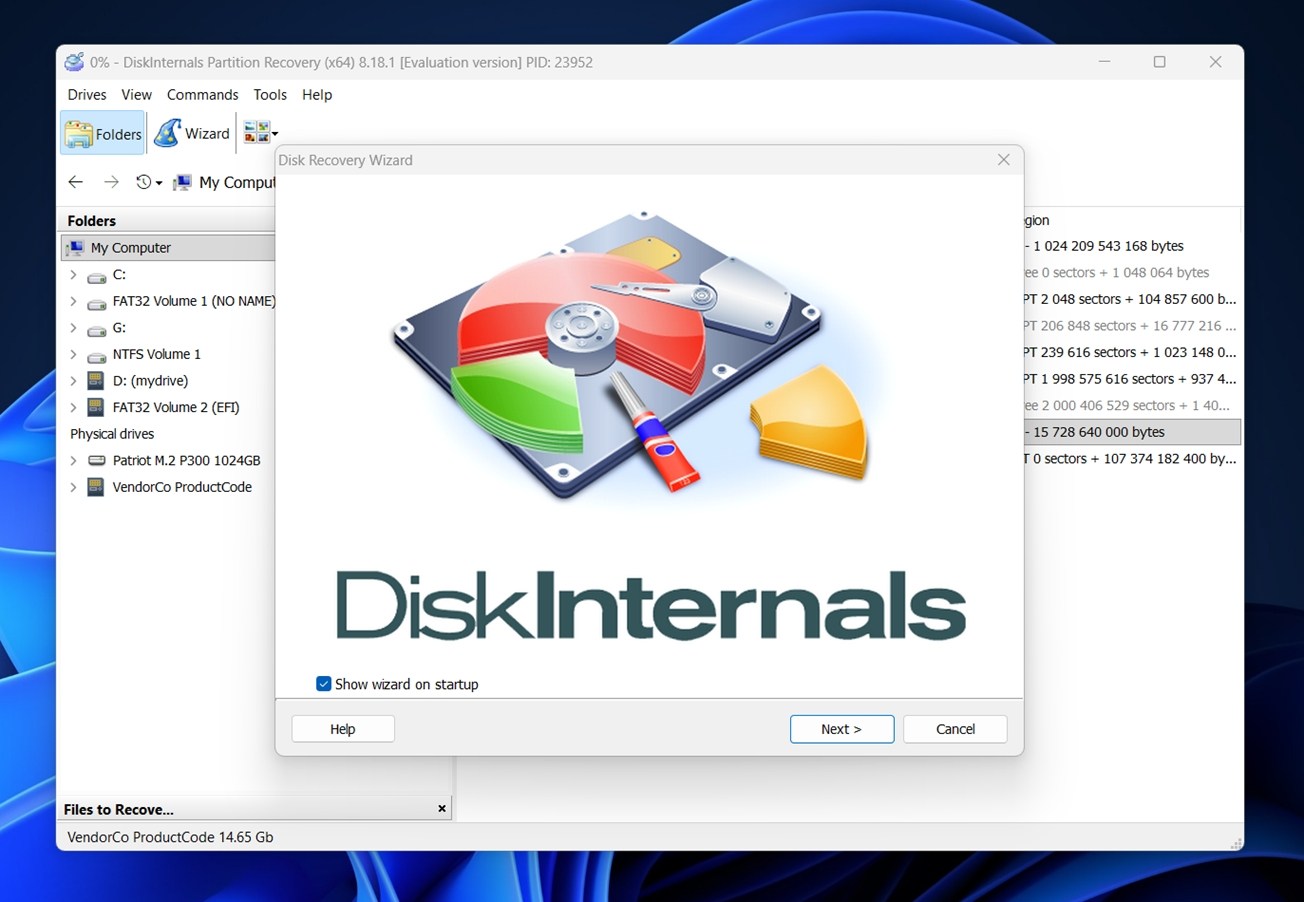
DiskInternals Partition Recovery is one of those tools that focuses on a specific job. It works best when you’re dealing with an internal Western Digital HDD formatted as NTFS and the problem sits at the partition level. If a WD drive suddenly loses its partition or shows unallocated space after a system issue, this tool can rebuild the structure and bring files back with their original names intact. In that kind of WD hard drive recovery scenario, it does what it’s supposed to do.
Where it starts to lose ground is versatility. There’s no exFAT support, which is a real limitation if you’re dealing with external drives. Performance also varies a lot depending on the file system, with some scans taking hours and still coming up empty. You can find more detail in our full DiskInternals Partition Recovery review to see whether it’s the right fit for your WD recovery case.
What real users say: “I bought the software some years ago, and now I had a problem with lost photos. The staff at disk internals went all out to sort my problem. Thank you very much.” (Udo Dolz)
Price:
- Personal edition – $39.95.
- Business – $219.95.
Pros
- Good at recovering deleted or lost partitions on NTFS-based WD drives.
- One-time license option with no subscription required.
- Clear scan results with a familiar file-explorer style layout.
- Supports several advanced file systems, including ReFS and UFS.
- No exFAT support, which limits usefulness for WD external drives.
- Outdated interface.
- Not beginner-friendly compared to more modern WD recovery tools.
7. GetDataBack (Windows)
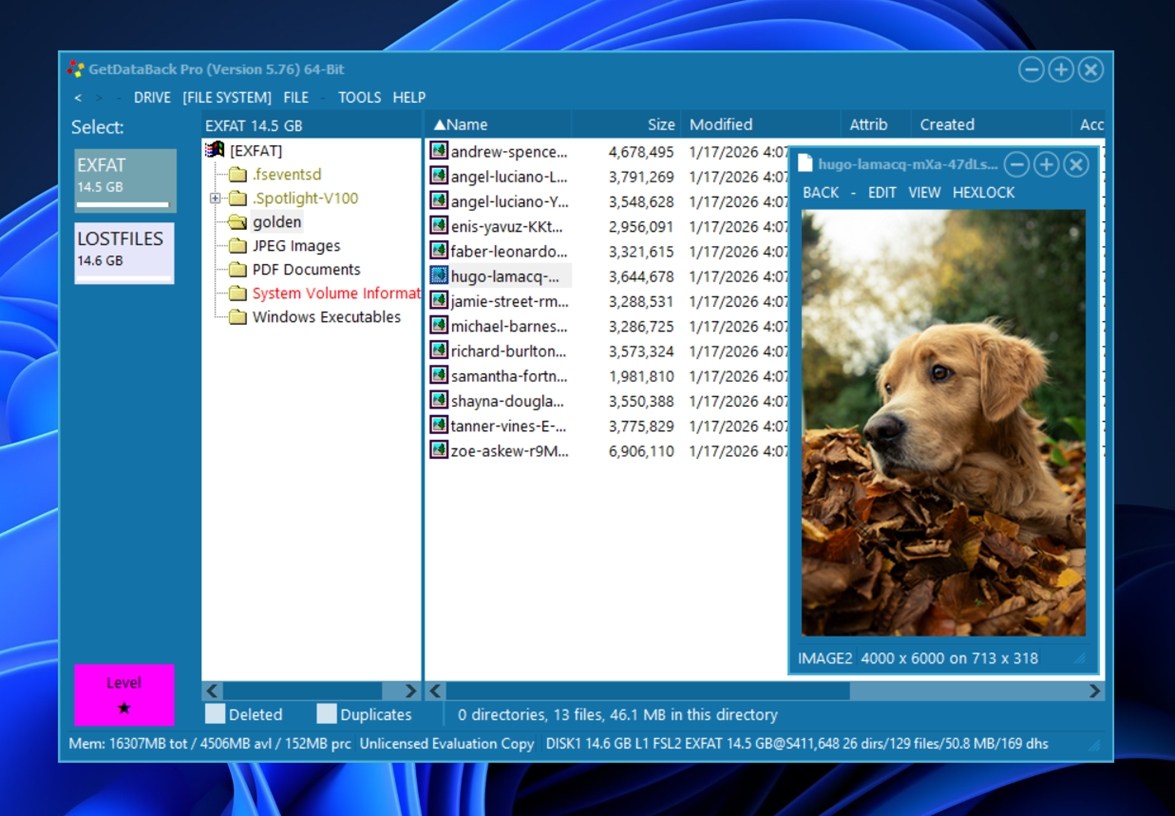
GetDataBack is not the prettiest tool on this list, but at least it has a proper graphical interface. If you need to fish data out of a WD drive formatted as NTFS, FAT, exFAT, EXT, HFS+, or APFS, it can get the job done, and that matters more than looks.
Just don’t expect much beyond core recovery. The interface is dated, guidance is minimal, and advanced safety features are limited, but for straightforward file system recovery, it still holds up.
What real users say: “just got home from holiday to find 2 out of 3 hard drives in my desktop corrupted somehow. no idea how it happened. no operating system working. installed new drive with windows, but explorer could not read either old drive – it said they need formatting. getdataback fully restored all the files on both drives, with the file names! excellent!.” (jamesgrosenhead)
Price: $79
Pros
- Super quick scan times.
- Supports Windows, Mac, and Linux file systems.
- Allows you to choose one of four scan types.
- Poor user interface.
- No preview option.
- APFS drive scans yielded poor results.
Conclusion
If we had to pick one WD recovery tool for most home users, it would be Disk Drill. It hits the best balance of usability, recovery performance, and safety features (especially disk imaging, which matters a lot when a WD drive acts flaky). In our opinion, Disk Drill is the best WD recovery software for 99% of cases.
If you want a “wizard-style” experience and you’re dealing with typical cases like deleted files or a quick format on a healthy drive, EaseUS also makes sense.
For advanced recovery work (odd file systems, complex partition damage, RAID cases, deeper control), R-Studio and DMDE remain strong picks, but they demand patience and some technical comfort.
And if you want a free option and don’t mind a text-based workflow, TestDisk & PhotoRec can still save the day.
Side-by-side comparison of all tools:
| Tool | Price | Free/Trial/Demo Version | Interface | OS support | File system support | Preview | Disk imaging | Avg rating |
| Disk Drill | $89 Pro (lifetime) | ✔️ | Beginner‑friendly | Win, macOS | FAT32, exFAT, NTFS, APFS/HFS+, ReFS and EXT4 | ✔️ | ✔️ | 4.1/5 |
| R‑Studio | $79.99 | ✔️ | Technical | Win, macOS, Linux | NTFS, NTFS5, ReFS, FAT12/16/32, exFAT, HFS/HFS+ and APFS | ✔️ | ✔️ | 4.1/5 |
| TestDisk & PhotoRec | Free | ✔️ (unlimited) | Text/technical | Win, macOS, Linux | FAT, NTFS, exFAT, ext2/ext3/ext4, HFS+ (PhotoRec signature‑based) | ❌ | ❌ | N/A |
| DMDE | $20–$133 | ✔️ | Technical | Win, macOS, Linux | FAT32, exFAT, NTFS, NTFS5, ReFS, HFS/HFS+, APFS, ext2, ext3, ext4, Btrfs | ✔️ (basic) | ✔️ | 3.8/5 |
| EaseUS DRW | $69.95–$149.95 | ✔️ | Beginner‑friendly | Win, macOS | NTFS, FAT/exFAT, HFS+ | ✔️ | ✔️ | 4.6/5 |
| DiskInternals Partition Recovery | $39.95 | ✔️ | Older, simple | Windows | NTFS, ReFS, UFS | ✔️ | ❌ | 3.3/5 |
| GetDataBack | $79 | ✔️ | Simple/dated | Windows | NTFS, FAT/exFAT, EXT, HFS+ | ❌ | ❌ | 2.9/5 |
* Avg rating = simple average of available scores across Trustpilot, G2, and Capterra (not weighted). If a tool has no reviews on a platform, it shows N/A.
What’s Special About Western Digital Hard Drives?
Western Digital, also known as WD, is a leading storage media manufacturer. With an impressive range of hard disk drives, solid-state drives, and flash-based storage, you’ll find Western Digital products in any technology store.
The company also has a rich history in the technology market. In 2009, it was the first to release a 2 TB internal hard disk drive, as well as the world’s first 3 TB internal hard disk drive that same year. More recently, in 2020, it released the WD Black SN850 which was considered one of the fastest consumer SSDs on the market.
Not unlike other hard drive brands, Western Digital categorizes its products based on implementation:
| WD Category | Description |
| WD Green | Eco-friendly drives |
| WD Blue | General-use desktop drives |
| WD Purple | Surveillance drives |
| WD Red | NAS drives |
| WD Black | High-performance desktop drives |
| WD Gold | Enterprise and commercial drives |
WD Hard Disk Repair Software Built-In Tools You Can Try
While most built-in tools won’t recover deleted files or rebuild lost partitions, they can still help when your WD hard drive acts up. They’re already included in Windows and macOS, and in some cases, they’re enough to repair file system errors.
We’ll cover two built-in WD hard disk repair software options: Disk Utility on macOS and CHKDSK on Windows.
⚠️ Important! If your WD hard drive contains files you need to recover, prioritize data recovery before running any repair tools. These utilities are designed to fix file system errors, not to recover lost files. In fact, they can overwrite or permanently damage recoverable data during repair attempts.
Mac: Repair Using Disk Utility
Apple’s Disk Utility tool includes a First Aid feature that can act as Western Digital hard drive repair software. This tool has the ability to find and repair issues with your Mac drive. In particular, it looks for issues related to the file system and directory structure of your drive.
- In the Utilities folder, open Disk Utility.
- Click View, then Show All Devices.
- Select the last volume of your drive, then click the First Aid button. When prompted, click Run.
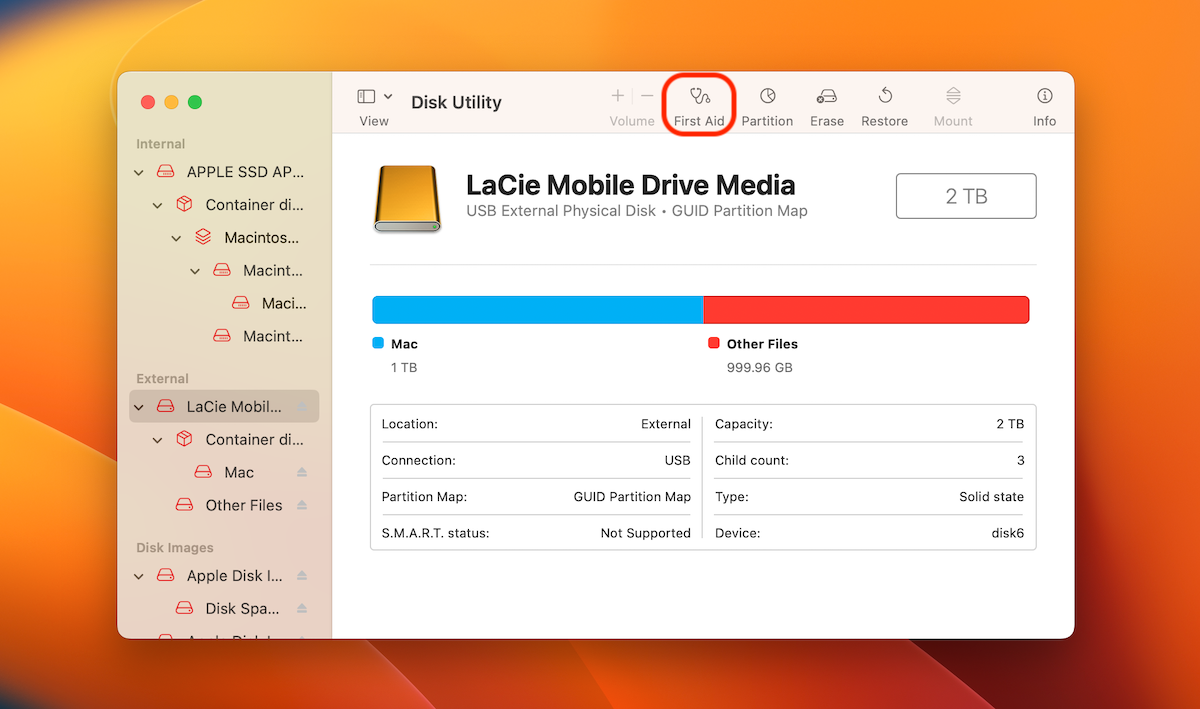
- Once the scan is finished for the volume, repeat these steps for any volumes above it, then finally the entire drive at the end.
This same process will work for WD external hard drive repair, as you only need to select your external WD hard drive from the list instead.
Windows: Repair Using CheckDisk
CheckDisk (CHKDSK) is a file system repair utility that’s built-in to Windows. It can be used for Western Digital hard drive repair by scanning its file system and marking bad sectors that shouldn’t be used.
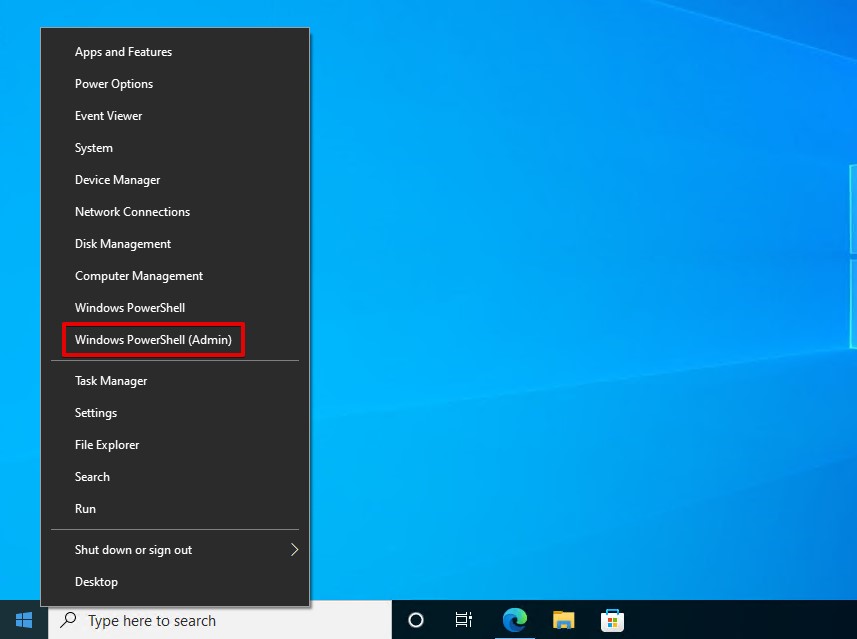
- Right-click Start and select Windows PowerShell (Admin). Click Yes if prompted by UAC.
- Type chkdsk D: /f /r. Replace D: with your own drive letter. Press Enter.
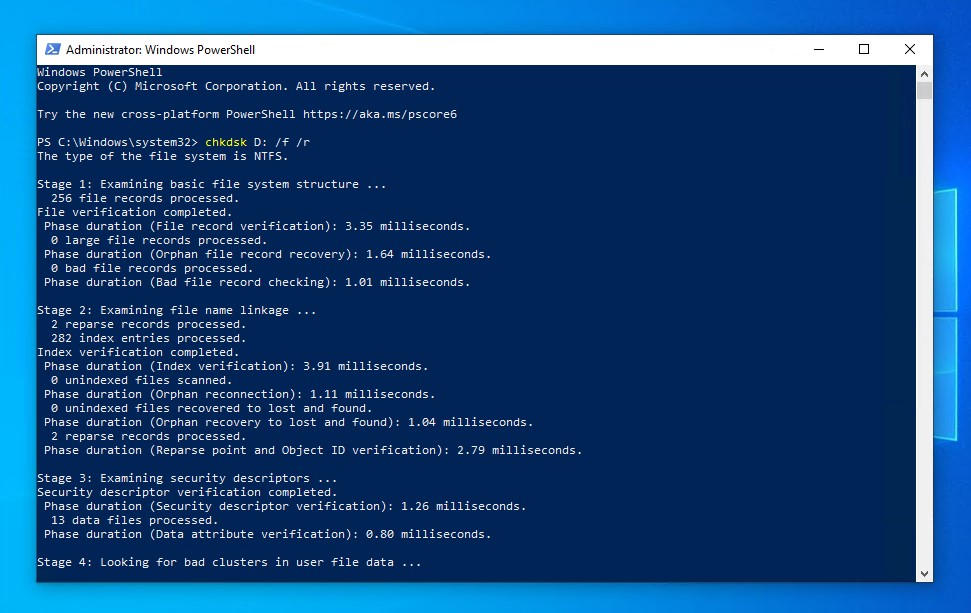
CheckDisk remains one of the best Western Digital repair tools for quickly fixing minor to severe logical issues on Windows.
FAQ
- TestDisk & PhotoRec. This open‑source duo is completely free. TestDisk can help repair partition issues, and PhotoRec can recover files based on file signatures. There’s no cost for scanning or recovery, but using them is more technical than typical apps.
- Free tiers of third‑party tools. Some popular recovery apps like Disk Drill and EaseUS offer free versions that let you scan and preview recoverable files. On Windows, Disk Drill lets you recover up to 100 MB for free, and EaseUS lets you recover up to 2 GB.