



Based on our tests on Windows and macOS, these are the five best EaseUS Data Recovery Wizard alternatives:
-
Disk Drill – Best Overall: Recovered all 65 files in both test scenarios on Windows and Mac, with an easy-to-use interface and additional disk recovery tools.
-
PhotoRec – Best Free Alternative: Completely free and open source, with unlimited recovery and strong results on damaged storage devices.
-
R-Studio – Best for RAID & Advanced Recovery: Offers advanced RAID reconstruction, broad file system support, and extensive control over the recovery process.
-
TestDisk – Best for Lost Partition Recovery: Restored access to all 65 files after we removed the USB drive’s partition information.
-
Stellar Data Recovery – Best for Guided Recovery: Provides a step-by-step interface, file type selection, and a separate Deep Scan option.
EaseUS Data Recovery Wizard handles basic file recovery reasonably well, but our tests revealed some limitations. It recovered 58 out of 65 when we tested a USB drive with damaged partition information. It also lacks per-file recovery probability estimates, offers fewer additional disk tools than some competitors, and requires separate licenses for Windows and Mac.
These drawbacks made us curious about how other recovery tools would perform under the same conditions. We tested five EaseUS alternatives on Windows and macOS to see which ones could recover more files, handle damaged storage more reliably, and offer better value for the money.
The main concerns we found were:
- It can be difficult to get an independent picture of the software from user reviews alone. Reviews and testimonials presented through EaseUS’s own platforms are overwhelmingly positive, while discussions on independent communities such as Reddit are considerably more critical.
- Some Reddit users have questioned recommendations that appear promotional. In discussions about data recovery software, users have called out posts or recommendations involving EaseUS that they felt read more like marketing than independent user experiences. This does not prove that every positive recommendation is promotional, but it makes independent testing particularly useful when evaluating the software.
- The recovery workflow gives you limited information about the condition of individual files. EaseUS lets you preview found files before recovery, but it does not provide the same kind of per-file recovery probability indicator that can help you estimate whether a particular result is likely to be recoverable.
- Its additional disk tools are relatively limited. Data Recovery Wizard concentrates primarily on finding and recovering data rather than combining recovery with a broader set of drive-health, protection, and disk-management tools.
- The paid versions can be expensive if you only need the software for a single recovery job. This becomes particularly relevant when comparing what is included in the Windows and Mac versions and what other recovery applications offer at a similar price.
The contrast between official reviews and independent discussions is particularly noticeable. EaseUS presents a very positive picture through its own channels, while Reddit threads contain much stronger criticism, including complaints about the software, billing experiences, and recommendations that some community members considered overly promotional.
These reports do not mean that EaseUS Data Recovery Wizard does not work or that every positive review should be treated with suspicion. Data recovery results vary significantly depending on the storage device, file system, type of data loss, and whether the missing data has already been overwritten. They do, however, give us good reasons to look at EaseUS alternatives and compare what other recovery tools offer.
If you’re interested in our own experience with the software, we’ve also published a full EaseUS Data Recovery Wizard review. There, we took a closer look at its recovery capabilities, tested its recovery performance, and covered both the things it does well and the weaknesses we encountered.
How We Tested the EaseUS Alternatives
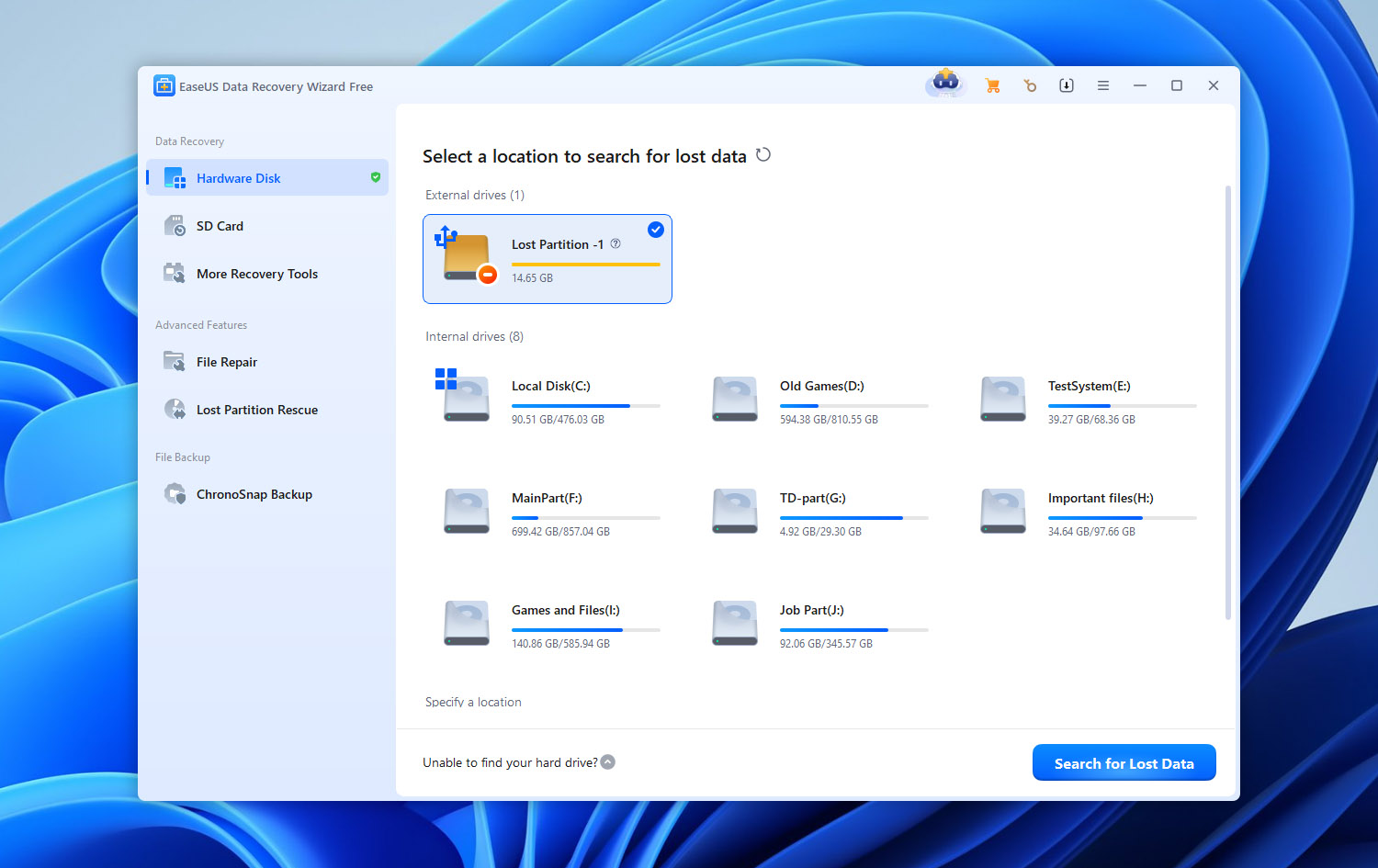
We tested all five EaseUS alternatives on Windows and macOS under the same conditions, using default scan settings wherever possible. We avoided custom scan configurations that could give any program an unfair advantage.
Our Test Setup
We used the following hardware and test drive throughout the comparison:
- Windows test PC: Windows 11 laptop with an Intel Core i5-13420H processor and 16 GB of RAM.
- Mac test computer: 2022 MacBook Air with Apple silicon.
- Test drive: 32 GB Kingston DataTraveler USB flash drive formatted as exFAT.
- Test data: Approximately 1 GB of mixed data, including JPG, PNG, CR2, and HEIC photos; PDF, DOC, XLSX, and SVG documents; and MP4 and MOV videos.
Software versions:
- EaseUS Data Recovery Wizard: 21.0.0.
- Disk Drill: 6.3.1398.
- PhotoRec: 7.3 beta.
- R-Studio: 9.5.191742.
- Stellar Data Recovery: 12.6.0.0.
- TestDisk: 7.3 beta.
We measured scan time, successful file recovery, filename and folder structure preservation, and preview reliability. Only files that opened correctly after recovery counted as successful results.
Data Loss Scenarios We Tested
We used two scenarios to see how each EaseUS alternative performs under different types of data loss:
- Deleted files: We copied the dataset to the USB drive and deleted the files normally, leaving the exFAT file system and its metadata intact.
- Damaged partition information: We restored the dataset and removed the drive’s MBR partition information. Windows detected the drive as RAW, while macOS recognized the physical device but could not access its volume. The files remained on the drive, but neither operating system could access them normally.
How We Ranked the Tools
Recovery results carried the most weight in our ranking. We also considered usability, file-system support, previews and filters, additional tools such as disk imaging and RAID recovery, and feature availability across Windows and macOS.
Finally, we compared pricing, free recovery limits, and paid features. Higher prices or longer feature lists did not automatically translate into better rankings.
Quick Comparison: EaseUS vs Alternatives
| Tool | Recovery Method | Supported File Systems | Drive Imaging | RAW/Damaged Partition Recovery | S.M.A.R.T. | RAID Support | Free Recovery | Additional Features | Best For |
| EaseUS Data Recovery Wizard | File-system + RAW/signature scan | FAT, exFAT, NTFS, ReFS, HFS+, APFS, EXT2/3/4 | Yes | Yes | No | Yes | 500 MB; up to 2 GB with sharing | NAS recovery, lost partition scanning, file repair, scan filters | Beginners |
| Disk Drill | File-system + signature scan | FAT, exFAT, NTFS, ReFS, HFS+, APFS, EXT2/3/4, BTRFS | Yes | Yes | Yes | Yes | 100 MB on Windows; scan & preview on Mac | Recovery Chances, Recovery Vault, Advanced Camera Recovery, byte-to-byte backups, NAS/Linux recovery | Best overall |
| PhotoRec | Deep signature-based/raw scan | File-system independent; works with FAT, exFAT, NTFS, EXT2/3/4, HFS+ media | No | Yes | No | No | Unlimited | Open-source recovery, custom file signatures, read-only recovery | Completely free recovery |
| R-Studio | File-system reconstruction + raw/signature scan | FAT, exFAT, NTFS, ReFS, HFS+, APFS, EXT2/3/4, XFS, UFS | Yes | Yes | Yes | Yes | Files up to 1,024 KB | Advanced RAID reconstruction, disk cloning, network recovery, hex editor, custom signatures | RAID & advanced recovery |
| Stellar Data Recovery | File-system + Deep Scan/signature recovery | FAT, exFAT, NTFS, ReFS; HFS+/APFS depending on platform/edition | Yes | Yes | Yes | Yes* | Up to 1 GB* | Lost partition recovery, bootable recovery, photo/video repair | Guided everyday recovery |
| TestDisk | Partition and file-system reconstruction | FAT, exFAT, NTFS, EXT2/3/4, HFS+, and others | No | Yes | No | Limited | Unlimited | Partition table recovery, boot sector repair, file-system repair, undelete on supported file systems | Lost partition recovery |
* Some Stellar capabilities depend on the operating system and edition you purchase. Features RAID recovery may be limited to specific editions rather than being included in the basic version.
5 Best EaseUS Alternatives
Now that we’ve covered how the tools were tested and what we compared, it’s time to look at each EaseUS alternative individually. Our main focus will be on what we saw during our own tests: recovery results, scan performance, preview reliability, usability, and how well each program handled the two data loss scenarios on Windows and macOS.
We’ll also look at the features that make each option different from EaseUS Data Recovery Wizard. If you want to compare our findings with what the developers officially claim their software can do, you can check the respective product websites for the full specifications and feature lists.
1. Disk Drill (Best Overall)
Disk Drill is a data recovery tool for Windows and macOS developed by CleverFiles. It combines file-system recovery with signature scanning and supports NTFS, exFAT, APFS, HFS+, ext4, and other file systems.
Beyond file recovery, it offers byte-to-byte disk imaging, S.M.A.R.T. monitoring, RAID recovery, Advanced Camera Recovery for fragmented videos, and preventive recovery features.
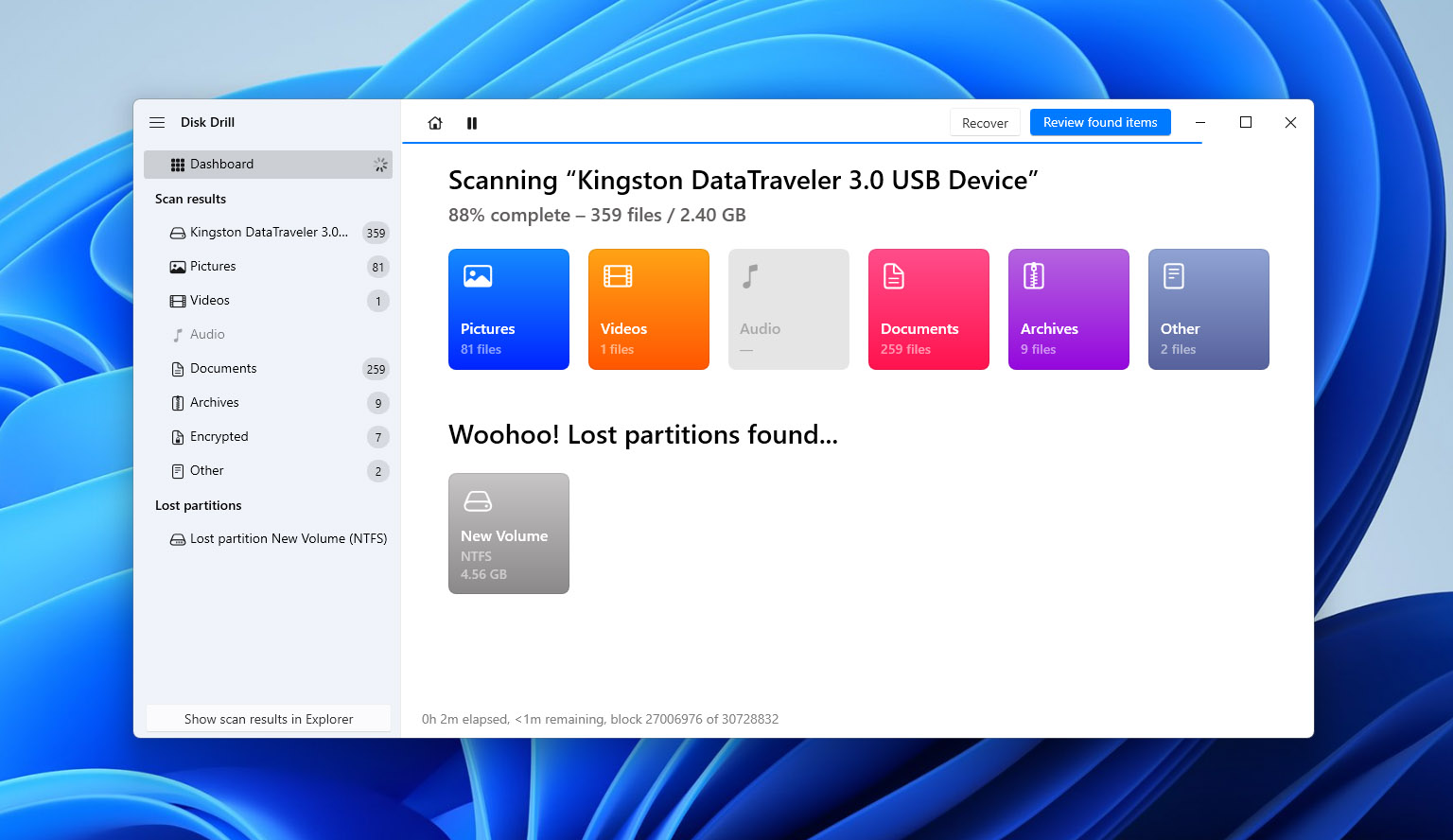
🏆 Best for: Users who want an EaseUS alternative with an easy recovery workflow, more information about the recoverability of individual files, and additional disk monitoring and recovery tools on both Windows and Mac.
💵 Price: Disk Drill Basic lets you scan drives and preview recoverable files for free on both Windows and macOS. The Windows version also includes up to 100 MB of free recovery. Disk Drill PRO costs $89/year or $149 for a lifetime license with lifetime updates. One PRO license covers both Windows and macOS for one user with up to three activations.
Interface & Usability
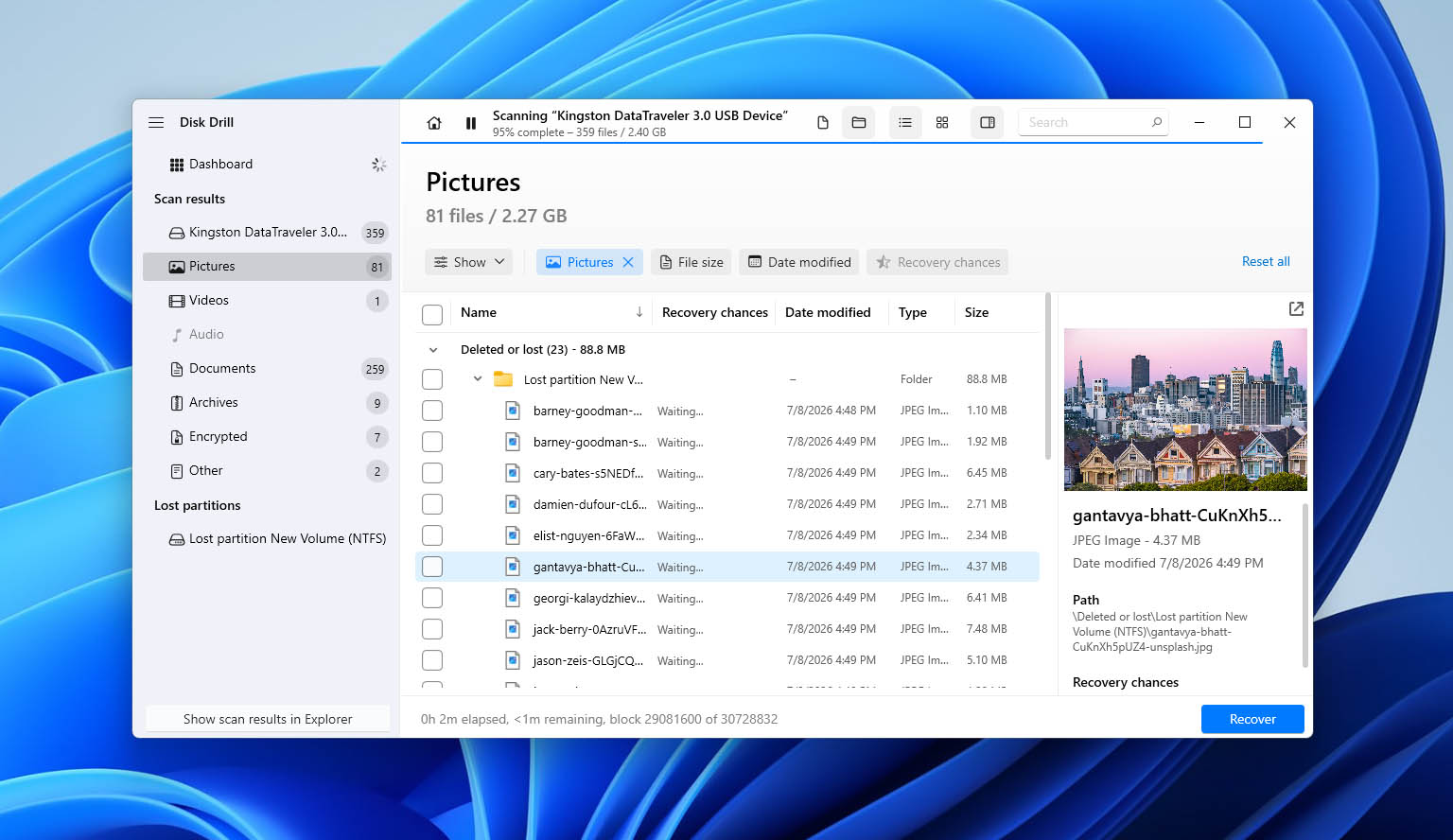
Disk Drill keeps recovery straightforward: select a disk or partition and click Search for lost data. The program automatically combines available recovery methods and displays results while the scan runs, without requiring you to choose between quick and deep scans.
Results are grouped into Existing, Deleted or Lost, and Reconstructed files. You can filter them by file type, size, date, or recovery chances, search by filename, and preview files before recovery. Recovery Chances also helps you assess which files are more likely to be recovered successfully.
The workflow is largely consistent across Windows and macOS, despite minor interface differences. For fragmented footage from cameras and drones, Disk Drill also offers a separate Advanced Camera Recovery mode.
Recovery Performance in Our Tests
Disk Drill delivered the strongest recovery results in our comparison, recovering all 65 original files in both scenarios on Windows and macOS. Files recovered through available file-system metadata retained their original names and folder structure, and every recovered file opened correctly.
The difference was most noticeable in the damaged-drive test. Disk Drill recovered all our MP4 and MOV videos, while several videos recovered with EaseUS failed to open correctly. EaseUS completed its scans slightly faster, but Disk Drill recovered more usable files.
The table below provides the complete recovery results and scan times for both programs.
| Test | Disk Drill Windows | EaseUS Windows | Disk Drill Mac | EaseUS Mac |
| Deleted files | 65/65 | 63/65 | 65/65 | 63/65 |
| Deleted-file scan time | 7m 12s | 6m 31s | 6m 48s | 6m 17s |
| Damaged-drive recovery | 65/65 | 58/65 | 65/65 | 58/65 |
| Damaged-drive scan time | 9m 36s | 8m 52s | 9m 04s | 8m 39s |
| Video result from damaged drive | All MP4/MOV recovered | Several test videos failed | All MP4/MOV recovered | Several test videos failed |
| File preview | All tested files previewed correctly | Good for most tested files | All tested files previewed correctly | Good for most tested files |
| Recovery Chances | Yes, per-file estimate | No equivalent per-file estimate | Yes, per-file estimate | No equivalent per-file estimate |
| Best for | Best overall | Beginner-friendly recovery | Best overall | Beginner-friendly recovery |
What Makes Disk Drill a Better EaseUS Alternative?
- Stronger recovery results. Disk Drill recovered more usable files than EaseUS in both scenarios, including all the original MP4 and MOV videos from the damaged drive.
- More information about recovery prospects. Recovery Chances provides per-file estimates that can help you prioritize files before recovery.
- Additional recovery and disk tools. Disk Drill offers byte-to-byte backups, S.M.A.R.T. monitoring, RAID recovery, and Advanced Camera Recovery. It also includes Recovery Vault on Windows and Guaranteed Recovery on macOS.
- Cross-platform licensing. One PRO license covers Windows and macOS, unlike the separate licenses required for EaseUS.
Disk Drill also has limitations. Its free Windows version allows only 100 MB of recovery, compared with up to 2 GB in EaseUS, while Mac users can scan and preview files for free but need a paid license to recover them. Disk Drill also took roughly 40 seconds longer per scan in our tests, although it recovered more usable files.
Note: Want a closer look at Disk Drill? Read our full Disk Drill review for a more detailed breakdown of its recovery performance, features, pricing, and limitations.
2. PhotoRec (Best Free Alternative)
PhotoRec is a free, open-source recovery tool from the CGSecurity project, available for Windows, macOS, Linux, and other platforms. Unlike EaseUS, it relies primarily on file carving, searching storage directly for recognizable file signatures even when file-system metadata is inaccessible.
It recognizes more than 480 file extensions across approximately 300 file families, including photos, documents, and videos. However, recovered files generally lose their original names and folder structure.
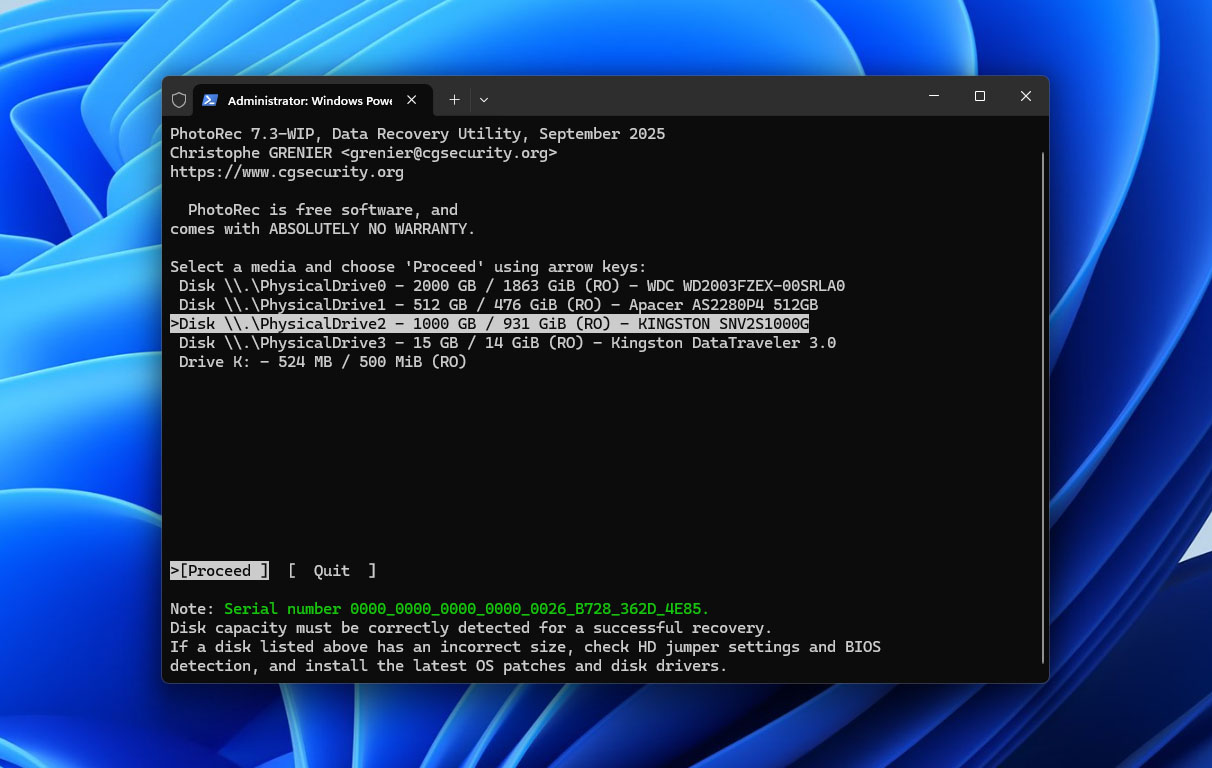
🏆 Best for: Users looking for a completely free EaseUS alternative with no recovery limits, particularly when recovering files from formatted drives or storage devices with damaged file-system information.
💵 Price: PhotoRec is completely free and open source under the GNU General Public License (GPL v2+). There are no subscriptions, paid editions, or limits on the amount of data you can recover.
Interface & Usability
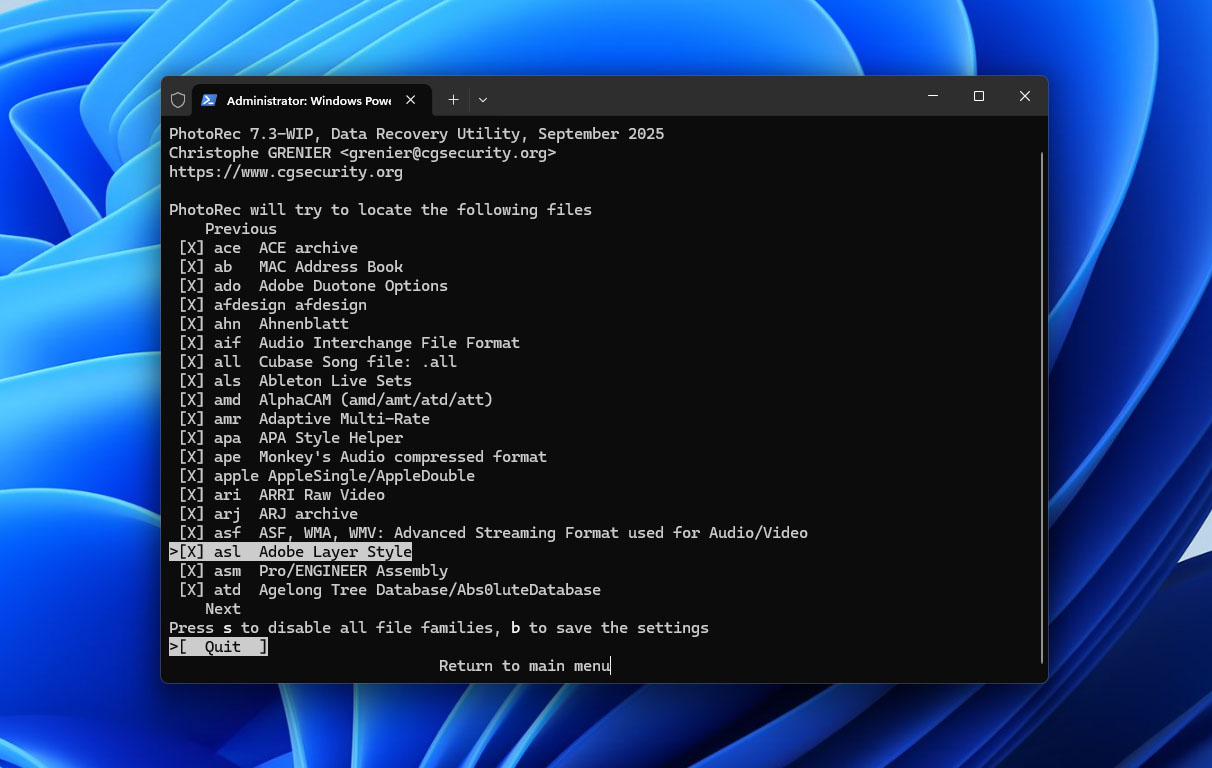
PhotoRec is less beginner-friendly than EaseUS. Its standard version uses a text-based interface where you select a disk, scan area, file-system type, and recovery destination. You can also limit the scan to specific file signatures, such as JPG, PDF, or MP4.
Unlike EaseUS, PhotoRec has no file previews, smart filters, or recovery probability estimates. It saves files directly to folders named recup_dir.1, recup_dir.2, and so on, usually with generated filenames such as f0016741.jpg. You must sort through the results manually.
The workflow is similar on Windows and macOS, although Mac users may need Terminal and Full Disk Access. A graphical alternative, QPhotoRec, is also available but lacks EaseUS-style preview and file-management features.
Recovery Performance in Our Tests
PhotoRec recovered 62 of 65 files in the deleted-file test and 60 of 65 from the damaged drive on both Windows and macOS. It performed slightly worse than EaseUS with deleted files but recovered more usable data from the damaged drive.
Most unsuccessful recoveries involved fragmented MP4 and MOV videos. PhotoRec recovered our photos, documents, and several videos, but some video files remained unplayable. It also assigned generated filenames to recovered files, which made verification and organization more time-consuming.
PhotoRec took roughly twice as long as EaseUS to scan the USB drive, but it achieved these results without a paid license. The table below shows the exact scan times and recovery results.
| Test | PhotoRec Windows | EaseUS Windows | PhotoRec Mac | EaseUS Mac |
| Deleted files | 62/65 | 63/65 | 62/65 | 63/65 |
| Deleted-file scan time | 14m 18s | 6m 31s | 13m 46s | 6m 17s |
| Damaged-drive recovery | 60/65 | 58/65 | 60/65 | 58/65 |
| Damaged-drive scan time | 15m 12s | 8m 52s | 14m 39s | 8m 39s |
| Video result from damaged drive | Some fragmented videos failed | Several test videos failed | Some fragmented videos failed | Several test videos failed |
| File preview | No preview | Good for most tested files | No preview | Good for most tested files |
| Recovery Chances | No | No equivalent per-file estimate | No | No equivalent per-file estimate |
| Best for | Completely free recovery | Beginner-friendly recovery | Completely free recovery | Beginner-friendly recovery |
What Makes PhotoRec a Better EaseUS Alternative?
- Completely free recovery. PhotoRec has no recovery limits, subscriptions, or paid features, unlike EaseUS.
- Recovery without accessible file-system metadata. Its signature-based approach can recover files from damaged or inaccessible volumes. In our damaged-drive test, it recovered more usable files than EaseUS.
- Extensive file signature support. PhotoRec recognizes hundreds of file formats and allows advanced users to add custom signatures.
- Open-source and cross-platform. It works on Windows, macOS, Linux, and other systems without separate licenses. PhotoRec also comes bundled with TestDisk.
The main trade-off is usability. PhotoRec lacks file previews and convenient file selection, usually loses original filenames and folder structure, and may struggle with fragmented videos. EaseUS offers a much simpler recovery workflow.
Note: Want to learn more about PhotoRec before using it? Read our full PhotoRec review for a closer look at its recovery capabilities, interface, limitations, and performance.
3. R-Studio (Best for RAID & Advanced Recovery)
R-Studio is an advanced data recovery tool from R-Tools Technology for Windows, macOS, and Linux. It combines file-system reconstruction with signature scanning and offers more control over recovery than EaseUS.
Its features include RAID reconstruction, disk imaging, network recovery, S.M.A.R.T. monitoring, a hex editor, and custom file signatures. It also supports a broad range of file systems, including NTFS, ReFS, exFAT, APFS, HFS+, Ext2/3/4, XFS, and UFS.
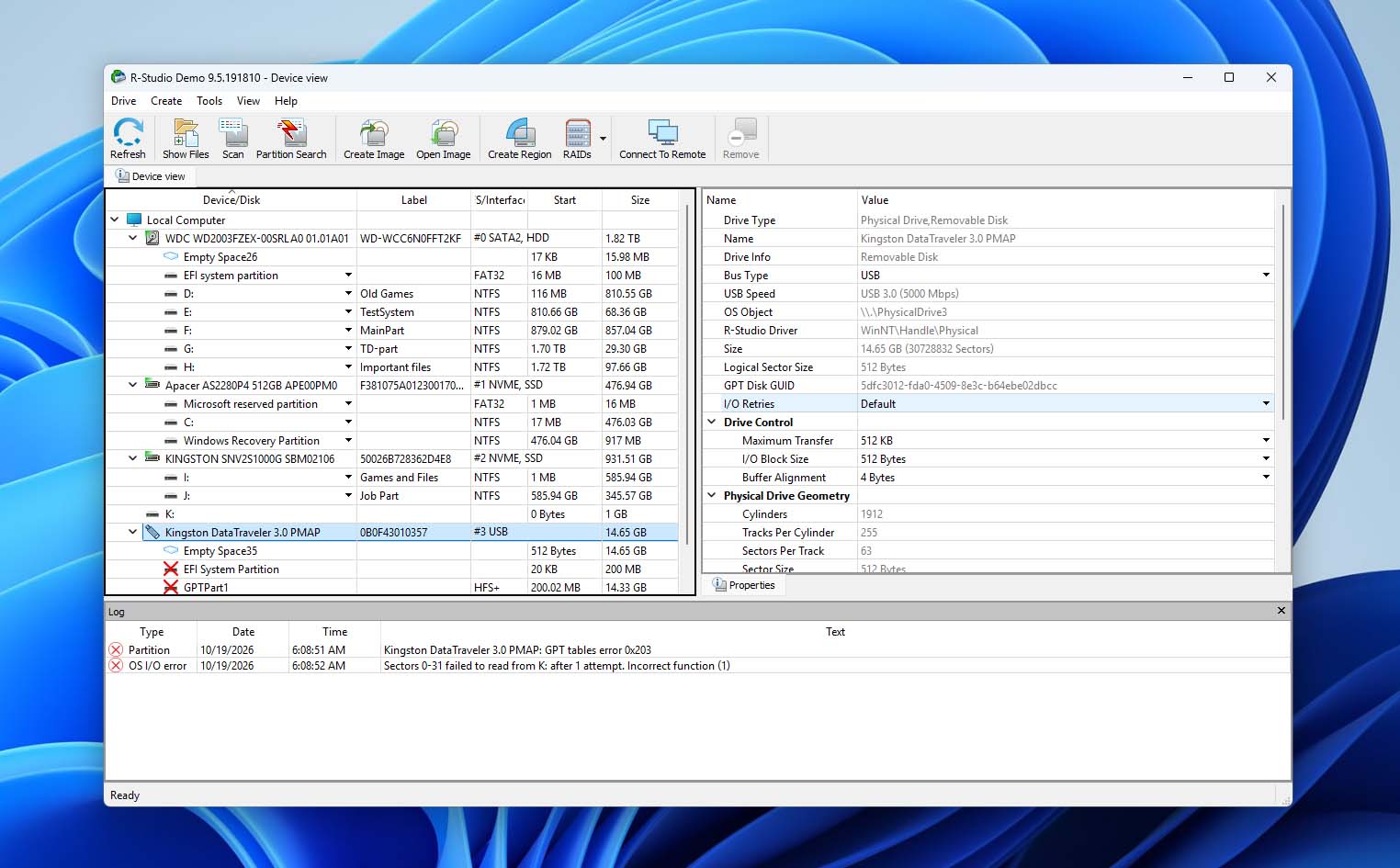
🏆 Best for: Advanced users who need more control over the recovery process, particularly for RAID arrays, damaged partitions, disk images, and storage devices using different Windows, Mac, Linux, or Unix file systems.
💵 Price: R-Studio starts at $49.99 for its limited R-Studio FAT edition. The full R-Studio license for Windows costs $79.99 as a one-time purchase, while separate versions are available for macOS and Linux. Corporate and Technician licenses are available for network, commercial, and professional data recovery work.
Interface & Usability
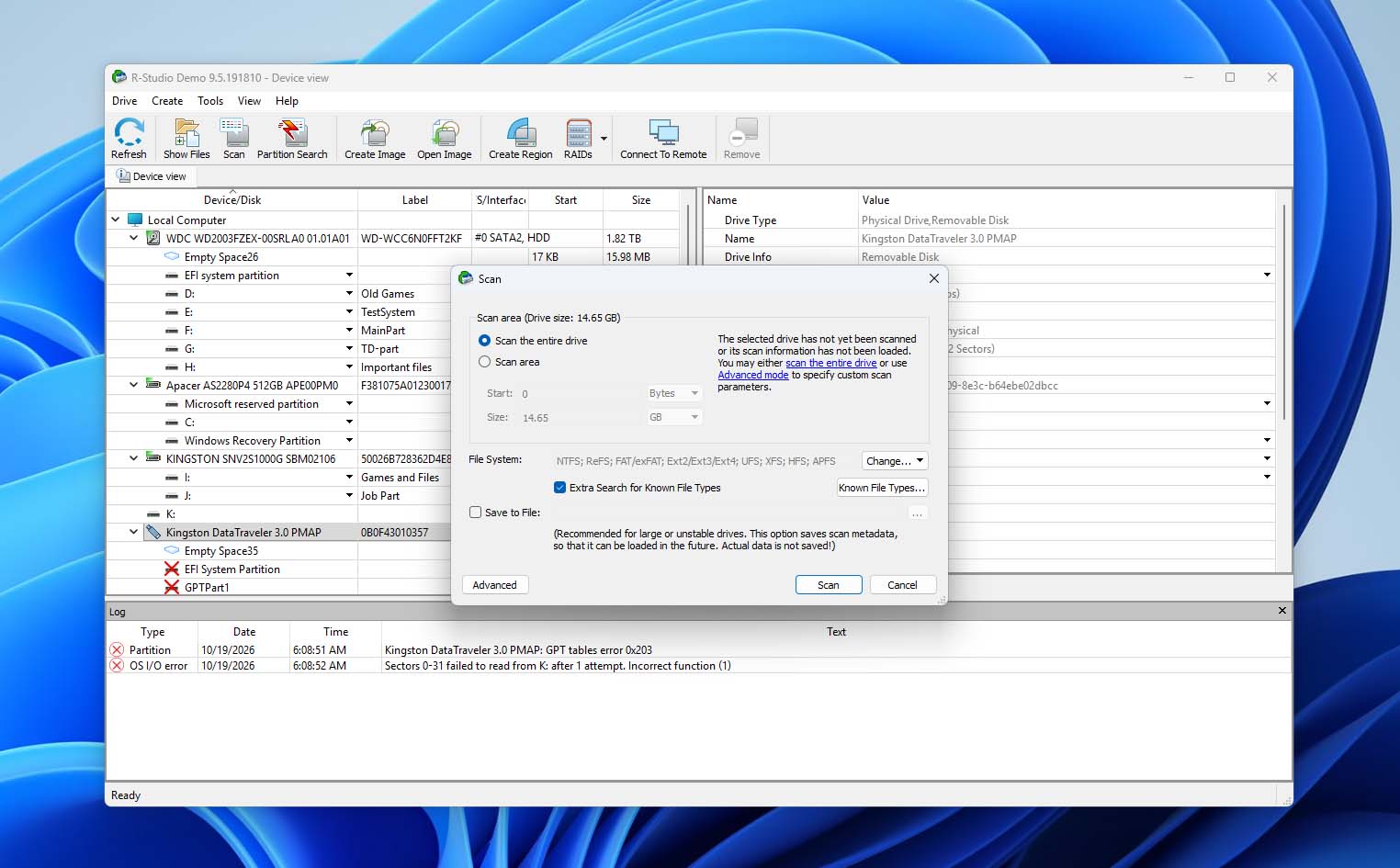
R-Studio is more technical than EaseUS, but basic recovery is manageable with default settings. You select a disk, start a scan, open a recognized file system, and browse the reconstructed directory tree to preview and recover files.
Advanced users can define scan regions, select file systems and known file types, inspect sectors, configure RAID parameters, and work with disk images. These controls provide more flexibility but also make the interface harder to navigate.
We particularly liked R-Studio’s graphical scan map, which identifies file-system structures and known file types as the scan progresses. File previews worked well for our test photos, documents, and videos on both platforms. You can also create images of entire drives, partitions, or selected regions and scan those images instead of the original devices.
Recovery Performance in Our Tests
R-Studio recovered 64 of 65 deleted files and 62 of 65 files from the damaged drive on both Windows and macOS, outperforming EaseUS in both scenarios. Where file-system metadata remained available, recovered files generally retained their original names and directory structure.
Most photos, documents, and videos were recovered successfully, although three files from the damaged-drive dataset could not be restored in usable condition.
The main drawback was speed. R-Studio took more than twice as long as EaseUS to complete its scans. That difference may be difficult to justify for simple deleted-file recovery, but R-Studio’s additional controls are more relevant in complex recovery scenarios. The table below shows the exact results and scan times.
| Test | R-Studio Windows | EaseUS Windows | R-Studio Mac | EaseUS Mac |
| Deleted files | 64/65 | 63/65 | 64/65 | 63/65 |
| Deleted-file scan time | 15m 42s | 6m 31s | 14m 57s | 6m 17s |
| Damaged-drive recovery | 62/65 | 58/65 | 62/65 | 58/65 |
| Damaged-drive scan time | 21m 48s | 8m 52s | 20m 56s | 8m 39s |
| Video result from damaged drive | Most test videos recovered | Several test videos failed | Most test videos recovered | Several test videos failed |
| File preview | Good; tested files previewed correctly | Good for most tested files | Good; tested files previewed correctly | Good for most tested files |
| Recovery Chances | No equivalent per-file estimate | No equivalent per-file estimate | No equivalent per-file estimate | No equivalent per-file estimate |
| Best for | RAID & advanced recovery | Beginner-friendly recovery | RAID & advanced recovery | Beginner-friendly recovery |
What Makes R-Studio a Better EaseUS Alternative?
- Advanced RAID recovery. R-Studio supports standard, nested, and custom RAID configurations, with manual control over array parameters.
- Greater control over recovery. You can customize scan regions, file-system detection, and file signatures, or inspect storage structures directly with the built-in hex editor.
- Broader file-system and disk support. R-Studio handles common Windows and Mac file systems alongside Linux and Unix formats, with additional tools for disk imaging, network recovery, and S.M.A.R.T. monitoring.
- Better results with damaged storage. R-Studio recovered more usable files than EaseUS from our damaged USB drive, although it required substantially more time.
The main trade-offs are speed and complexity. EaseUS offers a simpler interface and completed both tests more than twice as fast. R-Studio is better suited to advanced users who need detailed recovery controls, particularly for RAID arrays and complex storage configurations.
Note: If R-Studio’s advanced recovery tools sound useful for your case, read our full R-Studio review for a closer look at its recovery performance, RAID capabilities, interface, pricing, and limitations.
4. Stellar Data Recovery (Best for Guided Recovery)
Stellar Data Recovery is a recovery tool for Windows and macOS with a guided, step-by-step interface. It supports deleted-file recovery, formatted or inaccessible drives, and lost partitions.
Depending on the edition and platform, Stellar also offers disk imaging, S.M.A.R.T. monitoring, recovery from unbootable systems, RAID recovery, and photo and video repair. Many advanced features are reserved for higher-priced editions.
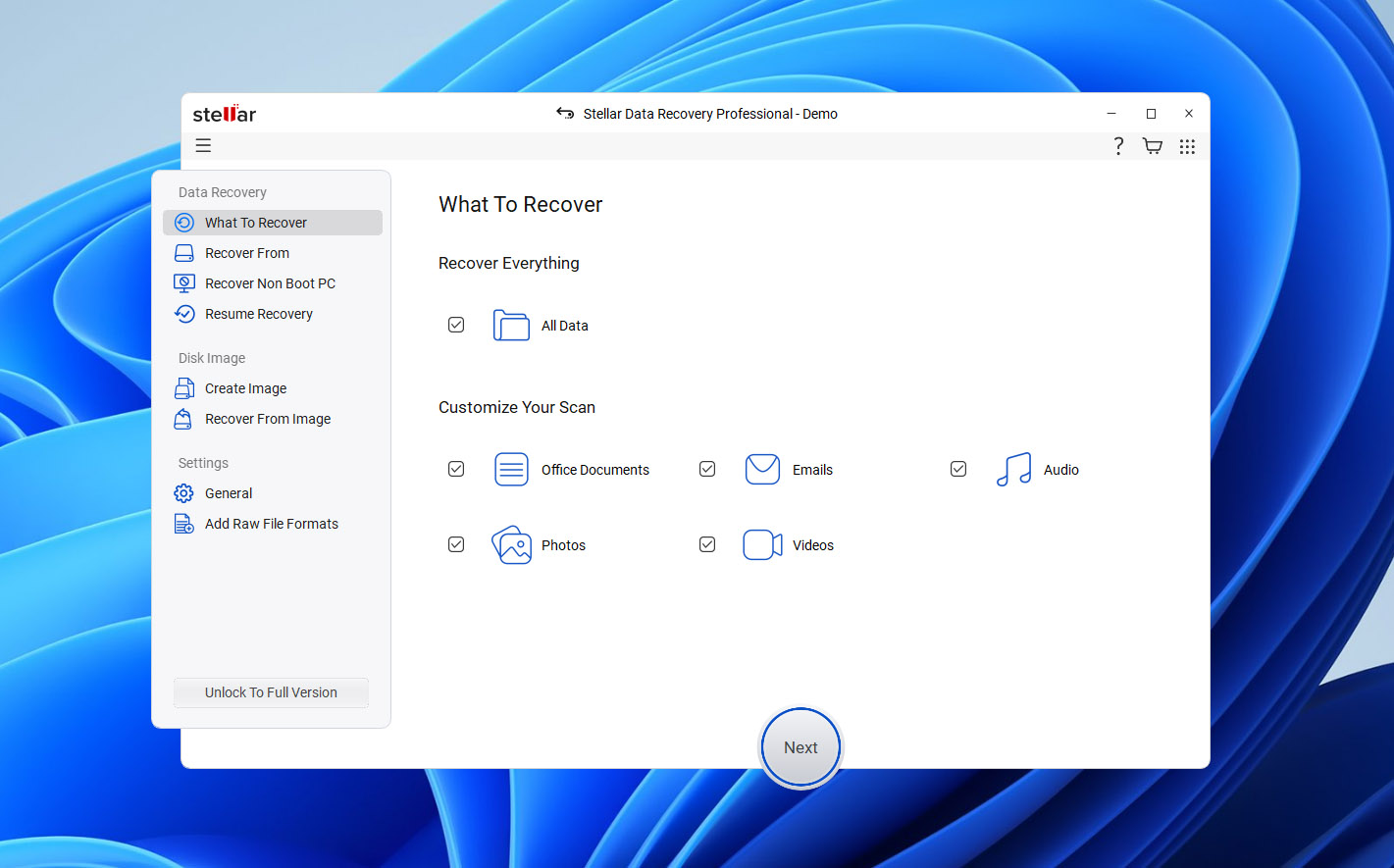
🏆 Best for: Users who prefer a guided recovery process with control over which file types to search for.
💵 Price: Stellar Data Recovery Free allows up to 1 GB of free recovery. Paid editions vary between Windows and macOS and are divided into multiple tiers, with more advanced recovery and disk tools reserved for higher editions.
Interface & Usability
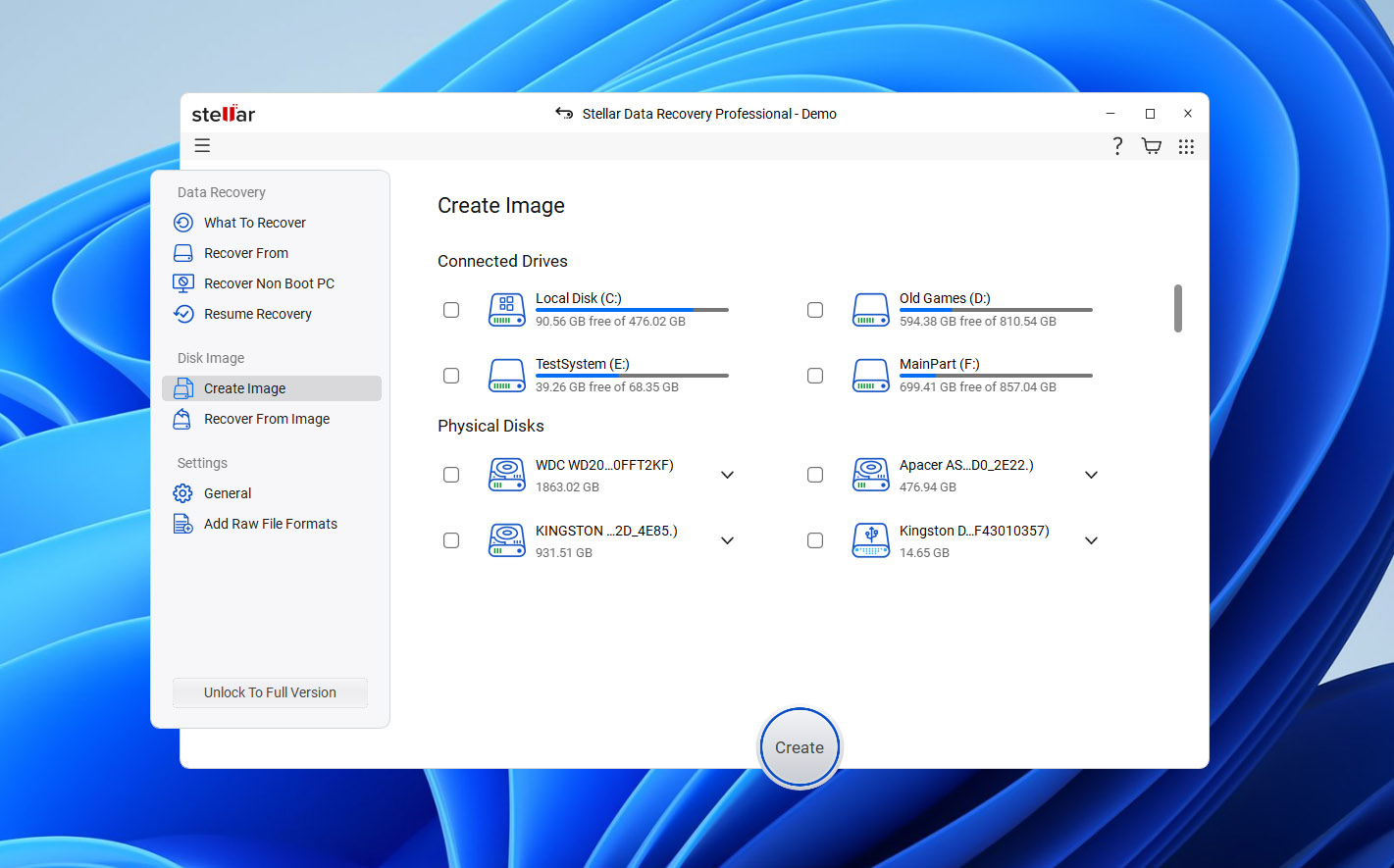
Stellar guides you through recovery step by step. First, you choose whether to search for all files or specific categories, such as documents, photos, videos, or audio. Then you select the storage device and start scanning.
Unlike EaseUS, which generally combines its recovery methods into a continuous scan, Stellar offers a separate Deep Scan when the initial search does not find the files you need. This adds another step but gives you control over when to run a more thorough search.
Once the scan finishes, you can browse files by directory or type and preview supported formats before recovery. Previews worked well for our test photos and documents on Windows and macOS. Overall, Stellar’s interface is easier to navigate than R-Studio’s, although its separate scan stages require more user input.
Recovery Performance in Our Tests
Stellar recovered 63 of 65 deleted files on both Windows and macOS, matching EaseUS in this scenario. Files recovered through available exFAT metadata generally retained their original names and folder structure.
On the damaged drive, Stellar recovered 59 of 65 original files after we used Deep Scan, one more than EaseUS. Most photos and documents were usable, but several MP4 and MOV videos could not be recovered correctly.
EaseUS completed both tests faster, and Stellar’s small advantage in the damaged-drive scenario came at the cost of an additional scan stage. The table below shows the complete recovery results and scan times.
| Test | Stellar Windows | EaseUS Windows | Stellar Mac | EaseUS Mac |
| Deleted files | 63/65 | 63/65 | 63/65 | 63/65 |
| Deleted-file scan time | 8m 37s | 6m 31s | 8m 09s | 6m 17s |
| Damaged-drive recovery | 59/65 | 58/65 | 59/65 | 58/65 |
| Damaged-drive scan time | 13m 26s | 8m 52s | 12m 51s | 8m 39s |
| Video result from damaged drive | Several MP4/MOV files failed | Several test videos failed | Several MP4/MOV files failed | Several test videos failed |
| File preview | Good; tested files previewed correctly | Good for most tested files | Good; tested files previewed correctly | Good for most tested files |
| Recovery Chances | No equivalent per-file estimate | No equivalent per-file estimate | No equivalent per-file estimate | No equivalent per-file estimate |
| Best for | Guided recovery | Beginner-friendly recovery | Guided recovery | Beginner-friendly recovery |
What Makes Stellar a Better EaseUS Alternative?
- Guided recovery workflow. Stellar lets you choose which file categories to search for and provides a separate Deep Scan option when the initial results are insufficient.
- Slightly better damaged-drive recovery. Stellar recovered one more usable file than EaseUS in our damaged-drive test, although both programs performed equally well with deleted files.
- Free recovery allowance. Stellar Free allows up to 1 GB of recovery, which may be sufficient for smaller recovery jobs.
- Additional tools in higher editions. Depending on the platform and license, Stellar offers disk imaging, S.M.A.R.T. monitoring, bootable recovery, RAID recovery, and photo or video repair.
The main drawbacks are speed and licensing complexity. EaseUS completed both tests faster, while Stellar requires an additional scan stage in some cases. Its advanced features are also distributed across multiple paid editions, so you need to check what each license includes.
Note: For a more detailed look at Stellar, read our full Stellar Data Recovery review, where we cover its recovery performance, Deep Scan, features, pricing, and limitations in more detail.
5. TestDisk (Best for Lost Partition Recovery)
TestDisk is a free, open-source recovery utility from CGSecurity, the developers of PhotoRec. Unlike EaseUS, which focuses on recovering individual files, TestDisk specializes in restoring lost partitions and repairing certain disk structures.
It supports FAT, exFAT, NTFS, Ext2/3/4, HFS+, and other file systems. Its tools can locate lost partitions, restore partition table entries, repair certain boot sectors and file-system structures, and copy files from recognized partitions.
🏆 Best for: Recovering lost partitions and restoring access to storage devices after partition table or boot sector damage.
💵 Price: TestDisk is completely free and open source under the GNU General Public License. There are no recovery limits, subscriptions, or paid editions.
Interface & Usability
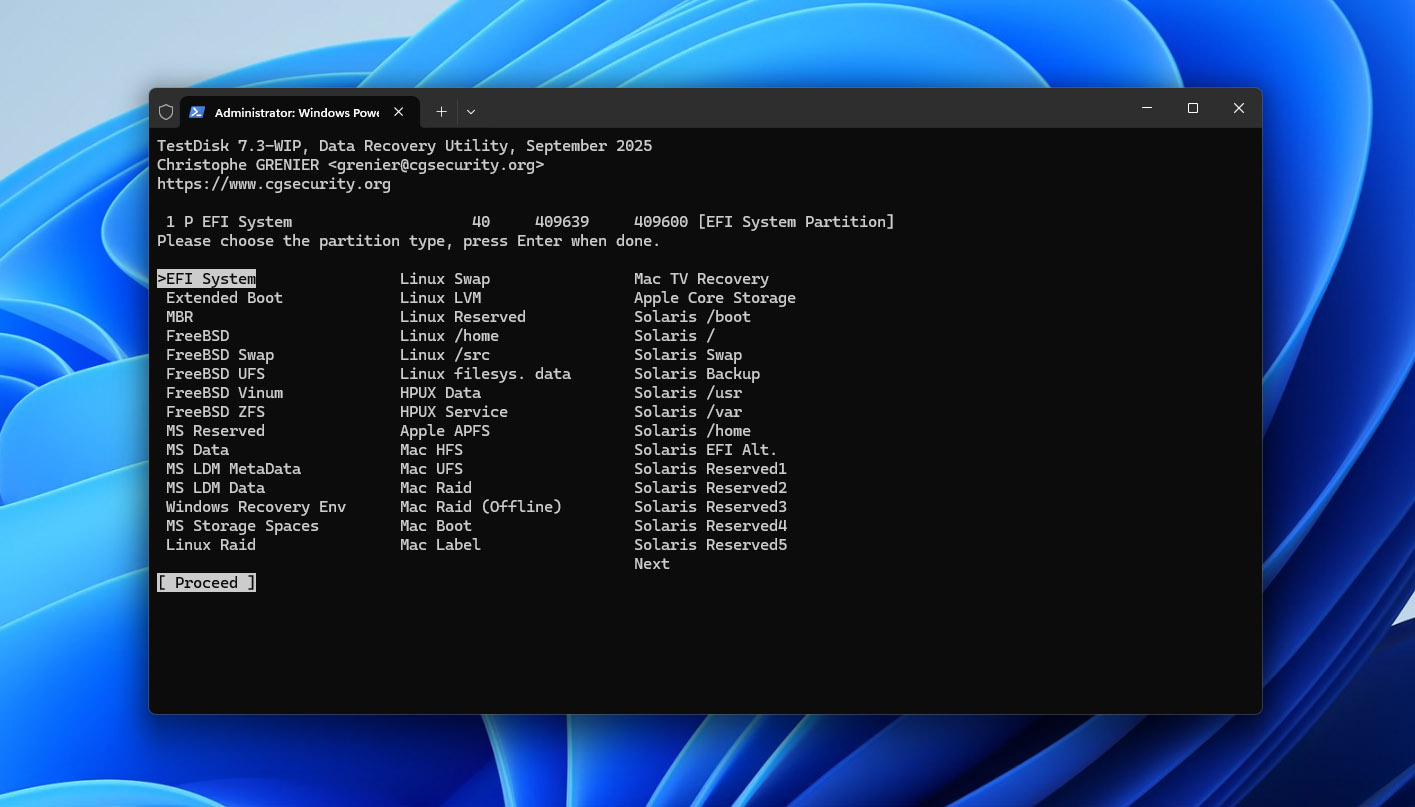
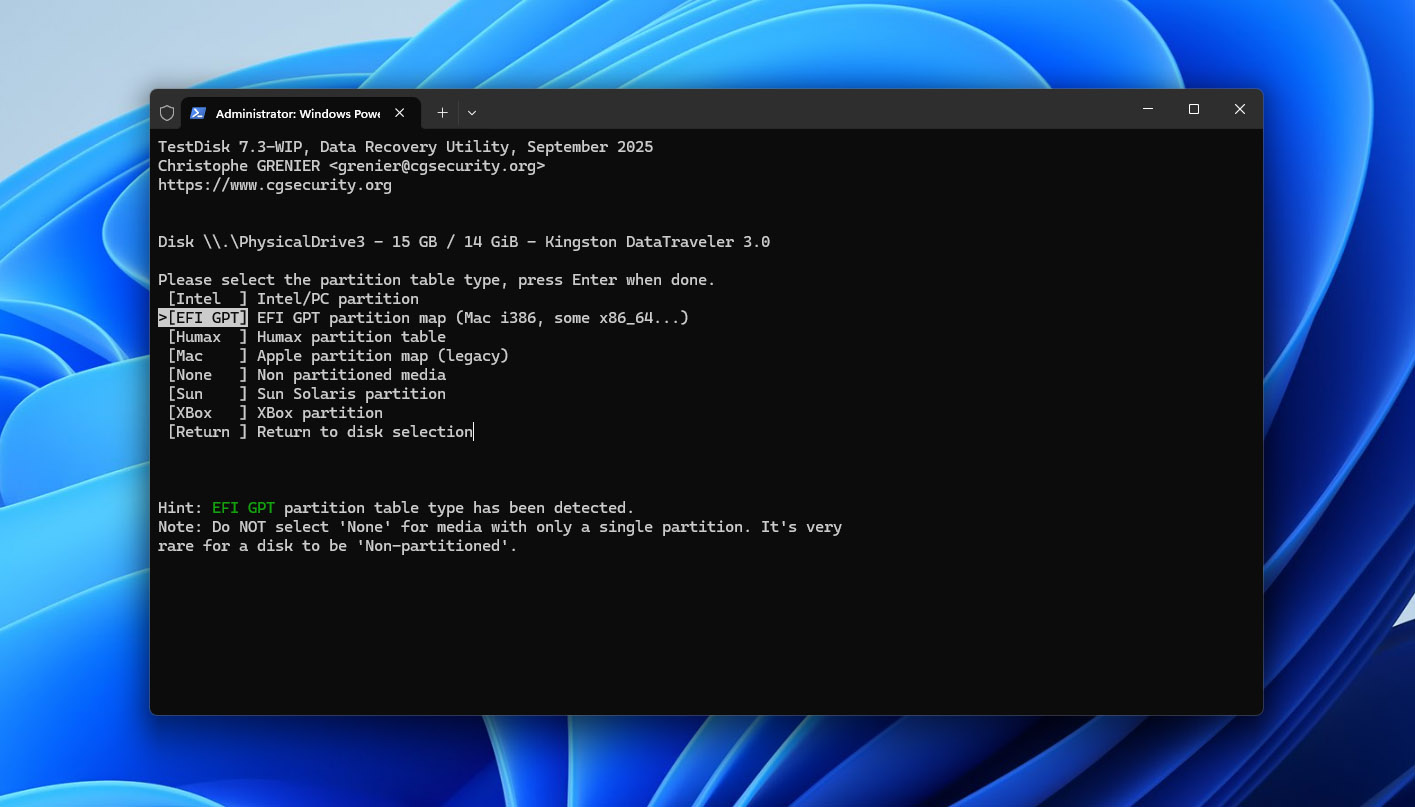
TestDisk uses a text-based interface without the graphical file browser, previews, or filters found in EaseUS. You select a physical disk, choose its partition table type, and use Analyse to inspect its structure. Quick Search looks for lost partitions, while Deeper Search provides a more extensive search when needed.
When TestDisk finds a partition, you can press P to list its files and confirm that it contains the expected data. You can also copy files to another storage device without restoring the partition entry.
The interface requires more technical knowledge than EaseUS, particularly when selecting a disk or modifying partition information. It is important to verify the detected partition before writing changes to the original drive.
Recovery Performance in Our Tests
We did not assign TestDisk a score in the deleted-file test because we evaluated it as a partition recovery tool rather than a general-purpose file recovery application.
In the damaged-drive test, Quick Search located the original exFAT partition on both Windows and macOS. We verified its contents in TestDisk, restored the partition entry, and reconnected the USB drive. The volume became accessible again, with all 65 original files, filenames, and folders intact. Every file we checked opened correctly.
This result is not directly comparable to the file recovery scores of other tools. TestDisk restored access to an existing partition rather than reconstructing individual files. It succeeded because the underlying exFAT structures and file data remained sufficiently intact.
The table below shows the partition recovery results and completion times alongside EaseUS.
| Test | TestDisk Windows | EaseUS Windows | TestDisk Mac | EaseUS Mac |
| Deleted files | Not tested as a general file-recovery task | 63/65 | Not tested as a general file-recovery task | 63/65 |
| Deleted-file scan time | N/A | 6m 31s | N/A | 6m 17s |
| Damaged-drive result | Partition restored; 65/65 files accessible | 58/65 recovered | Partition restored; 65/65 files accessible | 58/65 recovered |
| Damaged-drive scan/recovery time | 4m 21s | 8m 52s | 4m 08s | 8m 39s |
| Video result from damaged drive | All original videos accessible after partition recovery | Several test videos failed | All original videos accessible after partition recovery | Several test videos failed |
| File preview | No conventional preview | Good for most tested files | No conventional preview | Good for most tested files |
| Recovery Chances | No | No equivalent per-file estimate | No | No equivalent per-file estimate |
| Best for | Lost partition recovery | Beginner-friendly file recovery | Lost partition recovery | Beginner-friendly file recovery |
What Makes TestDisk a Better EaseUS Alternative?
- Specialized partition recovery. TestDisk can locate lost partitions and restore their entries when the underlying structures remain intact.
- Preservation of original file organization. In our damaged-drive test, restoring the exFAT partition returned access to all original files, filenames, and folders.
- Completely free and open source. TestDisk has no recovery limits, subscriptions, or paid editions.
- Partition inspection and repair tools. You can list files before making changes, copy data from recognized partitions, and use tools for certain boot sector and file-system repairs.
The main limitations are usability and scope. TestDisk lacks the graphical recovery workflow, previews, and filters offered by EaseUS, and it is not the best choice for routine deleted-file recovery.
Partition repair also carries risks because it modifies disk structures. If TestDisk finds the expected partition, inspect its contents and, where appropriate, copy important files to another drive before writing changes to the original device.
Note: TestDisk comes bundled with PhotoRec, but the two tools serve different purposes. Read our full TestDisk review for a closer look at its partition recovery features, supported file systems, interface, and limitations.
Honorable Mentions
We also considered several other well-known EaseUS alternatives that did not make our top five. They can still be useful in the right situation, but each had a limitation that kept it out of our main ranking.
- Wondershare Recoverit is one of the most recognizable EaseUS competitors and offers a similarly beginner-friendly approach to deleted, formatted, and inaccessible drive recovery on Windows and Mac. It also includes dedicated video recovery features, but we found its overall value less convincing than our top choices, particularly when compared with alternatives that provide more disk utilities, more advanced recovery controls, or completely free recovery.
- MiniTool Power Data Recovery is another established option for Windows, with a simple recovery workflow and support for deleted files, formatted storage, lost partitions, and RAW drives. We did not include it in the top five because it is Windows-only, which makes it a weaker fit for this comparison of EaseUS alternatives for both Windows and Mac users.
- Recuva remains a popular free data recovery tool for Windows and is a reasonable choice for simple deleted-file recovery from healthy drives. However, its recovery capabilities and feature set are much more limited than those of the tools in our main ranking, particularly for damaged file systems, lost partitions, disk imaging, and more difficult recovery scenarios. It is also unavailable for macOS.
Final Verdict
Our tests showed that there is no single EaseUS alternative that makes the most sense in every recovery scenario. Each of the five tools has different strengths, and the right choice depends on what happened to your data, how much control you want over the recovery process, and whether you are willing to pay for recovery software.
- Choose Disk Drill if you want the best overall balance of recovery results, usability, reliable file previews, Recovery Chances, and additional tools such as disk imaging and S.M.A.R.T. monitoring. It produced the strongest results in our tests and recovered all 65 original files in both scenarios on Windows and Mac.
- Choose PhotoRec if you need a completely free and open-source EaseUS alternative and care more about recovering the actual file contents than preserving original filenames and folder structure. Its extensive signature support also makes it a useful option when file-system metadata is badly damaged, although fragmented videos can still be a problem.
- Choose R-Studio if you need advanced recovery features, particularly RAID recovery, disk imaging, broad file-system support, custom file signatures, and more control over how storage is analyzed. It has a steeper learning curve than EaseUS, but its feature set is much better suited to complex recovery cases.
- Choose Stellar Data Recovery if you prefer a familiar guided interface with the option to choose which types of files to search for before scanning. Its separate Deep Scan gives you another recovery option when the initial scan does not find what you need, although EaseUS was faster in our tests.
- Choose TestDisk if your main problem is a lost partition rather than individual deleted files. In our damaged-drive test, it found the original exFAT partition after we removed its MBR partition information and restored access to all 65 files with their original names and folder structure. It is also completely free, but its text-based interface and partition-focused workflow make it less suitable for ordinary file recovery.