


The best Mac disk repair software in 2026 is a collection of best-in-class tools carefully selected to meet your needs because no single tool covers the whole disk repair process. For example, you can use Disk Drill to handle data recovery and disk imaging, TestDisk to take care of partition repair, and DriveDx to keep an eye on your drive’s health over time.
We tested six of the best Mac disk repair software options across real-world failure scenarios, including corrupted volumes, bad sectors, and disappearing partitions, to figure out which ones actually deliver.
Below, you’ll find what each Mac disk repair tool does well, where it leaves something to be desired, and how to combine them into a workflow that keeps your Mac covered from start to finish.
In a rush? Jump straight to the comparison table for a side-by-side overview of all six tools, or skip to the summary for our recommended combo of Mac disk repair software you can put together right away.
Why Disk Utility Isn’t Enough for Mac Repair?
Every Mac ships with Disk Utility, which you can use to run First Aid to check and repair file system errors, mount and unmount volumes, partition drives, format disks, and create simple disk images.
For everyday maintenance, Disk Utility is usually enough. Its limitations start to show when your disk is actually in trouble. That’s because Disk Utility has a binary approach to repair. Either it fixes the issue, or it tells you to format the drive and say goodbye to your data.
Additionally, First Aid also can’t do much about more complex issues like recovering lost partitions, rebuilding damaged directory structures, or reading data off a disk with bad sectors. And it certainly won’t help you recover files that were already lost during the failure.
That’s where third-party disk repair Mac tools come in, covering everything from data recovery and disk imaging to deep S.M.A.R.T. health monitoring and complex file system repairs.
What Is the Best Mac Disk Repair Software?
Disk repair is a process that usually involves several steps:
- Safeguarding your data (through recovery or a disk image).
- Diagnosing what’s wrong with the drive.
- Performing the actual repair.
Because of the multi-step nature of the disk repair process, our recommendation is to read through each description, then pick a combination of tools that covers the stages you need. A single app probably won’t handle everything.
🔎 How we tested: To evaluate these tools, we simulated common disk failure scenarios, including corrupted volumes, damaged partitions, and drives with bad sectors, then attempted to restore normal operation using each utility. All testing ran on a 2024 Mac mini with an Apple M4 chip, on macOS Tahoe 26.4.1. We repeated each scenario across multiple drives, so a stray result wouldn’t skew the outcome. We then scored each tool on what matters most in real use, such as how much data it recovered, how easy it was to navigate, and how trustworthy it is. Extra features, pricing, and the range of devices and file systems supported all factored into the final score, too. For more details on our testing process, see our methodology page.
If you’re not sure which tool you need, then find your situation in the table below and jump straight to it.
| Your situation | Tool to use | What it handles |
|---|---|---|
| You deleted or lost files and want them back | Disk Drill | Recovers files and creates a safety-net disk image before any repair |
| A partition vanished or the drive won’t boot | TestDisk | Rebuilds partition tables and fixes boot sectors |
| Your drive feels slow or you think it’s failing | DriveDx | Tracks S.M.A.R.T. health and warns you before a drive dies |
| Finder is sluggish, search is broken, or apps won’t open | OnyX | Clears caches, rebuilds system databases, runs maintenance scripts |
| An external HFS+ drive has directory damage | DiskWarrior | Rebuilds HFS+ directories from scratch |
| You want hardware diagnostics plus APFS volume repair | Techtool Pro 21 | Tests hardware and repairs APFS and HFS+ volumes |
1.Disk Drill
Best for: safeguarding your data before any repair (Step 1).
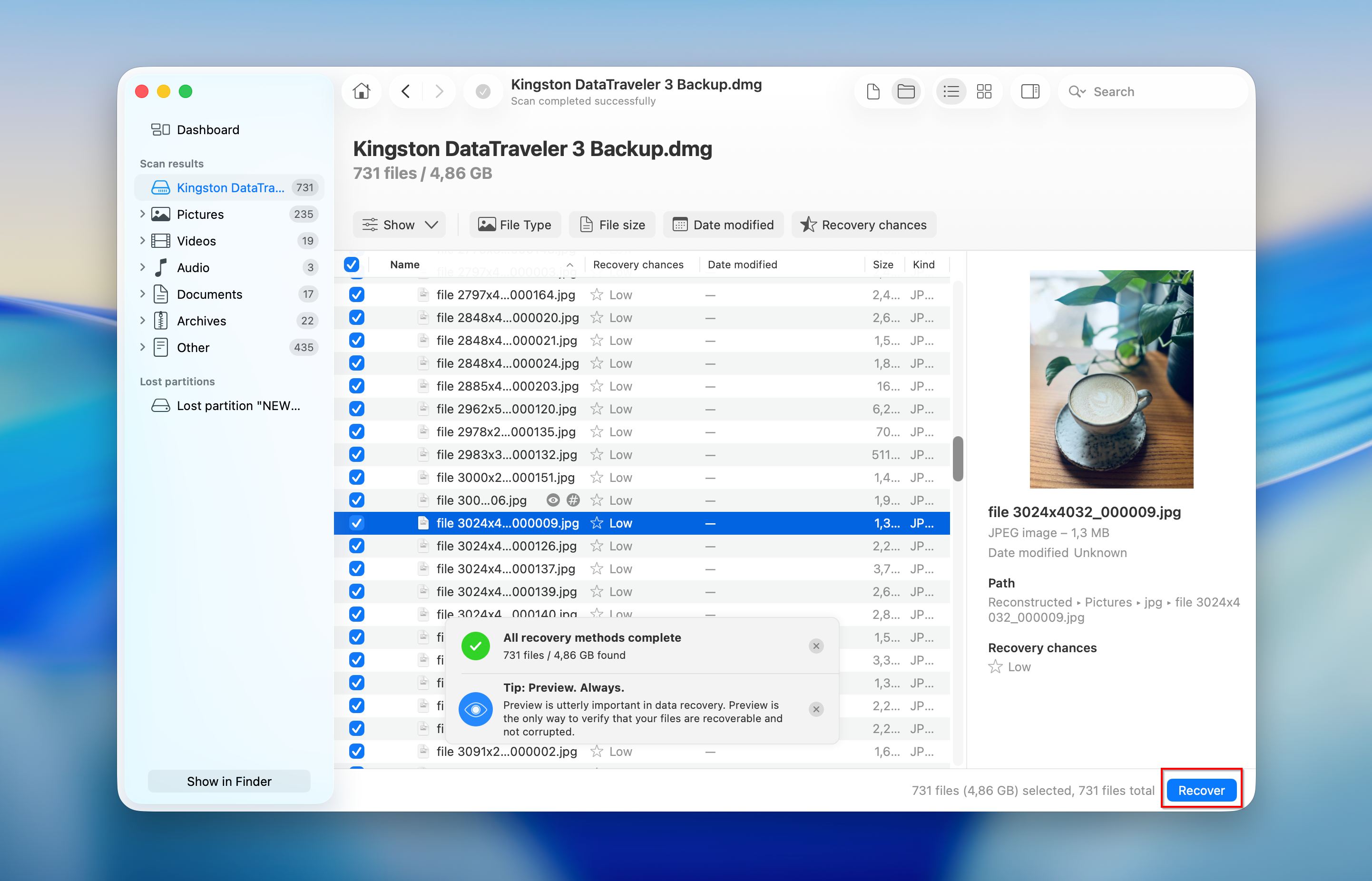
Before you try to fix a damaged disk, you need to protect whatever data is still on it. That’s where Disk Drill comes in, and it’s why we’re listing it first. If a repair attempt goes wrong, you want a safety net so that you don’t lose your valuable data.
Disk Drill is a data recovery app built by CleverFiles that works on both macOS and Windows. It runs natively on Macs with Apple Silicon (M1 through M5) and T2 security chips. It supports APFS, HFS+, FAT32, ExFAT, and NTFS file systems.
With a few clicks in Disk Drill‘s well-designed user interface, you can scan a damaged or corrupted drive and recover deleted or lost files across around 400 file formats. Even if you don’t want to recover files right away, you can use Disk Drill to create a byte-to-byte disk image first. That image is a complete clone of your drive, sector by sector (with Disk Drill 6, you also get a visual sector map that shows any bad blocks on the disk). At any point during the repair process, you can go back to that image and try a different approach without losing anything.
Features:
- Recovers files from corrupted, formatted, or failing drives
- Creates byte-to-byte disk images as a safety measure before repair
- Includes Recovery Vault and Guaranteed Recovery for proactive data protection
- Scans and previews files for free before you commit to recovery
- S.M.A.R.T. disk monitoring built in
- Works with internal drives, external drives, SD cards, USB drives, and more
Pricing:
Disk Drill Basic is free and lets you scan any drive and preview all recoverable files. On Windows, the free version can also recover up to 100 MB of data. PRO is available as an annual subscription ($89/year) or a one-time lifetime license ($149). One license covers both macOS and Windows across up to 3 devices.
📝 Note: Want a closer look at how Disk Drill holds up in testing? Read our full Disk Drill review.
What users say:
“Disk Drill and the company behind, is very honest in correct handling with consumers, I received an offer for a discount for the same purchase after already made a payment, they agreed and gave me a discount as made in the offer of 30%” – Guido, CleverFiles Reviews
“I was in a tough bind after I lost all my photo files from a session. I can’t say enough good about this company’s troubleshooting and customer service.” – User review, CleverFiles Reviews
“The times I did use Disk Drill for actual recoveries, the results were excellent.” – DiskTuna, independent review
2.TestDisk
Best for: recovering lost partitions and fixing boot sectors (Step 3).
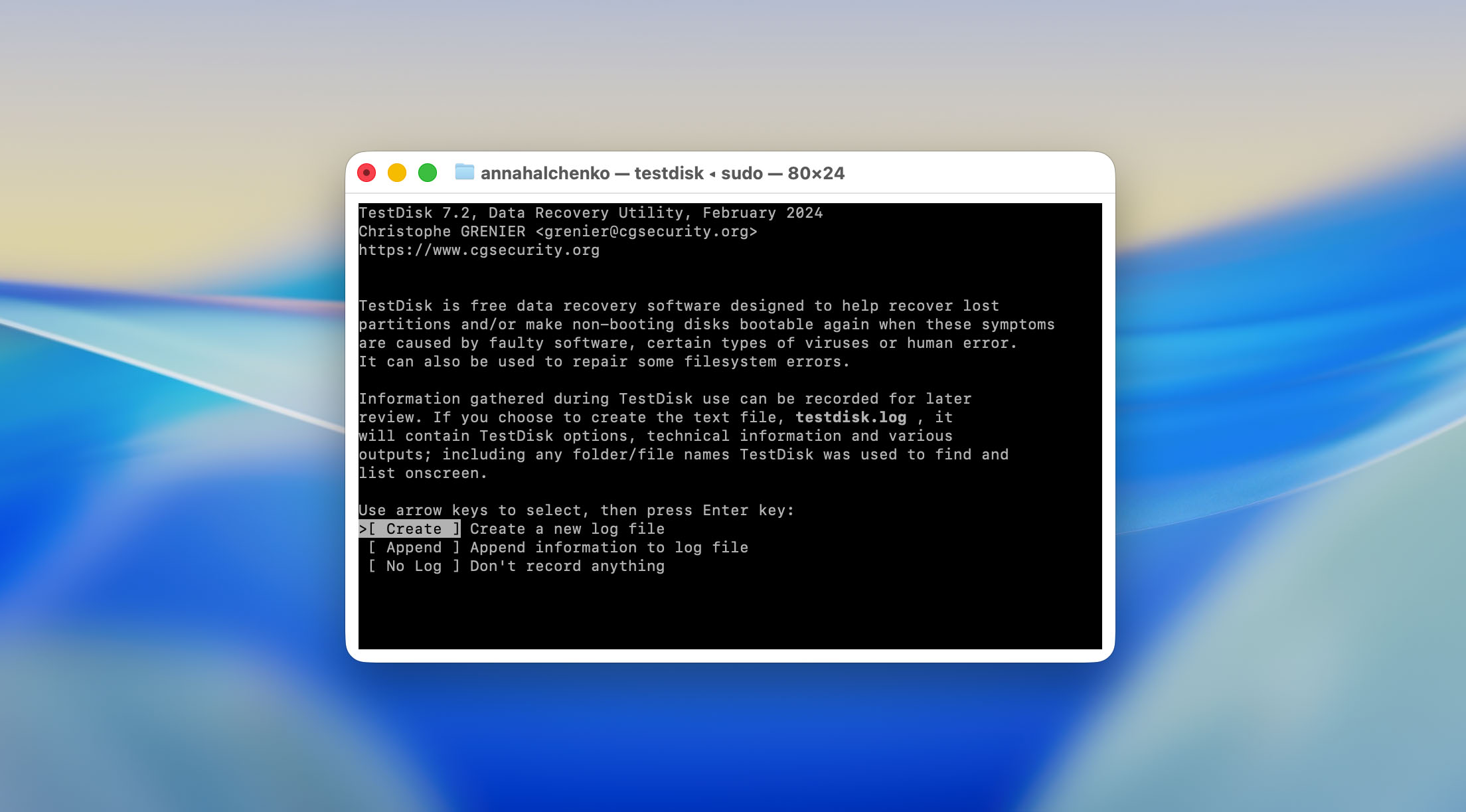
TestDisk is a free, open-source utility from CGSecurity that specializes in partition recovery and boot sector repair. It can rebuild partition tables, recover deleted partitions, and fix boot sectors on FAT, NTFS, and ext2/ext3/ext4 file systems.
One thing you’ve probably already noticed by looking at the screenshot is that TestDisk is entirely command-line based, which makes it intimidating for most users. You need to understand what you’re doing, because the step-by-step process asks some pretty technical questions and provides potentially confusing options. That said, it’s one of the most effective Mac disk repair software free options available, and it runs on macOS, Windows, and Linux.
TestDisk is distributed as a portable app, so there’s nothing to install. On macOS, you can download it directly or install it through Homebrew (brew install testdisk). The Intel binary works on Apple Silicon Macs as well. To see it in action, check out our TestDisk review.
💡 Good to know: It also comes bundled with PhotoRec, a file carving tool that recovers files based on their signatures, regardless of the file system. Unlike Disk Drill, PhotoRec doesn’t have a nice graphical user interface, and it doesn’t recover file and folder names, so we don’t recommend it as your first choice.
Features:
- Recovers lost and deleted partitions
- Fixes partition tables and boot sectors
- Includes PhotoRec for signature-based file recovery
- Completely free and open-source (GPL license)
- Cross-platform (macOS, Windows, Linux)
- Portable, no installation required
Pricing:
TestDisk is completely free and open-source under the GNU GPL license.
What users say:
“TestDisk is a great little program – If I have a drive that is dying or corrupt I will image it first, then let TestDisk run on the image to recover.” – User testimonial, Reddit.
“If you’re tech-savvy and need a tool that can recover lost partitions, repair boot sectors, or fix corrupted partition tables, TestDisk is hard to beat.” – CleverFiles review.
3.OnyX
Best for: routine system maintenance and clearing up odd Mac behavior.
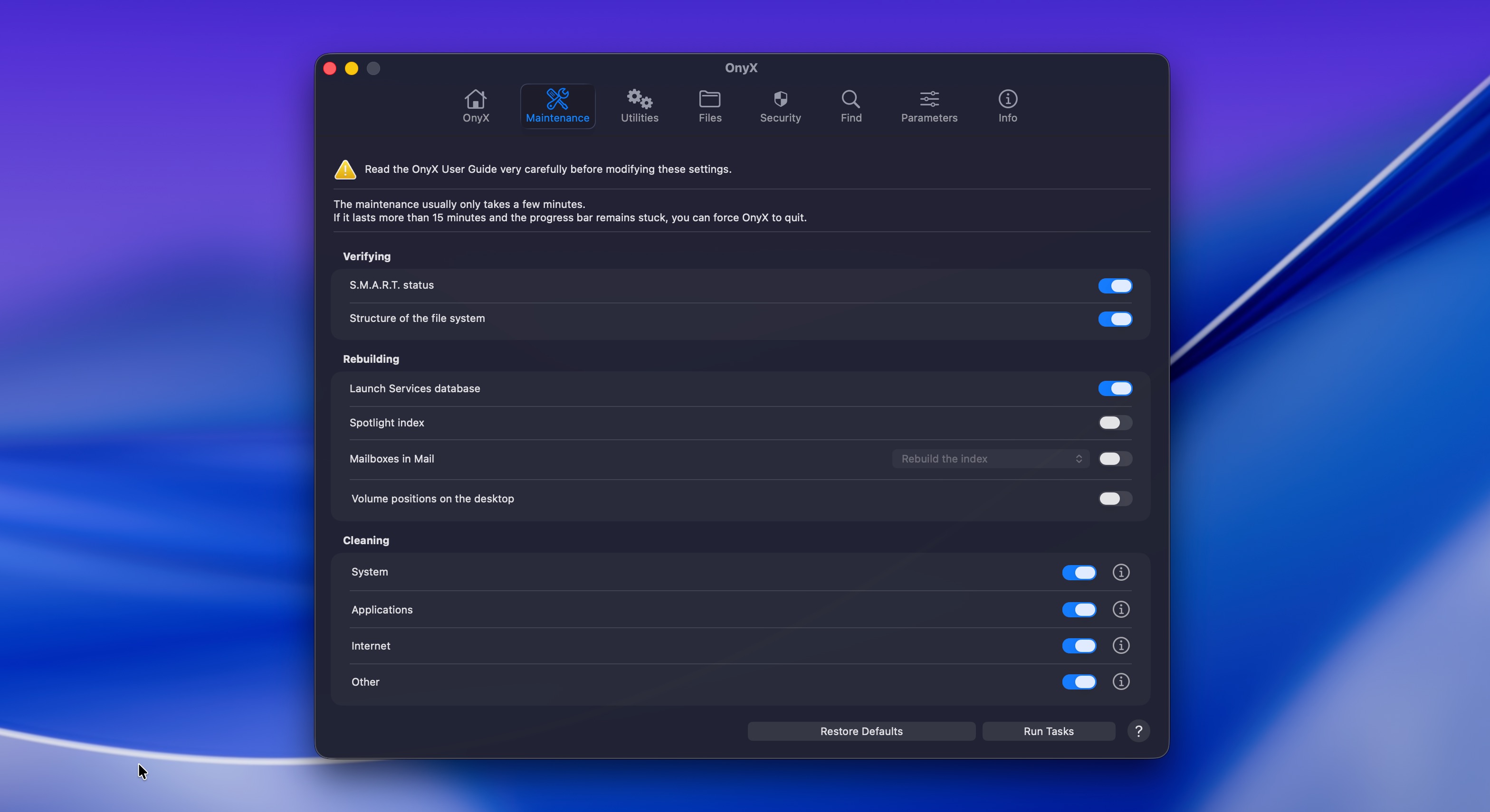
OnyX is a free maintenance utility from Titanium Software that’s been a staple in the Mac community for years because it gives you access to a range of system maintenance tasks that macOS doesn’t expose through its standard interface. With the tools, you can verify system file structure, clear caches, rebuild Spotlight indexes, rebuild mail databases, run maintenance scripts, and configure hidden Finder, Dock, and Safari settings.
Running OnyX regularly can help keep your system healthy and sometimes resolve weird behavior (like sluggish Finder, broken search results, or apps that refuse to launch) without needing a full disk repair.
⚠️ Important: OnyX releases a separate version for each major macOS release. You need to download the version that matches your OS. The current version for macOS Tahoe (26) is OnyX 4.9.8, released March 27, 2026.
Features:
- Verifies system file structure integrity
- Clears system, user, and browser caches
- Rebuilds Spotlight, Mail, and LaunchServices databases
- Runs macOS maintenance scripts
- Configures hidden system settings for Finder, Dock, and Safari
- Uninstalls applications cleanly
Pricing:
OnyX is completely free. Titanium Software accepts donations but doesn’t charge for the software, and there are no paid tiers or feature limitations.
What users say:
“First Aid in Safe Mode did no good, OnyX seems to work only on the system disk, so I’ve erased the TM volume and re-set TM.” – User comment, DPReview Forums
“There’s a reason Onyx has been among the tools of choice for Mac techies for such a long time. It offers a great set of tools and an incredible level of customization.” – Macworld
4.Techtool Pro 21
Best for: diagnosing hardware and repairing volume structures (Steps 2 and 3).
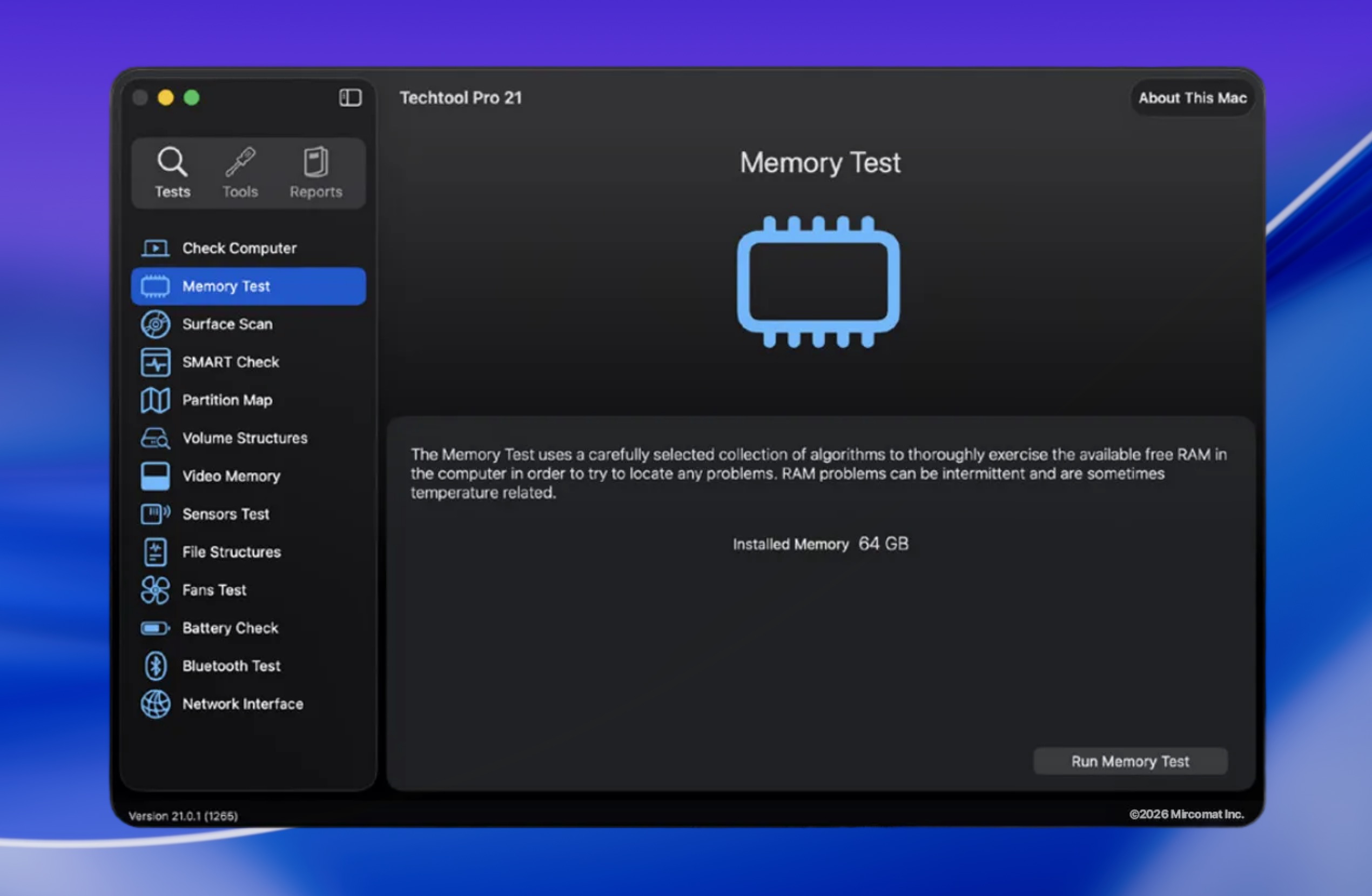
Techtool Pro is a comprehensive Mac diagnostic and repair suite from Micromat. It bundles hardware diagnostics, drive testing, volume repair, S.M.A.R.T. monitoring, data recovery, and system maintenance into one application, which basically makes it the Swiss Army knife of Mac repair.
For disk-specific workflows, Techtool Pro can test and repair volume structures on both APFS and HFS+ drives, and it supports FAT32 and ExFAT as well. The included Techtool Monitor component runs in the background and can send you email alerts if it detects a problem with your drives, RAID arrays, or battery. The app also runs natively on Apple Silicon and supports macOS 13 through macOS 26 Tahoe.
If you can’t wait to download Techtool Pro, then we have some bad news for you. It’s very expensive, and there’s no trial version, so you can’t test it before committing. Specifically, it uses a subscription model ($90/year) with a perpetual license option ($110 one-time). Also, certain legacy features like eDrive (bootable diagnostic partition) were removed for macOS 12+ due to Apple’s security restrictions on bootable volumes.
Features:
- Tests and repairs APFS, HFS+, FAT32, and ExFAT volumes
- Full hardware diagnostics (drives, RAM, sensors, fans, battery)
- Techtool Monitor for background S.M.A.R.T. and drive health monitoring
- Email alerts for detected problems
- Volume cloning and data recovery tools included
- Native Apple Silicon and macOS Tahoe support
Pricing:
Techtool Pro 21 is available as an annual subscription (approximately $90/year) or a perpetual license (approximately $110 one-time). The perpetual license includes one year of updates. Both options are licensed for one computer. Micromat’s store page does not always display prices directly, so final pricing may vary at checkout. No free version is publicly advertised, though the subscription continues to function (without updates) after it expires.
What users say:
“There are several types of tests to be chosen from. Scans can be quick or total. When I contacted support, they were reasonably quick to respond. The response has been unfailingly helpful.” – greatsouthernbear, MacUpdate
“I remember using this in the late 90s and early 2000s. It was really good. But, WOW, it has gotten expensive and a subscription, too.” – Tim27, MacUpdate
“I still use it and pay the annual fee as it is the only app that will rebuild a corrupted disc directory (now that Disk Warrior is dead) A few useful tools but it is expensive.” – User testimonial, Reddit
5.DriveDx
Best for: spotting a failing drive before it dies (ongoing monitoring).
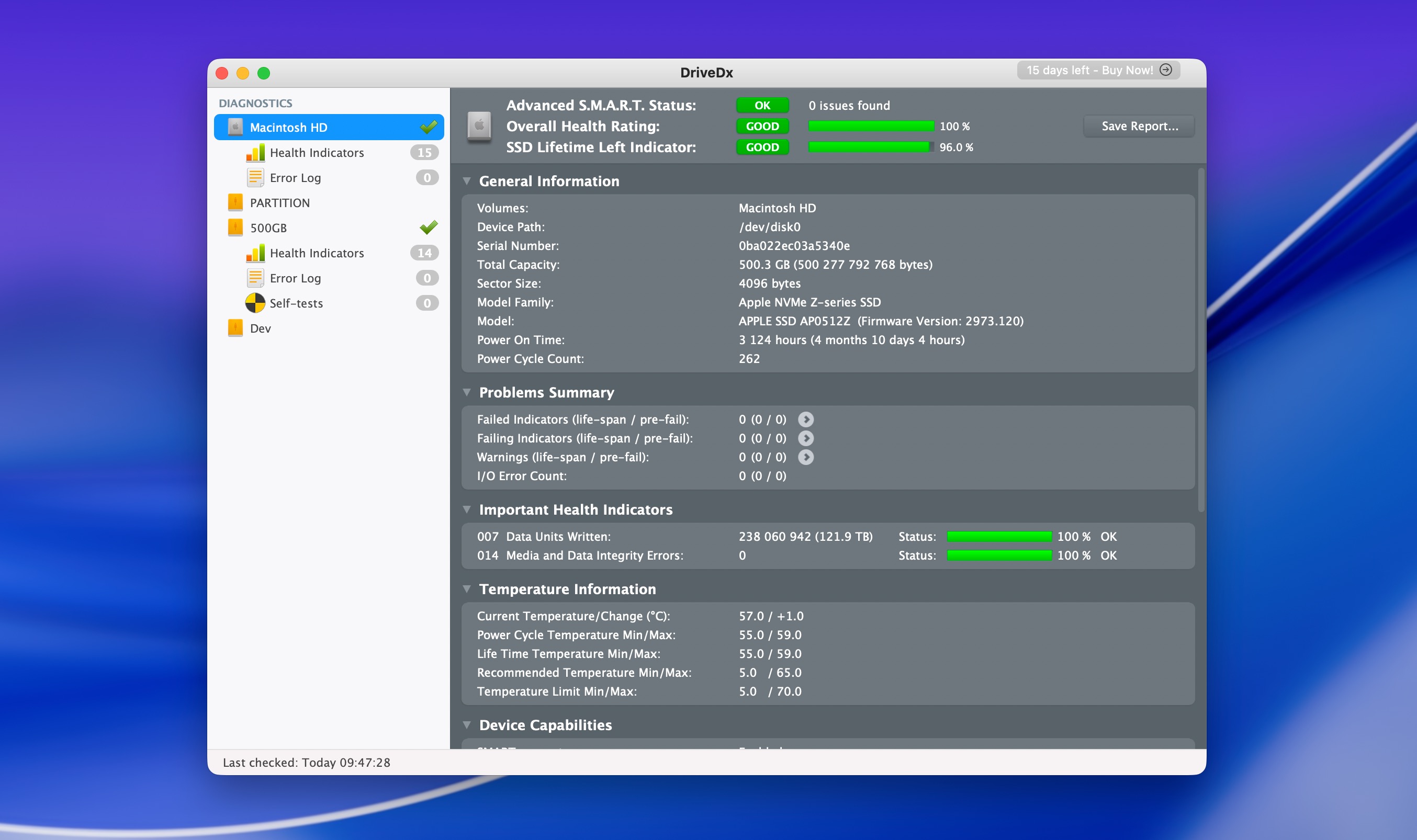
DriveDx by BinaryFruit is a dedicated drive health monitoring utility that gives you a detailed, real-time picture of how your SSD or HDD is doing, so you can spot trouble before your drive actually fails.
The tool tracks dozens of health indicators and analyzes trends over time. It monitors SSD wear (remaining lifespan), reallocated sectors, pending sectors, I/O errors, and more. If something starts looking bad, DriveDx alerts you immediately, giving you time to back up your data and replace the drive before it’s too late.
DriveDx also supports external drive monitoring through the SAT SMART Driver (a kernel extension that enables S.M.A.R.T. data from USB/FireWire drives, since macOS doesn’t expose this by default). This is something the S.M.A.R.T. tool in Disk Drill doesn’t do, but it’s worth pointing out that kernel extensions can compromise the stability of your Mac.
⚠️ Warning: DriveDx hasn’t had a version update since September 2023 (v1.12.1), but BinaryFruit has confirmed compatibility with macOS 26 Tahoe.
Features:
- Monitors SSD and HDD health using advanced S.M.A.R.T. diagnostics
- Calculates remaining SSD lifespan based on wear indicators
- Runs built-in drive self-tests (short and long format)
- Email alerts and background monitoring
- Supports external drives via SAT SMART Driver
- Compatible with macOS 10.9 through macOS 26
Pricing:
DriveDx offers a free 15-day trial with full functionality. After that, a Personal License costs $19.99 (up to 3 Macs) and a Family License costs $39.99 (up to 6 Macs). Business and IT consultant licenses are also available. All licenses are one-time purchases.
What users say:
“I downloaded DriveDx and discovered that the second HDD in my MacBook Pro was having failing warnings, although DiskUtility said the drive was OK.” – User review, BinaryFruit
“Apple’s simplistic entry for S.M.A.R.T. status doesn’t even report when this was last checked, but several excellent third-party utilities give more detailed access. My favorite substitute remains DriveDx” – The Eclectic Light Company
6.DiskWarrior
Best for: repairing damaged directories on HFS+ drives (Step 3).
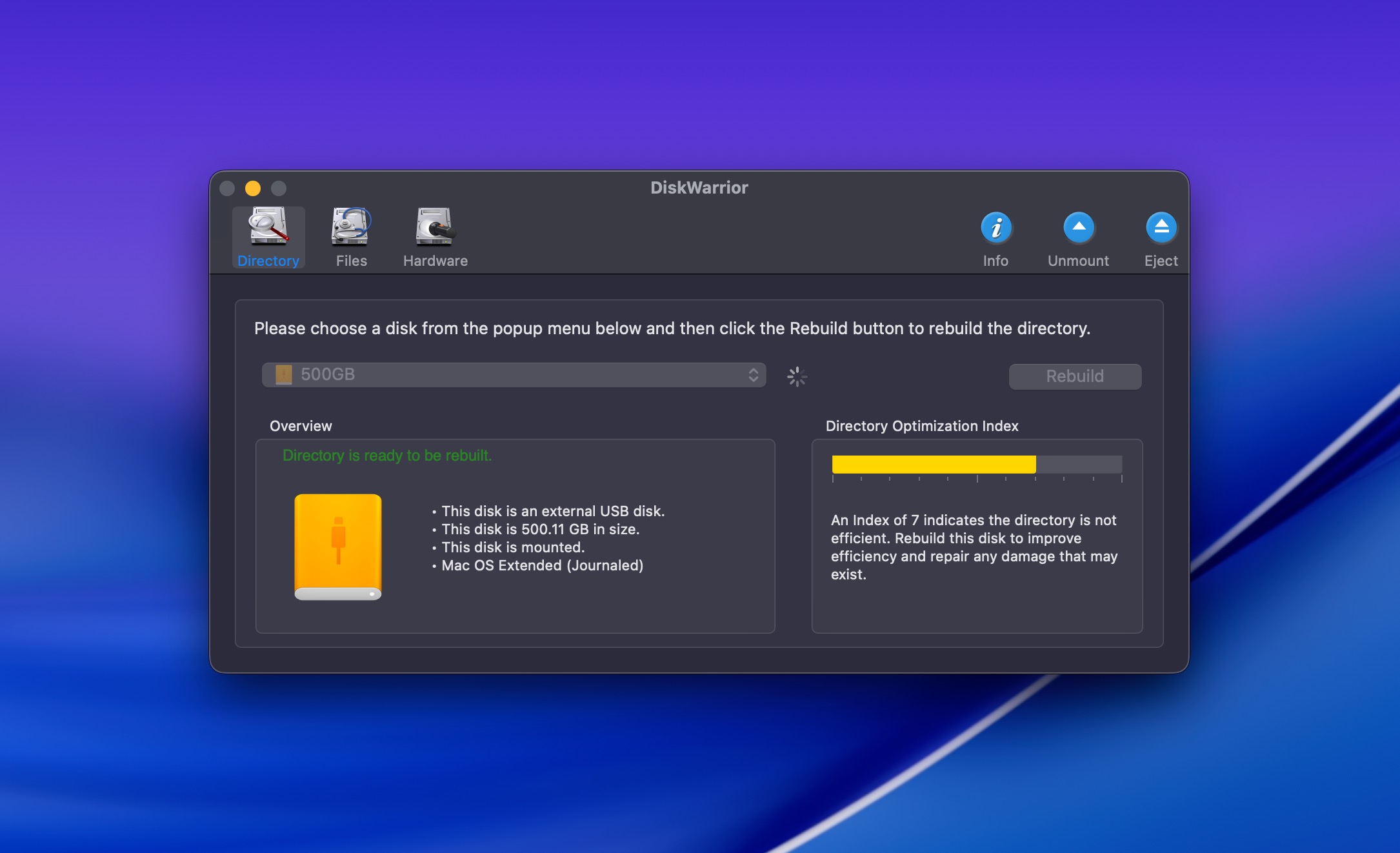
DiskWarrior has been around since the late 1990s, and for a long time it was the go-to Mac disk repair tool for fixing directory damage on Mac drives. When you use the tool, it scans the disk, finds all salvageable files and folders, and creates a new, clean directory structure. You can preview the results before committing to the repair, which is a nice safety feature.
Unfortunately, DiskWarrior only works with Mac OS Extended (HFS+) volumes, and there’s no support for APFS, which has been the default file system on Macs since 2017. So, if you’re running any reasonably modern Mac with an internal SSD, DiskWarrior can’t repair your startup volume.
Its usefulness in 2026 is mostly limited to external HFS+ drives, Time Machine disks formatted as HFS+, and older Macs, and online user reviews reflect this with their negativity. Alsoft has announced that DiskWarrior 6 will add APFS support, but no release date has been given, and the status page remains a placeholder.
Features:
- Rebuilds damaged HFS+ directories from scratch rather than patching them
- Preview-before-commit approach keeps your data safe during repair
- S.M.A.R.T. health monitoring and failure alerts
- Can copy files from a failing drive to a new one
- Boots from macOS Recovery for startup disk repairs (HFS+ only)
Pricing:
DiskWarrior costs $119.95 for a new license and $59.95 for an upgrade from a previous version. There is no free trial. The license is for one computer, and all sales are final. Shipping costs apply for the included USB flash drive ($8.95 in the U.S., $21.95 internationally).
What users say:
“Until it can scan APFS and repair them, it does little to no good.” – User review, MacUpdate
“Why should I pay over $100 for a utility that is essentially crippled under Apple Silicon/APFS?” – User review, MacUpdate
“DiskWarrior was an obvious choice for new Mac users dealing with a data loss scenario. Unfortunately, this is no longer the case.” – Handy Recovery
Comparison Table of Mac Disk Repair Software
The tools in this list serve different purposes, so ranking them against each other wouldn’t be fair. Instead, use this table as a quick reference to remind yourself what each tool does and what it costs.
| Tool | Primary Purpose | Key Features | macOS 26 Compatible | Free Version | Full Price |
|---|---|---|---|---|---|
| Disk Drill | Data recovery, disk imaging | Recovers ~400 file formats, byte-to-byte backups, Recovery Vault, S.M.A.R.T. monitoring | Yes, Disk Drill 6.2 | Yes (scan + preview; 100 MB recovery on Windows) | $89/yr or $149 lifetime (Mac + Windows, 3 devices) |
| DiskWarrior | HFS+ directory rebuild | Rebuilds directories from scratch, preview before repair, S.M.A.R.T. alerts | Partial, DiskWarrior 5.3 (external HFS+ drives only) | No | $119.95 one-time (1 computer) |
| TestDisk | Partition recovery, boot repair | Partition table repair, boot sector fix, PhotoRec file carving, cross-platform | TestDisk 7.2 (Intel build, runs via Rosetta 2) | Yes (fully free, open-source) | Free |
| OnyX | System maintenance | Cache clearing, database rebuilds, hidden settings, maintenance scripts | Yes, OnyX 4.9.8 | Yes (fully free) | Free |
| Techtool Pro 21 | Diagnostics, volume repair | APFS/HFS+ repair, hardware diagnostics, Techtool Monitor, email alerts | Yes, Techtool Pro 21 | No | ~$90/yr or ~$110 perpetual (1 computer) |
| DriveDx | Drive health monitoring | S.M.A.R.T. diagnostics, SSD lifespan tracking, self-tests, external drive support | Yes, DriveDx 1.12.1 | 15-day trial | $19.99 personal (3 Macs) |
Summary
As we mentioned at the start, disk repair on Mac isn’t something a single tool can handle on its own. It’s a multi-step process, and each step calls for a different kind of utility. If we had to recommend a starter kit, it would be:
- Disk Drill to get your data to safety before you touch anything else, either by recovering files directly or by creating a disk image you can fall back on.
- TestDisk to recover lost partitions and repair boot sectors for free.
- DriveDx to perform ongoing monitoring so a failing drive won’t surprise you.
That said, Disk Drill is the one tool we’d recommend regardless of whether your disk is having problems right now. Even on a perfectly healthy Mac, it’s useful for recovering accidentally deleted files, and the byte-to-byte backup feature is worth having in your back pocket for the day something does go wrong.