 You just lost photos, videos, or documents from your SD card, and you need them back now (maybe you accidentally clicked on Format, or your camera’s memory card suddenly shows up blank). Whatever happened, the data very likely isn’t gone for good. The right SD card recovery software can scan your card, find what’s left, and retrieve your files before they’re overwritten. We tested and compared over a dozen tools to put together this list of the best SD card data recovery software available right now. Each pick below has been evaluated by our team based on real recovery results instead of just marketing claims.
Our editorial team independently assesses each data recovery solution to produce accurate, high-quality content. Discover more about our testing process.
Quick Breakdown of the Best SD Recovery Software
Let’s start with a quick overview table that covers the basics like platform support, pricing, and free recovery limits so you can quickly narrow down which SD card recovery program fits your situation and jump straight to its description:
| Software | Best for | Latest update | Supported files | System requirements | Pricing |
| Disk Drill | All-around SD card recovery for beginners and pros | 6.2.2219 – macOS (March 9, 2026) / 6.2.1278 – Windows (March 9, 2026) | Around 400 file formats | macOS 10.15-26.x / Windows 10/11 64-bit / ARM | From $89/year (free version available) |
| Recuva | Free unlimited recovery of common file types | v1.54.120 (June 26, 2024) | Basic file formats only | Windows 10, 8.1, 7, Vista, and XP | $24.95 (free version available) |
| R-Studio | Professional and complex recovery jobs | R-Studio 9.5 build 191742 released Apr, 2026 | Several hundred file formats | Windows, macOS, Linux (all newer versions) | From $49.99 (free version available) |
| EaseUS Data Recovery Wizard | Users who want a polished interface and broad format support | Version 20.1.0 (released Jan, 2026) | Common file formats (marketed as 1,000+) | Windows 7 or newer / macOS 26-10.9 | From $69.95 (free version available) |
| CardRecovery | Basic photo and video recovery from memory cards | Version 6.30 (build 0216) | Common photo and video formats | Windows XP through Windows 11 | $39.95 (free trial, no free recovery) |
| MiniTool Data Recovery | Folder-targeted scans on Windows | V12.8 (released Jan 6, 2026) | Over 100 file types | Windows 11/10/8/8.1 | From $69 (free version available) |
| PhotoRec | Advanced users who want free, open-source recovery | 7.2 stable (Feb 22, 2024) and 7.3 WIP/Beta | Over 480 file extensions | Windows, macOS, Linux | Free and open-source |
| R-Photo | Free photo and video recovery on Windows | Version 2.0 build 180037 (released Feb 24, 2026) | Common photo and video formats | Windows (all newer versions) | Free for non-commercial use |
8 Best Recovery Software for SD Card (Detailed Analysis)
What follows is a breakdown of every SD data recovery software on our list, including what it does well, where it falls short, and who it’s actually built for. The breakdown is based on extensive tests against real data loss scenarios involving SD cards from cameras, phones, and drones.
1. Disk Drill SD Card Recovery (Windows & macOS)
🏆 Best for: Disk Drill is the top pick for anyone (beginner or advanced) who needs to recover lost files from an SD card on Windows or Mac. Our team has published a full in-depth review of Disk Drill if you want the complete picture.
Pros
- Supports most raw photo and video file formats
- Can scan corrupted, RAW, and formatted SD cards
- Recovers up to 100 MB of data for free on Windows
- Includes free tools like byte-to-byte backup, storage cleanup, and data protection
- Simple one-click approach to recovery
- Actively developed with frequent updates
- Advanced Camera Recovery module for fragmented video reconstruction
- No Linux version available
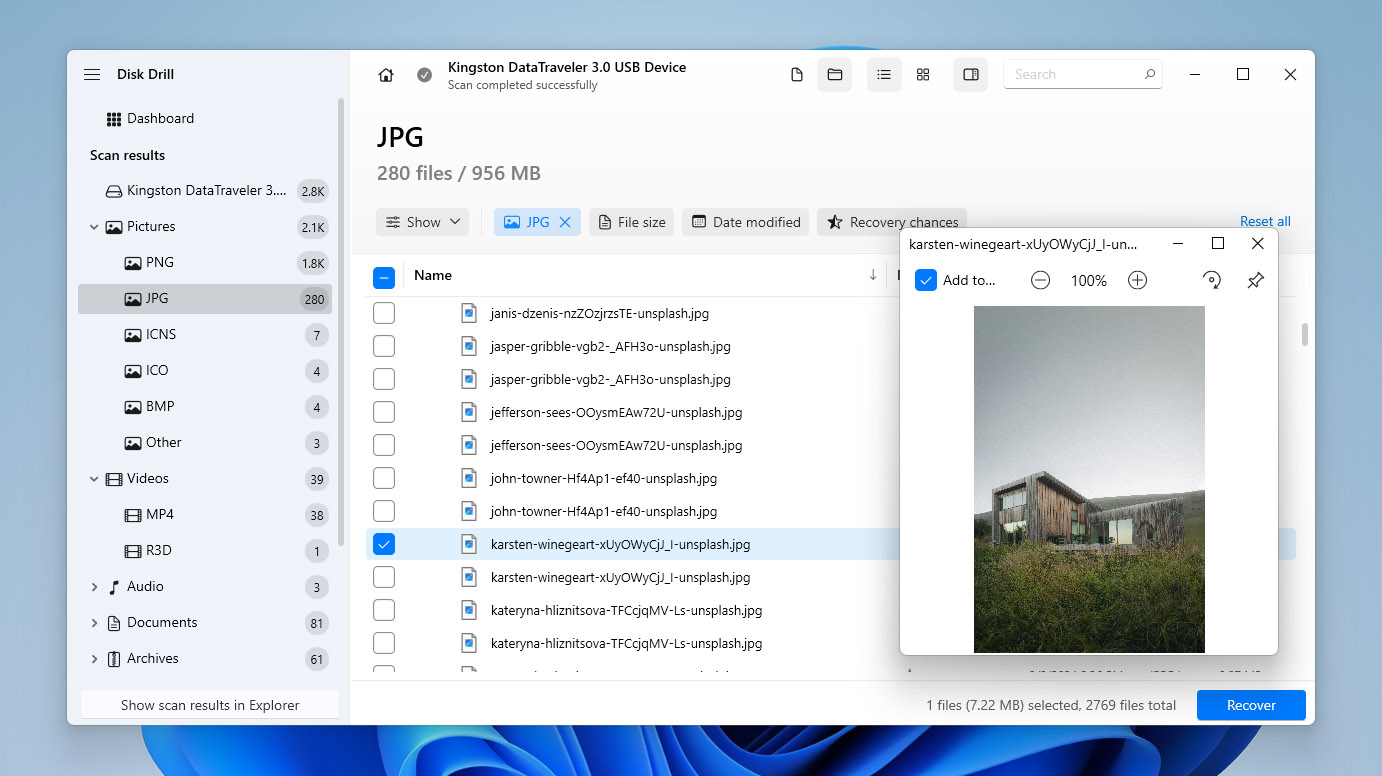
Disk Drill has earned its spot at the top of this list because it delivers excellent recovery results without making you work hard for them. The application recognizes around 400 file formats and handles the raw photo and video formats that photographers and videographers care about most, including CR2, CR3 (Canon), NEF, NRW (Nikon), ARW (Sony), and R3D (RED).
What really sets Disk Drill 6 apart for SD card recovery is its new Advanced Camera Recovery module. If you’ve ever tried to recover GoPro, DJI, or Insta360 footage and ended up with corrupted, unplayable files, then it’s because traditional recovery tools treat video files as one continuous block and fail when they’re fragmented. Disk Drill actually solves that problem by scanning the entire card sector by sector and piecing fragments back together in the right order.
Disk Drill always attempts to apply its scanning algorithms to restore files with original folder structure and file names intact, so you won’t end up with a bunch of unorganized files with non-descriptive names that you must then spend hours and hours organizing manually. The free version on Windows lets you recover up to 100 MB and preview unlimited files, which is enough to confirm your data is recoverable before you buy. On Mac, the free version lets you preview recoverable files with no recovery limit. A single Disk Drill PRO license covers both Windows and macOS with up to 3 device activations, which is a strong differentiator compared to competitors like EaseUS and R-Studio that require separate licenses per platform.
CleverFiles, the developers behind Disk Drill, keep the software updated regularly. The latest release brought compatibility with macOS Tahoe, improved Advanced Camera Recovery algorithms, and added support for new file formats.
Photo Recovery Capabilities
Disk Drill is one of the strongest tools for photo recovery from SD cards. It recognizes all major RAW formats from Canon, Nikon, Sony, Fujifilm, Panasonic, and Olympus. The Advanced Camera Recovery module goes further by recovering fragmented video and audio files recorded directly by cameras and drones. It also handles THM thumbnails, LRV/LRF preview files from GoPro, and DNG files from various devices. If your SD card came from a camera or drone, Disk Drill gives you the best shot at getting playable, complete files back.
What Users Say
“Disk Drill is your best friend. I’ve spent so many hours looking for other mac solutions, but they’re all either super limited, awful bloatware, or have no GUI, Diskdrill really is your best bet. When I worked in editorial, I recovered so many formatted & Written over SD cards with it. IIRC Its $90 or so for a Lifetime liscense, BUT if you just need to restore this one SD card, you can get access to the full disk drill version with a Setapp subscription and you can just do the free 7 day trial,” wrote knoxycle in r/videography.
Pricing
| Plan | Price |
| Disk Drill Basic | Free (100 MB recovery on Windows) |
| Disk Drill PRO (Annual) | $89.00/year |
| Disk Drill PRO (Lifetime) | $149.00 (one-time payment) |
| Disk Drill Enterprise | Custom pricing |
| Competitive Upgrade | 50% OFF |
2. Recuva (Windows)
🏆 Best for: Recuva remains a good choice for Windows users who need to recover common file types from an SD card without spending any money. Our team has a full Recuva review with detailed test results.
Pros
- Unlimited free recovery with no data cap
- Simple, straightforward interface
- Includes a secure overwrite feature
- No automatic updates in the free version
- Can't recover most raw photo and video file formats
- Development has slowed significantly
- Windows only
- Needs a working partition with a readable file system to scan, so cards with missing partitions or severe corruption are out of reach
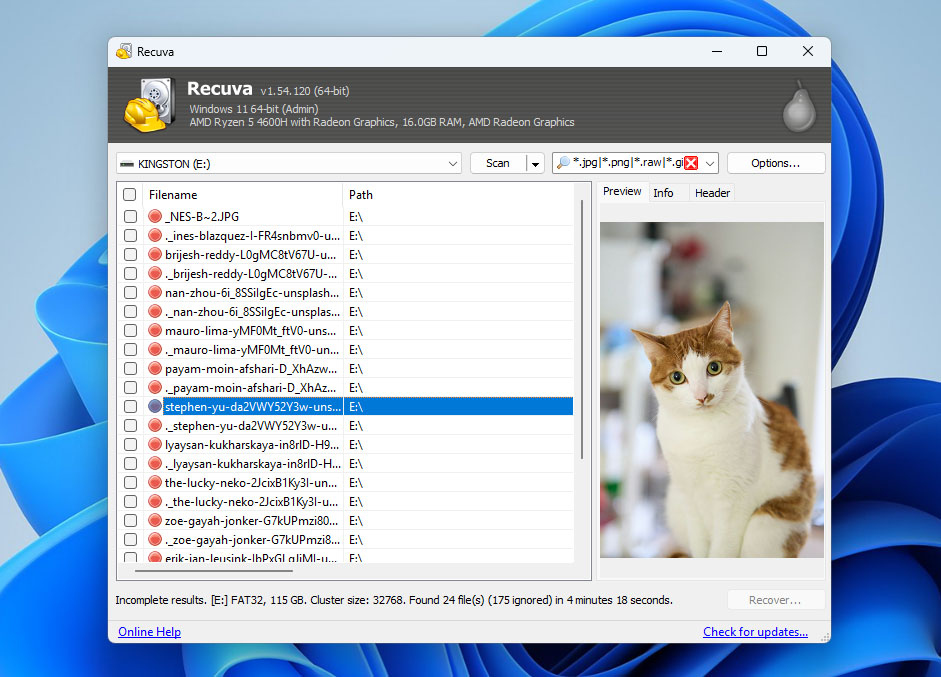
If you’re on Windows and need SD card recovery software free of any data caps, Recuva still does the trick. There’s no recovery limit on the free version, which is a real advantage over most competitors since you can recover as much data as you want without paying a cent.
That said, Recuva has real limitations. The biggest one is that it supports only common image, video, audio, and document formats. If you need to recover RAW photos from your DSLR or mirrorless camera, you’re mostly out of luck. Recuva handles a small handful of raw formats, and even those aren’t always recovered reliably. The application also hasn’t received meaningful feature updates in years, so don’t expect it to keep up with newer file formats or storage technologies. Another thing is that Recuva needs an intact partition and a readable file system to run a scan in the first place. If your SD card shows up as RAW, has a missing partition, or the file system is too damaged for Windows to mount, Recuva won’t have anything to work with. In those situations, you’ll need a tool that scans at the sector level, like Disk Drill or PhotoRec.
The interface offers two modes: a Wizard for beginners and an Advanced view for users who want more control over scanning. Recuva also includes a free secure overwrite feature that permanently erases sensitive files from your SD card to prevent future recovery.
Photo Recovery Capabilities
Recuva handles standard JPEG, PNG, GIF, and BMP files without issues. Where it struggles is with camera-specific formats. Most RAW formats (CR2, CR3, NEF, ARW) are either unsupported or poorly recovered. If your SD card contains only JPEG photos from a phone or basic point-and-shoot, Recuva will do the job. For anything more specialized, you’ll need a different tool.
What Users Say
“I started with the free Recuva software and had no success. Recuva saw the files but could not recover them to my good hard drive. I tried Disk Drill next and it just worked. It wasn’t free but I gladly paid for the pro version,” wrote dan1rt1 in r/DataRecoveryHelp.
Pricing
| Plan | Price |
| Recuva Free | Free (unlimited recovery) |
| Recuva Professional | $19.95 |
3. R-Studio (Windows, macOS, Linux)
🏆 Best for: R-Studio is the go-to choice for experienced users and data recovery professionals who need a powerful, feature-rich tool for complex SD card recovery jobs. Our team has published a comprehensive R-Studio review with full test results.
Pros
- Recognizes all major file systems (FAT, exFAT, NTFS, HFS+, APFS, ext2/3/4, and more)
- Can scan corrupted and damaged SD cards
- Runs on Windows, macOS, and Linux
- The FAT-only license is affordable and covers most SD card recovery needs
- Interface is too complex for regular home users
- Each platform requires a separate license
- The free version can't recover files larger than 1024 KB (1 MB)
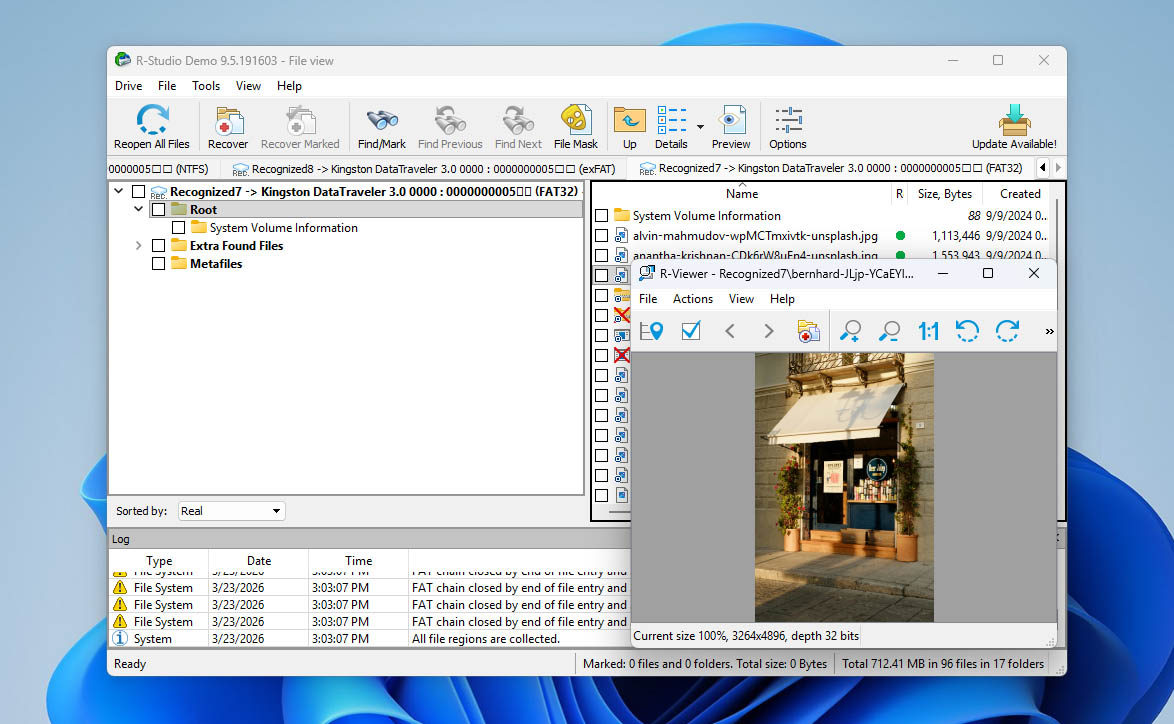
R-Studio is built for people who know what they’re doing. The application includes more advanced recovery features than almost anything else on the market, and it’s particularly good at handling corrupted SD cards where the file system is damaged or partially overwritten.
While R-Studio is free to download, the demo limits file recovery to 1024 KB (1 MB) per file, which rules out anything beyond small text documents. The least expensive license, R-Studio FAT ($49.99), supports only FAT and exFAT file systems. Since FAT32 and exFAT are the standard file systems for SD cards, this license covers most memory card recovery scenarios without requiring you to spend more on the full version.
You won’t get features like sector mapping, portable mode, or the built-in hex editor with the FAT license, but most people recovering data from an SD card don’t need those. What you do get is R-Studio’s powerful scanning engine, which is one of the most thorough in the industry. Keep in mind that each operating system (Windows, macOS, Linux) requires its own separate license.
Photo Recovery Capabilities
R-Studio supports several hundred file signatures for deep scanning, including most RAW photo formats. It can identify and recover CR2, NEF, ARW, ORF, and other camera-specific formats. Its raw file recovery (signature-based scanning) is particularly effective on heavily damaged or formatted cards where the file system is no longer intact. For professional photographers dealing with a corrupted card, R-Studio offers some of the deepest scanning available.
What Users Say
“The software supports a wide range of file systems and can recover files in many different formats,” wrote Felipe M in his Capterra review.
Pricing
| Product | Windows | macOS | Linux |
| Free version | Files under 1024 KB only | Files under 1024 KB only | Files under 1024 KB only |
| R-Studio FAT | $49.99 | – | – |
| R-Studio | $79.99 | $79.99 | $79.99 |
| R-Studio Technician | $899.99 | $899.99 | $899.99 |
4. EaseUS Data Recovery Wizard (Windows & macOS)
🏆 Best for: EaseUS Data Recovery Wizard is a decent option for users who want a polished interface and are willing to pay a premium for it. Check out our team’s full EaseUS review for detailed test results.
Pros
- Well-known brand with a track record of reliable performance
- The free version recovers up to 2 GB of data (500 MB base, plus 1.5 GB if you share on social media)
- Supports a wide range of common file formats
- Works on both Windows and macOS
- Scan progress indicator is wildly inaccurate
- Windows and Mac versions require separate licenses
- Sometimes lists irrecoverable files as recoverable
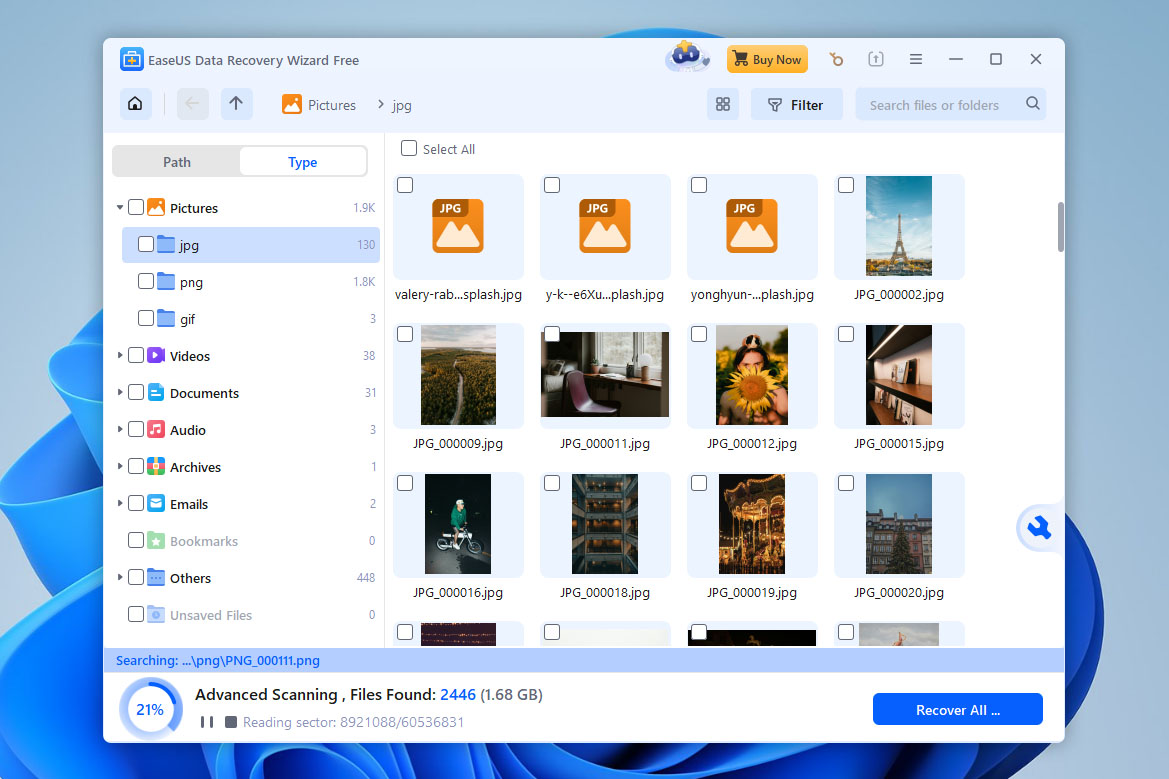
EaseUS Data Recovery Wizard has been around for years and has built a solid reputation for getting the job done. The interface is clean and intuitive, and the software handles SD card recovery from cards of all sizes and types reasonably well.
The claim of supporting “over 1,000 file formats” deserves some skepticism, though. In practice, this number is mostly marketing. The tool handles common formats (JPEG, MP4, DOCX, PDF, etc.) reliably, but its performance with more obscure or specialized file types doesn’t set it apart from competitors that advertise smaller numbers. What matters is actual recovery results, and EaseUS delivers solid, if not spectacular, outcomes on most SD card recovery jobs.
One annoyance worth mentioning is the scan progress indicator. It’s consistently inaccurate to the point where a random number generator would sometimes be more helpful. The scan itself works fine, but the time estimates are unreliable. For an application at this price point, that kind of polish should have been fixed a long time ago.
The free version lets you recover up to 500 MB of data, with an extra 1.5 GB available if you share the product on Facebook or Twitter. That’s generous compared to many competitors, but the paid subscription is notably more expensive than alternatives like Disk Drill.
Photo Recovery Capabilities
EaseUS handles standard photo formats well and supports some RAW formats from major camera brands. It can recover JPEG, PNG, TIFF, and BMP files reliably. RAW format support (CR2, NEF, ARW) is present but not as deep as what you’d get from Disk Drill or R-Studio. For phone photos and basic camera images, it works fine. For specialized camera recovery involving fragmented video or less common RAW formats, other tools perform better.
What Users Say
“One of my friends lost his wedding photos on an SD card. For that I reviewed many data recovery software and used couple of EaseUS recovery software and was able to recover data. You can give it a try,” wrote a former reddit user in r/photography.
Pricing
| Plan | Price |
| Free version | Up to 2 GB recovery (with social share) |
| Pro (Monthly) | $69.95 |
| Pro (Annual) | $99.95 |
| Pro (Lifetime) | $149.95 |
5. CardRecovery (Windows)
🏆 Best for: CardRecovery is a straightforward option for Windows users who need to get standard photos and videos back from an SD card and don’t need advanced features. Our team has a detailed CardRecovery review with real test results.
Pros
- Built specifically for memory card recovery
- Simple wizard-based interface
- One-time purchase (no subscription)
- Supports most common photo and video formats
- No free recovery, only a trial that lets you scan and preview
- Interface looks outdated and hasn't been updated in years
- Windows only, no Mac version (separate CardRescue product for Mac)
- Slow scanning speeds, especially on larger cards
- Limited to multimedia files only
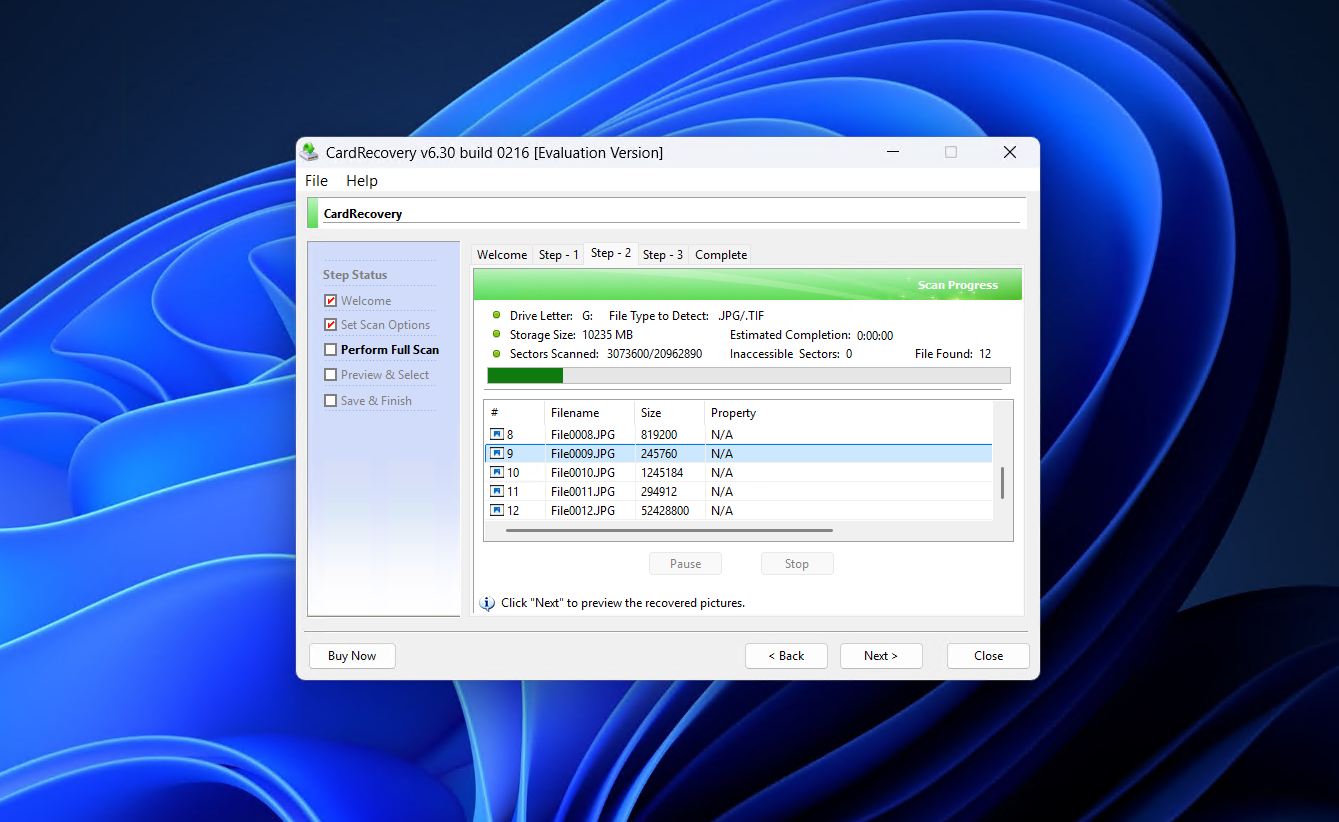
CardRecovery does exactly what its name suggests: it recovers photos, videos, and audio files from memory cards. Developed by WinRecovery Software, this tool has been around since the early 2000s and has a narrow but focused feature set. If your SD card lost photos after formatting or accidental deletion, CardRecovery can usually find them.
Unfortunately, there’s no free recovery at all. The trial lets you scan your card and preview recoverable files, but saving them requires purchasing the $39.95 license. That’s a one-time payment, which is nice compared to subscription models, but many competitors offer free tiers that let you actually recover some data before paying.
The interface is functional but dated. It hasn’t seen a visual refresh in over a decade, but the three-step wizard still gets the job done relatively fine. Scanning speeds are also on the slower side. A 64 GB card can take over two hours to scan, so patience is required.
Another major limitation is that CardRecovery only handles multimedia files. If you need to recover documents, spreadsheets, or other non-media file types from your SD card, you’ll need a different tool.
Photo Recovery Capabilities
This is where CardRecovery focuses all its effort. It supports JPEG, TIFF, and RAW formats from major camera brands including Canon, Nikon, Sony, Samsung, Olympus, and Panasonic. It also recovers common video formats like MP4, MOV, and AVI. For straightforward photo recovery from a formatted or accidentally wiped SD card, it gets the job done. It won’t reconstruct fragmented video files or handle more complex recovery scenarios, but for basic photo retrieval it’s competent.
What Users Say
“So one day my SD card in my phone just decided to get corrupted (I think it may be because of Spotify). I tried putting in other phones, but it is still inaccessible and says to format it before using. I ran like a day long scan in CardRecovery and it found nothing,” wrote marleau_12 in r/datarecovery.
Pricing
| Plan | Price |
| Free trial | Scan and preview only |
| Full license | $39.95 (one-time) |
6. MiniTool Power Data Recovery (Windows)
🏆 Best for: MiniTool Power Data Recovery is worth considering if you want to recover files from a specific folder on your SD card without scanning the whole thing. Our team has a complete MiniTool review with test results.
Pros
- Free version recovers up to 1 GB of data
- Can target specific folders instead of scanning the entire card
- Frequently updated
- 24/7 technical support available
- Free version doesn't include file preview without installing a separate component
- Subscription pricing is expensive relative to features
- Scanning is slow and resource-heavy
- Windows only
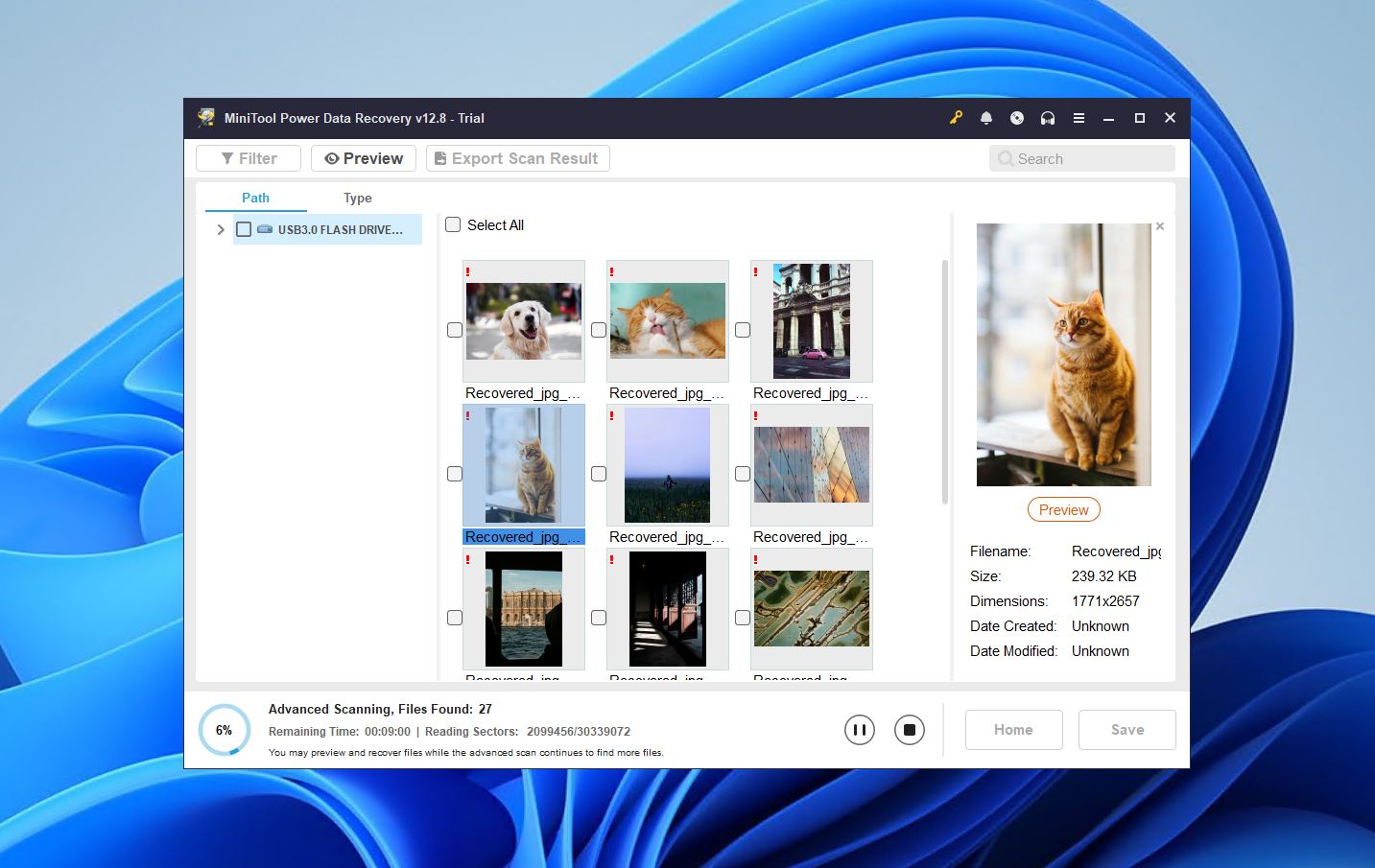
MiniTool Power Data Recovery is a versatile recovery tool that supports over 100 file types and can preview up to 70 of them, covering documents, images, video, audio, and archives. The free version gives you 1 GB of data recovery, which is reasonably generous.
One useful feature is the ability to scan specific locations, like a single DCIM folder on your SD card rather than the entire device. This can save a lot of time when you know exactly where your lost files were stored. That said, we’d generally recommend avoiding full card scans with MiniTool unless you really need them, because the scanning process is noticeably slow and puts heavy load on your computer’s resources.
Arguably the biggest annoyance of the free version is that you can’t preview files without separately installing a file previewer component. This feels like an unnecessary barrier when most competitors include preview functionality out of the box.
Photo Recovery Capabilities
MiniTool supports standard photo formats (JPEG, PNG, BMP, TIFF) and some camera RAW formats. Its photo recovery performance is adequate for everyday recovery jobs involving phone photos or basic camera images. For specialized camera recovery with RAW files, it’s not as capable as Disk Drill or R-Studio. The folder-specific scanning feature is genuinely helpful when recovering photos from a camera’s DCIM directory structure.
What Users Say
“Try minitool power data recovery. That’s a reliable tool to recover data. you will have to buy full version if the recovery data is more than 1GB. Just confirm once if you can access the card or not. If your system cannot detect the card then you may have to visit professional services to get your data back,” wrote deshmukh_pra in r/techsupport.
Pricing
For Personal Users:
| Plan | Price |
| Free version | Up to 1 GB recovery |
| Monthly Subscription | $69.00 |
| Annual Subscription | $89.00 |
| Ultimate (Lifetime) | $99.00 |
For Business Users:
| Plan | Price |
| Business Standard | $119.00 |
| Business Deluxe | $199.00 |
| Business Enterprise | $399.00 |
| Business Technician | $499.00 |
7. PhotoRec (Windows, macOS, Linux)
🏆 Best for: PhotoRec is the best choice for advanced Windows, macOS, and Linux users who want capable, free SD card recovery without paying anything. Our team has written a full PhotoRec review covering its strengths and limitations.
Pros
- Completely free and open-source
- Works on Windows, macOS, and Linux
- Recognizes over 480 file extensions
- Includes TestDisk for file system repair
- Command-line interface on macOS is intimidating for most users
- Can't preview files before recovery
- No graphical interface on macOS or Linux
- Recovered files lose their original names and folder structure
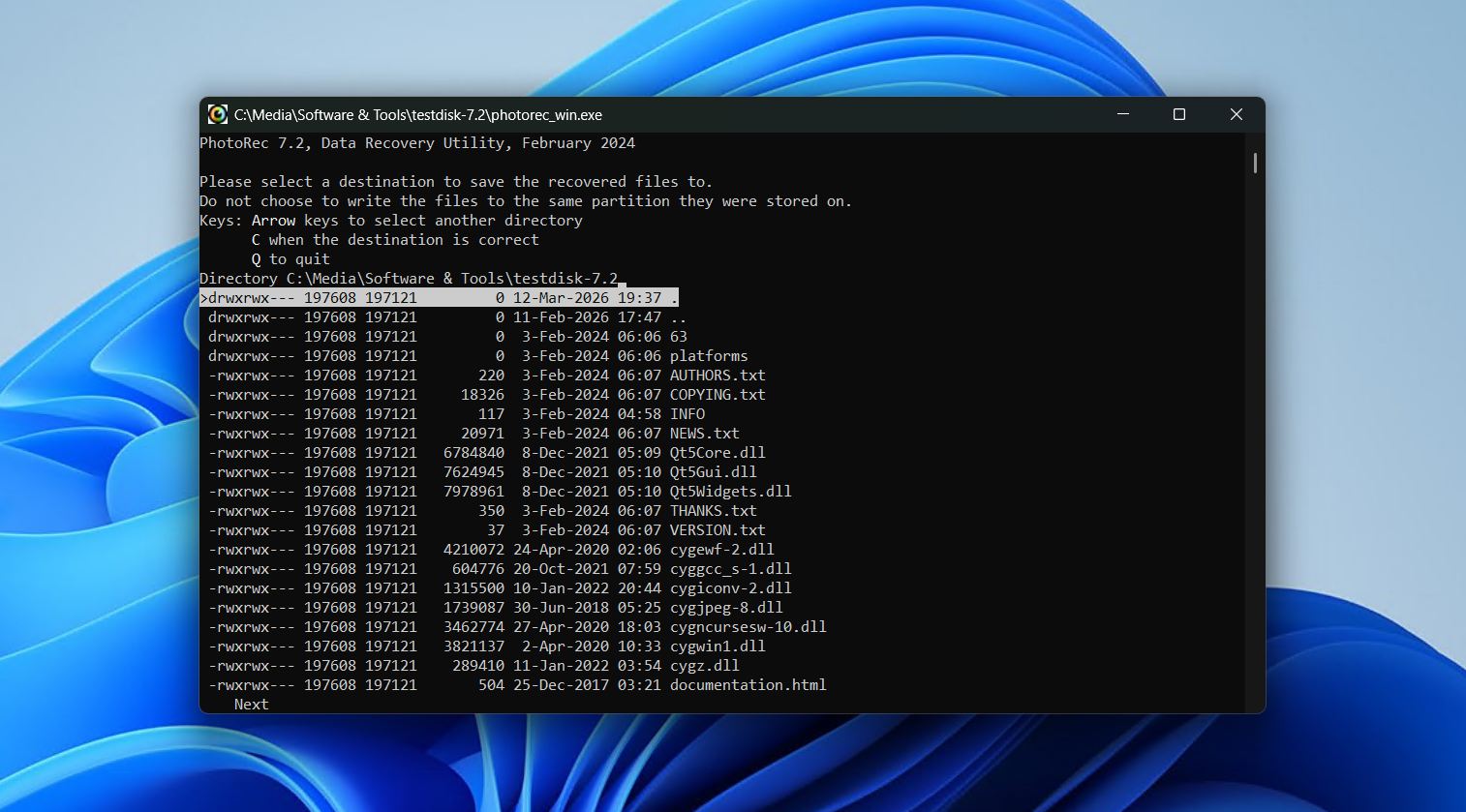
PhotoRec (along with its companion tool TestDisk) is a command-line data recovery application distributed for free under the GNU General Public License (GPL v2+). That means you can use it for SD card recovery without any limitations, and if you’re technically inclined, you can even dig into the source code and modify it.
On Windows, PhotoRec includes QPhotoRec, a basic graphical interface that makes the software considerably easier to use. On macOS and Linux, you’re stuck with the command line, which is a dealbreaker for most casual users because there’s no file preview, no drag-and-drop, and no visual scan progress.
The recovery engine that’s powering PhotoRec under the hood is one of the best in the game. It uses file signature detection (also called file carving) to find data, which means it works even when the file system is completely destroyed. It recognizes over 480 file extensions across roughly 300 file families. The trade-off of the file carving approach in general is that recovered files lose their original names and folder structure, so you’ll spend time sorting through results manually.
Photo Recovery Capabilities
PhotoRec supports a wide range of photo formats through its file signature database, including JPEG, PNG, TIFF, GIF, BMP, and various RAW formats (CR2, NEF, ARW, ORF, RAF, and more). Since it uses file carving rather than file system analysis, it can find photos even on severely damaged or formatted cards. The downside is that recovered photos won’t have their original filenames or folder organization.
What Users Say
“Had my SD become unreadable today after a wedding. This program saved me, and the guy is definitely getting a donation. Tried several programs but only this one did it. I’m so impressed. To recover lost files after an SD card fails, use PhotoRec,” wrote jotoco in r/photography.
Pricing
Free and open-source.
8. R-Photo (Windows)
🏆 Best for: R-Photo is worth a look for Windows users who want a free, graphical tool specifically for recovering photos and videos from SD cards and other storage devices. Our team has more details in our R-Studio review, which covers a more capable version of R-Photo.
Pros
- Completely free for non-commercial use
- Uses the same recovery engine as the professional R-Studio
- Clean graphical interface with thumbnail previews
- Supports FAT, exFAT, NTFS, and ReFS file systems
- No registration or activation required
- Windows only
- Limited to photo and video recovery (no documents or other file types)
- Cannot recover from Mac or Linux file systems
- Free only for personal, non-commercial use
R-Photo focuses specifically on recovering photos and videos. It’s made by R-Tools Technology and shares the same powerful scanning engine, but it wraps everything in a much simpler interface designed for regular users rather than IT professionals.
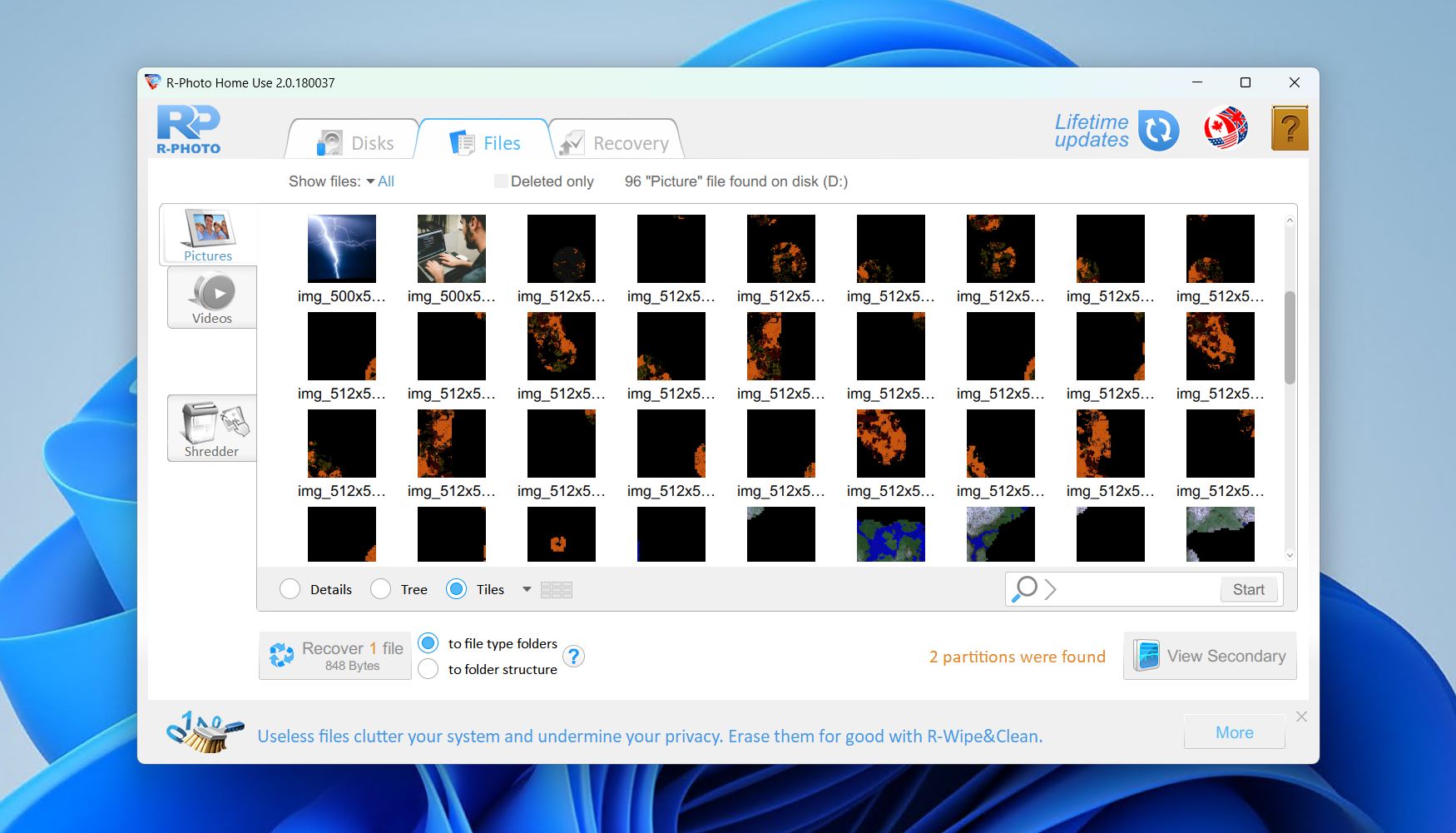
The application supports all Windows file systems, including FAT, exFAT, NTFS, and even ReFS. It can recover from internal and external drives, SSDs, USB sticks, and SD cards. It also supports scanning disk images, which is helpful if you’ve already created a byte-to-byte backup of a failing card.
R-Photo uses both standard file system scanning and raw file signature detection (deep scan) to find lost files, so it can recover photos even from formatted or severely corrupted cards. The interface shows thumbnail previews of recoverable images, along with recovery chance estimates, file sizes, and modification dates.
The biggest limitation is that R-Photo only recovers photos and videos. If you need documents, spreadsheets, or archives recovered from your SD card, you’ll need a different tool. It’s also strictly a Windows application with no Mac or Linux versions available.
Photo Recovery Capabilities
Since R-Photo is built exclusively for photo and video recovery, this is its entire focus. It supports common formats (JPEG, PNG, BMP, TIFF, GIF) along with various camera RAW formats and video file types. The R-Studio engine powering it is well-regarded for deep scanning accuracy. For a free tool, the recovery quality is impressive, especially on formatted FAT32/exFAT SD cards from cameras.
What Users Say
“I used R-Photo. Free and works well,” wrote squalo_vecchio in r/photography.
Pricing
Free for non-commercial use (no registration required).
Our Verdict
Disk Drill is the best recovery software for SD card data loss because it combines the strongest overall recovery results with an interface that anyone can figure out in minutes. The Advanced Camera Recovery module is a real differentiator for anyone recovering footage from cameras or drones, and the free version gives you enough to verify your files are recoverable before buying. With a PRO subscription at $89/year or a lifetime license at $149, it offers strong value for what you get.
That said, your ideal pick depends on your situation. If you’re a data recovery professional or IT technician who needs the deepest scanning capabilities and doesn’t mind a steeper learning curve, R-Studio might be a better tool for you. Its recovery engine is among the most thorough available, and the cross-platform support (Windows, macOS, Linux) adds flexibility that few competitors match. And if budget is your primary concern, Recuva delivers solid results on common file types with no recovery limits at all, though it won’t help much with RAW camera files or fragmented video.
Whatever memory card data recovery software you pick, the most important thing is to act quickly. Stop using the SD card the moment you realize data is missing, and never save recovered files back to the same card. If the card is physically damaged or showing signs of failure, create a byte-to-byte backup first and scan the image instead.