

Summary: Disk Drill is our best overall TestDisk alternative, with strong recovery results, an easy-to-use interface, and a broad set of recovery tools. R-Studio is best for advanced users, while DiskGenius is our pick for partition recovery and disk management. For a lower-cost technical option, DMDE offers excellent value, while Recuva is the best free alternative for simple deleted-file recovery.
TestDisk does its main job well: it can recover lost partitions and repair certain file system problems. But it has much less to offer when you need to recover individual files. File recovery works only with FAT, exFAT, NTFS, and ext2, and because TestDisk relies on file system metadata, it cannot use file signatures to locate data when those records are unavailable. Add the text-based interface, lack of file previews, and multi-step workflow, and it becomes easy to see why many users look for an alternative.
And some experienced users are even more cautious about its repair features. In a discussion on Reddit, one user warned that TestDisk is “potentially a dangerous tool that can make matters worse due to in-place repairs,” although they also acknowledged that it can be useful in the hands of someone who knows what they’re doing.
These limitations gave us plenty of reasons to look for a TestDisk alternative. We found and tested a range of recovery tools to see how they compare in real data loss scenarios.
Important: If the drive contains lost data, avoid repair operations that write changes to it until you recover your files or create a disk image. TestDisk itself is safe, but a wrong partition choice or incorrect changes to the drive can make subsequent recovery more difficult or impossible.
How We Tested and Compared TestDisk Alternatives
For this comparison, we tested five TestDisk alternatives to see how well they handle file recovery and what advantages they offer over TestDisk. As with our other software comparisons, we followed the same testing guidelines for every program and used default scan settings wherever possible.
Unlike some of our other recovery software tests, we used one data loss scenario: ordinary file deletion. This was intentional. TestDisk relies on file system metadata for file recovery and does not provide signature-based recovery, so a formatted-drive test would put it against tools designed for a fundamentally different type of recovery. However, TestDisk comes bundled with PhotoRec, which provides signature-based recovery when file system metadata is no longer available.
We also wanted to account for platform differences. If an alternative offered both Windows and macOS versions, we tested it on both operating systems rather than assuming that its features and performance were identical.
Our Test Setup
For the recovery test, we used a 32 GB Transcend USB flash drive formatted as exFAT. The drive contained 52 files totaling approximately 1.1 GB, with a mix of common and less common file formats:
- Images: JPG, PNG, GIF, CR2, and RAF
- Videos: MP4, MOV, and AVI
- Audio: MP3 and M4A
- Documents: DOC/DOCX, XLS/XLSX, PDF, and TXT
- Archives: ZIP
For each test, we copied the same dataset to the USB drive and deleted the files normally. We then scanned the drive with each program and attempted to recover the complete dataset.
On Windows, we used a Windows 11 laptop with an Intel Core i5-12450H processor and 16 GB of DDR4 RAM. For tools available on macOS, we repeated the same test on a base-model M4 Mac mini, with the same USB drive and dataset.
We recorded scan time, the number of usable files recovered, preservation of original filenames and folder structure, and preview reliability. A file counted as successfully recovered only if we could open it and verify that its contents were intact.
How We Compared the Tools
Recovery results carried the most weight, but a good TestDisk alternative needed to offer more than a high recovered-file count. We also compared ease of use, supported file systems and storage devices, platform support, pricing, customer support, and additional tools.
We paid particular attention to features that address TestDisk’s main limitations. These included a graphical interface, file previews, broader file recovery support, disk imaging, S.M.A.R.T. monitoring, advanced scan methods, and other tools that can make a recovery attempt easier or provide more options when TestDisk is not the right fit.
Price also mattered because TestDisk is completely free. A paid alternative did not receive a higher position simply because it offered more features. Its recovery performance, usability, support, or additional capabilities had to provide enough practical value to justify the cost.
TestDisk Alternatives Feature Comparison
For a quick overview of how our picks differ, take a look at the feature comparison table. It highlights the main recovery and disk-management capabilities of each TestDisk alternative without factoring in our test results.
| Feature | Disk Drill | R-Studio | DiskGenius | DMDE | Recuva |
|---|---|---|---|---|---|
| Graphical interface | Yes | Yes | Yes | Yes | Yes |
| Deleted-file recovery | Yes | Yes | Yes | Yes | Yes |
| Signature-based recovery | Yes | Yes | Yes | Yes | Limited |
| Lost partition tools | Detection | Detection | Yes | Yes | No |
| File previews | Yes | Yes | Yes | Limited | Limited |
| Custom file signatures | No | Yes | Yes | Yes | No |
| Disk imaging | Yes | Yes | Yes | Yes | Limited |
| S.M.A.R.T. monitoring | Yes | Yes | Yes | Yes | No |
| Hex / disk editor | Hex viewer | Hex viewer | Yes | Yes | No |
| RAID recovery | Yes | Yes | Yes | Yes | No |
Best TestDisk Alternatives in 2026
We tested a range of TestDisk alternatives and narrowed the list down to five options that cover different recovery needs and types of users.
1. Disk Drill – Best Overall Alternative
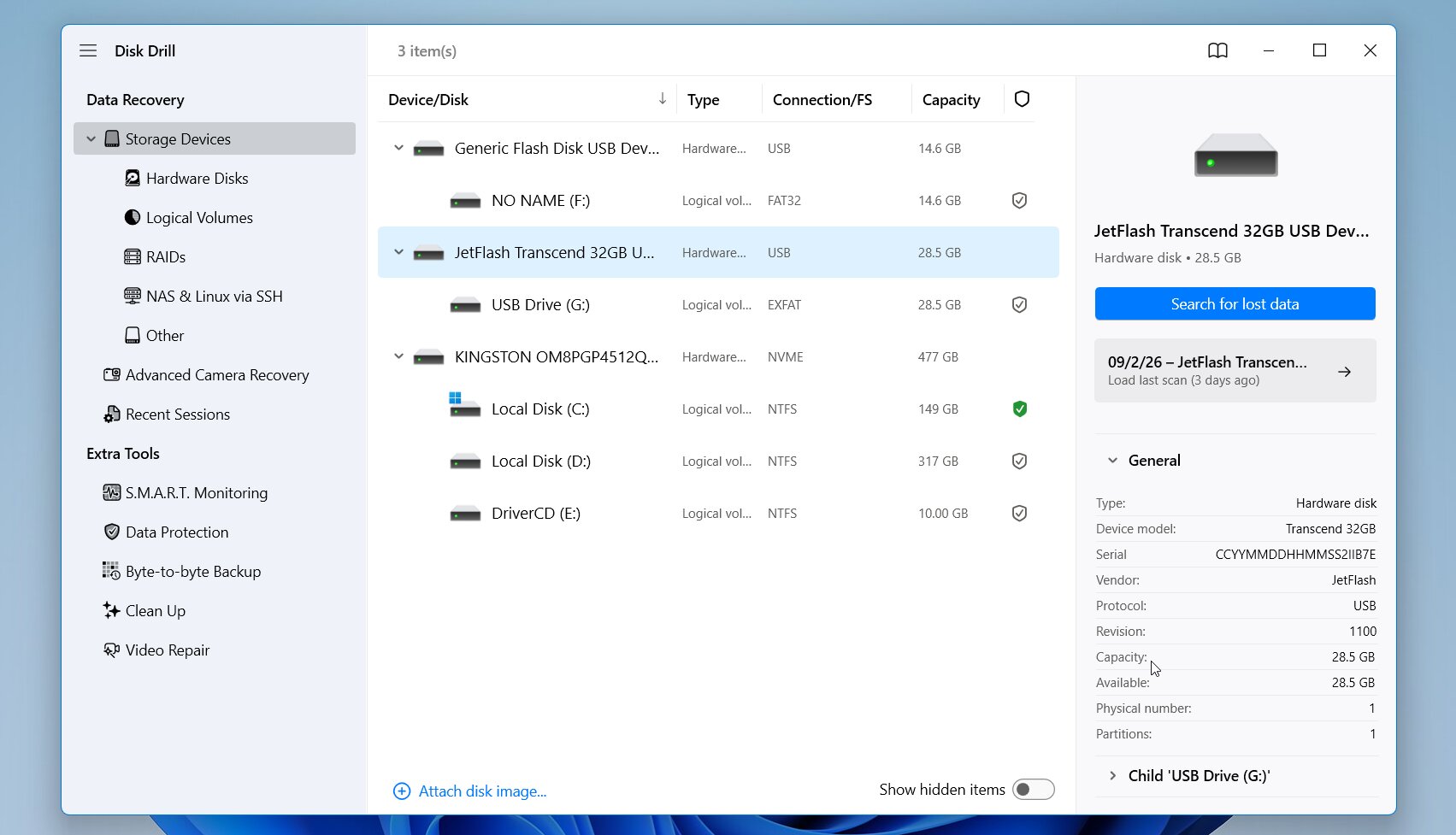
Disk Drill is our top overall TestDisk alternative because it combines strong recovery capabilities with a much more accessible approach. Developed by CleverFiles, it supports both Windows and macOS and can recover deleted or lost files from hard drives, SSDs, USB drives, memory cards, and other storage devices. Unlike TestDisk, it provides a full graphical interface, file previews, and both file system and signature-based recovery, along with additional tools such as disk imaging and S.M.A.R.T. monitoring.
Best for: Users who want the best overall balance of recovery performance, ease of use, file system support, and additional recovery tools.
Price: Disk Drill Free allows up to 100 MB of recovery on Windows and includes file previews and its extra tools. Disk Drill Pro costs $89/year or $149 for a lifetime license, with one license valid for both Windows and macOS.
Interface & Usability
Disk Drill is a major change if you come from TestDisk’s command-line interface. When you open the program, it displays the available physical disks and volumes along with details such as capacity and file system. You select the affected device and start the scan without the need to choose a specific recovery algorithm first.
During the scan, Disk Drill sorts detected data into categories, and you can open the results before the scan finishes. From there, you can filter the list, search for a specific file, check the estimated recovery chances, and preview supported files. Once you find what you need, you select the files, click Recover, and choose a destination on a different drive. The result browser follows a familiar file-tree layout, which makes it much easier to navigate than TestDisk.
Recovery Performance in Our Tests
Disk Drill produced the best result in our deleted-file test. On Windows, it recovered 52 out of 52 files, or the full 1.1 GB test dataset, in 5 minutes 34 seconds. We repeated the same test with the macOS version on our M4 Mac mini, where it again recovered 52/52 files, with a scan time of 6 minutes 4 seconds.
More importantly, this was not a case where a high file count came from large numbers of anonymous signature-based results. Disk Drill correctly recovered the deleted dataset with its original filenames and folder information intact, and we could open the recovered files across our image, RAW photo, video, audio, document, and archive categories. Its preview function also worked particularly well: the files we checked could be previewed before recovery.
What Makes Disk Drill a Better TestDisk Alternative?
Disk Drill is a strong TestDisk alternative because it fills many of the gaps that become apparent when you move from partition repair to actual file recovery. TestDisk remains excellent for lost partitions, boot sector problems, and other specific file system tasks, but Disk Drill provides more ways to find individual files and makes the entire process easier to control.
The main advantages include:
- Full graphical workflow: Disk Drill lets you select a drive, scan it, preview files, and recover selected data through a GUI instead of TestDisk’s text-based menus.
- More complete file recovery: TestDisk depends primarily on available file system metadata for undelete operations, while Disk Drill can combine file system information with signature-based recovery when metadata is unavailable.
- RAID recovery: Disk Drill supports recovery from several RAID configurations, which makes it suitable for more complex storage setups that TestDisk handles only in a limited way.
- File previews: Disk Drill lets you check many recoverable photos, videos, documents, and other files before recovery.
- Hex view: Disk Drill includes a built-in hex viewer for inspecting the raw data of files and storage devices when you need a closer technical look.
- Broader file system support: Disk Drill covers NTFS, FAT/exFAT, ReFS, HFS/HFS+, APFS, EXT2/3/4, and BTRFS.
- Disk images and S.M.A.R.T.: You can create a disk image and check drive health without a separate program.
- Advanced Camera Recovery: Disk Drill includes a dedicated module for fragmented video files from cameras, drones, and similar devices.
The main trade-off is price. TestDisk is completely free, while Disk Drill requires a Pro license for recovery beyond its free allowance. For users who primarily need file recovery rather than partition repair, however, the additional recovery methods, previews, GUI, and built-in tools make the difference much easier to justify.
| Feature | Disk Drill | TestDisk |
|---|---|---|
| Interface | Graphical, beginner-friendly | Text-based |
| Deleted-file recovery | Metadata + signature recovery | Metadata-based, limited file systems |
| Lost partition tools | Detects lost partitions | Yes, can restore partition structure |
| File previews | Yes | No |
| Custom file signatures | No | No |
| Disk imaging | Yes | Yes |
| Hex / disk editor | No | No |
| RAID reconstruction | Yes | Limited |
| Windows / macOS / Linux | Windows, macOS | Yes |
| Our deleted-file test | 51/52 Windows in 5 min 34 sec, 51/52 macOS in 6 min 04 sec | 51/52 Windows in 2 min 34 sec |
| Free recovery | 100 MB on Windows | Unlimited |
| Paid price | $89/year; $149 lifetime | Free |
2. R-Studio – Best for Advanced Users
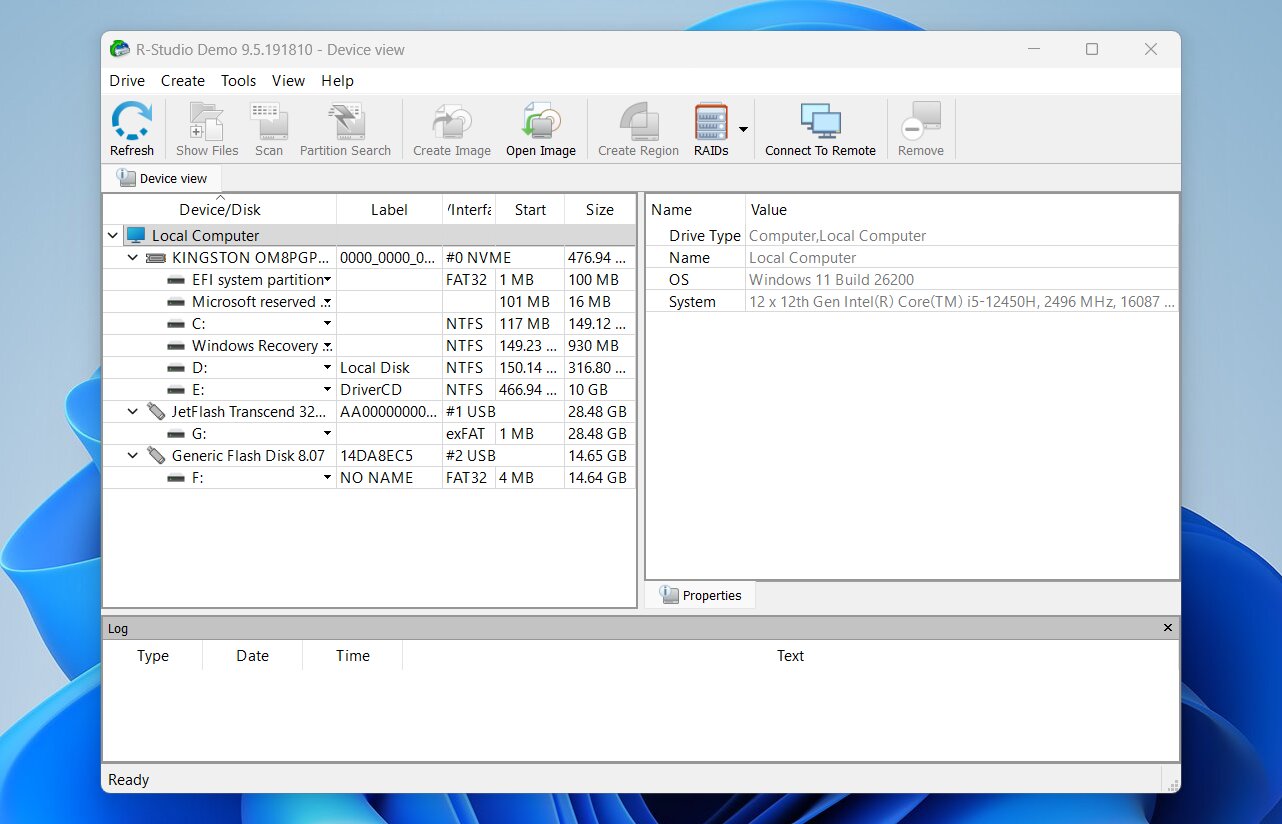
R-Studio is a strong TestDisk alternative for advanced users who want more control over the recovery process. Developed by R-Tools Technology, it offers detailed scan settings, broad file system support, disk imaging, and RAID recovery. Its interface is considerably more technical than Disk Drill’s, so it has a steeper learning curve, but experienced users may appreciate the additional configuration options. R-Studio is also available for Linux, which makes it a good Linux alternative to TestDisk.
Best for: Advanced users and data recovery professionals who need detailed scan controls, RAID reconstruction, and support for complex recovery scenarios across Windows, macOS, and Linux.
Price: R-Studio offers a free demo that lets you scan drives and preview files, but recovery is limited by file size. Paid licenses start at $79.99 per platform, with Windows, macOS, and Linux licenses sold separately.
Interface & Usability
R-Studio has a graphical interface, but that does not automatically make it simple. The main window packs disks, partitions, scan results, file systems, and recovery tools into a fairly dense layout. It feels closer to a technician’s utility than a typical consumer recovery app.
The basic workflow is still manageable: select the physical disk or volume, click Scan, configure the scan parameters, and start the search. You can specify the scan range, select file systems, choose known file types, and adjust other parameters. After the scan, detected partitions and file systems appear alongside the results. You can browse their directory trees, preview supported files, select what you need, and recover the data to another drive.
We liked the amount of control, but it comes at a cost. The interface takes time to understand, and results can appear across several sections. For a first-time recovery attempt, Disk Drill is considerably easier to use.
Recovery Performance in Our Tests
R-Studio came very close to Disk Drill in our deleted-file test. On Windows, it recovered 51/52 files from our 1.1 GB dataset, with a scan time of 5 minutes 15 seconds. On our M4 Mac mini, it again recovered 51/52 files, and the scan took 5 minutes 49 seconds.
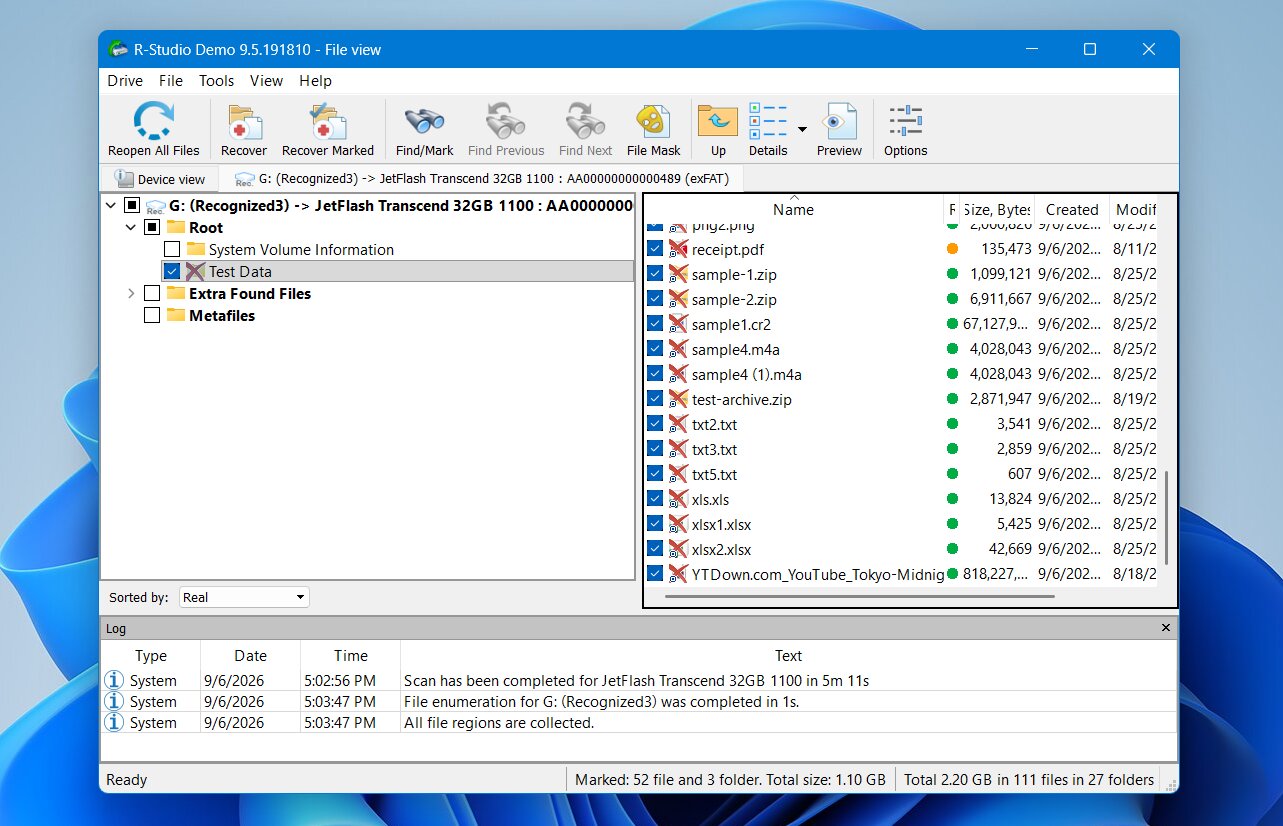
R-Studio preserved the file system information needed to recover our deleted files with their original names and directory structure rather than force us to rely on anonymous raw results.
The main weakness we noticed was the preview function. Some previews were unavailable, particularly for RAW camera files such as RAF and CR2. That did not necessarily mean those files were unrecoverable, but it made it harder to verify their condition before recovery. This matches our broader experience with R-Studio: its recovery engine is excellent, while some usability features are less polished.
The macOS result was also strong, but not identical to Windows. R-Studio recovered 51 of our 52 files, so one file from the original dataset was missing. Otherwise, the experience was the same as with the Windows version.
What Makes R-Studio a Better TestDisk Alternative?
R-Studio is one of the closest matches for users who appreciate TestDisk’s technical nature but want a much larger recovery toolkit. It does not simplify everything to the same degree as Disk Drill, but it replaces TestDisk’s text menus with a GUI while adding much deeper control over file recovery, RAID configurations, disk images, and scan parameters.
Here are its main advantages:
- Detailed scan controls: You can define scan ranges, expected file systems, known file types, and other parameters instead of relying entirely on automatic scan settings.
- Much broader file system support for file recovery: R-Studio supports NTFS, ReFS, FAT/exFAT, HFS+, APFS, Ext2/3/4, XFS, UFS, and other file systems.
- Advanced RAID recovery: R-Studio can reconstruct numerous standard and non-standard RAID configurations, which makes it much better suited to complex arrays than TestDisk.
- Professional recovery tools: Disk imaging, network recovery, a hex editor, S.M.A.R.T. monitoring, and custom file signatures give experienced users far more options for difficult cases.
- Graphical file browser and previews: You can browse recovered directory trees and preview supported files instead of inspecting files through TestDisk’s text interface.
R-Studio does not replace everything TestDisk does. In particular, TestDisk has an advantage when your goal is to write a recovered partition back to the partition table. R-Studio can locate previous file system structures and recover their contents, but it does not restore a deleted partition entry in the same way.
| Feature | R-Studio | TestDisk |
|---|---|---|
| Interface | Graphical, highly technical | Text-based |
| Deleted-file recovery | Metadata + signature recovery | Metadata-based, limited file systems |
| Lost partition tools | Yes, detects previous file systems | Yes, can restore partition structure |
| File previews | Yes | No |
| Custom file signatures | Yes | No |
| Disk imaging | Yes, advanced options | Yes |
| Hex / disk editor | Yes | Limited low-level tools |
| RAID reconstruction | Yes, advanced | Limited |
| Windows / macOS / Linux | Yes | Yes |
| Our deleted-file test | 51/52 Windows in 5 min 15 sec, 51/52 macOS in 5 min 49 sec | 51/52 Windows in 2 min 34 sec |
| Free recovery | Limited by file size | Unlimited |
| Paid price | $79.99 per platform | Free |
3. DiskGenius – Best for Partition Recovery and Disk Management
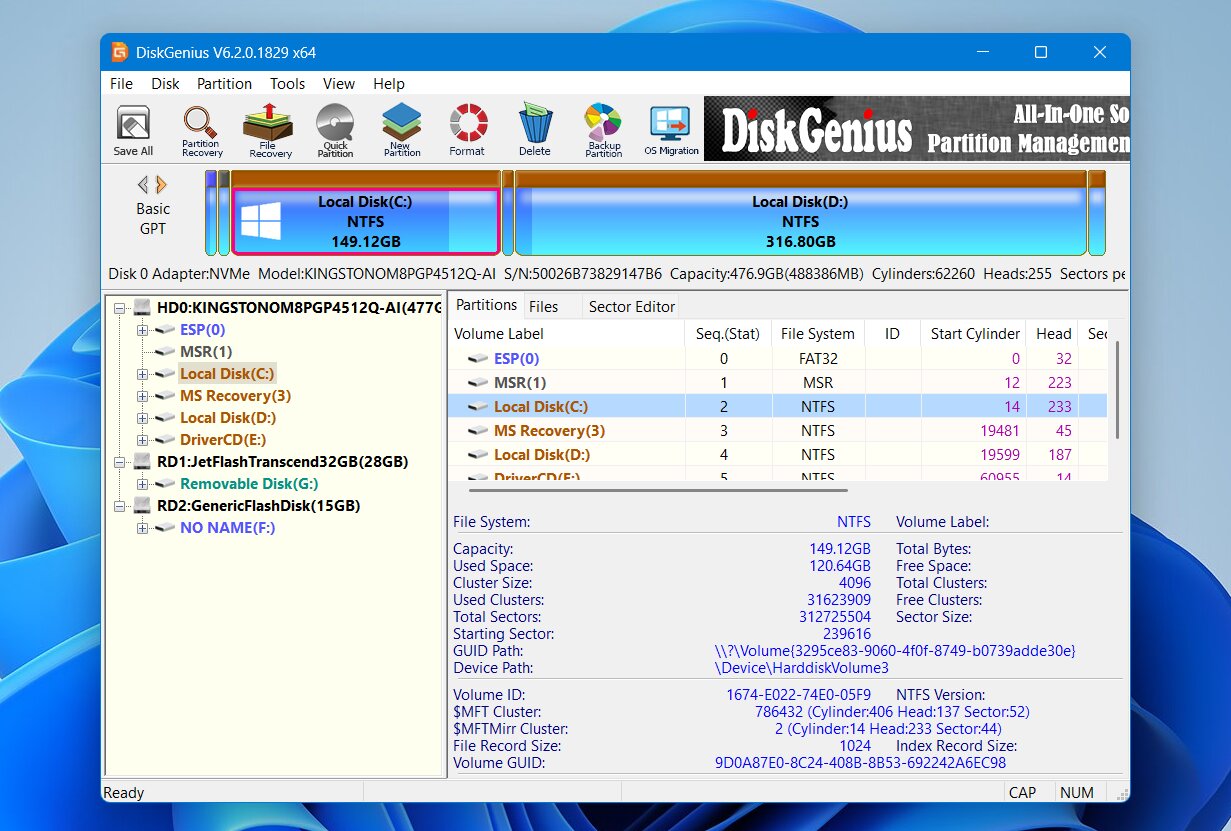
DiskGenius, developed by Eassos, is one of the closest TestDisk alternatives in terms of purpose. It combines file recovery, lost partition recovery, partition management, disk cloning, and low-level disk utilities in one Windows application. Unlike TestDisk, it provides a graphical interface and lets you inspect detected partitions and files before you commit changes. At the same time, it retains many of the technical tools that make TestDisk useful for disk-level problems.
Best for: Windows users who want lost partition recovery and file recovery in the same tool, with additional options to manage, clone, and inspect disks.
Price: DiskGenius Standard costs $69.90 for one PC, while the Professional edition costs $99.90 and adds features such as EXT2/3/4 support, BitLocker access, RAID recovery, and deeper partition analysis. The Free edition can scan and preview files, but it can recover only files smaller than 64 KB, so its practical recovery use is very limited.
Interface & Usability
DiskGenius uses a traditional disk-management layout. Physical disks and partitions appear in a tree on the left, while the main pane displays the partition map, files, sector information, and other technical details. It is easier to approach than TestDisk because most operations have visible menus and buttons, but the interface is still quite dense.
For file recovery, you select the affected disk or partition and choose Recover Lost Files. From there, DiskGenius lets you search for deleted files, run a more extensive recovery scan, or search by known file signatures. After the scan, you can browse folders, filter files by name or status, and preview supported results before you copy them to another drive.
Partition recovery has its own workflow. Search Lost Partitions scans the disk for previous partition structures and lets you inspect their contents. If DiskGenius finds the correct volume, you can save that recovered partition structure back to the disk.
That last point matters for a TestDisk comparison: DiskGenius is not merely a file recovery program with a partition scanner. It can actually restore a lost partition structure, which makes it much closer to TestDisk than Disk Drill or R-Studio.
Recovery Performance in Our Tests
DiskGenius performed very well in our deleted-file test. On Windows, it recovered 52 out of 52 files from our 1.1 GB dataset, and the scan took just 4 minutes 19 seconds. That made it the fastest of the first three tools we tested.
The recovered files retained their original filenames and folder structure, and we were able to open the recovered dataset successfully. We did not need anonymous signature-based copies to make up the result.
Its weaker point was file previews. Some larger files took noticeably longer to load, and previews for certain RAW photo formats either failed or were too slow to be particularly useful. Supported files may display a normal preview, while others fall back to the HEX viewer. This did not stop DiskGenius from recovering the files, but it made verification before recovery less convenient than with other tools higher in the list.
We did not repeat the test on our M4 Mac mini because DiskGenius has no native macOS version. It is a Windows-only application, although it can work with some drives previously used on other operating systems if their file systems are supported. APFS and HFS+ are not supported.
What Makes DiskGenius a Better TestDisk Alternative?
DiskGenius preserves much of what makes TestDisk valuable and while removes one of its biggest barriers: the text-based interface. Both programs can search for lost partitions and write recovered partition information back to disk, but DiskGenius adds a graphical partition map, file previews, conventional file recovery, signature scans, cloning, S.M.A.R.T. data, and a much larger set of disk-management tools. For a Windows user who likes TestDisk’s disk-level capabilities but wants more visual feedback and more tools in one application, DiskGenius is one of the most direct replacements.
Why many people prefer DiskGenius:
- Lost partition restoration: Like TestDisk, DiskGenius can locate lost partitions and save the recovered partition structure back to the disk.
- Full file recovery engine: It can recover deleted files and scan formatted, RAW, or damaged volumes, with signature-based recovery available when file system records are no longer sufficient.
- Graphical partition inspection: You can see the disk layout and inspect files inside a detected partition before you decide whether it is the correct one.
- Partition management: DiskGenius can create, delete, resize, format, hide, and otherwise manage partitions without a separate partition utility.
- Disk and system tools: Disk cloning, disk images, bad-sector tests, S.M.A.R.T. information, and a WinPE edition extend it well beyond recovery alone.
- Faster workflow for many Windows users: You can access recovery and partition tools through menus instead of TestDisk’s text-based navigation.
There are trade-offs. DiskGenius is Windows-only, lacks APFS and HFS+ support, and its interface is still fairly technical. Its Free edition is also far less generous than TestDisk, which provides all of its features at no cost.
| Feature | DiskGenius | TestDisk |
|---|---|---|
| Interface | Graphical, technical | Text-based |
| Deleted-file recovery | Metadata + signature recovery | Metadata-based, limited file systems |
| Lost partition tools | Yes, can restore partition structure | Yes, can restore partition structure |
| File previews | Yes | No |
| Custom file signatures | Yes | No |
| Disk imaging | Yes | Yes |
| Hex / disk editor | Yes | Limited low-level tools |
| RAID reconstruction | Yes | Limited |
| Windows / macOS / Linux | Windows only | Yes |
| Our deleted-file test | 52/52 Windows in 4 min 19 sec | 51/52 Windows in 2 min 34 sec |
| Free recovery | Files smaller than 64 KB | Unlimited |
| Paid price | From $69.90 | Free |
4. DMDE – Best Affordable Alternative for Technical Users
DMDE (DM Disk Editor and Data Recovery Software) is an independent recovery utility developed by Dmitry Sidorov. Its roots as a low-level disk editor still shape the program today: rather than hide technical details, DMDE exposes partitions, sectors, file system structures, RAID parameters, and raw disk data directly to the user. Alongside those tools, it provides conventional deleted-file recovery, signature scans, partition reconstruction, disk imaging, and a hex editor. It runs on Windows, macOS, Linux, and DOS, which also makes it one of the more flexible cross-platform options on our list.
Best for: Users who want low-cost access to advanced file recovery and disk-level tools and do not mind a technical interface.
Price: DMDE has one of the more unusual free editions in this comparison. It lets you recover up to 4,000 files from a selected directory per request, with no limit on the number of requests. Paid licenses start at $9.95 for one month or $20 per year for Express, while the Standard edition costs $48 as a perpetual license.
Interface & Usability
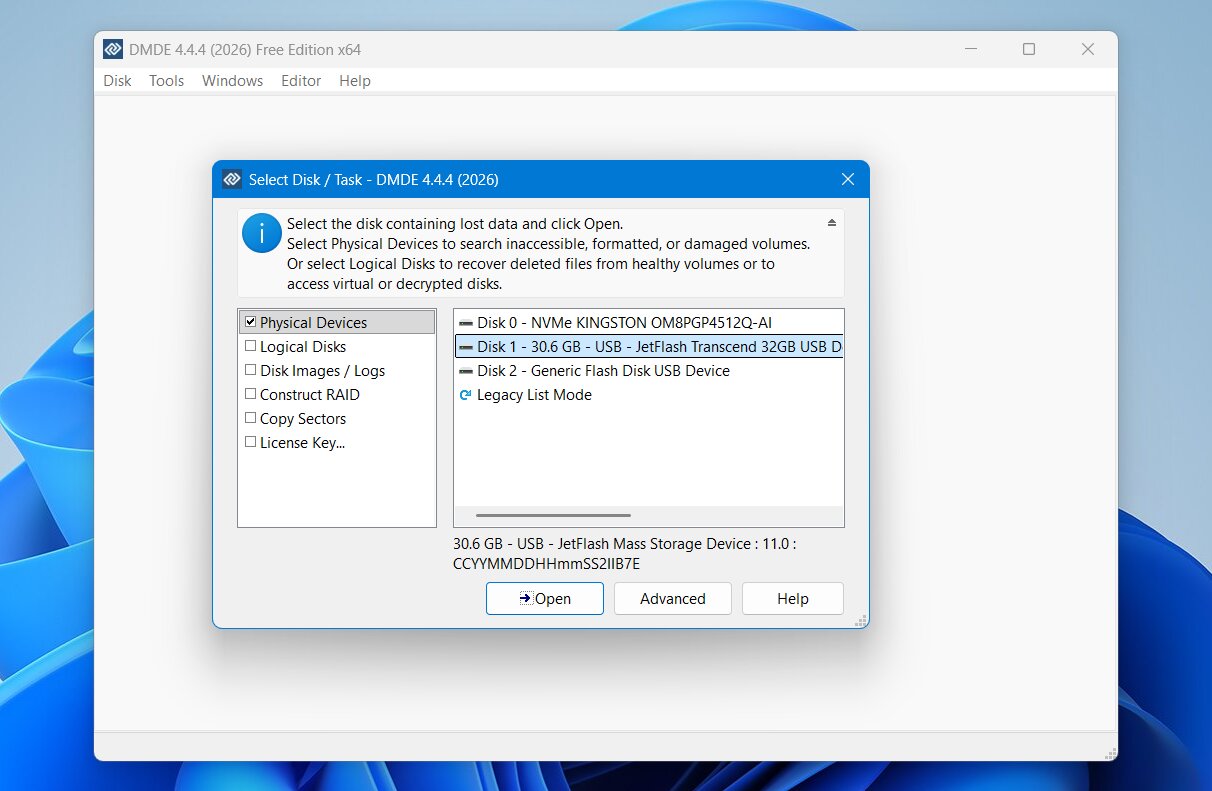
DMDE has a GUI, but anyone who expects a typical recovery wizard may need some time to understand it. The program opens with a technical list of physical devices, logical disks, disk images, logs, and RAID options rather than a simplified screen that asks you to choose a drive and click Scan.
For a normal recovery attempt, you select the physical device or volume and open it. If the existing file system information is enough, DMDE may display the volume and its directory structure immediately. For a deeper search, you can run Full Scan and choose the file systems and raw file signatures DMDE should check. It even lets you define custom signatures from sample files.
The results require more manual work. DMDE separates data into areas such as Main Results, Raw File Types, and Other Results, and you may have to inspect several possible file system structures before you find the right one. Once you locate the files, you select them and use Recover to copy them to another drive.
It is still easier to inspect files and partitions visually than with TestDisk, but DMDE does not provide the same polished workflow as Disk Drill. In our experience, it also felt less organized than R-Studio.
Recovery Performance in Our Tests
DMDE produced a good, though not perfect, result in our deleted-file test. On Windows, it recovered 51 of 52 files, and the scan took 5 minutes 44 seconds. On our M4 Mac mini, it recovered 50 of 52 files in 6 minutes 11 seconds.
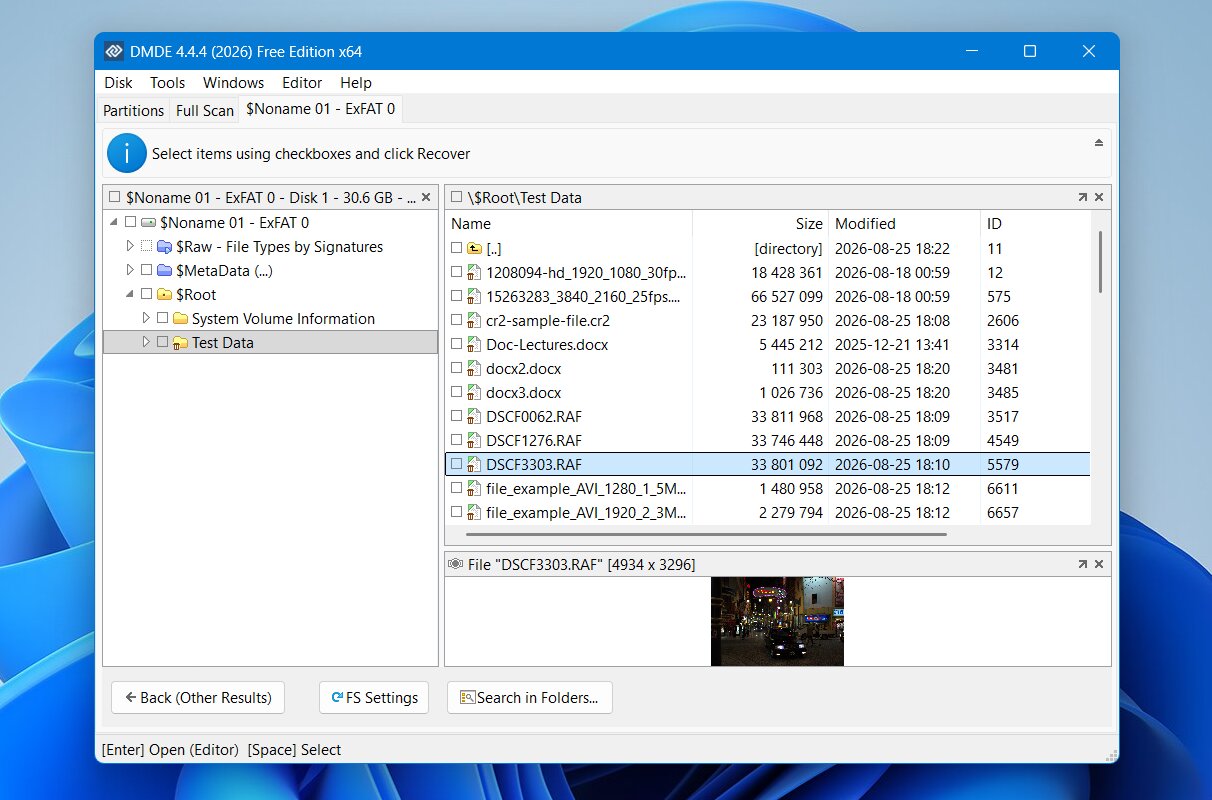
Most of the deleted files that DMDE found retained their original filenames and file system information, so the result did not depend on a large collection of anonymous raw files. However, its final recovery count placed it behind Disk Drill, R-Studio, and DiskGenius on Windows.
Preview support was another noticeable weakness. We could not preview our video or audio files, although DMDE did provide previews for the RAW photos we checked. This is less important if you already know exactly which deleted files you need, but it becomes inconvenient when you have hundreds of scan results and want to verify their condition before recovery.
The macOS version performed slightly worse than the Windows build in our test. As with R-Studio, that difference is small, but it shows why we tested the two versions separately rather than assume identical results across platforms.
What Makes DMDE a Better TestDisk Alternative?
DMDE makes sense as a TestDisk alternative for users who like the low-level control TestDisk provides but need stronger file recovery tools. Both programs expose far more disk structure than a typical consumer recovery application, and both can work with lost partitions and damaged file systems. DMDE goes further with signature-based file recovery, a graphical file browser, disk editing, RAID reconstruction, and custom file signatures.
Here are main reasons to consider DMDE:
- More capable file recovery: DMDE can use both file system metadata and file signatures, while TestDisk’s undelete capabilities depend on supported file system records.
- Lost partition tools: DMDE can detect lost volumes, inspect their file systems, work with damaged partition structures, and recover files from them.
- RAID reconstruction: DMDE can build virtual RAID configurations from disks or disk images and supports RAID 0, 1, 4, 5, 6, JBOD, and custom layouts.
- Disk imaging: It can create sector-by-sector copies, handle bad sectors with retry/skip options, resume interrupted copies, and work with E01 images.
- Very generous free edition: The 4,000-file-per-directory limit makes DMDE’s free version substantially more appealing for actual recovery than the demos offered by many commercial tools.
DMDE is not an upgrade in every respect. Its interface can be just as intimidating as TestDisk for an inexperienced user, even though it has a GUI. It also lacks the polished previews and automated organization of more user-friendly recovery programs.
| Feature | DMDE | TestDisk |
|---|---|---|
| Interface | Graphical, highly technical | Text-based |
| Deleted-file recovery | Metadata + signature recovery | Metadata-based, limited file systems |
| Lost partition tools | Yes | Yes |
| File previews | Limited | No |
| Custom file signatures | Yes | No |
| Disk imaging | Yes, advanced options | Yes |
| Hex / disk editor | Yes | Limited low-level tools |
| RAID reconstruction | Yes | Limited |
| Windows / macOS / Linux | Yes | Yes |
| Our deleted-file test | 51/52 Windows in 5 min 44 sec, 50/52 macOS in 6 min 11 sec | 51/52 in 2 min 34 sec |
| Free recovery | Up to 4,000 files per directory/request | Unlimited |
| Paid price | From $9.95/month; $48 perpetual Standard | Free |
5. Recuva – Best Free Alternative for Simple File Deletion
Recuva is a lightweight Windows utility developed by Piriform to restore recently deleted files on healthy NTFS, FAT, and exFAT volumes. Rather than tackle complex partition repair or low-level disk tasks, it uses a guided wizard equipped with Quick and Deep Scan modes. Its primary appeal is cost: the free tier imposes no recovery caps or file limits.
Best for: Windows users who want a completely free GUI tool for recently deleted files and do not need partition recovery or advanced disk tools.
Price: Recuva Free includes unlimited scanning and recovery. Recuva Professional costs about $24.95 per year and adds virtual disk support and disk imaging, automatic updates, and priority support, but it uses the same recovery engine as the free edition.
Interface & Usability
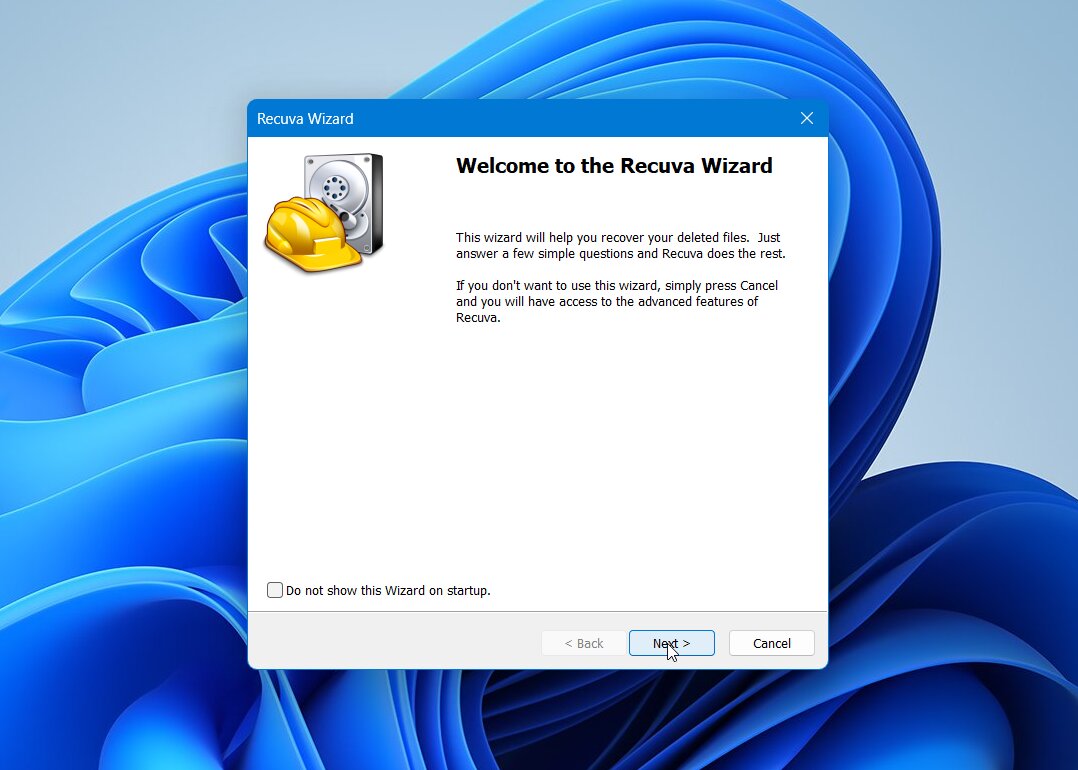
Recuva is a very simple tool, especially compared to more technical alternatives on our list. When you launch it, the Recovery Wizard asks what type of files you want to find and where they were stored. You can search for pictures, music, documents, videos, or all files, then select the affected drive or folder.
Before the scan, you can enable Deep Scan for a more thorough search. Once it finishes, Recuva displays the detected files in a basic table. Advanced mode adds the file path, condition indicator, search field, and a small preview pane. To recover something, you check the files you want, click Recover, and select a destination on another drive.
The interface looks dated, but we think simplicity works in Recuva’s favor. There are no partition tables, sector editors, RAID controls, or other technical options to work through. For a basic recovery, it takes very little time to understand how to use it.
Recovery Performance in Our Tests
For this comparison, we ran Recuva’s Deep Scan against the same deleted 52-file dataset used for the other tools. It recovered 51 out of 52 files, and the scan completed in 6 minutes 20 seconds.
That is a respectable result for a completely free utility, especially because this test represents the type of case Recuva handles best: recently deleted files on a healthy exFAT volume. Most of the files it found retained useful file system information rather than appearing only as anonymous raw results. The preview system was much more limited. Standard pictures could be previewed, but our RAW camera files did not display correctly, and preview support across other formats was inconsistent.
We did not test Recuva on our M4 Mac mini because there is no macOS version. It is also limited to Windows-oriented file systems such as NTFS, FAT16/32, and exFAT and cannot recover from APFS, HFS+, or Linux EXT volumes.
What Makes Recuva a Better TestDisk Alternative?
Recuva is not a direct replacement for TestDisk’s partition repair features, very far from it in fact. It earns its place as an alternative for a much narrower reason: it makes simple deleted-file recovery considerably easier. If your partition is healthy and you only deleted files by mistake, Recuva gives you a graphical interface (a little outdated, but better than a text-based tool), filters, recovery-condition indicators, and limited previews.
Here are most notable Recuva advantages:
- Unlimited free recovery: Just like TestSisk, Recuva does not impose a data recovery cap, one of its biggest advantages over most commercial recovery software.
- Much easier for simple cases: Unlike TestDisk, the Recovery Wizard guides you through the process step by step. You select the file type and location, start the scan, review the results, and recover your files without dealing with TestDisk’s text-based menus and technical options.
- Graphical results: Detected files appear in a searchable list with their paths, status, and previews.
- Quick and Deep Scan modes: You can start with a faster search or use Deep Scan when a normal scan does not find enough files.
- Recovery status estimates: Recuva labels files as Excellent, Poor, or Unrecoverable, although we would not rely on those labels alone because they were not always accurate in our tests.
- Lightweight free option: If all you need is to restore files recently deleted from a healthy Windows drive, there is little reason to pay before you see whether Recuva can recover them.
The comparison changes completely when the problem involves a lost partition, RAW volume, boot sector, or partition table. Those are areas where TestDisk is far more capable. Recuva needs a recognizable partition with a drive letter to scan, so it cannot work with many RAW, lost, or unallocated partitions. TestDisk was designed specifically for partition and file system recovery.
| Feature | Recuva | TestDisk |
|---|---|---|
| Interface | Graphical + wizard | Text-based |
| Deleted-file recovery | Yes | Yes, limited file systems |
| Signature-based deep scan | Yes, limited | No |
| Lost partition recovery | No | Yes |
| RAW/unallocated volume support | No | Yes, for partition analysis |
| File previews | Limited | No |
| Disk imaging | Pro: virtual images only | Yes |
| Platform support | Windows only | Windows, macOS, Linux |
| Our deleted-file test | 51/52 in 6 min 20 sec | 51/52 in 2 min 34 sec |
| Free recovery | Unlimited | Unlimited |
| Price | Free, $24.95/year Pro | Free |
Why These TestDisk Alternatives Didn’t Make the List
Five tools made our main list, but they weren’t the only TestDisk alternatives we considered. A few other recovery programs caught our attention, but they either overlap with one of our picks or target a narrower recovery scenario:
- EaseUS Data Recovery Wizard is a polished, beginner-friendly recovery tool with a guided workflow, good file previews, and support for a wide range of data-loss scenarios. We considered it, but it didn’t offer a strong enough reason to choose it over the alternatives that made our list. Other tools provided either better recovery results in our testing, more advanced technical features, or a stronger overall balance between the two.
- Stellar Data Recovery is a capable option for common file recovery tasks and offers a generous free recovery allowance. However, we found its recovery performance less consistent than our top choices, particularly with more difficult file types and recovery scenarios. It is still worth considering, but it didn’t perform strongly enough overall to make our final five.
- PhotoRec was another tool we considered, especially since it comes from the same developer and is distributed alongside TestDisk. It can recover files by their signatures even when file system metadata is unavailable. However, we wanted our main list to include tools that provide a more complete alternative to the TestDisk/PhotoRec combination, rather than another part of the same recovery package. PhotoRec also lacks many of the convenience and advanced features available in the alternatives we selected, while signature recovery can result in lost filenames and folder structure.
We didn’t include these tools in our top, but each can still be a solid choice for the right recovery case.
Verdict
TestDisk remains an excellent free option when you need to recover a lost partition or repair certain file system structures, but its strengths are much narrower when the goal is to recover individual files. That is where the alternatives we tested offer clear advantages, from graphical interfaces and file previews to signature-based recovery and additional disk tools.
For most users, we recommend Disk Drill as the best overall alternative. It was the only tool in our tests to recover 52/52 files on both Windows and macOS, while also providing reliable previews and preserving the original file information.
The other options make more sense for specific needs. Choose R-Studio for advanced recovery and complex storage setups, DiskGenius if partition recovery and disk management are your priorities, DMDE if you want technical recovery tools at a lower price, and Recuva if you only need a free tool for simple deleted-file recovery.