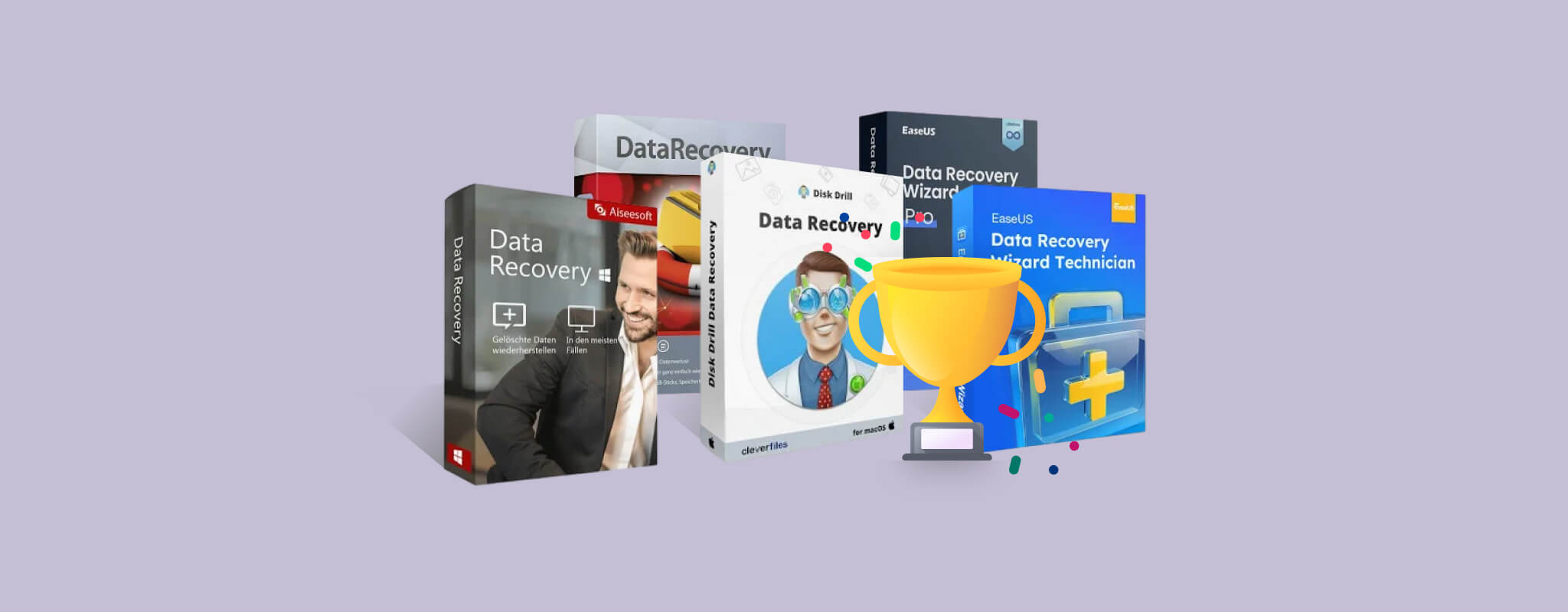
Accidentally deleted the wrong files? Or maybe your drive got corrupted, and now you can’t access your data. No matter what happened, getting that data back is top priority.
Fortunately, data recovery software is able to scan your drive and recover the data that was lost. However, the data recovery tool you need depends on your specific situation.
Each solution in this list has been hand-tested by one of our data recovery experts using a rigorous, methodical testing process. This approach helps reveal the unique benefits and drawbacks of each so you can make an informed decision based on actual performance rather than marketing claims.
Would you rather skip the nitty-gritty? Jump ahead to our comparison table for an overview of the best data recovery software for PC.
1. Disk Drill Data Recovery (Windows & macOS)
⚙️ System requirements: Windows XP, Vista, 7 SP1, 8, 8.1, 10, 11 / Mac OS X 10.15 – macOS 26.x.
Pros
- Recovery chances prediction
- Intuitive and user-friendly interface
- Cross-platform saving of scan sessions
- Support for virtually all disk-based storage devices
- Sophisticated scanning algorithms that can recover hard-to-find files
- Recover fragmented videos from cameras and drones in playable condition
- Free data protection tools
- Free 100 MB file recovery (Windows only) with the trial version
- Unlimited previews with Disk Drill for Windows & Mac
- Lack of phone technical support
- Cannot create bootable media for recovery outside the operating system (OS)
Disk Drill is a highly popular data recovery app developed by Cleverfiles, a software company based in the U.S. Disk Drill is known as both powerful and easy-to-use, packaging its complex recovery solutions in a simple, accessible user interface. Disk Drill also offers free data recovery, loads of features (that make sense for the app), and optimal support for different platforms thanks to its consistent updates.
First Impressions
Installing Disk Drill was super straightforward. We downloaded the installer from the Cleverfiles website, ran it, and followed the simple installation wizard from start to finish.
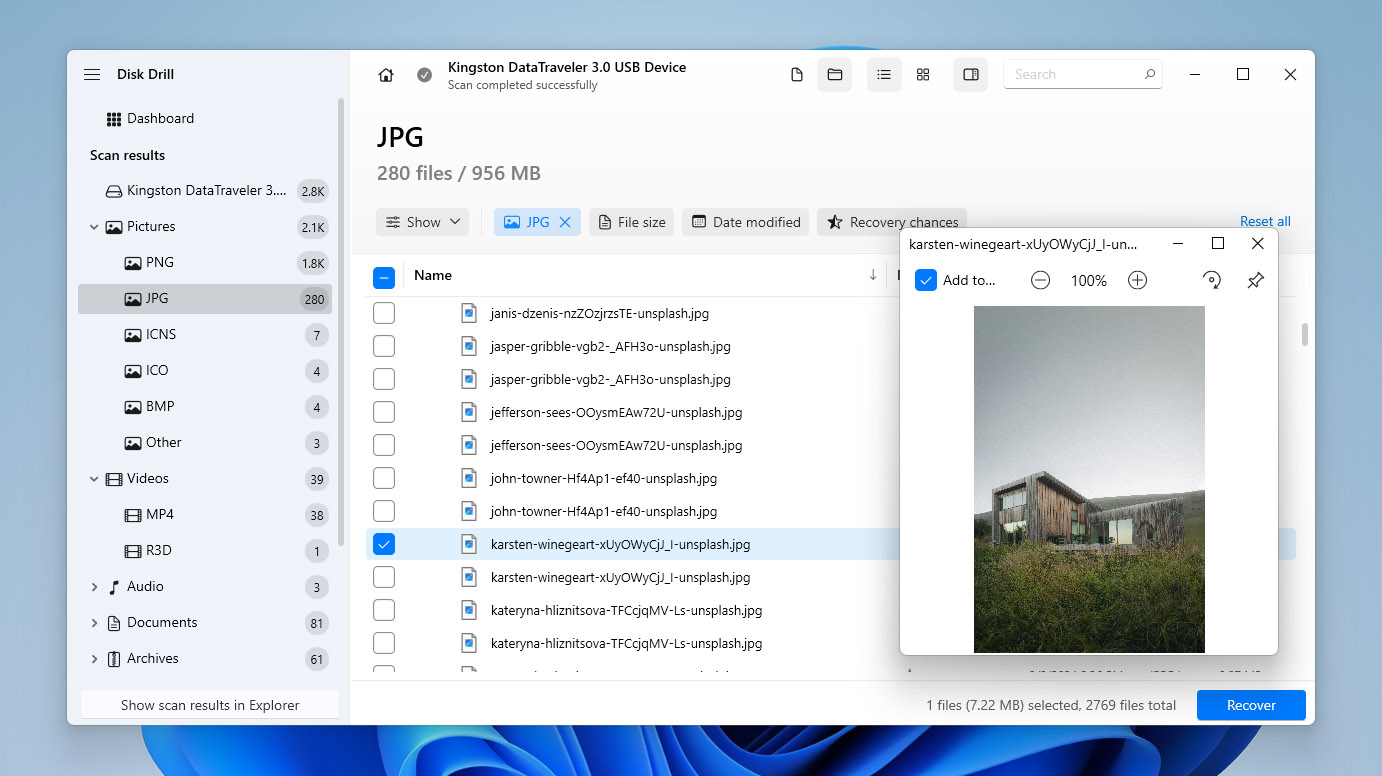
The main window displays the recovery tool by default. We could easily navigate between disks and order them by different parameters. Other tools, like Byte-to-byte backup, S.M.A.R.T., and Advanced Camera Recovery, were easily accessible from the left sidebar. The interface itself was very clean and modern. The buttons were clearly labeled and properly spaced out. We could open the app and start recovery without too much analysis.
Data Recovery Process
Disk Drill’s data recovery process, from source selection to recovery, is very streamlined. We were able to scan entire disks during our tests, which is super helpful in cases of severe data loss.
One of the devices we tested with Disk Drill was a severely corrupted hard drive that was inaccessible by both macOS Finder and Windows Explorer. Not only did Disk Drill recover our files, but it was even able to restore the original folder structure.
Browsing scan results was intuitive; users have access to a search tool, can filter and organize results by file type and other parameters, and preview data in the sidebar.
And Disk Drill usefully categorizes results by “Deleted or lost”, “Existing”, and “Reconstructed”, covering multiple data loss scenarios. Our files that were missing from their original folder (in the scan) showed up in the “Reconstructed” section, which found them by their file signatures.
Disk Drill recovered most of our missing data – more than other apps on this list – from a variety of devices (using various file systems), like HDDs, SSDs (with TRIM disabled), memory cards, and even mobile devices. It also allowed us to preview the majority of the data as well.
Pricing
| Version | Price |
| Disk Drill Basic | Free (100 MB recovery on Windows, preview only on Mac) |
| Disk Drill PRO Subscription | $89/year |
| Disk Drill PRO Lifetime License | $149 one-time payment |
| Disk Drill Enterprise | Custom pricing |
Disk Drill offers free versions that are sufficient to test the software on both Windows and Mac. There are no feature restrictions during scanning, and you can preview recoverable files before purchasing a license. Some tools are also available completely free of charge. These include S.M.A.R.T. monitoring, which tracks your drive’s health and alerts you to potential issues, as well as the Clean Up module that helps free up storage space by identifying unnecessary files.
For full recovery, Disk Drill offers either an annual PRO subscription ($89 per year) or a PRO Lifetime license ($149 one-time payment). Both options provide the same set of features, which is something we appreciate because some competing tools unlock their full functionality only with lifetime licenses. Another advantage is that a single license covers both Windows and macOS, so you don’t need to purchase separate versions for each operating system.
Latest Changes
Disk Drill 6.1 was released in November 2025 for both macOS and Windows. The update improved backup and recovery reliability, added support for BitLocker-encrypted partitions in byte-to-byte backups, expanded file type recognition, and improved Advanced Camera Recovery accuracy. It also introduced support for NAS/Linux-based TrueNAS and included several stability and interface improvements. More recently, Disk Drill 6.2 was released in March 2026 for both platforms. The update introduced an integrated video repair service directly inside the application and significantly improved the software’s video recovery capabilities on both macOS and Windows.
Verdict
Disk Drill is crowned the Best Overall data recovery software for this article. It’s equipped to overcome almost every data loss scenario that the average user encounters for a wide range of devices. While we wish it offered more free data recovery (many of its competitors offer 1 GB or more for both Mac and Windows), its price value is a big reason why we’ve included it as some of the best data recovery software for PC. When paired with its free backup and data protection features, you get better odds of avoiding data loss in the future, rather than always reacting to it after the fact.
Learn more in our Disk Drill review.
Feedback from users outside our own testing often highlights similar strengths. For example, on Trustpilot, one reviewer wrote: “Highly recommend Disk Drill. Saved 150GB of corrupted files including the priceless Christmas card address excel file.” Another user mentioned a successful recovery from removable media: “Disk Drill by CleverFiles did for me what other software couldn’t; restore deleted precious drone footages.” Discussions on Reddit also frequently mention the tool when users search for reliable recovery software.
2. R-Studio (Windows, macOS, Linux)
⚙️ System requirements: Windows 2000+ or Windows Server 2003+ / Mac OS X 10.11 – macOS 26.x (unofficial) / Any kernel 2.6+ Linux distribution capable of installing .rpm or .deb packages.
Pros
- Cross-platform support for multiple operating systems
- A simplified version of the tool called R-Undelete is available
- Customize recoverable file types
- Network capable data recovery
- Reconstruction of RAID arrays
- More expensive than other solutions
- The interface and extensive features can be confusing for some users
- Unable to scan the system drive of Macs running T2 or M1-M5 chips
- Trial version only recovers files smaller than 256 KB
- Multiple licenses for each OS with different file system support, making purchasing confusing.
R-Studio is a technician’s tool created by R-Tools Technology, a software company based in Canada. While it may seem inaccessible at first glance, it’s a powerful and reliable hard drive recovery software tool for users that can manage the slight learning curve.
First Impressions
R-Studio may be complicated, but installing it is simple. Users can download a standard installer wizard from the official site and R-Studio will be ready to go in a few clicks.
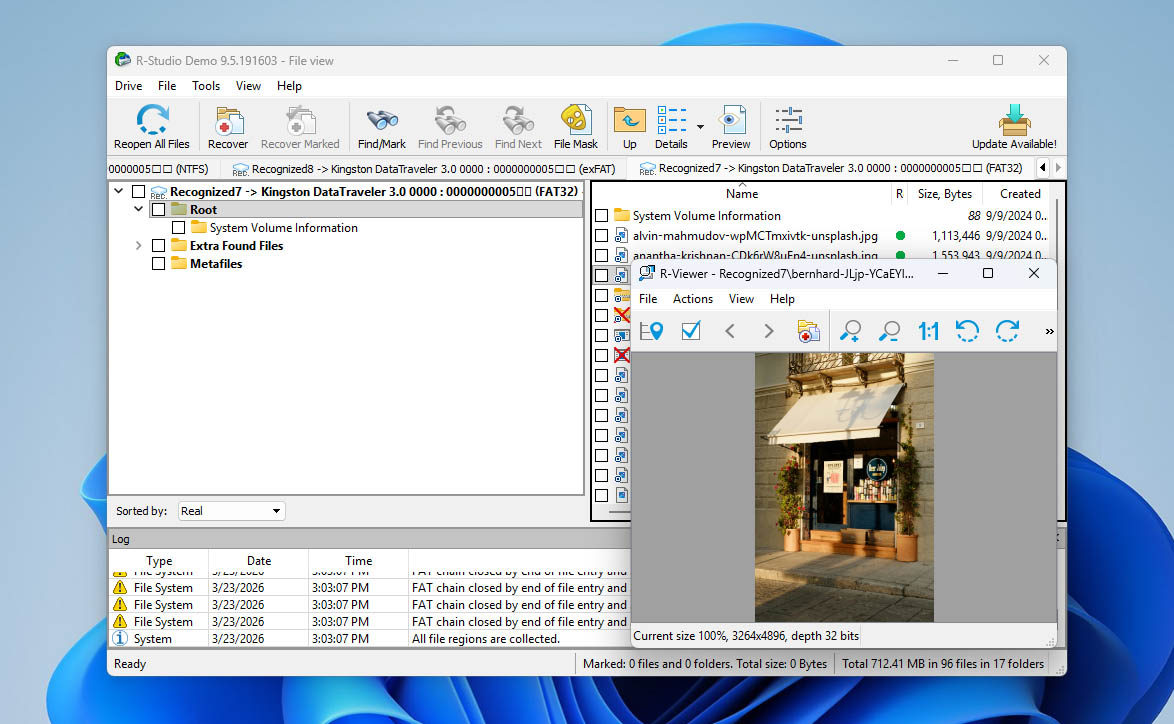
Our first impression of R-Studio is “utilitarian.” It wasn’t made to look pretty – it gives you access to all of its tools compacted in a single window. This is GREAT if you know what you’re doing but the average user will have to digest the interface for a while.
R-Studio offers a comprehensive list of recovery features, including advanced RAID support, network recovery, and image creation.
Data Recovery Process
R-Studio’s source selection menu is a bit cluttered but easy to analyze. We were able to expand our tester drives and select their volumes and partitions easily, even if one of the drives we tested was “problematic” and refused to be mounted or displayed anything other than its label. Upon beginning the scan, various popups allowed us to set multiple scan parameters. This is useful if you want to be super precise but it’s a lot of hassle for an average user.
Fortunately, R-Studio’s scan speed is quick – even compared to other apps. The results page is also highly utilitarian but visually helpful. It compiled our drive’s files in a list on the left panel and clicking on any of them displayed its preview on the right. When we selected a folder within the drive, all of its contents were displayed as thumbnails or icons – this made it easy to select multiple image and video files for recovery. However, because the data is split across different sections, switching between each screen to view your files quickly becomes tiresome. It struggled a bit with recovering RAW photos, but the most common image file types were no problem for it.
Pricing
| Version | Price |
| R-Studio (Windows, macOS, Linux) | $79.99 |
| R-Studio FAT | $49.99 |
| R-Studio NTFS | $49.99 |
| R-Studio Corporate(Windows, macOS, Linux) | $179.99 |
| R-Studio Technician (Windows, macOS, Linux) | $899 |
| R-Studio T80+ | $80 |
You can download R-Studio for any operating system for free. However, the free version only allows recovery of files smaller than 1024 KB. In practice, we consider this closer to a preview capability than real recovery, because most files exceed that size. The paid versions come in a wide range of options. Most licenses are permanent (lifetime) licenses, with the exception of the T80+ variant, which is essentially the R-Studio Technician edition that can be used for a limited period (starting from 80 days).
At first glance, the licensing structure looks reasonable, but there are several limitations worth noting. Each license is valid for only one computer. This means that if you use both a Windows PC and a Mac, you will need to purchase two separate licenses. In addition, if something happens to your computer, the license cannot simply be transferred to a new machine—you may need to purchase another license. For us, this policy raises a noticeable red flag compared with competitors that offer more flexible licensing.
Latest Changes
R-Studio released part 1 of version 9.5.191645/191648 for Windows in November 2025, adding support for ReFS 3.14 and Windows Storage Spaces in Windows 11 25H2, improving ReFS parsing, RAW image previews, localization, and overall stability, along with numerous bug fixes. Technician editions also gained enhanced image creation options and fixes for large VMDK images.
Verdict
R-Studio is an excellent tool for its price considering its power and comprehensive recovery features… But for users who are easily overwhelmed by new software (or if you don’t have the time for the learning curve – e.g. you need to restore critical data for work the next morning), apps like Disk Drill or EaseUS Data Recovery are much more suitable.
We delve deeper into the software in our R-Studio review.
Feedback from users outside our own testing largely matches our experience with R-Studio. Many reviewers describe it as a very powerful recovery tool, but they also point out the learning curve and licensing limitations. For example, on Trustpilot one reviewer wrote that R-Studio was “the only software … that proved to me beforehand that it could locate the files complete and undamaged,” which gave them enough confidence to purchase the license. However, the same platform also includes criticism of the licensing policy. One user wrote: “Since then, I got a new computer because my old one died. They would not let me transfer my license and said I would be required to buy a new one.” Discussions on Reddit often echo our own observation about the interface, with users noting that “The UI is busy and pretty overwhelming if you’re not used to this kind of software” in threads about recovery tools.
3. EaseUS Data Recovery Wizard (Windows & macOS)
⚙️ System requirements: Windows 11, 10, 8, 7 / Mac OS X 10.9 – macOS 26.0.
Pros
- Windows and macOS versions are available
- An intuitive interface takes the stress out of data recovery
- Extensive site knowledge base that assists users recovering data
- Recovers MS SQL databases and Exchange mailboxes
- Excellent device scan times
- Good recovery results
- The subscription model is more expensive than competing solutions
- Recovery of large files can be slow
- No way to estimate recovery chances before the recovery
- Intrusive survey pop-ups
EaseUS Data Recovery Wizard is another recognizable name in the data recovery marketplace. Based in China, EaseUS has been around since 2003 and has a lot of apps under its belt. Like most of their software, EaseUS Data Recovery Wizard was built to be simple and user-friendly. While it may lack slightly in depth and comprehensiveness, it can solve a lot of data loss problems for novice users.
First Impressions
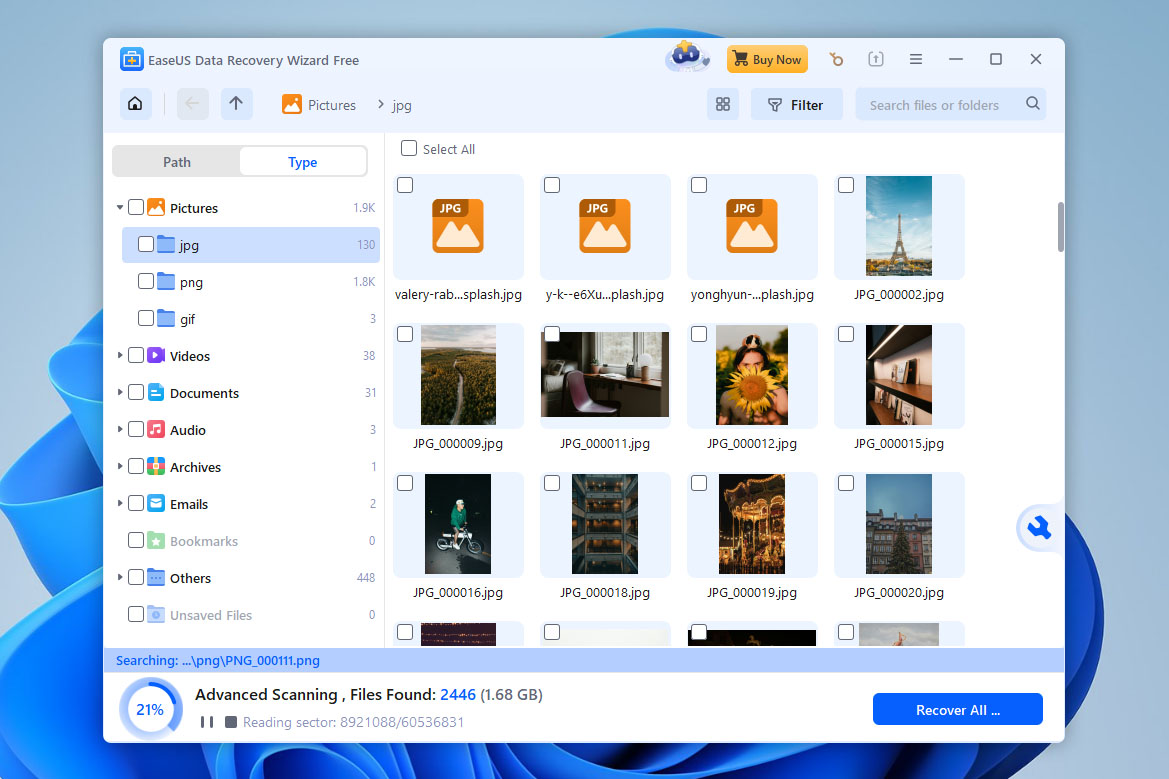
EaseUS Data Recovery Wizard comes with a super simple one-step installer. The main window defaults to the data recovery window, which shows the volumes/partitions of all connected external storage drives. However, you need to click another button to display the disks themselves (and select them for scanning).
Other devices (like SD cards) can be selected on the left sidebar as well as advanced features like Video Repair, Disk Backup, and portable recovery (this Pro feature comes with an in-app step-by-step, which was a nice touch).
All-in-all, EaseUS Data Recovery Wizard’s design choices are clearly catered to novice users. The main window is very clean and uncluttered – on one hand, that makes it easy for users to navigate. On the other hand, users with more advanced knowledge will have to click around a bit more to find what they need. It’s also not as “snappy” as other apps, which can be slightly frustrating if you work fast.
One thing worth mentioning is that the free version frequently promotes the paid upgrade. Until you purchase a Pro license, the app regularly displays purchase prompts and discount offers. Even when you try to close software, it may ask for confirmation and present another offer, which can feel a bit intrusive during testing.
Data Recovery Process
As we previously mentioned, we could only see our drive’s volumes and partitions at first and had to switch to the disk menu to scan our drive.
Like Disk Drill, we didn’t have to choose a specific scan to run – there’s only a single scan button. When the scan was underway, we could see all the data EaseUS had already recovered, neatly categorized into Pictures, Documents, Audio, etc.
EaseUS was excellent at recovering most file types (even RAW photos and videos), but it struggled with more complex data loss scenarios like lost partitions and original folder structure recovery. It does, however, include a file repair module, which can attempt to fix any damaged files you recover.
After the scan, EaseUS allows you to search and filter the scan results but you’ll need to purchase the pro version to fully preview files. You can also view files by directory if the original folder structure was recovered.
Pricing
| Version | Price |
| EaseUS Data Recovery Wizard Windows (1 Month) | $69.95 |
| EaseUS Data Recovery Wizard Windows (1 Year) | $99.95 |
| EaseUS Data Recovery Wizard Windows (Lifetime) | $159.95 |
| EaseUS Data Recovery Wizard Mac (1 Month) | $99.95 |
| EaseUS Data Recovery Wizard Mac (1 Year) | $119.95 |
| EaseUS Data Recovery Wizard Mac (Lifetime) | $169.95 |
EaseUS Data Recovery Wizard can be downloaded for free on both Windows and Mac. However, free recovery is limited to Windows, where the free version allows up to 2 GB of recovered data. On Mac, the free version only provides file previews.
If you need full recovery, EaseUS offers several paid options, including monthly, yearly, and lifetime licenses. One interesting detail is that pricing differs between Windows and Mac versions, with the Mac version generally costing more. Another limitation is that each subscription covers only a single computer, so users with multiple machines will need to purchase additional licenses. On the positive side, EaseUS does offer discounted plans for students, which may make the software more affordable for some users.
Latest Changes
EaseUS Data Recovery Wizard received another update in January 2026. Version 20.1.0 for Windows introduced recovery support for fragmented data scenarios (FAT32, exFAT, and RAW), added ZFS file system recovery, and improved bitmap handling for lost partitions. The Mac version was updated to 20.0, bringing Dark Mode, optimized scanning performance, and improvements to file browsing, activation windows, and the overall interface experience.
Verdict
EaseUS Data Recovery Wizard was designed for the novice in mind and it’s sold as a simple and accessible recovery. While it’s not as comprehensive as the other apps on this list, it serves as a powerful tool that anyone can pick up and use.
Read our EaseUS review for a more in-depth look.
User feedback paints a mixed but generally predictable picture. Many users highlight how straightforward the recovery process is. For instance, one reviewer on Trustpilot wrote that the software “worked perfectly and recovered my deleted files quickly,” praising how easy the interface was to understand even without technical experience. At the same time, the subscription model often becomes the main source of criticism. In discussions on Reddit, users frequently mention that while the recovery itself can work well, paying for a subscription may feel excessive and annoying because of spam.
4. Stellar Data Recovery Professional (Windows, Mac)
⚙️ System requirements: Windows 8 or newer, macOS 10.12 or newer.
Pros
- Users can manually add new file headers for extended capabilities
- Create sector-by-sector disk images to protect damaged devices
- Three scan preview options can quickly find the files you want to restore
- Requires a yearly license
- No free data recovery with the trial version
- Limited preview functionality
Stellar Data Recovery is a well-established disk recovery software developed by Stellar Information Technology Pvt. Ltd., based in India. It’s a fully-featured and modern-looking app with its own unique tools, making it a solid choice for many users.
First Impressions
Like most of the apps on this list, Stellar Data Recovery was easy to install. You just need to download the installer from the site and follow the wizard.
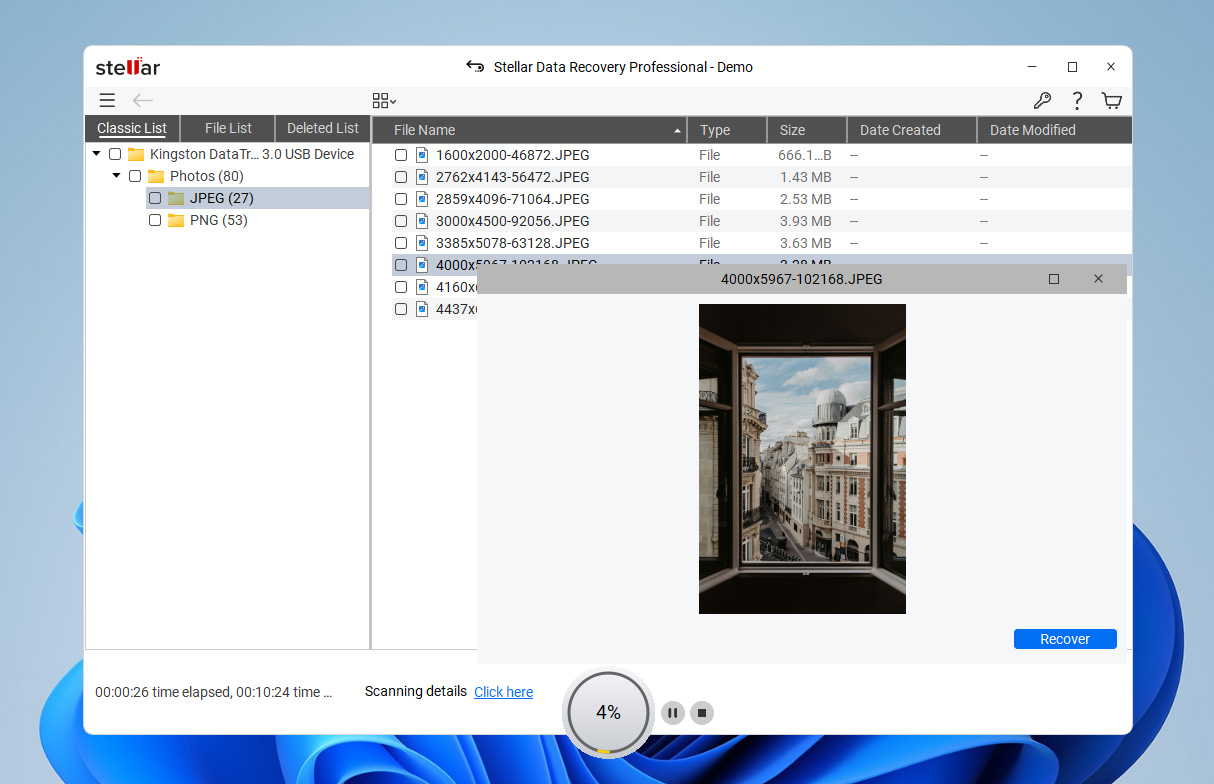
The source selection menu, unlike EaseUS’, lets you choose whether you want to scan the entire disk or specific volumes. Its preview feature, while convenient, is fairly temperamental and doesn’t always show thumbnail previews. Most of its other features are hidden in menus, which helps keep the interface uncluttered.
Aside from data recovery, a major feature that caught our eye was corrupted video recovery. It’s only available for licensed users, but we can vouch for its efficacy.
Data Recovery Process
It was very easy to start the scan overall, as you’re pretty much guided through it. However, if you want to make sure the app is using its full potential, you have to manually enable the Deep Scan, which is easily missed at the bottom of the source selection screen.
Stellar recovered less data overall compared to the first 3 apps on this list. It also recognized fewer file types, but we were still able to successfully recover a lot of data – especially documents. And Stellar allows you to scan for a custom file type, which is a missing feature in many similar apps (although it’s a hassle to input a lot of file signatures manually).
The found files list is where Stellar Data Recovery actually shines. We were able to switch between viewing data as a simple list or as a gallery of thumbnails – this makes it very easy to browse images and videos when it’s working as intended.
Pricing
| Version | Price |
| Stellar Data Recovery Professional – Annual (Windows, Mac) | $99.99 |
| Stellar Data Recovery Professional – Lifetime (Windows, Mac) | $199.99 |
| Stellar Data Recovery Premium – Annual(Windows, Mac) | $209.99 |
| Stellar Data Recovery Premium – Lifetime(Windows, Mac) | $319 |
| Stellar Data Recovery Technician – Annual (Windows, Mac) | $299 |
| Stellar Data Recovery Technician – Lifetime (Windows, Mac) | $599 |
Stellar Data Recovery can be downloaded for free on both Windows and Mac. However, free recovery is limited to the Windows version, where users can restore up to 1 GB of data without purchasing a license. On Mac, the free version only allows you to scan and preview recoverable files.
If you need full recovery, Stellar offers several licensing tiers that differ in both features and subscription terms. While this variety gives users flexibility, we found the pricing relatively high compared to other tools on this list. Because of that, it may make more sense to wait for promotional discounts, which Stellar runs quite frequently.
Latest Changes
Right at the start of 2025, Stellar Data Recovery Professional dropped a pretty big update for both OS versions, bringing them up to version 12 for Windows and 12.3 for Mac. Both OS versions saw improvements to session management and user experience, as well as more themes for its interface.
Individually, the Mac release also brought new features, such as decluttering and storage management tools, recovery from virtual machines, and the ability to restore fragmented MOV and MP4 videos. The Windows release brought the ability to recover QNAP, AUSTOR, and Synology NAS devices.
Verdict
While other options on this list can be considered superior data recovery software apps, Stellar Data Recovery is a great choice if you primarily need to recover photos and videos. Its thumbnail gallery view makes it highly convenient to browse found files and (if you’re willing to purchase the more expensive licenses) its video repair tool actually works quite well. We were able to get previously non-playing videos to work again. Unfortunately, the full set of features is only available in the fairly costly Toolkit version, and many of those features can be found in other tools for a lower price point, like NAS recovery in Disk Drill.
See more in our full-coverage Stellar Data Recovery review.
User feedback on Stellar Data Recovery is fairly predictable. For example, on Trustpilot one reviewer described a positive experience with the product and its support team: “Rohit was very patient and helpful. He took many measures, including remote control, to fix my file.” However, not all feedback is positive. On Capterra, another user described a frustrating experience with the software, writing: “We wasted money on a software which does not work. Their support service came several days later, too late.”
5. DM Disk Editor and Data Recovery Software (Windows, macOS, Linux)
⚙️ System requirements: MS-DOS 5.0+ / Windows 98, ME, Windows 2000+ / macOS 10.12+ / Any modern Linux distribution with the libc library.
Pros
- Hex editor to view recoverable files
- Automated search feature
- Additional disk utilities
- Runs on Windows, macOS, Linux, and even DOS
- Outdated user interface can overwhelm inexperinced users
- No free data recovery
- Can be hard to locate features
- Doesn’t show time required to complete the recovery
Originally created by Dmitry Sidorov, DM Disk Editor and Data Recovery Software (or DMDE) is a data recovery app with disk editing features and a lot more bells and whistles than other file recovery software on this list. It also offers free unlimited recovery, making it a strong contender despite its humble interface.
First Impressions
DME is extremely easy to install – you just have to download a folder from the official site that includes the program itself, which you can run directly.
The app itself looks cold, unfriendly, and a bit complicated compared to our modern-looking entries like Disk Drill, EaseUS, and Stellar.
When you launch DMDE, you can either select a disk to start working on or a task you want the app to perform (e.g. Construct RAID). We’ll talk about source selection more in the Data Recovery Process section.
Aside from recovery, DMDE offers a lot of useful features for the advanced user. You can edit raw disk sectors, restore partitions, edit partition tables, modify boot sector data, create disk images and clones, and more.
Data Recovery Process
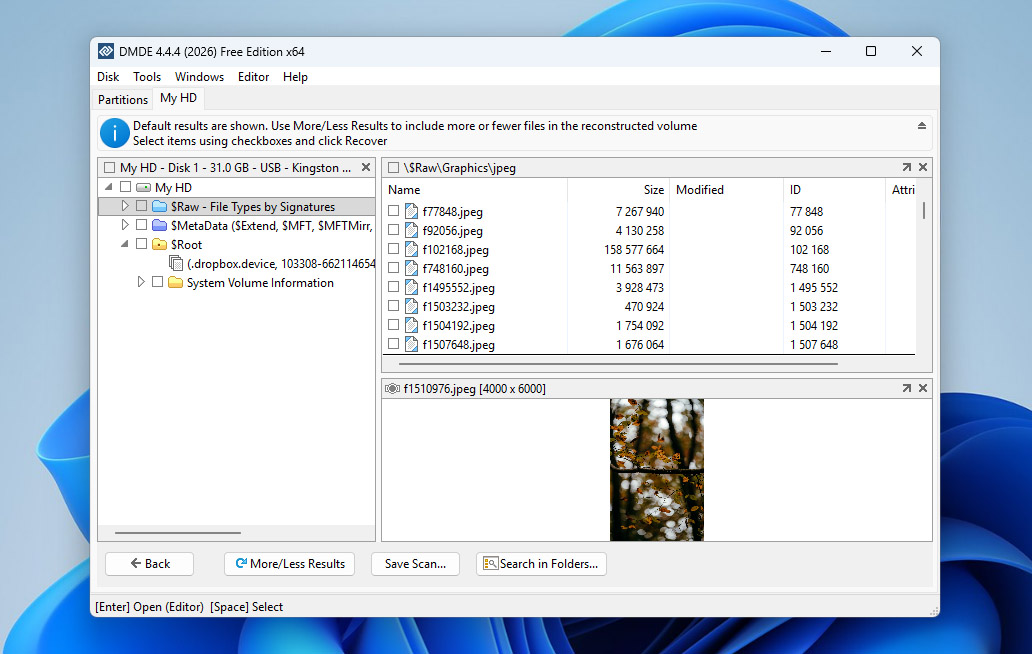
DMDE’s source selection is rich with information. For the average user, it’s too much information. While we could easily select disks and partitions to scan (the scan button is also fairly obvious), all of DMDE’s tools are packed into the window.
If you have no idea about disk editing or partitioning, the source selection window can be very overwhelming. Even when we started the scan, we were greeted by a cluttered popup that allowed us to set our scan parameters.
You can browse and recover files while the scan is still underway. Found files are usefully categorized by type but DMDE does its best to recover folder structure as well. Despite its glaring user experience issues, we were satisfied with its actual performance. It was successfully able to recover many RAW photos, RAW videos, and documents from various devices and file systems (except for EXT4, which it struggled with). We had to manually input a few file signatures it didn’t recognize, but the results were good for the app’s price!
Pricing
| Version | Price |
| DMDE Express License (1 Year) | $20 |
| DMDE Standard License (Lifetime) | $48 |
| DMDE Professional License | $95 |
DMDE also offers a free edition that allows users to recover data without purchasing a license. However, the program limits each recovery operation to 4,000 files per folder. If a folder contains more files than this limit, you need to repeat the recovery process several times.
Paid licenses mainly differ in duration and features. One interesting option is the Express license, which is also available as a short-term subscription for about $9 per month, making it a relatively inexpensive option for one-time recovery tasks. One drawback is the licensing model itself. Each license applies to a single operating system family and one computer, which can be inconvenient if you work across multiple devices or platforms.
Latest Changes
DMDE 4.4.4.842 was released on February 5, 2026. This update mainly focuses on stability improvements and bug fixes. For example, the developers resolved a critical issue affecting ReFS processing and fixed another bug that could occur when Btrfs file sizes exceeded the actual inline data size. Additional fixes addressed errors related to handling extra Btrfs subvolumes and a problem where some Professional features remained disabled after activation. Alongside these fixes, the update also introduced support for ExtFS filename encodings other than UTF-8 and included several user interface refinements and general improvements.
Verdict
DMDE is not for the faint of heart! It’s a complex tool with a cluttered interface and a complicated user experience. However, it has a comprehensive and powerful toolset for a very competitive price. It’s a disk management Swiss army knife for the right user – but we recommend that novices skip this app.
Our DMDE review can tell you more.
As for user reviews, publicly available feedback on DMDE is fairly limited, but the overall picture is mixed. On Trustpilot, one user described a very positive recovery result after severe file system damage: “deep scans produced enough results for me to recover nearly 95% of my data.”  DMDE’s own review page also contains recent positive feedback from users who praised both its recovery performance and value. At the same time, negative feedback usually focuses less on pricing and more on usability or inconsistent results in difficult cases. On the same DMDE review page, one user complained that the program “struggled and locked up at about 12% scanned” and later concluded that it “absolutely wasted my time.” Reddit discussions reflect that the interface is hard to follow, with comments such as “I just bought it, and it’s absolutely not worth it for the price, no matter what anyone says, and genuinely is more than just user-unfriendly.”
6. Recuva (Windows)
⚙️ System requirements: Windows 11, 10, 8.1, 7, Vista and XP.
Pros
- Freeware with a low Pro version price
- Clear interface design
- Preview screen
- Securely deletes files
- Poorer recovery performance than paid solutions
- Last minor update was June 2024, and no major updates for several years
Recuva is a super lightweight Windows-only data recovery app developed by Piriform Software, the company behind CCleaner. Recuva is known for being one of the few truly free data recovery apps, making it a popular choice for many users.
First Impressions
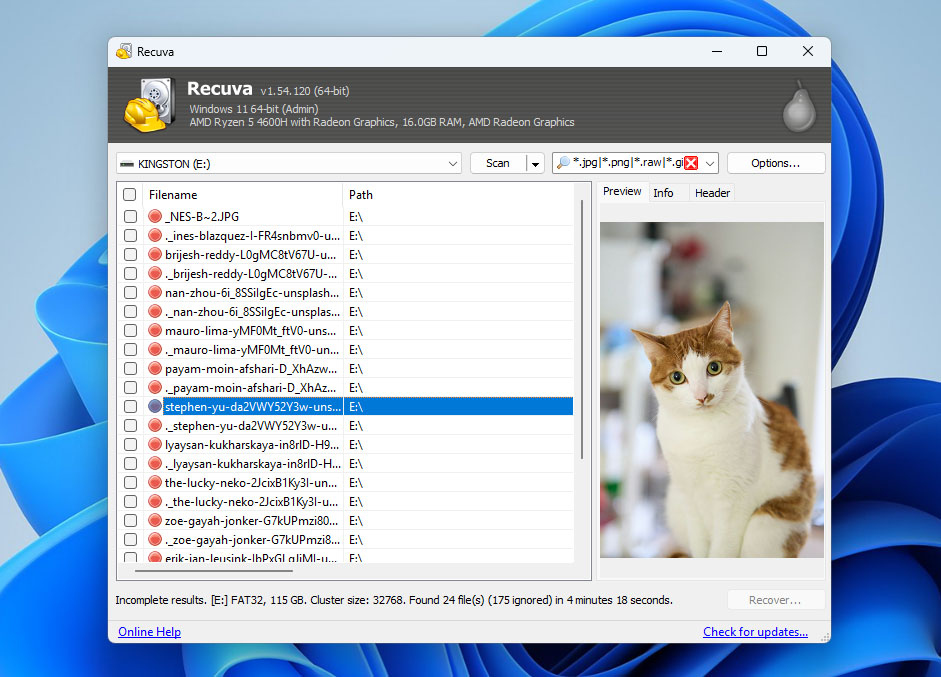
As we previously mentioned, Recuva is very lightweight. Its interface is utilitarian and a bit old-school with simple grey panels – almost like the older versions of Windows Explorer.
Unlike other apps that immediately display the disk or volume selection menu, Recuva starts with a wizard. One after the other, you’re prompted to choose the file types you want to restore, which type of scan you want to run, and what drive you want to scan. The Next and Back buttons allow you to redo any of your past choices.
Data Recovery Process
Starting the scan process involves navigating through a recovery wizard where you can set your scan parameters along the way. Unlike other apps, Recuva didn’t provide much information during the scan beyond its progress (in percentage), how many files it already found, and how much time is left to complete the scan.
Once the scan is complete, Recuva will display the full list of scan results. It obviously didn’t do well as its commercial counterparts but the results were respectable for the $0 price tag! Recuva even outperformed some of its competitors while recovering documents. However, it struggled a bit with our FAT32 partitions but did much better with our exFAT and NTFS partitions. We also successfully recovered data from a disk image, which is impressive for a free app.
Since we already indicated the file type we wanted to restore in this wizard, we could no longer filter the found data or browse them by category. But we were able to search for them by file name or path. We could also preview the files that were indicated to have a high chance of recovery.
Pricing
| Version | Price |
| Recuva Free | $0 |
| Recuva Professional (1 PC, 1 Year) | $24.95 |
| Professional Plus (Bundle, up to 3 PCs) | $64.95 |
Recuva is the first program on our list that allows fully functional data recovery without paying for a license. The free version already includes the core recovery engine and lets users scan drives and restore files without any recovery limits.
A paid Professional version is also available, but it adds only virtual hard drive (VHD) support and automatic updates, which means most users can rely on the free version for standard recovery tasks. There is also a Professional Plus option. This version is not a separate upgrade to Recuva itself but rather a bundle of Piriform utilities that includes Recuva Professional, CCleaner Professional, and Speccy Professional.
Latest Changes
The latest version of Recuva (v1.54.120) was released back in June 2024, which only included minor updates to their licensing process. The last version released before that (v1.53.206 released in June 2023) also provided minor enhancements and fixes — namely, to its interface and update feature. There are no other major updates of note.
Verdict
Recuva lags behind other apps in user experience and extra features. But it’s lightweight and 100% free to use for external drives, memory cards, and other storage devices. We’ve successfully recovered photos, videos, and documents using this app, so we gladly recommend it if you’re on a tight budget.
See our Recuva review for more info.
When it comes to user feedback, Recuva is generally perceived as a basic recovery utility, and most users evaluate it with that expectation in mind. For example, on Reddit, many users recommend it: “Recuva is a decent free tool for Windows to recover files from flash drives. I used it a few times before I switched to Mac.” Also, many experienced users point out its limitations when dealing with more complex cases : “It has no ability to reconstruct filesystems. It is limited to running on space addressable and mountable by windows with a drive letter, and for what is not part of the current file system, it just functions as a carver. It is still an undeleter.”
7. DiskInternals Uneraser (Windows)
⚙️ System requirements: Windows 2000, XP, 2003, 2008 Server, Vista, Windows 7/8/10/11.
Pros
- Solid data recovery capabilities and features
- Includes a built-in forensic disk imaging tool
- Exceedingly easy to use, even for newbies
- Hasn’t been updated since 2023
- Free version only allows you to preview recoverable files
- User interface is in dire need of an upgrade
- Available only on Windows
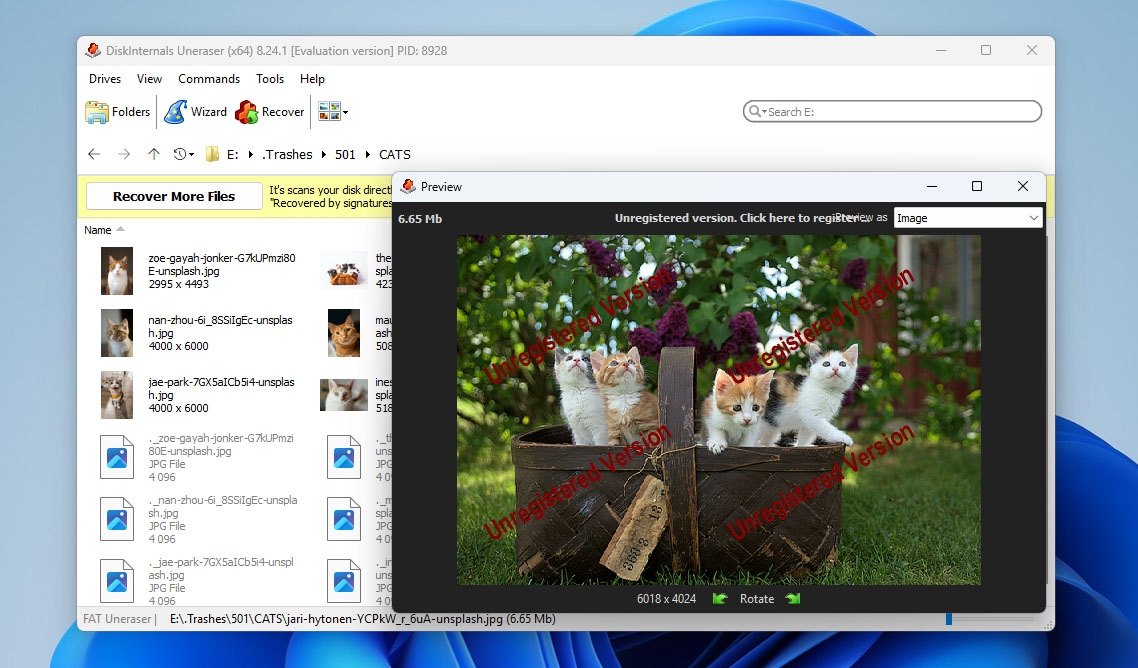
DiskInternals Uneraser is a minimalistic data recovery app developed by DiskInternals Research, based in Seattle, Washington. While the app looks slightly outdated, it has powerful recovery capabilities and useful features, packaged in a simple, easy-to-use interface.
First Impressions
DiskInternals Uneraser does not look as modern as the apps on this list – in fact, it looks plain and a bit outdated. But its user experience is well-designed and novices can quickly get the hang of the app.
The main window displays all drives and volumes on your computer, as well as common libraries like Documents and Desktop. The toolbar is clearly labeled and uncluttered, which makes it easy to digest.
Aside from basic recovery, a feature that stood out to us was its ability to restore data from virtual hard disks – many of the more expensive tools lack this feature since it’s only useful for a subset of users.
Data Recovery Process
Simple popups allowed us to select the recovery source – we could even choose to scan specific folders. We were also impressed that we could scan our drive for a specific file name (along with various file types).
Uneraser performed best when solving straightforward data loss scenarios. It was able to recover most of the data on our formatted drives, as well as those that were accidentally deleted. But it struggled when we tested it against more complex problems, like RAW disks.
All results are displayed in a single window pane with their thumbnails beside them. Since we already specified file types in the wizard, we couldn’t filter or categorize the results. We also had to right-click each file we wanted to preview.
Pricing
| Version | Price |
| DiskInternals Uneraser Personal License | $39.95 |
| DiskInternals Uneraser Business License | $79.95 |
Unfortunately, the free version of DiskInternals Uneraser does not allow you to actually recover files — it only lets you scan the drive and preview the data that can be restored. To recover anything, you need to purchase a license. The software offers several paid license options depending on the type of use. The Personal license starts at $39.95 per year, which makes it relatively affordable compared to many competing recovery tools.
Latest Changes
DiskInternals Uneraser has not been updated since 2023, and the changelog on the developer’s website does not specify what changes were made.
Verdict
DiskInternals Uneraser is a great tool, especially for its price. Despite its outdated appearance, it provides a decent user experience and is actually powerful enough for “simple” data loss scenarios. If you want an affordable data recovery app that can do just enough, the Uneraser is a good choice.
See our DiskInternals Uneraser review for more info. As of this writing, the software is at version 8.23.
When it comes to user feedback, DiskInternals Uneraser doesn’t appear very frequently on major review platforms, which makes it difficult to find many reviews specifically about this tool. However, we did find several reviews for DiskInternals Partition Recovery, another data recovery product from the same developer. Since both tools come from the same company and rely on similar recovery technologies, we decided this feedback still provides useful context. For example, on G2 one reviewer described the software as “easy to use”, highlighting that it can recover disk partitions as well as individual files and noting that there was a very small percentage of data loss during recovery.
Quick Comparison of the Best Data Recovery Software
We’ve collected all of the important points of the above programs and organized it into an easy-to-read table below if you don’t have time to read the entire article.
| Software | Disk Drill | R-Studio | EaseUS | Stellar Data Recovery | DMDE | Recuva | Uneraser |
| Recovery Results | ★★★★★ | ★★★★☆ | ★★★☆☆ | ★★★☆☆ | ★★★☆☆ | ★★★☆☆ | ★★☆☆☆ |
| Price | $89 | $79.99 | $69.95 monthly subscription | $79.00 | $20.00 annual subscription | Freeware | $39.95 |
| Contract Length | Lifetime upgrades | Lifetime upgrades | Monthly, yearly, lifetime subscriptions | Yearly and lifetime subscriptions | 1 year or unlimited license | Freeware, 1 year premium license | 1 year of free upgrades |
| Latest Update | March 2026 | November 2025 | January 2026 | January 2025 | February, 2026 | June 2024 | August 2023 |
| File Formats | Supports over 400 file formats | Several hundred file formats | Supports over 1,000 file formats | Supports over 100 file types | Supports only basic file formats | Supports only basic file formats | Most standard file formats |
| Additional tools | Drive backup, SMART monitoring, files recovery chances prediction, data protection tools, virtual hard drive support, mount scanning results as a disk, NAS/Linux-based TrueNAS recovery, Advanced Camera Recovery, Video Repair | Drive backup, SMART monitoring, files recovery chances prediction, RAID & network recovery | NAS & Linux recovery, Crashed PC recovery, video repair | Photo and video repair. RAID support in Technician edition | Disk editor, drive backup | Files recovery chances prediction | FTP Export, boot CD, recover deleted files remotely over the network, RAID support, drive backup |
Final Thoughts
Taking into account the experience we gained while testing these programs, along with many other recovery tools, and the comparison results summarized above, Disk Drill stands out as the best data recovery software in our opinion. The main reason is its versatility. Disk Drill works well across a wide range of data loss scenarios and supports both Windows and macOS, which makes it a practical choice for most users. Beyond strong recovery performance, the software also includes a full set of useful tools. These include byte-to-byte disk imaging, SMART monitoring, fragmented video recovery through Advanced Camera Recovery, and integrated video repair, among others. This combination makes Disk Drill a broader toolkit for data protection and recovery.
If you’re specifically looking for free solutions, Recuva is worth considering as a simple option for basic recovery tasks. You may also want to expand your options by checking our separate guide that covers the best free data recovery software.
That said, it’s important to remember that data recovery is never guaranteed. Successful recovery usually depends on a combination of favorable conditions. For example, lost files must not have been overwritten by new data or erased by processes that wipe storage blocks. Because of this, recovery tools should always be seen as a last resort rather than a primary data protection strategy. As always, the safest approach is to keep reliable backups of important data whenever possible.
How to Use Data Recovery Software
Knowing which data recovery software is useful, but knowing how to actually use the software is even better. All data recovery tools pretty much follow the same workflow: scan your device, select the data you want to recover, and then recover it. For demonstration purposes, let’s take a look at what it looks like to recover files from a hard drive using Disk Drill.
- Download, install, and open Disk Drill.
- Connect and select the device you want to scan, then click Search for lost data.
- Choose your scan type, which in this case is Universal Scan.
- Click Review found items to see what data was found.
- Preview and select the files you wish to recover, using the filter options to make the job easier, and then click Recover.
- Choose where the recovered files will be stored on a separate physical drive.\
Factors We Considered for Program Selection
Because each file recovery software tool can vary wildly in almost all regards, we established a list of what we considered the best qualities to consider when selecting data recovery software.
- ⚙️ Performance results – A leading factor when choosing any recovery tool is its recovery performance. How fast it scans for data, the number of file formats supported, what scanning algorithms it uses, and its ability to work with corrupted drives are all very important. Perhaps most important is the percentage of lost files that the tool has been known to successfully recover.
- 💵 Pricing – The price of recovery software can vary from freeware to several thousand dollars. You may get a lifetime license when you purchase a product or have to renew a yearly subscription to keep the tool under support. Be sure to weigh up what you get with the software (both in terms of features and performance) and see is the value proposition matches your budget.
- 🖥️ Ease of use – Data recovery is a complicated process. The best recovery software for PC hides this complexity beneath a user-friendly interface that makes the recovery process easy for everyone, while some tools are geared towards professionals and leave everything in plain sight, which only serves to make the process more difficult for the everyday user.
- 🔁 Frequency of program updates – Software that’s updated regularly means it’s well-taken-care-of by its developers. You can expect the latest scanning algorithms, new file type recognition, and support for the latest operating systems. A lack of updates indicates the software may be outdated, less reliable, and potentially incompatible with newer hardware or file systems.
- ✅ Reputation – Check out reviews to get a sense of the experience of other users with products you are considering. You might find that an application that you thought would work has an issue that makes it unsuitable for your needs. After doing some research, you should have a better idea of how well the apps have gone over with the user community.
- ➕ Additional features – Extra tools like disk imaging, RAID recovery, file preview, video repair, and data protection can significantly enhance a recovery tool’s overall usefulness and versatility, especially when dealing with unstable drives, making it more than just a simple undelete program.
Frequently Asked Questions
- Disk Drill for Windows - powerful and most updated
- Easeus Data Recovery - best for NTFS scan
- Windows File Recovery - best freeware from Microsoft
- R-Studio - best for advanced users
- UFS Explorer - best for lab specialists
- Disk Drill for Windows
- Stellar Data Recovery
- Recuva
- MiniTool Data Recovery
- R-Studio
- PhotoRec
- UnDeleteMyFiles