

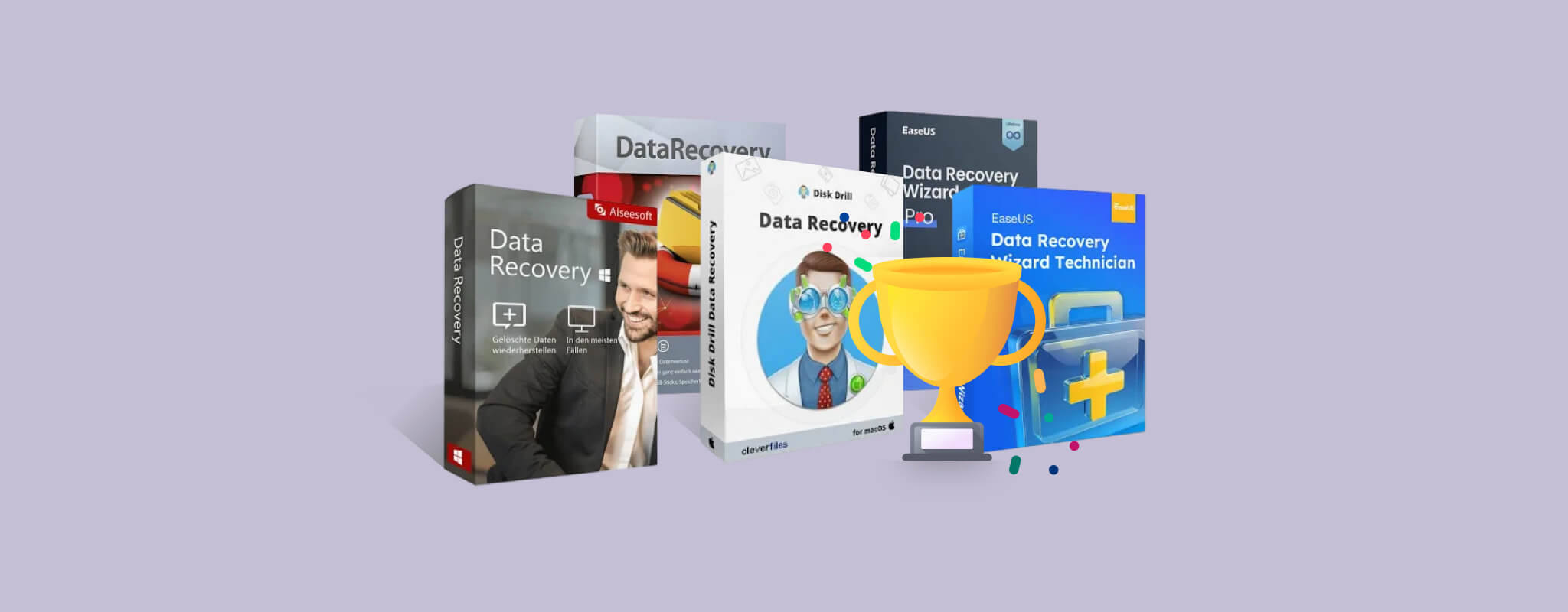
If you need a data recovery tool to restore lost files, the right software can make a big difference. To help you find the best option, we tested 8 popular data recovery programs on HDDs, SSDs, SD cards, and USB drives. Our tests covered different data loss scenarios, including deleted files, formatted drives, and RAW partitions, so we could see how well each program performed in practice.
3 Best Data Recovery Software
We tested each tool on real hard drives, SSDs, and external storage devices with deleted, formatted, and corrupted files. Rankings reflect actual recovery rates, scan speed, and usability – backed by user review feedback.

Each tool was tested by our data recovery experts using a consistent testing process. This allowed us to compare their strengths and weaknesses based on actual performance rather than marketing claims.
Keep in mind that even the best software has limits. For example, deleted data on SSDs affected by TRIM and overwritten files may be impossible to recover, as we explain in our When Data Recovery Software Won’t Help section.
1. Disk Drill Data Recovery (Windows & macOS)
⚙️ System requirements: Windows 10 (64-bit), Windows 11 (including ARM), and macOS 10.15.8–27.x. Older versions are available for Windows XP, Vista, 7 SP1, 8, 8.1, and Mac OS X 10.5–macOS 10.14.
Pros
- Recovery chances prediction
- Intuitive and user-friendly interface
- Cross-platform saving of scan sessions
- Support for virtually all disk-based storage devices
- Sophisticated scanning algorithms that can recover hard-to-find files
- Recover fragmented videos from cameras and drones in playable condition
- Free data protection tools
- Free 100 MB file recovery (Windows only) with the trial version
- Unlimited previews with Disk Drill for Windows & Mac
- Lack of phone technical support
- Cannot create bootable media for recovery outside the operating system (OS)
Disk Drill is a highly popular data recovery app developed by Cleverfiles, a software company based in the U.S. It is known as both powerful and easy-to-use, packaging its complex recovery solutions in a simple, accessible user interface. Disk Drill also offers free data recovery, loads of features (that make sense for the app), and optimal support for different platforms thanks to its consistent updates.
First Impressions
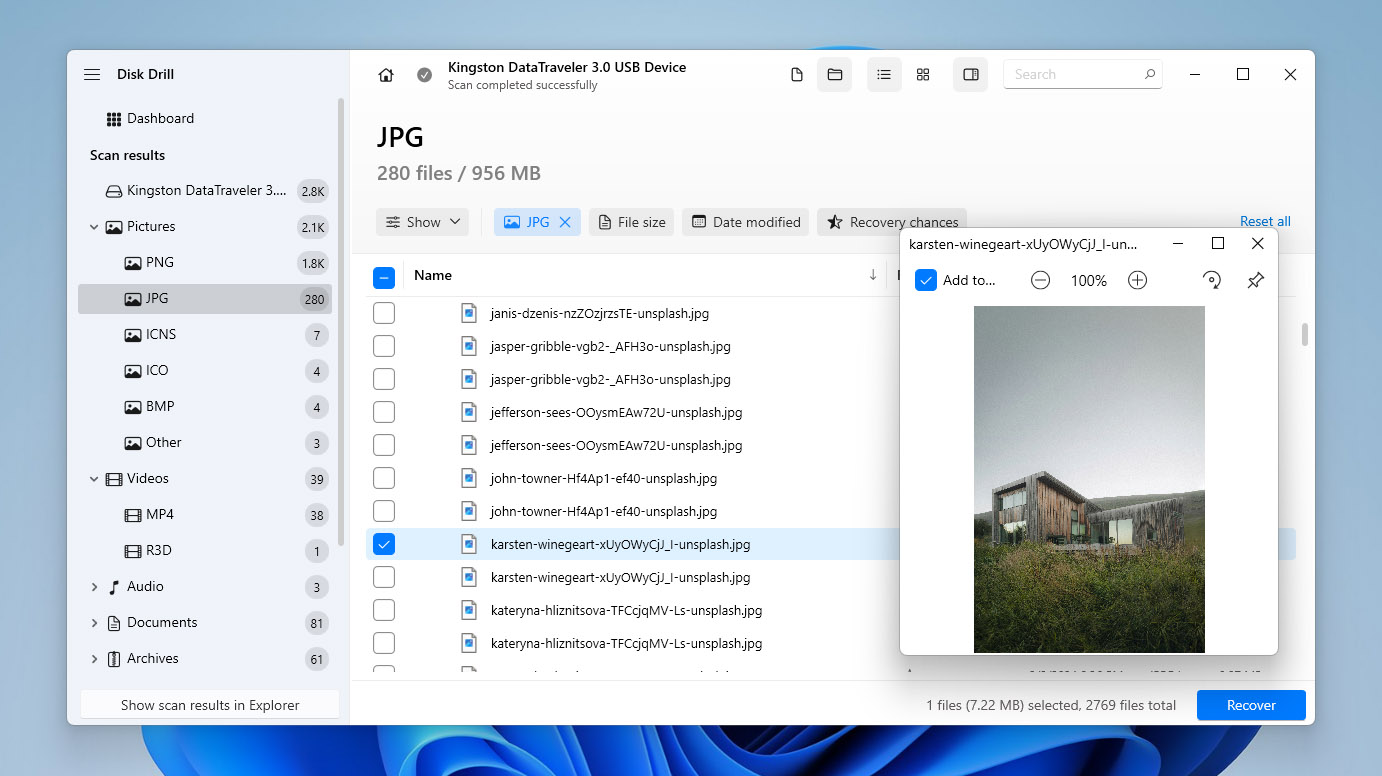
The Disk Drill installation process was quick and easy. We downloaded the installer from the CleverFiles website, ran it, and followed the installation wizard. Disk Drill main window displays all available storage devices, so we could select the one we needed and start a scan. We could also sort devices by different parameters. Other tools, like Byte-to-byte backup, S.M.A.R.T., and Advanced Camera Recovery, were easily accessible from the left sidebar. The interface itself was very clean and modern. The buttons were clearly labeled and properly spaced out. We could open the app and start recovery without too much analysis.
Data Recovery Process
Disk Drill’s data recovery process, from source selection to recovery, is very streamlined. We were able to scan entire disks during our tests, which is super helpful in cases of severe data loss. One of the devices we tested with Disk Drill was a severely corrupted hard drive that was inaccessible by both macOS Finder and Windows Explorer. Not only did Disk Drill recover our files, but it was even able to restore the original folder structure. Browsing scan results was intuitive: users have access to a search tool, can select the recovery scan mode, filter and organize results by file type and other parameters, and preview data in the sidebar.
And Disk Drill usefully categorizes results by “Deleted or lost”, “Existing”, and “Reconstructed”, covering multiple data loss scenarios. Our files that were missing from their original folder (in the scan) showed up in the “Reconstructed” section, which found them by their file signatures. Disk Drill recovered most of our missing data, more than other apps on this list, from a variety of devices (using various file systems), like HDDs, SSDs (with TRIM disabled), memory cards, and even mobile devices. It also allowed us to preview the majority of the data as well.
Pricing
| Version | Price |
| Disk Drill Basic | Free (100 MB recovery on Windows, preview only on Mac) |
| Disk Drill PRO Subscription | $89/year |
| Disk Drill PRO Lifetime License | $149 one-time payment |
| Disk Drill Enterprise | Custom pricing |
Disk Drill offers free versions that are sufficient to test the software on both Windows and Mac. There are no feature restrictions during scanning, and you can preview recoverable files before purchasing a license. Some tools are also available completely free of charge. These include S.M.A.R.T. monitoring, which tracks your drive’s health and alerts you to potential issues, as well as the Clean Up module that helps free up storage space by identifying unnecessary files.
For full recovery, Disk Drill offers either an annual PRO subscription ($89 per year) or a PRO Lifetime license ($149 one-time payment). Both options provide the same set of features, which is something we appreciate because some competing tools unlock their full functionality only with lifetime licenses. Another advantage is that a single license covers both Windows and macOS, so you don’t need to purchase separate versions for each operating system.
Latest Changes
Disk Drill 6.2 was released in March 2026 for both macOS and Windows. The update introduced an integrated video repair service and improved video recovery capabilities across both platforms. More recently, Disk Drill 6.3 was released in July 2026 for macOS and Windows. This update improved Advanced Camera Recovery, including better support for Insta360 cameras, added detection and recovery of lost BitLocker partitions, and expanded support for file types such as .m4a, .p8, and .pfx. It also introduced encrypted file grouping, multi-selection functionality, better detection of damaged videos, and video repair recommendations. The Windows version received better ReFS and APFS support, while the macOS version improved encrypted data recovery and support for iOS Notes.
Verdict
Disk Drill is crowned the Best Overall data recovery software for this article. It’s equipped to overcome almost every data loss scenario that the average user encounters for a wide range of devices. While we wish it offered more free data recovery (many of its competitors offer 1 GB or more for both Mac and Windows), its price value is a big reason why we’ve included it as some of the best data recovery software for PC. When paired with its free backup and data protection features, you get better odds of avoiding data loss in the future, rather than always reacting to it after the fact. Learn more in our Disk Drill review.
Feedback from users outside our own testing often highlights similar strengths. For example, on Trustpilot, one reviewer wrote: “Highly recommend Disk Drill. Saved 150GB of corrupted files including the priceless Christmas card address excel file.” Another user mentioned a successful recovery from removable media: “Disk Drill by CleverFiles did for me what other software couldn’t; restore deleted precious drone footages.” Discussions on Reddit also frequently mention the tool when users search for reliable recovery software.
2. R-Studio (Windows, macOS, Linux)
⚙️ System requirements: Windows 2000–11 / macOS 10.14–26 (macOS 27 unofficially) / Linux with kernel 2.6+ and support for .rpm or .deb packages (Fedora 12+, Ubuntu/Kubuntu 10.4+, Debian 4.0+).
Pros
- Cross-platform support for multiple operating systems
- A simplified version of the tool called R-Undelete is available
- Customize recoverable file types
- Network capable data recovery
- Reconstruction of RAID arrays
- More expensive than other solutions
- The interface and extensive features can be confusing for some users
- Unable to scan the system drive of Macs running T2 or Apple Silicon Macs
- Trial version only recovers files smaller than 1024 KB
- Multiple licenses for each OS with different file system support, making purchasing confusing.
R-Studio is a technician’s tool created by R-Tools Technology, a software company based in Canada. While it may seem complicated at first glance, it’s a powerful and reliable hard drive recovery software tool for users willing to spend some time learning how it works.
First Impressions
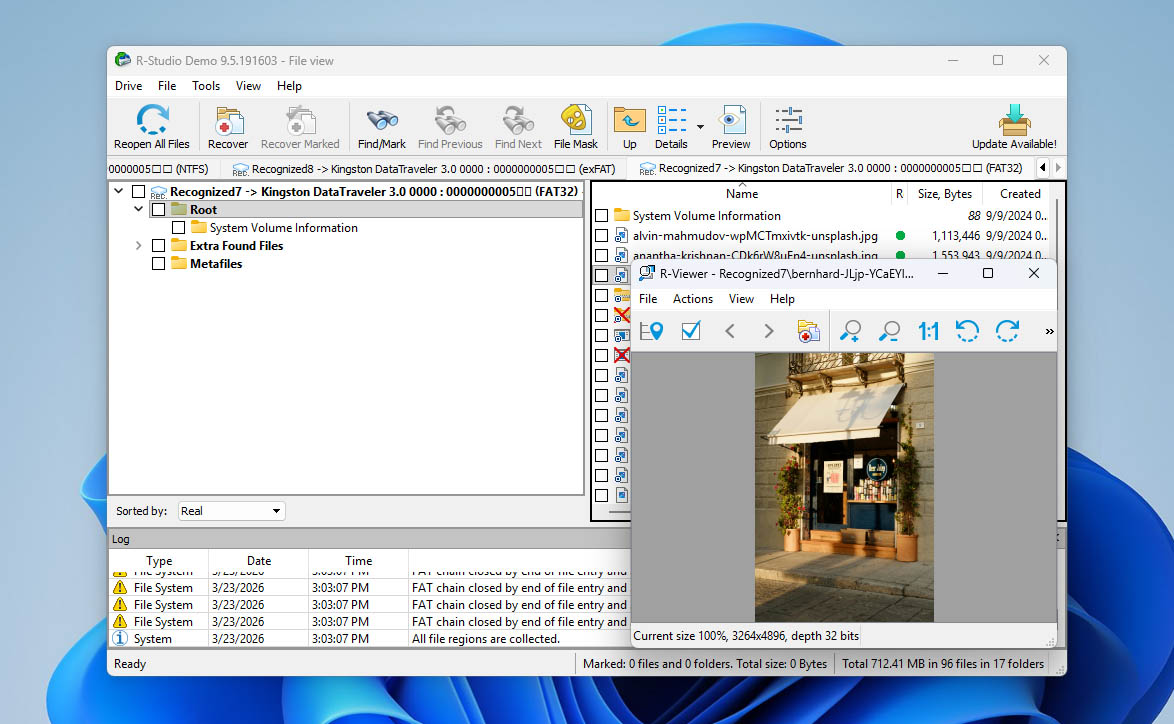
While R-Studio has a reputation for being difficult to use, the installation process is simple. Users can download a standard installer wizard from the official site and R-Studio will be ready to go in a few clicks. Our first impression of R-Studio is “utilitarian.” It wasn’t made to look pretty. Instead, it gives you access to all of its tools in a single, compact window. This is GREAT if you know what you’re doing, but the average user will need some time to get familiar with the interface. R-Studio offers a wide range of recovery features, including advanced RAID support, network recovery, and image creation.
Data Recovery Process
R-Studio’s source selection menu is a bit cluttered but easy to analyze. We were able to expand our tester drives and select their volumes and partitions easily, even if one of the drives we tested was “problematic” and refused to be mounted or displayed anything other than its label. Upon beginning the scan, various popups allowed us to set multiple scan parameters. This is useful if you want to be super precise but it’s a lot of hassle for an average user. Fortunately, R-Studio’s scan speed is quick – even compared to other apps.
The results page is also highly utilitarian but visually helpful. It compiled our drive’s files in a list on the left panel and clicking on any of them displayed its preview on the right. When we selected a folder within the drive, all of its contents were displayed as thumbnails or icons, this made it easy to select multiple image and video files for recovery. However, because the data is split across different sections, switching between each screen to view your files quickly becomes tiresome. It struggled a bit with recovering RAW photos, but the most common image file types were no problem for it.
Pricing
| Version | Price |
| R-Studio (Windows, macOS, Linux) | $79.99 |
| R-Studio FAT | $49.99 |
| R-Studio NTFS | $59.99 |
| R-Studio Corporate(Windows, macOS, Linux) | $179.99 |
| R-Studio Technician (Windows, macOS, Linux) | $899 |
| R-Studio T80+ | $80 |
*The table includes prices for 1 license. You can also check the prices for 2 or 3 licenses on the official website or enter a custom quantity to see the total cost.
You can download R-Studio for any operating system for free. However, the free version only allows recovery of files smaller than 1024 KB. In practice, we consider this closer to a preview capability than real recovery, because most files exceed that size. The paid versions come in a wide range of options. Most licenses are permanent (lifetime) licenses, with the exception of the T80+ variant, which is essentially the R-Studio Technician edition that can be used for a limited period (starting from 80 days).
At first glance, the licensing structure looks reasonable, but there are several limitations worth noting. Each license is valid for only one computer. This means that if you use both a Windows PC and a Mac, you will need to purchase two separate licenses. In addition, if something happens to your computer, you may not be able to transfer the license to a new machine and might need to purchase another one. We see this as a big drawback, especially since some competitors offer more flexible licensing options.
Latest Changes
R-Studio has received several updates across Windows, macOS, and Linux in 2026. The latest Windows version, 9.5.191850–191861, was released in October 2026, while the most recent macOS and Linux updates arrived in June and May 2026, respectively. Here are the main changes:
- On Windows: Updates added UDF support, improved Windows Storage Spaces and HFS+ processing, and optimized memory usage. The latest release also improved Ext4 and XFS support, expanded file previews to include more formats, and added the ability to repair corrupted RDR disk images. Several bugs that caused crashes and freezes were also fixed.
- On macOS: R-Studio 7.5 received UDF support, faster Ext4 file system processing, and improved data transfer speeds through R-Studio Agent. Later updates fixed issues with disk images, RAID operations, file recovery, and application crashes. The latest version, 7.5.191805, focused mainly on interface and stability fixes.
- On Linux: R-Studio 5.5 received improvements to package manager detection, disk image handling, and application stability. The latest version, 5.5.191757, also improved the activation process and fixed issues with nested disk images and R-Studio Agent.
Verdict
R-Studio is an excellent tool for its price considering its power and recovery features… But for users who are easily overwhelmed by new software (or if you don’t have the time for the learning curve – e.g. you need to restore critical data for work the next morning), apps like Disk Drill are much more suitable. We delve deeper into the software in our R-Studio review.
Feedback from users outside our own testing largely matches our experience with R-Studio. Many reviewers describe it as a very powerful recovery tool, but they also point out the learning curve and licensing limitations. For example, on Trustpilot one reviewer wrote that R-Studio was “the only software … that proved to me beforehand that it could locate the files complete and undamaged,” which gave them enough confidence to purchase the license. However, the same platform also includes criticism of the licensing policy. One user wrote: “Since then, I got a new computer because my old one died. They would not let me transfer my license and said I would be required to buy a new one.” Discussions on Reddit often echo our own observation about the interface, with users noting that “The UI is busy and pretty overwhelming if you’re not used to this kind of software” in threads about recovery tools.
3. MiniTool Power Data Recovery (Windows)
⚙️ System requirements: Windows 8, 8.1, 10, 11
Pros
- Simple, beginner-friendly interface
- Supports a wide range of file types and storage devices
- Free recovery of up to 1 GB of data
- Good recovery results with recently deleted files
- WinPE bootable recovery media available in paid versions
- Slower scanning than many competitors
- Inconsistent recovery results with RAW and corrupted drives
- File previews can be slow or fail to load
- No built-in disk imaging or advanced recovery tools
- Windows-only software with limited file system support
MiniTool Power Data Recovery is a Windows application from Canadian developer MiniTool Software. It is aimed at users who prefer a simple, accessible approach to recovering files. The program has been on the market for a long time and is generally considered suitable for beginners, with an uncomplicated interface and a fairly easy recovery process.
You may also come across a Mac data recovery tool on the MiniTool website. However, this is actually Stellar Data Recovery for Mac, developed by a separate company, Stellar Data Recovery. MiniTool offers it through a partnership with Stellar, so it is not a macOS version of MiniTool Power Data Recovery.
First Impressions
The MiniTool Power Data Recovery installation process was quick and easy. We downloaded the installer from the official website, ran it, and followed the installation wizard. The main window displays all detected drives and partitions, with separate tabs for Logical Drives and Devices. We could select a partition or an entire physical drive and start a scan with just a few clicks. MiniTool also offers options to scan specific locations, such as the Desktop or Recycle Bin. However, we see this as more of a marketing feature, since recovery scans cannot reliably be limited to a particular folder. The interface itself was simple and well-organized, although its design felt a bit dated compared to some competitors. Overall, we had no trouble finding the main functions or starting the recovery process.
Data Recovery Process
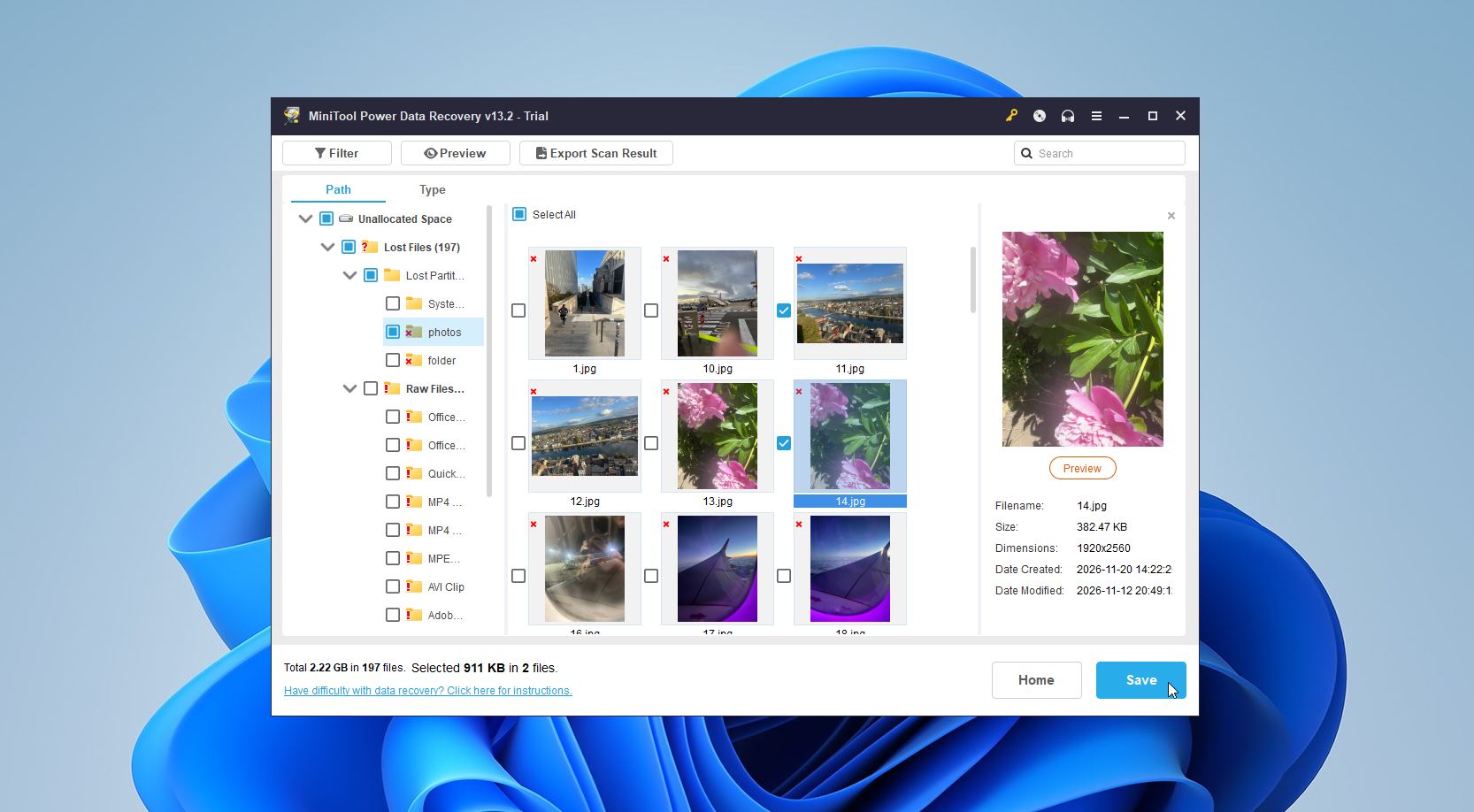
The recovery process in MiniTool Power Data Recovery was easy to follow. We selected a drive and started a scan without having to configure anything. The software automatically runs Quick Scan and Deep Scan, so there was no need to choose a recovery mode. However, the scan took longer than we expected, especially compared to other tools we’ve tested. Once it finished, we could browse the results by Path or Type, use filters to narrow down the list, and search for files by name. The preview feature was less convenient. Some files took a long time to load, while others wouldn’t open at all. For certain formats, MiniTool also required a separate preview module.
To recover files, we selected the ones we needed, clicked Save, and chose a destination on another drive. The process was simple, but the recovery results were mixed. MiniTool handled basic deleted-file scenarios reasonably well, while RAW drives proved more difficult, with some recovered files damaged or unusable. We also noticed promotions for other MiniTool utilities in the free version. Overall, the recovery process was beginner-friendly, but the software felt limited when we moved beyond basic recovery tasks.
Pricing
| Version | Price |
| Free | $0 |
| Personal Monthly (1 PC) | $69 |
| Personal Annual (1 PC) | $89 |
| Personal Ultimate (3 PCs) | $129 |
| Business Standard (1 PC/Server) | $159 |
| Business Deluxe (1 PC/Server) | $199 |
| Business Enterprise (99 PCs/Servers) | $399 |
| Business Technician (299 PCs/Servers) | $499 |
The free version lets you recover up to 1 GB of data, which is quite generous compared to some competitors. However, it doesn’t include the WinPE bootable media builder or the ability to reload saved scan results. All three paid personal plans remove the recovery limit and include the bootable media builder. The Monthly and Annual plans cover one PC, while Personal Ultimate is a perpetual license for three PCs with lifetime upgrades.
In our opinion, MiniTool’s pricing is difficult to justify considering its limited features and recovery performance. Paying $69 for a single month feels particularly expensive, while the $89 annual plan is tied to just one computer. The $129 Personal Ultimate license offers better long-term value, but it’s still Windows-only and lacks useful tools such as disk imaging. The business licenses provide more options for commercial use, although the $159 Business Standard edition doesn’t include the WinPE bootable media builder. Overall, we think MiniTool’s free version is worth trying for basic recovery, but its paid plans face strong competition from tools with broader capabilities and more licensing options.
Latest Changes
The latest version of MiniTool Power Data Recovery is 13.2, released on November 3, 2026. This update brings interface improvements and bug fixes, including a fix for an unexpected window that could appear after file recovery. Recent updates have also made drive selection easier, improved the file-saving process, and fixed crashes during video previews. Other useful additions include protection against accidentally saving recovered files to the source drive, a dark mode, and better readability on high-resolution displays.
Verdict
MiniTool Power Data Recovery is a decent choice for Windows users who need to recover recently deleted files and prefer a simple recovery process. Its 1 GB free recovery limit is a nice advantage, but slow scans, inconsistent results with damaged drives, and a lack of advanced features make its paid versions harder to recommend. For a closer look at its performance and limitations, check out our MiniTool Power Data Recovery review.
User feedback on MiniTool is mixed. On Trustpilot, some customers praise its recovery results and helpful support. One reviewer reported recovering every photo from a corrupted SD card, while another successfully restored files from a damaged DVD after other tools failed. Several users also appreciated the quick responses from MiniTool’s support team. However, negative reviews raise concerns about recovery performance and refunds. One Trustpilot reviewer reported that recovered photos and videos wouldn’t open, followed by a difficult refund process.
4. Stellar Data Recovery (Windows & macOS)
⚙️ System requirements: Windows 8, 8.1, 10, 11, macOS 10.13–10.15, Big Sur 11 through Golden Gate 27 (64-bit only).
Pros
- Clean, beginner-friendly interface
- Available for Windows and macOS
- Free recovery of up to 1 GB of data
- Built-in disk imaging and S.M.A.R.T. monitoring
- File previews and scan session saving
- Advanced RAID in higher editions
- Photo and video repair tools in paid editions
- Slower scans than many competitors
- Inconsistent results with corrupted drives
- Poor fragmented video recovery in our tests
- Limited access to internal drives on modern Macs
- Occasional freezes and slow device detection
- Advanced features locked behind higher-priced editions
Stellar Data Recovery is a well-established disk recovery software developed by Stellar Information Technology Pvt. Ltd., based in India. It’s a fully-featured and modern-looking app with its own unique tools, making it a solid choice for many users.
First Impressions
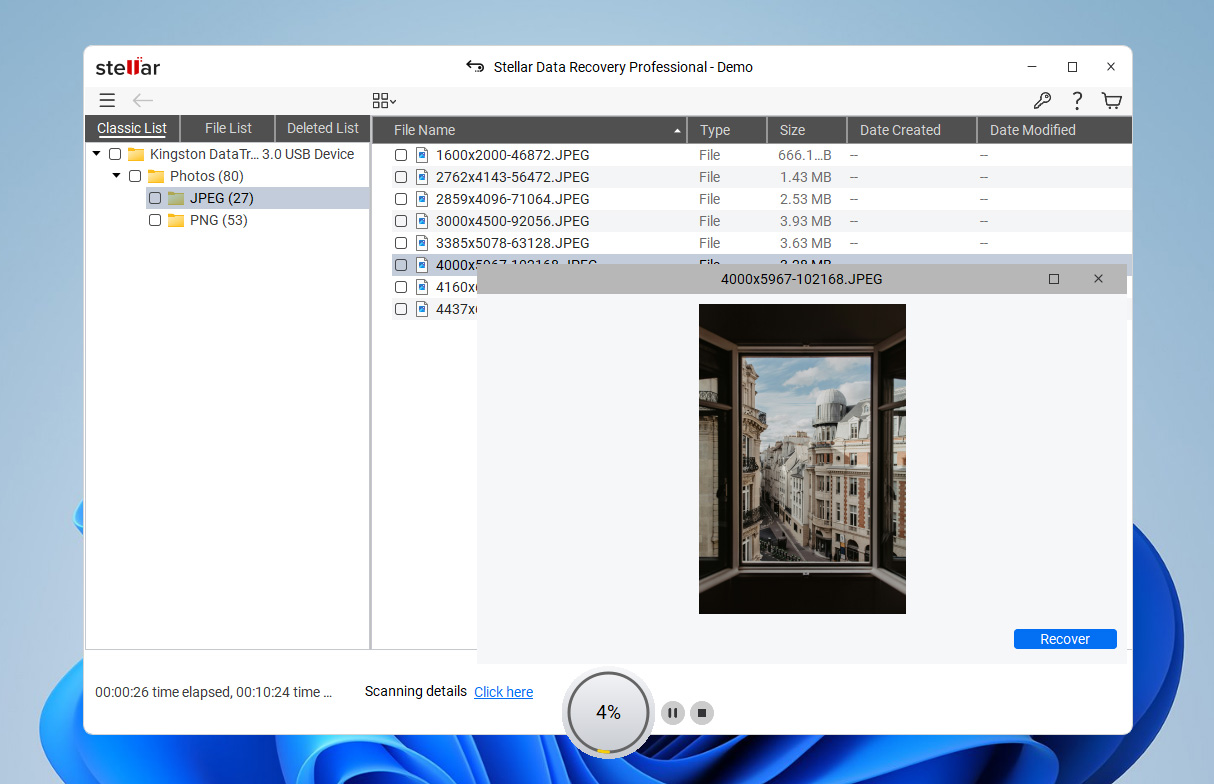
Like most of the apps on this list, Stellar Data Recovery was easy to install. You just need to download the installer from the site and follow the wizard. The source selection menu lets you choose whether you want to scan the entire disk or specific volumes. Its preview feature, while convenient, is fairly temperamental and doesn’t always show thumbnail previews. Most of its other features are hidden in menus, which helps keep the interface uncluttered. Aside from data recovery, a major feature that caught our eye was corrupted video recovery. It’s only available for licensed users, but we can vouch for its efficacy.
Data Recovery Process
It was very easy to start the scan overall, as you’re pretty much guided through it. However, if you want to make sure the app is using its full potential, you have to manually enable the Deep Scan, which is easily missed at the bottom of the source selection screen. Stellar recovered less data overall compared to the first 3 apps on this list. It also recognized fewer file types, but we were still able to successfully recover a lot of data, especially documents.
And Stellar allows you to scan for a custom file type, which is a missing feature in many similar apps (although it’s a hassle to input a lot of file signatures manually). The found files list is where Stellar Data Recovery actually shines. We were able to switch between viewing data as a simple list or as a gallery of thumbnails – this makes it very easy to browse images and videos when it’s working as intended.
Pricing
| Version | Price |
| Stellar Data Recovery Standard – Annual (Windows) | $59.99 |
| Stellar Data Recovery Standard – Lifetime (Windows) | $99 |
| Stellar Data Recovery Professional – Annual (Windows) | $79.99 |
| Stellar Data Recovery Professional – Lifetime (Windows) | $149 |
| Stellar Data Recovery Technician – Annual (Windows) | $99.99 |
| Stellar Data Recovery Technician – Lifetime (Windows) | $399 |
| Stellar Data Recovery Standard – Annual (Mac) | $69.99 |
| Stellar Data Recovery Standard – Lifetime (Mac) | $129 |
| Stellar Data Recovery Professional – Annual (Mac) | $89.99 |
| Stellar Data Recovery Professional – Lifetime (Mac) | $149 |
| Stellar Data Recovery Technician – Annual (Mac) | $199 |
| Stellar Data Recovery Technician – Lifetime (Mac) | $399 |
Stellar Data Recovery can be downloaded for free on both Windows and Mac, with up to 1 GB of free data recovery on either platform. If you need to recover more data, Stellar offers several paid editions with different features, annual subscriptions, and lifetime licenses. While having so many options gives users more flexibility, it can also make choosing the right plan quite confusing, especially since Windows and Mac licenses are sold separately. We also found the regular prices relatively high compared to other tools on this list, so it’s worth checking for promotional discounts, which Stellar offers quite frequently.
Latest Changes
Stellar Data Recovery received major updates in late 2026, bringing both Windows and Mac versions to 14.0. The Windows update, released in October 2026, introduced a redesigned interface with three themes, improved file previews, and the ability to preview and save files while scanning. It also added pause-and-resume support for several file systems, advanced filtering options, and improvements to RAID recovery.
The Mac update followed in November 2026, expanding recovery support for Apple silicon and T2-equipped Macs, encrypted APFS drives, and Time Machine backups. It also introduced improvements to scan management and recovery from virtual machines, while expanding NAS recovery capabilities for Synology, QNAP, and ASUSTOR devices. Overall, these updates bring useful improvements to both versions, although some advanced features remain exclusive to the more expensive editions.
Verdict
While other options on this list can be considered superior data recovery software apps, Stellar Data Recovery is a great choice if you primarily need to recover photos and videos. Its thumbnail gallery view makes it highly convenient to browse found files and (if you’re willing to purchase the more expensive licenses) its video repair tool actually works quite well. We were able to get previously non-playing videos to work again. Unfortunately, the full set of features is only available in the fairly costly Toolkit version, and many of those features can be found in other tools for a lower price point, like NAS recovery in Disk Drill. See more in our full-coverage Stellar Data Recovery review.
User feedback on Stellar Data Recovery is fairly predictable. For example, on Trustpilot one reviewer described a positive experience with the product and its support team: “Rohit was very patient and helpful. He took many measures, including remote control, to fix my file.” However, not all feedback is positive. On Capterra, another user described a frustrating experience with the software, writing: “We wasted money on a software which does not work. Their support service came several days later, too late.”
5. DM Disk Editor and Data Recovery Software (Windows, macOS, Linux)
⚙️ System requirements: MS-DOS 5.0+ / Windows 98, ME, Windows 2000+ / macOS 10.12+ / Any modern Linux distribution with the libc library.
Pros
- Hex editor to view recoverable files
- Automated search feature
- Additional disk utilities
- Runs on Windows, macOS, Linux, and even DOS
- Outdated user interface can overwhelm inexperienced users
- Free recovery limited to 4,000 files per operation
- Can be hard to locate features
- Doesn’t show time required to complete the recovery
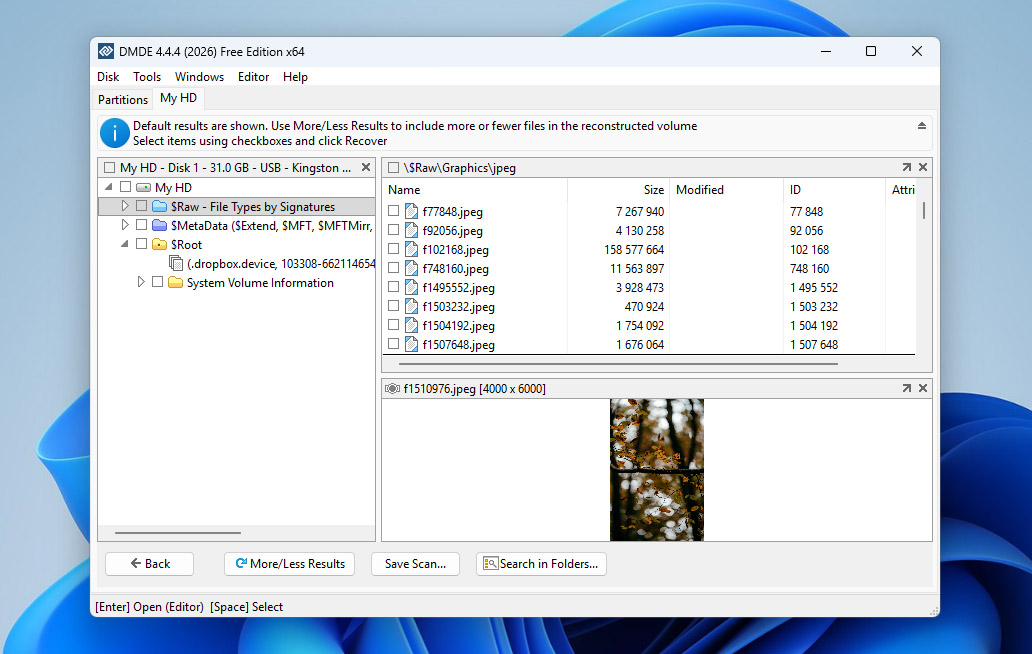
Originally created by Dmitry Sidorov, DM Disk Editor and Data Recovery Software (or DMDE) is a data recovery app with disk editing features and a lot more bells and whistles than other file recovery software on this list. It also offers free recovery, making it a strong contender despite its humble interface.
First Impressions
DMDE is extremely easy to install, you just have to download a folder from the official site that includes the program itself, which you can run directly. The app itself looks cold, unfriendly, and a bit complicated compared to our modern-looking entries like Disk Drill and Stellar. When you launch DMDE, you can either select a disk to start working on or a task you want the app to perform (e.g. Construct RAID). We’ll talk about source selection more in the Data Recovery Process section. Aside from recovery, DMDE offers a lot of useful features for the advanced user. You can edit raw disk sectors, restore partitions, edit partition tables, modify boot sector data, create disk images and clones, and more.
Data Recovery Process
DMDE’s source selection is rich with information. For the average user, it’s too much information. While we could easily select disks and partitions to scan (the scan button is also fairly obvious), all of DMDE’s tools are packed into the window. If you have no idea about disk editing or partitioning, the source selection window can be very overwhelming. Even when we started the scan, we were greeted by a cluttered popup that allowed us to set our scan parameters.
You can browse and recover files while the scan is still underway. Found files are usefully categorized by type but DMDE does its best to recover folder structure as well. Despite its glaring user experience issues, we were satisfied with its actual performance. It was successfully able to recover many RAW photos, RAW videos, and documents from various devices and file systems (except for EXT4, which it struggled with). We had to manually input a few file signatures it didn’t recognize, but the results were good for the app’s price!
Pricing
| Version | Price |
| DMDE Express License (1 Year) | $20 |
| DMDE Standard License (Lifetime) | $48 |
| DMDE Professional License | $95 |
DMDE also offers a free edition that allows users to recover data without purchasing a license. However, the program limits each recovery operation to 4,000 files from the selected folder. If you need to recover more files, you must repeat the process in separate batches. Paid licenses differ in duration and available features, with options for personal and professional use.
Compared to many competitors, DMDE is relatively affordable, especially if you only need its basic recovery features. One drawback is the licensing model itself. Licenses are generally tied to a specific operating system family, and personal licenses have restrictions on how many computers you can use them on. This can be inconvenient if you work across multiple devices or platforms.
Latest Changes
DMDE 4.4.4.842 was released on February 5, 2026. This update mainly focuses on stability improvements and bug fixes. For example, the developers resolved a critical issue affecting ReFS processing and fixed another bug that could occur when Btrfs file sizes exceeded the actual inline data size. Additional fixes addressed errors related to handling extra Btrfs subvolumes and a problem where some Professional features remained disabled after activation. Alongside these fixes, the update also introduced support for ExtFS filename encodings other than UTF-8 and included several user interface refinements and general improvements.
Verdict
DMDE is not for the faint of heart! It’s a complex tool with a cluttered interface and a complicated user experience. However, it has a powerful toolset for a very competitive price. It’s a disk management Swiss army knife for the right user, but we recommend that novices skip this app. Our DMDE review can tell you more.
As for user reviews, publicly available feedback on DMDE is fairly limited, but the overall picture is mixed. On Trustpilot, one user described a very positive recovery result after severe file system damage: “deep scans produced enough results for me to recover nearly 95% of my data.” DMDE’s own review page also contains recent positive feedback from users who praised both its recovery performance and value. At the same time, negative feedback usually focuses less on pricing and more on usability or inconsistent results in difficult cases. On the same DMDE review page, one user complained that the program “struggled and locked up at about 12% scanned” and later concluded that it “absolutely wasted my time.” Reddit discussions reflect that the interface is hard to follow, with comments such as “I just bought it, and it’s absolutely not worth it for the price, no matter what anyone says, and genuinely is more than just user-unfriendly.”
6. AnyRecover (Windows & macOS)
⚙️ System requirements: Windows XP, 7–11 / macOS 10.10–10.11 and 11–13 (up to beta 3) / Android 2.0–14.0 / iOS up to 26.
Pros
- Clean, beginner-friendly interface
- Decent scan speed
- Supports RAW and corrupted drives
- Bootable recovery drive option
- Separate iPhone and Android recovery tools
- No free data recovery
- Inconsistent recovery results
- PC and phone recovery require separate tools
- Poor fragmented video recovery
- Unreliable file previews
- No byte-to-byte disk imaging
- Relatively expensive paid licenses
- Phone recovery requires separate software
AnyRecover is a data recovery software product from iMyFone, aimed primarily at everyday users who want a simple way to deal with data loss. The company markets it as an accessible alternative to more technical recovery tools, with a focus on simplicity and a beginner-friendly experience.
First Impressions
AnyRecover makes a good first impression with its clean, modern interface. Installation takes only a few minutes, and the app provides short hints to help new users get started. We liked how easy it was to find the recovery options without dealing with complicated settings.
However, the experience wasn’t entirely smooth. The program sometimes took several minutes to detect newly connected drives, and we encountered frequent prompts to upgrade to the paid version. Another limitation is that AnyRecover doesn’t include disk imaging or S.M.A.R.T. monitoring, which we would expect from software at this price.
Data Recovery Process
The recovery process in AnyRecover is simple and easy to follow. After launching the program, we selected Data Recovery, chose the affected drive, and the scan started automatically. We didn’t need to configure any settings. The scan was fairly quick, and the progress bar made it easy to follow.
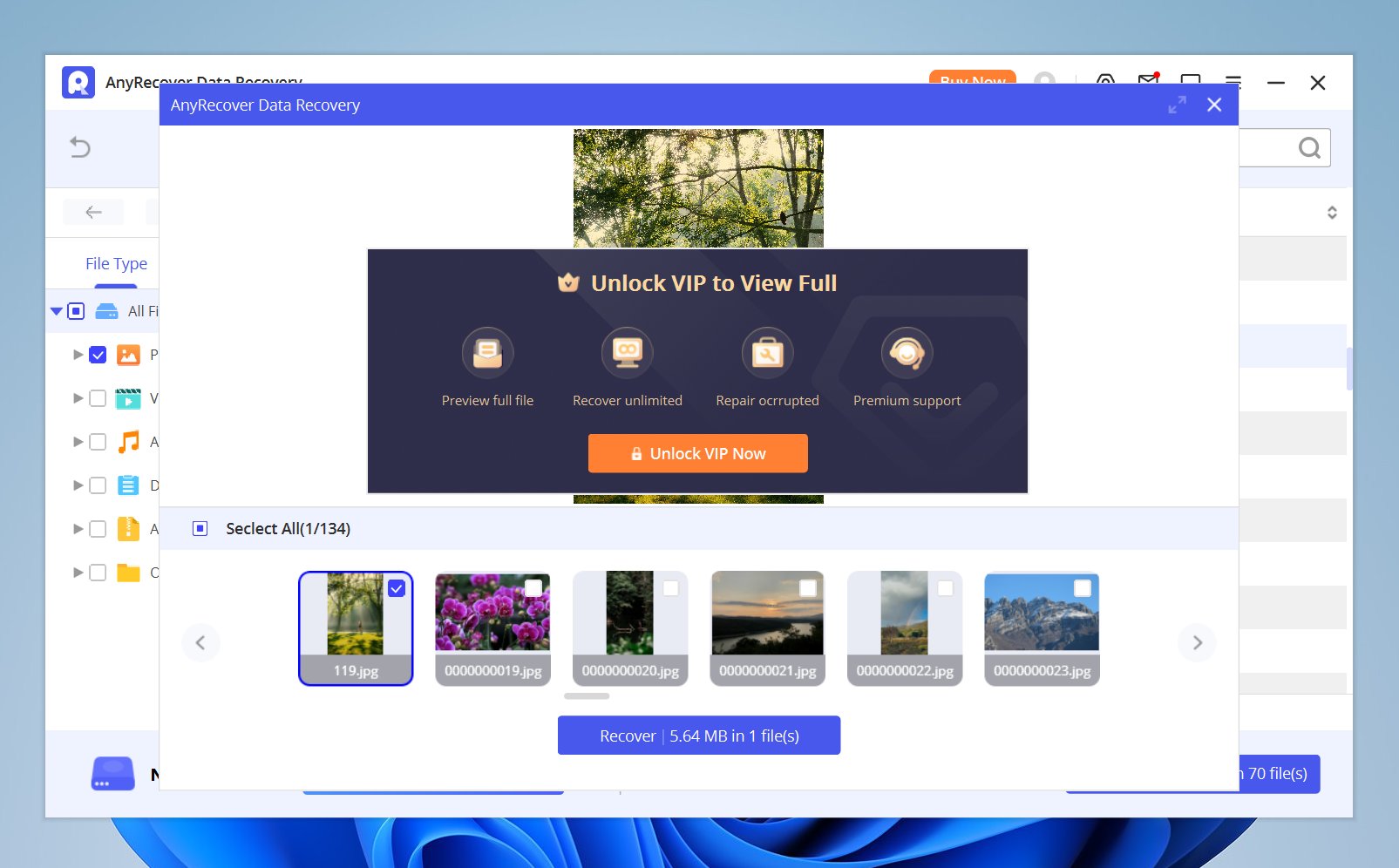
Once the scan finished, AnyRecover displayed the found files by type or original folder structure. We could also switch between list and thumbnail views and use filters to find specific files. However, the preview feature was disappointing, as we couldn’t even preview standard JPEG images.
To recover files, we simply selected the items we wanted, clicked Recover, and chose a destination folder. The process itself was smooth, but the results were mixed. Many common files were recovered successfully, while others were corrupted or wouldn’t open. The software also struggled with fragmented videos, which it recovered but couldn’t restore to a playable state.
Pricing
| Version | Price |
| Individual Monthly | $79.99 |
| Individual Annual | $99.99 |
| Individual Lifetime | $159.99 |
| Business Annual (3 PCs, 10 devices) | $199.99 |
AnyRecover offers a free trial that lets you scan drives and preview recoverable files, but you’ll need a paid license to actually restore them. The company offers monthly, annual, and lifetime plans for individuals, as well as a separate annual Business plan.
Individual plans cover Windows, macOS, iOS, and Android, with device limits that vary by license. However, PC and mobile data recovery are handled by separate tools, so you need to download and install the appropriate software for each device type. The lifetime plan also includes free lifetime upgrades, while the Business plan offers one year of upgrades and technical support.
We appreciate the choice of license options, but AnyRecover is still relatively expensive, especially since the free trial doesn’t let you recover any files. The discounts make the paid plans more attractive, although we’d recommend comparing the price with other recovery tools before purchasing.
Latest Changes
AnyRecover hasn’t received any major updates in several months, with version 6.6.3 being the latest release. Unfortunately, the developer doesn’t provide a current public changelog or detailed version history. The changelog on the official website appears to have been abandoned, with its last entry dating back to 2020. As a result, it’s difficult to tell what has changed in recent versions or whether the software has received any meaningful improvements.
Verdict
AnyRecover is easy to use and can handle basic data recovery tasks, but our experience with it was mixed. While we liked its simple interface and decent scan speed, inconsistent recovery results, unreliable file previews, and high prices make it difficult to recommend over other options. It’s also worth noting that Windows and Mac recovery use a different tool from iPhone and Android recovery, so you won’t find all these features in a single app. You can read our full AnyRecover review for more details about our tests and experience with the software.
Trustpilot users often praise AnyRecover’s responsive customer support, especially when they need help with refunds. However, some report that the software failed to recover their files or restored corrupted data. One customer also complained that Windows reinstalls used up the device activations on their lifetime license. Reddit users report more problems. Several describe slow scans, unusable recovered files, and difficulties with subscriptions or refunds. Still, a few users report successful recoveries from formatted drives.
7. Recuva (Windows)
⚙️ System requirements: Windows 11, 10, 8.1, 7, Vista and XP.
Pros
- Freeware with a low Pro version price
- Clear interface design
- Preview screen
- Securely deletes files
- Poorer recovery performance than paid solutions
- Last minor update was June 2026, and no major updates for several years
Recuva is a super lightweight Windows-only data recovery app developed by Piriform Software, the company behind CCleaner. Recuva is known for being one of the few truly free data recovery apps, making it a popular choice for many users.
First Impressions
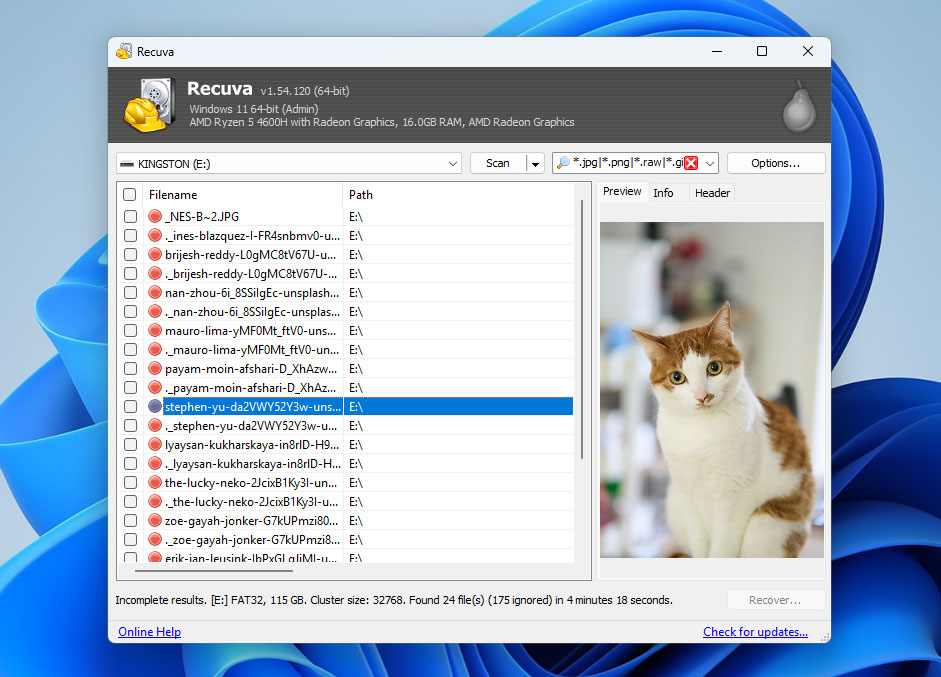
As we previously mentioned, Recuva is very lightweight. Its interface is utilitarian and a bit old-school with simple grey panels, almost like the older versions of Windows Explorer. Unlike other apps that immediately display the disk or volume selection menu, Recuva starts with a wizard. One after the other, you’re prompted to choose the file types you want to restore, which type of scan you want to run, and what drive you want to scan. The Next and Back buttons allow you to redo any of your past choices.
Data Recovery Process
To start a scan, follow the recovery wizard and choose your scan settings at each step. Unlike other apps, Recuva didn’t provide much information during the scan beyond its progress (in percentage), how many files it already found, and how much time is left to complete the scan. Once the scan is complete, Recuva will display the full list of scan results. It obviously didn’t do well as its commercial counterparts but the results were respectable for the $0 price tag!
Recuva even outperformed some of its competitors while recovering documents. However, it struggled a bit with our FAT32 partitions but did much better with our exFAT and NTFS partitions. We also successfully recovered data from a disk image, which is impressive for a free app. Since we already indicated the file type we wanted to restore in this wizard, we could no longer filter the found data or browse them by category. But we were able to search for them by file name or path. We could also preview the files that were indicated to have a high chance of recovery.
Pricing
| Version | Price |
| Recuva Free | $0 |
| Recuva Professional (1 PC, 1 Year) | $24.95 |
| Professional Plus (Bundle, up to 3 PCs) | $64.95 |
Recuva is the first program on our list that allows fully functional data recovery without paying for a license. The free version already includes the core recovery engine and lets users scan drives and restore files without any recovery limits. A paid Professional version is also available, but it adds only virtual hard drive (VHD) support and automatic updates, which means most users can rely on the free version for standard recovery tasks. There is also a Professional Plus option. This version is not a separate upgrade to Recuva itself but rather a bundle of Piriform utilities that includes Recuva Professional, CCleaner Professional, and Speccy Professional.
Latest Changes
The latest version of Recuva (v1.55) was released on June 22, 2026. This was a minor update that made it easier for EU customers to exercise their right to withdraw from a contract. The previous release (v1.54.120), published in June 2024, focused on improvements to license delivery and integration with the company’s licensing platforms. Neither update introduced new recovery features or major performance improvements, which suggests that Recuva’s development has remained relatively slow in recent years.
Verdict
Recuva lags behind other apps in user experience and extra features. But it’s lightweight and 100% free to use for external drives, memory cards, and other storage devices. We’ve successfully recovered photos, videos, and documents using this app, so we gladly recommend it if you’re on a tight budget. See our Recuva review for more info.
When it comes to user feedback, Recuva is generally perceived as a basic recovery utility, and most users evaluate it with that expectation in mind. For example, on Reddit, many users recommend it: “Recuva is a decent free tool for Windows to recover files from flash drives. I used it a few times before I switched to Mac.” Also, many experienced users point out its limitations when dealing with more complex cases : “It has no ability to reconstruct filesystems. It is limited to running on space addressable and mountable by windows with a drive letter, and for what is not part of the current file system, it just functions as a carver. It is still an undeleter.”
8. DiskInternals Uneraser (Windows)
⚙️ System requirements: Windows 2000, XP, 2003, 2008 Server, Vista, Windows 7/8/10/11.
Pros
- Solid data recovery capabilities and features
- Includes a built-in forensic disk imaging tool
- Exceedingly easy to use, even for newbies
- Free version only allows you to preview recoverable files
- User interface is in dire need of an upgrade
- Available only on Windows
- Slow updates
DiskInternals Uneraser is a minimalistic data recovery app developed by DiskInternals Research, based in Seattle, Washington. While the app looks slightly outdated, it has powerful recovery capabilities and useful features, packaged in a simple, easy-to-use interface.
First Impressions
DiskInternals Uneraser does not look as modern as the apps on this list, in fact, it looks plain and a bit outdated. But its user experience is well-designed and novices can quickly get the hang of the app. The main window displays all drives and volumes on your computer, as well as common libraries like Documents and Desktop. The toolbar is clearly labeled and uncluttered, which makes it easy to digest. Aside from basic recovery, a feature that stood out to us was its ability to restore data from virtual hard disks, many of the more expensive tools lack this feature since it’s only useful for a subset of users.
Data Recovery Process
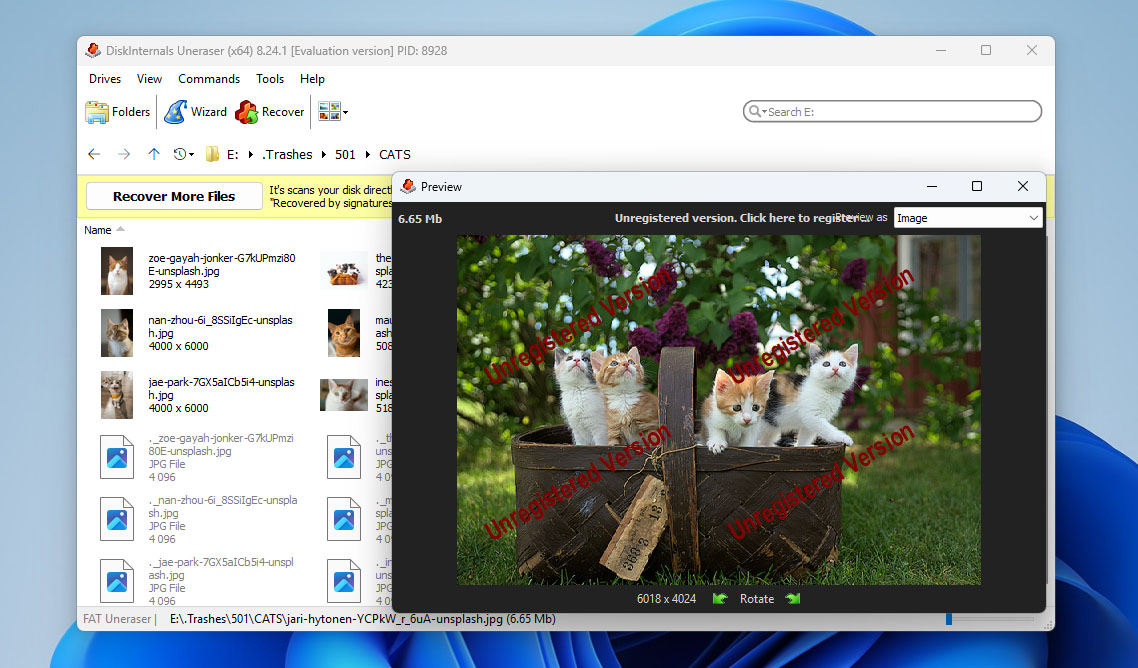
Simple popups allowed us to select the recovery source. We were impressed that we could scan our drive for a specific file name (along with various file types). Uneraser performed best when solving simple data loss scenarios. It was able to recover most of the data on our formatted drives, as well as those that were accidentally deleted. But it struggled when we tested it against more complex problems, like RAW disks. All results are displayed in a single window pane with their thumbnails beside them. Since we already specified file types in the wizard, we couldn’t filter or categorize the results. We also had to right-click each file we wanted to preview.
Pricing
| Version | Price |
| DiskInternals Uneraser Personal License | $39.95 |
| DiskInternals Uneraser Business License | $79.95 |
Unfortunately, the free version of DiskInternals Uneraser does not allow you to actually recover files, it only lets you scan the drive and preview the data that can be restored. To recover anything, you need to purchase a license. The software offers several paid license options depending on the type of use. The Personal license starts at $39.95 per year, which makes it relatively affordable compared to many competing recovery tools.
Latest Changes
DiskInternals Uneraser has received several updates since our last review. However, the developer doesn’t provide a publicly available changelog or detailed version history, so it’s difficult to tell what these updates changed. When we tried the software again, its interface looked the same, and we didn’t notice any differences in how it worked. The updates may have included bug fixes or minor improvements, but we couldn’t confirm any major changes.
Verdict
DiskInternals Uneraser is a great tool, especially for its price. Despite its outdated appearance, it provides a decent user experience and is actually powerful enough for “simple” data loss scenarios. If you want an affordable data recovery app that can do just enough, the Uneraser is a good choice. See our DiskInternals Uneraser review for more info. As of this writing, the software is at version 8.26.
When it comes to user feedback, DiskInternals Uneraser doesn’t appear very frequently on major review platforms, which makes it difficult to find many reviews specifically about this tool. However, we did find several reviews for DiskInternals Partition Recovery, another data recovery product from the same developer. Since both tools come from the same company and rely on similar recovery technologies, we decided this feedback still provides useful context. For example, on G2 one reviewer described the software as “easy to use”, highlighting that it can recover disk partitions as well as individual files and noting that there was a very small percentage of data loss during recovery.
When Data Recovery Software Won’t Help
Even the best data recovery software has its limits. In some situations, lost files may be impossible to recover, while others require extra precautions before you start a scan.
- SSD or NVMe drives with TRIM enabled. When TRIM tells the drive that deleted data is no longer needed, the controller may erase it internally. Once that happens, recovery software can’t restore it.
- Encrypted drives without a recovery key. If a drive uses BitLocker or FileVault and you don’t have the password or recovery key, recovery software generally can’t access the encrypted files.
- Overwritten files. If new data has replaced the original file contents, no recovery program can bring them back.
- Drives that click or show I/O errors. These may have physical problems, so avoid repeated scans. If the drive is stable enough to read, create a disk image first using a tool such as Disk Drill’s Byte-to-byte Backup, then scan the image instead. If the drive makes repeated clicking noises or disconnects, professional recovery may be safer.
- Cloud-only files. If a file was stored only in iCloud, OneDrive, or Google Drive and never downloaded to your device, local recovery software won’t find it. Check the cloud service’s Trash or version history instead.
The best approach depends on what caused the data loss. Before you run any recovery tool, stop using the affected drive to avoid reducing your chances of recovery.
Quick Comparison of the Best Data Recovery Software
We’ve collected all of the important points of the above programs and organized it into an easy-to-read table below if you don’t have time to read the entire article.
| Software | Recovery Results | Price (Starting At) | License | Latest Update | File Formats | Additional Tools |
| Disk Drill | ★★★★★ | $89/year | Annual or lifetime ($149) | July 2026 | around 400 formats | Disk imaging, S.M.A.R.T., Advanced Camera Recovery, video repair, RAID/NAS recovery |
| R-Studio | ★★★★☆ | $79.99 | Perpetual license, per OS | October 2026 | Several hundred formats | Disk imaging, RAID reconstruction, network recovery, hex editor |
| MiniTool Power Data Recovery | ★★★☆☆ | $69/month | Monthly, annual or lifetime | November 2026 | Wide range of common formats | Bootable recovery media, scan session saving |
| Stellar Data Recovery | ★★★☆☆ | $59.99/year | Annual or lifetime, per OS | November 2026 | 100+ file types | Disk imaging, S.M.A.R.T., video repair, RAID/NAS recovery in higher editions |
| DMDE | ★★★☆☆ | $20/year | Annual or lifetime | February 2026 | Common formats and custom signatures | Disk editor, disk imaging, partition recovery, RAID reconstruction |
| AnyRecover | ★★★☆☆ | $79.99/month | Monthly, annual or lifetime | Version 6.6.3 (date unspecified) | 1,000+ claimed formats | Bootable recovery media, separate iOS/Android recovery tools |
| Recuva | ★★★☆☆ | Free | Freeware or annual Pro ($24.95) | June 2026 | Common file formats | Recovery chance prediction, secure deletion, VHD support in Pro |
| DiskInternals Uneraser | ★★☆☆☆ | $39.95/year | Annual license | Several recent updates (dates unspecified) | Most standard file formats | Disk imaging, virtual disk support, network recovery, RAID support |
Prices are in USD and exclude temporary discounts.
How to Use Data Recovery Software
Knowing which data recovery software is useful, but knowing how to actually use the software is even better. All data recovery tools pretty much follow the same workflow: scan your device, select the data you want to recover, and then recover it. For demonstration purposes, let’s take a look at what it looks like to recover files from a hard drive using Disk Drill.
- Download, install, and open Disk Drill.
- Connect and select the device you want to scan, then click Search for lost data.
- Choose your scan type, which in this case is Universal Scan.
- Click Review found items to see what data was found.
- Preview and select the files you wish to recover, using the filter options to make the job easier, and then click Recover.
- Choose where the recovered files will be stored on a separate physical drive.
Factors We Considered for Program Selection
Because each file recovery software tool can vary wildly in almost all regards, we established a list of what we considered the best qualities to consider when selecting data recovery software.
- ⚙️ Performance results: A leading factor when choosing any recovery tool is its recovery performance. How fast it scans for data, the number of file formats supported, what scanning algorithms it uses, and its ability to work with corrupted drives are all very important. Perhaps most important is the percentage of lost files that the tool has been known to successfully recover.
- 💵 Pricing: The price of recovery software can vary from freeware to several thousand dollars. You may get a lifetime license when you purchase a product or have to renew a yearly subscription to keep the tool under support. Be sure to weigh up what you get with the software (both in terms of features and performance) and see is the value proposition matches your budget.
- 🖥️ Ease of use: Data recovery is a complicated process. The best recovery software for PC hides this complexity beneath a user-friendly interface that makes the recovery process easy for everyone, while some tools are geared towards professionals and leave everything in plain sight, which only serves to make the process more difficult for the everyday user.
- 🔁 Frequency of program updates: Software that’s updated regularly means it’s well-taken-care-of by its developers. You can expect the latest scanning algorithms, new file type recognition, and support for the latest operating systems. A lack of updates indicates the software may be outdated, less reliable, and potentially incompatible with newer hardware or file systems.
- ✅ Reputation: Check out reviews to get a sense of the experience of other users with products you are considering. You might find that an application that you thought would work has an issue that makes it unsuitable for your needs. After doing some research, you should have a better idea of how well the apps have gone over with the user community.
- ➕ Additional features: Extra tools like disk imaging, RAID recovery, file preview, video repair, and data protection can significantly enhance a recovery tool’s overall usefulness and versatility, especially when dealing with unstable drives, making it more than just a simple undelete program.
Final Thoughts
Disk Drill is our best overall choice thanks to its strong recovery results, support for Windows and macOS under one license, and useful features like disk imaging, Advanced Camera Recovery, and video repair. Regular updates also make it a good long-term option.
If you’re looking for something else, here’s which tool we’d recommend depending on your needs:
- R-Studio: Best for professionals and complex RAID recovery.
- MiniTool Power Data Recovery: Best for recovering up to 1 GB of data for free on Windows.
- Stellar Data Recovery: Good for photo and video recovery, especially if you need repair tools.
- DMDE: Best budget option for experienced users who need advanced recovery features.
- AnyRecover: Suitable for basic recovery tasks and Android/IOS recovery, although results can be inconsistent.
- Recuva: Best for completely free data recovery on Windows.
- DiskInternals Uneraser: An affordable option for simple file recovery.
FAQ
- Disk Drill – Best overall for its strong recovery results, easy-to-use interface, and advanced recovery features.
- R-Studio – Best for advanced users who need professional recovery tools and RAID support.
- MiniTool Power Data Recovery – Best for beginners who want to recover up to 1 GB of data for free.
- Stellar Data Recovery – Best for users who need photo and video repair tools.
- DMDE – Best budget option for experienced users.
- Recuva – Best completely free option for basic file recovery.
- AnyRecover – Suitable for simple recovery tasks, although results can vary.
- DiskInternals Uneraser – Best for basic recovery with an affordable paid license.
- Disk Drill for Windows
- Stellar Data Recovery
- Recuva
- MiniTool Data Recovery
- R-Studio
- PhotoRec
- UnDeleteMyFiles