 Recuva is one of the most popular data recovery tools for Windows, and a big part of its appeal is simple: you can recover files with the free version. But if you’ve switched to macOS and are wondering, “Is there a Recuva for Mac?”, the answer is no. Recuva is still a Windows-only application, so Mac users need an alternative.
Platform support aside, there are several other reasons you might want something more capable than Recuva:
- It needs a working, recognizable partition for many of its standard recovery functions, which limits its usefulness with RAW, lost, or severely damaged volumes.
- File previews are inconsistent. Some supported files simply don’t display a preview, so you may have to recover them before you can check whether they’re intact.
- Newer and less common file types can be a weak point, particularly modern RAW photo and video formats.
- More complex recovery cases are limited. Recuva is primarily designed for relatively simple deleted-file recovery rather than heavily corrupted storage.
If you want a closer look at these limitations, along with our test results, features, and overall assessment of the software, check out our full Recuva review.
To find the best replacements, we tested multiple data recovery tools on macOS and narrowed them down to five Recuva alternatives based on our actual recovery results and our experience using each program.
Our Testing Process for Recuva Mac Alternatives
For this guide, we tested each Recuva alternative for Mac under the same conditions to see how well it handles both common file loss and more difficult recovery scenarios. As with our other software comparisons, we followed our standardized testing guidelines and used default scan settings wherever possible rather than adjusting individual tools to improve their results.
Our Test Setup
We ran every recovery tool on the same Mac and used the same test data for each external-drive test:
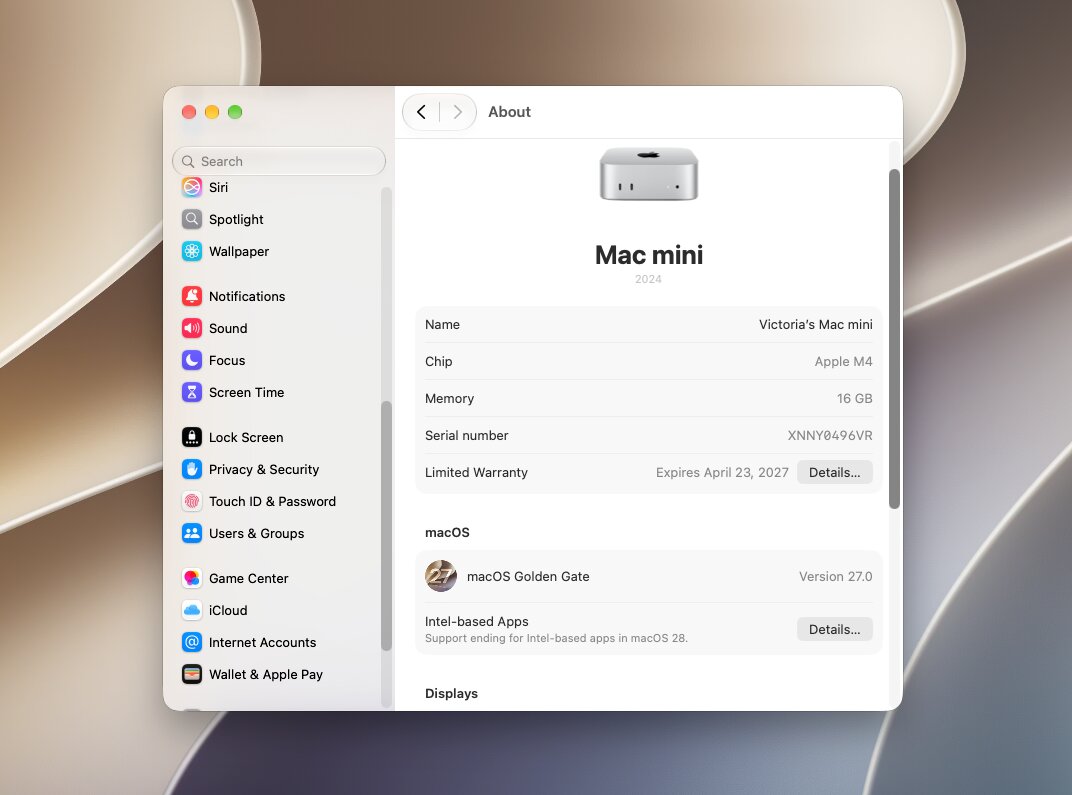
- Test Mac: Base-model Mac mini with an Apple M4 chip and 16 GB of RAM.
- Operating system: The latest version of macOS (Version 27.0) available at the time of testing.
- External test drive: A removable drive formatted as exFAT.
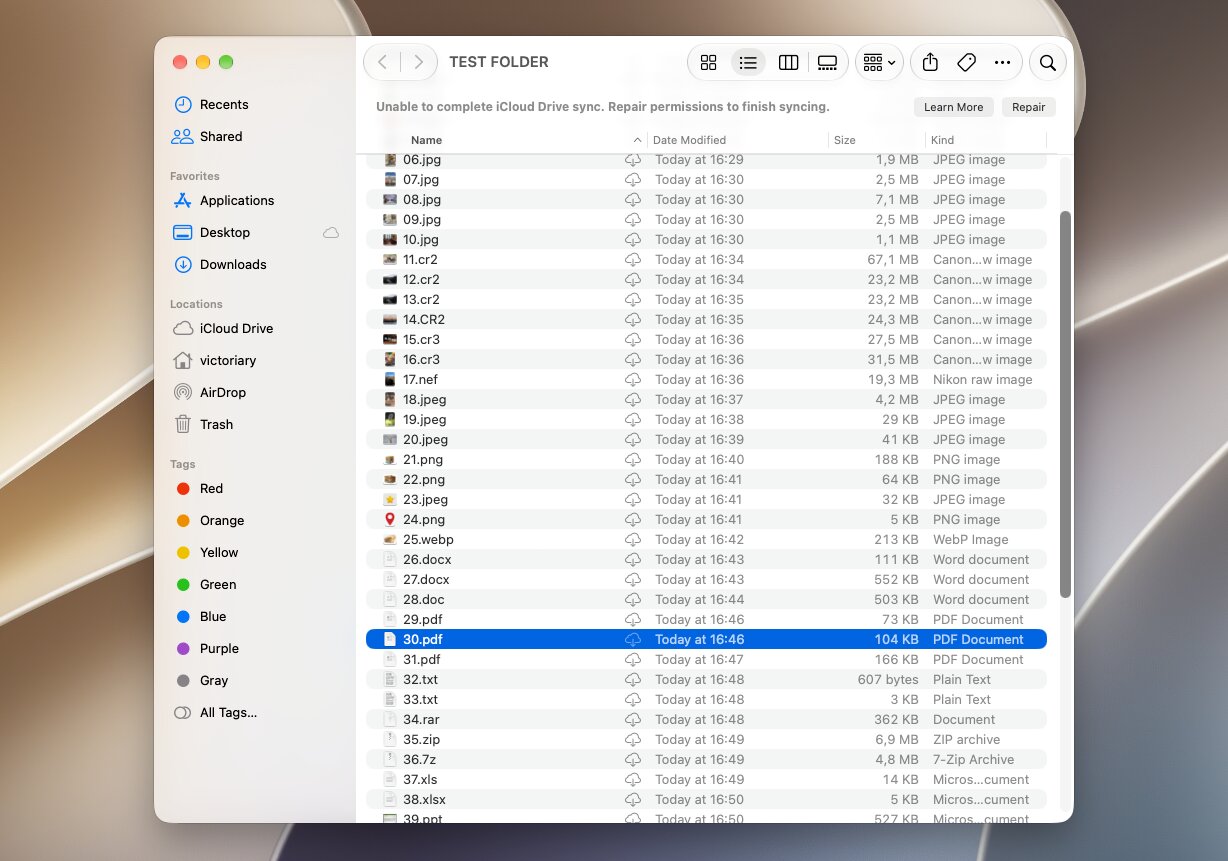
- Test data: The drive contained 60 files across multiple categories, including common image, video, audio, document, archive, and RAW camera formats. We used the exact same dataset for every program and restored the drive to the same starting state before each test.
We compared more than just the number of files each program detected. We also checked scan time, the amount of usable data recovered, preservation of original filenames and folder structure, preview reliability, and support for Mac file systems. Where file system metadata was no longer available, we also looked at how effectively each program could reconstruct files through signature-based recovery.
Data Loss Scenarios We Tested
We used two recovery scenarios to see how each Recuva alternative performs with both basic file deletion and a more difficult case where the drive has been formatted.
- Test 1: Ordinary file deletion. First, we copied our 60-file dataset to the exFAT drive and deleted the files normally. We then scanned the drive with each program and checked how many files it found and how many could actually be recovered and opened. We also recorded whether the software preserved the original filenames and folder structure and whether its previews accurately represented the condition of the files.
- Test 2: Quick-formatted exFAT drive. For the second test, we restored the same 60-file dataset to the drive and performed a quick format. We then scanned it again with every program and compared how well each tool located the lost data, reconstructed files through signature-based scanning, preserved filenames and folders where possible, and recovered files that were actually usable after restoration.
Testing both scenarios gives us a better picture than a simple deleted-file test alone. A Recuva alternative may perform very well while the original file system metadata is still available but produce very different results after a format removes much of that information.
5 Best Recuva Alternatives for Mac
Based on our test results and hands-on experience with each program, we narrowed our selection down to five Recuva alternatives for Mac. Recovery performance was an important factor, but raw recovery totals didn’t determine the ranking on their own. We also weighed pricing and free recovery options, preview reliability, ease of use, scan speed, file system support, and additional features to judge how useful each tool is overall.
Have a quick look of the best data recovery tools for Mac, similar to Recuva:
| Tool | Best for | Deleted files | Quick format | Avg. time | Preview experience | Free recovery |
|---|---|---|---|---|---|---|
| Disk Drill | Best overall | 60/60 | 58/60 | 4m 54s | Excellent; RAW photos and large videos previewed correctly | Scan & preview only on Mac |
| PhotoRec | Best completely free option | 55/60 | 55/60 | 10m 03s* | No previews | Unlimited |
| R-Studio | Advanced users and RAID | 60/60 | 37/60 | 5m 36s | Mixed; some previews failed | Files under 1 MB |
| DMDE | Technical users on a budget | 60/60 | 21/60 | 5m 03s | Limited; RAW photos and videos displayed as hex | Up to 4,000 files per directory/request |
| Stellar Data Recovery | Simple recovery + media repair options | 58/60 | 53/60 | 4m 25s | Limited in our demo to files under 10 MB | Up to 1 GB; 100 MB per file |
* Scan + recovery for PhotoRec
1. Disk Drill
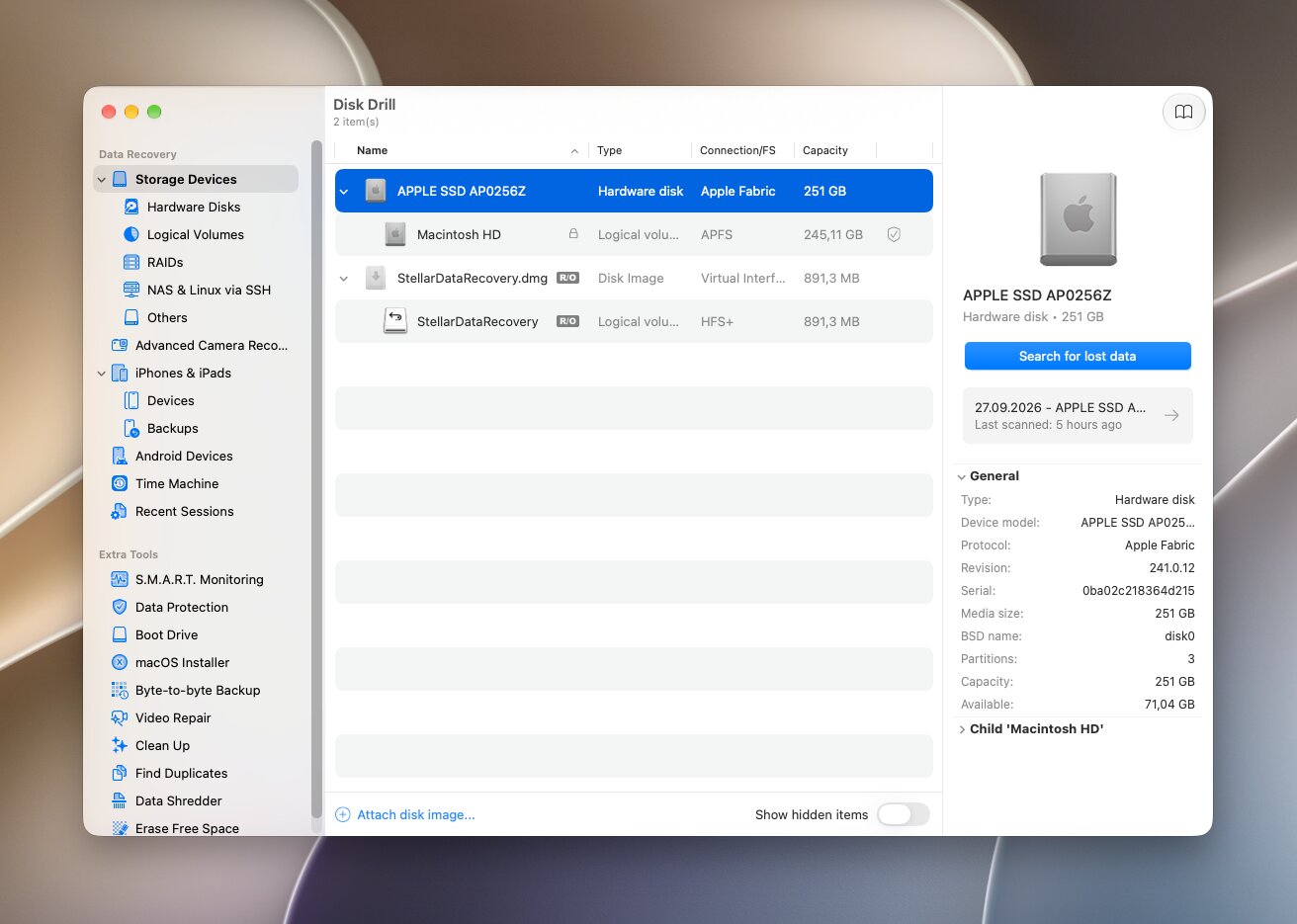
Disk Drill is one of the most reputable data recovery tools available for Mac. Developed by CleverFiles, it combines support for Mac and cross-platform file systems with a largely automated recovery workflow. It supports APFS, HFS+, FAT32, exFAT, NTFS, and several other file systems, and runs natively on Apple Silicon Macs.
Best for: Best overall Recuva alternative for Mac.
Price: The free version lets you scan drives and preview recoverable files but doesn’t provide general free recovery on Mac. Disk Drill PRO costs $89/year, or $149 for a lifetime license. A PRO license covers both Mac and Windows.
Interface & Usability
Disk Drill keeps the recovery process very simple. Select your drive, click Search for lost data, choose Universal Scan, and let the software run the appropriate recovery methods automatically. You can review results before the scan finishes, filter them by file type, search by filename, and preview individual files before deciding what to recover.
We also found its result organization useful. Disk Drill separates files into Deleted or lost, Existing, and Reconstructed categories, which makes it easier to distinguish files recovered through file-system information from those reconstructed by their signatures.
Recovery Performance
Disk Drill delivered the best overall results in our tests. It recovered 60/60 files after ordinary deletion and 58/60 files after the exFAT drive was quick-formatted. The average scan time was 4 minutes 54 seconds.
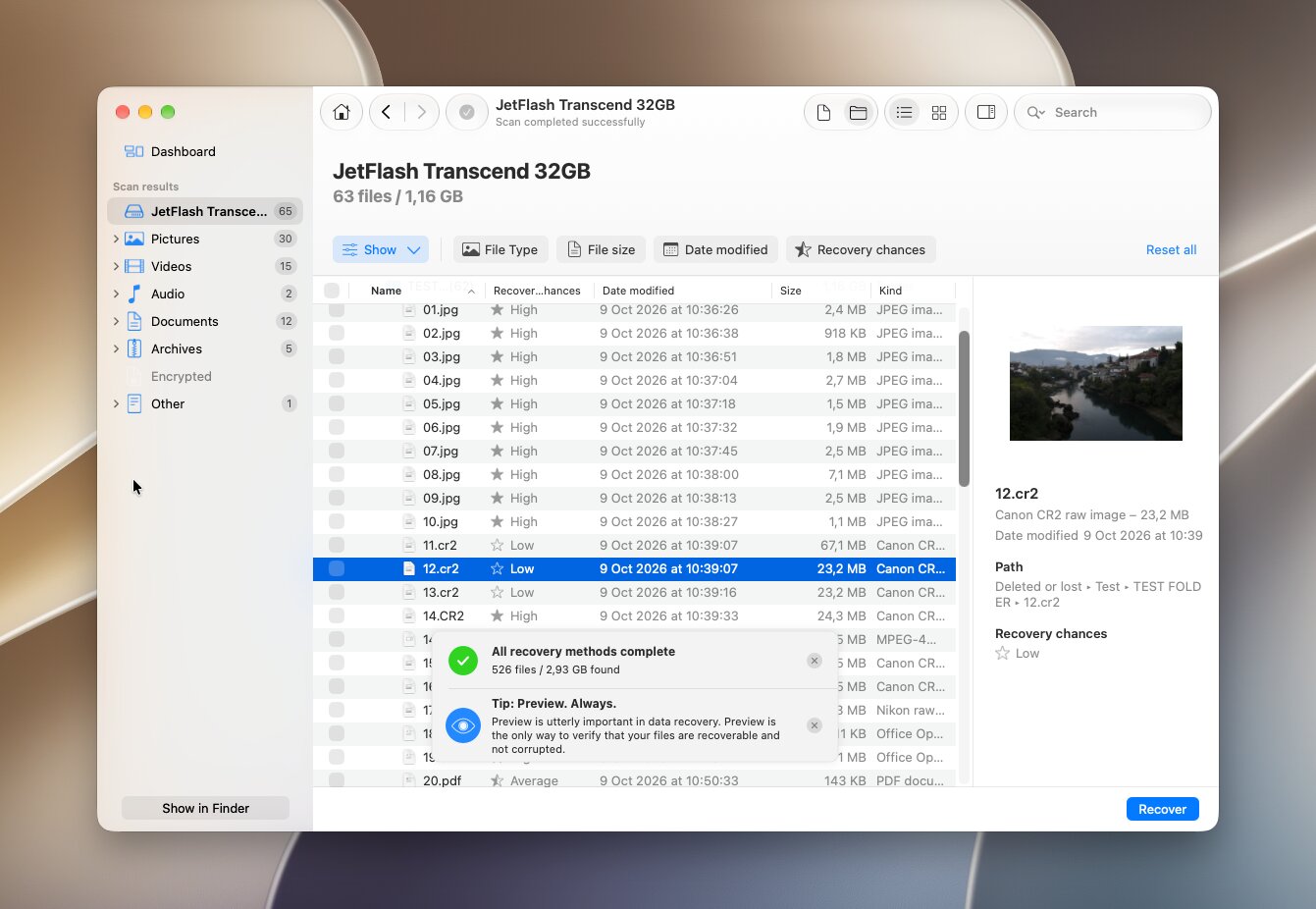
Previews worked particularly well. We could preview the files we checked, including RAW photos and larger video files, before recovery. Search and file-type filters also made it easy to narrow down the results instead of going through everything manually. Most importantly, nearly all files we counted as recovered opened and worked correctly after restoration.
What Makes Disk Drill a Better Recuva Alternative?
Disk Drill stood out from the other Mac recovery tools we tested not because it simply works on macOS, but because it combines strong recovery results with several features that are missing, more limited, or harder to use in competing programs.
- More automated scanning. Disk Drill combines multiple recovery methods under Universal Scan, so you don’t have to choose between quick, deep, and signature scans or run them separately.
- Better scan result organization. It clearly separates Existing, Deleted or lost, and Reconstructed files, which makes it easier to understand where the results came from and why some files have lost their original names or paths.
- More useful previews. In our tests, previews worked reliably and made it easy to verify files before recovery, something that wasn’t equally consistent across every alternative we tested.
- Built-in disk imaging. You can create an image of a storage device and scan that copy directly, which is particularly useful when the original drive is unstable. Some competing tools require a separate utility or provide more basic imaging options.
- Specialized camera recovery. Advanced Camera Recovery goes beyond ordinary signature scanning by reconstructing fragmented video from supported cameras and drones, giving Disk Drill a stronger option for difficult photo and video recovery cases.
- A broader set of recovery features in one interface. RAID recovery, Time Machine scanning, disk images, mobile device recovery, recovery-chance estimates, and camera recovery are all available without switching between separate applications.
Some competing Mac recovery tools offer parts of this feature set, but few combine all of them in one application. Together with the strong results from our tests, that balance of recovery performance, usability, and extra recovery tools is why we consider Disk Drill the best overall Recuva alternative for Mac.
Want to learn more about Disk Drill before you try it? Read our full Disk Drill review for a more in-depth look at its recovery performance, features, usability, and pricing.
2. PhotoRec
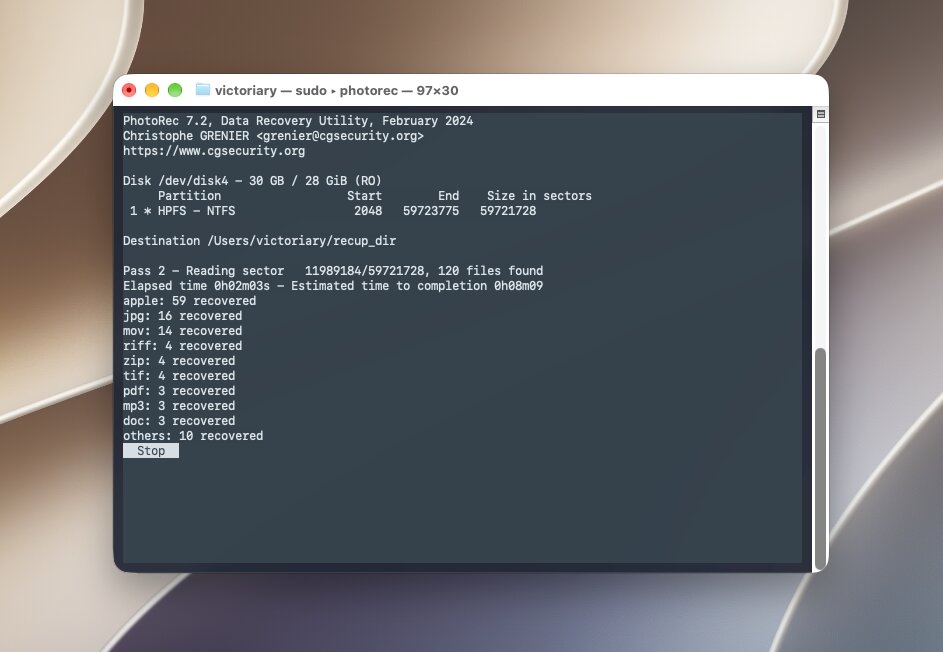
PhotoRec is a completely free, open-source recovery tool developed by CGSecurity and distributed alongside TestDisk. Unlike most of the other Recuva alternatives we tested, it primarily recovers files by recognizing their signatures rather than rebuilding the original file-system structure. This makes it useful after formatting or file-system damage, but there is a major tradeoff: recovered files generally don’t retain their original names or folder structure.
Best for: Completely free recovery from formatted or damaged storage devices.
Price: Free and open-source.
Interface & Usability
PhotoRec is easily the least beginner-friendly option near the top of our list. On Mac, the standard version uses a text-based interface, so instead of selecting a drive from a polished graphical window, you work through menus to choose the device, partition, file-system type, scan area, file formats, and recovery destination.
The process isn’t particularly difficult once you understand it, but there is more room for confusion than with tools like Disk Drill or Stellar. There are also no convenient file previews during the scan, so you generally have to let PhotoRec recover the files first and inspect them afterward.
Recovery Performance
PhotoRec recovered 55/60 files in the deletion test, the result was the same for formatted test. The complete scan and recovery process took an average of 10 minutes 3 seconds, making it noticeably slower than the other tools in our comparison.
There are no file previews, so we couldn’t verify the files before recovery. PhotoRec also recovers files primarily by their signatures, which means the results can lose their original filenames and folder structure. This made sorting through the recovered data more time-consuming, especially after the formatting test.
What Makes PhotoRec a Better Recuva Alternative?
PhotoRec makes the most sense when cost matters more than convenience and you don’t need the original filenames or folders to survive.
- Completely free recovery. There are no file-size limits, recovery quotas, subscriptions, or paid upgrades.
- Strong signature-based recovery. Because PhotoRec searches for recognizable file contents, it can recover data even when useful file-system metadata is no longer available.
- Large file-format database. It recognizes more than 480 extensions across around 300 file families.
- Useful after formatting or corruption. PhotoRec can scan the entire partition when the file system is damaged rather than limiting the search to unallocated space.
- Custom signatures. Advanced users can define signatures for additional file formats that PhotoRec doesn’t recognize by default.
PhotoRec’s biggest advantage over the other alternatives on our list is simple: you get unrestricted file recovery for free. The compromise is equally clear. Its text-based interface, lack of previews, and loss of original filenames and folders make recovery considerably less convenient. If you can live with those limitations, PhotoRec is one of the most capable free Recuva alternatives available for Mac.
If you want a closer look at how PhotoRec performs and what to expect from its command-line workflow, read our full PhotoRec review.
3. R-Studio
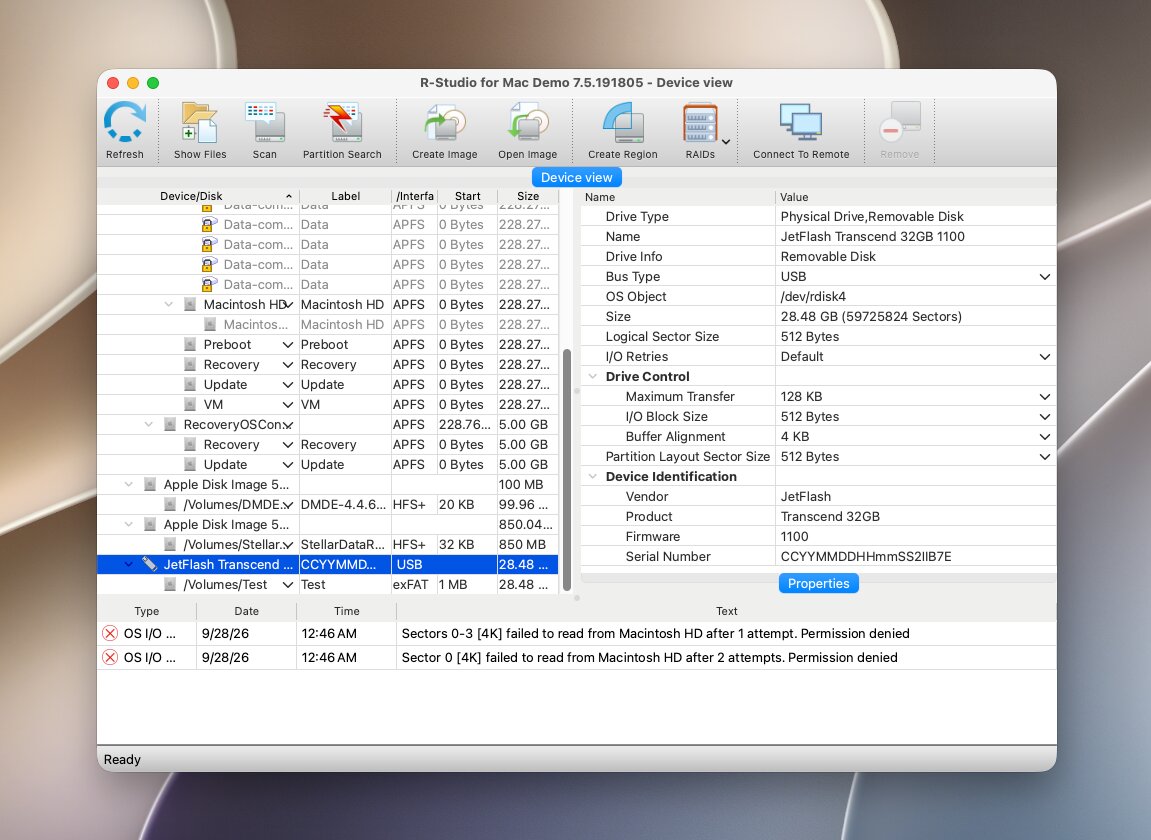
R-Studio for Mac is a recovery tool from R-Tools Technology aimed primarily at experienced users and data recovery professionals. It supports a particularly broad range of file systems, including APFS, HFS/HFS+, NTFS, ReFS, FAT/exFAT, Ext2/3/4, UFS, and XFS, and combines ordinary file recovery with disk imaging, RAID reconstruction, network recovery, a hex viewer, and custom file signatures.
Best for: Advanced recovery and RAID configurations.
Price: The standard R-Studio for Mac license costs $79.99 and is permanent. The demo lets you scan drives and preview results, but recovery is restricted to very small files (<1024 KB). More specialized editions are available for business, network, and professional recovery, including R-Studio Corporate for Mac ($179.99) and R-Studio Technician ($899).
Interface & Usability
R-Studio has one of the more technical interfaces among the Recuva alternatives we tested. When you launch it, the main window lists physical disks alongside their individual partitions and volumes, with plenty of technical information visible from the start. You select the appropriate device, click Scan, review the scan settings, and then start the search. The defaults work for ordinary recovery, but there are many additional parameters available if you need them.
Once the scan finishes, R-Studio presents recognized partitions and their file trees rather than taking you directly to a simplified list of lost files. Results are also spread across different sections, such as recognized partitions and RAW file results, which you need to open and explore separately. You can filter and sort results, search by filename, switch views, and preview supported files, but the overall process takes more time to learn than with some other tools in the list. Previews also open separately rather than remaining visible as you move through the results.
Recovery Performance
R-Studio recovered 60/60 files in our deletion test, but after quick formatting, it successfully recovered 37/60 files. Its average scan time was 5 minutes 36 seconds.
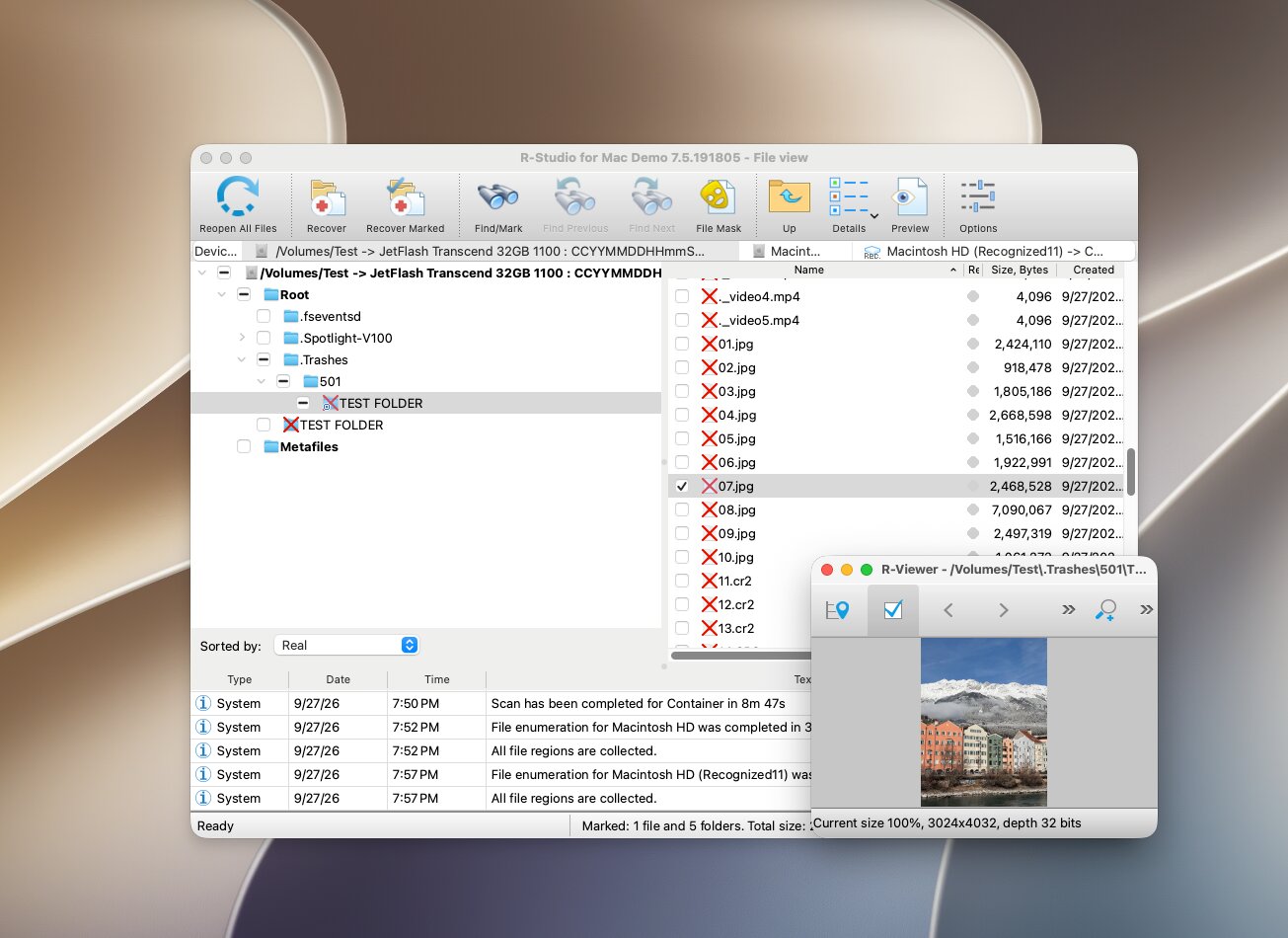
Preview support was less consistent than we would have liked. Some files couldn’t be previewed at all, and several RAW photos were corrupted after recovery. This was less of an issue in the deletion test, where R-Studio could make better use of the remaining file-system information, but its results were noticeably weaker once that information had been removed by formatting.
What Makes R-Studio a Better Recuva Alternative?
R-Studio is a well-established recovery tool with a much broader feature set than Recuva. It provides several professional features that Recuva simply doesn’t offer. Most of these advantages are aimed at advanced users, IT professionals, and data recovery specialists, though:
- Extensive RAID support. R-Studio can reconstruct numerous RAID layouts and automatically detect RAID parameters.
- Broad file system support. It works with APFS, HFS+, NTFS, ReFS, exFAT, Ext, UFS, XFS, and other file systems.
- Disk imaging. You can create and scan byte-to-byte images instead of working directly with the original storage device.
- Custom file signatures. Experienced users can manually define signatures for formats that R-Studio doesn’t recognize by default.
- Network recovery. Higher editions support recovery from other computers over a network, a feature mainly intended for professional environments.
- Built-in hex tools. A hex viewer and editor let experienced users inspect disk sectors and file data directly.
R-Studio is therefore better viewed as an advanced alternative to Recuva rather than a direct replacement for the average user. Features such as RAID reconstruction, network recovery, custom signatures, and hex tools can be valuable if you know how to use them, but they’re overkill for most everyday recovery jobs.
One concern worth mentioning: During our research, we came across several user reviews that raised concerns about R-Studio’s licensing policy. In particular, users with the standalone license reported that they couldn’t transfer or reactivate their license after replacing a computer or, in one case, after a BIOS/CMOS reset caused the software to recognize the same PC as a different machine. Other users noted that this restriction does not apply to some higher-tier licenses, such as Technician. These reports don’t reflect everyone’s experience, but the hardware-bound licensing is worth checking before purchase, especially if you expect to move the software to another computer later.
For a more detailed look at R-Studio’s recovery performance, RAID tools, supported file systems, and advanced features, check out our full R-Studio review.
4. DMDE
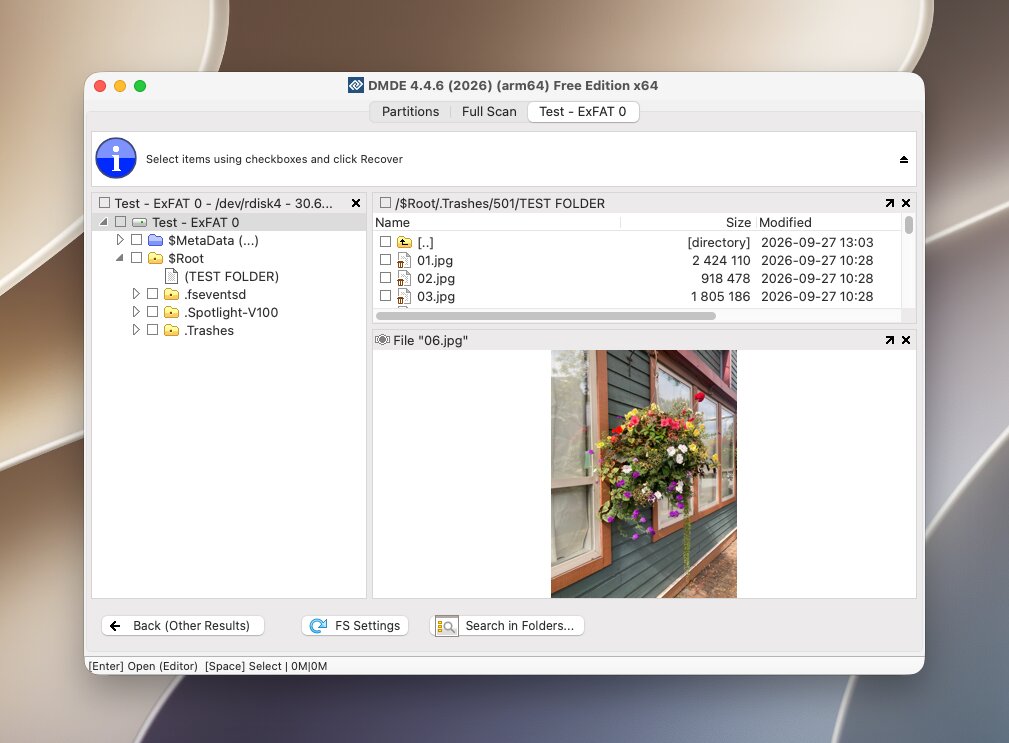
DMDE (DM Disk Editor and Data Recovery Software) is another technical Recuva alternative on our list. It supports APFS, HFS+, exFAT, FAT32, NTFS, EXT, and several other file systems, but file recovery is only part of what it does. DMDE also includes partition recovery, disk editing, RAID reconstruction, disk imaging, and custom file signatures, which gives experienced users considerably more control than a typical consumer recovery app.
Best for: Technical users who want advanced recovery tools at a low price.
Price: DMDE has one of the more generous free versions in this comparison. It lets you recover up to 4,000 files from a selected directory per request, with no limit on the number of requests. Paid options start at $9.95/month or $20/year, while the Standard edition costs $48 for a perpetual license.
Interface & Usability
DMDE gives you much more manual control than most consumer recovery tools, but you pay for it in usability. You select the physical device, open the relevant volume, and run a Full Scan, with additional options available for file signatures and other scan parameters.
The harder part comes after the scan. Results are divided between file-system results and Raw File Types, and finding the right files can require quite a bit of manual browsing. Previews are also limited, particularly for RAW photos, and there are fewer convenient filters for sorting through a large recovery session.
Recovery Performance
DMDE recovered 60/60 files after ordinary deletion, but only 21/60 files after quick formatting, the weakest formatted-drive result among the commercial tools we tested. Its average scan time was 5 minutes 3 seconds.
Previews were another limitation. Our RAW photos and all of the video files could only be viewed as hexadecimal data, rather than as actual images or playable videos. This made it much harder to verify their condition before recovery. DMDE performed very well while usable exFAT metadata remained, but our formatting test exposed the limitations of its signature-based recovery.
What Makes DMDE a Better Recuva Alternative?
Compared with Recuva and the other Mac alternatives we tested, DMDE offers several advanced features that are particularly useful for complex recovery cases, while its free version is also more generous than most commercial options.
- Advanced partition recovery. It can find lost partitions, reconstruct file-system structures, and work with damaged GPT and MBR layouts.
- Disk editor and hex viewer. These tools let experienced users inspect sectors, volume headers, and other low-level disk structures.
- RAID reconstruction. DMDE supports RAID 0, 1, 4, 5, 6, JBOD, custom layouts, and manual disk-order configuration.
- Custom file signatures. You can add recognition for file formats that aren’t included in DMDE’s default signature database.
- Advanced disk imaging. DMDE can create byte-to-byte copies, work around bad sectors, and resume interrupted imaging operations.
- A generous free edition. The 4,000-file-per-directory limit makes it possible to complete many smaller recovery jobs without purchasing a license.
DMDE is therefore a strong choice if you don’t mind its dated interface and technical workflow. For everyday deleted-file recovery, there are easier options on our list, but its partition tools, RAID features, imaging capabilities, and generous free edition give it a clear place among the best Recuva alternatives for Mac.
Want to know more about DMDE’s recovery capabilities, partition tools, free version, and technical workflow? Read our full DMDE review for a more in-depth overview.
5. Stellar Data Recovery
Stellar Data Recovery is an established Mac recovery tool, with support for deleted and formatted data on APFS, HFS+, NTFS, and exFAT volumes. Its approach is fairly conventional and simple: you choose what types of data you want to find, select the affected drive, and run a scan. What makes Stellar more interesting than a basic Recuva replacement is that its higher-tier editions also include tools for repairing corrupted photos and videos.
Best for: Recovering files with the option to repair damaged photos and videos.
Price: Stellar does currently offer a Free Edition for Mac with up to 1 GB of recovery, although individual recovered files are limited to 100 MB.
Stellar Data Recovery Professional for Mac costs $89.99, while the Premium edition adds photo and video repair for $99.99 at the price listed during our research. The free download can scan a drive and preview recoverable data before purchase.
Interface & Usability
Stellar uses a simple step-by-step workflow. First, you select the types of files you want to recover, then choose the storage device and start the scan. Results can be previewed before recovery, and longer scans can be paused and resumed later.
The interface is approachable, but we found the overall workflow less polished than Disk Drill. There are more decisions to make before scanning, and working through a large set of results isn’t quite as convenient. Still, beginners shouldn’t have much trouble getting a basic scan started.
Recovery Performance
Stellar recovered 58/60 files in our deletion test and 53/60 after quick formatting, with an average scan time of 4 minutes 25 seconds. That gave it one of the better results in our formatting test, although some of the recovered files were broken and couldn’t be opened correctly.
Previewing was also limited during our test. The demo version we used only allowed us to preview files smaller than 10 MB, so we couldn’t use it to check our larger RAW photos and videos before recovery. This made it harder to judge their condition from the scan results alone.
What Makes Stellar a Better Alternative to Recuva?
Stellar offers considerably more than Recuva in several areas, although we found some competing Mac alternatives stronger when it came to the overall recovery experience.
- Disk imaging. Stellar can create an image of a problematic drive and perform recovery from the image rather than repeatedly scanning the original device.
- Formatted-drive recovery. It supports deep scanning of formatted APFS, HFS+, NTFS, and exFAT volumes.
- Pause and resume. Long scans can be stopped and continued later rather than restarted from the beginning.
- More specialized editions. Higher tiers add features such as media repair, NAS recovery, virtual-drive recovery, and Linux file-system support.
Stellar therefore has more to offer than Recuva when you need features beyond ordinary deleted-file recovery, particularly if damaged photos or videos are part of the problem. However, compared with the strongest Mac alternatives we tested, its interface and result-management were less refined, so we see it as a better fit for users who specifically need a simple recovery or its additional repair features rather than the best all-around choice.
One concern worth mentioning: while researching Stellar, we also found user reports describing problems with license activation and support troubleshooting. One user reported receiving an already-exhausted activation key and later being asked to disable antivirus protection and allow a remote support session while troubleshooting installation problems. That account alone isn’t evidence that Stellar is unsafe, but experiences like this are worth keeping in mind if you run into activation or installation issues.
For more details on Stellar’s recovery performance, features, limitations, and overall user experience, read our full Stellar Data Recovery review.
Other Recuva Alternatives We Considered
A few other data recovery tools for Mac came up during our research and testing but didn’t make the main list. That doesn’t necessarily make them bad choices, they simply had drawbacks that made them harder to recommend over our top picks:
- EaseUS Data Recovery Wizard for Mac. EaseUS has a polished interface, supports the major file systems Mac users are likely to encounter, and makes the basic scan-and-recover process easy to follow. However, its scan results can become cluttered with duplicate and less useful entries, which makes finding the files you actually need more time-consuming. We also didn’t find its recovery performance or feature set distinctive enough to choose it over the stronger all-around options in our main list.
- TestDisk. TestDisk is free, open-source, and good at finding lost partitions and repairing damaged partition structures. We didn’t include it in the main list because it isn’t really a direct Recuva replacement: its text-based interface has a steep learning curve, and its main strength is partition and file-system recovery rather than recovering individual deleted files. Its companion tool, PhotoRec, is much better suited to that job, which is why PhotoRec, rather than TestDisk, earned a place in our main list.
Both tools can still make sense in the right situation, particularly TestDisk when partition recovery is the main goal. However, for a direct Recuva alternative on Mac, we prioritized software that performed well in our file recovery tests and made it easy to identify and preview recoverable data.
Our Verdict
After testing all five tools under the same conditions, Disk Drill is our top Recuva alternative for Mac. It recovered all 60/60 files in the deletion test and 58/60 after quick formatting, the best combined result in our comparison. It was also one of the easiest tools to use, with reliable previews for our RAW photos and large videos, practical filters, clear result categories, and an average scan time of just under five minutes.
The other tools in our ranking can also be good choices depending on what you’re looking for:
- PhotoRec is the best option if you want completely free, unlimited file recovery.
- R-Studio is a good fit for advanced users who need features such as RAID reconstruction, network recovery, and hex tools.
- DMDE is worth considering if you want technical recovery and partition tools at a relatively low price, along with a generous free version.
- Stellar Data Recovery is a user-friendly alternative with good results in our formatted-drive test, plus higher-tier options for repairing damaged photos and videos.
For most Mac users, however, Disk Drill provides the best overall combination of recovery results, reliable previews, usability, and additional recovery features, which is why it takes the top spot in our ranking.
- Formatting removed the original file system records.
- File system corruption damaged filename and folder information.
- New data overwrote some of the original metadata.
- Signature-based recovery found files by their contents rather than file system records.