Recuva often pops up in recommendations when people search for free data recovery apps. It’s lightweight and doesn’t cost anything to scan or recover files. On the official website, it claims to “recover files from your Windows computer, Recycle Bin, digital camera card, or MP3 player.” That last one kind of gives away how long it’s been around. But does it still hold up?
We wanted to find out. Our team at 7 Data Recovery Experts ran Recuva through a full set of real-world recovery scenarios – from accidentally deleted photos to formatted USB sticks. This Recuva data recovery review covers what it gets right, where it falls short, and whether it’s still a smart choice for most people.
Quick Verdict
If you’re anxious to know the answer, here’s a quick verdict: Recuva works – but only in the right situations.
Best for: Windows users looking to recover recently deleted files from HDDs, USB drives, or SD cards (especially if you don’t want to spend money).
It’s a solid pick if you’re trying to recover a few recently deleted files from a healthy drive on Windows. It’s easy to use and completely free to scan and recover as much data as you want. That alone makes it stand out from many other tools that lock recovery behind a paywall.
But it’s also showing its age. The deep scan isn’t very “deep” by modern standards. It struggles with formatted drives and larger or fragmented files. And while there is a paid “Professional” version, it doesn’t add much beyond support and updates.
Pros
- Free unlimited recovery
- Not bad for recently deleted files from unproblematic storage
- Beginner-friendly UI
- Secure file deletion included
- Deep scan is limited
- Interface feels old
- No Mac/Linux support
- Often fails to recover large or fragmented files
- Struggles with formatted or RAW drives
- Can’t recover from lost or deleted partitions
About Recuva
Recuva was developed by Piriform, the same company behind CCleaner, and later acquired by Avast – so it comes from a well-known name in the PC maintenance world. The software first launched back in the mid-2000s, and while it’s been updated a bit over the years, its core hasn’t changed much.
Recuva comes in two versions:
- Recuva Free. Includes full scanning and recovery functionality with no data limits.
- Recuva Professional. Priced at around $24.95 (1 Year Premium Subscription), it adds support for virtual hard drive images, automatic updates, and premium support.
Recovery Capabilities
Recuva was built to help with common data loss: files you deleted, folders emptied from the Recycle Bin, stuff that vanished after an app error. You can scan entire drives, individual folders, or specific file types like pictures or documents. It offers both a Quick Scan (fast, great for recent deletes) and a Deep Scan (slower, scans the whole disk for traces).
Recuva can only work with visible partitions. If the partition itself is corrupted or showing up as RAW or unallocated in Disk Management, Recuva won’t help. You won’t even be able to select that drive in the first place. This is a limitation a lot of people run into without realizing it. They expect it to recover from any drive that’s physically connected, but if Windows can’t assign it a drive letter, Recuva can’t touch it.
File System and File Type Support
Recuva supports most Windows file systems: NTFS, FAT32, FAT16, and exFAT. So it’s good for your internal hard drive, flash drives, SD cards, and USB sticks. But it can’t help with Mac (APFS, HFS+) or Linux (ext3/ext4) formatted drives.
File-type-wise, it can scan for photos, documents, videos, music, archives, emails, and so on. If the file was on a supported file system and hasn’t been overwritten, it might show up. We’ll talk about file types in more detail later on when we get into what Recuva actually found in our recovery tests.
Features
What you get in both free and Pro:
- Quick and Deep Scan modes
- Option to recover individual files or entire folders
- Preview for photos and some docs
- Recovery quality indicator (green/yellow/red status)
- Filter by filename, type, or location
- Multi-language support
- Full recovery with folder structure (if metadata is intact)
In terms of extra features, don’t expect much from Recuva – you only get the basics.
There’s a secure deletion tool that lets you overwrite deleted files so they can’t be recovered again. It supports multiple passes (1, 3, 7, or even 35 if you’re feeling paranoid), which is handy if you’re cleaning up sensitive files.
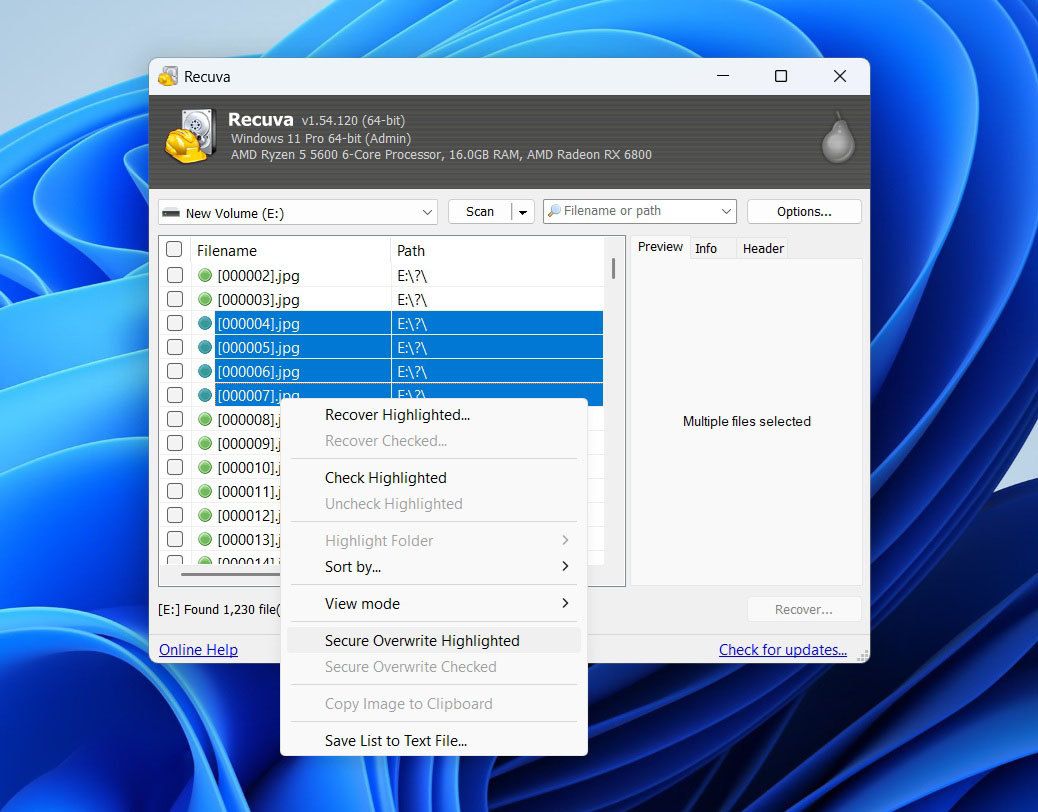
If you’re using the Professional edition, there’s also support for scanning virtual hard drive images like VHD or IMG. That’s helpful if you’ve already cloned a drive and want to run recovery on the image instead of the physical disk.
That’s pretty much it – no RAID tools, no advanced filters or scheduling. It’s meant to be simple, and that’s exactly what you get.
Customer Support
If you’re using the free version, don’t expect direct support – there’s no live chat or ticket system unless you pay. That said, Piriform has a support forum and a basic FAQ section. Most help comes from users rather than staff.
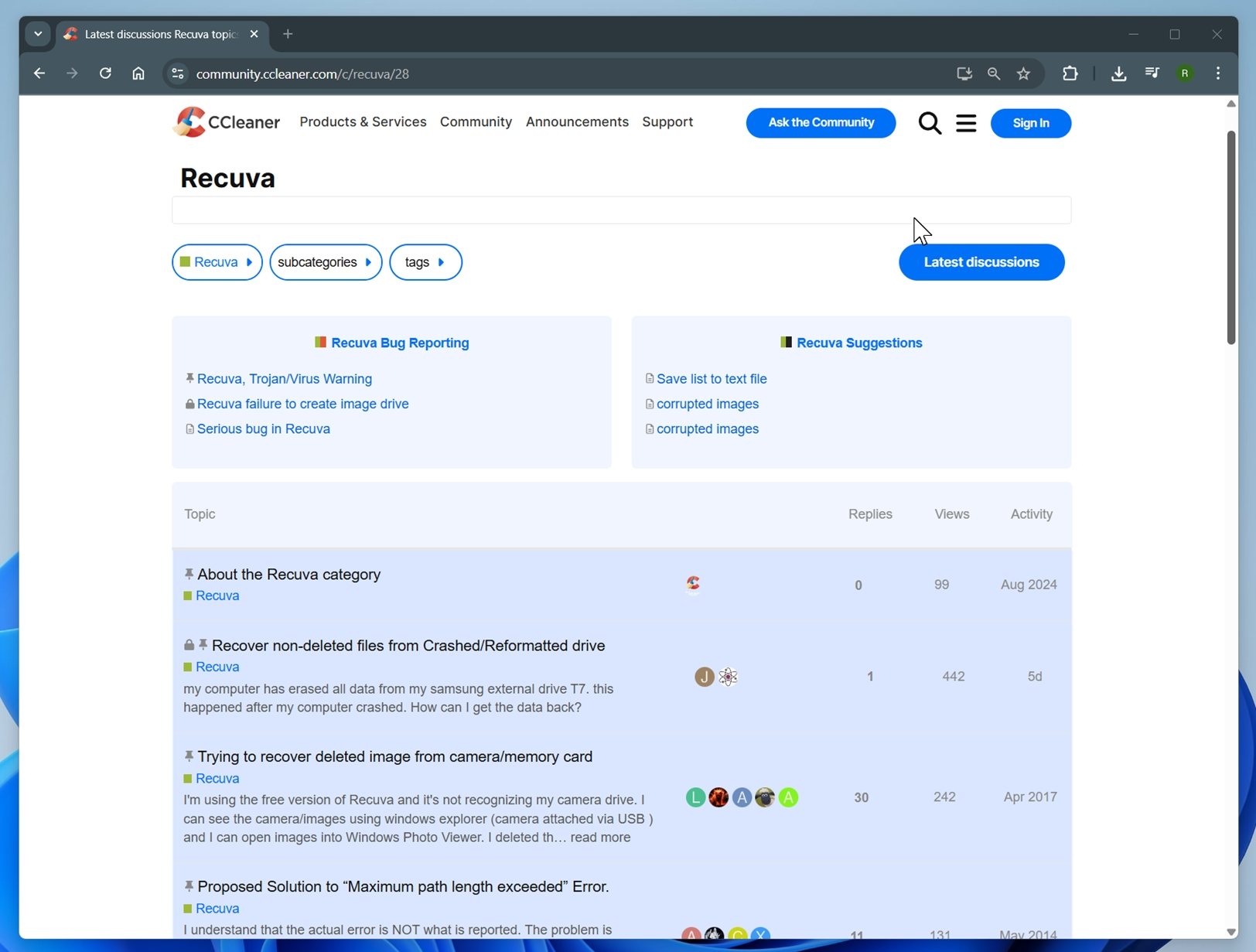
Recuva Professional includes priority support, which means you can submit a support request and expect a response within a day or two. But many Recuva reviews suggest response times can vary.
User Interface
This is one area where you’ll feel the age. Recuva looks like something built in the Windows 7 days, and that’s not an exaggeration. It hasn’t had a major UI refresh in over a decade.
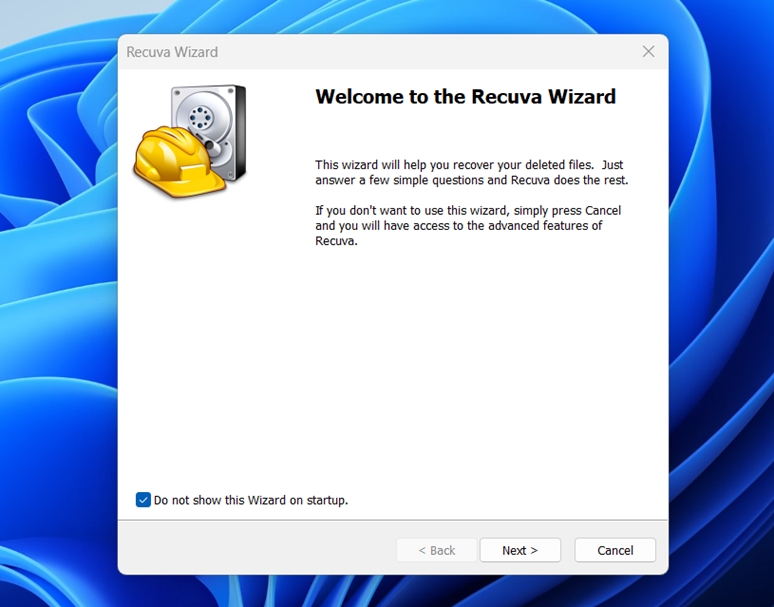
That said, it’s clean, lightweight, and dead simple to use. You get a wizard when you first launch it, which walks you through what to scan and where. Or you can skip the wizard and go straight to the advanced view, where recovered files are listed in a table.
Not flashy, but functional.
How We Tested It
To make this Recuva review as useful as possible, we ran it through a set of structured tests on different devices and file types. The idea was to simulate the kind of real problems people face when data disappears, then measure how well Recuva handled them.
Test hardware included:
- 1 TB Seagate Barracuda HDD – filled with ~1200 files across multiple folders. We deleted all of them to simulate accidental loss.
- 16 GB SanDisk Ultra USB 3.0 flash drive – quick formatted in NTFS.
- 64 GB Samsung EVO Plus microSD card – intentionally corrupted by us.
For consistency, we used the same dataset on all three devices: around 1200 files totaling 65 GB. This was copied to each device before we “simulated” data loss.
This gave us three very different levels of difficulty, from straightforward “undeletes” to a completely corrupted card.
If we had to list them out, it was the kind of mix you’d expect to find on a regular user’s drive:
- Photos: JPEG, PNG, Canon CR2 RAW, Nikon NEF RAW
- Videos: MP4 (H.264/H.265), MOV, AVI
- Documents: DOC, DOCX, ODS, PDF, PPT, PPTX, RTF, TXT
- Music & Audio: MP3, WAV, FLAC
- Archives & Others: ZIP, RAR, a few program installers (EXE)
The results in each of these scenarios will determine how we score Recuva, but recovery rate alone isn’t the only metric we looked at for this Recuva review. A good recovery tool also needs to be fast, straightforward to use, and reasonably priced.
Here are the criteria we used to evaluate Recuva:
| Metric | What We Measured |
| Recovery success rate | % of files that were fully restored and usable |
| Scan speed | Average scan time or MB/s throughput |
| Ease of use | Learning curve, clarity of workflow |
| Value for money | What you get in Free vs Pro, compared with competitors |
Hands-On Testing (Workflow + Performance)
Now let’s get to something more hands-on. First, let’s review Recuva’s workflow before we look at the actual results from our tests.
Recuva Step-by-Step Data Recovery
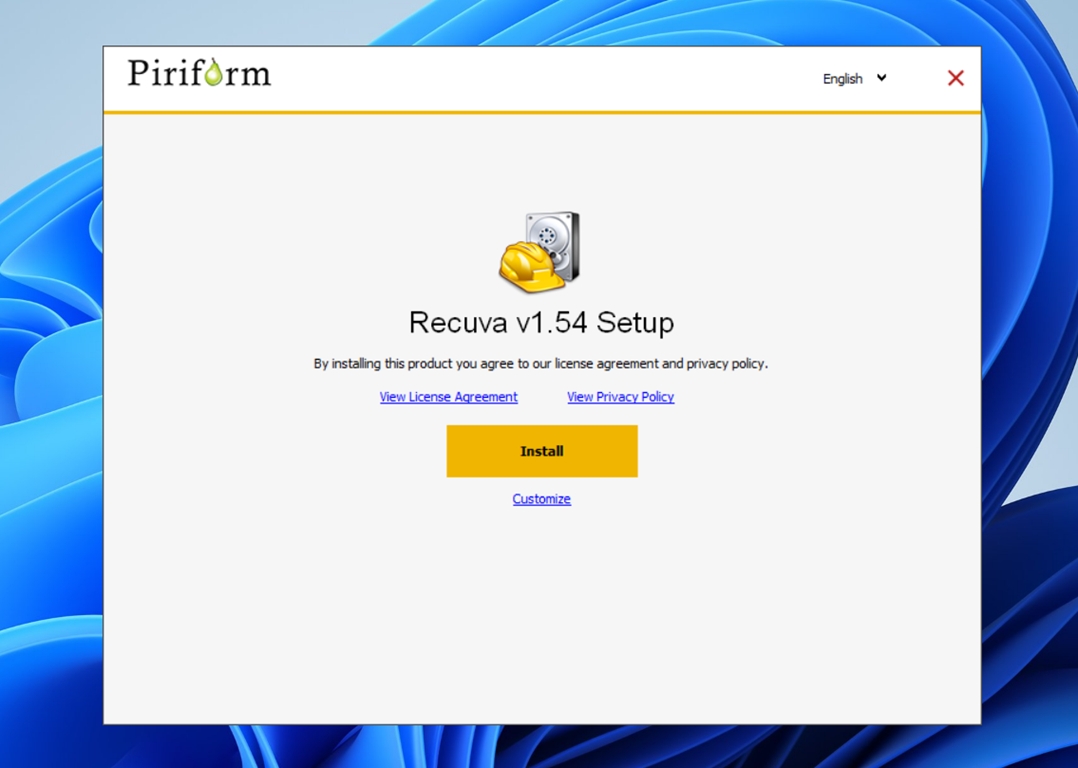
Installation is quick and light. The download from Recuva’s official site is only about 25 MB, and setup takes less than a minute, just click through the defaults and you’re ready.
When you first open Recuva, it launches the Recovery Wizard. It’s basically a guided mode that asks two things: what kind of files you want back (pictures, docs, videos, or everything) and where they were last stored.
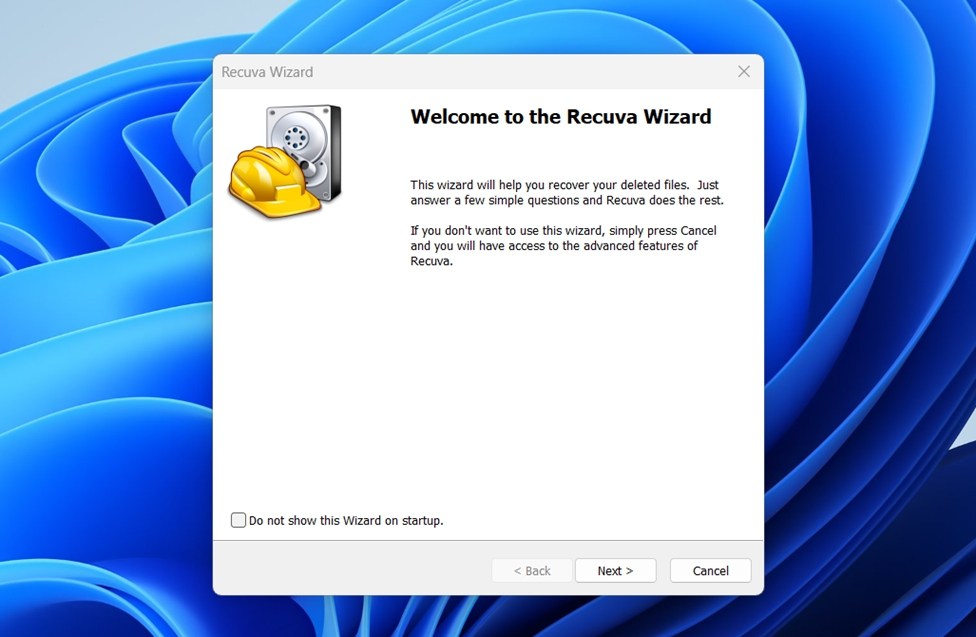
If you prefer, you can skip the wizard and switch straight to the classic interface, but the wizard is fine for most people.
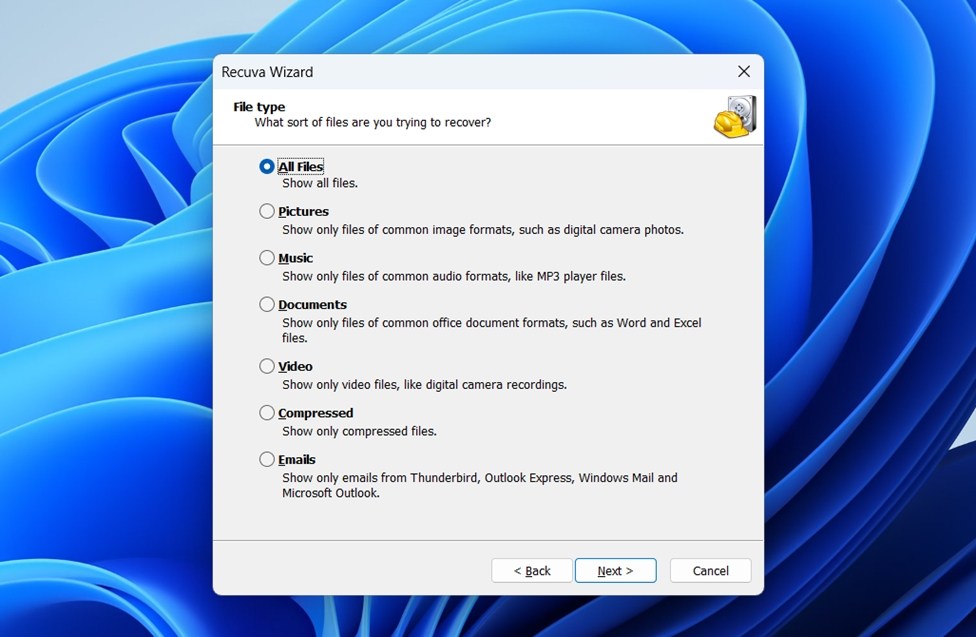
In our case, we chose “All files” and pointed Recuva to the test drive using the “In a specific location” option.
Next comes the scan type. You can run a Quick Scan or enable the Deep Scan (much slower). We went with Deep Scan across all three devices.
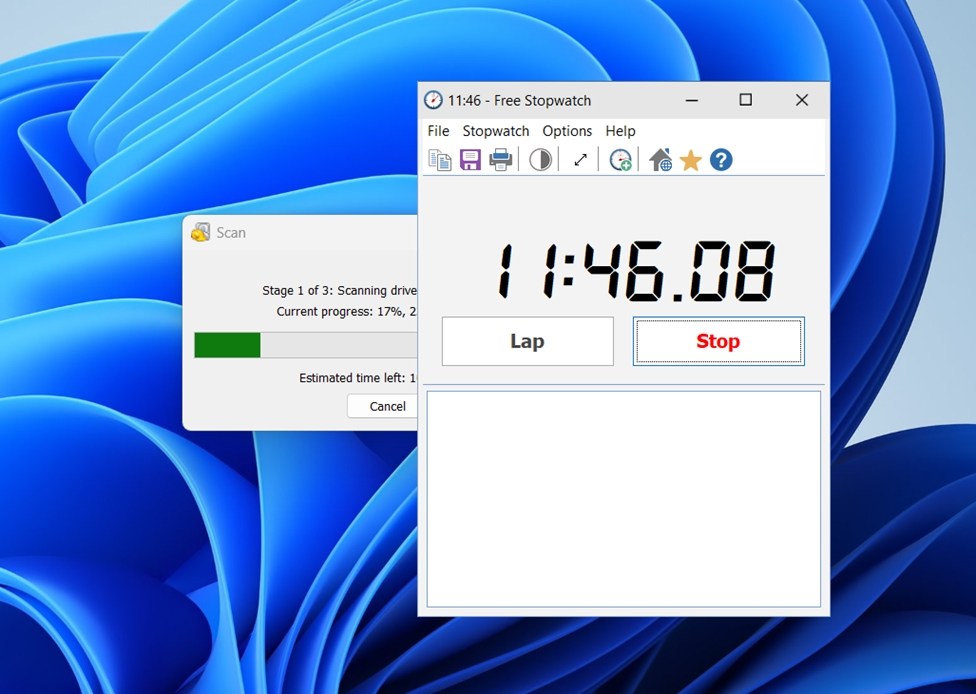
Once the scan starts, you’re basically locked into waiting. You can’t preview files as they’re found; the only thing on screen is a progress bar and an estimate that isn’t always accurate. Our 1 TB HDD scan said “50 minutes remaining” for a good chunk of the 75-minute run.
When the scan wraps up, you get a list view of found files.
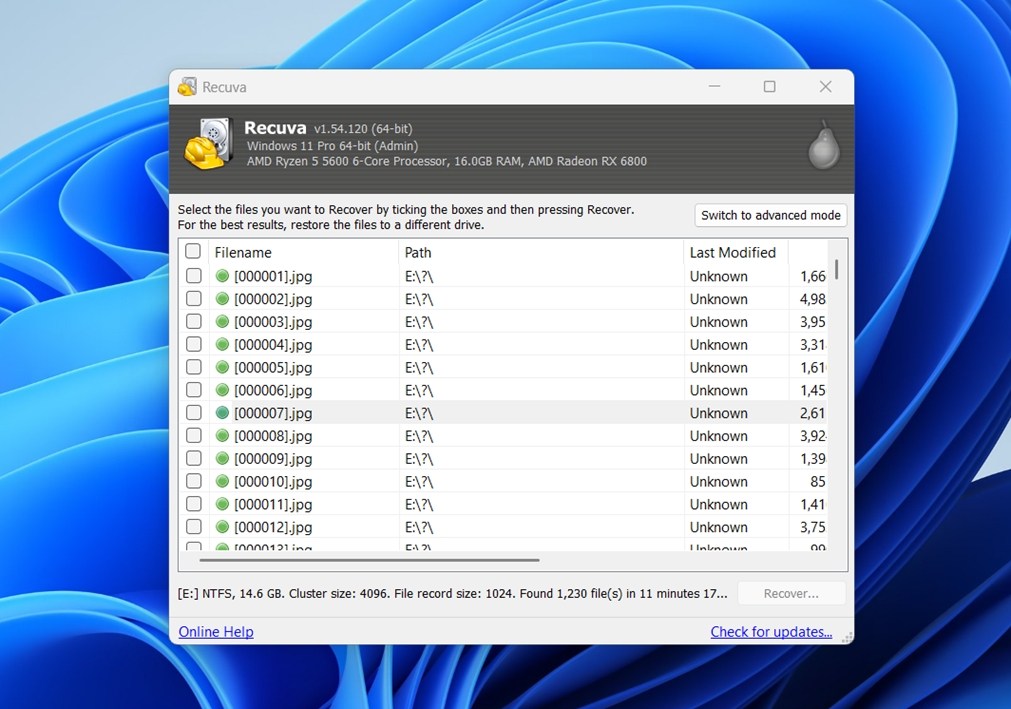
Switching to advanced mode gives you more detail.
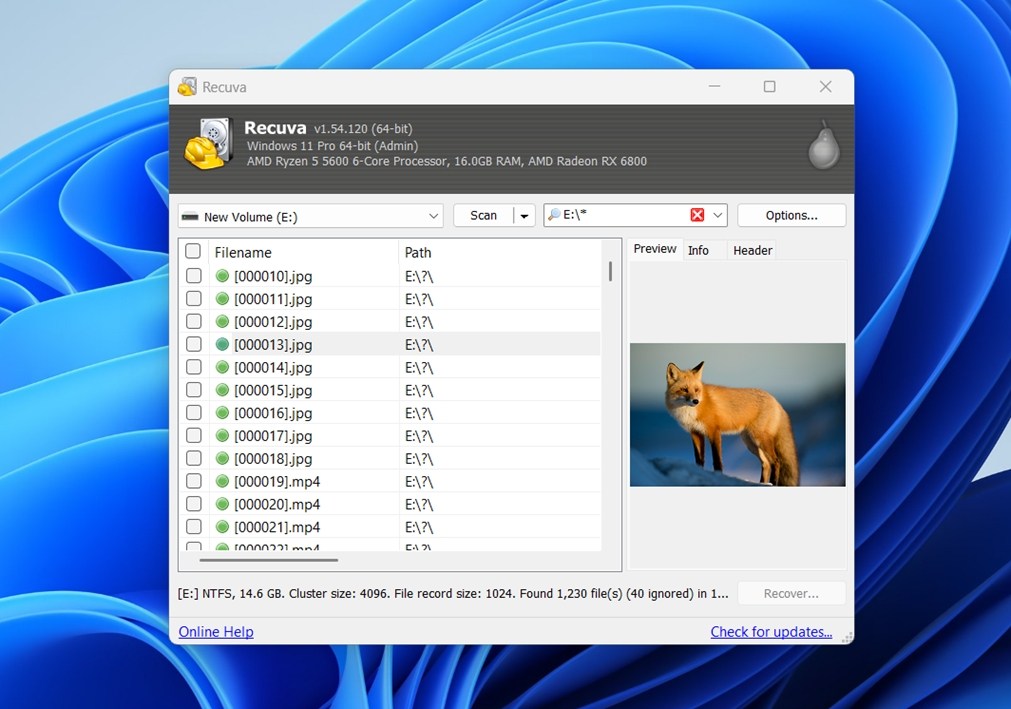
- A status column with color codes: green = excellent, yellow = poor, red = unrecoverable.
- A preview pane for certain file types. In our tests, this worked reliably for JPGs and PNGs, but not for PDFs, DOCX files, or RAW images/videos.
- A search bar to filter by filename or path. It’s helpful, but there are no tags and no advanced filters.
From here, recovery is simple. Select the files you want, hit “Recover,” and save them to another location That’s when you see what actually comes back intact and what doesn’t. In our tests, the status indicator was completely unreliable. Files marked green (supposedly “excellent”) sometimes opened corrupted, while others flagged as poor or even “unrecoverable” turned out fine.
It’s a nice feature on paper, but in practice, you shouldn’t trust those labels too much. The only real test is hitting Recover and trying the file yourself.
Overall, the workflow hasn’t changed in years. You get a wizard, a basic list of files, limited previews, and a recovery button. Simple.
Test Results & Performance
Now let’s talk numbers. Here’s what we saw.
| Scenario | Recovery Success Rate | Scan Time | Notes |
| 1 TB Seagate Barracuda HDD (deleted files) | ~85% | 75 min (Deep Scan) | Most documents and images came back intact. A few MP4 videos were corrupted, but overall results were strong. |
| 16 GB SanDisk Ultra USB (quick format, NTFS) | ~63% | 35 min | Some smaller files recovered. Many videos and archives were unrecoverable. File names often missing or replaced with generic names. |
| 64 GB Samsung EVO Plus microSD | N/A | N/A | Recuva couldn’t scan the card at all. Since the partition was RAW and not assigned a drive letter, the software had no way to access it. |
Overall, as you can see, Recuva’s performance is quite modest. Once you step outside of simple deletions, the recovery percentage drops dramatically. Its strongest area is with straightforward document recovery, where it showed solid results. Formats like DOC, DOCX, ODS, PDF, PPT, PPTX, and RTF came back reliably when they were simply deleted, or even when the drive had been quick formatted.
But when it came to more sophisticated media formats, like RAW photo files from digital cameras, large video clips, and other heavy data types, the success rate fell sharply. Some files weren’t recovered at all, while others came back corrupted. Many of the recovered videos weren’t playable at all, and even smaller images often opened with errors.
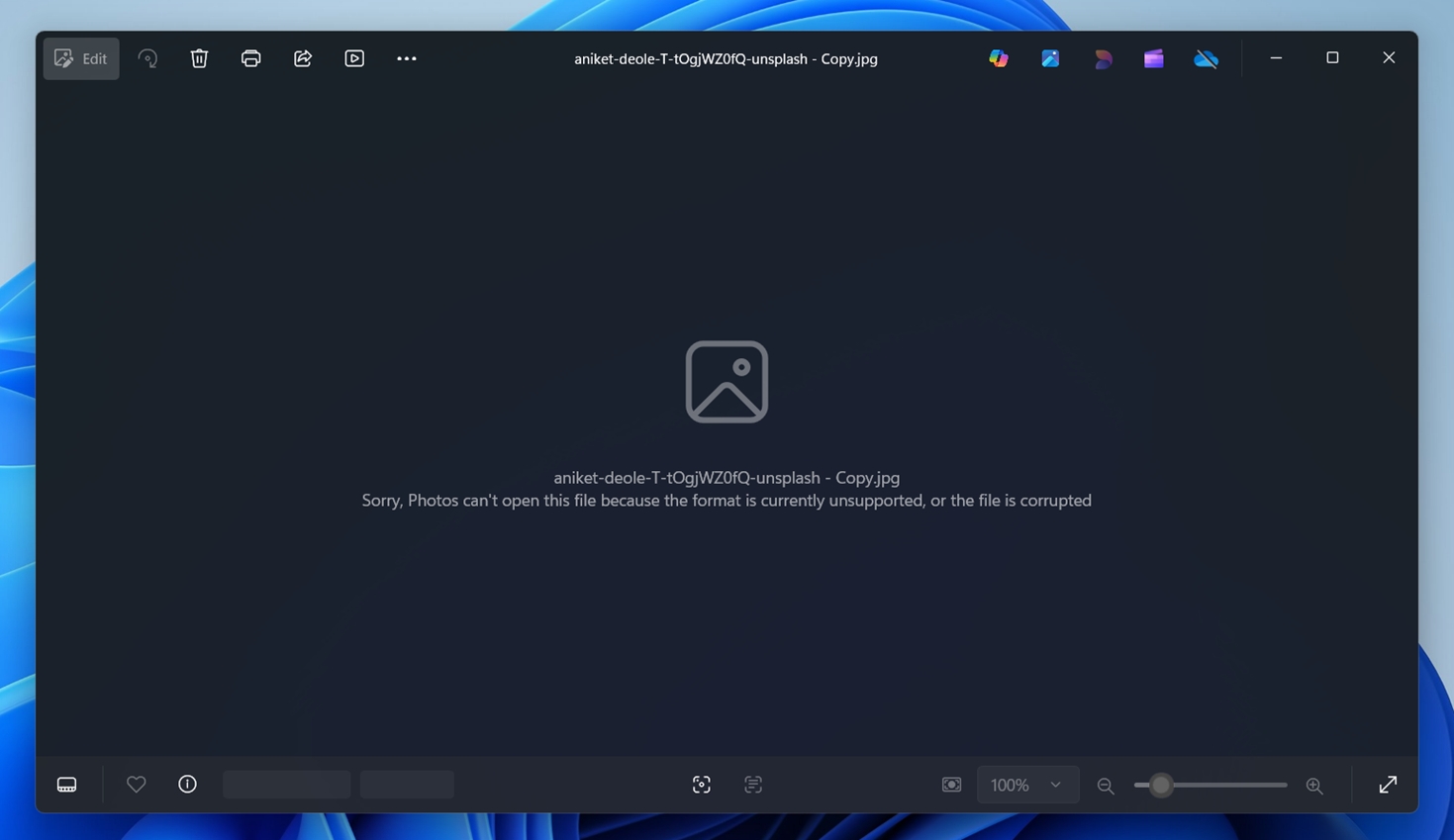
As to the scenario with the corrupted SD card, since it was in a RAW state, Recuva didn’t even get the chance to scan it. The software simply can’t work with drives that don’t have a visible partition or drive letter, so the card was effectively invisible inside the program.
As to speed, it’s not too bad. 75 minutes for the 1 TB Seagate Barracuda HDD and 35 minutes for the 32 GB SanDisk USB is not bad at all. We’ve tested tools that were much slower than Recuva, especially on larger drives.
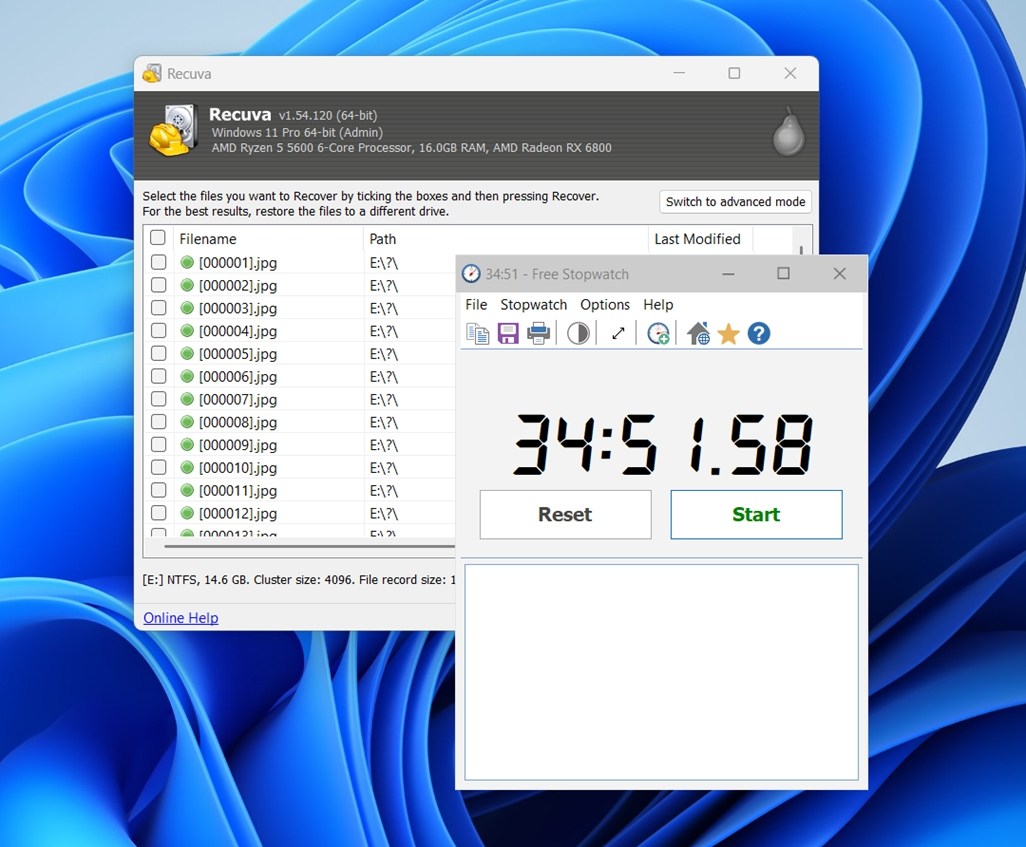
We only wish it gave a bit more feedback during the process. The progress bar doesn’t tell you much, and the time estimates are often way off. Being able to preview files while the scan is running would also make the wait feel more useful, but Recuva doesn’t offer that.
Average scan speed across all devices: ~88.6 MB/s
This highlights Recuva’s role as a basic tool: fine for recovering everyday office files, but not the right choice if your priority is rescuing professional media content.
Value for Money
Recuva has one big advantage over most competitors: the free version isn’t capped. You can recover as much data as you like without paying a cent. That makes it attractive compared to tools like EaseUS, Disk Drill, or Stellar, which all limit free recovery to between 100 MB and 2 GB. For casual users, that alone makes Recuva hard to beat.
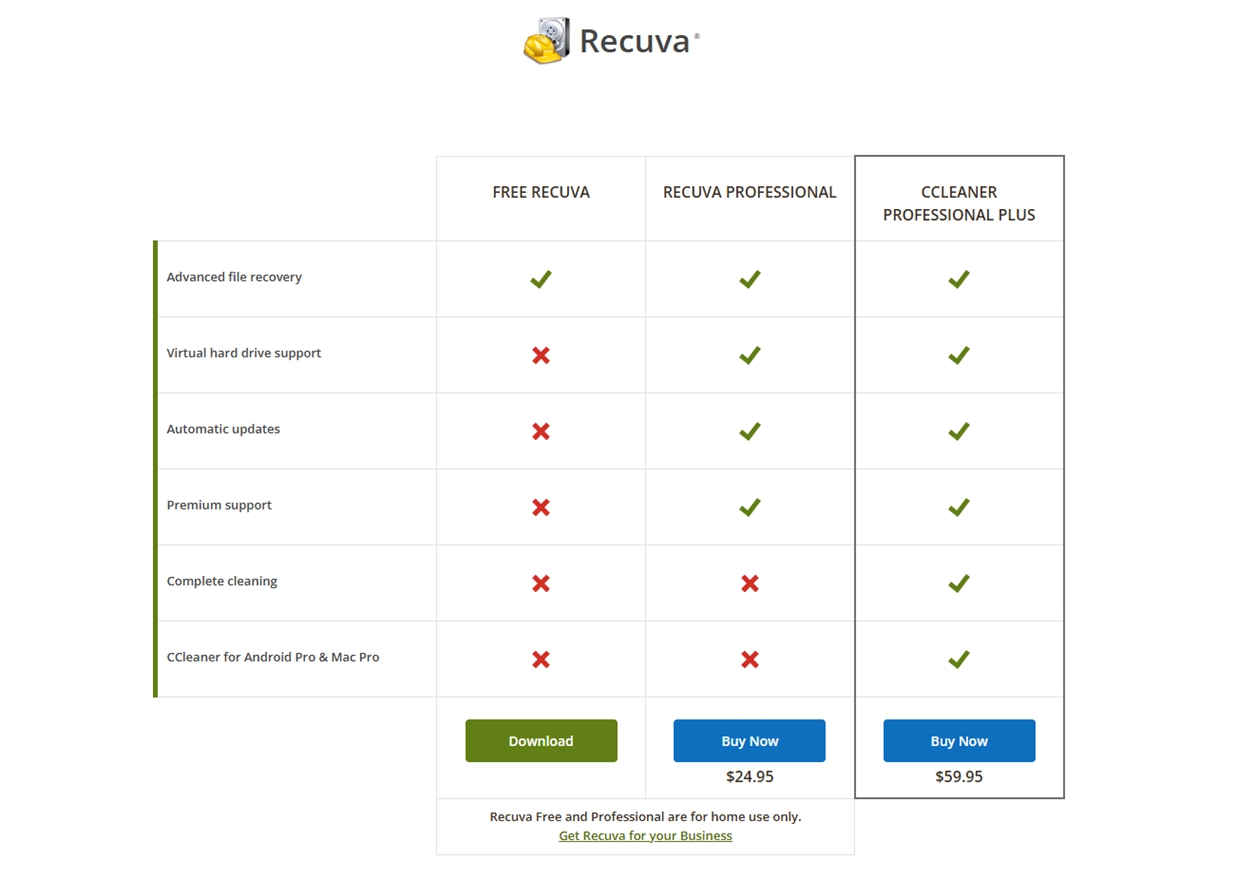
The Professional license costs $24.95 per year.
- What you get for the money: support for virtual disk images, automatic updates, and priority customer support.
- What you don’t get: better recovery performance. The recovery engine is the same whether you’re using the free or paid version.
If we compare Recuva to some of its closest competitors, the picture looks like this:
| Tool | Free Version | Paid License | Key Notes |
| Recuva | Unlimited recovery (Free) | $24.95/year | Cheapest option. Pro adds updates & support but doesn’t improve recovery success. |
| EaseUS Data Recovery | 2 GB free (Windows) | $69.95/month or $149.95 lifetime | Stronger recovery engine, handles formatted and RAW drives. Expensive if you go monthly. |
| Disk Drill | 100 MB free (Windows) | $89 one-time | High recovery success rate, broader file system support, includes lifetime license. |
| Stellar Data Recovery | 1 GB free | $59.99–$89.99/year | Solid recovery rates and extra features. |
So while Recuva looks like the cheapest option upfront, its limited capabilities mean you often get what you pay for. We’ll compare its performance against alternatives in more detail later, but for now it’s fair to say this: it’s hard to beat free – though it’s possible if you need something more capable. The free version of Recuva more than justifies its place as a go-to for simple recoveries.
What doesn’t really justify itself is the Professional yearly subscription. It doesn’t deliver better recovery results, only conveniences. If you’re willing to spend money, it makes more sense to look at alternatives – many of which offer a one-time payment license and far stronger recovery engines.
Real User Feedback
For this Recuva data recovery software review to be more balanced, we also want to include feedback from other people, not only our lab tests. To do that, we looked at what users had to say on platforms like Trustpilot, G2, Capterra, Microsoft Store, CNET, and Reddit.
Ratings at a glance:
| Platform | Average Rating | Number of Reviews | Notes |
| Trustpilot (Piriform/CCleaner) | ⭐ 4.5 / 5 | ~26,200+ | Covers the full Piriform suite, but many users mention Recuva. |
| CNET User Reviews | ⭐ 4.1 / 5 | 236 | Generally positive; users praise ease of use but note limitations with larger recoveries. |
| Microsoft Store | ⭐ 3.7 / 5 | 31 | Short reviews highlight “quick and easy” recovery, but mixed results overall. |
On Trustpilot, most reviews are for CCleaner itself, but they reflect an overall positive sentiment toward Piriform’s tools, including Recuva. Users frequently point out that Recuva is easy to use and completely free, which makes it their first stop when they need to recover files.
Some reviews highlight successes:
- “Recuva helped me recover photos from an SD card that I thought were gone forever.”
- “I managed to bring back work files I accidentally deleted, and it only took a few minutes.”
On the flip side, negative comments usually come from users who expected more than the tool can realistically deliver. One piece of feedback we saw time and time again on Reddit puts it bluntly:
“Recuva isn’t malware, but it is a mediocre undelete software that often gives inferior results compared to anything decent. People only try it because it’s free, [but] it fails to solve a lot of common situations.”
So we can say the majority of feedback we read aligns with our own, and with just about any Recuva professional review you can find online. People appreciate it for what it is, but they also run into the same limitations we found in our testing.
Comparison With Competitors
Now, as we promised, let’s compare Recuva in more detail with three popular data recovery competitors: EaseUS Data Recovery Wizard, Disk Drill, and Stellar Data Recovery. Here’s a side-by-side look.
| Criteria | Recuva (Piriform) | EaseUS Data Recovery | Disk Drill (CleverFiles) | Stellar Data Recovery |
| Platforms | Windows only (XP – Win11). No Mac/Linux support. | Windows & macOS (separate versions). | Windows & macOS (single license covers both). | Windows & macOS (separate editions). Mobile recovery software also available. |
| Free Version | Yes (unlimited recovery) | Yes, up to 2 GB (Windows). Mac free trial = scan/preview only. | Yes, up to 100 MB on Windows; Mac = scan/preview only. | Yes, up to 1 GB. Upgrade required after that. |
| Paid Version (Pricing) | Recuva Pro: $24.95/year subscription. | Pro: $69.95/month or $149.95 lifetime. Technician $299/year. | Pro: $89 one-time lifetime license (up to 3 PCs). +$29 optional lifetime upgrades. | Standard: $59.99/year; Professional: $89.99/year. Premium: $99.99/year, Technician: $199/year. |
| Supported File Systems | NTFS, FAT16, FAT32, exFAT. No HFS+/APFS or ext. | NTFS, FAT32, exFAT (Windows); HFS+, APFS (Mac). | NTFS, FAT32, exFAT; also EXT2/3/4 (Linux), HFS+/APFS (Mac). Broadest support. | NTFS, FAT32, exFAT (Windows); HFS+, APFS (Mac). Higher tiers handle Linux partitions via carving. |
| Features & Tools | Basic recovery (Quick/Deep), preview, secure delete (file shredding), portable version. No imaging/advanced tools. | Lost partition recovery, bootable USB, RAW file carving. No disk imaging in standard version. | Recovery Vault (file protection), S.M.A.R.T. monitoring, disk imaging/backup, pause/resume scans. | Wide file type support, disk imaging, RAID recovery (higher tiers), photo/video repair (Premium). |
| Recovery Performance | Good for recent deletions. Weak on formatted or RAW drives. Often misses or corrupts large media files. | High success rate on deletions/formats, decent with moderately corrupted partitions. Slower deep scans. | Excellent results across scenarios, especially formatted/RAW. Preserves names/structure more often. | High success rates, strong in complex cases (RAID, damaged file systems). Deep scans slower. |
| Ease of Use | Very beginner-friendly. Wizard steps are plain but clear. | Clean interface, modern UI, balanced for beginners and power users. | Polished design, intuitive, integrates advanced features smoothly. | Simple UI, wizards for complex tasks. A bit utilitarian but approachable. |
Recuva’s strongest point is its value. But in almost every other category – file system support, advanced features, scan thoroughness, recovery rate – it lags behind the competitors.
So while Recuva makes sense as a free first aid kit, if your case is more serious you’ll probably get better results and more peace of mind from one of the premium tools.
🏆 Best for:
- Recuva. Best for Windows users who need a free, no-limits tool to undelete recently lost files from a healthy drive.
- EaseUS Data Recovery Wizard. Best for people who want a polished recovery tool and don’t mind paying a subscription for consistent results.
- Disk Drill. Best for all-around value for home use and business alike. One-time payment, strong recovery rates, and extras like disk imaging and Recovery Vault.
- Stellar Data Recovery. Best for people recovering corrupted photos and videos who still want a simple, friendly interface.
Final Verdict
Okay, we think we are ready for some closing thoughts on Recuva after running it through everything. Here’s how it stacked up.
| Metric | Score | Notes |
| Recovery success rate | 5/10 | Works fine for simple deletions, but struggles with anything more complicated than that. |
| Scan speed | 7/10 | Lightweight and faster than many paid competitors; deep scans wrap up in a reasonable time. |
| Ease of use | 8/10 | Extremely simple, with a beginner-friendly wizard. The UI is dated but functional. |
| Value for money | 6/10 | Free version is good. Pro subscription ($24.95/year) doesn’t add recovery power, which makes alternatives a better buy if you’re paying. |
🌟 Overall Score: 6.5 / 10
Our takeaway is this: Recuva is a good free first step, and we can recommend it to any Windows user who needs to recover files that were simply deleted from a healthy drive. If that’s your case, go for it – you won’t find a cheaper option (well, it can’t get cheaper than free).
But if you’re dealing with corruption, formatted drives, or you need features like disk imaging and stronger preview capabilities, you’re better off looking elsewhere – Disk Drill or EaseUS are far more capable in those areas.
As for Recuva Professional, in our opinion, it’s hard to recommend to anyone. It doesn’t improve recovery performance, and your money is better spent on a tool that actually does.
That concludes our Recuva data recovery review. If you found it helpful or had your own experience with Recuva, good or bad, feel free to leave a comment and share your story. We’d love to hear from you.