 While iOS leads the U.S. market, Android remains the dominant mobile operating system worldwide. As a result, data loss affects Android users more often on a global scale, which makes Android data recovery a far more common request. In an ideal scenario, deleted files remain in an app’s trash folder or inside a backup. But when neither option exists, Android data recovery software becomes the only viable solution. The challenge is not finding Android data recovery tools (search results are full of them) but choosing one that actually works.
To make this task easier for you, we created a concise list of the best Android data recovery apps. Instead of chasing quantity, we focused on tools that can genuinely help restore data that should never have disappeared in the first place. Below, you’ll find a brief overview of each option, along with its pros, cons, and pricing (Android phone data recovery rarely comes for free, and in most cases a paid license becomes unavoidable).
Our editorial team independently assesses each data recovery solution to produce accurate, high-quality content. Discover more about our testing process.
Best Android Data Recovery Software for PC
Unlike iPhone data recovery tools, Android phone data recovery allows several different recovery scenarios. Data can be recovered by scanning a phone connected to a computer, by scanning a microSD card removed from the device, or by performing recovery directly on the Android phone itself. For clarity, we divided this guide into two sections based on these approaches.
We start with Android data recovery software for PC, as desktop solutions remain the most common option and usually give better recovery results, thanks to deeper scan algorithms, fewer system limitations, and more control over the recovery process.
For Android data recovery software to provide meaningful results (not just display files that already exist on your device) root access is required in most cases. Without root permissions, recovery tools cannot access the parts of internal storage where deleted data resides. As a result, scans often return limited or misleading results, even though the software itself works as intended.
1. Disk Drill (Windows & Mac)
🏆 Best for: Disk Drill is the best Android phone data recovery solution for Mac users, but it can also offer a lot to Windows users.
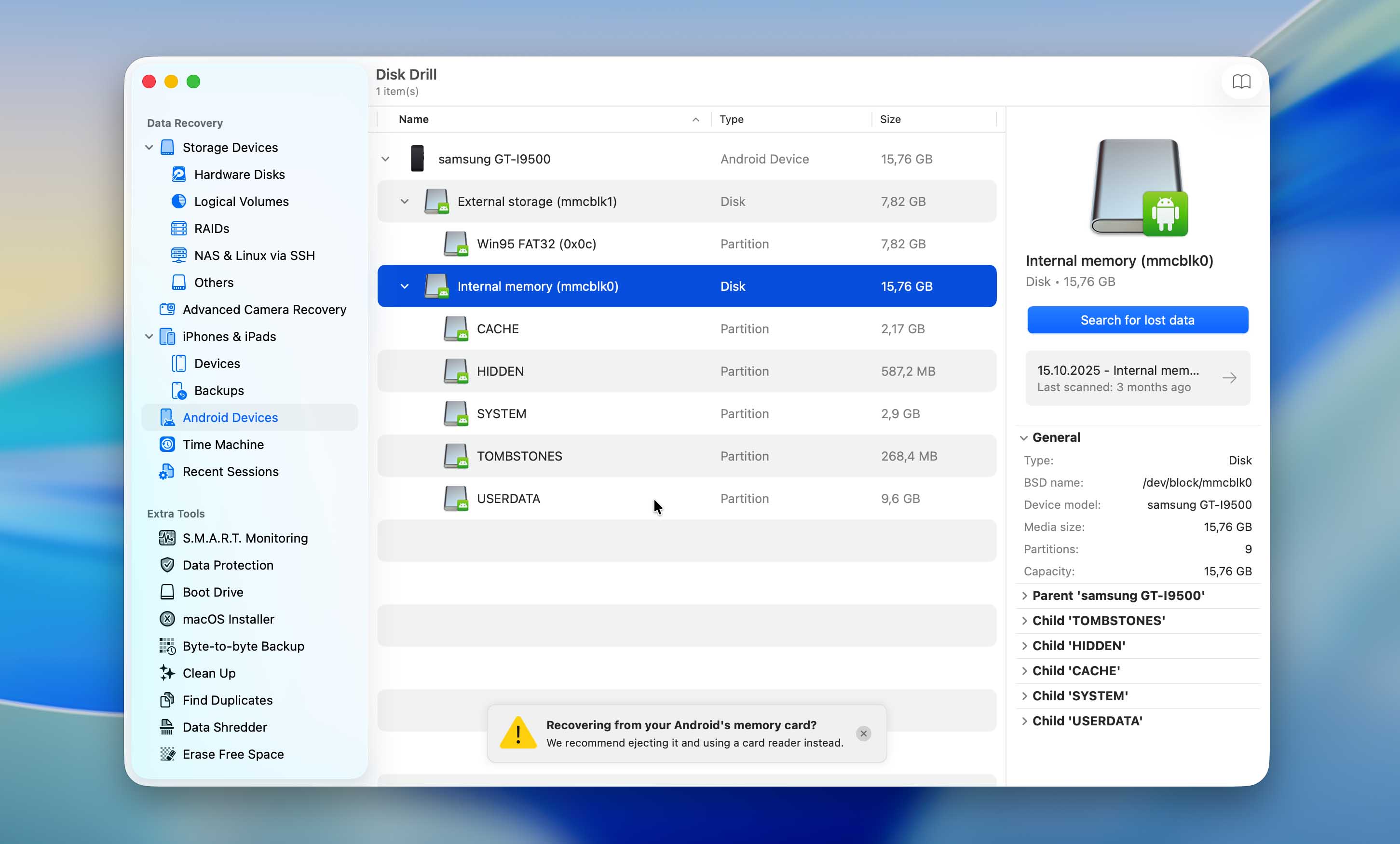
Disk Drill is a versatile data recovery solution that supports a wide range of storage devices, including Android smartphones and tablets. On macOS, the software can recover deleted data directly from Android internal storage as well as from microSD cards. The Windows version, in contrast, focuses on microSD card recovery and does not access Android internal memory.
Both versions support more than 400 file formats, covering the most common photo, video, audio, and document types used on Android devices. The recovery process follows a clear, guided workflow that does not require technical expertise. Scan results include file previews, which allows users to verify recoverability before restoring anything.
Beyond recovery, Disk Drill includes several additional tools aimed at basic storage maintenance. These tools do not affect recovery results directly, but they can help users organize data and reduce clutter. For example, the duplicate file finder can identify repeated photos on an Android SD card and help free up storage space, while creating a byte-to-byte backup can protect a corrupted SD card from further damage during scanning and recovery.We cover these additional features in more detail in our full Disk Drill review.
⭐ Key features:
- Supports recovery from Android internal storage (macOS) and microSD cards
- Read-only scan approach that avoids modifying source data
- Preview files before recovery to verify integrity
- Byte-to-byte disk backup for safe work with failing or corrupted SD cards
- Wide file format support, including photos, videos, audio, and documents
- Clean, guided interface suitable for non-technical users
- Includes a broad set of additional tools for storage management and data protection
Pros
- Makes it easy to verify files before paying for recovery
- Works well as a first-line recovery tool without complex setup
- Works with all devices running Android 2.3+
- Provides several additional tools at no extra cost beyond basic recovery
- Excellent data recovery performance
- Fast scan speed
- Windows version can recover data only from Android micro SD cards, not internal memory
💰 Pricing:
| Disk Drill Basic | Can recover up to 100MB of data (Windows version only) |
| Disk Drill PRO | $89.00 |
💭 What users say:
What worked way better for me was using Disk Drill on my SD card through a computer. I scanned the card and recovered a ton of deleted photos in full quality. From what I understand, the Mac version of Disk Drill actually supports Android device scanning over USB too (I use the Windows version, so I could only scan the SD card itself, not internal storage) If you have a Mac it might be worth trying that route. (Reddit user)
📊 Our rating: ★★★★★ (5/5)
2. Dr Fone from Wondershare (Windows & Mac)
🏆 Best for: Dr Fone from Wondershare is best for those who are looking for a comprehensive toolkit capable of addressing many different Android issues, including data loss.
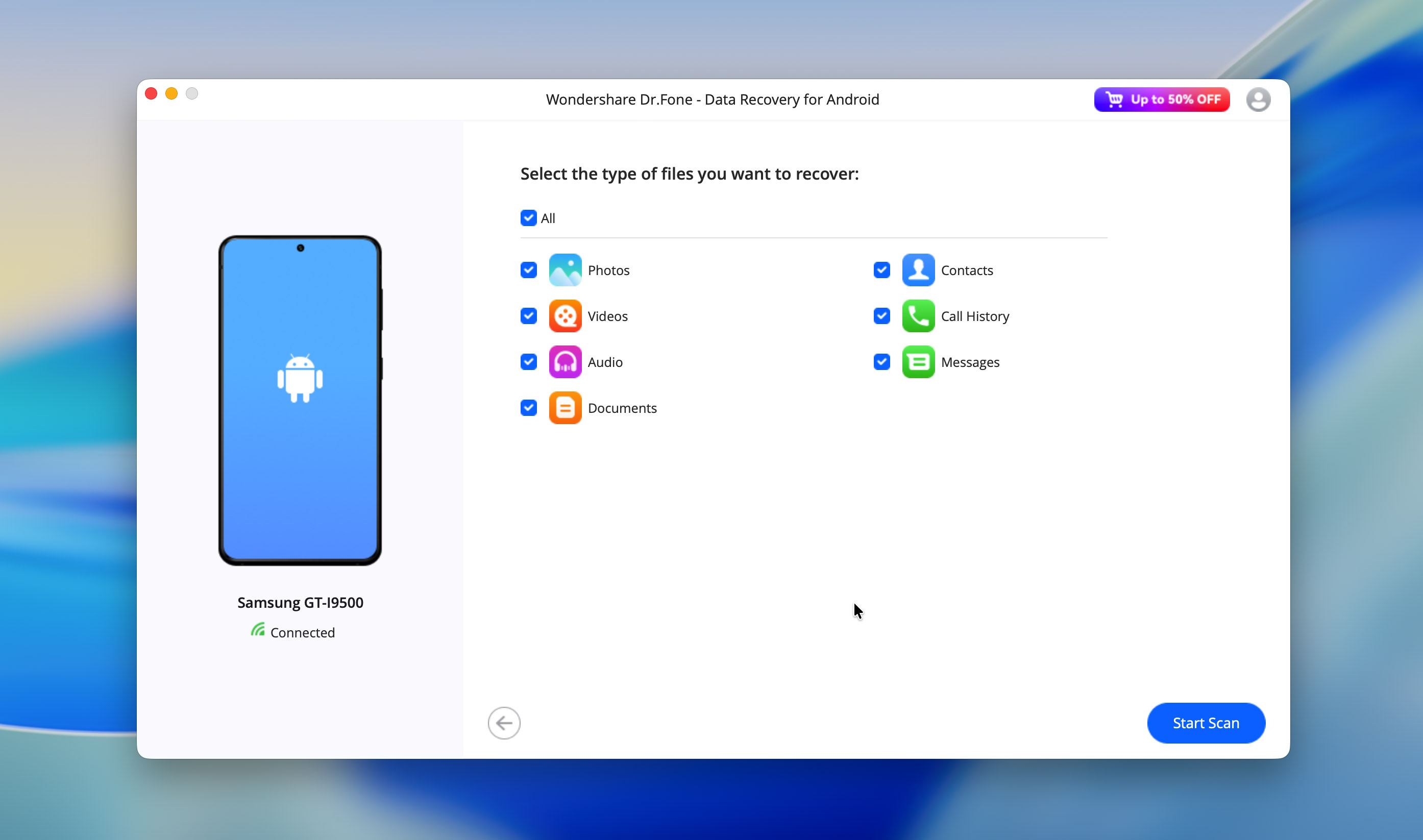
Wondershare Dr.Fone is part of a large ecosystem of consumer-oriented utilities developed for Windows and macOS. Its Android data recovery module focuses on covering a wide range of everyday data loss scenarios rather than deep, low-level recovery.
Dr.Fone supports thousands of Android devices and allows recovery of common data types such as contacts, messages, call history, documents, photos, videos, audio files, and messaging app data, including WhatsApp. In addition to direct device scans, Dr.Fone can also recover data from Google Drive backups, which is especially useful when local recovery is not possible.
One of its notable strengths is the ability to retrieve data from logically damaged or partially inaccessible devices. This includes situations where a phone is stuck on the lock screen, fails to boot properly, or cannot be accessed through the standard Android interface. Additional strengths and weaknesses are covered in our detailed Wondershare Dr.Fone review. As with other software-based solutions, Dr.Fone does not address physical hardware damage.
⭐ Key features:
- Recovers data directly from Android devices and from Google Drive backups
- Handles recovery from logically damaged or partially inaccessible devices
- Guided recovery workflow with step-by-step instructions
Pros
- Guided, step-by-step recovery process suitable for first-time users
- Developed and maintained by a well-established software vendor
- Receives regular updates that improve compatibility with newer Android versions
- Offers a monthly subscription option, which makes sense for one-time Android data recovery tasks
- More expensive than many competition Android recovery tools
- Some advertised recovery scenarios are oversimplified on the website
- Marketing claims on the official site may create expectations that real-world results do not always meet
- Does not include any additional tools beyond basic data recovery
💰 Pricing:
| Product | Windows | macOS |
| Dr.Fone – Full Toolkit | $162.95 | $162.95 |
| Dr.Fone – Android Toolkit | $79.95 | $60.95 |
💭 What users say:
I used the Dr.Fone app to scan my device, and it was able to find my lost files (photos, contacts, etc.). However, Dr.Fone requires me to pay for the full version to actually recover and save the data. Since I only need it one time, I don’t really want to buy a full license. (Reddit user)
So I used dr Fone to try to recover some lost photos. Didn’t work much, just showed me the photos I already had on my phone. (Reddit user)
📊 Our rating: ★★★★☆ (4/5)
3. FoneLab (Windows & Mac)
🏆 Best for: As long as you’re willing to accept its higher price, FoneLab can offer you a convenient and modern approach to Android recovery that never fails to deliver great results.
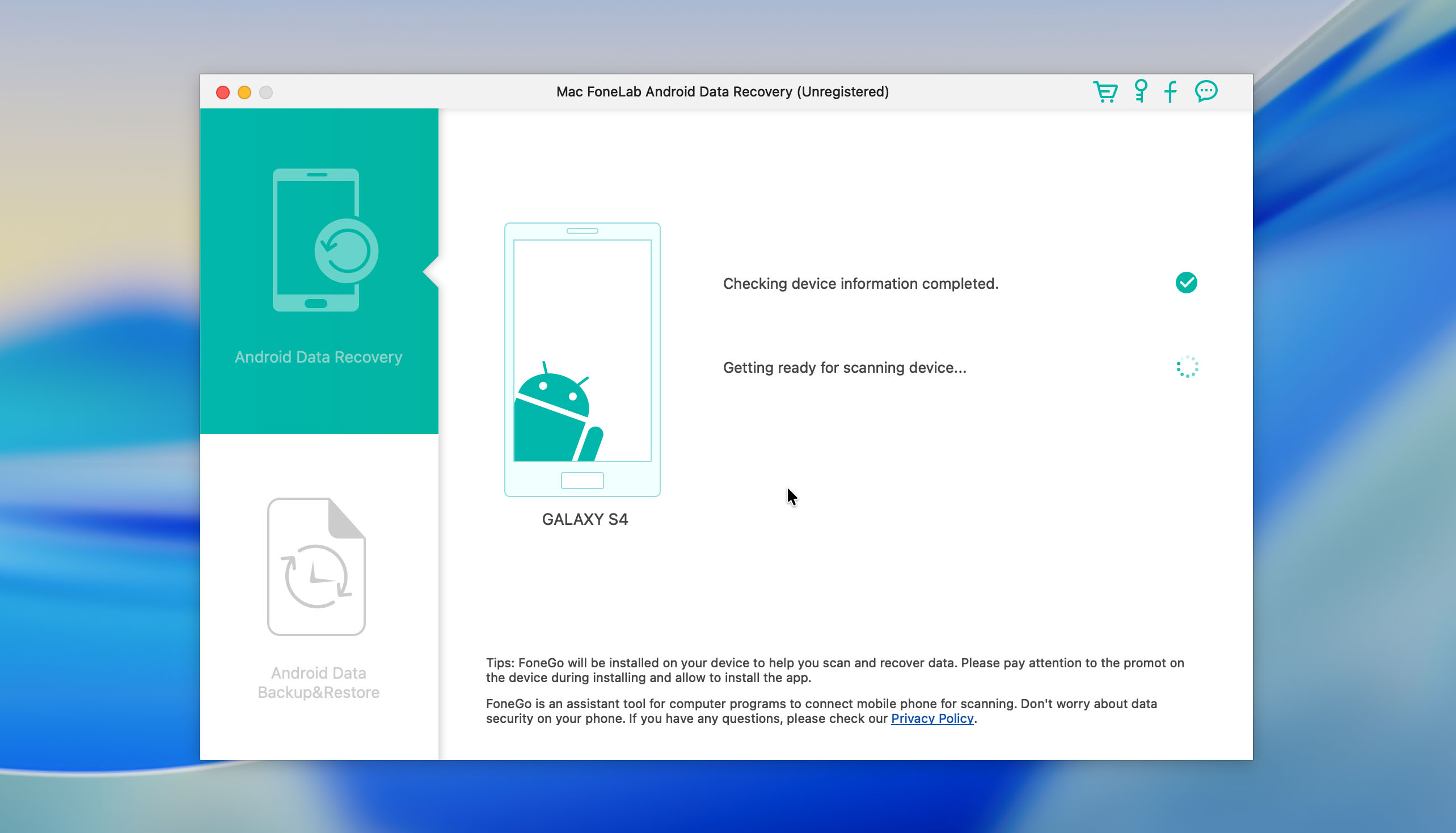
FoneLab is an Android data recovery tool designed to cover common data loss scenarios across a wide range of devices. It supports recovery of photos, videos, audio files, documents, messages, call logs, and app-related data from Android smartphones and tablets.
One notable feature is SIM card data recovery, which allows users to restore contacts stored directly on the SIM. This can be useful for those who still rely on SIM-based contact storage rather than cloud synchronization. FoneLab also supports recovery from Android internal storage and SD cards, with limited capabilities depending on the data type.
The software offers a preview-only free version, which helps assess recoverability before purchase. Actual file recovery requires a paid license, and licensing is limited to a single user. FoneLab focuses on core recovery functionality without bundling additional disk or storage management tools.
⭐ Key features:
- Modular Android toolkit that combines several dedicated utilities in one license
- Supports recovery of media files, messages, call logs, documents, and SIM card contacts
- Preview mode available to evaluate recoverability before purchase
Pros
- Allows users to purchase individual modules instead of the full toolkit when only a specific function is needed
- Clean and straightforward interface that does not require advanced technical knowledge
- Supports SIM card data recovery, a feature rarely offered by competing Android recovery tools
- Suitable for targeted recovery tasks
- Support all devices running Android OS 5.0 and above
- Pricing for the full toolkit differs noticeably between Windows and macOS versions
- Broken Android Data Extraction module supports only Samsung devices
- Uses questionable marketing platforms to promote the product
💰 Pricing:
| Product | Windows | macOS |
| Android Data Recovery | $55.95 | $55.95 |
| Broken Phone Data Extraction | $39.95 | – |
| Android Data Backup & Restore | $25.95 | $25.95 |
| All Products | $121.85 | $81.90 |
💭 What users say:
It is very helpful in recovering the lost data in android mobile. (G2 user)
📊 Our rating: ★★★★☆ (4/5)
4. Tenorshare UltData for Android (Windows & Mac)
🏆 Best for: Tenorshare UltData for Android delivers the best data recovery results together with a highly polished data recovery experience that leaves very little to be desired.
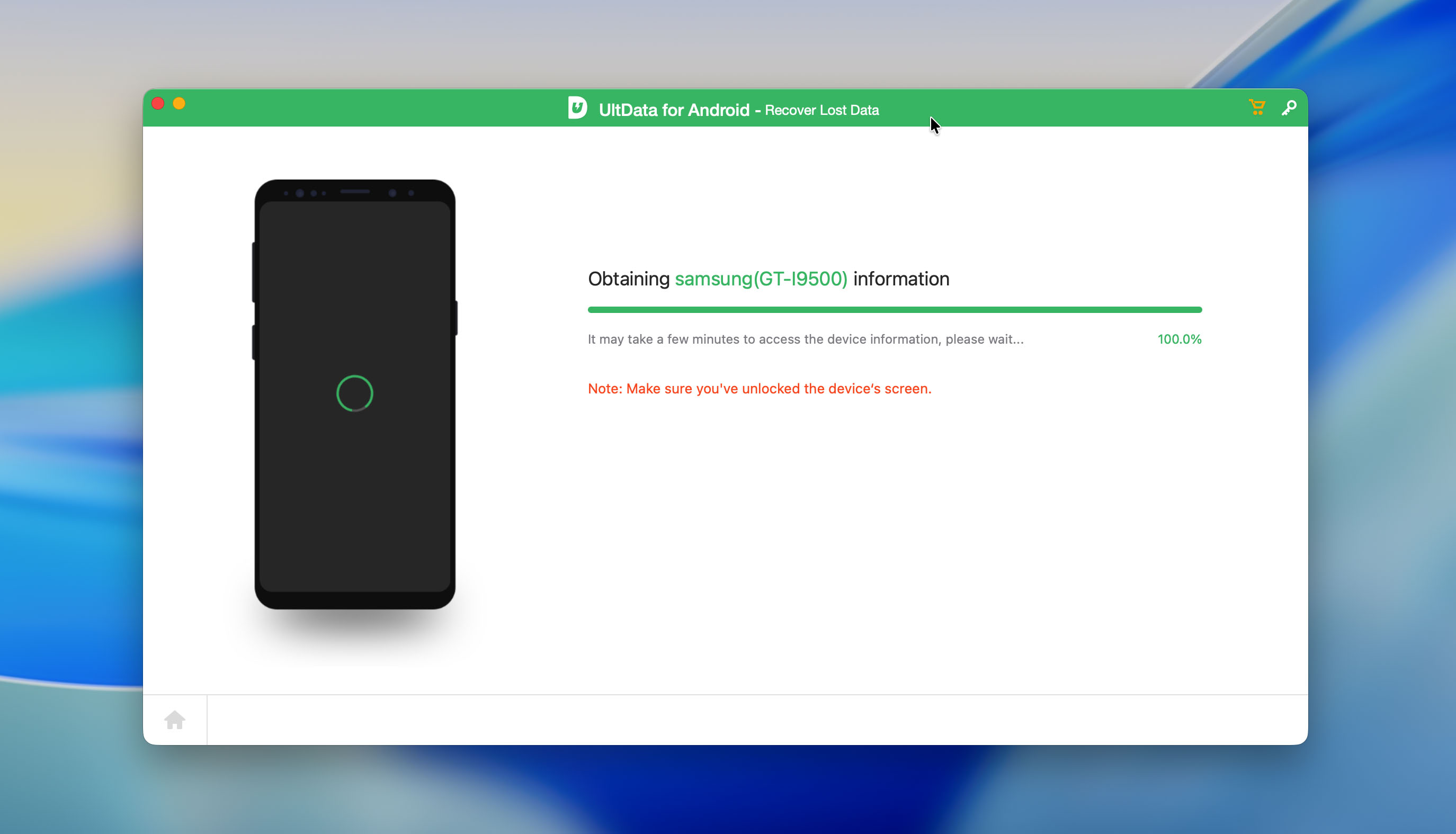
Tenorshare UltData is an Android data recovery solution available for both Windows and macOS. The software supports a wide range of Android smartphones and tablets from manufacturers such as Samsung, Xiaomi, Huawei, and others, and focuses on recovering common user data across different device models.
All versions of the Android operating system from version 5 up are fully supported, but some recovery features are restricted to specific Android versions. For example, WeChat recovery works only on devices running Android 12 and earlier.
Tenorshare UltData for Android features an intuitive three-step recovery process that’s very easy to understand even without a tutorial thanks to the app’s modern user interface. Besides its Windows and Mac app, Tenorshare also offers an Android data recovery app that you can use to recover lost data directly on your Android device. In addition, Tenorshare provides separate data recovery software for storage devices other than phones, such as external drives and memory cards. We previously reviewed that solution as well, so if this topic is relevant to you, it’s worth checking out our dedicated review.
⭐ Key features:
- Compatible with a wide range of Android smartphones and tablets from major manufacturers
- Offers recovery from both internal storage and SD cards, depending on device and data type
- Includes a desktop application for Windows and macOS, as well as a mobile recovery app for Android
- Allows preview of recoverable data before restoration
- On Xiaomi and Huawei devices running Android 12 and earlier, supports recovery of various data types from WeChat accounts
Pros
- Works with a broad range of Android brands and device models
- Does not require deep technical knowledge to get started
- Offers a predictable workflow that helps avoid accidental user errors
- Some recovery features are restricted to specific Android versions
- Claims on the official website about recovery without root access are misleading in real-world use
- Pricing strategy relies heavily on large discounts, with original prices appearing artificially inflated
- Does not include any additional tools beyond core data recovery functionality
💰 Pricing:
| License | Windows | macOS |
| 1 Month License | $119.83 | $186.5 |
| 1 Year License | $133.17 | $199.83 |
| Lifetime License | $166.50 | $233.16 |
💭 What users say:
Very good tool for all types of devices and recovery software. If you opt for paid version its Definitely worth every penny. (Capttera user)
📊 Our rating: ★★★☆☆ (3/5)
5. iMobie PhoneRescue (Windows & Mac)
🏆 Best for: Because of its all-inclusive nature, iMobie PhoneRescue is best for Android users who may occasionally need to recover lost data from an iOS device.
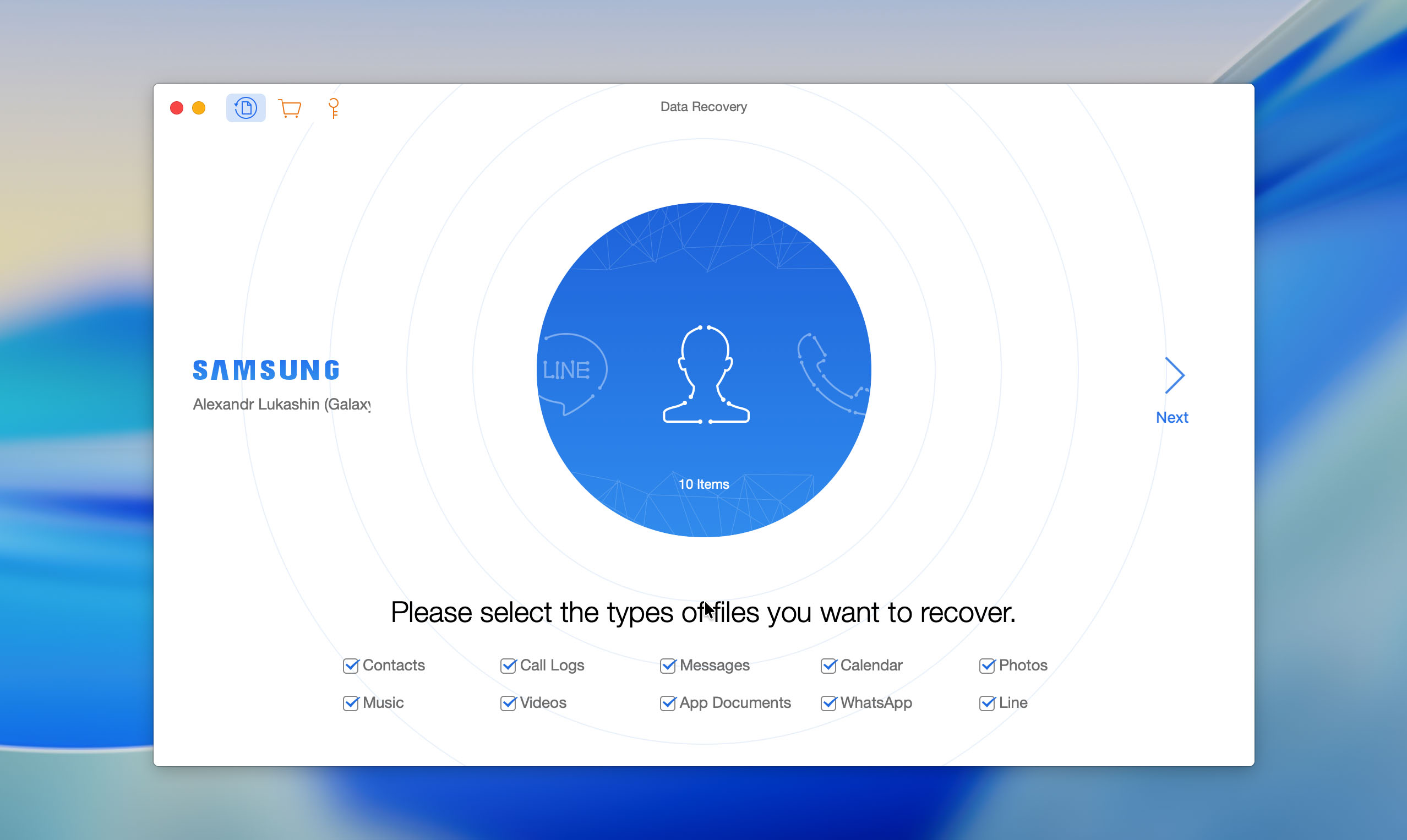
iMobie PhoneRescue is an elegant and versatile data recovery application that can help you retrieve lost data not only from your Android device but also from any iOS device, such as iPhone or iPad. As such, this solution is perfect for people who use both mobile operating systems and know that it’s best to have a data recovery application ready at hand before data loss occurs.
One handy feature supported by iMobie PhoneRescue is the ability to unlock any locked Android device without performing a factory reset. This feature can help you retrieve your data if you ever forget your password or break your fingerprint sensor.
When it comes to Android data recovery, iMobie PhoneRescue supports all common file types, including videos, images, audio, messages, contacts, and calendar information. If your device isn’t rooted, you will be given the option to begin the rooting process right from the app.
⭐ Key features:
- Supports data recovery for both Android and iOS devices within a single solution
- Allows data extraction from Android devices that are locked, disabled, or inaccessible
- Provides the ability to unlock Android devices without performing a factory reset
- Supports recovery from internal storage, SD cards
- Comes with 24/7 customer support for troubleshooting and recovery guidance
Pros
- Elegant and well-organized user interface
- Allows previewing files and selecting only the data you want to restore
- Works as a single solution for both Android and iOS data recovery
- Can unlock Android devices to enable access to stored data
- Users are required to purchase a separate license to unlock iOS recovery
- Pricing is higher than that of many competing Android recovery tools
- Claims on the official website about recovering data from non-rooted Android devices are misleading
- Offers no additional tools beyond data recovery functionality
💰 Pricing:
| Free Edition | Enables to scan Android device |
| 1 Year Plan | $89.99 |
| Lifetime Plan | $119.99 |
💭 What users say:
I accidentally deleted my Wechat documents and i have tried all possible ways to recover them but i failed since i use phonerescure for android. Great tool and thanks. (iMobie user)
📊 Our rating: ★★★☆☆ (3/5)
Best Android Data Recovery Apps for On-Device Recovery
We could have ended this post with the previous section, as desktop-based Android data recovery software remains the most popular and reliable option. However, after internal discussion, we decided to add a separate section for Android data recovery apps that run directly on the phone itself, as these tools can be useful as a to-go solution when a PC or Mac is not available and immediate action is required.
Below, you’ll find three Android recovery apps that passed our internal testing. For this section, we intentionally simplified the evaluation format and focused only on a short description and pricing. On-device recovery apps rarely offer additional modules or advanced tools, and listing pros and cons makes little sense here, as in most cases, the main criterion is whether the app actually recovers deleted files or not. This limitation is also the reason why desktop recovery tools remain more popular. PC and Mac solutions tend to differentiate themselves through features, recovery methods, and extra utilities. Mobile recovery apps, by comparison, are far more limited in scope.
While testing on-device recovery apps, we noticed a recurring issue that many of them have low ratings on Google Play. In most cases, this is not caused by broken software, but by unrealistic user expectations. Many users are unaware that Android data recovery requires full system access. Without it, mobile apps can usually display only existing files, not truly deleted data. For this reason, we want to stress once again that this condition is mandatory. Without it, Android data recovery simply does not work, regardless of the app you choose.
1. DiskDigger Photo/File Recovery
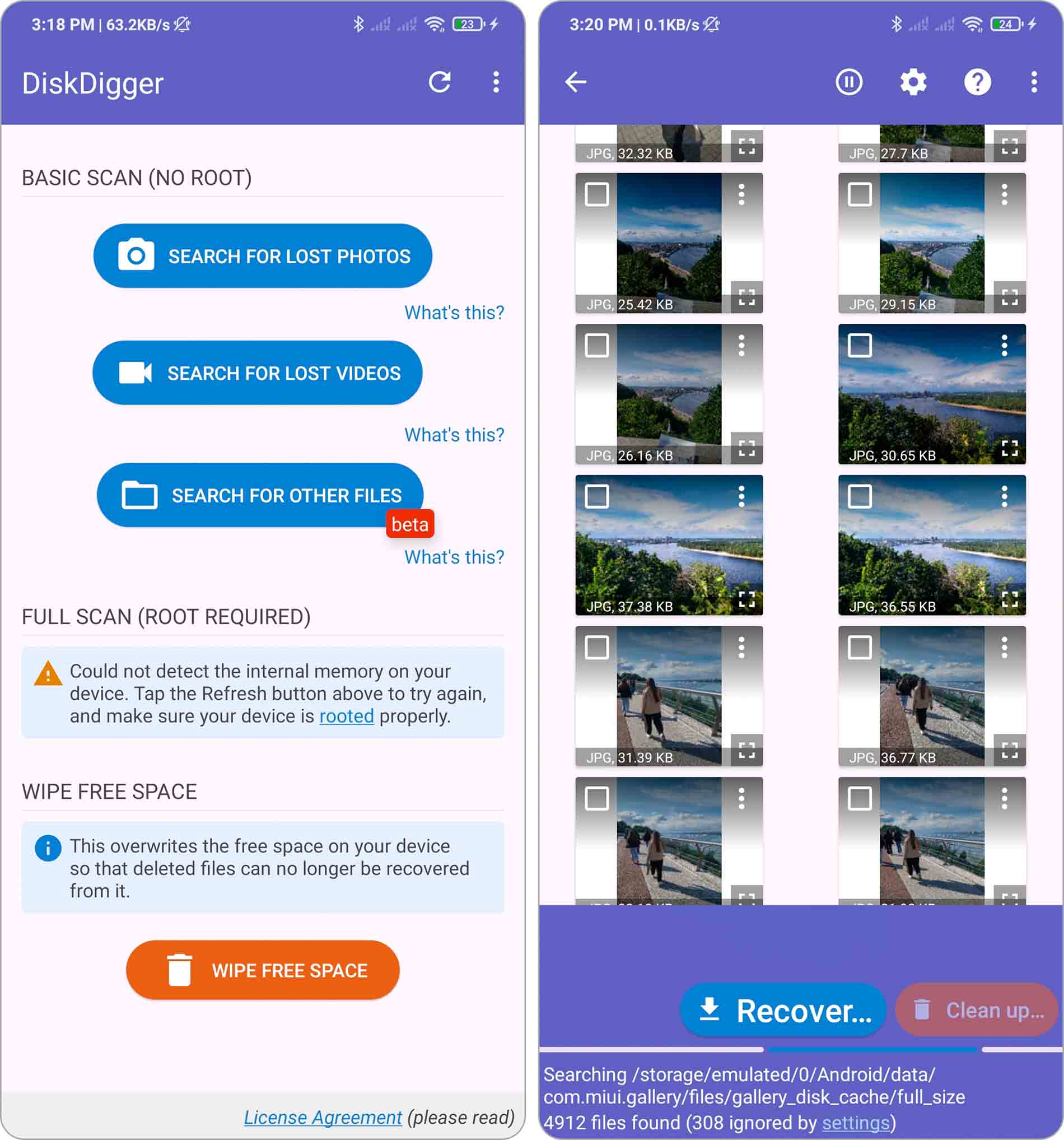
DiskDigger is one of the most popular Android data recovery apps, with 100,000,000+ downloads on Google Play. It also remains one of the few recovery apps that offer a fully usable free version, which explains why DiskDigger Pro exists but is far less known (for many users, the free app already covers basic recovery needs).
DiskDigger can recover photos, images, videos, documents, and other common file types from both internal storage and external SD cards. In cases of accidental deletion or even memory card formatting, the app scans available storage locations and attempts to locate recoverable data. Recovered files can be saved locally on the device or uploaded directly to Google Drive, Dropbox, or sent via email, which makes quick off-device backup possible.
The app operates under two different scan modes. On non-rooted devices, DiskDigger performs a limited scan that focuses on existing storage structures such as thumbnail caches and databases. On devices with deeper system access, the scan covers a much broader portion of internal memory and can detect traces of deleted files. In addition, DiskDigger includes optional cleanup features, such as removing unnecessary items after a scan or wiping free space to prevent previously deleted files from being recovered in the future.
The developers also offer a desktop version of DiskDigger for Windows, which can recover data from various storage devices, including hard drives, SSDs, and memory cards. We have a separate review covering that version in detail, so feel free to check it out if you’re interested.
💰 Pricing: Free
📊 Google Play rating: 2.8 ★ (516K reviews)
2. File Recovery – Photo Recovery
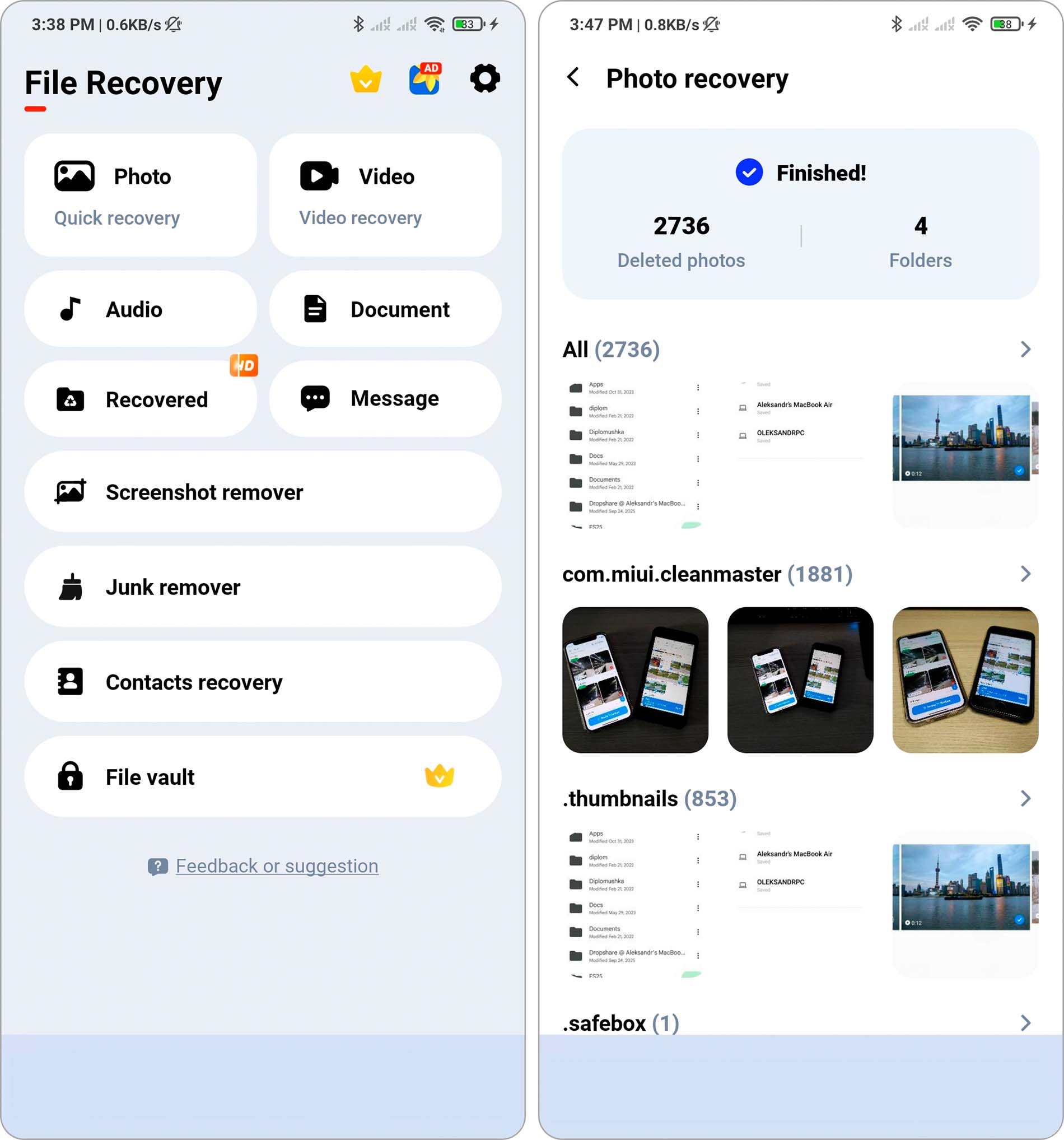
All Recovery is an on-device Android data recovery app focused on restoring photos, videos, audio files, messages, and other common file types directly from internal storage or SD cards. The app positions itself as a quick, no-PC solution for accidental deletions and simple recovery scenarios.
The app performs automatic scans and groups detected files using filters such as date, size, and folder, which helps narrow down large scan results. It also supports batch recovery and allows recovered files to be saved back to the device. In addition to recovery, All Recovery includes permanent deletion tools, which remove selected files completely, and a photo enhancement feature that attempts to improve clarity in recovered images.
All Recovery does not require an internet connection, and as with most on-device recovery apps, actual results depend on device conditions and storage state.
💰 Pricing: Approximately $4-48 per item, depending on the selected in-app purchase.
📊Google Play rating: 4.3 ★ (469K reviews)
3. Data & Photo Recovery
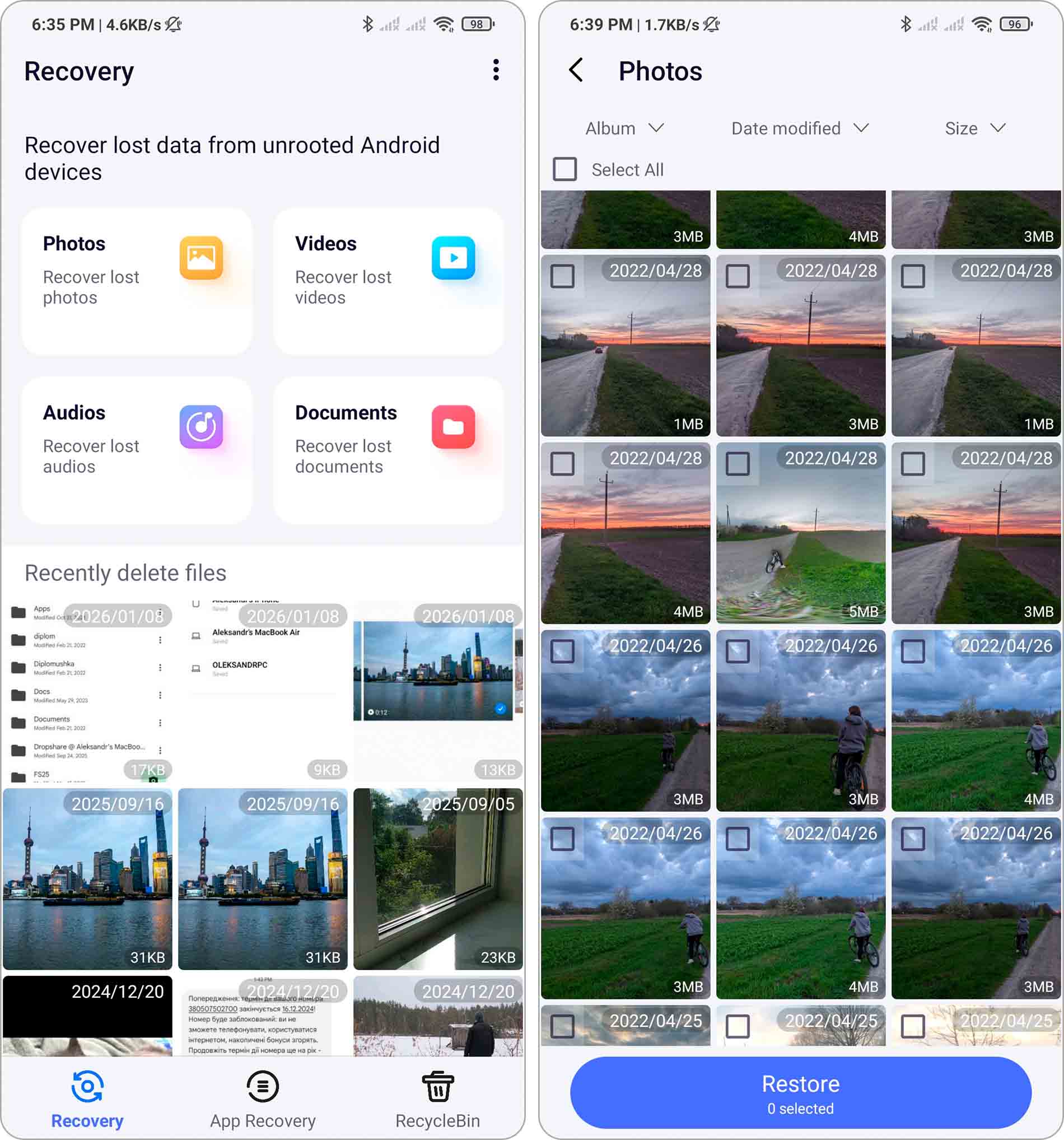
Mobispeedy is an Android recovery app that focuses on immediate, on-device file restoration after deletion. The app positions itself less as a classic deep recovery tool and more as a recycle bin–style solution, where deleted photos, videos, audio files, and documents can be retained and restored shortly after removal.
The app supports recovery of media files and documents from Android internal storage and SD cards. It scans accessible storage locations and allows you to preview detected files before recovery, which helps confirm whether the data can still be restored. Mobispeedy requires broad file access permissions to scan all relevant folders and file types.
Mobispeedy works best in scenarios where files were recently deleted and storage blocks have not yet been overwritten. It does not rely on complex recovery workflows and instead targets quick restoration use cases, such as accidental deletion of photos or videos. As with similar on-device recovery apps, results depend heavily on timing and device storage activity.
💰 Pricing: $9-36 per item
📊 Google Play rating: 3.8 ★ (79.4K reviews)
Common Issues with Android Devices That Lead to Data Loss
There are a variety of issues that may cause you to lose data on your Android device. Here are some of the most common ones:

The idea of a freshly reset phone or tablet certainly sounds appealing since it makes your device feel brand new again. Problems arise when you think that you’ve backed up all your important information, only to find out after the reset that you missed a few.

There are various kinds of damage that your Android device might incur that would cause it to lose its stored data, including damage from impact, water, fire, and more. These types of accidents can harm your device’s internal storage or memory card, resulting in the loss of valuable information.

Formatting your SD card completely wipes the information from it and returns it to its blank state. This is sometimes required when switching memory cards between devices and is also a good way to fix a card that’s been exhibiting some issues. Similar to factory resetting, it can be troublesome if you go through with the formatting process but only realize after that you failed to back up some important information.

Another common cause of data loss in Android devices is when the software on your machine begins to deteriorate. This could be because your device’s memory is completely filled up, you’ve encountered a virus/malware, or it might be due to a root attempt that went wrong.
Is Android Data Recovery Safe?
Yes, Android data recovery is safe because reputable data recovery software for Android uses a read-only approach to recovery, which means that it never modifies or deletes any data stored on your Android device.
However, complete Android file recovery from internal storage can typically be performed only with rooted devices, and there’s a lot that can go wrong during rooting. The worst-case scenario is that you make a critical error or experience a sudden power outage that results in your smartphone or tablet getting bricked, which is a slang term that Android enthusiasts use to describe devices that have become completely unresponsive.
If you want to stay on the safe side, we recommend you limit yourself to the recovery of data stored on your device’s SD card, as described in the previous section. Better yet, regularly back up all important data to a safe location so that you never need to perform data recovery from your Android phone.
Final Thoughts
In this guide, we reviewed a list of the best Android data recovery tools that can restore deleted files both on a computer and directly on an Android device. Each solution serves a different purpose, depending on the recovery scenario and available access.
For us:
- Disk Drill stands out as the top choice for desktop-based Android recovery thanks to its solid recovery capabilities, additional safety tools, and reasonable pricing compared to other PC and Mac solutions.
- When it comes to on-device recovery apps, DiskDigger remains the most practical option, largely because it offers a usable free version and covers basic recovery needs without requiring a computer.
That said, the most reliable strategy is still avoiding data loss in the first place. Android devices constantly handle background processes, cache files, and system updates, which means deleted data can be overwritten faster than you even realize that recovery software is needed.
To reduce this risk, make regular backups part of your routine. On Android, this can include Google account backups, cloud photo syncing, or manual copies of important files to external storage. When possible, act immediately after accidental deletion, such as restoring photos from the Recently Deleted folder in your gallery app before they are permanently removed. Data recovery tools can help, but prevention and timely action remain far more effective than relying on recovery software after the fact.
Frequently Asked Questions
- You can recover data from a microSD card using a computer if the files were stored on the card. This method does not require root access.
- You can also recover data from the Android phone’s internal storage via a computer, but the device must be rooted.
- Finally, you can try on-device recovery using a recovery app from Google Play, which also requires root access for meaningful results.
- In Dr Fone, go to “Toolbox” and then “Data Recovery.”
- Choose “Android” > “Recover Android Data.”
- Connect your phone to your PC.
- Pick your file types and click “Start Scan.”
- Check your data and click “Recover.”
- Choose your destination folder and click “Recover.”
- Launch your “Gallery” app and tap “Menu”.
- Head to “Trash” and select “Edit”.
- Highlight the photos that you want to retrieve and then hit “Restore”.