 Did you accidentally delete the wrong video files? Or perhaps you had a bunch of videos become inaccessible due to a corrupted memory card. In many cases where your video files have disappeared, there’s a way to get them back. Our team, comprised of industry-tested data recovery professionals, has searched for, tested, and reviewed the best video recovery software currently available on the market and gathered them into this list so you know what app to choose when the time comes to recover your video files.
A Quick Recap of the Best Video Repair Programs
Short on time? In addition to the full descriptions we provide later, here’s a quick breakdown of each of the tools that we’ve covered in this list so you can find the best solution straight away.
| Data recovery tool | Free trial limitations | Best for |
| Disk Drill | Free trial (free recovery up to 100 MB) | Easy, straightforward video recovery in almost any data loss situation |
| EaseUS Data Recovery Wizard | 2 GB (with a social media post) | Basic recovery with a clean, user-friendly interface |
| PhotoRec | Completely free | Completely free, terminal-based recovery |
| R-Photo | Completely free | Free recovery from unrecognized file systems |
| Recuva | Completely free | Recovering common video formats for free |
| DiskDigger | Free photo and video recovery on Android | Video recovery from Android devices (with root access) |
| UFS Explorer | Free recovery of files below 256 KB | Customizable recovery from Windows, macOS, and Linux-based systems |
| SanDisk RescuePRO® Deluxe | Preview only | Video recovery for SanDisk SD card owners |
8 Best Video Recovery Apps
It’s hard to define a one-size-fits-all solution when it comes to data recovery. It’s more accurate to say that each tool has its own pros and cons when tackling a certain type of data loss. We’ve included a wide range of options for different use cases. Some are free, others are paid, and a few allow free limits before you need to upgrade. Pay close attention to what each excels at to make sure you don’t waste time installing tools that aren’t right for the job.
1. Disk Drill
🏆 Best for: Easy video recovery in most data loss scenarios.
💻 Supported operating systems: Windows, macOS, Android, iOS
🔗 Download link: Download Disk Drill
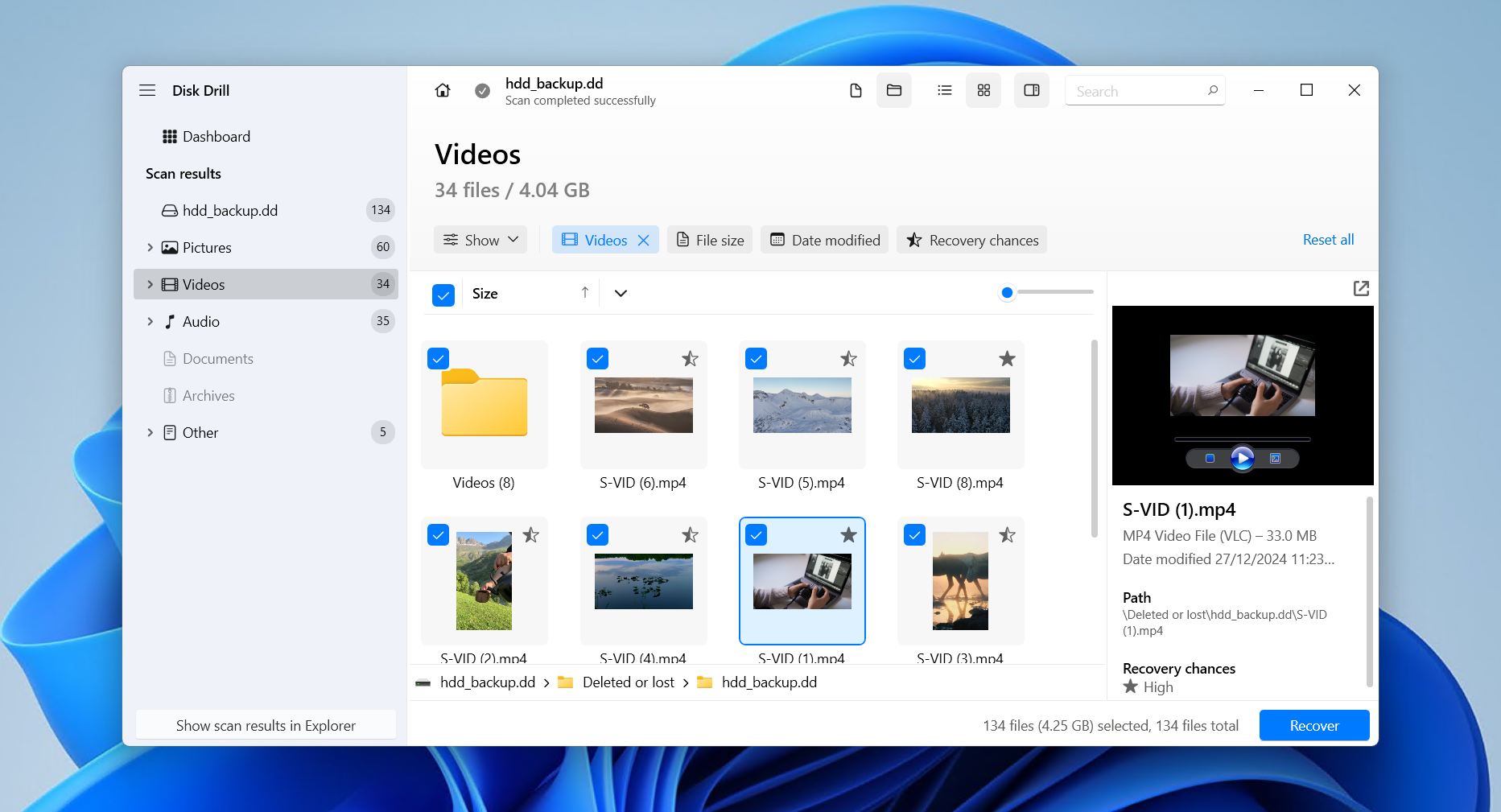
Our choice of the best video recovery software goes to Disk Drill. What makes Disk Drill unique is the way it pairs advanced video recovery with an easy-to-follow recovery workflow. By the end of our testing, it beat out all the other tools in almost all testing metrics relating to video recovery.
Disk Drill works with all major file systems (FAT, exFAT, NTFS, HFS/HFS+, APFS, Ext4/3/2) and utilizes relevant metadata to locate recoverable video files, even recovering the original filenames and folder structure where possible. In the absence of file system metadata, it searches for files using their signature instead, with support for MP4, M4A, WMV, MOV, and 41 other unique video formats.
It comes prepacked with features like Byte-to-byte backup, Recovery Vault, and active S.M.A.R.T. monitoring – all of which are free to use. Its latest feature, Advanced Camera Recovery, is especially useful here as it helps recover fragmented video files shot by modern cameras from the likes of GoPro and Insta360, which would otherwise remain split among thousands of individual segments.
The free version lets you scan and preview as much data as you want. The Windows version even allows recovery up to 100 MB, enough for a few short clips or just to make sure the software works. All recoverable data can be checked using the file-by-file preview function, and you can filter out other files like pictures and documents to cut down on the overall recovery time. We cover this and more in our Disk Drill review.
One downside is that scan times can sometimes be lengthy, especially on larger disks. But, as a result, Disk Drill is able to present you with a long list of recoverable files, only further contributing to its place as the best app to recover permanently deleted videos.
Pros
- File preview feature
- Recovers fragmented video files
- User-friendly interface
- Wide range of supported video formats
- Byte-to-byte backups
- Search by file extension
- No free recovery on macOS - previews only
- Android (rooted) and iOS support only on macOS version
Pricing:
| Disk Drill Basic | Free |
| Disk Drill PRO | $89 |
| Disk Drill Enterprise | $499 |
Rating:
| Source | Rating | Number of reviews |
| Trustpilot | 4.5/5 | 421 |
| Capterra | 3.7/5 | 11 |
| G2 | 4/5 | 62 |
| Final rating: | 4.4/5 | |
These ratings, and all that follow, are calculated as a weighted average based on the number of user reviews across platforms.
What users say:
“Disk Drill by CleverFiles did for me what other software couldn’t: restore deleted precious drone footage. And the bonus, filenames were also restored in the process. This software does what it is supposed to and does it well. Honestly, one of the best software purchases I have ever made.” – David, Trustpilot user.
“It was relatively affordable and was worth more than every penny. It did its job wonderfully, and recovered all of the lost video files I needed on a corrupted SD card.” – Mark, Capterra user.
2. EaseUS Data Recovery Wizard
🏆 Best for: Basic recovery with a clean, user-friendly interface
💻 Supported operating systems: Windows, macOS
🔗 Download link: Download EaseUS Data Recovery Wizard
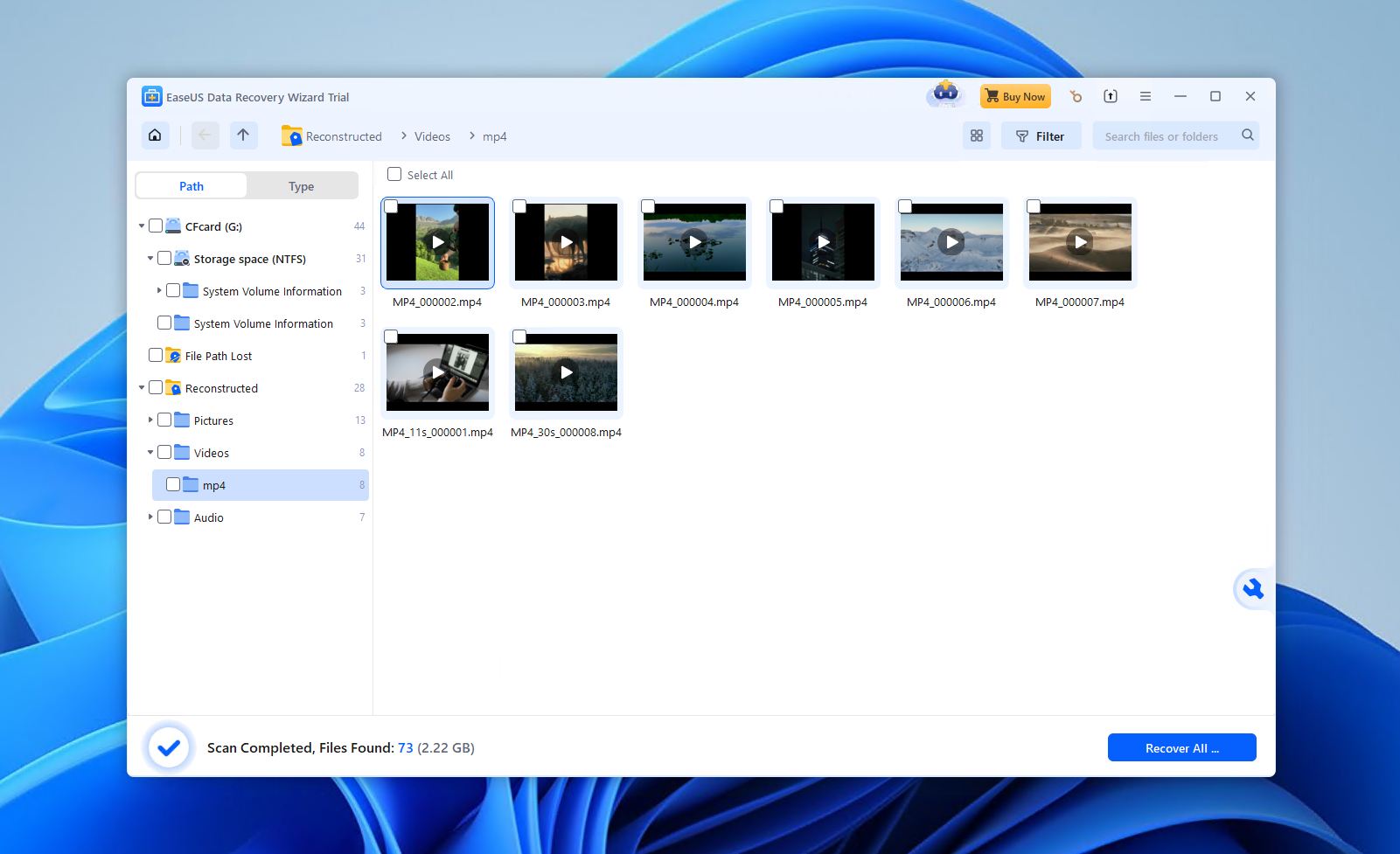
EaseUS Data Recovery Wizard is a consumer-focused recovery tool built around simplicity rather than deep technical control. We found in our tests that it performs best in straightforward video loss scenarios like accidental deletion, quick formats, or mildly corrupted storage devices. While it doesn’t lead the field in advanced recovery features, it does offer a guided, beginner-friendly workflow that appeals to most casual users who want minimal decision-making during recovery.
The software offers pretty consistent performance across Windows and macOS versions, with support for NTFS, FAT32, exFAT, ReFS, Ext4/3/2, and HFS+ file systems. It also works with some forms of RAID. At best, it was able to recover 90% of our data, but that was for all file types, not just video. See all of the test results in our EaseUS Data Recovery Wizard review.
Although its signature scanner does recognize a multitude of video formats, we found not all of them received the same support. That is, some were more recoverable than others. Common container types like MP4, MOV, and AVI were fine (assuming they weren’t heavily fragmented), while less-common ones fared worse. To compensate for its weaker video support, it ships with a built-in file repair module that has a chance to fix corrupted or unplayable videos.
The recovery workflow is intentionally hands-off. All scans run automatically in sequence, and recoverable files appear in real-time. From there, it’s a matter of previewing and recovering the files.
The price, however, is a hard pill to swallow. At $69.95/month for the cheapest license, the costs can add up. The free version lets you recover up to 2 GB for free (assuming you share a post on social media), which is a generous amount to confirm what the software is capable of.
Pros
- Very beginner-friendly interface
- Supports a range of file systems
- Minimal-input recovery workflow
- Built-in video repair tool
- 2 GB of free recovery (with social media post)
- Expensive license options
- Struggles with fragmented videos
- Limited preview for large videos (100 MB max)
Pricing:
| EaseUS Data Recovery Wizard Free | Free |
| EaseUS Data Recovery Wizard Pro (One-Month) | $69.95/month |
| EaseUS Data Recovery Wizard Pr (One-Year) | $99.95/year |
| EaseUS Data Recovery Wizard (Lifetime Upgrade) | $127.96 |
Rating:
| Source | Rating | Number of reviews |
| Trustpilot | 4.3/5 | 459 |
| Capterra | 4.6/5 | 397 |
| G2 | 4.7/5 | 318 |
| Final rating: | 4.5/5 | |
What users say:
“Software saved 2 corrupted video files for me, then customer service quickly cancelled the auto-renewal with no drama. Will use again if I have [the] same problem and £70 to spare.” – Kat, Trustpilot user.
“Its my first time to use this tool, based on my research its one of the effective tools in recovering deleted files. the premium package is expensive for me and as Filipino who work in a provincial area I cannot afford this for now.” – Edwige, Capterra user.
3. PhotoRec
🏆 Best for: Free, terminal-based recovery
💻 Supported operating systems: Windows, macOS, Linux
🔗 Download link: Download PhotoRec
Looking for a completely free, open-source data recovery solution? PhotoRec is one such tool that’s regularly mentioned in the recovery space for being readily available as a no-cost option for recovering video files, especially in situations where the file system is damaged, missing, or unreadable.
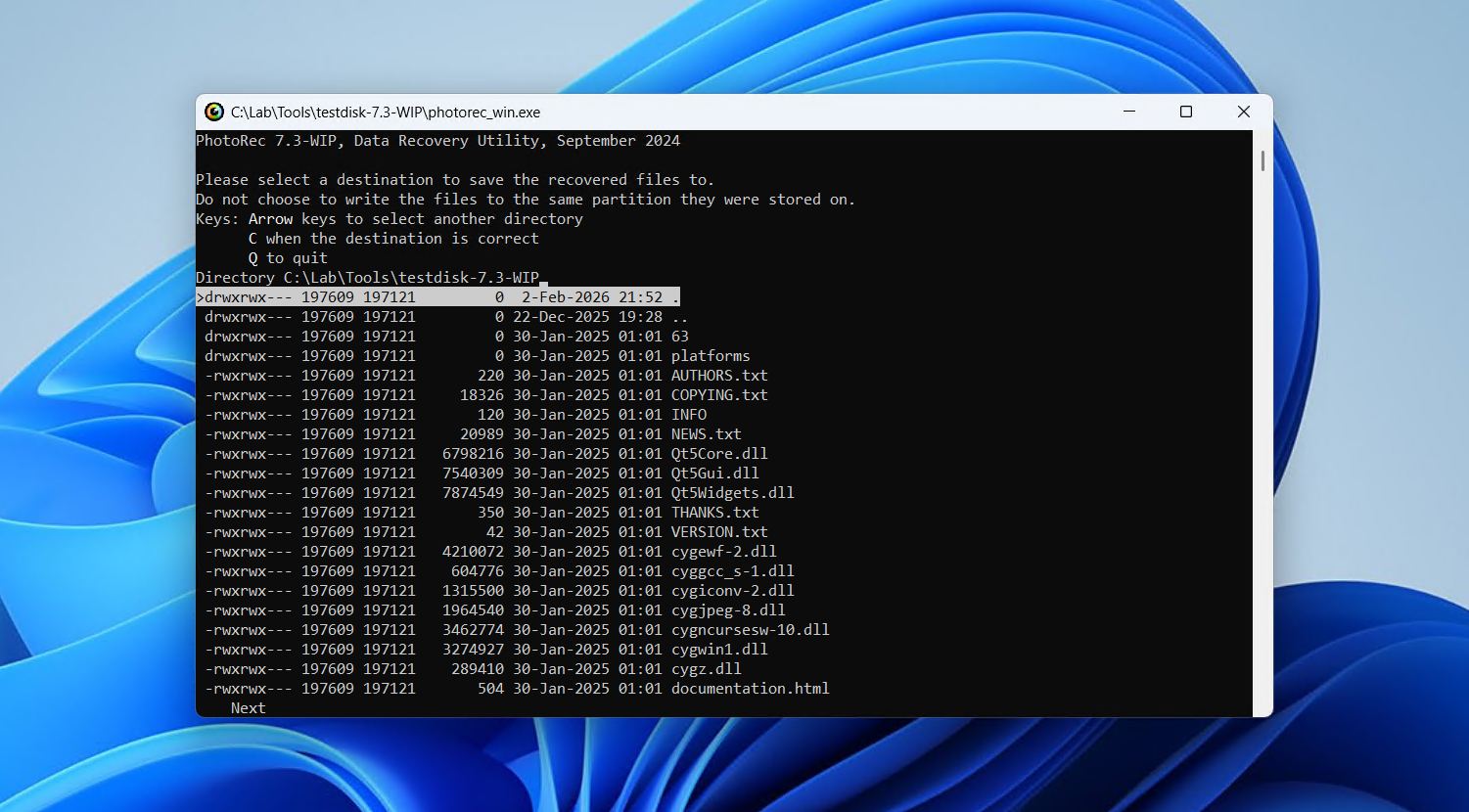
PhotoRec doesn’t need to be installed to your drive. Instead, simply unzip the file contents and launch it straight away. The program actually runs using a command-line interface, but a graphical user interface is also available for those who are uncomfortable using a terminal (though it is very basic).
Unlike other recovery tools, PhotoRec doesn’t utilize file system data at all. Instead, it scans the raw disk surface block by block, carving files based purely on known file signatures. In total, it recognizes 614 file extensions. However, the downside of relying solely on signature-based recovery is that none of your recovered data will keep its original file names and folder structure, which can result in difficulty sifting through all the data after it’s recovered.
As you would expect with a free tool, there are some cutbacks. It doesn’t allow you to review a list of the recoverable files, nor does it allow you to preview them before recovery. Instead, when you start recovery, all files of the selected file type are recovered. Furthermore, its command-line, keyboard-driven interface can feel intimidating and dated, with the optional QPhotoRec UI doing little to alleviate this.
While it would be nice to pick and choose which files to recover, this is a luxury when you consider the tool offers unlimited recovery for free. If you need to recover a whole partition, its companion app TestDisk is included in the download.
Pros
- Open-source software
- Free video recovery software
- Supports raw recovery
- Portable
- Uses a terminal-based interface
- Cannot choose files for recovery
- Original file names are not retained
Pricing: Free
Rating*:
| Source | Rating | Number of reviews |
| Trustpilot | 4/5 | 3 |
| G2 | 4.3/5 | 12 |
| Final rating: | 4.2/5 | |
*There is no profile for PhotoRec or CGSecurity on Capterra.
What users say:
“What I like most is that it has an integrated tool called “PhotoRec” that is used to recover lost files in similar memory. I also like that it is compatible with different types of memory, especially optical drives.” – Lisandro, G2 user.
“I can’t say more works than 1000 thank you to the creator of this webpage. I recovered all of my lost photos.” – Abraham, Trustpilot user.
4. R-Photo
🏆 Best for: Free recovery from unrecognized file systems
💻 Supported operating system: Windows
🔗 Download link: Download R-Photo
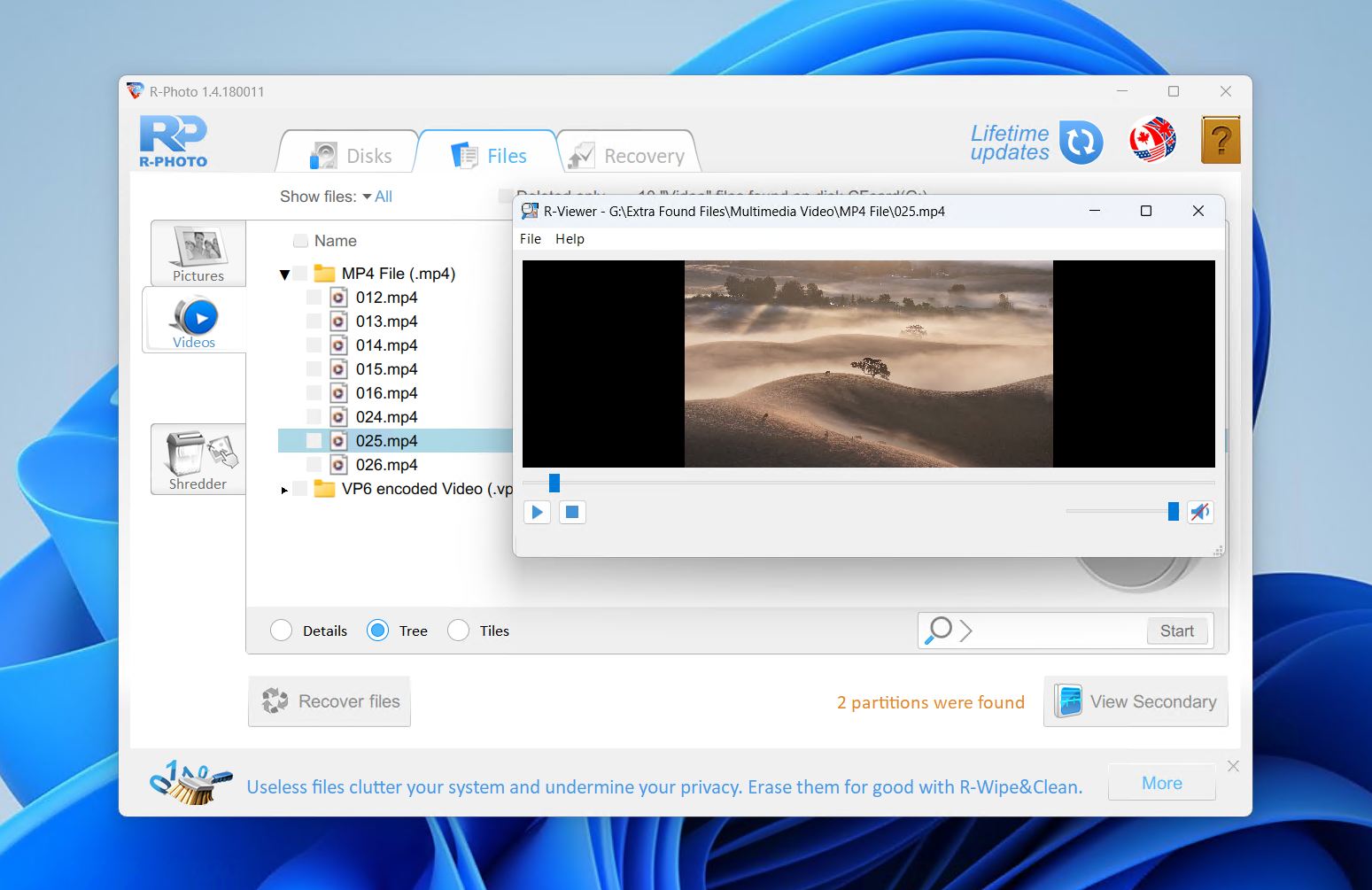
R-Photo is video restoring software developed by R-Tools Technology, the same crowd that created the advanced recovery tool R-Studio. While simplified, it uses the same powerful recovery engine, making it technically strong for recovering media files. It’s only available on Windows and specializes in the recovery of photos and videos exclusively. Unlike some other tools, R-Photo supports recovery from virtual disks and RAID arrays. Better yet, it’s completely free for non-commercial use.
It supports all major Windows file systems, including FAT, exFAT, NTFS, and ReFS, and can recover files from internal and external HDDs, SSDs, NVMe drives, USB sticks, SD cards, virtual disks, undamaged RAID arrays, and Windows Storage Spaces. The ability to create disk images and recover files from them is also welcomed.
For a free solution, we found R-Photo is surprisingly capable at recovering deleted and formatted files, especially those on partitions with unrecognized file systems. In addition to standard file system scans, R-Photo uses raw file signature recovery to restore videos even if the associated metadata is missing or corrupted.
If you’re a Windows 11 or 10user who only wants to recover video files, R-Photo is easy to install and execute, allowing for quick recovery at no cost. In our testing, it was also very quick considering it only needs to scan for limited file types.
Pros
- File preview feature
- Shredding feature
- Completely free
- Outdated user interface
- Windows only
Pricing: Free (for non-commercial use)
Rating*:
| Source | Rating | Number of reviews |
| Trustpilot | 3.5/5 | 4 |
| Capterra | 4.6/5 | 83 |
| G2 | 4.2/5 | 15 |
| Final rating: | 4.5/5 | |
*Reviews have been taken from the parent company’s profile, R-Tools, as R-Photo does not have ratings online.
What users say:
“The software supports a wide range of file systems and can recover files in many different formats. One downside is that it can be a bit pricey compared to other data recovery software. Overall, R-Studio Data Recovery is a reliable and effective tool for recovering lost data.” – Felipe, Capterra user.
“It did the job! When I looked up data recovery software, there is so much garbage out there… It’s a bit clunky and non-intuitive. A lot can be done to demystify complex language and terms that the “every person” may not understand but there are user manuals and it’s worth figuring out.” – Verified G2 user.
5. Recuva
🏆 Best for: Recovering common video formats for free
💻 Supported operating systems: Windows
🔗 Download link: Download Recuva
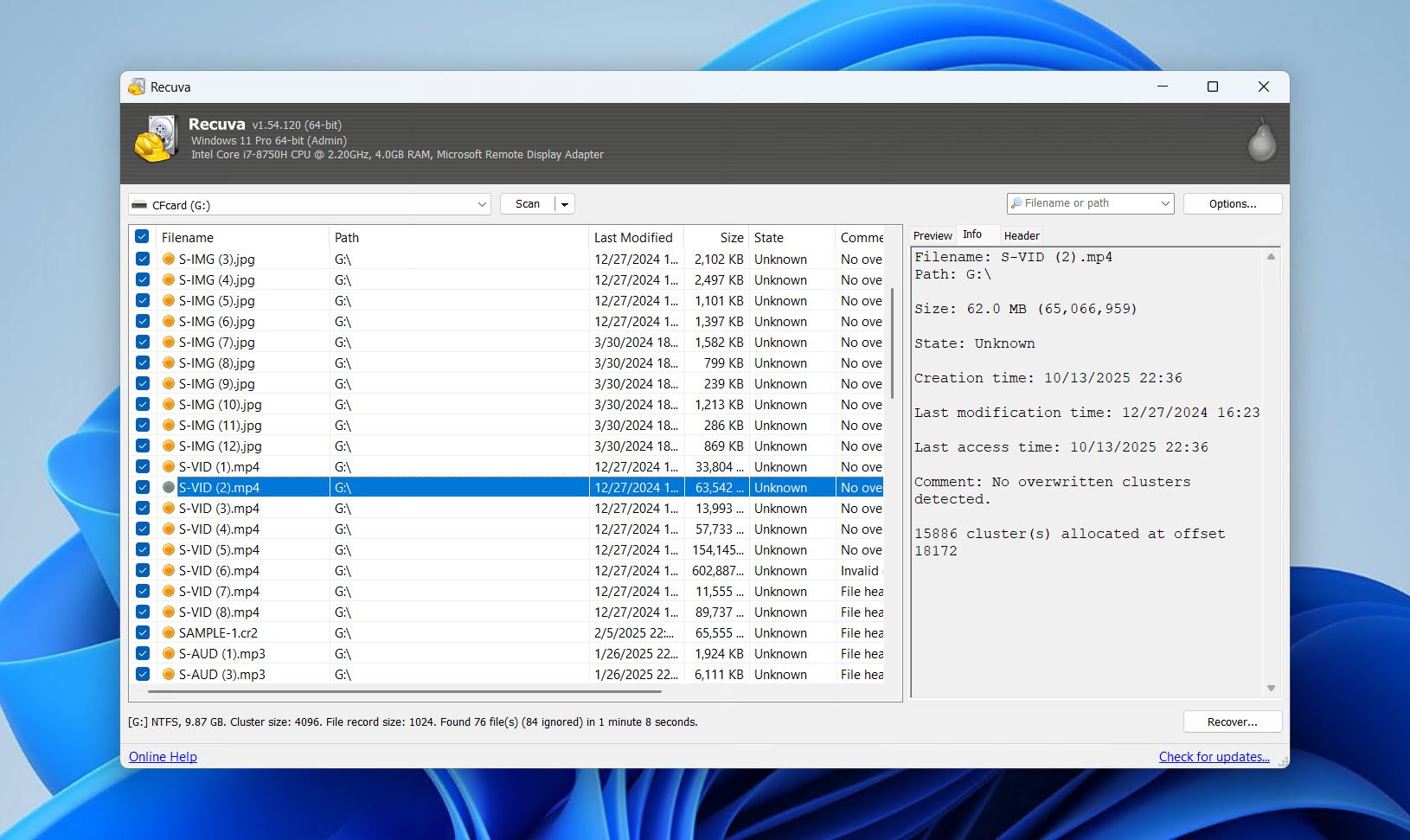
Recuva is a well-known free recovery tool only available on Windows. It’s so well-known because of two qualities: (1) it’s very beginner-friendly, and (2) it’s completely free. However, it heavily relies on the remnants of a working file system, as its file carving capabilities leave much to be desired.
That said, Recuva is ideal in straightforward recovery scenarios. Our testing showed that its success rate drops significantly outside of simple undelete operations. While it has an excellent track record of restoring recently deleted files from FAT32, NTFS, and exFAT partitions, it struggles with fragmented media files, larger video, and formatted drives.
In terms of video recovery specifically, it showed some promising results when the conditions are right. Small MP4, MOV, and AVI files were recoverable with little to no issue. It did struggle with larger videos, but the software itself is extremely fast, lightweight, and doesn’t place immense load on system resources. We delve more into this in our Recuva review.
Recuva also comes with some useful extras, like secure delete for overwriting sensitive files, and the ability to mount disk images to avoid modifying the original drive. The Professional version adds support for creating and scanning disk images, automatic updates, and priority customer support, though it does not improve recovery performance.
Because Recuva cannot be used in complex data recovery scenarios, it’s outpaced by many other options on the market. However, because it’s free and does show some promise in very specific situations, it remains a top pick for those who need to recover their data on a budget without much concern for the success rates.
Pros
- Free, unlimited recovery
- File preview and selective recovery
- Guided, wizard-based interface
- Secure file deletion included
- Windows only
- Requires an intact file system
- Only suitable for simple undelete tasks
Pricing:
| Recuva | Free |
| Recuva Professional | $24.95/year |
Rating*:
| Source | Rating | Number of reviews |
| Trustpilot | 3.9/5 | 27,151 |
| G2 | 4.5/5 | 626 |
| Final rating: | 3.9/5 | |
*There are no review profiles for Recuva online. The closest possible comparison we could find was for CCleaner, the flagship software from the same company.
What users say:
“I used their Recuva and it is legit! It didn’t get me any virus, it brought up my videos back again!” – Arturo, Trustpilot user.
“I accidentally deleted 9 videos from a hard drive. I bought Recuva through CCleaner. The program cannot recover the 9 videos — not even with a deep scan.” – Leon, Trustpilot user.
6. DiskDigger
🏆 Best for: Android recovery
💻 Supported operating systems: Windows, macOS, Linux, Android
🔗 Download link: Download DiskDigger for Windows, macOS, Linux, Android
DiskDigger is one of the few deleted video recovery apps that’s available on Android, Windows, macOS, and Linux. However, since this is our best pick for Android recovery, we’re going to focus on the smartphone version. We have a full DiskDigger review of the PC version, but it’s not comparable to the other options on this list in terms of video recovery.
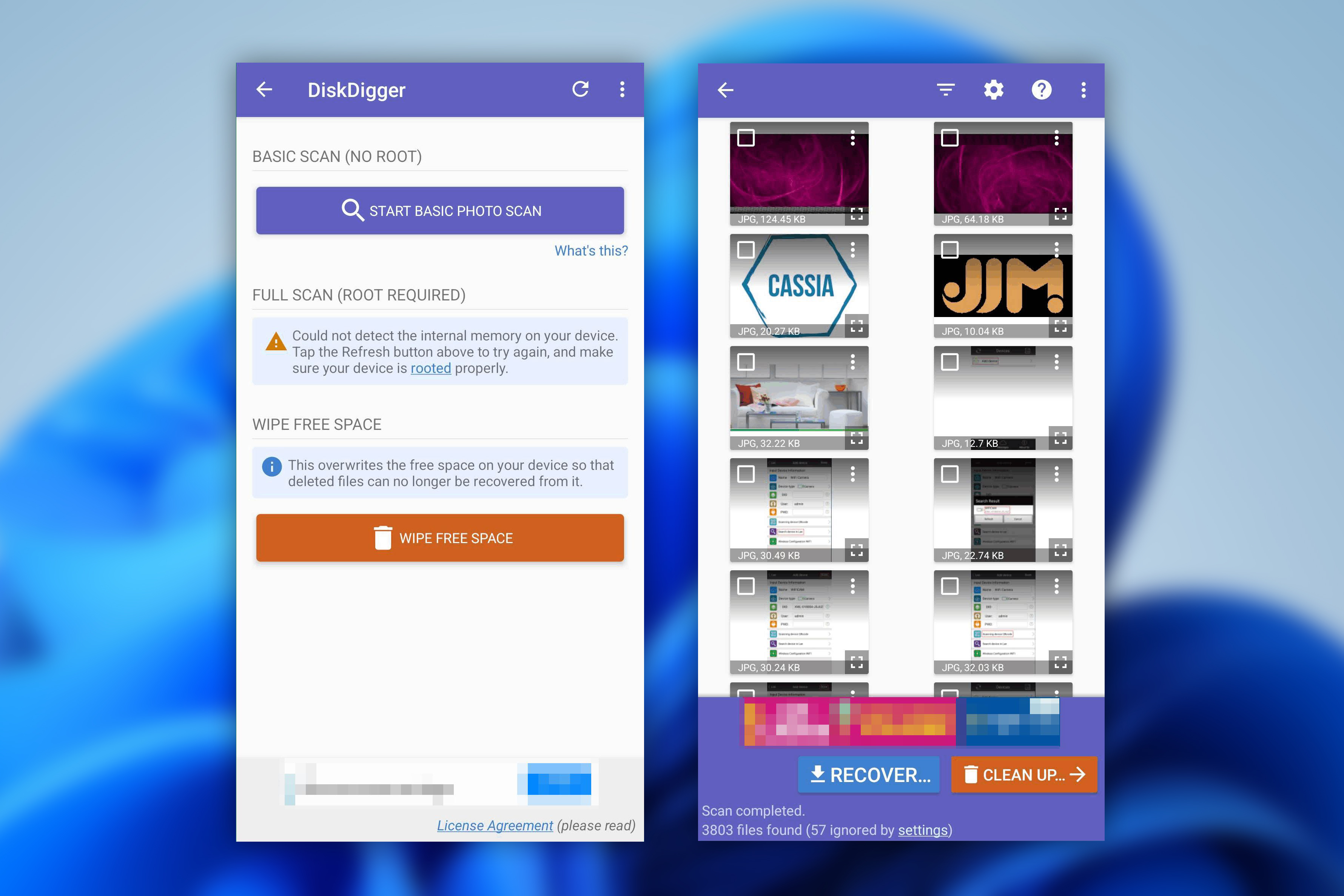
Being an app, it gives you the opportunity to perform recovery straight from your Android device. In addition to this, we chose it as one of the best deleted video recovery apps because it also comes with a Wipe free space feature that acts as a way to securely delete videos you don’t want to be recovered.
Installation is a breeze, especially on Android, since it’s just another app you download from Google Play. Although in order to recover videos, your device must berooted, otherwise the app will only be able to recover low-resolution versions of your photos. Once you scan your device, you can view your recoverable files in a thumbnail format and expand them to get a preview. After marking the files you want, simply tap the recovery button and choose a recovery destination.
DiskDigger supports a wide range of file formats. The free version allows the recovery of photos and videos (again, with root access), but you’ll need to buy DiskDigger Pro to recover other file types, such as documents.
All-in-all, it’s easy to use on mobile devices despite its outdated interface, and scan times are short. If you don’t find what you’re looking for using its regular Dig Deep scan, the Dig Deeper scan can scan according to its list of supported file signatures to recover your video. This leads us to consistently place it among the best video recovery apps for Android.
Pros
- File preview feature
- Compatible with most operating systems
- Quick scan times
- Easy to use
- Device must be rooted to recover videos
- Outdated user interface
Pricing:
| DiskDigger for Android | Free |
| DiskDigger Pro for Android | $4.59 |
| DiskDigger Personal | $19.99 ($14.99 w/ discount) |
Rating*:
| Source | Rating | Number of reviews |
| Trustpilot | 3.8/5 | 2 |
| Google Play Store | 3.8/5 | 504,000 |
| Final rating: | 3.8/5 | |
*DiskDigger is not listed on Capterra or G2, and so we have substituted them for Google Play Store ratings.
What users say:
“Genuine review, it really can recover photos and videos. But ofc, not all can be found. It still good though, I lost all the photos needed for my coursework & using this app, I can restore at least half of the photo & videos that I needed.” – Nur, Google Play Store user.
“The Disk Digger website makes repeated references to rooted devices. I wasn’t sure what that meant. Overall, this was a confusing, user-unfriendly, nervous-making episode when I needed it least.” – Tea & Crumpets, Trustpilot user.
7. UFS Explorer
🏆 Best for: Users that are tech-savvy
💻 Supported operating systems: Windows, macOS, Linux
🔗 Download link: Download UFS Explorer Standard Recovery
UFS Explorer comes in two versions. UFS Explorer Standard Recovery is intended for typical data loss cases, while UFS Explorer Professional Recovery is an expert-level tool aimed at enthusiasts and data recovery professionals. Standard Recovery allows free recovery of files up to 256 KB, with Professional Recovery raising this limit to 768 KB. We’re going to focus on the Standard Recovery version, but we’ve also covered Professional Recovery in our UFS Explorer review.
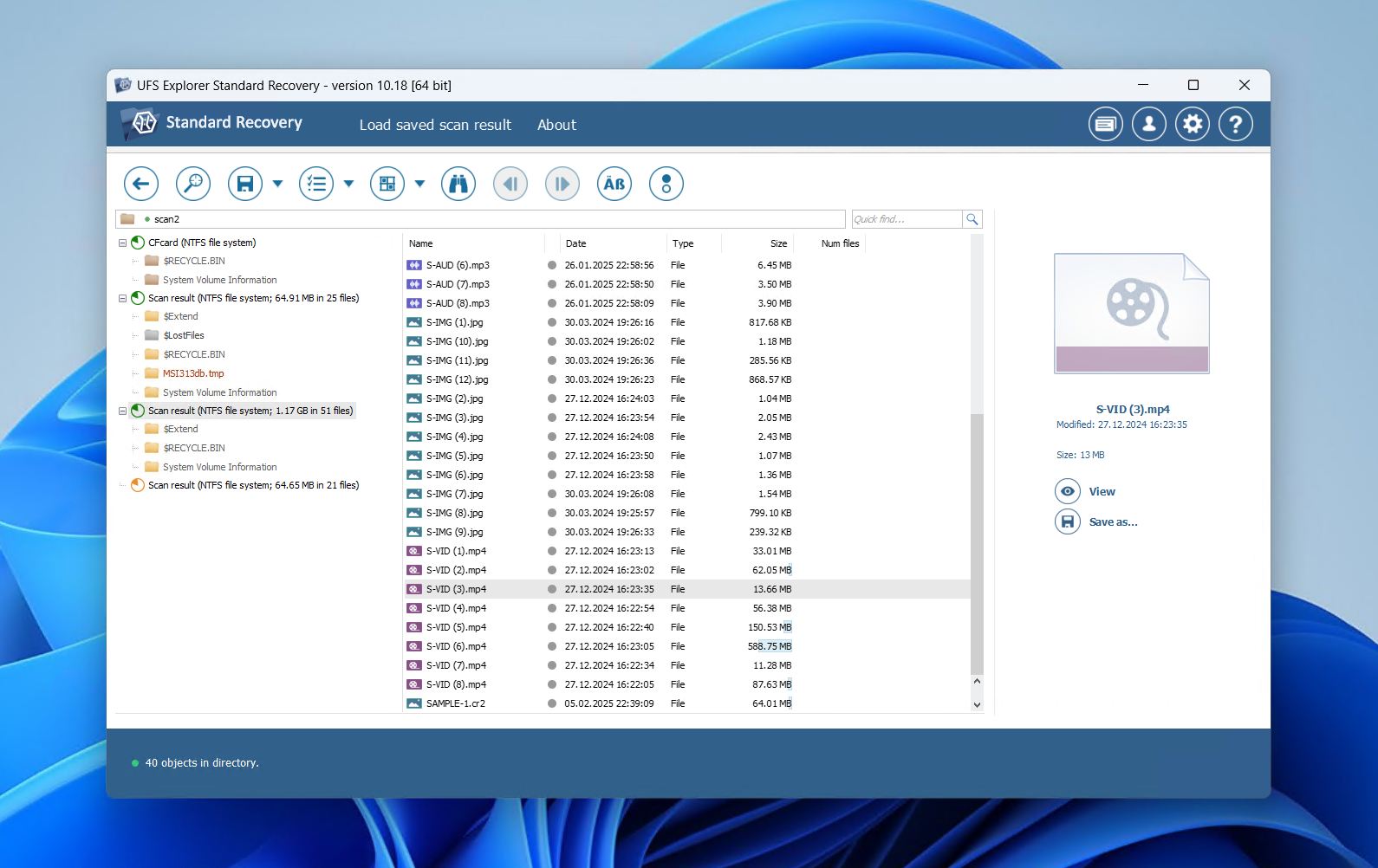
UFS Explorer Standard Recovery is available on Windows, macOS, and Linux. Installation is available in multiple languages and also provides a warning against installing it to the wrong drive, similar to R-Photo. The main application has a compact but optimized interface that is busy with information pertaining to your drives. You’re given a lot of control over the scan, such as what scan you’d like to perform and what file systems to search.
The post-scan results screen allows you to preview individual files to ensure they’re intact. Advanced users can also view the hexadecimal contents. Scan results can be saved and reviewed at a later time for recovery. Unfortunately, it can be slightly confusing to use with all the information that’s available. For example, you must manually enable the ability to select multiple files for recovery at once.
Even though it’s low on our list of the best apps to recover deleted videos, UFS Explorer comes with some useful recovery features and a lot of customization options. For its price, UFS Explorer Standard Recovery gives the user a lot of control over the recovery process.
Pros
- File previews available
- Lots of customization options
- Quick scan times
- Slightly confusing recovery process
- Overload of information for new users
Pricing:
| UFS Explorer Standard Recovery | $64.95 |
| UFS Explorer Professional Recovery | $679.95 |
Rating:
At the moment, there are not enough reviews of this software to assess its actual rating.
What users say:
“Complex knowledge for all FS and fast working interface. Interface has own logic , but when you used to work with it is OK” – Dimitar, G2 user.
8. SanDisk RescuePRO® Deluxe
🏆 Best for: Video recovery for SanDisk SD card owners
💻 Supported operating systems: Windows, macOS
🔗 Download link: Download SanDisk RescuePRO® Deluxe
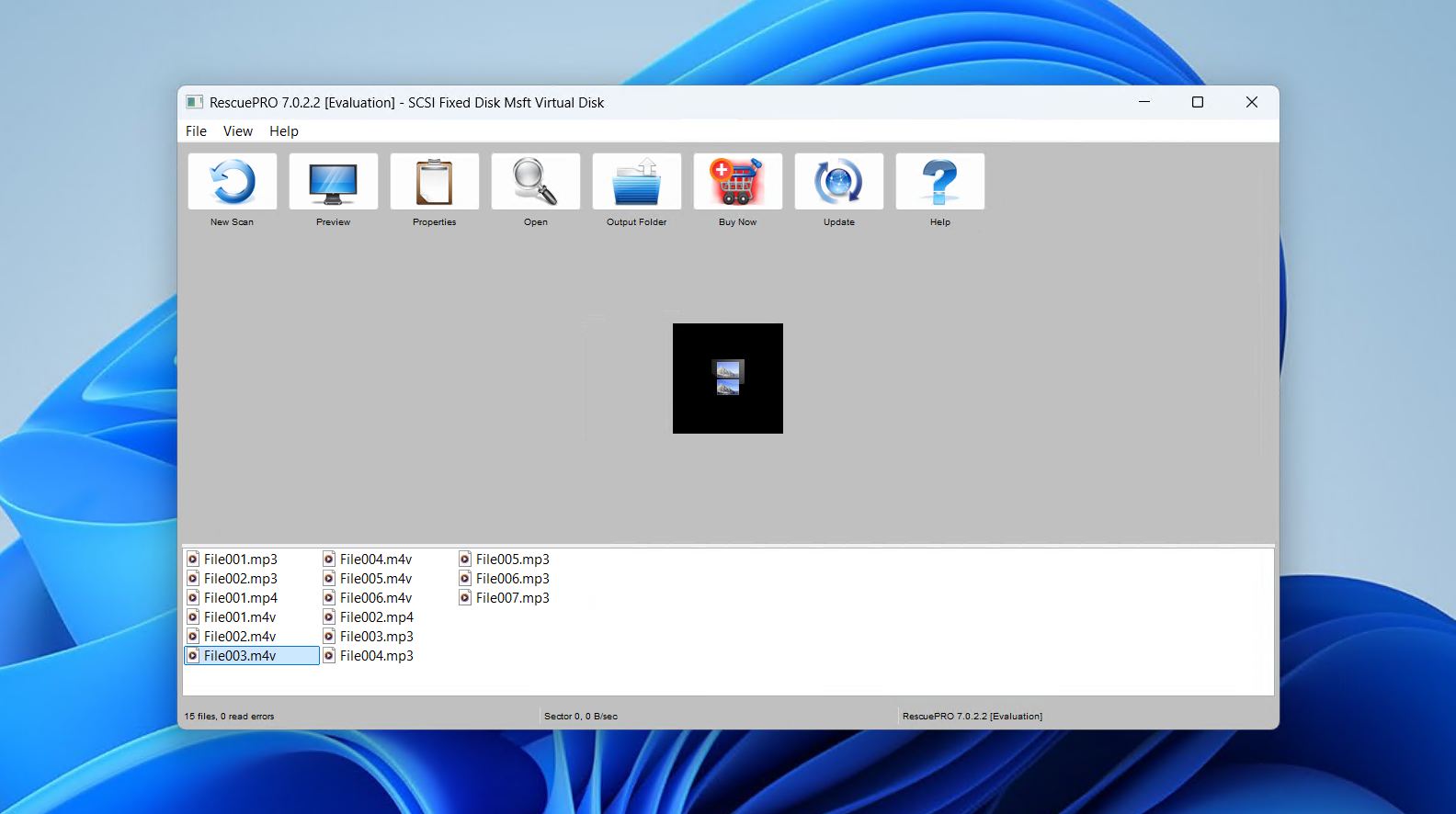
To finish off our list, we felt SanDisk RescuePRO® Deluxe deserved a position. A relatively unknown recovery tool, particularly because it’s so niche, it offers the handy ability to piece together fragmented videos. Similar to Disk Drill in that regard, though not quite as powerful.
It works with a wide range of flash memory devices, including SD cards, USB drives, and CFexpress cards, and can recover photos, videos, documents, and other file types. It’s a useful option for users who already own SanDisk cards and might not realize they have access to the software, as it actually comes bundled with the cards sometimes.
The software is lightweight, requiring just 2 GB of RAM and free disk space twice the size of the media you want to recover. It also contains the ability to securely wipe media from the drive and create copies of failing storage media.
Honestly, the biggest advantage of RescuePRO Deluxe is that a one-year activation is bundled with some SanDisk SD cards, making it a convenient, no-cost option for owners. For users without an activation key, alternatives like Disk Drill will generally provide better results.
Pros
- Supports fragmented video recovery
- Often bundled with SanDisk cards
- Streamlined, 3-click recovery
- Average recovery performance
- Less effective than premium tools
- Requires activation key for full use
Pricing:
| SanDisk RescuePRO® Deluxe | $59.99 |
| SanDisk RescuePRO® Deluxe Commercial | $249.99 |
Rating:
At the moment, there are not enough reviews of this software to assess its actual rating.
What users say:
“Program is suitable only for recovering files from very basic cases of corruption or erasure. With the way many recent SanDisk SSDs have gone, if it does fail, it will be bad. The software will not help you.” – u/Zorb750, Reddit user.
How to Select the Best Software for Video Recovery
Although we’ve highlighted the 8 best tools for video recovery, deciding on which one’s best for you can still be difficult. Because of that, we’ve broken down some of the most important criteria to keep in mind when making a decision.
- 📈 Performance – A good recovery tool will be able to recover the majority (if not all) of your video files in the shortest time possible. Since every data recovery tool is built differently, your experience will vary greatly depending on how optimized it is for your needs. Therefore, look for a video recovery app that specializes in recovering deleted videos.
- 📱 Device Type – Your device will dictate what operating system and file system you use. Some data recovery tools have support for a wide range of devices, while others may specialize in one. When deciding on a data recovery tool, check what type of support it offers in regard to the device you’re using.
- 💲 Price – Price is undoubtedly a big factor for most users. While your data is important, it may not be possible to break the bank for an expensive data recovery tool. Although it may be tempting to get a data recovery tool with all the bells and whistles, not all data recovery tools are targeted at the average consumer. Rather, the highly technical ones with additional recovery features are more suited for data recovery enthusiasts and professionals who will get the most out of them.
- 🗃️ File Type – Not all data recovery tools have the same support for all video file types. This is especially important when the data recovery tool is unable to recover your data using the file system of your drive, as it needs to rely on a signature scan. If the application doesn’t support a type of file signature, raw recovery for that file type will not be possible.
- 🖱️ Usability – A good recovery tool understands the balance between strong performance and ease of use. It should guide you through the recovery process without overwhelming you with technical jargon, while still giving you the option to preview files before recovery and navigate through the software without feeling bogged down.
Our Verdict
So, all things considered, what’s the best recovery tool? If we’re talking about which software will perform the best in the most data loss scenarios, it will be Disk Drill. It uses a mixture of file system and signature-based recovery and supports a range of video formats from leading camera manufacturers. It also includes a dedicated Advanced Camera Recovery module to maximize video recovery and allows up to 100 MB of recovery for free.
For a completely free alternative, PhotoRec is a good option. Its terminal-based interface can be a challenge, but it works on Windows and macOS, ignores the file system, and can scan corrupted or formatted drives. DiskDigger is one of the best video recovery apps for Android and offers a straightforward mobile solution if you need to recover videos directly from your device.
So in summary:
- Disk Drill – for covering a wide range of data loss scenarios.
- PhotoRec – for the best free open-source option.
- DiskDiger – for video recovery from Android devices.
Feel free to share which tool you picked and why in the comments, or ask any questions that perhaps this article didn’t answer. We’d love to hear your thoughts.
FAQ
- Download and install Disk Drill.
- Scan the drive for lost videos.
- Select the deleted videos you wish to recover.
- Choose the desired recovery location.
- Go to Photos.
- Tap Albums.
- Go to Recently Deleted.
- Restore the deleted videos.