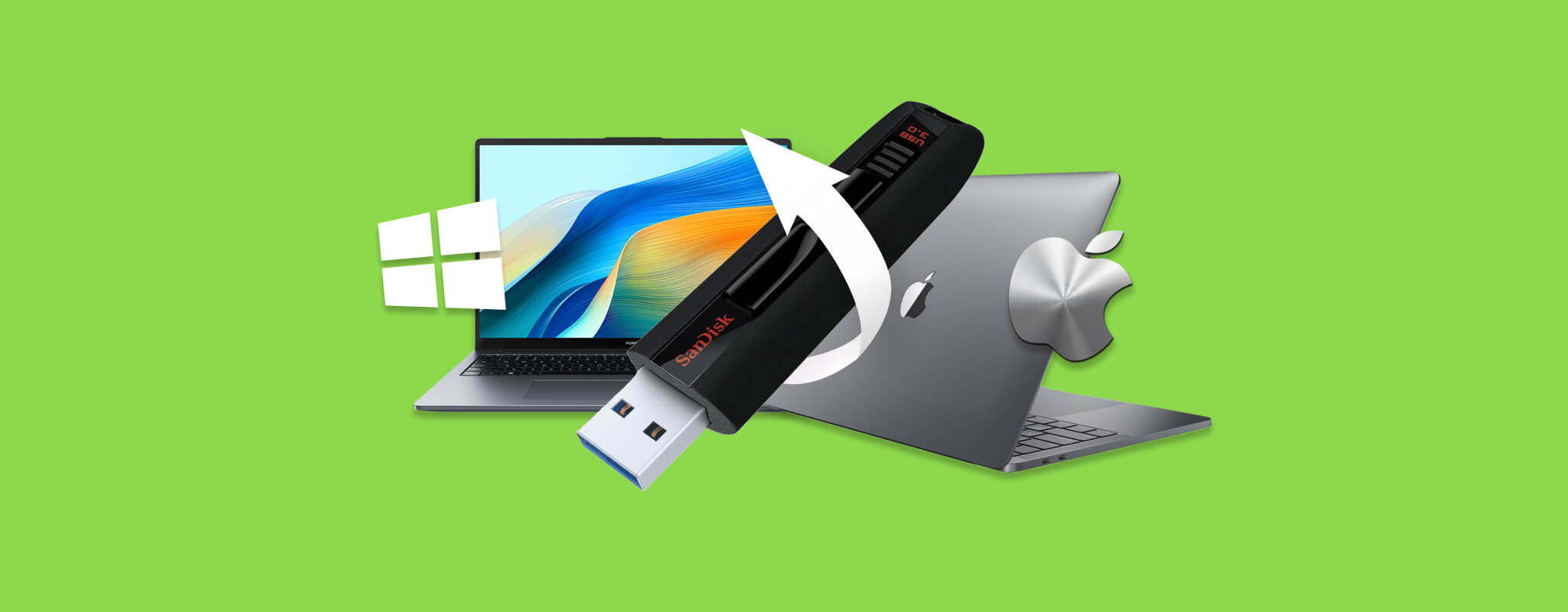
Losing data from your USB drive due to accidental deletion or device malfunction is always a stressful affair, and your best bet at retrieving that information would be through the use of quality data recovery software. To make things easier, we’ve done all the research and tested out the tools for you, and we’ve come up with a list of the best USB stick recovery software that will give you the highest chance at rescuing your missing files.
Jump ahead to our comparison table to get a quick breakdown of every tool we’ve included in this list.
Our editorial team independently assesses each data recovery solution to produce accurate, high-quality content. Discover more about our testing process.
9 Best USB Recovery Software
Every data recovery tool has its own unique benefits and drawbacks. Using our standardized testing approach, the ranking of tools is largely driven by usability and recovery performance, which is what most users are looking for in a recovery tool.
1. Disk Drill USB Data Recovery (Windows, Mac)
- 🔄 Latest update: 6.1.1162 for Windows, 6.1.2111 for macOS (November 20, 2025)
- 📄 Supported files: Over 390 file formats
- ⚙️ System requirements: Windows 10+ (x64 only) / Mac OS X 10.15.7+
Pros
- Intuitive and attractive user interface
- Supports a wide variety of USB file types
- The free Windows version allows you to recover up to 500 MB
- Includes data protection and drive backup features
- Powerful scanning algorithm
- Simple recovery process
- Exceptional recovery results
- Doesn’t work with Linux machines
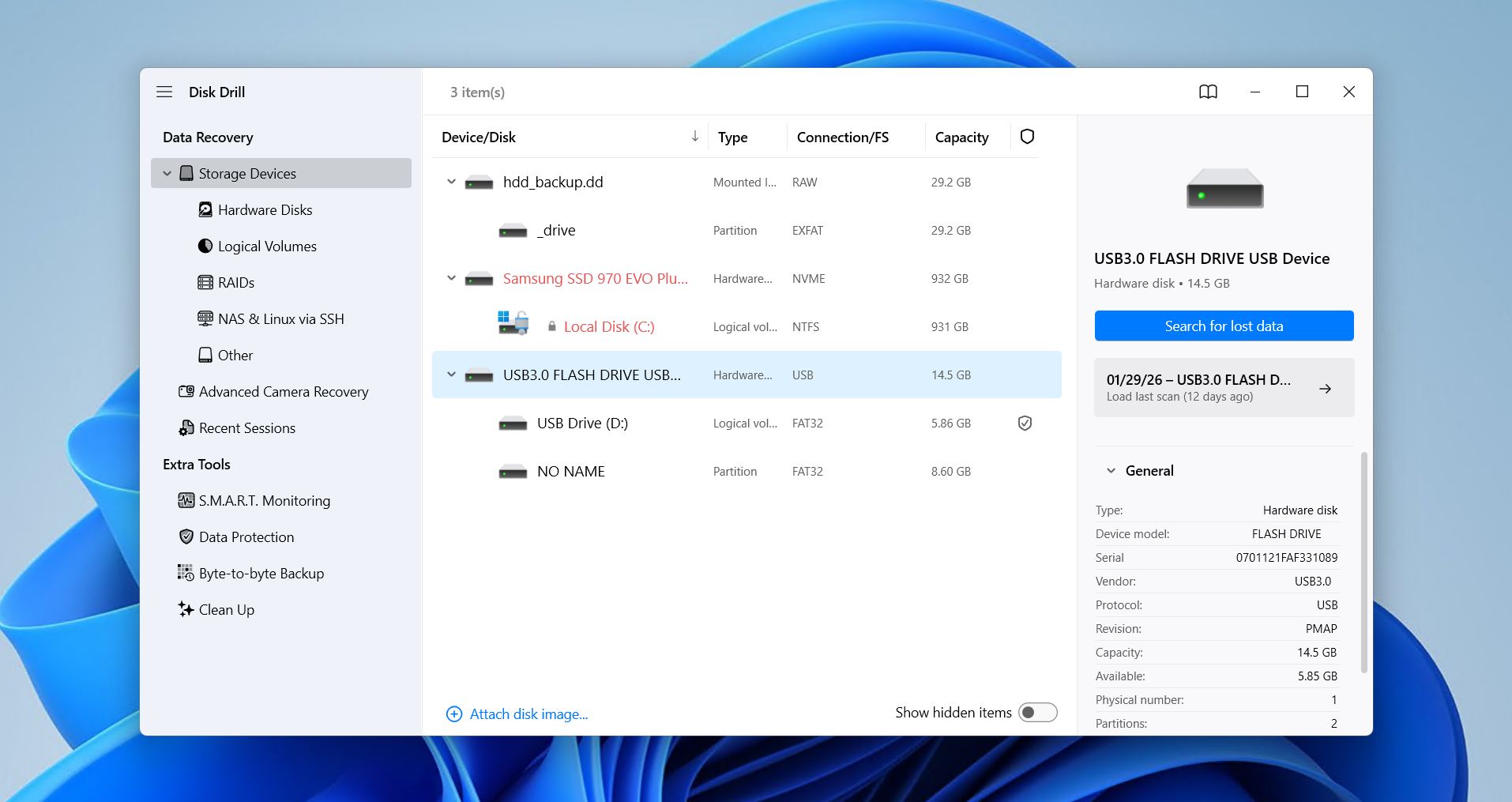
Disk Drill is a cut above the rest when it comes to data recovery from USB, thanks to its user-friendly design, high recovery rates, nifty extra features, and consistent updates. Its compromise between usability and recovery performance makes it a powerful and accessible option for users of any level who are just trying to recover their data.
The intuitive user interface is easy to follow, and you go from scanning to recovery in just a few clicks. It supports all necessary file systems, including ExFAT, FAT32, NTFS, ext4, and APFS, and also uses signature-based from a database of over 390 unique file formats. Because it uses multiple scanning algorithms, it’s suitable for a range of recovery tasks, from recovering a recently deleted file to restoring data from a RAW partition. See our Disk Drill review for full test results.
It does come with some other useful features too, all of which are free. The drive backup feature can create byte-to-byte images of your flash drive for later recovery, and its clean up feature is handy for seeing what files are taking up the most space. Disk Drill remains the most comprehensive and effective recovery tool around and is sure to be your best option at rescuing your missing data.
💰 Price:
| Disk Drill Basic | Free |
| Disk Drill PRO | $89.00 |
| Disk Drill Enterprise | $499.00 |
| Competitive Upgrade | 50% OFF |
👛 Free version: Disk Drill Basic for Windows has a free version and lets you recover up to 100 MB of data.
⭐ Rating:
| Source | Rating | Number of reviews |
| Trustpilot | 4.5/5 | 421 |
| Capterra | 3.7/5 | 11 |
| G2 | 4/5 | 62 |
| Final rating: | 4.4/5 | |
💬 What users say:
“Excellent! I lost many important files and folders from my usb. Downloaded Disk Drill from this site and recovered them all. Never thought this was so possible and so easy.” – Angela, Trustpilot user.
“Disk Drill saved my priceless photos! It was easy to use and it recovered all of my photos that my camera lost.” – Gail, Capterra user.
2. R-Studio (Windows, Mac, Linux)
- 🔄 Latest update: Version 9.5.191686 (January 28, 2026)
- 📄 Supported files: Several hundred file formats
- ⚙️ System requirements: Windows 11, 10/8.1/8/7/Vista/XP/2000 or Windows Server 2019/2016/2012/2008/2003 / Mac OS X 10.5 Leopard or newer / Any kernel 2.6+ Linux distribution capable of installing .rpm or .deb packages
Pros
- Has cross-platform functionality between Windows, Mac, and Linux
- Allows data recovery over LAN or the internet
- Has a trial version
- Varied pricing structure
- Features and interface might be tough to navigate for some users
- The trial version only allows you to recover files that are smaller than 1024 KB
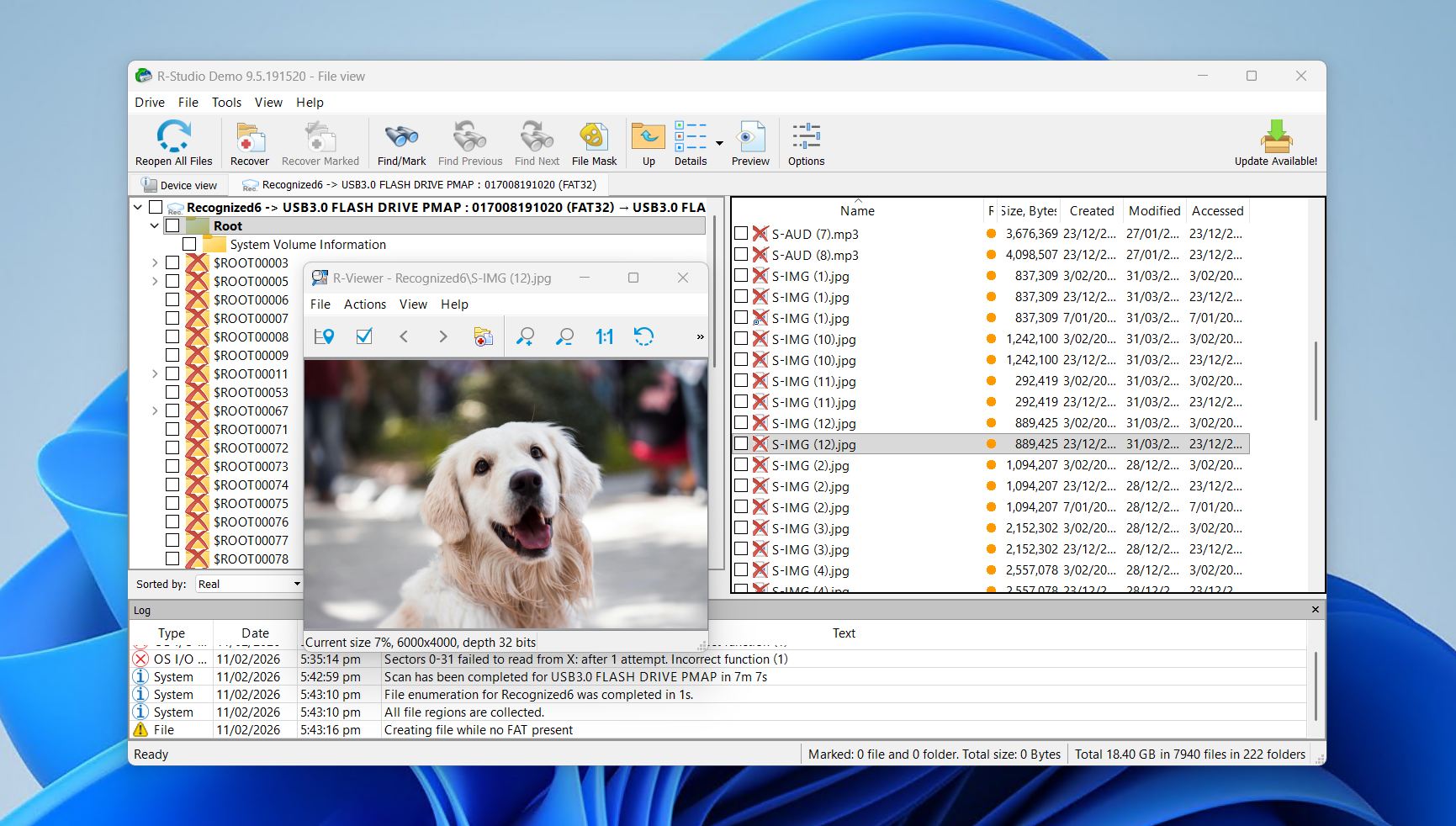
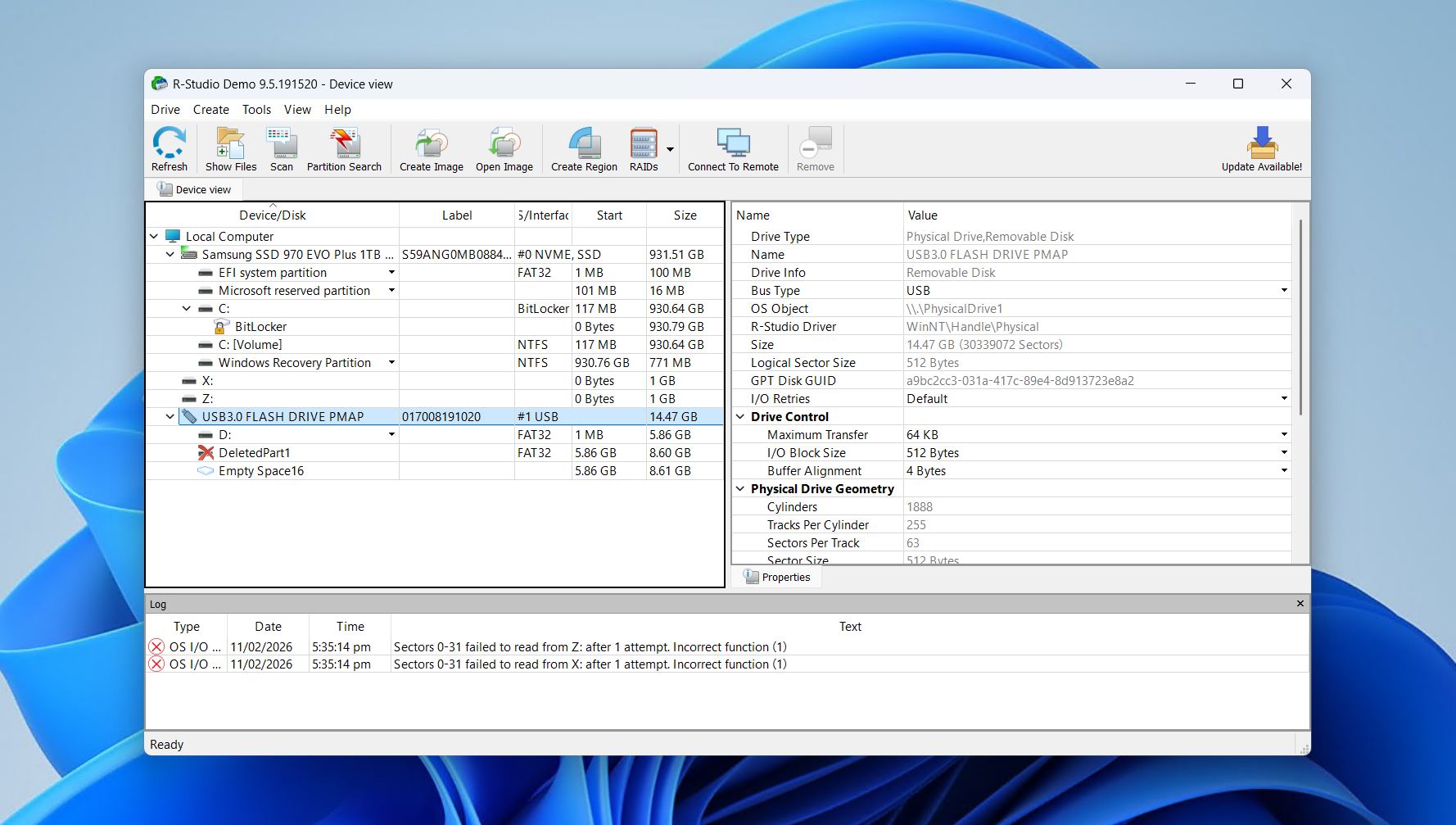
R-Studio offers an advanced USB recovery tool that’s aimed more towards experienced users who know their way around industry-level tools. Professionals will feel right at home with this tool, as it includes comprehensive recovery options and legitimate cross-platform functionality. This means that you can recover files from a USB storage medium that’s formatted for Windows, Mac, or Linux, no matter which operating system you’re running the tool on.
Given R-Studio is a tool that prioritizes function over appearance, you’ll find the user interface very technical. Despite its complicated interface, its powerful scanning algorithms does a lot of work to place it second on this list. It’s good for simple undelete operations, as well as more complex cases, like recovering data from a reformatted flash drive.
Many of the features included with R-Studio will generally go unused by the everyday user, and you must be careful of the hardware-based license transfer limitations when switching computers. But it’s a great option for people looking for a recovery tool with some extra bells and whistles, like S.M.A.R.T. monitoring and disk creation. See our R-Studio review for a full breakdown.
💰 Price:
| Product | Windows | macOS | Linux |
| R-Studio FAT | $49.99 | – | – |
| R-Studio NTFS | $59.99 | – | – |
| R-Studio | $79.99 | $79.99 | $79.99 |
| R-Studio T80+ | $80.00 | $80.00 | $80.00 |
| R-Studio Corporate | $179.99 | $179.99 | $179.99 |
| R-Studio Technician | $899.00 | $899.00 | $899.00 |
👛 Free version: R-Studio lets yourecover files that are smaller than 1024 KB.
⭐ Rating:
| Source | Rating | Number of reviews |
| Trustpilot | 3.5/5 | 4 |
| Capterra | 4.6/5 | 83 |
| G2 | 4.2/5 | 15 |
| Final rating: | 4.5/5 | |
💬 What users say:
“Using RStudio was a breeze. It listed all the files for the drive that could be recovered including – most importantly – the file sizes. All the files looked to be listed complete.” – George, Trustpilot user.
“Unlike industry standards allow free license transfers to new PCs (especially when replacing a scrapped computer), R-Studio ties licenses to a single motherboard, refusing transfers even for legitimate reasons like hardware upgrades” – u/_cryptoGap, Reddit user.
3. DMDE (Windows, Mac, Linux)
- 🔄 Latest update: 4.4.4.842 (February 5, 2026)
- ⚙️ Supported files: Most standard document, video, audio, and graphics file formats
- 📄 System requirements: Windows 2K, XP, Vista, 7 and higher / macOS 10.12+ / Latest Linux distributions with libc library
Pros
- Filled with advanced features like RAID construction and a hexadecimal/text mode
- Relatively strong recovery speed and performance
- Available for Windows, Mac, and Linux
- Recover up to 4,000 files from a single directory
- Features and interface are geared towards advanced users
- Outdated design
- Scan results are grouped into different subfolders
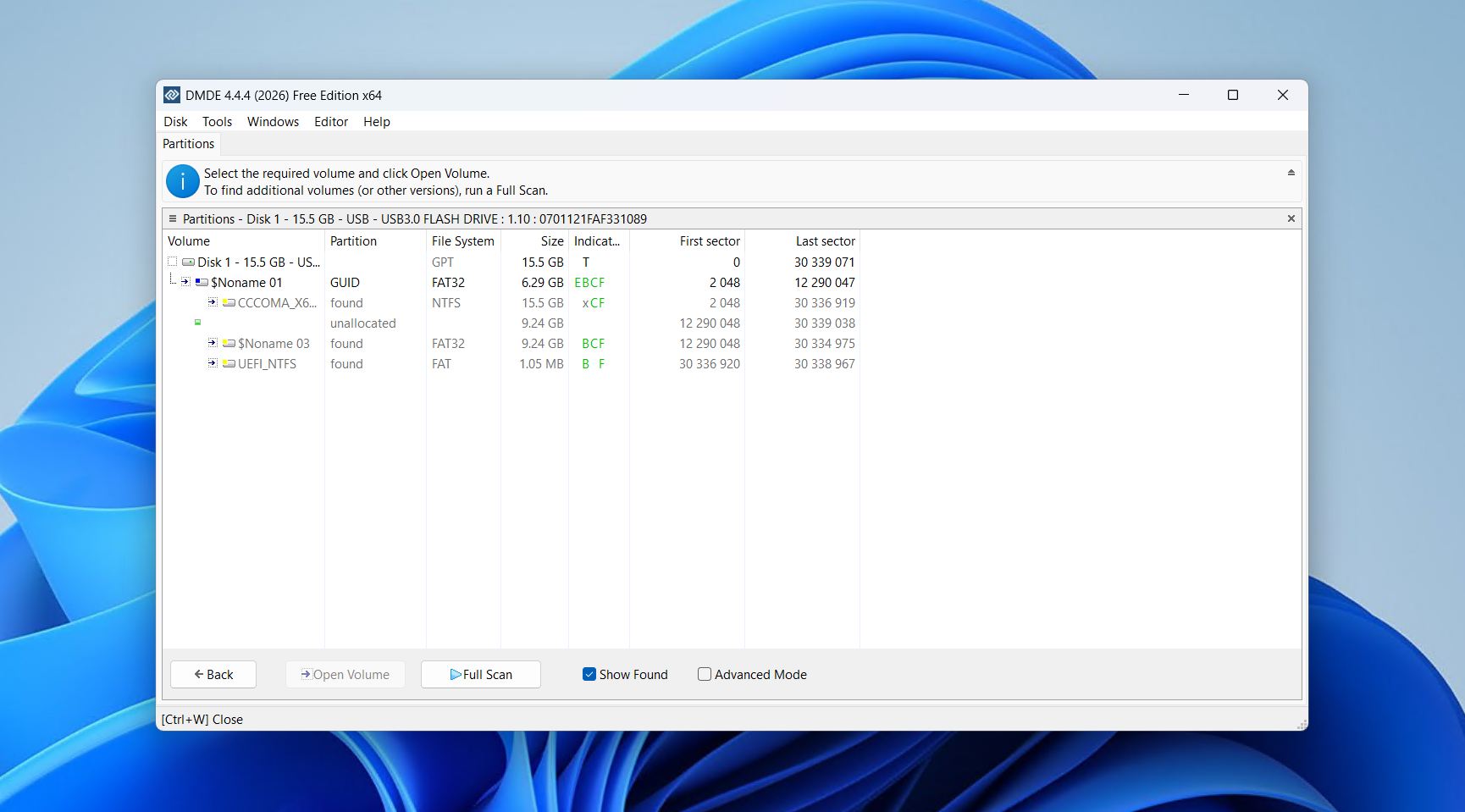
Similar to R-Studio, DM Disk Editor and Data Recovery Software (DMDE) is a USB disk data recovery tool that foregoes fancy looks and an intuitive design in favor of functionality and advanced features. Aside from being able to recover data from a vast range of storage mediums, the program can also construct a Redundant Array of Independent Disks (RAID), manage partitions, and view storage devices in hexadecimal mode, though these are features geared more toward experts rather than the average user.
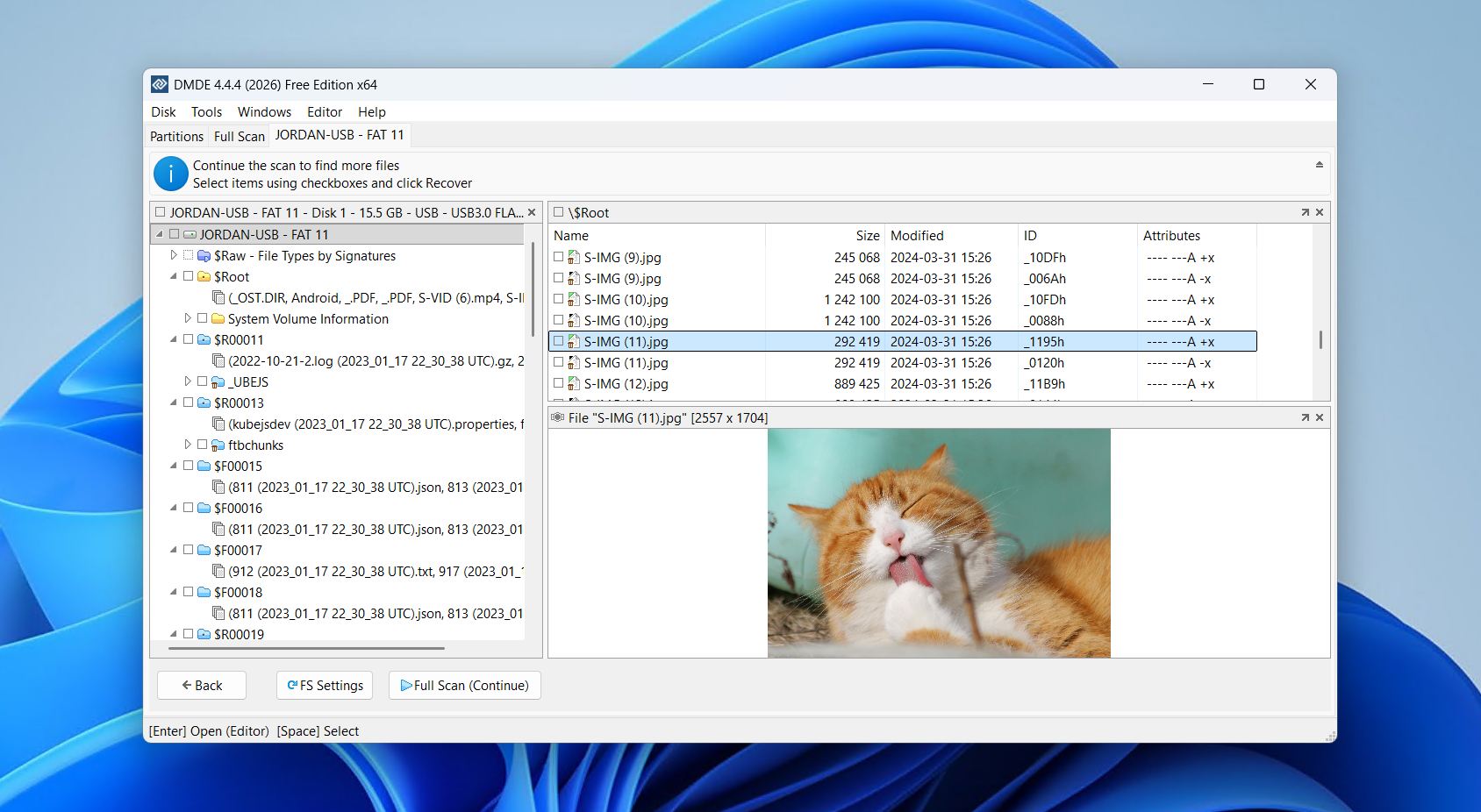
The program supports a wide range of different file formats, including NTFS, FAT32, exFAT, Ext4, HFS+/HFSX, and APFS, meaning it shouldn’t have any trouble scanning and recovering the lost files from your USB drive. It also supports recovery by file signature, though we found in our DMDE review that only a few are supported by default.
DMDE produces above-par recovery results and is capable of retrieving specific pieces of lost data as well as entire compromised partitions. The app’s complexity may prove to be detrimental to the novices on account of how convoluted the interface feels, but an expert will find a lot to love about this recovery tool.
💰 Price:
| Trial version | Only preview |
| 1-Year Express | $20.00 |
| DMDE Standard | $48.00 |
| DMDE Professional (1-OS Family) | $95.00 |
| DMDE Professional (Multi-OS) | $133.00 |
👛 Free version: The trial version of DMDE allows recovery of up to 4,000 files from a single directory.
⭐ Rating:
| Source | Rating | Number of reviews |
| Trustpilot | 3.8/5 | 2 |
| Capterra | N/A | N/A |
| G2 | N/A | N/A |
| Final rating: | 3.8/5 (limited data) | |
💬 What users say:
“DMDE is an incredibly powerful tool, especially for the price, albeit a little user-unfriendly.” – u/throwaway_0122, Reddit user.
“I got to the disk partition where I use to keep all the photos and I found them, I FOUND EM ALL! Choosing all files and setting a destination folder for the recovery was a minor hassle(premium feature to recover folders and sub folders) but it wasn’t something that bothered me, only few of the files got corrupted and I couldn’t repair them.” – u/NBE_23, Reddit user.
4. MiniTool Power Data Recovery (Windows)
- 🔄 Latest update: Version 11.8 12.8 (January 6, 2026)
- 📄 Supported files: Supports over 100 file types
- ⚙️ System requirements: Windows 11/10/8/8.1/7
Pros
- Can recover lost data from a wide range of storage mediums
- Capable of recovering entire partitions
- The paid version includes a recovery bootable USB feature that can help rescue files from an unbootable machine
- Straightforward recovery process
- Preview function is hit-or-miss
- The app is unusable when there’s a pending update
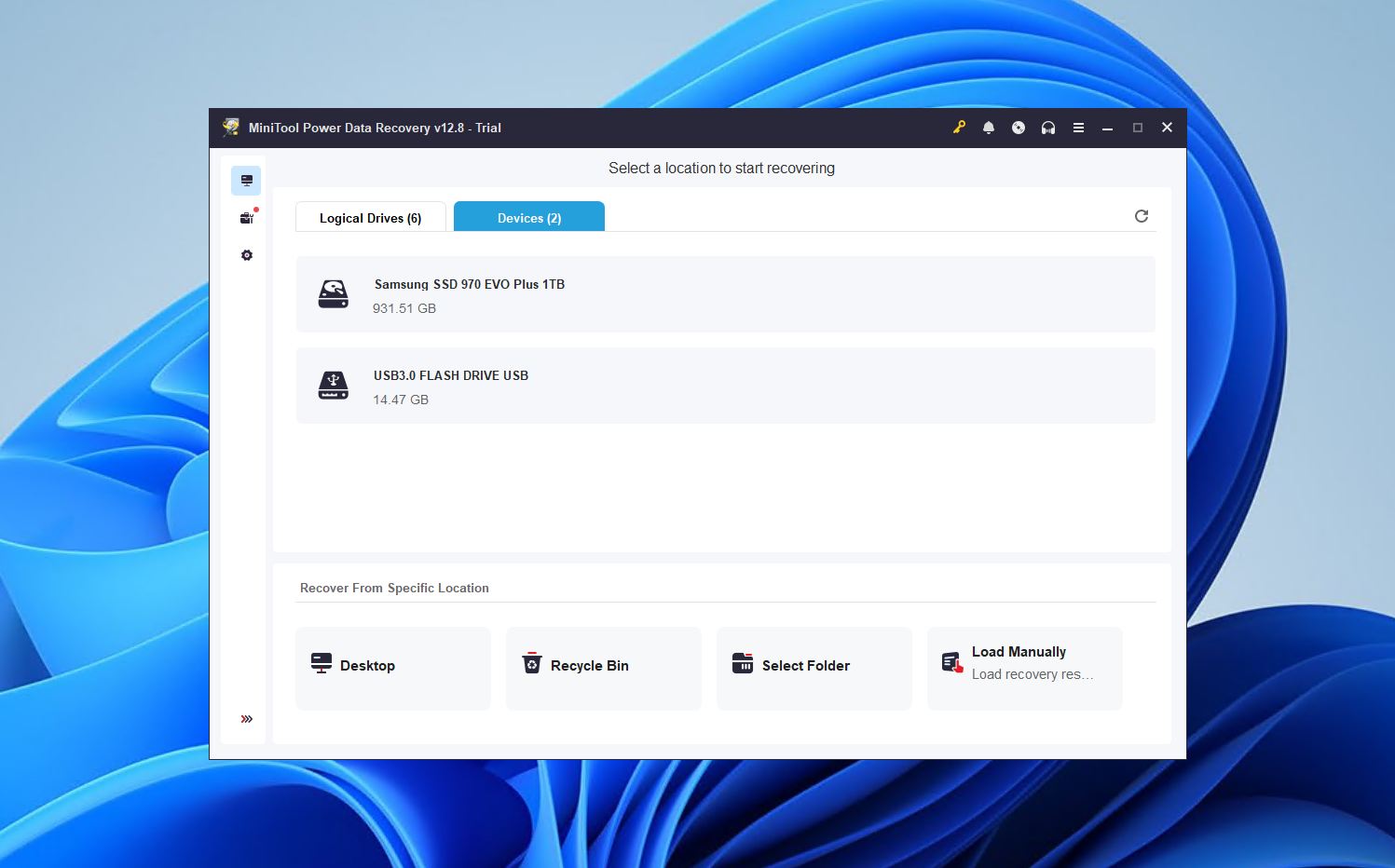
Aside from recovering files across a wide range of storage mediums, like flash drives and memory cards, MiniTool Power Data Recovery is also capable of rescuing entire partitions. Its free trial offers a 1GB recovery limit, allowing you to retrieve more than 100 different file types, 70 of which can be previewed. See the file types we tested against it in our MiniTool Data Recovery review.
Furthermore, you can load previous scan results so you don’t have to scan your machine or USB stick over and over again, though this is reserved for paid users along with the WinPE bootable media feature that comes in especially handy if you’re trying to retrieve files on a machine with a faulty operating system that prevents it from booting.
The user interface is simple enough for pen drive data recovery software – albeit a bit dated in design – with a layout that makes it easy to find your affected storage medium and start scanning for recoverable files with a single click.
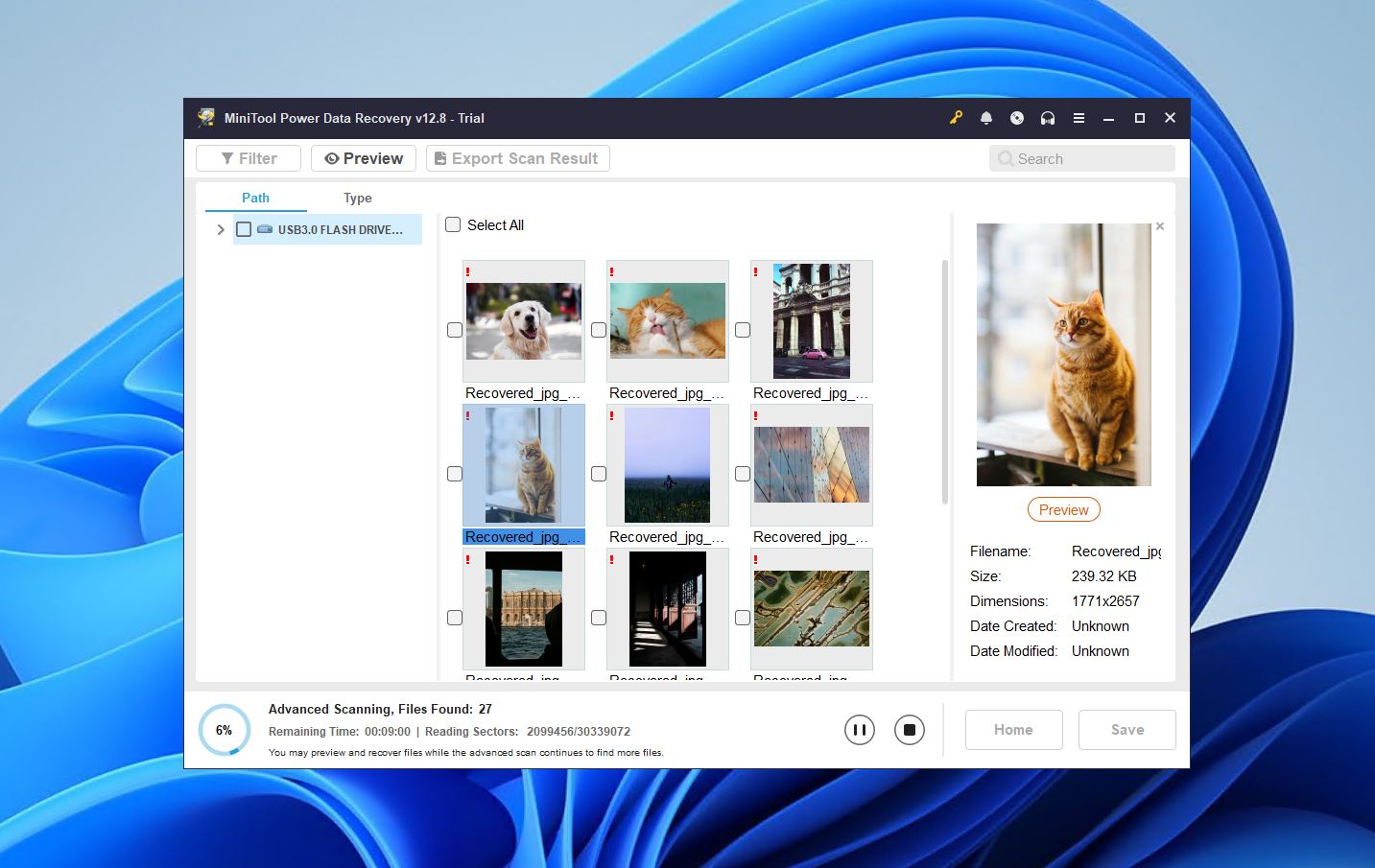
MiniTool does come with a few glaring missteps. Its lackluster preview function is finicky at best and has to be downloaded separately when using the free version. Also, you can’t use the program at all if there’s an outstanding update waiting to be installed. Clicking the cancel or close buttons simply shuts down the app.
💰 Pricing:
For Personal Users:
| Personal Monthly Subscription | $69.00 |
| Personal Annual Subscription | $89.00 |
| Personal Ultimate | $129.00 |
For Business Users:
| Business Standard | $119.00 |
| Business Deluxe | $199.00 |
| Business Enterprise | $399.00 |
| Business Technician | $499.00 |
👛 Free version: The trial version of MiniTool allows up to 1GB of USB flash data recovery.
⭐ Rating:
| Source | Rating | Number of reviews |
| Trustpilot | 4.7/5 | 3,393 |
| Capterra | 4.5/5 | 60 |
| G2 | 4.4/5 | 31 |
| Final rating: | 4.7/5 | |
💬 What users say:
“After trying numerous recovery programmes to rescue some old, recently rediscovered, very precious video files from a worn out DVD with no success whatsoever, this MiniTool software managed to recover ALL of the data from the disc, very impressed, can’t thank you enough!” – Simon, Trustpilot user.
“Makes it very easy to analyze data. Cpk ppk built in and has a great charting layout. Can be complicated for new users. Has a learning curve.” – Cory, Capterra user.
5. Prosoft Data Rescue 6 (Windows, Mac)
- 🔄 Latest update: Version 6.0.9 (August 03, 2024)
- 📄 Supported files: Supports about 79 file formats
- ⚙️ System requirements: Windows 7+
Pros
- Caters to both beginner and advanced users
- Flexible pricing lets you pay just for the data you want to recover
- Includes some handy extra features, such as a hex viewer and drive cloning
- Requires a secondary storage medium to recover files
- Costly subscription-based license model
- Demo version doesn’t come with data retrieval allowance
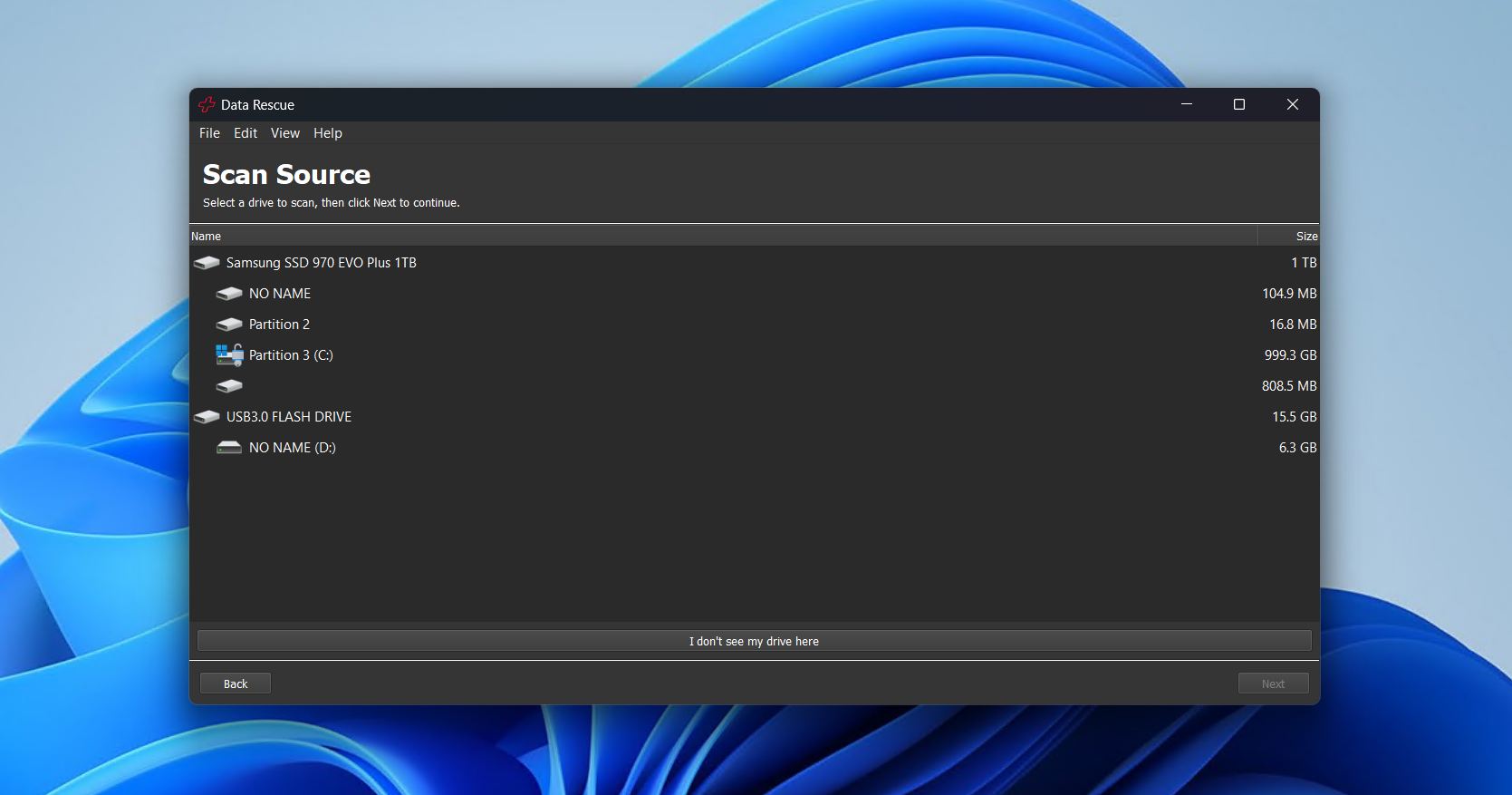
Prosoft Data Rescue 6 launches in Standard Mode by default and in this form, it’s one of the simplest data retrieval solutions around for USB pen data recovery. Its interface is so straightforward that you’ll be scanning for lost files in just a few clicks and it features a unique pricing model that allows you to only pay for the files you want to rescue – nothing more, nothing less.
And if Standard Mode is a bit too basic for your tastes, you can simply switch to Professional Mode where you can view your storage mediums in hexadecimal format, manually override your drive parameters, and even add a virtual RAID. In addition to all that, you can also easily clone your failing drive onto a healthy one, in case you feel like it’s started to give up on you. See our Data Rescue review to learn more about the tool.
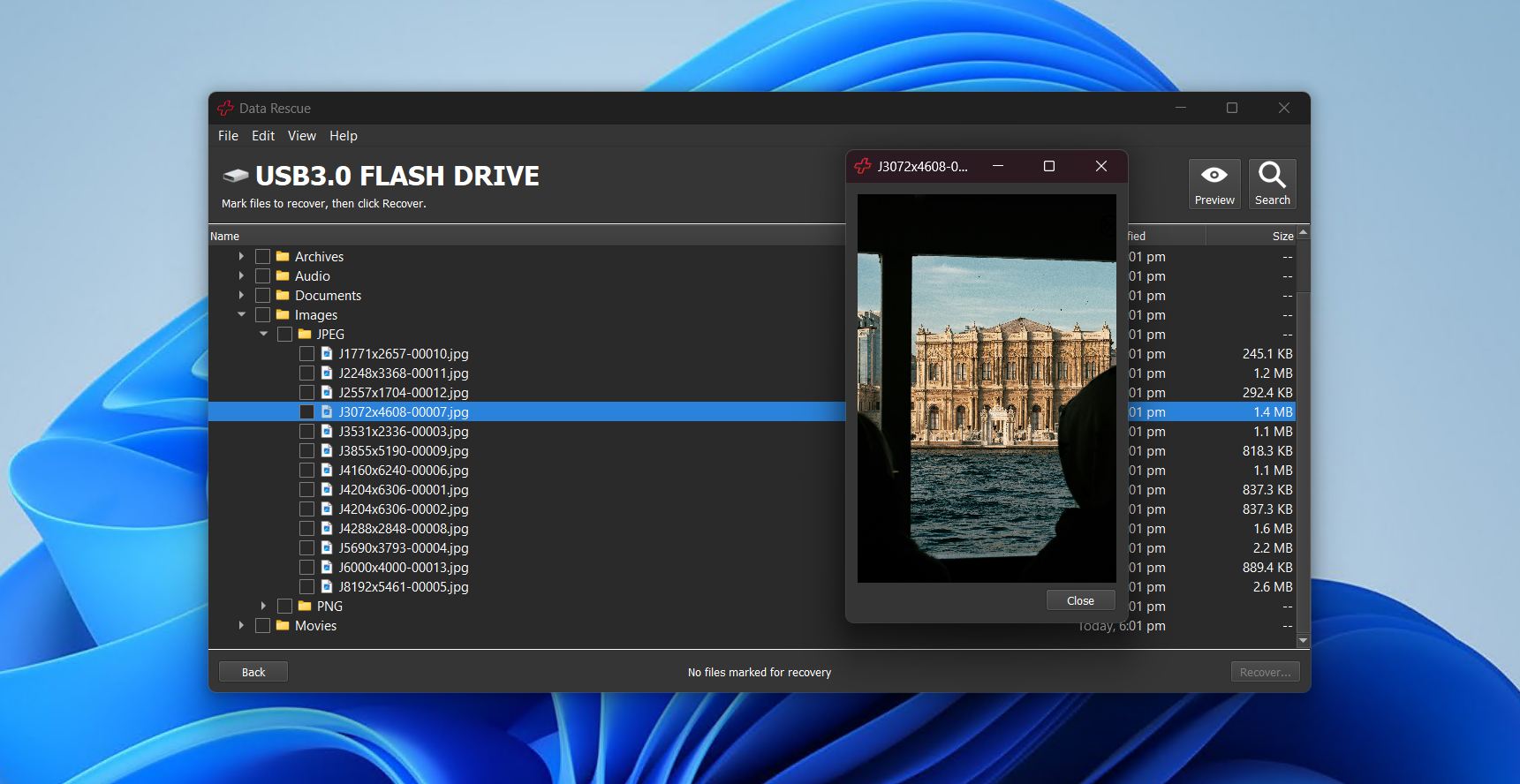
At $79 a month for the Standard license, the cost of owning the tool can add up quite quickly. You’ll also need to have a secondary storage medium to act as your recovery destination if you plan on rescuing files from the drive the app is installed on.
💰 Price:
| 30-day Standard License | $79.00 |
| 1-year Professional License | $399.96 |
👛 Free version: Prosoft Data Rescue 6’s demo version lets new users recover up to 1 GB for free.
⭐ Rating:
| Source | Rating | Number of reviews |
| Trustpilot | 2.6/5 | 4 |
| Capterra | 5.0/5 | 1 |
| G2 | N/A | N/A |
| Final rating: | 3.1/5 (limited data) | |
💬 What users say:
“I bought data rescue several years ago after we had a few issues with corrupt SD and CF cards. It has done an excellent job over the years even still running an old version. “ – Andrew, Capterra user.
“I might recommend Data Rescue 6 from Prosoft Engineering. I’ve had good luck with them in the past. There drive genius software was always really good too.” – u/bernie457, Reddit user.
6. Stellar Data Recovery (Windows, Mac)
- 🔄 Latest update: Version 12.4.0.0 for Windows, 12.6.0.0 for macOS (January 28, 2026)
- 📄 Supported files: Supports over 200 file formats
- ⚙️ System requirements: Windows 11, 10, 8.1, 8 & 7 / macOS 10.13
Pros
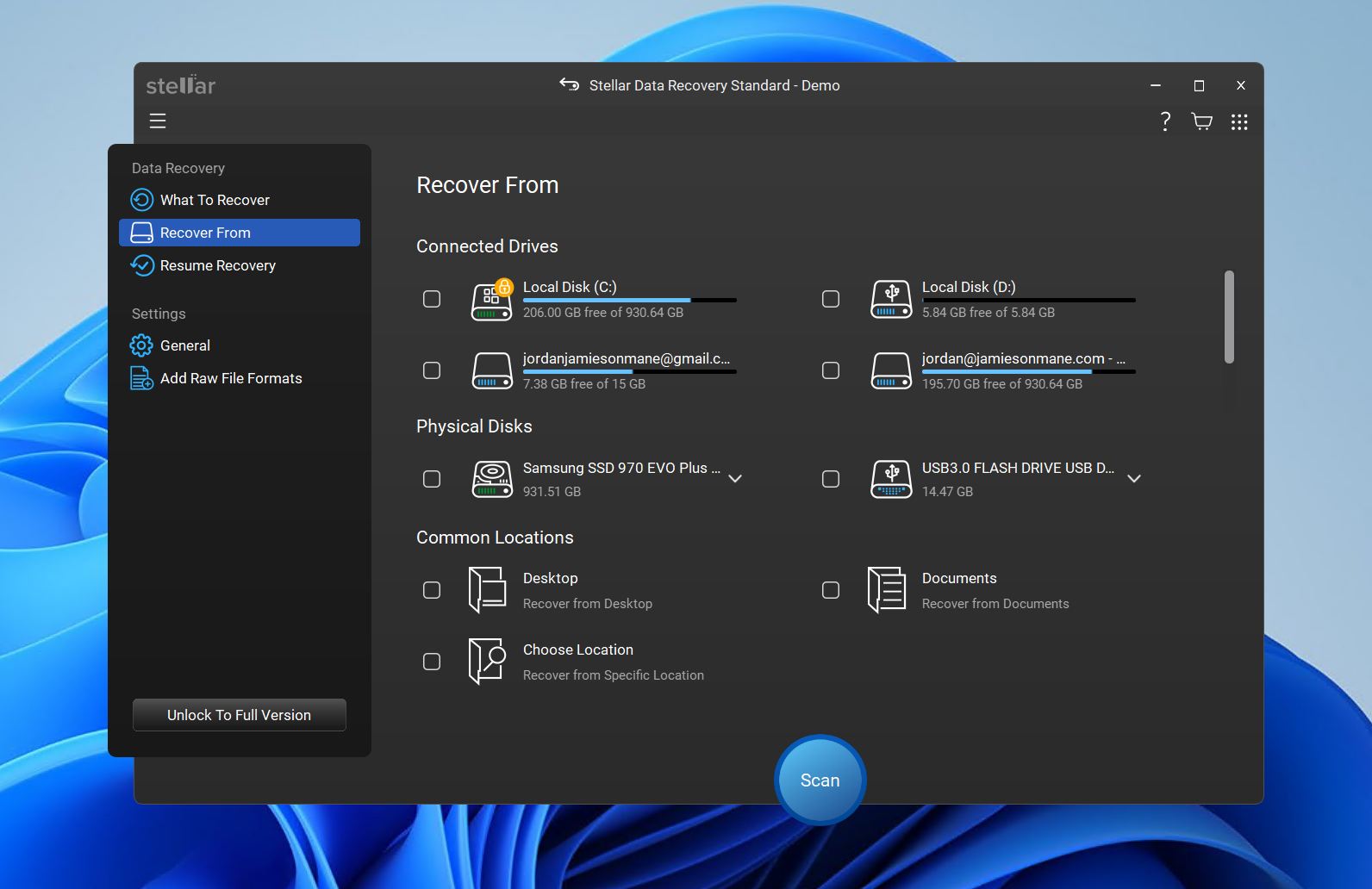
- The minimalist user interface is both attractive and easy to navigate
- Extra features are useful for both experts and casual users
- Allows you to select the file type you want to receive before scanning
- The preview feature doesn’t work as well as it should
- Slower scan times on large drives
- Additional features are split into different apps
Stellar Data Recovery is one of the older flash drive recovery software tools on the market but it has managed to remain relevant largely in part to its user-friendly interface (which just got a facelift in the latest version) and host of nifty features. In addition to its base functionality, it allows you to retrieve lost files from a variety of different RAID arrays and encrypted drives, but the program itself never feels overwhelming thanks to the simple design.
You’ll also be able to create a bootable media drive in case you want to recover files from your flash drive but your machine’s OS is compromised. Furthermore, the software is capable of repairing many kinds of different media files, as we covered in our Stellar Data Recovery review. The free version lets you recover up to 1 GB of data before upgrading, enough to try out what the software is capable of.
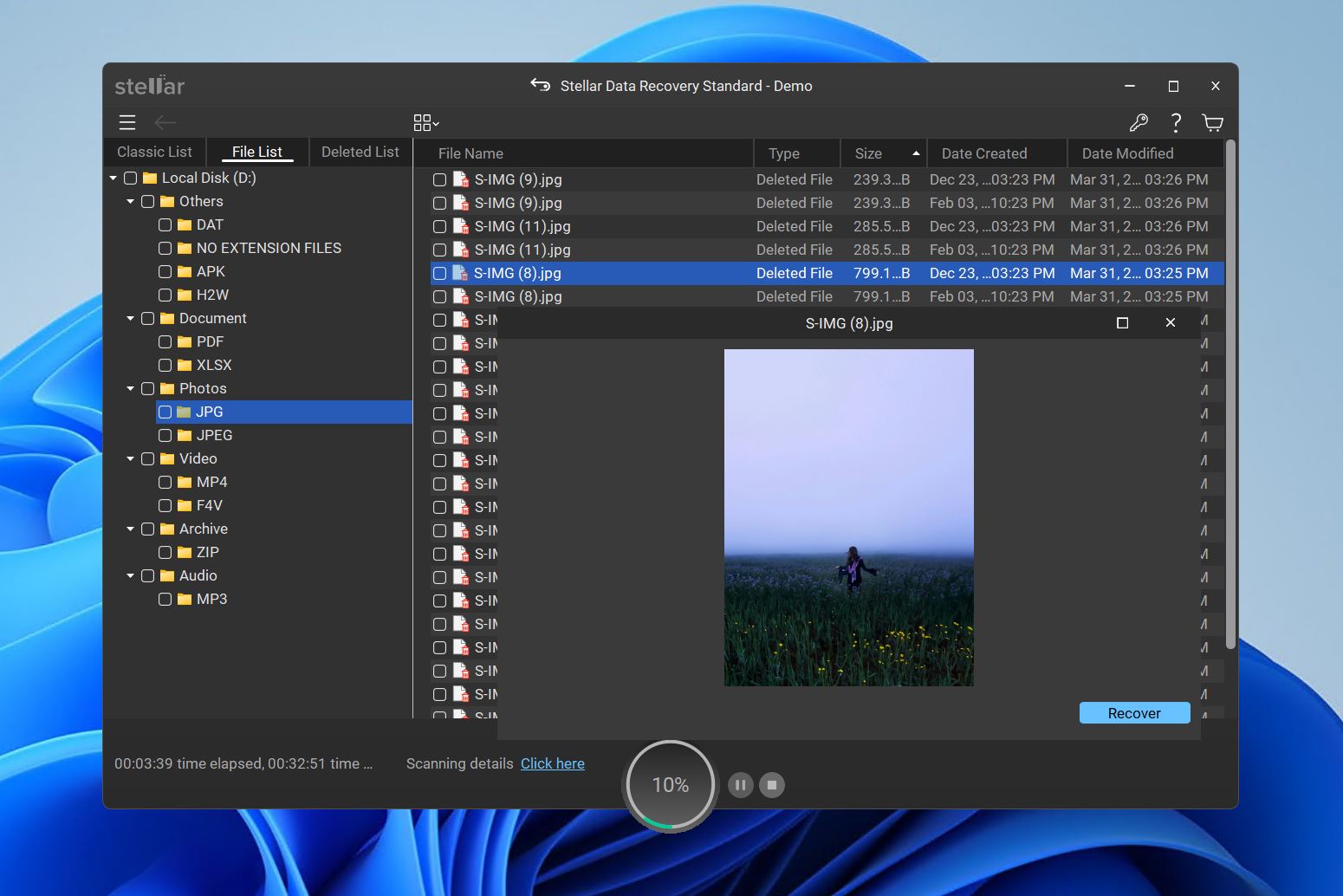
The paid versions come in yearly and lifetime subscriptions, with the annual licenses offering access to Ashampoo BackupPro 26 for an extra $10 a year. Furthermore, we found that the preview feature was pretty erratic and didn’t always work as we expected.
💰 Price:
| 1-year Standard License | $69.99 |
| 1-year Professional License | $99.99 |
| 1-year Premium License | $209.99 |
| Lifetime Standard License | $129.00 |
| Lifetime Professional License | $199.00 |
| Lifetime Premium License | $319.00 |
👛 Free version: Stellar Data Recovery allows up to 1 GB of free data recovery from USB stick.
Rating:
| Source | Rating | Number of reviews |
| Trustpilot | 4.8/5 | 5,191 |
| Capterra | 2.8/5 | 13 |
| G2 | 4.3/5 | 8 |
| Final rating: | 4.8/5 | |
What users say:
“Honestly I was skeptical about data recovery software and if it was even possible to recover the 20 GB of important files that went AWOL from my USB. It was a little pricey and took a few hours but it was well worth it.” – Emma, Trustpilot user.
“The scan speeds are fast but recovery speeds can be very slow sometimes taking up to 12-24 hours for complete recovery time.” – Justin, Capterra user.
7. PhotoRec (Windows, Mac, Linux)
- 🔄 Latest update: Version 7.2 (February 22, 2024)
- ⚙️ Supported files: Supports over 360 file formats
- 📄 System requirements: Windows 11/10/8.1/8/7/Vista/XP, Windows Server 2022/2019/2016/2012/2008/2003, macOS, Linux
Pros
- Completely free and open-source
- Supports recovery of 360+ file types
- Works on Windows, macOS, and Linux
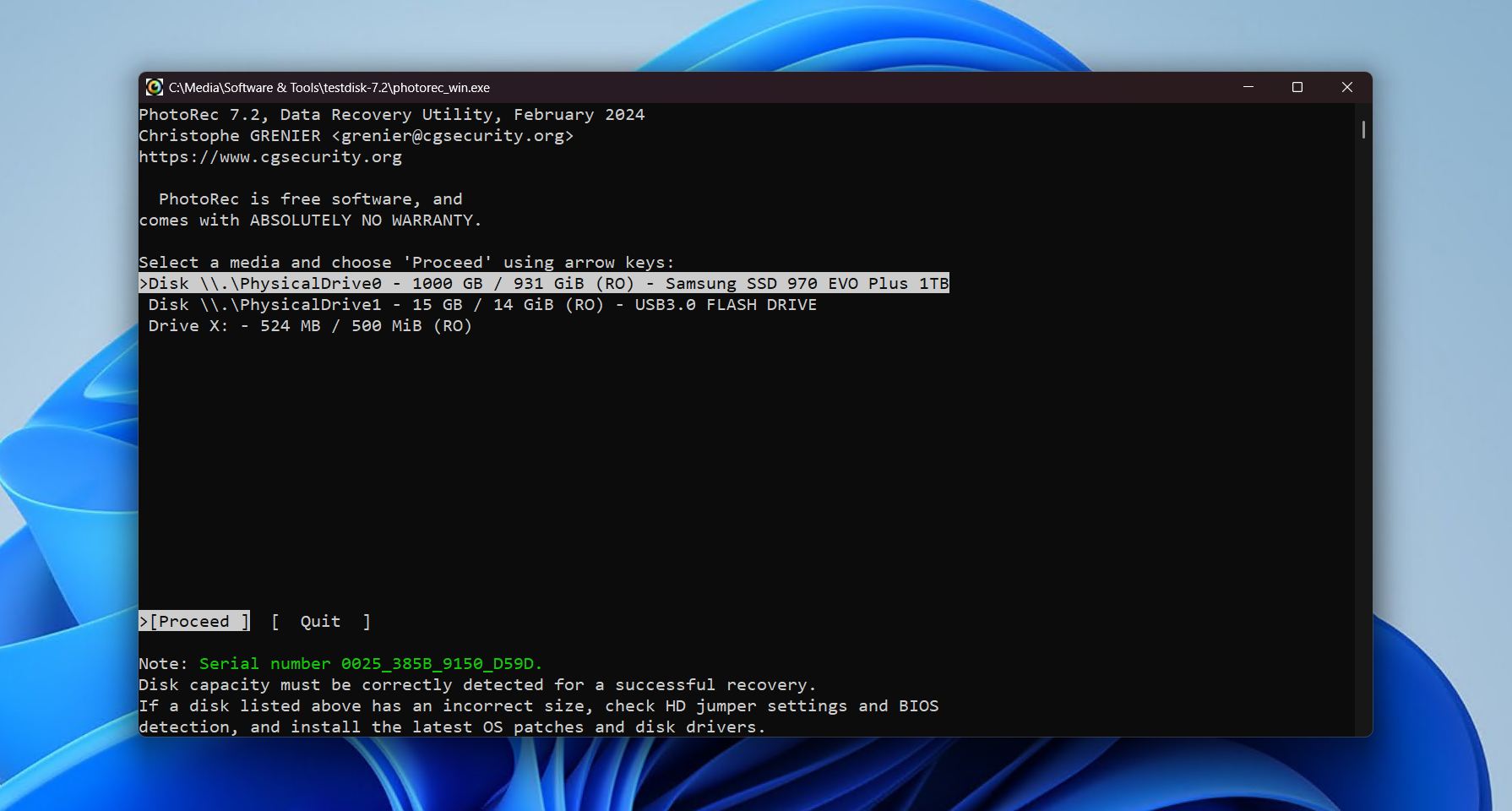
- Text-based interface is difficult for beginners
- Original file names and folder structure are lost
- Doesn’t utilize the file system for recovery
- Cannot recover individual files
PhotoRec is a well-established open-source USB data recovery tool with free download designed specifically for file carving rather than traditional file-system recovery. This means it scans USB flash drives sector-by-sector, looking for known file signatures instead of relying on records from the file system. As a result, it works even if the USB drive’s file system is corrupted or unreadable.
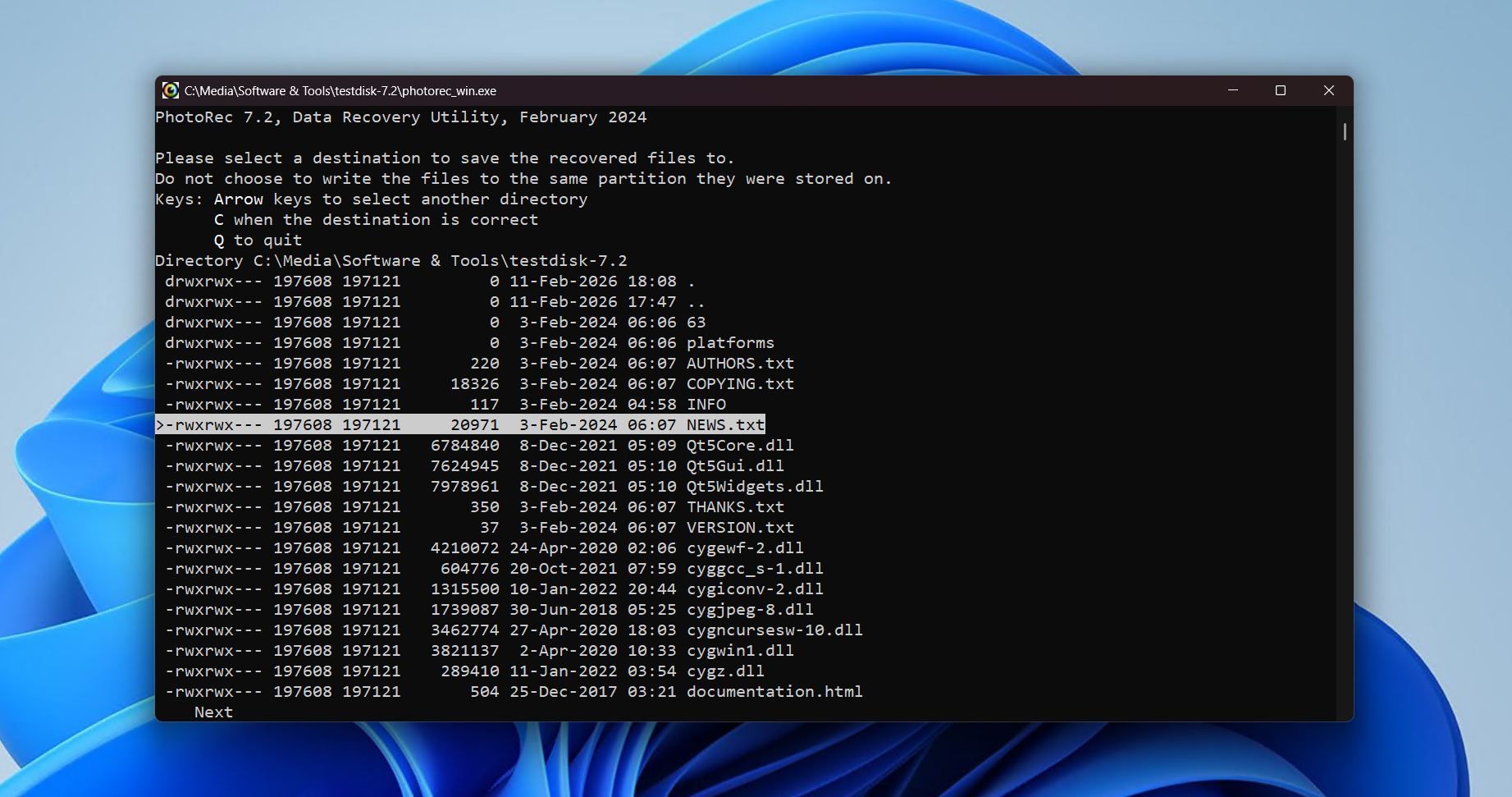
The signature-only approach is a double-edged sword. On one hand, it lets PhotoRec recover files from virtually any USB storage device regardless of formatting. However, on the other hand, the disregard for file system metadata means (1) data not recognized by file signature will be missed, and (2) the data loses its original names and folder structure.
While PhotoRec technically includes a basic graphical user interface (GUI) on Windows (see our PhotoRec review for a look at qPhotoRec), the primary tool is text-based, which can feel intimidating at first. However, if you are ok with the learning curve and reliance on signature-based recovery, PhotoRec is a very capable and versatile option that’s not going to break the bank.
💰 Price:
| Full version | Free |
👛 Free version: PhotoRec is completely free and distributed under the GNU General Public License (GPL v2+).
⭐ Rating:
| Source | Rating | Number of reviews |
| Trustpilot | 4.0/5 | 3 |
| Capterra | N/A | N/A |
| G2 | 4.3/5 | 12 |
| Final rating: | 4.2/5 (limited data) | |
💬 What users say:
“I can’t say more works than 1000 thank you to the creator of this webpage. I recovered all of my lost photos.” – Abraham, Trustpilot user.
“I used it once back when I didn’t know better, and it works. It’s just that it’s a pretty limited tool, it’s only useful when there’s no filesystem metadata and the files are not fragmented, which I can imagine is really rare.” – Sopel97, Reddit user.
8. Active@ File Recovery (Windows)
- 🔄 Latest update: Version 26.0.3 (January 14, 2026)
- ⚙️ Supported files: Supports 155 file formats
- 📄 System requirements: Windows 11/10/8/7/Vista/XP/2000/ME/NT/98, Windows Server 2022/2019/2016/2012/2008/2003, macOS X 10.4-10.12, Linux (all versions)
Pros
- Extensive file system support
- Byte-to-byte disk imaging for failing USB flash drives
- Lifetime licenses with one year of updates and technical support
- Free version only recovers files up to 64 KB
- File Explorer-style interface can feel cluttered
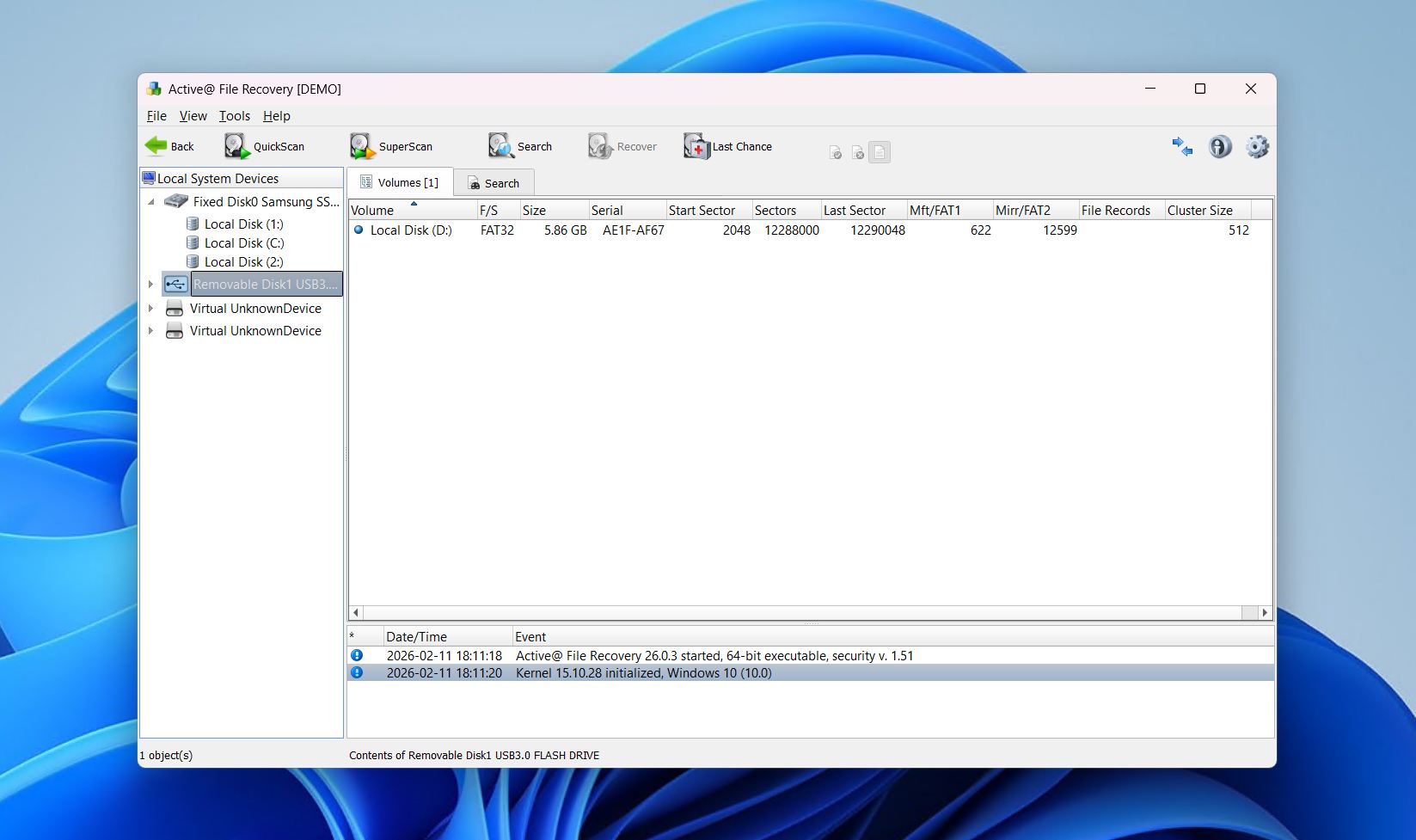
Active@ File Recovery has been a long-standing Windows-based recovery solution for its ability to cover a broad range of data loss situations, including accidental deletion, formatting, and corrupted USB flash drives. One of its strengths is file system compatibility – not only supporting common USB formats like FAT32, exFAT, and NTFS, but also others like APFS, HFS+, ReFS, Ext2/3/4, and Btrfs.
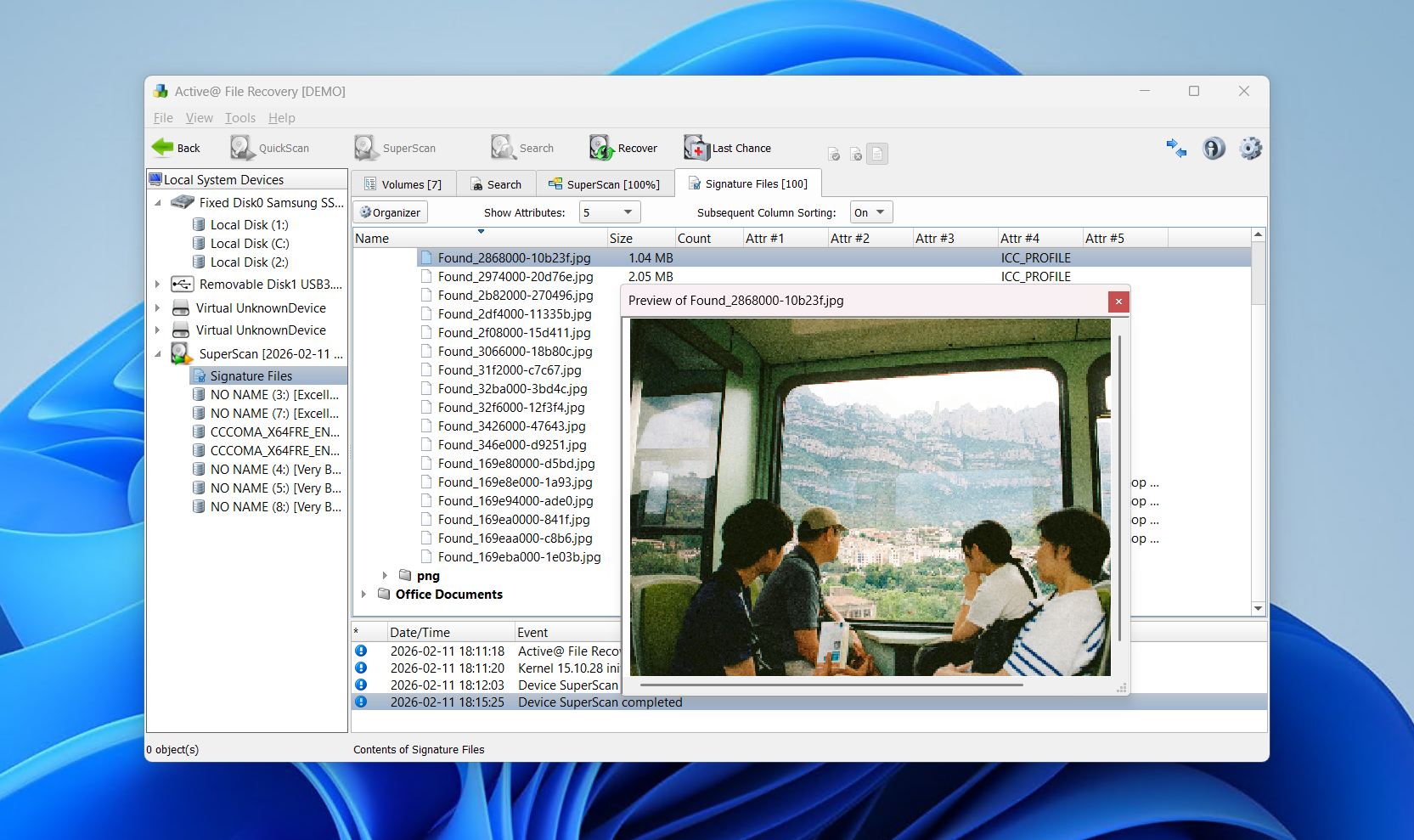
The included ability to create byte-to-byte disk images is useful for when dealing with unstable or problematic flash drives, and also opens an opportunity for later recovery without risking further data loss. Its preview feature is also helpful for confirming which files are recoverable before committing to full recovery.
However, usability seems to be a point of friction. The File Explorer-like interface attempts to mimic Windows navigation, but actually results in a busy, unintuitive experience compared to modern recovery tools. Additionally, the 64 KB file recovery limit on the demo version doesn’t give you much room to try the software out. Still, with lifetime licensing options and solid recovery capabilities, Active@ File Recovery remains a dependable choice for USB drive data recovery.
💰 Price:
| Standard (Personal License) | $29.95 |
| Standard (Corporate License) | $39.95 |
| Professional (Personal License) | $44.95 |
| Professional (Corporate License) | $64.95 |
| Ultimate (Personal License) | $69.95 |
| Ultimate (Corporate License) | $89.95 |
👛 Free version: The Demo version of Active@ File Recovery lets you recover files that are 64 KB or smaller.
⭐ Rating:
| Source | Rating | Number of reviews |
| Trustpilot | 3.7/5 | 1 |
| Capterra | 5.0/5 | 4 |
| G2 | 4.5/5 | 2 |
| Final rating: | 4.7/5 (limited data) | |
💬 What users say:
“Active@ File Recovery offers fast scan mode and super scan for sectors. It has two interfaces: a basic one and an advanced one. This software can only extract files of only 64 KB or less in size, which prevents you from recovering photos and videos.” – Lisandro, G2 user.
“One of the best undelete software outthere. Easy to use and on a good price 🙂 IF you want to search specific files for undelete this is the one to go :)” – Dimitris, Trustpilot user.
9. UFS Explorer Standard Recovery (Windows, Mac, Linux)
- 🔄 Latest update: Version 10.18 (January 5, 2026)
- ⚙️ Supported files: Most basic file formats
- 📄 System requirements: Windows 11/10/8/7SP1, macOS 10.9-10.15 & 11+, Linux (GLIBC ≥2.23, X GUI required)
Pros
- Automatic and manual detection of lost partitions
- Multi-pass disk imaging and handling of bad blocks
- Robust recovery for degraded or failing storage devices
- Interface is very technical-focused
- Limited guidance for casual users
- Free recovery is limited to files 256 KB and below
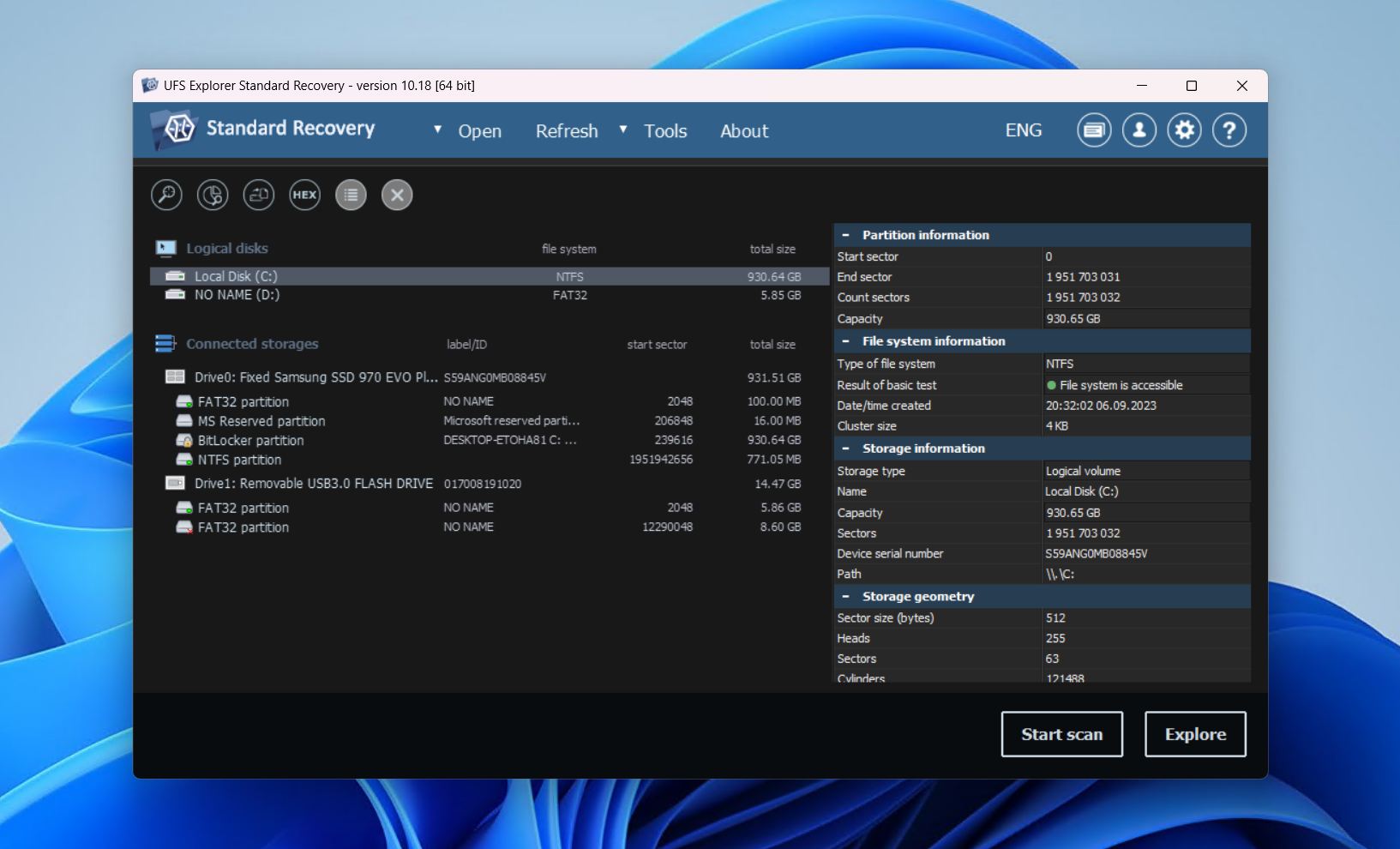
Definitely among the more technical tools on this list, UFS Explorer Standard Recovery is a highly technical pen drive recovery software solution designed for professionals and advanced users who like deep control over the recovery process. It supports a very wide range of file systems across Windows, macOS, and Linux, and works with virtually all storage media, including USB flash drives.
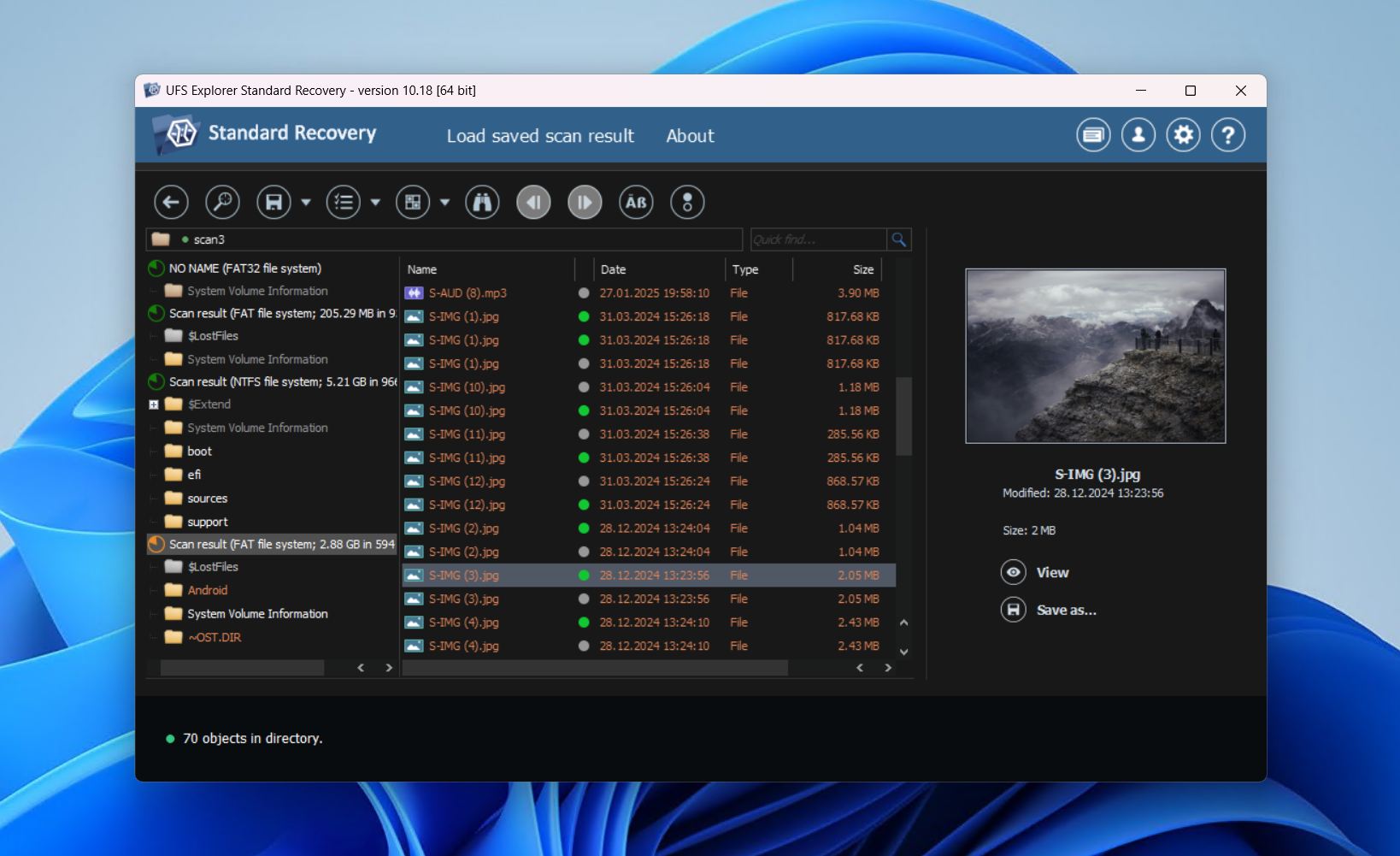
UFS Explorer is particularly useful for USB drives that have lost or deleted partitions, as it includes automatic detection as part of its scan. If you need to get hands-on, you can also manually define the partition parameters. Its session management lets you pause and resume scans at your convenience, as well as save and reload them at a later time for when you’re dealing with large capacity drives.
A standout feature is the professional-grade disk imager, which supports multi-pass imaging and can handle defect blocks as they crop up. The trade-off for all this power is that the interface is highly technical and can quickly feel overwhelming for casual users. Beginners may find navigating the software a challenge at first, but overcoming the learning curve will grant access to precise and flexible USB data recovery.
💰 Price:
| Personal License | $64.95 |
| Commercial License | $134.95 |
| Corporate License | $199.95 |
👛 Free version: UFS Explorer Standard Recovery lets you recover files that are 256 KB or below.
⭐ Rating:
| Source | Rating | Number of reviews |
| Trustpilot | N/A | N/A |
| Capterra | N/A | N/a |
| G2 | 5.0/5 | 1 |
| Final rating: | 5.0/5 (limited data) | |
💬 What users say:
“Complex knowledge for all FS and fast working interface. Interface has own logic , but when you used to work with it is OK.” – Dimitar, G2 user.
Quick Comparison of the Best USB Data Recovery Tools
| Software | Supported file systems | Supported files | Preview function | Disk backup function | Additional features | Pricing |
| Disk Drill USB Data Recovery | FAT16/FAT32/exFAT, NTFS, NTFS5, ReFS, HFS, HFS+, APFS, Ext2/3/4, Btrfs | 391 file formats | Yes | Yes | Data protection, Advanced Camera Recovery, scan session management, S.M.A.R.T. monitoring, storage clean-up, hex view | From $89 (free version available) |
| R-Studio | NTFS, NTFS5, ReFS, FAT12, FAT16, FAT32, exFAT, HFS, HFS+, APFS, XFS, UFS1 (Little/Big Endian), UFS2 (Little/Big Endian), Ext2/3/4 | 416 file formats | Yes | Yes | Network recovery, bootable recovery, hex view | From $49.99 (free version available) |
| DMDE | FAT12/16, FAT32, exFAT, NTFS, ReFS, Ext2/3/4, HFS+/HFSX, APFS, Btrfs | Supports most basic file formats | Yes | Yes | RAID reconstruction, partition management, cluster map, hex view | From $20.00 (trial version available) |
| MiniTool Data Recovery | FAT12/16/32, exFAT, NTFS, NTFS5, ext2/3/4, HFS+, ISO9660, Joliet, UDF | 113 file formats | Yes | No | Scan session management, bootable recovery | From $69 (free version available) |
| Prosoft Data Rescue 6 | FAT, FAT32, exFAT, NTFS, HFS+, APFS, ext2/3/4 | 115 file formats | Yes | Yes | Scan session management, hex view, secure erase | From $79 (free version available) |
| Stellar Data Recovery | NTFS, FAT32, FAT16, exFAT, APFS, HFS, HFS+ | 300 file formats | Yes | Yes (Professional license) | S.M.A.R.T. monitoring, photo and video repair | From $69.99 (free version available) |
| PhotoRec | None | 430 file formats | No | No | None | Free |
| Active@ File Recovery | FAT, FAT32, exFAT, NTFS, HFS+, UFS, Ext4/3/2 | 180 file formats | Yes | Yes | Hex view, bootable recovery | From $29.95 (free version available) |
| UFS Explorer Standard Recovery | FAT, FAT32, exFAT, NTFS, ReFS, HFS+, APFS, Ext2/3/4, XFS, JFS, ReiserFS, Btrfs, UFS, UFS2, big-endian UFS, Adaptec UFS, ZFS, ISO9660/Joliet, UDF | Supports most basic file formats | Yes | Yes | S.M.A.R.T. monitoring, hex view | From $64.95 (free version available) |
How We Selected the Best USB Recovery Tools
Figuring out the best USB recovery data software can be a very daunting task, given how stiff the competition is when it comes to data retrieval software. We handpicked the apps that either work exceedingly well with USB storage mediums or were built specifically to recover files from a variety of USB devices.
It goes without saying that we gave all our top contenders a test run to see how well they really perform and we also made sure to try the more obscure programs in hopes of finding a hidden gem. Each tool was tested in various data loss scenarios, from simple file deletion to entire file system damage, to see what it’s really capable of.
These are synthetic tests performed in simulated environments. Since every data loss situation is unique, always pay attention to trial versions, preview functionality, and other priorities before making a purchase.
Eventually, we were left with what we deemed the best flash drive data recovery software on the market. While some of the programs on this list are better than others in certain scenarios, they’re all quality recovery solutions that will do a great job in helping you recover the lost files from your USB device.
When Can These Tools Recover Data From A USB Drive?
Put simply, your data is recoverable until it’s overwritten. Once it’s overwritten, no software can recover it.
When a file is deleted, the physical space occupied is marked as available for new data. While the file may not be visible in apps like File Explorer, the contents of the file remain. Data recovery software can use the information left over by the file system to locate this data. It can also locate the data by a unique file signature. This means it’s possible to recover data following accidental formatting, device failure, file system errors, and power supply issues – so long as you act fast enough.
Once new data is written to that physical location, then there is no chance of restoring the old file. That’s why it’s important to stop using the drive at the first sign of data loss. In instances where the flash drive is unstable, it’s also worth creating a byte-to-byte backup to preserve the drive’s current state in case it fails completely during recovery.
When DIY Software Is Not Enough
Data recovery software can work wonders, but sometimes it’s just not enough for the job. Physical damage is among the worst cases for USB flash drives, and includes flash drive controller failure, damaged NAND chips, broken connectors, PCB damage, and electrical damage.
Instances like these require recovery be done at a data recovery center, by a professional. More often than not, these devices are in no position to be read by regular machines and will likely end up worse off with continued use. Using a data recovery service means a recovery specialist uses hardware-level techniques like chip-off recovery to extract the data. The upside? It offers the best chance of data recovery. The downside? It’s not cheap.
If your data is valuable to you and data recovery software can’t get it back, using a data recovery center is your best bet. When shopping around, look out for a ‘No data, no charge’ so you only pay if you get something in return.
Verdict
When faced with data recovery from a USB flash drive, Disk Drill is the best all-around option in terms of recovery performance and usability. If you’d prefer a completely free alternative, PhotoRec has very capable signature-scanning capabilities if you can deal with the text-based interface. Or if you consider yourself technically inclined, R-Studio includes a range of advanced tools.
Of course, the best way to avoid recovery is to protect the data. While this isn’t always possible, there are a few actionable steps you can take to minimize the risk of data loss:
- Back up important data regularly. USB flash drives are not meant to be used as permanent storage. While their portable nature inherently makes it more difficult to set up an automatic backup schedule, regularly copying critical files to long-term storage on an HDD is much safer.
- Avoid deleting files directly from the USB flash drive. Files deleted from the flash drive aren’t sent to the Recycle Bin. Instead, copy them to your computer’s hard drive, then delete them. This way, they’ll be in the Recycle Bin in case you made a mistake.
- Use copy-paste, not cut-paste. If your USB drive disconnects or the system shuts down during a cut-and-paste operation, the cut file will be lost. It’s always better copy-paste data across and then delete at the source once it’s at the destination.
FAQ
- Disk Drill USB Data Recovery Software - Best all-around package with free trial.
- PhotoRec USB Recovery - Most powerful free tool.
- Recuva USB Data recovery - Best free software for beginners.
- Puran File Recovery - Best for professionals.
- Windows File Recovery - Microsoft-approved method.