Losing files you can’t replace is deeply unpleasant. But if it does happen, a good recovery tool can often get them back. We tested and compared the best free file recovery software that actually runs on the current macOS 26 Tahoe and can recover data in real-world scenarios. Every tool on this list either offers a meaningful free version or a free trial generous enough to be genuinely useful, whether you’re dealing with a wiped SD card, an emptied Trash, or a failing hard drive.
If you want a quick side-by-side look before reading the full breakdowns, jump to our comparison table.
Our editorial team independently assesses each data recovery solution to produce accurate, high-quality content. Discover more about our testing process.
1. Disk Drill for Mac (Best Overall)
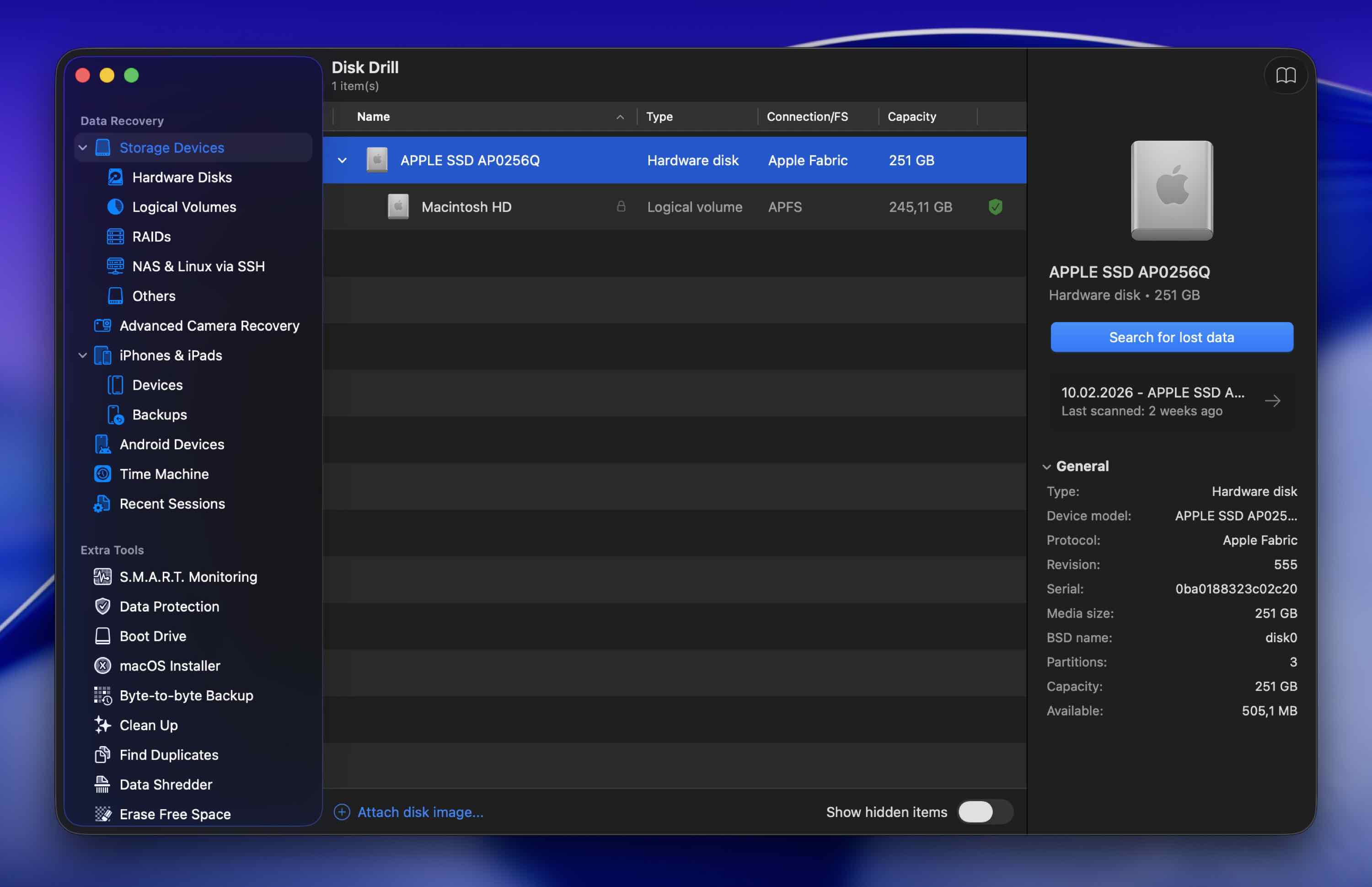
Disk Drill is the best recovery software for Mac because it’s one of the best-performing recovery apps on the market, holding a 4.5 out of 5 rating on Trustpilot across hundreds of reviews. What’s more, Disk Drill is exceptionally easy to use, so you won’t feel lost and confused at the worst possible moment.
The free version includes a data protection module that allows free file restoration when enabled ahead of time. You can also always preview recoverable files to check whether they can be retrieved using the preview feature. Disk Drill’s developers consistently provide official support for the latest macOS releases as soon as they come out of beta, so you won’t be stuck waiting for compatibility patches when you need recovery the most.
Pros
- Strong recovery performance and a polished user experience
- One of the first apps to support new macOS and Mac hardware releases
- Official support for new macOS versions on day one, including macOS 26 Tahoe
- Recognizes around 400 file signatures across many file types
- Restores data from Android and iOS devices
- New Advanced Camera Recovery module for reconstructing fragmented video from GoPro, DJI, Canon, and 150+ other cameras
- Comes with extra free tools (cleanup, duplicate finder, S.M.A.R.T. monitoring, and more)
- Powerful free byte-to-byte backup module, great for imaging unstable drives
- Free data protection modules with free recovery of protected files
- No free data recovery of unprotected files (you can only scan disks and preview your files for free)
Overall experience:
Disk Drill has a clean interface that makes the whole process hard to mess up, even if you’ve never used recovery software before. It runs three simultaneous scan algorithms to maximize your chances of finding lost files and works with almost every known file system format (HFS+, APFS, ExFAT, NTFS, ReFS, and more). It also recognizes around 400 file signatures, which is more than most competitors, including proprietary file types (like CR2, F4V, NEF).
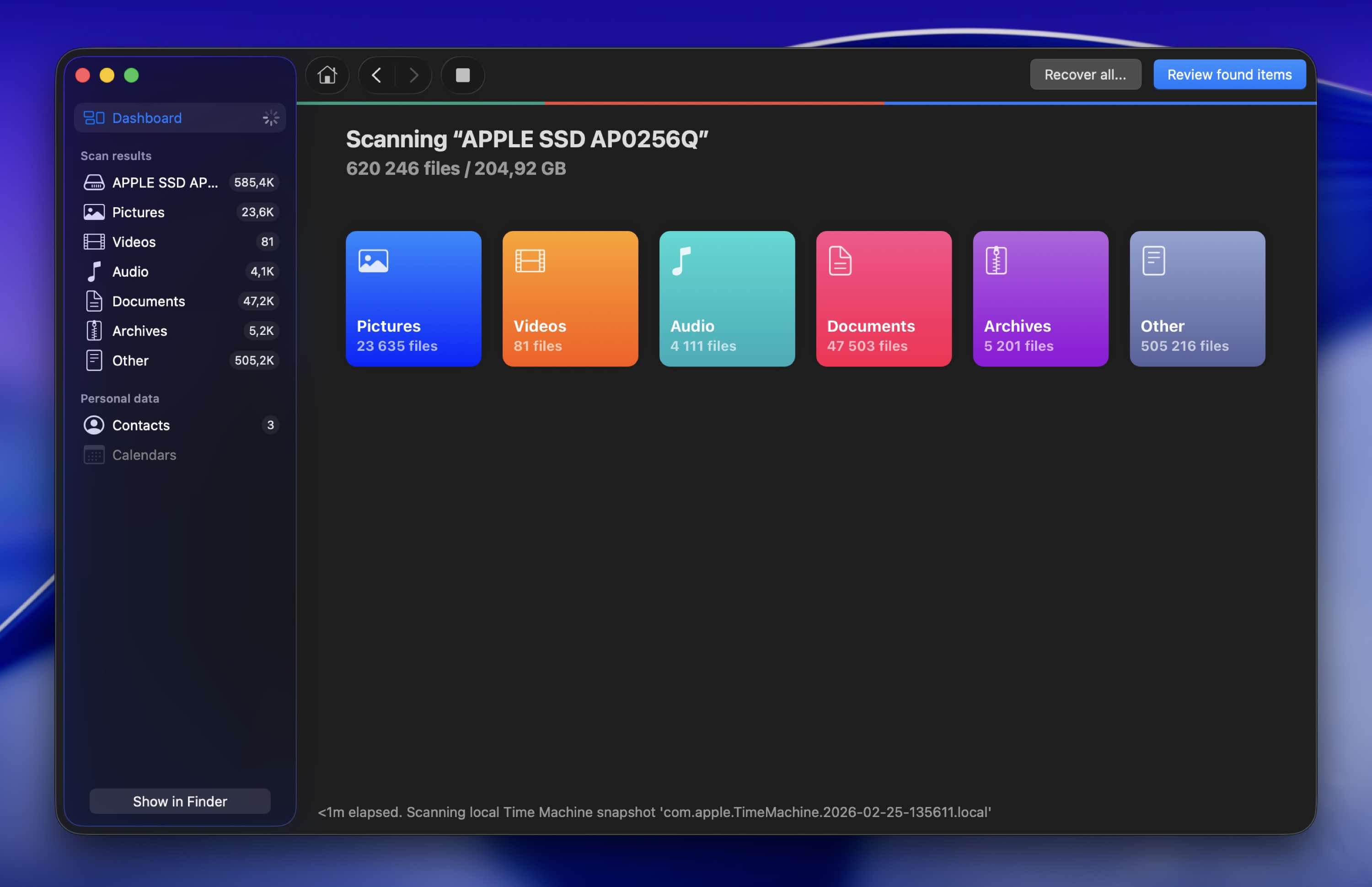
The 6th version of Disk Drill introduced the Advanced Camera Recovery (ACR) module, which is specifically built to reconstruct fragmented video files from camera SD cards. If you’ve ever tried to recover GoPro or drone footage with other tools and ended up with corrupted, unplayable clips, ACR addresses exactly that problem. It supports over 150 camera models from brands like GoPro, DJI, Canon, Sony, Insta360, and others. Disk Drill also includes a Video Repair feature for fixing corrupted video files, and PRO users get free access to the full repair service directly from within the app.
The free version of Disk Drill includes a solid byte-to-byte backup module with smart multi-pass technology for imaging damaged drives. Professional data recovery shops almost always create a disk image before attempting recovery, and Disk Drill lets you do the same thing at no cost (useful if your drive is failing and you want to preserve as much data as possible before things get worse).
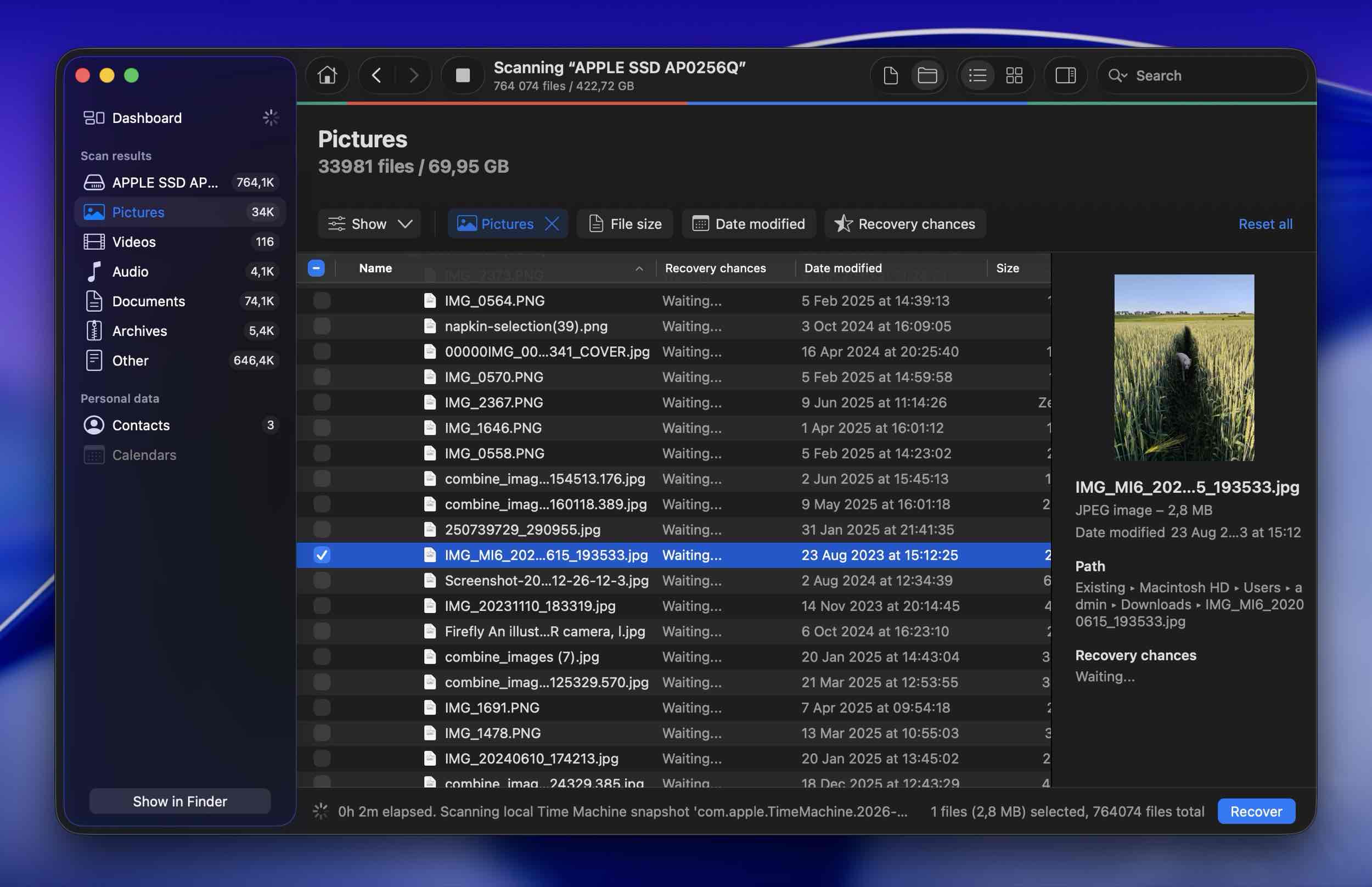
Disk Drill also includes a built-in data protection module that makes the best file recovery software for Mac even better. When enabled, it keeps copies of files you send to the Trash, so you can recover them later with a guaranteed result. Protected files can be restored completely free, which is why turning on this feature before you actually need it is a smart move.
For a detailed breakdown based on real-world testing, check out our full Disk Drill review.
Supported Mac OSs: macOS 10.15 Catalina and newer, including macOS 26 Tahoe. (Older versions of Disk Drill support Mac OS X 10.5 and later.)
Price:
| Edition | Price |
| Disk Drill Basic | Free |
| Disk Drill PRO (Annual) | $89.00 |
| Disk Drill PRO (Lifetime) | $149 |
| Competitive Upgrade | 50% OFF |
What Real Users Say:
“A 2 TB external Mac drive broke and I thought it couldn’t be salvaged. I demoed several disk recovery apps but the only one that worked the best, salvaged the most files, allowed quicklook for validation, and had very strong search and filtering options was Disk Drill.” – Trustpilot.
“The APFS partition corrupted leaving data on the external SSD with no way to access it… I downloaded the file and scanned the disk. It found everything. I was able to recover 1.5TB in 3 hours.” – Trustpilot.
“If you’re specifically looking at camera recovery, I think Disk Drill 6 is genuinely the best option right now.” – Reddit.
2. PhotoRec and TestDisk for Mac (Best Free Solution)
PhotoRec and TestDisk are arguably the best Mac data recovery software tools that are open source and completely free. You can get them as a single download as they are meant to complement each other. PhotoRec helps you restore lost files with a powerful signature scanner, while TestDisk can recover missing partitions and repair file systems.
Pros
- Both tools are completely free to use with no limits
- High recovery rate
- Can be used on Windows, macOS, Linux, and other operating systems
- Supports the most common file types (480+ file extensions)
- PhotoRec can scan the entire disk or just the free portion of the disk on supported file systems, giving you more control over results
- Beginners will need time to learn how these applications work
- Cannot access system drives on Macs with M1-M5 or T2 chips
- Cannot recover original filenames or directory structure
Overall experience:
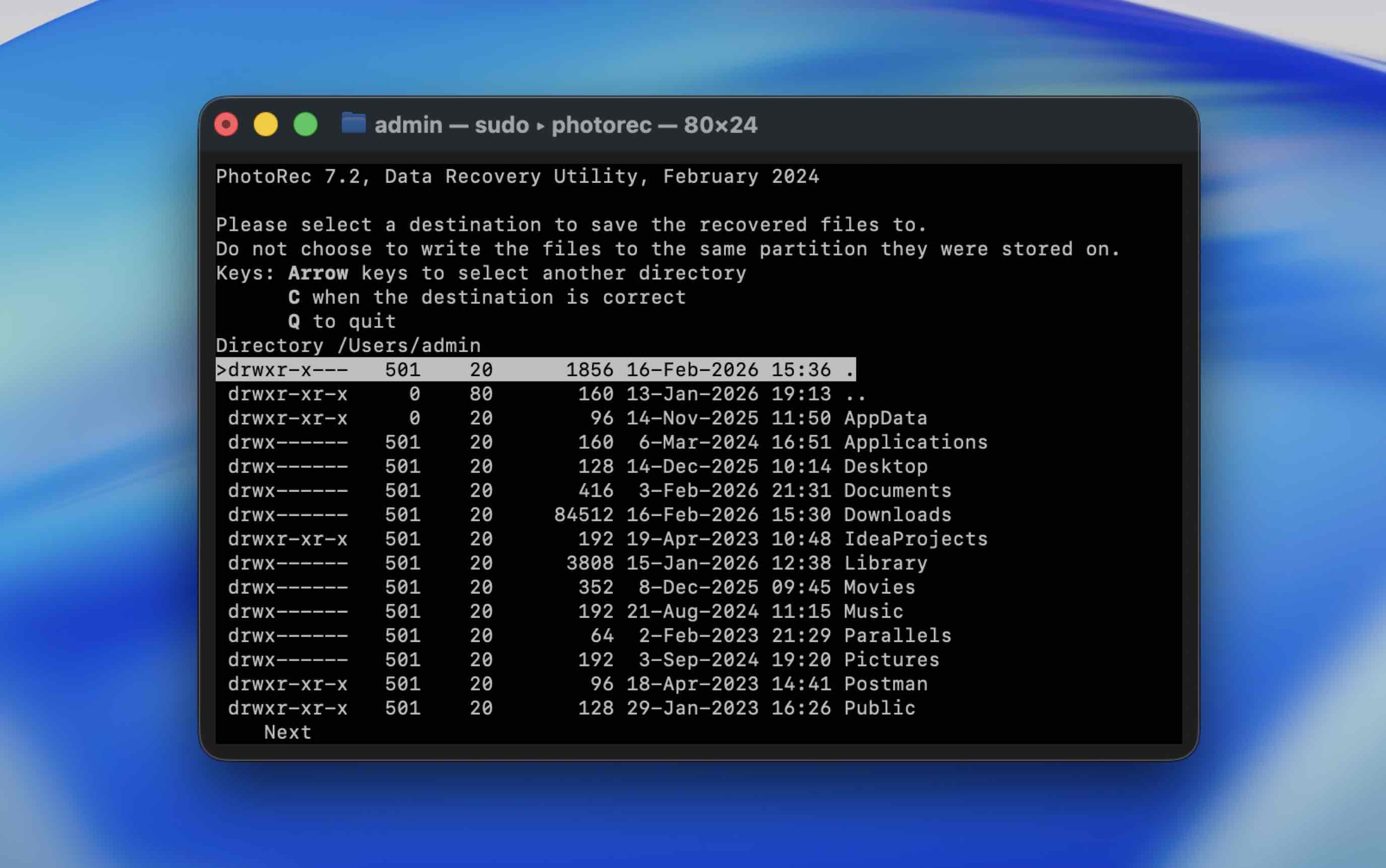
PhotoRec (file recovery) and TestDisk (partition recovery) can be hard sells at first because of their unfriendly interfaces, but both apps are well-respected in the community. The respect they’ve earned has a lot to do with the fact that they are completely free (no limits) and open-source while delivering powerful recovery features.
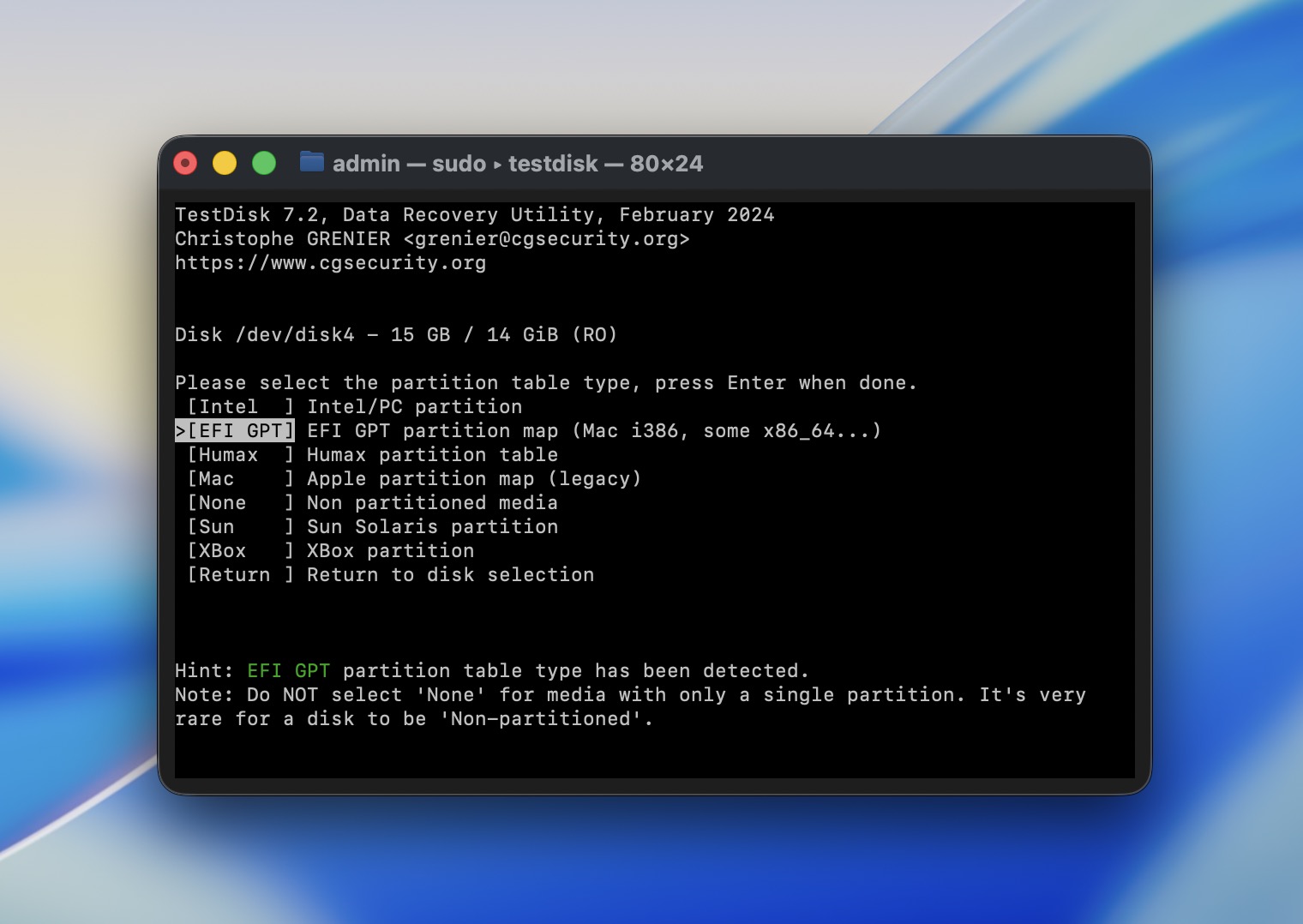
PhotoRec only supports signature-based scanning (so metadata like file names are never restored), but it can recognize pretty much any standard file signature as well as a few proprietary RAW signatures (e.g., CRW). TestDisk, on the other hand, can restore partitions that have been deleted or corrupted, which can help with file recovery or even make it possible.
Both apps lack a graphical user interface. Instead, they have a Terminal-based interface that you navigate using the arrow keys and the Return key. You will have to spend some time reading the instructions and perhaps some how-to guides on the developer’s website. On Apple Silicon Macs, you need to install via Homebrew (brew install testdisk) or make sure Rosetta 2 is installed.
For detailed test results, see our full PhotoRec review and TestDisk review.
Supported Mac OSs: Mac OS X 10.6 and newer (including macOS 26 Tahoe via Homebrew).
Price: Free.
What Real Users Say:
“Wonderful program… I accidentally touched the raid-1 configuration of my Qnap and obviously wiped out my library of pictures (about 2 TB)… I collected all my pictures back.” – pratefree, MacUpdate.
3. iBoysoft Data Recovery (Best Free Trial)
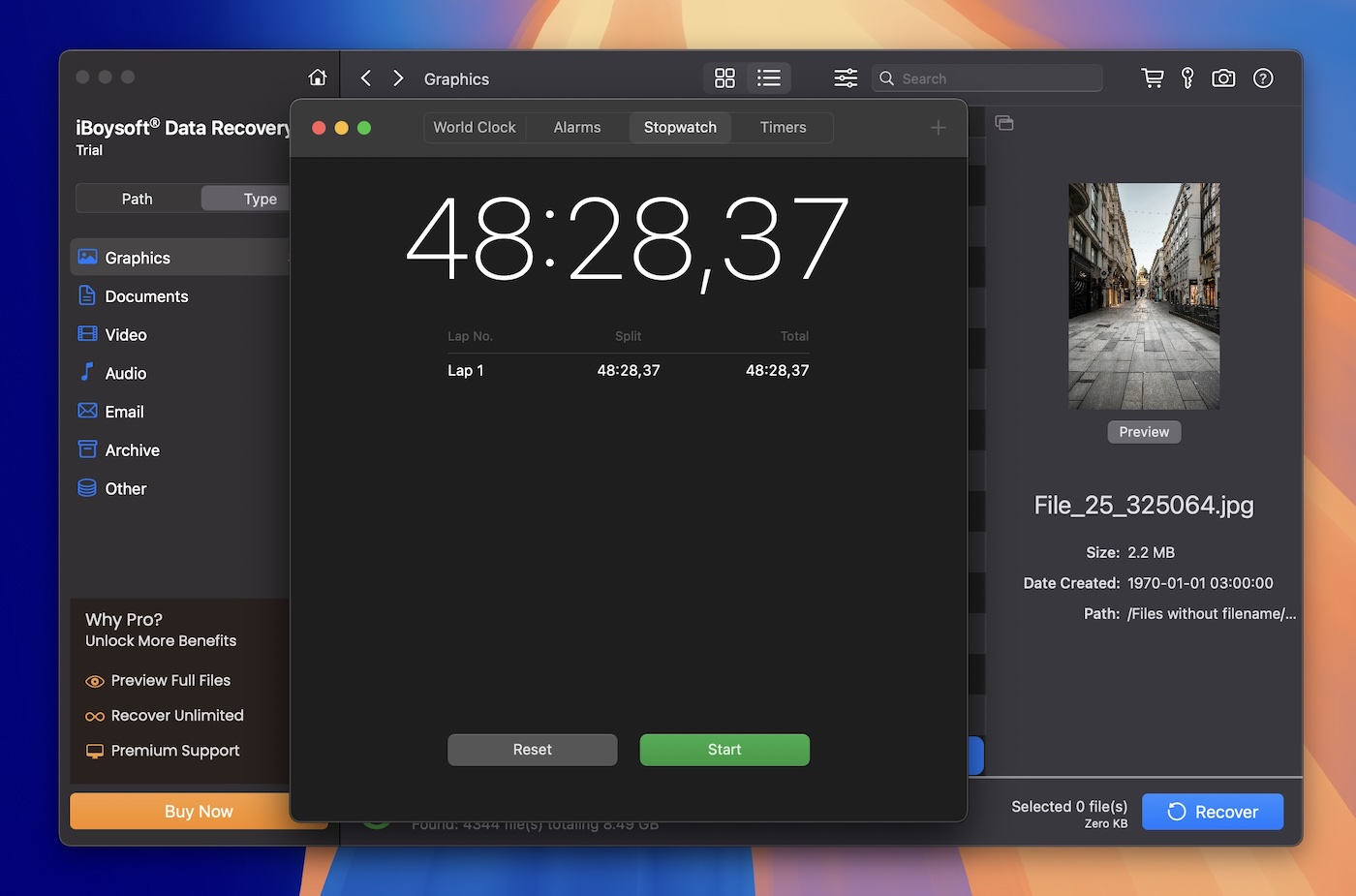
iBoysoft Data Recovery runs well on the latest macOS 26 Tahoe and provides a smooth recovery experience with a generous 1 GB free recovery limit.
Pros
- Supports APFS, HFS, HFSX, HFS+, FAT32, exFAT file systems
- Compatible with all recent versions of macOS
- Works with Apple Silicon Macs (M1-M5) and T2 chip devices
- User-friendly interface with a simple three-step recovery process
- Supports over 1000 file formats, including popular media types
- Can recover files from an unbootable Mac using Recovery Mode
- Licenses must be renewed yearly, making it more expensive than competitors
- No support for RAID arrays
Overall experience:
Recovering data with this data recovery software Mac app is a simple activity that can easily be performed by any Mac user. It involves an intuitive three-step process where you scan a selected device, preview its recoverable data, and choose what you want to recover. Scan results can be saved and reloaded, allowing you to complete data recovery at your leisure. A free download of the tool allows users to recover 1 GB of data and see how they like the product.
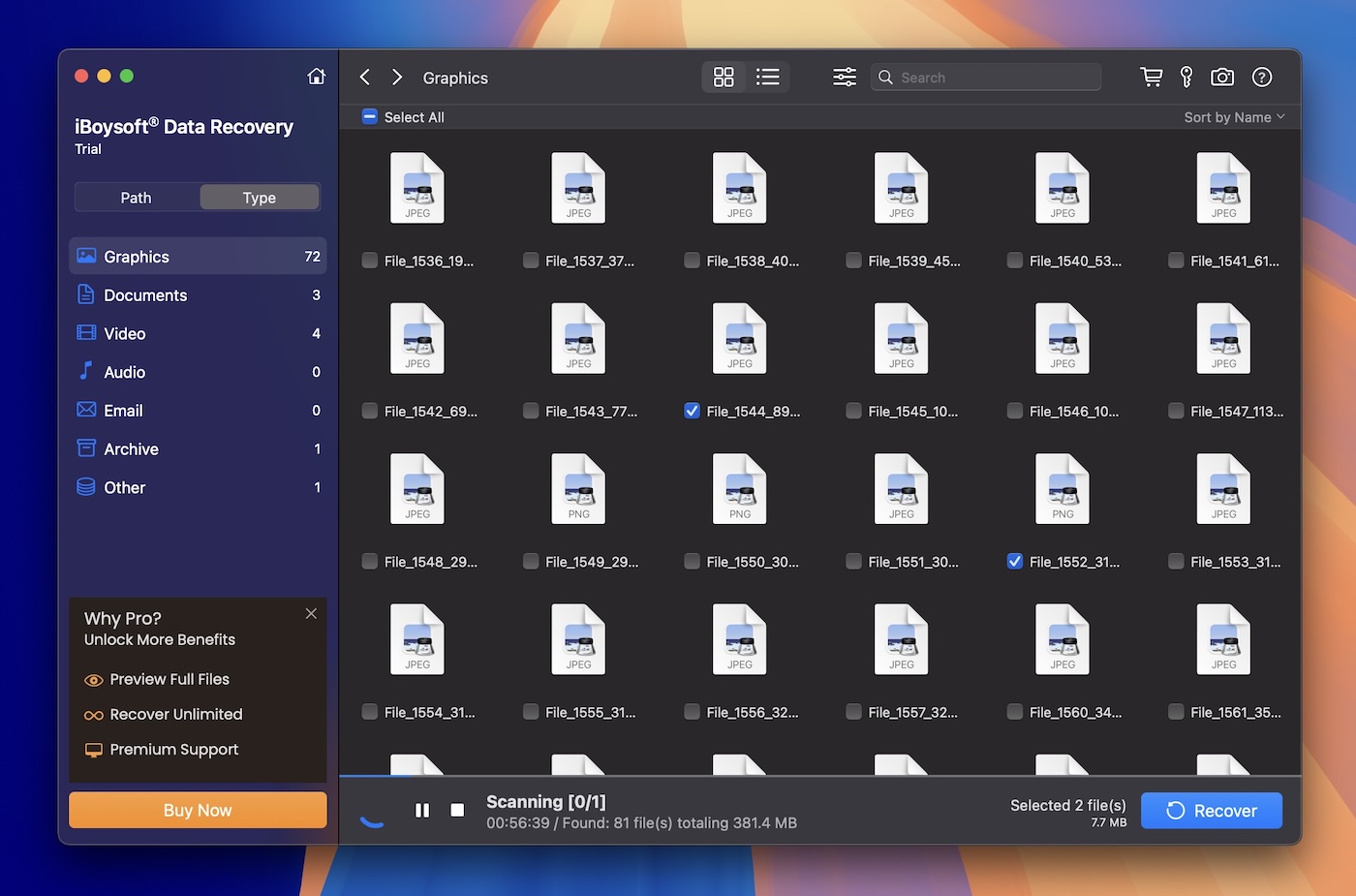
The tool supports over 1,000 different file types for recovery, so it covers virtually any data found on your Mac. It is compatible with just about all disk-based storage devices, including external hard drives, removable USB storage devices, and SD cards. iBoysoft can help users recover from multiple data loss scenarios, such as accidentally formatting a disk, inadvertently deleting files, or emptying the Trash. It enables speedy data recovery on the newest Macs and MacBooks. iBoysoft provides professional-grade recovery capabilities in a tool designed to be easy enough for beginners to use.
For more details from our hands-on testing, read the full iBoysoft review.
Supported Mac OSs: Mac OS X 10.11 and newer.
Price: Free version allows 1 GB recovery.
| License | Price |
| 1-month license | $89.95 |
| 1-year license | $99.95 |
| Lifetime license | $169.95 |
What Real Users Say:
“iBoysoft is the ONLY data recovery software that can recover APFS formatted drives with the same path and folders intact.” – MacUpdate.
“The support team was responsive, knowledgeable, and professional, guiding me clearly through the recovery process.” – Capterra.
4. EaseUS Data Recovery Wizard (Best for New Users)
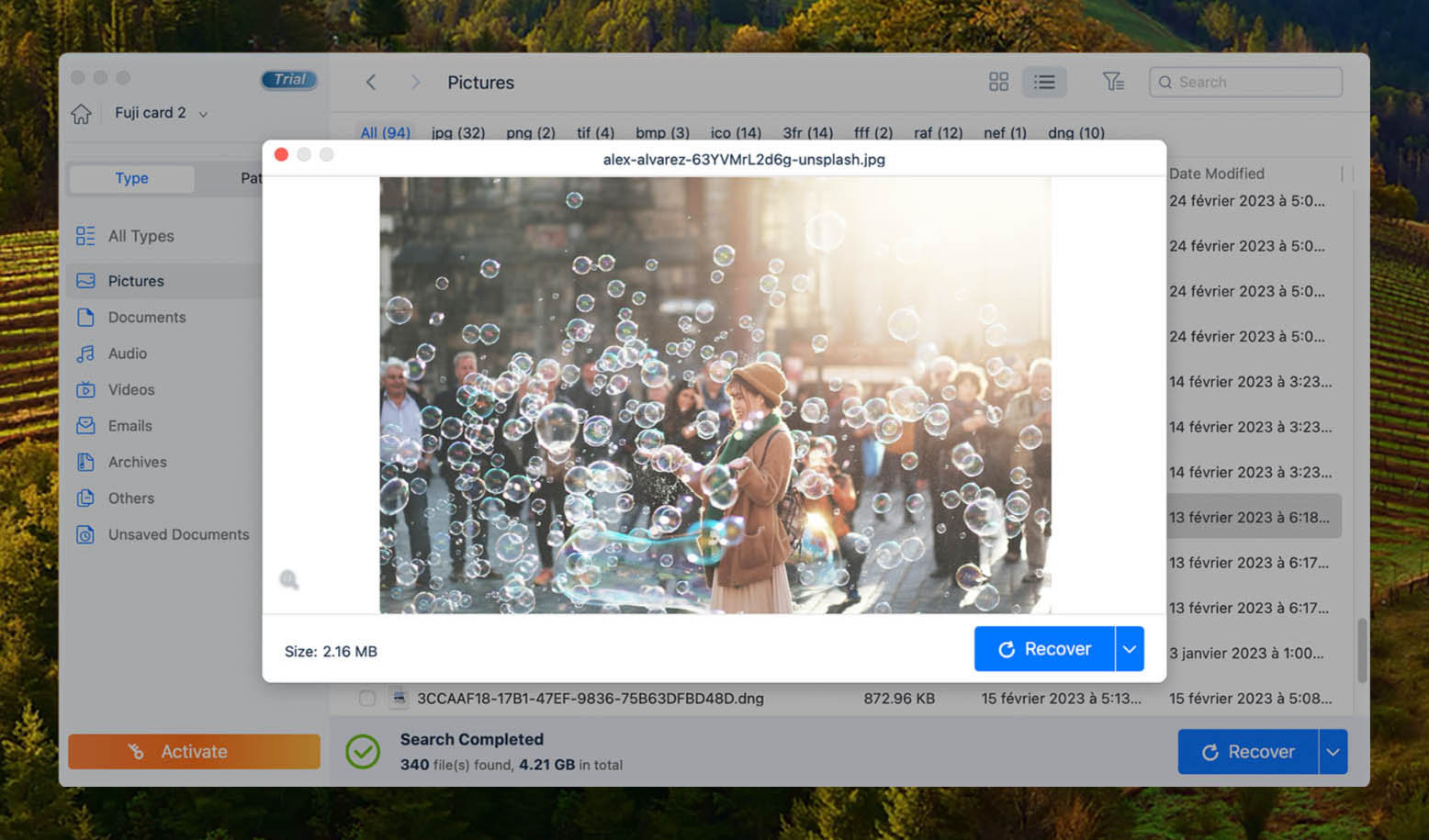
EaseUS Data Recovery Wizard is a capable file recovery program that does a great job of being easy to use for both experienced users and newcomers. It’s packed with features, looks good, and gets the job done with minimal fuss. EaseUS keeps up with macOS updates and runs smoothly on macOS 26 Tahoe.
Pros
- User interface is easy on the eyes and simple to navigate
- Impressive recovery results
- Free recovery of up to 2 GB of data (500 MB default + 1.5 GB from social media sharing)
- Lots of useful features, including “Recover to cloud” and a video repair module
- Built for Mac-based storage devices and file systems
- Expensive subscription-based pricing system
- Limited preview functionality with a 100 MB file size cap and inconsistent file type support in previews
Overall experience:
EaseUS Data Recovery Wizard is a solid recovery option for Mac because it offers an interface that’s both good-looking and accessible to beginners and veterans alike. The app can retrieve files from a wide range of Mac-based storage devices and file systems, including fusion drives and even Time Machine backups.
The data recovery app for Mac comes with some handy features, too. There’s a file filter to narrow scan results, a bootable media option for recovering from an unbootable Mac, and a “Recover to Cloud” feature that lets you save recovered files directly to cloud storage. The built-in video repair module can fix corrupt MP4 and MOV files during recovery, which is useful if you’re dealing with damaged camera footage.
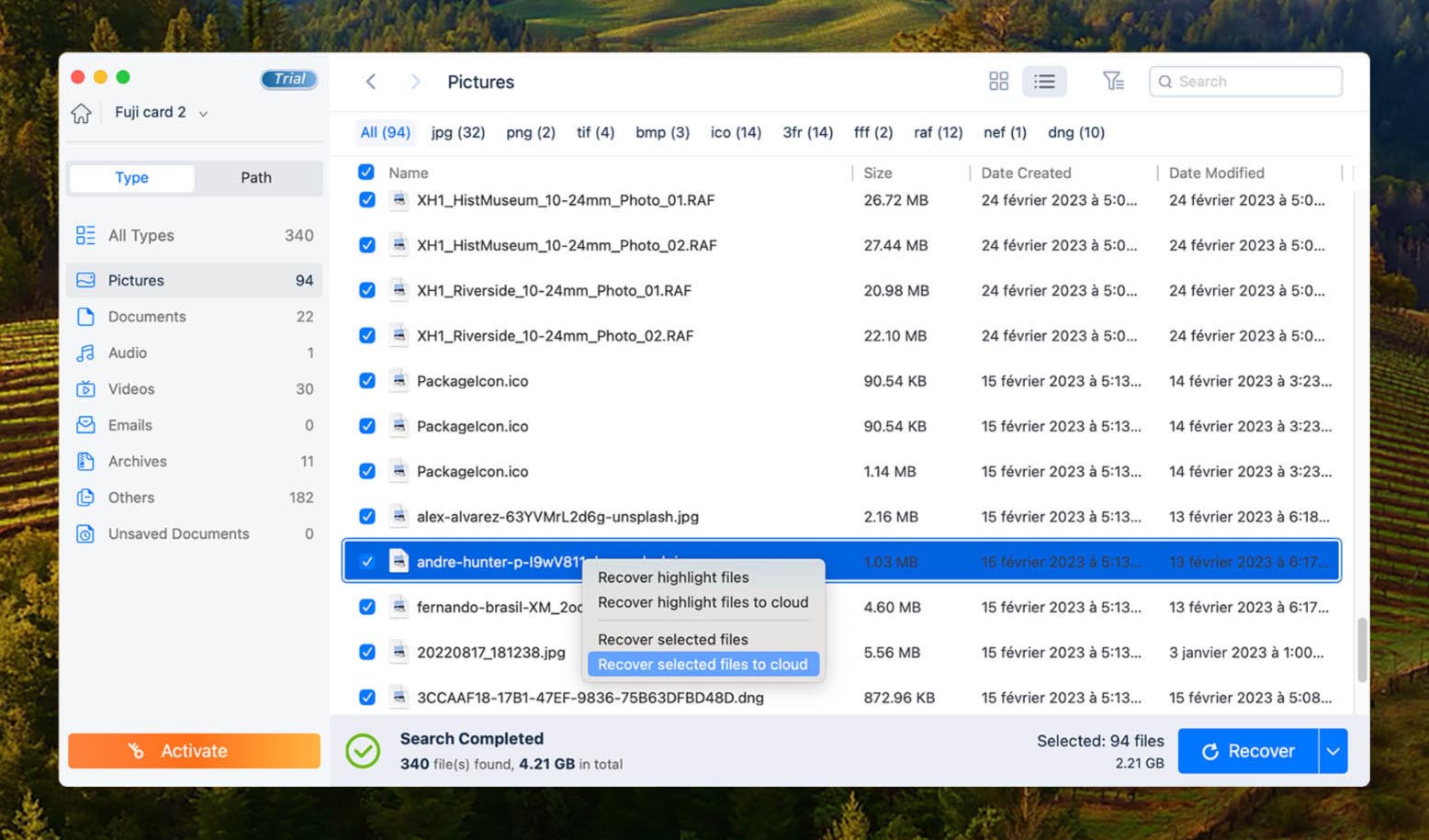
The 2 GB free recovery limit is one of the more generous offers in this category, though be aware that the default download button on the website installs the Trial version (scan-only). The actual Free version with the 2 GB allowance is on a separate page, which has caused confusion for many users.
EaseUS may be too pricey for some, and its preview tool has some limitations (100 MB file size cap, inconsistent format support), but these are minor tradeoffs for what is otherwise a well-rounded recovery app.
You can read our detailed EaseUS Data Recovery Wizard review for a deeper look at performance and features.
Supported Mac OSs: macOS 10.9 and newer, including macOS 26 Tahoe.
Price:
| Plan | Price |
| Monthly | $89.95 |
| Annual | $119.95 |
| Lifetime Upgrades | $169.95 |
What Real Users Say:
“I am a professional Photographer and EaseUS recovered important previously deleted photos that I thought I’d lost forever.” – Capterra.
“On all pages there is information that is a free tool (freeware app), after downloading it turns out that only the download was free.” – Trustpilot.
5. R-Studio (Best for Tech-Savvy Users)
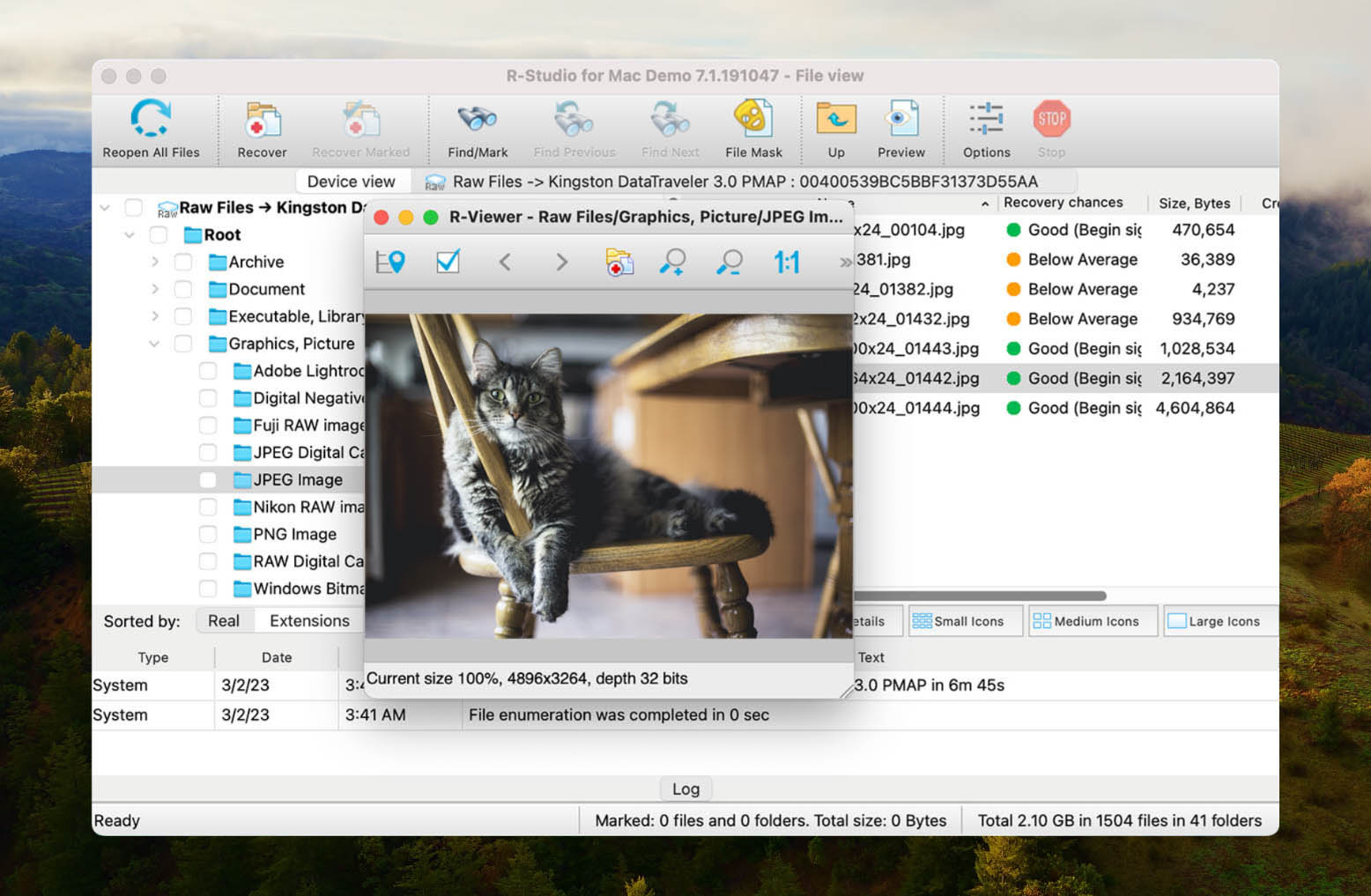
R-Studio is a more technical offering for Mac systems that’s geared towards advanced users looking for a robust and feature-filled data recovery program. In the right hands, it has all the tools you’d need to recover lost information. R-Studio’s advanced features are continually refined, ensuring full functionality with newer macOS releases, including Tahoe.
Pros
- Includes tons of tools and features for all sorts of data recovery needs
- Recovery results are rock solid
- Mac pricing scheme is much simpler than the Windows alternative
- Scans are quicker than some of the competition
- User interface and functionality may be too complex for the common user
- UI isn't very pretty either
Overall experience:
For the average user, R-Studio might feel intimidating or tedious at first. But this app shines in scenarios that require more advanced recovery operations and features than other tools can provide. For example, R-Studio is one of the best consumer recovery tools for recovering complex RAID systems, including nested RAID configurations, RAID 6E, and even custom advanced virtual RAID layouts. Other unique features include network recovery, which lets you restore data remotely, and forensic mode, which can generate audit logs for court hearings.
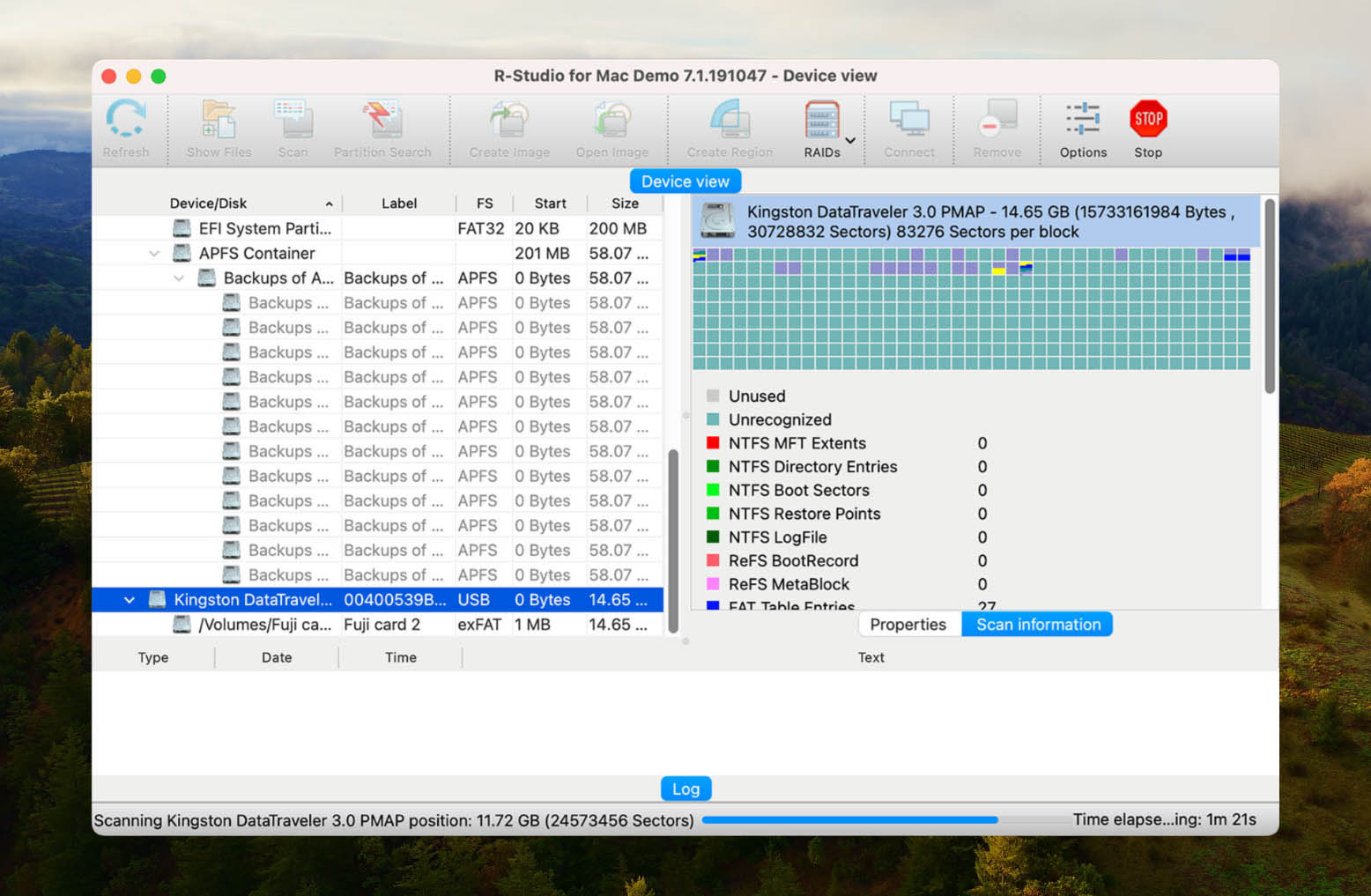
On top of these extra tools, R-Studio simply performs very well on HFS+, APFS, and ExFAT file systems. You can also add custom file signatures. Its preview tool is pretty limited, though.
Read our full review of R-Studio to learn more about its strengths and weaknesses.
Supported Mac OSs: Mac OS X 10.5 and newer.
Price:
| Edition | Price |
| R-Studio for Mac | $79.99 |
| R-Studio Technician | $899.99 |
| R-Studio T80+ for Mac | $80.00 |
| R-Studio Corporate for Mac | $179.99 |
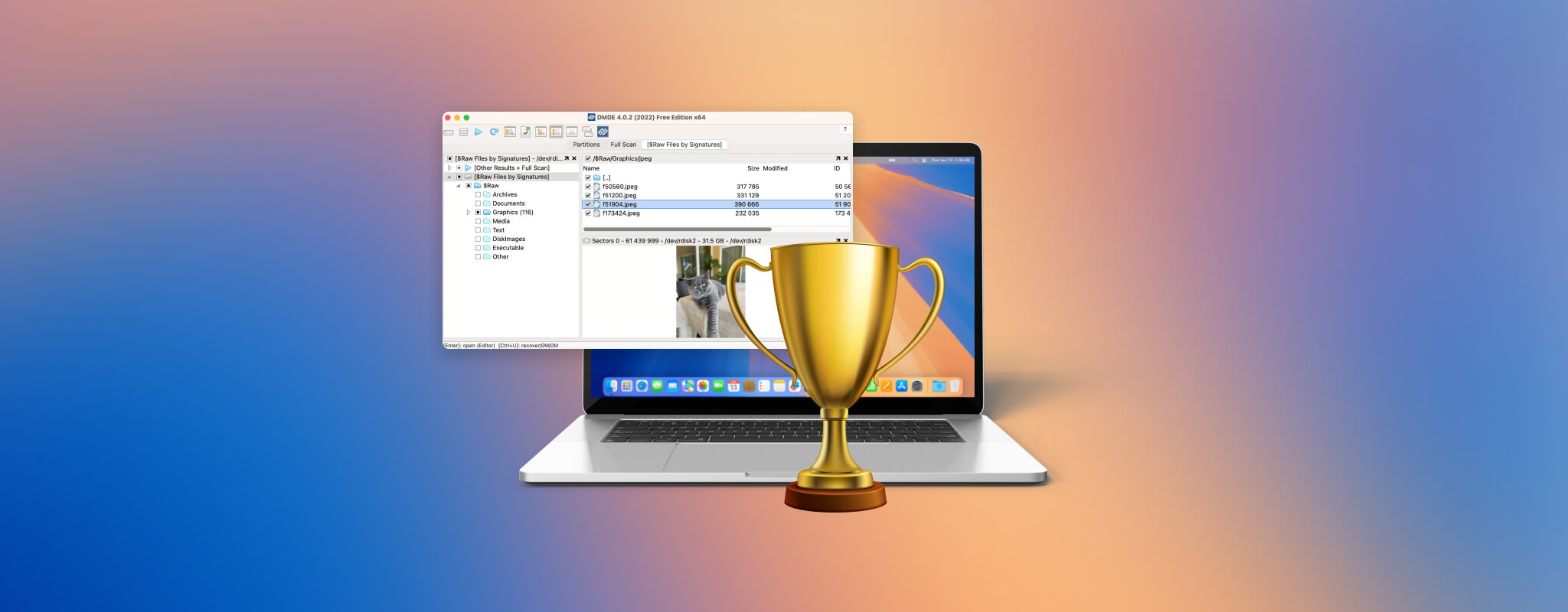
6. DMDE (Best for Professional-Grade Recovery)
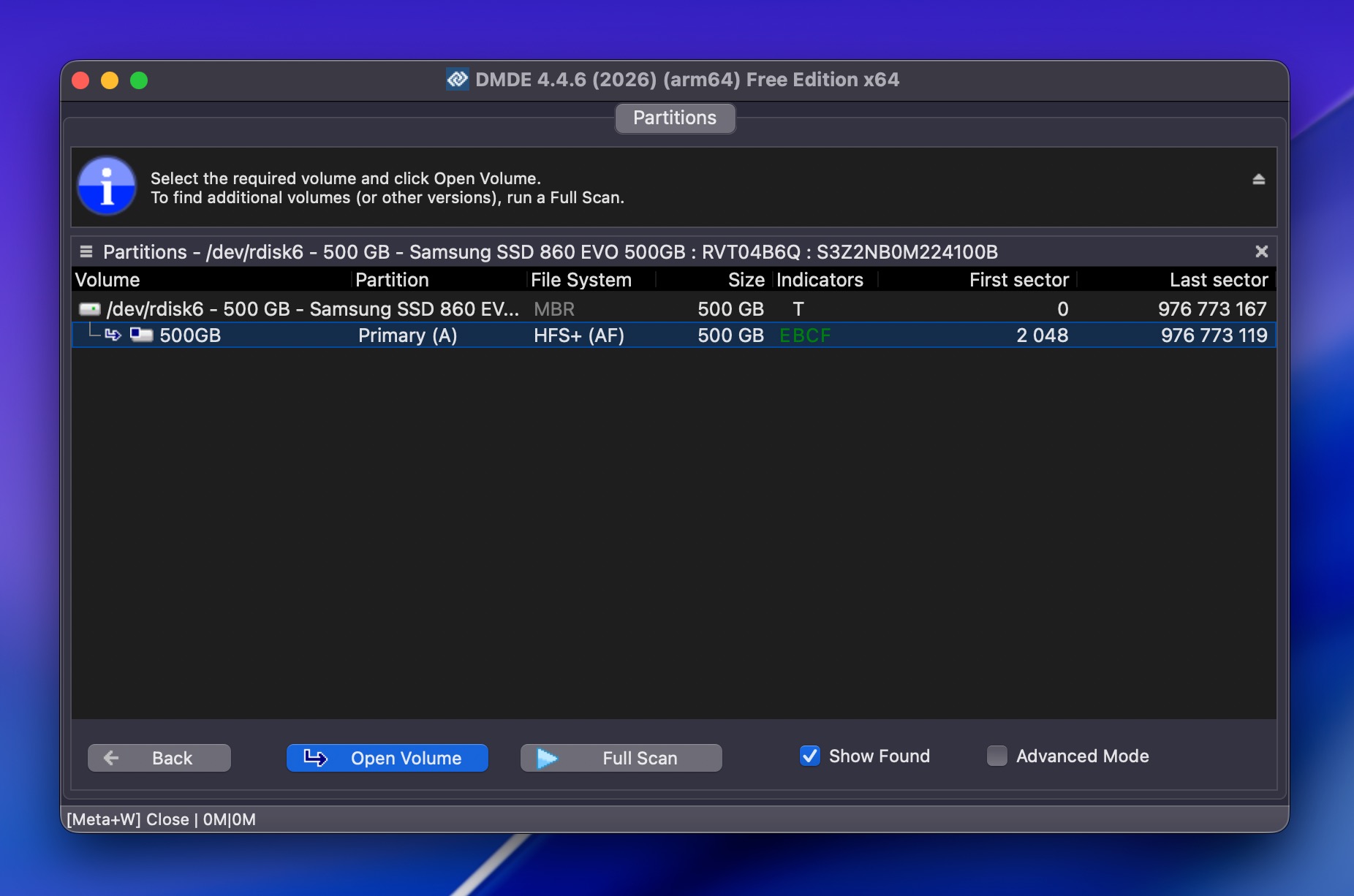
DMDE (DM Disk Editor and Data Recovery Software) is a powerful, affordable recovery tool whose free version is exceptionally capable because it lets you recover up to 4,000 files from a single directory at no cost. That’s one of the most generous free limits you’ll find anywhere.
Pros
- Free version recovers up to 4,000 files per directory with unlimited repetitions
- Extremely affordable paid licenses (starting at $20) with no subscriptions
- Fast scanning engine, particularly on NTFS, FAT32, and exFAT file systems
- RAID Constructor with auto-parameter detection
- Portable, runs from USB without installation
- Cross-platform (Windows, macOS, Linux, DOS)
- Outdated, complex interface that is not beginner-friendly
- No video or photo repair module
- Apple Silicon native support is unconfirmed (runs via Rosetta 2 on M1-M5 Macs)
- Slow preview generation and no recovery during active scanning
Overall experience:
DMDE is the kind of tool that looks intimidating but rewards patience. The interface feels like it’s from a different era, loaded with options and technical terminology that will overwhelm most casual users (plus it just looks outdated). However, for some users, the poor design and usability might just be worth it because good looks aren’t the only thing that counts.
DMDE supports a wide range of file systems, including HFS+, APFS, exFAT, Ext2/3/4, btrfs, and ReFS. It also includes a RAID Constructor that can auto-detect RAID parameters, a full hex/disk editor, disk imaging with resume-on-disconnection support, and a partition manager that can undelete partitions and repair boot sectors. Its scanning engine is surprisingly fast, especially on NTFS and FAT32 volumes, and it performs well overall.
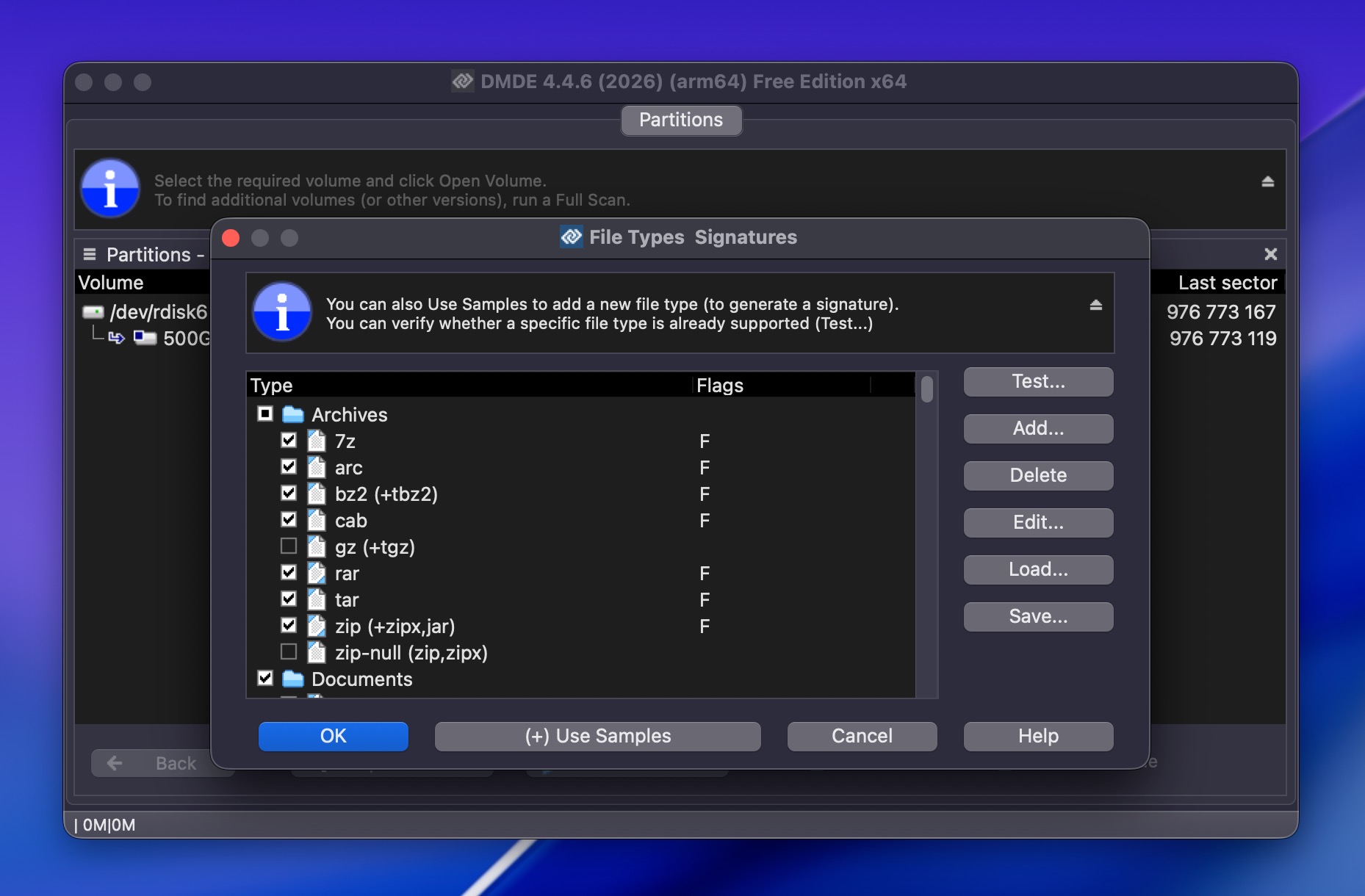
As free Mac data recovery software, DMDE has a 4,000-file-per-directory limit that’s generous enough for most personal recovery situations, and you can repeat the process as many times as needed. Paid licenses start at just $20 for the Express edition and $48 for a perpetual Standard license, making DMDE one of the most affordable professional-grade recovery tools available.
For a closer look at DMDE’s performance in our tests, check out the full DMDE review.
Supported Mac OSs: macOS (64-bit build available). Compatible with macOS 26 Tahoe. Runs on Apple Silicon Macs via Rosetta 2.
Price:
| Edition | Price |
| Free | $0 (up to 4,000 files per directory) |
| Express (1-year) | $20 |
| Standard (perpetual) | $48 |
| Professional 1-OS (perpetual) | $95 |
| Professional Multi-OS (perpetual) | $133 |
What Real Users Say:
“DMDE is probably the least expensive tool. Its free version can recover up to 4000 files.” – Tom’s Hardware Forum.
“For $95 you get a very complete tool, license permits commercial use and is lifetime. It’s unbeatable if you consider what it can do vs. the price.” – Technibble Forums.
7. Stellar Data Recovery for Mac (Best for Multimedia and Photo Recovery)
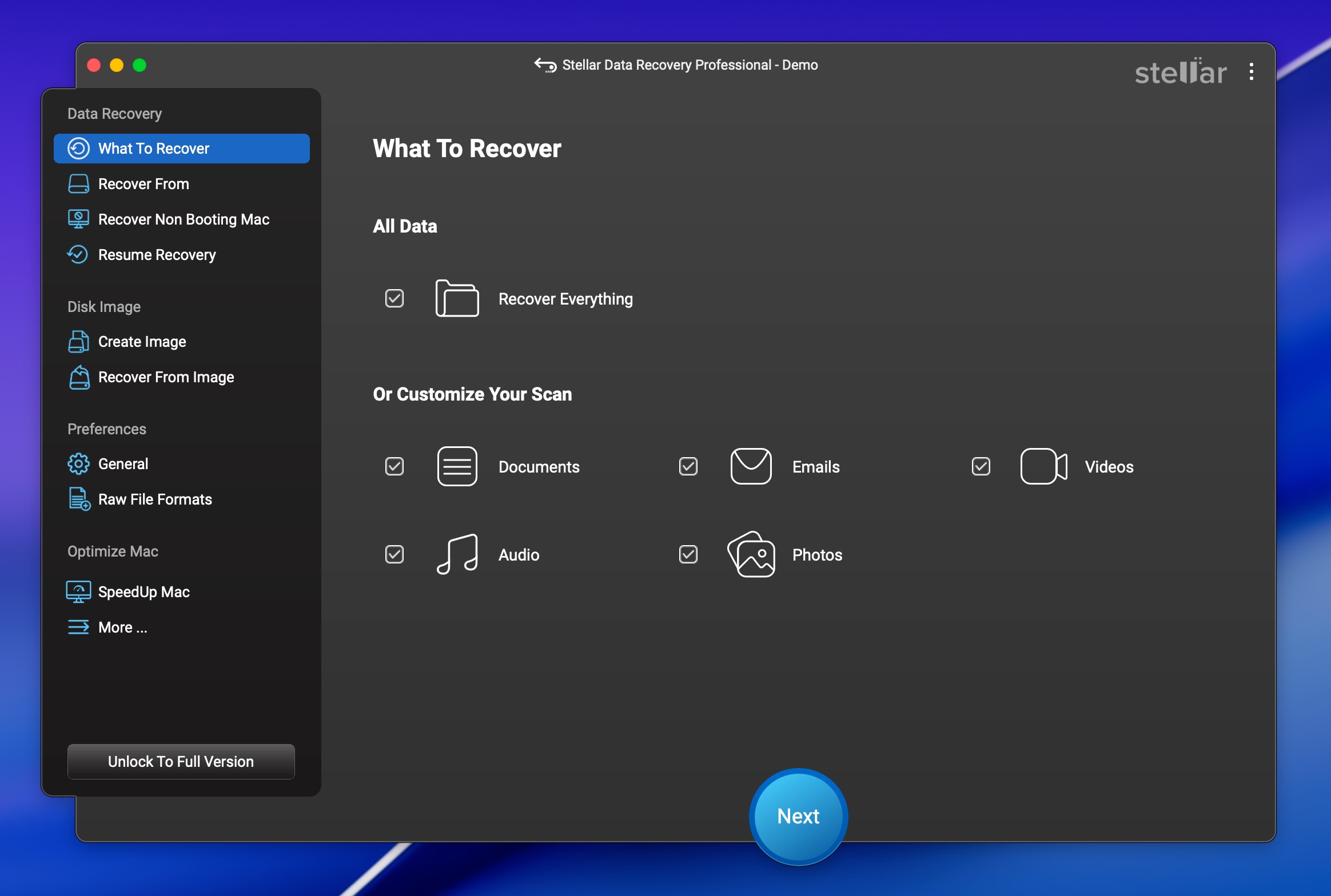
Stellar Data Recovery is a well-known name in the recovery space, and its free version lets you recover up to 1 GB of data without paying anything. The Premium and Technician tiers also include video and photo repair modules, making it a solid choice if you’re dealing with corrupt media files.
Pros
- Free recovery of up to 1 GB of data
- Recovers 300+ file types from APFS, HFS+, exFAT, FAT32, and NTFS file systems
- Video repair module (Premium tier) for fixing corrupt MOV, MP4, MTS, and other formats
- Photo repair module (Premium tier) for JPEG, CR2, TIFF, and HEIC files
- Works with Apple Silicon Macs and T2 chip devices
- Bootable recovery drive creation (Professional tier and above)
- S.M.A.R.T. drive monitoring and disk imaging for failing drives
- Scanning can be slow, especially on large drives
- The more useful repair features are locked behind the Premium tier ($99.99/yr)
- Some users report difficulties with refunds and activation
- Free version caps individual file recovery at 100 MB per file
Overall experience:
Stellar Data Recovery delivers a simple recovery workflow that starts with you picking a drive, running a scan, and then previewing what’s found, and recovering what you need. The interface is clean and reasonably easy to navigate, though not as polished as EaseUS or Disk Drill.
The Premium tier of the file recovery software includes dedicated video and photo repair tools that can fix corrupt files from Canon, Sony, GoPro, and other cameras. If you regularly work with camera footage and run into corrupted files, this is a useful feature to have bundled with your recovery software.
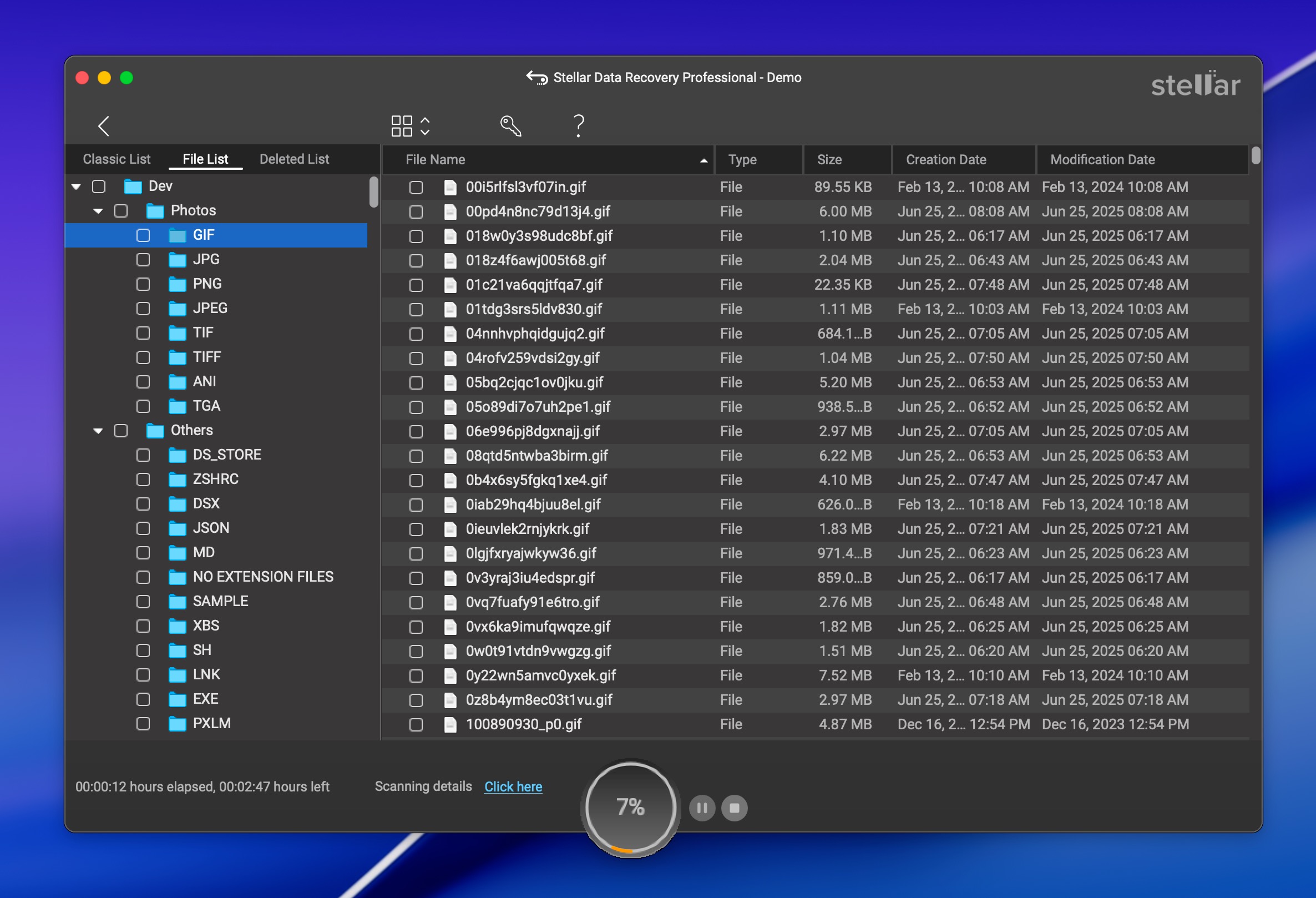
The free version gives you 1 GB of recovery with the same scanning engine as the paid versions. That’s enough to test whether Stellar can find your files before committing to a purchase. Deep Scan is included in the free tier, which is worth noting since some competitors limit their free versions to quick scans only.
Stellar supports macOS 10.11 through macOS 26 Tahoe and works on T2 and Apple Silicon Macs. It handles encrypted APFS and FileVault volumes as well.
For a complete performance breakdown, see our full Stellar Data Recovery review.
Supported Mac OSs: macOS 10.11 El Capitan through macOS 26 Tahoe.
Price:
| Edition | 1-Year | Lifetime |
| Free | $0 | $0 (1 GB cap) |
| Standard | $69.99 | $99.99 |
| Professional | $89.99 | $149 |
| Premium | $99.99 | $199 |
| Technician | $199 | N/A |
What Real Users Say:
“A good program that is able to dig deep to help reconstruct and recover deleted data.” – Macworld.
“I purchased Stellar Data Recovery to recover files from a 1TB disk. The scanning process was extremely slow, after 4 hours, it had only scanned 2% of the disk.” – Trustpilot.
8. Exif Untrasher (Best for Image Recovery)
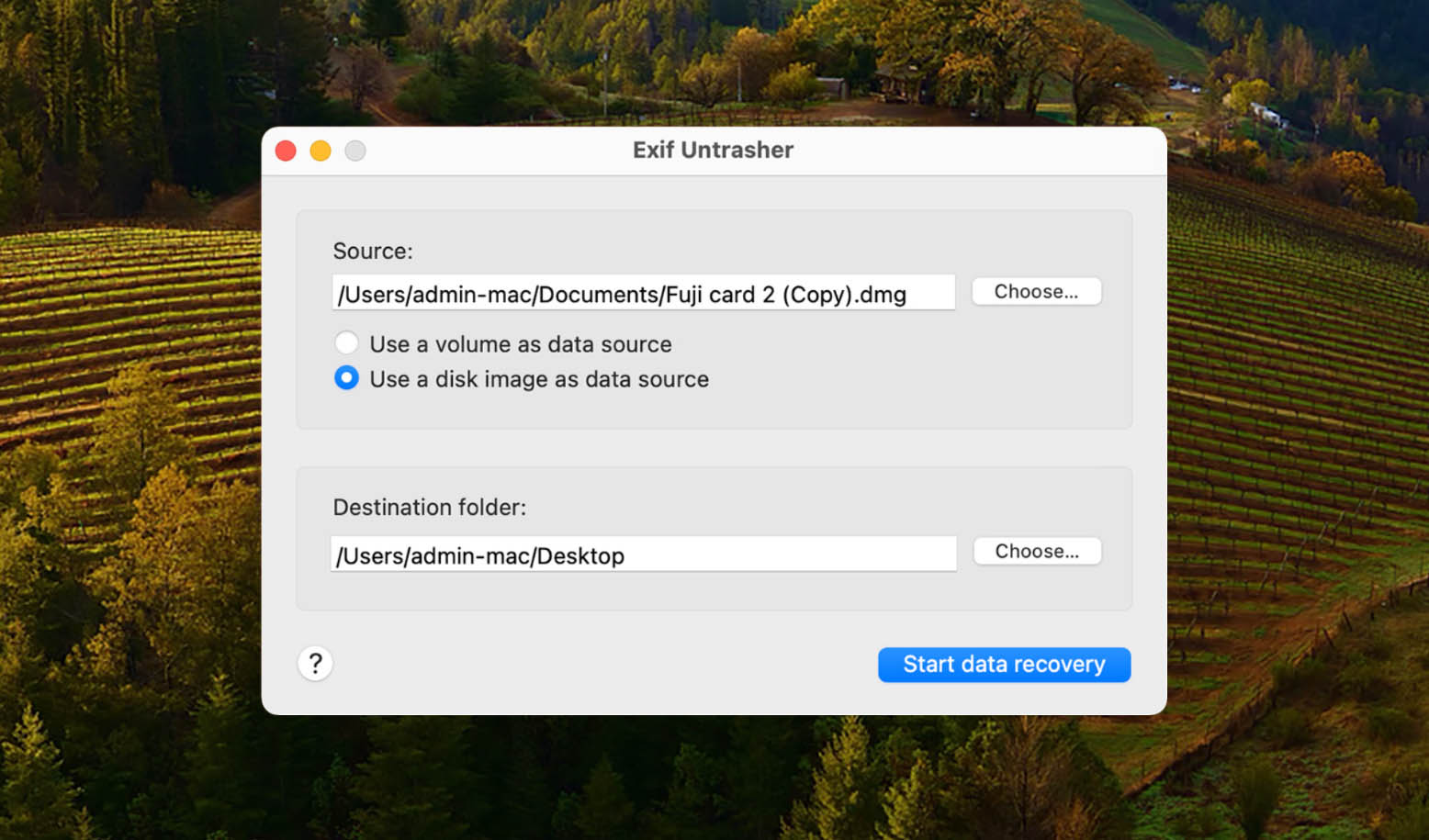
Exif Untrasher is a free Mac recovery tool built for one specific job: recovering JPEG images from storage devices and disk images.
Pros
- Completely free
- Extremely simple to use
- Works with disk images, so you can scan a backup of your storage device
- Can only recover JPEG files. No RAW photos, videos, documents, or other formats
- Requires a working file system on the storage device (the disk must be mountable)
- No longer actively developed. The last update was in February 2022
Overall experience:
Developed by Carsten Blum, Exif Untrasher is the simplest recovery tool on this list. It does exactly one thing and does it well. To recover images, you select a physical storage device or disk image, pick a destination folder, and start the process.
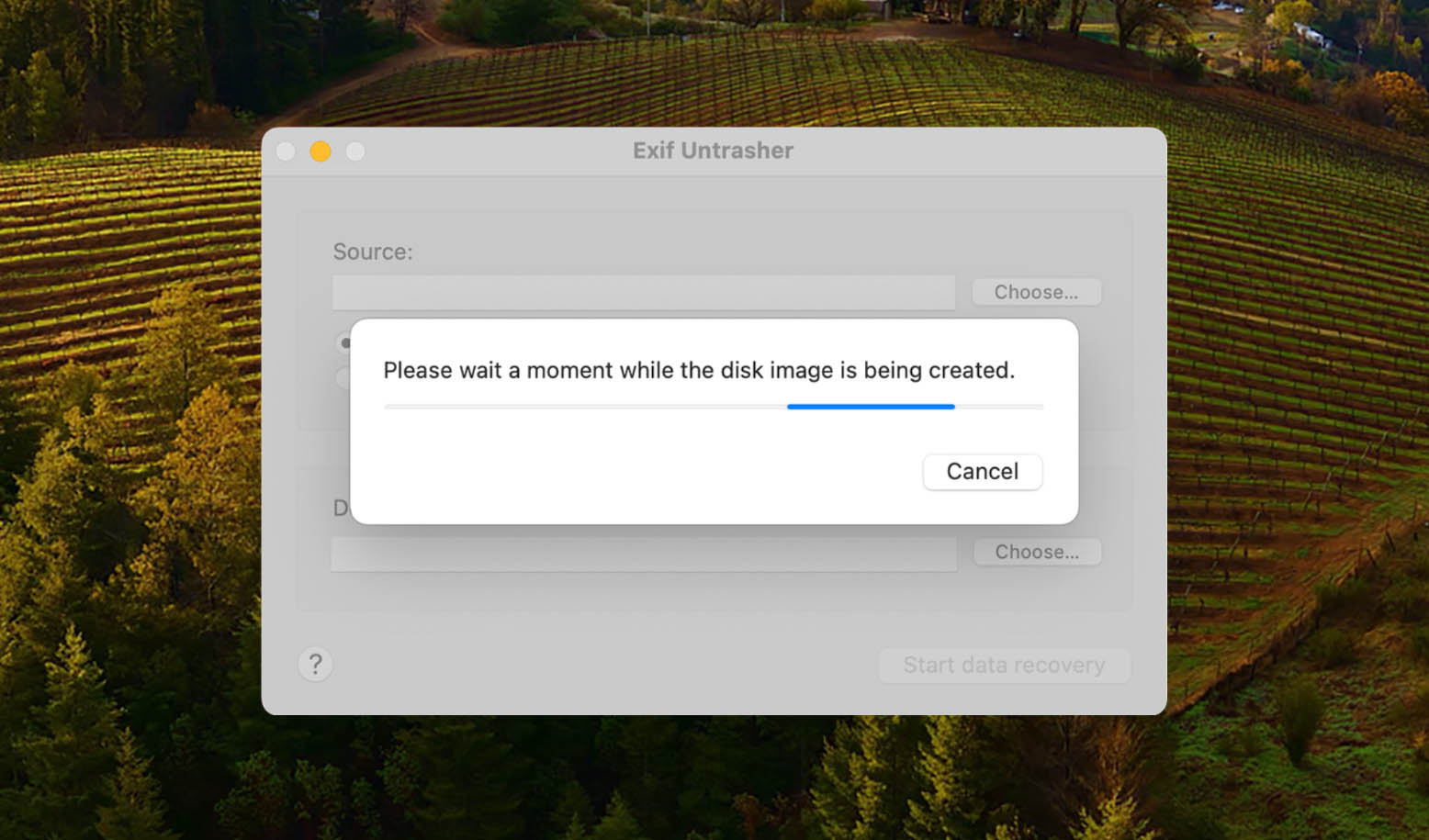
That simplicity comes with trade-offs. The biggest one is that Exif Untrasher only recovers JPEG images. If you need to recover RAW photos, videos, documents, or anything else, this isn’t the right tool. Another limitation is that it requires a working file system on the device you’re scanning. If your disk shows up as RAW or unformatted, Exif Untrasher won’t be able to read it directly. A workaround is to create a byte-to-byte backup of the device with another tool (like Disk Drill’s free backup module) and then point Exif Untrasher at that disk image instead.
The developer has stated that the project is discontinued, and the website confirms that the software is no longer maintained. That said, Exif Untrasher still runs on newer macOS versions and may work on macOS 26 Tahoe, even though it was last officially tested on macOS 10.15.
Supported Mac OSs: Mac OS X 10.10 – macOS 10.15.
Price: Free.
What Real Users Say:
Exif Untrasher has a very small user base, so reviews are limited. Softonic reports over 23,000 downloads since 2011 and calls it “a powerful, free program only available for Mac.” Mac Informer rates it 4.2 out of 5 based on a handful of votes. There are no significant forum discussions or Reddit threads about this tool, which reflects its narrow scope and discontinued status.
Best Free Mac Data Recovery Software Compared
| Feature | Disk Drill | TestDisk/PhotoRec | iBoysoft | EaseUS | R-Studio | DMDE | Stellar | Exif Untrasher |
| Recovery Results | ★★★★★ | ★★★★☆ | ★★★☆☆ | ★★★★☆ | ★★★★☆ | ★★★★☆ | ★★★★☆ | ★★★☆☆ |
| Price | $89 | Freeware | $89.95 | $89.95/mo | $79.99 | $20-$48 | $69.99/yr | Freeware |
| Free Recovery Limit | Vault/GR protected files | Unlimited | 1 GB | 2 GB | Files under 1024 KB | 4,000 files/dir | 1 GB | Unlimited (JPEG only) |
| macOS Support | 10.15+ | 10.6+ | 10.11+ | 10.9+ | 10.6+ | 64-bit macOS | 10.11+ | 10.6-10.15* |
| Runs Natively on M1-M5/T2 Macs | Yes | No (external drives only) | Yes | Yes | Yes | Unconfirmed (Rosetta 2) | Yes | No |
| Modern Interface | Yes | No | No | Yes | No | No | Yes | No |
| Data Protection Tools | Yes | No | No | No | No | No | No | No |
*Exif Untrasher officially supports up to macOS 10.15 but may work on newer versions.
Other Tools We Considered
There are other Mac data recovery apps with promising features you can check out, but their drawbacks pushed them out of our final list. Here are the other tools we considered:
Wondershare Recoverit for Mac – Wondershare Recoverit has a polished, modern interface and strong video recovery features in its Premium tier. It claims support for over 1,000 file types and works with macOS 26 Tahoe. The reason it didn’t make the main list is its tight free recovery limit of just 100 MB, which is far below what competitors offer. There are also widespread reports of issues with customer support and a short 7-day refund window. The bootable USB creation feature has also been unreliable on Apple Silicon Macs in testing. Still, if you’re willing to pay, it’s a capable option worth considering.
iBeeSoft Data Recovery – iBeesoft Data Recovery is a solid data recovery option whose highlights include its catchy user interface and its ability to recover information (even partially) from a variety of different circumstances. It is, however, rather slow at scanning machines, especially when using Deep Scan, so you might end up having to wait for hours on end before you can start actually recovering. The free version also comes with a data recovery limit, after which you’ll have to pay up.
4DDiG Mac Data Recovery – 4DDiG Mac Data Recovery may seem like the perfect data recovery tool for simple file retrieval: it has a user-friendly interface, a high data recovery rate, quick and deep scanning modes, and more. The software can scan and recover over 1000 file formats, ranging from photos, videos, audio, documents, and so on. It also supports different file systems for Mac, such as FAT32, exFAT, APFS, and HFS+ file systems. However, it’s important to note that the free version only allows users to preview files. To recover the data, you must purchase the software. The preview feature is also limited to only a few file formats.
Choosing the Best Data Recovery Software
Examining just one factor isn’t enough to figure out which tool is right for your situation, and that’s why we looked at several characteristics of the data recovery solutions on this list:
- Data recovery performance. No matter how polished or affordable a tool is, it needs to actually find and recover your files. Recovery performance should weigh heavily in your decision, even above ease of use or price. A free tool that looks great but only recovers half your files isn’t much help when you’ve lost something irreplaceable.
- Compatibility with modern Macs. If you’re running an Apple Silicon or T2-equipped Mac, make sure your recovery tool runs natively on your hardware. Tools like Disk Drill and iBoysoft run natively on Apple Silicon, while others like DMDE and PhotoRec depend on Rosetta 2 or Homebrew, which can mean slower scans or limited functionality.
- Functionality. A good recovery tool should handle a variety of data loss situations in a straightforward way. It should restore file names, categorize results by type, and work with multiple storage devices and file systems. Limited functionality, like not recovering file names or poor categorization, can make the whole process frustrating, especially for non-technical users.
- Pricing. Recovery software ranges from completely free to expensive commercial products. Freeware solutions tend to have limited interfaces and fewer features. But some paid tools like DMDE offer perpetual licenses for under $50, while others like EaseUS push subscription-based models. Consider what you’re getting for the price.
- User reviews. Reviews from real users can tell you a lot, though keep in mind that some may come from marketing efforts or competitors. Take them with a grain of salt, but pay attention to common patterns. If multiple users report the same issue, it’s probably real.
- Ease-of-use. Data recovery is stressful enough without fighting a confusing interface. Simple tools that let you recover data in a few clicks can save you a lot of headaches. That said, some powerful tools (like R-Studio and DMDE) sacrifice simplicity for advanced capabilities, which makes them better suited for experienced users.
More Methods to Recover Deleted Files on Mac
Here are some alternative methods that can be used to recover deleted files on a Mac.
- Recover from Mac’s Trash bin. Your Mac’s Trash bin holds recently deleted files until it is manually or automatically emptied. Apple included this special folder to address the needs of users who may occasionally delete the wrong file. When you are searching for a lost or deleted file, the Trash is the first place you look. If the deleted file is found in the Trash, it is easily recovered to its original location with a couple of clicks.
- Restore from a Time Machine Backup. Time Machine is Apple’s proprietary backup and recovery tool that ships with every Mac or MacBook. Best practices recommend regularly backing up the data on your computer, and Time Machine offers a convenient method of protecting your information. After backing up your files to an external storage device with Time Machine, it is a simple procedure to recover them in the event they are accidentally deleted. Just connect the storage device that contains the backups and use the Time Machine interface to locate the files to be restored.
- Use a data recovery service. A reliable data recovery service can help you recover lost data when all other options have been exhausted. The staff of a data recovery center will employ advanced hardware and software techniques to recover your data when it may have looked hopeless. Using cleanrooms to physically protect your storage media, damaged drives can be cloned so their data can be extracted and returned to you by the technicians working at a data recovery service.
- Use the Command-Z command. The Command-Z command is also known as the “undo” command. Using this command essentially undoes the last thing you did on your Mac. You can execute the command repeatedly to go back and undo several actions, such as deleting a block of text, a file, or a folder. Use this command as soon as you realize you need to undo an action, as there is a limit to how far you can go back.
- Terminal commands for data recovery. Several commands that are useful for data recovery can be executed from the Mac Terminal application. You can access the Mac Trash bin from Terminal to recover recently deleted files. Time Machine backups can also be accessed from Terminal and used to recover lost data. Another option is to run a data recovery tool from the command line.
Conclusion
You need data recovery software when files have been permanently deleted (emptied from the Trash), when a drive has been formatted or corrupted, or when a storage device is failing. We covered eight tools in this article, and there’s enough information here to make an informed choice based on your specific situation. But if you want the short version:
- Disk Drill is the most well-rounded option, which is why it’s the best recovery data software for Mac. It handles a wide variety of recovery scenarios, works on macOS 26 Tahoe, including Apple Silicon Macs and T2 devices, and offers a polished experience even for beginners. The free version gives you unlimited scanning and previewing plus data protection tools that provide free recovery for protected files. The new Advanced Camera Recovery module also makes it the go-to choice for anyone dealing with lost camera or drone footage.
- TestDisk and PhotoRec remain the best truly free option. If you’re comfortable with a terminal interface and don’t need to recover from your Mac’s internal system drive, these tools deliver solid results at zero cost.
If you’ve used any of these tools, we’d love to hear about your experience. Leave a rating for this post and share which tool you ended up choosing and why. It helps other readers make a better decision.
FAQ
- Launch the Terminal application.
- Enter cd .Trash and press Return to move to the Trash folder.
- Type this command: mv xxx.xxx ~/ (specify the filename and extension you want to move). Hit Return. This moves the file to your home folder.
- Type Quit to exit the Terminal app.
- Freeware - You might be able to recover your lost data for free using a freeware solution. If you choose this route, be prepared for inconsistent recovery results and the possibility that you will be using a very basic or command-line interface.
- Commercial software - Reliable commercial data recovery products can be obtained for under $100 and offer a much more intuitive and consistent recovery experience compared to freeware alternatives.
- Data recovery service - When data recovery software fails, the professionals at a data recovery service may be able to restore your data. This is the most expensive method and can cost several hundred or thousands of dollars.