


 If your pen drive’s giving you trouble and you’re hunting for a tool to bring it back to life, we’ve got a pretty extensive list of the best USB repair software right here. From data recovery to file system fixes, there’s a whole toolkit of USB repair tools out there: some simple, some advanced, and quite a few that are free but surprisingly powerful.
📊 In a hurry? Jump to our conclusion section if you just want to see which USB repair tools are the best.
What Is a USB Repair Tool, And What Types Exist?
Broadly, USB drives are susceptible to two types of damage: physical damage and logical damage. USB repair tools will only be able to assist you if your flash drive is logically damaged. When dealing with physical damage (such as bent connectors, a damaged NAND flash chip, water damage, and overheating), contact a professional USB repair service.
Now, as for the types of USB drive repair tools out there, we can roughly break them down like this:
- Data recovery software – for when files get deleted, drives get formatted, or the file system goes RAW. These tools scan the device for traces of recoverable data.
- File system repair tools – when your USB flash drive shows file system errors or can’t be accessed even though it appears in File Explorer, these tools attempt to repair or rebuild the damaged structure.
- Partition repair utilities – when the partition itself is gone or unreadable, partition tools search for lost partition info and help restore it so the drive becomes usable again.
- Disk imaging tools – before you run any recovery or repair, it’s smart to clone the entire USB stick to a disk image. These tools help make a backup of your broken USB drive so you don’t make things worse during repairs.
- Firmware-level tools — Some USB flash drive repair tools let you work directly with the flash controller, but these are rare, risky, and mostly built by drive manufacturers.
Most of the pendrive repair tools you’ll find online fall into the first two or three categories. Some tools combine features, so instead of using separate apps, you get one USB flash drive tool that can scan for deleted files, rebuild damaged file structures, and restore lost partitions in a single workflow. But let’s not get ahead of ourselves.
We’ve selected 14 USB repair tools we recommend. First, we’ll cover the most useful apps for recovery and repair. Then we’ll look at the built-in tools you already have in Windows and macOS. Finally, we’ll include manufacturer-level utilities for controller or firmware repair when nothing else works.
Best USB Repair Tools
Now let’s get into each pendrive repair tool in detail.
For every one of these, we’ll start with a quick note that tells you exactly what this tool might help you fix on your USB, whether it’s deleted files or a corrupted file system. Then we’ll break down the pros and cons so you can decide if it’s worth trying for your situation.
Let’s start with the first batch.
1. Disk Drill (Windows, macOS)
Data recovery + disk imaging
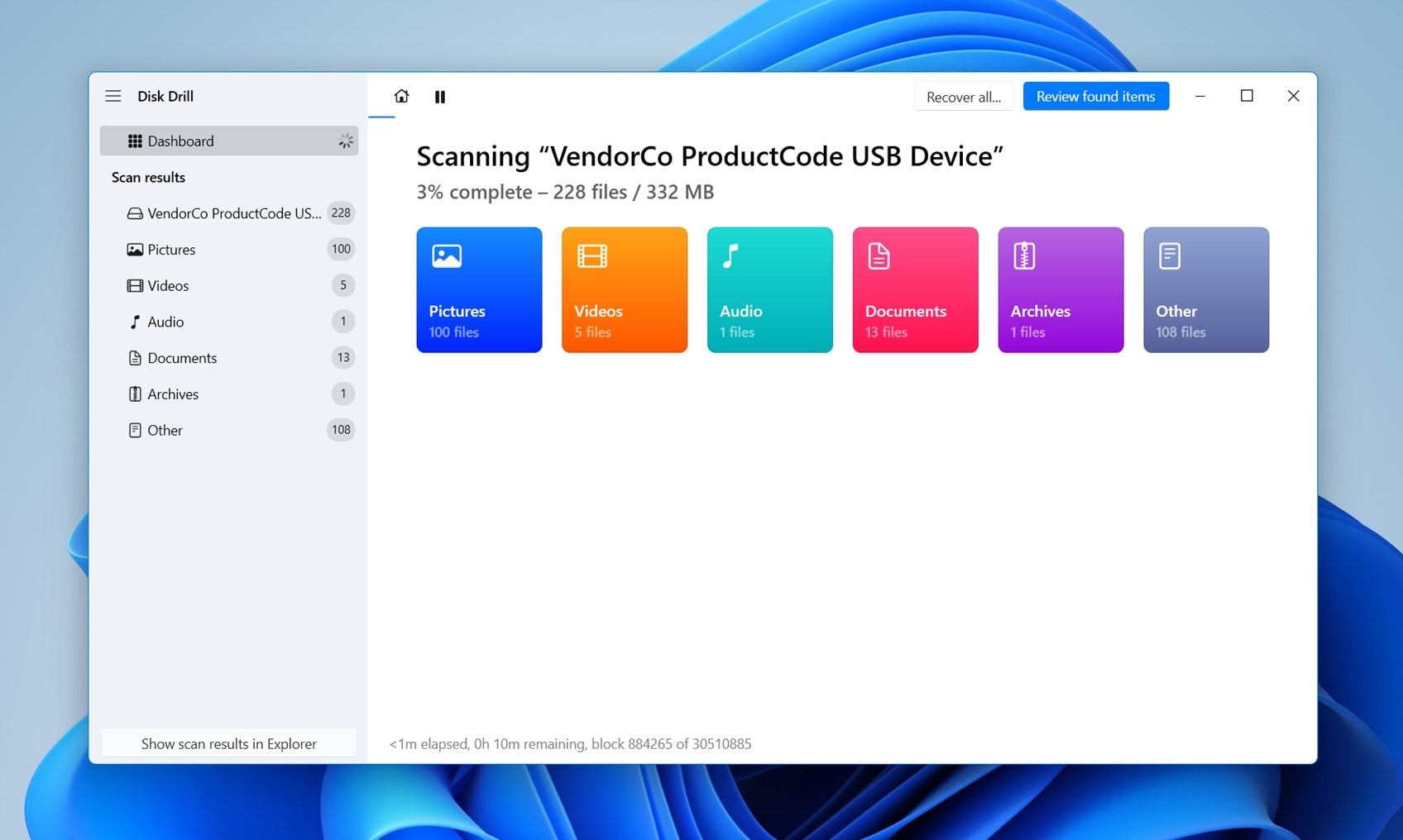
Disk Drill is one of the most capable USB drive repair tools out there. It’s great when you need to recover files from a flash drive that got wiped/formatted or turned unreadable. It also includes a disk imaging feature (Byte-to-byte Backup), which is a huge plus if your USB stick is unstable and you want to avoid doing direct recovery on the original. The layout is clean, the scan results come with previews, and it supports hundreds of file formats (390+), so it’s easy to spot what’s worth recovering.
There’s more to Disk Drill than we could fit into this guide, especially if you’re looking beyond USB recovery. If you’re curious, we’ve got a full review you can check out for all the details.
What users say about Disk Drill:
“Disk Drill recovered everything I needed (about 1000 images) in less than an hour. Will ALWAYS recommend!” – a Trustpilot reviewer highlighting strong recovery results.
Pros
- Clean UI.
- Deep scan works on formatted, RAW, or corrupted USB drives.
- Supports byte-to-byte disk imaging (safer recovery on unstable drives).
- File preview before recovery.
- Detects and recovers hundreds of file formats.
- Recovers from lost or deleted partitions.
- Organizes scan results by file type and recovery status.
- Built-in SMART monitoring for device health.
- Works on both Windows and macOS.
- Can resume interrupted scans.
- Recognizes USB drives even if they don’t mount properly.
- Can recover from unallocated space.
- Free recovery on Windows up to 100MB.
- Free on macOS for scan and preview only.
Pricing: Free Basic version; PRO $89 (unlimited recovery, 2-for-1 license on Windows and macOS).
2. AOMEI Partition Assistant (Windows)
Partition recovery + USB reformatting + MBR fix
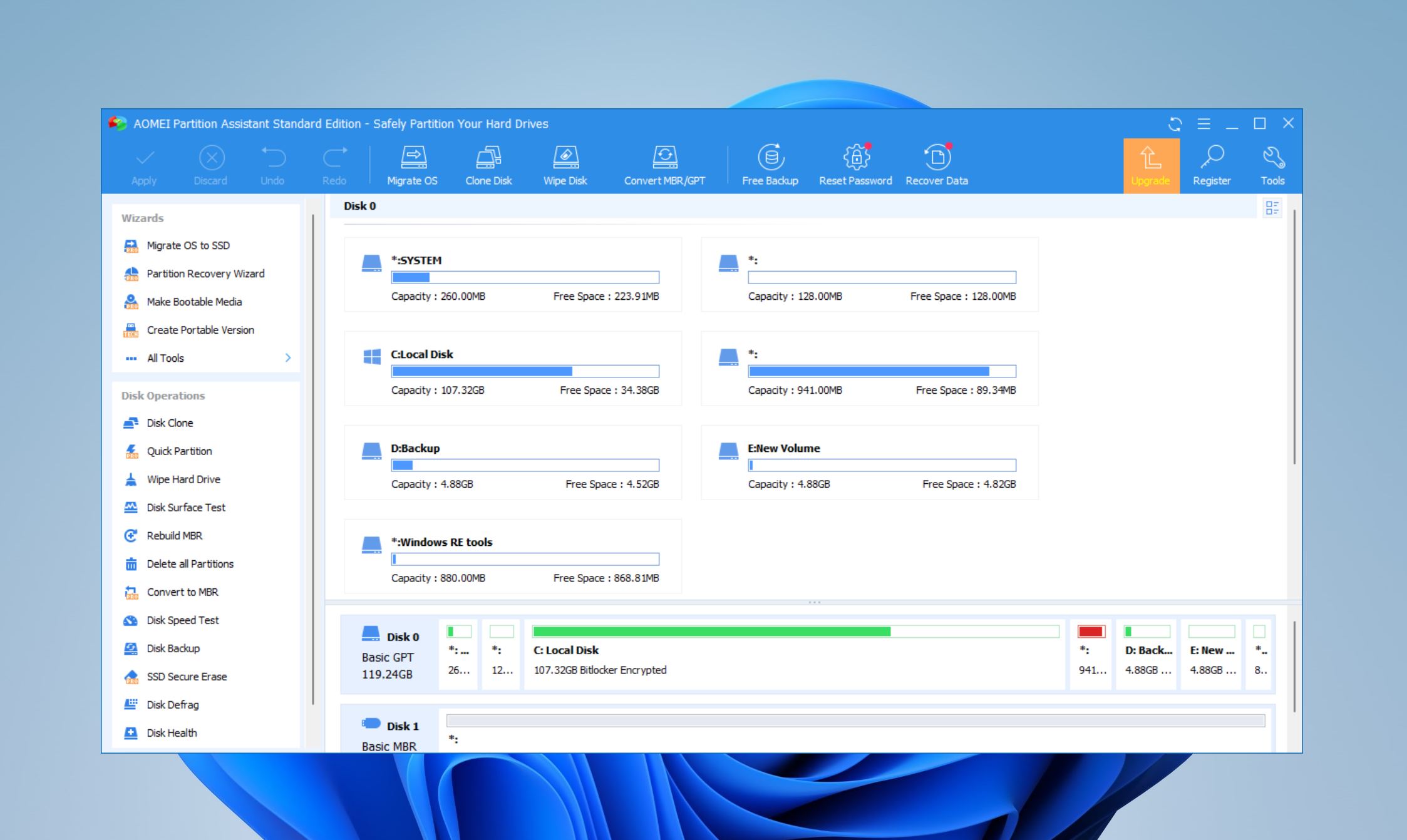
Few tools can hold a candle to AOMEI Partition Assistant’s partitioning and disk management capabilities. It offers an easier and more functional way to format, partition, and repair your USB drive than Windows Disk Management. You can also recover lost partitions from your USB drive using the premium version of the program.
What users say about AOMEI Partition Assistant:
“Very handy to manipulate extra hard-drives, for example to turn an old system disk from an old PC to a USB data disk.” – a Trustpilot reviewer.
Pros
- An ability to manage partitions, as well as recover them, within a single interface. AOMEI Partition Assistant’s functionality extends beyond just repairing your USB drive.
- Feature-rich free plan.
- You can rebuild the Master Boot Record (MBR) using the tool.
- It can be integrated into the Windows Recovery Environment, allowing you to use the program even if Windows is unable to boot.
- The free version has limited partition recovery capabilities. You can view recoverable partitions, but cannot recover them.
- The premium plans are pricey.
- Only runs on Windows.
Pricing: Free Standard version available; Pro version with advanced features starts at $49.95 for a lifetime license.
3. TestDisk (Windows, macOS, Linux)
Partition table repair + boot sector recovery
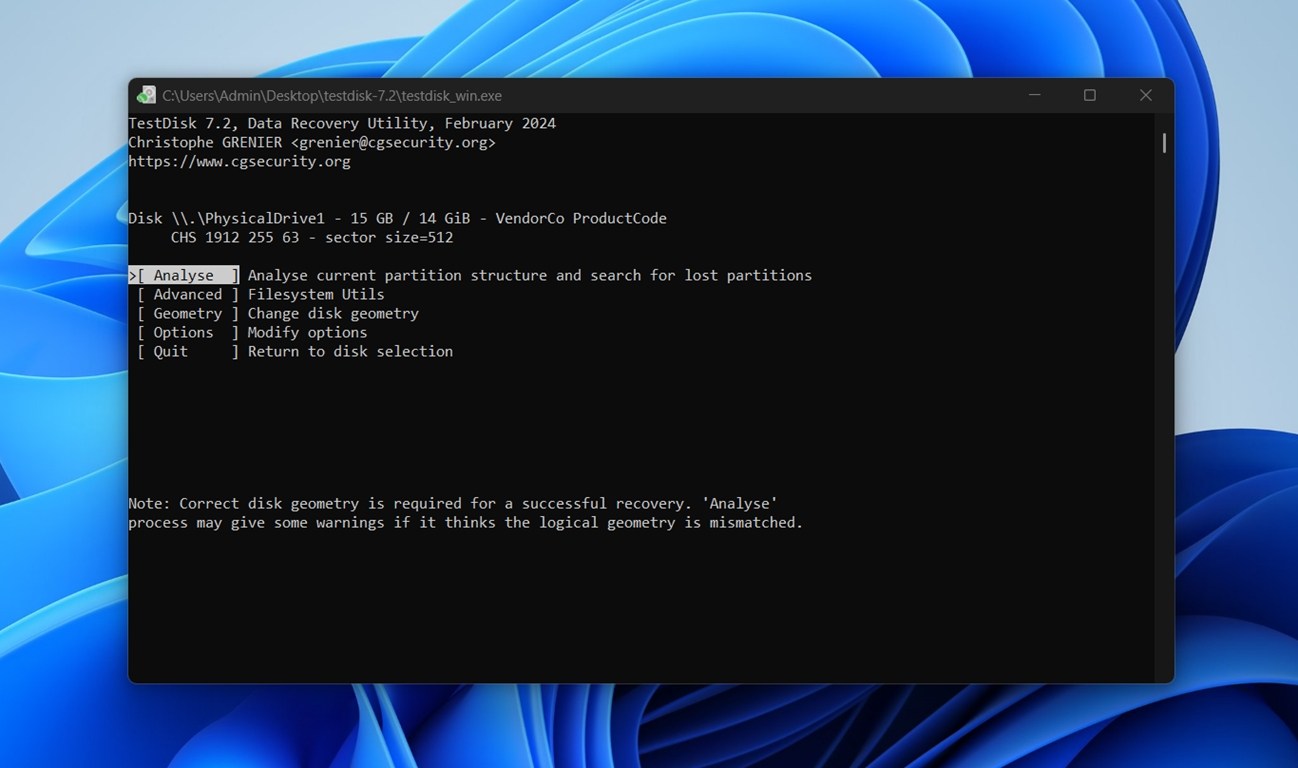
TestDisk is a free, open-source USB disk repair tool built for more technical tasks, like fixing a USB stick that suddenly shows up as “unallocated” or has a missing partition. It can rebuild FAT32/NTFS partition tables, rewrite corrupted boot sectors, and undelete files in certain situations.
If your USB shows up in Disk Management but with no volume label or capacity, TestDisk might be the tool that saves it.
While it doesn’t have a graphical interface (it’s all terminal-based), it’s well-documented and widely used by IT pros and DIY users alike. You’ll need to know what you’re doing (or be ready to read through instructions carefully) but for cases involving damaged partitions, it’s one of the most best tools out there.
By the way, if you’ve read our full TestDisk review, you’ll know it actually comes bundled with another tool called PhotoRec. It focuses on file recovery by signature, which makes it extremely useful when the file system is too damaged for TestDisk to repair.
What users say about TestDisk:
- “TestDisk is a great little program – If I have a drive that is dying or corrupt I will image it first, then let TestDisk run on the image to recover.” – Reddit comment.
Pros
- Free and open-source.
- Works across Windows, macOS, and Linux.
- Can recover deleted partitions on USB drives.
- Can rebuild corrupted FAT32/NTFS/exFAT partition tables.
- Fixes boot sectors and backup boot records.
- Recognizes many file systems and partition layouts.
- Ideal for “unallocated” or RAW USBs.
- Includes PhotoRec for file recovery.
- Command-line interface only (no GUI).
- No file preview.
- Steeper learning curve for beginners.
- Doesn’t support disk imaging or cloning.
Pricing: 100% free.
4. HDD Low Level Format Tool (Windows)
Low-level formatting + full USB reinitialization
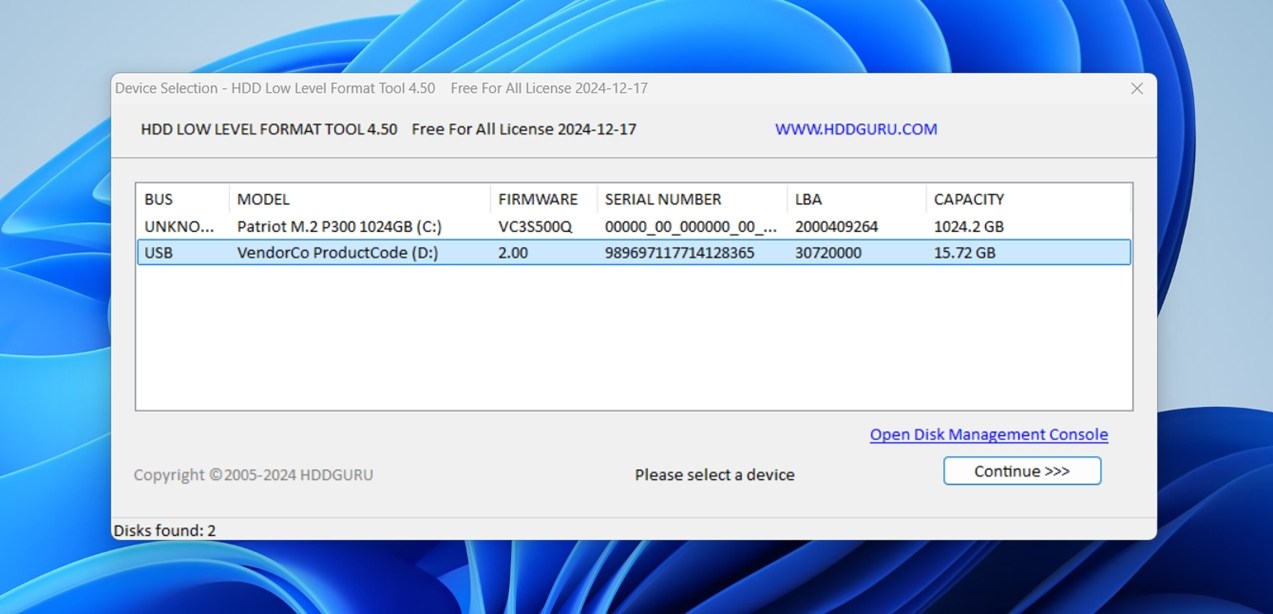
HDD Low Level Format Tool is exactly what it sounds like, a utility that performs a low-level format on hard drives, SSDs, and USB flash drives. It doesn’t repair partitions, but it’s extremely useful when you’ve already recovered your data and want to “zero out” the USB drive to start clean. It’s often used when Windows can’t complete a regular format. This is one of the few USB repair tools that truly wipes everything from the drive.
It’s not flashy, and it doesn’t support repair features like imaging or recovery previews, but if you’re dealing with a stubborn flash drive that refuses to format or behaves erratically, this tool can give it a fresh start.
Pros
- Fully wipes USB drives, clearing all partitions and file system traces.
- Can resolve formatting errors that standard Windows tools can’t.
- Works with most USB sticks, external HDDs, and SSDs.
- Useful before reinitializing a corrupted USB from scratch.
- Portable and lightweight.
- Often helps revive unstable or previously unreadable USBs.
- Works on Windows XP through Windows 11.
- No file recovery or partition repair features.
- Doesn’t support macOS or Linux.
- Requires caution.
- UI is dated and lacks warnings for risky actions.
Pricing: Free for personal use.
5. Victoria HDD/SSD (Windows)
Sector scanning + USB flash chip stability test
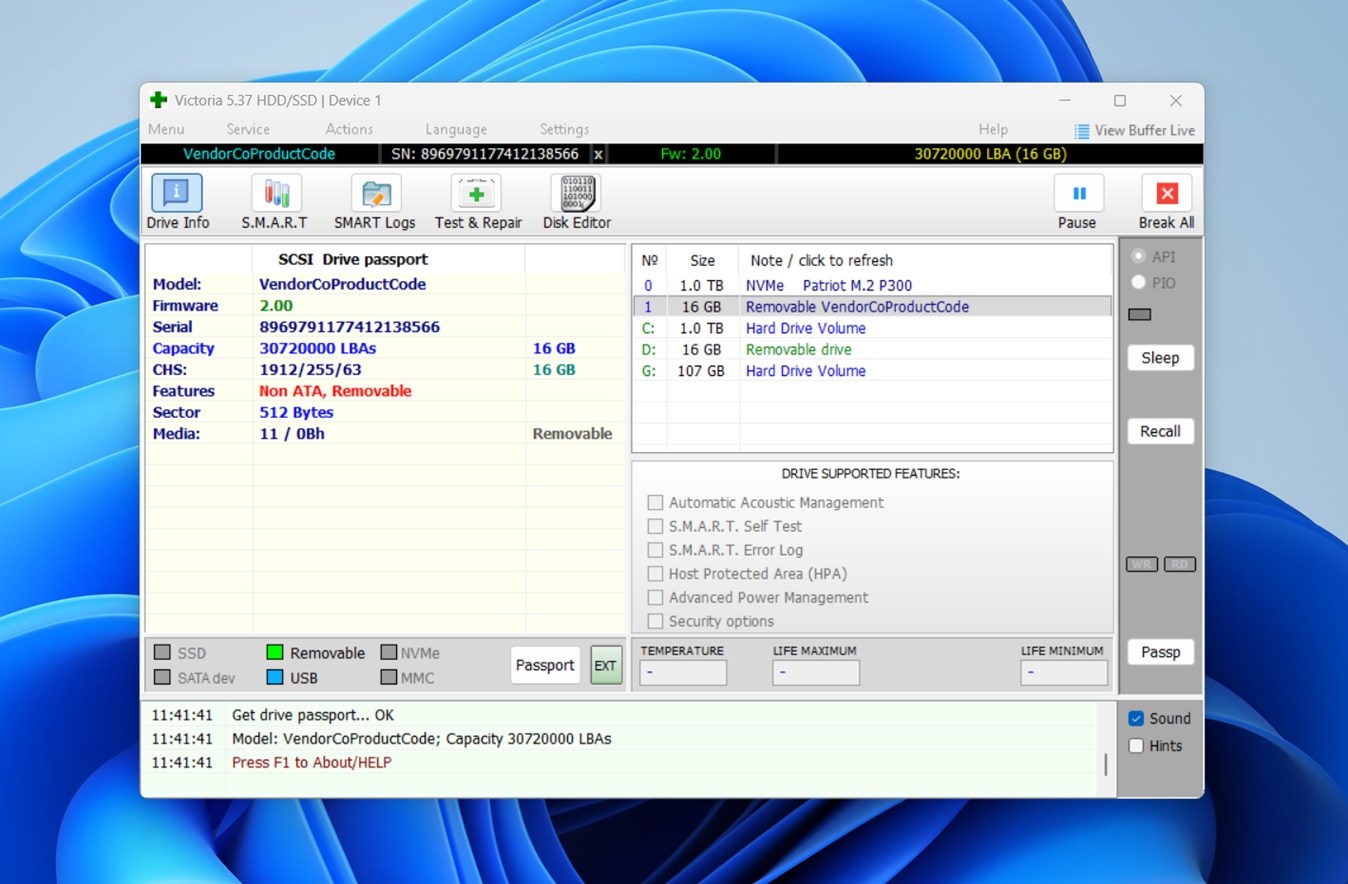
Victoria is a technical USB flash drive tool originally built for HDDs and SSDs, but it works well with USB drives too, especially if you’re trying to figure out whether the drive is physically failing. It can tell you if your USB is running into read errors, has weak sectors, or is too slow to be reliable. It also lets you run surface scans (read-only or read-write), monitor SMART data (if the USB controller exposes it), and check how the drive behaves under load.
This isn’t a repair tool in the classic sense; it won’t fix file systems or restore files, but it’s a smart step if you’re not sure whether your USB drive’s issues are caused by logical damage or failing flash memory. For anyone troubleshooting flaky USB behavior, it’s an underrated diagnostic tool.
What users say about Victoria:
“I like Victoria. Many people use badblocks or other programs. There’s also the option of having the drive perform a SMART self-test. The ‘long’ version would be preferable.” – Reddit user discussing diagnostics tools.
Pros
- Runs detailed surface scans on USB flash drives.
- Detects bad, slow, or unstable sectors.
- Offers read-only scan modes for safer diagnosis.
- Can help confirm if a USB drive is physically failing.
- Displays response times and access patterns.
- Supports SMART data (if available from controller).
- Doesn’t require installation (portable version available).
- Useful pre-check before using recovery software.
- Free to use.
- Windows only
- Interface is dated and may overwhelm casual users.
- Misusing write test modes can damage flash data.
- Requires careful selection to avoid scanning the wrong device.
Pricing: 100% free, no paid version.
6. Outbyte Driver Updater (Windows)
USB driver update and repair tool
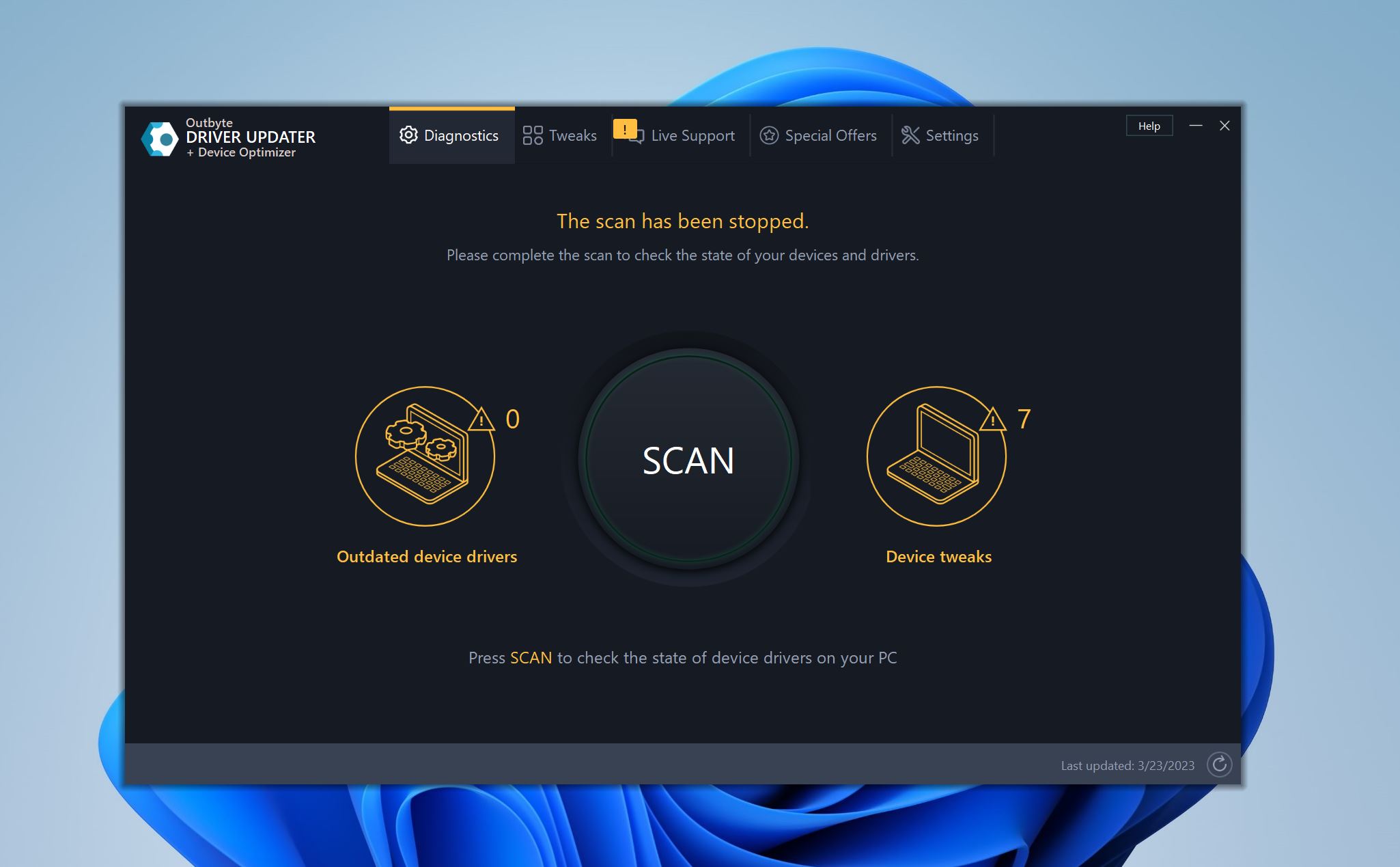
Outdated drivers are a common reason why your USB drive could be malfunctioning. And Windows cannot be relied on to update all the necessary drivers as soon as new updates are rolled out. Outbyte Driver Updater fixes this by scanning your PC and detecting corrupt or outdated drivers. You can then proceed to download and install the drivers from within the Outbyte Driver Updater UI.
What users say about Driver Updater:
“The app is excellent. It makes a really fast checkup of installed drivers and executes any necessary updates. On a certain issue I had, the supportdesk helped out very well.” – Trustpilot reviewer.
Pros
- Removes the hassle of manually discovering corrupt or outdated drivers.
- Backs up old drivers for easy rollbacks.
- Includes a PC optimizer.
- Doesn’t repair the USB’s file system or restore corrupt partitions.
- No one-time purchase option.
Pricing: 7 day free trial. $29.95 for a three-month subscription.
Free In-Built Flash Drive Repair Utilities on Windows and macOS
Let’s now go over the pendrive repair software that’s already available to you from the start.
In case of minor logical damage to your USB drives, the in-built disk repair utilities in Windows and Mac are enough to repair it. They also offer the added advantage of reliability, while being free and requiring no additional downloads.
7. CHKDSK (Windows)
File system repair tool
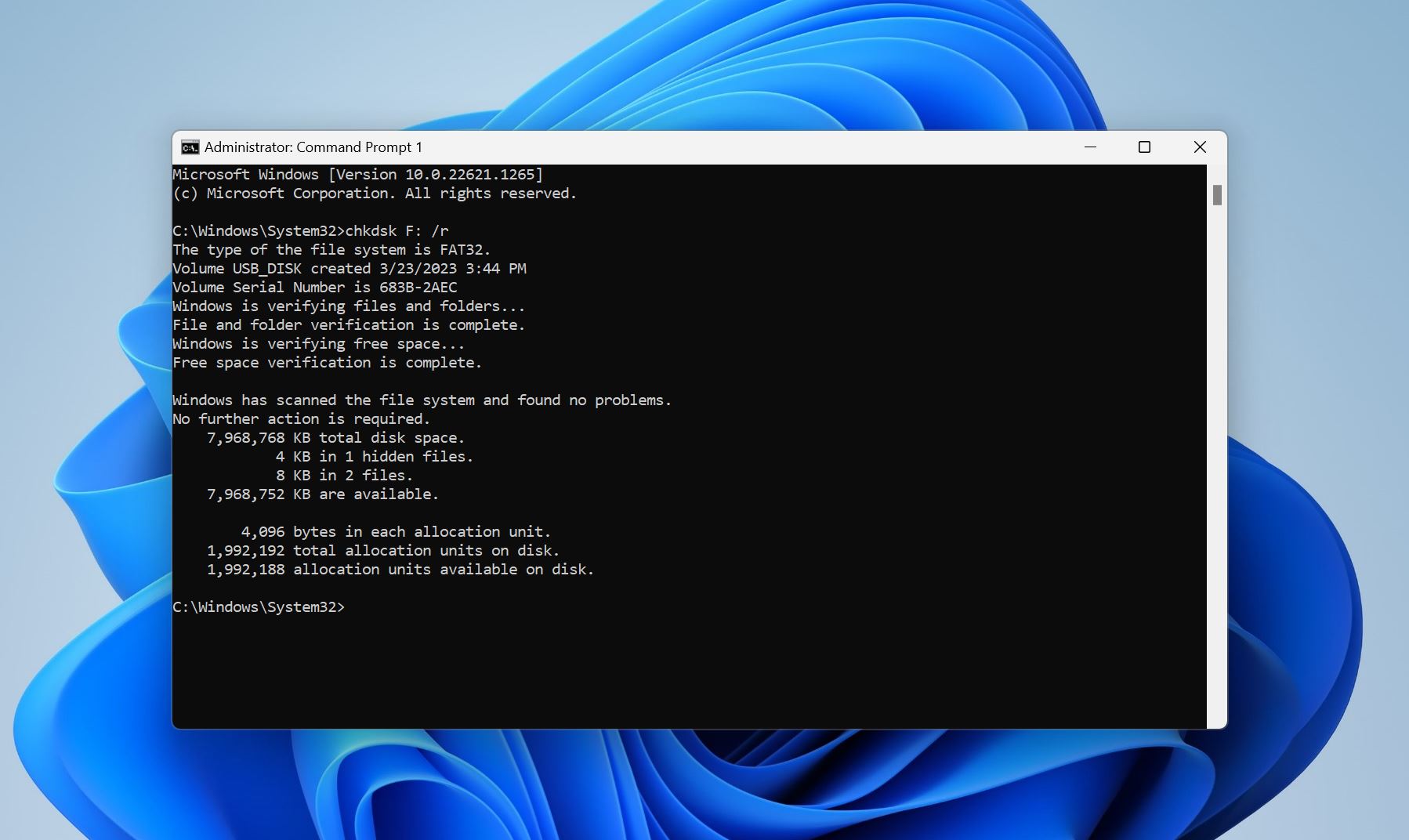
CHKDSK (short for “check disk”) is a command-line utility that has been around since 1980. As its name implies, it checks for and repairs any bad sectors on your storage drives. You can run CHKDSK using the Command Prompt, Windows Terminal, Windows PowerShell, or DOS Prompt.
In practice, CHKDSK is most useful when a drive shows errors or Windows reports that the disk “needs to be checked.” CHKDSK can help fix issues like:
- Corrupted MFT (Master File Table) entries on NTFS drives
- Invalid or “lost” file references
- Incorrect file sizes stored in file system metadata
- Errors in directory indexes
- Clusters marked as in use but not linked to any file
- Clusters marked as free even though they contain data
- Cross-linked clusters shared by multiple files
If the data on your USB is valuable, CHKDSK is not the tool we recommend starting with. It’s designed to fix file system errors, but in doing so, it may remove or modify damaged entries – it can cause data loss. You can read more about this risk in our CHKDSK data loss guide.
Pros
- Free to use, and can be run in different ways using various parameters.
- Adept at detecting and fixing bad sectors, or a damaged file system.
- Compatible with both FAT32 and NTFS file systems.
- Doesn’t work on RAW USB drives.
- Can delete data during the repair process.
- Not as user-friendly as GUI-based flash drive repair tools.
8. Diskpart (Windows)
Partition management utility
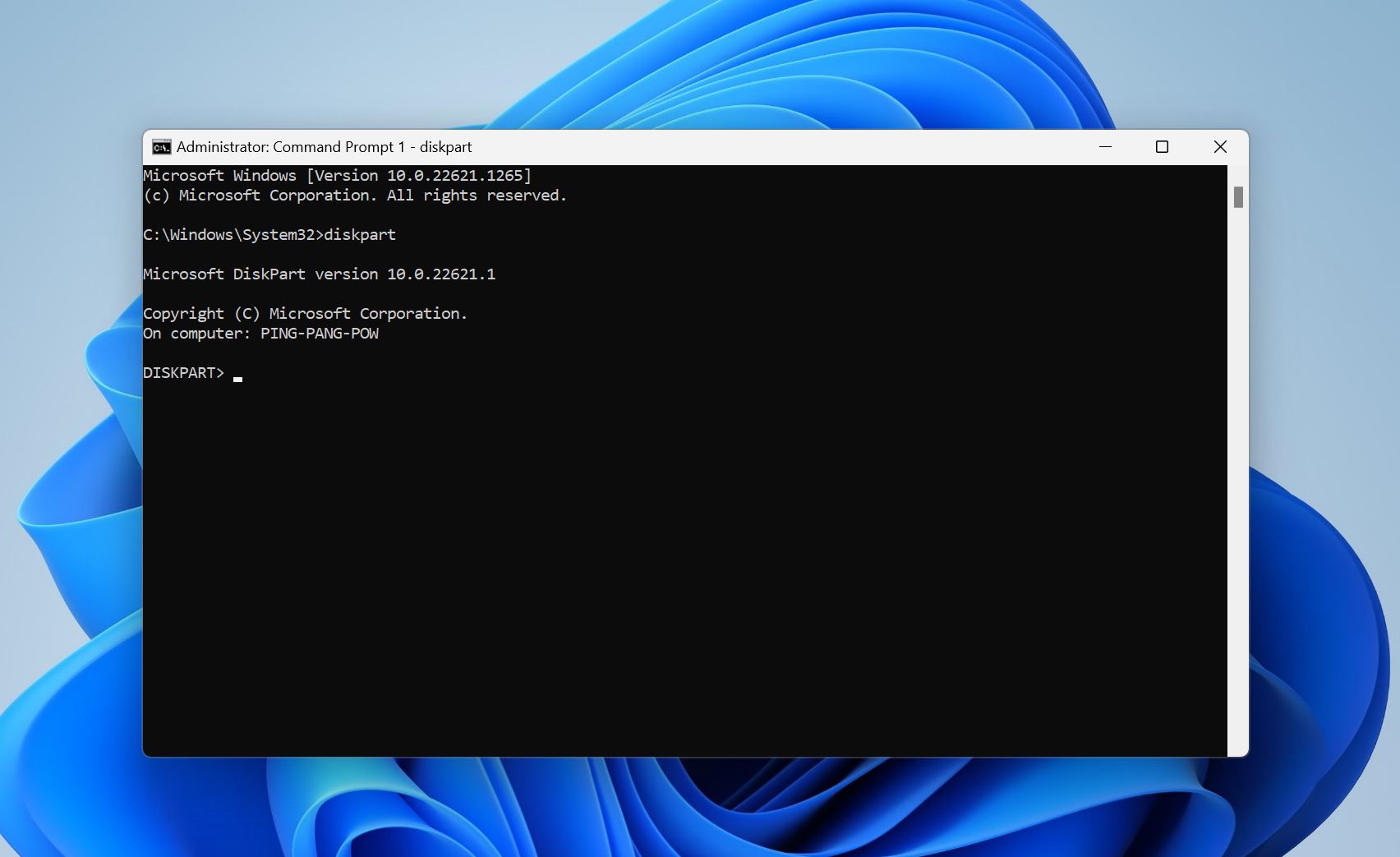
Diskpart is another command-line tool that comes pre-packaged with Windows. Unlike CHKDSK, it doesn’t exactly repair the file system of your USB. Instead, you can use it to clean and format your USB drive to its factory state. Diskpart offers loads of additional functionality, like the ability to convert the partition table, create/modify/delete partitions, and modify the attributes of a disk.
If you ran the “diskpart clean” command on your USB and now realize you wiped something important – stop using the drive immediately. The data isn’t gone right away, but the structure that tells your system where things are is. Running new commands or formatting the drive can make recovery harder. If this happened to you, check out our guide on how to undo the diskpart clean command for recovery options and what to do next.
Pros
- Offers immense control and flexibility when it comes to managing the storage drives on your computer.
- Being a command-line tool, it can be run in Windows Recovery Environment, i.e. you can use it, even if Windows doesn’t boot.
- Command-line.
- No recovery features.
- Misuse can wipe the wrong drive.
- Not beginner-friendly.
- No feedback or recovery steps if something goes wrong
9. First Aid (macOS)
File system check and repair; part of Disk Utility
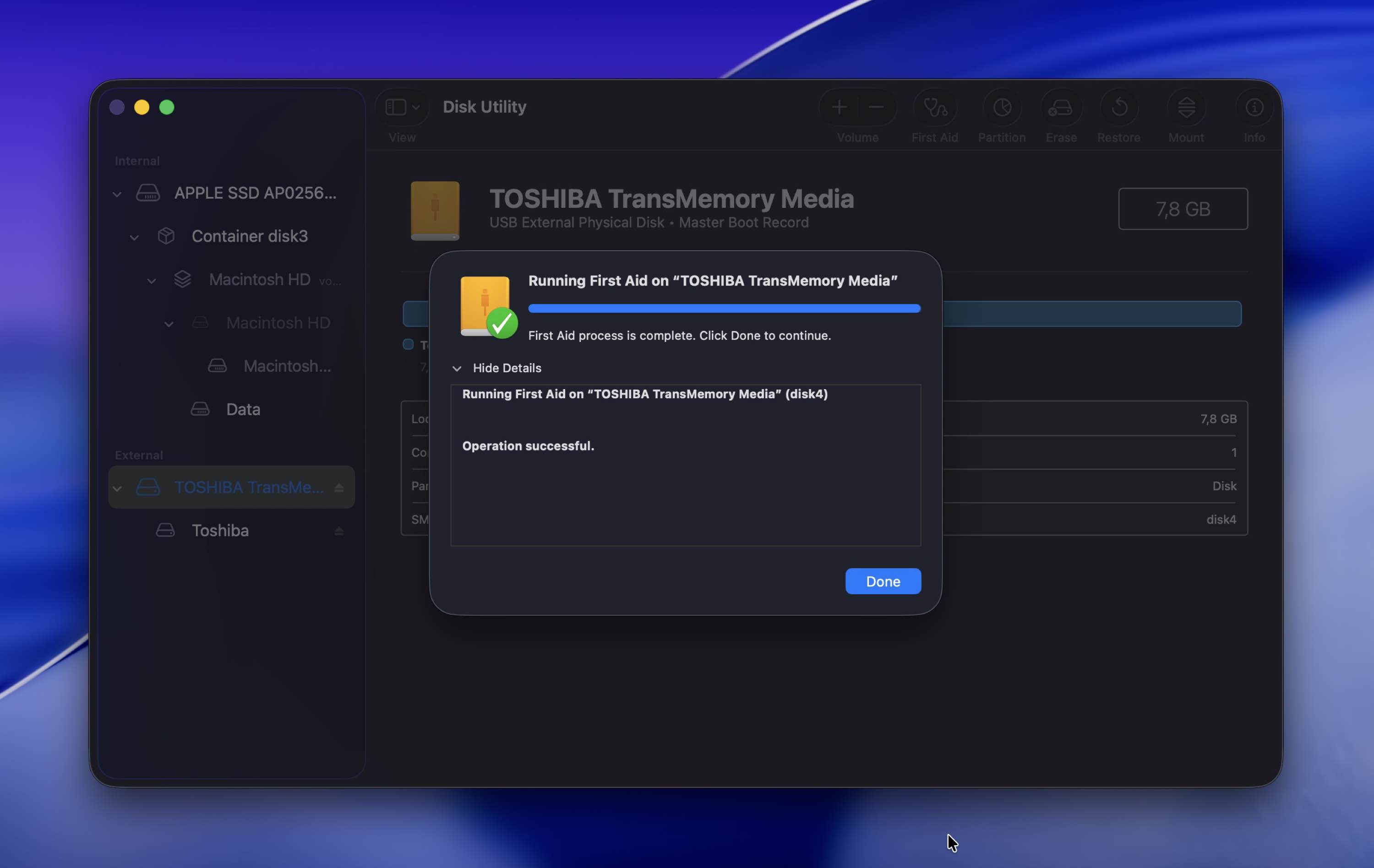
The First Aid feature within macOS’ Disk Utility is similar to CHKDSK in Windows. It detects and repairs any file system errors on your drives. You don’t have to run any commands because the feature is GUI-based. In fact, it’s easier to use than the Windows GUI Disk Error Checking Tool. It’s an excellent repair option if you notice vanishing files from your USB drive, slower performance, and random error messages.
Pros
- Extremely user-friendly.
- Excellent for preventive maintenance of your storage drives. It’s a good idea to run First Aid periodically to fix minor file system issues as and when they arrive.
- Limited functionality. It’s only adept at repairing minor file system errors.
- You cannot use it if your macOS doesn’t detect the USB drive.
Manufacturer-Specific USB Repair Tools
And finally, let’s talk about manufacturer-specific USB tools. Many makers have their own USB repair tools that are typically free to use if you want to repair a pen drive manufactured by them.
These apps typically aren’t very user-friendly and can wipe your data in seconds. But if your USB stick has serious controller-level issues and nothing else works, this is the kind of utility that might be able to revive it.
10. Transcend JetFlash Online Recovery
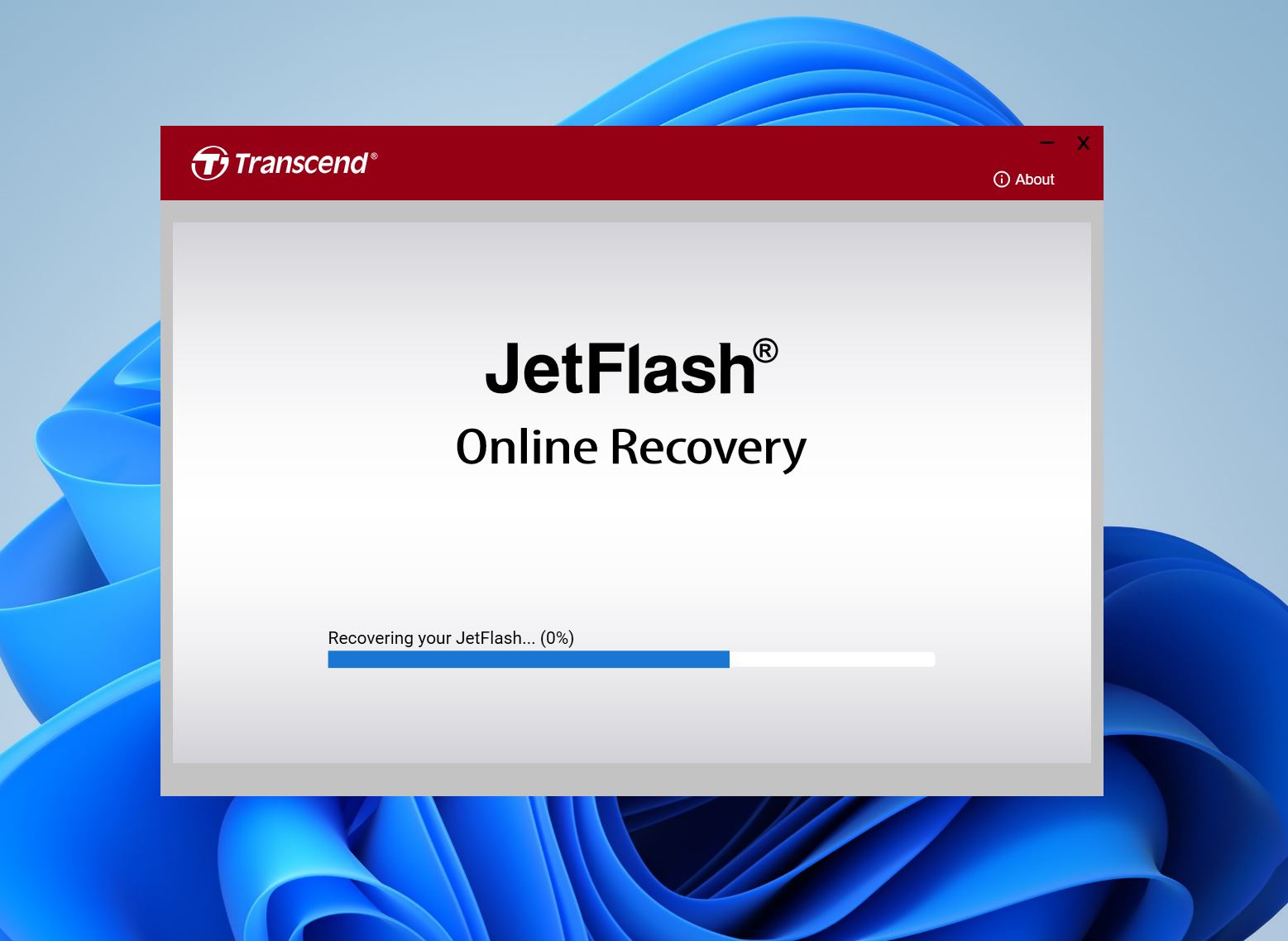
If you own a Transcend JetFlash USB drive that’s not working like it should, Transcend’s JetFlash Online Recovery tool can restore the USB drive to its default settings. The process will wipe off all existing files on the drive, so be sure to first recover your data from the Transcend USB drive before using the tool.
Pros
- Manufacturer approved reset tool for Transcend JetFlash USB drives.
- Free to use.
- Simple and easy-to-use UI.
- Wipes out all existing data on the USB drive.
- Only supports 16 GB and below JetFlash 780 drives.
11. Kingston Format Utility
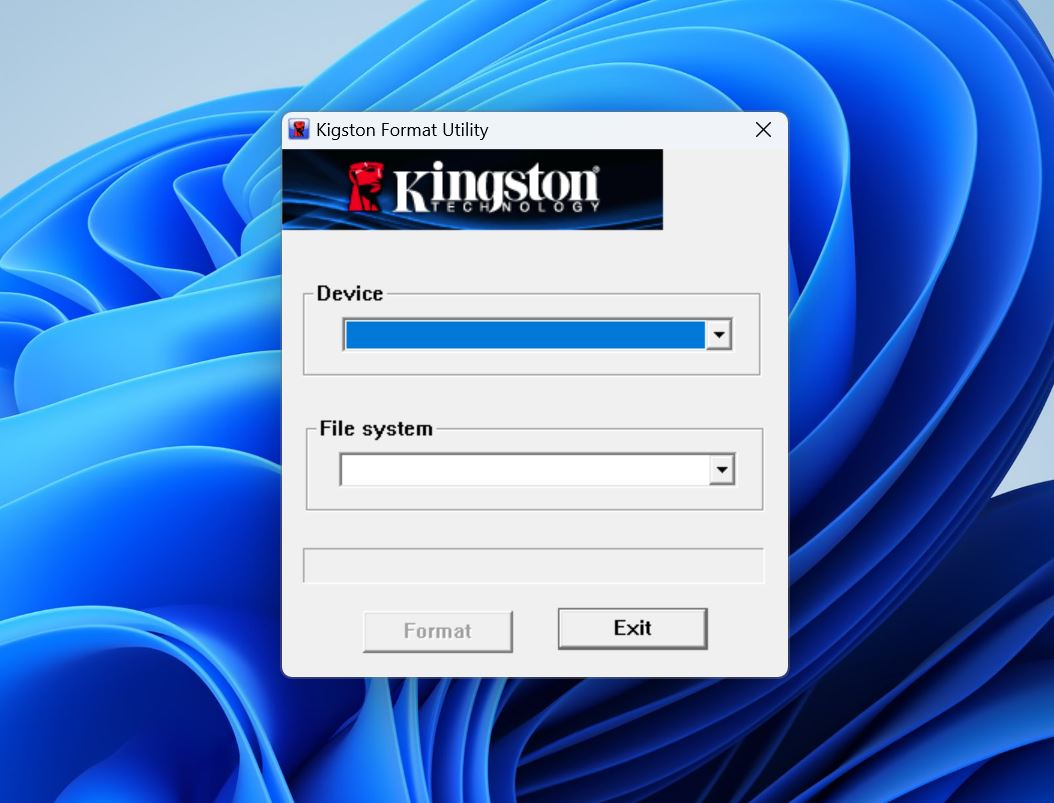
If you own a Kingston USB drive, the manufacturer’s own format utility can restore the drive to its factory settings. It removes all viruses, file system issues, and the files themselves while it does this.
Pros
- Easy to use. Simply select your drive, and the file system you want to format it to.
- Small download size.
- Free to use.
- There’s no discernible difference in functionality when compared to the in-built Windows format tool.
- Hasn’t been updated in a long time.
12. Apacer USB Repair Tool
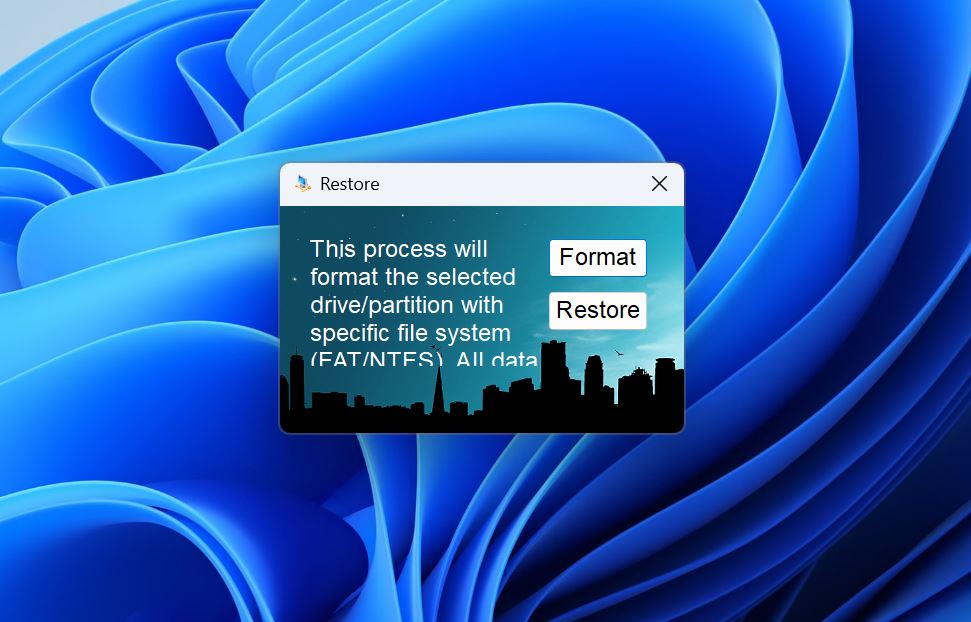
The Apacer USB Repair Tool works with Apacer’s own USB drives. You can use the tool to either format or “restore” your USB drive to its factory settings. Both options will delete all your data. The tool will resolve any logical issues it encounters during the process.
Pros
- Simple UI with only two options–Format and Restore.
- Works with USB drives manufactured by other companies.
- Free to use.
- No official documentation on how to use the program effectively.
- The program looks unprofessional and doesn’t inspire a lot of confidence.
Pricing: Free.
13. Seagate SeaTools
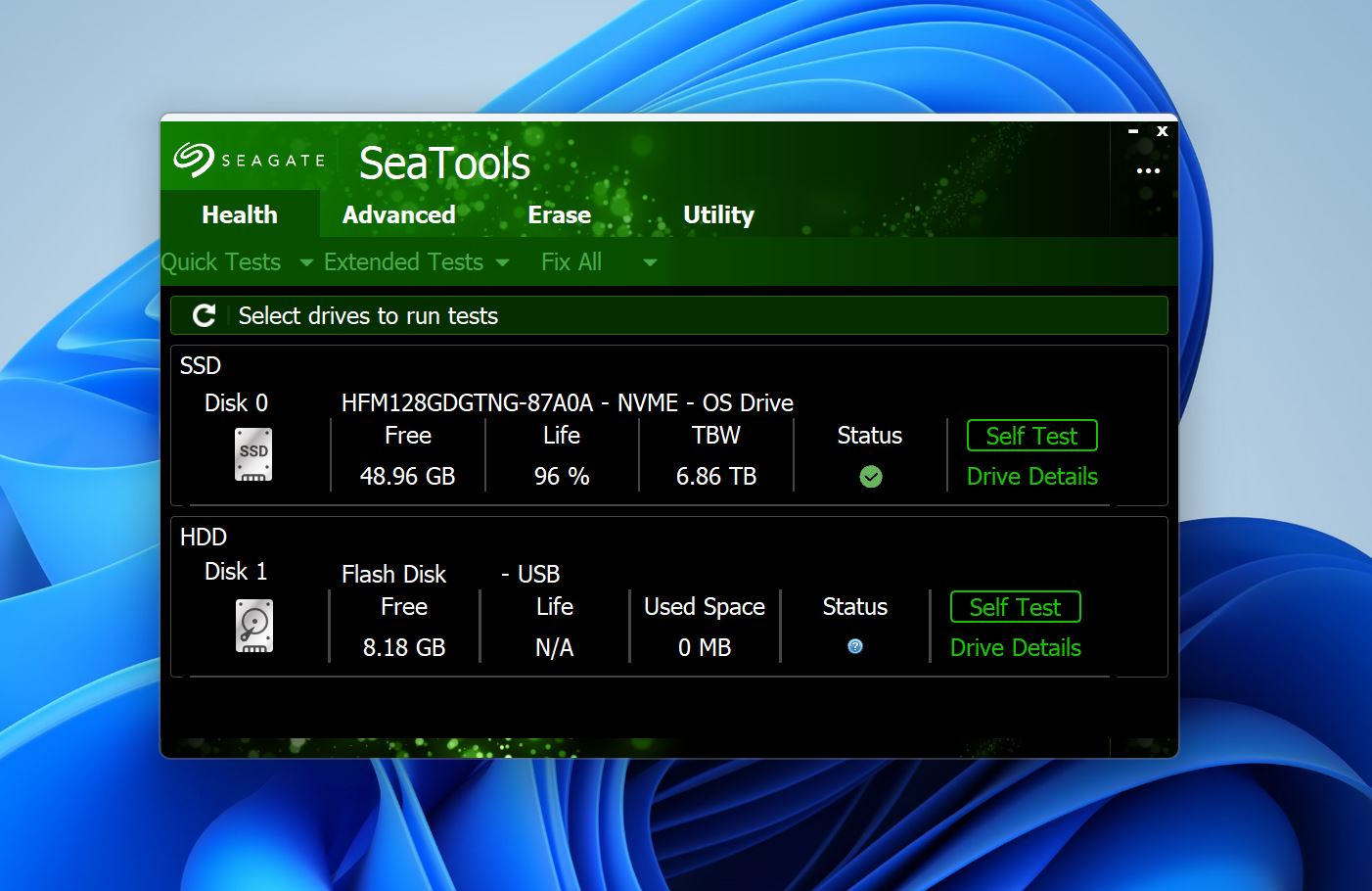
Seagate’s SeaTools utility is a program that’s usually installed to check and fix the hard drives on your PC. However, it’s compatible with USB drives, and you can use it to run a health check on your drive, and then resolve any issues you encounter. SeaTools can diagnose and fix bad blocks on your USB drive.
Pros
- Developed by a renowned brand for added peace of mind.
- It can be used to manage and fix your hard drives as well.
- Doubles up as a format utility in addition to a repair tool.
- Compatible with non-Seagate drives as well.
- Complicated user interface.
- The repair process takes a long time.
Pricing: Free.
14. Silicon Power USB Flash Drive Recovery Software
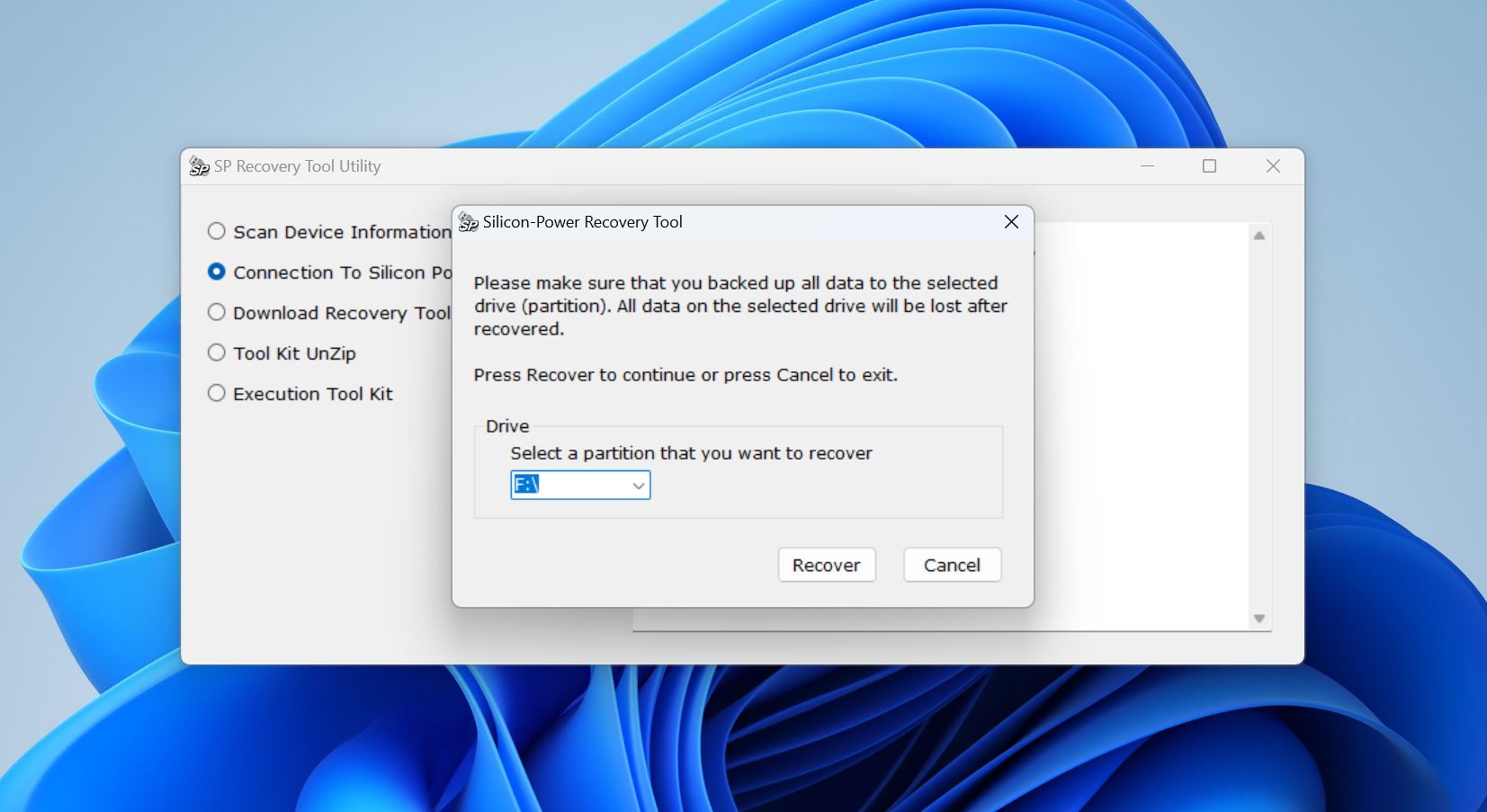
If your USB is write-protected, unable to format, or not recognized by your PC, Silicon Power USB Flash Drive Recovery Software can help you repair the USB drive. That said, finding it is the hard part. It used to be listed right on Silicon Power’s official support page, but now it’s nowhere to be found there. These days, you’ll only spot it floating around on third-party sites and user forums.
Pros
- Simple to use.
- Works with all USB drives.
- Hasn’t been updated since 2016.
- Cannot repair your drive without deleting your data.
Pricing: Free.
Conclusion
We ended up with quite a list. Not exactly short. But that’s because USB repair tools cover so many different problems. To make sense of it all, we put together a quick reference table below. Find the USB problem you’re dealing with, and you’ll see which tools we’d try first based on real-world use and typical success rates.
These would be our picks:
| USB problem you see | Best tools to try first (our picks) |
| You deleted files | Disk Drill |
| You formatted the USB (quick format) | Disk Drill |
| USB shows as RAW | Disk Drill |
| USB shows as Unallocated / lost partition | Disk Drill, AOMEI Partition Assistant |
| Windows says “You need to format the disk” | Disk Drill, then CHKDSK/Error Checking Tool |
| USB shows in Explorer but won’t open / file system errors | Error Checking Tool/CHKDSK (Windows), First Aid (macOS) |
| You suspect bad sectors or read errors | Victoria |
| USB is write-protected / stuck read-only | Diskpart |
| Windows can’t format the USB / format fails | HDD Low Level Format Tool |
| USB won’t show up or acts weird on Windows (driver issue) | Outbyte Driver Updater |
FAQ
- Disk Drill
- EaseUS Data Recovery Wizard
- R‑Studio
- If the data matters, always recover or image the USB before trying to repair it.
- Don’t run formatting or partition tools unless you’ve backed up or fully recovered the files.
- Stick with read-only or preview-based tools first.





it,s very good program