Any long-time computer user knows that you’re likely to run into hard drive issues sooner or later, whether it’s due to storage medium age, drive failure, or a host of other external issues.
There are lots of different programs designed to help you in these situations, but figuring out which one to use can be a daunting task. To help you decide, we’ve come up with a list of the best hard drive repair software that not only helps you fix issues with your drives but can also retrieve lost information.
Common Problems with Hard Drives on Windows
Your hard drive can exhibit various different issues throughout its lifetime as part of a Windows machine. It could just be the natural progression of the medium as it reaches the end of its shelf-life, or it could be other factors that cause your drive to fail. That being said, here are some of the problems you’re likely to encounter with hard drives on Windows-based computers:
| Problem | Description |
| 🔨 Hard Drive Corruption | Hard drive corruption can occur due to a variety of reasons, including a defective drive, user error, power failure, software issues, and more. Corruption can cause frequent operating system crashes, loss of important information, and, occasionally, full hard drive failure. |
| ✂️ Accidental File Deletion | Mistakenly deleting files is probably the most common cause of data loss in Windows PCs, despite there being a confirmation pop-up whenever you attempt to delete any information. Most of us have experienced deleted files that we thought were redundant or unnecessary, only to find out otherwise. Accidental drive formatting falls under a similar category. |
| ☀️ Overheating | Poor ventilation and airflow in your Windows laptop or PC can cause your hard drive to overheat which, in turn, may result in partial or complete drive failure. A tell-tale sign of hard drive overheating would be a distinct clicking sound coming from the storage medium. |
| ☠️ Virus Infection | There are varying degrees of severity when it comes to the effects of malware/virus infection. It all boils to the kind of malware or virus that has entered your device. This can range anywhere from random pop-ups and browser trouble, to losing large amounts of space for no reason, operating system freezes, and complete system shutdown. |
| 🤷♂️ Human-Related Errors | Aside from accidental deletion or formatting, there are other human errors that can compromise your hard drive. A faulty Windows installation may set your machine up for future failure and moving important system files or tinkering with the registry may lead to an unstable operating system. |
Best Hard Drive Repair Tools
Different hard drive issues require specific repair tools. Some hard drive repair tools excel at diagnosing issues, repairing errors, or just optimizing your hard drive and monitoring its health.
From detecting and repairing bad sectors to file system errors, partition corruption, and even data recovery, there is a hard drive repair tool equipped with powerful features for you. We’ve curated a list of the best hard drive repair software that caters to your drive’s needs:
1. Disk Drill
Whether it’s file system issues, mechanical failure, malware or virus trouble, or other hard drive afflictions, Disk Drill is one of the premium recovery tools for retrieving lost data from an affected hard drive. The program was designed to rescue information from even the most compromised of hard drives thanks to its advanced scanning algorithm and its intuitive UI makes it easy to use, even for total newbies.
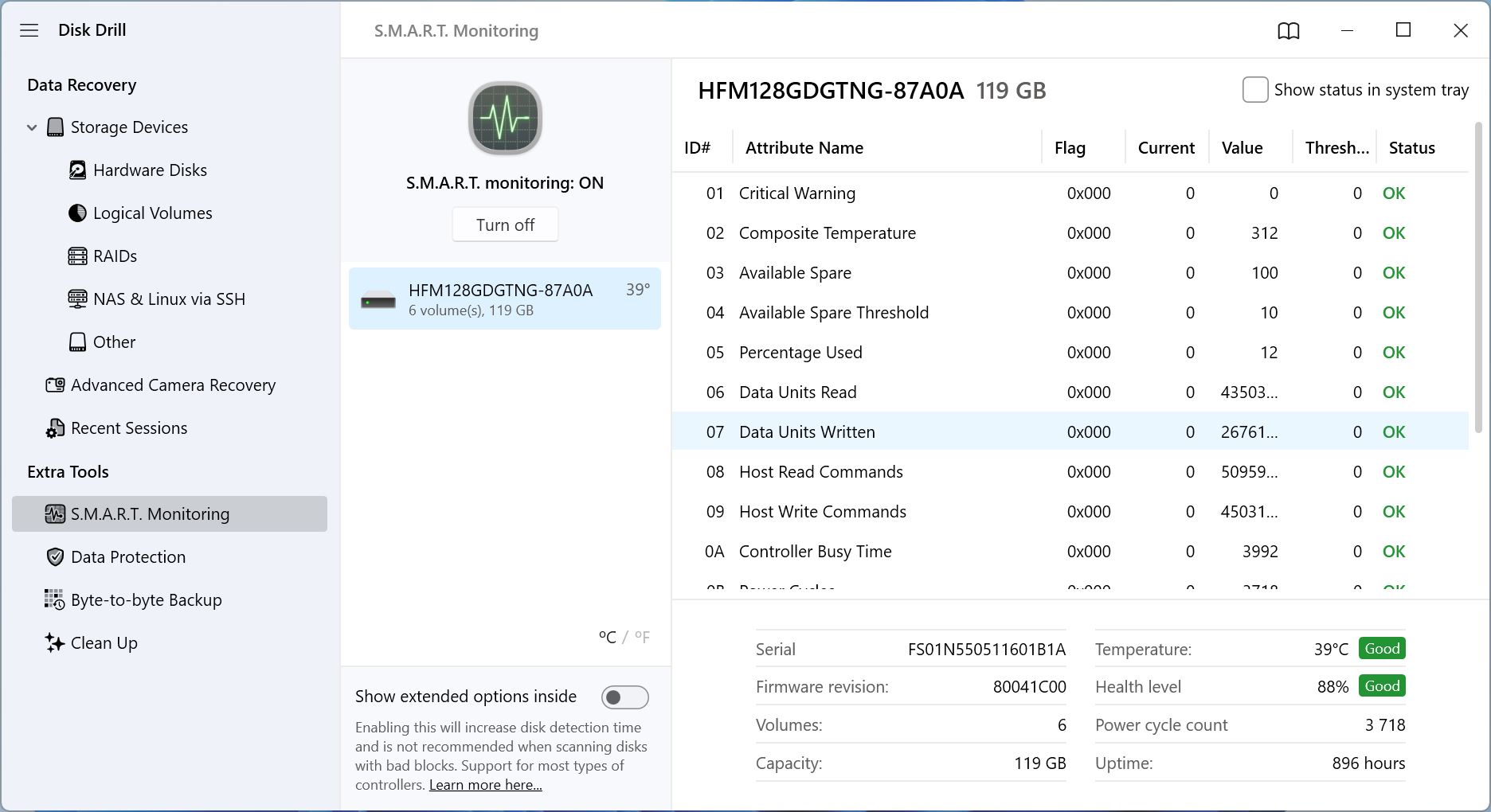
Its in-built disk image creation and scanning feature is a godsend when dealing with logically damaged drives—it protects you from further data loss, and prevents further stress to the drive due to data recovery scans. Besides data recovery, Disk Drill has a Recovery Vault feature that monitors your drive in real-time and saves your files’ metadata to exponentially improve data recovery chances in future cases of data loss.
Pros
- Capable of recovering lost data from a variety of hard drive types and a wide range of data loss reasons
- Includes some great hard drive-related extra features, including data protection and hard drive backups
- The user interface is both attractive and easy to use
- Fast Deep Scan engine compared to its competitors.
- The free trial lets you recover a certain amount of data for free.
- Dedicated Advanced Camera Recovery (ACR) module for recovering photos from cameras.
- Cannot repair bad sectors and other hard drive issues
Best For: Hard drive data recovery.
Supported Operating Systems: Windows XP, Vista, 7, 10, 11, Server 2008 R2, 8, Server 2012/2012 R2/2016/2019, Server 2022.
Availability on other platforms: Disk Drill 6 — macOS 10.15.7 onwards. Previous Disk Drill versions — mac OS X 10.5 onwards.
Pricing: Disk Drill Basic is the free version and allows data recovery up to 500MB. The PRO edition retails for $89 with a lifetime upgrades option for an extra $29, while Enterprise costs $499 with lifetime options going for an additional $99. You can also nab a 50% discount if you’re upgrading from an older version or switching from a rival app.
What users say:
“It works! I had a 2 TB internal drive full of data to recover from a broken LG-NAS drive that was password locked. Windows wouldn’t open it. Diskdrill free showed me the files are there so I bought the licence. Disk Drill allowed me to recover the data with file names intact…” – Brady, Trustpilot user.
2. Paragon Hard Disk Manager
Paragon Hard Disk Manager aims to be an all-in-one tool for a hard disk health check and repair and it does a great job of it as a result of its well-designed user interface and wealth of features. Basically, it does everything the built-in Windows Disk Management tool can, with the addition of file system checks and repairs, sector editing, boot disk creation, OS migration, and more.
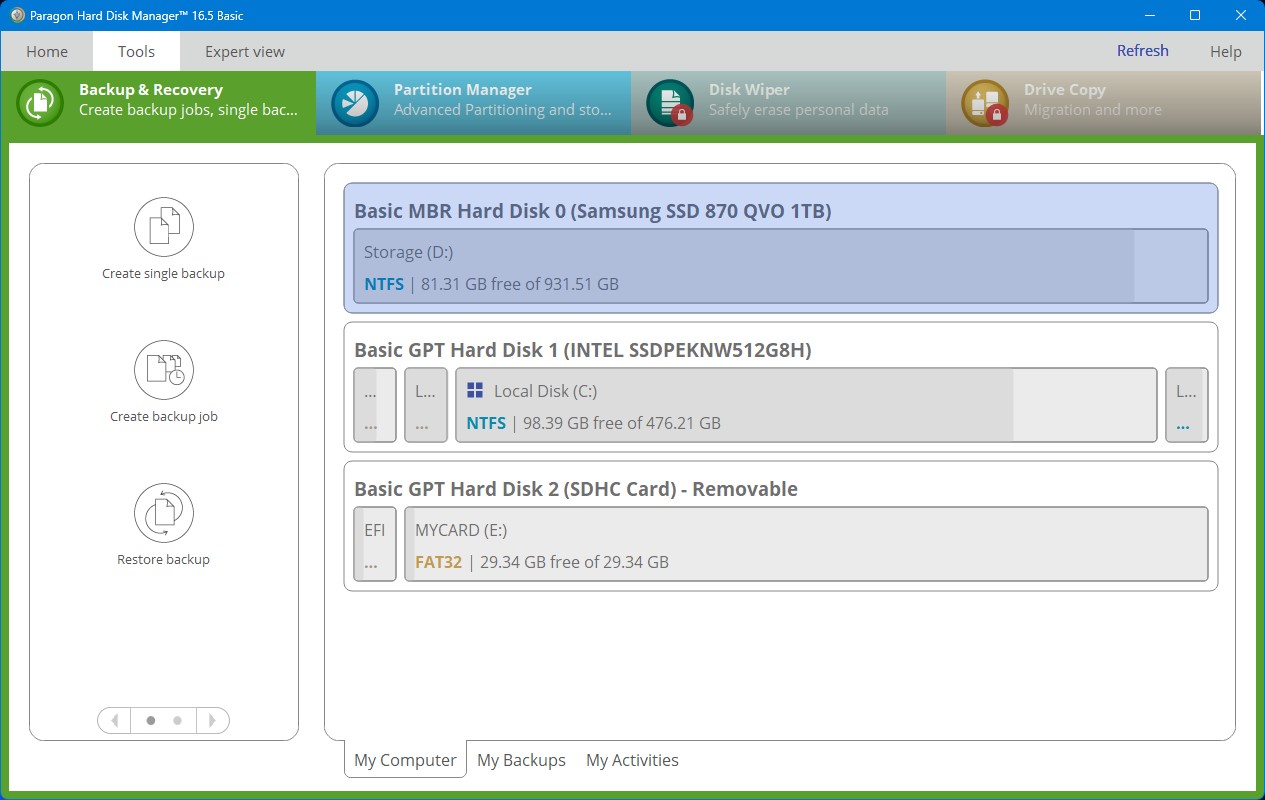
And to top it all off, it looks a lot better. Some of the more advanced versions will cost you a pretty penny, but unless you plan on using the software for business, sticking to the free version or the Workstation license should be more than enough. For those in the market for a top-shelf partition repair tool and management solution, Paragon Hard Disk Manager is up there with the best of them.
Pros
- Filled with tons of useful features, both for partition management and hard drive health
- Built-in hex editor and boot-media builder for emergency recovery.
- Cloud backup integrations and email/SMS notifications.
- The free version is pretty generous with the Windows disk repair tools
- Simple yet catchy UI
- Business versions are quite pricey
- No free tier or trial for core features.
- Slow backup times.
Best For: Overall hard drive management.
Supported Operating Systems: Windows 7, 8, 8.1, 10, and 11.
Availability on other platforms: macOS X 10.10, 10.11, 10.12, 10.13, 10.14.
Pricing: Advanced $79.95 (lifetime for 3 computers), $24.95 (1 year license for 1 computer), Business from $99/year, Server/Enterprise custom pricing.
What users say:
“The Hard Disk Manager software line is professional software, for the professionals. If you don’t know what you are doing, don’t risk losing all your data or making Windows unbootable.” – Brian, Capterra user
3. HDD Scan
Prevention certainly is better than a cure and one of the best ways to prevent serious damage and data loss to your hard drive would be to monitor your disks thoroughly and test them for potential issues. HDD Scan does just that. It can run read and write tests to see how well your drive is performing and additional SMART checks for a more in-depth study.
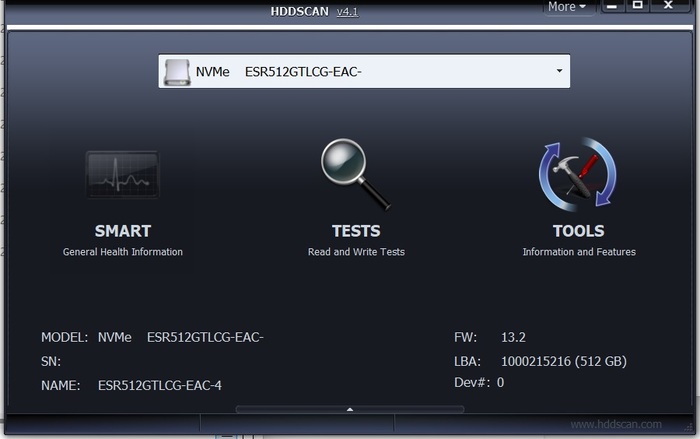
There’s also a temperature monitor so you can keep tabs on how hot your hard drives are running. Using all these tools, you should be able to figure out just how healthy your drive is and predict the chances of it failing in the near future. That way, you can make necessary backups or contact data recovery in advance so they can help you avoid a major data loss incident. However, HDD Scan’s bare-bones UI is deceptive—it looks simple enough, but it’s a tool made for technical users looking to diagnose what’s wrong with their drive.
Pros
- You can export SMART reports
- Supports IDE/SATA/SCSI/USB/FireWire/RAID volumes.
- Command-line scripting and scheduled tasks for automation.
- It’s designed to be portable since it requires no installation
- Includes an option to open a command prompt
- No guide to help get you started
- No built-in repair functions—diagnostic only.
- Limited documentation and no official customer support.
- No graphical reports beyond raw log files.
- No proper installation option
Best For: Hard drive health monitoring.
Supported Operating Systems: Windows 2000, Server 2003, XP, Vista, 7, 8, 8.1, 10, and 11.
Availability on other platforms: None (Windows only)
Pricing: Free
What users say:
“This software is not for the inexperienced; it’s not a pretty, fluffy, GUI-Loaded program with lots of fun things to play around with; however, if you’re serious about testing the surface of your HDD this is the software you want to do it…” – CNET user
4. Testdisk
Testdisk is a low-profile data recovery tool that’s completely free to use and open-source for further customization. It’s very particular in purpose, which is to rescue lost or compromised partitions and fix drives that are failing to boot properly. It works with a variety of different file types and operating systems and sports a solid success rate.
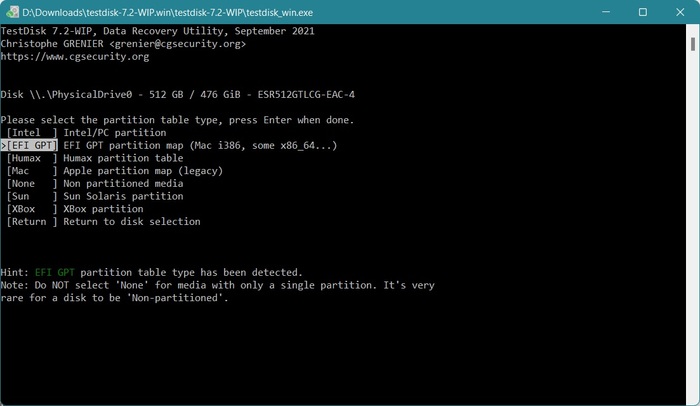
It’s capable of fixing partition tables, recovering deleted partitions, boot sector recovery and rebuilding for both NTFS and FAT file systems, and repairing MFT. Problem is, it utilizes a command-line interface which makes it incredibly difficult to learn for the non-tech-savvy. But if you know your way around these kinds of interfaces, Testdisk has a lot going for it.
Pros
- The full version is both free and open-source
- Very effective as a recovery solution
- Portable, runs from USB on Windows, macOS, Linux, DOS
- Can rebuild MFT and GPT/MBR structures in expert hands
- Includes various drive recovery features, like boot sector rebuilding
- Doesn’t require a lot of resources to run
- The command-line interface is exceedingly tough on newbies
- You can’t preview files before recovery.
Best For: Rebuilding partitions and recovering data.
Supported Operating Systems: Windows Vista, 7, 8, 8.1, 10, 11, Server 2008+
Availability on other platforms: Linux, macOS, FreeBSD, DOS
Pricing: Free and open-source
What users say:
“TestDisk is a great little program – If I have a drive that is dying or corrupt I will image it first, then let TestDisk run on the image to recover. Also by the same developer is PhotoRec which is useful if you are just trying to recover a certain type of file (i.e. all *.doc files from a HDD).” – Reddit user
5. Windows Directory Statistics
Windows Directory Statistics – or WinDirStat for short – is a stats viewer for your hard drive that can quickly tell you what files are taking up all the space on your disk. It’s really easy to navigate the UI thanks to the color-coded file segregation and Windows Explorer-like design. It’s the perfect tool to use if you can’t figure out where all your disk space is going and need a different perspective on things.
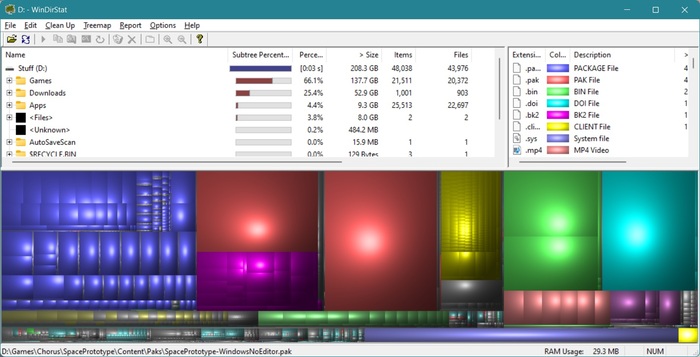
You can also delete files directly from the program itself and there’s a function that opens a specific folder in the command prompt for more advanced operations. It comes with a few downsides, however, like the slow scanning when you first launch the program that makes it feel like the program is lagging and the fact that you can’t save the scan for later use.
Pros
- UI is simple and easy to follow
- You can delete files right from the software
- Exportable CSV/HTML reports for external analysis
- It allows you to quickly open a folder in the command prompt from advanced functions
- Lightweight installation and resource usage
- Scanning is a bit slow and makes it seem like the software is bugging out
- No option to save the scan for later use
- No built-in file cleanup automation beyond manual deletion
Best For: Analyzing disk space and identifying large files
Supported Operating Systems: Windows 95, 98, ME, NT4, Windows 2000, XP, Vista, 7, 8, 8.1, 10, and 11.
Availability on other platforms: None (Windows only)
Pricing: Free
What users say:
“ WinDirStat is a great utility, but I miss/need very much the possibility of exporting all the (visible) data straightforward into a file (tab or comma delimited format). Note. The current Report option needs an email client and is rather limited, while the screen table is very nice. And unfortunately, the NirSoft SysExporter utility don’t show a ‘Listview’ of the WinDirStat data table.” – SourceForge user
6. MiniTool Partition Wizard
MiniTool Partition Wizard is best known for its storage medium cloning capabilities, but it does so much more than just that. As its name suggests, it comes with various partition management tools and it’s capable of both data and entire partition recovery. On top of all that, it can run surface tests on your drives to see if there are any bad sectors before you start recovering or fiddling with your partitions.
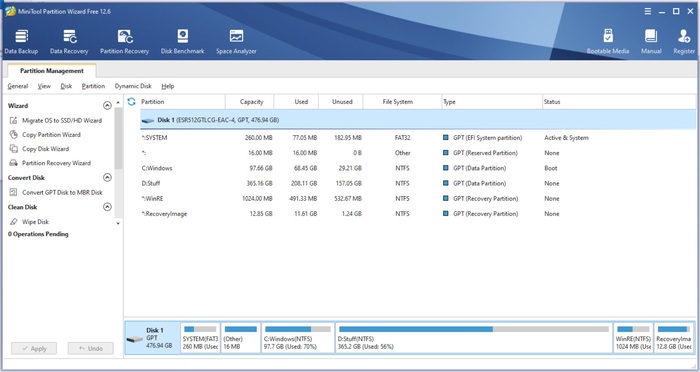
It’s also a great tool if your OS is struggling to boot since MiniTool Partition Wizard can create a bootable media drive so you can recover files even with a faulty operating system. It doesn’t come cheap, however, so you best prepare your wallet, but you really are paying for quality here.
Pros
- UI’s layout is very easy to navigate, even for novices
- The free version has some decent features
- It’s a hard drive scanner, partition manager, and data recovery solution all rolled into one
- Sports a pretty interface
- Notifies you of low free space or unreadable clusters
- Paid versions are pricier than most alternatives
- Slower than other specialized tools when it comes to Surface scan speed and accuracy
Best For: Partition management, and cloning.
Supported Operating Systems: Windows 7, 8/8.1, 10, 11.
Availability on other platforms: None (Windows only)
Pricing: Free edition with basic features only, Pro $59/yr, Pro Platinum $109/yr, and Pro Ultimate $159 (lifetime).
What users say:
“I have used it to move partitions. Resize them, shrink and enlarge. I use it for client drives. I mean really lots of features. I’ve used it to benchmark. Analyze space. Converts MBR to GPT, and more.” – Capterra user
7. CloneZilla
CloneZilla is a top-tier disk imaging and cloning software that’s targeted primarily towards advanced users that know their way around a Linux-based tool with an extremely limited UI. As a hard drive repair solution, it requires a certain degree of foresight since you’ll have to regularly create backups in case your hard drive eventually runs into some trouble.
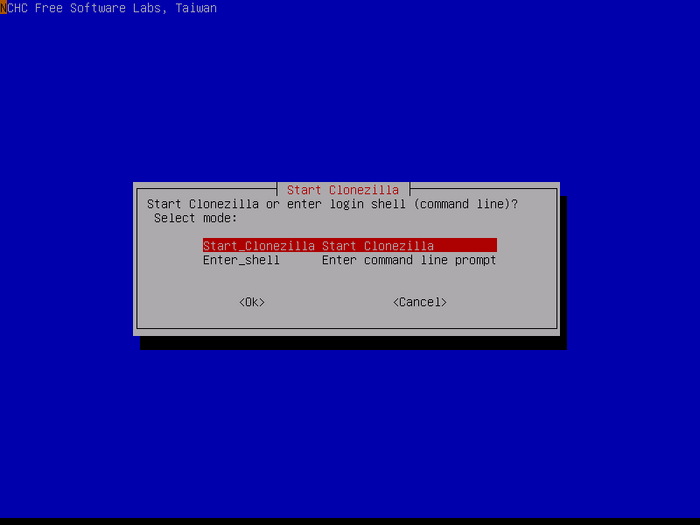
If you manage that, you’ll find that CloneZilla can easily restore backups – to multiple storage mediums even – and it also has a mass cloning feature that will help you create clones of your drive to different devices simultaneously. That way you can create multiple backups of your important information.
Regrettably, CloneZilla’s GUI – or lack thereof – makes it very hard to pick up as a newbie, and restoring single files can be way too complicated. At least it’s free and open-source, so you can experiment with the software without spending a dime.
Pros
- The software completely free to use and modify
- Chock-full of imaging and cloning features
- Supports multicast, encrypted backups, and UEFI/GPT live imaging.
- Lightweight and not resource-intensive.
- The open-source design makes it highly customizable
- Only viable as a hard drive repair option if you previously created a backup/clone
- It’s meant specifically for advanced users
- Text-based interface (No GUI)
- Single-file recovery from images is cumbersome.
Best For: Hard drive cloning & imaging.
Supported Operating Systems: Runs on any x86/x64 system (196MB RAM minimum.
Availability on other platforms: Linux-based, runs on all systems
Pricing: Free and open-source.
What users say:
“Very useful. Backup or restore for Windows and Linux system partition only takes 20 to 30 minutes. Great time saver for technicians and sys admins. Only con is the inability to save the logs to disk (logs are in ram only). Overall this software is made in heaven. Thank you for giving this for free.” – SourceForge user
8. Seagate SeaTools
SeaTools is an HDD repair software created by renowned hard disk manufacturer Seagate. It comes in two separate versions – a Windows edition and one for DOS. The Windows version is more newbie-friendly on account of the simpler UI, while SeaTools DOS allows for more advanced commands. Either way, the program is responsible for quickly scanning hard drives for any errors and fixing any issues it’s capable of repairing.
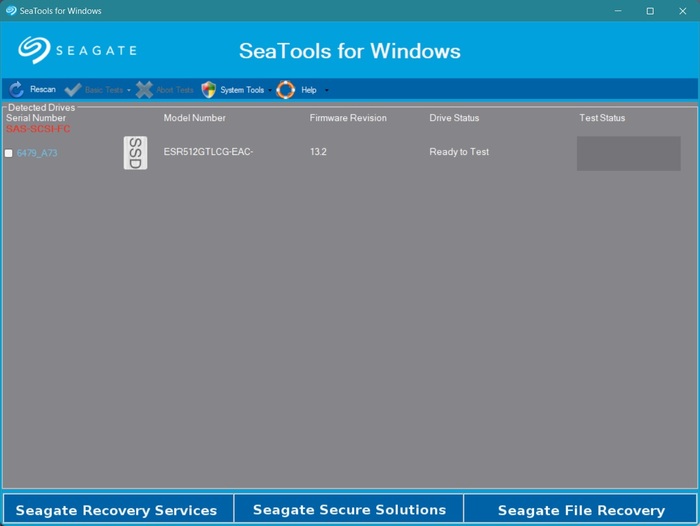
It also shows detailed information about your hard disk that most other programs overlook. Fortunately, despite SeaTools being developed by Seagate, it actually works with pretty much any hard drive, regardless of the manufacturer. The interface for the Windows version looks a bit dated and SeaTool DOS is a bit too technical for the common user, but it’s a very useful hard drive diagnostics tool nonetheless.
Pros
- SeaTools Windows is delightfully easy to use
- Good fit for novice, and expert users alike
- Scans are relatively quick, even the more comprehensive kind
- It’s an easier way to scan and repair hard drives compared to Windows chkdsk
- Displays in-depth information about your hard drive
- DOS edition is too technical for the average user
- UI isn’t the prettiest
- Repair functionality is limited
Best For: Hard drive diagnostics
Availability on other platforms: Linux (DOS)
Supported Operating Systems: Windows 95, 98, ME, NT4, 2000, XP, Vista, 7, 8, 8.1, 10, and 11.
Pricing: Free
What users say:
“Basic tests not as informative as similar utilities.” – CNET user
9. CrystalDiskInfo
CrystalDiskInfo has been around since 2008, and has a barebones feature-set. This isn’t necessarily a bad thing because it checks all the boxes of a good disk monitoring tool. Accurate S.M.A.R.T. reports? Check. Automatic Acoustic Management (AAM) and Advanced Power Management (APM) control? Check. Alert emails and notifications? Check.
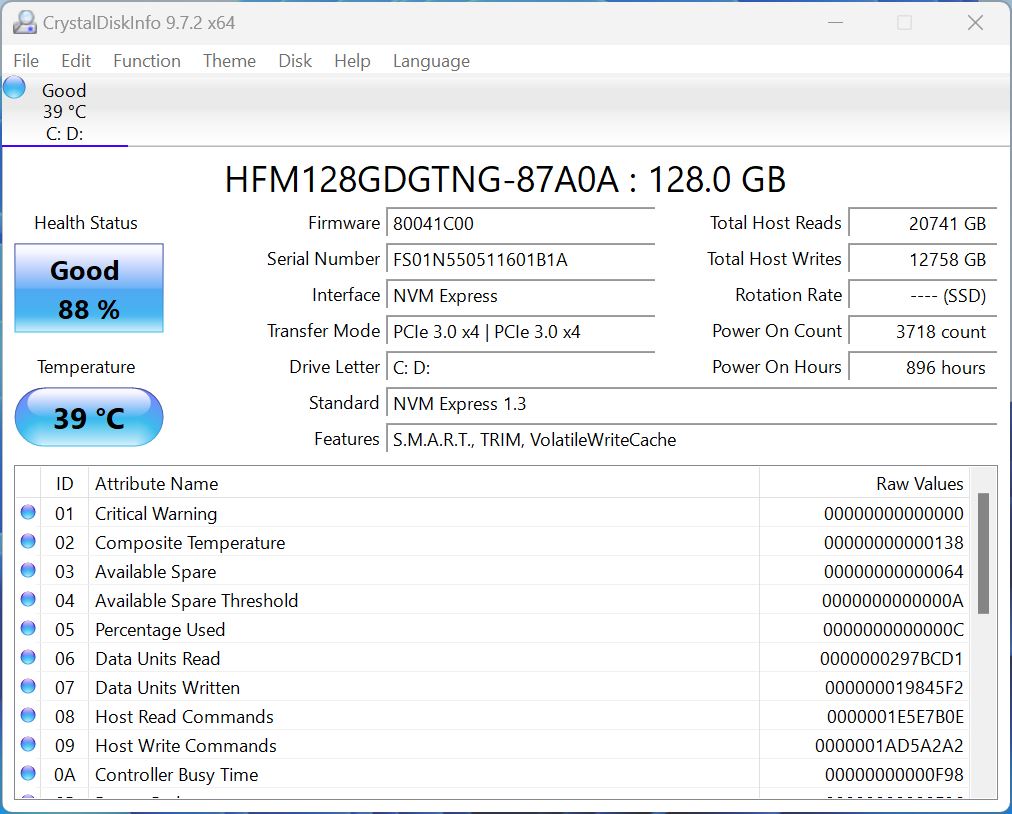
It’s lightweight, completely free, and open-source. And while it can perform read/write tests to check your drive’s performance, there aren’t disk repair features in here to speak of. It will tell you when your disk is about to fail (or if its temperature is too high), but it’s on you to take action.
But CrystalDiskInfo has something that presumably no other disk monitoring and repair tool on the web has—anime themed GUIs.
Pros
- Completely free and open-source.
- Portable version available.
- Wide compatibility across HDDs, and SSDs.
- Regularly updated.
- Fun GUI.
- Only monitoring, no repair features.
- No back up features.
Best for: Drive monitoring and catching issues early
Supported Operating Systems: Windows XP, Vista, 7, 8, 10, 11
Availability on other platforms: None (Windows only)
Pricing: Free
What users say:
“Like this light, but informative app that shows all the information you need about your disk. It can help you to save data before you get problems with disk.” – SourceForge User
10. AOMEI Partition Assistant
AOMEI Partition Assistant is a fantastic program that makes it effortless to manage your machine’s partitions, clone disks, migrate operating systems, create a Windows To Go drive, and a whole lot more. More importantly, it has a built-in function that allows you to check your partitions for bad sectors before you perform any major actions. That way, you can ensure data integrity.
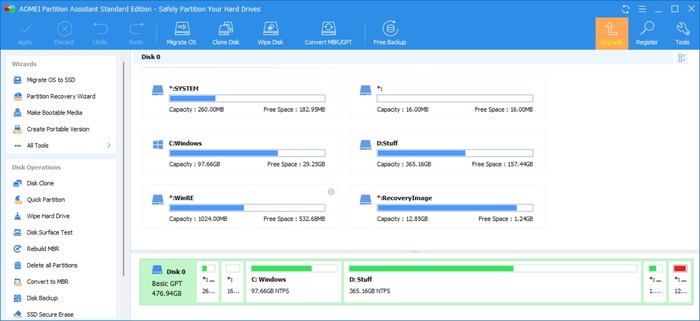
Unfortunately, AOMEI Partition Assistant doesn’t let you actually fix those bad sectors and you’ll likely have to enlist the help of another program like chkdsk to do the repairs for you. On the plus side, the free version is very generous when it comes to features and the UI design is fairly easy to follow.
Pros
- Can scan your partitions and pinpoint bad sectors before engaging in any partition managing activities
- Praised for its prompt and helpful customer support
- The free version comes with a lot of nifty features, including a bootable USB for Windows and hard drive migration
- Well-designed UI
- The demo of the Pro version (different from the free version) is a letdown since it doesn’t let you try any of the features
- Doesn’t repair bad sectors
Best For: General hard drive management.
Supported Operating Systems: Windows 7, 8/8.1, 10, 11, Vista, XP, 2000 (32/64 bit).
Availability on other platforms: None (Windows only)
Pricing: Free Standard, Professional $52.46, Server $186.75, Unlimited $449.25, and Technician $639.20.
11. Hard Disk Sentinel
Hard Disk Sentinel perfectly walks the line between accessibility for regular users, and in-depth insights for power users. Using your disk’s S.M.A.R.T. status, and other parameters, Hard Disk Sentinel creates a chart of your drive’s performance percentage, health percentage, and estimated time remaining. Advanced users can see the raw values as well.
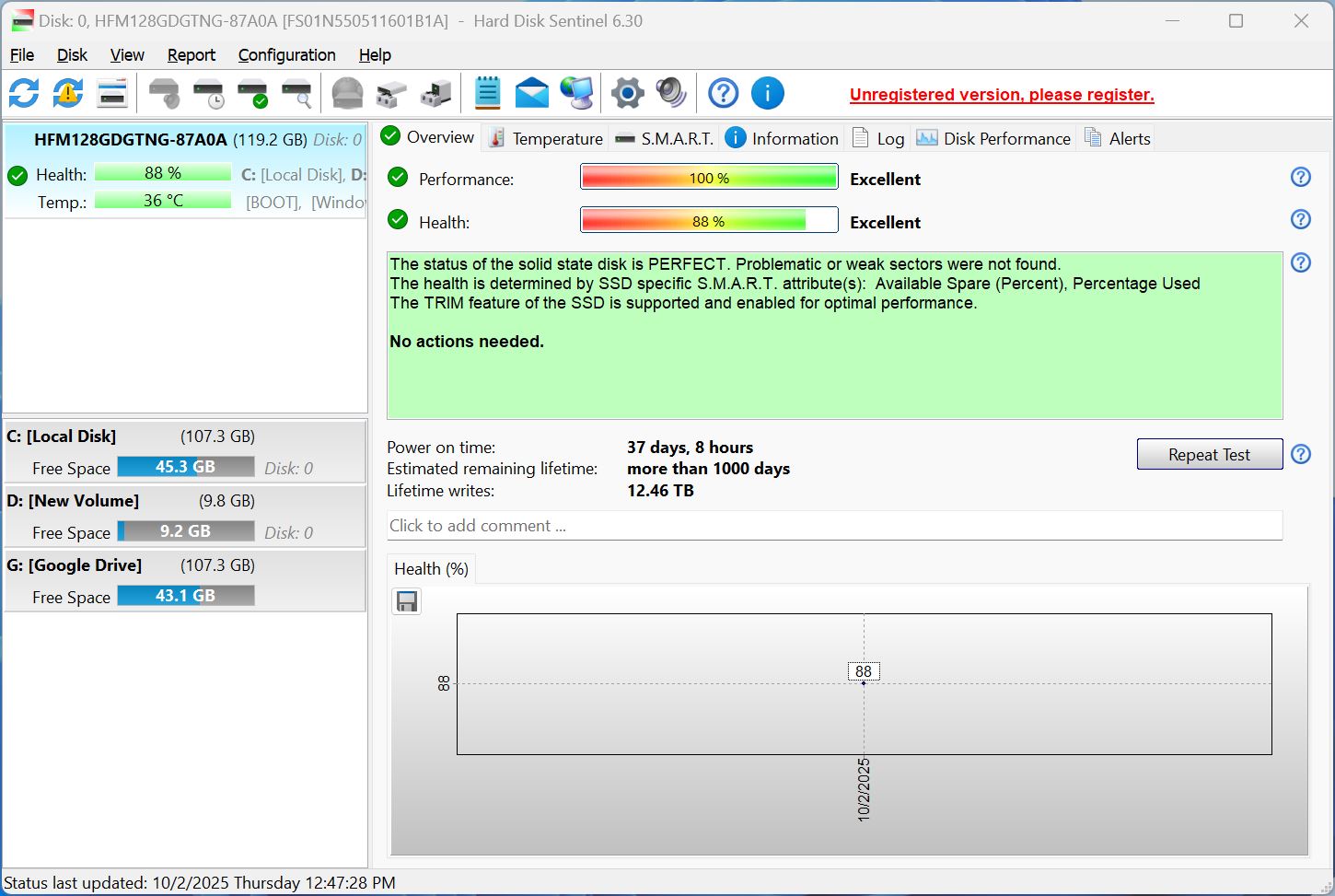
The true value of Hard Disk Sentinel is in its real-time monitoring features. It’s not resource-intensive, and you can even set up email alerts for daily reports and warnings. It can even shut down your PC if the hard drive is about to fail, or is overheating.
Hard Disk Sentinel’s sensitivity to even minor degradation is a double-edged sword—it’s known for generating false alarms. Additionally, there aren’t any real repair features in Hard Disk Sentinel, it’s strictly a disk monitoring tool.
Pros
- Can predict when your drive is about to fail.
- Real-time monitoring and automatic alerts.
- Automatic backups if the drive deteriorates (Professional version).
- Built-in hex editor.
- Slightly complex UI.
- Tendency to generate false alarms.
- Overkill for most home users.
Best for: Real-time drive health monitoring
Supported Operating Systems: Windows 7, 8, 10, 11, Server versions.
Availability on other platforms: Linux
Pricing: Free trial, $22 (Standard), $33 (Professional), and $219.50 (Enterprise)
What users say:
“HD Sentinel is an extremely valuable, important tool that I recommend to everyone running any version of Windows. It is a very important part of my computer consulting service.” – Trustpilot user.
12. Victoria HDD/SSD
Originally developed as a professional hard drive diagnostics tool, Victoria HDD/SSD analyzes your drive across several critical parameters. In addition to providing you with a detailed S.M.A.R.T. report, the tool can also perform read/write tests to identify failing blocks on your HDD or SSD. Its sector remapping ability reassigns the data in these blocks to the spare blocks on your drive—which extends the drive’s lifespan, and protects you from data loss.
Psst..If you see a high bad block count, it may be time to replace your drive.
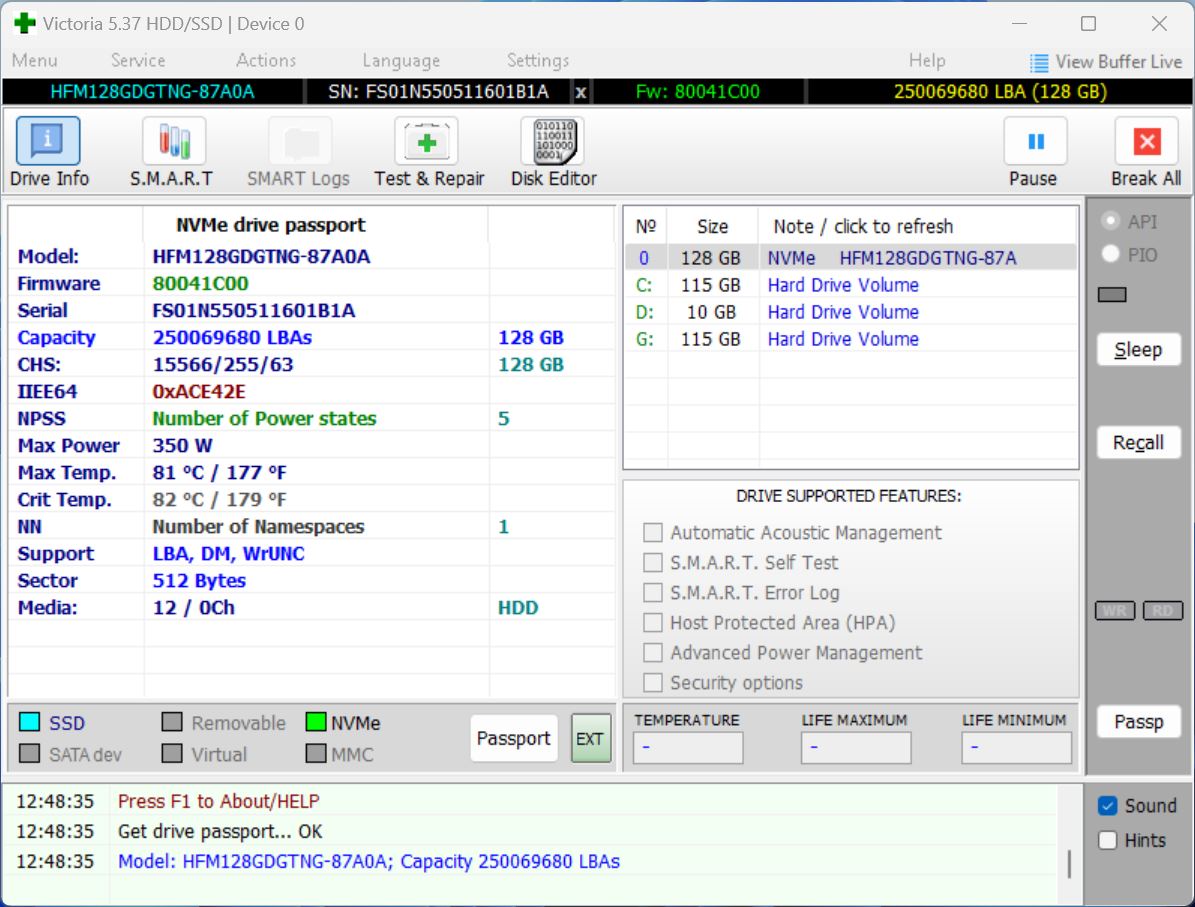
Victoria HDD/SSD can also measure the delay access of the sectors on your hard drive—basically, how long it takes for the hard drive to access certain sectors. A higher delay may indicate a failing drive.
But like most professional-grade tools, Victoria HDD/SSD’s GUI is quite complex, and straight up overwhelming for novice users. The tool is loaded with features. But finding and using them is difficult for non-technical users.
Pros
- Loaded with features despite being free to use.
- Portable version—doesn’t require installation.
- Can perform low-level formats if needed.
- Clunky, complicated GUI.
Best for: Viewing detailed reports of drive health, and predicting if it’s on the verge of failure
Supported Operating Systems: Windows 7, 8, 10, 11.
Availability on other platforms: None (Windows only)
Pricing: Free
What users say:
There aren’t any verified user reviews of the tool, but a Reddit user does suggest using the tool for hard drive diagnostics.
13. DiskGenius
DiskGenius is a good option if you’re looking for a tool that can diagnose issues from your hard drive, as well as recover data from it. It has an impressive list of core features—disk cloning and migration, partition management, bad sector remapping, and S.M.A.R.T. Monitoring.
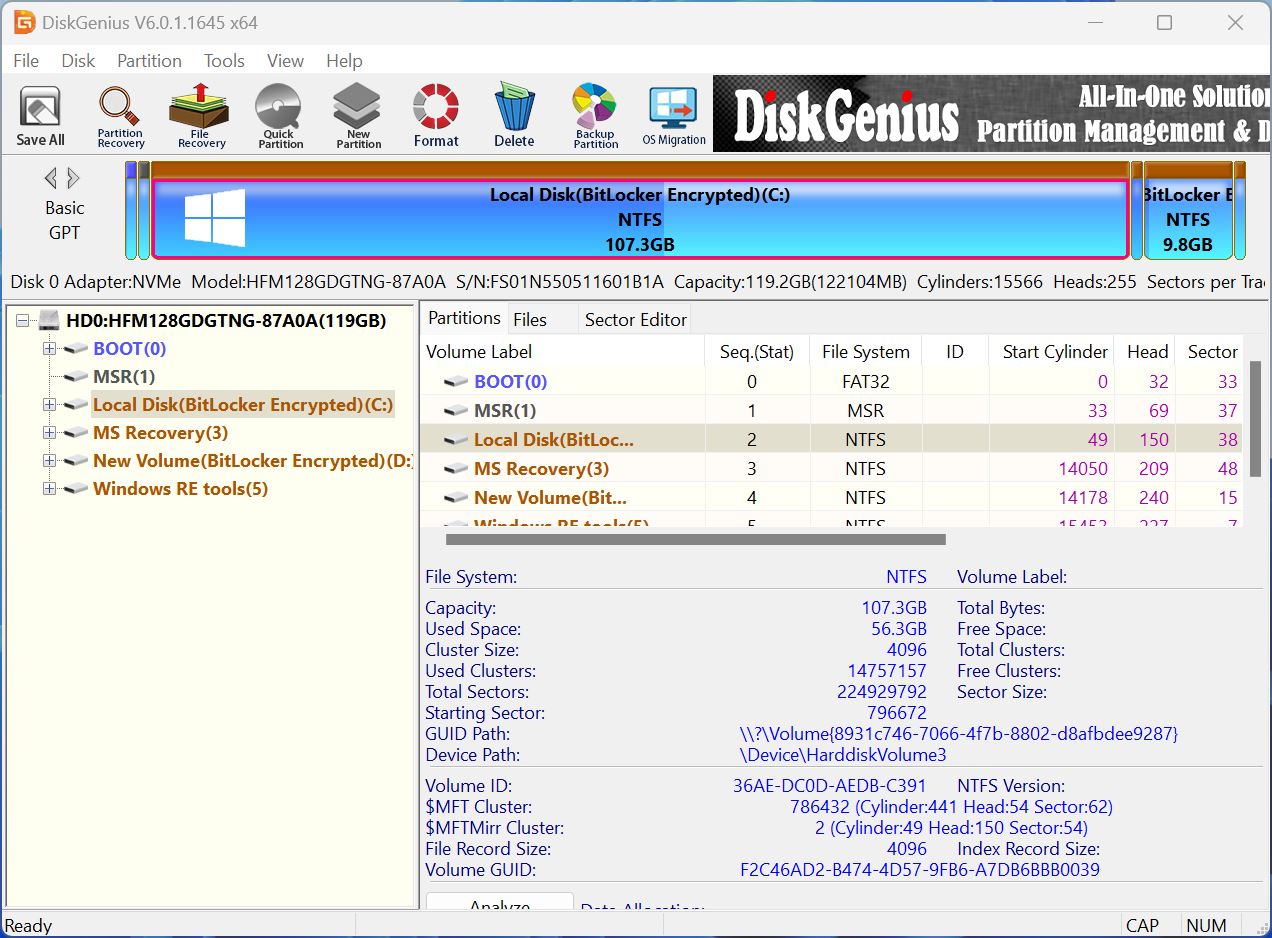
It’s a convenient little tool that lets you manage most aspects of your hard drive in a single UI (the UI isn’t too great, but that’s another story altogether). In case you notice alarming S.M.A.R.T. values, you can use the in-built disk cloning and migration features to move your data before the drive fails.
The tool’s downside is that although it offers disk analysis and data recovery in one package, it doesn’t excel at any of them. It’s good, yes. But not the best. The data recovery algorithm is inconsistent when recovering video files, and you can’t resume interrupted scans. Additionally, the UI is cluttered, making it difficult to find what you’re looking for.
Pros
- Comprehensive, all-in-one solution for disk management and data recovery.
- Lifetime licensing.
- Supports RAID setups.
- Available in 15+ languages.
- Steep learning curve.
- Cramped context menus.
- The free version is severely limited.
- Hit-or-miss customer support.
Best for: Disk cloning and migration
Supported Operating Systems: Windows 7, 8, 10, 11.
Availability on other platforms: None (Windows only).
Pricing: Free trial, Standard Edition: $69.90 (lifetime, 1-2 PCs), Professional Edition: $99.90 (lifetime, 1-2 PCs), Family License: $199.90-299.90 (lifetime, 3-10 PCs), Technician License: $699.90 (lifetime, unlimited PCs)
What users say:
“I have used disk genius on 3 different Windows PCs to create a clone of the system disk. It is easy to install and simple to use if you follow their instructions. I used it for HDD to HDD and HDD to SSD copies with great results. I tried other ‘free’ apps but they were very hard to use and often failed. I can’t speak to other functions but for a simple clone function it is great!!” – Trustpilot user.
14. R-Studio
R-Studio is technically a professional data recovery program that has some disk management and diagnostics features built-in. It can give you a detailed S.M.A.R.T. report, create disk images, and also includes a hex-editor—so, only the basics.
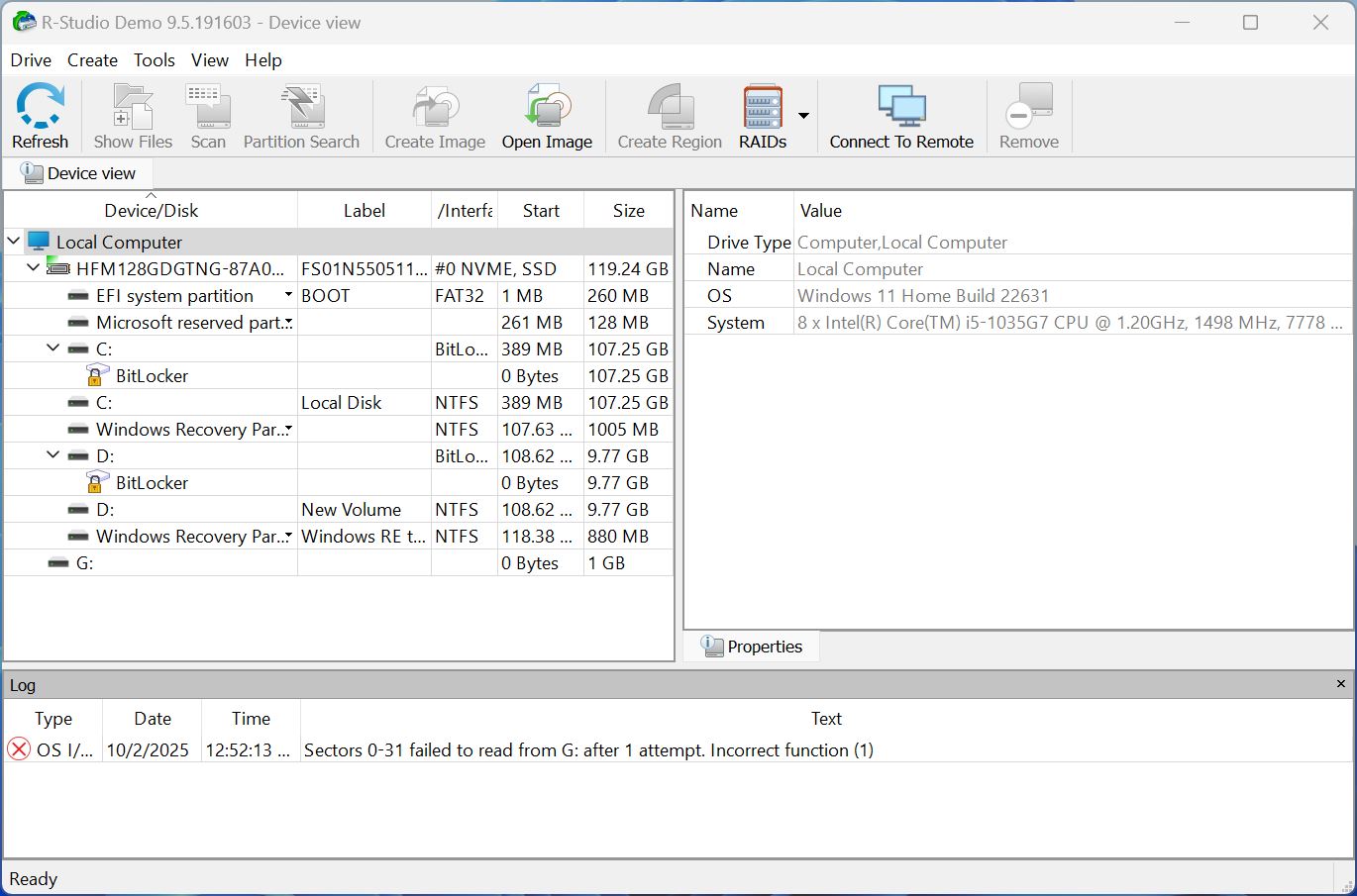
Its disk imaging feature is particularly impressive—R-Studio simultaneously clones damaged hard drives, and scans the cloned drive for recoverable data. This protects you against further data loss, while avoiding additional stress to an already damaged drive.
However, R-Studio’s forte is still data recovery. It can recover data from most data loss scenarios, but it can’t reassign bad sectors, provide detailed diagnostic reports, or perform always-on monitoring of your hard drive’s health. Additionally, its advanced features are overkill for most home users.
Pros
- Wide compatibility across disk types, file systems, and partition tables.
- Excellent disk imaging features.
- Cross platform support across Windows, macOS, and Linux.
- Remote data recovery over the internet.
- The free version is quite limited, with only 256KB of data recovery offered.
- Not worth the price for home users.
- Steep learning curve.
Best for: Basic diagnostics, and data recovery.
Supported Operating Systems: Windows 2000, XP, Vista, 7, 8, 8.1, 10, 11, Windows Server editions.
Availability on other platforms: macOS (All versions, with limited features on Apple Silicon (M1-M4), and Linux.
Pricing: Free Demo (Limited to 256KB file recovery), FAT Recovery ($49.99), NTFS Recovery ($59.99), Full Version ($79.99), Technician ($899).
What users say:
“This is a great tool for recovering lost or deleted data from various types of storage media. The interface is user-friendly and the scanning process is fast and efficient. The software supports a wide range of file systems and can recover files in many different formats. One downside is that it can be a bit pricey compared to other data recovery software. Overall, R-Studio Data Recovery is a reliable and effective tool for recovering lost data.” – Capterra user.
Tips to Maintain a Healthy Hard Drive
While HDDs naturally degrade over time, there are best practices you can follow to keep them in the best condition for as long as possible. This can help you reduce the risk of data loss due to hardware issues and prevent different errors.
Here are some general tips to keep your HDD healthy:
- Avoid physical impact. Any physical impact may damage a component of your hard drive, possibly causing hardware failure.
- Use surge protectors. Unexpected power spikes can damage your hard drive, making it inaccessible and even causing data loss.
- Maintain proper ventilation. Overheating can shorten the lifespan of your hard drive and put it at greater risk of suffering from hardware failure.
- Avoid exposing the hard drive to extreme conditions. Anything from moisture to dust to extreme temperatures puts your hard drive at risk for failure. Ideally, your PC should be kept in a room with a stable temperature.
- Avoid filling your hard drive to its maximum capacity. While your hard drive allows you to fill the space up to the last megabyte, it’s recommended to leave some free space for your OS to still work smoothly. This can also prevent file fragmentation, which slows down the hard disk drive.
- Run regular checks using maintenance utilities. Tools such as CHKDSK on Windows can detect and repair file system errors and help prolong your drive’s health. Other tools, like HDD Scan, can perform SMART checks to monitor the HDD’s general health.
Conclusion
Whether you’re trying to repair errors on your hard drive or create regular backups to ensure that your important information remains safe at all times, there are some fantastic hard drive repair programs out there that can help you monitor and maintain your storage medium’s health. By using some of these programs, you’ll be able to extend your drive’s life to its maximum potential or seamlessly migrate your backed-up data onto a brand new disk.
| Name | Available on Windows | Available on macOS & Linux | Price | Best For |
| Disk Drill | Yes | Yes (macOS) | Free version (500MB recovery limit), PRO $89, Enterprise $499 | Hard drive data recovery |
| Paragon Hard Disk Manager | Yes | Limited macOS versions | Free Community edition; Workstation $99, Server $499, Technician $599, Enterprise $899 | Overall hard drive management |
| HDD Scan | Yes | No | Free | Hard drive health monitoring |
| TestDisk | Yes | Yes (macOS, Linux, others) | Free (open source) | Open-source data recovery tool |
| WinDirStat | Yes | No | Free | Analyzing disk space and identifying large files |
| MiniTool Partition Wizard | Yes | No | Free edition; Pro $59/year; Pro Platinum $109/year; Pro Ultimate $159 (one time) | Partition management, and cloning. |
| CloneZilla | Yes | Yes (Linux-based) | Free (open source) | Hard drive cloning & imaging. |
| Seagate SeaTools | Yes | DOS version available | Free | Hard drive testing and information gathering |
| CheckDisk | Yes | No | Free | CHKDSK alternative |
| AOMEI Partition Assistant | Yes | No | Free Standard; Pro $53.96; Server $179; Unlimited $449.25 | General hard drive management |
| Hard Disk Sentinel | Yes | Yes (Linux Only) | Free trial, $22 (Standard), $33 (Professional), and $219.50 (Enterprise) | Real-time drive health monitoring |
| Victoria HDD/SSD | Yes | No | Free | Viewing detailed reports of drive health, and predicting if it’s on the verge of failure |
| DiskGenius | Yes | No | Free trial, Standard Edition: $69.90 (lifetime, 1-2 PCs), Professional Edition: $99.90 (lifetime, 1-2 PCs), Family License: $199.90-299.90 (lifetime, 3-10 PCs), Technician License: $699.90 (lifetime, unlimited PCs) | Disk cloning and migration |
| R-Studio | Yes | Yes | Free Demo (Limited to 256KB file recovery), FAT Recovery ($49.99), NTFS Recovery ($59.99), Full Version ($79.99), Technician ($899). | Basic diagnostics, and data recovery. |
FAQ
- Boot your problematic PC from this USB by changing the boot order in BIOS/UEFI.
- Once booted into the repair environment, use the software’s disk diagnostic and repair tools such as rebuilding MBR, running surface scans, checking partitions, or fixing file system errors.
- Apply the fixes and safely reboot your PC into its normal OS.