 SD cards offer plenty of storage space in a form factor that makes them perfect for smartphones and cameras, but their reliability is far from excellent. Everything from improper removal during file transfers, power failures, malware, or reaching the card’s lifespan can cause it to become corrupted and unreadable. Fortunately, there are several SD card repair tools that make it easy to fix SD card corruption. In this article, we talk about these tools and explain when it makes sense to use them.
Top 7 SD Card Repair Tools for Corrupted SD Cards
In practice, fixing a corrupted SD card rarely comes down to a single tool or one specific action (formatting aside). SD card repair is a process that usually involves several steps – checking the condition of the storage medium, detecting and fixing errors, and, when possible, trying to protect or recover the data that may still be present on the card at the moment it fails. For this reason, the tools listed below work best in combination, not in isolation. Which tools to use (and in what order) depends entirely on the situation and the type of corruption involved. Review the list carefully and plan your repair steps before applying any SD card repair software.
Any DIY SD card repair methods should be used only when the corruption is logical. If the SD card shows signs of physical damage, behaves inconsistently across devices, or disconnects during access, you should avoid further attempts. In such cases, the safest option is to send the card directly to a professional data recovery center (if the data is important and data loss is unacceptable) and replace the SD card with a new one.
1. Disk Drill (Windows & Mac)
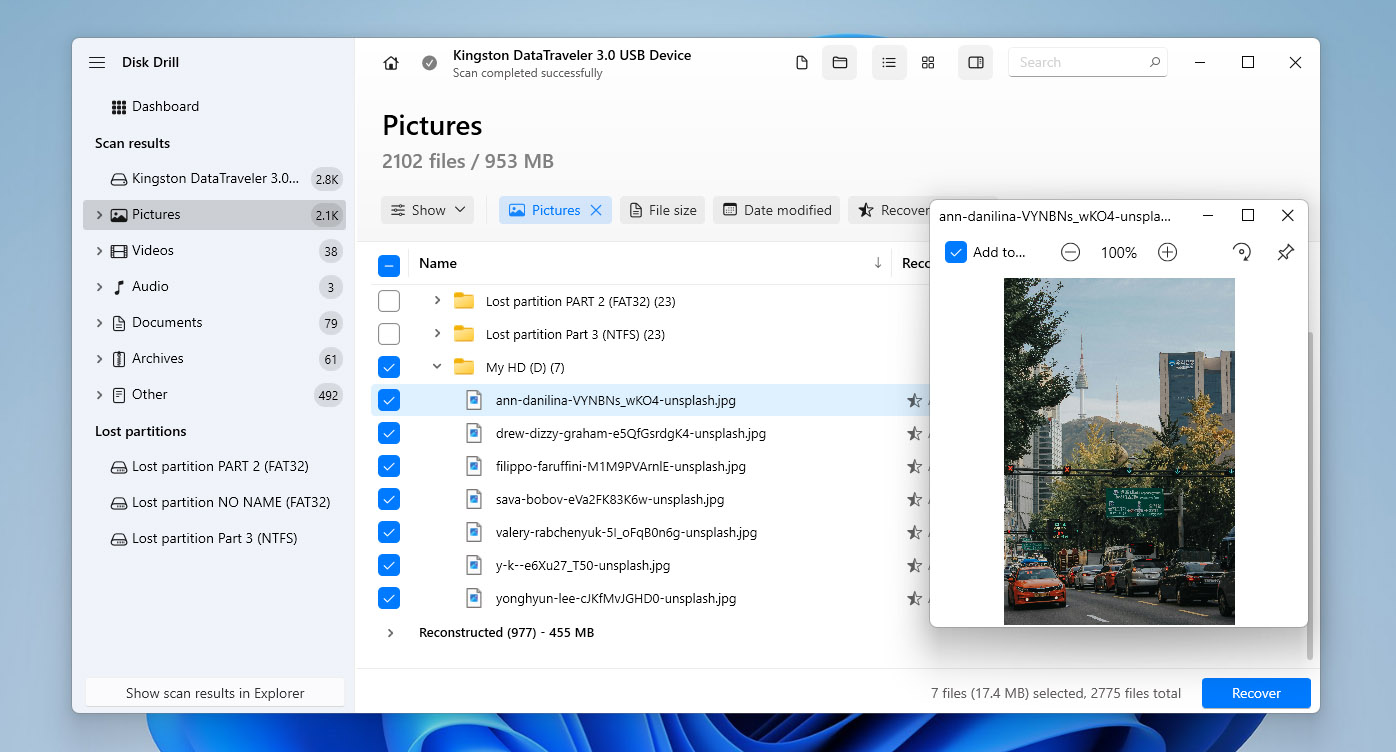 When dealing with a corrupted SD card, data preservation should always be the first priority. Any further repair attempts can worsen the situation and permanently destroy the remaining data, often without any chance of recovery. For this reason, before applying file system fixes or repair utilities, it is critical to secure the data stored on the card. This is exactly where data recovery software becomes necessary. One of the most reliable tools for this purpose is Disk Drill. In situations involving corruption of an entire partition, Disk Drill can scan the entire storage device and locate the missing partition together with the data stored on it. All file systems typically used on SD cards are supported, including FAT16, FAT32, exFAT, and NTFS. If the SD card appears as RAW or the file system is no longer recognized, Disk Drill can still detect the card and perform a scan using signature-based recovery. This method allows the software to identify and recover over 400 file types directly from raw data, with particularly strong results for photos and videos. If the SD card was used in a camera or drone, Disk Drill also provides an Advanced Camera Recovery scan. This feature targets fragmented video files, which are common for action cameras, drones, and some professional cameras. The ability to reconstruct fragmented video files remains relatively rare among data recovery tools. These scan and recovery results are covered in more detail in our in-depth Disk Drill review with real test data. In addition to data recovery capabilities, Disk Drill includes a highly useful byte-to-byte backup module that creates an exact image of a corrupted SD card before any recovery or repair attempts. This allows testing different recovery and repair methods safely, without risking additional logical damage to the original media. 🧰 Key Features:
- Recovers data from corrupted SD cards and lost partitions.
- Support for all commonly used file systems.
- Powerful signature scanning for over 400 file types.
- Byte-to-byte backup creation.
- Exceptionally easy to use.
- Preview files before recovery.
- Detects RAW and unmounted SD cards.
- Advanced camera and drone video recovery.
- Works on Windows and Mac computers.
- Free version with 100 MB recovery limit.
💰 Price: On Windows, Disk Drill allows free data recovery of up to 100 MB. On macOS, the free version provides file preview only, without actual recovery. The PRO version is available as a subscription starting at $89 per year or as a lifetime license priced at $149. 💬 What users say:
- Amazing! Windows 10 said the SD card had to be reformatted. Disk Drill got my irreplaceable videos back, and seemed to have found most if not all of the other files on it. (Reddit)
- I was trying to recover GoPro SD card footage from a corrupt SD card. I knew a free program likely wouldn’t give me great results – you get what you pay for. I purchased Disk Drill Pro and tried to recover my files, but was unsuccessful. I reached out to customer service and they emailed an update that had more specific “advanced camera options” and I followed their directions and was able to recover my footage! Customer service was quick to respond and very helpful. Thank you! (Trustpilot)
📊 User ratings:
| Source | Rating |
| Trustpilot | 4.5 / 5 |
| G2 | 4.0 / 5 |
| Capterra | 3.7 / 5 |
| Overall score | 4.0 / 5 |
📝 Verdict: When data stored on a corrupted SD card is important, creating a byte-to-byte backup and attempting data recovery with Disk Drill should be the first step, not a last resort. Securing the data before applying any repair or file system fixes helps prevent irreversible data loss and allows further actions to be taken safely.
2. SanDisk RescuePRO/SanDisk RescuePRO Deluxe (Windows & Mac)
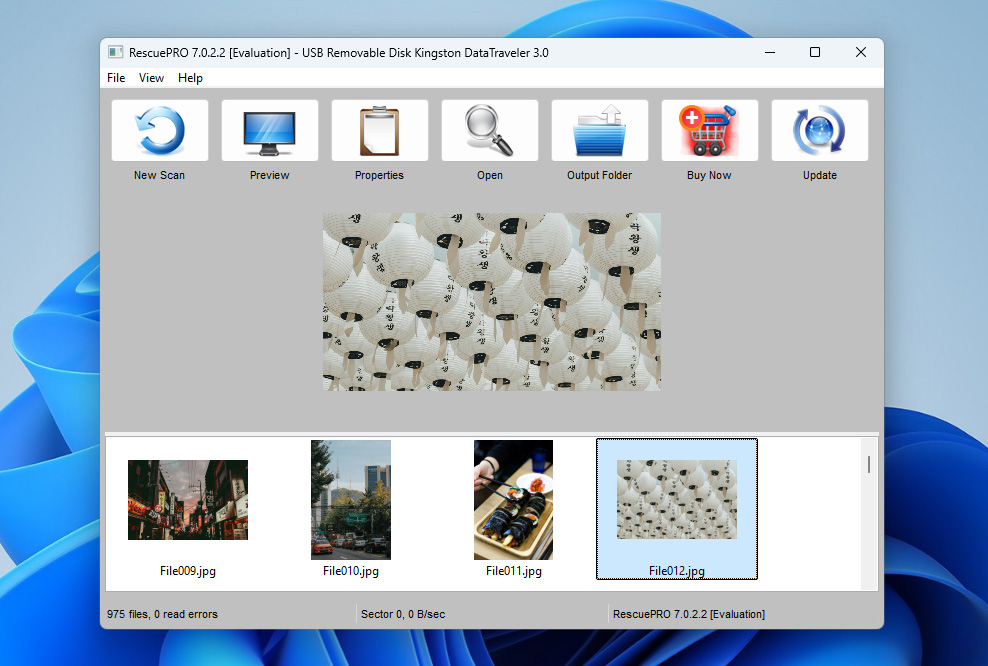 SanDisk RescuePRO is a data recovery tool often considered an alternative to Disk Drill, optimized for SanDisk-branded SD cards but also compatible with memory cards from other manufacturers. Despite the name, RescuePRO is not developed by SanDisk itself but by LC Technology International, Inc., a data recovery company based in Florida. SanDisk RescuePRO is designed primarily for data recovery, rather than file system repair. It supports recovery of various data types, including photos, videos, audio files, and documents, from corrupted or inaccessible SD cards. In addition to file recovery, the software allows you to create copies of failing storage devices, which makes it possible to recover data without placing additional stress on an unstable or degrading SD card. There are three versions of SanDisk RescuePRO available. The Standard version supports memory cards up to 256 GB and covers basic recovery needs. The Deluxe version increases capacity support up to 1 TB and adds advanced functionality, including recovery of fragmented video files, which is especially relevant for action cameras, drones, and some professional camera models. The Deluxe Commercial version provides the same technical features as Deluxe but includes a commercial-use license. It is also important that if you own a SanDisk SD card, the retail packaging may include an activation key for a one-year license of SanDisk RescuePRO Deluxe. 🧰 Key Features:
- Advanced video file repair
- Secure media wiping tools
- Easy-to-use interface
- Support for cards up to 1TB
- Create backups of failing cards
💰 Price:RescuePRO Standard costs $39.99 per year, RescuePRO Deluxe costs $59.99 per year, and RescuePRO Deluxe Commercial costs $249.99 per year. 💬 What users say:
- I had to buy a new SanDisk SD card to get the free license. But honestly, it was worth it—only a few bucks compared to other paid data recovery software, making it a budget-friendly option. (SanDisk forum)
- Program is suitable only for recovering files from very basic cases of corruption or erasure. With the way many recent SanDisk ssds have gone, if it does fail, it will be bad. The software will not help you… (Reddit)
📊 User ratings: Unfortunately, no aggregated user ratings for SanDisk RescuePRO are currently available on major trusted review platforms such as Trustpilot, G2, or Capterra. To avoid leaving this section empty, an internal evaluation score of 3 out of 5 is provided based on real-world usage scenarios and feature set. 📝 Verdict: SanDisk RescuePRO represents a practical option for SanDisk SD card owners, especially when an activation key is available. In such cases, it provides a cost-effective way to perform data recovery or create a copy of a failing SD card without purchasing additional software, which makes it a sensible first choice for SanDisk-branded media.
3. chkdsk (Windows Built-In)
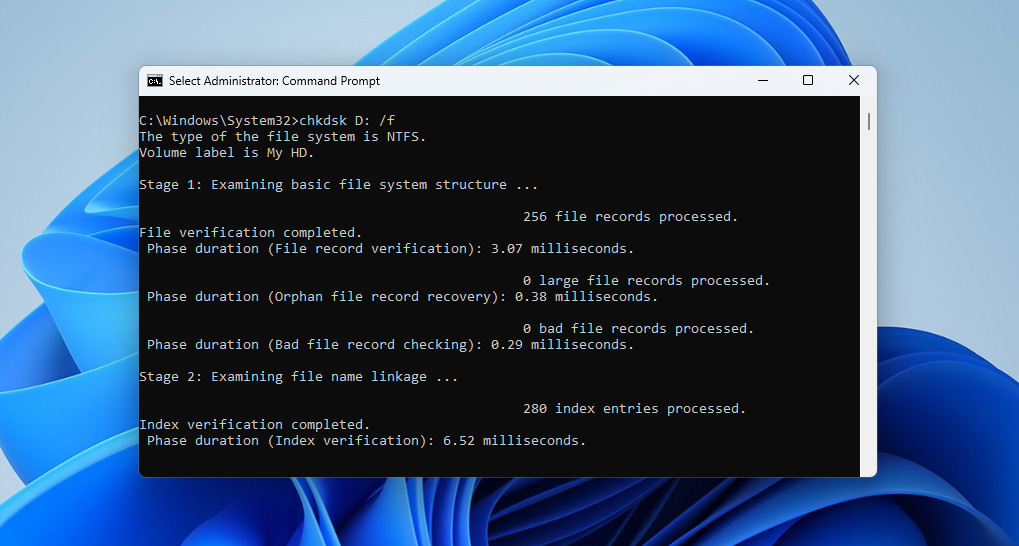 For Windows users, the built-in chkdsk (Check Disk) utility provides a reliable, no-cost solution for diagnosing and repairing logical SD card errors. Through various command parameters, it can fix basic file system errors, locate bad sectors and recover readable information, restore the structural integrity of corrupted SD cards. You can access it either through Command Prompt (for advanced users) or through File Explorer by right-clicking the SD card and selecting “Properties” > “Tools” > “Check” (for beginners). The command-line version of chkdsk is more powerful because it lets you specify exactly what type of repairs to perform using different parameters. For example, running “chkdsk /f” fixes file system errors, while “chkdsk /r” both fixes errors and locates bad sectors, recovering any readable information. There’s also the “/x” parameter, which forces the volume to dismount first. 🧰 Key Features:
- Built into Windows
- Repairs file system errors and bad sectors
- Supports FAT, FAT32, exFAT, and NTFS
- Can be scheduled to run on the next system restart
- Multiple repair options through different parameters
💰 Price: Free (included with Windows) 💬 What users say:
- I have also faced a similar issue in the past. I have run a Check Disk Scan using the CHKDSK command, which helped fix the issue and recover some missing files. (SanDisk forum)
- Chkdsk is an extremely simplistic tool. It is at heart a consistency checker. The fixes it makes are not intended to preserve data, but just to make everything balance in the file system so to speak… (Reddit)
📊 User ratings: Since CHKDSK is a built-in Windows utility and not a standalone commercial product, it does not have aggregated user ratings on platforms such as Trustpilot, G2, or Capterra. Based on practical use cases and limitations, an internal score of 3 out of 5 is assigned. [What you will consistently encounter instead of ratings are warnings against running CHKDSK on a corrupted SD card before creating a byte-to-byte backup or recovering data. The reason is that CHKDSK modifies the file system structure in place. While this can fix logical errors, it may also rename, truncate, or permanently remove damaged file entries, which can make later data recovery significantly harder or impossible. 📝 Verdict: While chkdsk may lack the polished interface of commercial tools like Disk Drill, it’s often the best first step in SD card repair because it’s included in Windows. I personally recommend the command-line version, but the one available through File Explorer can also get the job done.
4. First Aid (macOS Built-In)
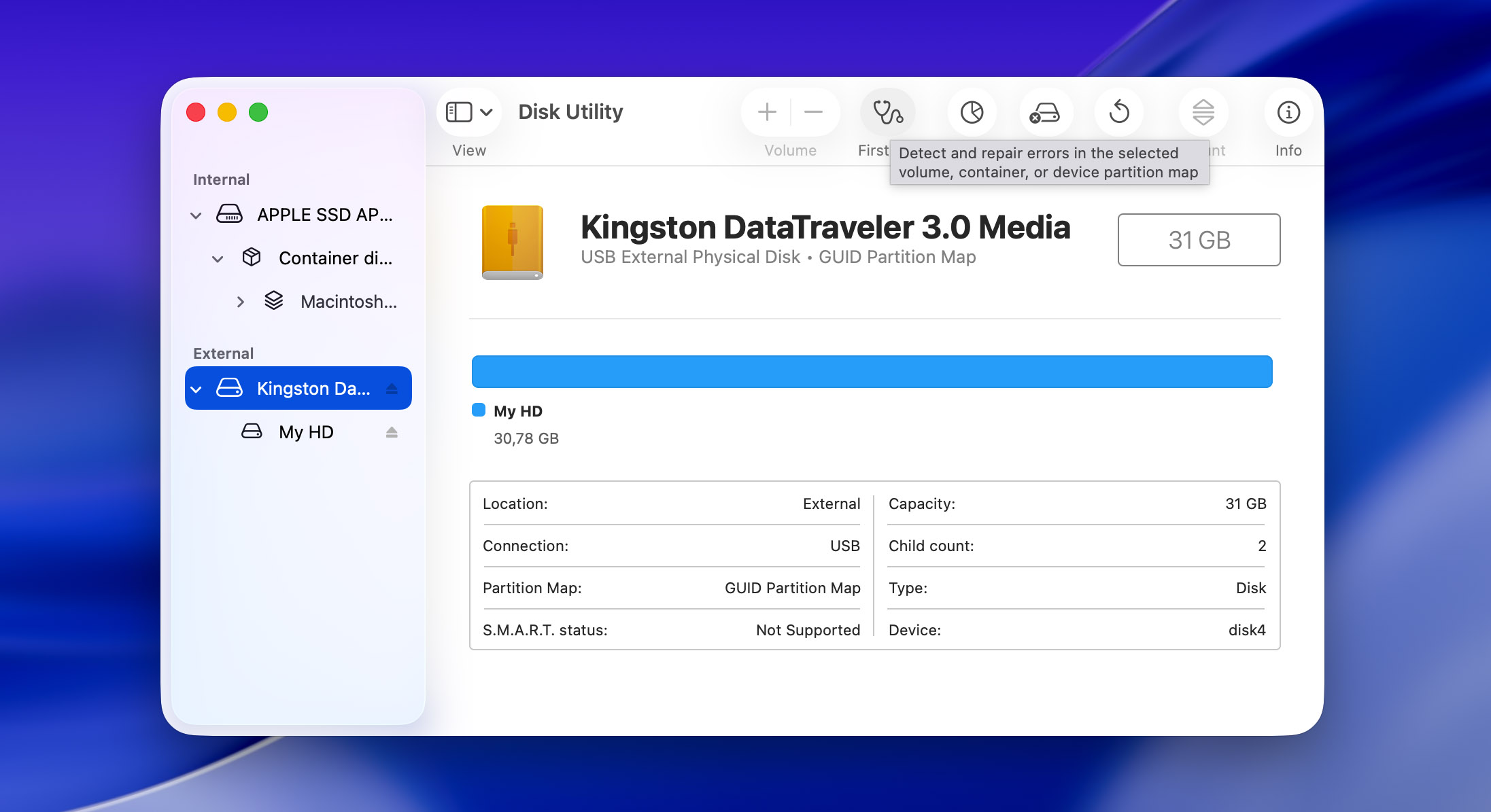 The only reason why First Aid isn’t sharing second place with chkdsk is the fact that considerably fewer people have access to it. That’s because this SD card repair tool is integrated into macOS’s Disk Utility, and you can think of it as Apple’s native solution for diagnosing and repairing storage device issues. At the same time, it is a fairly basic utility, designed primarily to handle common and straightforward file system problems rather than complex corruption scenarios. Many people, us included, have successfully used it to address issues such as directory damage, catalog file corruption, and file system errors that can make SD cards unreadable. Like most native macOS tools, First Aid provides a user-friendly graphical interface that guides you through the repair process. You just need to select your SD card in Disk Utility and click the First Aid button to start the diagnostic and repair process. The tool will check the disk’s structure, attempt to fix any errors it finds, and provide detailed feedback about what it’s doing. 🧰 Key Features:
- Built into macOS
- Repairs file system and structural errors
- Safe to use without risk of data loss
- Works with all standard SD card formats
- User-friendly interface
💰 Price: Free (included with macOS) 💬 What users say:
- First Aid is perfectly safe to use and is designed for this very scenario. Run it before talking to Apple Support. It’ll diagnose and attempt to repair any problems found. The worst that can happen is it won’t be able to fix the problem and you’ll have to take it in. (Reddit)
- I’m running the current OS X on my Mac. I tried disk utility as you suggested and no luck. I ran the “first aid” option and it said it was successful but no change in how it’s working. (MavicPilots forum)
📊 User ratings: Just like CHKDSK, First Aid is a built-in system utility rather than a standalone product, so it does not have aggregated user ratings on platforms such as Trustpilot, G2, or Capterra. An internal score of 4 out of 5 is assigned based on practical use. First Aid receives a higher score than CHKDSK because it operates in a less aggressive manner. While it is limited to basic file system checks and repairs, it is generally safer to use on corrupted SD cards and is less likely to cause additional data loss compared to CHKDSK when run before data recovery. 📝 Verdict: First Aid is an excellent first-line defense against SD card corruption for Mac users. While it may not have the advanced recovery capabilities of Disk Drill, its ability to safely repair common file system issues makes it an invaluable tool that should be your first stop when SD card problems arise.
5. VictoriaHDD/SSD (Windows)
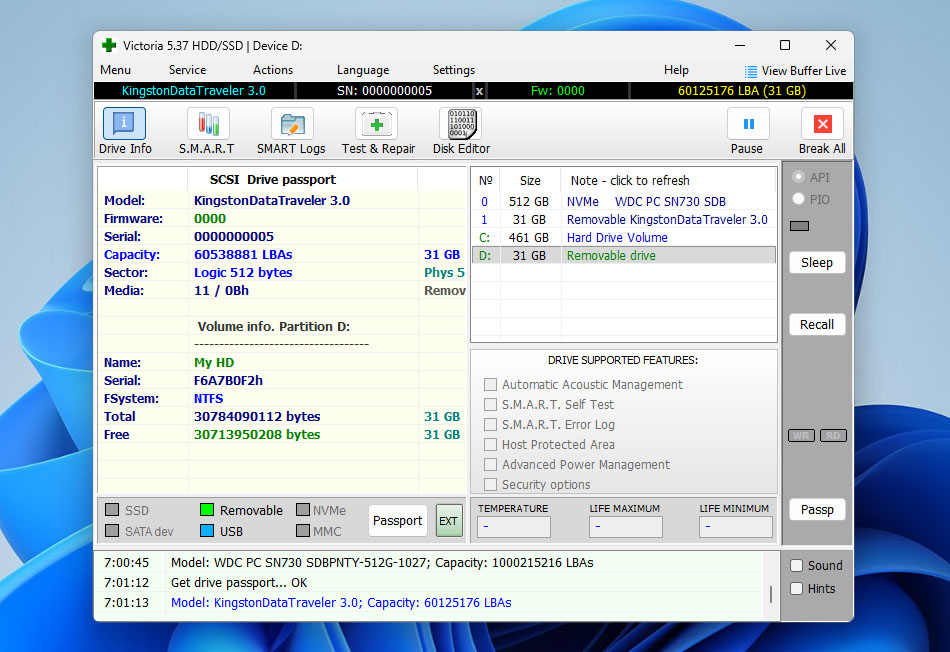 Victoria is a more advanced disk diagnostic and testing tool than CHKDSK or First Aid in Disk Utility, which is why it fits naturally as the next step after built-in system utilities. While CHKDSK and First Aid focus mainly on basic file system consistency checks, Victoria works at a lower level and provides deeper insight into how a storage device behaves during read operations. For corrupted SD cards and other removable media, Victoria is primarily used to detect unstable sectors, read delays, and I/O errors rather than to repair file systems directly. This makes it useful in situations where a card still mounts but behaves inconsistently, freezes during access, or causes repeated read errors. In such cases, Victoria can help determine whether the issue is purely logical or if the media itself is already degrading. By visualizing read speed variations and error-prone areas, it becomes easier to decide whether further recovery attempts are safe or if the card should be imaged immediately using a byte-to-byte backup tool. 🧰 Key Features:
- Low-level read testing and surface diagnostics
- Detection of slow, unstable, and unreadable sectors
- Detailed visualization of read errors and access delays
- Works with removable media via card readers
💰 Price: Free to use (open-source) 💬 What users say:
- I’ve used Victoria for years. Makes hard drives last that bit longer even if smart reports bad drive. You will lose space on the HDD, But the HDD still work for a few years as long as you don’t keep important data in it. (Recoverhdd)
📊 User ratings:
| Source | Rating |
| Trustpilot | N/A |
| G2 | N/A |
| Capterra | N/A |
| LO4D.com | 4.4 / 5 |
| Overall score | 4.4 / 5 |
📝 Verdict: Victoria is a strong diagnostic step after CHKDSK or First Aid when basic utilities are no longer sufficient. It helps assess the physical behavior of a corrupted SD card and decide whether recovery is still safe.
6. TestDisk (Windows, Mac, Linux)
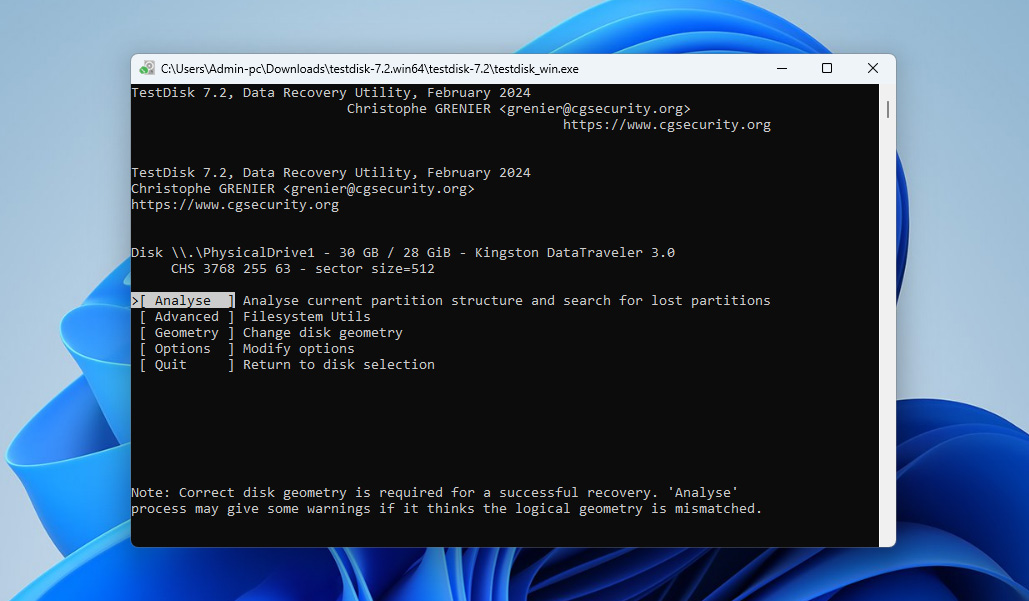 While Disk Drill excels at file recovery and chkdsk/First Aid handles general maintenance, TestDisk is my go-to solution when dealing with a damaged SD card partition table or filesystem structure because it can rebuild corrupted partition tables, fix filesystem parameters, and repair FAT tables using redundant copies (if you want to see how these mechanisms work in practice, you can check our TestDisk review). TestDisk can repair multiple filesystem types including FAT16/32, NTFS, exFAT, ext2/3/4, and even HFS+. The SD card repair tool itself is compatible with all major operating systems, and it’s completely free and open-source with no limitations. The only problem many people have with TestDisk is that it uses a command-line interface that, while logical and well-organized, can be intimidating for beginners. However, it provides detailed guidance at each step, making it accessible to users willing to learn. 🧰 Key Features:
- Open-source with no limitations
- Specialized partition table and filesystem repair
- Support for multiple filesystem types
- Supports undelete operations for FAT, exFAT, NTFS, and ext2 filesystems
- Allows copying files from deleted or inaccessible partitions without mounting them
- Works on raw and dismounted SD cards
- Available for Windows, Linux, and macOS
💰 Price: Free 💬 What users say:
- TestDisk is simple but powerful application to analyze and recover disk partitions. What I like most is that it has an integrated tool called PhotoRec that is used to recover lost files in similar memory. I also like that it is compatible with different types of memory, especially optical drives. (G2)
- The most things I like in TestDisk are as below: 1. It is completely free to use. 2. Recovery of lost data or lost partition process is quick and very easy. 3. I can also restore files from NTFS and FAT filesystems. The below things that I don’t like most in TestDisk are: 1. Initial setup and log creation are a little bit complicated. 2. It is a pure command-line tool so no attractive user interface. (G2)
📊 User ratings:
| Source | Rating |
| Trustpilot | 4.0 / 5 |
| G2 | 4.3 / 5 |
| Capterra | N/A |
| Overall score | 4.2 / 5 |
📝 Verdict Despite having a steeper learning curve due to its command-line interface, TestDisk fills an important niche in SD card repair, handling severe partition and filesystem damage that built-in utilities like chkdsk and First Aid can’t address.
7. SD Card Formatter (Windows & Mac)
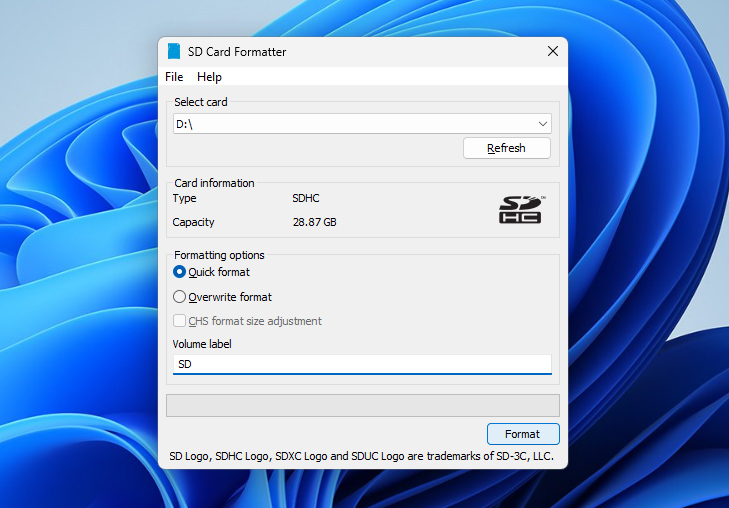 SD Card Formatter is the official formatting utility developed by the SD Association for SD, SDHC, SDXC, and SDUC memory cards. Unlike generic formatting tools built into operating systems, this utility formats cards according to official SD specifications, which helps avoid compatibility issues and improper card structures. This tool is not designed for data recovery and should not be used if there is important data on the card that has not been backed up or recovered. Instead, SD Card Formatter fits into the workflow after data recovery or when a card needs to be reset for reuse. It is often used when standard OS formatting fails, produces errors, or results in cards that are not recognized correctly by cameras, drones, or other devices. By restoring the card’s structure to a standards-compliant state, SD Card Formatter can resolve logical issues caused by improper formatting, cross-device usage, or failed write operations. 🧰 Key Features:
- Official SD Association formatting tool
- Fully compliant with SD/SDHC/SDXC/SDUC specifications
- Resets SD card structure to factory-compatible state
- Improves device compatibility after corruption or failed formatting
- Simple and user-friendly interface
- Available for Windows and macOS
💰 Price: Completely free 💬 What users say:
- I love this tool. I use it not just for SD cards but for all sorts of portable storage. It seems to fix things where Windows File Explorer’s formatter and other tools fail. A simple tool that does a really good job. It has even fixed some partition weirdness I’ve needed to deal with. (ycombinator)
- Does not work on car camera locked sd cards. (Software Informer)
📊 User ratings: SD Card Formatter does not have aggregated ratings on major review platforms. This is expected, as it is a free utility provided by the SD Association rather than a commercial product. Based on real-world usage and consistent positive feedback in technical communities, an internal score of 4 out of 5 is assigned. 📝 Verdict: SD Card Formatter is the correct tool when an SD card needs to be cleanly reset and prepared for reuse according to official standards.
What Causes SD Card Corruption?
SD card corruption is a widespread issue because its causes are numerous. Knowing what causes SD card corruption is the first step in avoiding it and preventing your data from becoming inaccessible.
| Reason of Corruption | Description |
| 🧍♂️ Human Error | Most cases of SD card corruption are caused by improper use. For example, you should never remove an SD card while files are still being transferred to/from it. To be extra safe, turn off the device the SD card is connected to first and then remove it. It’s also a good idea to avoid allowing your SD card to run out of available storage space before moving files from it. |
| ☣️ Viruses and Malware | Viruses and malware can cause SD card corruption even when they’re not designed to do so. In an effort to spread to every connected device, they sometimes forcibly enter an SD card while it’s in use, causing other applications to fail unexpectedly. There are also strains of malware capable of scrambling the entire content of an SD card using a strong encryption algorithm to make it inaccessible without the correct decryption key, which is often sold by their creators for a hefty price. |
| 🔨 Power Failures | When data is being written, the card’s file system is temporarily in an inconsistent state, and an unexpected power cut can leave these operations incomplete. Often, this results in corrupted file system tables, incomplete file writes, or damaged directory structures. The problem is especially common with phones and cameras, but it can also happen with laptops and desktop computers (power outages). |
| ⚙️ Manufacturing Defects | There are many different SD card manufacturers, some producing highly reliable SD cards that target professional users, and others producing budget SD cards of questionable reliability. You may even stumble upon counterfeit SD cards that have been manufactured using flash memory chips that have been discarded by other manufacturers for being defective. |
| 🕰️ Exceeded Lifespan | All SD cards have a limited number of write/erase cycles because they rely on electrons passing through a very thin insulating silicon oxide barrier. Over time, electrons can become trapped inside this barrier and interfere with other electrons that are trying to pass through it. Once large enough charge is trapped, the particular flash memory cell can become unwritable/unreadable. This can happen in just a few months, but it can also happen after 10 or more years. It all depends on how much you use your SD card. |
Avoid SD Card Corruption with These Tips
You can avoid SD card corruption by following the tips below:
- Proper ejection and removal: Always turn off your device or use the ‘Eject’ function before removing the SD card. Yanking out the card while data is being transferred can result in file corruption.
- Authentic and reputable brands: Opt for SD cards from well-known, reputable brands. Cheap, off-brand cards are more prone to corruption and may even be counterfeit.
- Storage management: Make it a habit to move files off your SD card before it gets full. Operating at or near full capacity increases the likelihood of corruption.
- Device compatibility: Avoid using the same SD card across multiple devices without formatting it first. Different devices may have different file system requirements, leading to potential issues.
- Protection against the elements: Store your SD card in a dry, cool place and avoid exposing it to heat, moisture, and electrostatic discharges. Extreme environmental conditions can damage the card’s electronic components.
Conclusion
SD cards fail more often than you expect, and in most cases the fix comes down to formatting the card or replacing it entirely. However, this article has shown that there are several tools and ways that can help delay those outcomes or, just as importantly, help confirm when formatting or replacement is the only reasonable option left. In practice, SD card repair is rarely a single action. It is usually a multi-step process, which is why it makes sense to select several tools from this list and apply them in a logical order when corruption occurs. For example, a reasonable workflow may look like this:
- First, use Disk Drill to create a byte-to-byte backup and recover important data
- Next, use Victoria to check the card for unstable or failing sectors
- And finally, apply TestDisk or perform proper formatting if the card still shows logical issues
At the same time, you have to remember that SD cards are consumable storage media. They are not designed to last forever, and there will eventually be a point where none of the tools in this list can help. When that happens, replacing the card is the only safe option – which is why keeping a few spare SD cards on hand is often a smart idea.
FAQ
- Open the Command Prompt as administrator.
- Type “diskpart” and press Enter.
- Use the following command to determine which disk is your micro SD card: list disk
- To select your micro SD card, type “select [disk x]” and press Enter (replace X with the number of your micro SD card).
- Type “attributes disk clear readonly” to clear the Read-Only attribute on the selected disk.
- Press Windows + X and select Disk Management.
- Right-click on the unallocated space on your SD card and select the New Simple Volume option.
- Follow the instructions provided by the New Simple Volume Wizard and make sure to select that you want to format the newly created volume.