


Looking for a MiniTool Partition Wizard alternative that offers stronger data recovery or better value? If you look at its data recovery features, you can see that MiniTool Partition Wizard is mostly a partition manager. The free version only lets you recover a few lost files and partitions. For more advanced features, you’ll need to pay for a license.
Summary: Want a quick look at the results? Here’s what we think about each MiniTool Partition Wizard alternative:
- Disk Drill: Best alternative for most most data recovery cases.
- R-Studio: Best for advanced users, but has a steep learning curve.
- TestDisk: Best free, open-source option, but uses a command-line interface and lacks file previews.
- DMDE: Powerful and affordable, but its interface can be difficult to use..
- DiskGenius: Good mix of recovery and partition management tools, but recovery performance can be inconsistent.
MiniTool also sells a separate, dedicated recovery product called MiniTool Power Data Recovery. Its recovery engine is functionally the same as the Data Recovery feature included with Partition Wizard, so buying the standalone product doesn’t give you a fundamentally different recovery solution. You can learn more about its capabilities and limitations in our MiniTool Power Data Recovery review.
There are other drawbacks worth considering. MiniTool Partition Wizard is Windows-only, its recovery results can be inconsistent in more difficult data-loss scenarios, and disk operations such as moving or resizing partitions carry their own risk if something goes wrong. That last point matters because partition management and data recovery are bundled into the same application: a failed operation can leave you needing the recovery feature you did not originally intend to use.
That concern also appears in user feedback. One Trustpilot user reported that a partition resize failed and left the drive inaccessible. When the software suggested data recovery afterward, restoring the detected files required a $100+ purchase.
We’ll look at the best MiniTool Partition Wizard alternatives and what each one does better.
Important: If you are already dealing with deleted files, a lost partition, or an inaccessible drive, avoid making further changes to the affected disk. Do not format it, resize partitions, create new volumes, or save recovered files back to it. Choose the recovery tool first and recover your data before attempting repairs.
How We Tested the MiniTool Alternatives
We tested and compared five alternatives to MiniTool Partition Wizard for this guide to see how well they recover files and partitions. As with all of our software reviews, we followed our strict, standardized testing guidelines so that every program faced the same scenarios under the same conditions (as much as possible, since the functionality of tools is quite different). We used default scan settings wherever possible and did not adjust the tests to favor any particular tool.
Our Test Setup
We used the same hardware and storage device throughout the comparison:
- Test PC: Windows 11 laptop with an Intel Core i5-12450H (12th Gen) CPU and 16 GB DDR4 RAM.
- Test drive: 32 GB Transcend USB flash drive, formatted as exFAT.
- Test data: The drive contained 52 files totaling 1.1 GB, including JPG, PNG, GIF, CR2, RAF, MP4, MOV, AVI, MP3, M4A, DOC/DOCX, XLS/XLSX, PDF, TXT, and ZIP files.
For the file recovery tests, we measured scan time, usable files recovered, preservation of original filenames and folder structure, and preview reliability. For partition recovery, we checked whether each tool could correctly locate the deleted partition and restore access to it.
Data Loss Scenarios We Tested
We ran three separate tests:
- Test 1: Deleted files from a healthy partition. We filled the exFAT USB drive with our dataset and deleted all 52 files while leaving the partition itself intact. This tested how each program handles ordinary deleted-file recovery when file system metadata is still available.
- Test 2: Quick-formatted partition. We restored the dataset and quick-formatted the USB drive. We then checked how many files each tool could find and recover after the original file system metadata had been removed, including results from signature-based scanning.
- Test 3: Deleted partition. For the final test, we restored the drive again and deleted the partition so that its space appeared as unallocated in Windows. This time, we focused on partition recovery rather than individual files. We checked whether each tool could detect the lost exFAT partition, identify its original boundaries and file system, and restore access to the partition and its contents.
These three tests let us compare the tools from two different angles: how well they recover individual files after deletion or formatting, and how well they handle an entire lost partition.
How We Ranked the Tools
The test results carried the most weight, but recovery performance alone did not determine the ranking. We also considered how practical each tool is for real-world data and partition recovery.
Our ranking was based on:
- Data recovery performance: Results from the deleted-file and quick-format tests, with usable recovered files valued more than the number of files simply detected.
- Partition recovery: How reliably the tool detected and restored the deleted partition.
- Recovery features: File previews, filtering, original filenames and folder structure, disk imaging, and other tools that make recovery safer or easier.
- Ease of use: How easy it is to select the right drive, start a scan, understand the results, and complete recovery without unnecessary technical steps.
- Price and free version: License cost, free recovery limits, and how much functionality is available before payment.
- Platform support: Whether the software works only on Windows or also supports macOS and Linux.
We gave the highest positions to tools that performed well across our tests and everyday recovery tasks, rather than ranking them by the number of features alone. When two tools achieved similar recovery results, we used the additional factors above.This means a tool that recovered the same number of files as another could still rank lower if it provided less reliable previews, lost filenames or folder structure, offered fewer scan controls, or was less practical to use.
MiniTool Partition Wizard Alternatives Compared
Before we look at each alternative in detail, here’s a side-by-side comparison of their main recovery features, partition tools, platform support, free recovery limits, and pricing.
| Feature | Disk Drill | R-Studio | TestDisk | DMDE | DiskGenius |
|---|---|---|---|---|---|
| File recovery | ✅ | ✅ | Limited | ✅ | ✅ |
| Lost partition detection | ✅ | ✅ | ✅ | ✅ | ✅ |
| Restore partition in place | ❌ | ❌ | ✅ | ✅ | ✅ |
| File previews | ✅ | ✅ | ❌ | ✅ | ✅ |
| Disk imaging | ✅ | ✅ | ❌ | ✅ | ✅ |
| S.M.A.R.T. monitoring | ✅ | ✅ | ❌ | ❌ | ✅ |
| RAID recovery | ✅ | ✅ | Limited | ✅ | ✅ |
| Hex/sector editor | ❌ | ✅ | ❌ | ✅ | ✅ |
| Partition management | ❌ | ❌ | Limited | Limited | ✅ |
| Free recovery limit | 100 MB on Windows | Files up to 1,024 KB each | Unlimited | Up to 4,000 files from one directory per request | Files <64 KB |
| Price | $89/year or $149 lifetime | From $79.99 one-time | Free | From $9.95/month; $48 lifetime | $69.90/month, $99.90/year, or $129.90 lifetime |
Best MiniTool Partition Wizard Alternatives
MiniTool Partition Wizard combines partition management with data recovery, but not every alternative needs to replace every feature it offers. Some of the tools below focus primarily on file recovery, while others are better suited to lost partition recovery and disk management.
1. Disk Drill
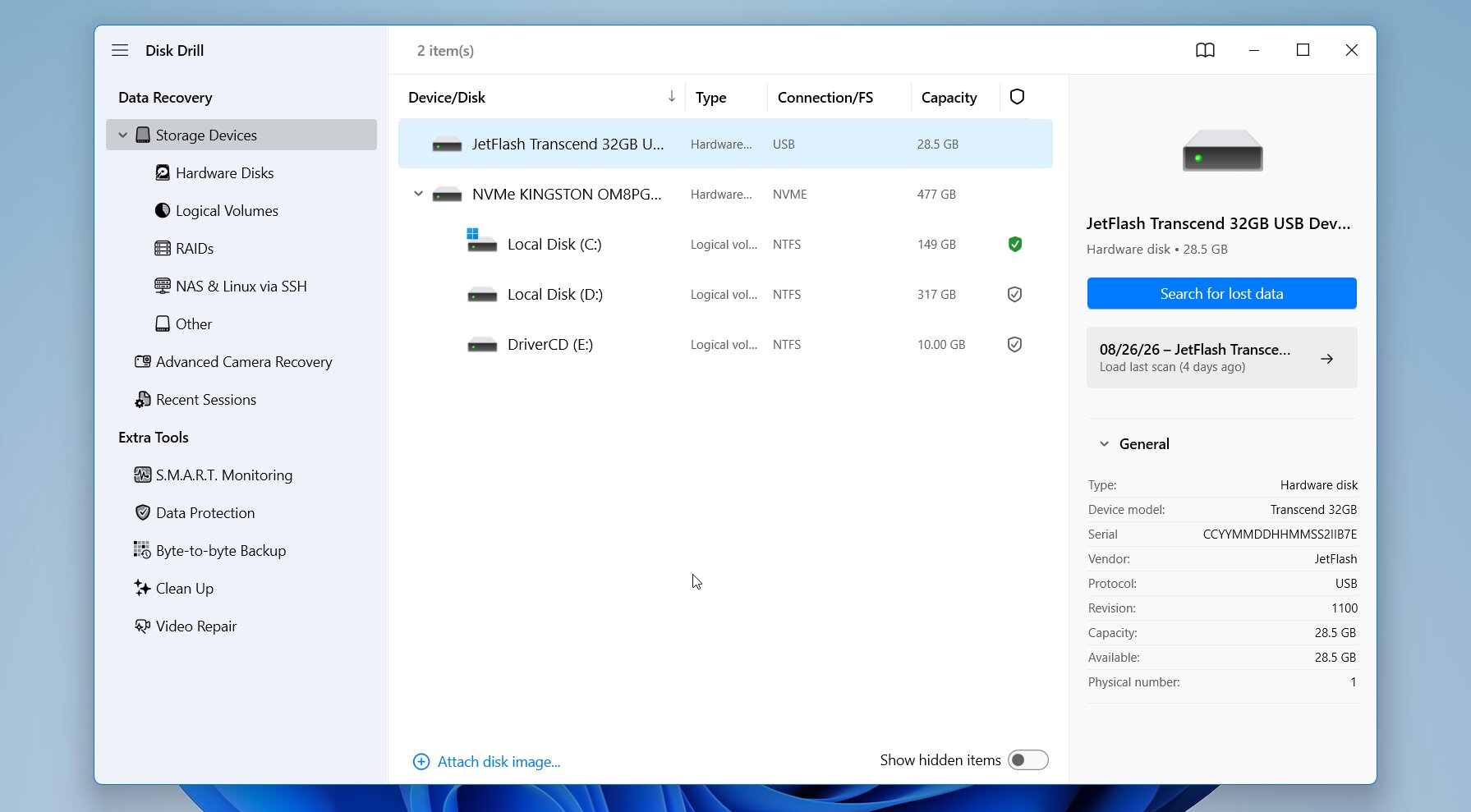 Disk Drill is a data recovery application developed by CleverFiles, with versions for both Windows and macOS. Unlike MiniTool Partition Wizard, which combines partition management with recovery as one part of a larger toolkit, Disk Drill is built primarily around finding and restoring lost data. Its recovery engine handles deleted files, formatted drives, damaged or RAW file systems, and lost partitions, while additional tools such as disk imaging and S.M.A.R.T. monitoring support the recovery process.
Best for: Disk Drill is a great choice if you want strong recovery results without the technical complexity of some other tools in the list. It performed very well across our tests while offering a much more approachable interface, plus file previews, recovery chances, disk imaging, and support for both Windows and macOS.
Price: Disk Drill Free for Windows can recover up to 100 MB. Disk Drill PRO costs $89/year or $149 for a lifetime license, with one license covering both Windows and macOS.
Interface & Usability
Disk Drill has one of the simplest workflows among the tools we tested. The main screen lists physical disks and their partitions, along with information such as capacity and file system. You select the affected device, click Search for lost data, and Disk Drill runs its available recovery methods automatically.
Results appear while the scan is still in progress, so you don’t have to wait for it to finish before checking what was found. Files can be filtered by type, size, date, and recovery chances, and the preview window lets you check photos, videos, documents, and other supported files before recovery.
Lost partitions are handled within the same workflow. Disk Drill can detect partitions that no longer appear in Windows and scan them for files. There is also a dedicated Search for lost partitions option.
One limitation is important here: Disk Drill recovers data from lost partitions, but it does not write the partition back to the partition table. If you specifically want to restore a deleted partition in place, TestDisk or DiskGenius is better suited to that job.
Recovery Performance
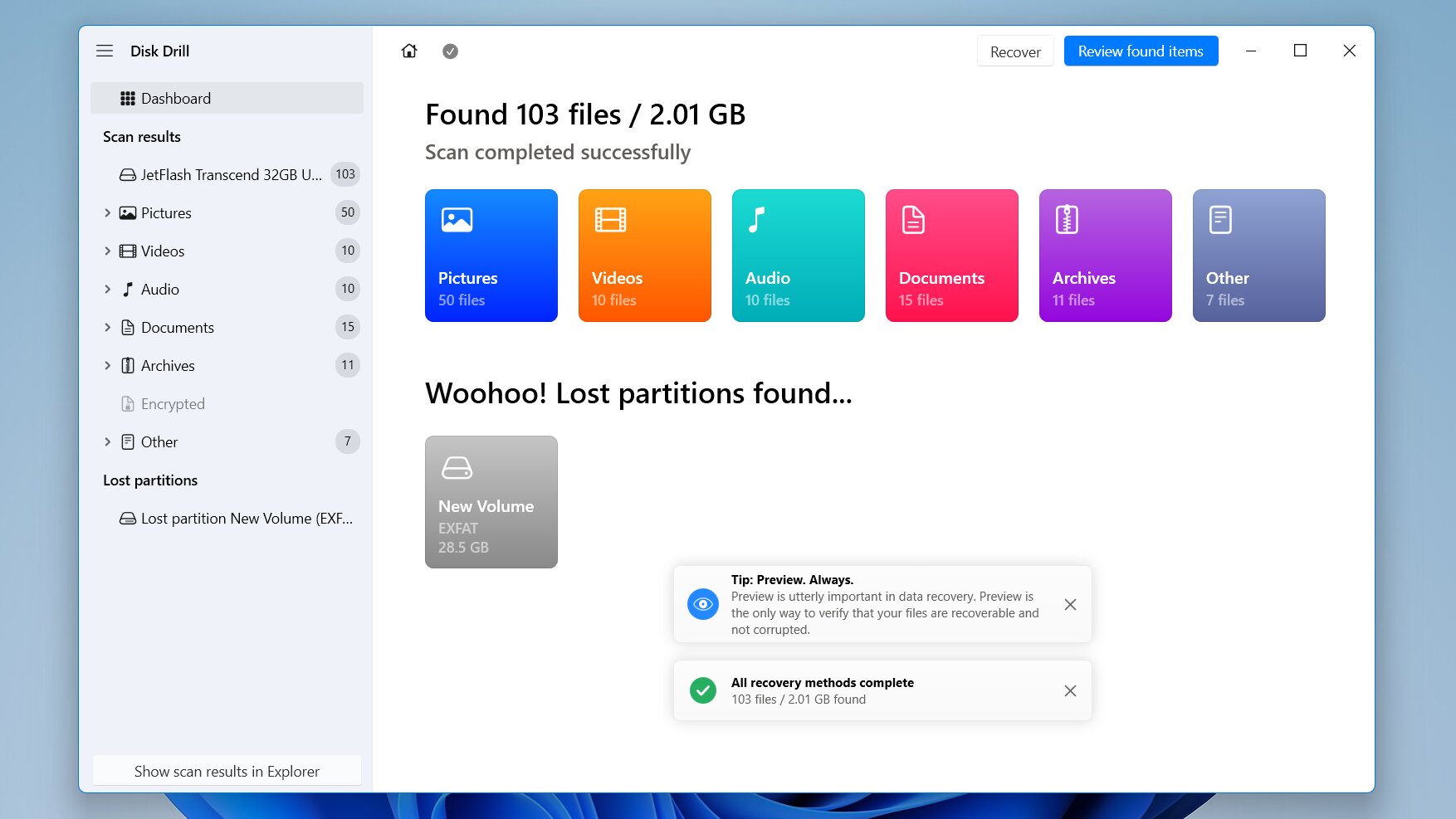 Disk Drill and R-Studio delivered the strongest recovery numbers in our comparison, with both recovering 52/52 files in the deleted-file and quick-format tests. Disk Drill had an edge in real-world usability: its scan was slightly faster, and its previews were consistently reliable, including for RAW photos, where R-Studio ran into some issues.
| Result | |
|---|---|
| Deleted files | 52/52 files recovered |
| Quick format | 52/52 files recovered |
| Deleted partition | Files found, data recoverable, partition itself not restored |
| Average scan time | 5m 16s |
The deleted-file test was the simplest scenario, and Disk Drill recovered the files with their original names and structure. After the quick format some results found by signature appeared under Reconstructed without their original names or paths.
In the deleted-partition test, Disk Drill detected the lost partition and found the files even though Windows showed the space as unallocated. We could preview and recover the data, but Disk Drill could not restore the partition itself. Its approach is to recover files from the lost partition rather than rebuild the partition in place, which makes it a better fit when getting the data back is the priority.
What Makes Disk Drill a Better MiniTool Partition Wizard Alternative?
Based on our tests and our experience with both tools, there are several areas where Disk Drill has an advantage over MiniTool Partition Wizard:
- Better focus on data recovery. Disk Drill is designed around recovering files rather than treating recovery as an additional feature inside a partition manager.
- Stronger results in our tests. It recovered 52/52 files after deletion and another 52/52 after a quick format, the best overall result in our comparison.
- Lost partition data recovery. It detected our deleted partition and found all 52 test files, even though it could not restore the partition itself.
- Better recovery workflow. Previews, recovery-chance estimates, filters, search, and separate Deleted or lost, Reconstructed, and Existing result groups make large scans easier to inspect.
- Built-in disk imaging. Disk Drill can create a copy of a drive before recovery, which is particularly useful when the original storage device is unstable or damaged.
- Windows and macOS support. Unlike MiniTool Partition Wizard, Disk Drill has native versions for both operating systems, and the same PRO license covers Windows and Mac.
Disk Drill would not be our first choice if the only goal is to repair and restore a deleted partition in place. But if you have lost files, formatted a drive, or deleted an entire partition and primarily want the data back, it was the strongest performer in our tests.
2. R-Studio
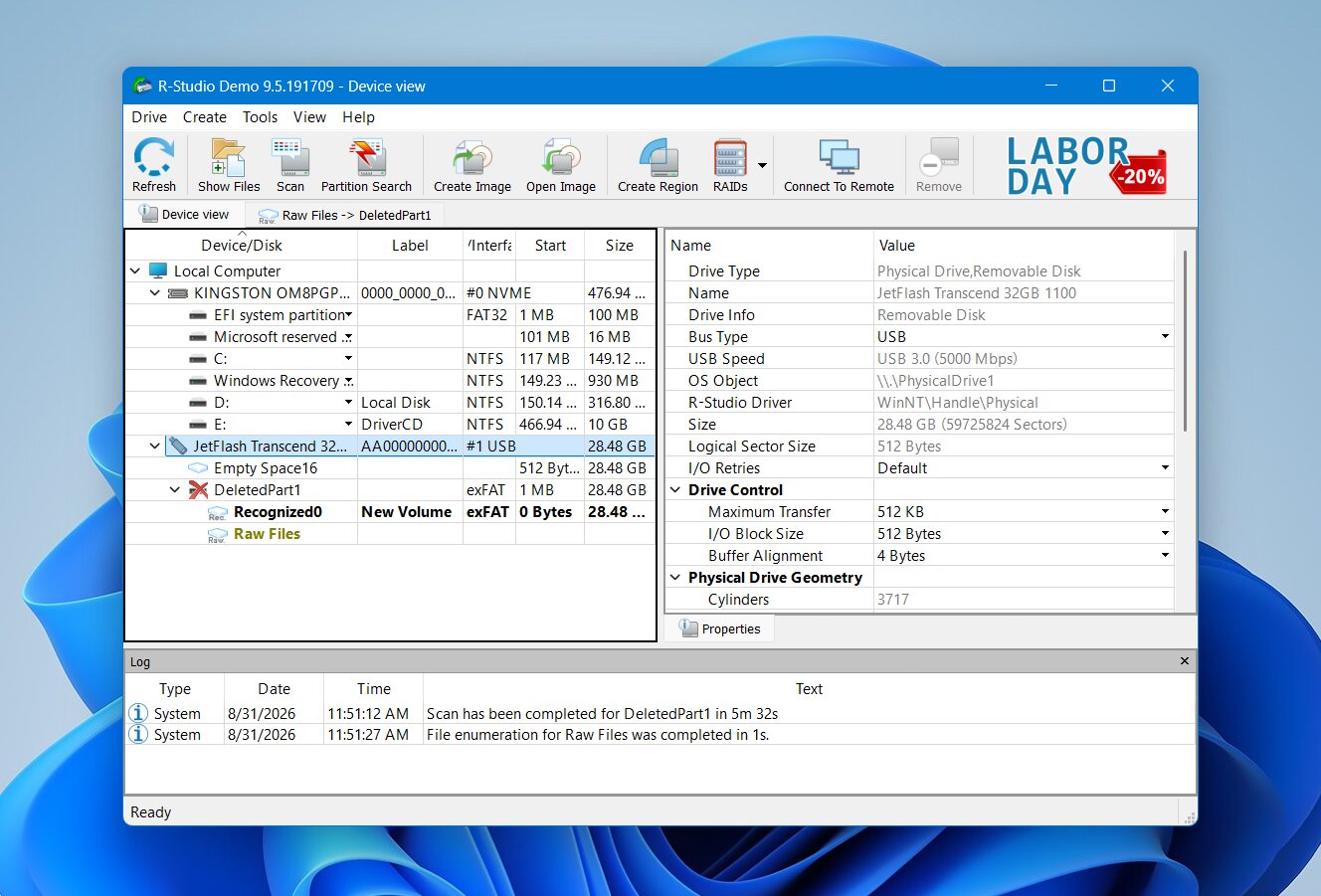 R-Studio is developed by R-Tools Technology, a company that has been developing data recovery software since 2000. Unlike MiniTool Partition Wizard, R-Studio is built primarily for data recovery professionals, system administrators, and experienced users, which explains both its extensive feature set and its more technical interface. It supports Windows, macOS, and Linux, works with a wide range of file systems, and includes advanced tools for disk imaging, RAID reconstruction, network recovery, and low-level disk analysis.
Best for: Advanced users. R-Studio provides extensive control over scans, file systems, disk images, and recovery parameters. The tradeoff is a much steeper learning curve than Disk Drill and a less approachable interface.
Price: The R-Studio demo allows scanning and previews but limits actual recovery to files of 1024 KB or smaller. The Standard edition costs $79.99 as a one-time purchase, while more advanced Corporate and Technician editions cost considerably more. Licenses are tied to a computer, so using R-Studio on another machine or platform may require another license.
Interface & Usability
R-Studio gives you much more control over the scan than MiniTool Partition Wizard, but that also makes the workflow more complicated. You start by selecting a physical disk or partition and clicking Scan. From there, you can specify the file systems to search for, choose the scan area, select known file types, and adjust other parameters. We kept the default settings during our tests.
As the scan runs, R-Studio displays a sector map and estimated completion time. Once it finishes, you may see several recognized partitions rather than one consolidated list of files. You need to open the appropriate result, browse its directory tree, preview files, and mark what you want before clicking Recover Marked.
This approach provides plenty of control, but it also assumes that you understand what the different partitions, file systems, and scan results represent. We found it noticeably less intuitive than Disk Drill, especially when several recognized partitions appeared after a scan.
Recovery Performance
As we already mentioned, R-Studio matched Disk Drill with some of the strongest recovery results in our comparison. It recovered all 52 files in the deleted-file test and another 52/52 files after a quick format, for a total of 104/104 files across the first two tests.
| Result | |
|---|---|
| Deleted files | 52/52 files recovered |
| Quick format | 52/52 files recovered |
| Deleted partition | Files found; lost partition detected, but not restored in place |
| Average scan time | 5 min 33 sec |
When enough file system metadata remained, R-Studio preserved original filenames and folder structure rather than relying entirely on raw file signatures. This made the recovered results much easier to organize.
The main problem we encountered was with RAW photo previews. Some RAW files could not be previewed reliably, even though R-Studio had detected them. This matters because a working preview is one of the best ways to check whether a file is intact before you pay for recovery. We encountered similar RAW-format issues in previous R-Studio testing as well.
R-Studio also performed well in our deleted-partition test. After we removed the exFAT partition and the space became unallocated, R-Studio identified the lost file system and gave us access to the files stored there before deletion.
However, this is data recovery from a lost partition, not restoration of the partition itself. R-Studio can locate previous file-system structures, open them, and recover their contents to another drive, but it does not write the deleted partition back to the partition table so that it becomes a normal accessible volume again. For that type of in-place partition recovery, TestDisk or DiskGenius is a better fit.
What Makes R-Studio a Better MiniTool Partition Wizard Alternative?
R-Studio makes the most sense as a MiniTool alternative when you need deeper control over the recovery process rather than a general-purpose partition manager:
- Strong recovery performance. R-Studio recovered 52/52 files after deletion and 52/52 after a quick format in our tests.
- Lost partition detection. It detected our deleted exFAT partition and found all 52 files stored on it, although it could not restore the partition itself.
- More control over scans. You can select file systems, scan ranges, known file types, and other parameters instead of relying entirely on automatic settings.
- Extensive file system support. R-Studio works with NTFS, ReFS, FAT/exFAT, HFS+, APFS, Ext2/3/4, XFS, UFS, and other file systems.
- Advanced RAID recovery. It supports numerous standard and non-standard RAID configurations, as well as Windows Storage Spaces, Apple RAID, and Linux mdadm arrays.
- Professional recovery tools. Disk imaging, S.M.A.R.T. monitoring, a hex viewer, and custom file signatures provide additional options for more complicated recovery cases.
R-Studio came very close to Disk Drill in terms of functionality and our data recovery tests, but it targets a different type of user. We recommend it mainly for experienced users who want detailed control over scans and complex storage configurations. For everyday file recovery, its dense interface and very restrictive free version make it harder to recommend as the best overall choice.
3. TestDisk
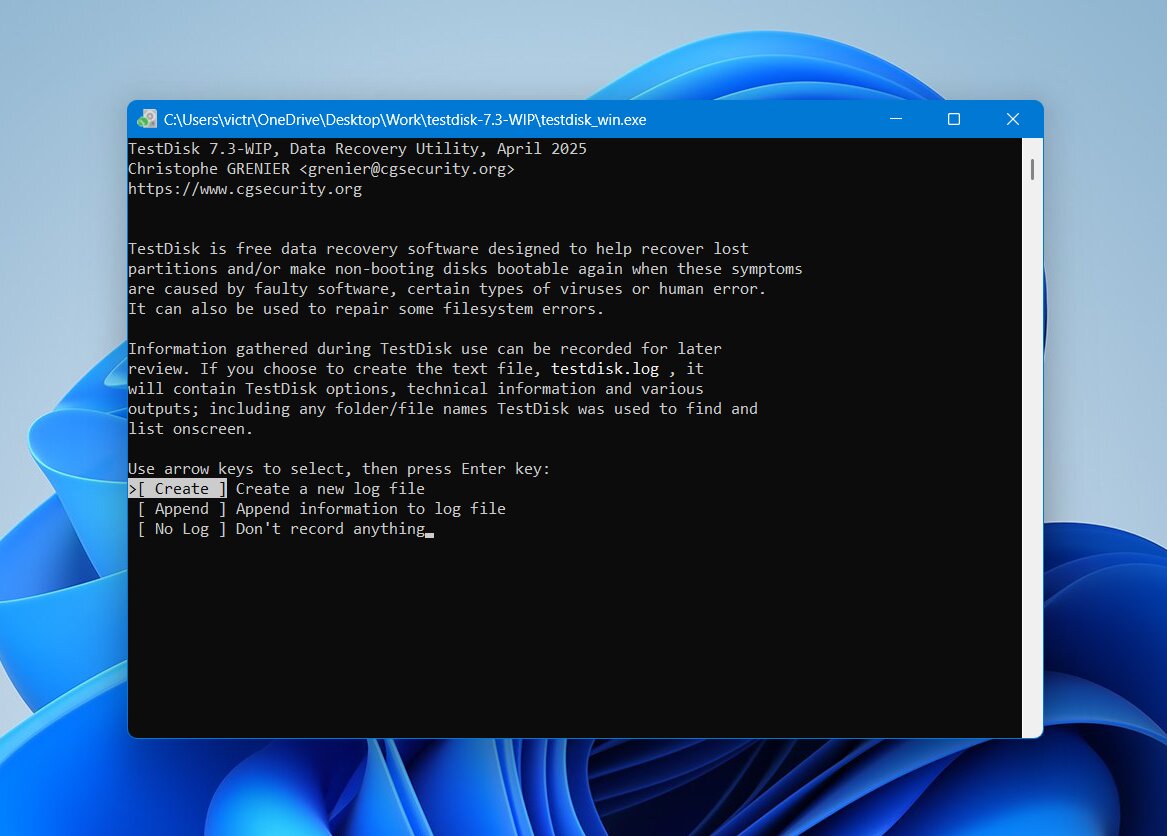 TestDisk is a free, open-source utility created by Christophe Grenier and maintained as part of the CGSecurity project. It takes a very different approach from MiniTool Partition Wizard and the commercial recovery tools above: its main purpose is to find lost partitions, repair partition structures, and restore access to disks, rather than scan for hundreds of file signatures. It has been available since 1998 and runs on Windows, macOS, Linux, and several other operating systems.
Best for: Free partition recovery. TestDisk is completely free and particularly useful for finding lost partitions and repairing certain partition table and boot sector problems. It also runs on Windows, macOS, and Linux, but its text-based interface requires more technical knowledge.
Price: TestDisk is completely free and open-source under the GNU General Public License. There are no recovery limits, subscriptions, paid editions, or locked features.
Interface & Usability
TestDisk has no graphical interface. Everything takes place in a text-based window where you navigate with the arrow keys, Enter, and keyboard shortcuts. You don’t normally need to type commands, but the workflow is considerably less intuitive than MiniTool Partition Wizard, Disk Drill, or R-Studio.
For partition recovery, you select the physical disk, confirm its partition table type, and choose Analyse. TestDisk first examines the existing partition structure and then lets you run Quick Search for lost partitions. If the correct partition appears, you can inspect it and use Write to add the recovered partition information back to the partition table. A Deeper Search is available when Quick Search doesn’t find what you need.
This last step is what separates TestDisk from the first two alternatives on our list. Disk Drill and R-Studio can locate lost partitions and recover files from them, while TestDisk can actually restore the partition itself. However, Write modifies the source disk, so we recommend recovering important files or creating an image first when possible.
Recovery Performance
We didn’t include TestDisk in our deleted-file and quick-format recovery tests. Although it has an Undelete feature for FAT, exFAT, NTFS, and ext2 volumes, conventional file recovery isn’t its primary purpose. It relies on file system metadata and doesn’t perform signature-based scans, which makes a direct comparison with Disk Drill and R-Studio less meaningful.
Instead, we focused on the test that actually matches what TestDisk is designed to do: recover a lost partition.
| Test | Result |
|---|---|
| Deleted files | Not tested |
| Quick format | Not tested |
| Deleted partition | Successfully restored |
TestDisk found our deleted exFAT partition and correctly identified its original structure. After we verified the partition and used Write to update the partition table, the volume became accessible again with
What Makes TestDisk a Better MiniTool Partition Wizard Alternative?
TestDisk has a much narrower feature set than MiniTool Partition Wizard, but there are several reasons to choose it when partition recovery is the main goal:
- Completely free. Partition recovery isn’t locked behind a paid edition, and there are no limits on how much data you can access.
- Actual partition restoration. TestDisk can find a deleted partition and write the recovered entry back to the partition table instead of only extracting its files.
- Excellent result in our partition test. It restored our deleted exFAT partition and made all 52/52 files accessible again.
- Partition and boot sector repair. Its tools can analyze partition structures and repair certain damaged FAT and NTFS boot sectors.
- Cross-platform support. TestDisk runs on Windows, macOS, Linux, BSD, and several other operating systems.
- No installation required on Windows. It can run directly from the extracted folder, which is useful when you want to avoid installing additional software on the affected disk.
TestDisk is therefore the best free MiniTool Partition Wizard alternative for lost partition recovery, but not a direct replacement for everything MiniTool does. Its file recovery capabilities are limited, and its text-based interface leaves much more room for user error. We would use it when the partition itself needs to be restored; if the priority is recovering individual files from a deleted, formatted, or badly damaged volume, Disk Drill or R-Studio is the better choice.
4. DMDE
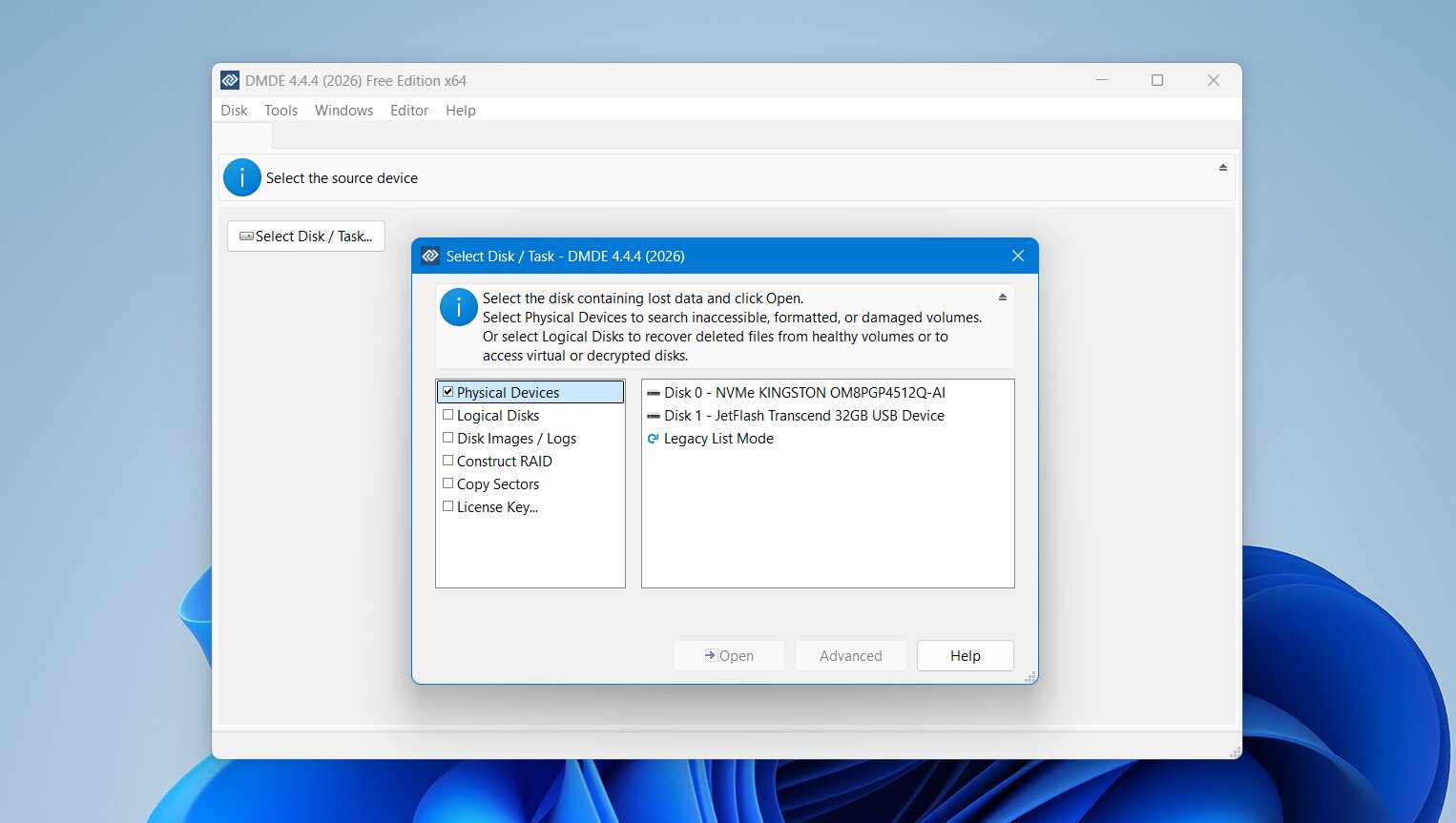 DMDE is a data recovery and disk editing utility developed by Dmitry Sidorov. It combines file recovery with partition search, disk editing, disk imaging, and other low-level tools, but its interface is aimed more at experienced users than beginners. Compared with MiniTool Partition Wizard, DMDE offers much more direct access to disk structures, although that also makes it easier to get lost if you are unfamiliar with partitions and file systems.
Best for: Technical users on a budget. DMDE provides both file and partition recovery with plenty of manual controls, but its interface is dated and can be difficult to navigate. The workflow is less intuitive than most alternatives on this list, so we mainly recommend it to users who already understand disk structures and recovery basics.
Price: The free version can recover up to 4,000 files from one directory per request, with unlimited requests. Paid plans start at $9.95/month, while the Standard lifetime license costs $48.
Interface & Usability
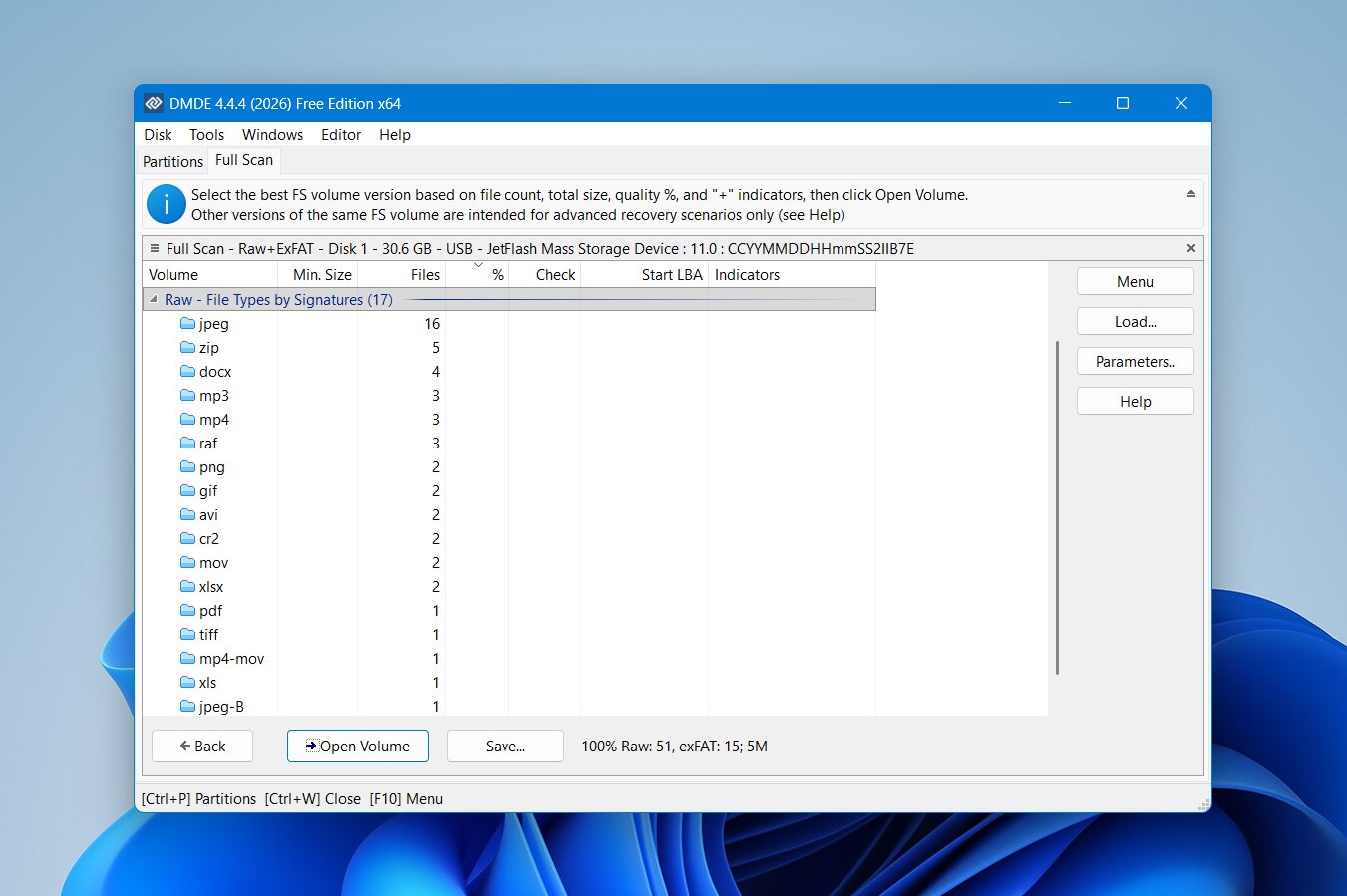 DMDE has one of the more technical interfaces in our comparison. After selecting a physical disk, the Partitions window displays detected volumes and other structures found on the device. From there, you can open a volume directly or run a Full Scan when the expected file system is missing or damaged.
Scan results may contain several possible volumes, and DMDE expects you to determine which one is relevant. Once you open a result, you can browse directories, search for files, inspect deleted entries, and select data for recovery.
There are plenty of useful controls, but the workflow isn’t particularly intuitive. Labels, icons, file system information, sector values, and recovery options are packed into the same interface, with relatively little guidance about what you should choose next. We found it harder to navigate than Disk Drill and less structured than R-Studio.
Recovery Performance
DMDE performed well in our first two tests, although it was noticeably slower than Disk Drill, R-Studio, and DiskGenius. Its average scan time was 9 minutes 14 seconds.
| Result | |
|---|---|
| Deleted files | 51/52 files found |
| Quick format | 51/52 files found |
| Deleted partition | 17/52 files recoverable |
| Average scan time | 9 min 14 sec |
In the ordinary deletion test, DMDE found 51 of our 52 original files. That put it only one file behind Disk Drill and R-Studio, both of which recovered the complete test set.
DMDE maintained the same 51/52 result after the quick format, which was a solid outcome and notably better than DiskGenius’s 47/52 result in the same scenario. However, it still fell short of the complete 52/52 results achieved by Disk Drill and R-Studio.
The deleted-partition test was much less successful. After we removed the partition and the space became unallocated, DMDE found recoverable data, but only 17 of our 52 test files were available for recovery. It therefore failed to reproduce the complete partition structure or give us access to most of the original dataset.
This result is important because DMDE includes partition search and reconstruction tools, but their presence doesn’t guarantee that a lost partition will be restored successfully in every case. In our particular test, TestDisk and DiskGenius handled the deleted partition considerably better.
What Makes DMDE a Better MiniTool Partition Wizard Alternative?
DMDE isn’t the easiest MiniTool replacement on this list, but it has a few advantages for users who want more manual control:
- Good file recovery results. DMDE found 51/52 files in both our deletion and quick-format tests.
- Detailed disk access. It exposes partitions, file systems, sectors, and other low-level information that simpler recovery programs largely hide.
- Partition search tools. DMDE can search for lost volumes and work with damaged partition structures, although it performed poorly in our deleted-partition test.
- Disk editing tools. Experienced users can inspect and modify disk structures directly rather than relying entirely on automated repair functions.
- Disk imaging support. You can work with disk images instead of the original storage device, which is useful when you want to avoid unnecessary changes to the source.
- Relatively inexpensive licenses. Its paid editions generally cost less than many commercial data recovery suites.
DMDE is a reasonable choice for experienced users who want inexpensive access to file recovery and low-level disk tools. Its 51/52 result in both file recovery tests was good, but the difficult interface, longer scan time, and weak 17/52 result after partition deletion keep it below Disk Drill and R-Studio for data recovery and below TestDisk or DiskGenius for lost partition recovery.
5. DiskGenius
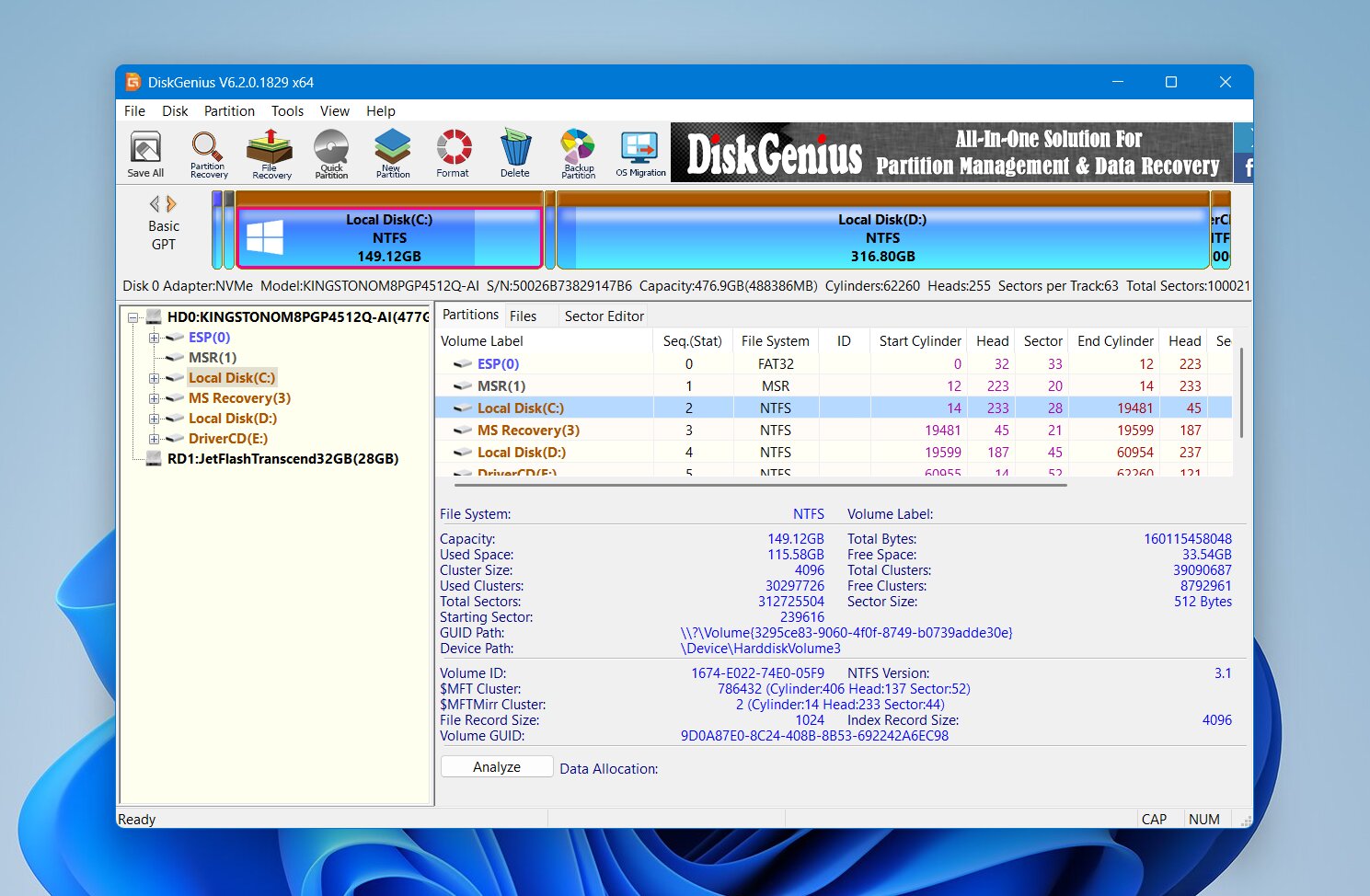 DiskGenius is a Windows utility that combines partition management, partition recovery, and file recovery in one application. That makes it one of the closest alternatives to MiniTool Partition Wizard on this list. You can resize and format partitions, clone disks, search for lost partitions, and recover files from deleted, formatted, or damaged volumes without switching between separate programs.
Best for: Partition management and recovery in one tool. DiskGenius combines lost partition and file recovery with tools for resizing, formatting, cloning, and managing partitions. It is a practical MiniTool replacement for Windows users, but some recovery features require a paid license and there is no macOS version.
Interface & Usability
DiskGenius uses a traditional disk-management interface. Connected physical drives and their partitions appear in a tree on the left, while the main area displays the selected disk’s partition layout, files, and technical information.
For file recovery, you select the affected partition and choose Recover Lost Files. DiskGenius lets you search for deleted files, perform a more extensive scan for known file types, or combine the available methods. Once the scan finishes, you can browse the directory tree, filter results, and preview supported files before recovery.
Lost partition recovery uses a separate Search Lost Partitions function. DiskGenius scans the disk for previous partition structures and lets you inspect the files inside a detected partition before deciding whether it is the correct one. If it is, the recovered partition structure can be saved back to the disk.
The interface provides plenty of information, but it can feel crowded. Recovery, partition management, cloning, formatting, and other disk operations are all available from the same workspace, so you need to pay attention to which operation you select.
Recovery Performance
DiskGenius was the fastest tool in our comparison, with an average scan time of just 4 minutes 43 seconds.
| Result | |
|---|---|
| Deleted files | 51/52 files found |
| Quick format | 47/52 files found |
| Deleted partition | Partition successfully detected and restored |
| Average scan time | 4 min 43 sec |
In the deletion test, DiskGenius found 51 of our 52 files, putting it just behind Disk Drill and R-Studio. Preview support was generally good, and most of the files we checked could be inspected before recovery.
Results dropped after the quick format, where DiskGenius found 47 of 52 files. Previews continued to work well for common formats, but some of our RAW camera photos did not preview correctly. This made it harder to verify their condition before recovery.
The deleted-partition test played more to DiskGenius’s strengths. It detected the missing partition and allowed us to inspect its contents before restoring the partition structure. After we saved the changes, the partition became accessible again with its original files and folders.
Overall, its file recovery results were good, particularly considering its scan speed, but they did not match the 52/52 results in both file recovery scenarios achieved by Disk Drill and R-Studio. Its advantage is that it can also restore a lost partition rather than simply recover the files stored on it.
What Makes DiskGenius a Better MiniTool Partition Wizard Alternative?
DiskGenius is one of the most direct MiniTool alternatives in this comparison because the two programs cover many of the same storage tasks:
- File and partition recovery in one program. DiskGenius can recover individual files as well as search for and restore lost partitions.
- Fast scans. Its 4 minute 43 second average made it the fastest tool in our file recovery tests.
- Lost partition restoration. Unlike Disk Drill and R-Studio, DiskGenius can save a recovered partition structure back to the disk.
- Useful previews. You can inspect many supported photos, documents, and other files before recovery, although we encountered problems with some RAW images.
- Extensive partition management tools. DiskGenius can create, delete, format, resize, and manage partitions alongside its recovery features.
- Additional disk utilities. Cloning, disk imaging, sector editing, and other storage tools make it useful beyond recovery alone.
DiskGenius makes the most sense if you want a Windows tool that can handle both partition management and recovery. Its file recovery results were weaker than Disk Drill and R-Studio in our tests, but its ability to restore lost partitions makes it a much closer functional replacement for MiniTool Partition Wizard.
Verdict
The best MiniTool Partition Wizard alternative depends on whether you need to recover individual files, restore a lost partition, or want both recovery and disk management tools.
Our tests showed clear differences between the five options: R-Studio delivered the best overall recovery performance but is better suited to experienced users, while Disk Drill combined equally strong recovery numbers with a simpler workflow for reliable everyday recovery. TestDisk stood out for free partition restoration, DMDE offered good recovery capabilities at a low price, and DiskGenius provided the closest mix of partition management and data recovery features.
- Choose Disk Drill if your priority is recovering deleted or formatted files with a simple workflow, strong previews, and consistently high recovery results.
- Choose R-Studio if you are an experienced user who wants more control over scans, file systems, RAID configurations, and other advanced recovery tasks.
- Choose TestDisk if you need to restore a lost partition for free and are comfortable with its text-based interface.
- Choose DMDE if you want an inexpensive recovery tool with low-level disk controls and don’t mind a more difficult interface.
- Choose DiskGenius if you want a Windows utility that combines file recovery, lost partition restoration, and everyday partition management in one program.
Whichever tool fits your situation, the safest order remains the same: recover important files first, then repair, resize, format, or otherwise modify the affected disk.