


Summary: Disk Drill is the strongest all-round Recuva alternative, with excellent recovery performance, reliable previews, an easy-to-use interface, and a broader set of recovery features. R-Studio matched it in recovery performance in our tests but is a better fit specifically for advanced users. PhotoRec is the best completely free option, while Recoverit, Stellar, and DiskGenius offer useful alternatives for specific recovery scenarios.
Recuva is one of the most recognizable names in data recovery software, and there’s a good chance that anyone who has ever tried to recover deleted files on Windows has come across it. Even in 2026, it is still regularly recommended on Reddit and other tech forums, largely because it is free and easy to use even for beginners.
But does Recuva still deserve all those recommendations? Many users start looking for Recuva alternatives after the software fails to find their files or simply cannot work with the drive they need to recover. Our own testing showed a similar pattern: Recuva performed reasonably well with recently deleted files from a healthy drive, but its results dropped considerably in more complicated recovery scenarios.
The main limitations we found were:
- It does not reconstruct damaged file systems. Recuva is primarily an undelete tool and relies heavily on an accessible file system. It is much less useful when file system metadata or the partition itself is damaged.
- RAW drives and damaged or lost partitions are a major problem. Recuva needs a partition that Windows can recognize and assign a drive letter. If a drive becomes RAW or its partition is lost or severely corrupted, Recuva may not even let you scan it.
- File system support is limited. Recuva covers the common Windows file systems, including NTFS, FAT16, FAT32, and exFAT, but it does not support HFS+, APFS, ext3, or ext4. This becomes an issue when you connect a drive previously used with macOS or Linux.
- Development has been relatively stagnant. Recuva first appeared in the mid-2000s, and although it still receives occasional updates, its core functionality has changed little. The interface has not had a major redesign in more than a decade, and there have been few additions to its recovery capabilities.
- Its file signature recovery is limited. This matters when the original file system metadata is gone and the software has to identify files by their contents. Less common formats and large or fragmented multimedia files are particularly problematic. In our tests, RAW camera photos and large videos produced noticeably weaker results, with some files missing and others recovered in corrupted form.
- There are almost no additional recovery or drive-protection tools. Recuva cannot create a disk image and lacks S.M.A.R.T. monitoring, RAID tools, and preventive features such as Recovery Vault. Its extra functionality is largely limited to secure deletion and, in the Professional edition, support for scanning existing virtual drive images.
One Reddit user put it like this: “Recuva is essentially an overrated undelete tool.” They argued that the problem is not that Recuva is free, but that it is often recommended regardless of the recovery scenario, even when the file system is damaged or the tool is otherwise unsuitable.
Want to see how Recuva performed in more detail? Check our full Recuva review for the complete test results, features, and performance breakdown.
How We Tested the Best Recuva Alternatives
For this guide, we tested and compared six of the best Recuva alternatives for Windows in 2026 to see which tools can go further and where each one performs best. As with all of our software reviews, we followed our strict, standardized testing guidelines so that every program faced the same recovery scenarios under the same conditions. We used default scan settings wherever possible and did not adjust the tests to favor any particular tool.
Our Test Setup
We used the same hardware and storage device throughout the comparison:
- Test PC: Windows 11 laptop with an Intel Core i5-12450H (12th Gen) CPU and 16 GB DDR4 RAM.
- Test drive: 32 GB Transcend USB flash drive, formatted as exFAT.
- Test data: The drive contained 52 files totaling 1.1 GB, with the same dataset used for every test. It included JPG, PNG, GIF, CR2, and RAF images; MP4, MOV, and AVI videos; MP3 and M4A audio; DOC/DOCX, XLS/XLSX, PDF, and TXT documents; and ZIP archives. We deliberately mixed small everyday files with larger videos and RAW camera photos to see how each tool handled different file types and sizes.
We measured scan time, the amount of usable data recovered, preservation of original filenames and folder structure, and preview reliability. We also checked how much data each program could reconstruct through file signature recovery when file system metadata was no longer available.
Data Loss Scenarios We Tested
We used two recovery scenarios designed to show both how well each Recuva alternative handles basic file recovery and what happens when the situation becomes more difficult.
- Test 1: Ordinary file deletion. First, we filled the exFAT USB drive with our test dataset and then deleted the files normally. This represented one of the most common data loss situations and an area where Recuva itself typically performs well. We scanned the drive with each tool and checked not only how many files it found, but how many could actually be recovered and opened. We also recorded whether the software preserved the original filenames and folder structure and whether its previews accurately reflected the condition of the files.
- Test 2: Quick-formatted USB drive. For the second test, we restored the original dataset to the USB drive and then performed a quick format. This removed the existing file system metadata without deliberately overwriting the entire contents of the drive, creating a more difficult recovery scenario. We then scanned the formatted USB with every program and compared how well each tool located the lost data, reconstructed files through signature-based scanning, preserved filenames and folders where possible, and recovered files that were actually usable after restoration.
This way, we can have a clearer picture than a simple deleted-file test alone. A tool could perform very well when file system metadata was still available but produce very different results once that metadata was lost after formatting.
How We Ranked the Tools
Recovery performance carried the most weight, but it was not the only factor. We also evaluated usability, file system and device compatibility, additional features, and value for money. For pricing, we considered the free recovery limit or trial, the cost of upgrading, the features included with the license, and whether the actual recovery results justified that cost.
This distinction is particularly important in a Recuva alternatives comparison because Recuva offers unlimited free recovery. We did not rank a paid program higher simply because it had more features. To earn a higher position, an alternative had to provide a meaningful advantage through better recovery results, support for more difficult data loss scenarios, or genuinely useful extras such as disk imaging, broader file system support, or drive monitoring.
Quick Comparison: Recuva vs the Best Alternatives
| Feature | Recuva | Disk Drill | R-Studio | PhotoRec | DiskGenius | Recoverit | Stellar |
|---|---|---|---|---|---|---|---|
| Deleted file recovery | ✅ | ✅ | ✅ | ✅ | ✅ | ✅ | ✅ |
| Formatted drive recovery | ⚠️ Limited | ✅ | ✅ | ✅ | ✅ | ✅ | ✅ |
| RAW / lost partition recovery | ❌ | ✅ | ✅ | ✅* | ✅ | ✅ | ✅ |
| File system reconstruction | ❌ | ✅ | ✅ | ❌ | ✅ | ✅ | ⚠️ Limited |
| Signature-based recovery | ✅ Limited | ✅ | ✅ | ✅ | ✅ | ✅ | ✅ |
| File preview | ⚠️ Limited | ✅ | ✅ | ❌ | ⚠️ Limited | ✅ | ✅ |
| Recovery chances indicator | ✅ Basic | ✅ | ❌ | ❌ | ❌ | ❌ | ❌ |
| Disk imaging | ❌** | ✅ | ✅ | ❌ | ✅ | ✅ | ✅ |
| S.M.A.R.T. monitoring | ❌ | ✅ | ✅ | ❌ | ✅ | ❌*** | ❌**** |
| RAID recovery | ❌ | ✅ | ✅ | ❌ | ✅ | ⚠️ Limited | ⚠️ Edition-dependent |
| Advanced camera/video recovery | ❌ | ✅ ACR | ❌ | ❌ | ❌ | ✅ Enhanced Recovery | ⚠️ Separate tools |
* PhotoRec can recover files from RAW or damaged storage because it ignores the file system and searches by file signatures, but it does not reconstruct the lost partition or original file system.
** Recuva Professional can scan supported virtual disk images, but Recuva cannot create an image of a physical drive itself.
*** S.M.A.R.T. monitoring is unavailable in the Windows version of Recoverit.
**** Stellar offers drive monitoring separately rather than as a core feature of Stellar Data Recovery.
***** Disk Drill does not have a native Linux desktop version, although it supports recovery from Linux file systems and Linux recovery over SSH.
6 Best Recuva Alternatives in 2026
Below, we look at each Recuva alternative individually, with a focus on our test results, usability, key features, pricing, and how it compares directly with Recuva. This should make it easier to see where each tool performs better, where it falls short, and which one makes the most sense for different recovery needs. Let’s move on to the results.
Free vs. Paid Recuva Alternatives: Free tools such as Recuva and PhotoRec can be enough for basic recovery. Paid alternatives often provide better recovery results in more complex cases, along with important extras such as disk imaging, better previews, and broader file system support. They also tend to receive more active development and offer customer support if something goes wrong.
| Tool | Deleted Files Test | Quick Format Test | Avg. Time | Preview Quality | Free Recovery | Recovery Accuracy | Best For |
|---|---|---|---|---|---|---|---|
| Disk Drill | 52/52 | 52/52 | 5m 16s | Excellent – every tested file previewed correctly | 100 MB | Excellent – found the complete test set in both scenarios | Best overall |
| R-Studio | 52/52 | 52/52 | 5m 33s | Good – some RAW photo previews were broken or unreliable | Files up to 1,024 KB | Excellent – found the complete test set in both scenarios | Advanced users |
| PhotoRec | 49/52 | 47/52 | 8m 25s* | No previews | Unlimited | Good, but signature-based recovery loses original names and folder structure | Best completely free option |
| DiskGenius | 51/52 | 47/52 | 4m 43s | Good – some RAW files did not preview correctly after formatting | Files under 64 KB | Good | Lost partitions & disk management |
| Wondershare Recoverit | 51/52 | 48/52 | 7m 17s | Good – some difficulties with RAW photo previews | 500 MB | Mixed – returned more results than the 52-file dataset in the deletion test | Beginners |
| Stellar Data Recovery | 51/52 | 46/52 | 9m 10s | Limited in free version – files under 10 MB only; RAW photos and larger videos could not be previewed | 1 GB | Good in deletion test, weaker after formatting | Simple recovery |
| Recuva (Deep Scan) | 50/52 | 44/52 | 11m 08s | Limited – JPG and PNG worked; videos and RAW photos generally did not | Unlimited | Good for basic deletion, noticeably weaker after formatting | Basic free undelete |
*PhotoRec’s time includes both scanning and recovery.
1. Disk Drill (Best Recuva Alternative Overall)
 Disk Drill is a data recovery tool developed by CleverFiles for Windows and macOS. Compared with Recuva, it is designed for a broader range of data loss scenarios, from accidentally deleted files to formatted drives, RAW partitions, and lost partitions. It also supports a wider range of file systems and includes additional tools such as disk imaging and S.M.A.R.T. monitoring, which makes it a more versatile tool.
Best for: The best overall Recuva alternative for users who need stronger recovery from formatted, RAW, or damaged storage rather than basic undelete alone.
Price: Disk Drill Basic for Windows lets you scan and preview recoverable files and recover up to 100 MB for free. Disk Drill PRO currently costs $89/year, while a $149 lifetime license is also available. Both PRO options provide unlimited personal recovery for one user with up to three simultaneous activations.
Interface & Usability
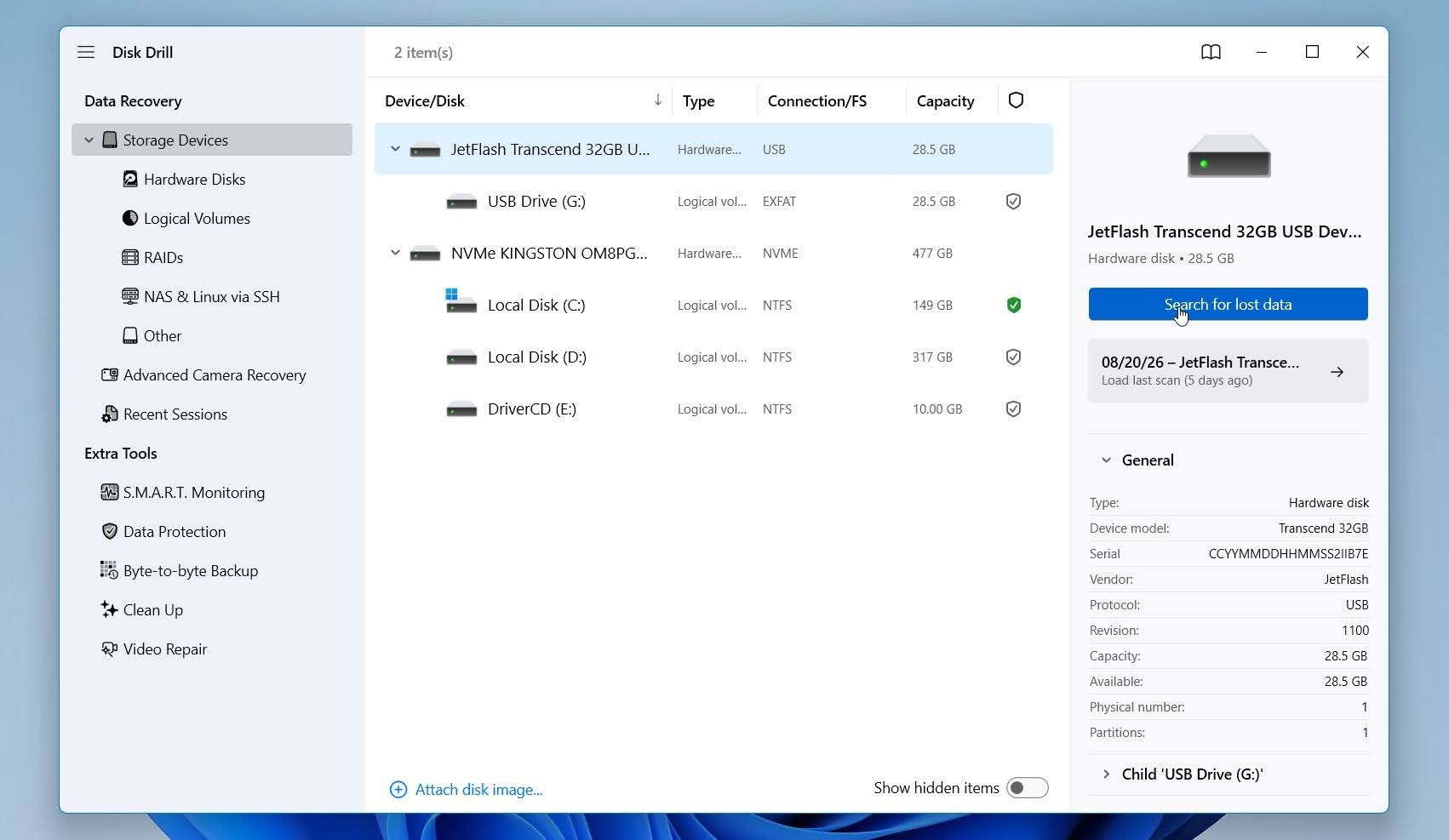
In our experience, Disk Drill feels more modern and flexible than Recuva. The main screen shows all detected disks and partitions, so you simply select the drive and click Search for lost data. There’s no need to choose between Quick and Deep Scan beforehand, and you can start reviewing files while the scan is still running.
For camera storage, Disk Drill also offers Advanced Camera Recovery (ACR), a separate mode designed to recover fragmented video files from cameras, drones, and similar devices.
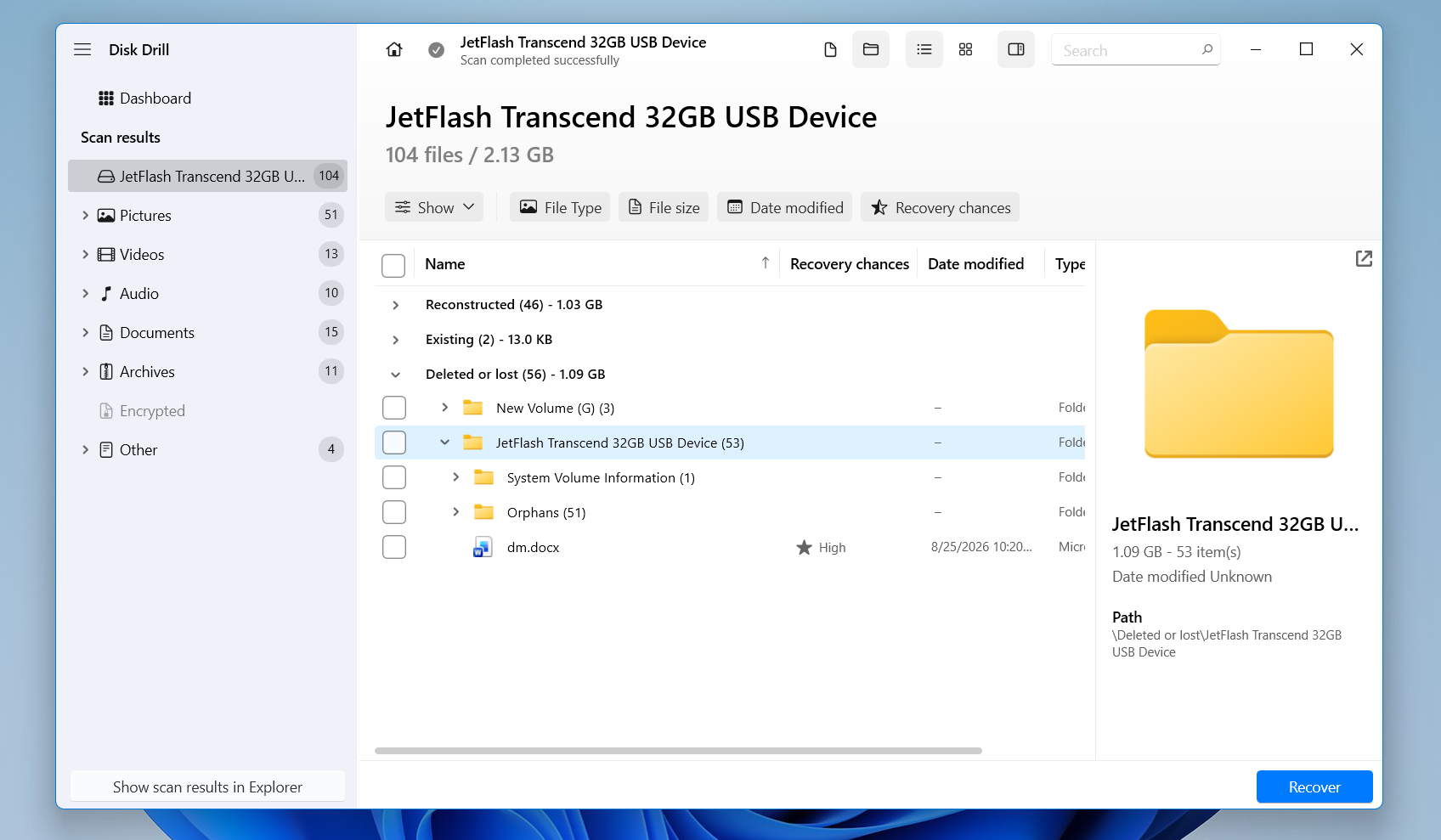
We also liked how the results are organized into Existing, Deleted or Lost, and Reconstructed files. You can filter them by type, size, date, or recovery chances and preview files before recovery. Reconstructed files may lose their original names and folder structure, but Disk Drill makes that distinction clear rather than presenting every found file as an equal recovery result.
Recovery Performance in Our Tests
Disk Drill delivered the best overall recovery results in our comparison. In the deleted-file test, it recovered all 52 out of 52 files, compared with 50/52 for Recuva. More importantly, it maintained the same result after a quick format, recovering another 52/52 files, while Recuva dropped to 44/52.
That gave Disk Drill a perfect 104 out of 104 files across both tests, compared with 94/104 for Recuva. Unlike several other tools we tested, there was no drop in recovery accuracy after formatting, which is one of the main reasons we ranked it ahead of Recuva.
Performance was also strong in terms of speed. Disk Drill completed our scans in an average of 5 minutes 16 seconds, less than half Recuva’s 11 minutes 08 seconds and slightly faster than R-Studio’s 5 minutes 33 seconds.
Preview quality was another major advantage. Every file in our test set previewed correctly, including the file types that caused problems for some competing tools. Recuva was much weaker here: JPG and PNG previews generally worked, but videos and RAW photos usually did not. Reliable previews make it much easier to check whether a file is intact before you recover it.
The main drawback is the free recovery allowance on Windows. That makes Recuva more attractive if you only need to restore a large amount of recently deleted data without paying. Disk Drill’s free version is much better suited to evaluating scan results and recovering a small selection of files before deciding whether to upgrade.
Overall, though, Disk Drill was clearly stronger in our tests. It recovered 104/104 files, maintained perfect results after formatting, completed scans much faster than Recuva, and correctly previewed every tested file. In terms of actual recovery performance and additional features, Disk Drill was the stronger tool.
What Makes Disk Drill a Better Recuva Alternative?
The biggest difference is not the interface but what Disk Drill can do once the recovery scenario becomes more complicated:
- It can work with RAW and unmountable storage. Recuva requires an accessible partition, while Disk Drill can scan RAW disks and unmountable partitions directly.
- It supports substantially more file systems. In addition to FAT32, exFAT, and NTFS, Disk Drill supports ReFS, HFS/HFS+, APFS, EXT2/3/4, and BTRFS, among others.
- It combines file-system and signature-based recovery. When usable metadata remains, Disk Drill can use it to reconstruct filenames and directory structures; when it does not, it can fall back on file signatures.
- Disk imaging is built in. Disk Drill can create a sector-level image of a storage device so you can work from the copy rather than repeatedly scan an unstable original drive. This feature is available even in a free version..
- It includes preventive tools. Recovery Vault can preserve metadata about deleted files on protected Windows drives, while S.M.A.R.T. monitoring can help track drive health. Recuva has no comparable set of preventive tools.
- It is actively developed. Disk Drill continues to receive new versions and recovery improvements; the current Windows release listed by CleverFiles is version 6.3 from July 2026.
There is a tradeoff. Recuva remains much more generous if free recovery is the priority. Recuva allows unlimited recovery for free, whereas Disk Drill Basic for Windows currently limits standard free recovery to 100 MB.
| Disk Drill | Recuva | |
|---|---|---|
| Deleted files test | 52/52 | 50/52 |
| Quick format test | 52/52 | 44/52 |
| Average scan time | 5m 16s | 11m 08s |
| Preview quality | Excellent | Limited |
| Free recovery | 100 MB on Windows | Unlimited |
| Price | Paid plans available $89 per year/ $149 lifetime | Free; Professional $24.95 |
| Best for | Best overall | Basic free undelete |
2. R-Studio
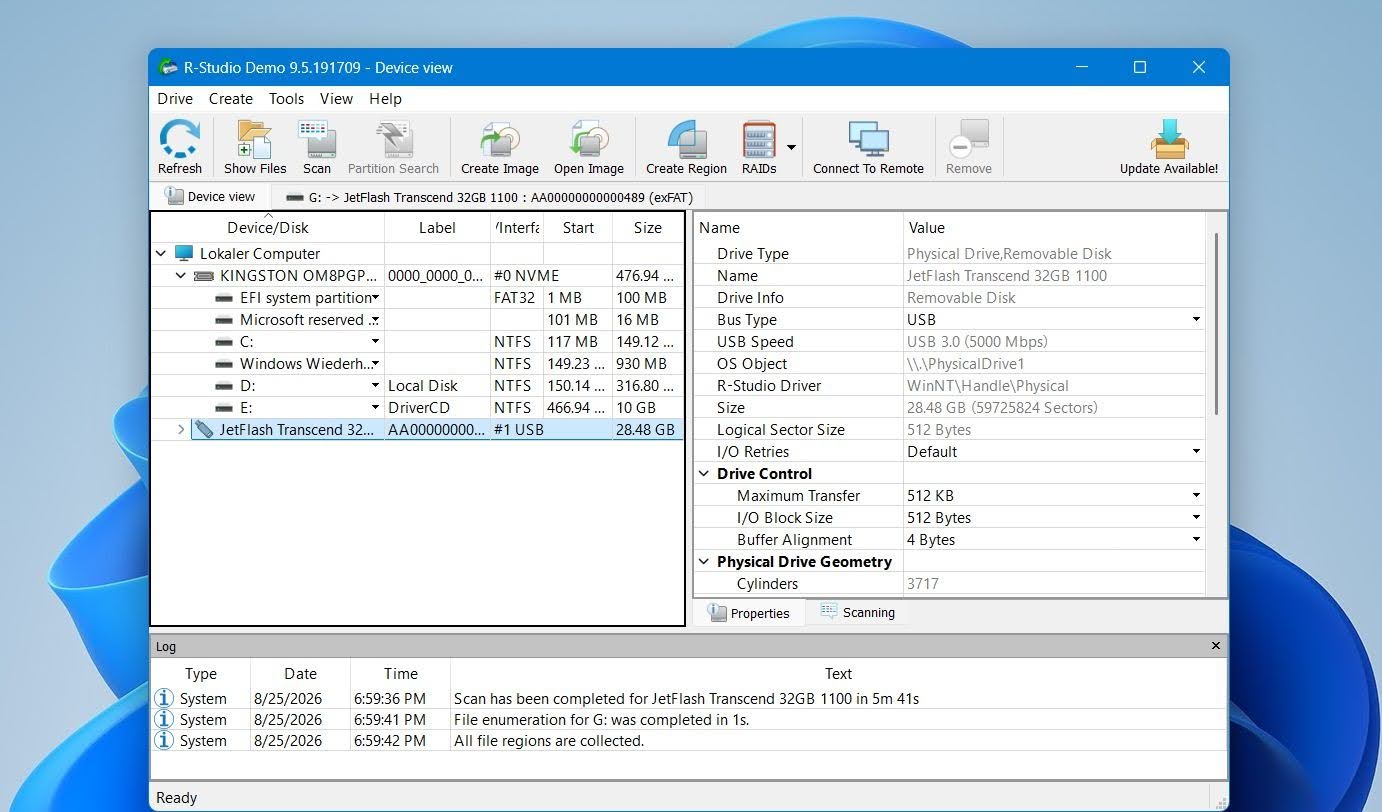 R-Studio is a data recovery tool developed by R-Tools Technology. It goes considerably further than Recuva, with support for damaged and formatted partitions, a wide range of file systems, disk imaging, and advanced RAID recovery. It gives users much more control over how a drive is scanned and how its file system is interpreted, which makes it especially attractive for difficult recovery cases, though that extra control comes with a steeper learning curve.
Best for: Advanced users who need more control over recovery, especially for damaged partitions, complex file systems, or RAID arrays.
Price: R-Studio has a free demo that lets you scan drives and preview recoverable files, but recovery is limited. The standard Windows license costs $79.99 as a one-time purchase. Less expensive FAT and NTFS editions are also available, but they restrict which file systems you can recover.
Interface & Usability
R-Studio was easily one of the most technical tools in our comparison. The main screen lists physical disks, partitions, unallocated areas, and detailed information about each device. You can select a partition and scan it directly, or adjust the scan area, file systems, and known file types.
Once the scan finishes, R-Studio may show several Recognized partitions alongside the current file system. You can open each one, browse the reconstructed folder tree, preview files, and select what you want to recover.
We liked the amount of control, but the interface can feel complicated if you’re coming from Recuva. There are far more technical options, and finding the right results among multiple recognized partitions may take some trial and error. For experienced users, though, this flexibility is one of R-Studio’s biggest strengths.
Recovery Performance in Our Tests
R-Studio delivered some of the strongest recovery results in our comparison. In the deleted-file test, it recovered all 52 out of 52 files. Recuva recovered 50/52, so both performed well with ordinary deletion, but R-Studio was the only one of the two to recover our complete test set.
The difference was much larger after a quick format. R-Studio again recovered 52/52 files, while Recuva dropped to 44/52. Across both tests, R-Studio therefore recovered 104 out of 104 files, compared with 94/104 for Recuva. This was an excellent result and made R-Studio one of the best-performing tools we tested.
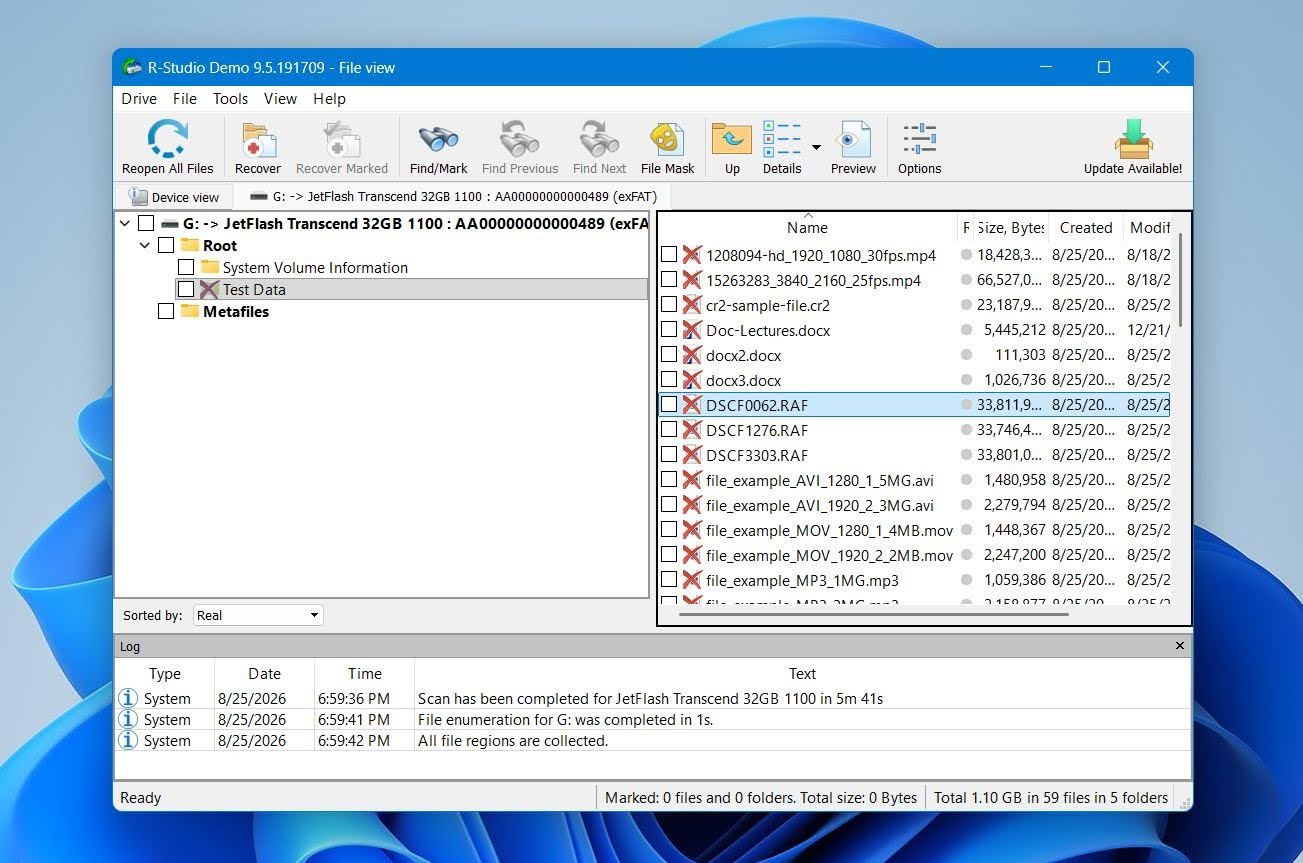
R-Studio was also considerably faster. Its scans took an average of 5 minutes 33 seconds, compared with 11 minutes 08 seconds for Recuva. For a tool with substantially more advanced scanning options, that result was particularly strong.
However, the testing was not flawless. Preview quality was inconsistent with some RAW photos, which either displayed incorrectly or could not be reliably checked before recovery. That’s a meaningful drawback because previewing is one of the easiest ways to confirm that a detected file is actually intact before you spend money on recovery.
The free version is also much more restrictive than Recuva. While Recuva allows unlimited recovery for free, R-Studio’s demo generally limits recovery to files no larger than 1,024 KB (1 MB). That makes the demo useful for testing scans and previews, but far less useful for actually recovering typical photos, videos, archives, or other larger files.
Overall, R-Studio clearly outperformed Recuva in our tests, especially after formatting, where it recovered 52/52 files versus Recuva’s 44/52. Its biggest drawbacks aren’t recovery accuracy but accessibility: the interface is considerably more technical, RAW previews were not always reliable, and the free recovery limit is restrictive. For a simple deleted-file case, R-Studio can feel like overkill, but for more difficult recovery scenarios, its stronger results and advanced features give it a significant advantage over Recuva.
What Makes R-Studio a Better Recuva Alternative?
R-Studio is a much more technical program than Recuva, but that gives it several major advantages in difficult recovery scenarios:
- It can handle damaged and formatted file systems. R-Studio can search for previous partitions and reconstruct recognized file systems instead of depending only on the currently accessible volume.
- File system support is much broader. It supports NTFS, ReFS, FAT/exFAT, APFS, HFS/HFS+, Ext2/3/4, UFS and several other file systems, while Recuva is largely limited to Windows FAT, exFAT, and NTFS volumes.
- RAID recovery is a major strength. R-Studio can work with RAID arrays and lets experienced users create virtual RAID configurations when the original array is damaged or unavailable.
- It includes disk imaging. You can create an image of a storage device and perform recovery work from that image rather than repeatedly scanning the original drive.
- It gives you much more control over scans. Users can specify scan regions, expected file systems, known file types, and other parameters rather than relying on Recuva’s much simpler Quick Scan/Deep Scan approach.
- It is better equipped for lost partition recovery. R-Studio can identify previous file system structures and present them as recognized partitions, which is particularly useful when the current partition information is missing or damaged.
The downside is usability. R-Studio gives you far more information and control than Recuva, but it also expects you to understand more about disks, partitions, file systems, and recovery methods. For someone who only wants to restore a recently deleted Word document, much of that complexity is unnecessary. For a difficult recovery case, however, those same features can be a major advantage.
| R-Studio | Recuva | |
|---|---|---|
| Deleted files test | 52/52 | 50/52 |
| Quick format test | 52/52 | 44/52 |
| Average scan time | 5m 33s | 11m 08s |
| Preview quality | Good; some RAW issues | Limited |
| Free recovery | Files up to 1,024 KB | Unlimited |
| Price | $79.99 one-time | Free; Professional $24.95 |
| Best for | Advanced users | Basic free undelete |
3. PhotoRec (Best Free Recuva Alternative)
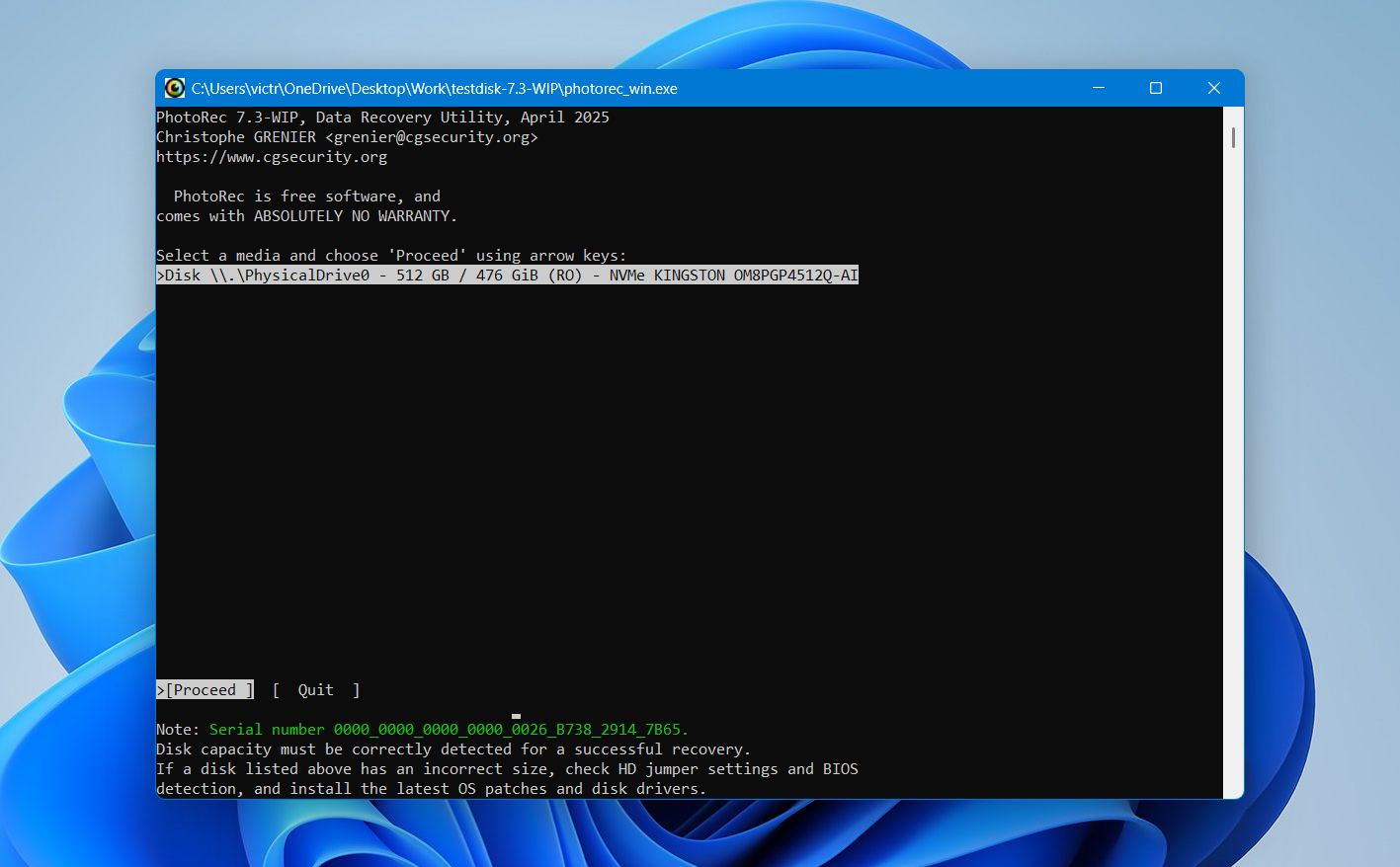 PhotoRec is a free, open-source data recovery tool developed by CGSecurity and distributed alongside TestDisk. Unlike Recuva, it relies primarily on file signature recovery, which allows it to find files without depending on intact file system metadata. This makes PhotoRec useful for formatted or corrupted storage, but there is a significant trade-off: recovered files typically lose their original filenames and folder structure.
Best for: Users who want completely free, unlimited recovery and don’t need original filenames or folder structure.
Price: Completely free and open source, with no recovery limits, subscriptions, or paid edition.
Interface & Usability
PhotoRec was easily the least beginner-friendly tool in our comparison. The standard version uses a text-based interface where you select the disk, partition, file system type, scan area, and recovery destination. There is also QPhotoRec, which provides a graphical interface, but it is still much more basic than Disk Drill, Recoverit, or even Recuva.
The biggest difference is how you work with the results. PhotoRec does not provide a normal results browser or file previews before recovery. Instead, it recovers files directly into destination folders as the scan progresses. You then have to review the recovered files afterward.
On the positive side, you can select which file signatures PhotoRec should search for, which can reduce the amount of irrelevant data it returns.
Recovery Performance (Real-World Use)
PhotoRec found 49 of 52 files in our ordinary deletion test and 47 of 52 after we quick-formatted the same 32 GB exFAT Transcend USB drive. Its average time was 8 minutes 25 seconds, although this figure includes both the scan and recovery because PhotoRec saves files as it finds them.
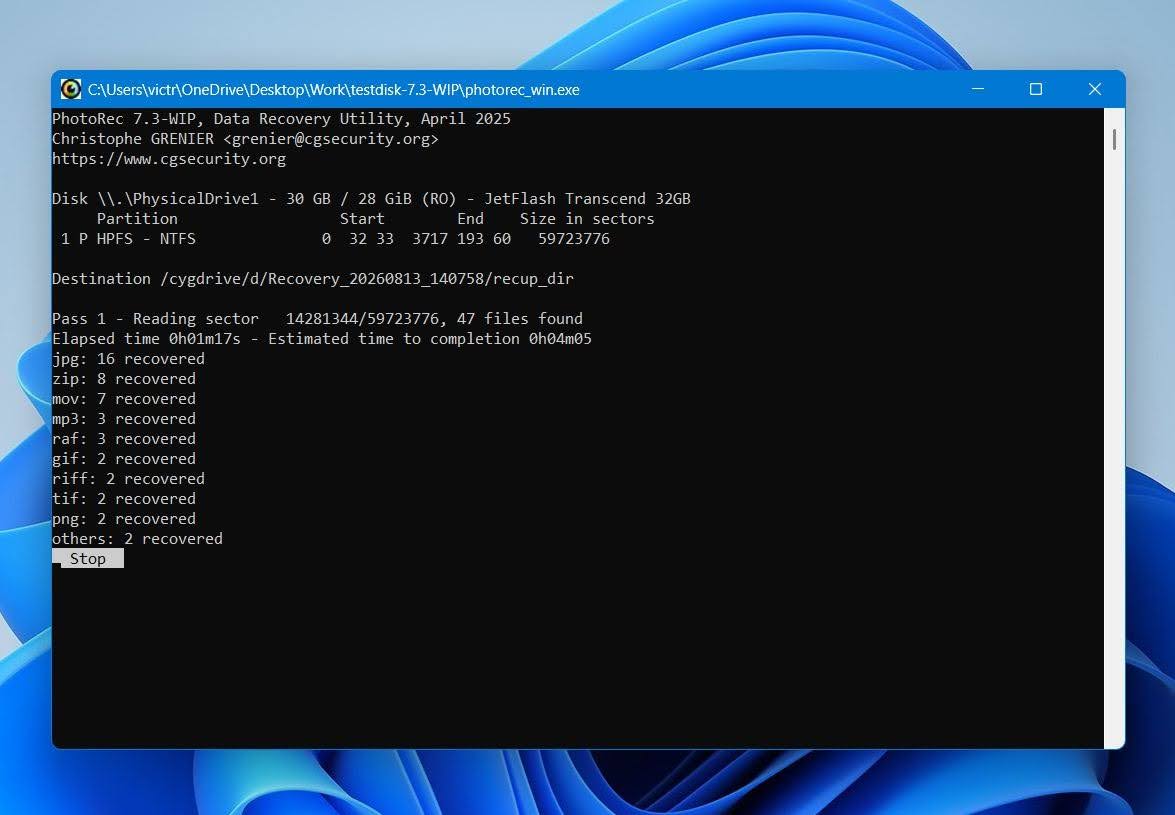
The results were good for a completely free tool, particularly after formatting, but they came with an important limitation. PhotoRec relies on file signatures rather than reconstructing the original file system, so recovered files did not retain their original filenames or folder structure. There was also no preview function, which meant we had to recover the files first and check them afterward.
Compared with Recuva, PhotoRec found one fewer file in our deletion test (49 vs. 50) but performed better after formatting (47 vs. 44). That makes its strengths particularly clear when file system metadata is no longer available.
What Makes PhotoRec a Better Recuva Alternative?
PhotoRec is not necessarily easier or more convenient than Recuva. Both tools offer unlimited recovery for free, but PhotoRec has an advantage when you need to recover files from formatted, corrupted, or unsupported file systems:
- It is completely free and open source. There are no recovery limits, subscriptions, or premium features locked behind a license.
- It works well when file system metadata is damaged or missing. Signature-based recovery allows PhotoRec to search for files without relying on the original directory structure.
- It performed better after formatting in our test. PhotoRec recovered 47 of 52 files, compared with 44 of 52 for Recuva Deep Scan.
- It recognizes a large number of file signatures. This makes it useful for recovering photos, videos, documents, archives, and many less common formats.
- It supports many storage devices and file systems. Since signature recovery operates largely independently of the file system, PhotoRec can work with storage that Recuva does not support well.
The main trade-off is organization. Recuva can preserve original filenames and folder paths when enough file system metadata remains, while PhotoRec typically returns files with generated names in recovery folders. There are also no previews before recovery. For a small accidental deletion, Recuva is more convenient; for free recovery from formatted or corrupted storage, PhotoRec can be the stronger option.
| PhotoRec | Recuva | |
|---|---|---|
| Deleted files test | 49/52 | 50/52 |
| Quick format test | 47/52 | 44/52 |
| Average scan time | 8m 25s* | 11m 08s |
| Preview quality | No previews | Limited |
| Free recovery | Unlimited | Unlimited |
| Price | Free | Free; Professional $24.95 |
| Best for | Completely free recovery | Basic free undelete |
4. DiskGenius (Optimal for Lost Partitions and Disk Management)
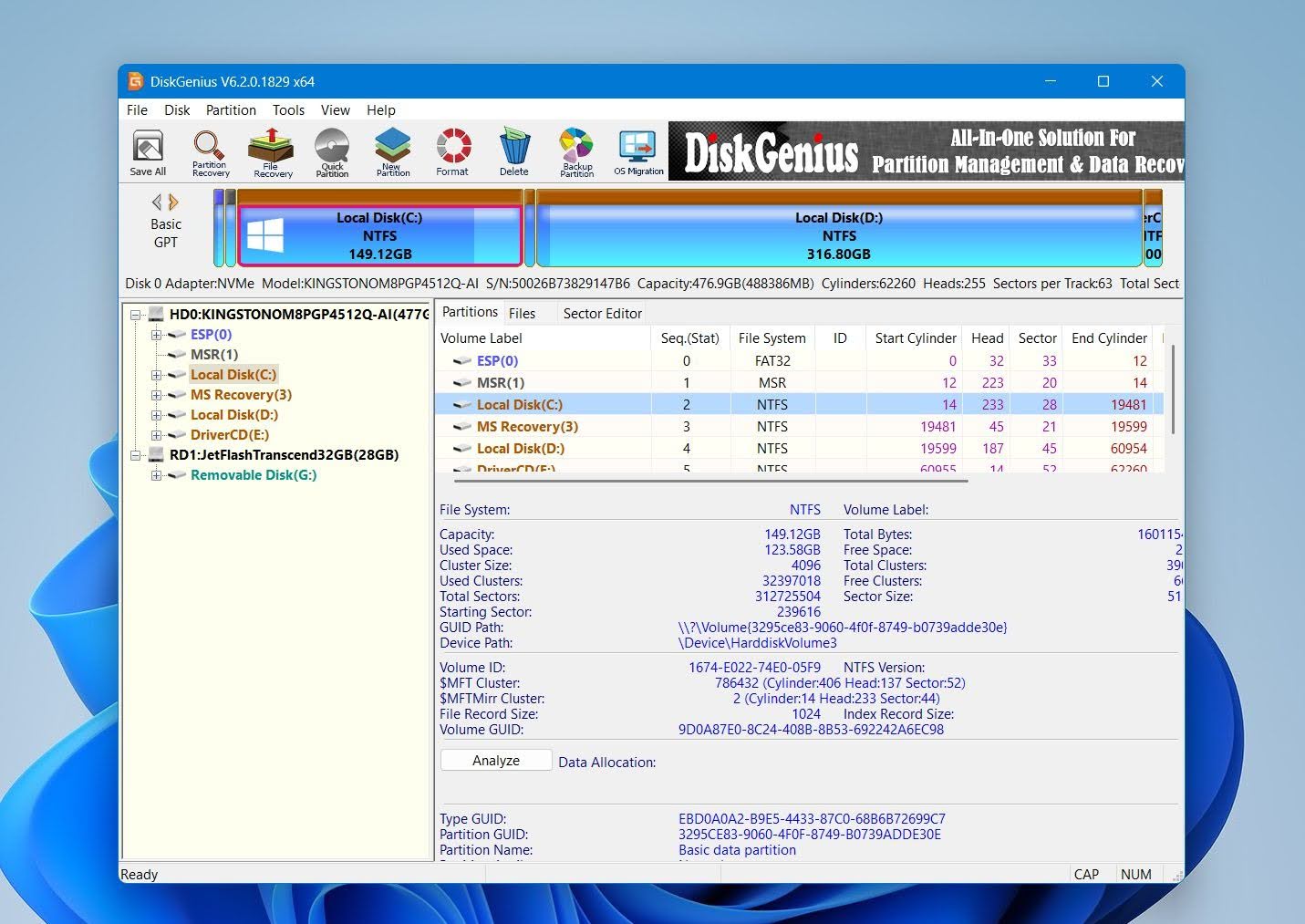 DiskGenius is a Windows-only data recovery and disk management tool developed by QINHUANGDAO YIZHISHU SOFTWARE DEVELOPMENT CO., LTD. Unlike Recuva, it goes well beyond deleted file recovery and combines recovery with partition management, lost partition search, disk imaging, cloning, and disk diagnostics. Its biggest advantage is partition-related recovery: if a partition has been deleted, lost, or become inaccessible, DiskGenius provides tools both to find the files and, in some cases, restore the partition itself.
Best for: Lost partition recovery and users who want data recovery and disk management tools in one application.
Price: A Free Edition is available, but recovery is quite restricted: recovered files must be smaller than 64 KB. Paid editions remove this limitation and unlock additional recovery and disk management features.
Interface & Usability
DiskGenius was one of the more technical programs we tested. The main screen looks more like a partition manager than a typical recovery app, with a disk map, partition table, file browser, and numerous disk operations available from the same window.
For ordinary recovery, you select a partition and choose Recover Lost Files. For a missing partition, there is a separate Search Lost Partitions function that scans the disk and lets you inspect found partitions and their files before deciding what to do with them.
We liked having so many tools in one place, but the interface requires more care than Recuva. Options that modify partitions sit close to recovery functions, so we would recommend sticking to the recovery tools unless you know exactly what a disk-management operation will do.
Recovery Performance (Real-World Use)
DiskGenius was the fastest tool in our comparison, with an average scan time of just 4 minutes 43 seconds.
In the ordinary deletion test, it found 51 of our 52 original files, putting it just behind Disk Drill and R-Studio. Preview support was generally good, and most of the files we checked could be inspected before recovery.
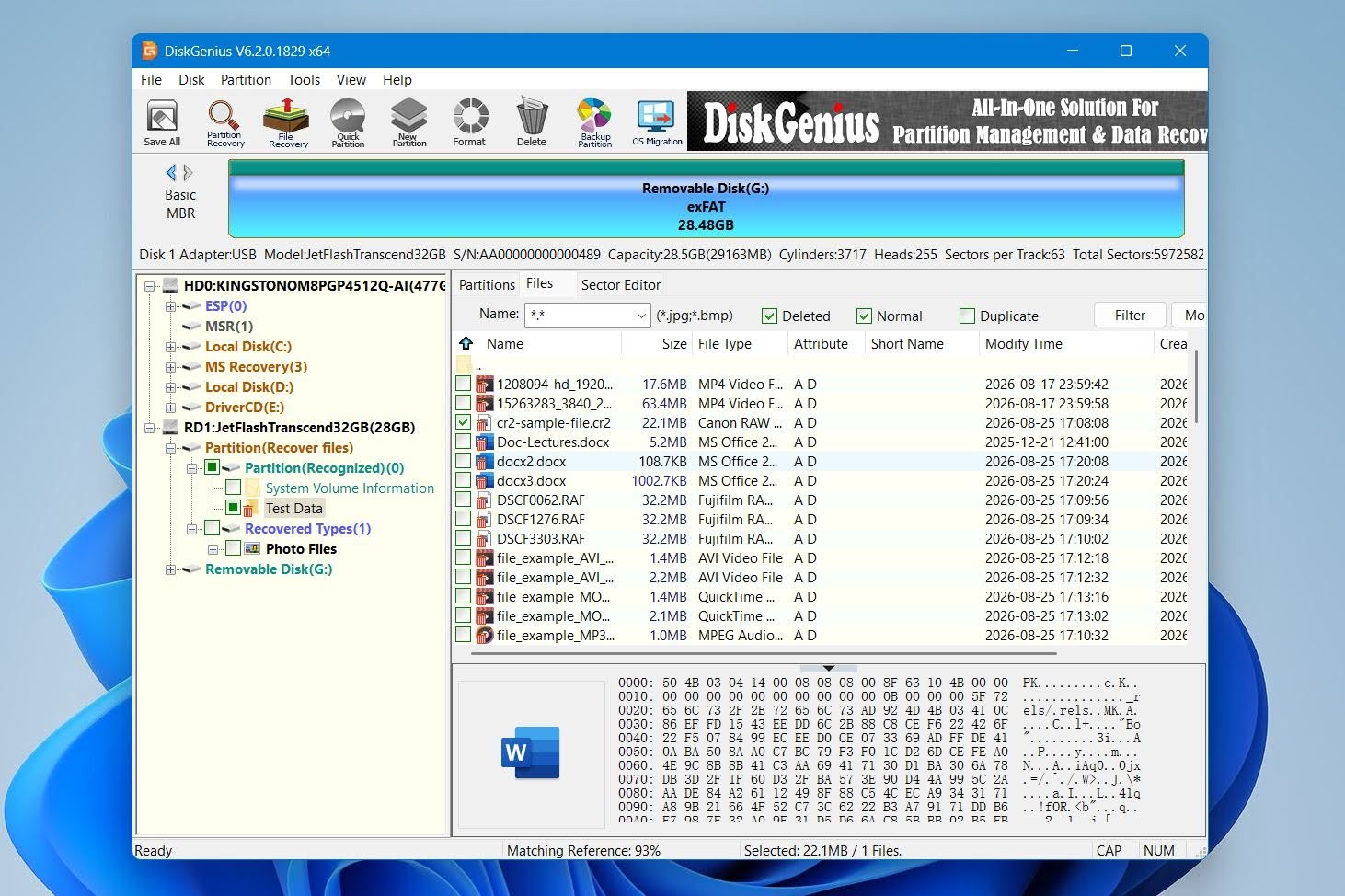
Results dropped after the quick format, where DiskGenius found 47 of 52 files. Previews still worked well for common formats, but some of our RAW camera photos did not preview correctly. This made it harder to verify their condition before recovery.
Overall, its results were good, particularly considering the scan speed, but it did not match the 52/52 results in both scenarios achieved by Disk Drill and R-Studio.
What Makes DiskGenius a Better Recuva Alternative?
DiskGenius is a particularly strong Recuva alternative for partition-related recovery and disk management. It offers more control over storage devices and partitions, while our tests also showed better recovery results and faster scans than Recuva:
- Lost partition recovery is a major advantage. DiskGenius can search for deleted or missing partitions and reconstruct partition information, something Recuva is not designed to do.
- It handles more than ordinary deletion. You can scan formatted, inaccessible, and RAW storage rather than relying on an intact, Windows-accessible file system.
- It combines recovery and disk management. Partition management, disk cloning, imaging, sector editing, and other storage tools are available within the same program.
- It provides much more disk information. DiskGenius exposes partitions, sectors, file systems, and unallocated areas directly, which can be useful when the problem is more complicated than a few deleted files.
- It was substantially faster in our tests. DiskGenius averaged 4m 43s, compared with 11m 08s for Recuva Deep Scan, while also finding more files in both scenarios.
Its biggest disadvantage compared with Recuva is the free edition. Recuva provides unlimited free recovery, whereas DiskGenius restricts free recovery to files smaller than 64 KB. So we see DiskGenius as a better choice when its partition and disk-management capabilities are actually useful, rather than as a replacement for Recuva’s unlimited free undelete functionality.
| DiskGenius | Recuva | |
|---|---|---|
| Deleted files test | 51/52 | 50/52 |
| Quick format test | 47/52 | 44/52 |
| Average scan time | 4m 43s | 11m 08s |
| Preview quality | Good; some RAW issues | Limited |
| Free recovery | Files under 64 KB | Unlimited |
| Price | Paid editions available $69.90 Standard / $99.90 Pro (Lifetime) | Free; Professional $24.95 |
| Best for | Partition recovery & disk management | Basic free undelete |
5. Wondershare Recoverit
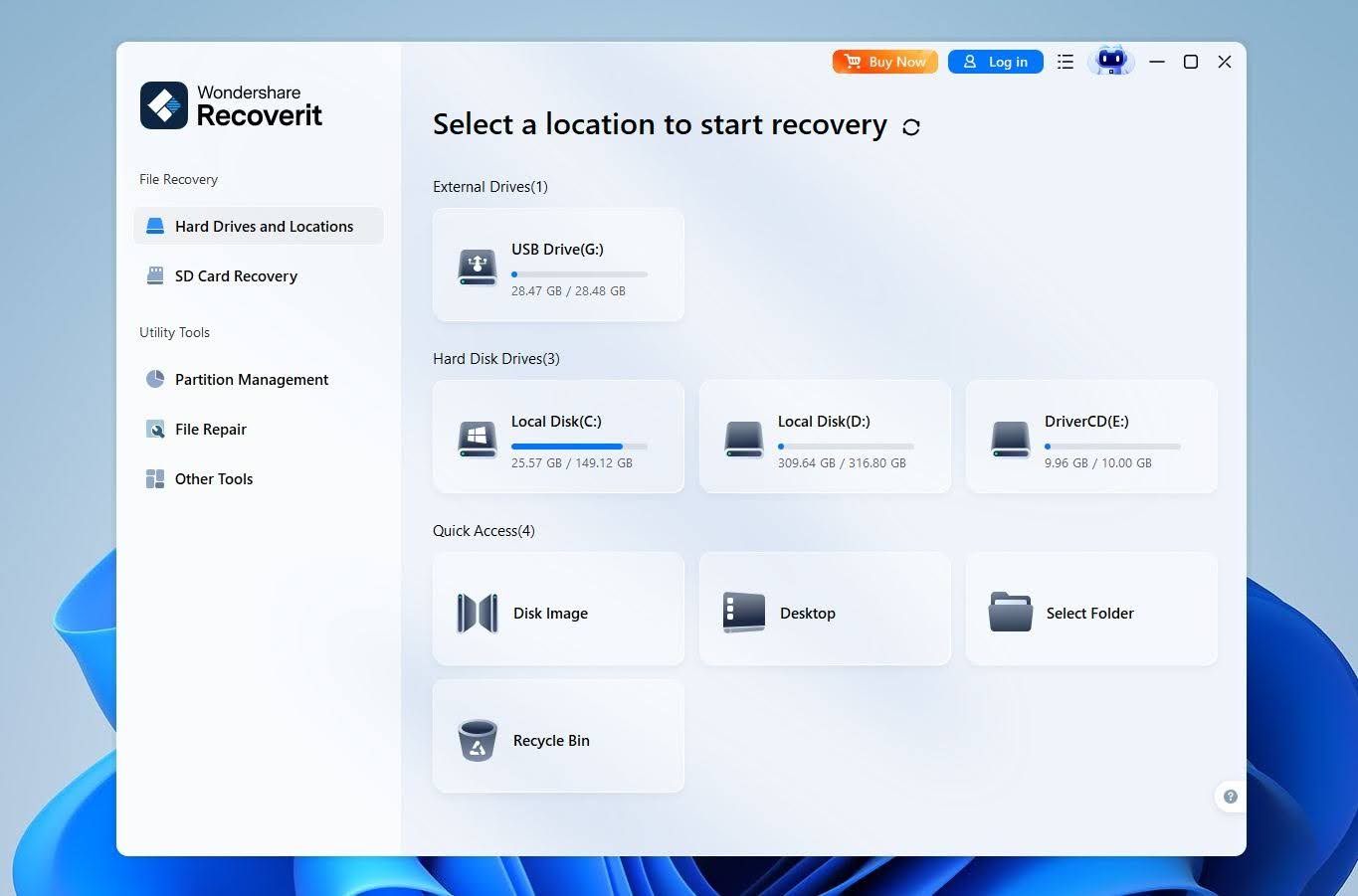 Wondershare Recoverit is a well-known data recovery tool developed by Wondershare for Windows and macOS. Its main strength is accessibility: it wraps recovery from deleted files, formatted drives, RAW storage, and lost partitions into a polished interface that requires very little configuration. It also supports a broad range of file systems and includes disk imaging, Enhanced Recovery for media, and file repair tools. In our previous testing, it performed particularly well with ordinary deleted files, although results became less consistent in more difficult scenarios.
Best for: Beginners who want an easy-to-use Recuva alternative with more recovery options and additional media tools.
Price: Recoverit Free allows up to 500 MB of recovery. At the time of our review, unlimited recovery cost $65.99/month, $86.99/year, or $122.99 for a perpetual license.
Interface & Usability
Recoverit was one of the easiest tools to use in our comparison. The main screen immediately shows available drives and recovery locations, so you select the device and start scanning without having to configure scan parameters first. Results begin to appear almost immediately, and you can browse them while the scan continues.
We particularly liked the filters and the option to browse results either by their original path or file type. Preview worked well for most common photos and documents, although it was less reliable with some uncommon formats.
Recovery Performance in Our Tests
Recoverit performed well in our deleted-file test, recovering 51 out of 52 files. That puts it on roughly the same level as Recuva, which recovered 50/52. However, Recoverit’s results were less clean than the number suggests. It returned more files than were actually present in our 52-file test dataset, which made it harder to distinguish the files we wanted from extra results and reduced our confidence in its recovery accuracy.
Performance dropped after a quick format. Recoverit recovered 48 out of 52 files, while Recuva recovered only 44/52. Across both tests, Recoverit recovered 99 out of 104 files, compared with 94/104 for Recuva. Recoverit is clearly the stronger of the two for formatted storage, but 48/52 still means four files from our small test set were not successfully recovered.
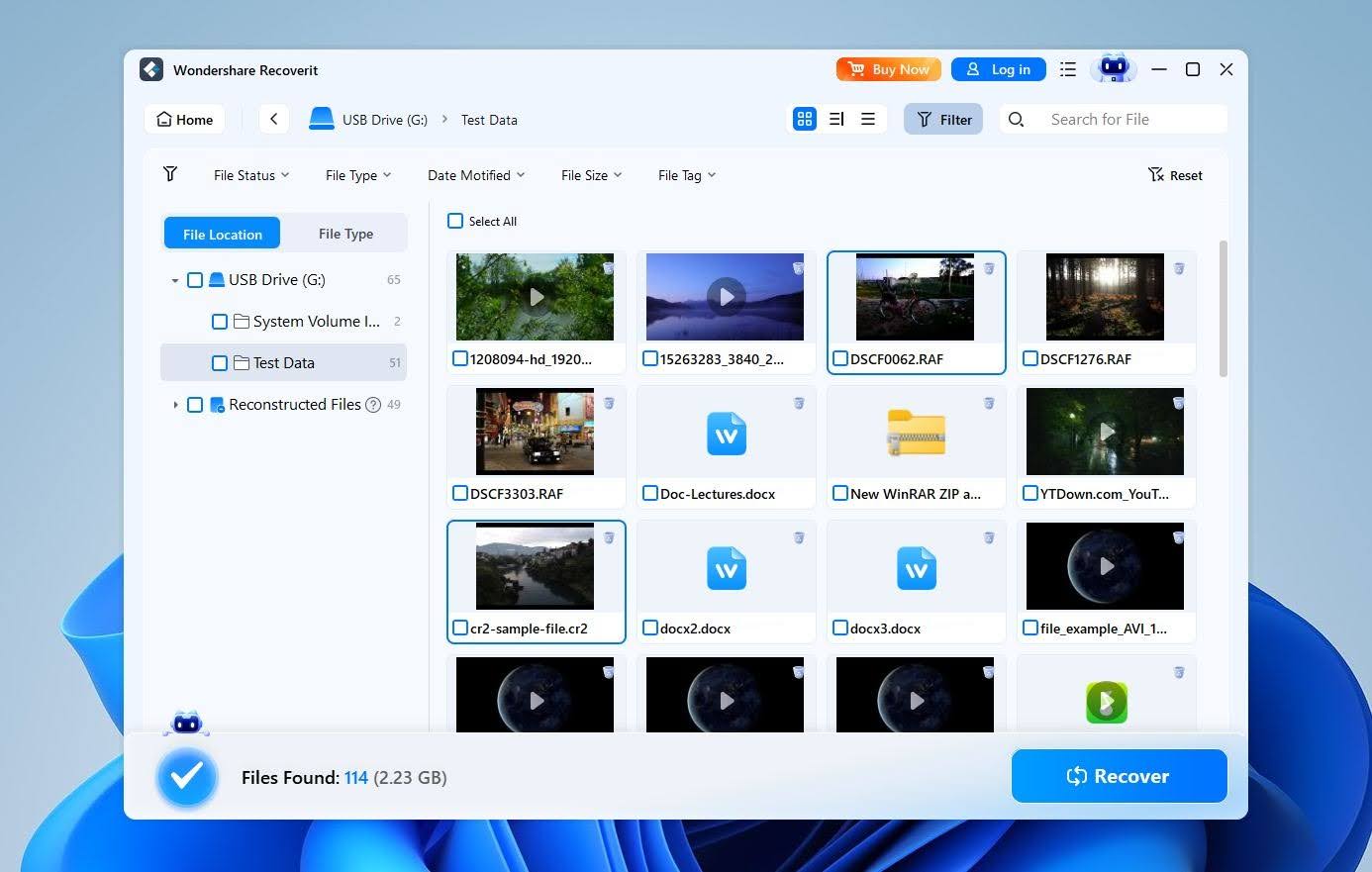
Preview support was another weak point. Recoverit handled most common file types reasonably well, but some RAW photos did not preview correctly. This matters because a file appearing in the scan results does not necessarily mean its contents are intact, and an unreliable preview makes that harder to verify before recovery.
Recoverit was also relatively slow. Our scans took an average of 7 minutes 17 seconds, compared with 11 minutes 08 seconds for Recuva, so it was considerably faster than Recuva but still slower than several other alternatives we tested.
Overall, Recoverit is a more capable Recuva alternative, particularly for formatted drives, but its results were not flawless. Extra files in the deletion test, missed files after formatting, and unreliable previews for some RAW formats keep it behind the strongest recovery tools in our comparison.
What Makes Wondershare Recoverit a Better Recuva Alternative?
Recoverit goes considerably further than Recuva in several areas:
- It handles more complex storage problems. Recoverit can scan formatted drives, RAW storage, corrupted file systems, and lost partitions rather than focusing primarily on deleted files.
- It supports more file systems. Alongside NTFS, FAT32, and exFAT, Recoverit supports APFS, HFS+, and EXT2/3/4.
- It includes disk imaging. You can create an image of a drive and scan that copy instead of repeatedly working with the original storage device.
- It has stronger media-focused features. Enhanced Recovery is designed specifically for photos and videos, while separate repair modules can attempt to fix corrupted media after recovery. We should note, however, that Enhanced Recovery did not reliably reconstruct fragmented videos in our previous tests.
- It can recover data from an unbootable computer. Crash Computer Recovery can create bootable media and retrieve files when Windows itself no longer starts.
The main reason we placed Recoverit below some other Recuva alternatives is not a lack of features. It actually has quite a few. The bigger issue is that its recovery results become less consistent as the scenario gets more difficult.
| Recoverit | Recuva | |
|---|---|---|
| Deleted files test | 51/52 | 50/52 |
| Quick format test | 48/52 | 44/52 |
| Average scan time | 7m 17s | 11m 08s |
| Preview quality | Good; some RAW issues | Limited |
| Free recovery | 500 MB | Unlimited |
| Price | $65.99/month; $86.99/year; $122.99 perpetual | Free; Professional $24.95 |
| Best for | Beginners | Basic free undelete |
6. Stellar Data Recovery
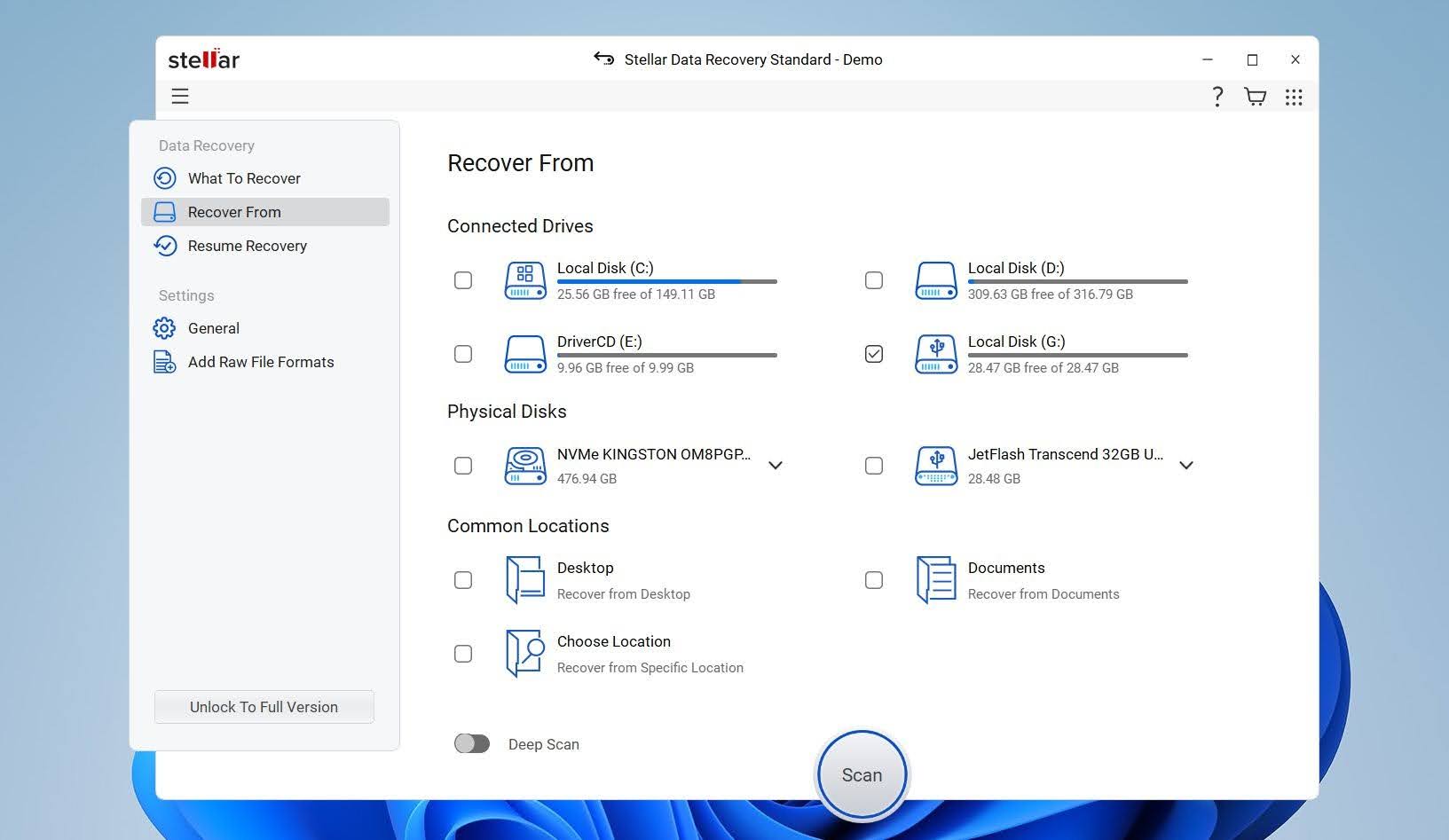 Stellar Data Recovery is a long-running recovery tool from Stellar, a company that has been developing data recovery and file repair software since the 1990s. It covers common recovery scenarios across hard drives, SSDs, USB drives, and memory cards, with support for deleted and formatted data. Compared with Recuva, Stellar offers broader recovery capabilities and several useful extras, including disk imaging, but its recovery performance has been somewhat inconsistent in our previous tests.
Best for: Photo and video recovery from cameras, drones, memory cards, and other external storage.
Price: Stellar offers a free edition with up to 1 GB of recovery. Paid editions add unlimited recovery and additional features, with capabilities varying considerably between tiers.
Interface & Usability
Stellar was one of the easier tools to navigate in our comparison. You start by choosing what type of data you want to recover, such as photos, videos, documents, or everything, and then select the drive to scan. For more difficult cases, you can enable Deep Scan.
Results appear in a familiar folder-style tree, and you can switch between different views, browse folders, and preview files before recovery. We liked the overall simplicity, although the program can become noticeably slower during longer scans. In our previous testing, we also encountered occasional delays when storage devices were connected or disconnected and problems when trying to stop an active task.
Recovery Performance in Our Tests
Stellar performed reasonably well in our deleted-file test, recovering 51 out of 52 files, compared with 50 out of 52 for Recuva. Neither result was perfect, and Stellar’s one-file advantage is too small to make a major difference in a simple deletion scenario.
Both tools struggled more after a quick format. Stellar recovered 46 out of 52 files, while Recuva managed only 44 out of 52. That is a fairly noticeable drop from their deletion results and shows that neither tool was particularly reliable once the original file system information had been disrupted.
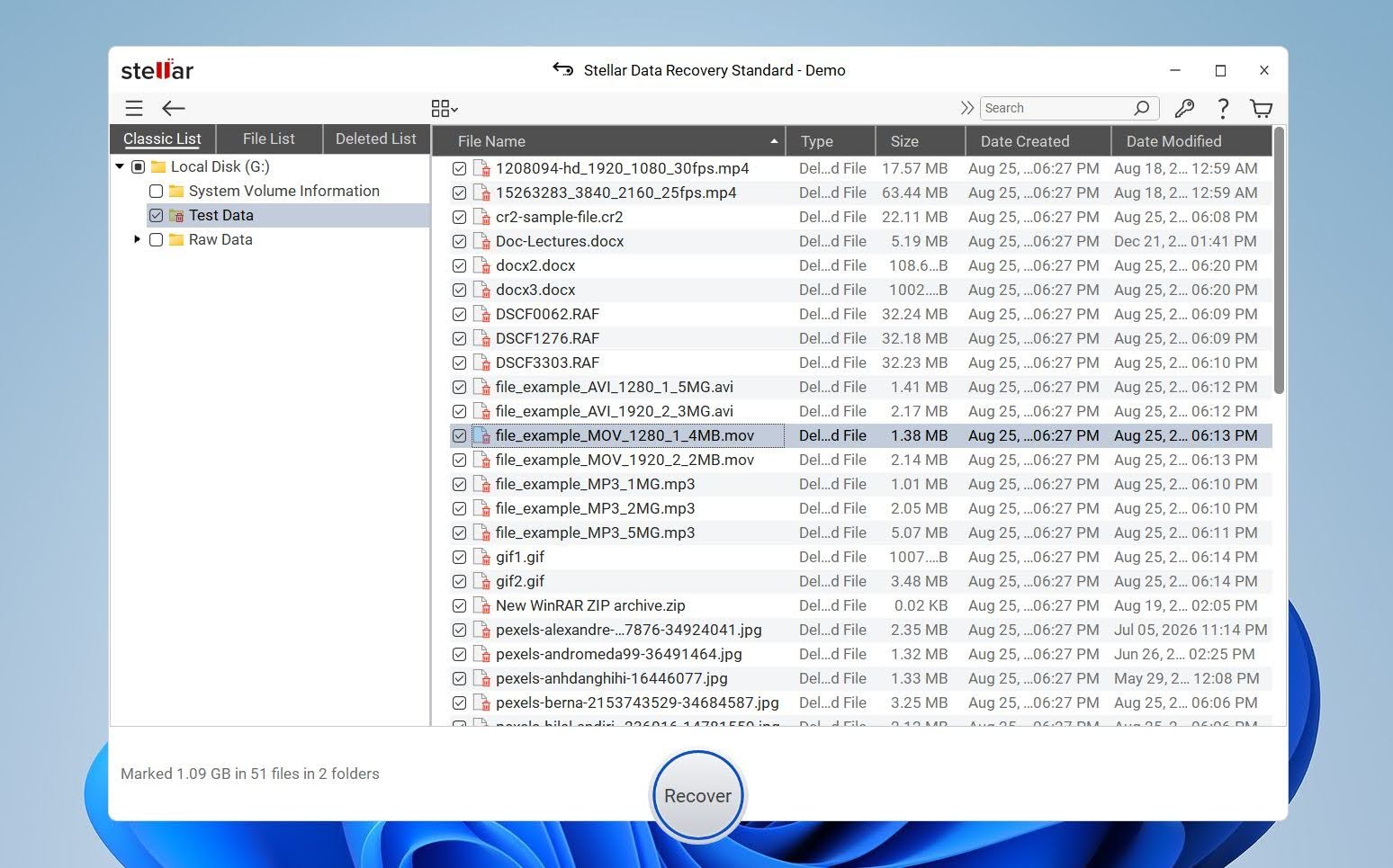
Stellar also has a frustrating limitation in its free version: it only previews files smaller than 10 MB. In our test, that meant we couldn’t preview RAW photos or larger videos to verify that they were intact before recovery. Recuva has its own preview problems. Although JPG and PNG previews generally worked, videos and RAW photos usually did not preview correctly, which similarly makes it harder to judge whether those files are actually recoverable.
Overall, Stellar performed better than Recuva, but neither impressed us in the more difficult test. Stellar’s 46/52 quick-format result and restrictive free-version previews are significant drawbacks, while Recuva was even weaker after formatting at 44/52 and had poor preview support for anything beyond common image formats.
What Makes Stellar a Better Recuva Alternative?
Stellar offers several capabilities that go beyond Recuva’s basic undelete focus:
- It can scan physical drives with damaged or missing partitions. Unlike Recuva, Stellar does not always require an accessible volume with a drive letter before it can start searching for files.
- It supports more file systems. Stellar supports NTFS, FAT/FAT32, exFAT, HFS/HFS+, and APFS, giving it broader coverage than Recuva.
- It includes disk imaging. You can create an image of a storage device and perform recovery from the image instead of continuing to work with the original drive.
- It can save and resume scans. This is particularly useful with large drives where a complete Deep Scan can take hours.
- Its free version allows actual recovery. Stellar lets you recover up to 1 GB for free, so you can test the recovery results on a meaningful amount of data before purchasing a license.
Stellar is more capable than Recuva in several areas, but we wouldn’t consider it the strongest option for difficult recovery cases.
| Stellar Data Recovery | Recuva | |
|---|---|---|
| Deleted files test | 51/52 | 50/52 |
| Quick format test | 46/52 | 44/52 |
| Average scan time | 9m 10s | 11m 08s |
| Preview quality | Limited to files under 10 MB in free version; RAW and larger videos problematic | Limited |
| Free recovery | 1 GB | Unlimited |
| Price | Paid editions vary by tier, annual starting from $59.99, $99 lifetime | Free; Professional $24.95 |
| Best for | Simple recovery | Basic free undelete |
Other Recuva Alternatives We Considered
A few other tools regularly appear in Recuva alternative recommendations, but we left them out of our main list for the following reasons:
- EaseUS Data Recovery Wizard. A popular and easy-to-use alternative, but its pricing is relatively high, while its recovery capabilities and additional features don’t provide enough of an advantage over the tools ranked above.
- TestDisk. Extremely capable for partition and file-system recovery, but its text-based interface and repair-focused workflow make it a poor direct replacement for Recuva’s simple file recovery experience.
- Wise Data Recovery. Lightweight and easy to use, but its limited recovery capabilities and feature set make it more of a Recuva equivalent than a meaningful upgrade.
That doesn’t mean these are bad recovery tools. Any of them can work well for the right user or recovery scenario. However, for most people specifically looking for a Recuva alternative, we think the options in our main list offer a better combination of recovery capabilities, usability, features, and value.
Final Verdict
Recuva remains a good option for basic deleted-file recovery, particularly if you want a completely free tool with no recovery limit. However, its basic feature set and weaker performance in more difficult recovery scenarios make several alternatives better choices.
Disk Drill is our best overall Recuva alternative, with strong recovery performance, an easy-to-use interface, reliable previews, and more additional features. R-Studio is better suited to advanced users, while PhotoRec is the strongest completely free alternative. Recoverit, Stellar, and DiskGenius can also be worthwhile depending on the recovery scenario, but each comes with its own limitations.