


MiniTool Partition Wizard is a disk and partition management tool developed by MiniTool. It combines the usual partitioning operations, such as creating, deleting, formatting, moving, and resizing partitions, with more advanced functions for disk conversion, partition recovery, disk cloning, and storage diagnostics. This makes it considerably more capable than the basic disk management utilities built into Windows.
The main reason we put together this list of alternatives, however, has little to do with how well MiniTool Partition Wizard performs. MiniTool Partition Wizard is available only for Windows, and there is no MiniTool Partition Wizard for Mac. If you need similar partition management or recovery capabilities on macOS, you have to look elsewhere.
For that reason, we aren’t going to evaluate the Windows version in detail or break down all of its strengths and weaknesses here. User reviews already give some idea of the complaints surrounding it. Although MiniTool Partition Wizard has plenty of positive feedback, some Trustpilot reviewers are unhappy with the limitations of its free edition.
One user described the free version particularly bluntly:
Nothing is available in “free” version. Literally go an try to click on things. You can setup everything but before you click it, it want’s to charge you 60USD. Literal trashware.
Note: We did not treat user complaints that MiniTool Partition Wizard is “dangerous” for a hard drive as a drawback. Partition management software works directly with disk partitions, and operations such as deleting, formatting, resizing, or converting a partition can result in data loss if used incorrectly.
It’s also worth pointing out that Partition Wizard is only one part of MiniTool’s software lineup. The company offers separate tools for backup, video editing, and other tasks, including MiniTool Power Data Recovery, its dedicated data recovery application. We tested that program separately, so if recovering deleted files rather than managing partitions is your main goal, you can read our full MiniTool Power Data Recovery review here.
So here we’ll focus specifically on the best MiniTool Partition Wizard alternatives for Mac and compare how well they cover the partition management and recovery tasks that Mac users would otherwise turn to MiniTool for on Windows.
How We Tested the MiniTool Partition Wizard Alternatives
For this guide, we tested all five MiniTool Partition Wizard alternatives under the same conditions to see how well they could handle a lost partition structure on macOS. Rather than testing simple file deletion, we created a scenario where the partition information itself was removed while the data stored inside the partitions remained on the drive.
Our Test Setup
We used the same Mac and storage device throughout the comparison:
- Test Mac: MacBook Air with an Apple M2 chip and 16 GB of RAM, running macOS 26.
- Test drive: 32 GB Kingston USB flash drive divided into four partitions: two HFS+ partitions, one exFAT partition, and one FAT32 partition.
- Test data: The four partitions contained a total of 51 files: 8 MP4 videos and 43 JPEG photos. We distributed the files differently across the partitions rather than placing the same dataset on each one. One partition contained only videos, another only photos, while the remaining two contained different combinations of both file types. This made it easier for us to distinguish the original partitions during testing and verify whether the files shown inside each recovered partition actually belonged there.
Data Loss Scenario We Tested
Instead of simply deleting the four partitions, we erased the drive’s MBR (Master Boot Record) using HDD Low Level Format Tool. This removed the partition table that described where each partition started and ended, leaving the underlying partition data available for recovery.
We deliberately chose this scenario because it gave every program the same disk with no usable partition table to rely on. Each alternative therefore had to search the drive for traces of the original partitions and reconstruct what had been there before the MBR was erased. This allowed us to check not only whether a program reported a lost partition, but whether it could locate all four original partitions, identify their file systems correctly, and show the right files inside each one.
How We Ranked the Tools
Our primary criterion was lost partition detection. We first looked at how many of the four original partitions each program managed to find. From there, we checked whether it correctly identified the file system of each detected partition – particularly important in our test because the drive contained HFS+, exFAT, and FAT32 volumes side by side.
We also checked whether all 51 test files were present in the scan results and whether they appeared under the correct partitions. Beyond recovery accuracy, we considered how easy each program was to use, how clearly it organized found partitions and their contents, and whether it provided useful additional features for working with disks or protecting data during recovery.
Note: During testing, we found that none of the alternatives offers the same range of partition management options on macOS that MiniTool Partition Wizard provides on Windows. Most of the programs we tested are much more recovery-focused, so our interaction with partitions was mainly limited to finding lost partitions, accessing their contents, and, where supported, restoring them.
Quick Comparison: MiniTool Partition Wizard vs the Best Mac Alternatives
| Tool | Supported File Systems | Can Restore the Partition Itself? | Free Version | Additional Features | Best For |
| MiniTool Partition Wizard | NTFS, FAT12/16/32, exFAT, Ext2/3/4 | Yes | Free edition available, but many advanced operations require a paid license | Create/delete/format/resize partitions, partition recovery, disk cloning, MBR/GPT conversion, disk benchmark, surface test, data wiping | Full partition management on Windows |
| Disk Drill | APFS, HFS/HFS+, FAT16/32, exFAT, NTFS, ReFS, EXT2/3/4, BTRFS | No – finds lost partitions and recovers their files | Free scanning and preview on Mac; recovery requires PRO | Byte-to-byte backup, S.M.A.R.T. monitoring, RAID recovery, data protection, data shredder | Best overall |
| DMDE | APFS, HFS+/HFSX, FAT12/16/32, exFAT, NTFS, ReFS, Ext2/3/4, Btrfs | No – finds lost partitions and recovers their files | Free Edition; up to 4,000 files from one selected directory per recovery operation | Disk imaging/cloning, partition search, disk editor, RAID reconstruction | Advanced partition recovery |
| Stellar Data Recovery | APFS, HFS/HFS+, FAT32, exFAT, NTFS | No – recovers data from lost or deleted partitions | Up to 1 GB of free recovery | Disk imaging, S.M.A.R.T. monitoring, scan saving/resuming, recovery from disk images | Beginner-friendly recovery |
| RS Partition Recovery | APFS, HFS/HFS+, FAT/FAT32, exFAT, NTFS and others | No – finds partitions and recovers their contents | Free version can scan and preview files; saving recovered data requires a license | Deep analysis, file previews, recovery from formatted and damaged volumes | Guided partition recovery |
| TestDisk | FAT12/16/32, exFAT, NTFS, HFS/HFS+, Ext2/3/4 and others | Yes | Completely free and open source | Partition-table reconstruction, boot-sector recovery, MBR repair, filesystem utilities | Restoring the partition itself |
Note: Disk Drill, DMDE, Stellar Data Recovery, and RS Partition Recovery can locate lost partitions and give you access to the files stored on them, but they do not restore the missing partition itself. In our comparison, TestDisk was the only alternative that could write the recovered partition structure back to the partition table.
5 Best MiniTool Alternatives for macOS
Now that we’ve covered why you may need a MiniTool alternative for macOS, how we tested the available options, and what we looked for during the comparison, it’s time to take a closer look at the programs themselves. Below, we’ll go through each alternative individually, with a focus on our test results, usability, partition recovery capabilities and the limitations we encountered along the way.
1. Disk Drill (Best Overall MiniTool Alternative for Mac)
Website: https://www.cleverfiles.com/
Disk Drill is primarily a data recovery application rather than a traditional partition manager. However, its scanning algorithms can detect partitions that are no longer present in the partition table and recover the files stored on them. The important distinction is that Disk Drill recovers data from a lost partition rather than restoring the partition itself.
Best for: Users who primarily want to recover files from lost Mac partitions and prefer a simple graphical recovery process.
Price: Disk Drill Basic for Mac lets you scan storage devices, find lost partitions, preview recoverable files, and use several additional tools for free, but recovery itself requires Disk Drill PRO. The PRO license costs $89/year, with a $149 lifetime option.
Interface & Usability
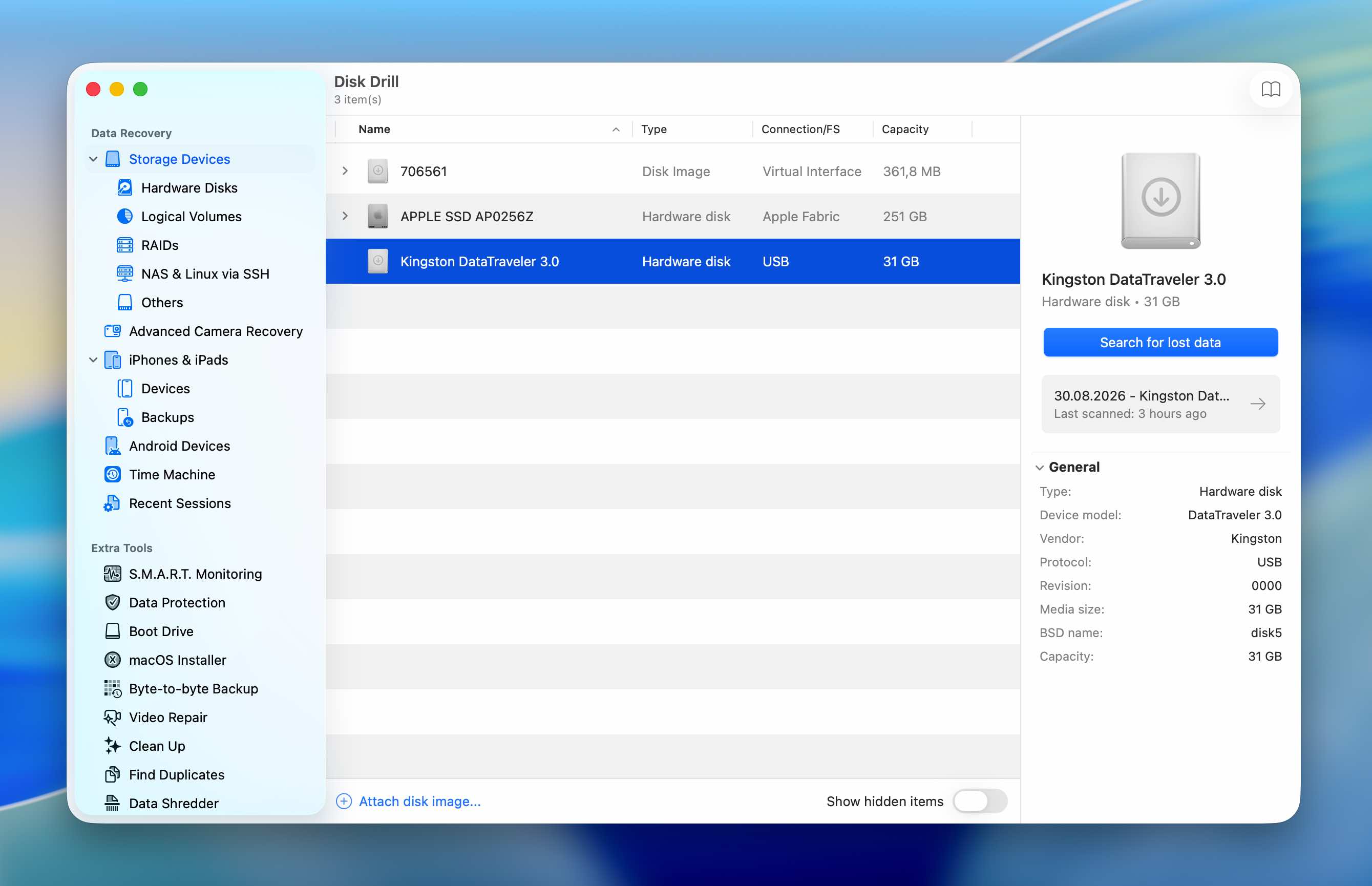
Disk Drill was easily the simplest program to use out of all the MiniTool alternatives we tested. There is very little you need to configure before starting a scan. We selected our Kingston USB drive, clicked Search for lost data, and waited for the scan to finish. Disk Drill completed the entire scan in 5 minutes 23 seconds.
The results were equally easy to work with. The three detected partitions appeared directly in the scan results, so we didn’t have to open a separate partition-search utility or manually inspect multiple possible partition structures. We could simply open a found partition and browse the files associated with it.
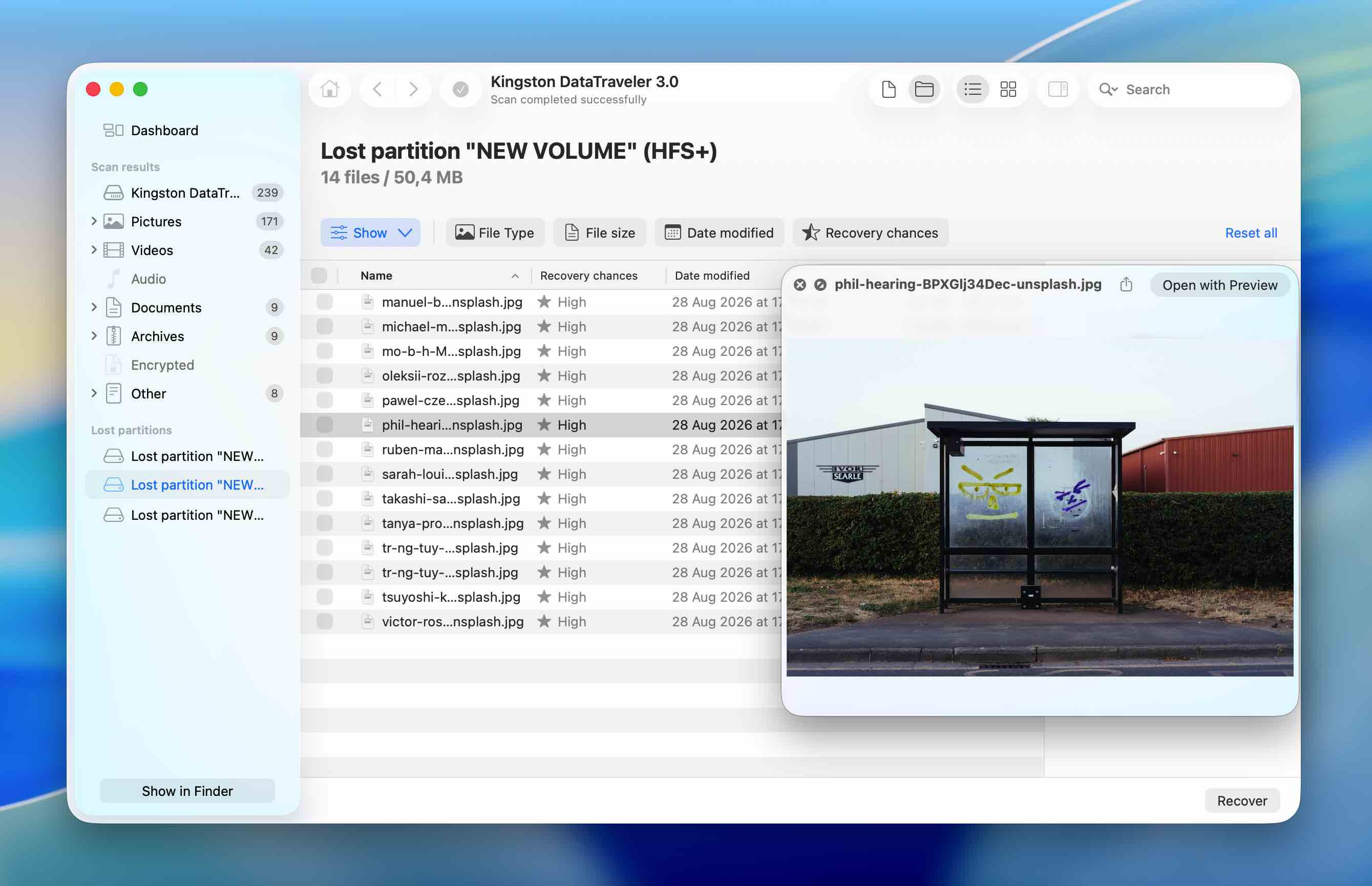
From there, the recovery process works much like ordinary file recovery in Disk Drill: select the files you need, preview them if you want to verify their contents, and click Recover. Preview was available and worked correctly for every JPEG and MP4 file in our test dataset, which made it easy to confirm that the detected files were actually intact before recovery.
Recovery Performance in Our Test
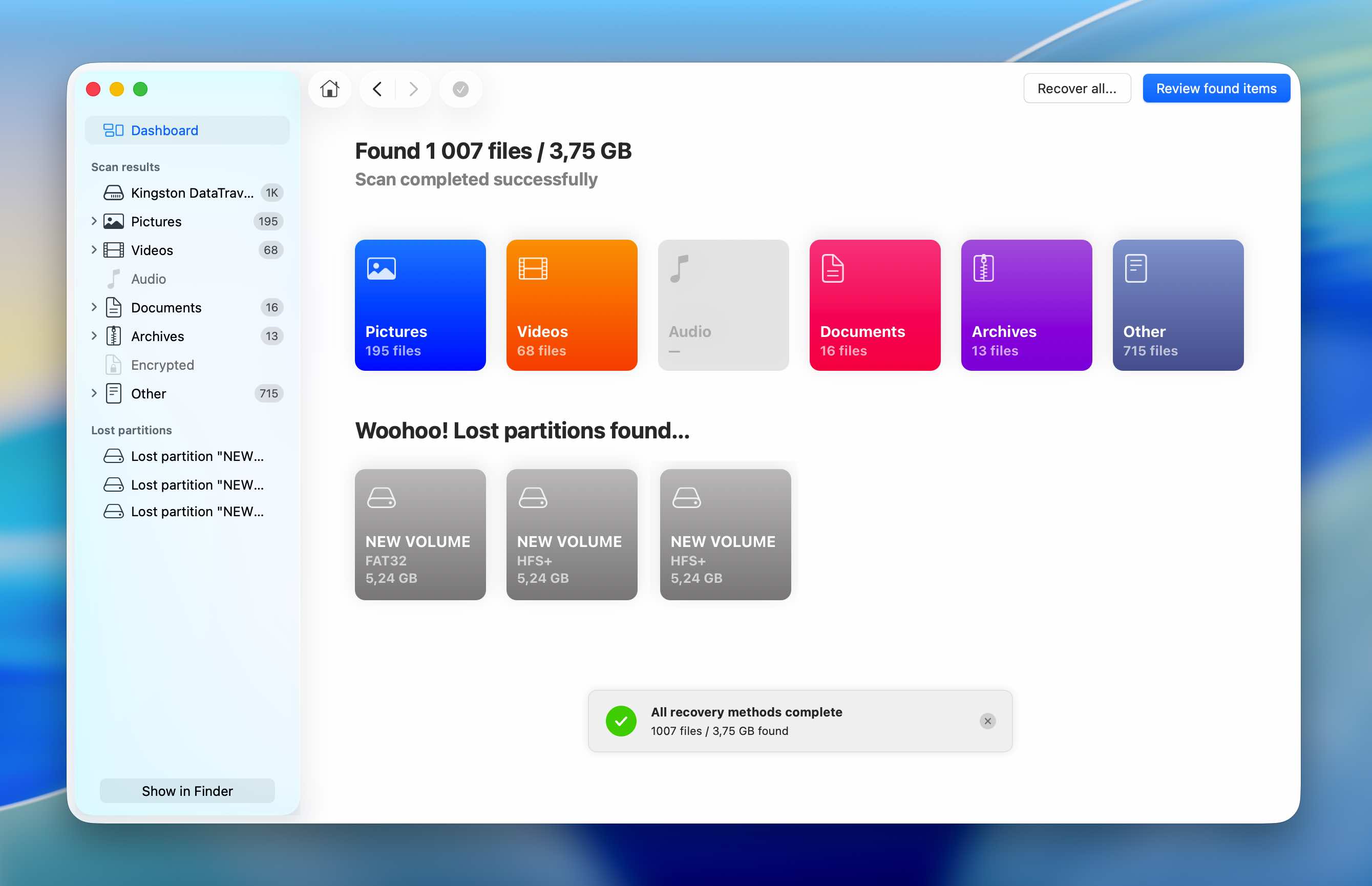
Disk Drill produced one of the strongest results in our lost-partition test. It reconstructed three of the four original partitions, correctly identifying both HFS+ partitions and the FAT32 partition. The exFAT partition was the only one it missed.
The quality of the results was more important than the raw partition count. All files that had originally been stored on the three detected partitions were present, and Disk Drill preserved their original filenames. The detected file systems also matched the file systems we had assigned to those partitions before erasing the MBR.
This meant we could clearly distinguish the recovered partitions and verify their contents against our original dataset rather than having to sort through a large collection of files reconstructed only from file signatures.
The main limitation is that Disk Drill stops at data recovery. Although it can locate a lost partition and expose its contents, it does not write that partition back to the drive’s partition table. You still need to recover the files to another storage device and then recreate the missing partition separately.
| Parameter | Disk Drill |
| Scan time | 5m 23s |
| Partitions found | 3/4 |
| File systems identified correctly | 3/3 detected partitions |
| Test data found | All files from the 3 detected partitions |
| Original filenames | Preserved |
| Preview | Available for every tested file |
| Restores partition itself | No |
| Free version | Free scanning and previews; file recovery requires PRO on Mac |
Note: If Disk Drill caught your attention as a tool for recovering lost data, we also recommend checking out our full Disk Drill review. There, we tested its data recovery capabilities in much more detail and across a broader range of recovery scenarios.
2. DMDE (Best for Advanced Partition Recovery)
Website: https://dmde.com/
DMDE is a more technical data recovery and disk editing tool available for macOS, Windows, and Linux. It combines file recovery with partition search, disk imaging and cloning, RAID reconstruction, and low-level disk editing tools. Compared with Disk Drill, it gives you considerably more information about the physical disk and detected volume structures, although much of that functionality is aimed at users who already understand how partitions and file systems work.
Best for: More experienced users who want detailed control over lost partition searches and data recovery.
Price: DMDE Free lets you recover up to 4,000 files from a selected directory per operation, with no limit on the number of recovery requests. Paid licenses start at $20/year for Express, while the Standard perpetual license costs $48. The Professional edition starts at $95 and is primarily intended for commercial data recovery use.
Interface & Usability
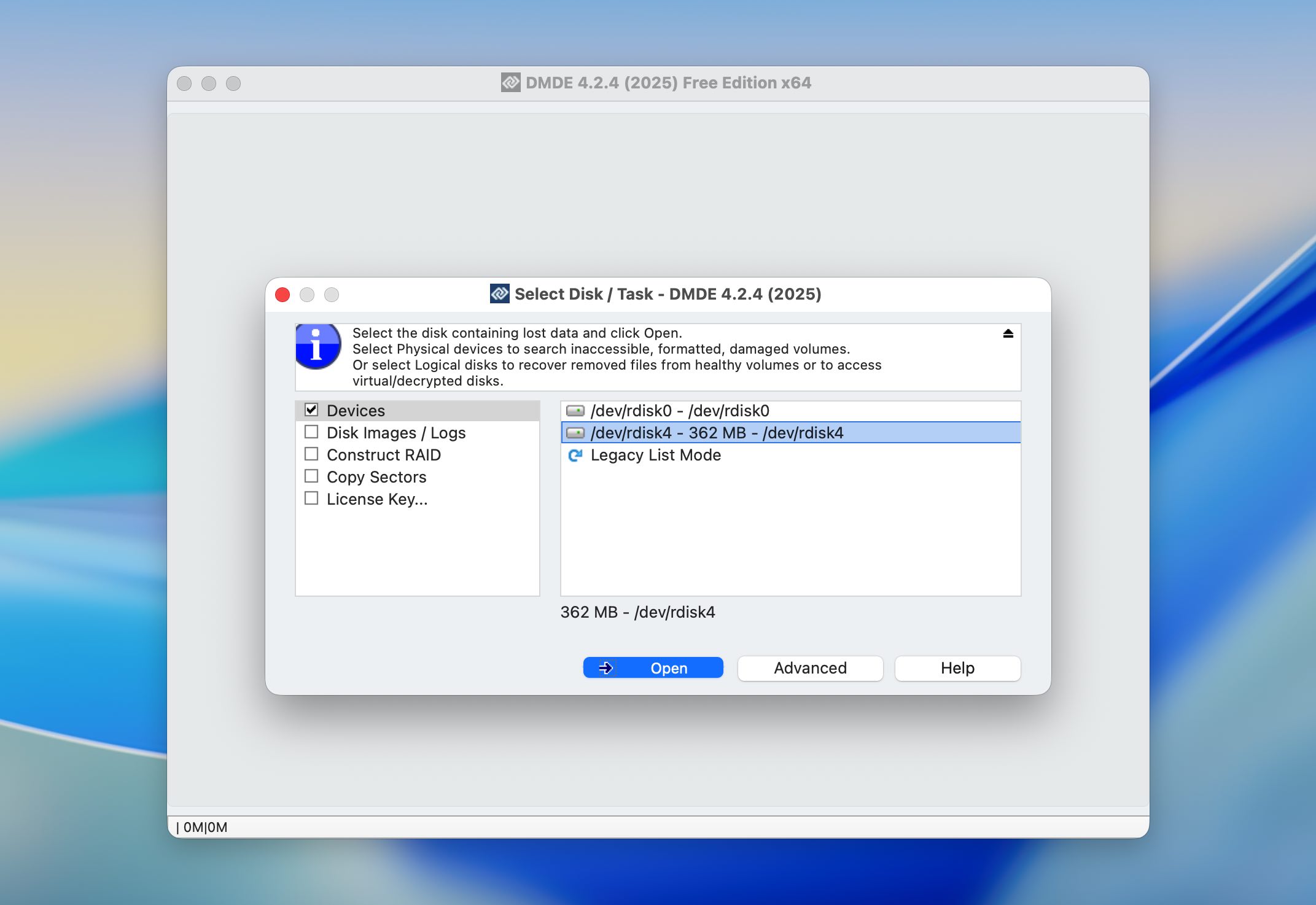
Using DMDE starts somewhat unexpectedly. Instead of opening directly into the main interface, the program first presents a small window where you select the physical disk or logical volume you want to work with. The full interface appears only after you make that selection.
Once we got past that first step, the basic recovery workflow was relatively easy to follow as long as we stayed away from the more advanced panels and disk-editing functions. We selected our Kingston USB drive, started a full scan, and waited for DMDE to finish. The scan took 12 minutes.
Where DMDE became less convenient was in the results. Found partitions are presented more technically than in Disk Drill, and simply clicking one isn’t enough to immediately browse its contents. We had to select and open the relevant volume separately to inspect the files it contained. This became particularly noticeable in our test because DMDE returned more potential partitions than were actually present on the original drive.
The preview window is also quite small, which makes checking large photos less convenient. Preview support wasn’t consistent across our dataset either. In particular, we couldn’t preview our MP4 videos inside DMDE, although they played normally after we recovered them.
Recovery Performance in Our Test
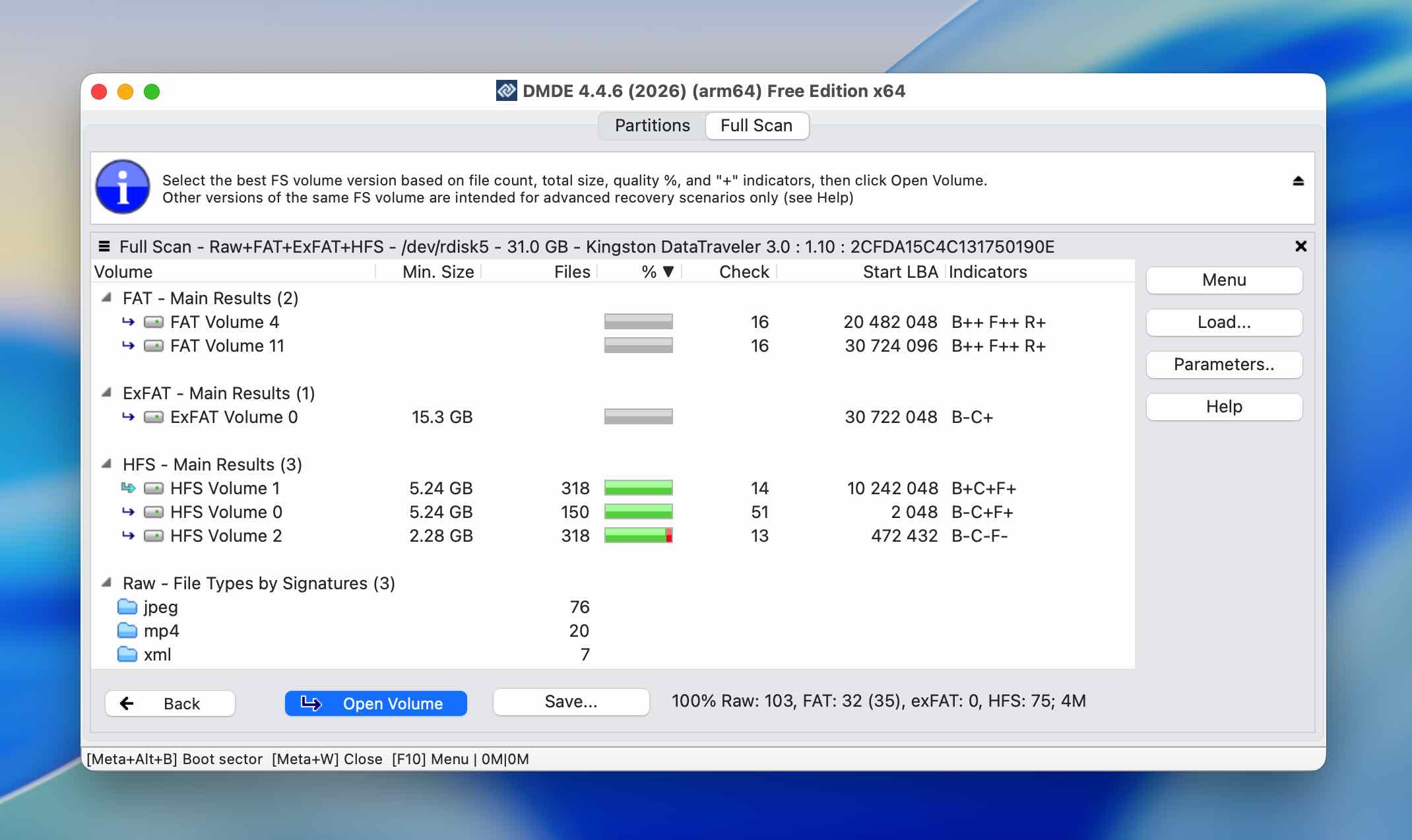
DMDE found six potential partitions during its scan. However, only three corresponded to partitions from our test drive: the two HFS+ partitions and the exFAT partition. The remaining three were unrelated results, while the original FAT32 partition was not found.
For the three relevant partitions, DMDE correctly identified their file systems and found all of the test data stored on them. The files themselves were also intact after recovery, including the MP4 videos that DMDE couldn’t preview.
There was one significant difference in how the results were reconstructed. DMDE relied on RAW recovery for our files, so the original filenames were lost. While the contents were recoverable, the results therefore required more manual sorting after recovery.
DMDE also didn’t restore any of these partitions to the drive itself during our test. Its practical role in this scenario was to identify the lost volumes and recover their contents rather than return the original partition structure to the disk.
| Parameter | DMDE |
| Scan time | 12m |
| Partitions found | 6 total; 3/4 relevant test partitions |
| File systems identified correctly | 3/3 relevant partitions |
| Test data found | All files from the 3 detected test partitions |
| Original filenames | Lost during RAW recovery |
| Preview | Limited; MP4 videos unavailable for preview but playable after recovery |
| Restores partition itself | No in our test |
| Free version | Up to 4,000 files from one selected directory per recovery operation |
Note: If you want a closer look at DMDE beyond partition recovery, check out our full DMDE review. There, we cover its data recovery performance in more detail, along with its interface, recovery features, limitations, and how it performs in other data loss scenarios.
3. Stellar Data Recovery (Best for Beginners)
Stellar Data Recovery is a data recovery application developed by Stellar for macOS and Windows. It is designed to recover files from internal and external drives, USB flash drives, memory cards, and other storage devices affected by deletion, formatting, corruption, or partition loss. The Mac version supports common file systems such as APFS, HFS+, FAT32, exFAT, and NTFS, and also includes additional recovery-related tools such as disk imaging and S.M.A.R.T. drive monitoring.
Website: https://www.stellarinfo.com/data-recovery-mac.php
Best for: Beginners who want a relatively simple data recovery tool with support for lost partitions.
Price: Stellar Data Recovery Free for Mac allows up to 1 GB of recovery. Professional edition costs $89.99. The Premium edition costs $99.99.
Interface & Usability
Stellar Data Recovery has a clean and generally beginner-friendly interface, although it wasn’t immediately obvious to us how to start a scan specifically for lost partitions. If you simply select a physical disk (in our case, the Kingston USB flash drive), Stellar starts with a Quick Scan for files. Once that scan finishes, you can continue with a deeper scan, but this is still part of the regular file recovery workflow.
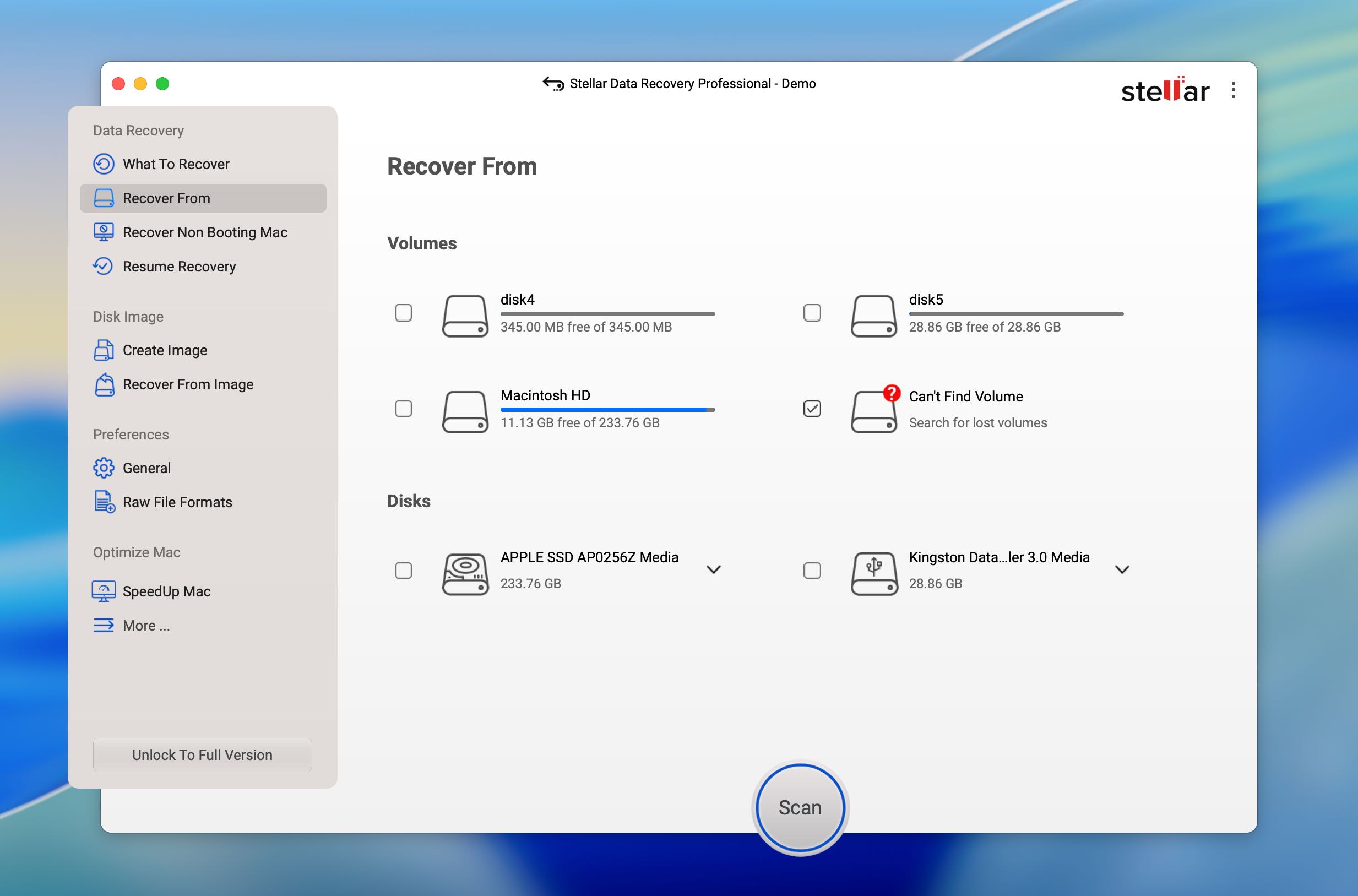
To search specifically for missing partitions, we had to return to the drive-selection screen and select Can’t Find Volume first. Only then could we choose the physical USB drive and start searching for lost volumes. Once we figured out this distinction, the rest of the process was easy to follow. Stellar completed the partition scan in 6 minutes 34 seconds.
The results were also relatively easy to navigate. Detected volumes could be opened individually to browse their contents, and the files were organized under the partitions where Stellar had found them. Original filenames were preserved, and previews worked correctly for the files we checked, which made it easy to verify their contents before recovery.
Recovery Performance in Our Test
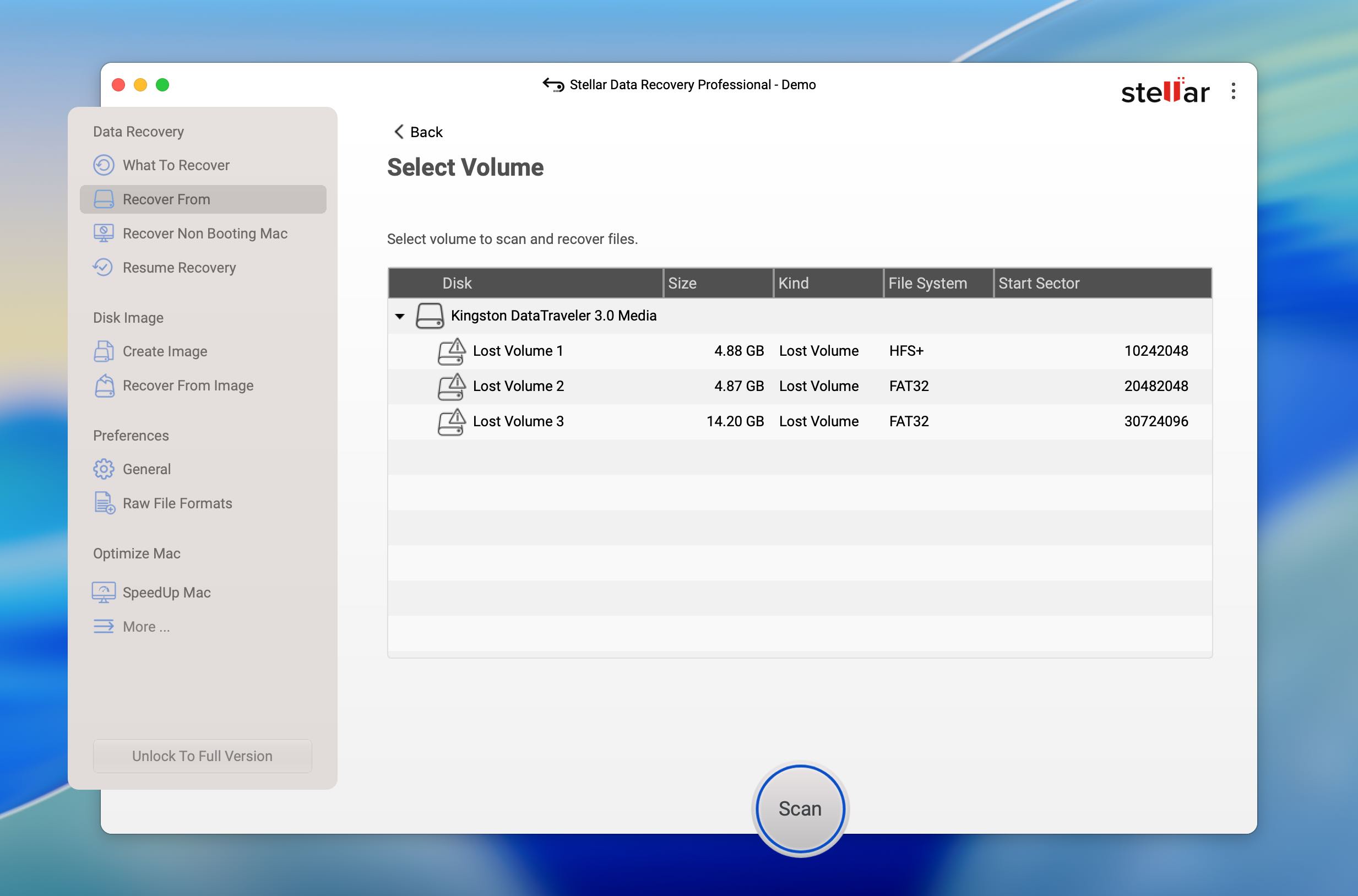
Stellar found three of the four partitions from our test drive. However, it didn’t identify all of their file systems correctly. One partition was correctly recognized as HFS+, while the other two were identified as FAT32. One of those FAT32 partitions had originally been formatted as exFAT, meaning Stellar found the correct partition but misidentified its file system.
Despite this error, the files themselves were placed under the correct detected partitions. We didn’t have to sort through a mixed collection of results to determine which files had originally belonged together. Their original filenames were also preserved, and the preview function worked correctly with our test files.
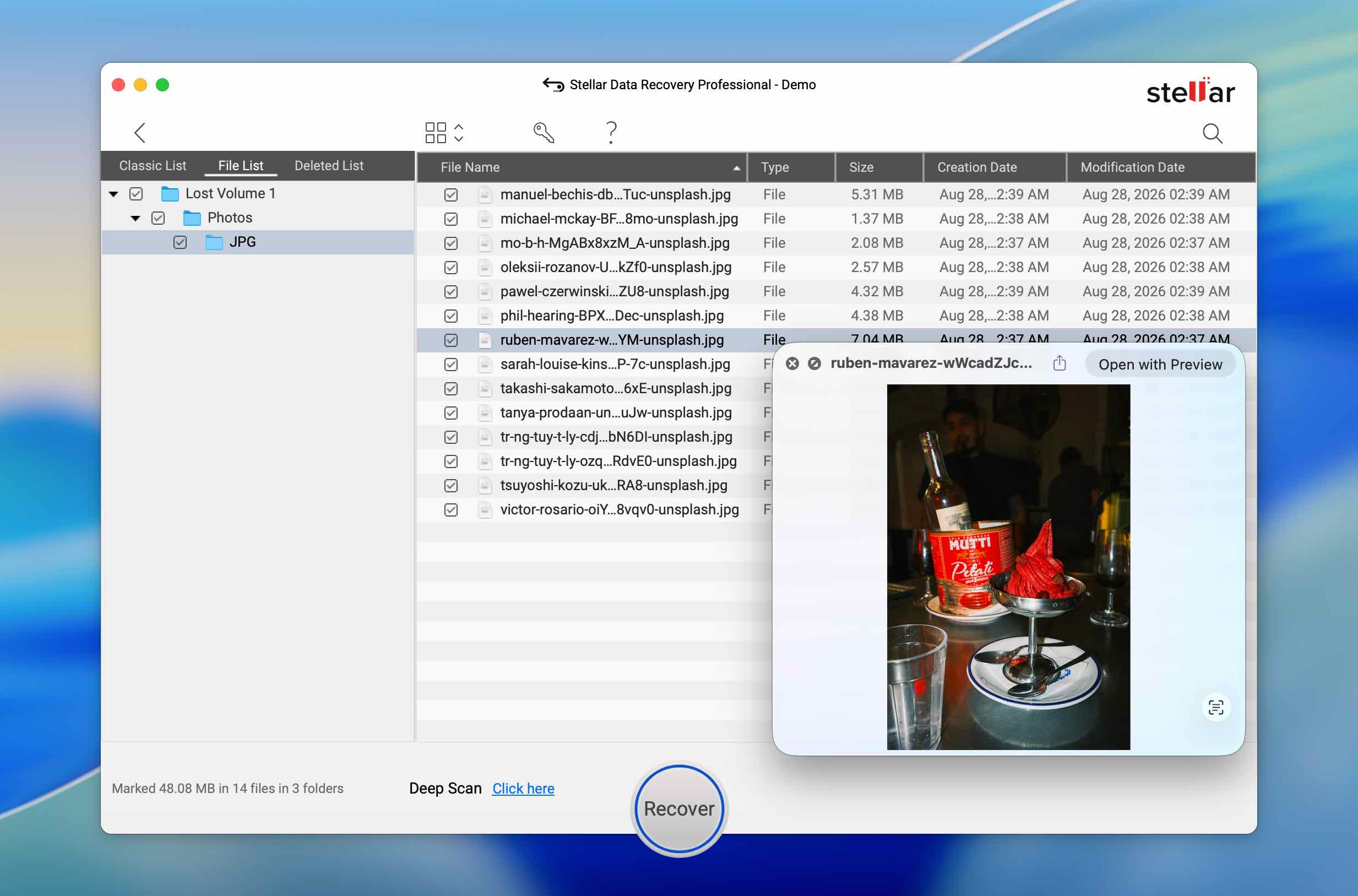
As with the previous two alternatives, Stellar’s role here was ultimately data recovery. It could locate missing volumes and recover files from them, but it did not restore the partitions themselves to the USB drive.
| Parameter | Stellar Data Recovery |
| Scan time | 6m 34s |
| Partitions found | 3/4 |
| File systems identified correctly | 2/3 detected partitions |
| Test data found | Files correctly associated with the detected partitions |
| Original filenames | Preserved |
| Preview | Worked correctly for tested files |
| Restores partition itself | No |
| Free version | Up to 1 GB of recovery |
Note: Stellar Data Recovery has much more to offer than the lost volume recovery we tested here. Our full Stellar Data Recovery review takes a broader look at its recovery performance.
4. RS Partition Recovery (Best for Guided Partition Recovery)
Website: https://recoverhdd.com/data-recovery/partition-recovery.html
RS Partition Recovery is a recovery tool designed specifically for damaged, formatted, deleted, and inaccessible partitions. It can work with internal and external storage devices and combines partition search with file recovery, allowing you to browse the contents of detected volumes and recover selected data. Despite its name, the program is primarily recovery-focused: in our test, it provided access to files from the lost partitions rather than restoring the original partition structure itself.
Best for: Users who prefer a simple, guided workflow for finding lost partitions and recovering their contents.
Price: RS Partition Recovery can be downloaded and tested for free, but you need a license to save recovered files. The Home Edition costs $97.95, while the Home Edition with virtual machine support costs $237.95. The Business Version is available for $397.95.
Interface & Usability
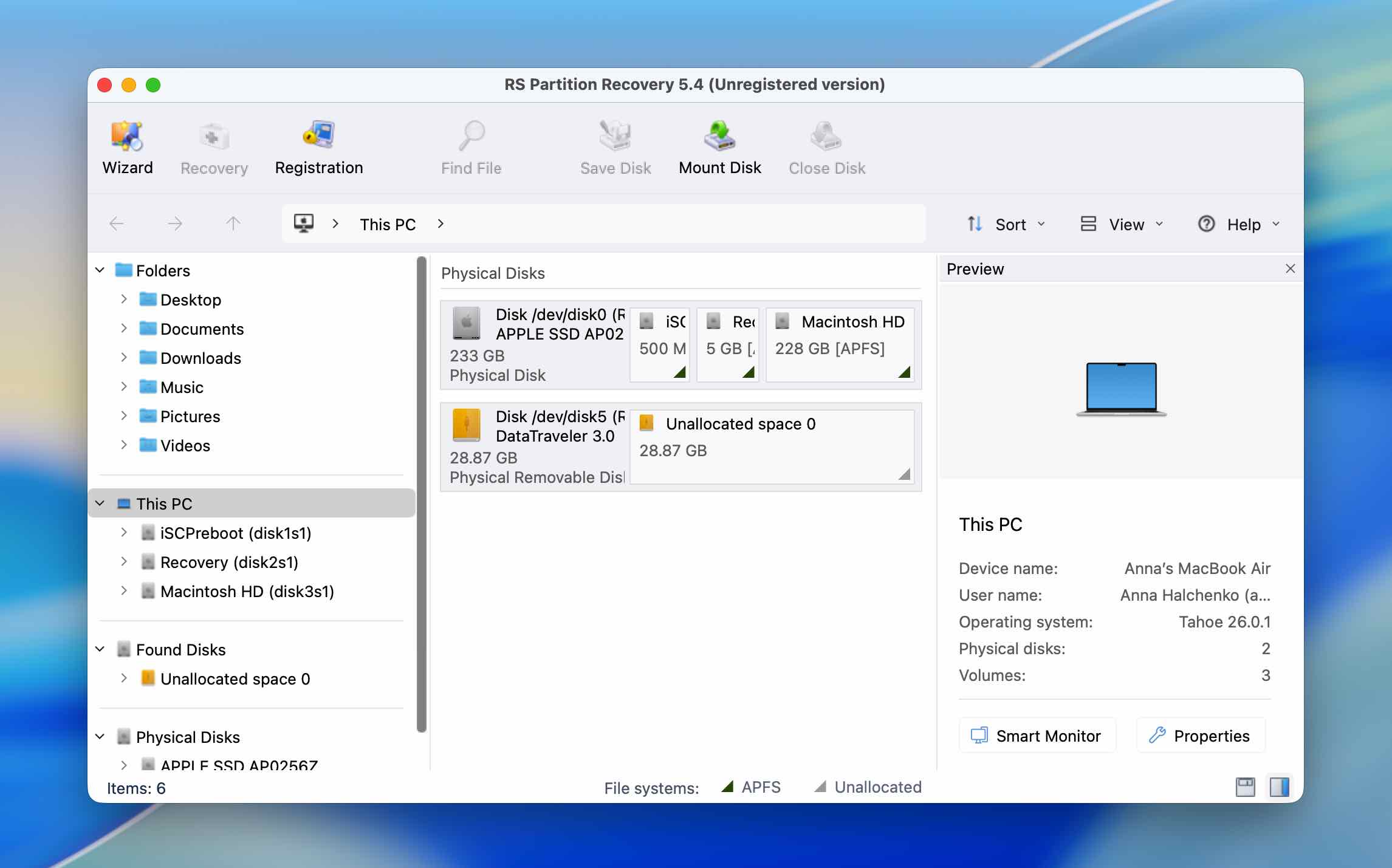
RS Partition Recovery has a fairly simple interface, similar to most of the other recovery programs on this list. The program guides you through drive selection and scanning, so there isn’t much to configure before starting the search. Even if you haven’t used partition recovery software before, the basic workflow is easy to understand.
The results are also easy to browse. Detected partitions appear separately, and you can open them to inspect the files found inside. In our test, original filenames were preserved, and the preview function worked correctly, so we could check the JPEG photos and MP4 videos before recovery.
The main downside was speed. RS Partition Recovery took 16 minutes to complete our scan, making it noticeably slower than Disk Drill and Stellar Data Recovery on the same 32 GB USB drive.
Recovery Performance in Our Test
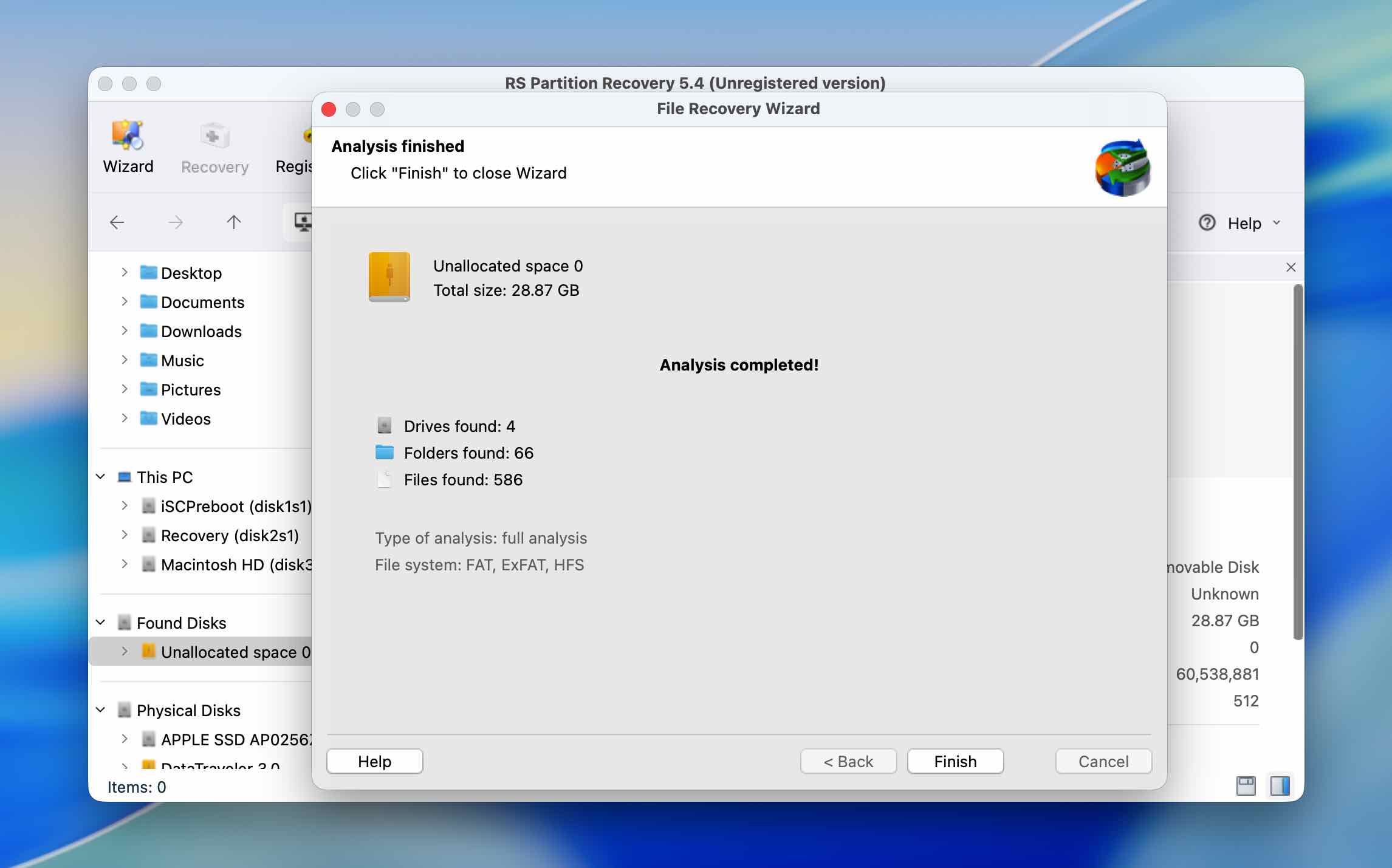
RS Partition Recovery was the first program in our ranking to find all four partitions from the test drive. It returned two HFS volumes, one FAT32 volume, and one exFAT volume. However, none of the four was identified with the correct file system compared with the original partition layout.
That makes the result somewhat unusual: the partition detection itself was good, but the file system identification was not. More importantly for data recovery, this didn’t prevent RS Partition Recovery from finding the files stored on those volumes. The test files were intact, their original filenames were preserved, and previews worked correctly.
As with Disk Drill, DMDE, and Stellar Data Recovery, however, finding the partitions didn’t mean RS Partition Recovery could put them back on the drive. In our test, the program let us recover their contents, but it did not restore the original partition table.
| Parameter | RS Partition Recovery |
| Scan time | 16m |
| Partitions found | 4/4 |
| File systems identified correctly | 0/4 |
| Test data found | Files from all four partitions found intact |
| Original filenames | Preserved |
| Preview | Worked correctly for tested files |
| Restores partition itself | No |
| Free version | Scan and preview only; recovery requires a paid license |
5. TestDisk (Best for Partition Table Recovery)
Website: https://www.cgsecurity.org/wiki/testDisk
TestDisk is a free, open-source recovery utility that differs considerably from the other programs on this list. Instead of focusing primarily on recovering individual files, it is designed to work directly with partition structures. It can search for lost partitions, rebuild damaged partition tables, repair certain boot sector problems, and write recovered partition information back to a drive. TestDisk is available for macOS, Windows, and Linux and supports a wide range of partition tables and file systems.
Best for: Experienced users who need to repair a damaged partition structure or attempt to restore lost partitions rather than simply recover their files.
Price: Completely free and open-source.
Interface & Usability
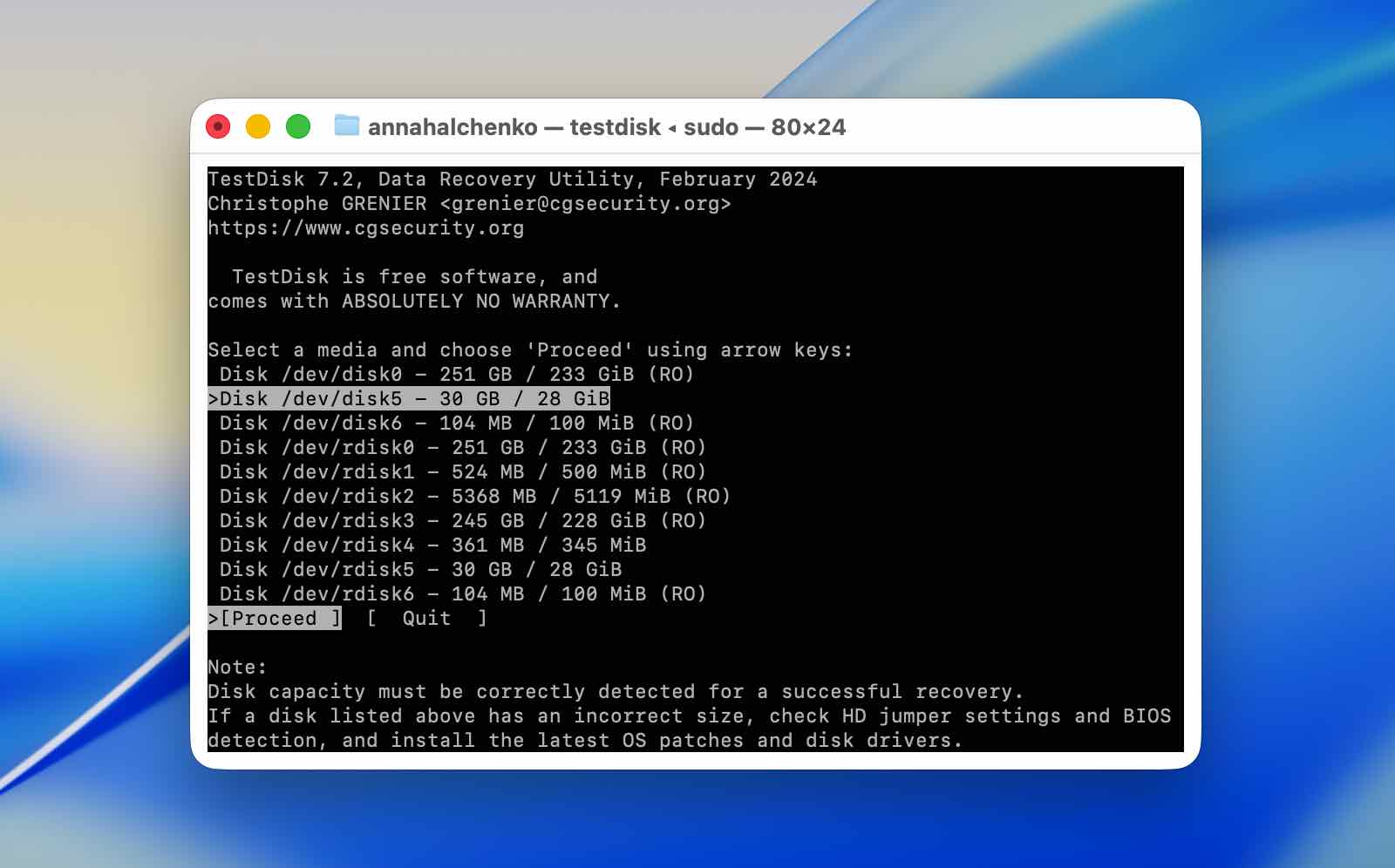
Usability is easily TestDisk’s biggest obstacle. It runs through a text-based interface, and many of its options deal directly with partition tables and disk structures. The individual menus aren’t necessarily difficult to navigate, but understanding which operation to choose and what it will change on the drive is another matter.
For that reason, we wouldn’t recommend experimenting with TestDisk without following a detailed guide, particularly once you reach options that can write changes to the drive. Ideally, you should use it on a disk that has already been backed up or imaged. Unlike recovery programs that primarily read the source drive and save recovered files elsewhere, TestDisk can modify the partition structure itself, so a wrong choice can leave you with a worse situation than the one you started with.
TestDisk also lacks the visual conveniences of the other alternatives we tested. There are no file thumbnails or conventional preview window, which made it harder to verify what exactly had been found before attempting partition restoration.
Recovery Performance in Our Test
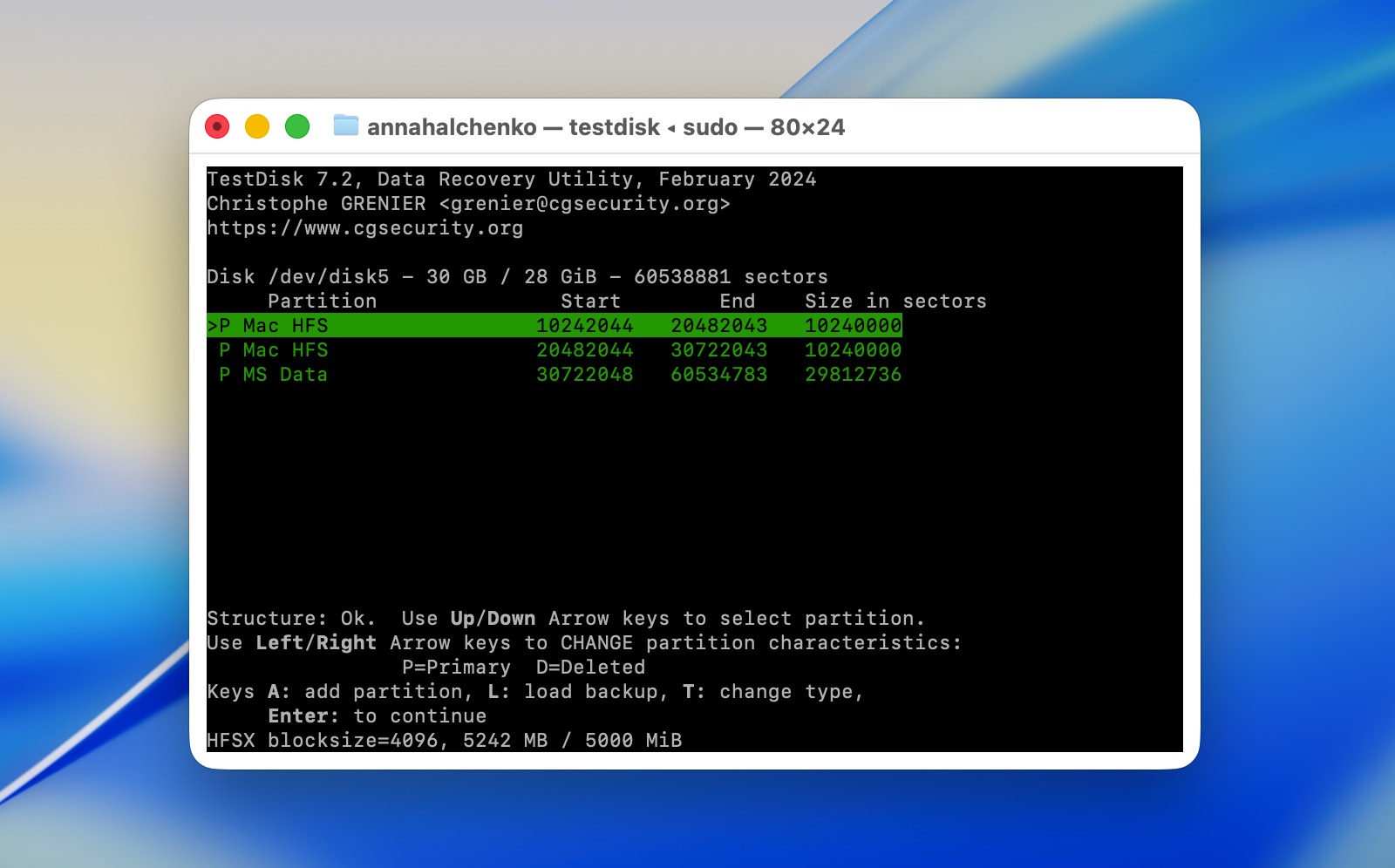
TestDisk took 17 minutes to analyze our 32 GB Kingston USB drive and found two of the four original partitions, both HFS+. It didn’t locate the FAT32 or exFAT partitions.
We also couldn’t verify the recovered file set in the same way we did with Disk Drill, DMDE, Stellar Data Recovery, and RS Partition Recovery. TestDisk doesn’t provide the type of file preview available in those applications, so we couldn’t go through our JPEG and MP4 test files and confirm their contents before proceeding.
The more important part of this test was TestDisk’s ability to write the detected partitions back to the drive. Unfortunately, our attempt wasn’t successful. After we tried to restore the detected partition structure, the USB drive ended up corrupted rather than returning to its original four-partition state.
We wouldn’t take this single result as evidence that TestDisk is ineffective at partition repair. We’ve used and tested the program in other scenarios, and partition recovery is one of the tasks it is specifically built to perform. Our test case was also somewhat unusual: instead of simply deleting individual partitions, we erased the MBR from a drive containing four partitions with different file systems. Based on the results, this particular setup simply wasn’t a good match for what TestDisk was able to reconstruct.
Still, the failed write is a good reason to be cautious. TestDisk was the only program in our comparison that actually gave us the option to write the recovered partition structure back to the drive, but it was also the tool where that attempt left our test drive in a worse state. If the data matters, creating a byte-to-byte backup before using its write functions is a much safer approach.
| Parameter | TestDisk |
| Scan time | 17m |
| Partitions found | 2/4 |
| File systems identified | 2 HFS+ partitions |
| Test data verified | No; conventional file preview wasn’t available |
| Original filenames | Not evaluated |
| Preview | No conventional file preview |
| Restores partition itself | Yes, but the attempt failed in our test |
| Free version | Free and open-source |
Note: If TestDisk caught your attention and you want to try it yourself, check out our TestDisk and PhotoRec reviews first. It explains how to download and use TestDisk, as well as its companion recovery tool, PhotoRec, so you can better understand what each utility does before working with your drive.
If your USB drive ends up corrupted after a failed partition repair attempt, as ours did, check out our guide on how to recover files from a corrupted USB drive. It covers the available recovery methods and explains the main factors that can affect your chances of getting the files back.
Final Verdict
There are far fewer partition management tools available for macOS than general data recovery applications, and even the options that do exist don’t offer the same range of partition operations that MiniTool Partition Wizard provides on Windows. That makes it difficult to name a true one-to-one MiniTool Partition Wizard alternative for Mac.
For basic partition management, such as creating, deleting, and formatting partitions, we recommend starting with the built-in Disk Utility. You don’t necessarily need third-party software for these routine operations.
If you’ve lost a partition that still contains data and that data hasn’t been overwritten, one of the recovery tools on our list is a better choice. Based on our testing, Disk Drill is our top recommendation because it combines lost partition detection with reliable file recovery, an easy-to-navigate interface, working previews, and several useful disk-related tools.
We’d also suggest keeping TestDisk in mind for cases that involve damaged partition structures or partition table corruption. It’s much less beginner-friendly and our own restoration attempt didn’t succeed in this particular test, but unlike the other tools on our list, TestDisk is designed to work directly with partition structures rather than simply recover the files stored on them.